> For the complete documentation index, see [llms.txt](https://docs.eesel.ai/llms.txt). Markdown versions of documentation pages are available by appending `.md` to page URLs; this page is available as [Markdown](https://docs.eesel.ai/account/account.md).

# Account

Who is on your workspace, how to invite teammates and set their roles, what eesel costs, how to add a card and a monthly spend limit, and how to fix account problems.

Your workspace is the company account your AI teammates belong to. This page covers who is on it, what it costs, and how to fix account problems.

Everything here is under your **workspace name at the top left**, then **Workspace settings**.

## Invite your team

Anyone who should chat with your agent, approve its work, or receive email from it needs to be a member.

{% stepper %}
{% step %}

### Open Members

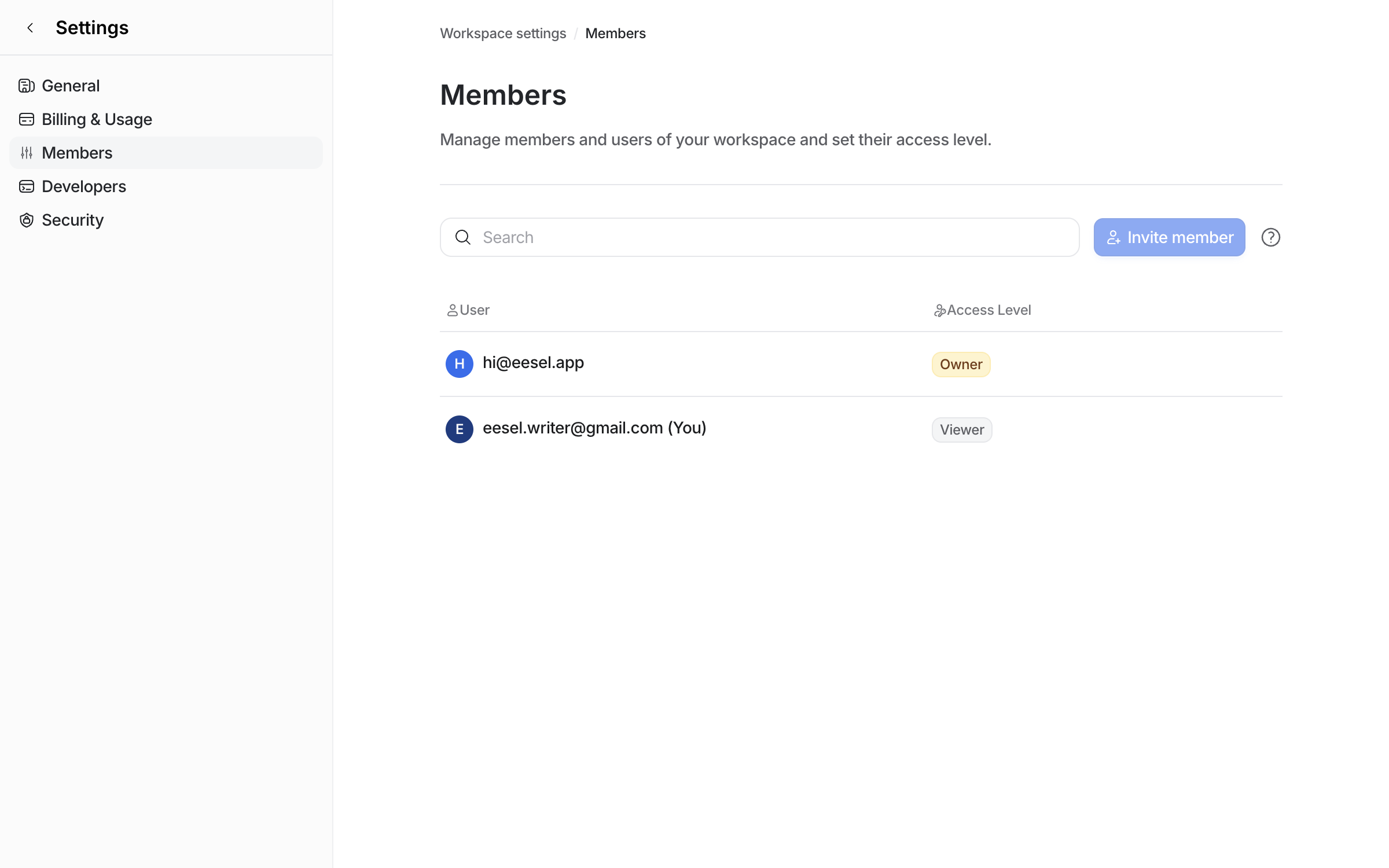
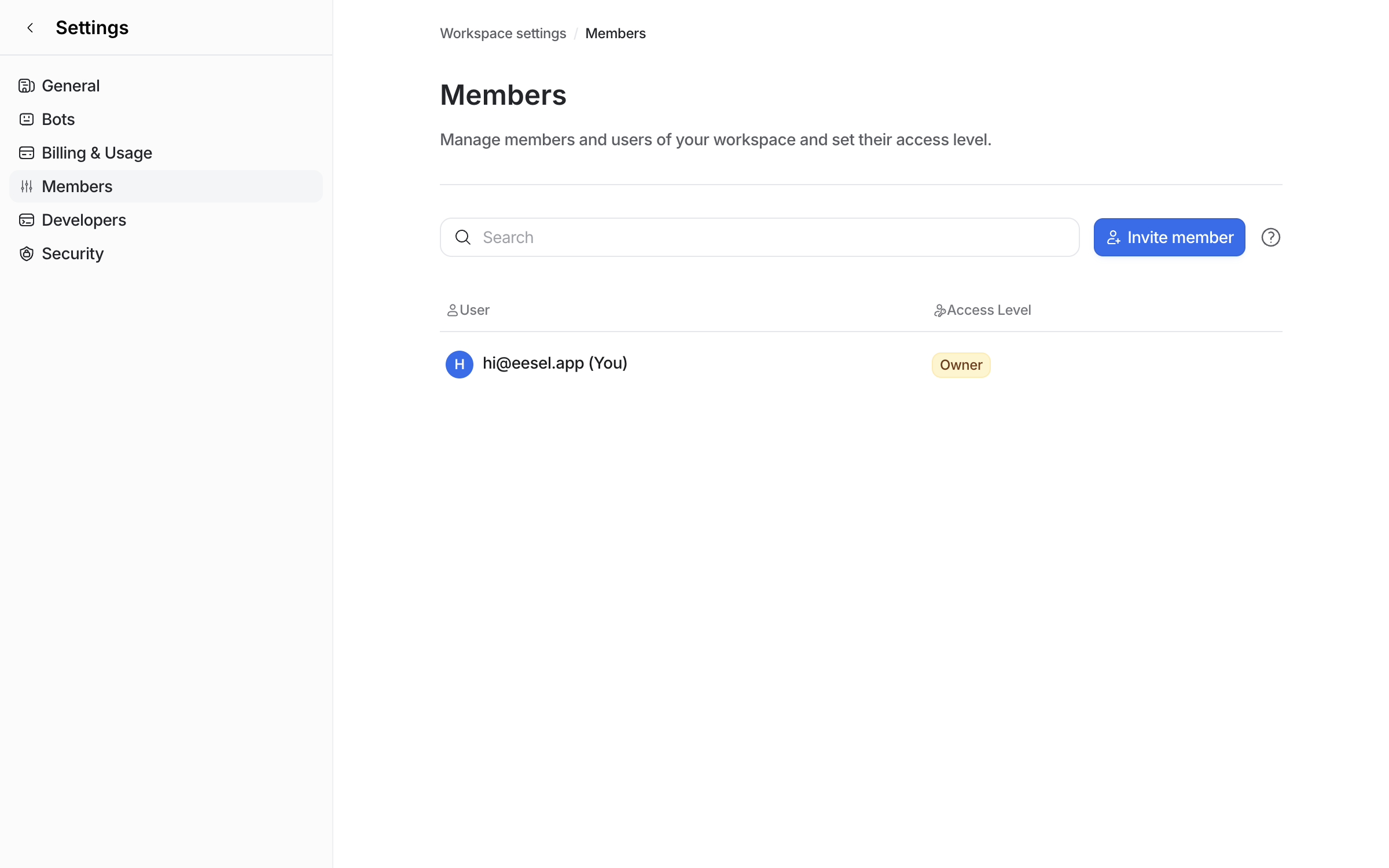
Click your workspace name at the top left, then **Workspace settings > Members**. The page lists everyone on the workspace with their role.

<figure><img src="https://3732419023-files.gitbook.io/~/files/v0/b/gitbook-x-prod.appspot.com/o/spaces%2F2xXO0947TYoPIhGoBgSE%2Fuploads%2Fgit-blob-614dc1a4392d4020fa9c1b6977eeea8f24557aa9%2Femail-members-list.png?alt=media" alt="The Members page under Workspace settings, listing one owner and an Invite member button"><figcaption><p>The Members page before anyone is invited.</p></figcaption></figure>
{% endstep %}

{% step %}

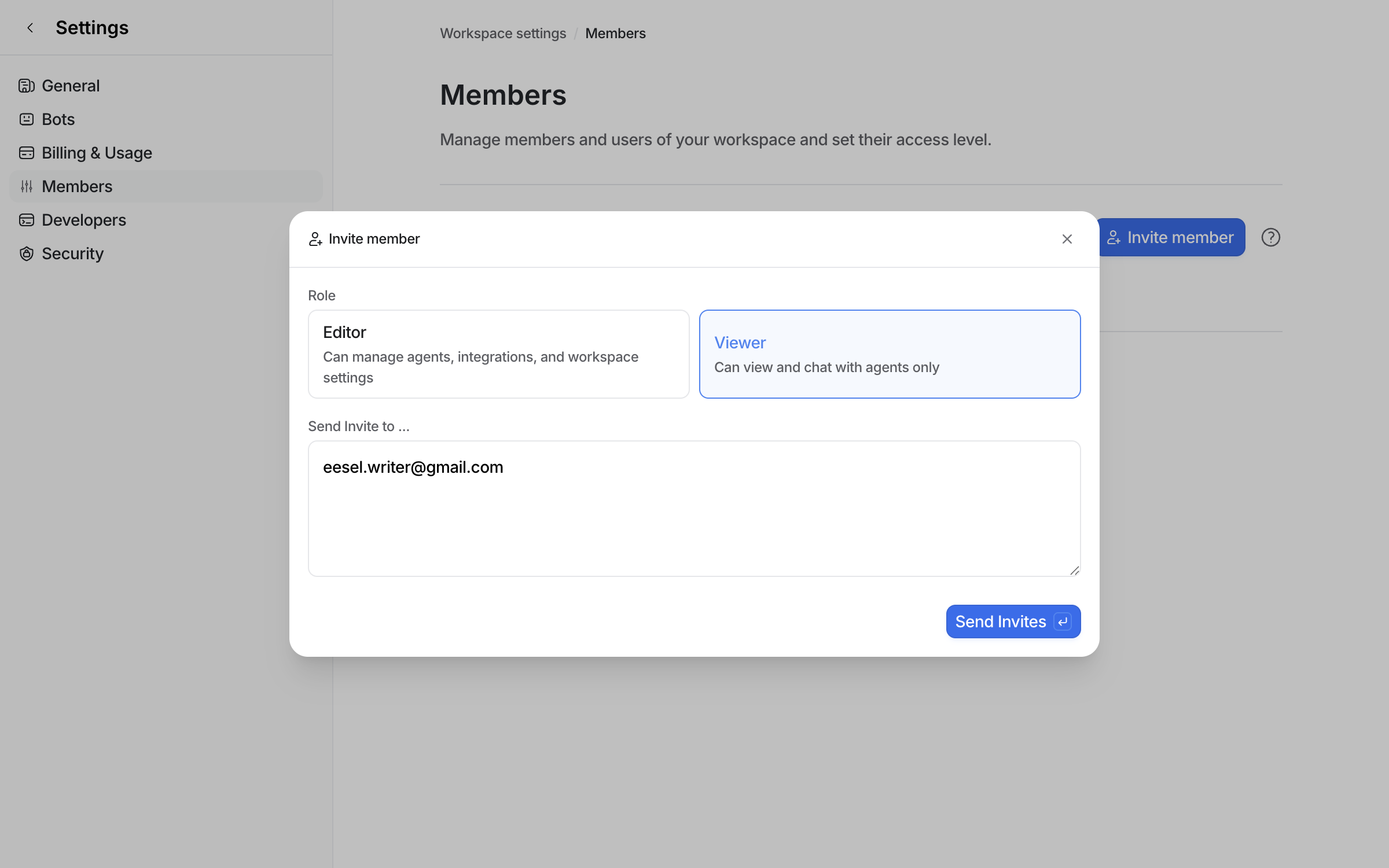
### Invite a member

Click **Invite member**, pick a role and enter their email address. **Editor** can change what your agent does. **Viewer** can chat with it and read its work.

<figure><img src="https://3732419023-files.gitbook.io/~/files/v0/b/gitbook-x-prod.appspot.com/o/spaces%2F2xXO0947TYoPIhGoBgSE%2Fuploads%2Fgit-blob-d1e5f7cd3f8b98eb21431fecc2b528f06b536e8c%2Femail-invite-form.png?alt=media" alt="The Invite member dialog with Editor and Viewer roles, Viewer selected, and an email address typed into the Send Invite to box"><figcaption><p>Inviting a member as a Viewer.</p></figcaption></figure>

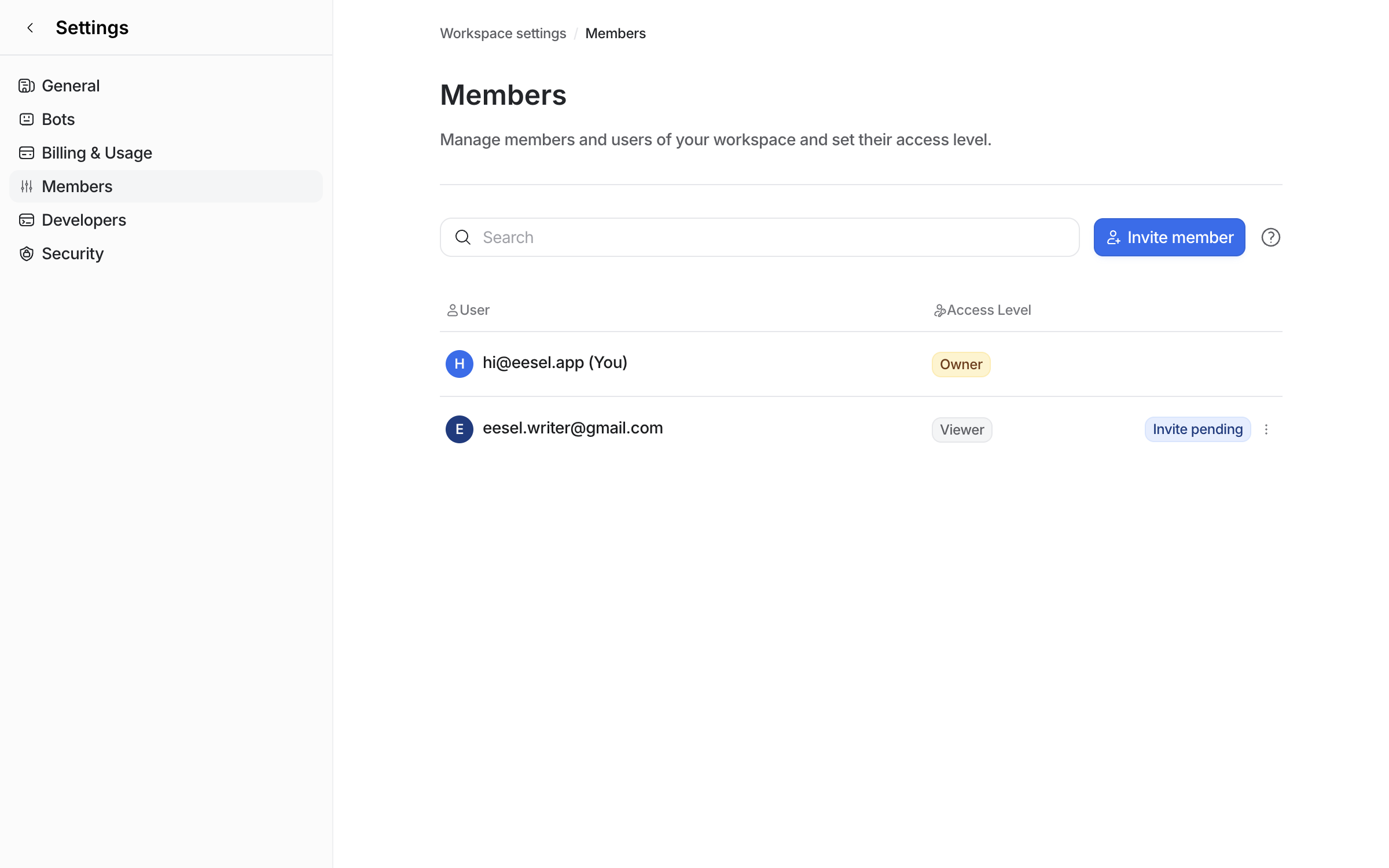
The invite shows as pending until it is accepted.

<figure><img src="https://3732419023-files.gitbook.io/~/files/v0/b/gitbook-x-prod.appspot.com/o/spaces%2F2xXO0947TYoPIhGoBgSE%2Fuploads%2Fgit-blob-e3bc1720959b080ee7173f808b481152d3353522%2Femail-invite-pending.png?alt=media" alt="The Members page listing the owner and the invited address as a Viewer with an Invite pending label"><figcaption><p>The invite waiting to be accepted.</p></figcaption></figure>
{% endstep %}

{% step %}

### They accept in their own browser

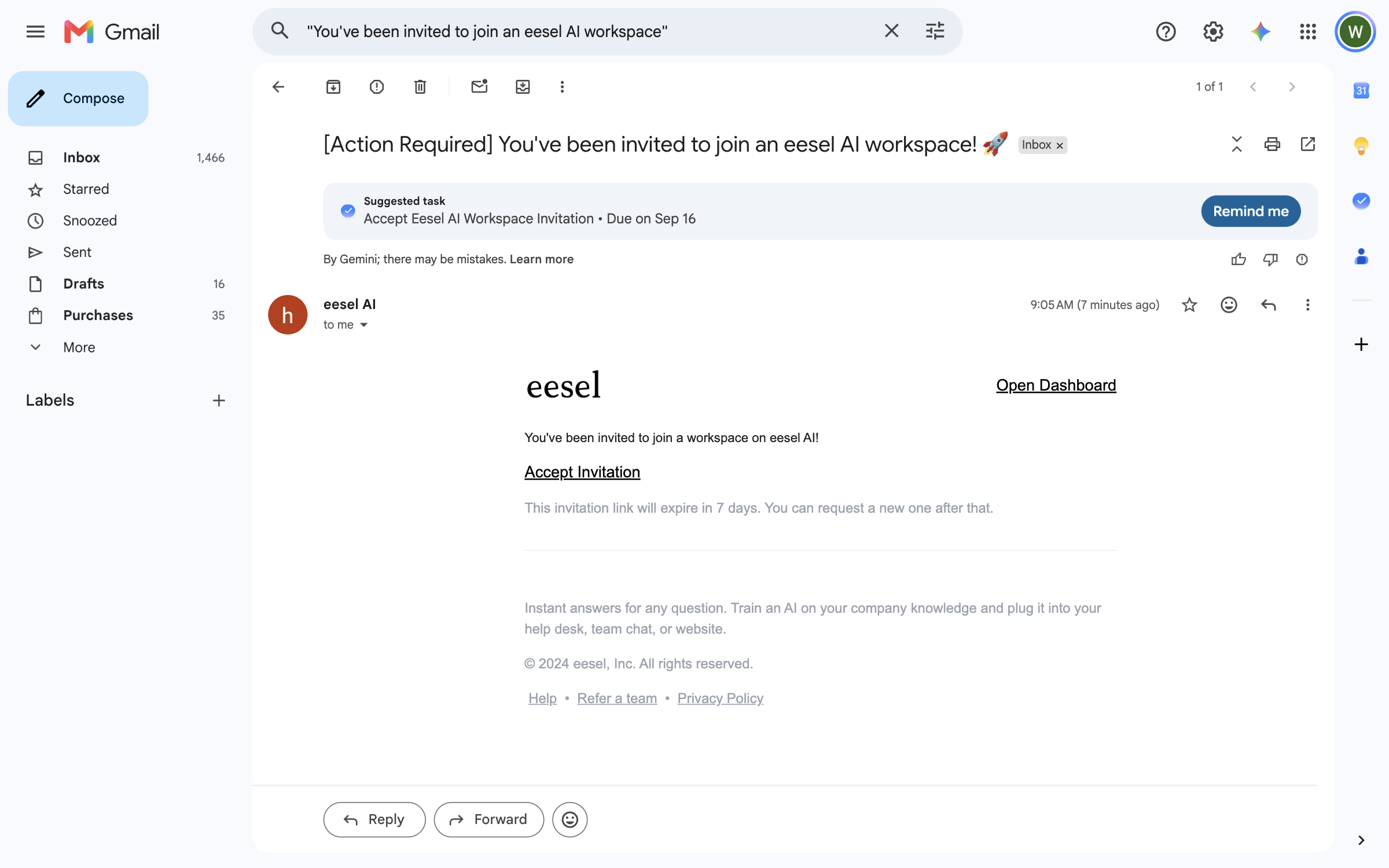
The invited person gets an email from eesel AI with an **Accept Invitation** link that lasts seven days.

<figure><img src="https://3732419023-files.gitbook.io/~/files/v0/b/gitbook-x-prod.appspot.com/o/spaces%2F2xXO0947TYoPIhGoBgSE%2Fuploads%2Fgit-blob-50eeaeb49a2daeab493bed792f1724bc1652bbea%2Femail-invite-email.png?alt=media" alt="The invitation email in Gmail, titled Action Required, with an Accept Invitation link and a note that the link expires in 7 days"><figcaption><p>The invitation email.</p></figcaption></figure>

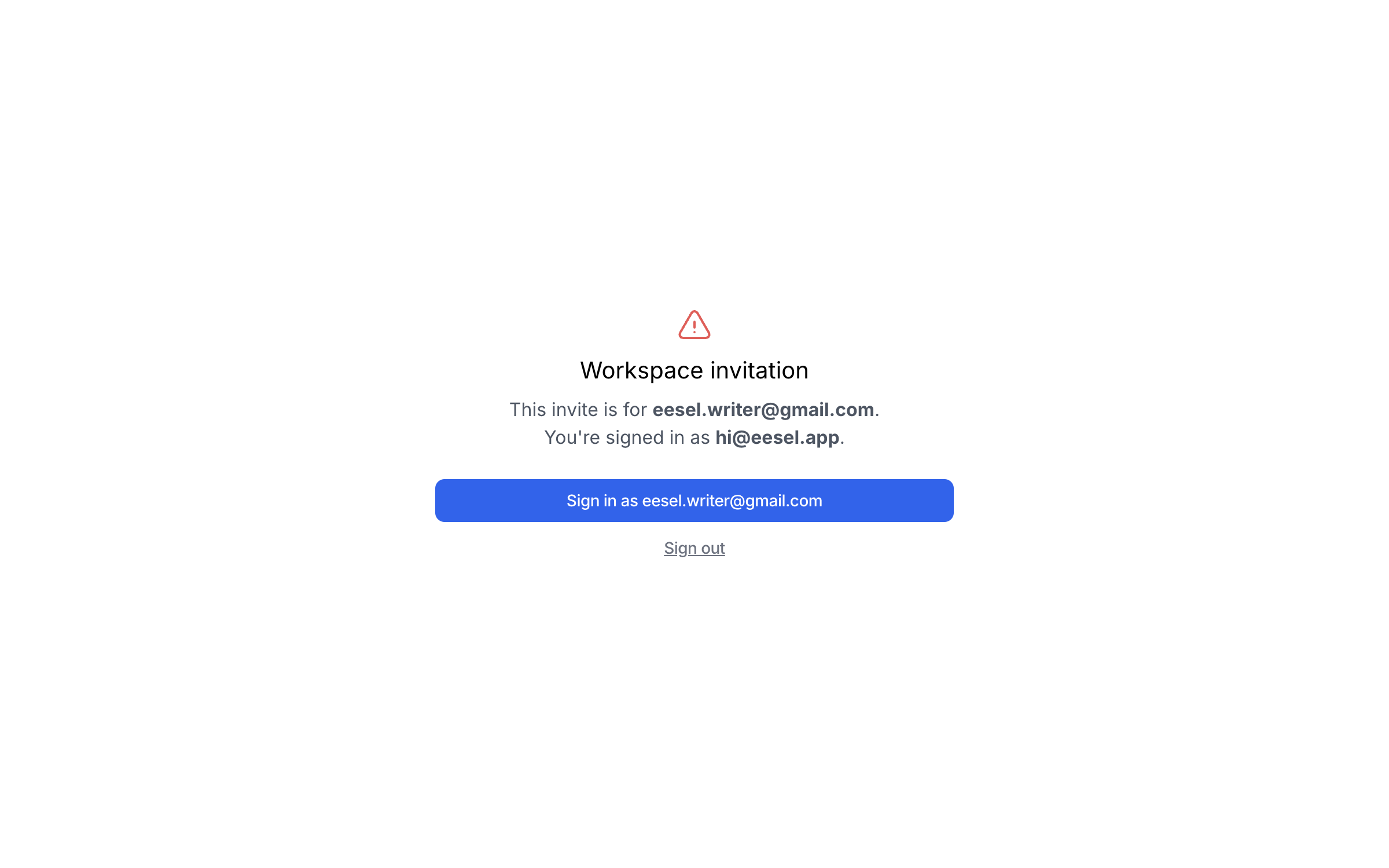
The link opens a sign-in for the invited address. If a different account is signed in, the page says so and offers to sign in as the right one.

<figure><img src="https://3732419023-files.gitbook.io/~/files/v0/b/gitbook-x-prod.appspot.com/o/spaces%2F2xXO0947TYoPIhGoBgSE%2Fuploads%2Fgit-blob-943b42637910872e8f36ec1d4f40c78770b0bb40%2Femail-invite-sign-in.png?alt=media" alt="The workspace invitation page saying the invite is for one address while another is signed in, with a button to sign in as the invited address"><figcaption><p>The invitation page asks for the right sign-in.</p></figcaption></figure>

**Check it worked.** The Members page lists the new member with their role and no pending label.

<figure><img src="https://3732419023-files.gitbook.io/~/files/v0/b/gitbook-x-prod.appspot.com/o/spaces%2F2xXO0947TYoPIhGoBgSE%2Fuploads%2Fgit-blob-dd06c2c3df64047dd6a28d6ba5c6541d66bfdc6f%2Femail-members-accepted.png?alt=media" alt="The Members page listing the owner and the new member as a Viewer, with no pending label"><figcaption><p>The member accepted and listed.</p></figcaption></figure>
{% endstep %}
{% endstepper %}

### Roles

There is one **Owner** per workspace, and each person has one role at a time.

|                                         | Owner | Editor | Viewer |
| --------------------------------------- | :---: | :----: | :----: |
| View agents and chat                    |   ✓   |    ✓   |    ✓   |
| Create and edit agents                  |   ✓   |    ✓   |        |
| Manage integrations and knowledge       |   ✓   |    ✓   |        |
| Invite and remove members, change roles |   ✓   |    ✓   |        |
| Approve your agent's actions            |   ✓   |    ✓   |        |
| Manage billing                          |   ✓   |    ✓   |        |
| Rename or delete the workspace          |   ✓   |        |        |
| Transfer ownership                      |   ✓   |        |        |

A Viewer can chat with your agent, but your agent does not change anything or take write actions on their behalf, wherever they talk to it. It is the role for people who want answers without the ability to change the setup.

## Billing

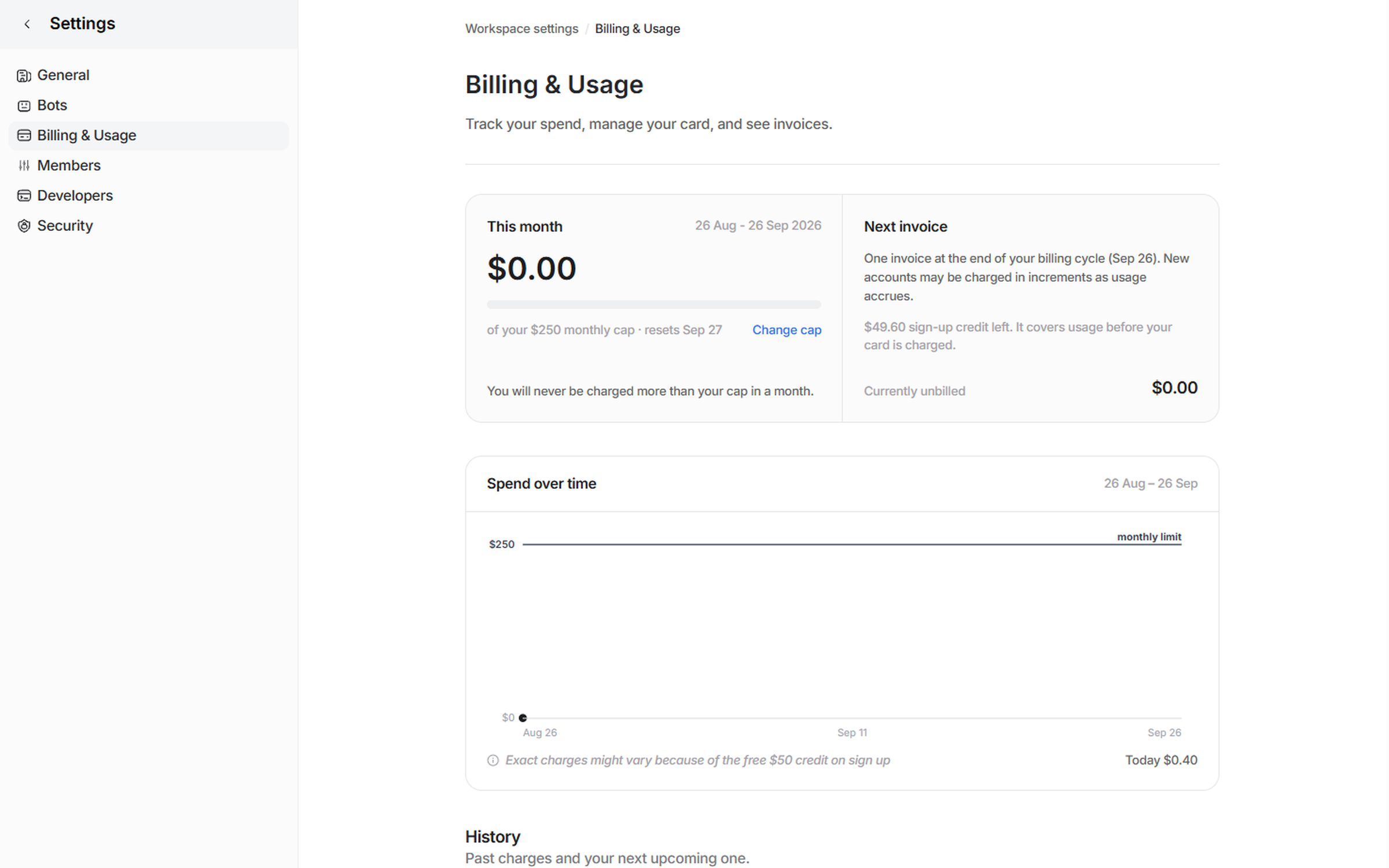
Billing lives in **Workspace settings > Billing & Usage**. There you see this month's spend against your monthly cap, when the next invoice comes, your spend over time, and your charge history.

<figure><img src="https://3732419023-files.gitbook.io/~/files/v0/b/gitbook-x-prod.appspot.com/o/spaces%2F2xXO0947TYoPIhGoBgSE%2Fuploads%2Fgit-blob-a7cac36860d14110a9a8aa7ecd5e37f249b8b5fb%2Faccount-billing-usage.png?alt=media" alt="The Billing &#x26; Usage page showing this month&#x27;s spend against a $250 monthly cap, the next invoice date, remaining sign-up credit and a spend over time chart"><figcaption><p>Billing &#x26; Usage: this month against the cap, and the next invoice.</p></figcaption></figure>

For what things cost, what counts as a task, the trial, and how to control spend, see [Pricing](/pricing/overview.md).

### Add a card

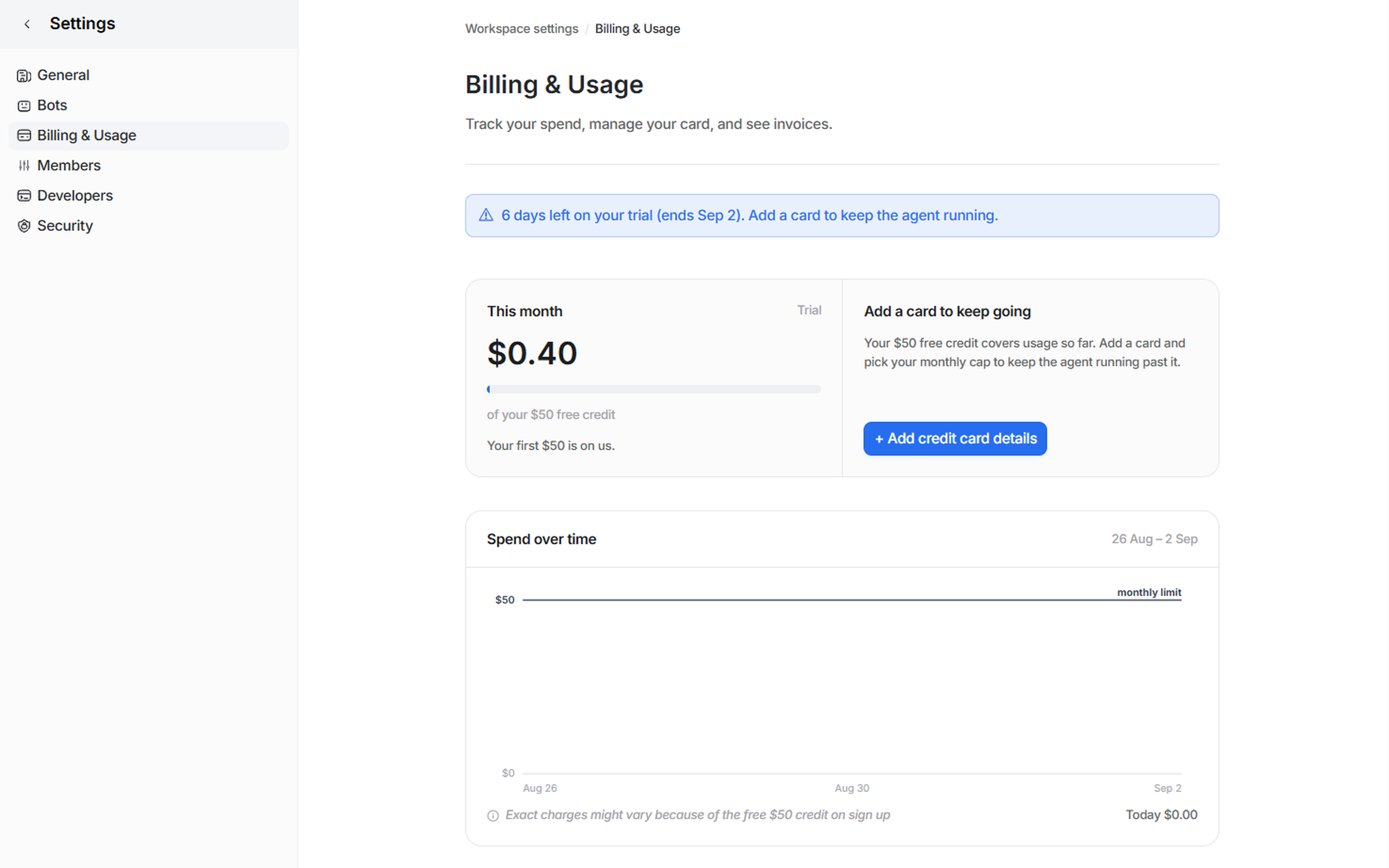
During the trial the page shows your free credit and an **Add credit card details** button.

<figure><img src="https://3732419023-files.gitbook.io/~/files/v0/b/gitbook-x-prod.appspot.com/o/spaces%2F2xXO0947TYoPIhGoBgSE%2Fuploads%2Fgit-blob-dbb450d6c360e92ac8ce9193a3cbce8b96f7df69%2Faccount-billing-trial.png?alt=media" alt="The Billing &#x26; Usage page on a trial, showing $0.40 of the $50 free credit used, days left on the trial, and an Add credit card details button"><figcaption><p>Billing &#x26; Usage during the trial.</p></figcaption></figure>

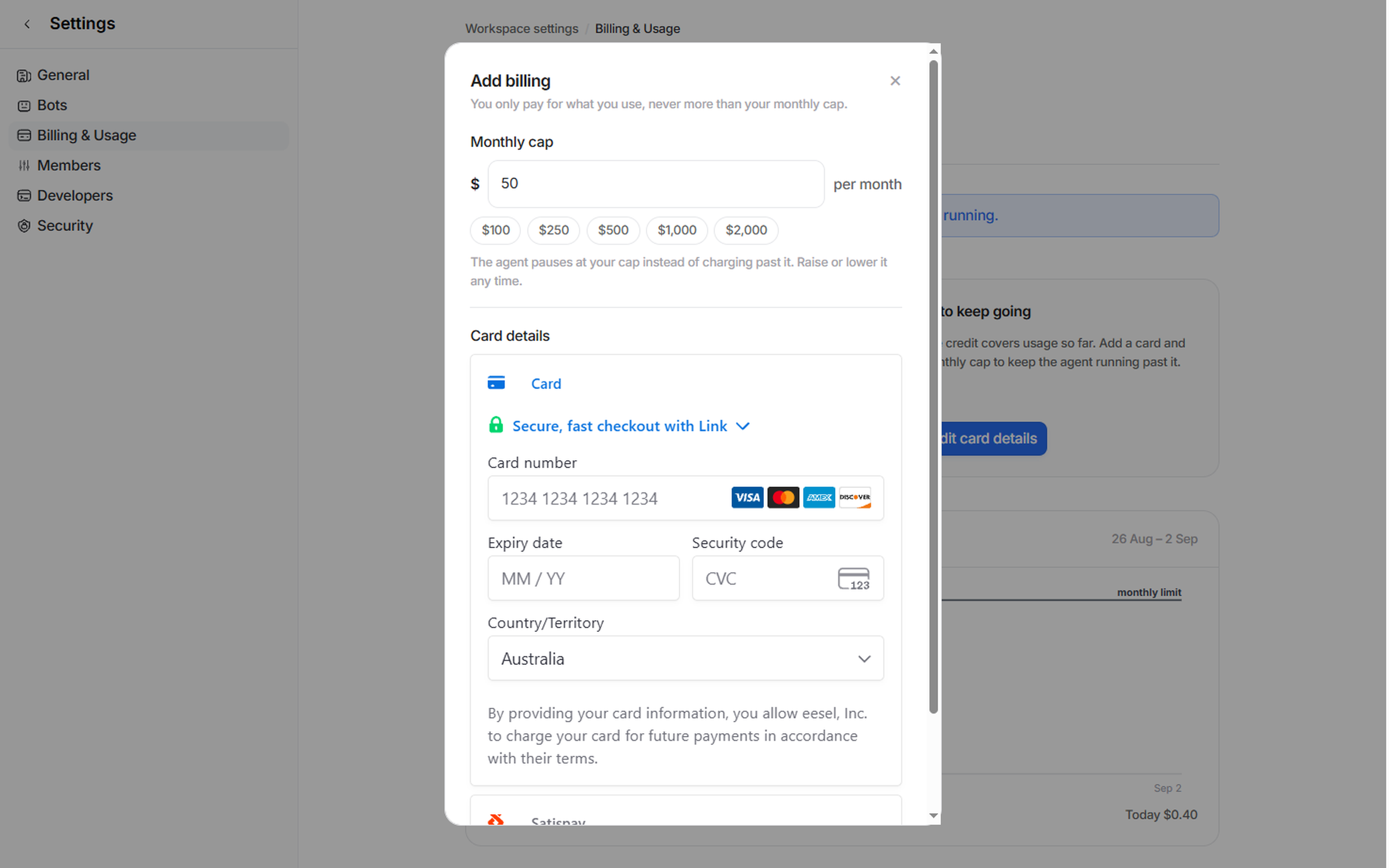
Click it, choose your monthly cap, and enter the card. Stripe stores the card. Once a card is on file, the monthly cap and the billing mode unlock.

<figure><img src="https://3732419023-files.gitbook.io/~/files/v0/b/gitbook-x-prod.appspot.com/o/spaces%2F2xXO0947TYoPIhGoBgSE%2Fuploads%2Fgit-blob-c8fca908e103d540a40755c811dacbadbd282afc%2Faccount-add-card.png?alt=media" alt="The Add billing dialog with the monthly cap field and preset amounts above the Stripe card details form"><figcaption><p>Pick a cap and enter the card in one dialog.</p></figcaption></figure>

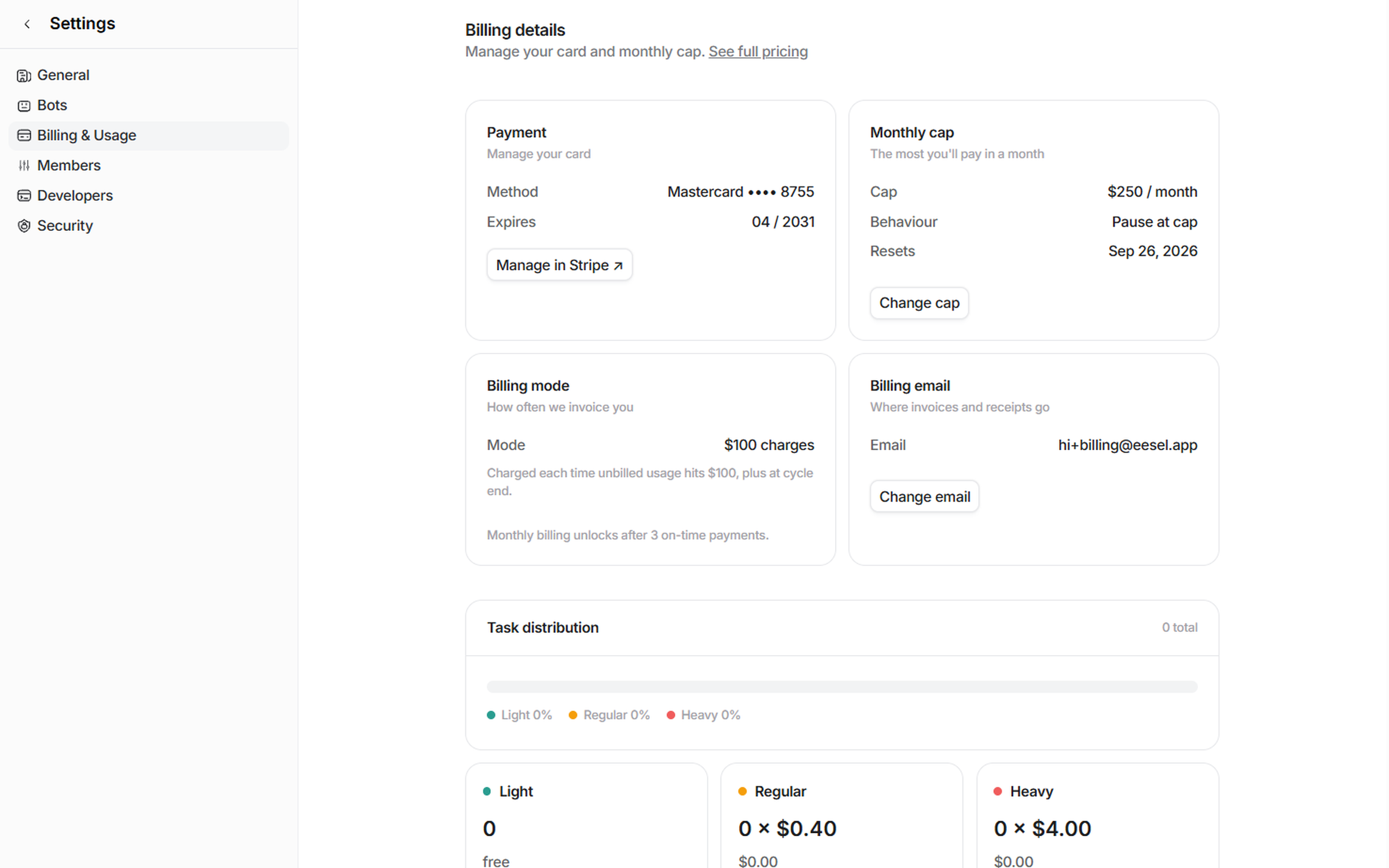
Below the usage, **Billing details** shows the saved card, the cap, how often you are invoiced, and where invoices go.

<figure><img src="https://3732419023-files.gitbook.io/~/files/v0/b/gitbook-x-prod.appspot.com/o/spaces%2F2xXO0947TYoPIhGoBgSE%2Fuploads%2Fgit-blob-c67d1836037c8143f0868bc823894d9c17e276f3%2Faccount-billing-details.png?alt=media" alt="The Billing details section with four cards: Payment showing the saved Mastercard and a Manage in Stripe button, Monthly cap at $250 with a Change cap button, Billing mode, and Billing email"><figcaption><p>Billing details: card, cap, billing mode and billing email.</p></figcaption></figure>

### Set a monthly cap

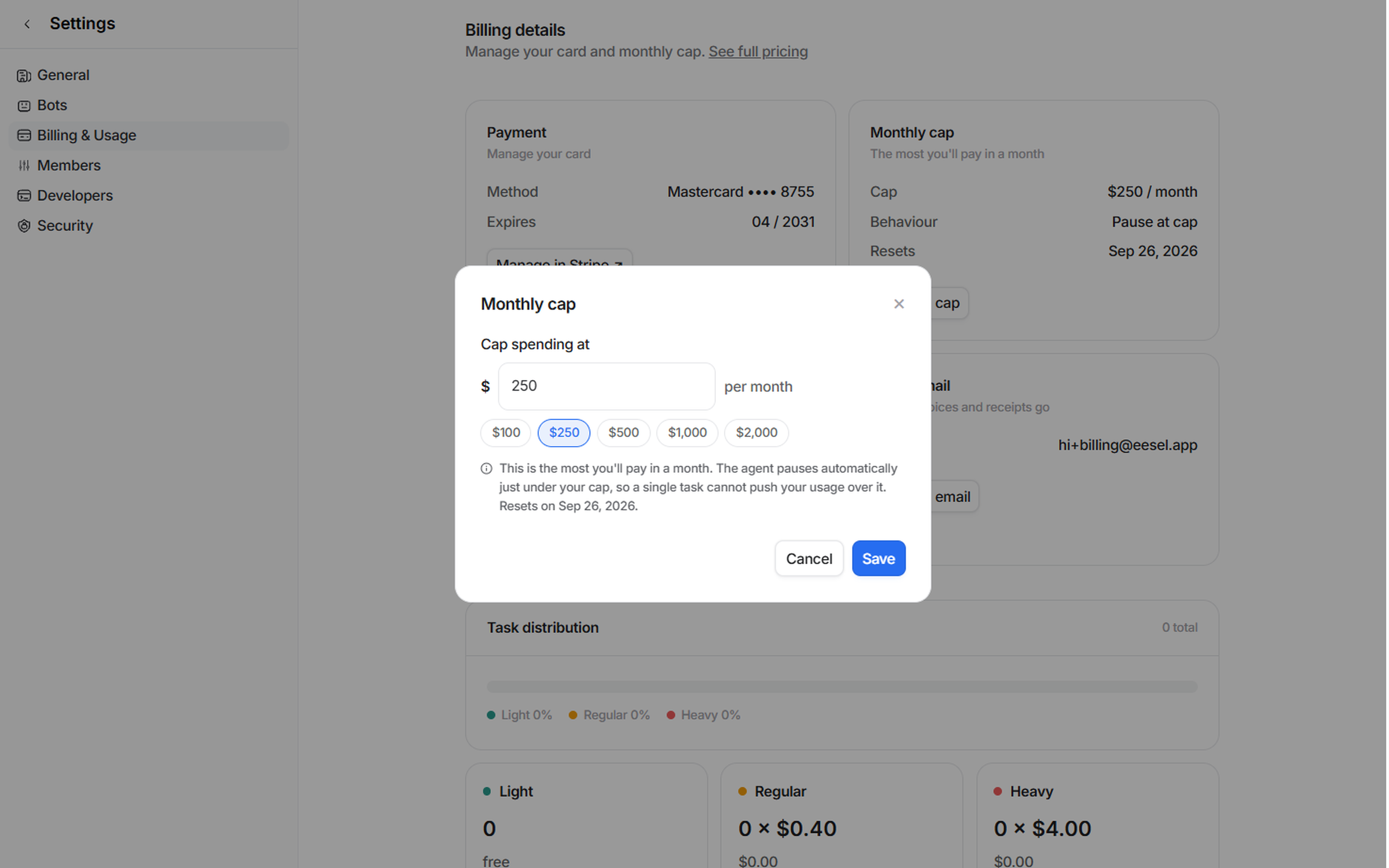
Click **Change cap** to change it. When your agents reach the cap they pause until the month resets or until you raise it. They pause just under the cap, so a single task cannot push you over it.

<figure><img src="https://3732419023-files.gitbook.io/~/files/v0/b/gitbook-x-prod.appspot.com/o/spaces%2F2xXO0947TYoPIhGoBgSE%2Fuploads%2Fgit-blob-db77485a4d47eacbdaa05de4855c26d9b273e7f6%2Faccount-spend-limit.png?alt=media" alt="The Monthly cap dialog with the amount field, preset amounts from $100 to $2,000, and a note that the agent pauses just under the cap"><figcaption><p>The monthly cap dialog.</p></figcaption></figure>

### Invoices, receipts and cancelling

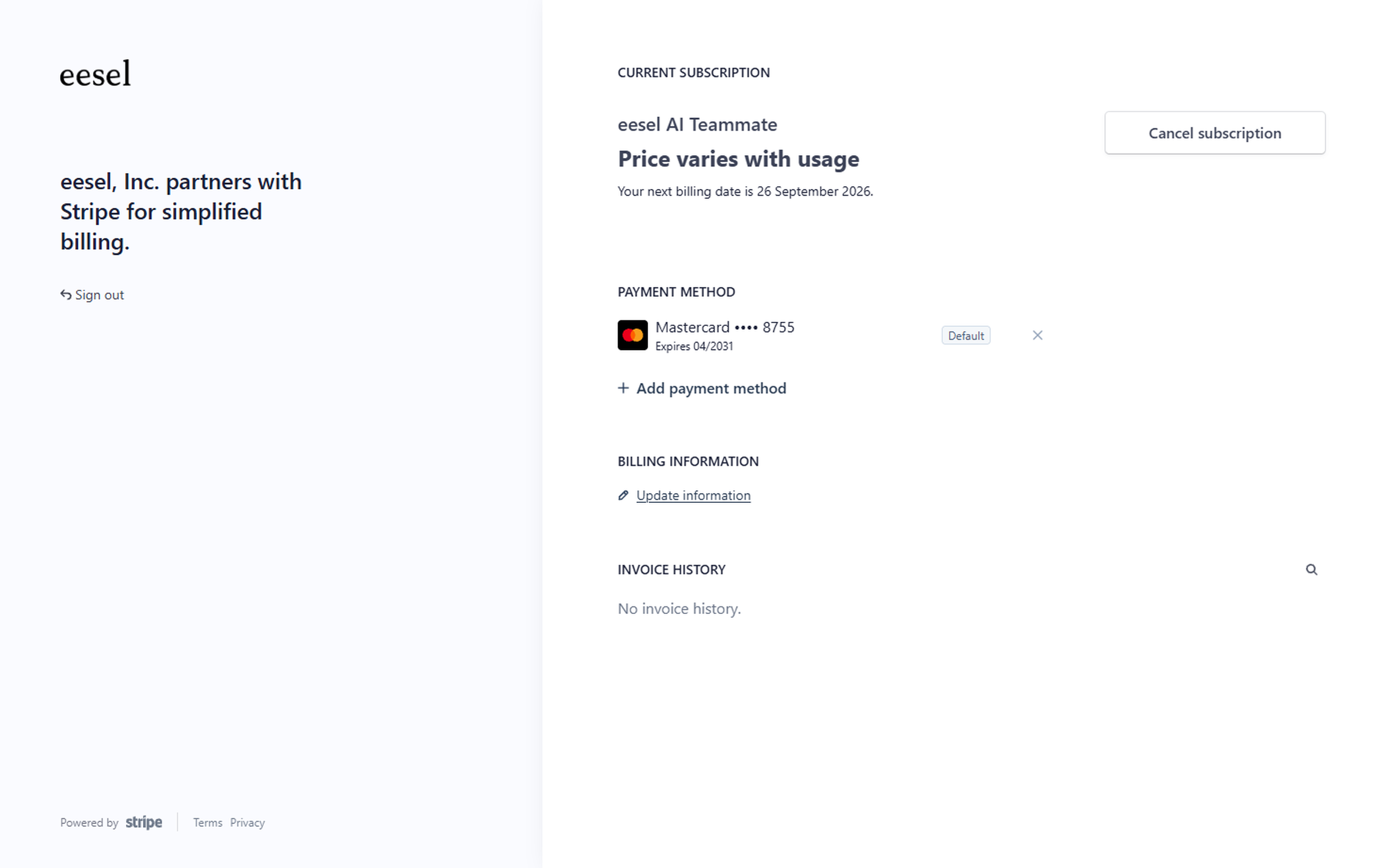
Billing runs through **Stripe**. An invoice is generated each cycle from your usage. Click **Manage in Stripe** under Billing details to open Stripe, where you can download past invoices and receipts, update your billing address or payment details, or cancel.

<figure><img src="https://3732419023-files.gitbook.io/~/files/v0/b/gitbook-x-prod.appspot.com/o/spaces%2F2xXO0947TYoPIhGoBgSE%2Fuploads%2Fgit-blob-527cf6a38ac678ca111680ea0d984d905c0bc69e%2Faccount-stripe-portal.png?alt=media" alt="The Stripe billing portal for eesel showing the subscription, the saved card, a link to update billing information and the invoice history"><figcaption><p>Stripe holds your card, invoices and receipts.</p></figcaption></figure>

When you cancel, your agents keep working until the end of your current period and then pause. Your setup, knowledge and instructions stay as they are.

## Deleting your workspace

{% hint style="warning" %}
**Deleting a workspace cannot be undone.** Only the Owner can do it, from **Workspace settings**. It removes the agents, integrations and knowledge in it, so export anything you want to keep first. Deleting the workspace is also how your data is removed; there is no separate account deletion.
{% endhint %}

## FAQ

<details>

<summary>What happens when my trial ends?</summary>

Your agents pause. Your setup, knowledge and instructions are kept, and adding a card in **Billing & Usage** resumes them as they were. Dashboard chats stay free after you add a card, so you can keep testing at no charge. See [Pricing](/pricing/overview.md).

</details>

<details>

<summary>How do I change someone's role, or transfer ownership?</summary>

Owners and Editors can change any non-owner's role from **Workspace settings > Members**: click their role and pick a new one. Only the Owner can transfer ownership, to an existing member, from the same page. The previous Owner becomes an Editor.

</details>

<details>

<summary>How do I change my password or email?</summary>

Change your password from the login page with **Forgot password**. If you sign in with Google or an email code, there is no password to change. Changing your email is not self-serve, so get in touch through the support chat.

</details>

<details>

<summary>Can I cancel at any time?</summary>

Yes, through Stripe from **Billing & Usage**. You are billed on usage you have already run, so there is nothing to cancel for future months and no cancellation fee.

</details>

<details>

<summary>Do you offer annual billing?</summary>

Yes. You can commit to a year of usage upfront for up to 25% off, with anything over your commitment billed at the normal rate. There is also an Enterprise plan. Both are arranged with our team, see [Pricing](/pricing/overview.md).

</details>

<details>

<summary>What happens if my payment fails?</summary>

We retry it a few times. If it keeps failing your agents pause until it is resolved, and your setup is kept. We may also invoice you more often until a few payments succeed.

</details>

<details>

<summary>Can I get a refund?</summary>

Ask in the support chat.

</details>

<details>

<summary>How many agents can I have?</summary>

As many as you like. There are no per-agent or per-seat fees. You are billed for the tasks your agents run.

</details>

<details>

<summary>Is single sign-on available?</summary>

SSO is on the Enterprise plan. Get in touch and we will set it up. Otherwise you sign in with Google or with an emailed code, so there is no password to manage.

</details>

<details>

<summary>Is EU data residency available?</summary>

Yes. Ask us in the support chat and we will enable it for your workspace. See [Security and Privacy](/account/security-and-privacy.md).

</details>

## Troubleshooting

Most problems are specific to one app, and each [integration](/integrations/overview.md) page has its own troubleshooting for connection, syncing and triggers. Start there. For anything that is not about one app:

<details>

<summary>My agent has stopped doing anything</summary>

Check whether you have reached your monthly cap in **Billing & Usage**, or whether your trial has ended. Neither warns you first; your agents pause. Raising the cap or adding a card starts them again.

</details>

<details>

<summary>My agent is not picking up work</summary>

Connecting an app does not make an agent act. Check that an [automation](/automations-and-schedules/automations-and-schedules.md) is switched on for the event you expect, and open its activity to see whether events arrived and were skipped.

</details>

<details>

<summary>Answers are wrong or off-tone</summary>

Open [Activity](/reports/reports.md) to see what your agent read and why it answered that way, then correct it in chat so the fix sticks. See [Instructions and Memory](/instructions-and-memory/instructions-and-memory.md).

</details>

<details>

<summary>Someone cannot change anything</summary>

They are probably a Viewer. Check their role under **Workspace settings > Members**.

</details>

<details>

<summary>I cannot edit the monthly cap or billing mode</summary>

Both unlock once a card is on file.

</details>

Still stuck? Open the support chat under **Help and support** at the bottom left of your dashboard. Tell us what you were trying to do, what happened instead, which agent it was, and paste a link to the conversation if there is one.

## Related pages

* [Pricing](/pricing/overview.md) for what a task costs and how the trial works
* [Security and Privacy](/account/security-and-privacy.md) for where your data lives
* [Actions and Approvals](/instructions-and-memory/actions-and-approvals.md) for who can approve your agent's work
* [Email](/integrations/communication/email.md) for why members matter to your agent's email


---

# Agent Instructions
This documentation is published with GitBook. GitBook is the documentation platform designed so that both humans and AI agents can read, navigate, and reason over technical content effectively. Learn more at gitbook.com.

## Querying This Documentation
If you need additional information that is not directly available in this page, you can query the documentation dynamically by asking a question.

Perform an HTTP GET request on the current page URL with the `ask` query parameter, and the optional `goal` query parameter:

```
GET https://docs.eesel.ai/account/account.md?ask=<question>&goal=<endgoal>
```

`ask` is the immediate question: it should be specific, self-contained, and written in natural language.
`goal` is optional and describes the broader end goal you are ultimately trying to accomplish on behalf of the user. GitBook uses it to tailor the answer towards what is most useful for that goal.

The response will contain a direct answer to the question and relevant excerpts and sources from the documentation.

Use this mechanism when the answer is not explicitly present in the current page, you need clarification or additional context, or you want to retrieve related documentation sections.