> For the complete documentation index, see [llms.txt](https://docs.eesel.ai/llms.txt). Markdown versions of documentation pages are available by appending `.md` to page URLs; this page is available as [Markdown](https://docs.eesel.ai/integrations/helpdesks/front.md).

# Front

Set up an AI agent for the Front app. It drafts or sends replies in your shared inbox and tags and assigns conversations, trained on your help center.

eesel's AI agent for Front works inside your Front shared inbox. It drafts replies as internal comments or sends them, tags, assigns and archives conversations, and learns from your help center and past conversations.

Front is a shared inbox, not a ticketing tool. A conversation is unassigned, assigned, or archived. There is no open, pending or solved status. Your agent works the same way your team does. It reads your help center and your past conversations, plus anything else you connect, such as Confluence, Notion, Google Drive or your website, so it knows how you answer before it picks anything up. Then it works your inboxes the way you tell it to: writing replies for a human to check, answering the routine ones itself, tagging and routing the rest.

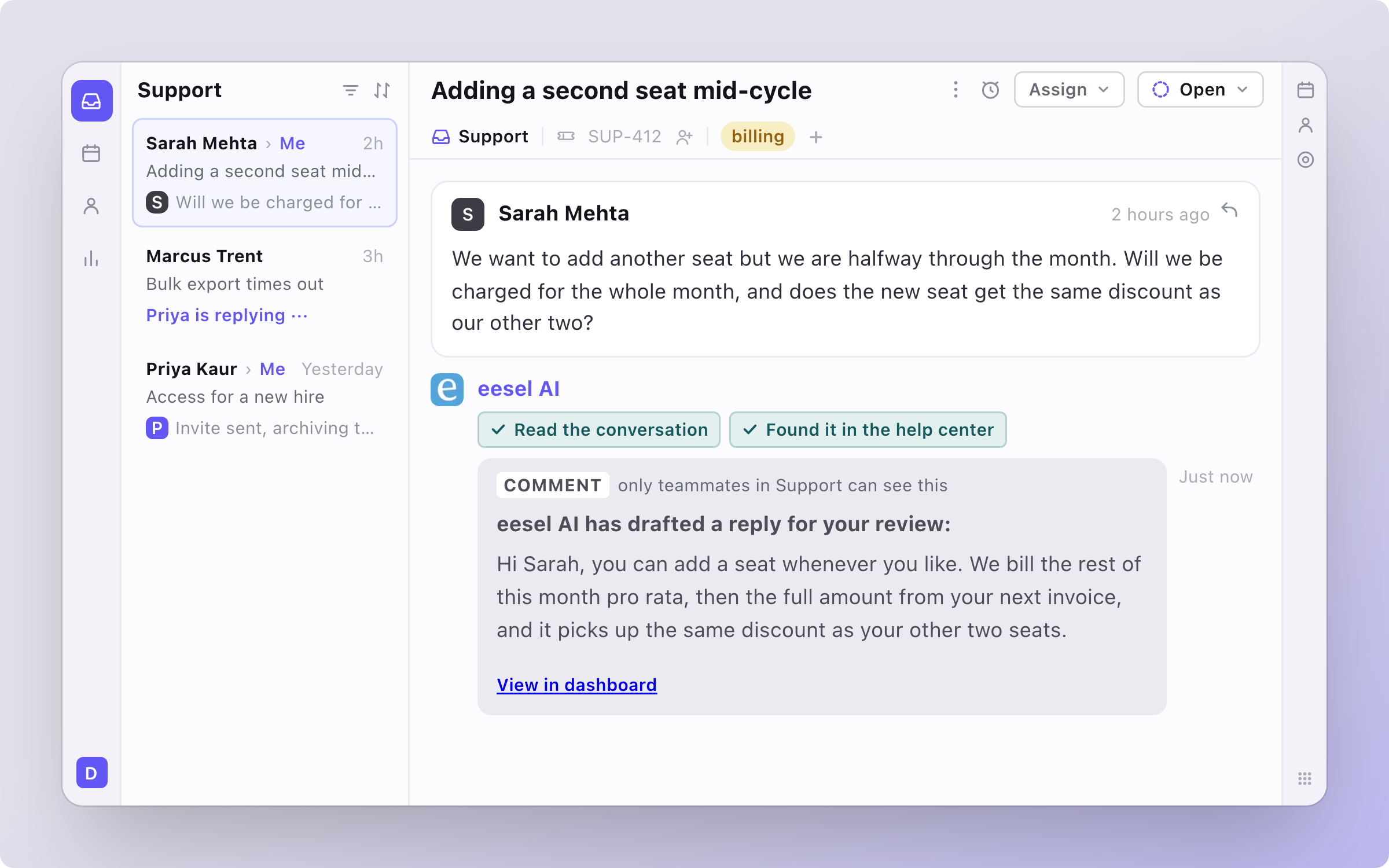
In this example the conversation is assigned to eesel AI, the way you would assign one to a teammate.

<figure><img src="https://3732419023-files.gitbook.io/~/files/v0/b/gitbook-x-prod.appspot.com/o/spaces%2F2xXO0947TYoPIhGoBgSE%2Fuploads%2Fgit-blob-8e51d1c9e27356bf7e8b6585883f237d730d5d55%2Ffront-hero.png?alt=media" alt="A Front conversation about adding a seat mid-cycle, assigned to eesel AI, with an internal comment showing what it read before answering"><figcaption><p>A Front conversation about adding a seat mid-cycle, assigned to eesel AI, with the internal comment it left.</p></figcaption></figure>

## Set up eesel in Front

{% stepper %}
{% step %}

### Ask your agent to connect Front

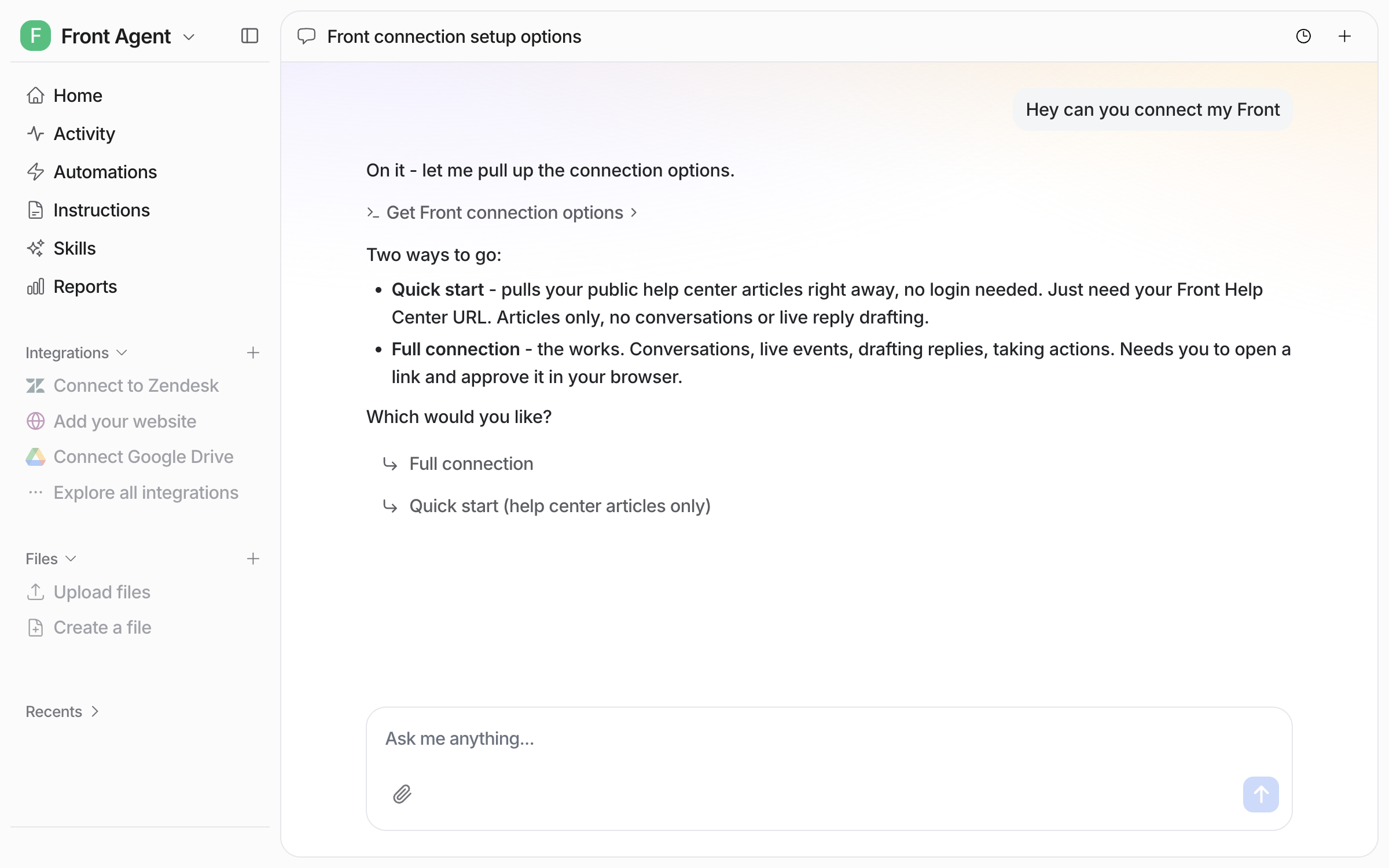
Open the chat in your dashboard and ask it to connect Front. It lays out both ways to connect. Prefer to click? **Integrations** in the left sidebar has the same options.

<figure><img src="https://3732419023-files.gitbook.io/~/files/v0/b/gitbook-x-prod.appspot.com/o/spaces%2F2xXO0947TYoPIhGoBgSE%2Fuploads%2Fgit-blob-9e664a878c26c611db0f3c7b86c0d88ff88af035%2Ffront-connect-chat.png?alt=media" alt="The dashboard chat where the user asks to connect Front and the agent lays out the Quick start and Full connection options"><figcaption><p>The agent offers two ways to connect Front.</p></figcaption></figure>
{% endstep %}

{% step %}

### Choose Quick start or Full connection

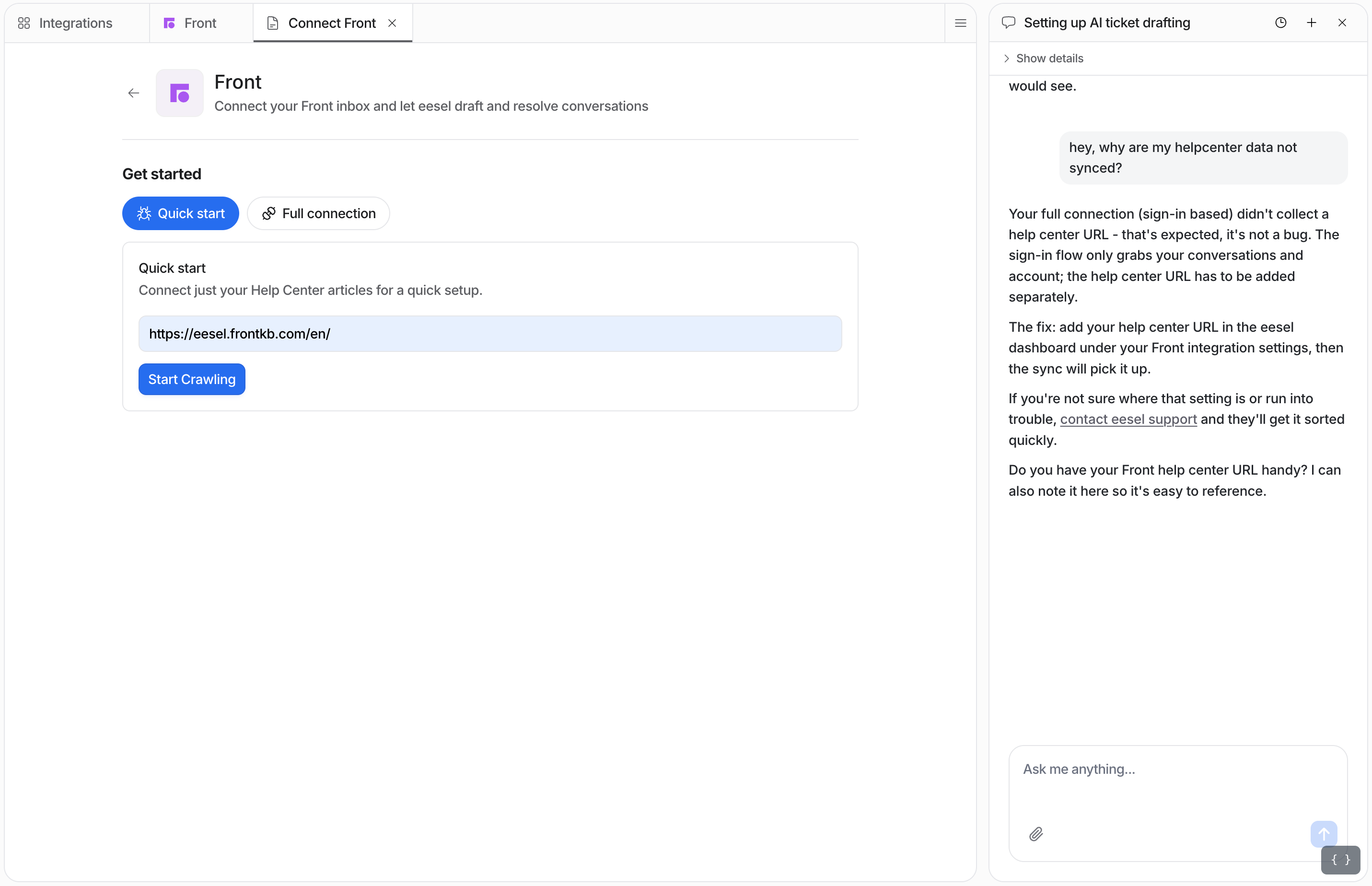
* **Quick start.** Give your public help center URL (for example `https://help.yourcompany.com`), click **Start Crawling**, and it reads your articles. No sign-in, but no conversations, triggers or actions.
* **Full connection.** Approve eesel in Front, and everything unlocks: past conversations as knowledge, triggers, and actions.

Start with either. You can move to a full connection later and keep everything.

Quick start asks for the URL and nothing else.

<figure><img src="https://3732419023-files.gitbook.io/~/files/v0/b/gitbook-x-prod.appspot.com/o/spaces%2F2xXO0947TYoPIhGoBgSE%2Fuploads%2Fgit-blob-305a173a2ff15fa7ec8d7b885aab247ab96a58e3%2Ffront-quick-start-form.png?alt=media" alt="Front Quick start form with a help center URL entered and a Start Crawling button"><figcaption><p>The Quick start form, with a help center URL entered.</p></figcaption></figure>

{% hint style="warning" %}
**A full connection does not ask for your help center URL.** It syncs conversations and account data only. So your help center stays empty until you add the URL yourself. Open **Integrations > Front**, find the Help Center source, and paste your help center URL into it, or connect with Quick start as well.
{% endhint %}
{% endstep %}

{% step %}

### Approve it in Front

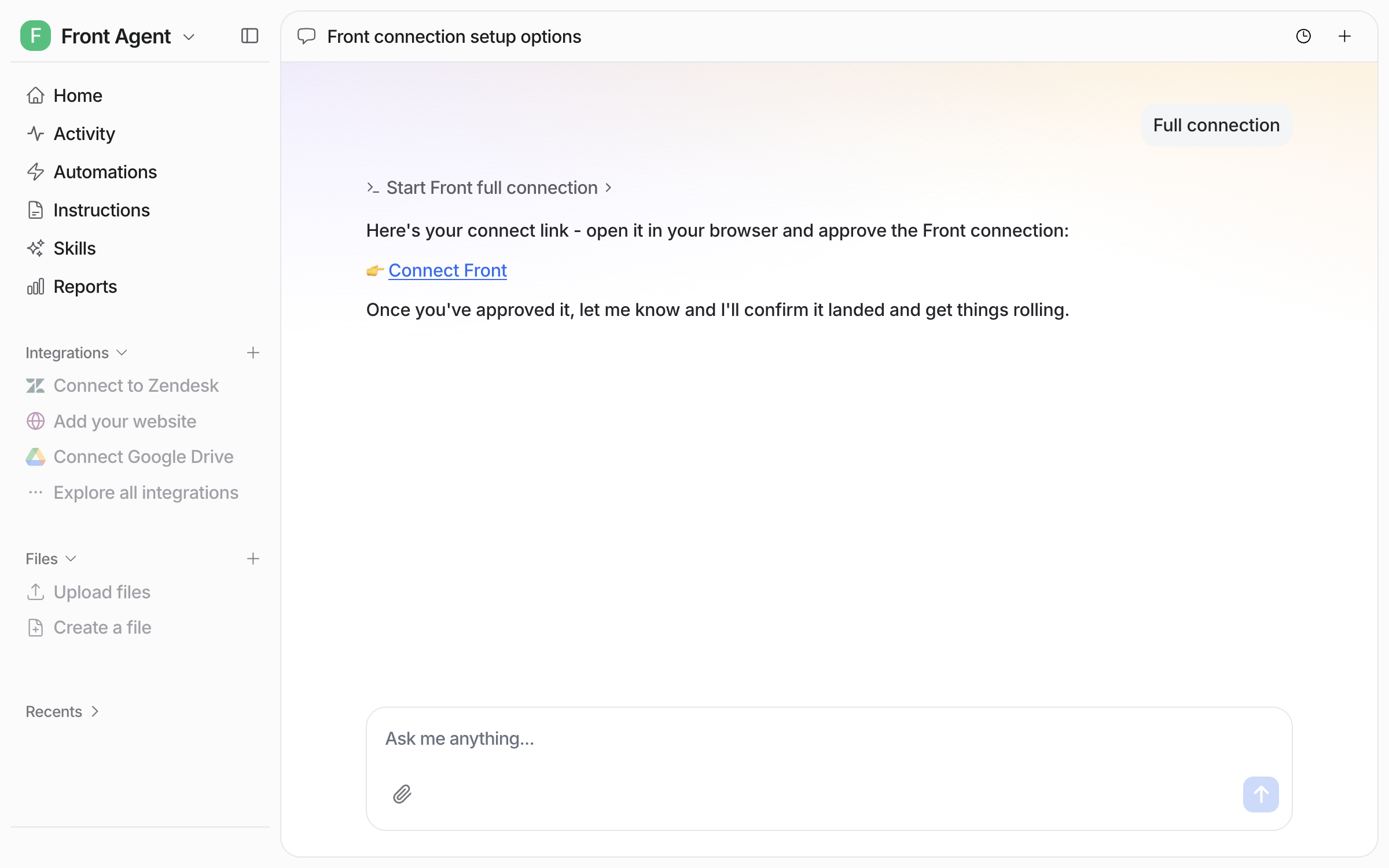
For a full connection your agent hands you a link.

<figure><img src="https://3732419023-files.gitbook.io/~/files/v0/b/gitbook-x-prod.appspot.com/o/spaces%2F2xXO0947TYoPIhGoBgSE%2Fuploads%2Fgit-blob-432655073c421467eedbe12252e592dddb89d80b%2Ffront-approval-link.png?alt=media" alt="The dashboard chat with the Connect Front approval link and the agent explaining what happens after approval"><figcaption><p>The agent posts the approval link in the chat.</p></figcaption></figure>

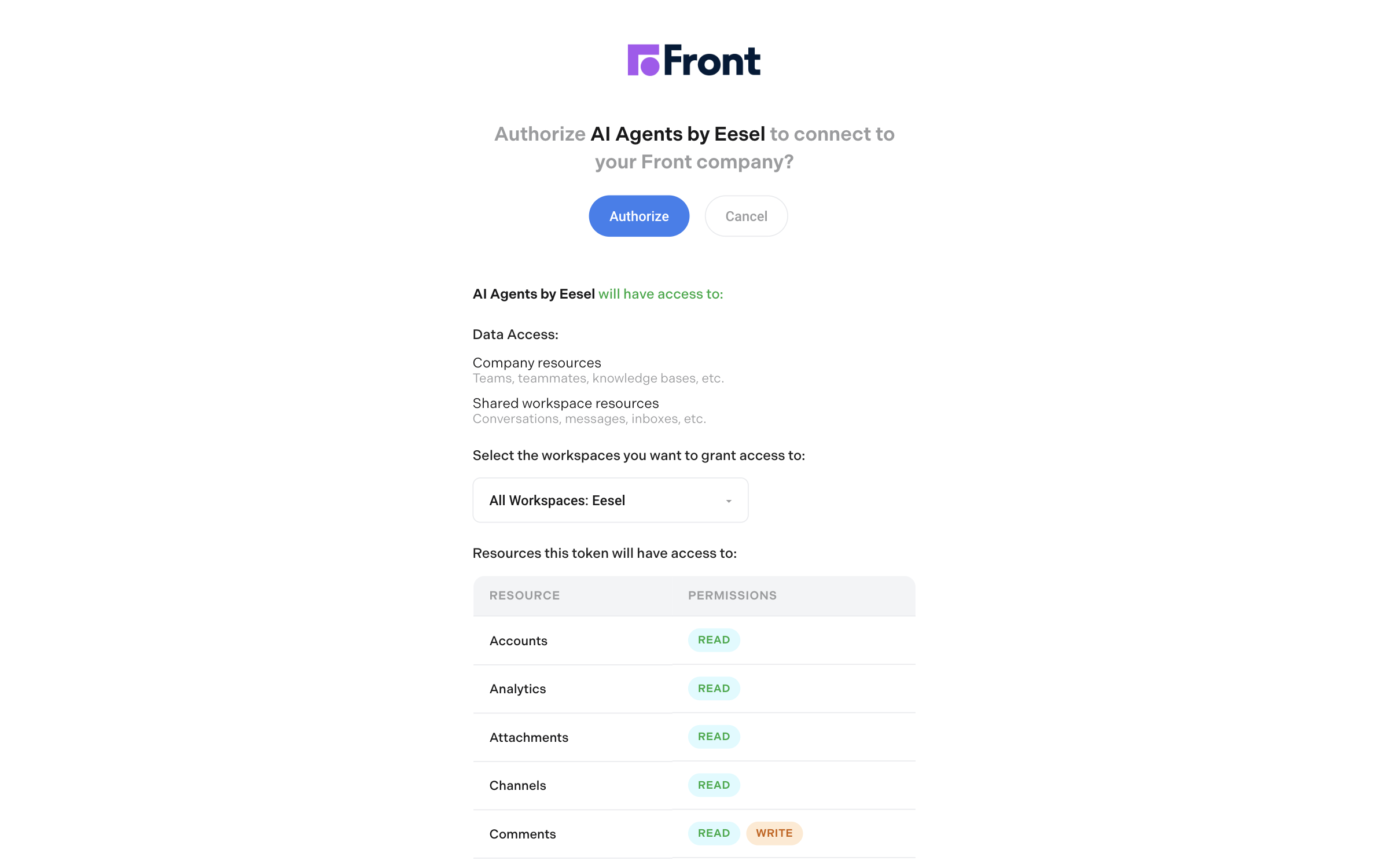
Front asks you to authorize eesel and to pick which workspaces to grant. It then lists every resource the token can read and write. Review it and click **Authorize**.

<figure><img src="https://3732419023-files.gitbook.io/~/files/v0/b/gitbook-x-prod.appspot.com/o/spaces%2F2xXO0947TYoPIhGoBgSE%2Fuploads%2Fgit-blob-02a0f64753b3b80c66716668fb5f3791fb821238%2Ffront-authorize.png?alt=media" alt="The Front authorization screen asking to allow eesel, with the workspace picker and the list of resources and permissions"><figcaption><p>The Front approval screen, with the workspace picker and the permissions list.</p></figcaption></figure>

This approval is the one step a person has to do in the browser. If an AI agent is doing the setup for you, it hands you the link and waits.
{% endstep %}

{% step %}

### Confirm the connection

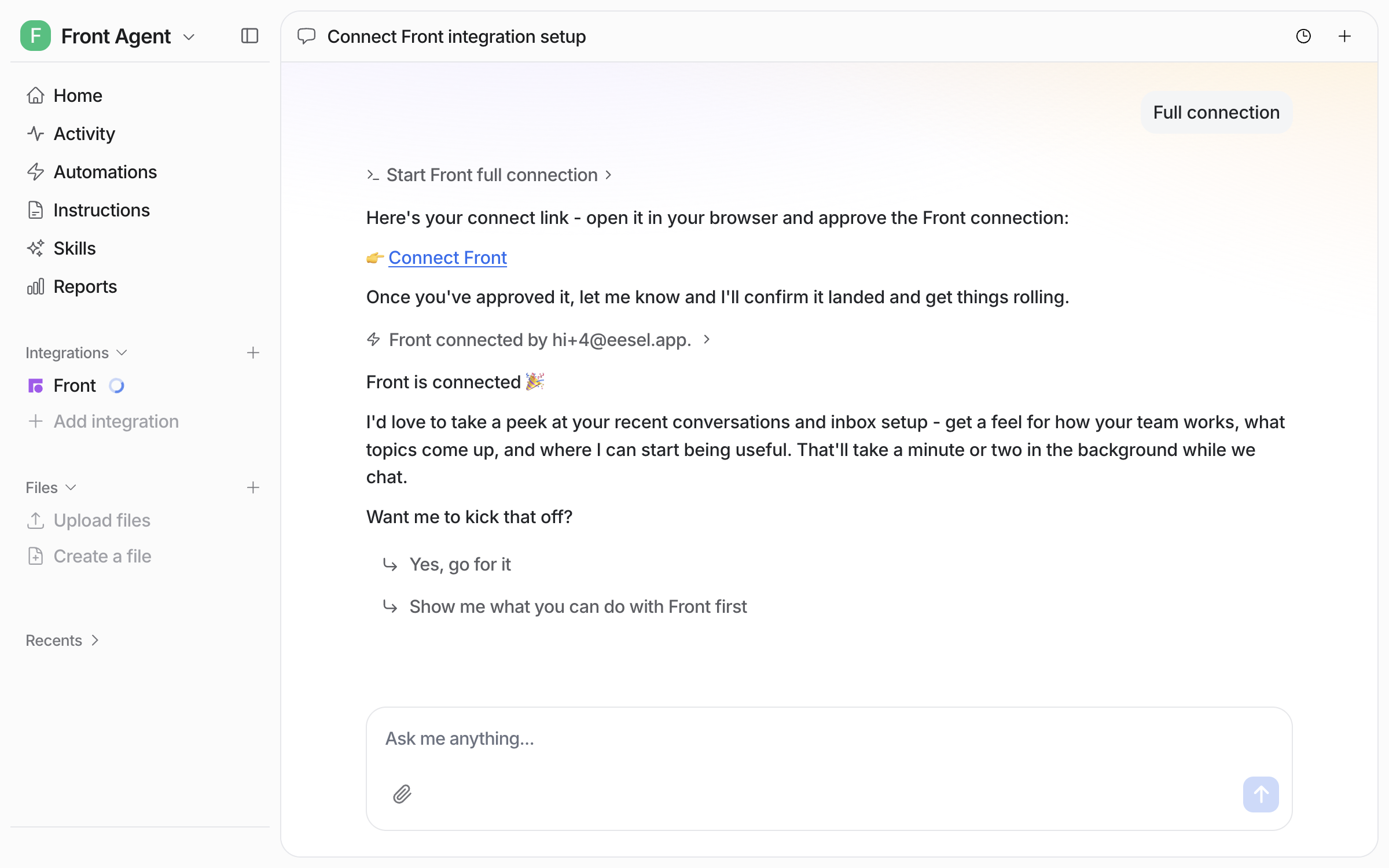
Once you approve, your agent notices the connection on its own. It confirms in chat and starts reading your conversations and inbox setup.

<figure><img src="https://3732419023-files.gitbook.io/~/files/v0/b/gitbook-x-prod.appspot.com/o/spaces%2F2xXO0947TYoPIhGoBgSE%2Fuploads%2Fgit-blob-c6e726e10a6588acb0cdcd8043dd9fc7167e9d89%2Ffront-connected.png?alt=media" alt="The dashboard chat showing Front is connected, with the agent offering to take a first look at recent conversations"><figcaption><p>The chat confirms Front is connected.</p></figcaption></figure>
{% endstep %}

{% step %}

### Check what it can read

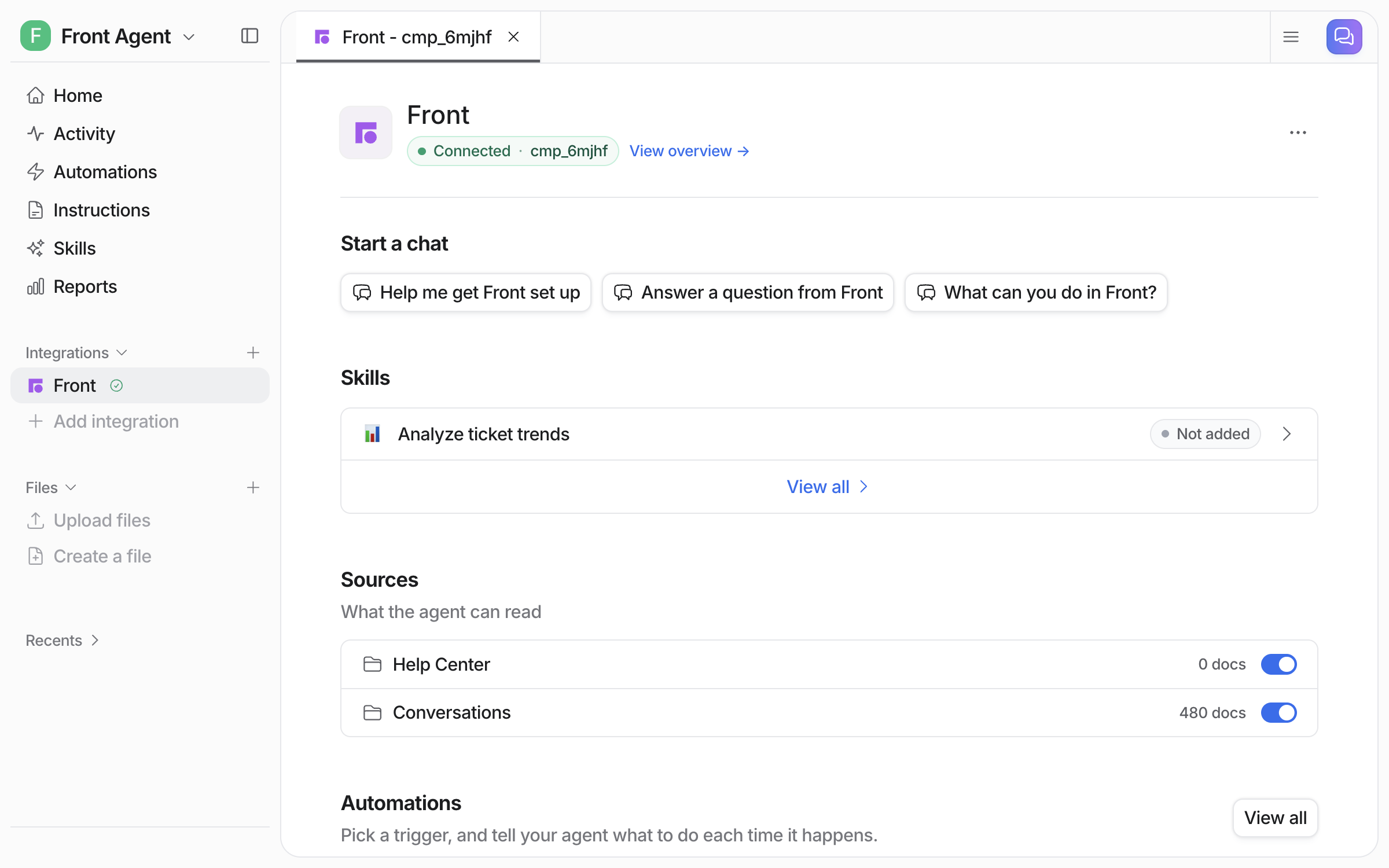
Back in the dashboard, **Integrations > Front** shows the connection and its sources, each with its own toggle. Each source shows a document count once its sync is done. From a terminal, `eesel status` lists the integration as connected with its source counts.

<figure><img src="https://3732419023-files.gitbook.io/~/files/v0/b/gitbook-x-prod.appspot.com/o/spaces%2F2xXO0947TYoPIhGoBgSE%2Fuploads%2Fgit-blob-87734d9fc4ed3ca324c95173e5fcf3d873f1696e%2Ffront-integration-page.png?alt=media" alt="Front integration page showing the Help Center and Conversations sources with toggles"><figcaption><p>Each source has its own toggle and its own document count.</p></figcaption></figure>
{% endstep %}

{% step %}

### Create your first automation

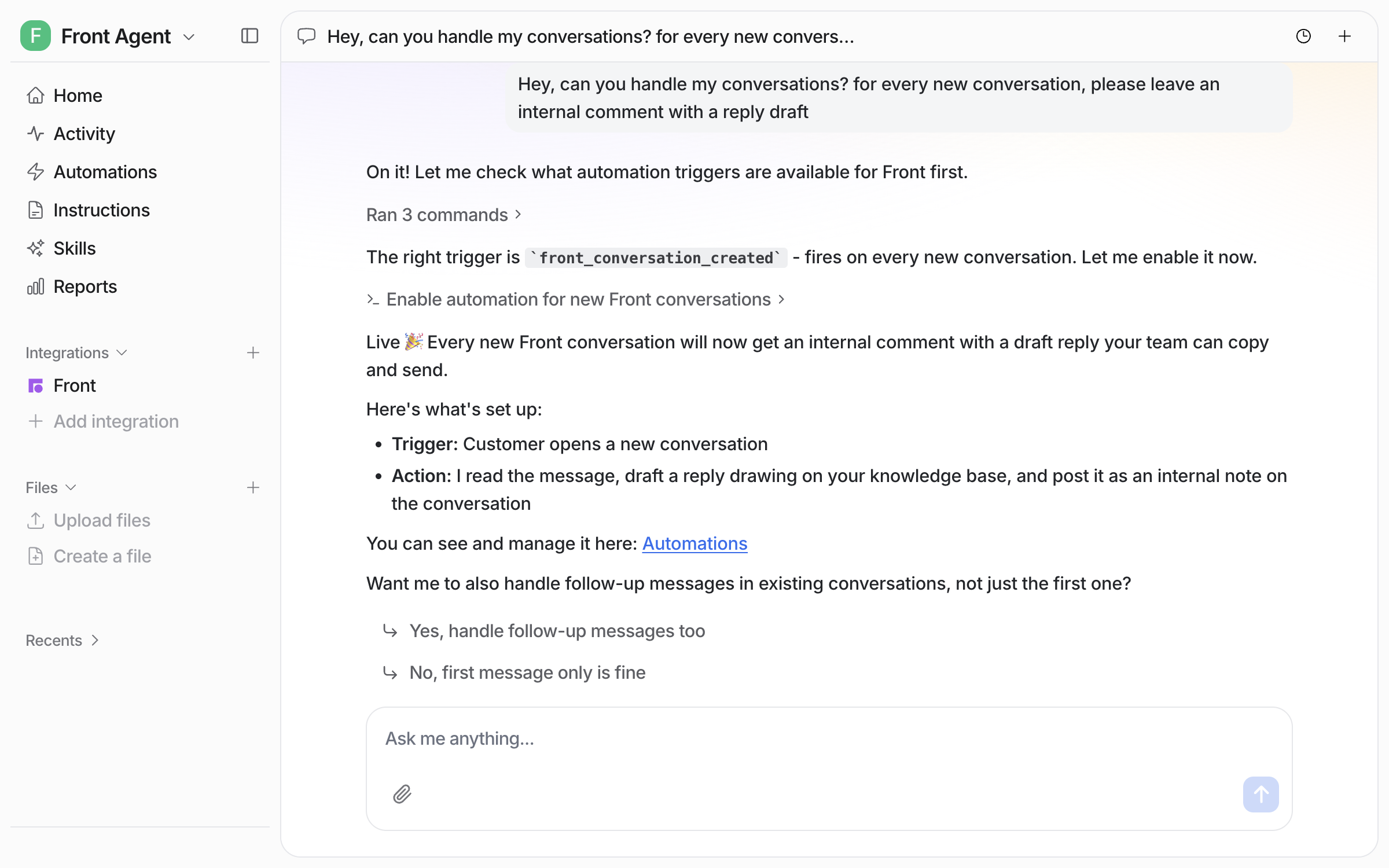
Connecting alone does not start your agent. It needs an automation first. Tell it what to handle and it creates an [automation](/automations-and-schedules/automations-and-schedules.md). An automation is a Front trigger plus instructions. In the instructions you describe which conversations it should handle and what to do with them. Skipped conversations are recorded on the agent's Activity page, so you can see what was passed over and why.

<figure><img src="https://3732419023-files.gitbook.io/~/files/v0/b/gitbook-x-prod.appspot.com/o/spaces%2F2xXO0947TYoPIhGoBgSE%2Fuploads%2Fgit-blob-99e0fc16db4beeb266d5031c696a49ab2172cbc0%2Ffront-automation-chat.png?alt=media" alt="The dashboard chat where the user asks for internal-comment reply drafts on every new conversation, and the agent reports the trigger and action it enabled"><figcaption><p>Ask in chat for the automation you want, and the agent builds it.</p></figcaption></figure>

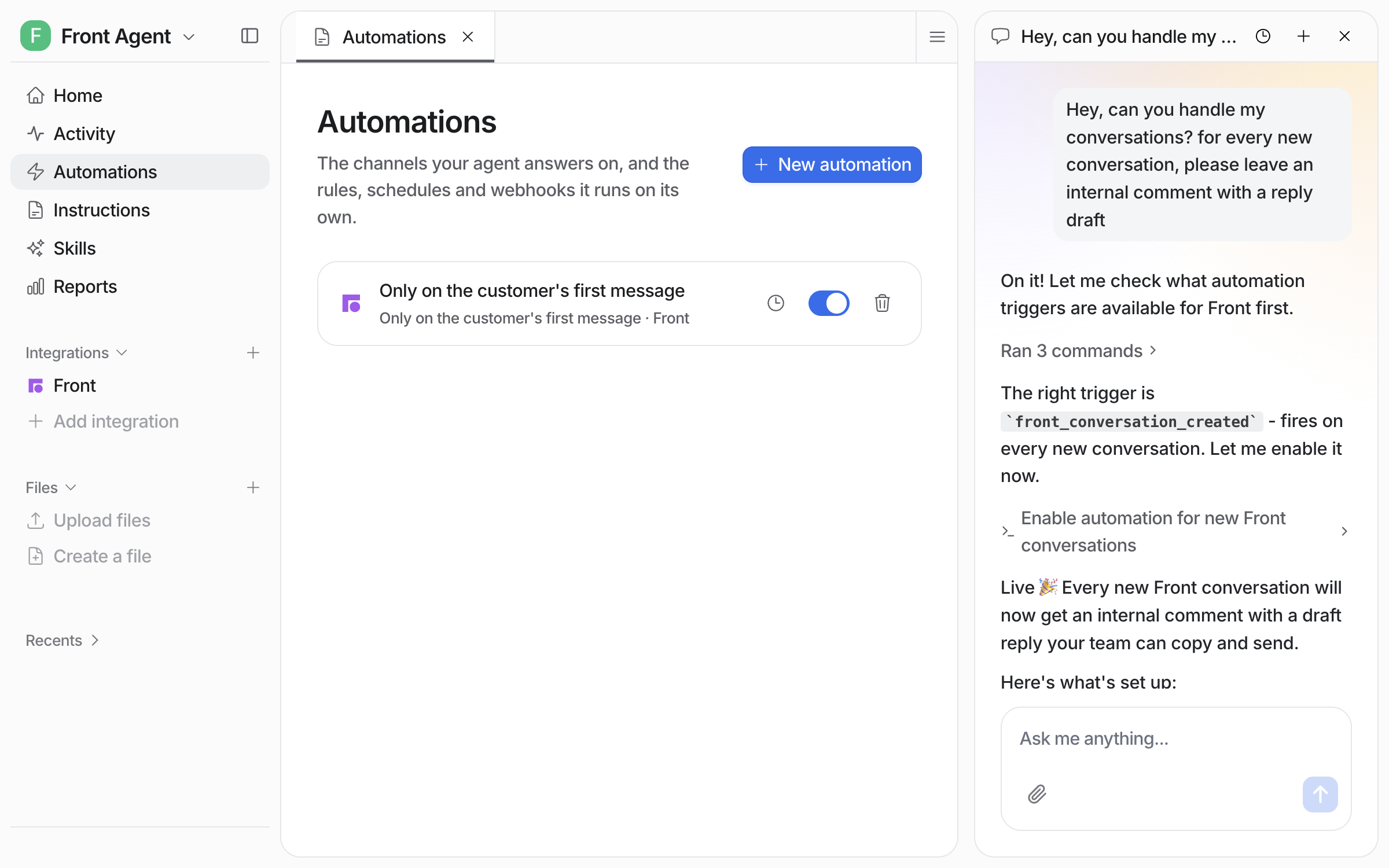
It shows up on your Automations page, switched on and ready. From a terminal, `eesel automations` lists it as on.

<figure><img src="https://3732419023-files.gitbook.io/~/files/v0/b/gitbook-x-prod.appspot.com/o/spaces%2F2xXO0947TYoPIhGoBgSE%2Fuploads%2Fgit-blob-27d1781e1512609234028fcb6ee68927112a930b%2Ffront-automation-live.png?alt=media" alt="The Automations page in eesel with the Front rule listed and toggled on"><figcaption><p>The new automation on your Automations page, switched on.</p></figcaption></figure>

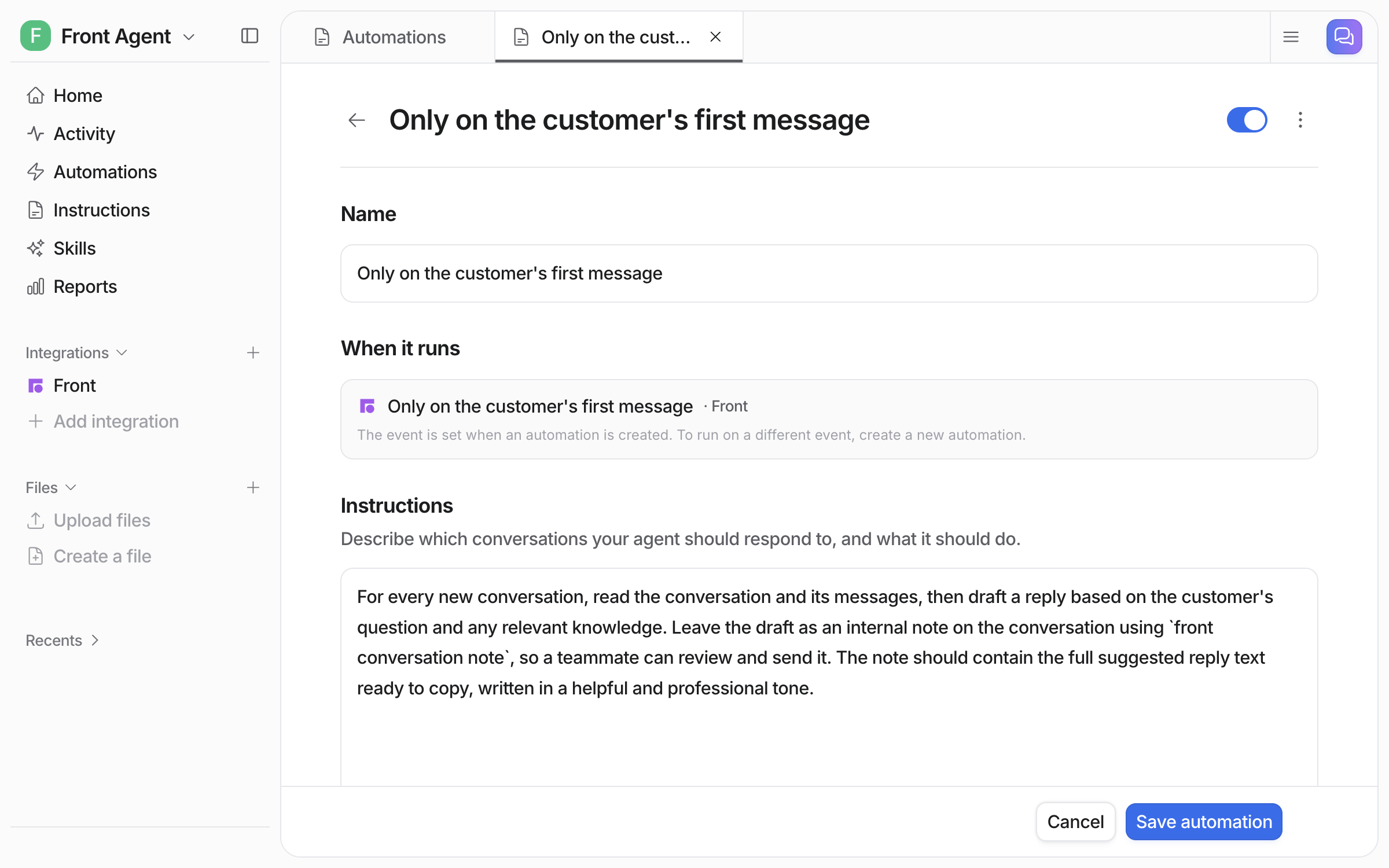
Open the automation to see or change what it does. The trigger event is fixed when the automation is created. So a new automation is required for each different trigger event.

<figure><img src="https://3732419023-files.gitbook.io/~/files/v0/b/gitbook-x-prod.appspot.com/o/spaces%2F2xXO0947TYoPIhGoBgSE%2Fuploads%2Fgit-blob-4f4261d12160127555918a5e205129889fc82f92%2Ffront-automation-editor.png?alt=media" alt="The automation editor showing its name, the Front event it runs on, and the instructions telling the agent to draft a reply as an internal comment"><figcaption><p>The automation editor, where you change the instructions it follows.</p></figcaption></figure>
{% endstep %}

{% step %}

### Check automation work in Front

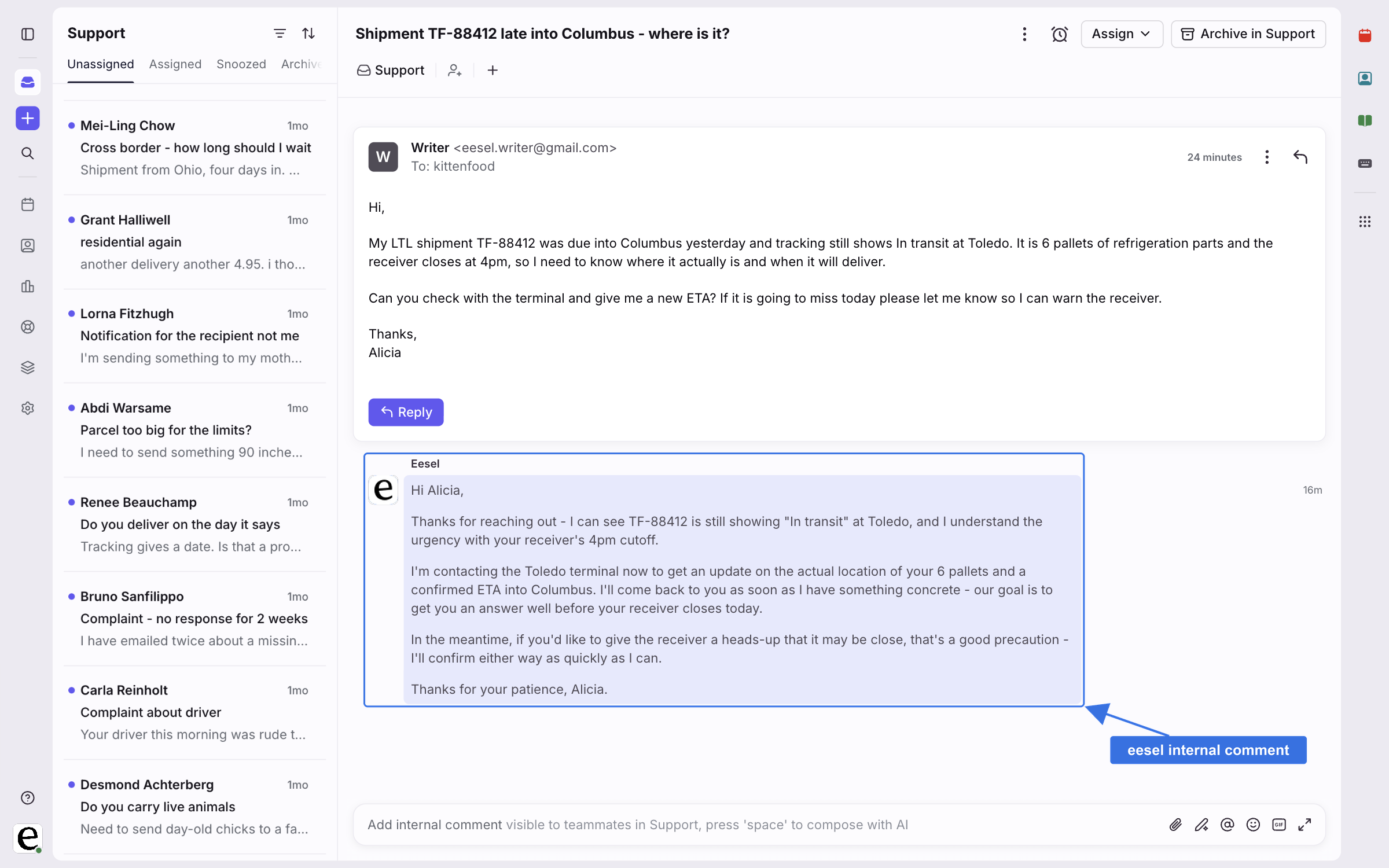
Open Front and look at the next conversation that comes in to see what the automation did there. In this example it left a drafted reply as an internal comment, posted by eesel, for a teammate to review and send.

<figure><img src="https://3732419023-files.gitbook.io/~/files/v0/b/gitbook-x-prod.appspot.com/o/spaces%2F2xXO0947TYoPIhGoBgSE%2Fuploads%2Fgit-blob-5478562e9902b17708078ed21b14c7a5e08c8a50%2Ffront-note-on-conversation.png?alt=media" alt="A Front conversation where eesel has left its drafted reply as an internal comment for the team to review and send"><figcaption><p>The drafted reply waiting as an internal comment on the conversation.</p></figcaption></figure>
{% endstep %}
{% endstepper %}

{% hint style="info" %}
**From Claude Code, Cursor or a terminal.** The same setup works as commands: `eesel login`, then `eesel integrations connect front` (a person approves it in the browser; if the receipt has no link, ask `eesel chat` for one), `eesel integrations download start` to copy your sources in, and `eesel automations` to see and switch on the automations. Trigger keys for this page are in the Triggers table below. Full command reference: [The eesel CLI](/apis-and-developer-resources/cli.md). Step-by-step: [Set up from Claude Code or the terminal](/getting-started/set-up-from-a-coding-agent.md). From an MCP client: [Claude Code and MCP clients](/apis-and-developer-resources/claude-code-and-mcp-clients.md).
{% endhint %}

## Sources, triggers and actions

### Sources

Sources are what it learns from:

| Source            | Description                                               | Requires                                            |
| ----------------- | --------------------------------------------------------- | --------------------------------------------------- |
| **Help Center**   | Your public help center articles, read by our web crawler | Quick start, or a URL added after a Full connection |
| **Conversations** | Your past Front conversations across your inboxes         | Full connection                                     |

The conversation sync isn't limited to resolved conversations: it pulls your most recent conversations at any status, so treat them as context for tone and history rather than a library of approved answers. Every other integration on the agent is also a source, so a Front reply can draw on Confluence, Notion, your website, and your files at once. See [Integrations](/integrations/overview.md).

### Triggers

Triggers are the Front events an automation can run on:

| Trigger                                  | Fires when                                 | Best for                  | Key                           |
| ---------------------------------------- | ------------------------------------------ | ------------------------- | ----------------------------- |
| **When a customer sends a message**      | A customer sends any inbound message       | Full automation           | `front_conversation_replied`  |
| **Only on the customer's first message** | A new conversation is opened by a customer | Triage and routing        | `front_conversation_created`  |
| **Call @eesel in a comment**             | A teammate mentions @eesel in a comment    | On-demand help            | `front_eesel_mentioned`       |
| **Conversation closed**                  | A conversation is archived                 | Post-resolution follow-up | `front_conversation_archived` |

### Actions

Actions are what it can do:

|             | Action                                 | What it does                                                                        |
| ----------- | -------------------------------------- | ----------------------------------------------------------------------------------- |
| **Respond** | Send conversation reply                | Sends a reply to the customer                                                       |
|             | Leave internal comment                 | Adds a comment only your team sees. Start here: the agent drafts, a human sends     |
| **Manage**  | Add tags                               | Adds tags to the conversation. The tag must already exist in Front                  |
|             | Assign to teammate                     | Assigns the conversation to a specific person, not a team                           |
|             | Update conversation                    | Updates conversation fields                                                         |
|             | Close conversation                     | Archives the conversation. Front has no open, pending or solved statuses            |
| **Look up** | Read conversation / List conversations | Reads a conversation's full message thread, and lists the most recent conversations |
|             | List tags / List teammates             | Lists your tags, and your teammates with the ids assignment needs                   |

You stay in control the whole way. Adjust your AI agent's access to knowledge and its action permissions to your liking. See [Actions and Approvals](/instructions-and-memory/actions-and-approvals.md).

## Limitations

* **Help center needs its URL on a full connection.** The full connection syncs conversations only, so add your help center URL to the Help Center source.
* **Tags must already exist.** The agent never creates a new tag in Front.
* **Assignment goes to a teammate, not a team.** Routing to a team or group stays with your Front rules.
* **Past conversations are not only resolved ones.** The sync pulls recent conversations at any status, so treat them as context rather than approved answers.
* **One trigger per automation.** The trigger event is fixed when the automation is created, so each trigger needs its own automation.
* **Closing means archiving.** Front has no open, pending or solved statuses.

## Troubleshooting

<details>

<summary>Help center shows 0 documents after a full connection?</summary>

Add your help center URL under **Integrations > Front** and re-sync. The full connection never asks for it. If it still shows 0, check the URL is publicly accessible and the articles are published rather than drafts.

</details>

<details>

<summary>Agent not picking up conversations?</summary>

Check the automation is enabled on the agent's **Automations** page, its instructions cover the conversations you expect, the Front connection is still authorized, and at least one action is enabled.

</details>

<details>

<summary>Tagging or assignment failing?</summary>

Tags have to exist in Front already; the agent never creates new ones, so create the tag there first. Assignment goes to one specific teammate, not a team or a group; routing to a group is still something a human does in Front.

</details>

<details>

<summary>Full connection failing?</summary>

Make sure you have the rights in Front to authorize an app, and that you granted access to the workspaces you actually want the agent working in. Then disconnect and reconnect.

</details>

## FAQ

<details>

<summary>How do I add an AI agent to the Front app?</summary>

Connect Front from the dashboard chat or the **Integrations** page, approve eesel in Front and pick the workspaces it can use, then ask your agent in chat to create an automation. That is one approval and one automation.

A good first automation is "draft a reply as an internal comment on every new conversation". Your past conversations sync on their own. If you want your help center read too, paste its URL into the Help Center source. Front then shows the agent working conversations beside your team. The steps are in [Set up eesel in Front](#set-up-eesel-in-front).

</details>

<details>

<summary>Does the Front AI agent send replies on its own, or draft them for review?</summary>

Either, depending on how you set it up. It can draft replies as internal comments for your team, or send directly, and it does nothing until you enable a trigger and an action.

Connecting only gives your agent access to your sources, so you can test with a human in the loop first. Turn on **Leave internal comment** instead of **Send conversation reply**, so the agent writes its answer as a comment your team reads, edits and sends. Many teams start with internal comments, then move to sending replies once they're happy.

</details>

<details>

<summary>Can I limit which Front conversations the AI agent handles?</summary>

Yes. Describe the conversations you want in the automation's instructions, in plain language, by tag, inbox or topic, and the agent only runs on the ones that match.

Skipped conversations are recorded on the agent's Activity page, so you can see what it passed over and why.

</details>

<details>

<summary>Can the Front AI agent learn from my past Front conversations?</summary>

Yes, with a full connection. The sync pulls your most recent conversations at any status, not only resolved ones, so treat them as context for tone and history rather than approved answers.

</details>

<details>

<summary>Can I connect Front to Claude or ChatGPT?</summary>

Yes, through eesel. Once the Front integration is connected, you can talk to your eesel agent from Claude, ChatGPT or Cursor, and it works with your Front data.

See [Use eesel from Claude and other assistants](/apis-and-developer-resources/use-eesel-from-claude-and-other-assistants.md), [Use eesel from ChatGPT](/apis-and-developer-resources/use-eesel-from-chatgpt.md) and [Claude Code and MCP clients](/apis-and-developer-resources/claude-code-and-mcp-clients.md).

</details>

<details>

<summary>What reporting do I get for the Front AI agent?</summary>

The Activity page lists every conversation your agent handled or skipped, and the [Reports](/reports/reports.md) page shows volume, triggers and approvals over time.

Each Activity entry links to the conversation in Front and shows what it searched, each action it took, who approved it, and its reasoning. Skipped conversations show why. You can also ask your agent for a written report, or put one on a schedule.

</details>

## Related pages

* [Helpdesk](/use-cases/helpdesk.md) for the job your teammate takes on in a ticket queue
* [Automations and Schedules](/automations-and-schedules/automations-and-schedules.md) for triggers, instructions and schedules
* [Actions and Approvals](/instructions-and-memory/actions-and-approvals.md) for choosing what your agent may do
* [Integrations overview](/integrations/overview.md) for how sources, triggers and actions fit together
* [Set up from Claude Code or the terminal](/getting-started/set-up-from-a-coding-agent.md)


---

# Agent Instructions
This documentation is published with GitBook. GitBook is the documentation platform designed so that both humans and AI agents can read, navigate, and reason over technical content effectively. Learn more at gitbook.com.

## Querying This Documentation
If you need additional information that is not directly available in this page, you can query the documentation by asking a question.

Perform an HTTP GET request on the following URL with the `ask` and `goal` query parameters:

```
GET https://docs.eesel.ai/integrations/helpdesks/front.md?ask=<question>&goal=<user_goal>
```

`ask` is the immediate question: it should be specific, self-contained, and written in natural language.
`goal` is what the user is ultimately trying to achieve, the reason they need the answer. Sharing it helps GitBook give you a better, more relevant answer. A goal is most helpful when it describes the outcome the user wants rather than restating the question. For example, with `ask=how do I create an API token`, a goal like `automate deployments from our CI pipeline` lets GitBook tailor the answer to that use case.

The response will contain a direct answer to the question and relevant excerpts and sources from the documentation.

Use this mechanism when the answer is not explicitly present in the current page, you need clarification or additional context, or you want to retrieve related documentation sections.