> For the complete documentation index, see [llms.txt](https://docs.eesel.ai/llms.txt). Markdown versions of documentation pages are available by appending `.md` to page URLs; this page is available as [Markdown](https://docs.eesel.ai/instructions-and-memory/actions-and-approvals.md).

# Actions and Approvals

Every action your agent can take in a connected app runs on its own, asks you first, or stays off. Where to set that, and how to approve a held action in the dashboard, Slack or the terminal.

An **action** is something your AI teammate can do in a connected app: reply to a ticket, add a tag, refund an order, post to a channel, create a Jira issue. Each integration's page lists its actions.

Every action runs on its own, asks you first, or stays off. You choose per agent, and you can change it any time.

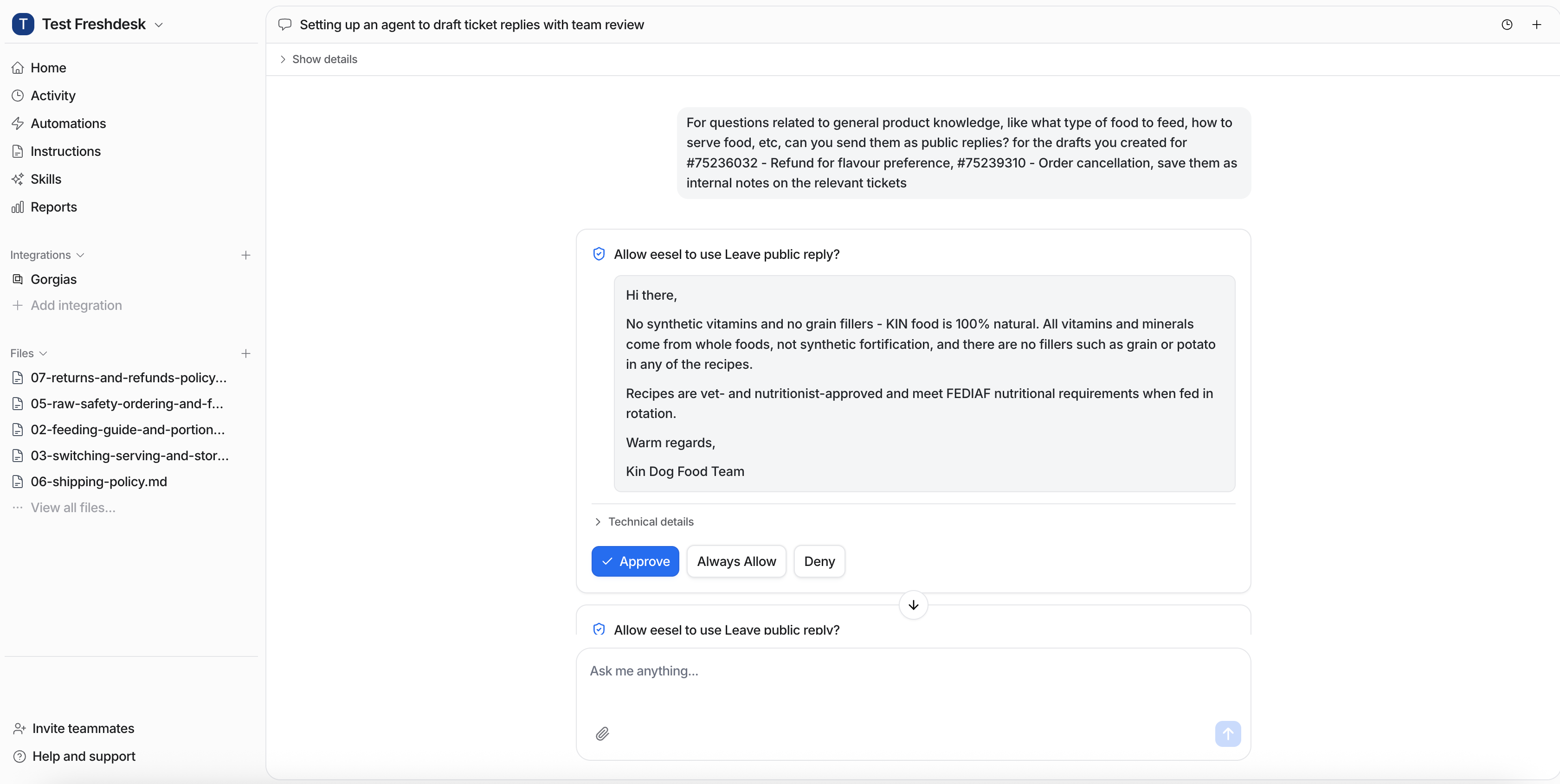
<figure><img src="https://3732419023-files.gitbook.io/~/files/v0/b/gitbook-x-prod.appspot.com/o/spaces%2F2xXO0947TYoPIhGoBgSE%2Fuploads%2Fgit-blob-8faa7b92b1b772e7487849ce6fdf5828af41ce6e%2Fhelpdesk-approval-card.png?alt=media" alt="The dashboard showing an approval request, Allow eesel to use Leave public reply, with the drafted reply and Approve, Always Allow and Deny buttons"><figcaption><p>An action that asks first: the drafted reply waits for a person to decide.</p></figcaption></figure>

## The three settings

| Setting            | What happens                                                                              |
| ------------------ | ----------------------------------------------------------------------------------------- |
| **Auto**           | Runs on its own, unless your instructions say to ask first in a given situation           |
| **Needs approval** | Your agent prepares the action and a person approves or denies it before anything happens |
| **Disabled**       | Your agent cannot use it at all                                                           |

On an integration page each action shows the three settings as buttons: a tick for Auto, a hand for Needs approval, a cross for Disabled.

<figure><img src="https://3732419023-files.gitbook.io/~/files/v0/b/gitbook-x-prod.appspot.com/o/spaces%2F2xXO0947TYoPIhGoBgSE%2Fuploads%2Fgit-blob-27f39ed2a1b0bf49b1f65e40e1f4cff2bb36e778%2Factions-three-settings.png?alt=media" alt="One action row, Assign to team, with its three setting buttons: a tick for Auto, a highlighted hand for Needs approval, and a cross for Disabled"><figcaption><p>An action set to Needs approval.</p></figcaption></figure>

Actions are a permission list, not a workflow. Turning **Add tags** on means your agent *can* tag. Your [instructions](/instructions-and-memory/instructions-and-memory.md) say when, and [automations](/automations-and-schedules/automations-and-schedules.md) say on which events.

## Where to set them

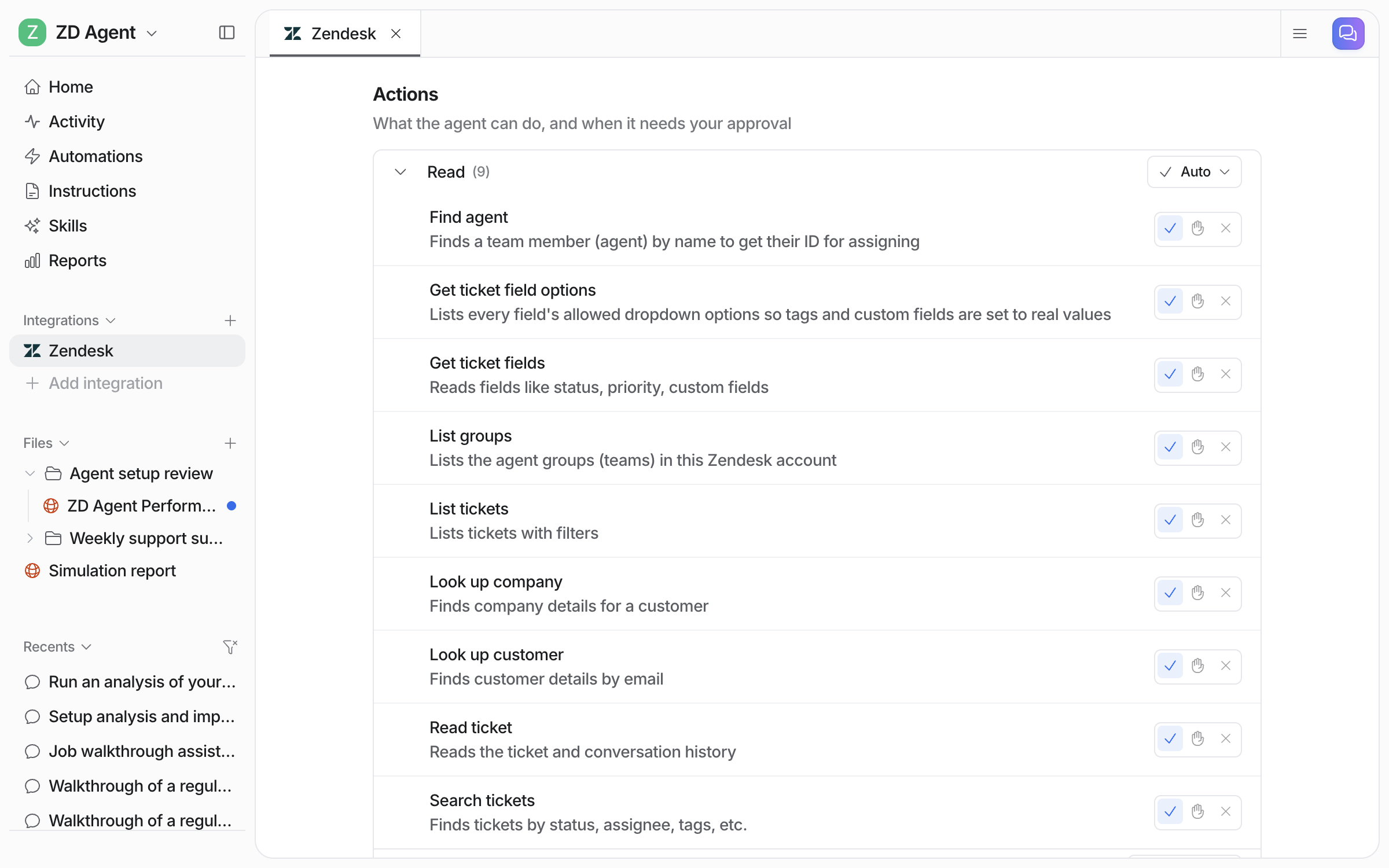
With the agent selected at the top left, open **Integrations** in the left sidebar and pick the app. Below its knowledge sources, the actions are listed in **Read** and **Write** groups, each with the three settings as buttons. Read actions only look things up, so they start on **Auto**.

<figure><img src="https://3732419023-files.gitbook.io/~/files/v0/b/gitbook-x-prod.appspot.com/o/spaces%2F2xXO0947TYoPIhGoBgSE%2Fuploads%2Fgit-blob-f20dd3948b9531fb56f8a08fa767cfa271908434%2Factions-read-group.png?alt=media" alt="The Zendesk integration page&#x27;s Actions section with the Read group expanded, nine look-up actions each with Auto, Needs approval and Disabled buttons, and the group set to Auto"><figcaption><p>The Read group on an integration page, every action on Auto.</p></figcaption></figure>

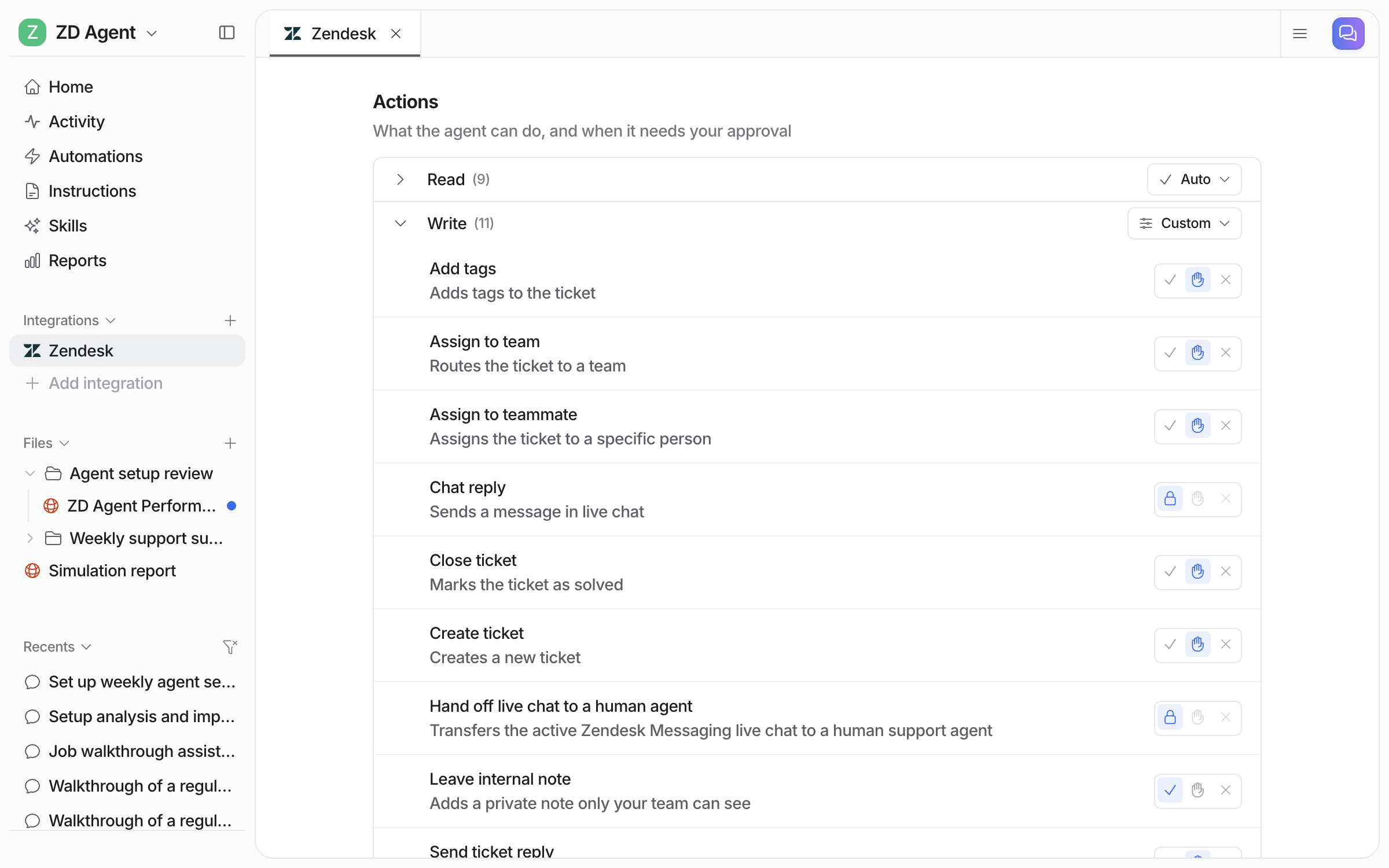
A whole group can be set in one go. It shows **Custom** when its actions are not all on the same setting. Changes save as you make them.

<figure><img src="https://3732419023-files.gitbook.io/~/files/v0/b/gitbook-x-prod.appspot.com/o/spaces%2F2xXO0947TYoPIhGoBgSE%2Fuploads%2Fgit-blob-a678406c3556de85f4308af000ea972d9d0dc5ea%2Factions-write-group.png?alt=media" alt="The same page with the Write group expanded and set to Custom, showing Add tags, Assign to team, Close ticket and Create ticket on Needs approval and Leave internal note on Auto"><figcaption><p>The Write group set to Custom: most actions ask first, internal notes run on their own.</p></figcaption></figure>

Or say it in chat: "look things up on your own, but ask me before any refund." Your agent changes the settings and tells you what it set.

**Start supervised.** New agents are safest with replies and anything irreversible on **Needs approval**. Once the drafts are consistently right, move the routine ones to **Auto**. Keep refunds, cancellations and anything that costs money behind an approval.

## What an approval looks like

When an action set to **Needs approval** comes up, your agent stops, saves what it wants to do, and notifies the people who can approve it. You see the exact action and its details, the reply text, the refund amount, the tag, and choose:

* **Approve**: it runs now.
* **Always allow**: it runs now, and that action switches to **Auto** from then on.
* **Deny**: it does not run, and your agent carries on without it.

Where you decide depends on where you are:

| Where                                 | How                                                                                                                                                           |
| ------------------------------------- | ------------------------------------------------------------------------------------------------------------------------------------------------------------- |
| **Dashboard**                         | Pending approvals are on your agent's home page and in the run on your Activity page. Every approval also has its own page you can open from a link           |
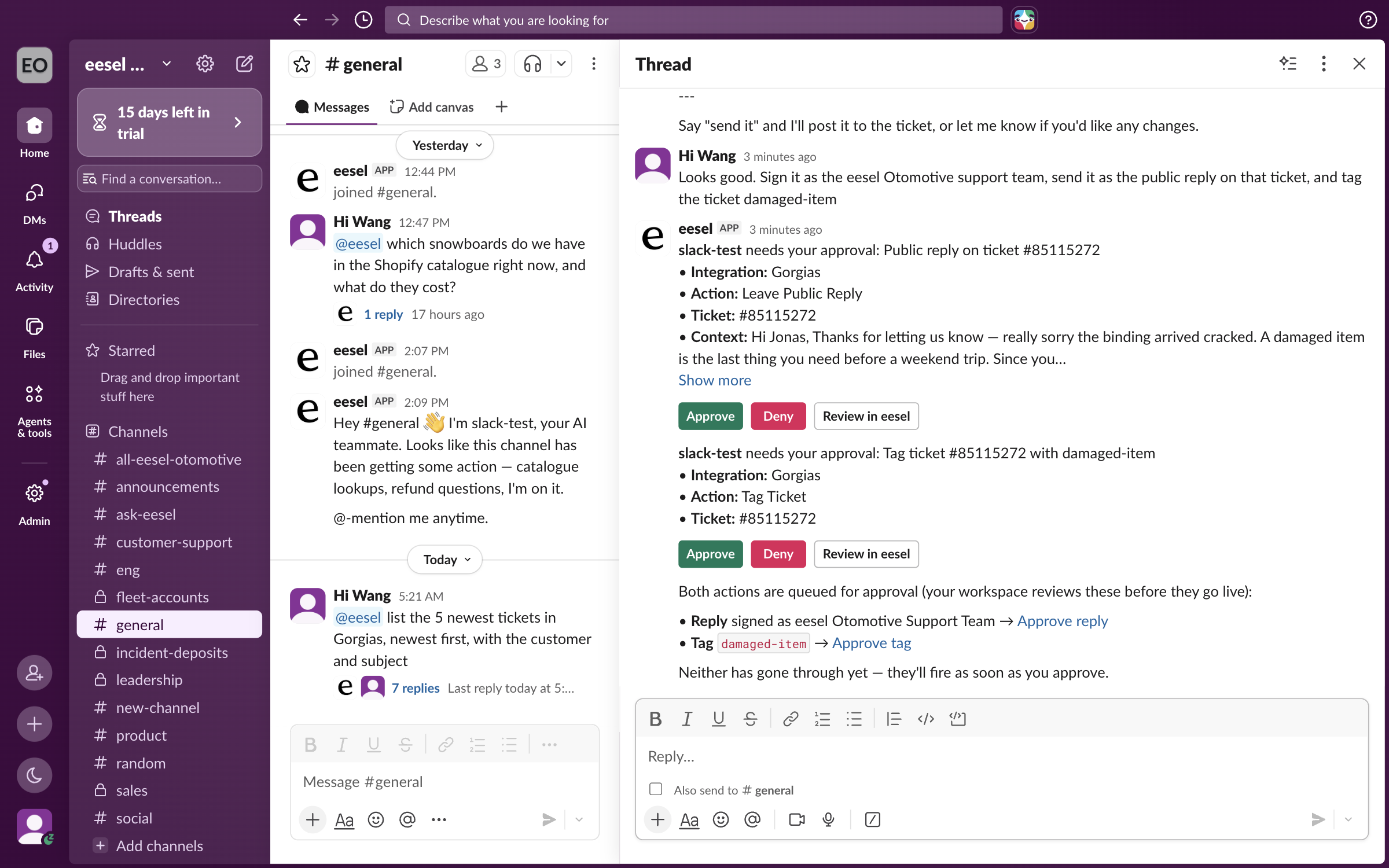
| **Slack**                             | If the run started from Slack, an approval card lands in that thread with Approve, Deny and Review in eesel buttons                                           |
| **Email or a helpdesk note**          | Your agent's note or email includes a link to the approval page                                                                                               |
| **Terminal**                          | `eesel approvals` lists what is waiting. `eesel approvals approve <id>` runs it (add `--always` to switch it to Auto), `eesel approvals deny <id>` refuses it |
| **Claude Code or another MCP client** | Ask in the client's chat ("approve the pending refund"), or use the terminal row above                                                                        |

<figure><img src="https://3732419023-files.gitbook.io/~/files/v0/b/gitbook-x-prod.appspot.com/o/spaces%2F2xXO0947TYoPIhGoBgSE%2Fuploads%2Fgit-blob-2a932b75433052f9bc4f6f72a8d6fc82270ff8f6%2Fslack-action-approval.png?alt=media" alt="A Slack thread with two approval cards from the eesel app, each listing the integration, the action, the ticket and the content, with Approve, Deny and Review in eesel buttons"><figcaption><p>An approval card in the Slack thread the run started from.</p></figcaption></figure>

Approval links can be forwarded to a teammate. Deciding still requires being signed in as an editor of the workspace.

On a new workspace, writes made from the CLI are held the same way: editing instructions, enabling an automation. `eesel approvals` lists them. A connect that comes back held may not be listed there; confirm that one with `eesel status`, and if a person needs the link to approve it in the tool, ask for it with `eesel chat "give me the connect link for <app>"`.

## Who can approve

Anyone with **edit access** to the workspace, an Owner or an Editor. See [Account](/account/account.md). Viewers see approvals but cannot decide them. In Slack, the person clicking is matched to a workspace editor by their Slack profile email. If the emails do not match, the click does nothing and the **Review in eesel** link is the way through.

## Actions and automations together

An automation can only use actions that are on. If the automation's instructions say "reply to the customer" but the reply action is on **Needs approval**, every reply waits for a person. If the action is **Disabled**, your agent says it cannot, and leaves an internal note instead if the app supports notes.

To hold a specific case for approval even when the action is on **Auto**, say so in the automation's instructions ("ask before replying to anything about refunds"), and your agent asks for that case.

## FAQ

<details>

<summary>Can I see what was approved and by whom?</summary>

Yes. Your agent's Activity page shows every action it took, and each approval shows who decided and when. From a terminal, `eesel activity` prints the same, newest first.

</details>

<details>

<summary>Does "Always allow" apply to every agent?</summary>

No. Actions are per agent. Allowing a refund action on your storefront agent does not change your internal operations agent.

</details>

<details>

<summary>What if nobody approves?</summary>

The action stays pending and your agent has already moved on. Meanwhile your agent follows its instructions, usually leaving a note that a person will follow up. Approvals never run on their own after a timeout.

</details>

## Related pages

* [Instructions and Memory](/instructions-and-memory/instructions-and-memory.md) for when your agent should use what it is allowed to do
* [Automations and Schedules](/automations-and-schedules/automations-and-schedules.md) for which events it runs on
* [Integrations overview](/integrations/overview.md) for each app's actions
* [The eesel CLI](/apis-and-developer-resources/cli.md) for `eesel approvals`


---

# Agent Instructions
This documentation is published with GitBook. GitBook is the documentation platform designed so that both humans and AI agents can read, navigate, and reason over technical content effectively. Learn more at gitbook.com.

## Querying This Documentation
If you need additional information that is not directly available in this page, you can query the documentation dynamically by asking a question.

Perform an HTTP GET request on the current page URL with the `ask` query parameter, and the optional `goal` query parameter:

```
GET https://docs.eesel.ai/instructions-and-memory/actions-and-approvals.md?ask=<question>&goal=<endgoal>
```

`ask` is the immediate question: it should be specific, self-contained, and written in natural language.
`goal` is optional and describes the broader end goal you are ultimately trying to accomplish on behalf of the user. GitBook uses it to tailor the answer towards what is most useful for that goal.

The response will contain a direct answer to the question and relevant excerpts and sources from the documentation.

Use this mechanism when the answer is not explicitly present in the current page, you need clarification or additional context, or you want to retrieve related documentation sections.