> For the complete documentation index, see [llms.txt](https://docs.eesel.ai/llms.txt). Markdown versions of documentation pages are available by appending `.md` to page URLs; this page is available as [Markdown](https://docs.eesel.ai/instructions-and-memory/instructions-and-memory.md).

# Instructions and Memory

Write your agent's instructions in plain language, correct it on a live ticket, and let it review its own work on a schedule. What it remembers and where that lives.

Your AI teammate follows a set of instructions, written in plain language: tone, policy, what to do in specific situations, when to hand over. It is the brief you would give a new hire.

Memory is how those instructions grow. When you correct your agent, it writes the correction into its own instructions, so the fix holds next week and in every app it works in.

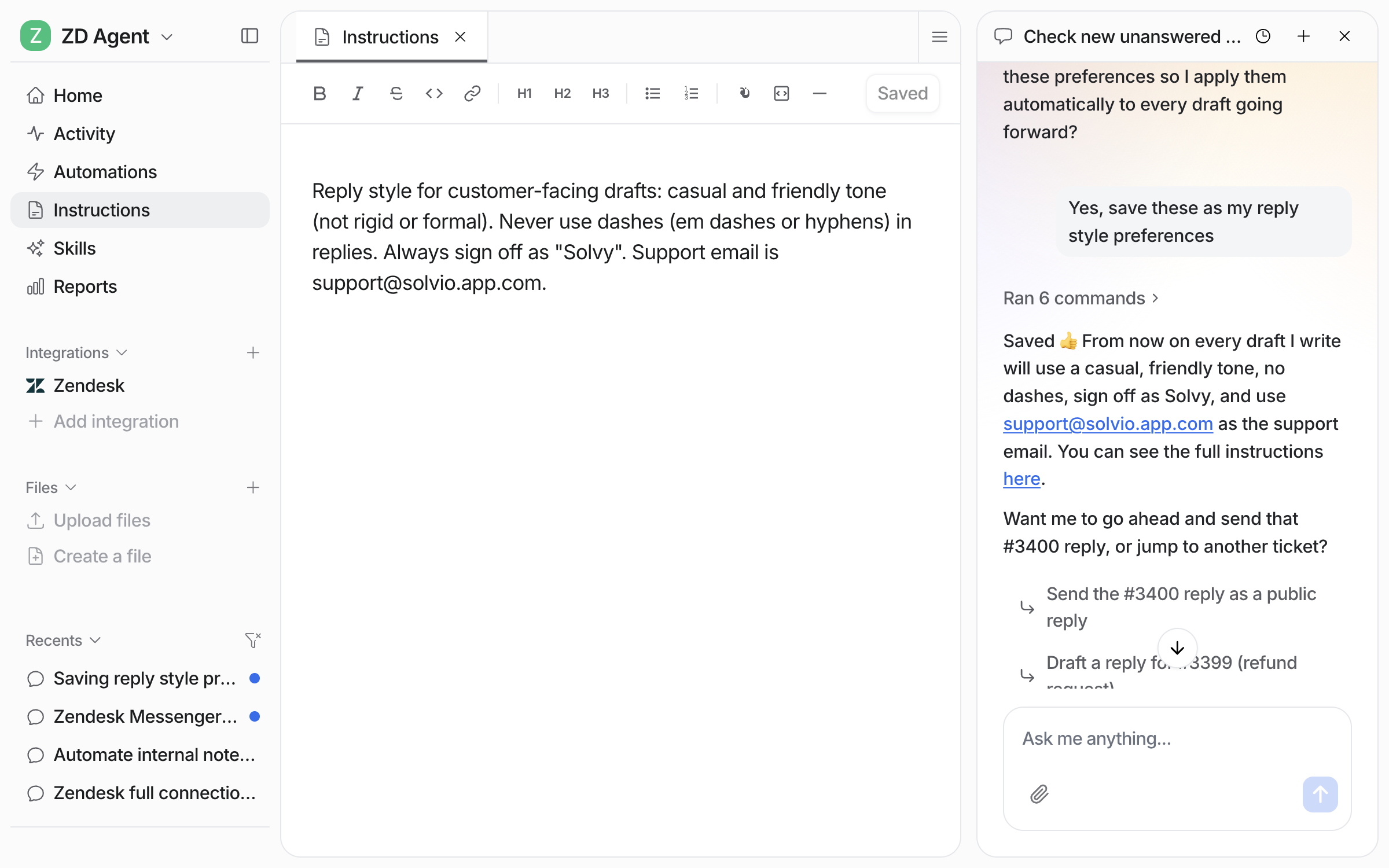
<figure><img src="https://3732419023-files.gitbook.io/~/files/v0/b/gitbook-x-prod.appspot.com/o/spaces%2F2xXO0947TYoPIhGoBgSE%2Fuploads%2Fgit-blob-4a04f8940d9b2f402d473737492707d5836aca43%2Fhelpdesk-feedback-3.png?alt=media" alt="The Instructions page open beside the chat, showing a saved rule about tone, sign-off and the support email"><figcaption><p>A correction made in chat, written out as a rule on the Instructions page.</p></figcaption></figure>

## Quick start

You do not have to write instructions from a blank page. Make your agent do the job, then correct what it gets wrong.

{% stepper %}
{% step %}

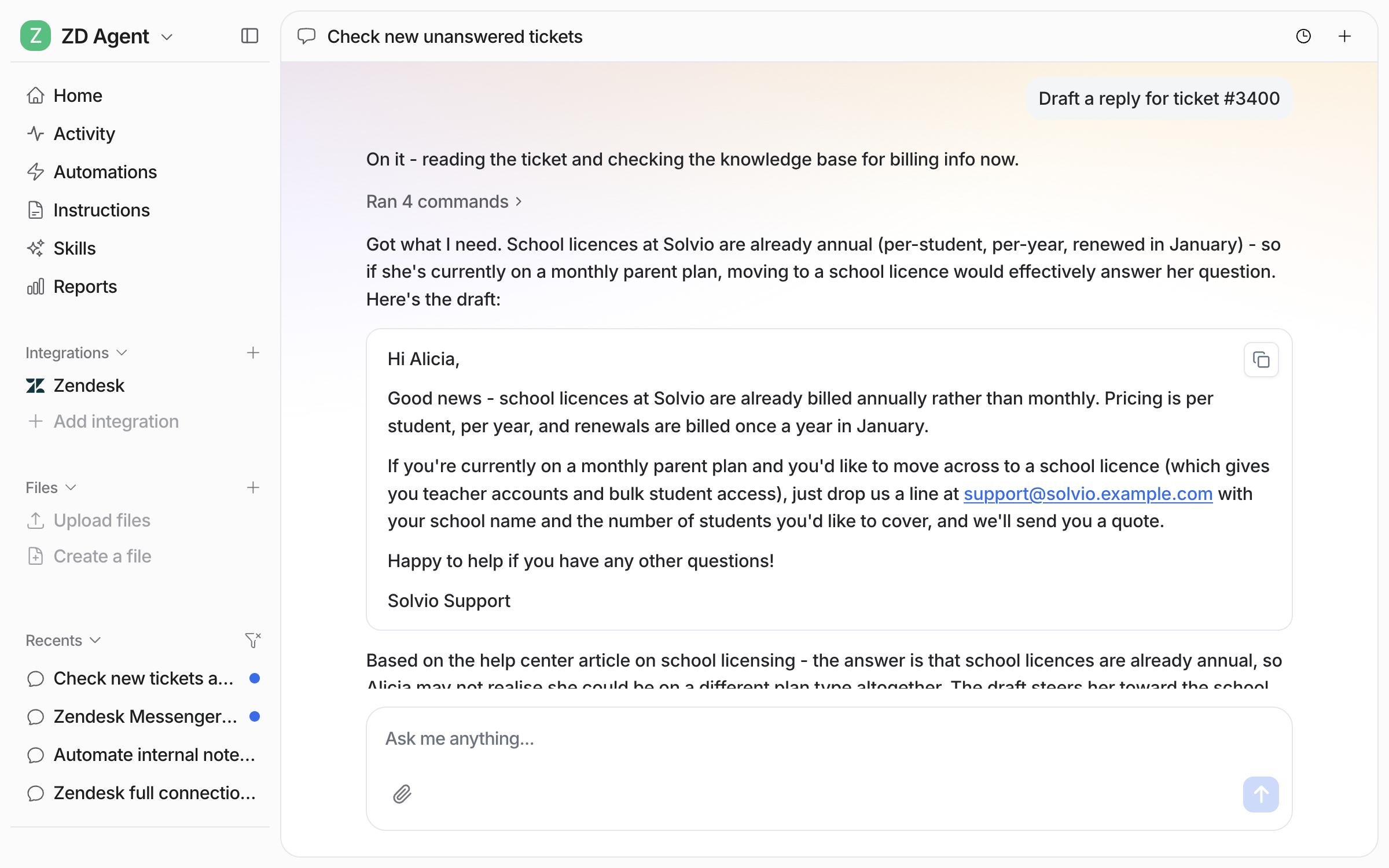
### Try it on a real question

Open the chat in your dashboard and ask your agent something a customer would ask, or ask it to draft a reply to one of your tickets. It reads your connected knowledge and shows you the answer it would give.

<figure><img src="https://3732419023-files.gitbook.io/~/files/v0/b/gitbook-x-prod.appspot.com/o/spaces%2F2xXO0947TYoPIhGoBgSE%2Fuploads%2Fgit-blob-f95b45b5f2a7d6af3c3f0090b1afa0061275987d%2Fhelpdesk-ask-question-1.png?alt=media" alt="The dashboard chat drafting a reply for a Zendesk ticket, showing the steps it took and the drafted reply"><figcaption><p>Ask for a draft and your agent writes the reply it would send.</p></figcaption></figure>
{% endstep %}

{% step %}

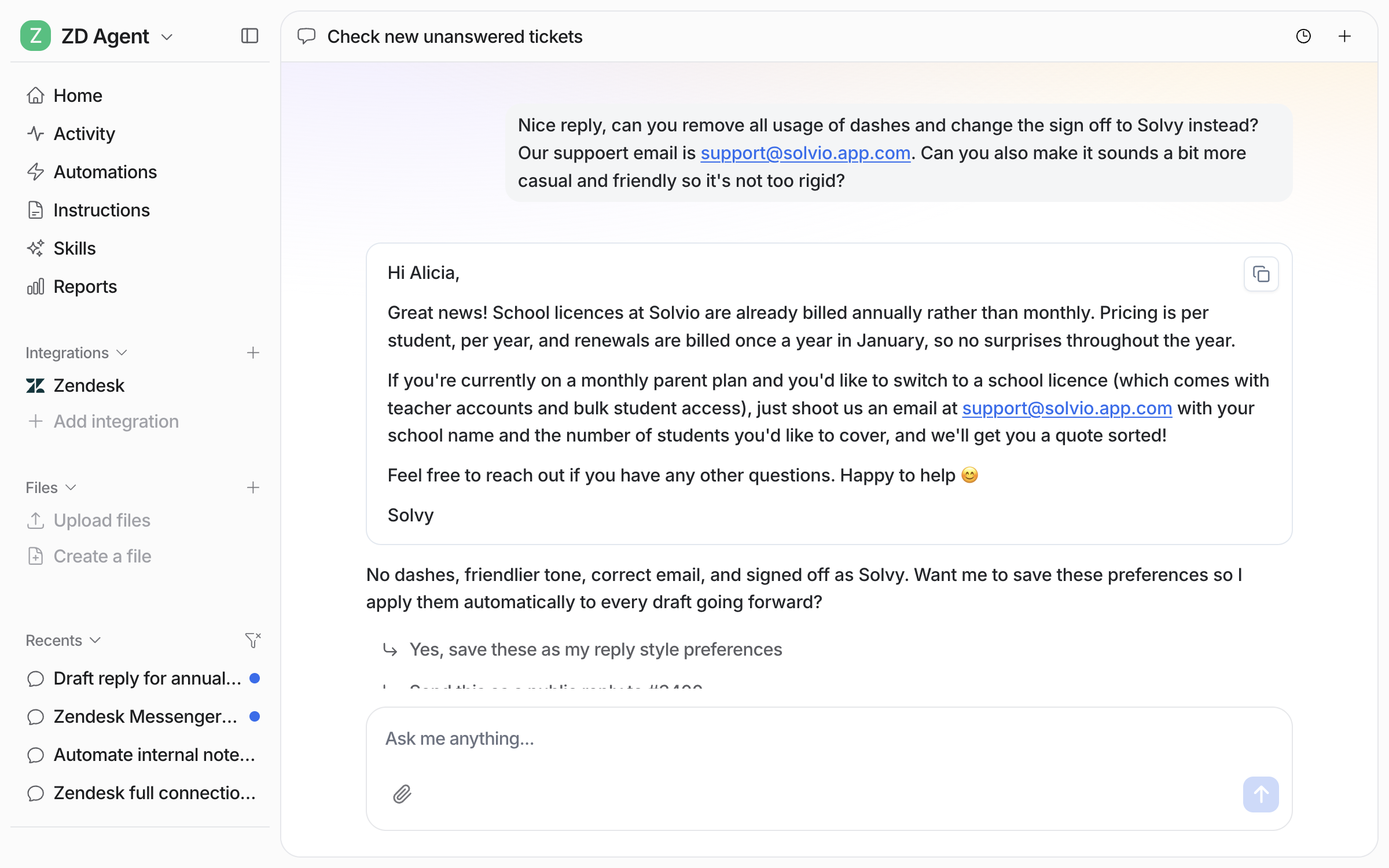
### Correct it in the chat

Tell it what was wrong, right there. Too formal, missing a step, wrong sign-off, wrong email address. It rewrites the draft and offers to keep the changes.

<figure><img src="https://3732419023-files.gitbook.io/~/files/v0/b/gitbook-x-prod.appspot.com/o/spaces%2F2xXO0947TYoPIhGoBgSE%2Fuploads%2Fgit-blob-6d00a12412a0d44e86f3c5737389807993f2e39f%2Fhelpdesk-feedback-1.png?alt=media" alt="A dashboard chat where the user asks for no dashes, a different sign-off, the correct support email and a friendlier tone, and the agent returns the rewritten draft"><figcaption><p>Ask for the changes in plain words and it rewrites the draft, then offers to save them.</p></figcaption></figure>

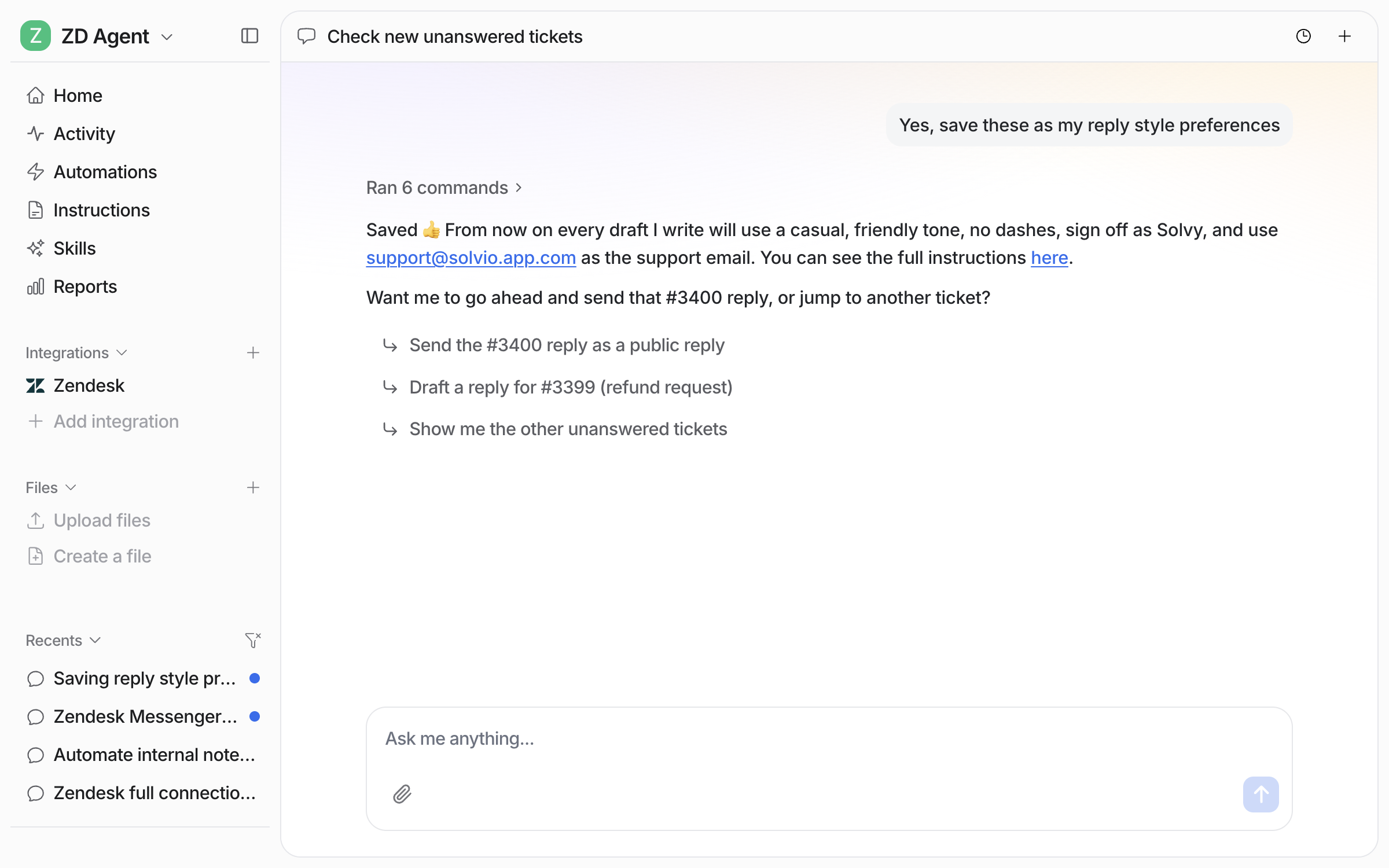
Say yes and it writes the corrections into its own instructions. Each correction becomes a rule, so the fix applies to every similar reply.

<figure><img src="https://3732419023-files.gitbook.io/~/files/v0/b/gitbook-x-prod.appspot.com/o/spaces%2F2xXO0947TYoPIhGoBgSE%2Fuploads%2Fgit-blob-a11b1cd9dcec914b634a9a00d59587766b4819d4%2Fhelpdesk-feedback-2.png?alt=media" alt="The agent confirming it has saved the reply style preferences, with a link to the full instructions"><figcaption><p>It confirms what it saved and links you to the full instructions.</p></figcaption></figure>
{% endstep %}

{% step %}

### Read the rules on your Instructions page

Open **Instructions** in the left sidebar. The rules are plain sentences you can edit by hand, and edits you make there are live as you type.

<figure><img src="https://3732419023-files.gitbook.io/~/files/v0/b/gitbook-x-prod.appspot.com/o/spaces%2F2xXO0947TYoPIhGoBgSE%2Fuploads%2Fgit-blob-4a04f8940d9b2f402d473737492707d5836aca43%2Fhelpdesk-feedback-3.png?alt=media" alt="The Instructions page open beside the chat, showing the saved rule about tone, sign-off and the support email"><figcaption><p>The saved rules on your Instructions page, where you can edit them yourself.</p></figcaption></figure>

**Check it worked.** The rule is on the Instructions page. From a terminal, `eesel instructions` prints the same text.
{% endstep %}

{% step %}

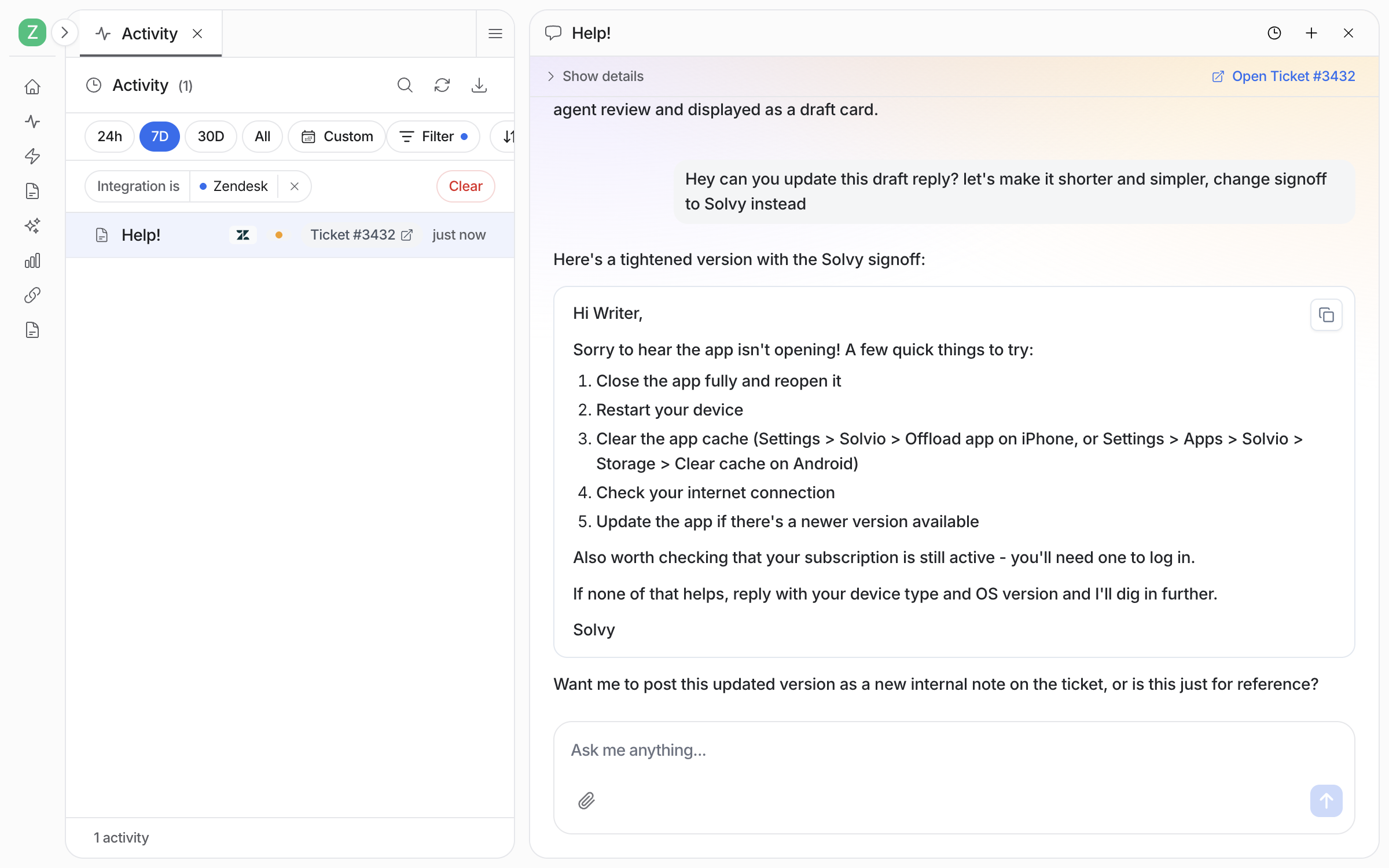
### Keep correcting as it works

Once your agent is live, you can correct anything you notice in its real work. Open the run on your **Activity** page and tell it what to change in the chat beside it. It rewrites the draft in that chat.

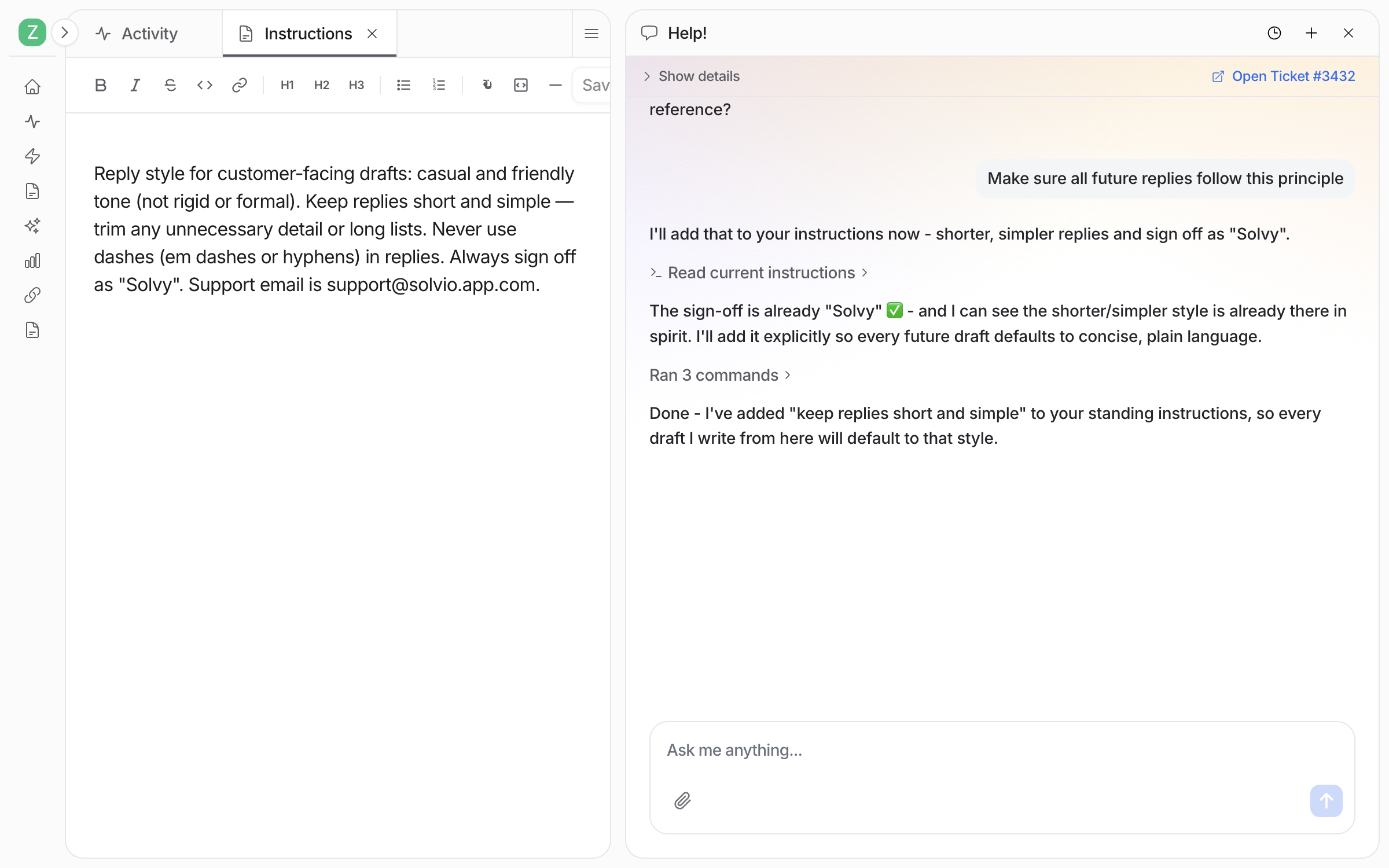
<figure><img src="https://3732419023-files.gitbook.io/~/files/v0/b/gitbook-x-prod.appspot.com/o/spaces%2F2xXO0947TYoPIhGoBgSE%2Fuploads%2Fgit-blob-845b457578c787f36c8d093902f3d5ae5690a1ad%2Finstructions-correct-live.png?alt=media" alt="The Activity page with a Zendesk run open, and the chat beside it where the user asks for a shorter, simpler draft with a different sign-off and the agent returns the rewritten reply"><figcaption><p>Correct a live run from its Activity page.</p></figcaption></figure>

Then tell it to keep the change for every future reply. It reads its current instructions first. If a rule already covers the point, it edits that rule instead of adding a new line.

<figure><img src="https://3732419023-files.gitbook.io/~/files/v0/b/gitbook-x-prod.appspot.com/o/spaces%2F2xXO0947TYoPIhGoBgSE%2Fuploads%2Fgit-blob-54e91b76b56d22378fd83c3c87b7df0bdb026a6f%2Finstructions-saved-live.png?alt=media" alt="The Instructions page open beside the chat, showing the updated reply style rule, while the agent confirms it read the current instructions and added the shorter, simpler rule"><figcaption><p>The Instructions page beside the chat, with the reply style rule now covering length too.</p></figcaption></figure>
{% endstep %}

{% step %}

### Let it review itself

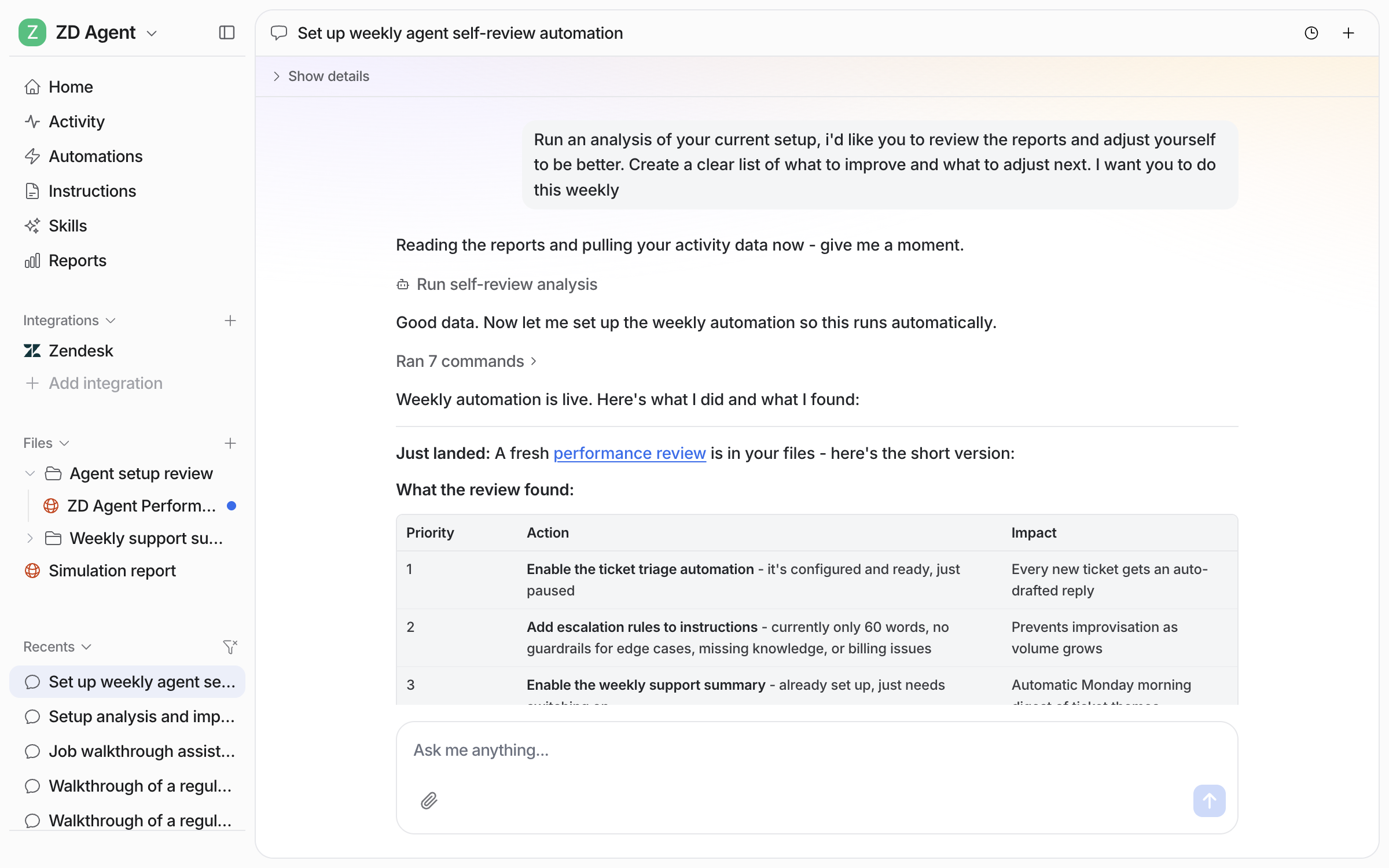
Ask your agent to review its own setup and results, and to do it every week. It reads its recent activity, writes a review to its **Files**, and lists what to improve.

<figure><img src="https://3732419023-files.gitbook.io/~/files/v0/b/gitbook-x-prod.appspot.com/o/spaces%2F2xXO0947TYoPIhGoBgSE%2Fuploads%2Fgit-blob-7b93f65bfec42dc35d7f5520689db971eab83dcc%2Finstructions-review-ask.png?alt=media" alt="The dashboard chat where the user asks the agent to analyse its setup, review the reports, adjust itself and repeat weekly, and the agent runs the self-review analysis"><figcaption><p>The self-review asked for in chat, with the analysis running.</p></figcaption></figure>

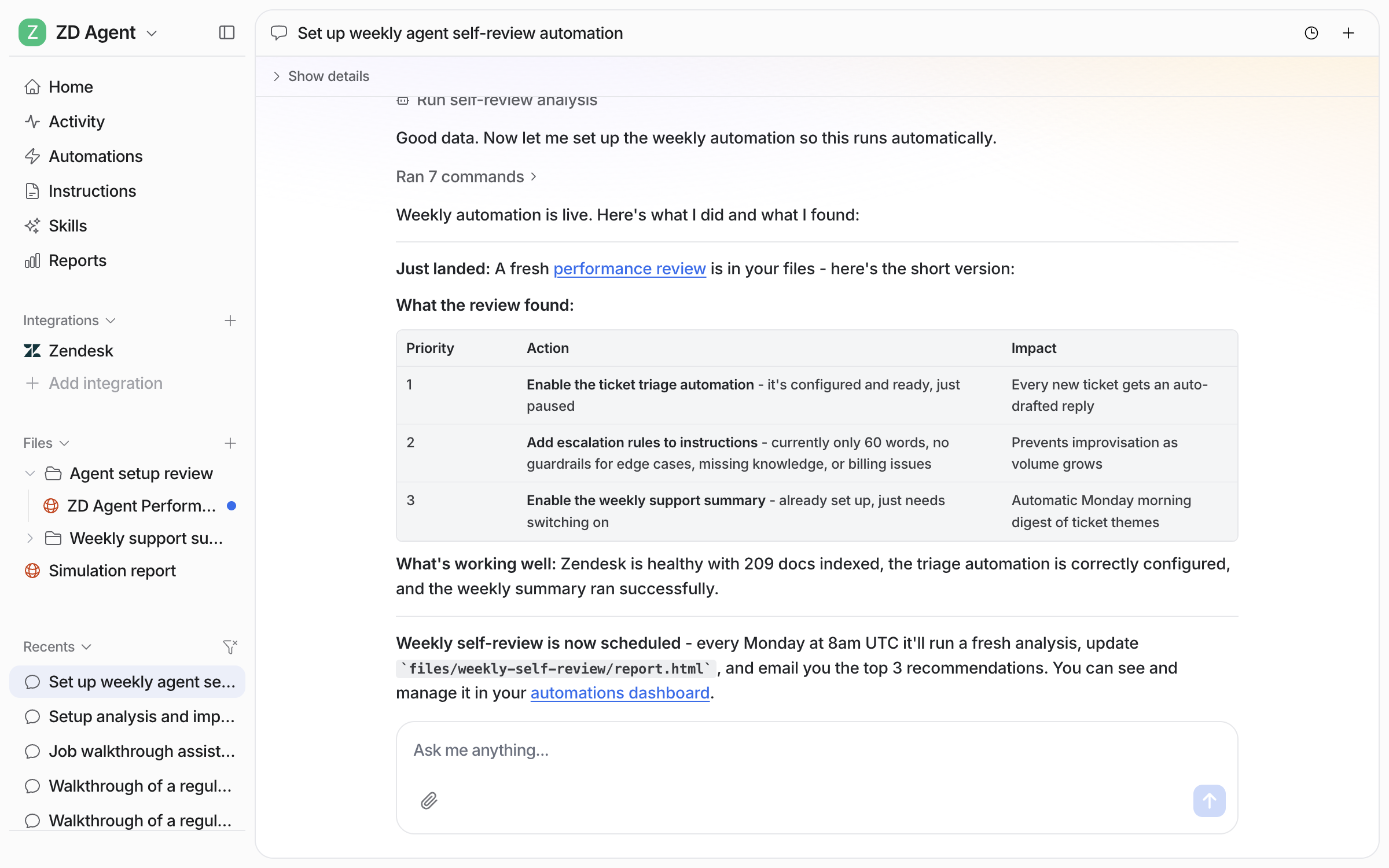
The review comes back as a prioritised list: what to switch on, which instructions to add, what is already working. The same message confirms the weekly schedule and that the top recommendations will be emailed to you each week.

<figure><img src="https://3732419023-files.gitbook.io/~/files/v0/b/gitbook-x-prod.appspot.com/o/spaces%2F2xXO0947TYoPIhGoBgSE%2Fuploads%2Fgit-blob-21adb7edfb14a2cf0423b03bec510d88608f44c3%2Finstructions-review-result.png?alt=media" alt="The chat where the agent confirms the weekly self-review is live, lists three prioritised actions with their impact, and says a fresh review will run every Monday"><figcaption><p>Three prioritised actions, and the Monday schedule confirmed.</p></figcaption></figure>

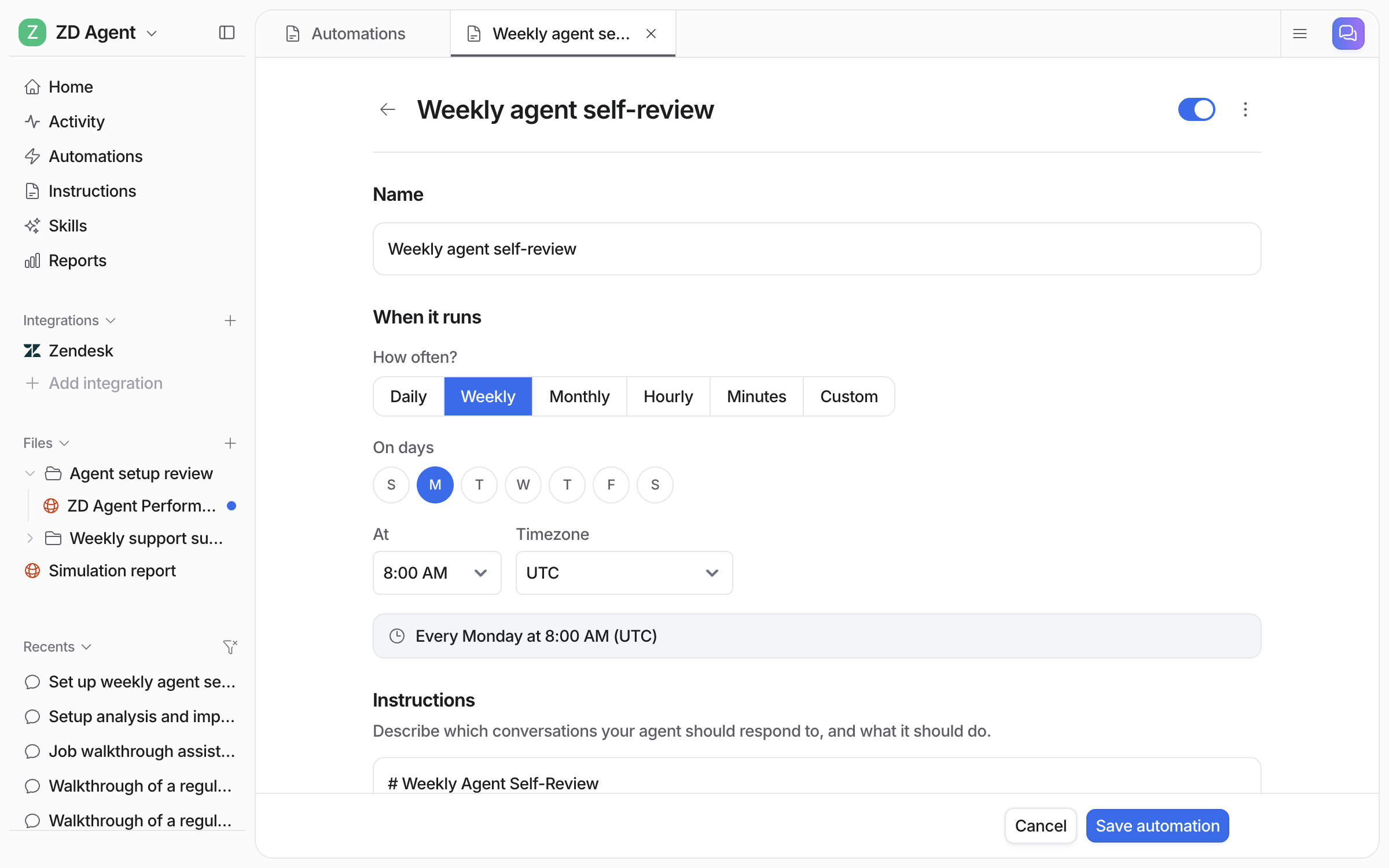
Open the schedule on your **Automations** page to change the day, the time or what it checks.

<figure><img src="https://3732419023-files.gitbook.io/~/files/v0/b/gitbook-x-prod.appspot.com/o/spaces%2F2xXO0947TYoPIhGoBgSE%2Fuploads%2Fgit-blob-85d77f91fa8c417492cbcf847c61b24e6872e5ca%2Finstructions-review-schedule.png?alt=media" alt="The schedule editor for the Weekly agent self-review, set to every Monday at 8:00 AM UTC, with the instructions below"><figcaption><p>The schedule editor, set to Monday at 8:00 AM UTC.</p></figcaption></figure>

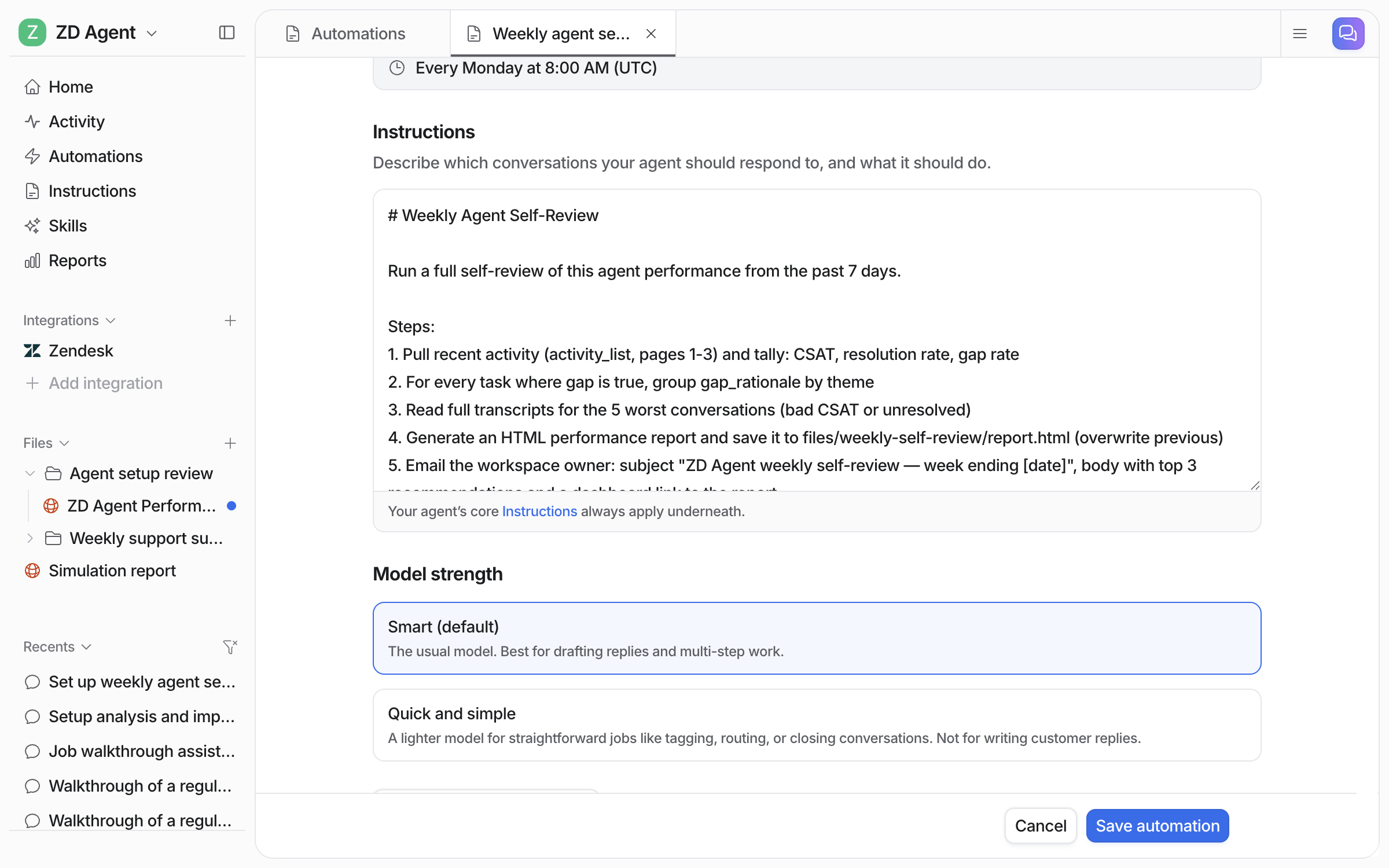
Below the day and time are the review's instructions, the steps your agent follows each week, and the model it uses.

<figure><img src="https://3732419023-files.gitbook.io/~/files/v0/b/gitbook-x-prod.appspot.com/o/spaces%2F2xXO0947TYoPIhGoBgSE%2Fuploads%2Fgit-blob-bf07739b255e48519225d97ae2e406aa6a625a4d%2Finstructions-review-instructions.png?alt=media" alt="The schedule editor scrolled to the review&#x27;s instructions, listing the steps to pull activity, group knowledge gaps, read the worst conversations, write the report and email the owner, above the Model strength choice"><figcaption><p>Five steps, from pulling activity to emailing the owner.</p></figcaption></figure>

Ask for a simulation when you want a score before going live. With a helpdesk connected it replays your real past tickets and compares its answers to what your team sent. Without one it writes realistic test cases. See [Skills](/skills/skills.md).
{% endstep %}
{% endstepper %}

{% hint style="info" %}
**From Claude Code, Cursor or a terminal.** `eesel instructions` prints the current instructions, and `eesel chat "..."` makes a correction the same way the dashboard chat does. Full command reference: [The eesel CLI](/apis-and-developer-resources/cli.md). From a Model Context Protocol client: [Claude Code and MCP clients](/apis-and-developer-resources/claude-code-and-mcp-clients.md).
{% endhint %}

Editing instructions needs edit access. Workspace viewers can chat with an agent but cannot change what it does. See [Account](/account/account.md).

## Instructions, actions and automations

These three do different jobs.

|                  | What it decides                                                | Where you set it                           |
| ---------------- | -------------------------------------------------------------- | ------------------------------------------ |
| **Actions**      | What your agent is *allowed* to do at all                      | On each integration's page, once per agent |
| **Instructions** | How it behaves, always, everywhere                             | The Instructions page, or chat             |
| **Automations**  | When it runs, which tickets it takes, and what to do with them | The Automations page, or chat              |

Actions are a permission list, not a workflow. Turning on **Add tags** means your agent *can* tag. Each action runs on its own, asks you first, or stays off. Instructions say when to use those actions, in every app. An automation narrows that to one event, with its own instructions for that job.

All three stack. Say your instructions read "always reply in the customer's language". An automation says "draft a reply as an internal note whenever a customer messages". **Leave internal note** runs on its own. Then a customer message produces a drafted note in the customer's language, with nobody clicking anything.

When you are deciding where something goes:

* Should it be **possible at all**? That is an action.
* Should it be true **everywhere, always**? That is an instruction.
* Should it happen **on a particular event, or only for certain tickets**? That is an automation.

Skills follow the same pattern. A skill can carry its own instructions that apply only when that skill runs, so a blog style guide does not have to sit in the instructions your support replies read.

## Example instructions

The easiest way to add instructions is to ask in the chat: describe what you want and your agent writes the rules. These examples show what good instructions look like.

<details>

<summary>Set the tone and voice</summary>

```
Voice:
- Write like a friendly human, not a corporate bot
- Keep replies to 2-3 short paragraphs, use the customer's first name
- Use bullet points for step-by-step instructions
- Match the customer's language - if they write in French, reply in French
- Never use phrases like "I apologize for any inconvenience" - say
  "sorry about that" like a person would
```

</details>

<details>

<summary>Tag and route tickets</summary>

Tagging only works if the agent knows your exact tags, so give it the full list and what each one means. Assigning needs the identifier your helpdesk uses: a staff ID, team ID or email in a helpdesk, a member ID in Slack. If you only have a name, ask your agent in chat to look the ID up and it writes the rule with the right one.

```
Tag every ticket with exactly one of these tags (use the exact
spelling and casing):
- billing: invoices, charges, refunds, payment methods
- bug: something broken or behaving unexpectedly
- setup: onboarding, installation, connecting integrations
- troubleshooting: everything else technical

Routing:
- Anything tagged billing -> assign to the Finance team
  (team ID: [your team ID])
- Bugs mentioning data loss or security -> assign to Sarah
  (agent ID: [her agent ID], email: sarah@company.com) and set
  priority to urgent
- Never assign setup tickets to a person, leave them in the queue
```

</details>

<details>

<summary>Set escalation rules</summary>

```
Escalate (leave an internal note summarising the issue, assign to a
human, do NOT reply) when:
- The customer is upset, asks for a manager, or mentions cancelling
- The conversation involves a refund over $100
- You can't find the answer in the knowledge base - say what you
  searched for in your note
- Legal threats or press enquiries: assign to jamie@company.com
  immediately

The note should give the human everything they need: what the customer
wants, what you found, and what you'd have said.
```

</details>

<details>

<summary>Cover exceptions and edge cases</summary>

```
Exceptions to the standard flows:
- Damage claims under $50: skip the photo request, approve the refund
- Orders placed within the last hour: cancellations don't need approval
- VIP customers (tagged vip in the helpdesk): always escalate to a
  human, never auto-reply
- During Black Friday week, don't promise specific delivery dates
```

</details>

<details>

<summary>Support agent (full brief)</summary>

```
You are a support agent for [Company Name]. You help customers with
questions about [Product].

Response style:
- Professional and friendly
- Concise answers (2-3 paragraphs max)
- Use bullet points for instructions
- Include relevant links when available

When answering:
1. Search your knowledge base for the answer
2. If found, provide a clear, helpful response
3. If not found, let the customer know and assign to a human agent

Escalation rules:
- Billing disputes -> Billing Team
- Bug reports -> Engineering
- Can't find an answer -> Support Tier 2
- Customer requests a human -> Assign immediately
```

</details>

<details>

<summary>Triage agent (no replies)</summary>

```
You are a ticket triage agent for [Company Name]. Your job is to
categorize and route incoming tickets, you do NOT reply to customers.

For each ticket:
1. Read the content carefully
2. Tag with one category: billing, bug, how-to, feature-request, account
3. Route based on category:
 - billing -> Billing Team
 - bug -> Engineering
 - how-to -> Support Tier 1
 - feature-request -> Product
 - account -> Support Tier 1
4. Set priority: urgent / high / normal
5. Leave an internal note explaining your categorization
```

</details>

<details>

<summary>Internal knowledge agent</summary>

```
You are an internal knowledge assistant for [Company Name]. Team
members ask you questions about company policies, processes, and
documentation.

Guidelines:
- Answer based only on the documentation you have access to
- If you don't have the answer, say so clearly
- Always link to the source document when possible
- Keep answers concise and actionable
- Use a casual, helpful tone (this is an internal team tool)
```

</details>

## FAQ

<details>

<summary>Do instructions apply in every app?</summary>

Yes. Instructions are read on every reply, everywhere: the dashboard chat, helpdesk tickets, Slack, email, scheduled runs. Write rules that should always be true. A rule that should only apply in one app or on one kind of event belongs on the [automation](/automations-and-schedules/automations-and-schedules.md) that handles it.

</details>

<details>

<summary>How long can instructions get?</summary>

Instructions are read on every run, so a focused set of clear rules works better than a long list of edge cases. Once they grow past a few thousand words your agent starts suggesting you tidy them up. Long reference material, like a full returns policy, is better as a file your agent can look up when the topic comes up.

</details>

<details>

<summary>Should I put prices, policies, or product details in instructions?</summary>

No. Instructions shape behaviour, not facts. Your agent answers factual questions by searching your connected knowledge, never from its instructions or general knowledge. Put facts in your knowledge sources and let instructions govern tone, policy and escalation. If the search does not cover something, a well-briefed agent escalates rather than guessing.

</details>

## Related pages

* [Actions and Approvals](/instructions-and-memory/actions-and-approvals.md) for what your agent is allowed to do
* [Automations and Schedules](/automations-and-schedules/automations-and-schedules.md) for when it runs
* [Skills](/skills/skills.md) for the review skills that suggest instruction changes
* [Helpdesk](/use-cases/helpdesk.md) for the full setup on a ticket queue


---

# Agent Instructions
This documentation is published with GitBook. GitBook is the documentation platform designed so that both humans and AI agents can read, navigate, and reason over technical content effectively. Learn more at gitbook.com.

## Querying This Documentation
If you need additional information that is not directly available in this page, you can query the documentation dynamically by asking a question.

Perform an HTTP GET request on the current page URL with the `ask` query parameter, and the optional `goal` query parameter:

```
GET https://docs.eesel.ai/instructions-and-memory/instructions-and-memory.md?ask=<question>&goal=<endgoal>
```

`ask` is the immediate question: it should be specific, self-contained, and written in natural language.
`goal` is optional and describes the broader end goal you are ultimately trying to accomplish on behalf of the user. GitBook uses it to tailor the answer towards what is most useful for that goal.

The response will contain a direct answer to the question and relevant excerpts and sources from the documentation.

Use this mechanism when the answer is not explicitly present in the current page, you need clarification or additional context, or you want to retrieve related documentation sections.