> For the complete documentation index, see [llms.txt](https://docs.eesel.ai/llms.txt). Markdown versions of documentation pages are available by appending `.md` to page URLs; this page is available as [Markdown](https://docs.eesel.ai/integrations/e-commerce/bigcommerce.md).

# BigCommerce

Set up an AI agent for BigCommerce that looks up orders, customers, products and stock live, and answers customers on your storefront, in your helpdesk and in Slack.

eesel's AI agent for BigCommerce is an AI chatbot and assistant for your BigCommerce store. It looks up orders, customers, products and stock live, and answers customers in your storefront chat, your helpdesk or Slack.

Your AI teammate is a commerce teammate in BigCommerce. It finds an order by its number or by the customer's email, and reads its status, items, payment and tracking. It searches your catalogue and checks stock for each variant. It learns your products, storefront pages and blog, so it answers from your own content. When you approve it, it can also cancel an order, refund it, or fix a wrong address.

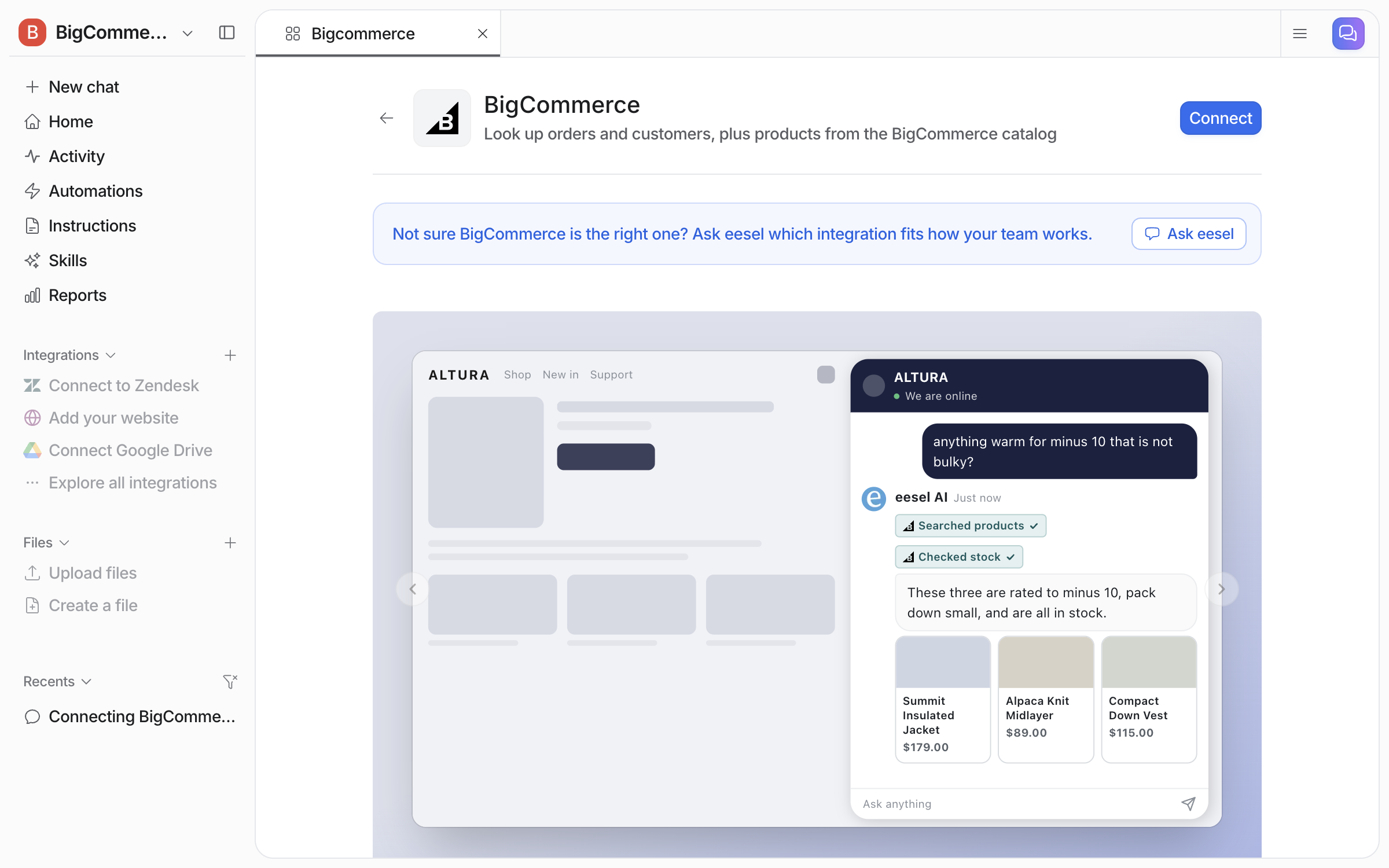
<figure><img src="https://3732419023-files.gitbook.io/~/files/v0/b/gitbook-x-prod.appspot.com/o/spaces%2F2xXO0947TYoPIhGoBgSE%2Fuploads%2Fgit-blob-56e95c92311fa07da7d1df6d5adcfd3d63d65cd5%2Fbigcommerce-hero.png?alt=media" alt="A storefront with the eesel chat bubble open, where a shopper asks for something warm and not bulky, and the agent searches products, checks stock and shows three in-stock products as cards"><figcaption><p>The agent recommending in-stock products from a live BigCommerce catalogue.</p></figcaption></figure>

## Install from the BigCommerce App Marketplace

The quickest way to start. You install the app in BigCommerce, then sign in to eesel and pick which agent the store connects to.

1. In your BigCommerce control panel, open **Apps** and search the App Marketplace for **eesel AI Chatbot & Live Chat**. Click **Install** and confirm the permissions.
2. An eesel page opens inside your control panel. Click **Connect to eesel**. eesel opens in a new tab, so your control panel stays where it was.
3. Sign in to eesel, or create an account.
4. Check it's your store (the page shows the store hash and who installed the app), choose which agent to connect it to, and click **Connect this store**. The store's owner gets an email saying it's connected.

To get back to eesel later, open the app from **Apps > My Apps**. It shows **Welcome back** and a **Manage in eesel** button, which opens your dashboard in a new tab. Every eesel page in your control panel links back to this guide and to <hi@eesel.app>.

The App Marketplace install gives your agent read-only access to orders and products. To let it cancel orders, refund them or fix addresses, connect with an API account instead, as below.

## Set up eesel in BigCommerce

{% stepper %}
{% step %}

### Ask your agent to connect BigCommerce

Open the chat in your dashboard and ask it to connect BigCommerce. It links you to the BigCommerce setup page, and lists the two things it needs from your BigCommerce control panel: your **store hash** and an **access token**. Both come from a store-level API account you create in BigCommerce.

<figure><img src="https://3732419023-files.gitbook.io/~/files/v0/b/gitbook-x-prod.appspot.com/o/spaces%2F2xXO0947TYoPIhGoBgSE%2Fuploads%2Fgit-blob-da361ab911203895cc926a6be81039fe39195ebd%2Fbigcommerce-connect-chat.png?alt=media" alt="The dashboard chat where the user asks to connect BigCommerce, and the agent links the BigCommerce setup page and lists the store hash and an API token with Orders modify, Customers modify and Products read access"><figcaption><p>The agent listing the two values it needs, and the access the token needs.</p></figcaption></figure>
{% endstep %}

{% step %}

### Create the API account in BigCommerce

You create an API account once in your BigCommerce control panel. It gives you both values.

* Open **Settings**. Under **API**, click **Store-level API accounts**.
* Click **Create API account** and give it a name.
* Copy the **store hash** from the **API path**.
* Set **Customers** and **Orders** to **modify**.
* Set **Products** and **Content** to **read-only**, then click **Save**.
* Copy the **Access token**, then click **Done**. BigCommerce shows the token only once.

Pick **modify**, not read-only, for Orders and Customers. Modify includes read. With read-only, lookups work, but cancels, refunds and address fixes fail. **Content** lets your agent learn your storefront pages and blog.

The full guide, with a screenshot of every screen, is on [Set up BigCommerce](/integrations/e-commerce/bigcommerce/bigcommerce-setup.md).
{% endstep %}

{% step %}

### Paste the two values into the connect form

Open **Integrations > BigCommerce** from the link in the chat, or from **Add integration**, and click **Connect**.

<figure><img src="https://3732419023-files.gitbook.io/~/files/v0/b/gitbook-x-prod.appspot.com/o/spaces%2F2xXO0947TYoPIhGoBgSE%2Fuploads%2Fgit-blob-ac422b222703b1ca5913018253c9026621579367%2Fbigcommerce-connect-page.png?alt=media" alt="The BigCommerce page in the eesel integration gallery, with a Connect button at the top right and a demo of the chat bubble recommending products"><figcaption><p>The BigCommerce page, with the Connect button.</p></figcaption></figure>

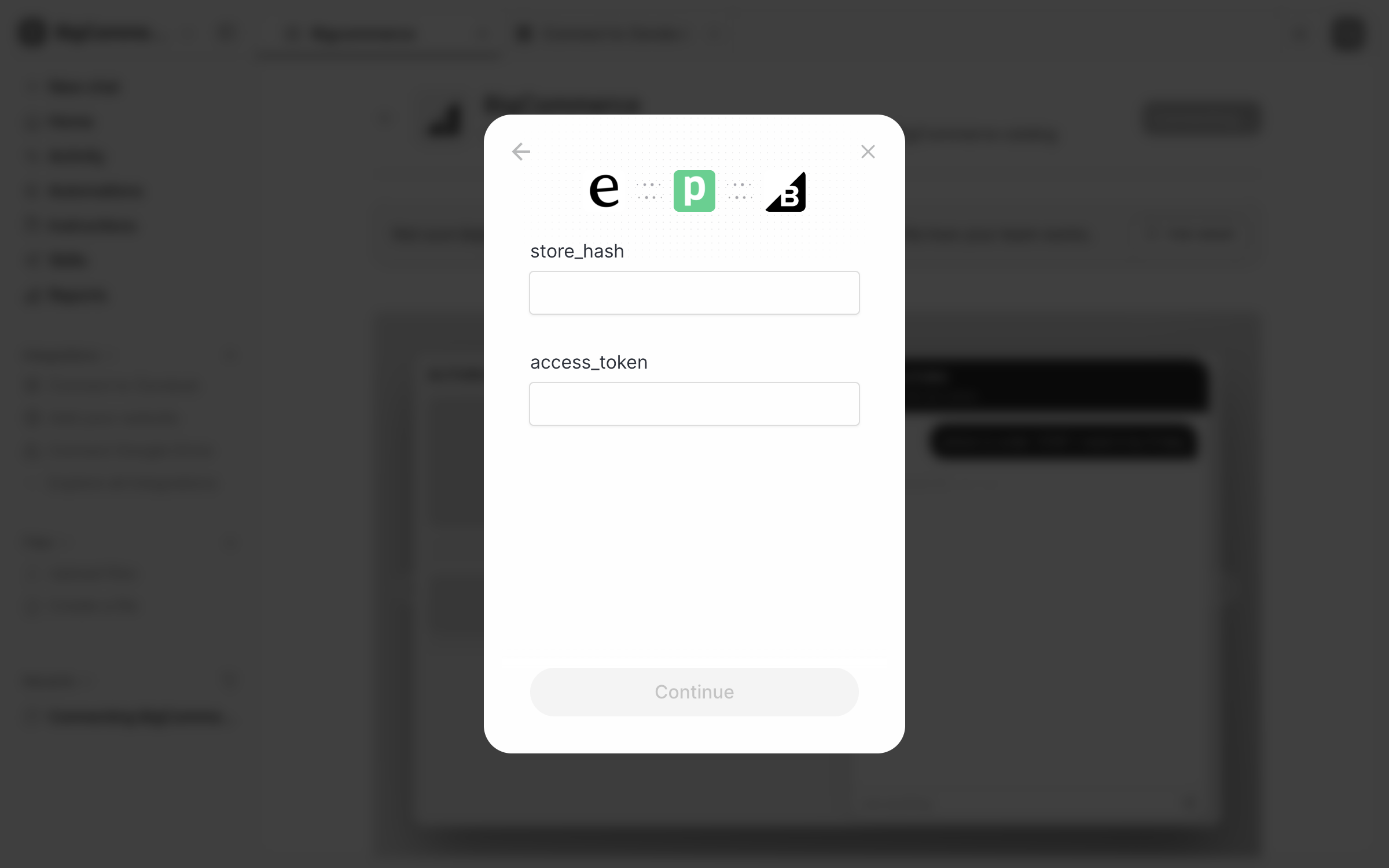
A form opens with two fields, **store\_hash** and **access\_token**.

<figure><img src="https://3732419023-files.gitbook.io/~/files/v0/b/gitbook-x-prod.appspot.com/o/spaces%2F2xXO0947TYoPIhGoBgSE%2Fuploads%2Fgit-blob-0662e10890beb24befe23defdf39281293e87feb%2Fbigcommerce-connect-form.png?alt=media" alt="The BigCommerce connect form with empty store_hash and access_token fields and a Continue button"><figcaption><p>The connect form, with a field for each value.</p></figcaption></figure>

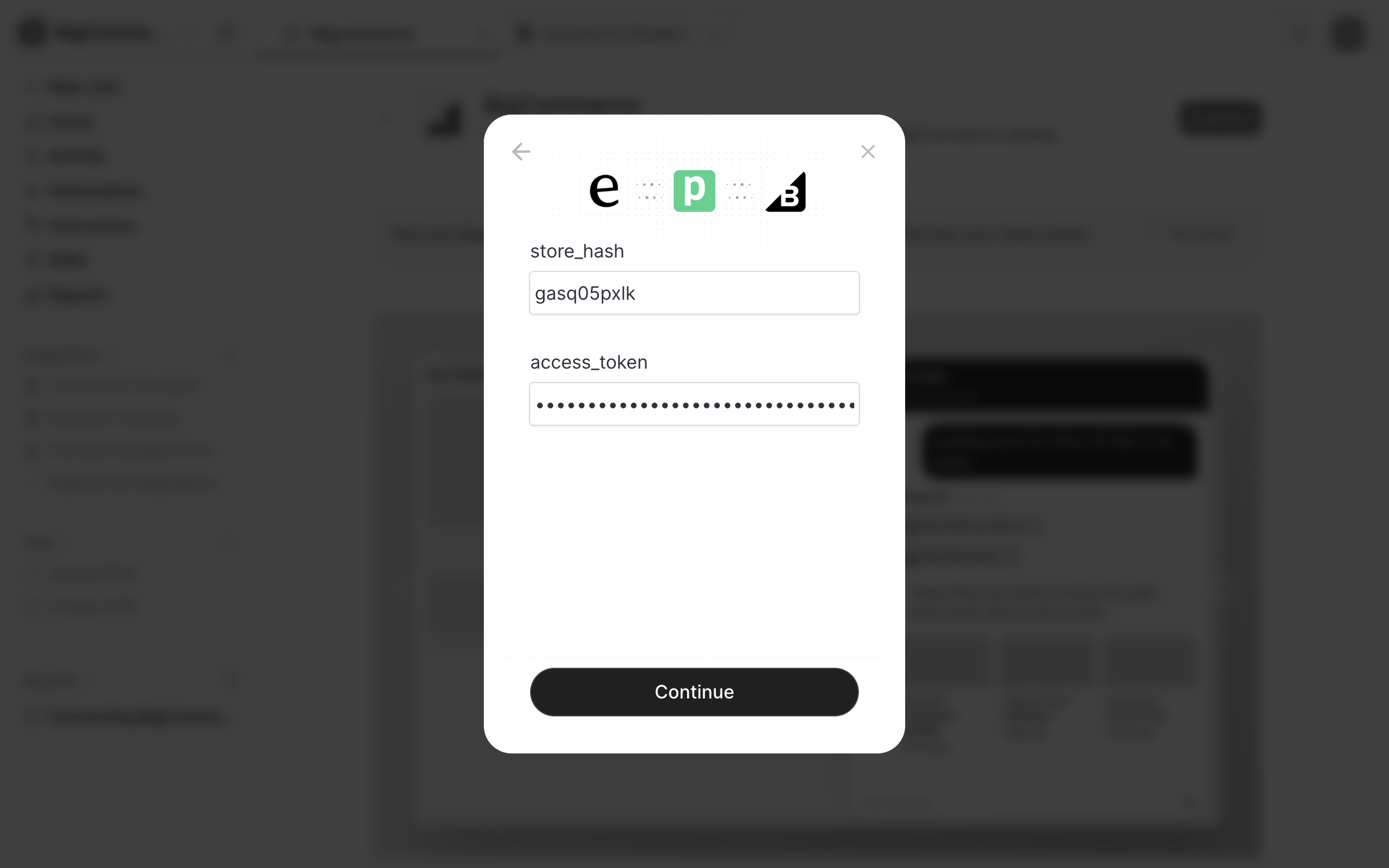
Paste the store hash and the access token, then click **Continue**. The token stays masked.

<figure><img src="https://3732419023-files.gitbook.io/~/files/v0/b/gitbook-x-prod.appspot.com/o/spaces%2F2xXO0947TYoPIhGoBgSE%2Fuploads%2Fgit-blob-59421f5c4b7817ec22cec0f6ef53d741a7171dd1%2Fbigcommerce-connect-form-filled.png?alt=media" alt="The same connect form with the store hash filled in and the access token masked"><figcaption><p>The form filled in, ready to continue.</p></figcaption></figure>

The form confirms the store is connected. Click **Continue** to close it.

<figure><img src="https://3732419023-files.gitbook.io/~/files/v0/b/gitbook-x-prod.appspot.com/o/spaces%2F2xXO0947TYoPIhGoBgSE%2Fuploads%2Fgit-blob-ec2bcec2e529f85ed4f7381002ca240c5ac3fa5a%2Fbigcommerce-connect-success.png?alt=media" alt="The connect form showing Successfully connected your BigCommerce account, with a Continue button"><figcaption><p>The connection confirmed.</p></figcaption></figure>
{% endstep %}

{% step %}

### Check what it can do

The BigCommerce page now reads **Connected**. Below sit buttons to start a chat, a **Sources** section, and an **Actions** section split into **Read** and **Write** groups. Read actions run on their own. Write actions need your approval each time, until you change that.

<figure><img src="https://3732419023-files.gitbook.io/~/files/v0/b/gitbook-x-prod.appspot.com/o/spaces%2F2xXO0947TYoPIhGoBgSE%2Fuploads%2Fgit-blob-86a408266ee7c0bb304e979754da82e8e9ea464b%2Fbigcommerce-integration-page.png?alt=media" alt="The BigCommerce integration page in the eesel dashboard showing Connected, three Start a chat buttons, and the Actions section with Read (12) set to Auto and Write (8) set to Needs approval"><figcaption><p>The BigCommerce integration page, with the two action groups.</p></figcaption></figure>

Back in the chat, your agent confirms the connection. Nothing in your store changes until you turn on an automation. Even then, write actions wait for your approval.

<figure><img src="https://3732419023-files.gitbook.io/~/files/v0/b/gitbook-x-prod.appspot.com/o/spaces%2F2xXO0947TYoPIhGoBgSE%2Fuploads%2Fgit-blob-4a245e62c14702476442caa71948029a40bcd75e%2Fbigcommerce-connected-chat.png?alt=media" alt="The dashboard chat confirming BigCommerce is connected and read-only until an automation is on, with suggestions to look up an order, search products or connect Gorgias"><figcaption><p>The chat confirming the store is connected.</p></figcaption></figure>

**Check it worked.** BigCommerce appears in the left sidebar under Integrations. From a terminal, `eesel status` shows the integration as connected.
{% endstep %}

{% step %}

### Put it to work in Slack

Connecting alone does not start your agent. It needs an automation first.

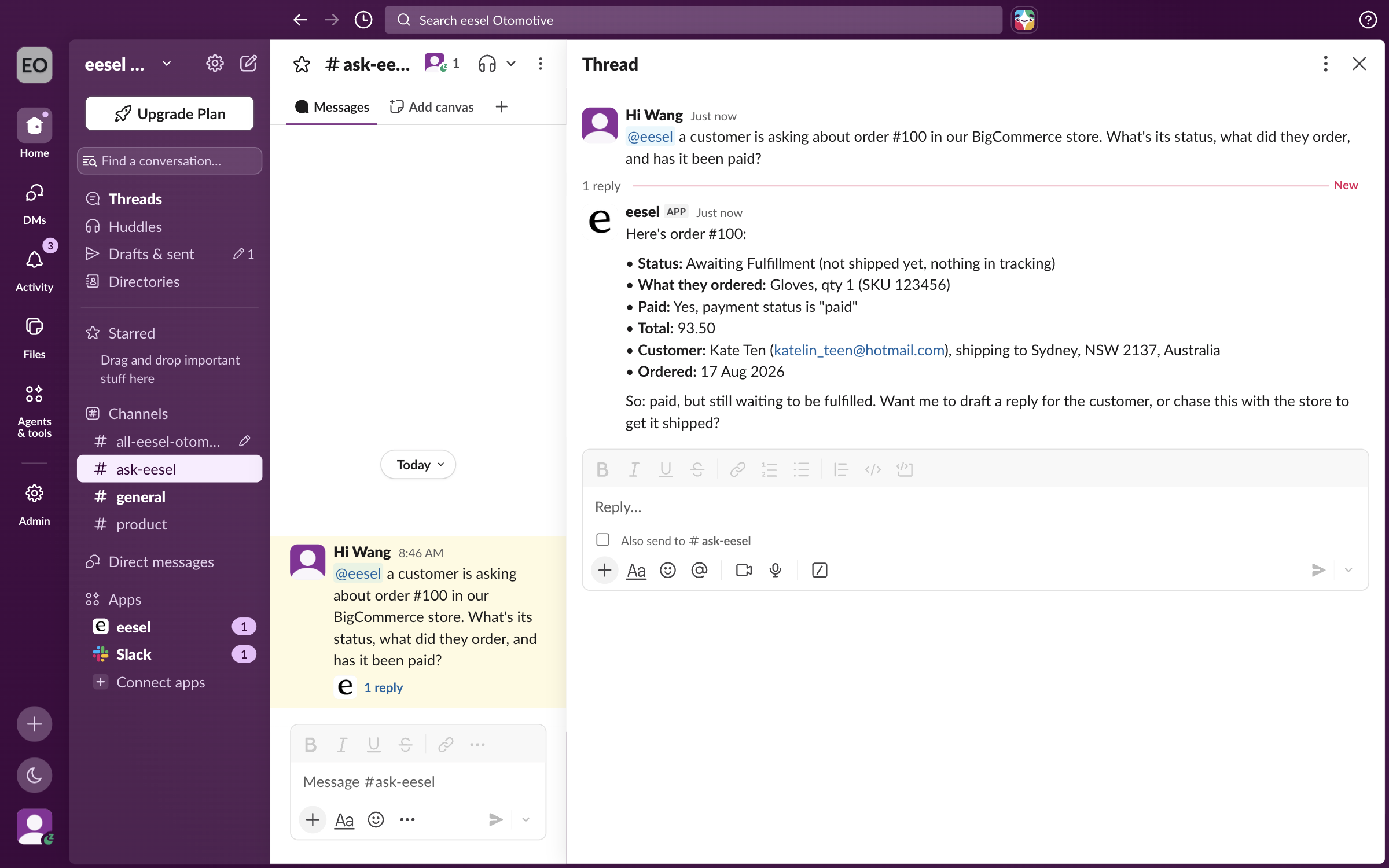
Connect [Slack](/integrations/communication/slack.md) first, then ask in the dashboard chat to turn on the Slack mention automation. See [Automations and schedules](/automations-and-schedules/automations-and-schedules.md). A teammate can then mention eesel and ask about any order. Your agent answers in the thread with the status, items, payment, total, customer and order date.

<figure><img src="https://3732419023-files.gitbook.io/~/files/v0/b/gitbook-x-prod.appspot.com/o/spaces%2F2xXO0947TYoPIhGoBgSE%2Fuploads%2Fgit-blob-87f50982534456cb9fd987a048f57e164440bac8%2Fbigcommerce-slack-thread.png?alt=media" alt="A Slack thread where a teammate asks eesel about BigCommerce order #100, and the agent answers with its status, items, payment, total, customer and order date"><figcaption><p>An order question answered in a Slack thread.</p></figcaption></figure>
{% endstep %}

{% step %}

### Put it on your storefront

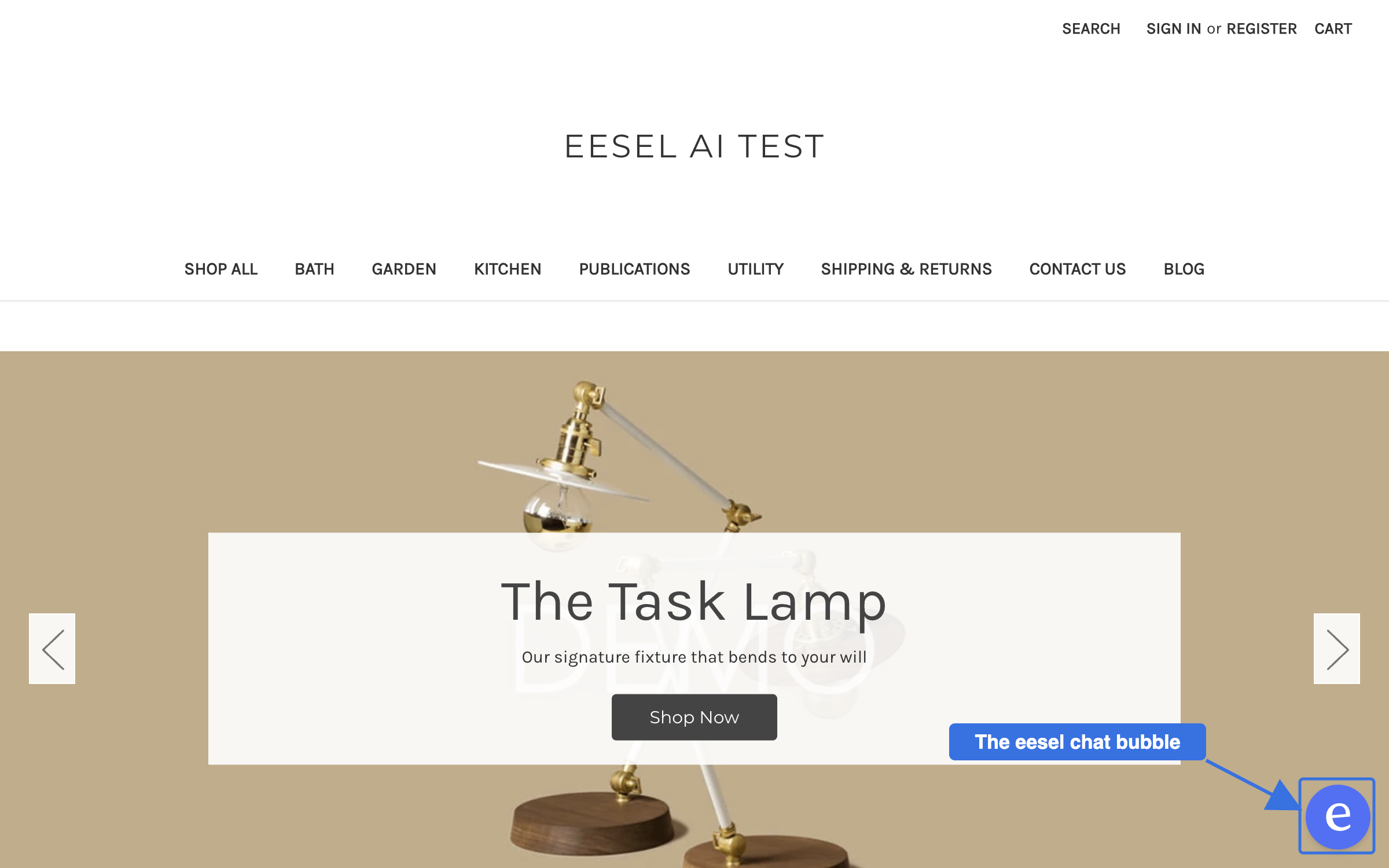
The [chat bubble](/integrations/chat-surfaces/chat-bubble.md) puts the same answers in front of shoppers. It sits closed in the corner of every storefront page until a shopper clicks it.

<figure><img src="https://3732419023-files.gitbook.io/~/files/v0/b/gitbook-x-prod.appspot.com/o/spaces%2F2xXO0947TYoPIhGoBgSE%2Fuploads%2Fgit-blob-9d53ae6b010867ddd9d429b59de19f3788621af4%2Fbigcommerce-bubble-closed.png?alt=media" alt="A BigCommerce storefront home page with the eesel chat bubble closed in the bottom right corner, with a callout on it"><figcaption><p>The chat bubble, closed, on a BigCommerce storefront.</p></figcaption></figure>

Ask about stock, and your agent answers with availability and price from the live store, and shows the products as cards.

<figure><img src="https://3732419023-files.gitbook.io/~/files/v0/b/gitbook-x-prod.appspot.com/o/spaces%2F2xXO0947TYoPIhGoBgSE%2Fuploads%2Fgit-blob-83cc8a0e5a4c949d042d9d3e5695936f2bbca250%2Fbigcommerce-bubble-stock-answer.png?alt=media" alt="The eesel chat bubble open on a BigCommerce storefront, answering a shopper&#x27;s stock question with both sizes in stock and the cheaper one, above two product cards with their prices"><figcaption><p>The bubble open, answering a shopper's stock question.</p></figcaption></figure>

On a store with a Stencil theme, a shopper can add a product to the cart from its card and see their cart in the chat. A product with options to pick, such as a size, links to its product page instead.

On BigCommerce you add the bubble in **Storefront > Script manager**, with no theme edits. The steps are on [Embed the chat bubble in BigCommerce](/integrations/e-commerce/bigcommerce/bigcommerce-embed-chat-bubble.md).
{% endstep %}

{% step %}

### Hand a shopper to your team

When a shopper asks for a person, your agent can take their details and open a ticket in your helpdesk. This example uses [Gorgias](/integrations/helpdesks/gorgias.md). Any connected helpdesk that can create and tag tickets works the same way.

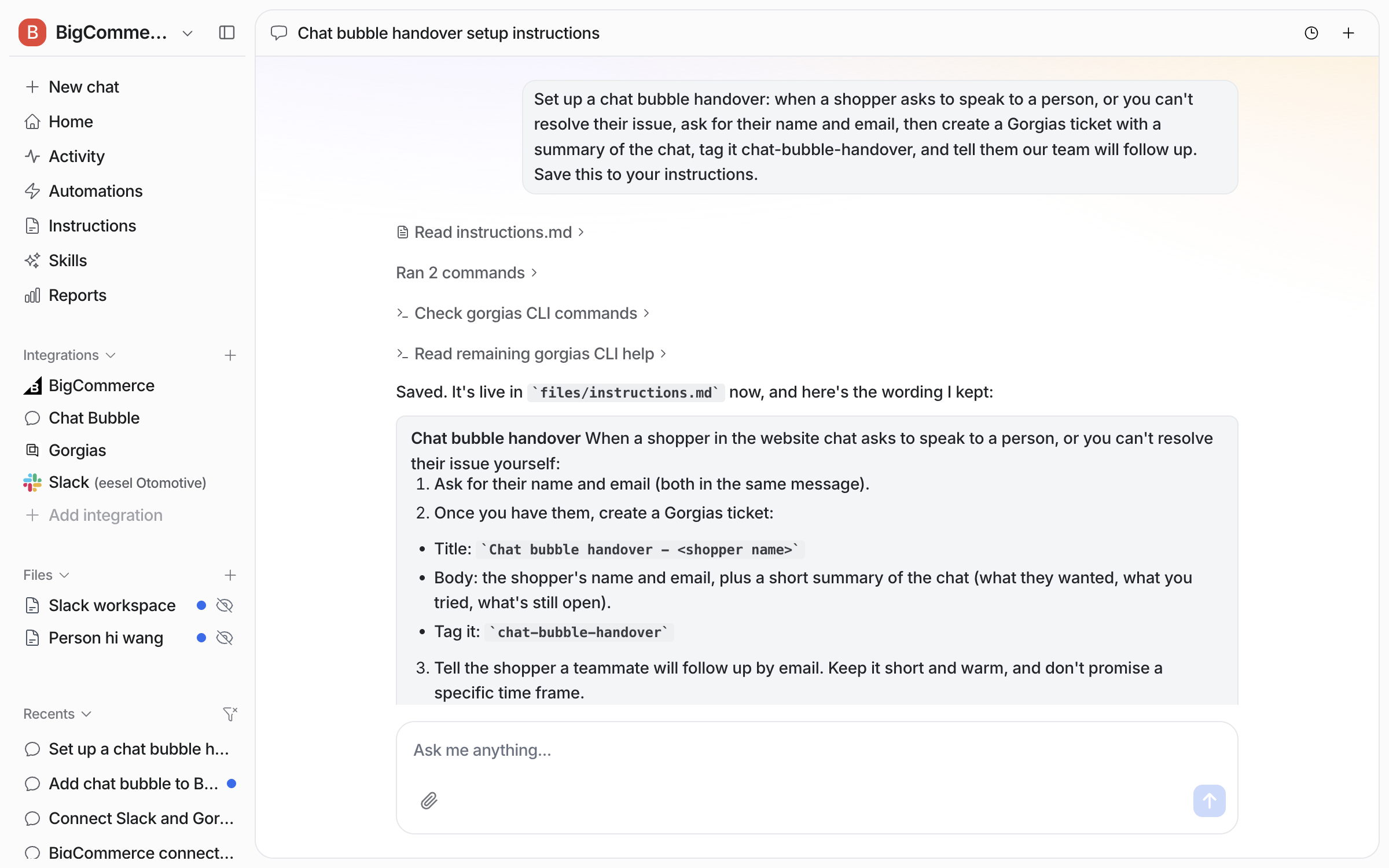
In the dashboard chat, say when to hand over and what to do. For example: "When a shopper asks to speak to a person, or you can't resolve their issue, ask for their name and email, then create a Gorgias ticket with a summary of the chat, tag it chat-bubble-handover, and tell them our team will follow up. Save this to your instructions."

Your agent writes the rules into its instructions and shows you the wording it kept.

<figure><img src="https://3732419023-files.gitbook.io/~/files/v0/b/gitbook-x-prod.appspot.com/o/spaces%2F2xXO0947TYoPIhGoBgSE%2Fuploads%2Fgit-blob-f8ba87010a5127a166e729acc391b831b6f16a95%2Fbigcommerce-handover-instructions.png?alt=media" alt="The dashboard chat where the user asks for a chat bubble handover, and the agent saves numbered rules to its instructions: ask for name and email, create a Gorgias ticket with a title, body and tag, and tell the shopper a teammate will follow up"><figcaption><p>The handover rules, saved to the instructions.</p></figcaption></figure>

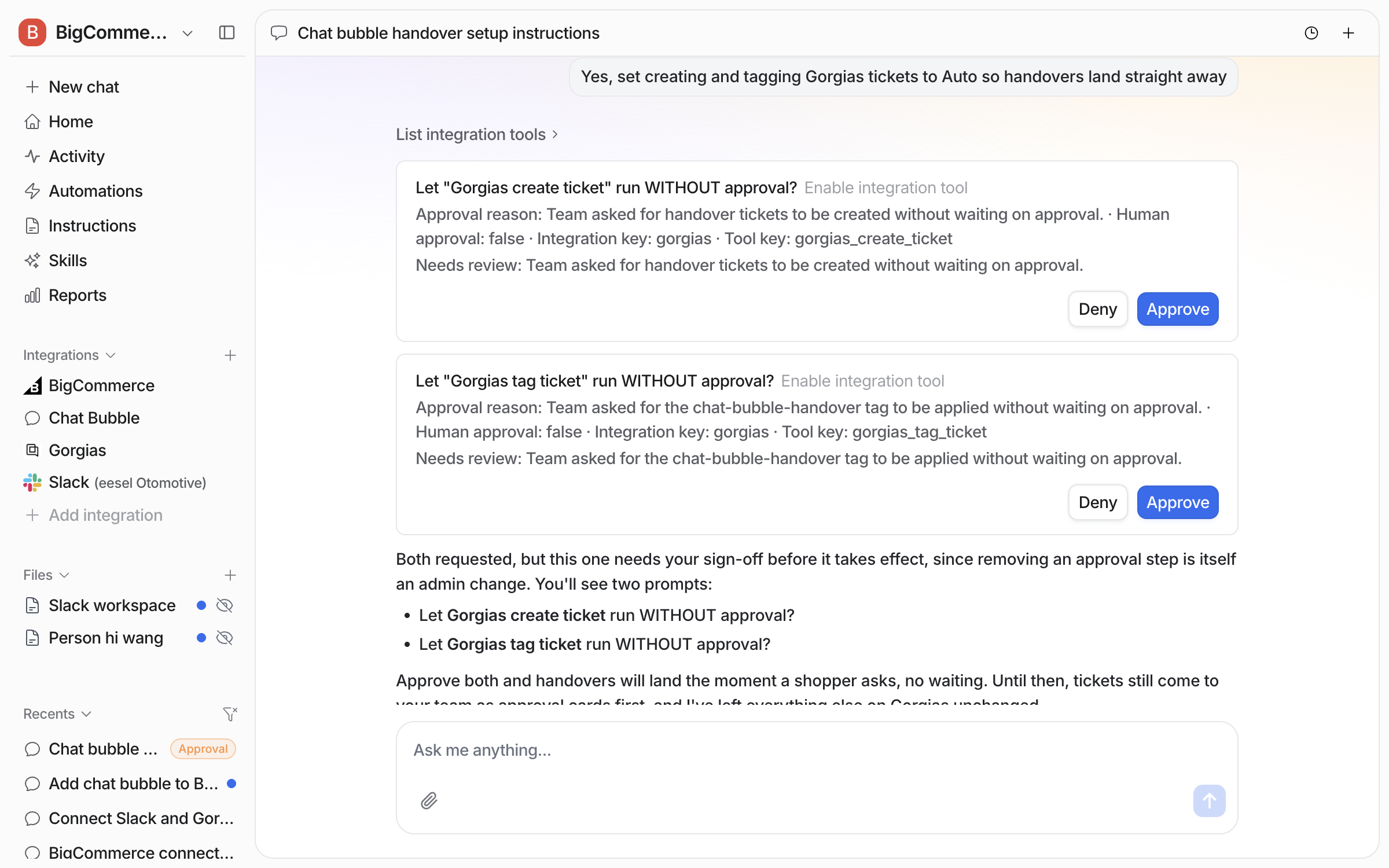
Creating and tagging a helpdesk ticket are write actions, so they need approval by default. During a live chat, the ticket would then wait for someone to approve it. Ask your agent to set both to **Auto**. It asks you to approve each change, because removing an approval step is an admin change. Click **Approve** on both.

<figure><img src="https://3732419023-files.gitbook.io/~/files/v0/b/gitbook-x-prod.appspot.com/o/spaces%2F2xXO0947TYoPIhGoBgSE%2Fuploads%2Fgit-blob-7d0ada1a7c9b0786de7046eaf6e48980b2a4264c%2Fbigcommerce-handover-approvals.png?alt=media" alt="The dashboard chat with two approval cards, Let Gorgias create ticket run without approval and Let Gorgias tag ticket run without approval, each with Deny and Approve buttons"><figcaption><p>The two approval cards, one per action.</p></figcaption></figure>

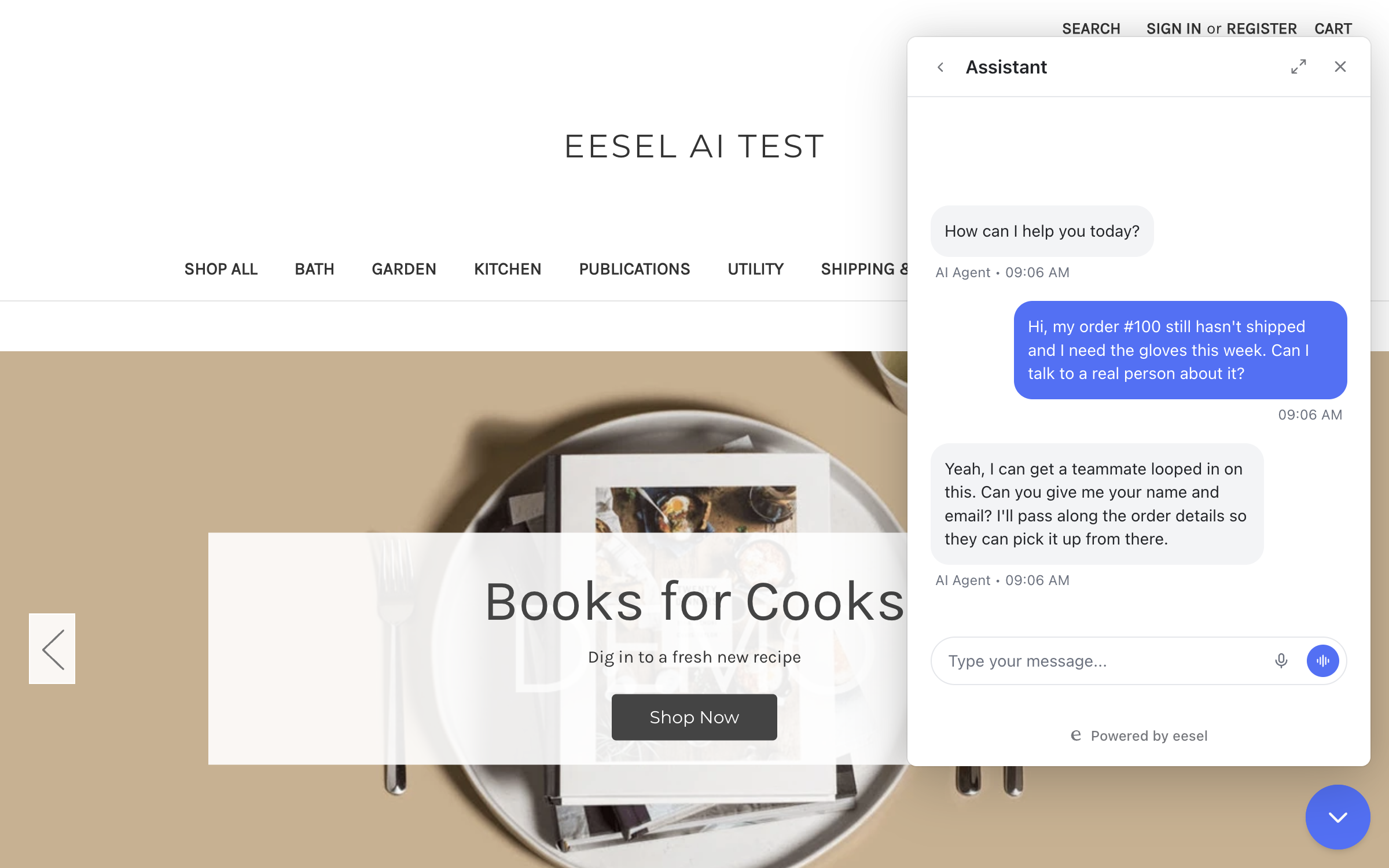
Open your storefront, click the bubble and ask for a person. Your agent offers to loop in a teammate, and asks for a name and email.

<figure><img src="https://3732419023-files.gitbook.io/~/files/v0/b/gitbook-x-prod.appspot.com/o/spaces%2F2xXO0947TYoPIhGoBgSE%2Fuploads%2Fgit-blob-d4434f984051f44f6d05c9b684aafb6b7451a81e%2Fbigcommerce-bubble-handover-ask.png?alt=media" alt="The chat bubble on a BigCommerce storefront, where a shopper says order #100 has not shipped and asks for a real person, and the agent asks for their name and email"><figcaption><p>The shopper asks for a person.</p></figcaption></figure>

Give the details. Your agent creates the ticket and tells the shopper the team will follow up by email. It also checks the order and tells the shopper what it found.

<figure><img src="https://3732419023-files.gitbook.io/~/files/v0/b/gitbook-x-prod.appspot.com/o/spaces%2F2xXO0947TYoPIhGoBgSE%2Fuploads%2Fgit-blob-569b6ea6ee5889cbdb9413a413606e27c599c098%2Fbigcommerce-bubble-handover-done.png?alt=media" alt="The same chat where the shopper gives a name and email, and the agent says it flagged order #100 with the team and that the order is still Awaiting Fulfillment with no tracking"><figcaption><p>The agent confirming the handover.</p></figcaption></figure>

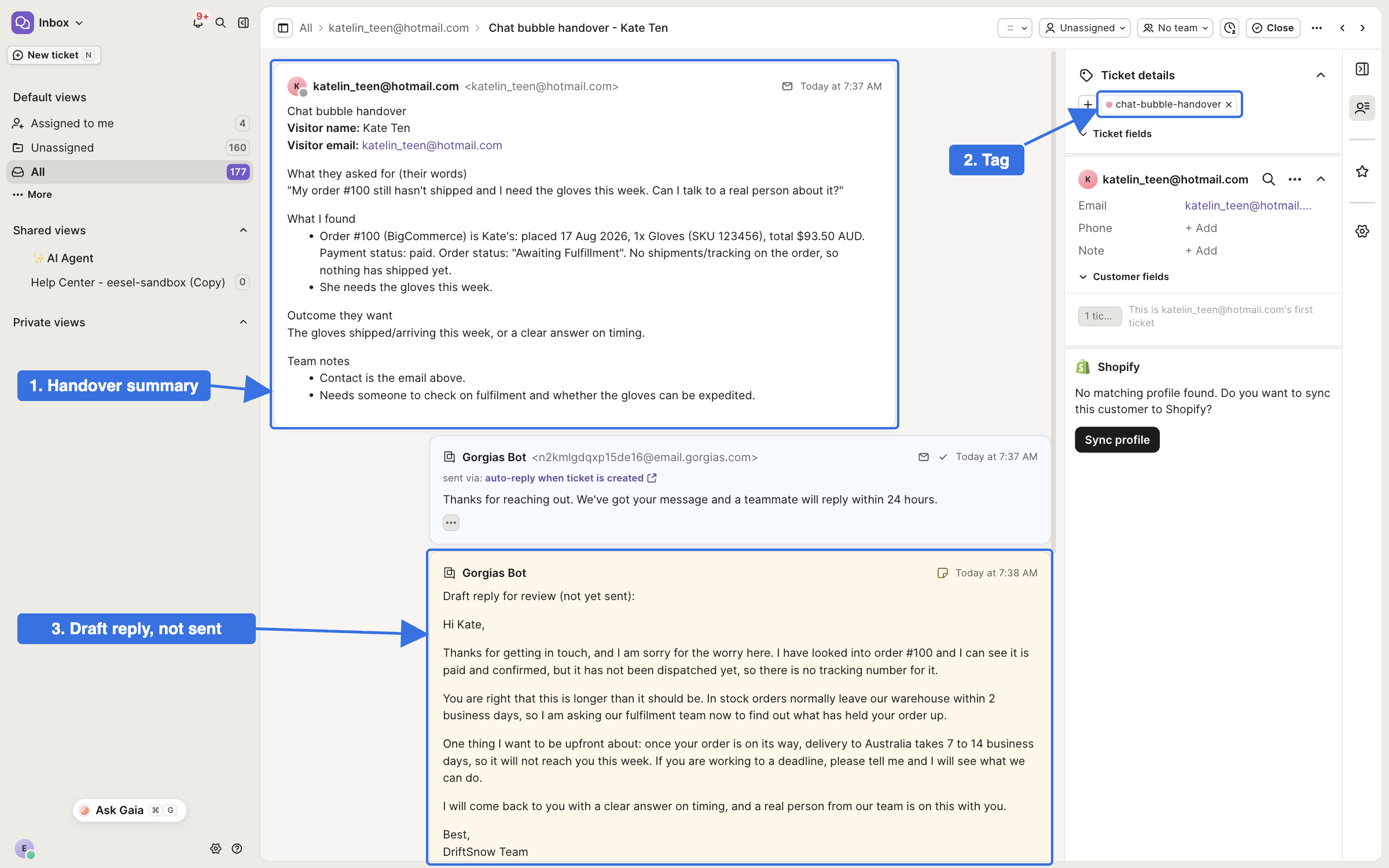
Open your helpdesk. The ticket is there under the shopper's email, with the handover tag. The first message is a summary for your team: who the shopper is, what they asked in their own words, what the agent found in BigCommerce, and what they want.

<figure><img src="https://3732419023-files.gitbook.io/~/files/v0/b/gitbook-x-prod.appspot.com/o/spaces%2F2xXO0947TYoPIhGoBgSE%2Fuploads%2Fgit-blob-fa35b9d27d8ce4496bc71a6dc2960b7565850a36%2Fbigcommerce-handover-gorgias.png?alt=media" alt="A Gorgias ticket from a chat bubble handover, with callouts on the handover summary as the first message, the chat-bubble-handover tag, and a draft reply left for review"><figcaption><p>The handover ticket in Gorgias, with the summary, the tag and a draft reply.</p></figcaption></figure>

If your agent also drafts replies in that helpdesk, a draft reply for review appears below the summary. It is an internal note and is not sent to the shopper.
{% endstep %}
{% endstepper %}

## Sources, triggers and actions

### Sources

Sources are what your agent learns from in your store. eesel copies them when you connect.

| Source            | What your agent reads from it                                                                           |
| ----------------- | ------------------------------------------------------------------------------------------------------- |
| **Products**      | Your catalogue, with SKUs, pricing, stock and variants. Up to your 5,000 most recently updated products |
| **Content pages** | Storefront pages such as About, Contact, FAQ, shipping and returns, and your store's policies           |
| **Blog posts**    | Articles published on your storefront blog                                                              |
| **Categories**    | Your catalogue's category names and descriptions                                                        |

Switch any source off on **Integrations > BigCommerce** if this agent should not learn from it. Orders and customers are not copied. Every order, customer and stock lookup reads the store live, at the moment it is asked. See [Integrations](/integrations/overview.md).

### Triggers

BigCommerce has no triggers. Nothing in your store starts an agent run. The trigger comes from a helpdesk like [Gorgias](/integrations/helpdesks/gorgias.md), Zendesk or Freshdesk, a Slack mention, or the chat bubble. Your agent uses its BigCommerce actions while it handles that conversation. The trigger event is fixed when the automation is created. So a new automation is required for each different trigger event.

### Actions

Actions are what your agent can do in your store:

|           | Action                                                                                                                             | What it does                                                                                                                         |
| --------- | ---------------------------------------------------------------------------------------------------------------------------------- | ------------------------------------------------------------------------------------------------------------------------------------ |
| **Read**  | Get Order                                                                                                                          | Pulls one order by its number: items, total, status, shipping address, shipments and tracking, and the shopper's checkout note       |
|           | Get Orders by Email                                                                                                                | Lists a customer's orders by their email address, newest first                                                                       |
|           | List Orders                                                                                                                        | Lists the store's orders, newest first. Can narrow to one status, such as Awaiting Fulfillment, or a date range                      |
|           | Get Customer by Email                                                                                                              | Reads a customer's account: name, company, phone and saved addresses                                                                 |
|           | Search Products                                                                                                                    | Searches the catalogue by name, description, SKU or brand, with price, variants and stock                                            |
|           | Get Product                                                                                                                        | One product in full, with every variant's SKU, price and stock level                                                                 |
|           | List Products                                                                                                                      | Lists the whole catalogue a page at a time, newest first. For jobs across the catalogue, such as copying new products to another app |
|           | Get Product By Id, Get Product Variants, Get All Products, Get All Products Sort Order, List Category Id Options, Retrieve options | More catalogue reads: product details, variants, the full product list and category options                                          |
| **Write** | Cancel Order                                                                                                                       | Moves an order to Cancelled. Cancelling is not a refund and returns no money                                                         |
|           | Refund Order                                                                                                                       | Refunds the whole order, or an exact amount you give                                                                                 |
|           | Fix Order Shipping Address                                                                                                         | Corrects the shipping address on an order that has not shipped                                                                       |
|           | Fix Customer Account Address                                                                                                       | Corrects the address saved on a customer's account. It does not change an order already placed                                       |
|           | Create Product, Update Product, Delete Product, Create Product Image                                                               | Change the catalogue. These need **Products** set to **modify** on the API account                                                   |

You stay in control the whole way. Adjust your AI agent's access to knowledge and its action permissions to your liking. See [Actions and Approvals](/instructions-and-memory/actions-and-approvals.md).

{% hint style="info" %}
**From Claude Code, Cursor or a terminal.** `eesel login`, then `eesel integrations connect bigcommerce`, prints the details that connection method needs. `eesel status` then shows the integration as connected, and `eesel automations` lists your automations. Three steps have no command: creating the API account, pasting the two values, and turning an automation on. Use the dashboard for those. The BigCommerce control panel part is a human step. Wait for a person to create the API account and paste the two values. Wait for the connection status to change, and do not retry. Full command reference: [The eesel CLI](/apis-and-developer-resources/cli.md). Step-by-step: [Set up from Claude Code or the terminal](/getting-started/set-up-from-a-coding-agent.md).
{% endhint %}

## Limitations

* **No BigCommerce triggers.** Nothing in your store starts your agent. A helpdesk ticket, a Slack mention or the chat bubble does.
* **Orders and customers are not copied.** Every order and customer lookup reads the store live, at the moment it is asked.
* **The Products source holds up to 5,000 products,** the most recently updated. Search Products still reads the whole catalogue live.
* **Pages and blog posts need Content access.** Without **Content** set to **read-only** on the API account, those two sources stay empty.
* **A customer's orders need their email.** The email must come from the customer or their ticket.
* **The API account sets the ceiling.** Read-only on Orders or Customers means cancels, refunds and address fixes fail. Read-only on Products means the product write actions fail.
* **The access token shows once.** BigCommerce never shows it again. If you lose it, delete the API account and create a new one.

## Troubleshooting

<details>

<summary>The connection fails?</summary>

Check the store hash is the short code from the **API path**, the part between `/stores/` and `/v3/`, with no slashes. Then check you pasted the **Access token**, not the Client ID or Client secret. All three appear on the same BigCommerce screen.

</details>

<details>

<summary>Lookups work, but a cancel, refund or address fix fails?</summary>

The API account has read-only access to Orders or Customers. Edit the API account in BigCommerce and set both to **modify**. If BigCommerce gives you a new token, ask your agent to reconnect BigCommerce and paste the new one.

</details>

<details>

<summary>Your agent cannot find a customer's orders?</summary>

Orders by email match the email on the order. Ask for the order number instead, or check the customer used the same email at checkout.

</details>

<details>

<summary>A write action did not happen?</summary>

Write actions need approval until you change that. Open the run on your **Activity** page. If the action is waiting on a person, approve it and it runs.

</details>

<details>

<summary>The shopper was told the team will follow up, but no ticket appeared?</summary>

The create ticket action is still waiting for approval. Open the run on your **Activity** page and approve it. To stop it waiting next time, ask your agent to set create ticket and tag ticket to **Auto**, as in the handover steps above. You can also change both on the helpdesk's integration page.

</details>

<details>

<summary>A product shows no stock?</summary>

When the store does not track inventory for a product, there is no stock number to read. Your agent says it is not tracked, rather than out of stock.

</details>

## FAQ

<details>

<summary>How do I add an AI agent to BigCommerce?</summary>

Install **eesel AI Chatbot & Live Chat** from the BigCommerce App Marketplace and click **Connect to eesel**, or create a store-level API account in your BigCommerce control panel and connect BigCommerce in eesel with the store hash and access token. Then ask your agent to turn on an automation, such as the chat bubble or the Slack mention automation. The steps are in [Install from the BigCommerce App Marketplace](#install-from-the-bigcommerce-app-marketplace) and [Set up eesel in BigCommerce](#set-up-eesel-in-bigcommerce).

</details>

<details>

<summary>Can the BigCommerce AI agent answer order status questions?</summary>

Yes. Your agent looks the order up live by its number or the customer's email address. It reads the status, items, payment, shipments and tracking.

</details>

<details>

<summary>Can the BigCommerce AI agent process refunds?</summary>

Yes, when you approve it. It refunds the whole order or an exact amount. The API account needs **modify** access on Orders.

</details>

<details>

<summary>Can I connect BigCommerce to ChatGPT or Claude?</summary>

Yes, through eesel. Once BigCommerce is connected, you can talk to your eesel agent from ChatGPT, Claude or Cursor, and it works with your BigCommerce data. See [Use eesel from ChatGPT](/apis-and-developer-resources/use-eesel-from-chatgpt.md), [Use eesel from Claude and other assistants](/apis-and-developer-resources/use-eesel-from-claude-and-other-assistants.md) and [Claude Code and MCP clients](/apis-and-developer-resources/claude-code-and-mcp-clients.md).

</details>

<details>

<summary>Does connecting BigCommerce let my AI agent change orders on its own?</summary>

No. Connecting only gives your agent access to your store. It does not act until you create an automation. Write actions also need your approval each time, until you change that.

</details>

<details>

<summary>How do I disconnect BigCommerce from eesel?</summary>

Open BigCommerce under Integrations in the left sidebar, click the **...** menu at the top right, and remove the connection. To revoke access on BigCommerce's side as well, delete the API account in **Settings > Store-level API accounts**. If you installed from the App Marketplace, uninstall the app in **Apps > My Apps** instead. That disconnects the store in eesel too.

</details>

## Related pages

* [Set up BigCommerce](/integrations/e-commerce/bigcommerce/bigcommerce-setup.md) for every screen in the BigCommerce control panel
* [Embed the chat bubble in BigCommerce](/integrations/e-commerce/bigcommerce/bigcommerce-embed-chat-bubble.md) for adding the bubble to your storefront
* [E-commerce Sales Rep](/use-cases/e-commerce-sales-rep.md) for the job your agent does on a store
* [Actions and Approvals](/instructions-and-memory/actions-and-approvals.md) for choosing what your agent may do
* [Integrations overview](/integrations/overview.md) for how sources, triggers and actions fit together
* [Set up from Claude Code or the terminal](/getting-started/set-up-from-a-coding-agent.md)


---

# Agent Instructions
This documentation is published with GitBook. GitBook is the documentation platform designed so that both humans and AI agents can read, navigate, and reason over technical content effectively. Learn more at gitbook.com.

## Querying This Documentation
If you need additional information that is not directly available in this page, you can query the documentation by asking a question.

Perform an HTTP GET request on the following URL with the `ask` and `goal` query parameters:

```
GET https://docs.eesel.ai/integrations/e-commerce/bigcommerce.md?ask=<question>&goal=<user_goal>
```

`ask` is the immediate question: it should be specific, self-contained, and written in natural language.
`goal` is what the user is ultimately trying to achieve, the reason they need the answer. Sharing it helps GitBook give you a better, more relevant answer. A goal is most helpful when it describes the outcome the user wants rather than restating the question. For example, with `ask=how do I create an API token`, a goal like `automate deployments from our CI pipeline` lets GitBook tailor the answer to that use case.

The response will contain a direct answer to the question and relevant excerpts and sources from the documentation.

Use this mechanism when the answer is not explicitly present in the current page, you need clarification or additional context, or you want to retrieve related documentation sections.