> For the complete documentation index, see [llms.txt](https://docs.eesel.ai/llms.txt). Markdown versions of documentation pages are available by appending `.md` to page URLs; this page is available as [Markdown](https://docs.eesel.ai/integrations/chat-surfaces/inline-chat.md).

# Inline Embed

Embed your agent inside a page of your own site, such as a contact or help page, so it answers from your connected knowledge and hands a visitor to a person when needed.

Put your AI teammate inside a page of your own site, as part of the page rather than a floating button. A contact page, a help center, a docs page. It answers from everything you have connected, links the page it used, and hands a visitor to a person when it needs to.

You stay in control the whole way. Every action your agent can take runs on its own, asks you first, or stays off.

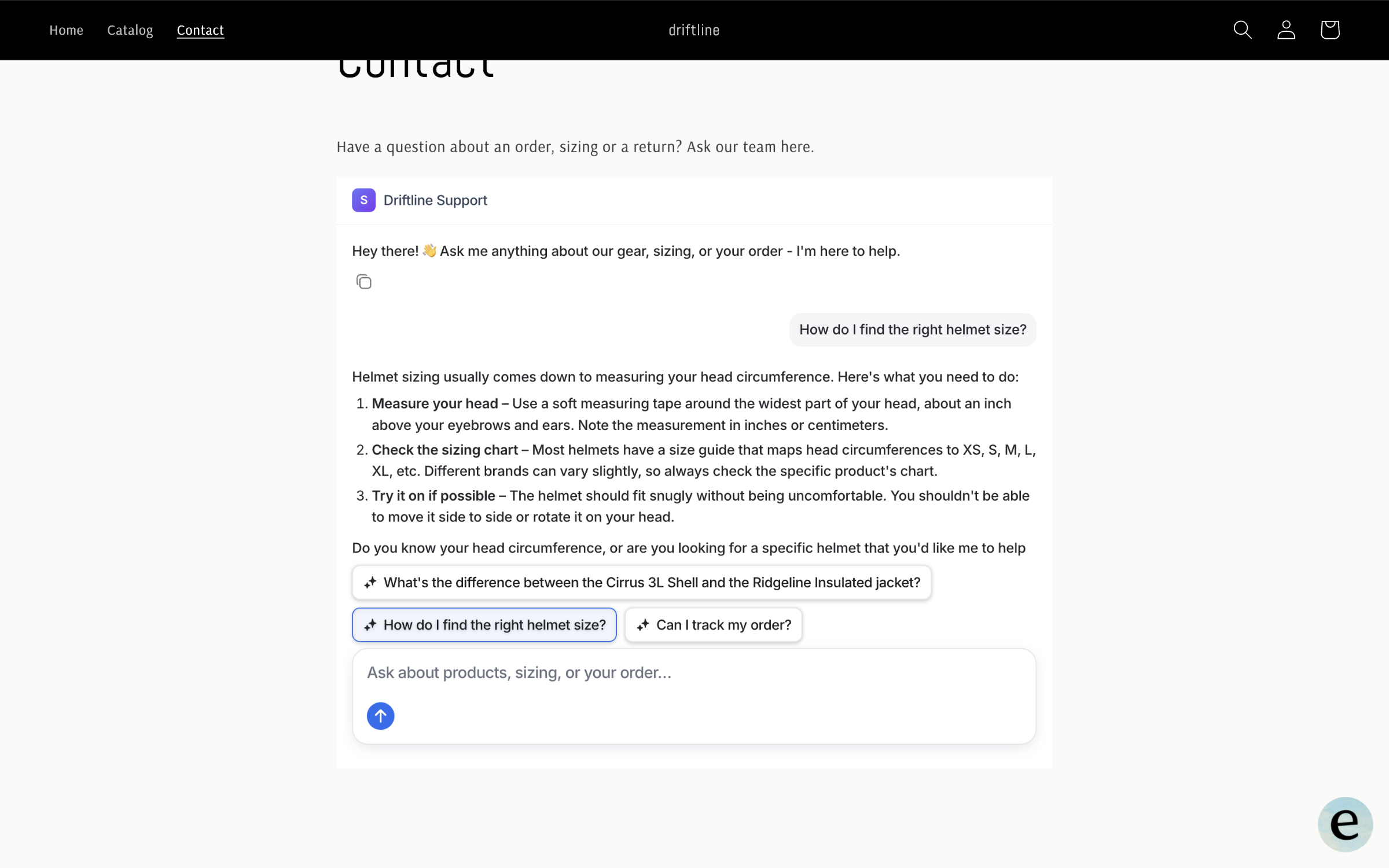
<figure><img src="https://3732419023-files.gitbook.io/~/files/v0/b/gitbook-x-prod.appspot.com/o/spaces%2F2xXO0947TYoPIhGoBgSE%2Fuploads%2Fgit-blob-3c51bd7c3d405f31cad92f2ac7d8c0e8296f7f36%2Finline-chat-live-answer.png?alt=media" alt="A store&#x27;s Contact page with the eesel chat embedded in the page, where a visitor asked how to find the right helmet size and the agent answered with three steps"><figcaption><p>Your agent's chat embedded in a page of your own site, answering a visitor in place.</p></figcaption></figure>

## Quick start

{% stepper %}
{% step %}

### Ask your agent for an inline chat

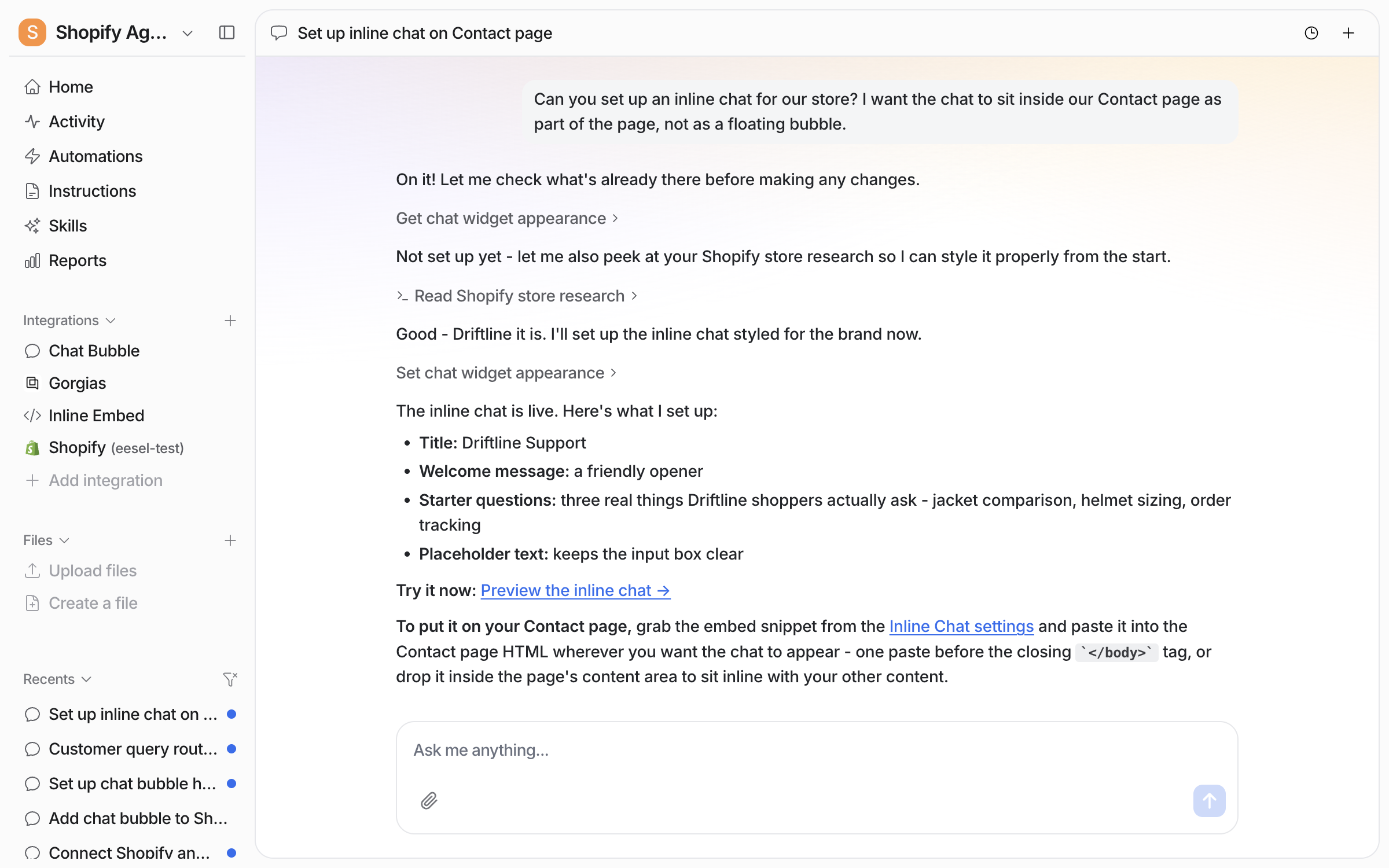
Open the chat in your dashboard and ask for an inline chat on the page you have in mind. Your agent uses what it already knows about your business from your connected sources, a store in this example, to pick a title, a welcome message and three starter questions. It posts a preview link and tells you where the embed snippet lives. It also tells you what it left blank, such as the colour and the logo, so you can set those in settings.

<figure><img src="https://3732419023-files.gitbook.io/~/files/v0/b/gitbook-x-prod.appspot.com/o/spaces%2F2xXO0947TYoPIhGoBgSE%2Fuploads%2Fgit-blob-25e69f49eaff776059ad7fa6f4e6e437ca1a7a70%2Finline-chat-setup-chat.png?alt=media" alt="The dashboard chat where the user asks for an inline chat on their Contact page, and the agent reports the title, welcome message and starter questions it set, with a preview link"><figcaption><p>The agent reports what it set up and posts the preview link.</p></figcaption></figure>

**Check it worked.** The left sidebar now lists **Inline Embed** under Integrations. From a terminal with [the eesel CLI](/apis-and-developer-resources/cli.md) installed, `eesel status` lists it on your agent.
{% endstep %}

{% step %}

### Check it on your Automations page

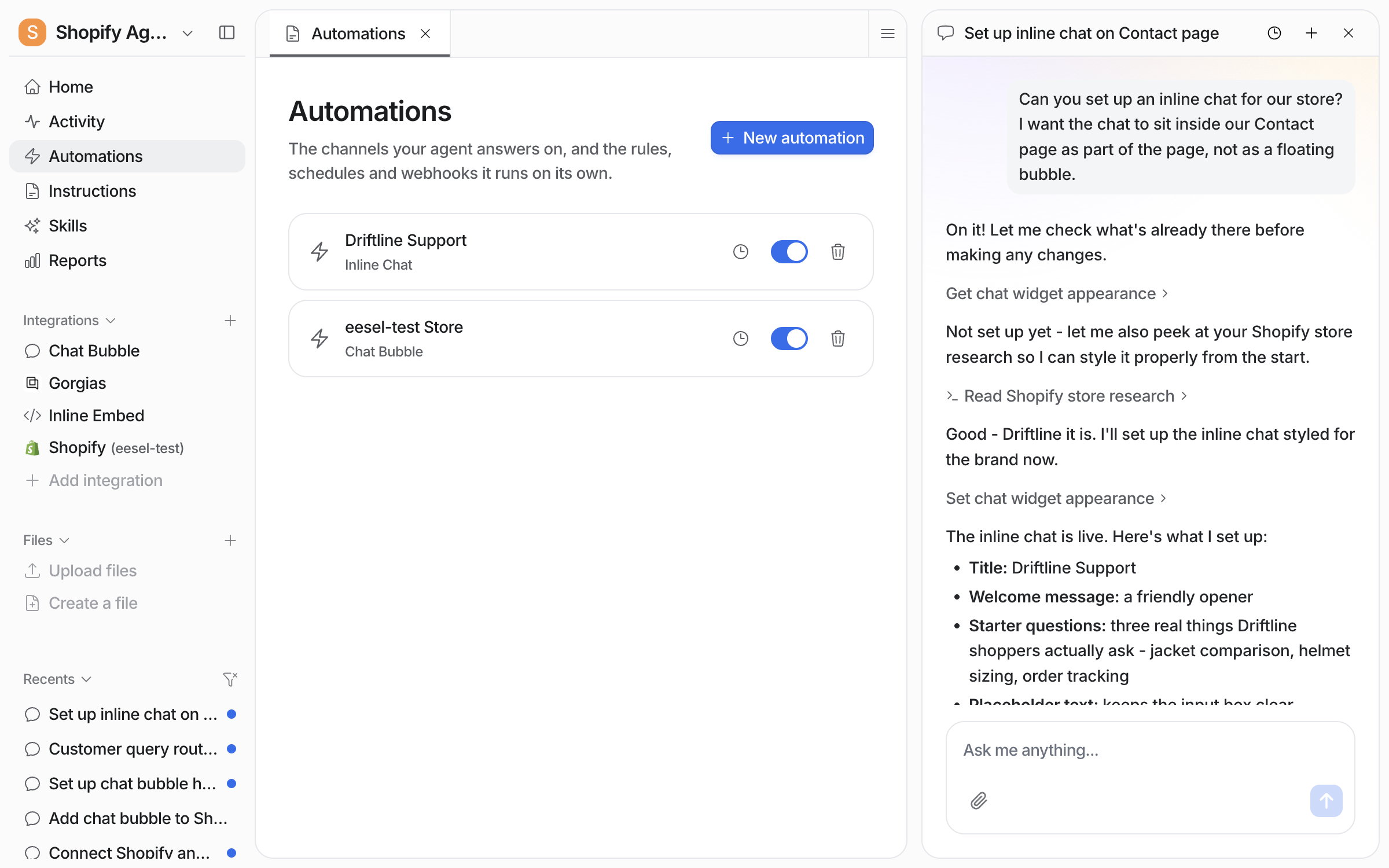
The inline chat is its own automation, created and switched on when it is set up. Your **Automations** page lists it under the title you gave it, with **Inline Chat** underneath. Pause it there and the chat stops answering without touching your site.

<figure><img src="https://3732419023-files.gitbook.io/~/files/v0/b/gitbook-x-prod.appspot.com/o/spaces%2F2xXO0947TYoPIhGoBgSE%2Fuploads%2Fgit-blob-bc44f75b5ca9d9812eab1d931ebd3f7386d3e11f%2Finline-chat-automations-list.png?alt=media" alt="The Automations page listing the Driftline Support inline chat automation switched on, beside the chat where it was set up"><figcaption><p>The inline chat automation, switched on.</p></figcaption></figure>

**Check it worked.** From a terminal, `eesel automations` lists the automation as on.
{% endstep %}

{% step %}

### Shape it in settings

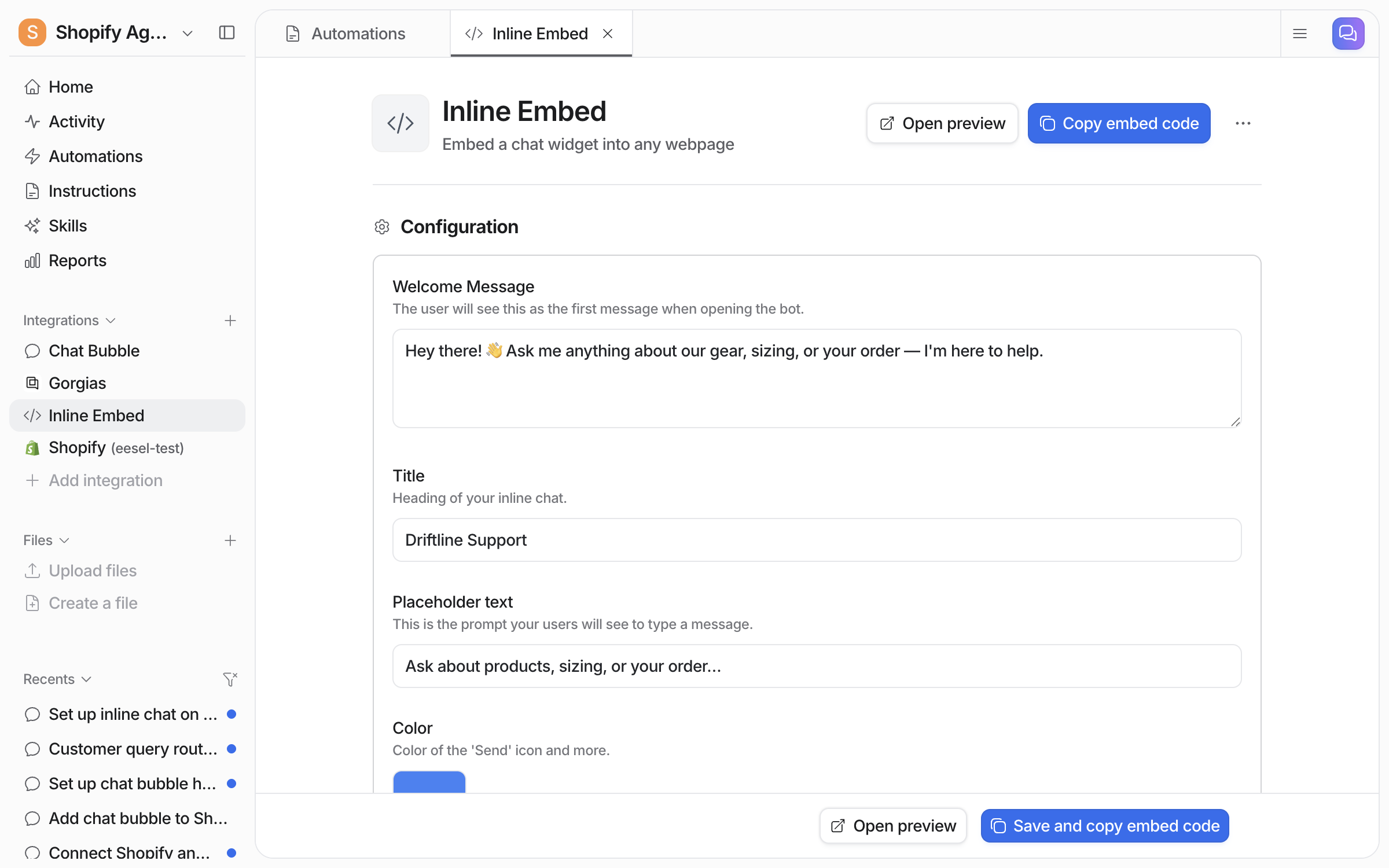
Open **Integrations > Inline Embed** in the left sidebar. **Open preview** and **Copy embed code** sit at the top right. The **Welcome Message**, the **Title** and the **Placeholder text** come first.

<figure><img src="https://3732419023-files.gitbook.io/~/files/v0/b/gitbook-x-prod.appspot.com/o/spaces%2F2xXO0947TYoPIhGoBgSE%2Fuploads%2Fgit-blob-0371d292a1a4e4bafdab366bf8fd6ca8e71c2b46%2Finline-chat-settings-top.png?alt=media" alt="The Inline Embed settings page with Open preview and Copy embed code at the top, and the Welcome Message, Title and Placeholder text fields filled in"><figcaption><p>The top of the settings page.</p></figcaption></figure>

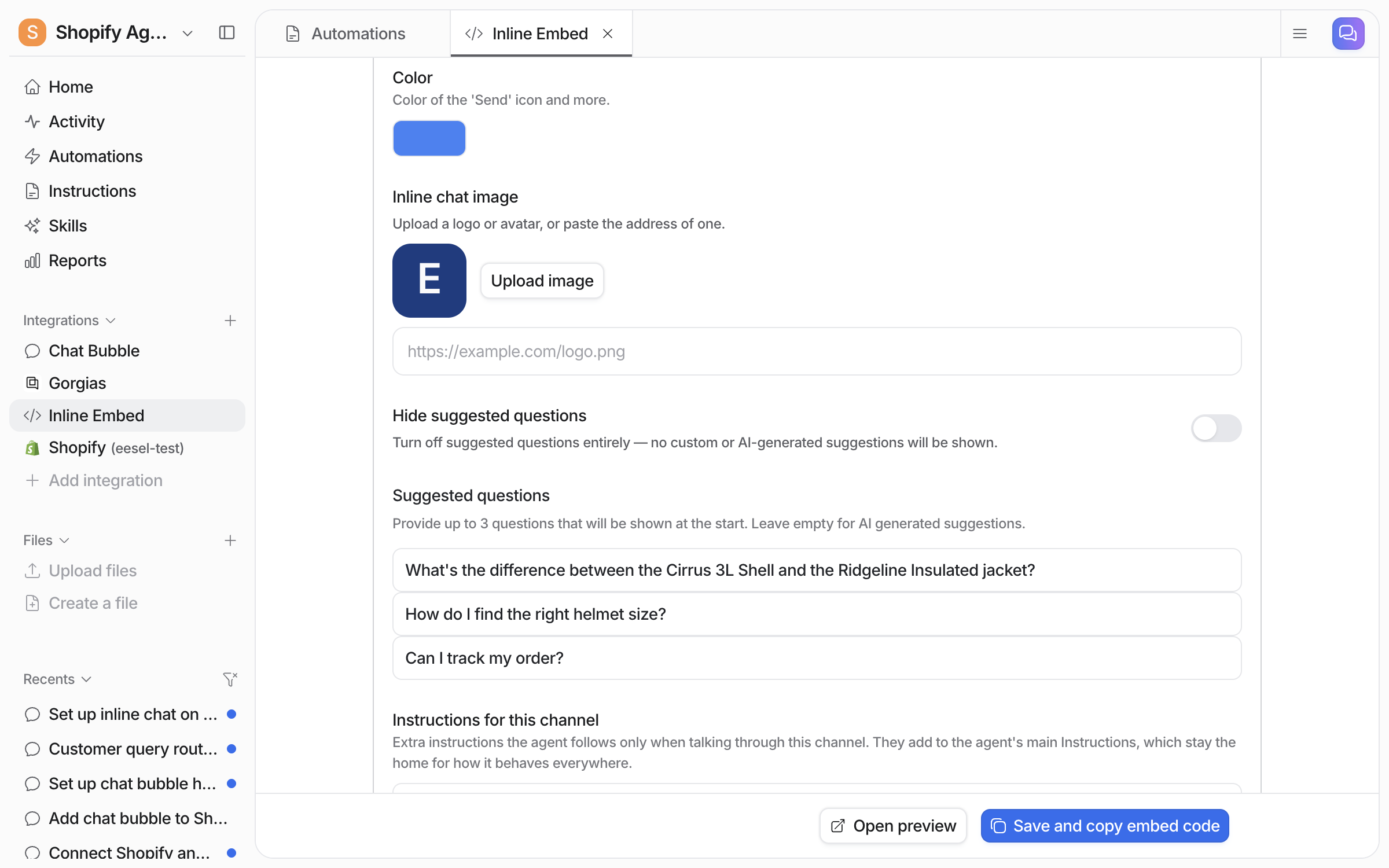
Below that, set the **Color** of the send icon and upload an **Inline chat image** or paste its address. **Hide suggested questions** removes the clickable questions from the start of the chat altogether, both the ones you write and the ones your agent would suggest.

<figure><img src="https://3732419023-files.gitbook.io/~/files/v0/b/gitbook-x-prod.appspot.com/o/spaces%2F2xXO0947TYoPIhGoBgSE%2Fuploads%2Fgit-blob-e744d2f1e323dc9f409ef9a1b97280ac21c1123a%2Finline-chat-settings-appearance.png?alt=media" alt="The Color picker, the Inline chat image upload and the Hide suggested questions switch on the Inline Embed settings page"><figcaption><p>Colour, image and the suggested questions switch.</p></figcaption></figure>

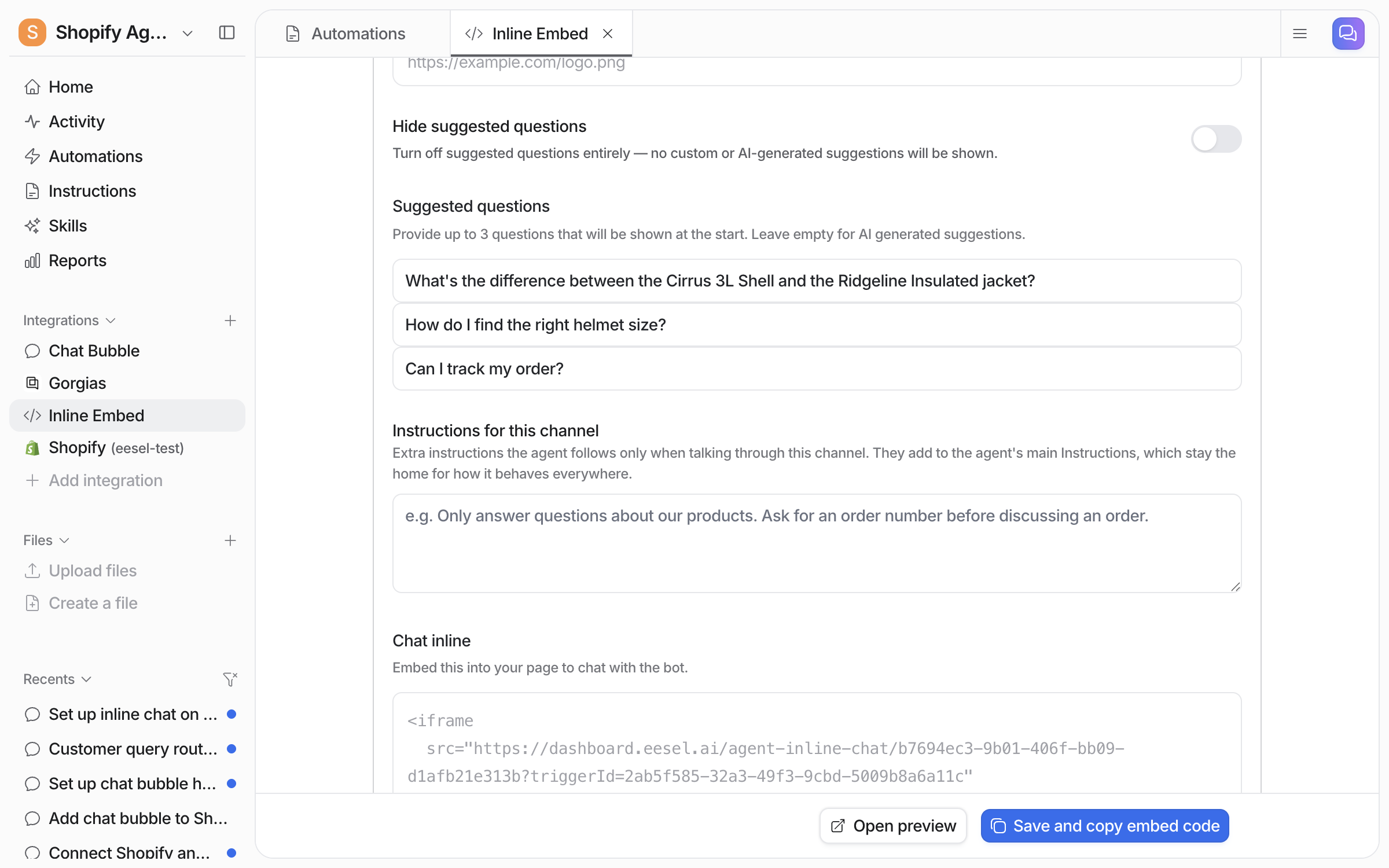
Add up to three **Suggested questions**. Leave them empty and your agent suggests its own. **Instructions for this channel** are extra instructions your agent follows only in this chat. They add to its main [instructions](/instructions-and-memory/instructions-and-memory.md).

<figure><img src="https://3732419023-files.gitbook.io/~/files/v0/b/gitbook-x-prod.appspot.com/o/spaces%2F2xXO0947TYoPIhGoBgSE%2Fuploads%2Fgit-blob-86083fe3472f3c3675934ee5857a88828ddbcb6d%2Finline-chat-settings-questions-instructions.png?alt=media" alt="Three suggested questions about jackets, helmet sizing and order tracking, and the Instructions for this channel box below them"><figcaption><p>The suggested questions and the channel instructions.</p></figcaption></figure>

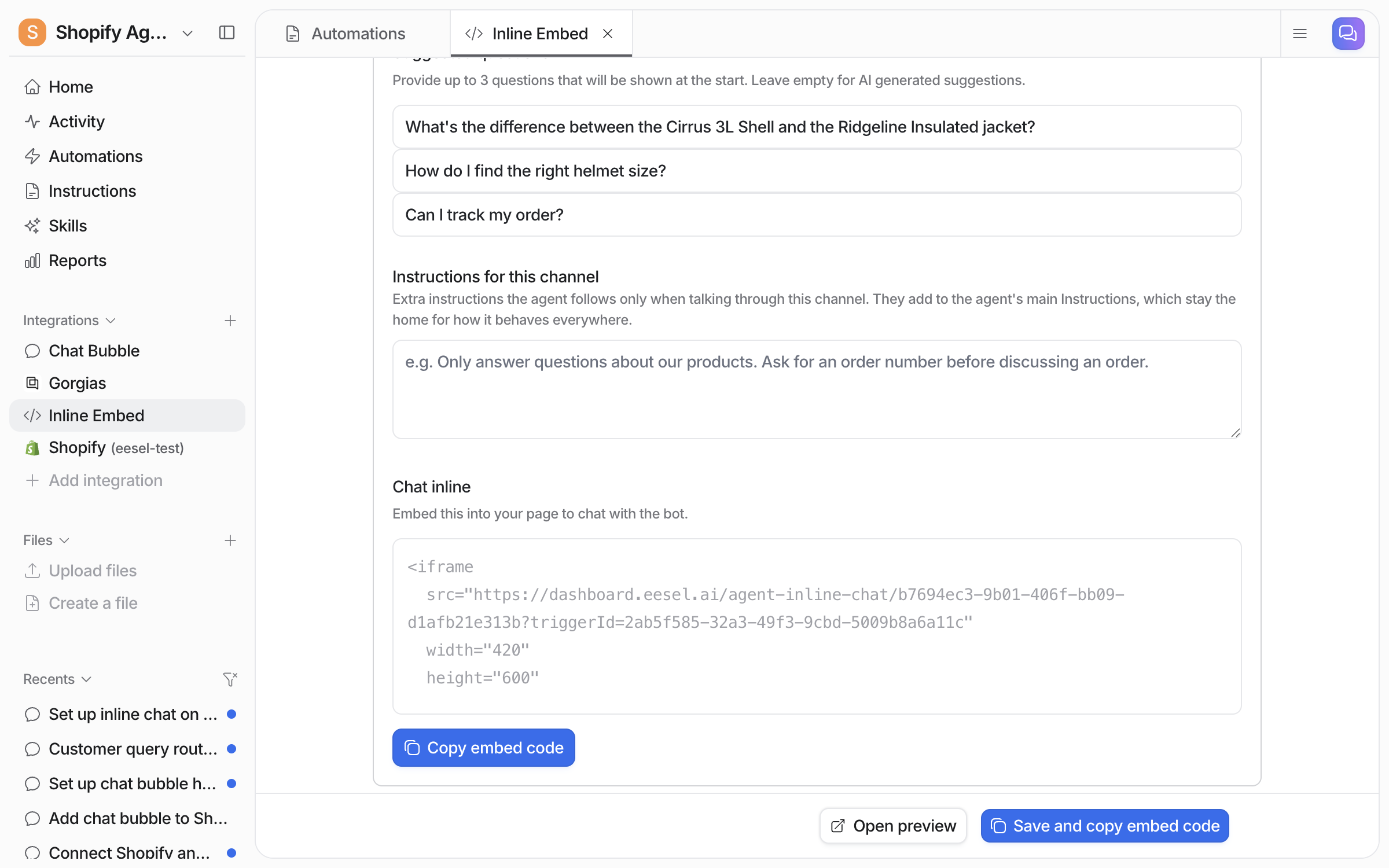
**Chat inline** at the bottom holds the embed code, an iframe with your agent id and a trigger id in it. The trigger id only opens this chat, so it is safe to publish on a page. **Save and copy embed code** saves your changes and copies it in one step.

<figure><img src="https://3732419023-files.gitbook.io/~/files/v0/b/gitbook-x-prod.appspot.com/o/spaces%2F2xXO0947TYoPIhGoBgSE%2Fuploads%2Fgit-blob-4c69fb9345ee2dc13600779af6a9fb0fe547e04b%2Finline-chat-settings-embed-code.png?alt=media" alt="The Chat inline section of the settings page with the iframe embed code and a Copy embed code button, above Save and copy embed code"><figcaption><p>The embed code, ready to copy.</p></figcaption></figure>
{% endstep %}

{% step %}

### Add it to your page

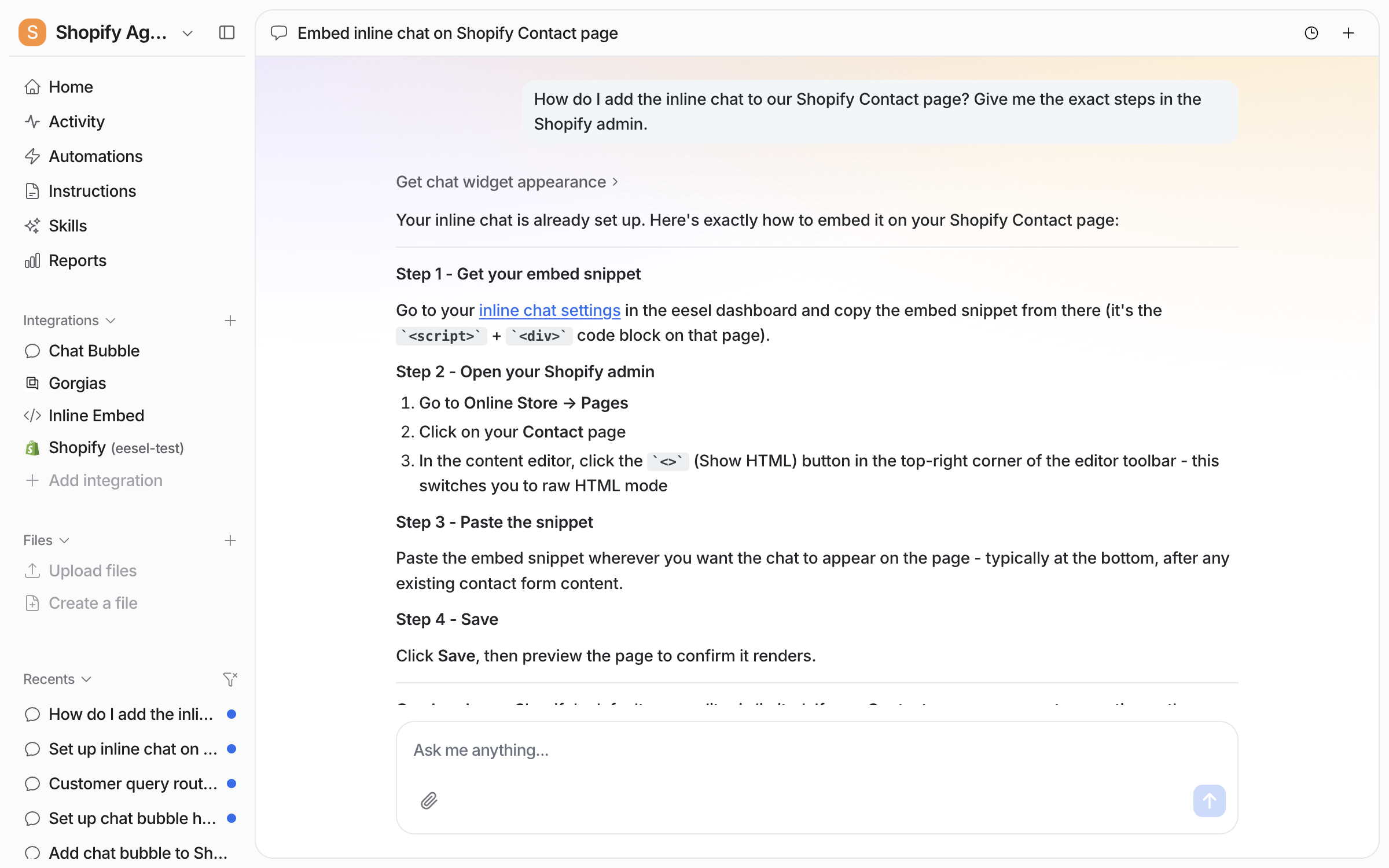
The embed code is an iframe. Paste it into any page where your platform lets you place HTML, at the spot where the chat should appear. The page saves, and the chat is live. If you are not sure where that is on your platform, ask your agent in the dashboard chat.

The rest of this step is an example on a Shopify store page.

<figure><img src="https://3732419023-files.gitbook.io/~/files/v0/b/gitbook-x-prod.appspot.com/o/spaces%2F2xXO0947TYoPIhGoBgSE%2Fuploads%2Fgit-blob-4317bd8a2058c1f5ace3a19a7c26c4845752fdcc%2Finline-chat-embed-chat.png?alt=media" alt="The dashboard chat where the user asks how to add the inline chat to their Shopify Contact page, and the agent lists four steps through the Shopify admin"><figcaption><p>The agent's steps for a Shopify page.</p></figcaption></figure>

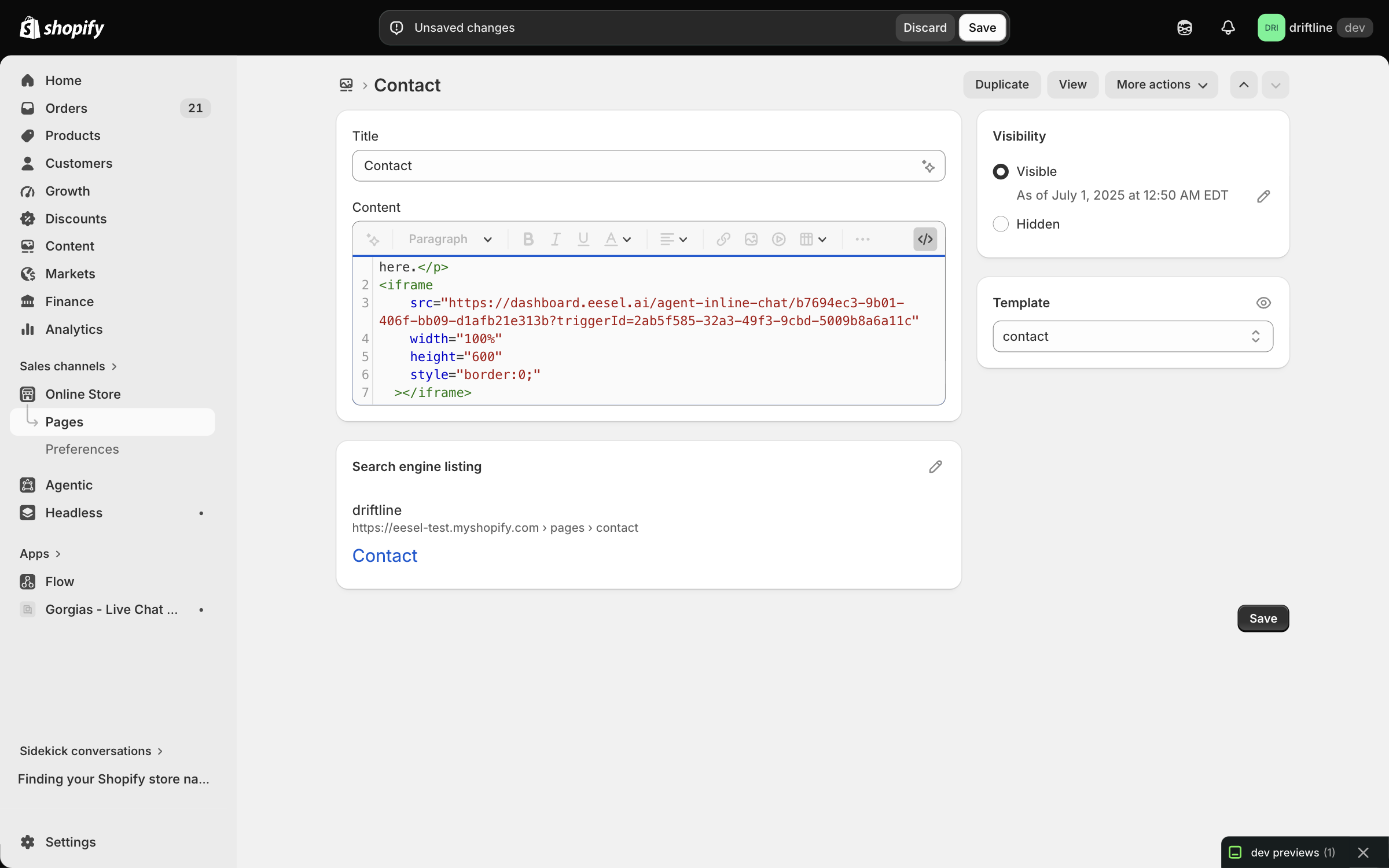
In the Shopify admin, open **Online Store > Pages**, open the page, and click **Show HTML** in the editor toolbar. Paste the code where you want the chat to appear, then click **Save**.

<figure><img src="https://3732419023-files.gitbook.io/~/files/v0/b/gitbook-x-prod.appspot.com/o/spaces%2F2xXO0947TYoPIhGoBgSE%2Fuploads%2Fgit-blob-6a4c316569186590d71664d2bfdd26144bf70f1f%2Finline-chat-shopify-page-html.png?alt=media" alt="The Shopify admin page editor in HTML mode, with a line of intro text and the eesel iframe pasted below it"><figcaption><p>The iframe pasted into the Contact page's HTML.</p></figcaption></figure>

The shape of the code, with your ids filled in:

```html
<iframe
  src="https://dashboard.eesel.ai/agent-inline-chat/YOUR_AGENT_ID?triggerId=YOUR_TRIGGER_ID"
  width="420"
  height="600"
></iframe>
```

The default size is 420 by 600 pixels. Change either number in the snippet to suit the page. A width of `100%` fills the column the chat sits in.
{% endstep %}

{% step %}

### Try it as a visitor

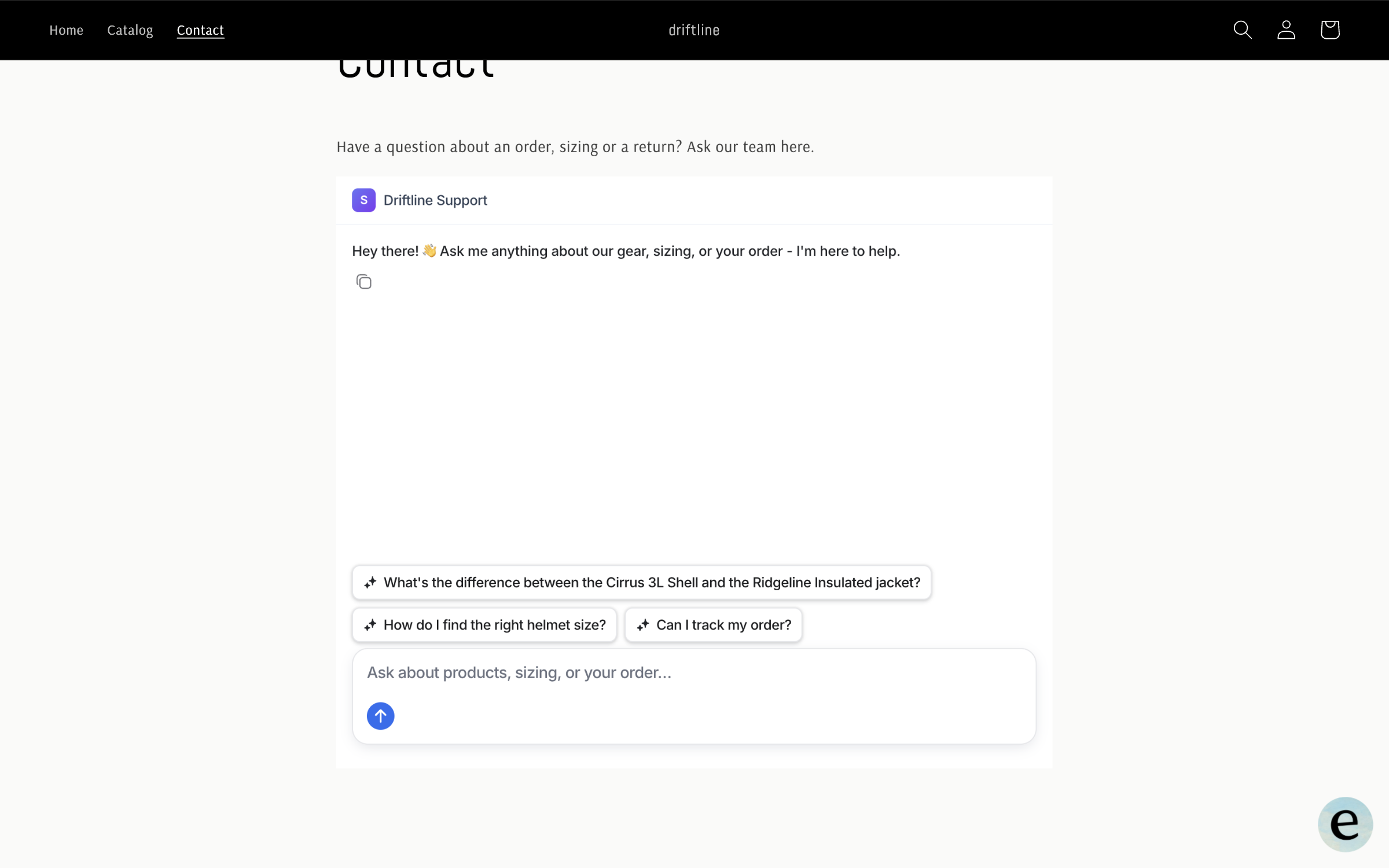
Open the page. The chat shows your title, your welcome message and your suggested questions, in place on the page.

<figure><img src="https://3732419023-files.gitbook.io/~/files/v0/b/gitbook-x-prod.appspot.com/o/spaces%2F2xXO0947TYoPIhGoBgSE%2Fuploads%2Fgit-blob-6085442f9c8a8dd6b637f62a427d4ed217e93a25%2Finline-chat-live-contact-page.png?alt=media" alt="A store&#x27;s Contact page with the embedded Driftline Support chat showing its welcome message and three suggested questions above the store&#x27;s contact form"><figcaption><p>The chat live on the Contact page.</p></figcaption></figure>

Ask it a question. It answers from your connected knowledge, in the page.

<figure><img src="https://3732419023-files.gitbook.io/~/files/v0/b/gitbook-x-prod.appspot.com/o/spaces%2F2xXO0947TYoPIhGoBgSE%2Fuploads%2Fgit-blob-3c51bd7c3d405f31cad92f2ac7d8c0e8296f7f36%2Finline-chat-live-answer.png?alt=media" alt="The embedded chat where a visitor asked how to find the right helmet size, and the agent answered with steps to measure, check the size chart and try it on"><figcaption><p>A visitor's question and the answer, in the page.</p></figcaption></figure>
{% endstep %}

{% step %}

### Hand a conversation to a person

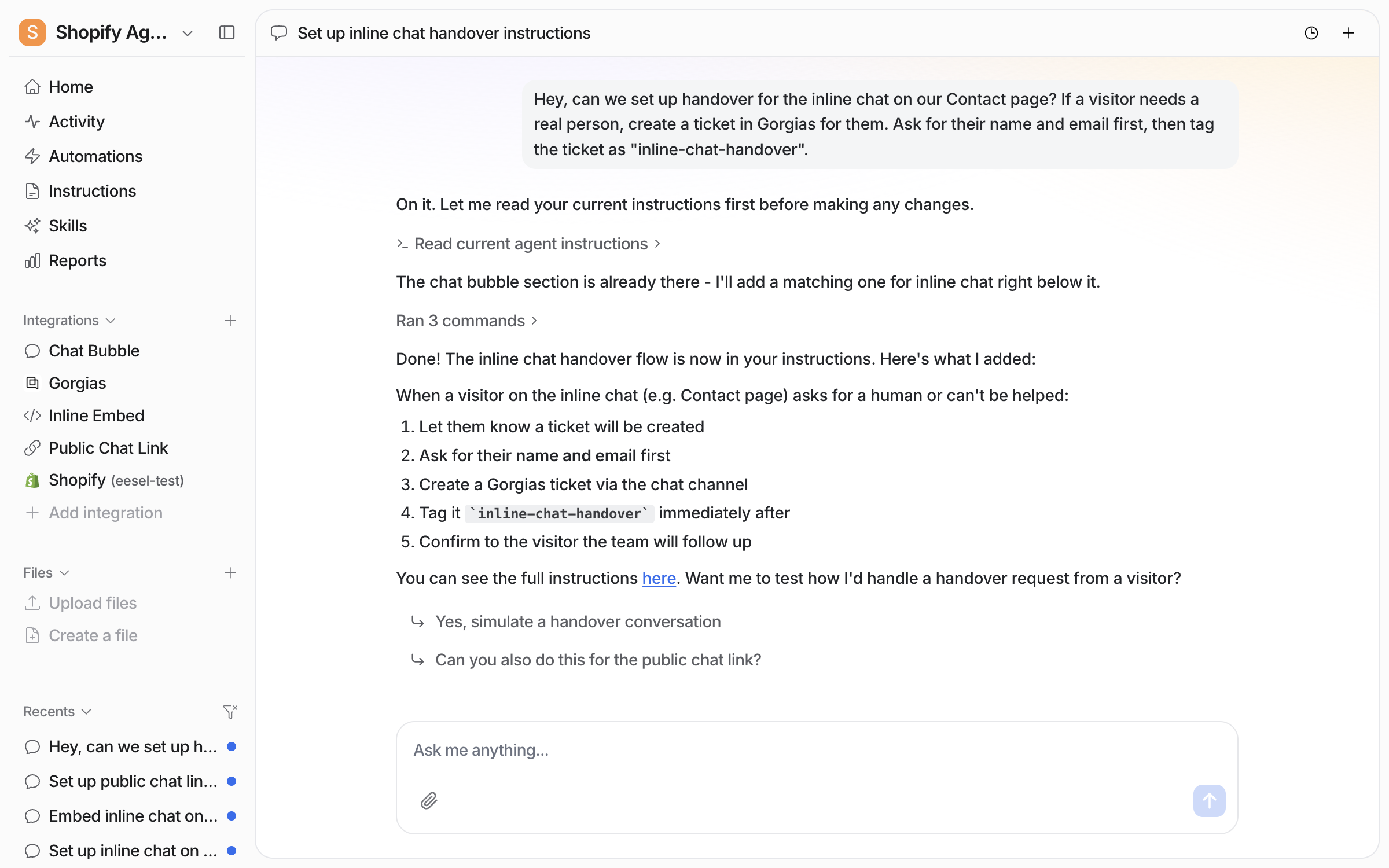
Tell your agent in the dashboard chat when to escalate and what to do then. Creating a helpdesk ticket is the usual choice. It writes the rules into its instructions and lists the steps back to you.

<figure><img src="https://3732419023-files.gitbook.io/~/files/v0/b/gitbook-x-prod.appspot.com/o/spaces%2F2xXO0947TYoPIhGoBgSE%2Fuploads%2Fgit-blob-be862d6bb42a4073c8ef1a6cfe7819ecd7ce4b82%2Finline-chat-handover-chat.png?alt=media" alt="The dashboard chat where the user asks for inline chat handover to Gorgias, and the agent lists the five steps it added to its instructions and links the instructions page"><figcaption><p>The agent lists the handover steps it added.</p></figcaption></figure>

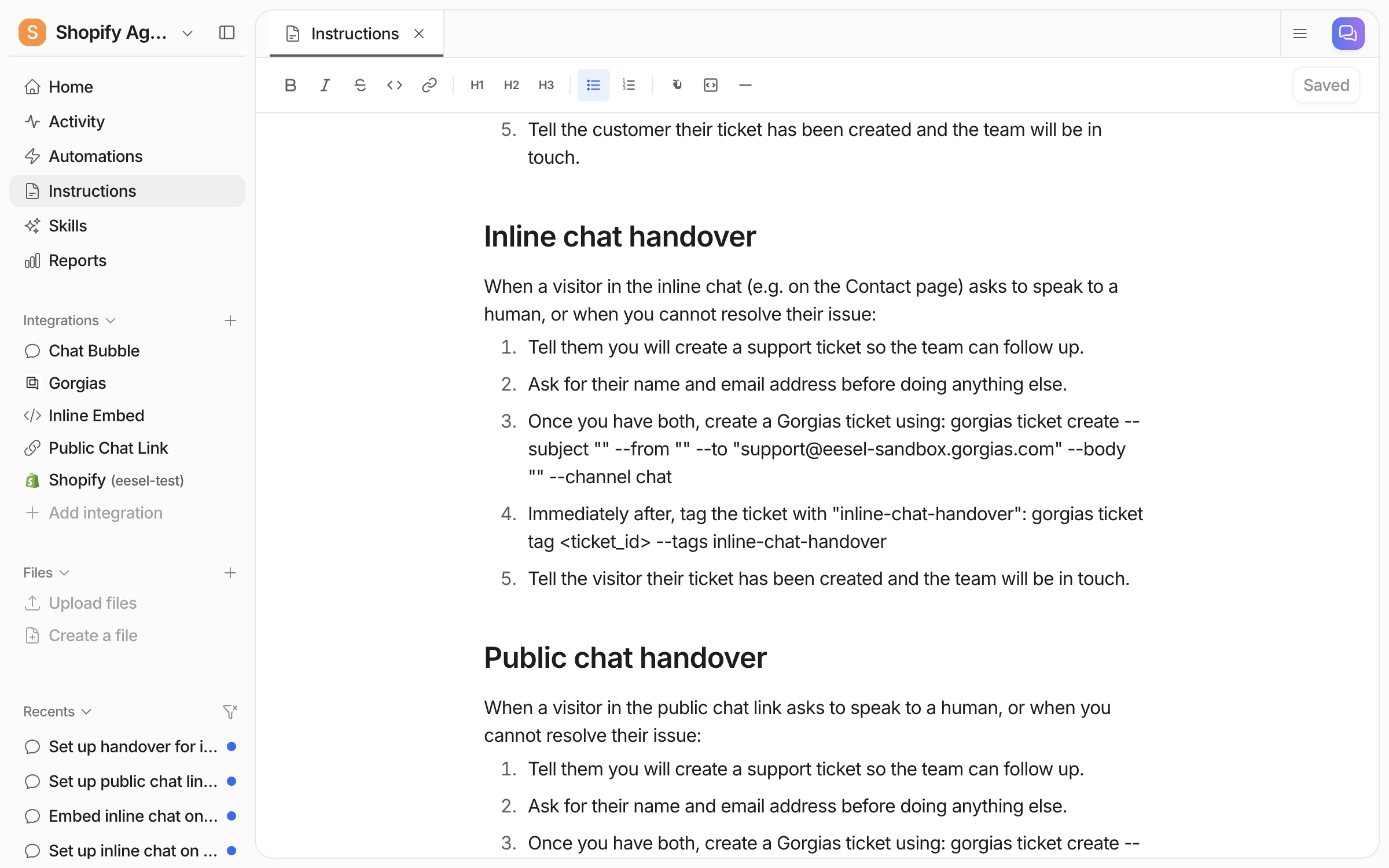
Open your **Instructions** page to read what it wrote. The rules are numbered sentences you can edit by hand.

<figure><img src="https://3732419023-files.gitbook.io/~/files/v0/b/gitbook-x-prod.appspot.com/o/spaces%2F2xXO0947TYoPIhGoBgSE%2Fuploads%2Fgit-blob-a73b13e93c965c306679773e86c70cfbb0c34239%2Finline-chat-handover-instructions.png?alt=media" alt="The Instructions page with an Inline chat handover section: tell the visitor, ask for name and email, create a Gorgias ticket, tag it inline-chat-handover, confirm"><figcaption><p>The saved handover rules on the Instructions page.</p></figcaption></figure>

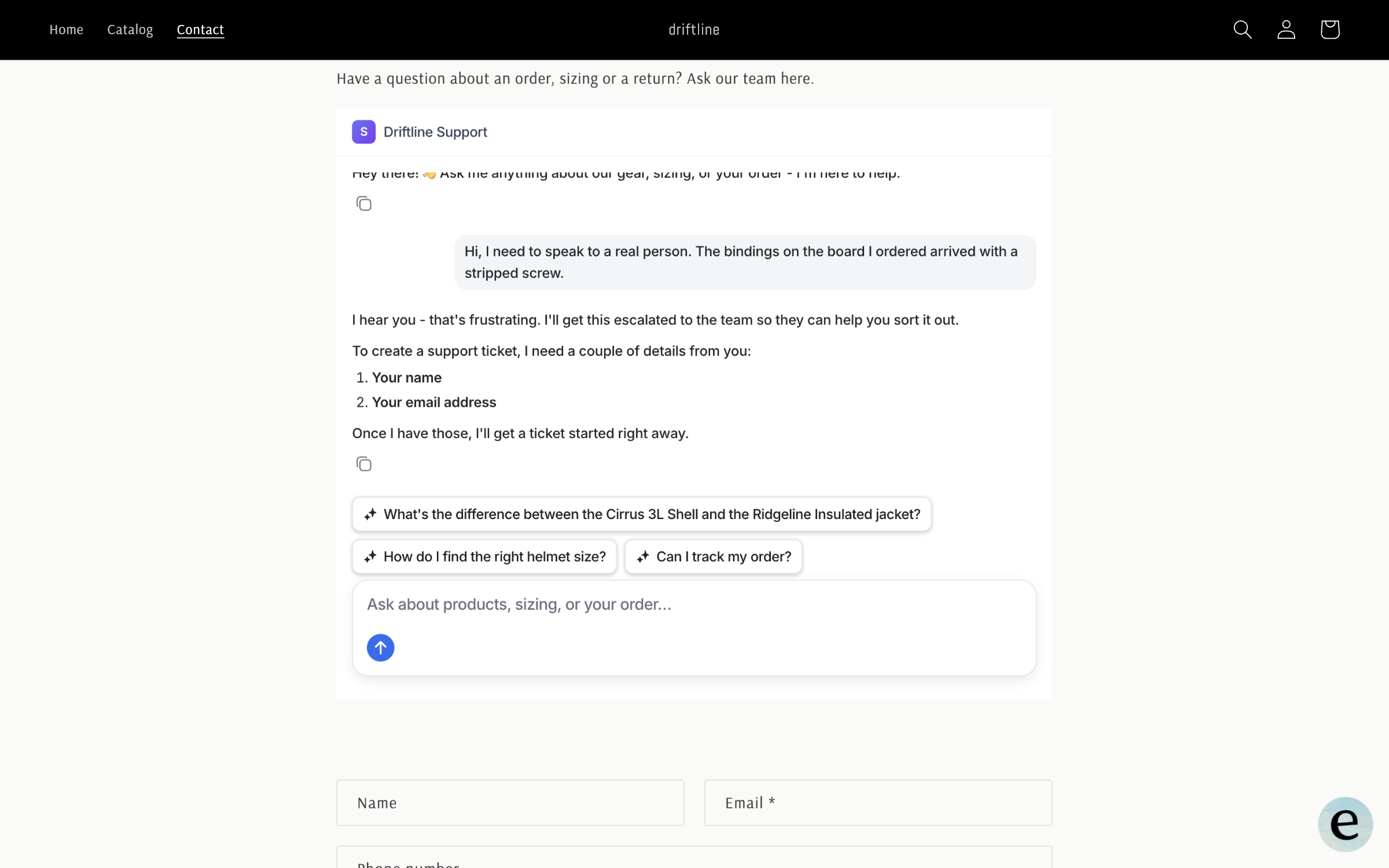
Now test it as a visitor and ask for a real person. Your agent says it will create a ticket and asks for the name and email address it needs.

<figure><img src="https://3732419023-files.gitbook.io/~/files/v0/b/gitbook-x-prod.appspot.com/o/spaces%2F2xXO0947TYoPIhGoBgSE%2Fuploads%2Fgit-blob-072948d75ca7b14516c29ae17903483705590b83%2Finline-chat-handover-visitor.png?alt=media" alt="The embedded chat where a visitor asks for a real person about a stripped screw on their bindings, and the agent asks for their name and email address"><figcaption><p>The agent taking the escalation and asking for contact details.</p></figcaption></figure>

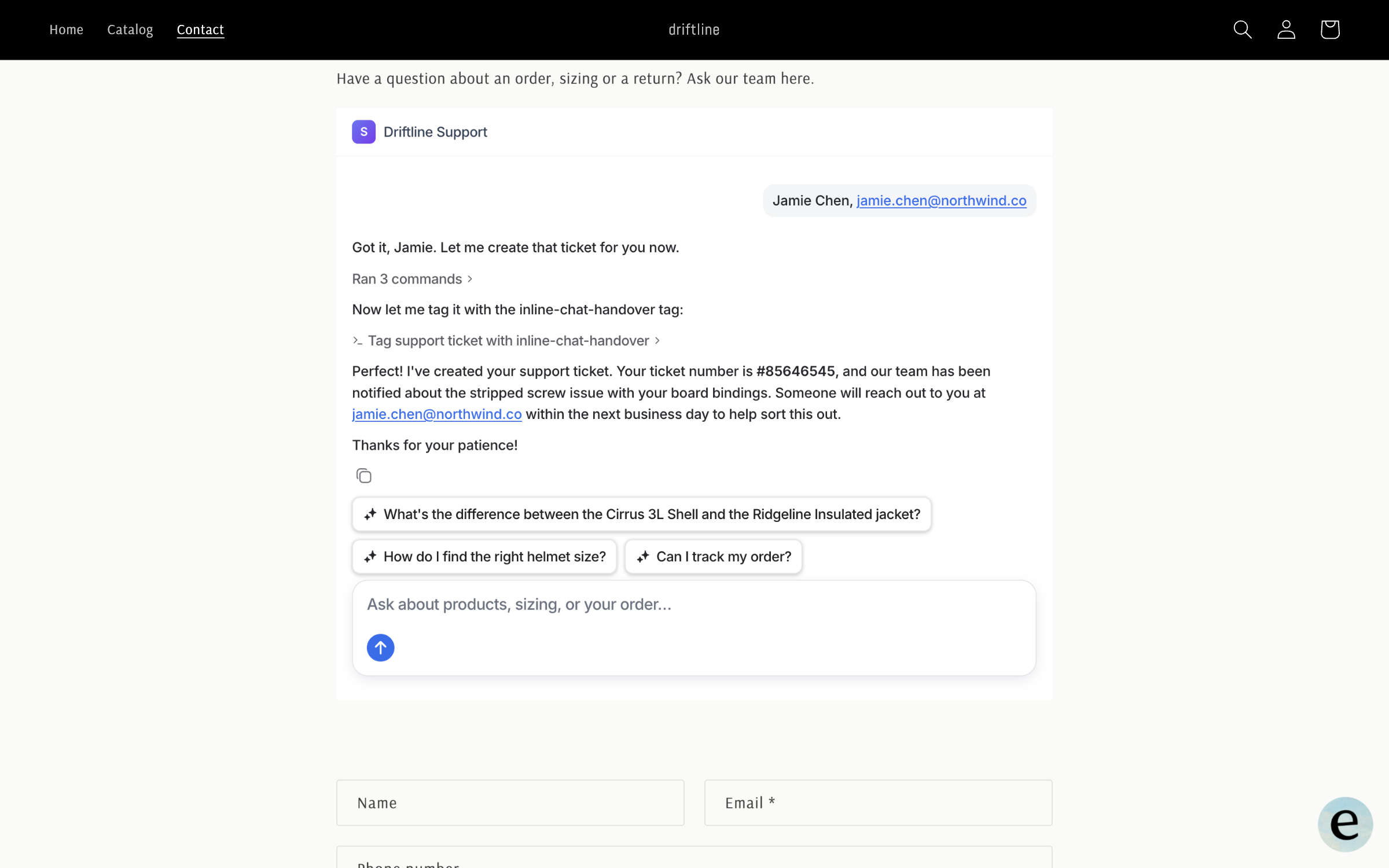
Give it the details. It creates the ticket, tags it, and tells the visitor the ticket number.

<figure><img src="https://3732419023-files.gitbook.io/~/files/v0/b/gitbook-x-prod.appspot.com/o/spaces%2F2xXO0947TYoPIhGoBgSE%2Fuploads%2Fgit-blob-83d2d1054703c038440c48251d31b77c81993d03%2Finline-chat-handover-ticket-created.png?alt=media" alt="The embedded chat where the visitor gives a name and email, and the agent confirms ticket #85646545 was created and tagged"><figcaption><p>The ticket number confirmed to the visitor.</p></figcaption></figure>

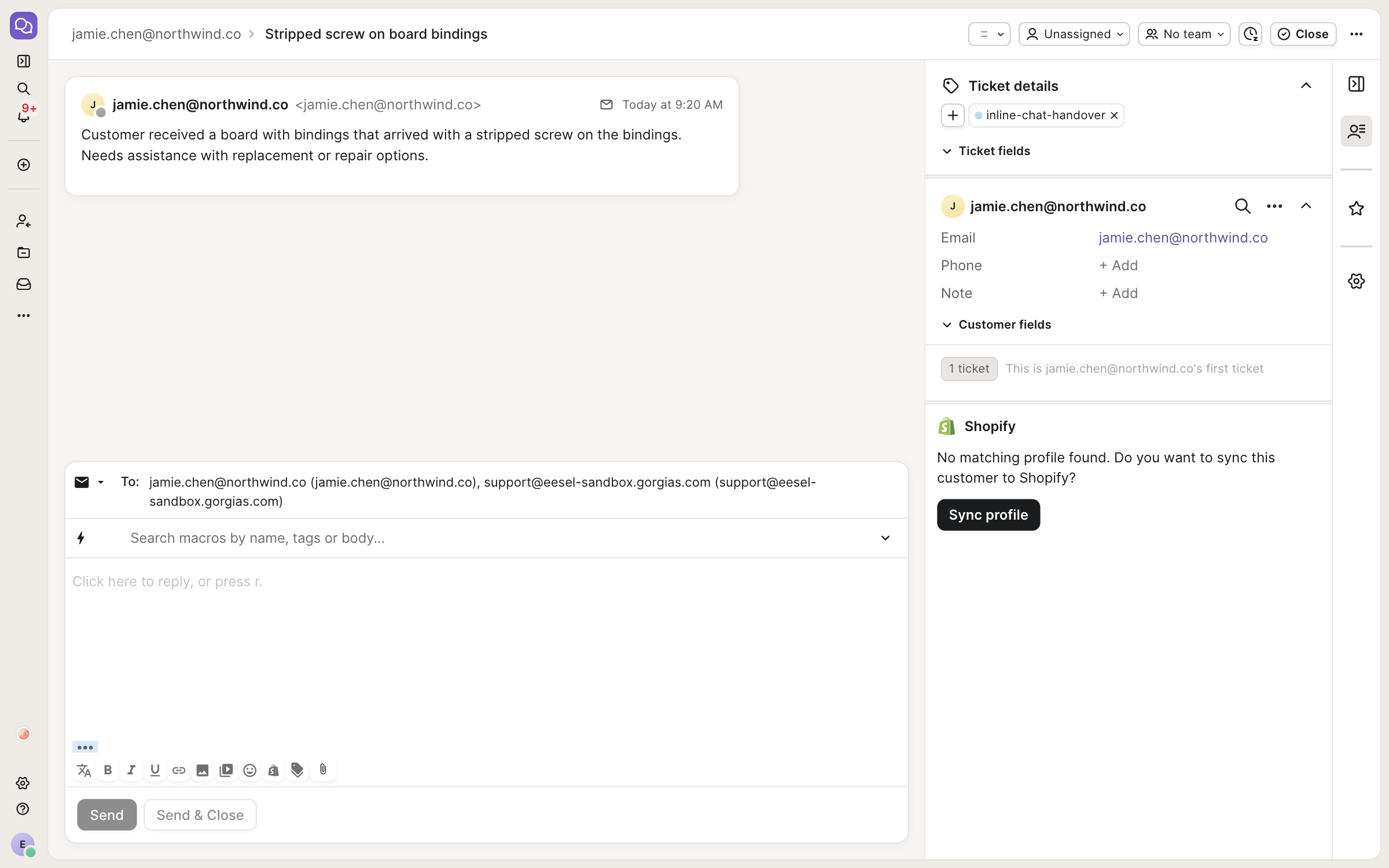
Then open your helpdesk. The ticket is there under the visitor's email address, with a summary of the problem and the handover tag.

<figure><img src="https://3732419023-files.gitbook.io/~/files/v0/b/gitbook-x-prod.appspot.com/o/spaces%2F2xXO0947TYoPIhGoBgSE%2Fuploads%2Fgit-blob-95845f2b508733e2a8cc76a58733211a4f45815d%2Finline-chat-handover-gorgias.png?alt=media" alt="A Gorgias ticket from the inline chat handover, with the visitor&#x27;s email as the requester, a summary of the stripped screw problem and the inline-chat-handover tag"><figcaption><p>The handover ticket in Gorgias, tagged.</p></figcaption></figure>
{% endstep %}
{% endstepper %}

## Inline Embed settings

| Setting                                | What it does                                                                                                                                      |
| -------------------------------------- | ------------------------------------------------------------------------------------------------------------------------------------------------- |
| **Welcome Message**                    | The first message a visitor reads                                                                                                                 |
| **Title**                              | The heading at the top of the chat                                                                                                                |
| **Placeholder text**                   | The grey hint text inside the message box                                                                                                         |
| **Color**                              | The colour of the send icon and the accents                                                                                                       |
| **Inline chat image**                  | The logo or avatar shown in the chat. Upload one or paste its address                                                                             |
| **Hide suggested questions**           | Shows no suggested questions at all, neither yours nor generated ones                                                                             |
| **Suggested Question 1**, **2**, **3** | Up to three clickable questions shown at the start. Leave all three empty and your agent suggests its own                                         |
| **Instructions for this channel**      | Extra instructions your agent follows only in this chat. They add to its main [instructions](/instructions-and-memory/instructions-and-memory.md) |
| **Chat inline**                        | The iframe embed code, with your own agent and trigger ids                                                                                        |

Saved settings show on the page the next time it loads.

## Sources, triggers and actions

### Sources

The inline chat is not a source, and nothing typed in it becomes knowledge. Its answers come from what else you have connected: your [website](/integrations/knowledge/website.md), help center, docs and files. With a store such as [Shopify](/integrations/e-commerce/shopify.md) connected, it can also talk about products, stock and orders. See [Integrations](/integrations/overview.md).

### Triggers

The inline chat has one trigger, and its automation is created for you when the chat is set up.

| Trigger         | Fires when                                     | Best for                             | Key           |
| --------------- | ---------------------------------------------- | ------------------------------------ | ------------- |
| **Inline Chat** | A visitor sends a message in the embedded chat | Help centers, docs and contact pages | `inline_chat` |

### Actions

The inline chat has no actions of its own. What your agent can do for a visitor comes from the other integrations on it, such as creating a helpdesk ticket or looking up an order. Each runs on its own, asks you first, or stays off. A handover works through your agent's instructions and your helpdesk's create-ticket action, as in the last step above. See [Actions and Approvals](/instructions-and-memory/actions-and-approvals.md).

## Troubleshooting

<details>

<summary>The chat does not appear on the page?</summary>

Check the iframe is in the page's HTML and that you saved the page. If the page editor removes the iframe when you save, paste the snippet into your theme's page template instead, or ask your agent in the dashboard chat where it goes on your platform. Then check the automation is still on.

</details>

<details>

<summary>The chat is cut off or too small?</summary>

Change the `width` and `height` on the iframe. The default is 420 by 600 pixels, and `width="100%"` fills the column.

</details>

<details>

<summary>A settings change is not showing on the page?</summary>

Save with **Save and copy embed code**, then reload the page. **Open preview** always shows the saved settings.

</details>

## FAQ

<details>

<summary>Do I have to turn an automation on?</summary>

No. Setting the chat up creates its automation and switches it on. Your **Automations** page lists it, so you can pause it there without touching your page.

</details>

<details>

<summary>How is this different from the Chat Bubble?</summary>

The [Chat Bubble](/integrations/chat-surfaces/chat-bubble.md) is a floating button in the corner of every page. The inline chat sits inside one page as part of its content. Both reach the same agent with the same knowledge and instructions, and you can run both.

</details>

<details>

<summary>Can I use it on more than one page?</summary>

Yes. Paste the same code on each page. If one page needs a different welcome message or its own channel instructions, ask your agent in the dashboard chat for a second inline chat, or click **New automation** on the Automations page and pick **Inline Chat**. Each has its own snippet.

</details>

<details>

<summary>How is this billed?</summary>

Pay-as-you-go. One conversation is one task, however many messages it has. Chats you run yourself from the eesel dashboard are free. See [Pricing](/pricing/overview.md) for rates, the annual commitment, and Enterprise.

</details>

## Related pages

* [Chat Bubble](/integrations/chat-surfaces/chat-bubble.md) for the floating version of the same chat
* [Public Chat Link](/integrations/chat-surfaces/public-chat.md) for a hosted link you can share
* [Helpdesk](/use-cases/helpdesk.md) for the customer-facing work it picks up after a handover
* [Actions and Approvals](/instructions-and-memory/actions-and-approvals.md) for setting each action to run on its own, ask you first, or stay off


---

# Agent Instructions
This documentation is published with GitBook. GitBook is the documentation platform designed so that both humans and AI agents can read, navigate, and reason over technical content effectively. Learn more at gitbook.com.

## Querying This Documentation
If you need additional information that is not directly available in this page, you can query the documentation dynamically by asking a question.

Perform an HTTP GET request on the current page URL with the `ask` query parameter, and the optional `goal` query parameter:

```
GET https://docs.eesel.ai/integrations/chat-surfaces/inline-chat.md?ask=<question>&goal=<endgoal>
```

`ask` is the immediate question: it should be specific, self-contained, and written in natural language.
`goal` is optional and describes the broader end goal you are ultimately trying to accomplish on behalf of the user. GitBook uses it to tailor the answer towards what is most useful for that goal.

The response will contain a direct answer to the question and relevant excerpts and sources from the documentation.

Use this mechanism when the answer is not explicitly present in the current page, you need clarification or additional context, or you want to retrieve related documentation sections.