> For the complete documentation index, see [llms.txt](https://docs.eesel.ai/llms.txt). Markdown versions of documentation pages are available by appending `.md` to page URLs; this page is available as [Markdown](https://docs.eesel.ai/integrations/communication/calendly.md).

# Calendly

Set up an AI agent for Calendly. It reads your bookings to answer who a meeting is with, who hosts and whether it is still on, and posts a daily schedule.

eesel's AI agent for Calendly gives your agent a read-only view of your Calendly bookings, so it answers the questions your team asks each other about meetings. It answers in chat and in Slack. It cannot book, cancel or reschedule, and it is separate from Calendly's own AI features.

Give your agent a view of your Calendly bookings and it answers the questions your team asks each other. Who the Friday demo is with, who is hosting, whether it is still on, what the customer wrote when they booked. It reads Calendly live.

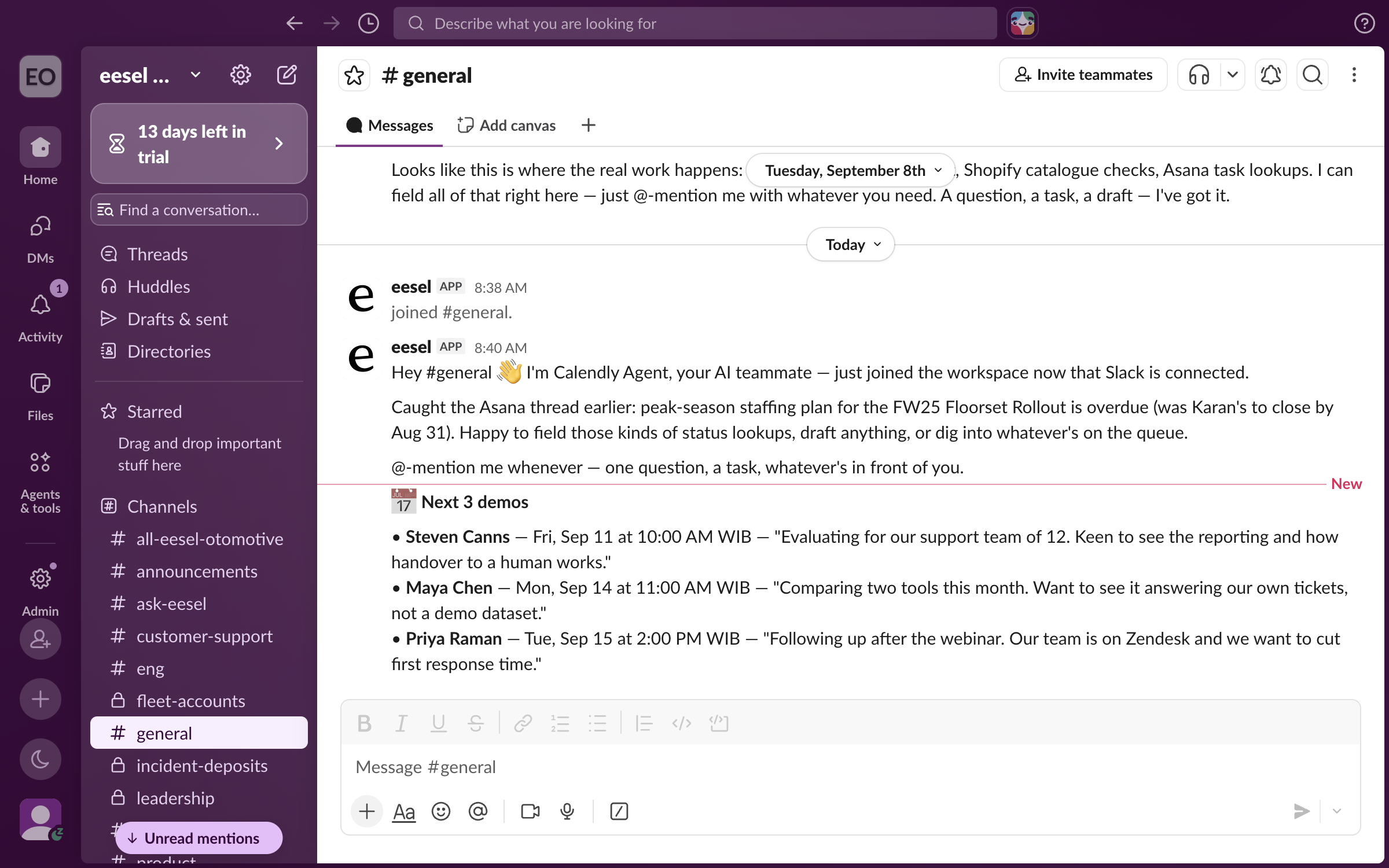
<figure><img src="https://3732419023-files.gitbook.io/~/files/v0/b/gitbook-x-prod.appspot.com/o/spaces%2F2xXO0947TYoPIhGoBgSE%2Fuploads%2Fgit-blob-f438673b5ae28469f9cc18b8ad5eace88ec638ac%2Fcalendly-automation-5.png?alt=media" alt="Slack&#x27;s general channel with a Next 3 demos post from the eesel app, listing three invitees with their times and the notes they left when booking"><figcaption><p>The day's demos posted to Slack every morning, with the note each customer left when booking.</p></figcaption></figure>

## Set up eesel for Calendly

{% stepper %}
{% step %}

### Ask your agent what it can do with Calendly

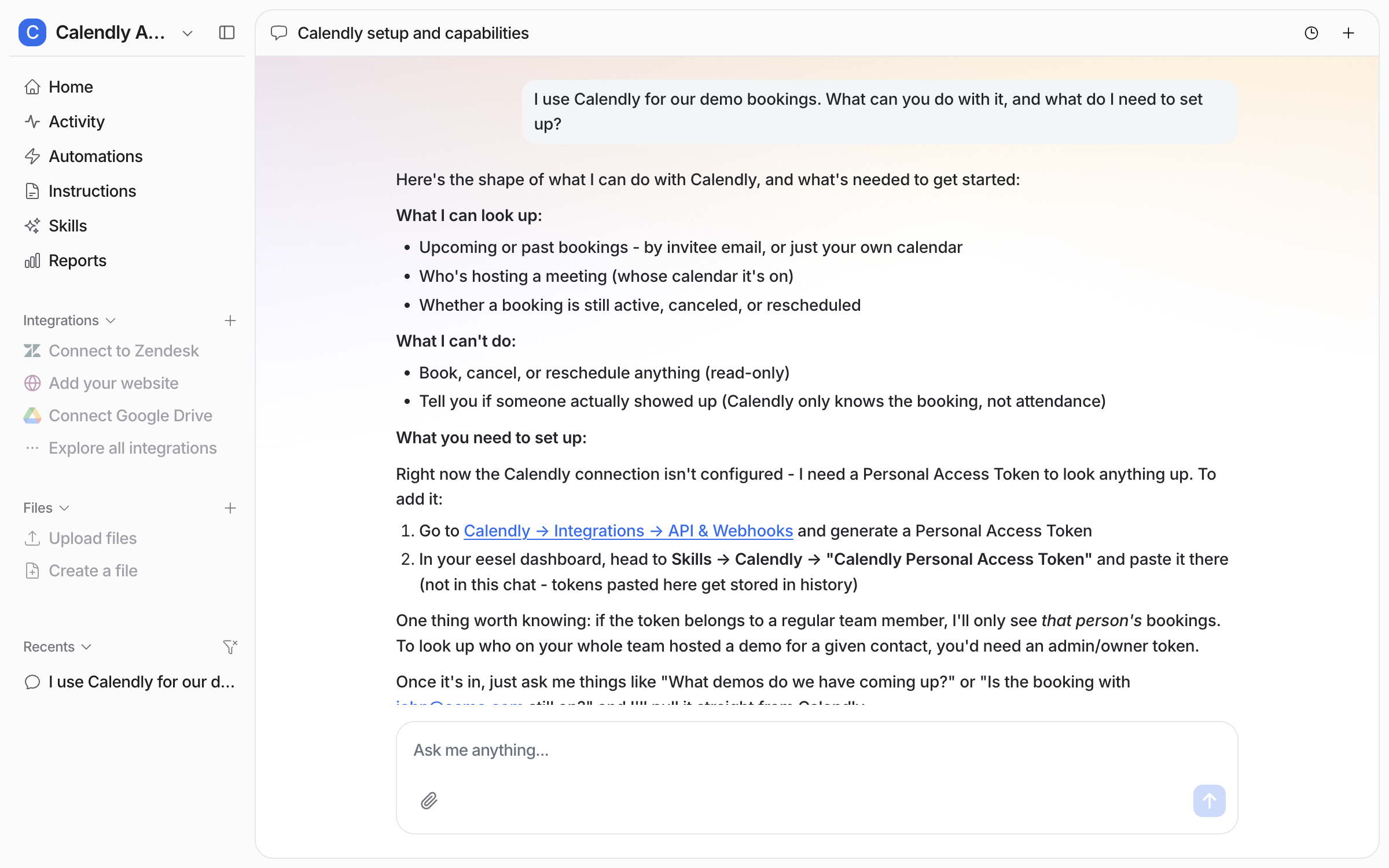
Open the chat in your dashboard and ask. Your agent explains what it can look up, what it cannot do, and the one thing it needs: a personal access token from Calendly. It also tells you that the token goes into the skill's settings, not into the chat.

<figure><img src="https://3732419023-files.gitbook.io/~/files/v0/b/gitbook-x-prod.appspot.com/o/spaces%2F2xXO0947TYoPIhGoBgSE%2Fuploads%2Fgit-blob-f9d1401be4d3128ea998d43cfc85d48e74b8c7d5%2Fcalendly-setup-1.png?alt=media" alt="The dashboard chat where the user asks what the agent can do with Calendly, and the agent lists what it can look up, what it cannot do, and the two steps to add a personal access token"><figcaption><p>The agent's answer in the dashboard chat.</p></figcaption></figure>

Decide who creates the token. A token from an ordinary team member only shows that person's bookings. A token from a Calendly admin or owner shows everyone's, so your agent can answer "who on the team hosted the demo with this customer".
{% endstep %}

{% step %}

### Open the skill

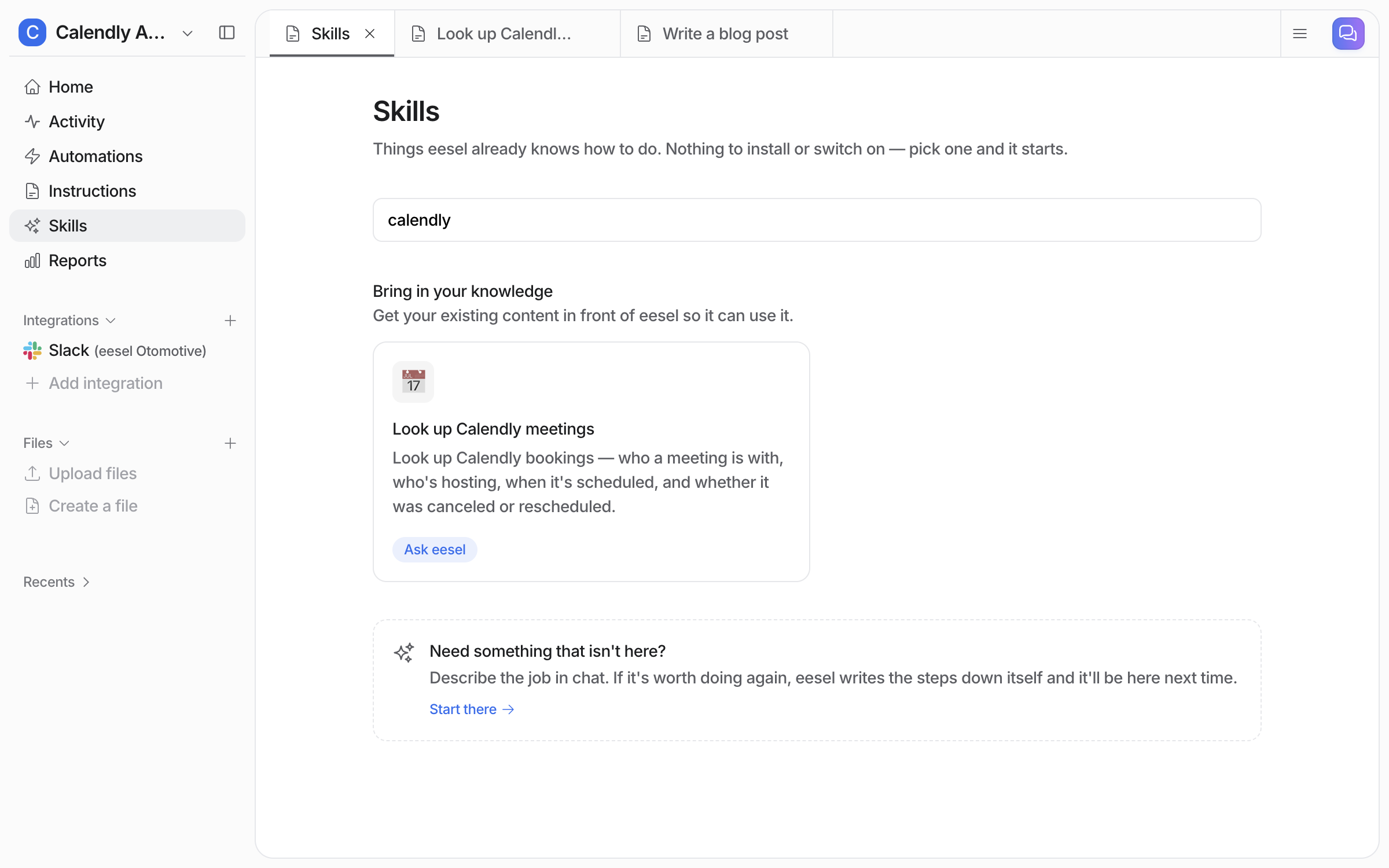
Open **Skills** in the left sidebar and find **Look up Calendly meetings**. Click the tile to open it.

<figure><img src="https://3732419023-files.gitbook.io/~/files/v0/b/gitbook-x-prod.appspot.com/o/spaces%2F2xXO0947TYoPIhGoBgSE%2Fuploads%2Fgit-blob-190c059dfa8079dec5bfa8ab4381145ada61bf9a%2Fcalendly-setup-2.png?alt=media" alt="The Skills page filtered to Calendly, showing the Look up Calendly meetings tile with an Ask eesel button"><figcaption><p>The Calendly skill on the Skills page.</p></figcaption></figure>

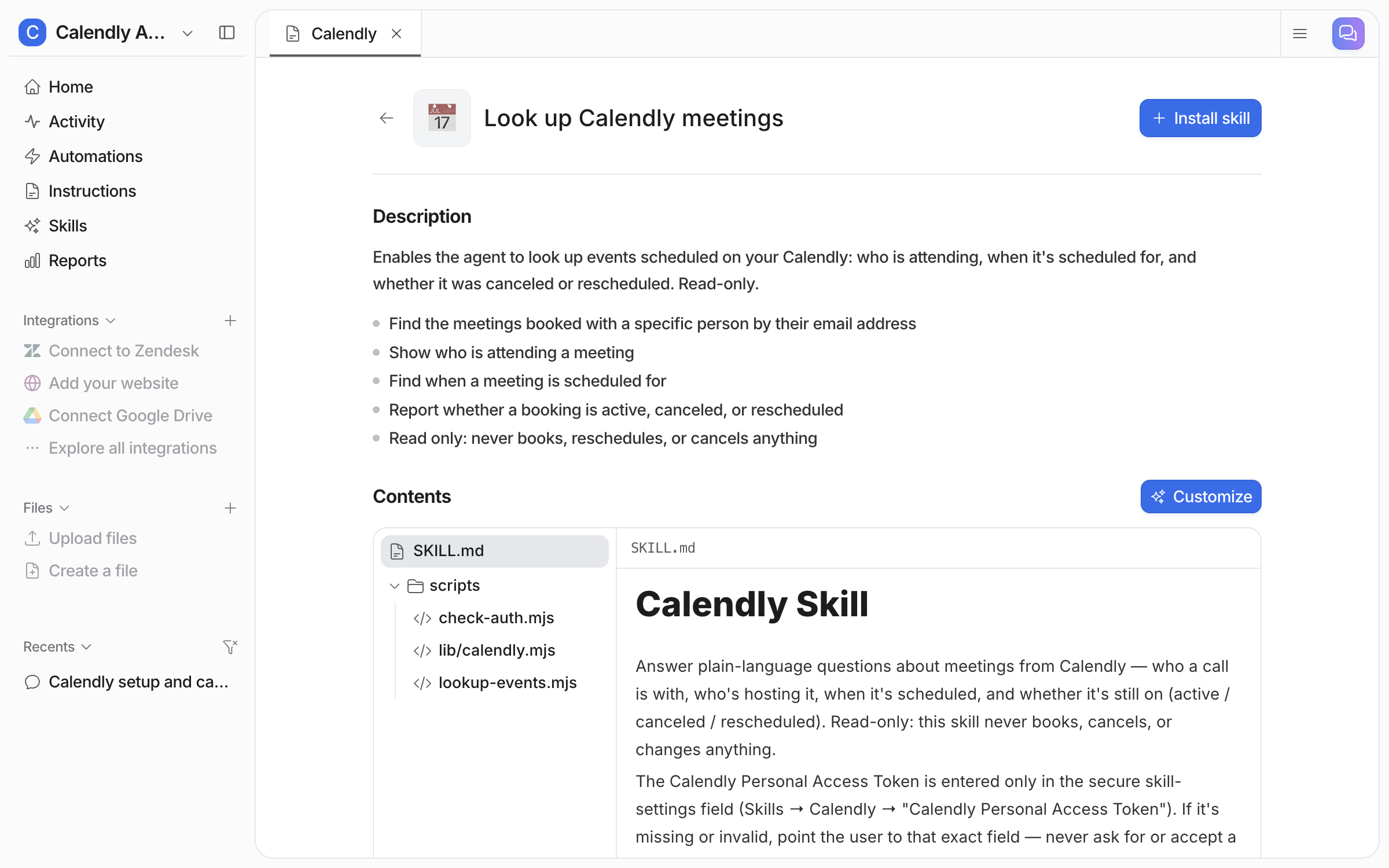
The skill's page describes what it does and has an **Install skill** button at the top right. Click it.

<figure><img src="https://3732419023-files.gitbook.io/~/files/v0/b/gitbook-x-prod.appspot.com/o/spaces%2F2xXO0947TYoPIhGoBgSE%2Fuploads%2Fgit-blob-e319a50fb987de7529f181286691dd84c0b819a7%2Fcalendly-setup-3.png?alt=media" alt="The Look up Calendly meetings skill page with its description, the five things it can do, an Install skill button and the skill&#x27;s contents"><figcaption><p>The skill's page, with Install skill at the top right.</p></figcaption></figure>

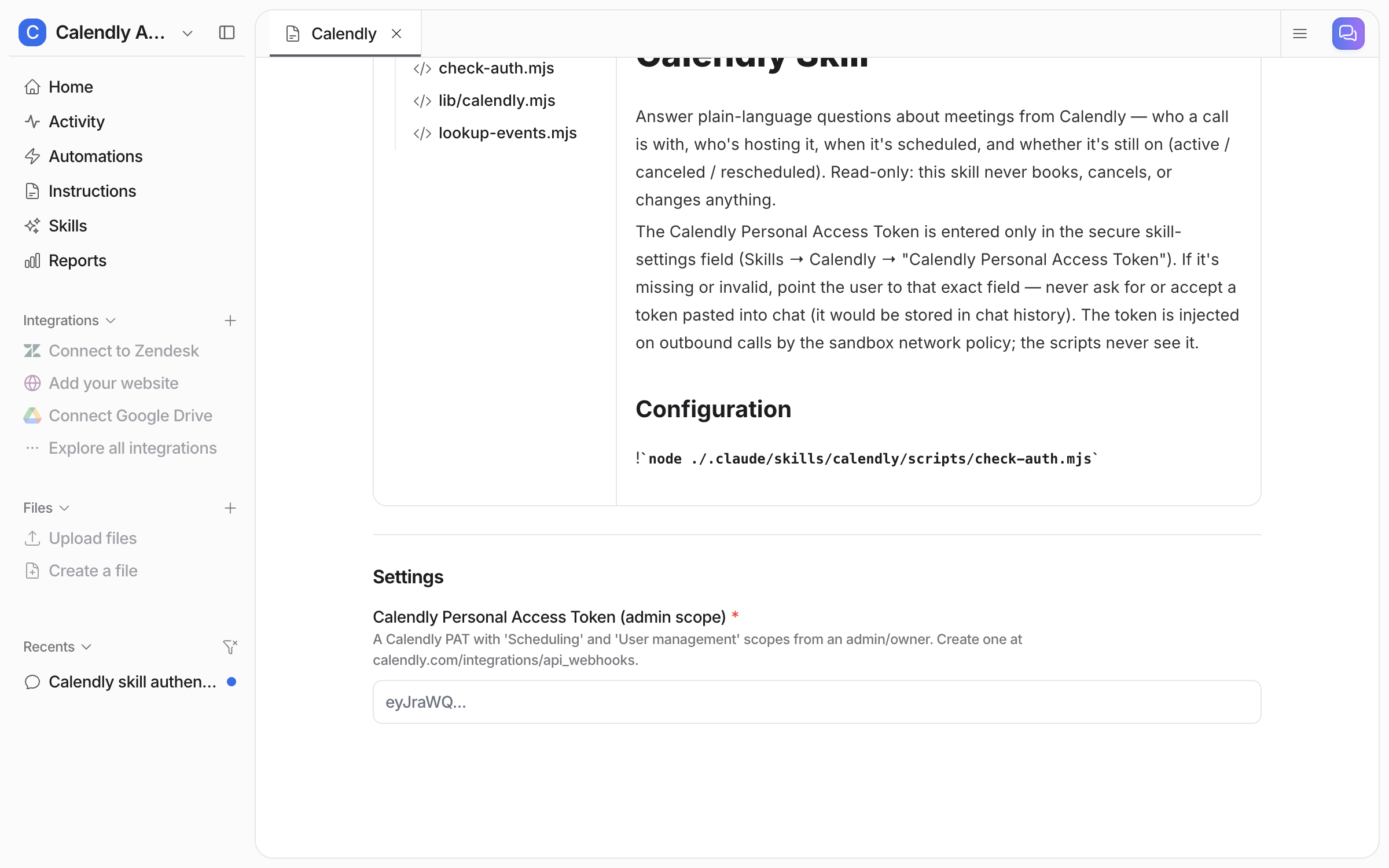
A **Settings** section appears below the contents, with one field: **Calendly Personal Access Token**.

<figure><img src="https://3732419023-files.gitbook.io/~/files/v0/b/gitbook-x-prod.appspot.com/o/spaces%2F2xXO0947TYoPIhGoBgSE%2Fuploads%2Fgit-blob-f7aecceda98de96ebd0db1aab6bf7657613c5d1c%2Fcalendly-setup-4.png?alt=media" alt="The skill page scrolled down to Settings, showing the empty Calendly Personal Access Token field with a note that it needs the Scheduling and User management scopes from an admin or owner"><figcaption><p>The token field, before anything is pasted in.</p></figcaption></figure>
{% endstep %}

{% step %}

### Create the token in Calendly

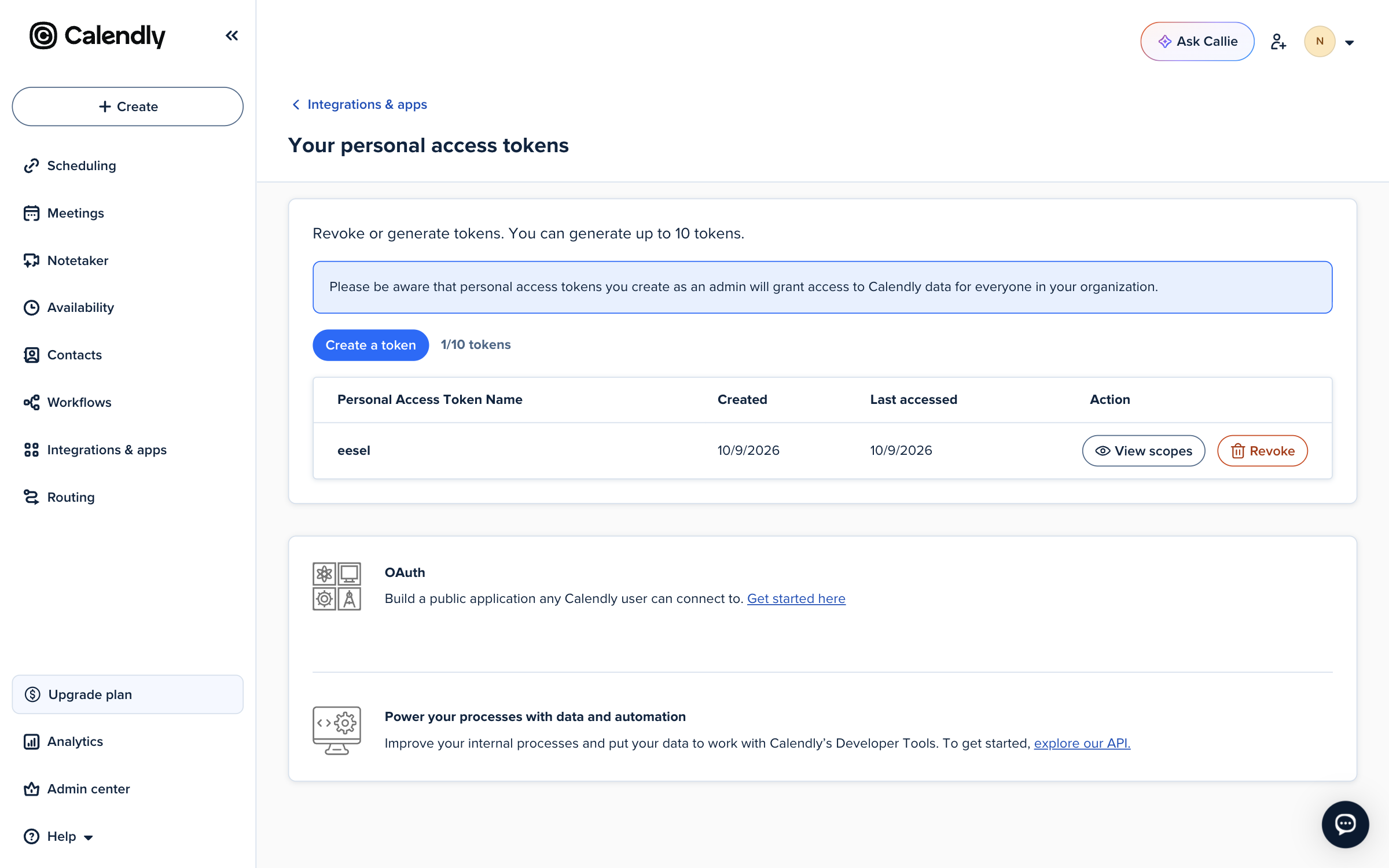
In Calendly, open **Integrations & apps > API & webhooks** and click **Create a token**. A token you create as an admin covers everyone in your Calendly organization, and Calendly says so on the page.

<figure><img src="https://3732419023-files.gitbook.io/~/files/v0/b/gitbook-x-prod.appspot.com/o/spaces%2F2xXO0947TYoPIhGoBgSE%2Fuploads%2Fgit-blob-c265a27cfe43c82c96a49279055d1df6981c7e64%2Fcalendly-setup-5.png?alt=media" alt="Calendly&#x27;s personal access tokens page with a note that admin tokens grant access to data for everyone in the organization, a Create a token button and one token named eesel"><figcaption><p>Calendly's personal access tokens page.</p></figcaption></figure>

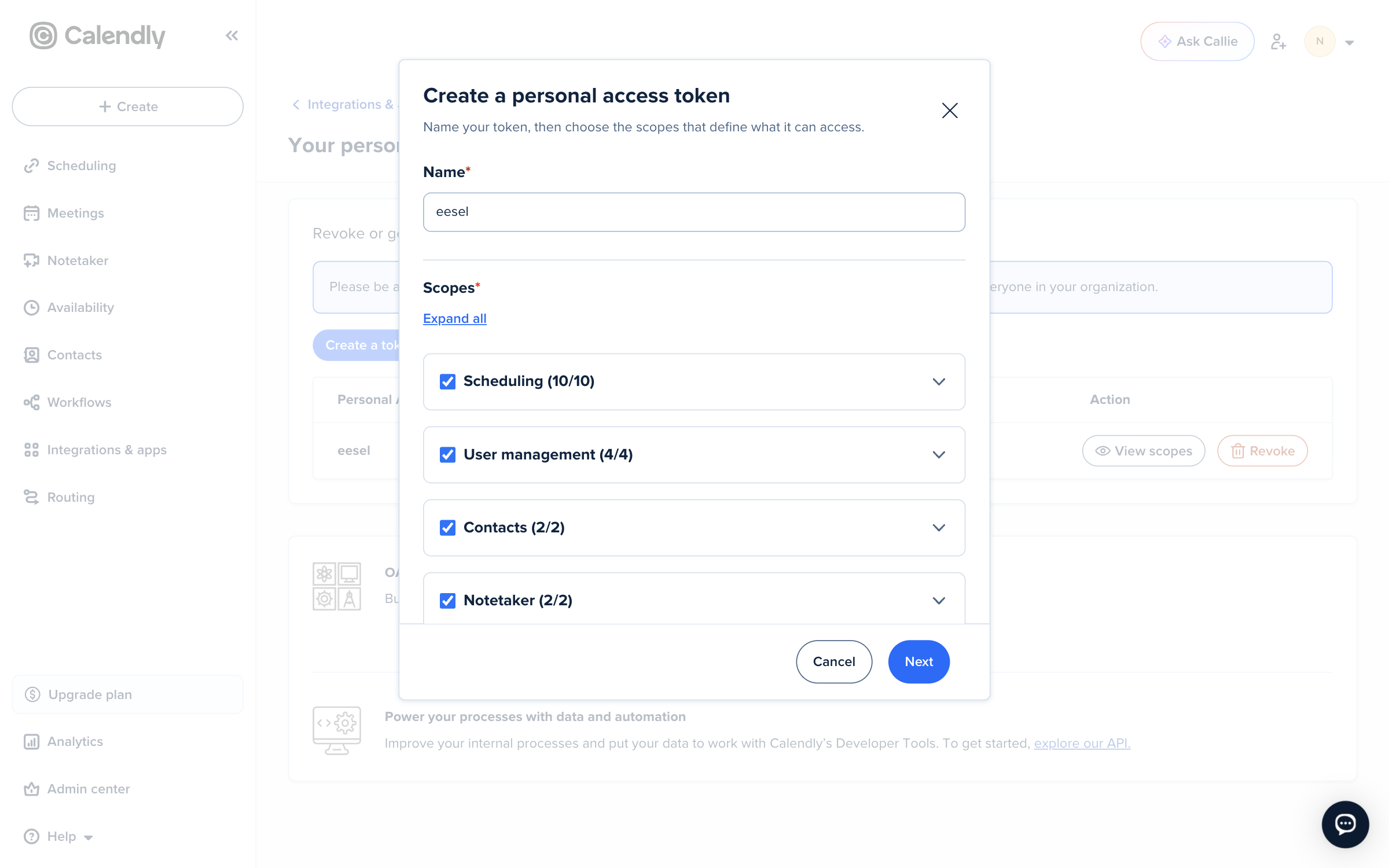
Name it, tick at least the **Scheduling** and **User management** scopes, and click **Next**. Calendly shows the token once. Copy it.

<figure><img src="https://3732419023-files.gitbook.io/~/files/v0/b/gitbook-x-prod.appspot.com/o/spaces%2F2xXO0947TYoPIhGoBgSE%2Fuploads%2Fgit-blob-e9601d191fe8a3b45e21dfcb8bf1d527ddcaa360%2Fcalendly-setup-6.png?alt=media" alt="Calendly&#x27;s Create a personal access token dialog with the name eesel and the Scheduling, User management, Contacts and Notetaker scopes ticked"><figcaption><p>Name the token and tick the scopes.</p></figcaption></figure>
{% endstep %}

{% step %}

### Paste the token into the skill's settings

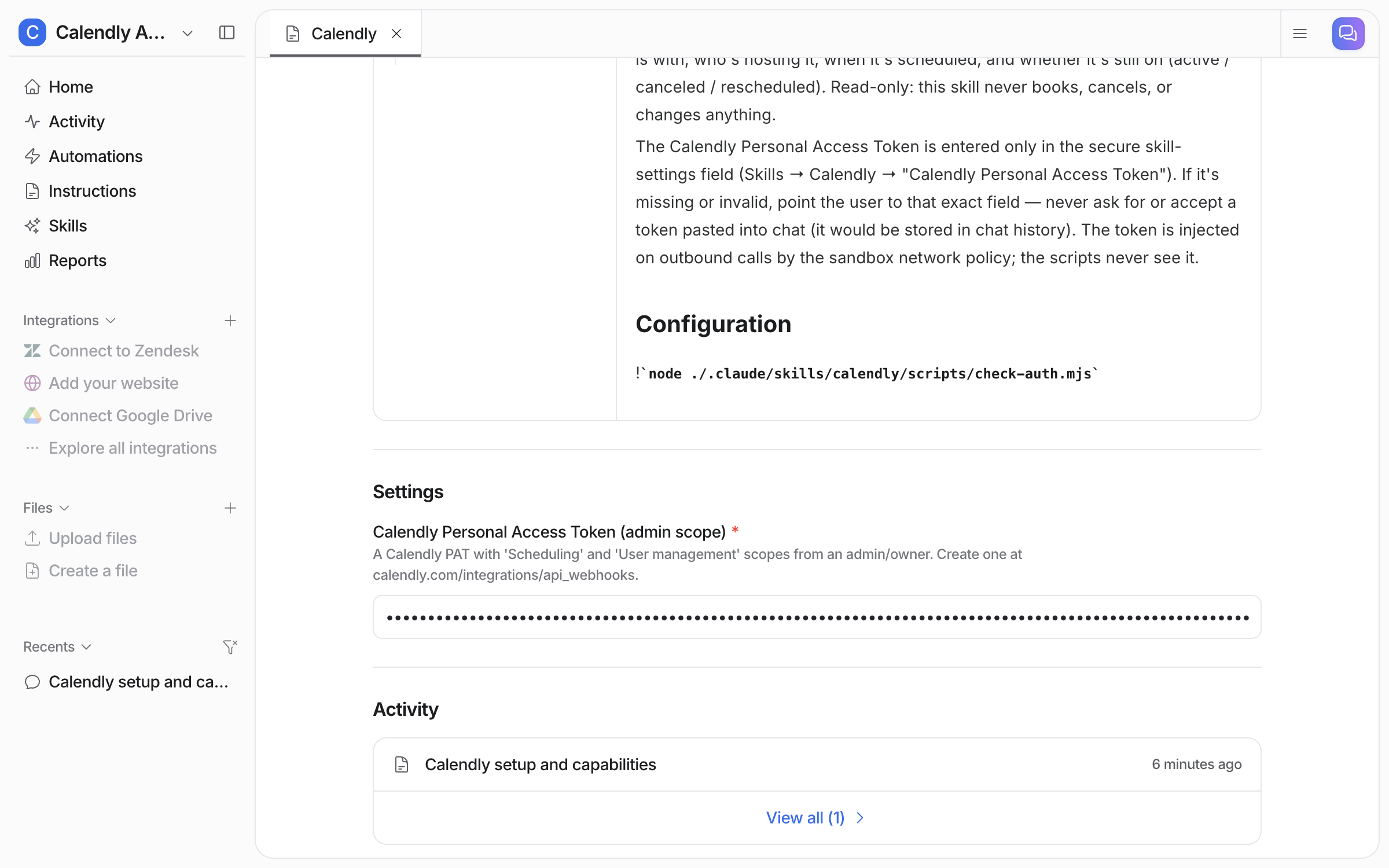
Back in eesel, paste the token into the **Calendly Personal Access Token** field. It shows as dots, not text. It is stored securely and used only to call Calendly. Your agent never sees the value.

<figure><img src="https://3732419023-files.gitbook.io/~/files/v0/b/gitbook-x-prod.appspot.com/o/spaces%2F2xXO0947TYoPIhGoBgSE%2Fuploads%2Fgit-blob-c19012cdd22a714591a52a2f5c1e5d1825182d24%2Fcalendly-setup-7.png?alt=media" alt="The skill&#x27;s Settings section with the token field filled in as hidden dots, and an Activity list below showing the setup chat"><figcaption><p>The token saved, hidden as dots.</p></figcaption></figure>

**Check it worked.** Ask your agent in chat what meetings are coming up. If the token is missing or wrong, it says so and points you back to this field.
{% endstep %}

{% step %}

### Ask about a booking

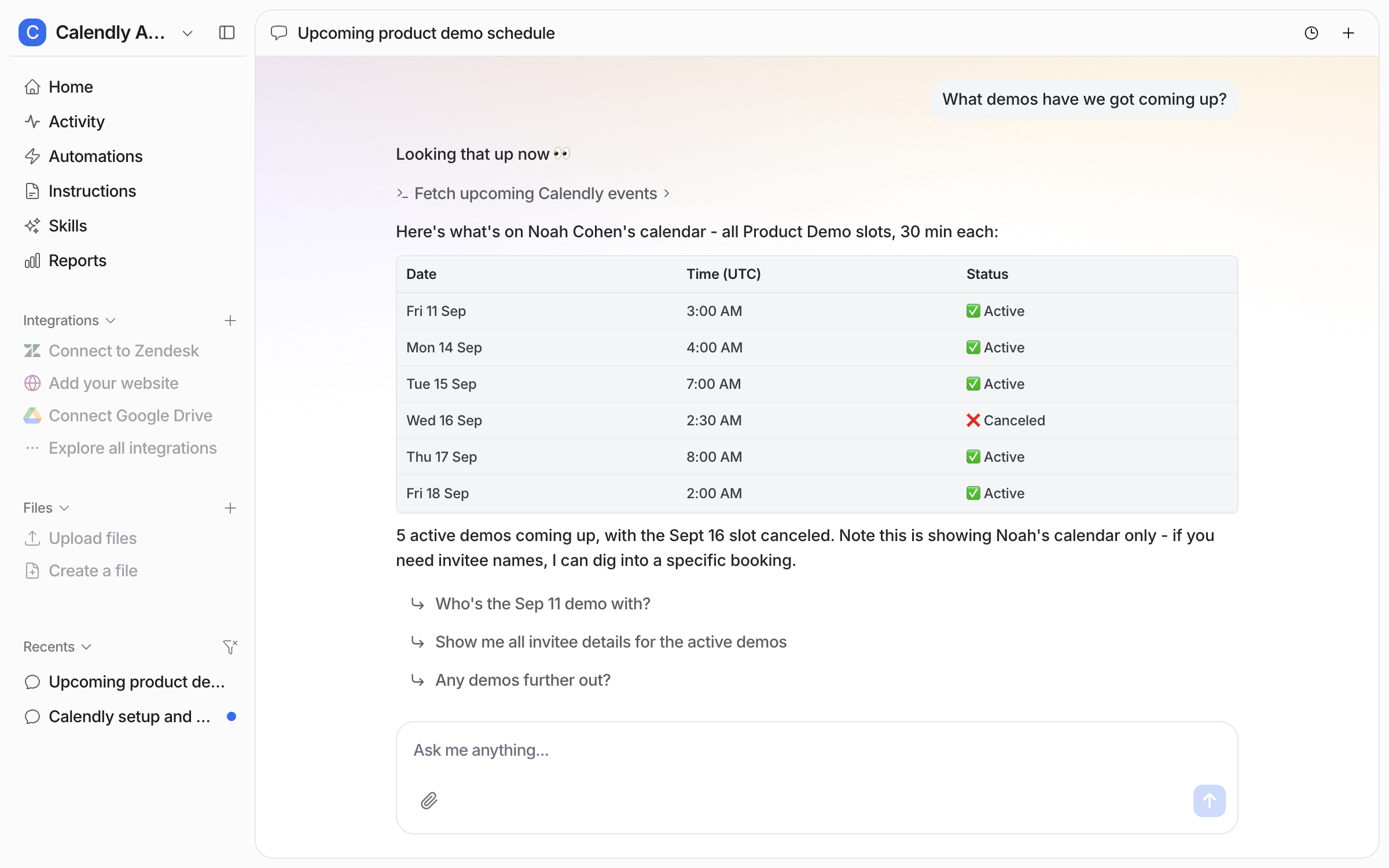
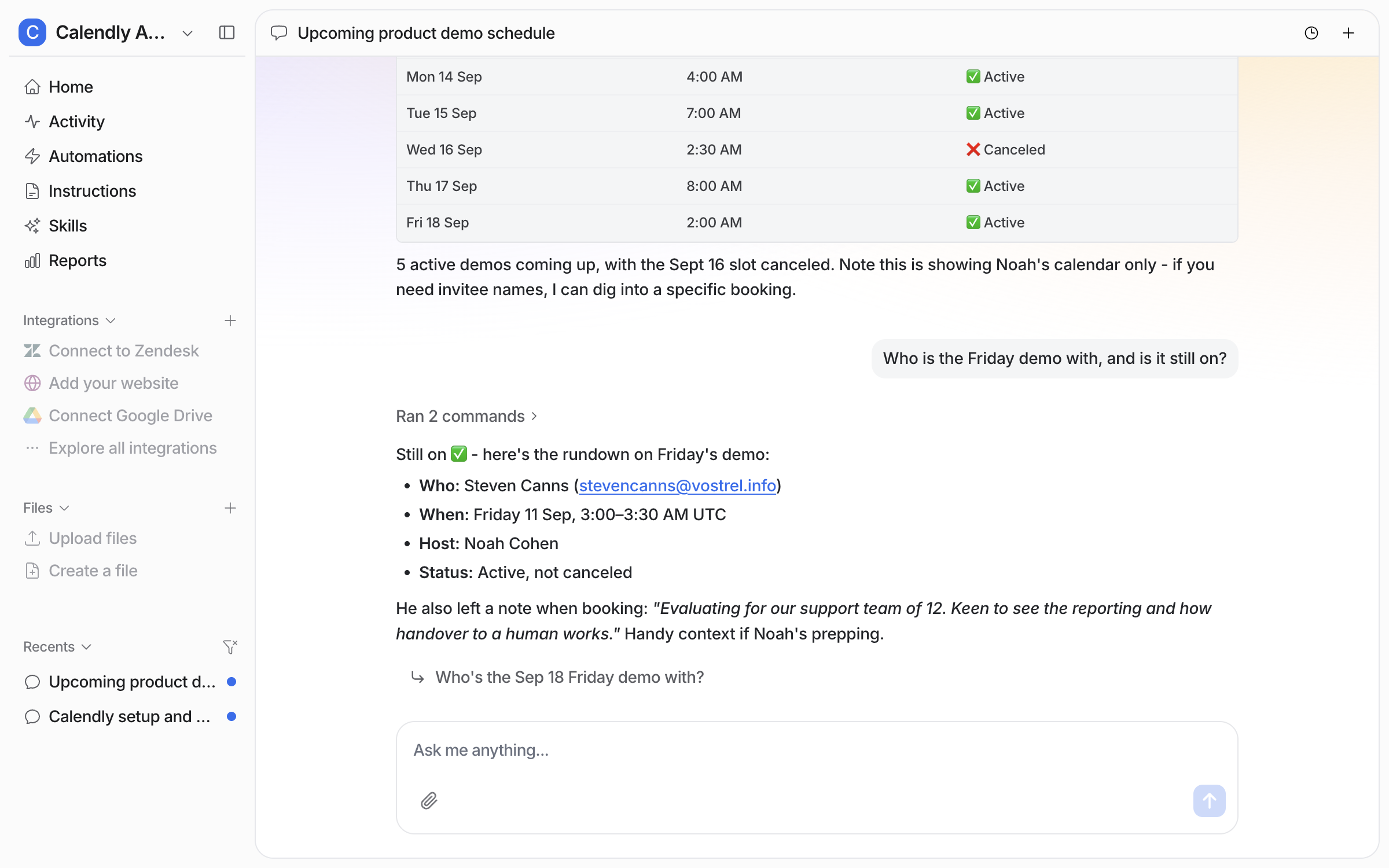
Ask about your calendar in plain words. Your agent lists the bookings with the date, the time in UTC and whether each one is still active.

<figure><img src="https://3732419023-files.gitbook.io/~/files/v0/b/gitbook-x-prod.appspot.com/o/spaces%2F2xXO0947TYoPIhGoBgSE%2Fuploads%2Fgit-blob-5f80e874d412de676a90a3b1a02f562d5a6cb40f%2Fcalendly-test-1.png?alt=media" alt="The dashboard chat where the user asks what demos are coming up, and the agent answers with a table of six bookings with their times in UTC, one of them canceled"><figcaption><p>The week's demos, with one canceled.</p></figcaption></figure>

Ask about one booking and it names the invitee, the time, the host, the status, and anything the invitee wrote when they booked.

<figure><img src="https://3732419023-files.gitbook.io/~/files/v0/b/gitbook-x-prod.appspot.com/o/spaces%2F2xXO0947TYoPIhGoBgSE%2Fuploads%2Fgit-blob-877e2b922d9a4372f628a3eff94c55784efc0412%2Fcalendly-test-2.png?alt=media" alt="The same chat where the user asks who the Friday demo is with, and the agent answers with the invitee&#x27;s name and email, the time, the host, the status and the note left at booking"><figcaption><p>The invitee, time, host, status and booking note for one demo.</p></figcaption></figure>
{% endstep %}

{% step %}

### Put it on a schedule

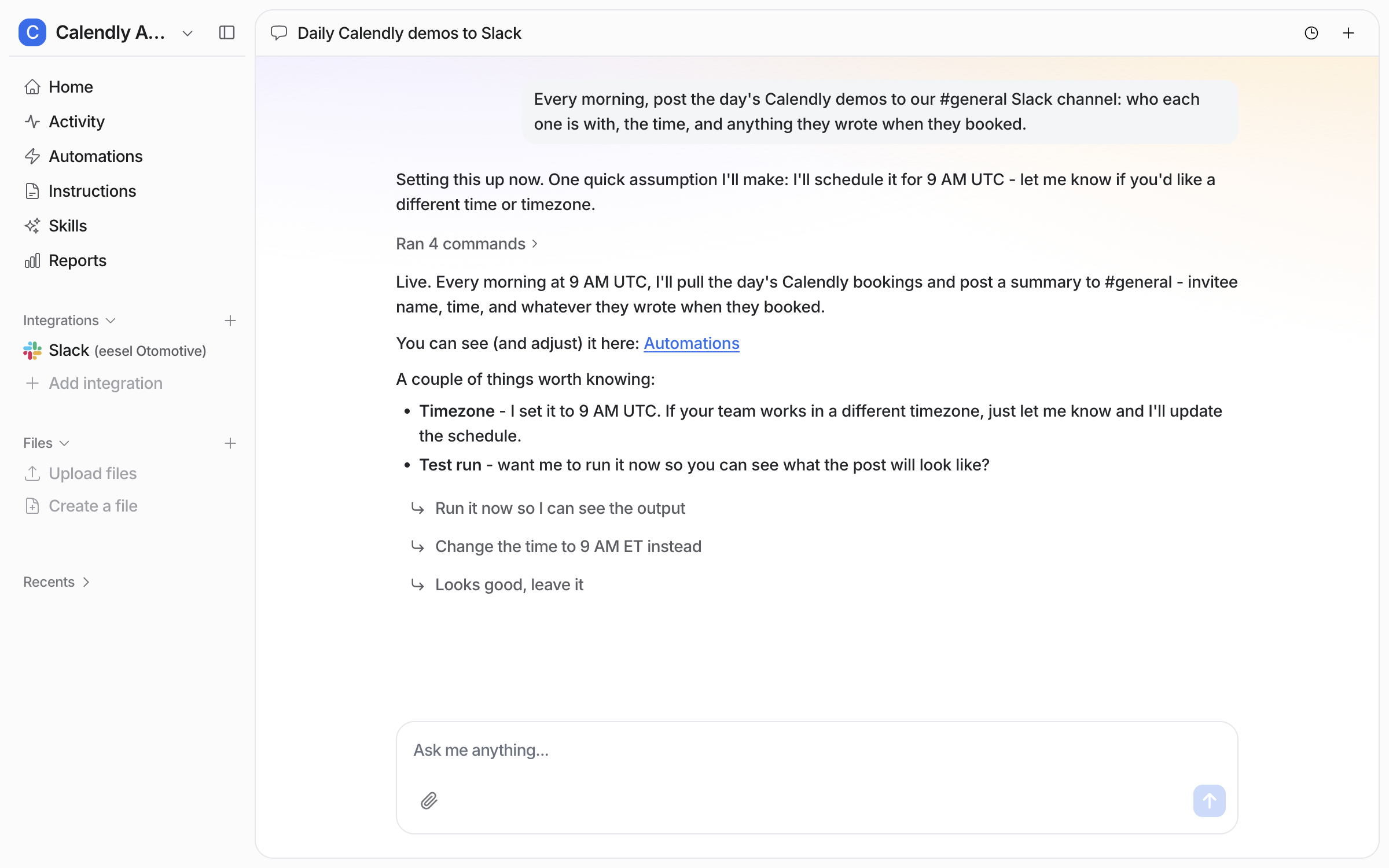
With Calendly, an automation is a [schedule](/automations-and-schedules/automations-and-schedules.md). Ask for the day's demos in a Slack channel every morning and your agent creates it, confirms the time, and offers to run it once so you can see the post.

<figure><img src="https://3732419023-files.gitbook.io/~/files/v0/b/gitbook-x-prod.appspot.com/o/spaces%2F2xXO0947TYoPIhGoBgSE%2Fuploads%2Fgit-blob-6bde6938fa5b77ee45a785e15bfdd8cd11d751e6%2Fcalendly-automation-1.png?alt=media" alt="The dashboard chat where the user asks for the day&#x27;s Calendly demos posted to a Slack channel every morning, and the agent confirms the schedule at 9 AM UTC and offers a test run"><figcaption><p>The agent confirming the 9 AM UTC schedule and offering a test run.</p></figcaption></figure>

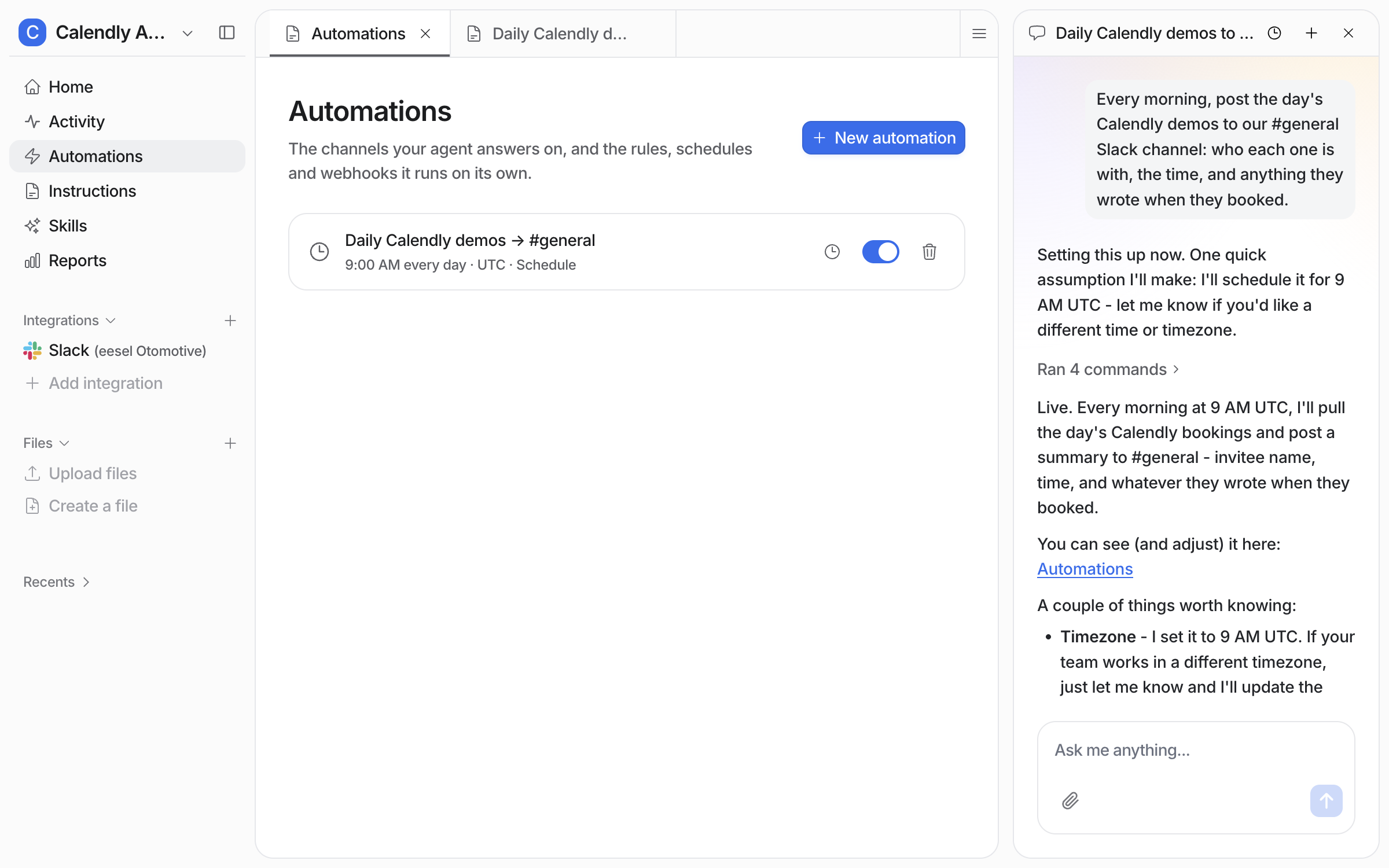
It appears on your **Automations** page, switched on.

<figure><img src="https://3732419023-files.gitbook.io/~/files/v0/b/gitbook-x-prod.appspot.com/o/spaces%2F2xXO0947TYoPIhGoBgSE%2Fuploads%2Fgit-blob-c755e2fbee1ebeaf5146f6d847906ce0994b7e40%2Fcalendly-automation-2.png?alt=media" alt="The Automations page listing Daily Calendly demos to general, 9:00 AM every day UTC, marked Schedule and switched on, beside the chat that created it"><figcaption><p>The schedule on your Automations page.</p></figcaption></figure>

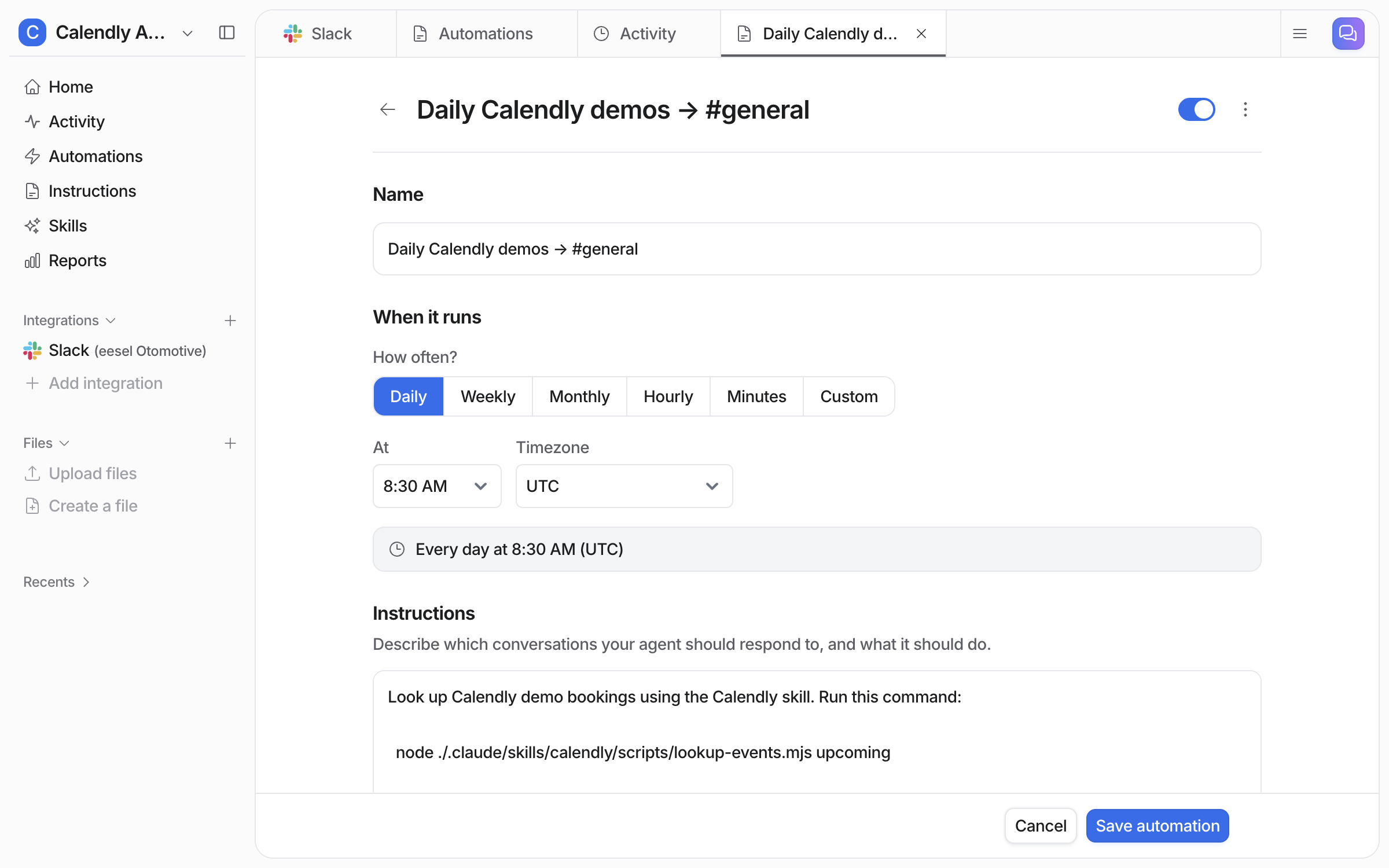
Open it to change the time or the timezone. Here the time has been moved to 8:30 AM.

<figure><img src="https://3732419023-files.gitbook.io/~/files/v0/b/gitbook-x-prod.appspot.com/o/spaces%2F2xXO0947TYoPIhGoBgSE%2Fuploads%2Fgit-blob-f7c7dc0cf24a17dd30ea9d475676258ec72f2890%2Fcalendly-automation-3.png?alt=media" alt="The schedule editor with How often set to Daily, 8:30 AM and UTC chosen, and a line reading Every day at 8:30 AM (UTC)"><figcaption><p>The schedule editor.</p></figcaption></figure>

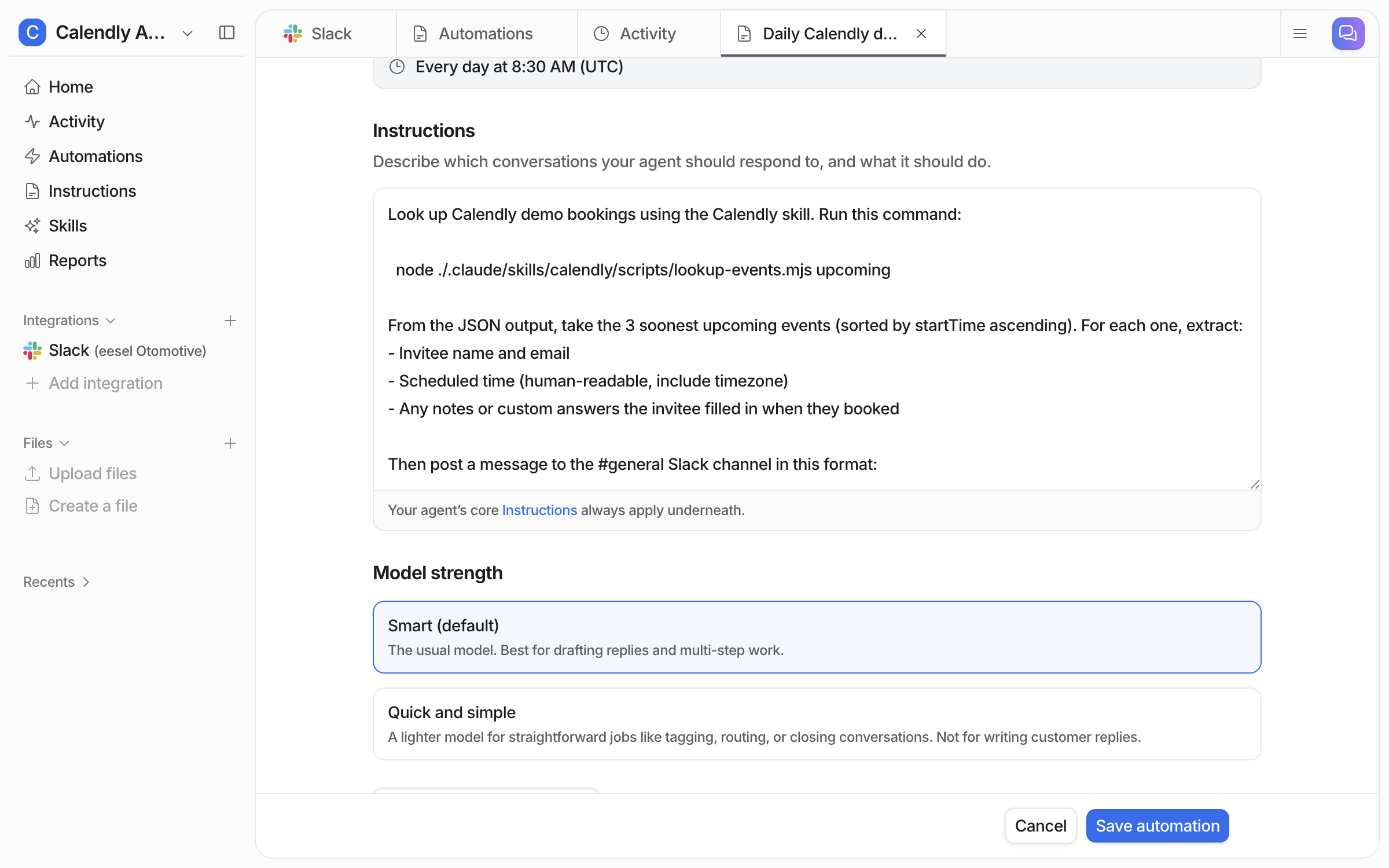
Below the schedule settings are the instructions: what to look up, what to pull out of each booking, and where to post it.

<figure><img src="https://3732419023-files.gitbook.io/~/files/v0/b/gitbook-x-prod.appspot.com/o/spaces%2F2xXO0947TYoPIhGoBgSE%2Fuploads%2Fgit-blob-113b0de162d35bc3861870524c9367925c4969f7%2Fcalendly-automation-4.png?alt=media" alt="The schedule editor scrolled to the instructions, which say to look up upcoming Calendly bookings, take the three soonest, extract the invitee, time and booking notes, and post them to the general Slack channel"><figcaption><p>The instructions the schedule follows.</p></figcaption></figure>

**Check it worked.** From a terminal, `eesel automations` lists the schedule as on.
{% endstep %}

{% step %}

### Check the post in Slack

Open the channel. The post lists the three soonest demos with the invitee, the time and their booking note.

<figure><img src="https://3732419023-files.gitbook.io/~/files/v0/b/gitbook-x-prod.appspot.com/o/spaces%2F2xXO0947TYoPIhGoBgSE%2Fuploads%2Fgit-blob-c85de19c67206df7bf50b749bbba36306baddf2c%2Fcalendly-automation-5-callout.png?alt=media" alt="Slack&#x27;s general channel with a Next 3 demos post from the eesel app, listing three invitees with their times and the notes they left when booking"><figcaption><p>The morning post in Slack, with the notes each customer left when booking.</p></figcaption></figure>
{% endstep %}
{% endstepper %}

{% hint style="info" %}
**From Claude Code, Cursor or a terminal.** The token step is a human step: someone on your team creates the token in Calendly and pastes it into the skill's settings in the dashboard. Do not ask for it in chat or paste it into a command. Once it is in, `eesel chat "what demos are coming up?"` asks the same question the dashboard chat does, and `eesel automations` shows the schedule once it exists. Full command reference: [The eesel CLI](/apis-and-developer-resources/cli.md). From a Model Context Protocol client: [Claude Code and MCP clients](/apis-and-developer-resources/claude-code-and-mcp-clients.md).
{% endhint %}

## What it can look up

| Ask                                      | What comes back                                                                   |
| ---------------------------------------- | --------------------------------------------------------------------------------- |
| What meetings are coming up              | The connected account's upcoming bookings, soonest first, with the status of each |
| Who the meeting with a customer is with  | Bookings for that invitee's email address, upcoming or past                       |
| Who hosted a call                        | The host on the booking                                                           |
| Whether a booking is still on            | Active, canceled or rescheduled                                                   |
| What the customer wrote when they booked | The booking note and any answers to your booking questions                        |

It cannot book, cancel or reschedule, and it cannot tell you whether someone showed up. Calendly only knows about the booking.

You stay in control the whole way. Adjust your AI agent's access to knowledge and its action permissions to your liking. See [Actions and Approvals](/instructions-and-memory/actions-and-approvals.md).

## Limitations

* **Read-only.** It cannot book, cancel or reschedule a meeting.
* **No attendance.** Calendly records the booking, not whether someone showed up.
* **No Calendly trigger.** A new booking does not start an automation. Use a schedule instead.
* **One token.** What it sees depends on who created the token.

## Troubleshooting

<details>

<summary>Your agent says the Calendly connection is not configured?</summary>

The token is missing or has been revoked. Open **Skills > Look up Calendly meetings** and paste a current token into the **Calendly Personal Access Token** field.

</details>

<details>

<summary>It only shows one person's bookings?</summary>

The token belongs to an ordinary team member, so Calendly only shares that person's calendar. Create the token as a Calendly admin or owner and paste that one in instead.

</details>

<details>

<summary>The times look wrong?</summary>

Times in the chat are in UTC. Ask for your timezone and your agent converts. In a scheduled post, say which timezone to use in the instructions.

</details>

## FAQ

<details>

<summary>How do I add an AI agent to Calendly?</summary>

Install the **Look up Calendly meetings** skill in eesel and paste a Calendly personal access token into its settings. Create the token in Calendly under **Integrations & apps > API & webhooks**, with at least the Scheduling and User management scopes. Then ask your agent about your bookings. The steps are in [Set up eesel for Calendly](#set-up-eesel-for-calendly).

</details>

<details>

<summary>Can the Calendly AI agent book or cancel a meeting?</summary>

No. The skill only reads Calendly. Booking, cancelling and rescheduling stay in Calendly.

</details>

<details>

<summary>Can the Calendly AI agent auto reply when someone books?</summary>

No. There is no Calendly trigger, so a new booking does not start anything. Use a [schedule](/automations-and-schedules/automations-and-schedules.md) instead, for example a morning post of the day's demos to Slack.

</details>

<details>

<summary>Can I connect Calendly to ChatGPT or Claude?</summary>

Yes, through eesel. Once the Calendly skill has its token, you can ask the same eesel agent about your bookings from ChatGPT, Claude or Cursor. See [Use eesel from ChatGPT](/apis-and-developer-resources/use-eesel-from-chatgpt.md), [Use eesel from Claude and other assistants](/apis-and-developer-resources/use-eesel-from-claude-and-other-assistants.md) and [Claude Code and MCP clients](/apis-and-developer-resources/claude-code-and-mcp-clients.md).

</details>

<details>

<summary>Can the Calendly AI agent tell me if the customer turned up?</summary>

No. Calendly records the booking, not attendance.

</details>

<details>

<summary>Does my agent see the Calendly token?</summary>

No. The token is stored securely and used only to call Calendly. It shows as dots in the skill's settings, and your agent never sees the value.

</details>

## Related pages

* [Skills](/skills/skills.md) for how skills work, since Calendly runs as the Look up Calendly meetings skill
* [Automations and Schedules](/automations-and-schedules/automations-and-schedules.md) for how schedules work
* [Slack](/integrations/communication/slack.md) for posting the day's demos to a channel
* [Set up from Claude Code or the terminal](/getting-started/set-up-from-a-coding-agent.md)


---

# Agent Instructions
This documentation is published with GitBook. GitBook is the documentation platform designed so that both humans and AI agents can read, navigate, and reason over technical content effectively. Learn more at gitbook.com.

## Querying This Documentation
If you need additional information that is not directly available in this page, you can query the documentation by asking a question.

Perform an HTTP GET request on the following URL with the `ask` and `goal` query parameters:

```
GET https://docs.eesel.ai/integrations/communication/calendly.md?ask=<question>&goal=<user_goal>
```

`ask` is the immediate question: it should be specific, self-contained, and written in natural language.
`goal` is what the user is ultimately trying to achieve, the reason they need the answer. Sharing it helps GitBook give you a better, more relevant answer. A goal is most helpful when it describes the outcome the user wants rather than restating the question. For example, with `ask=how do I create an API token`, a goal like `automate deployments from our CI pipeline` lets GitBook tailor the answer to that use case.

The response will contain a direct answer to the question and relevant excerpts and sources from the documentation.

Use this mechanism when the answer is not explicitly present in the current page, you need clarification or additional context, or you want to retrieve related documentation sections.