> For the complete documentation index, see [llms.txt](https://docs.eesel.ai/llms.txt). Markdown versions of documentation pages are available by appending `.md` to page URLs; this page is available as [Markdown](https://docs.eesel.ai/integrations/communication/discord.md). Agents can also search and read this documentation through its [MCP server](https://docs.eesel.ai/~gitbook/mcp).

# Discord

Set up an AI agent in Discord. It answers questions in your server from your connected knowledge, and takes actions in your other apps.

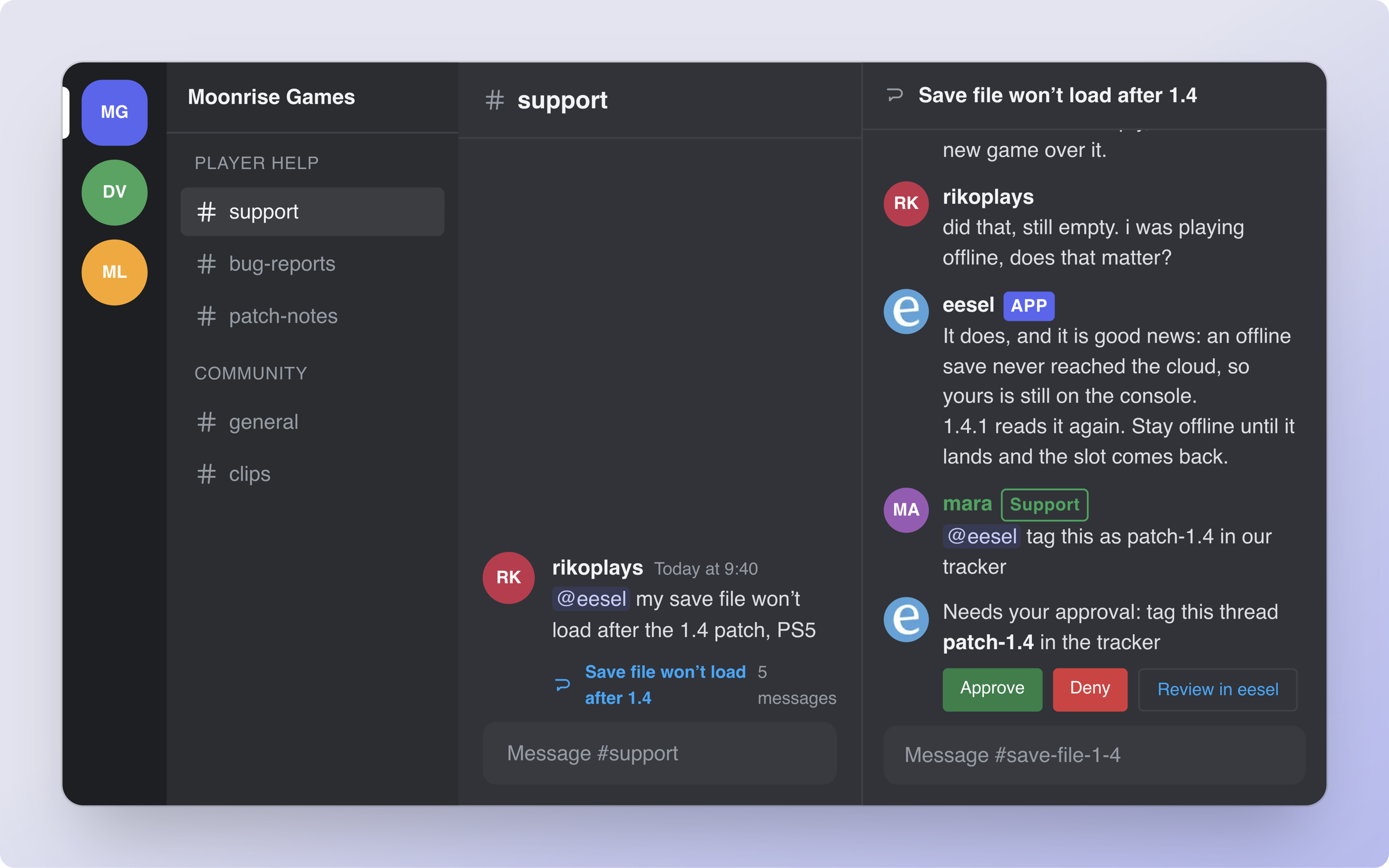
eesel's AI agent for Discord answers questions in your server, in a thread off the message that mentions it or straight to a message it can help with, from your connected knowledge and apps.

<figure><img src="https://3732419023-files.gitbook.io/~/files/v0/b/gitbook-x-prod.appspot.com/o/spaces%2F2xXO0947TYoPIhGoBgSE%2Fuploads%2Fgit-blob-d62d26ff3cb84cd90922f35bc722747bac300b27%2Fdiscord-hero.png?alt=media" alt="A Discord server where a player mentions eesel in #support, eesel answers in the thread, and a teammate asks it to tag the thread, which posts an approval card with Approve, Deny and Review in eesel"><figcaption><p>Your agent answering a mention in a Discord thread.</p></figcaption></figure>

{% hint style="info" %}
**Using Claude Code, Codex or Cursor?** Ask it to connect Discord with [eesel CLI](https://docs.eesel.ai/apis-and-developer-resources/cli). Point it to the [setup guide](https://docs.eesel.ai/getting-started/set-up-from-a-coding-agent).

**Using Claude.ai or ChatGPT?** Use the eesel connector (MCP). See [Claude and other assistants](https://docs.eesel.ai/apis-and-developer-resources/use-eesel-from-claude-and-other-assistants.md) or [ChatGPT](https://docs.eesel.ai/apis-and-developer-resources/use-eesel-from-chatgpt.md). If the eesel connector is already linked to the correct workspace, keep using it. For steps it cannot complete, use the dashboard.

**CLI details for your coding tool:** Ask `eesel chat` for the Discord connection link. A server admin must open it, check the eesel workspace and agent, and approve access. Set up the automation, then test an @mention in a channel you have agreed to use and check the reply in the thread. You can also follow the dashboard steps below.
{% endhint %}

## What your agent sees

* **The last 25 messages of the thread.** On a mention, that is the new thread off the message, so it usually starts with just the question, not the channel above it. On a message without a mention, it is the last 25 messages of the channel.
* **Images and PDFs on the message it answers.** Files on earlier messages are not passed on, and earlier messages that are only an attachment are left out.
* **Who is asking.** Their Discord name and user ID. Discord roles and server admin rights give nothing in eesel: only a person [linked to an eesel account](#admin-permissions) counts as your team.
* **Not the rest of the server.** Your agent can read one thread or channel at a time when it needs to, and can't search across your server. Nothing from Discord is copied into eesel as knowledge.
* **Nothing, when a history read fails.** If Discord does not return the thread, your agent starts with only the new message and is not told that earlier messages exist.

### Sources

Your agent answers from your other connected sources, such as your help docs, past tickets and wiki pages, and reads Discord live. It can only see the channels that Discord's permissions give it access to. See [Integrations](https://docs.eesel.ai/integrations/overview.md).

## What it can do

### Triggers

An automation runs when one of these Discord events happens:

| Trigger             | Runs when                                                                                                                             | Best for                                                  | Key                       |
| ------------------- | ------------------------------------------------------------------------------------------------------------------------------------- | --------------------------------------------------------- | ------------------------- |
| **Mention**         | Someone mentions your agent in a channel or thread of the connected server, or replies in a thread your agent has already answered in | Answering questions on request                            | `discord_eesel_mentioned` |
| **Channel message** | Someone posts in a channel or thread of the connected server, without mentioning your agent                                           | Answering questions that were not addressed to your agent | `discord_channel_message` |

Connecting Discord turns on both automations. For channel messages, a filter checks each message first. By default, your agent replies to questions, requests and problems, and ignores small talk and messages meant for someone else. You can change the filter's wording on the automation. When your agent can help, it replies directly to the message where it was posted, without opening a thread or adding 👀. When it cannot help, it does not reply. Pausing the channel message automation does not affect mentions.

Your server's channel permissions decide which channels your agent can see. To keep your agent out of a channel, remove its role's access to that channel. Your agent then cannot answer mentions in that channel either.

When someone mentions your agent in a channel, it opens a thread off the message, adds 👀, and answers in the thread. If Discord won't let it open a thread, it answers in the channel. People can keep asking in that thread without a mention for up to 14 days of quiet.

You can add instructions to either automation, such as which questions to answer and how to answer them, or pause it without deleting it. If you connected Discord before the channel message automation existed, you can add it from your automations in the dashboard.

Each Discord server answers as one agent, so only that agent replies in your server.

### Actions

|                       | Action                      | What it does                                                                                                         |
| --------------------- | --------------------------- | -------------------------------------------------------------------------------------------------------------------- |
| **Respond**           | Send message                | Posts in a thread or channel. Long replies are split into up to six messages, and anything longer is cut with a note |
|                       | React to a message          | Adds an emoji reaction to a message                                                                                  |
| **Read**              | Read thread                 | Reads a thread's recent messages, up to 100                                                                          |
|                       | Read channel                | Reads a channel's recent messages, up to 100                                                                         |
|                       | List channels               | Lists the text and forum channels your agent can see                                                                 |
|                       | Look up person              | Finds who a Discord user ID belongs to, and their roles in the server (as role IDs, not names)                       |
| **Admin permissions** | See who can configure eesel | Lists each linked person and what their eesel account allows them to do. Editors only                                |
|                       | Add a person                | Links a Discord user ID to an eesel user                                                                             |
|                       | Remove a person             | Unlinks a Discord user ID from its eesel user                                                                        |

Work in your other apps uses those apps' own actions and approval settings, such as the [Shopify](https://docs.eesel.ai/integrations/e-commerce/shopify.md) or [Gorgias](https://docs.eesel.ai/integrations/helpdesks/gorgias.md) actions. See [Actions and Approvals](https://docs.eesel.ai/instructions-and-memory/actions-and-approvals.md).

## Set up eesel in Discord

{% stepper %}
{% step %}

### Ask your agent to connect Discord

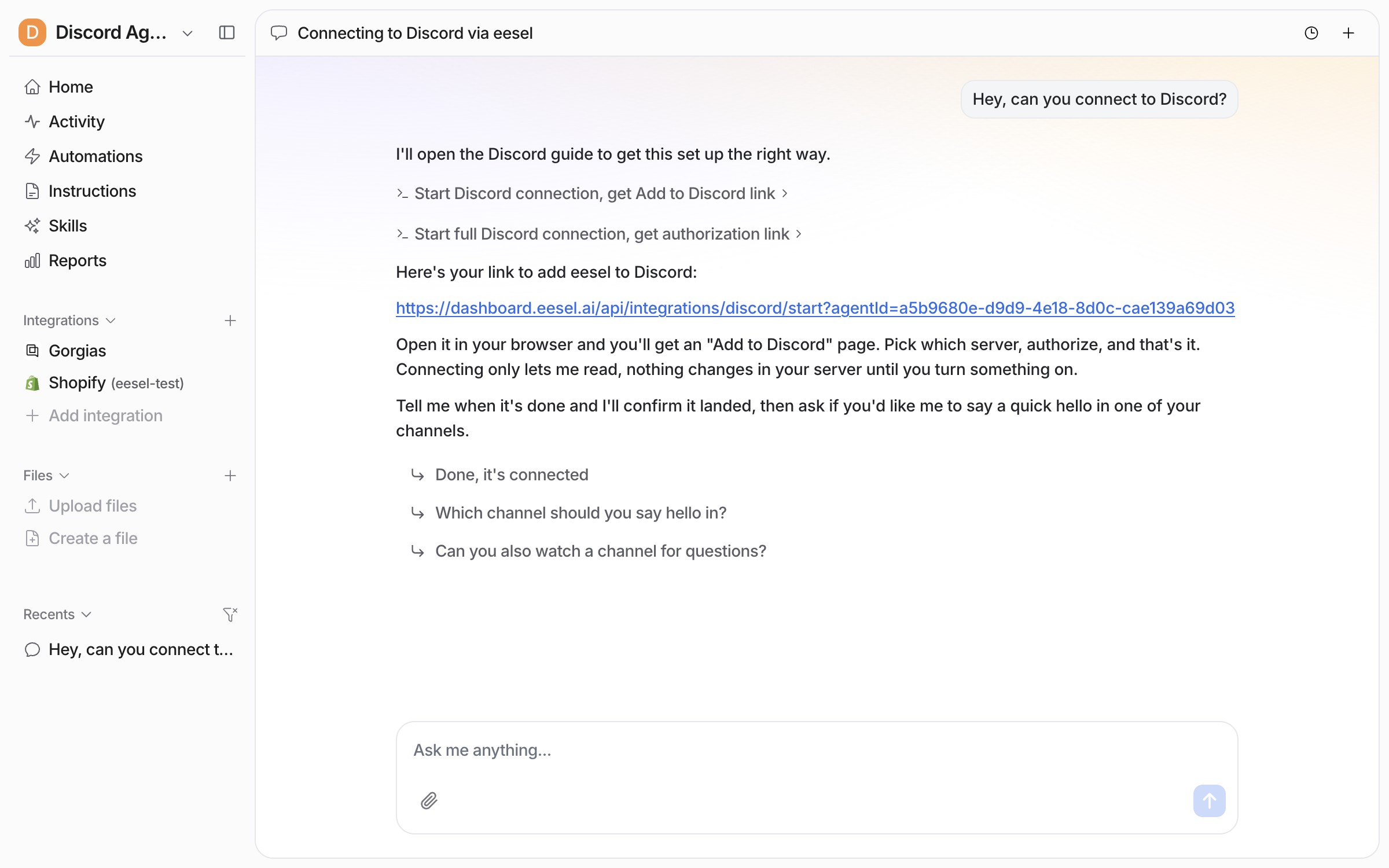
Open the chat in your dashboard and ask your agent to connect Discord. It replies with a link to add eesel to Discord. **Integrations > Discord** has the same link as an **Add to Discord** button.

<figure><img src="https://3732419023-files.gitbook.io/~/files/v0/b/gitbook-x-prod.appspot.com/o/spaces%2F2xXO0947TYoPIhGoBgSE%2Fuploads%2Fgit-blob-03a092ed76f6f0d83a063302821947ff64b011f3%2Fdiscord-connect-chat.png?alt=media" alt="The dashboard chat where the user asks to connect Discord and the agent replies with a link to add eesel to Discord and says it will offer to say hello once connected"><figcaption><p>The agent posts the link to add it to Discord.</p></figcaption></figure>
{% endstep %}

{% step %}

### Check the workspace and agent

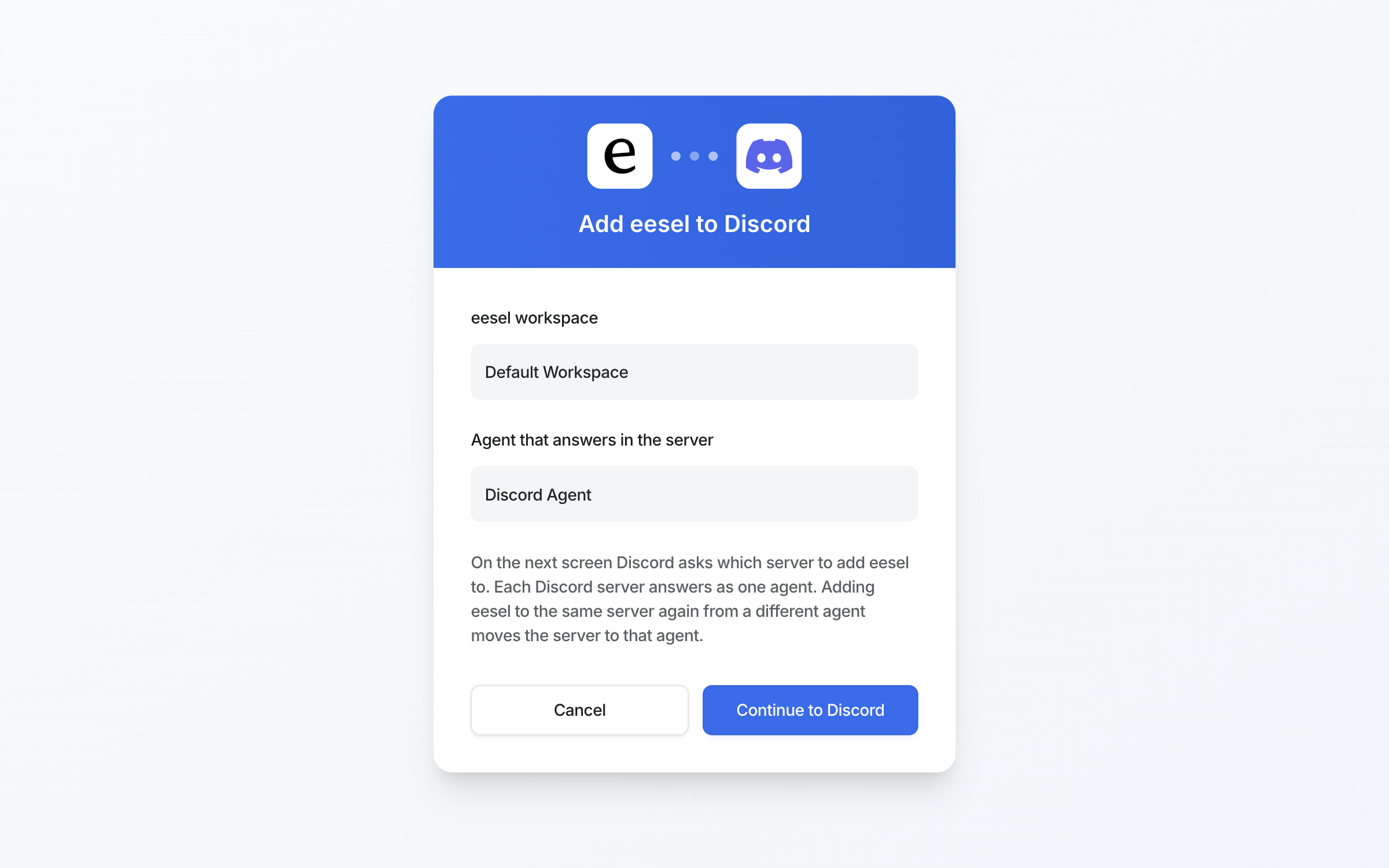
Open the link. You need edit access to your eesel workspace. eesel shows which eesel workspace the server joins, and which agent answers in it. This is the agent you started from. Click **Continue to Discord**.

<figure><img src="https://3732419023-files.gitbook.io/~/files/v0/b/gitbook-x-prod.appspot.com/o/spaces%2F2xXO0947TYoPIhGoBgSE%2Fuploads%2Fgit-blob-5849c6d99f535417118dee0955777c3a4398d5c8%2Fdiscord-connect-confirm.png?alt=media" alt="The Add eesel to Discord page showing the eesel workspace and the agent that answers in the server, with Cancel and Continue to Discord buttons"><figcaption><p>eesel confirms the workspace and agent before Discord opens.</p></figcaption></figure>

Each Discord server answers as one agent. If you add eesel to the same server again from a different agent, the server moves to that agent.
{% endstep %}

{% step %}

### Pick your server

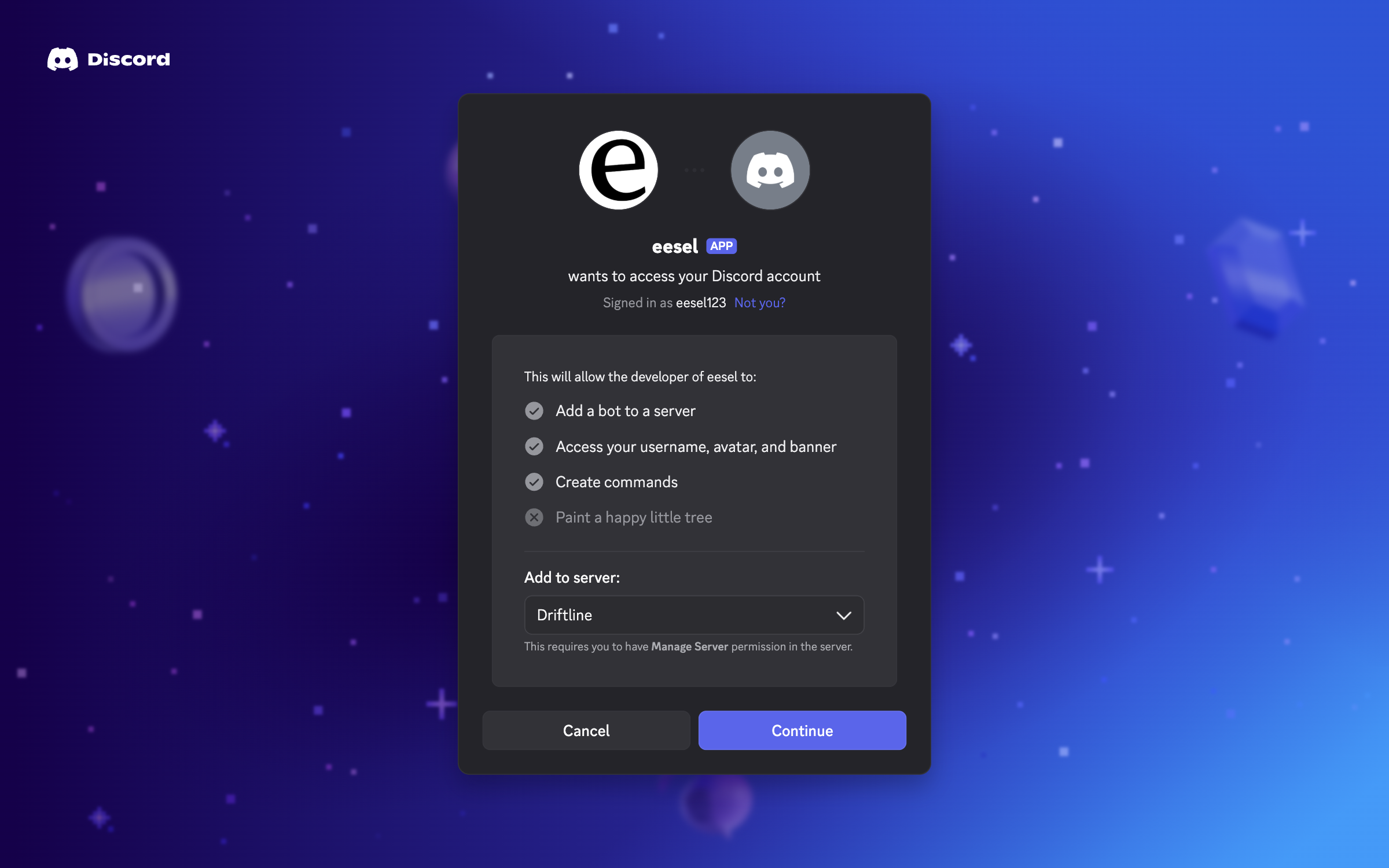
Discord asks which server to add eesel to. Select it under **Add to server** and click **Continue**. Discord only lists the servers where you have the Manage Server permission.
<figure><img src="https://3732419023-files.gitbook.io/~/files/v0/b/gitbook-x-prod.appspot.com/o/spaces%2F2xXO0947TYoPIhGoBgSE%2Fuploads%2Fgit-blob-e600998338d0f4e7e73fcd5ca93654c526d21980%2Fdiscord-server-picker.png?alt=media" alt="Discord&#x27;s screen asking to add the eesel app, with the Driftline server picked under Add to server and a Continue button"><figcaption><p>Discord asks which server to add eesel to.</p></figcaption></figure>
{% endstep %}

{% step %}

### Click Authorize

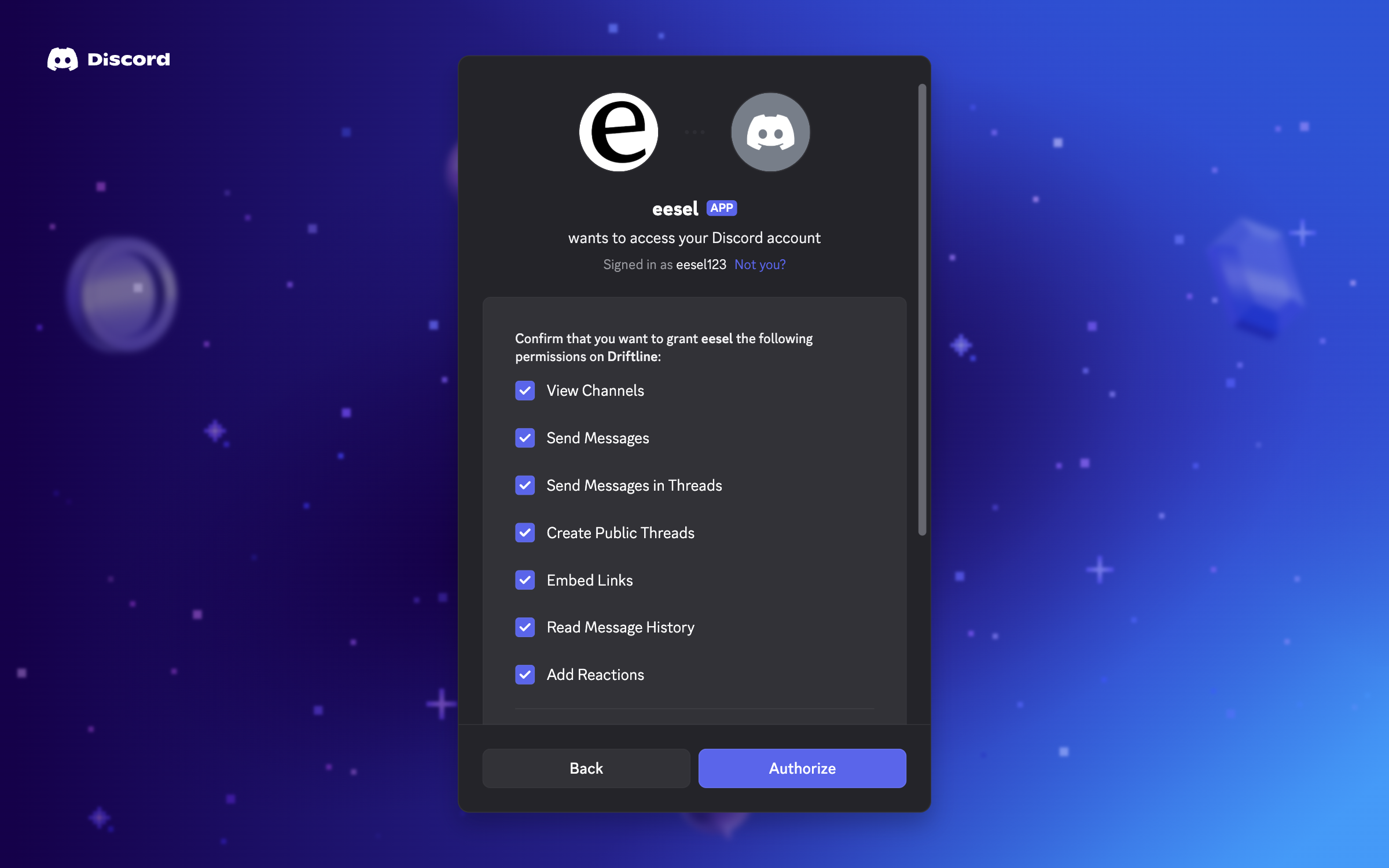
Discord lists the permissions eesel needs in that server, such as viewing channels, sending messages, creating threads and reading message history. Leave them selected and click **Authorize**.

<figure><img src="https://3732419023-files.gitbook.io/~/files/v0/b/gitbook-x-prod.appspot.com/o/spaces%2F2xXO0947TYoPIhGoBgSE%2Fuploads%2Fgit-blob-01234aa6364d25fd4092dc2b41b839fb056d0112%2Fdiscord-authorize.png?alt=media" alt="Discord&#x27;s permission screen for eesel on the Driftline server, with View Channels, Send Messages, Send Messages in Threads, Create Public Threads, Embed Links, Read Message History and Add Reactions ticked, and an Authorize button"><figcaption><p>The permissions eesel asks for in your server.</p></figcaption></figure>
{% endstep %}

{% step %}

### Confirm the connection

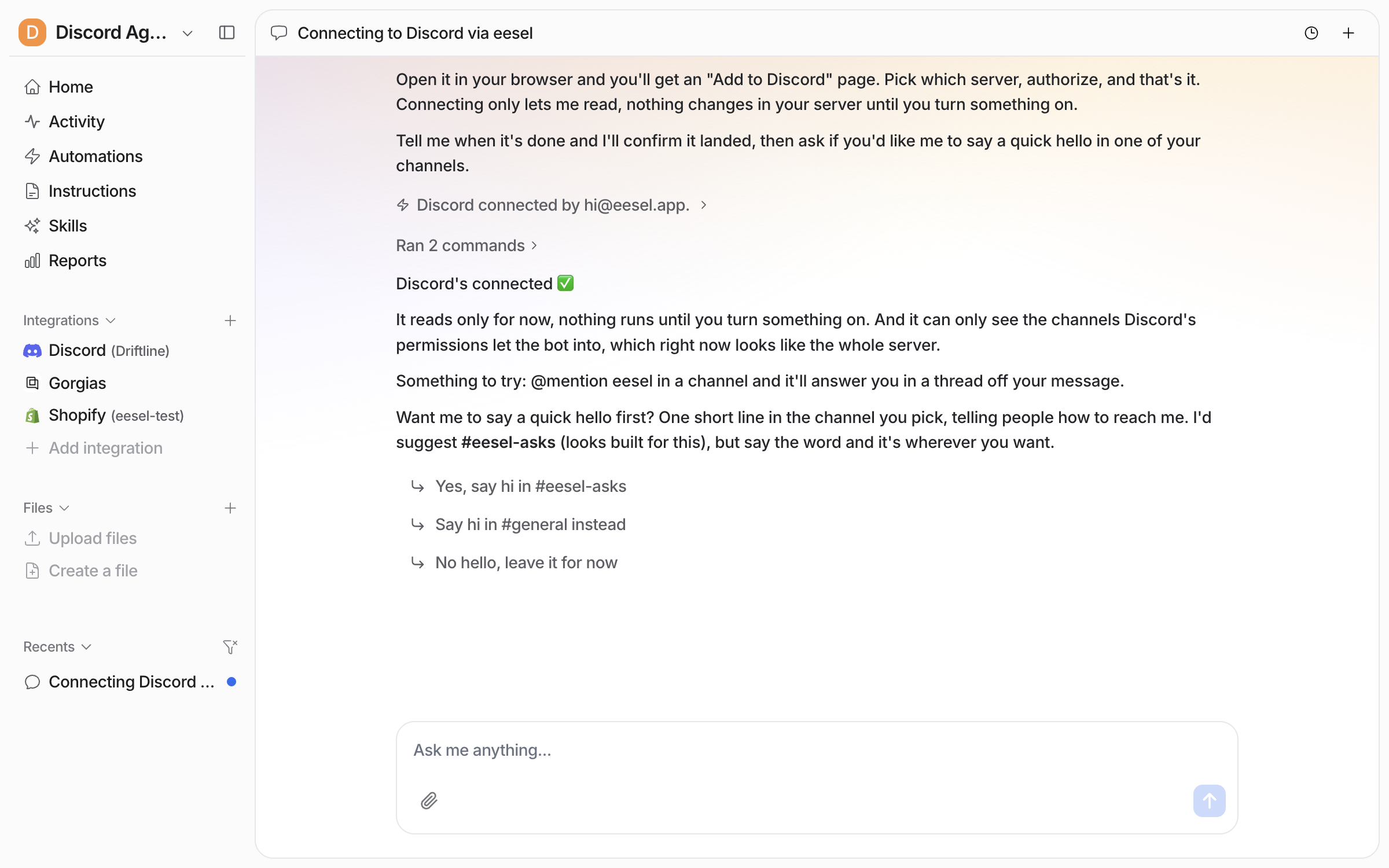
Return to the dashboard. Your agent confirms that Discord is connected, and your server appears under **Integrations** in the sidebar.

Connecting does not post anything in your server. Your agent posts only when someone mentions it, when someone posts a message it can help with (see [Triggers](#triggers)), or when you ask it to act. Your agent then offers to introduce itself in a channel you choose.

<figure><img src="https://3732419023-files.gitbook.io/~/files/v0/b/gitbook-x-prod.appspot.com/o/spaces%2F2xXO0947TYoPIhGoBgSE%2Fuploads%2Fgit-blob-6906fd0f03f6f947cad85c9f50e038b37759a8a9%2Fdiscord-connected-chat.png?alt=media" alt="The dashboard chat where the agent confirms Discord is connected and offers to say hello in the eesel-asks channel, in general, or not at all"><figcaption><p>The agent confirms the connection and offers to introduce itself.</p></figcaption></figure>

If you agree, your agent posts one short introduction in that channel, telling your members how to reach it.

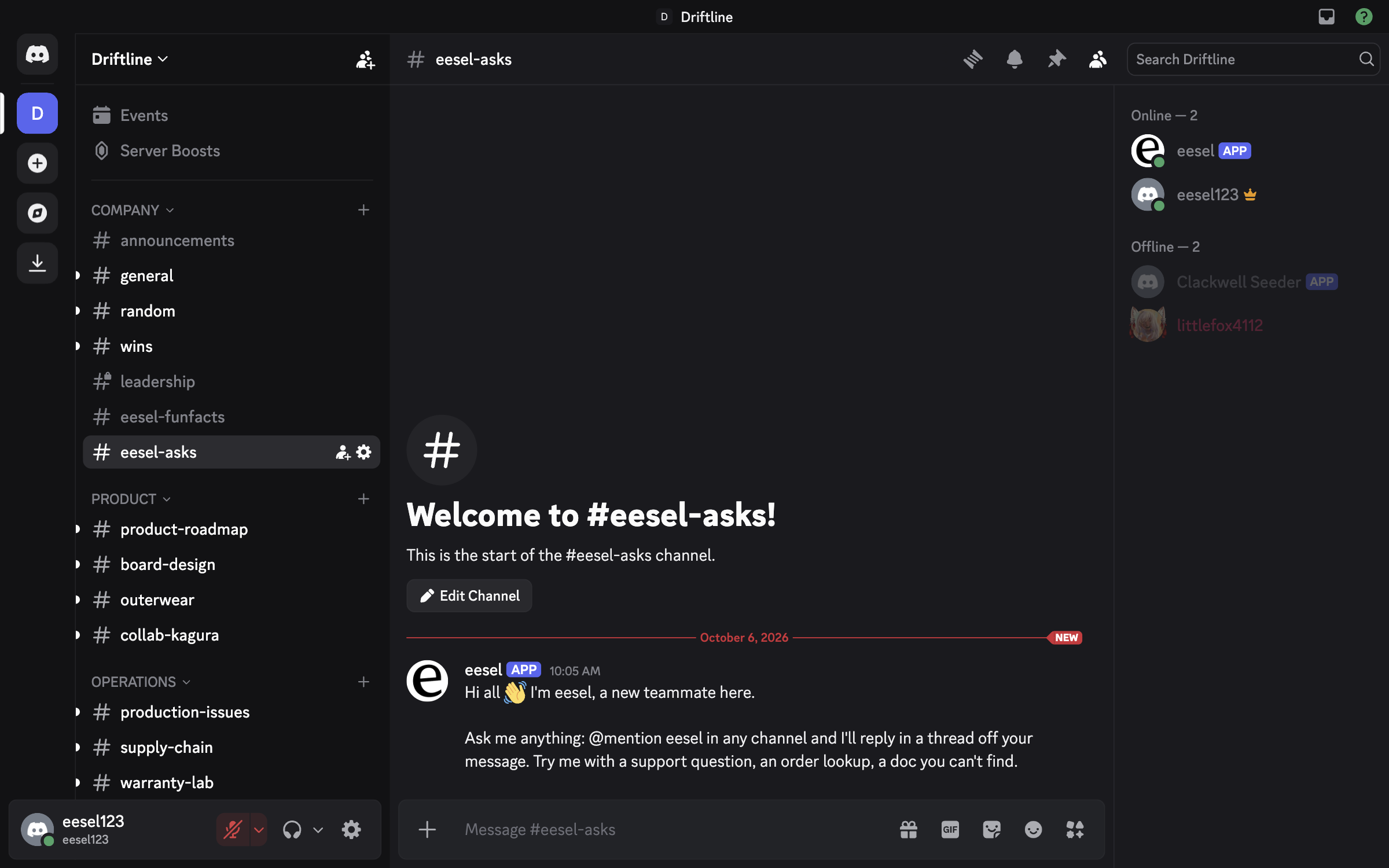
<figure><img src="https://3732419023-files.gitbook.io/~/files/v0/b/gitbook-x-prod.appspot.com/o/spaces%2F2xXO0947TYoPIhGoBgSE%2Fuploads%2Fgit-blob-1bbf9eb087328b8c9703f88d27f41fa7b3da65ef%2Fdiscord-hello.png?alt=media" alt="The eesel-asks channel in Discord with eesel&#x27;s hello message saying to mention it in any channel and it will reply in a thread"><figcaption><p>Your agent's introduction in the channel you chose.</p></figcaption></figure>

To check the connection, open **Integrations > Discord**. It shows **Connected** with your server's name. The person who installed eesel is linked to their eesel account automatically, so they can change your agent's setup from Discord right away.

<figure><img src="https://3732419023-files.gitbook.io/~/files/v0/b/gitbook-x-prod.appspot.com/o/spaces%2F2xXO0947TYoPIhGoBgSE%2Fuploads%2Fgit-blob-d8655273af07d3348c0067ecccf1dd9280753e2c%2Fdiscord-settings.png?alt=media" alt="The Discord page in eesel marked Connected with the server name, with a note that people whose Discord account is linked to an editor or the owner can change eesel&#x27;s setup"><figcaption><p>The Discord integration page after connecting.</p></figcaption></figure>
{% endstep %}

{% step %}

### Ask a question

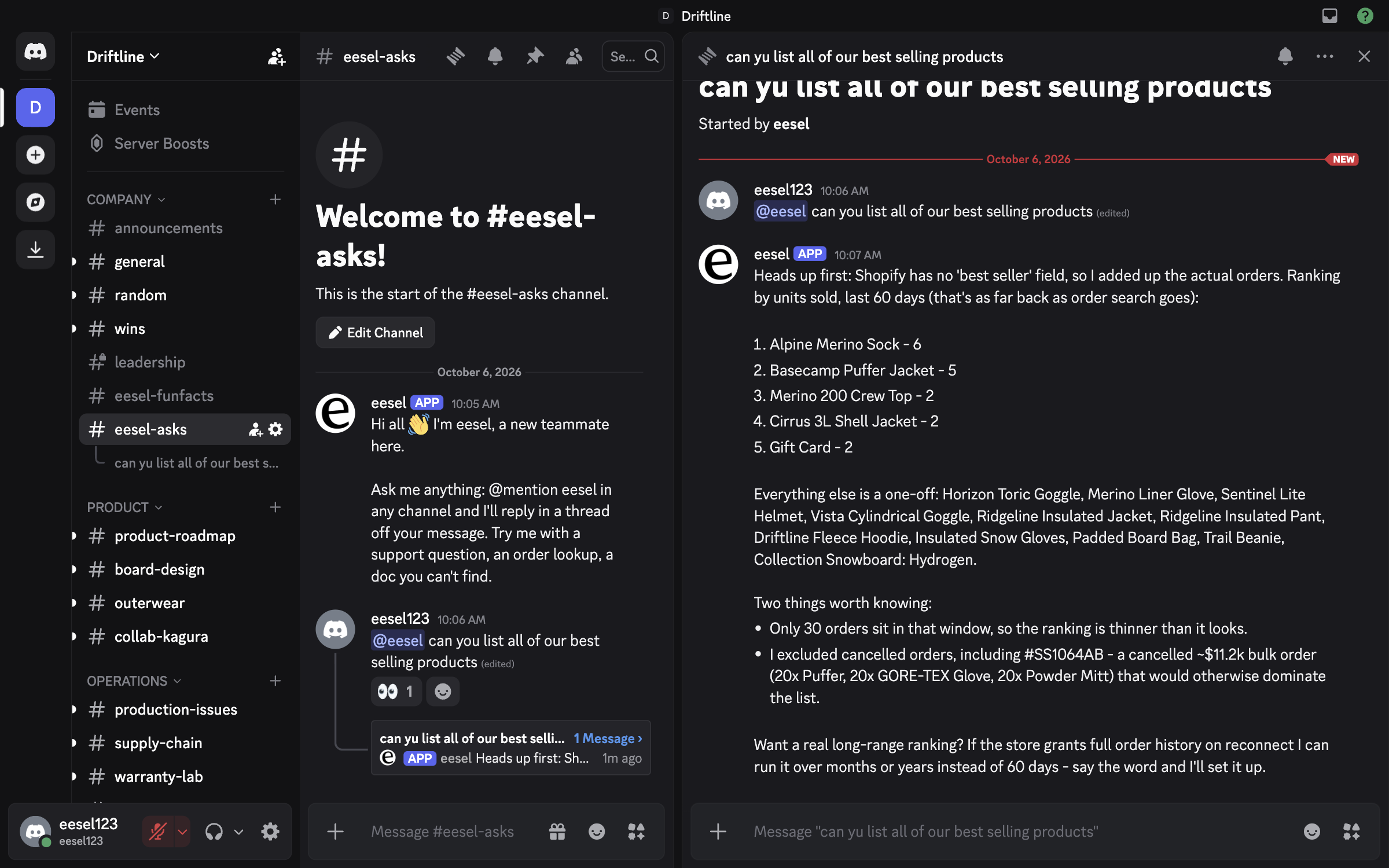
In any channel your agent can see, type @, select **eesel**, and ask a question. Your agent adds 👀 to your message when it starts working, opens a thread off the message, and answers there. You can keep asking in that thread without mentioning it again.

<figure><img src="https://3732419023-files.gitbook.io/~/files/v0/b/gitbook-x-prod.appspot.com/o/spaces%2F2xXO0947TYoPIhGoBgSE%2Fuploads%2Fgit-blob-554967beabce1350dfbe5691d8e0cf87213d6fd1%2Fdiscord-question.png?alt=media" alt="A Discord channel where a member asks eesel for the best selling products, with eyes on the message and eesel&#x27;s answer in the thread pane, ranked by units sold from the connected store"><figcaption><p>A question answered in a thread, with live data from a connected store.</p></figcaption></figure>
{% endstep %}

{% step %}

### Ask your agent to work in other apps

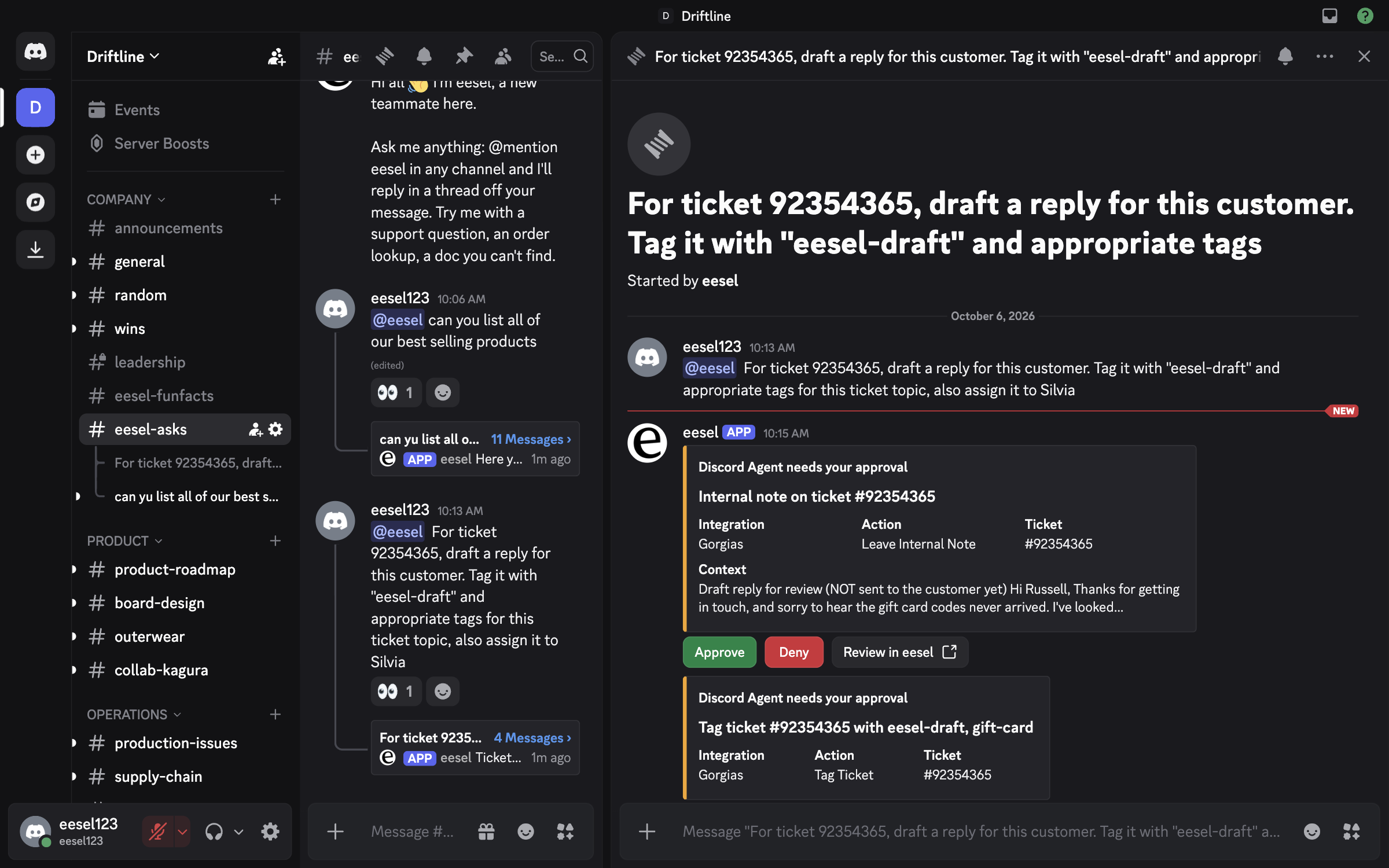
Mention your agent and ask it to work on a ticket in a connected helpdesk, such as drafting a reply, tagging the ticket or assigning it. When an action needs approval, your agent posts an approval card in the thread that shows what it will do.

<figure><img src="https://3732419023-files.gitbook.io/~/files/v0/b/gitbook-x-prod.appspot.com/o/spaces%2F2xXO0947TYoPIhGoBgSE%2Fuploads%2Fgit-blob-d13735cac227fe9805c0df4ecb10cfd3fa00f76a%2Fdiscord-action-request.png?alt=media" alt="A Discord thread where a member asks eesel to draft a reply for a Gorgias ticket, tag it and assign it, and eesel posts an approval card for an internal note with the draft as context"><figcaption><p>An approval card for the drafted reply, posted in the thread.</p></figcaption></figure>

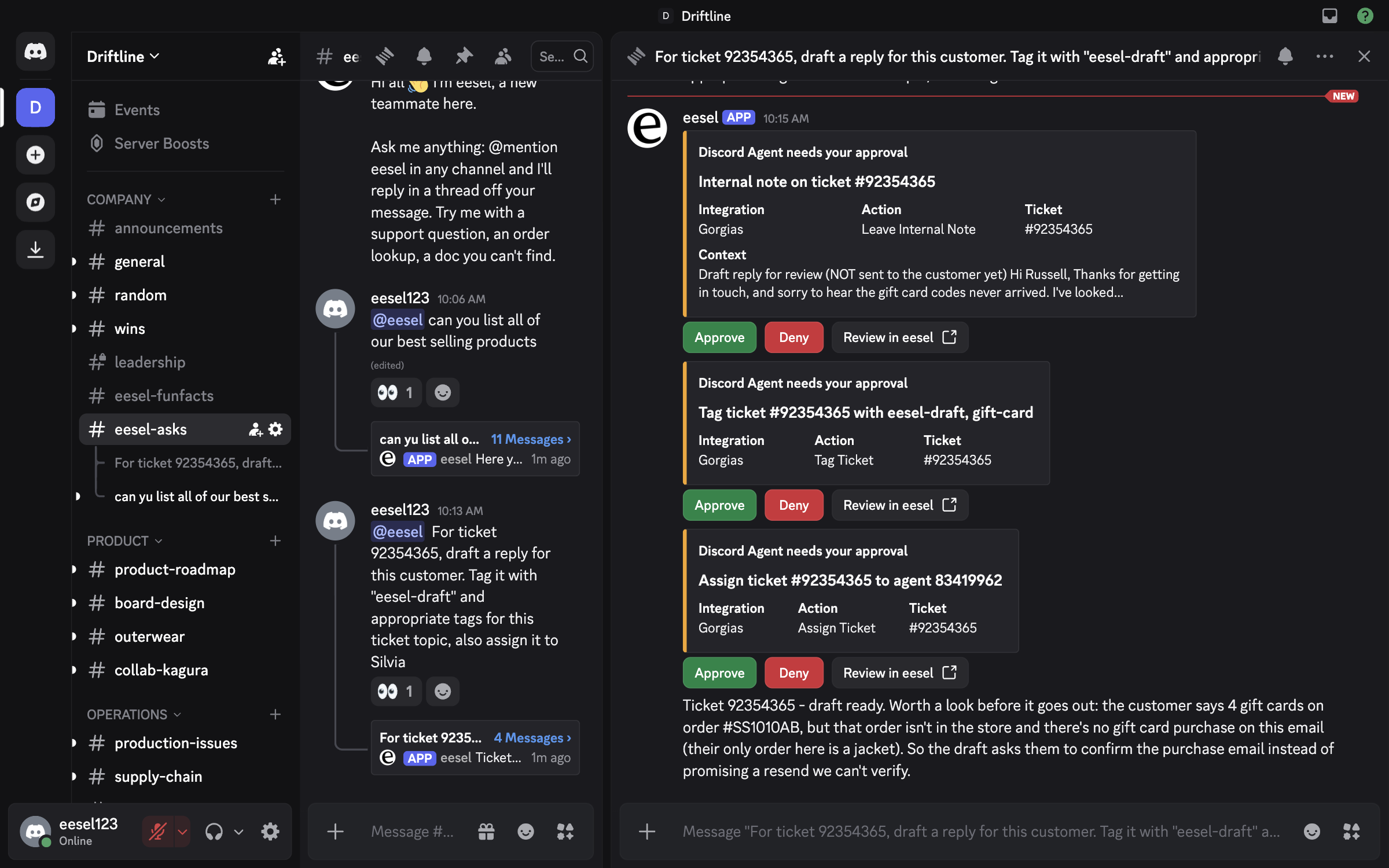
Each action has its own card. Your agent then posts a short summary of what it found.

<figure><img src="https://3732419023-files.gitbook.io/~/files/v0/b/gitbook-x-prod.appspot.com/o/spaces%2F2xXO0947TYoPIhGoBgSE%2Fuploads%2Fgit-blob-0514158bac14968c86d82b42e39e4cad7d1647c2%2Fdiscord-approval-cards.png?alt=media" alt="Three approval cards from eesel in a Discord thread, to leave an internal note, tag the ticket and assign it, each with Approve, Deny and Review in eesel, then eesel&#x27;s summary of the ticket"><figcaption><p>One approval card per action, followed by your agent's summary.</p></figcaption></figure>

Click **Approve** or **Deny** on each card. The card turns green or red and shows who decided. Click **Review in eesel** to open the same action on the **Approvals** page in the dashboard.

Only people whose Discord account is linked to an eesel account with edit access can approve or deny an action. See [Admin permissions](#admin-permissions). Anyone else who tries receives a private message explaining that they cannot decide.
{% endstep %}

{% step %}

### Check the result

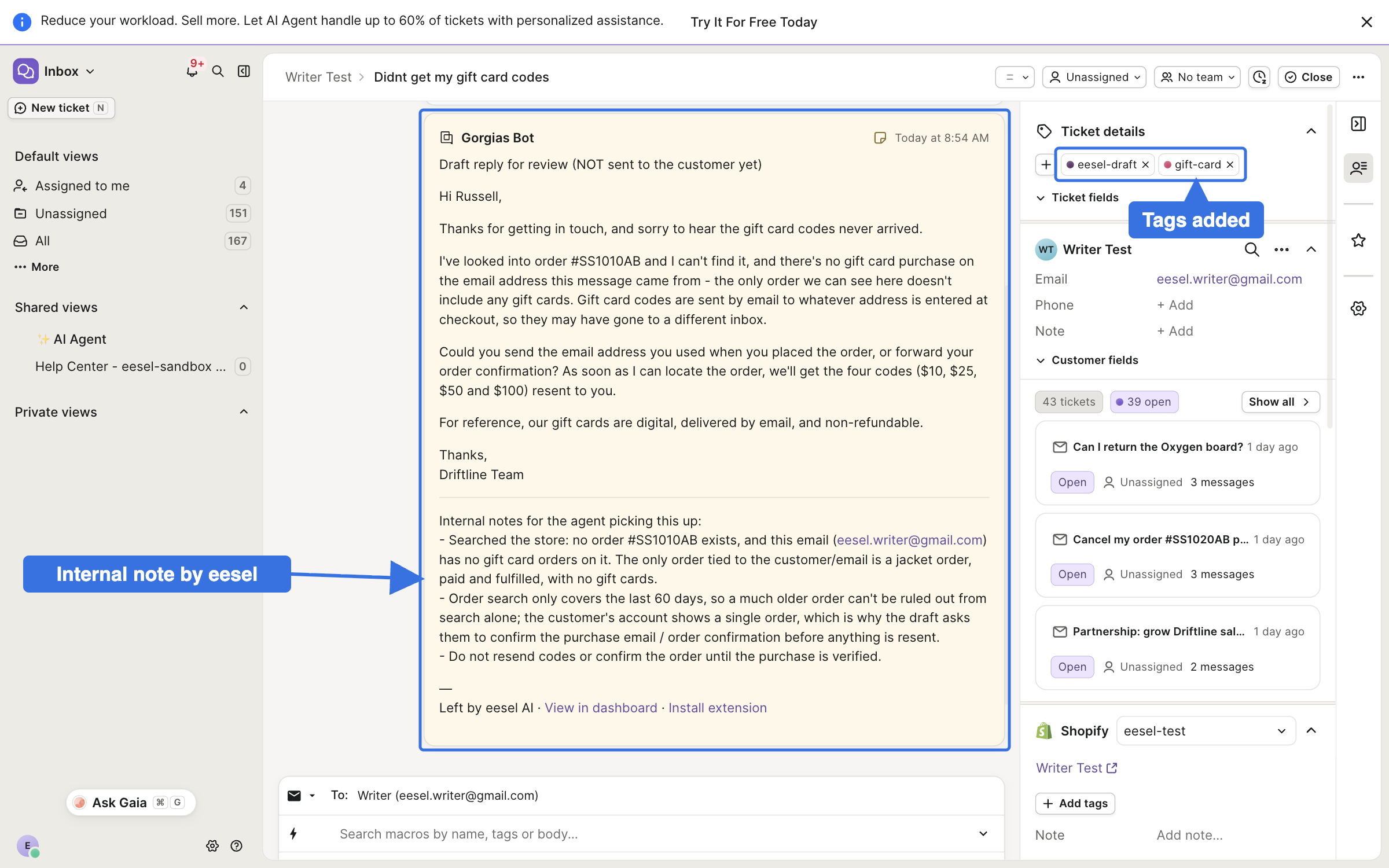
Open the app where the action ran and find the record. In this example, the drafted reply appears on the Gorgias ticket as an internal note, and the tags are applied.

<figure><img src="https://3732419023-files.gitbook.io/~/files/v0/b/gitbook-x-prod.appspot.com/o/spaces%2F2xXO0947TYoPIhGoBgSE%2Fuploads%2Fgit-blob-04dd239f0deed68f234f75fa689b36767c179ac9%2Fdiscord-action-result.png?alt=media" alt="A Gorgias ticket with the reply eesel drafted posted as an internal note, signed Left by eesel AI, with callouts on the note and on the eesel-draft and gift-card tags"><figcaption><p>The drafted reply and tags on the Gorgias ticket.</p></figcaption></figure>
{% endstep %}
{% endstepper %}

A Discord server connects to one eesel workspace. If someone has already connected the server to a different workspace, eesel does not connect it, and asks you to have them disconnect it first.

## Admin permissions

Your agent answers anyone in the server. Only people whose Discord account is linked to an eesel account can change its instructions, files and settings from Discord. Each linked person has the same access as their eesel account has in the dashboard chat. Everyone else, including server admins, can only ask questions.

The person who installed eesel is linked automatically. When a linked editor asks for a change from Discord, such as new instructions or a new automation, your agent makes it right away. Actions that you set to require approval still require approval.

### Link a teammate

Ask your agent to link a teammate, in Discord or in the dashboard chat. Give it their Discord user ID and the email address they use for eesel. They must already be a member of your eesel workspace. Only editors can link or unlink people.

To find someone's Discord user ID:

1. In Discord, right-click the person and select **Copy User ID**.
2. If you do not see that option, open Discord's settings, go to **Advanced**, and turn on **Developer Mode**.

Editors can ask your agent who is linked at any time. Unlinking someone removes their access.

## Things to know

* **Your agent does not use direct messages.** It does not send or answer Discord direct messages, and only works in a server.
* **Your agent cannot search across your server.** It reads one thread or one channel's recent messages at a time.
* **A new mention starts a fresh thread.** Your agent sees the question, not the channel conversation above it. Put the details in the question, or ask it to read the channel.
* **Attachments in earlier messages are invisible.** Your agent opens images and PDFs only on the message it is answering.
* **A failed history read is silent.** If Discord does not return the thread, your agent answers as if nobody had written before.
* **It can't edit or delete its messages, or send files.** It posts text and reactions only.
* **Your agent only works in channels it can see.** Your server's channel permissions decide which channels these are. Your agent does not join channels on its own.
* **A permission problem can look like a busy server.** If your agent lacks access to a channel, it may say to try again in a moment. Check its role's permissions on that channel.
* **A Discord server connects to one eesel workspace.** To connect it to another workspace, first disconnect it from the current one.

## Troubleshooting

<details>

<summary>Your agent does not reply to mentions</summary>

Mention your agent by typing @ and selecting the eesel app from Discord's list, so that Discord sends a real mention. Mentioning eesel's role instead of the app does not work. Check that your agent can see the channel: in the channel's permissions, its role needs to be able to view the channel and send messages. Check that the mention automation is turned on and not paused. Every Discord run appears in your agent's activity in the dashboard.

</details>

<details>

<summary>Your agent replies to messages that were not addressed to it</summary>

These replies come from the channel message automation. You can change which messages its filter allows, or pause it. Mentions still work while it is paused.

</details>

<details>

<summary>Your server does not appear in Discord's server list</summary>

Discord only lists servers where you have the Manage Server permission. Ask a server admin to add eesel, or to give you that permission.

</details>

<details>

<summary>The server is already connected to a different eesel workspace</summary>

A Discord server connects to one eesel workspace. Ask the person who connected it to disconnect it from their workspace, then add eesel again from yours.

</details>

<details>

<summary>You cannot approve or deny an action</summary>

Only people whose Discord account is linked to an eesel account with edit access can decide an approval. Ask an editor to [link your Discord account](#link-a-teammate).

</details>

<details>

<summary>A person or role is not notified when your agent mentions them</summary>

Your agent's mentions only notify people whose Discord account is linked to an eesel account. Other people appear as a name only. Roles, @everyone and @here never notify anyone. To have your agent notify a teammate, [link their Discord account](#link-a-teammate).

</details>

## FAQ

<details>

<summary>How do I add an AI agent to Discord?</summary>

Ask your agent in the dashboard chat to connect Discord, open the link it gives you, select your server and authorize eesel. Your members can then mention your agent in any channel it can see, and it also replies to messages it can help with, without a mention. See [Set up eesel in Discord](#set-up-eesel-in-discord).

</details>

<details>

<summary>Does connecting Discord change anything in my server?</summary>

No. Your agent posts nothing until someone mentions it, someone posts a message it can help with, or you ask it to act. After you connect, it offers to introduce itself in a channel you choose, and posts only if you agree.

</details>

<details>

<summary>Can the Discord bot answer without being mentioned?</summary>

Yes. The channel message automation is on for new connections. Your agent replies to a message in a channel it can see when it can help, and stays silent otherwise. In a thread it has already answered in, it also answers follow-ups without another mention. To reply only to mentions, pause the channel message automation. Your agent does not answer direct messages.

</details>

<details>

<summary>Can I use the Discord AI bot for community support?</summary>

Yes. Anyone in the server can mention your agent and get an answer from your knowledge, in a thread off their message. Only people whose Discord account is [linked to an eesel editor](#admin-permissions) can change its instructions, files or settings from Discord. Everyone else can only ask questions. See [Internal operations](https://docs.eesel.ai/use-cases/internal-operations.md).

</details>

<details>

<summary>Does eesel read my Discord messages?</summary>

Yes, in the channels it can see. Your agent reads the thread it is answering in, and can read a channel's recent messages when that helps it answer. When the channel message automation is on, a filter also checks each new message to decide whether to reply. Your agent reads Discord live, nothing is copied into eesel as knowledge, and your agent cannot search across your whole server.

</details>

<details>

<summary>Can I connect Discord to Claude or ChatGPT?</summary>

Yes, through eesel. Once Discord is connected, you can talk to the same eesel agent from Claude, ChatGPT or Cursor, and it works with the same knowledge and apps. See [Use eesel from Claude and other assistants](https://docs.eesel.ai/apis-and-developer-resources/use-eesel-from-claude-and-other-assistants.md), [Use eesel from ChatGPT](https://docs.eesel.ai/apis-and-developer-resources/use-eesel-from-chatgpt.md) and [Claude Code and MCP clients](https://docs.eesel.ai/apis-and-developer-resources/claude-code-and-mcp-clients.md).

</details>

<details>

<summary>How do I disconnect Discord from eesel?</summary>

1. Open the Discord integration page in eesel.
2. Open the **⋯** menu at the top right and select **Uninstall integration**.

</details>

## Related pages

* [Slack](https://docs.eesel.ai/integrations/communication/slack.md), [Google Chat](https://docs.eesel.ai/integrations/communication/google-chat.md) and [Microsoft Teams](https://docs.eesel.ai/integrations/communication/microsoft-teams.md) for the other team chat apps
* [Internal operations](https://docs.eesel.ai/use-cases/internal-operations.md) for the job your agent does for your team
* [Actions and Approvals](https://docs.eesel.ai/instructions-and-memory/actions-and-approvals.md) for choosing what your agent can do
* [Integrations overview](https://docs.eesel.ai/integrations/overview.md) for how sources, triggers and actions work together
* [Set up from Claude Code or the terminal](https://docs.eesel.ai/getting-started/set-up-from-a-coding-agent.md)


---

# Agent Instructions
This documentation is published with GitBook. GitBook is the documentation platform designed so that both humans and AI agents can read, navigate, and reason over technical content effectively. Learn more at gitbook.com.

## Querying This Documentation
If you need additional information that is not directly available in this page, you can query the documentation by asking a question.

Perform an HTTP GET request on the following URL with the `ask` and `goal` query parameters:

```
GET https://docs.eesel.ai/integrations/communication/discord.md?ask=<question>&goal=<user_goal>
```

`ask` is the immediate question: it should be specific, self-contained, and written in natural language.
`goal` is what the user is ultimately trying to achieve, the reason they need the answer. Sharing it helps GitBook give you a better, more relevant answer. A goal is most helpful when it describes the outcome the user wants rather than restating the question. For example, with `ask=how do I create an API token`, a goal like `automate deployments from our CI pipeline` lets GitBook tailor the answer to that use case.

The response will contain a direct answer to the question and relevant excerpts and sources from the documentation.

Use this mechanism when the answer is not explicitly present in the current page, you need clarification or additional context, or you want to retrieve related documentation sections.