> For the complete documentation index, see [llms.txt](https://docs.eesel.ai/llms.txt). Markdown versions of documentation pages are available by appending `.md` to page URLs; this page is available as [Markdown](https://docs.eesel.ai/integrations/communication/email.md).

# Email

Every agent has its own email address from day one. Send it a question or forward it work and it replies in the same thread. Who it can write back to, and how to invite your team.

Your AI teammate has its own email address from the day it is created. Send it a question and it reads the whole thread, checks everything it is connected to, and writes back in the same thread. Forward it something to work on and it picks that up too. Your team can also have it email them: a summary, an alert, a follow-up.

There is no inbox to connect. The address exists the moment the agent does. Two limits to know before you start: your agent can only write back to members of your workspace, and a workspace can send up to 200 emails a day.

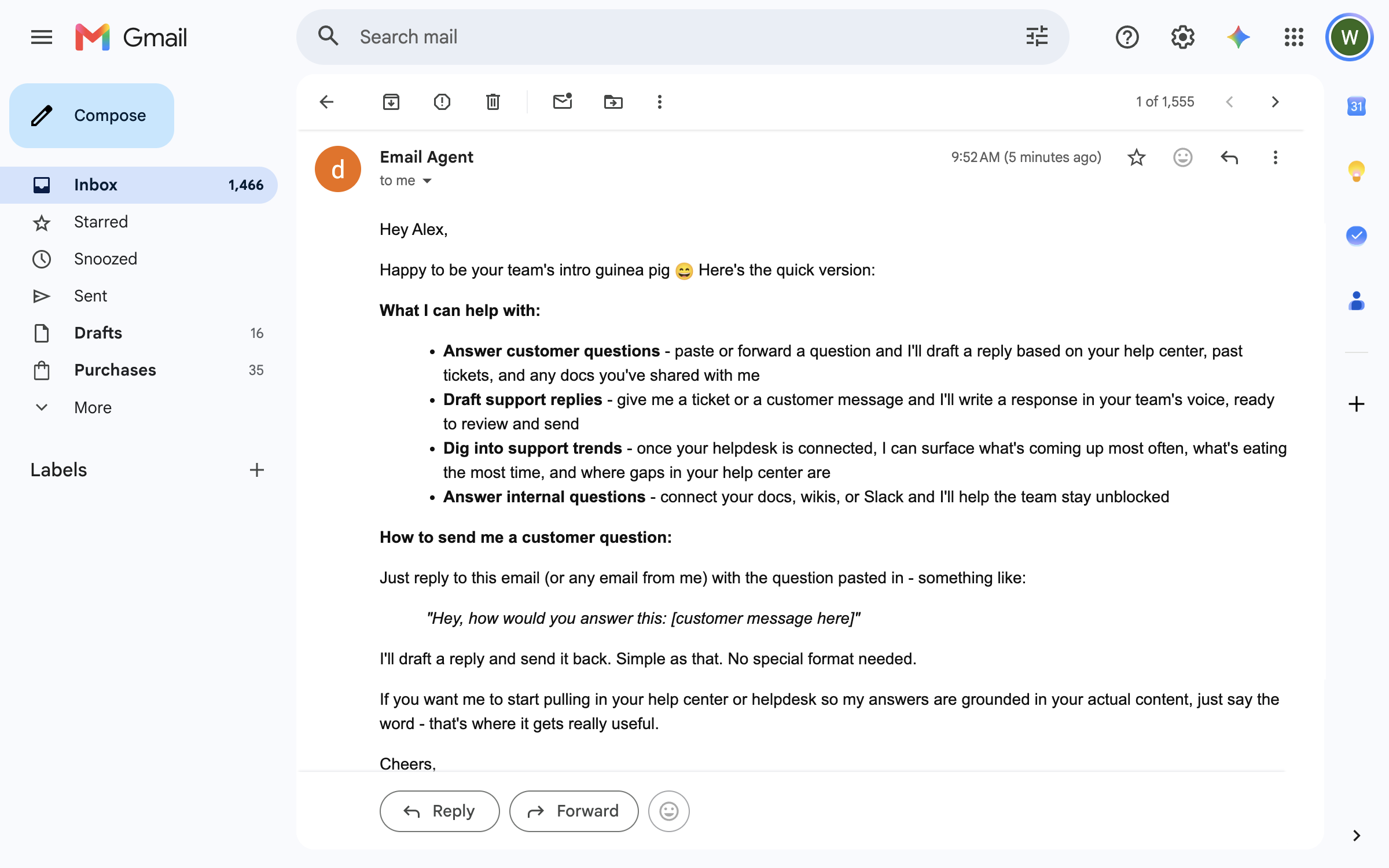
<figure><img src="https://3732419023-files.gitbook.io/~/files/v0/b/gitbook-x-prod.appspot.com/o/spaces%2F2xXO0947TYoPIhGoBgSE%2Fuploads%2Fgit-blob-a831067de31a042ce8ed803f1aca397c36373169%2Femail-reply-in-gmail.png?alt=media" alt="A Gmail thread where the Email Agent replied to a teammate&#x27;s question with a bulleted rundown of what it can help with and how to send it a customer question"><figcaption><p>Your agent's reply landing in a teammate's inbox.</p></figcaption></figure>

## Quick start

{% stepper %}
{% step %}

### Ask your agent for its address

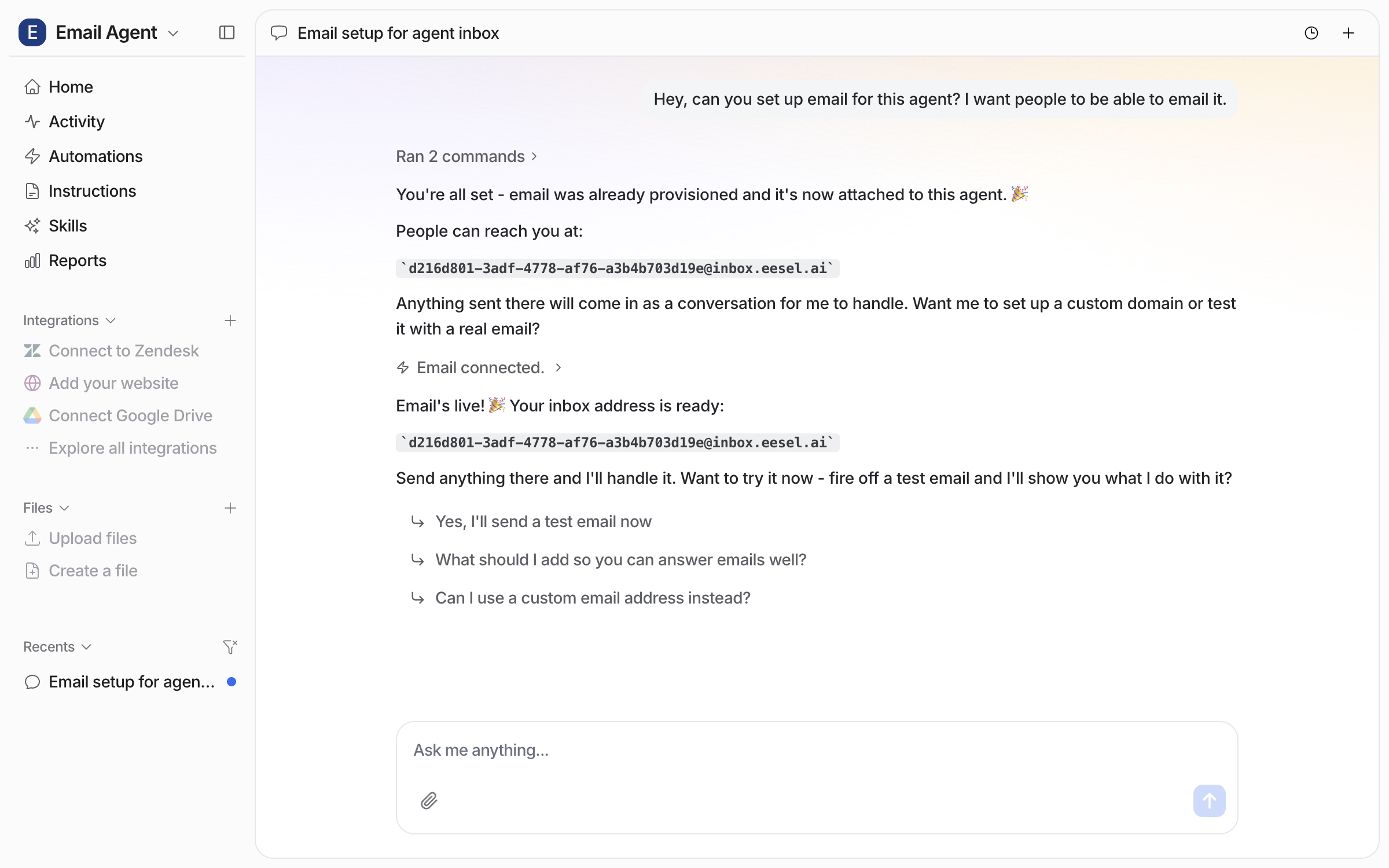
Open the chat in your dashboard and ask for the agent's email address. It replies with the address: its id followed by `@inbox.eesel.ai`. Asking also lists **Email** under the agent's integrations, so you can find the address and its settings there. Anything sent to the address arrives as a conversation for it to handle.

<figure><img src="https://3732419023-files.gitbook.io/~/files/v0/b/gitbook-x-prod.appspot.com/o/spaces%2F2xXO0947TYoPIhGoBgSE%2Fuploads%2Fgit-blob-b23072d77c79a6c358447bedb2a2ab8bd9004097%2Femail-connect-chat.png?alt=media" alt="The dashboard chat where the user asks to set up email for the agent, and the agent replies that email is attached and posts the agent&#x27;s inbox address"><figcaption><p>The chat where email is set up for the agent and the address is posted.</p></figcaption></figure>

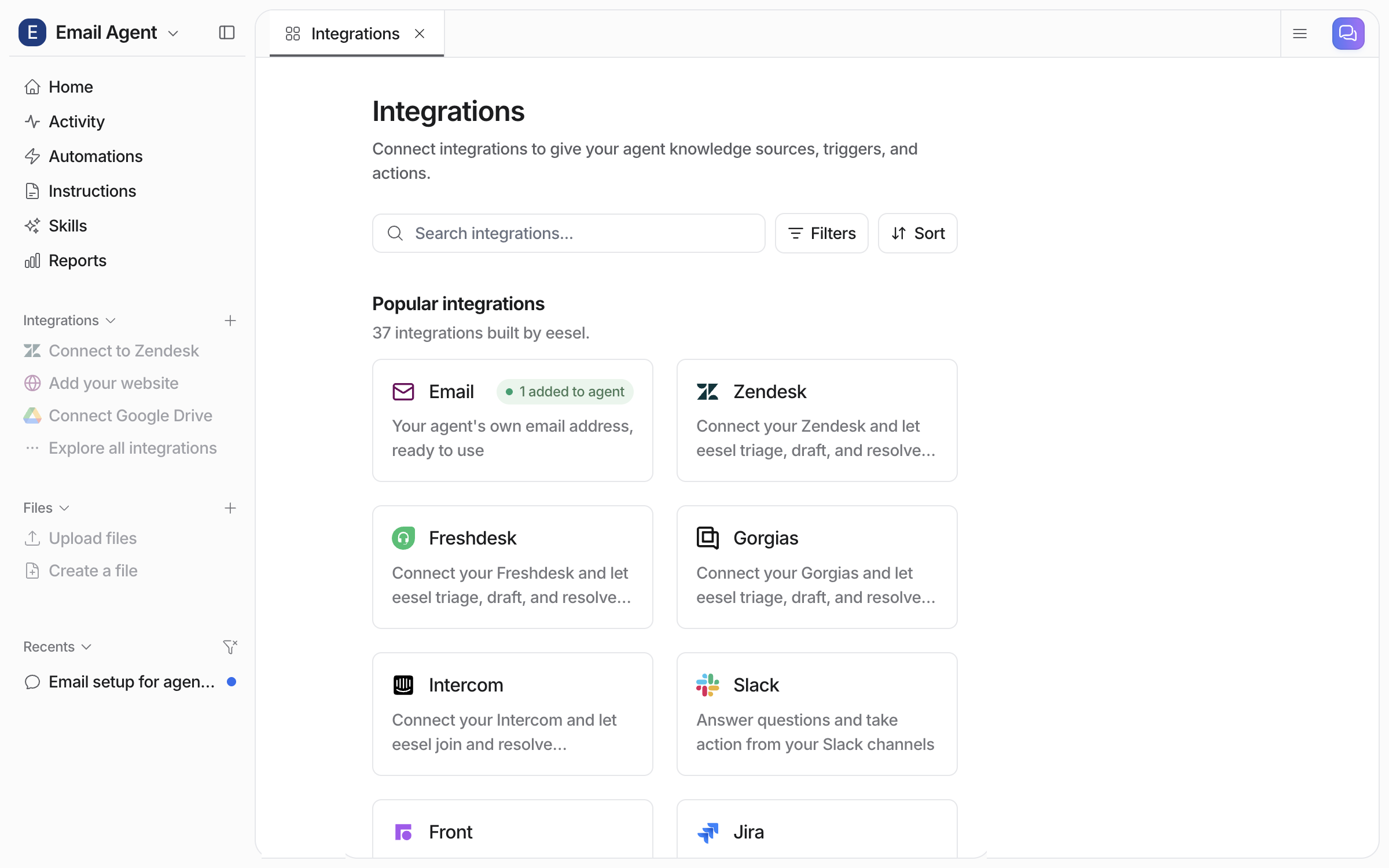
**Check it worked.** Open **Integrations** in the left sidebar. The **Email** tile reads "1 added to agent". From a terminal, `eesel status` lists Email among your agent's integrations.

<figure><img src="https://3732419023-files.gitbook.io/~/files/v0/b/gitbook-x-prod.appspot.com/o/spaces%2F2xXO0947TYoPIhGoBgSE%2Fuploads%2Fgit-blob-88ec63c56219090f099768e19ec8a085463b4dfd%2Femail-integrations-gallery.png?alt=media" alt="The Integrations page with the Email tile first, marked 1 added to agent, above the helpdesk and knowledge tiles"><figcaption><p>The Email tile on the Integrations page.</p></figcaption></figure>

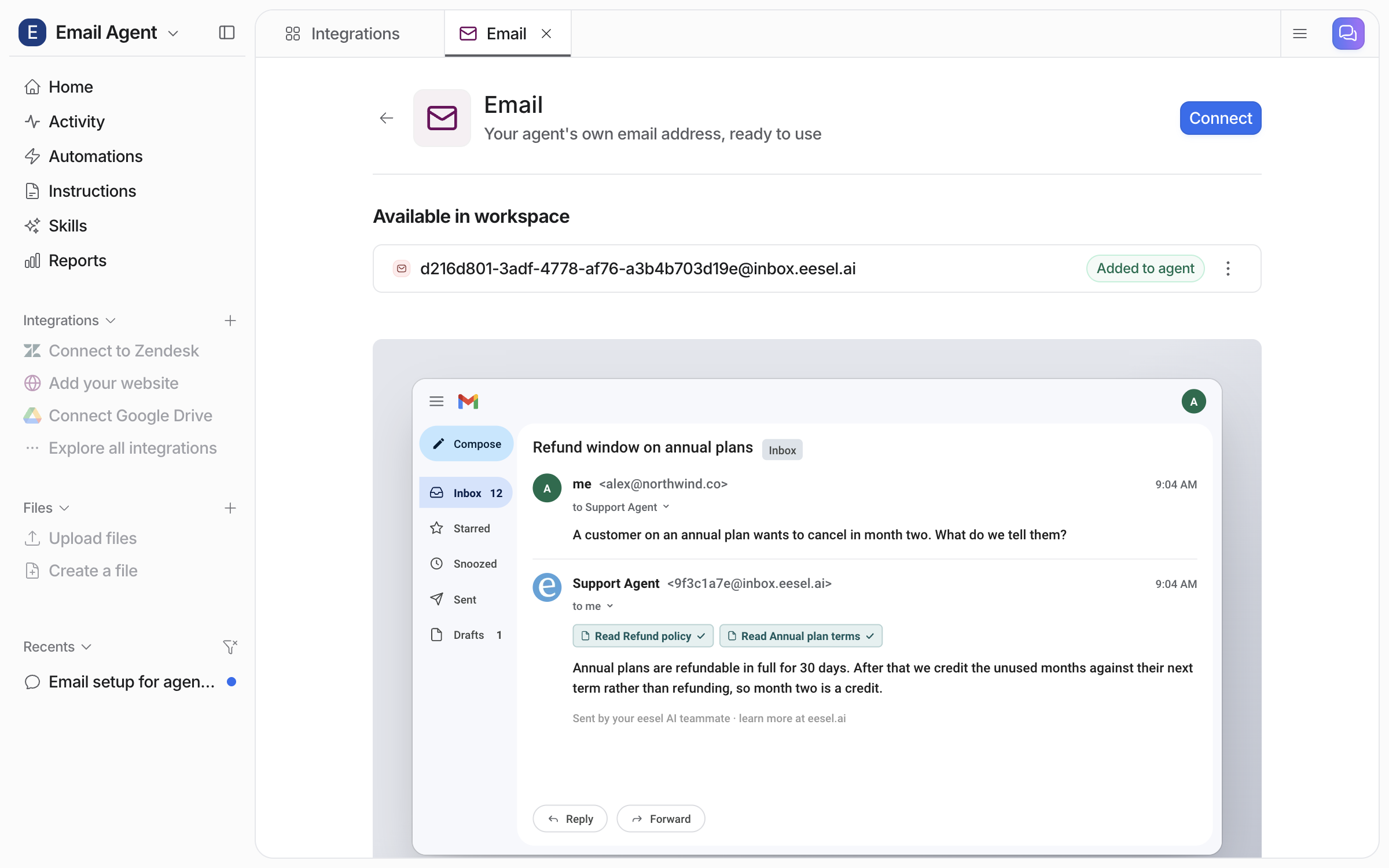
Open the tile. The Email page lists the address, marked **Added to agent**.

<figure><img src="https://3732419023-files.gitbook.io/~/files/v0/b/gitbook-x-prod.appspot.com/o/spaces%2F2xXO0947TYoPIhGoBgSE%2Fuploads%2Fgit-blob-839fb1bea9f7431cd8439b14b1e121bc7c2b84e2%2Femail-integration-page.png?alt=media" alt="The Email integration page with the agent&#x27;s inbox address marked Added to agent and an animated example of a reply"><figcaption><p>The address listed as Added to agent, above an example reply.</p></figcaption></figure>
{% endstep %}

{% step %}

### Set the send actions

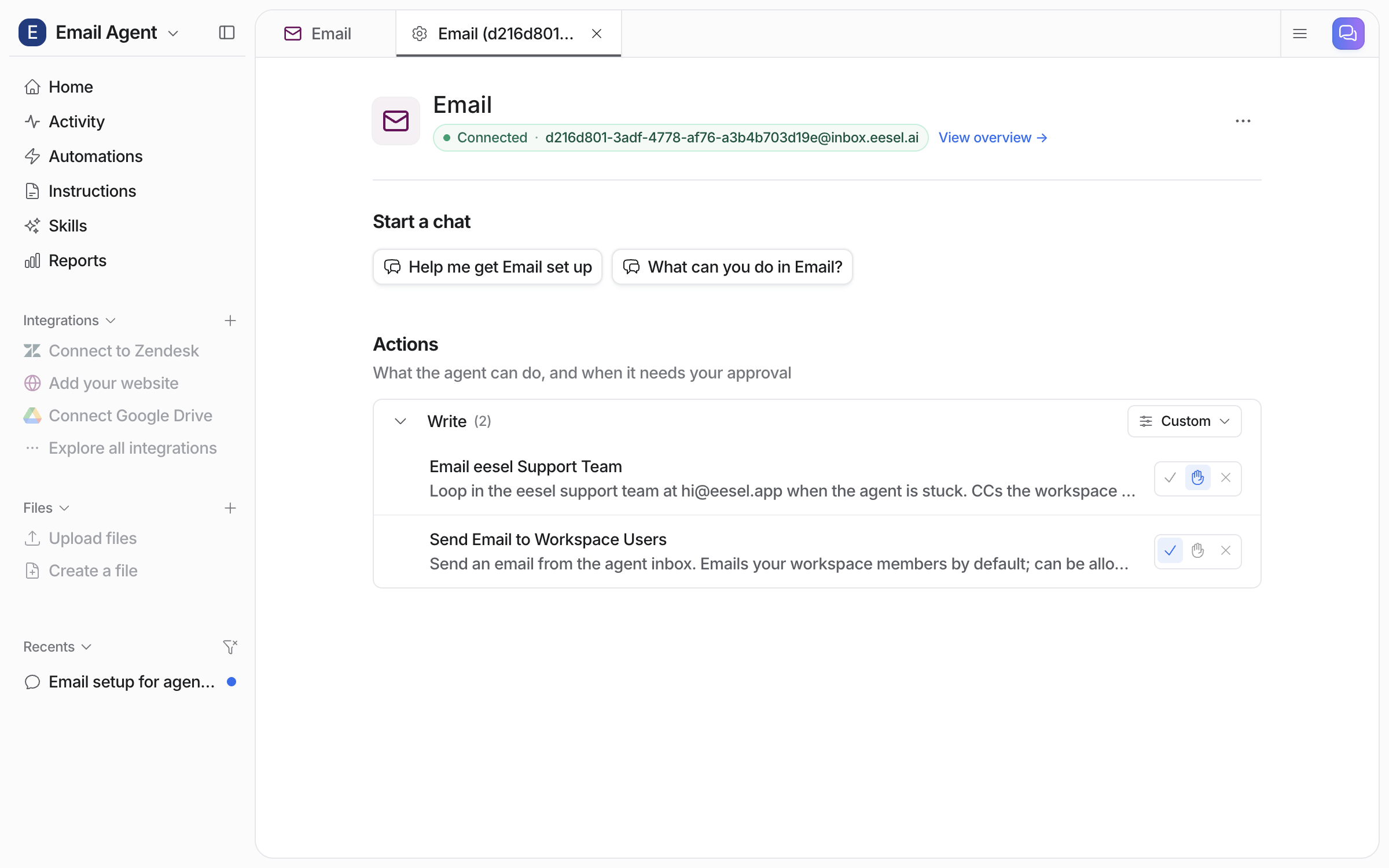
On the Email page, click the address to open its settings. **Actions** lists the two send actions in the **Write** group. Set each to run on its own, ask you first, or stay off.

<figure><img src="https://3732419023-files.gitbook.io/~/files/v0/b/gitbook-x-prod.appspot.com/o/spaces%2F2xXO0947TYoPIhGoBgSE%2Fuploads%2Fgit-blob-799c16e61f08dfa469e10ed3cae39a6afc1267e4%2Femail-address-settings.png?alt=media" alt="The settings page for the agent&#x27;s email address, marked Connected, with the Write group of actions and a Custom setting"><figcaption><p>The address's own settings page.</p></figcaption></figure>
{% endstep %}

{% step %}

### Add the people it can write to

Your agent can only send email to members of your workspace. A message from an address outside the workspace still wakes it, but it has no way to answer. So anyone who should get replies needs to be a member. Open **Workspace settings > Members** and click **Invite member**. Pick a role, **Viewer** is enough to receive email, and enter their address. They accept the invitation from their inbox. The full walkthrough, with screenshots, is on the [Account](/account/account.md) page.

**Check it worked.** The Members page lists the new member with their role and no pending label.
{% endstep %}

{% step %}

### Tell your agent how to answer its email

Mail reaches your agent with no setup. What shapes the replies is your agent's [instructions](/instructions-and-memory/instructions-and-memory.md): tell it in the dashboard chat how to handle mail, what to check first, and when to loop a person in, and it writes that down. If you want to pause email, or give it instructions of its own, ask your agent in chat to create an email automation.

Your agent's core instructions apply to email the same as everywhere else, so tone and escalation rules carry over without repeating them.
{% endstep %}

{% step %}

### Send it a test email

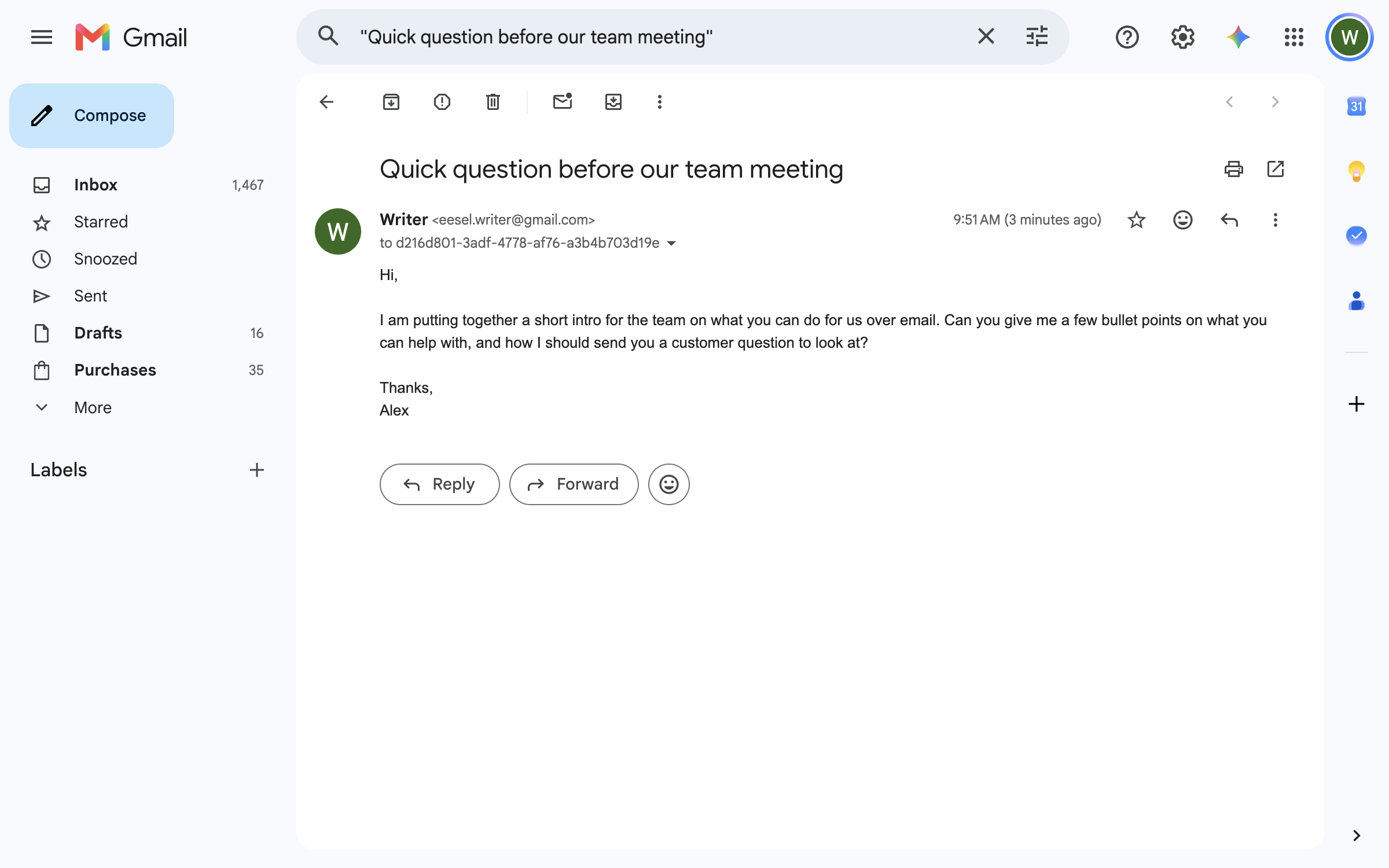
From a member's mailbox, write to the address with a real question.

<figure><img src="https://3732419023-files.gitbook.io/~/files/v0/b/gitbook-x-prod.appspot.com/o/spaces%2F2xXO0947TYoPIhGoBgSE%2Fuploads%2Fgit-blob-57698a05baeb958692f160a928e66c707a6b2539%2Femail-test-compose.png?alt=media" alt="A Gmail compose window addressed to the agent&#x27;s inbox address, with a subject line and a short question about what the agent can do for the team"><figcaption><p>A test email to the agent's address.</p></figcaption></figure>

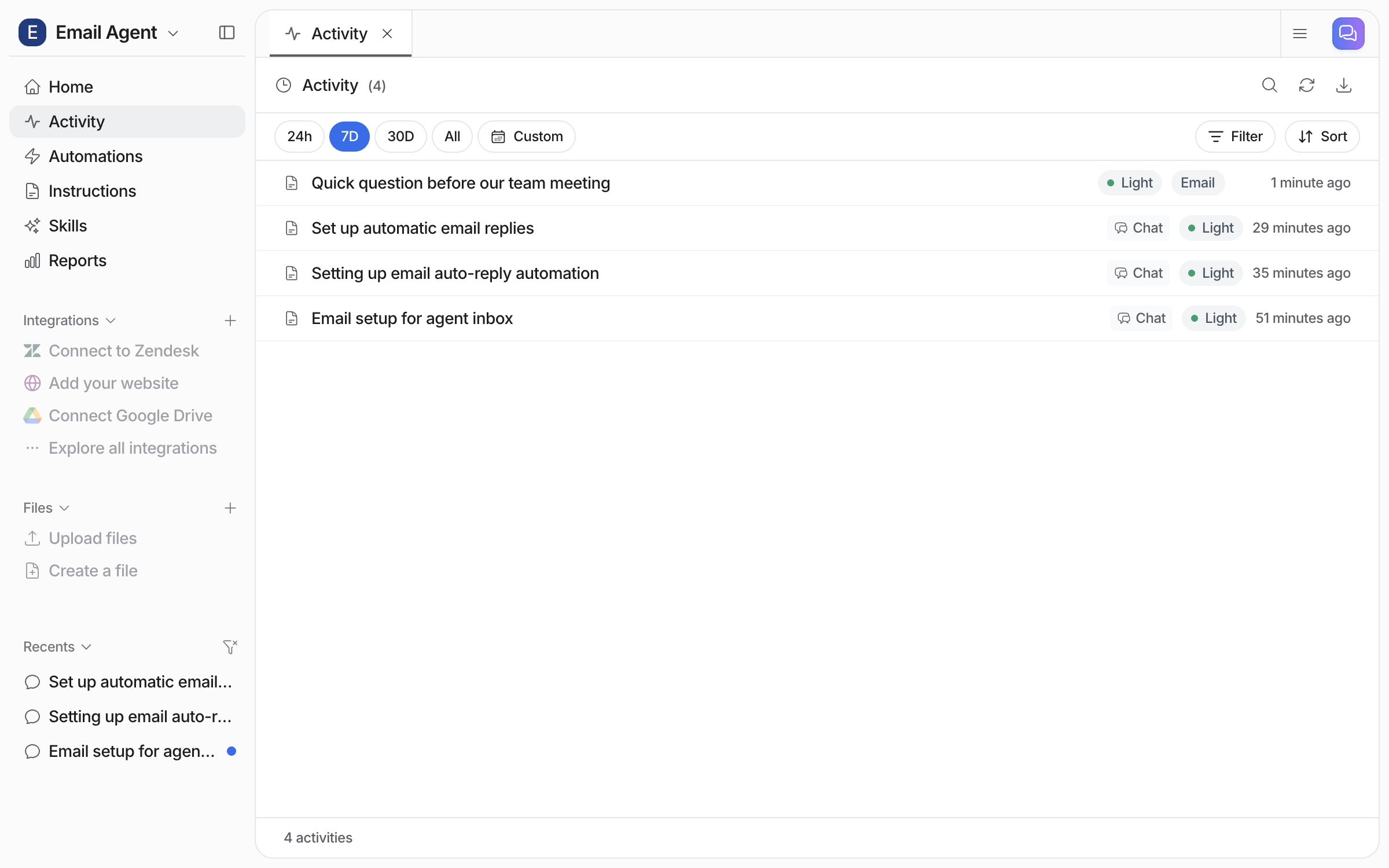
The run appears on your **Activity** page, labelled **Email**.

<figure><img src="https://3732419023-files.gitbook.io/~/files/v0/b/gitbook-x-prod.appspot.com/o/spaces%2F2xXO0947TYoPIhGoBgSE%2Fuploads%2Fgit-blob-ef0dc2edf2fa61738a7e912c7a6dab18ad5013d5%2Femail-activity-list.png?alt=media" alt="The Activity page listing the email run by its subject line with an Email label, above the earlier dashboard chats"><figcaption><p>The email run on the Activity page.</p></figcaption></figure>

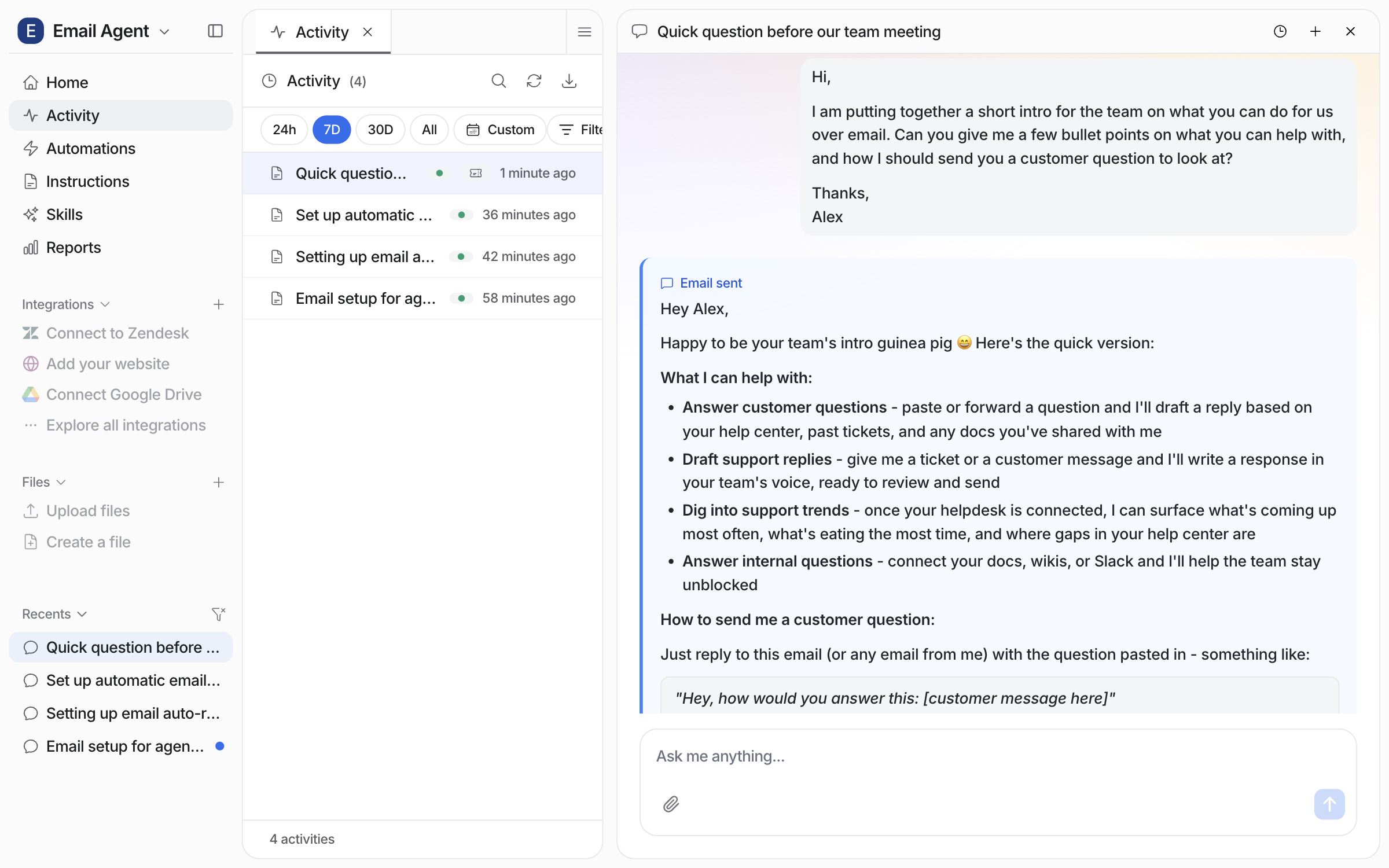
Open it to read the email, the reply your agent sent, and what it did in between.

<figure><img src="https://3732419023-files.gitbook.io/~/files/v0/b/gitbook-x-prod.appspot.com/o/spaces%2F2xXO0947TYoPIhGoBgSE%2Fuploads%2Fgit-blob-812f633493e13f1b54754d28be48814a5fb3f24f%2Femail-activity-run.png?alt=media" alt="The email run opened in Activity, showing the incoming question, the Email sent marker and the full reply"><figcaption><p>The run, with the reply it sent.</p></figcaption></figure>

**Check it worked.** The reply is in the sender's inbox, in the same thread, from your agent's name. From a terminal with [the eesel CLI](/apis-and-developer-resources/cli.md) installed, `eesel activity` lists the run.

<figure><img src="https://3732419023-files.gitbook.io/~/files/v0/b/gitbook-x-prod.appspot.com/o/spaces%2F2xXO0947TYoPIhGoBgSE%2Fuploads%2Fgit-blob-a831067de31a042ce8ed803f1aca397c36373169%2Femail-reply-in-gmail.png?alt=media" alt="The reply from the Email Agent in Gmail, listing what it can help with and how to send it a customer question"><figcaption><p>The reply in the sender's inbox.</p></figcaption></figure>
{% endstep %}
{% endstepper %}

## Sources, triggers and actions

### Sources

Email adds no source of its own. What your agent reads to answer is everything else you have connected: your help center, files, helpdesk and website. See [Integrations](/integrations/overview.md).

### Triggers

| Trigger                    | Fires when                               | Best for                                                  | Key                    |
| -------------------------- | ---------------------------------------- | --------------------------------------------------------- | ---------------------- |
| **When an email comes in** | A message arrives at the agent's address | Questions from the team, forwarded customer mail, testing | `email_email_received` |

This trigger is on from the start. Ask your agent in chat to create an email automation only if you want to pause email or give it instructions of its own.

### Actions

| Group     | Action                        | What it does                                                                                          |
| --------- | ----------------------------- | ----------------------------------------------------------------------------------------------------- |
| **Write** | Send Email to Workspace Users | Sends an email from the agent's address to members of your workspace. Replies land in the same thread |
|           | Email eesel Support Team      | Loops in eesel's support team at <hi@eesel.app> when the agent is stuck, copying the workspace owner  |

Each runs on its own, asks you first, or stays off. A workspace can send up to 200 emails a day. See [Actions and Approvals](/instructions-and-memory/actions-and-approvals.md).

## Troubleshooting

<details>

<summary>I emailed the agent and got nothing back?</summary>

Check your **Activity** page. If the run is there, the agent read the email. It can only reply to a workspace member, so an address that is not on your **Members** page gets no answer. Invite it, then send again.

</details>

<details>

<summary>The run is there but no email went out?</summary>

Open the run. An action set to ask you first waits for someone to approve or deny it. The approval card appears in the dashboard chat and on the run itself in Activity. Check the Write group on the address's settings page.

</details>

<details>

<summary>Can it reply to my customers?</summary>

Not from this address. Replies go to workspace members only. For a shared support mailbox, connect [Gmail](/integrations/communication/gmail.md) or your helpdesk, where replies go to the customer.

</details>

## Hand a conversation to a person

Your agent cannot email anyone outside your workspace. So when a customer's email needs a person, the thread does not end with a reply to the customer. It ends with your agent telling the team: an email to a workspace member, a ticket in your connected helpdesk, or a note in the dashboard, whichever your instructions ask for. Tell it in the dashboard chat which one you want.

## FAQ

<details>

<summary>Do I need to connect a mailbox?</summary>

No. The address is created with the agent. There is nothing to sign in to and no inbox to hand over.

</details>

<details>

<summary>Can I forward customer emails to it?</summary>

Yes. Forward a thread to the address and it reads the whole thing and replies to you with a draft or an answer. It cannot write to the customer directly.

</details>

<details>

<summary>What name does the email come from?</summary>

It comes from your agent's name and its own address.

</details>

<details>

<summary>How is this billed?</summary>

Pay-as-you-go. An email conversation your agent handles is one task, and there is no charge for the address itself. See [Pricing](/pricing/overview.md).

</details>

## Related pages

* [Gmail](/integrations/communication/gmail.md) for working a shared Google mailbox and replying to customers
* [Slack](/integrations/communication/slack.md) for asking the same agent in a thread
* [Actions and Approvals](/instructions-and-memory/actions-and-approvals.md) for setting each action to run on its own, ask you first, or stay off
* [Integrations overview](/integrations/overview.md) for how sources, triggers and actions fit together


---

# Agent Instructions
This documentation is published with GitBook. GitBook is the documentation platform designed so that both humans and AI agents can read, navigate, and reason over technical content effectively. Learn more at gitbook.com.

## Querying This Documentation
If you need additional information that is not directly available in this page, you can query the documentation dynamically by asking a question.

Perform an HTTP GET request on the current page URL with the `ask` query parameter, and the optional `goal` query parameter:

```
GET https://docs.eesel.ai/integrations/communication/email.md?ask=<question>&goal=<endgoal>
```

`ask` is the immediate question: it should be specific, self-contained, and written in natural language.
`goal` is optional and describes the broader end goal you are ultimately trying to accomplish on behalf of the user. GitBook uses it to tailor the answer towards what is most useful for that goal.

The response will contain a direct answer to the question and relevant excerpts and sources from the documentation.

Use this mechanism when the answer is not explicitly present in the current page, you need clarification or additional context, or you want to retrieve related documentation sections.