> For the complete documentation index, see [llms.txt](https://docs.eesel.ai/llms.txt). Markdown versions of documentation pages are available by appending `.md` to page URLs; this page is available as [Markdown](https://docs.eesel.ai/integrations/communication/gmail.md).

# Gmail

Set up an AI agent for Gmail. It reads threads, drafts or sends replies and manages labels in one Google mailbox, on your instructions or on a schedule.

eesel's AI agent for Gmail works one Google mailbox for you. It searches mail, reads threads, drafts or sends replies, and manages labels, following instructions you write in plain words. It can leave an unsent draft for a person to review, or send the reply itself.

Invite your AI teammate into Gmail and it works the mailbox: it searches messages, reads threads, drafts or sends replies, and manages labels. It works only the one mailbox you give it. It is not Gemini, Google's own AI in Gmail.

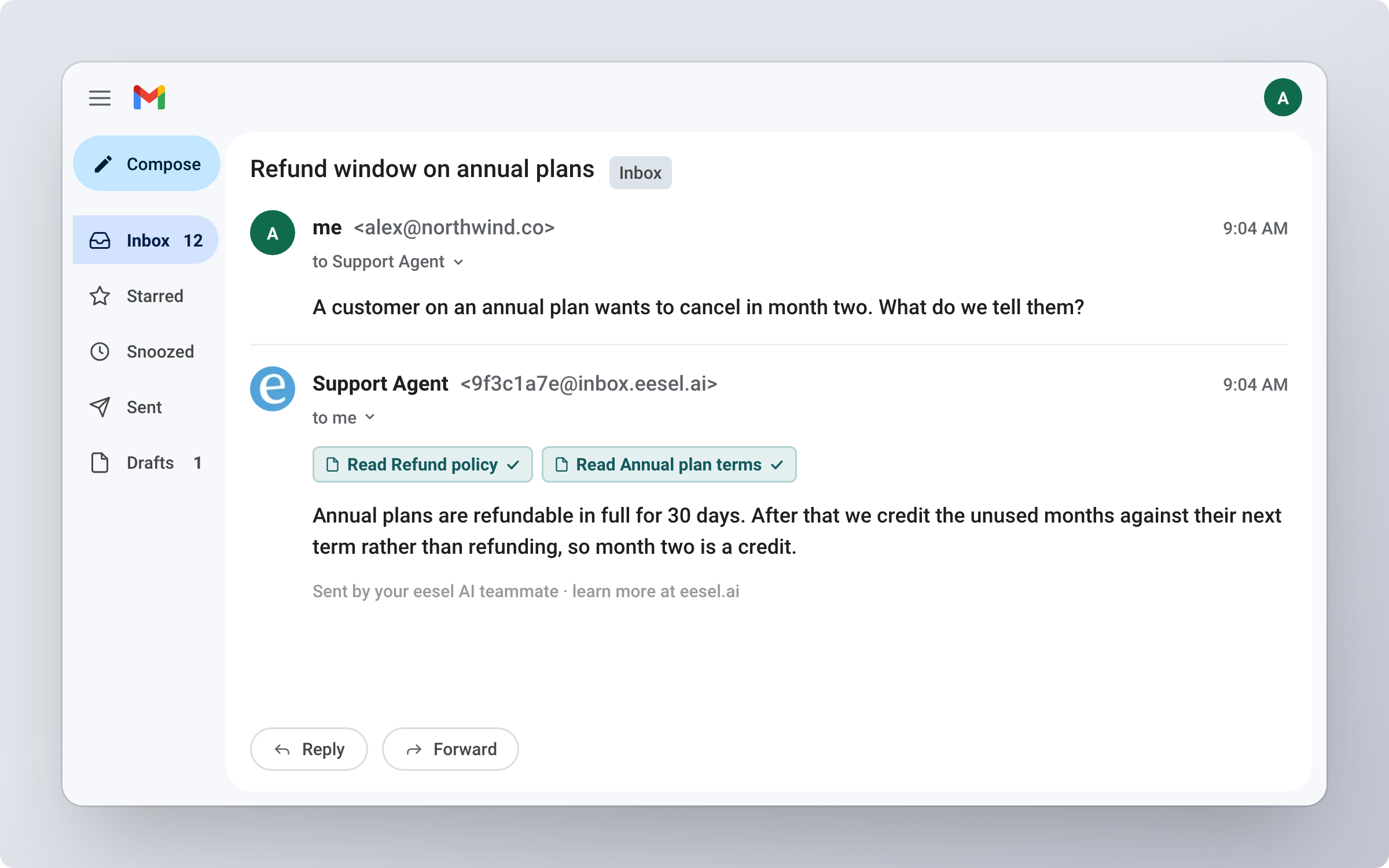
<figure><img src="https://3732419023-files.gitbook.io/~/files/v0/b/gitbook-x-prod.appspot.com/o/spaces%2F2xXO0947TYoPIhGoBgSE%2Fuploads%2Fgit-blob-46ddc66b63b433931cd9404839199fd103d411a1%2Fgmail-hero.png?alt=media" alt="A Gmail thread where someone asks about the refund window on annual plans, and the agent replies in the thread after reading the refund policy and the annual plan terms"><figcaption><p>A Gmail thread where the agent replied after reading the refund policy.</p></figcaption></figure>

Gmail is not self-serve yet. Message us in the in-app chat or email <hi@eesel.app> to have it turned on. It does not appear in your integrations list until then.

## Set up eesel in Gmail

{% stepper %}
{% step %}

### Ask your agent to connect Gmail

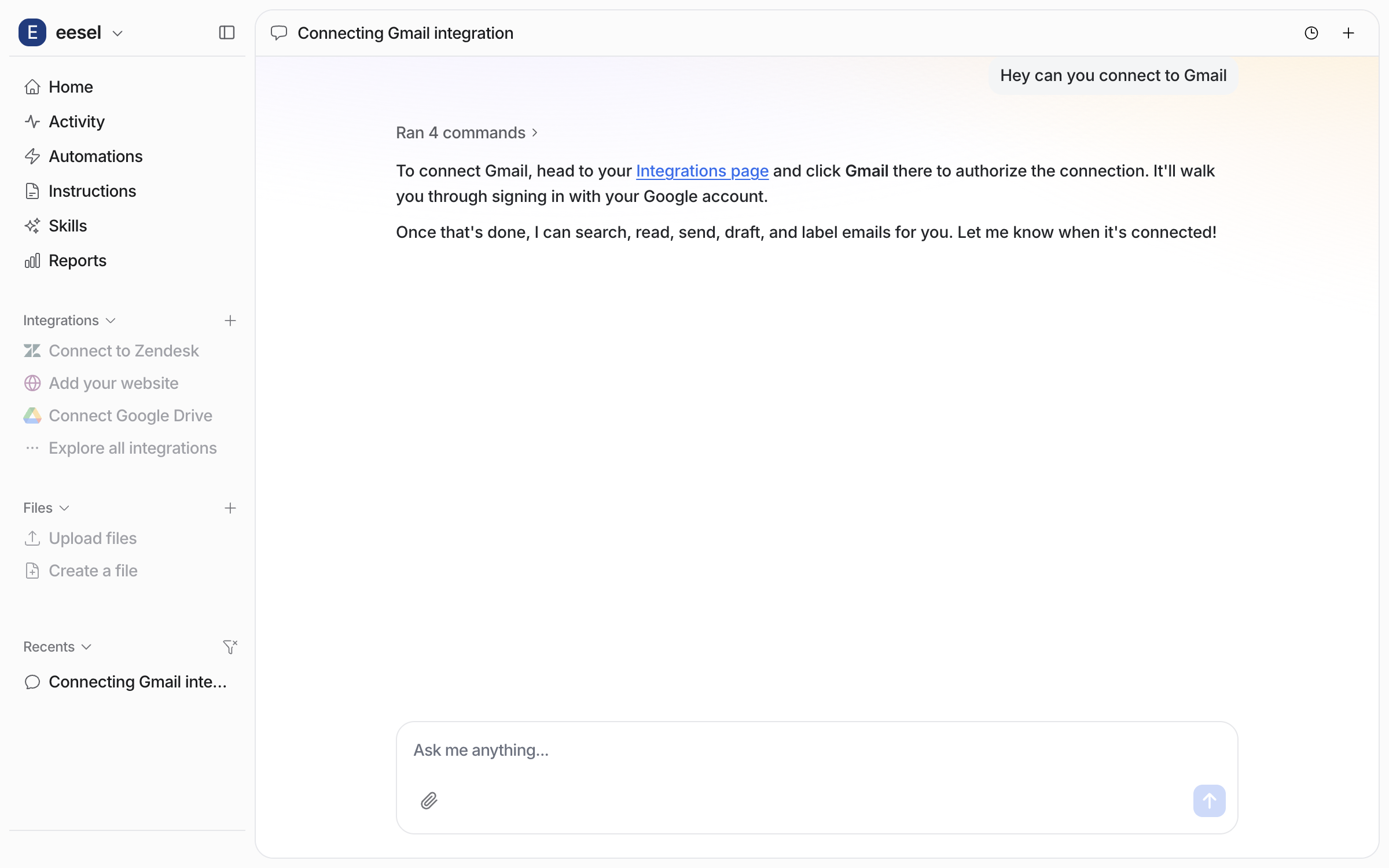
Open the chat in your dashboard and ask it to connect Gmail. It points you at your **Integrations** page and lists what it will do: search, read, send, draft and label email.

<figure><img src="https://3732419023-files.gitbook.io/~/files/v0/b/gitbook-x-prod.appspot.com/o/spaces%2F2xXO0947TYoPIhGoBgSE%2Fuploads%2Fgit-blob-8de11529ce589d06c62c80a895b7c2cf29de02c3%2Fgmail-connect-chat.png?alt=media" alt="The dashboard chat where the user asks to connect Gmail and the agent replies with the Integrations page link and the list of what it can do once connected"><figcaption><p>The dashboard chat with the Integrations page link.</p></figcaption></figure>

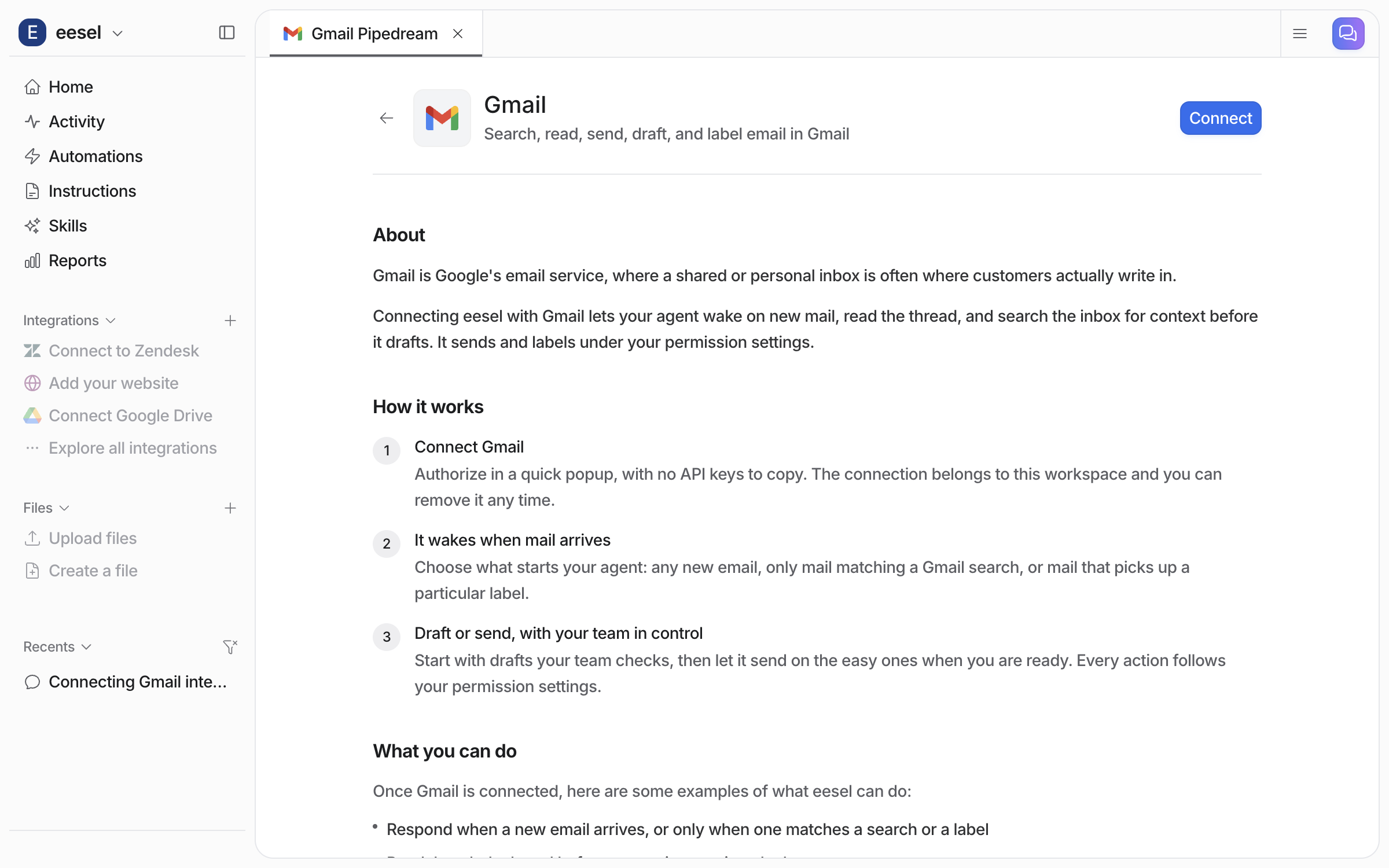
Open **Integrations > Gmail** in the left sidebar. **Connect** is in the top right.

<figure><img src="https://3732419023-files.gitbook.io/~/files/v0/b/gitbook-x-prod.appspot.com/o/spaces%2F2xXO0947TYoPIhGoBgSE%2Fuploads%2Fgit-blob-4aca829e099678b84e6fbe2f8a5e3f7a710675e5%2Fgmail-integration-page-before.png?alt=media" alt="The Gmail integration page before connecting, with a Connect button in the top right, an About section, a How it works list and the start of a What you can do list"><figcaption><p>The Gmail integration page before you connect.</p></figcaption></figure>
{% endstep %}

{% step %}

### Sign in with Google

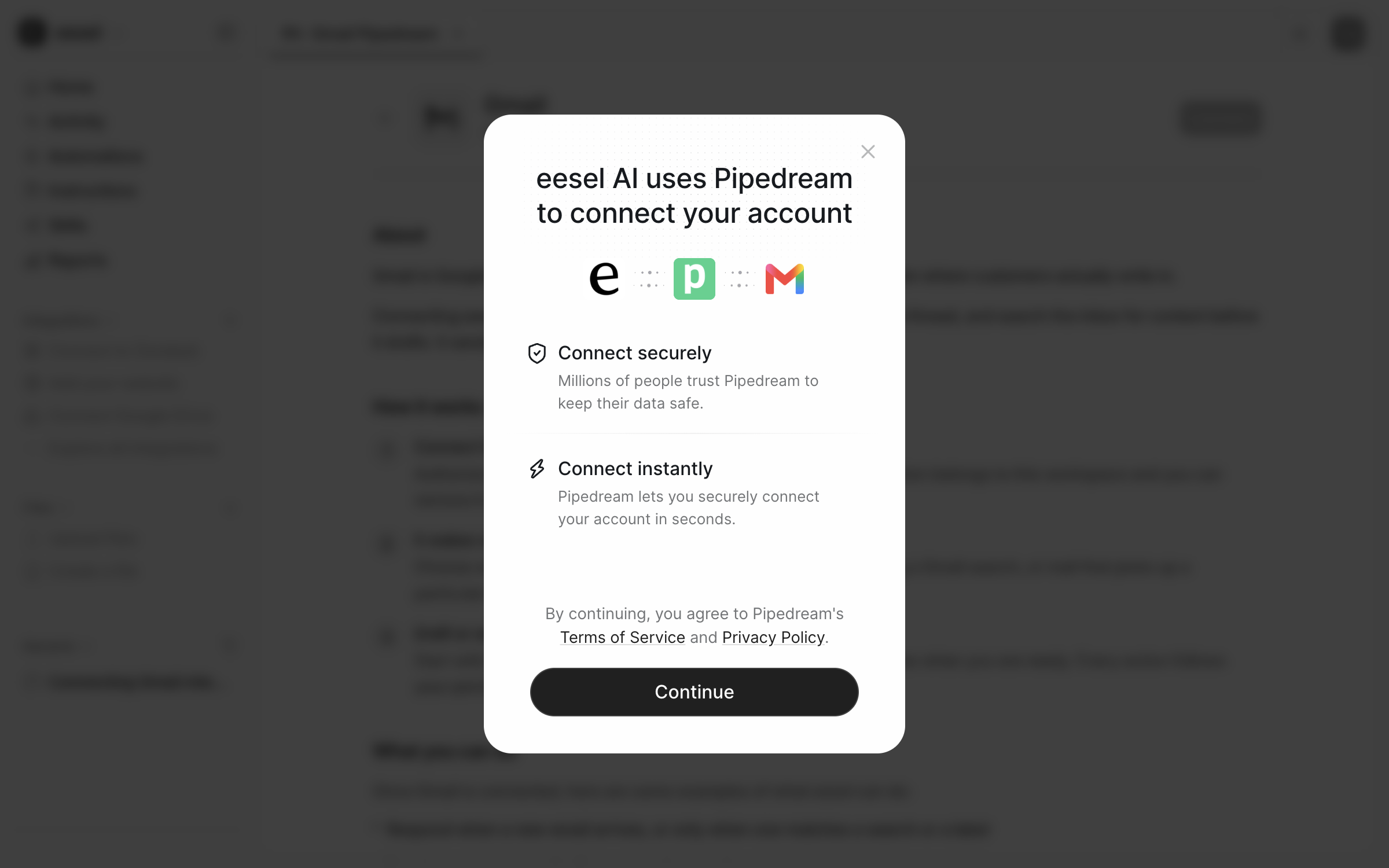
**Connect** opens a notice saying the connection runs through Pipedream, the service that brokers the sign-in. **Continue** hands you to Google's sign-in and consent screen. Pick the account you want your agent to work in, read the mail permissions, then accept. You can remove the connection at any time.

<figure><img src="https://3732419023-files.gitbook.io/~/files/v0/b/gitbook-x-prod.appspot.com/o/spaces%2F2xXO0947TYoPIhGoBgSE%2Fuploads%2Fgit-blob-dc3ecba3dc0663f839813caa6dc6c9be7b7f4541%2Fgmail-pipedream.png?alt=media" alt="A modal on the Gmail integration page saying eesel AI uses Pipedream to connect your account, with the eesel, Pipedream and Gmail logos and a Continue button"><figcaption><p>The Pipedream notice, with Continue leading to Google's sign-in.</p></figcaption></figure>

A person approves this in the browser.
{% endstep %}

{% step %}

### Confirm the connection

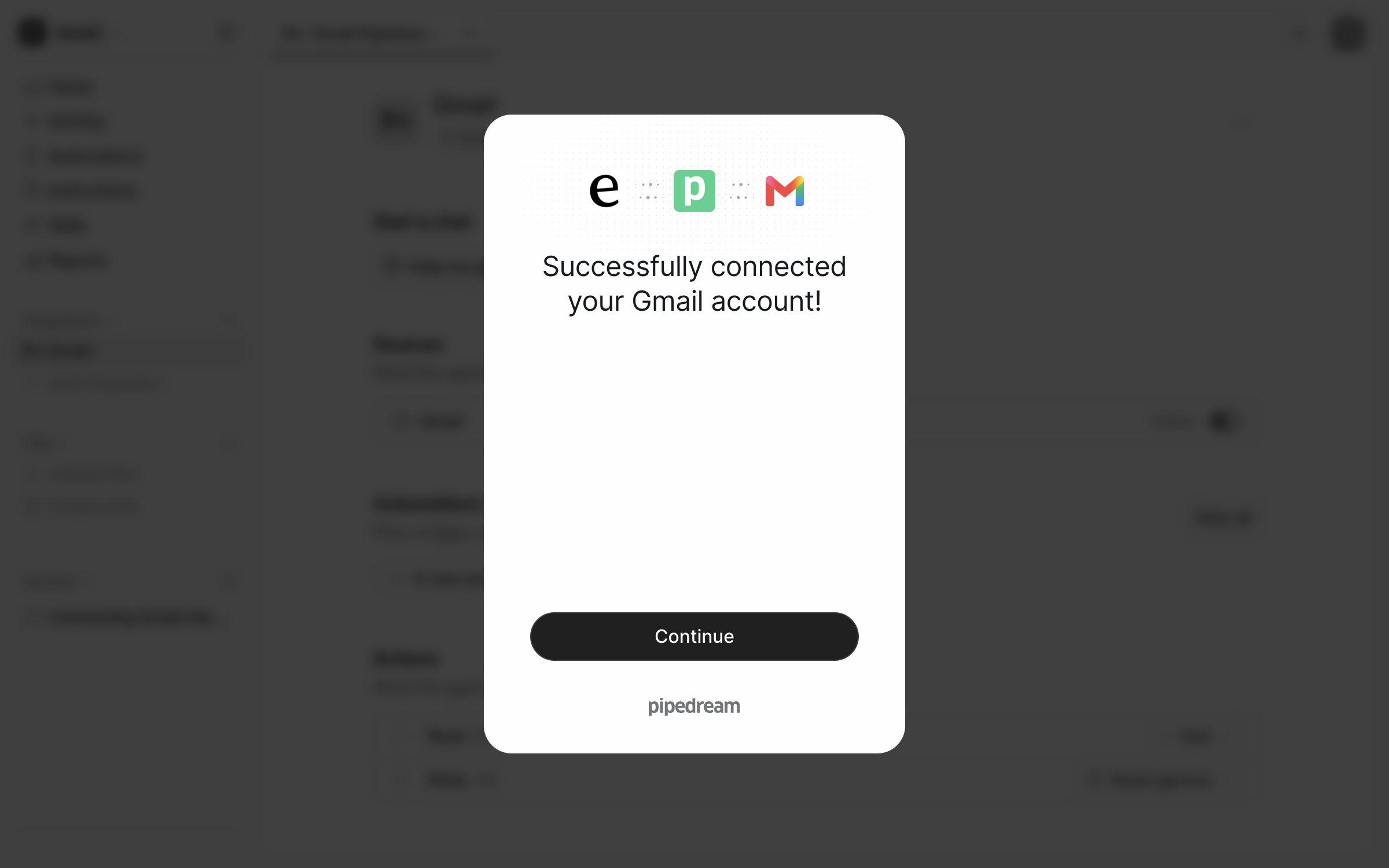
Google sends you back, and the modal confirms the account is connected. **Continue** returns you to the integration page.

<figure><img src="https://3732419023-files.gitbook.io/~/files/v0/b/gitbook-x-prod.appspot.com/o/spaces%2F2xXO0947TYoPIhGoBgSE%2Fuploads%2Fgit-blob-d2252dfc88f1edffa668d6fd8eee44b31c9fbf2d%2Fgmail-connected.png?alt=media" alt="A modal confirming the Gmail account was connected successfully, with a Continue button and the Pipedream name underneath"><figcaption><p>The confirmation modal after Google sends you back.</p></figcaption></figure>

**Check it worked.** The integration page header shows **Connected** with the account, and the left sidebar now lists Gmail. From a terminal, `eesel status` shows the integration as connected with its source counts.
{% endstep %}

{% step %}

### Check what it can read and do

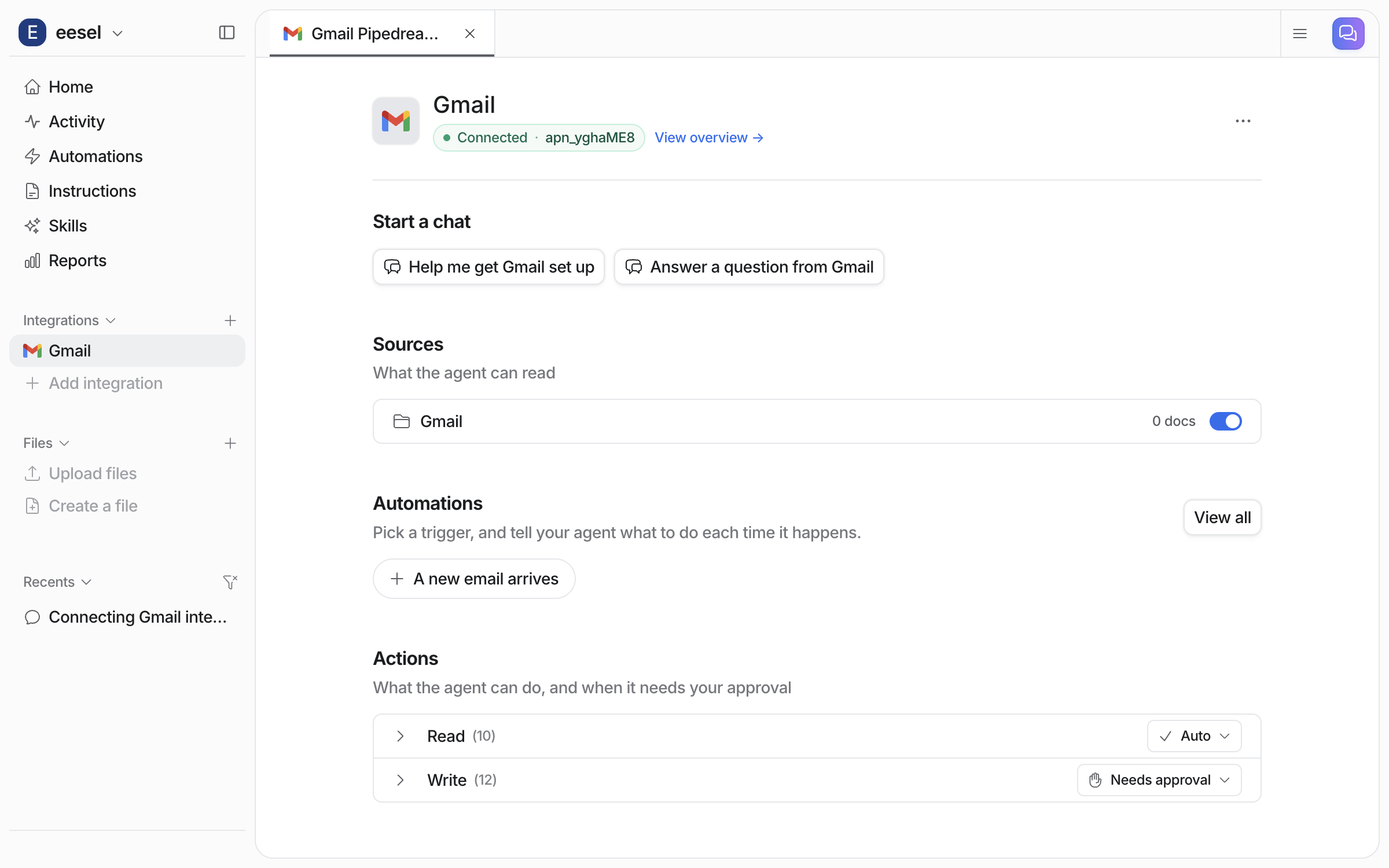
**Sources** is what it can read, and the mailbox is listed there with a switch. **Automations** is where you pick a trigger and say what to do each time it happens. **Actions** is what it can do, grouped as **Read** and **Write**.

<figure><img src="https://3732419023-files.gitbook.io/~/files/v0/b/gitbook-x-prod.appspot.com/o/spaces%2F2xXO0947TYoPIhGoBgSE%2Fuploads%2Fgit-blob-90cb6dab16fa3dc0d2331bd325d69919bdb45d8a%2Fgmail-integration-page.png?alt=media" alt="The Gmail integration page after connecting, showing Connected with the account, a Sources section listing the mailbox, an Automations section suggesting a new email trigger, and Actions with the Read and Write groups"><figcaption><p>The connected Gmail integration page, with sources, automations and the two action groups.</p></figcaption></figure>
{% endstep %}

{% step %}

### Create your first automation

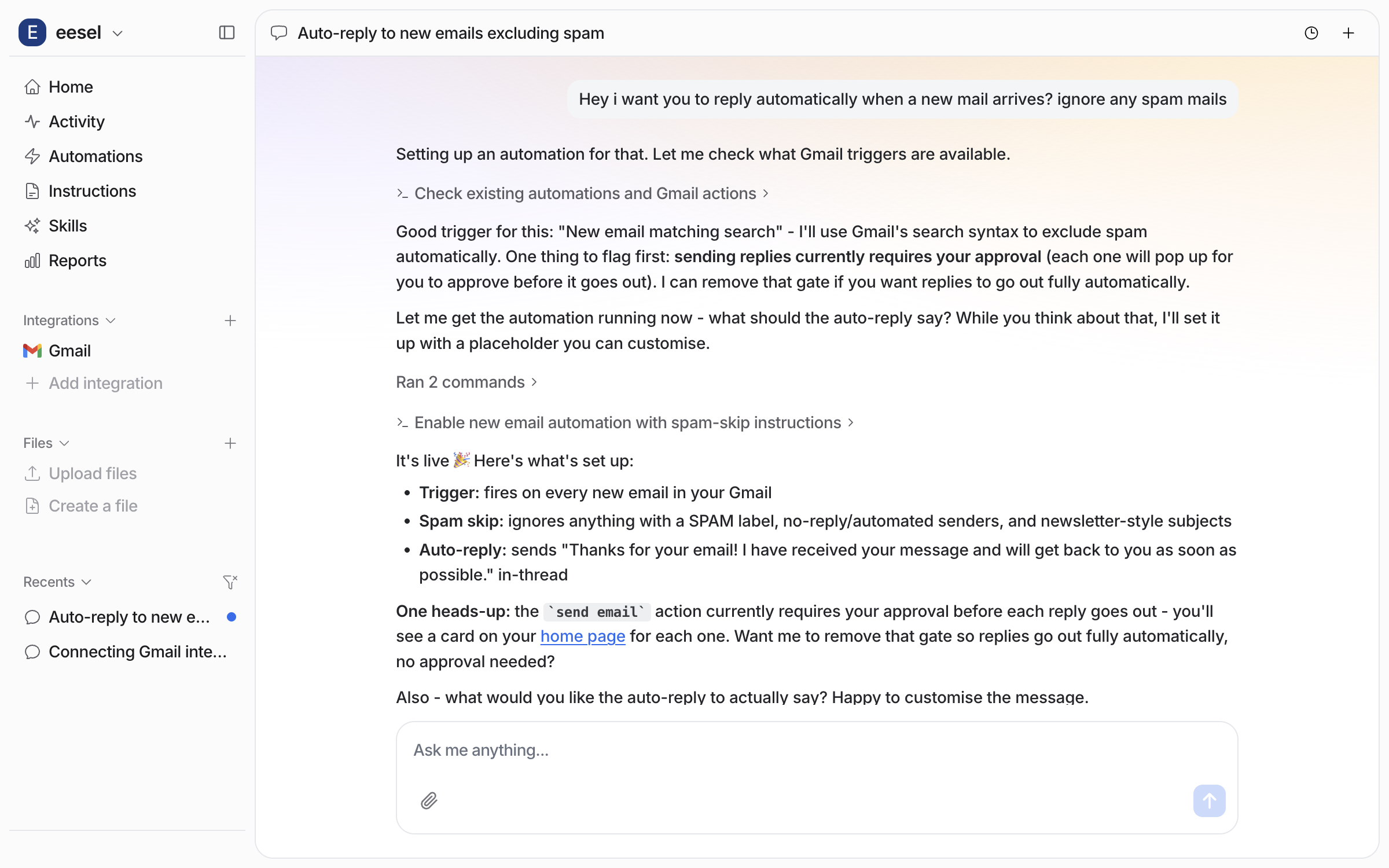
Connecting alone does not start your agent. It needs an automation first. Ask in the dashboard chat for the mail you want handled and what should happen. Your agent picks the trigger, writes the instructions, switches the automation on, and names the actions it will use. Your plain-language description becomes the automation's instructions, so it skips mail you did not describe. See [Automations](/automations-and-schedules/automations-and-schedules.md).

<figure><img src="https://3732419023-files.gitbook.io/~/files/v0/b/gitbook-x-prod.appspot.com/o/spaces%2F2xXO0947TYoPIhGoBgSE%2Fuploads%2Fgit-blob-0c3d335e5516214f8bfb9e8600cc7d121ed014e0%2Fgmail-automation-chat.png?alt=media" alt="The dashboard chat where the user asks for an automatic reply on new mail, and the agent reports the trigger it chose, the mail it will skip, and the reply it will send"><figcaption><p>The dashboard chat where the agent reports the trigger, the filter and the action.</p></figcaption></figure>

The trigger event is fixed when the automation is created. So a new automation is required for each different trigger event.

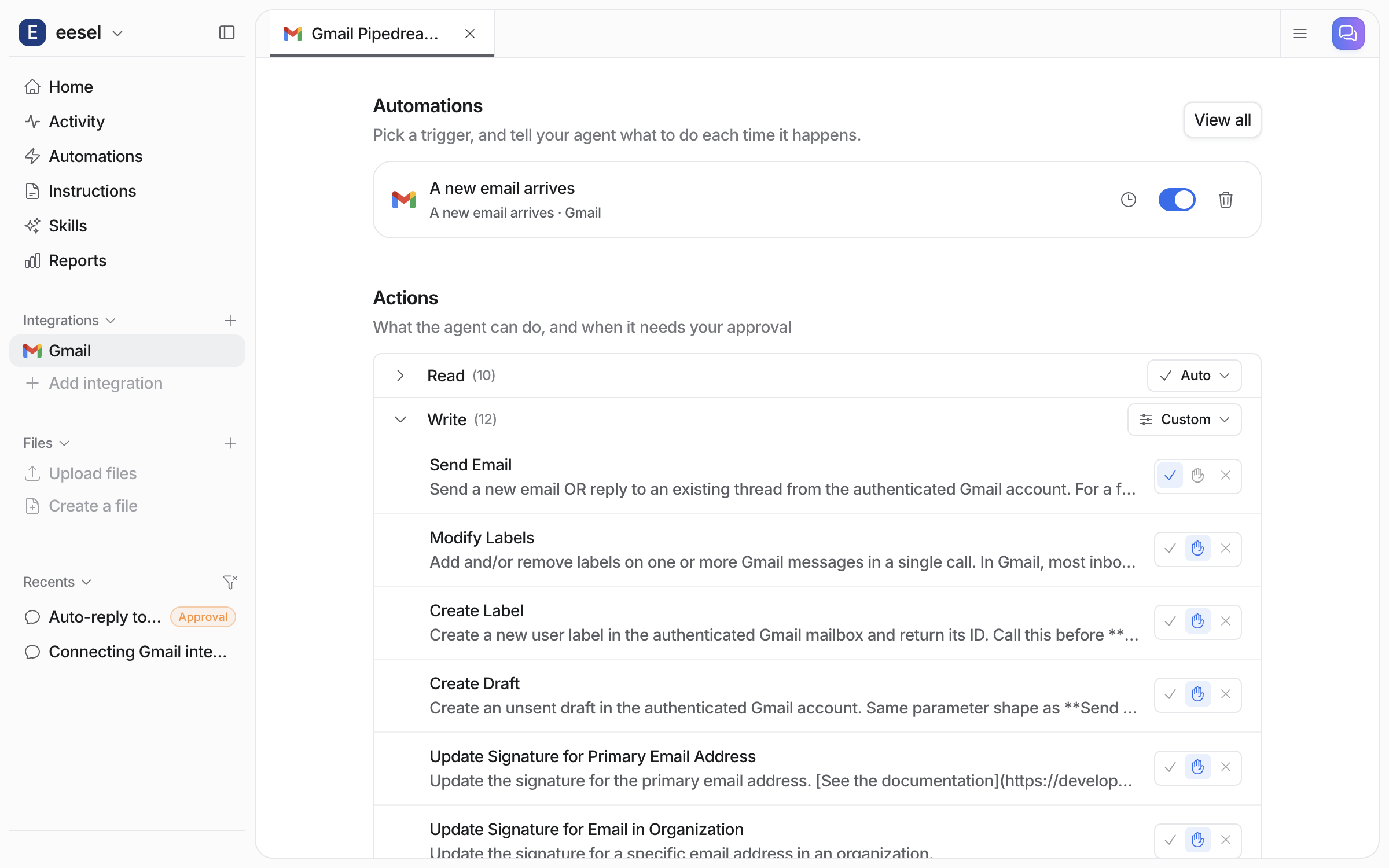
Back on the integration page, the automation is listed with its switch on.

<figure><img src="https://3732419023-files.gitbook.io/~/files/v0/b/gitbook-x-prod.appspot.com/o/spaces%2F2xXO0947TYoPIhGoBgSE%2Fuploads%2Fgit-blob-dace279bd0f4845ce58ff7f7f5f8886eda1f7e2c%2Fgmail-automation-on.png?alt=media" alt="The Gmail integration page with the new email automation listed and switched on, and the Write action group expanded to show each action"><figcaption><p>The automation switched on, with the Write group expanded.</p></figcaption></figure>

**Check it worked.** Your **Automations** page lists the automation, switched on. From a terminal, `eesel automations` lists the automation as on.
{% endstep %}

{% step %}

### Check automation work in Gmail

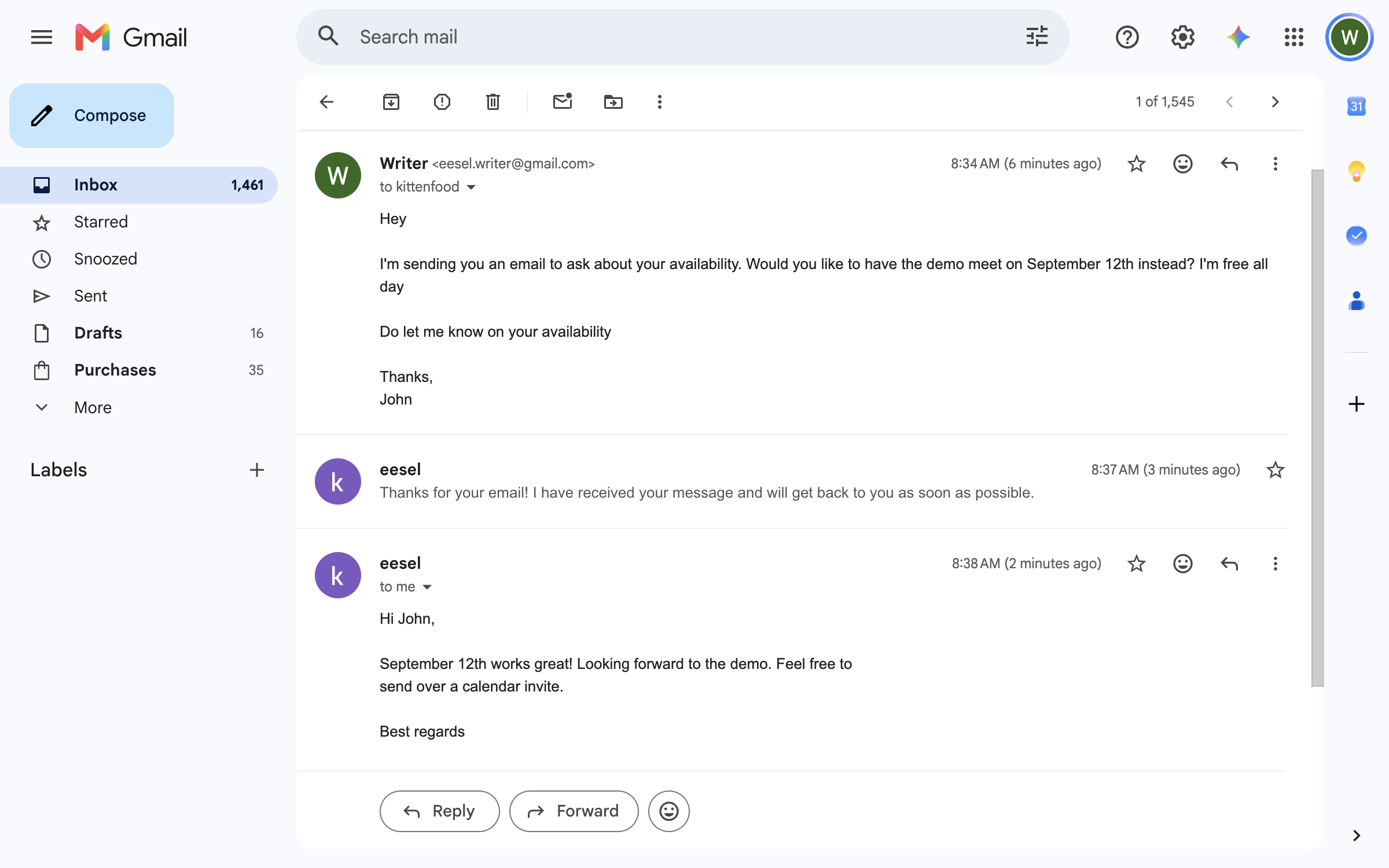
Send the mailbox a test email from another address and open the thread in Gmail. The reply is in the thread, sent from the connected account, with any label your agent applied.

<figure><img src="https://3732419023-files.gitbook.io/~/files/v0/b/gitbook-x-prod.appspot.com/o/spaces%2F2xXO0947TYoPIhGoBgSE%2Fuploads%2Fgit-blob-0958fddf9f6d8875f35e8bcdf8bb0efcf2d70541%2Fgmail-thread-reply.png?alt=media" alt="A Gmail thread where an incoming email got an automatic reply from the agent, followed by a second reply written after the sender&#x27;s question"><figcaption><p>The automatic reply in the Gmail thread.</p></figcaption></figure>
{% endstep %}

{% step %}

### Work your inbox from Slack

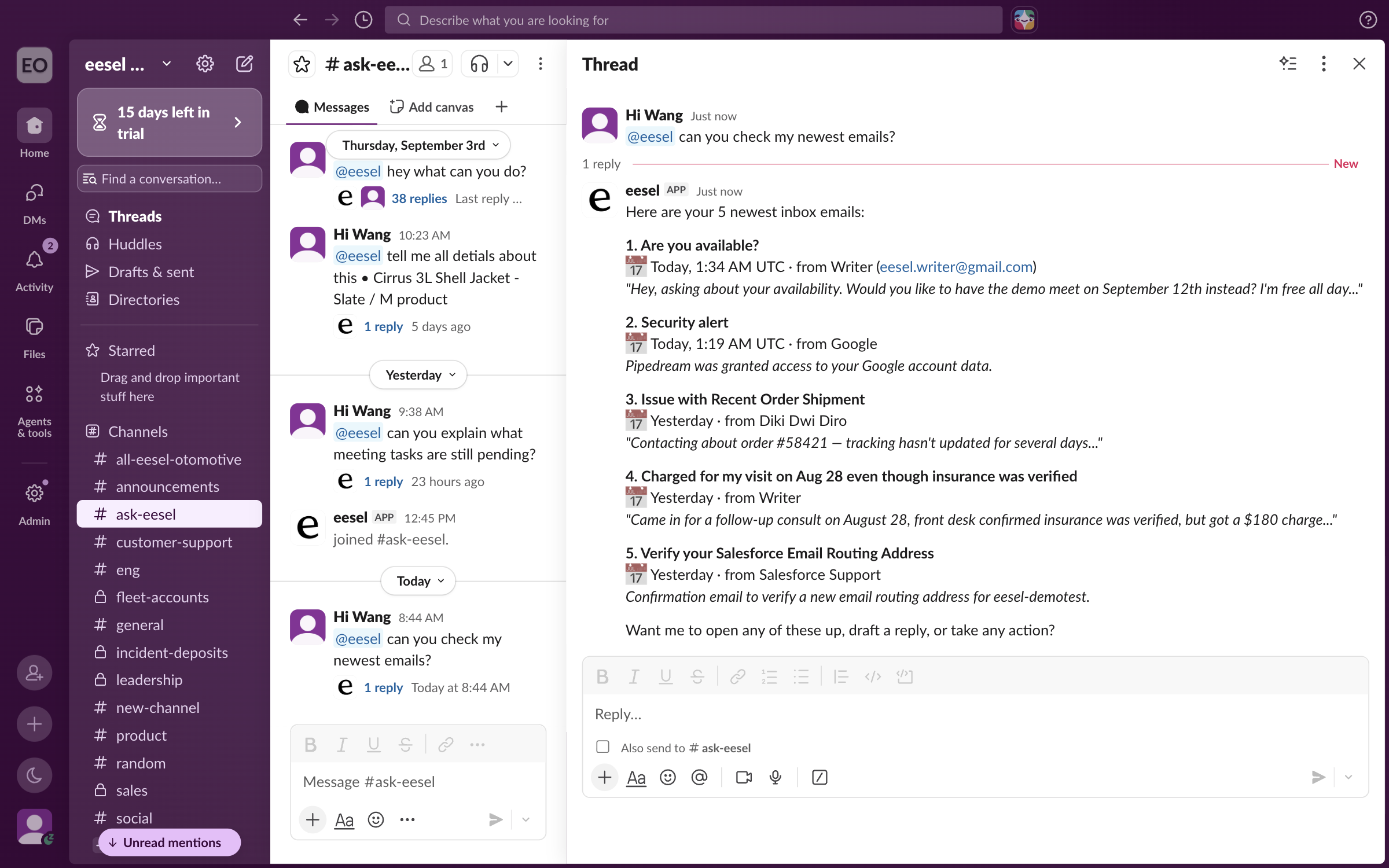
With [Slack](/integrations/communication/slack.md) connected, mention your teammate in a thread and ask what is new in the inbox. It lists the newest mail with sender, time and a line on each, then offers to open one, draft a reply or act on it.

<figure><img src="https://3732419023-files.gitbook.io/~/files/v0/b/gitbook-x-prod.appspot.com/o/spaces%2F2xXO0947TYoPIhGoBgSE%2Fuploads%2Fgit-blob-ed62077fc9c5f4d2e825cbde752b479b74916fb8%2Fgmail-slack-list.png?alt=media" alt="A Slack thread where a teammate mentions eesel to check the newest emails, and the app lists five of them with sender, time and a summary line each"><figcaption><p>The newest mail listed in a Slack thread.</p></figcaption></figure>

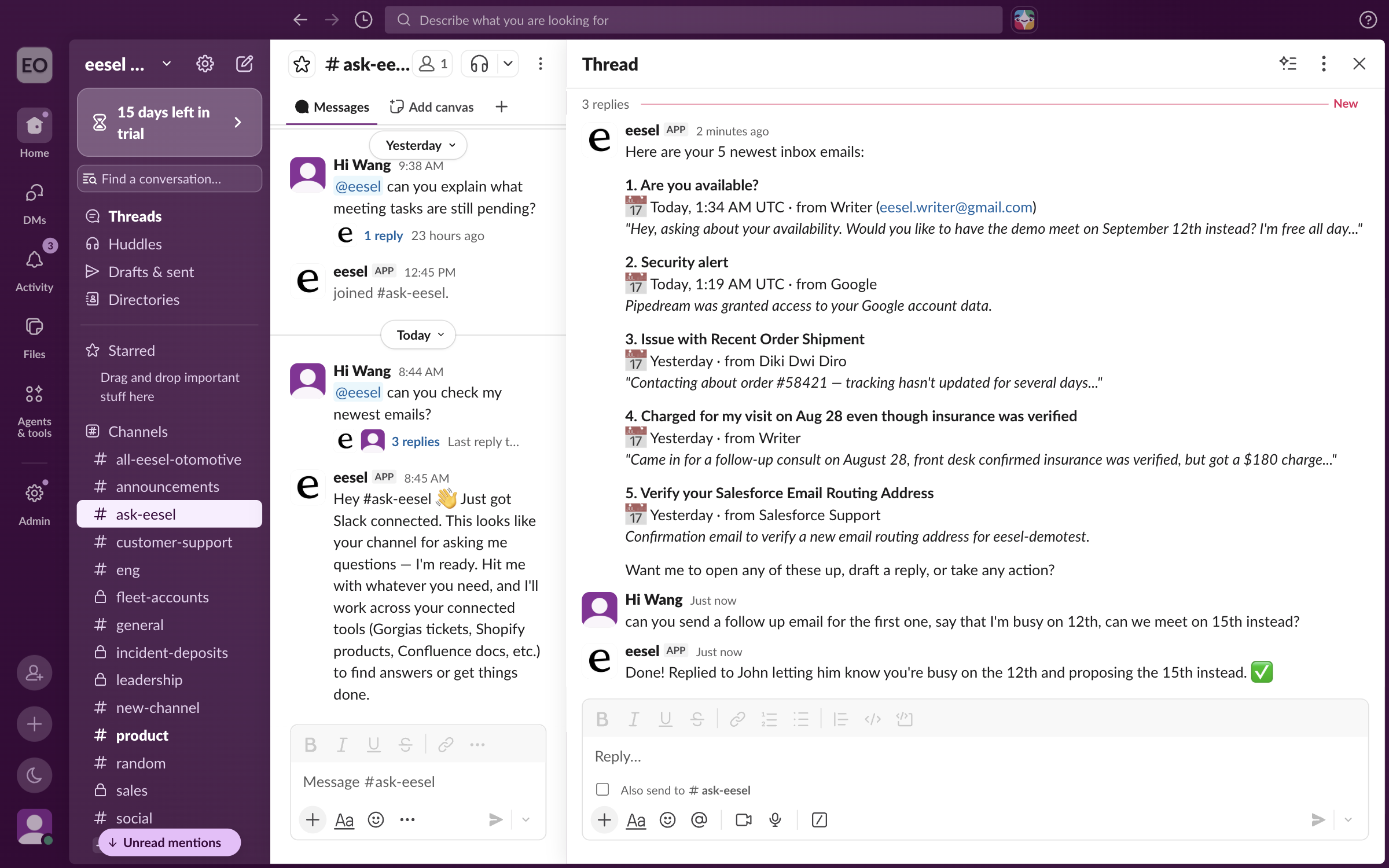
Ask it to reply to one and say what to write. It sends the reply from the connected account and confirms what it sent and to whom.

<figure><img src="https://3732419023-files.gitbook.io/~/files/v0/b/gitbook-x-prod.appspot.com/o/spaces%2F2xXO0947TYoPIhGoBgSE%2Fuploads%2Fgit-blob-6e15619399a5e4c50899525a4bdda1939107e114%2Fgmail-slack-send.png?alt=media" alt="The same Slack thread where the teammate asks for a follow-up reply to the first email, and the app confirms it replied and what it said"><figcaption><p>The reply confirmed in the same Slack thread.</p></figcaption></figure>

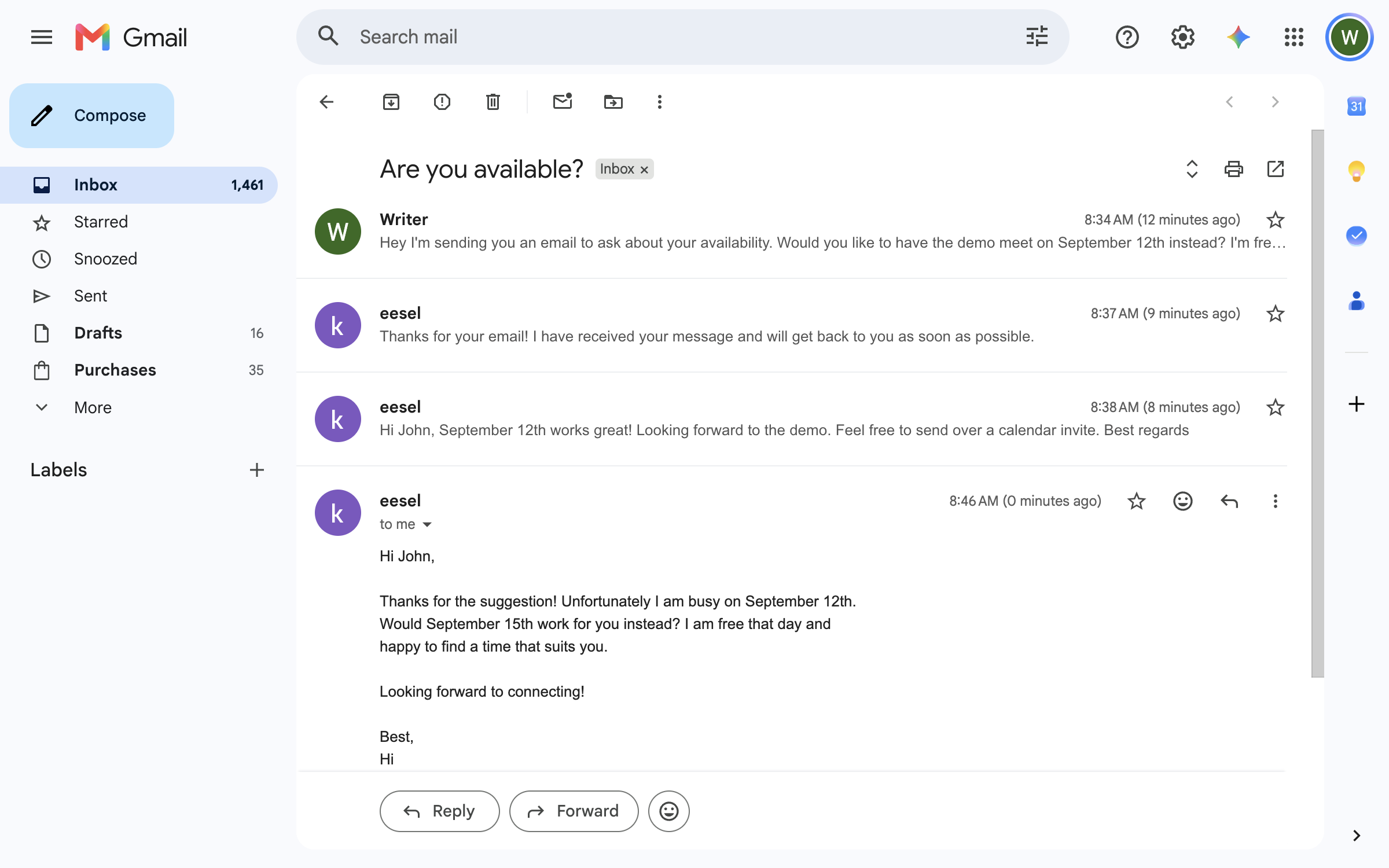
Open Gmail and the follow-up is in the original thread, from the address you connected.

<figure><img src="https://3732419023-files.gitbook.io/~/files/v0/b/gitbook-x-prod.appspot.com/o/spaces%2F2xXO0947TYoPIhGoBgSE%2Fuploads%2Fgit-blob-d15221c39e42d299aad35144e0fad13f6e91a5a2%2Fgmail-sent-email.png?alt=media" alt="The Gmail thread showing the follow-up email the agent sent from the connected account, below the earlier messages in the same thread"><figcaption><p>The follow-up email in the Gmail thread.</p></figcaption></figure>
{% endstep %}
{% endstepper %}

{% hint style="info" %}
**From Claude Code, Cursor or a terminal.** The same setup works as commands: `eesel login`, then `eesel integrations connect gmail_pipedream`, which prints the details that connection method needs, including the sign-in link for a person to open. The approval is a human step: print the link for a person, wait for the connection status to change, and do not retry the link. `eesel status` then shows the integration as connected with its source counts, `eesel automations` lists your automations, and `eesel chat` asks your agent a question. Turning an automation on and setting its instructions have no command, so use the dashboard chat for those. Trigger keys for this page are in the Triggers table below. Full command reference: [The eesel CLI](/apis-and-developer-resources/cli.md). Step-by-step: [Set up from Claude Code or the terminal](/getting-started/set-up-from-a-coding-agent.md). From a Model Context Protocol (MCP) client: [Claude Code and MCP clients](/apis-and-developer-resources/claude-code-and-mcp-clients.md).
{% endhint %}

## Sources, triggers and actions

### Sources

Gmail adds one source, listed on the integration page with a switch.

| Source    | What your agent reads                                                                                             |
| --------- | ----------------------------------------------------------------------------------------------------------------- |
| **Gmail** | The mailbox of the Google account you signed in with. It searches messages and reads whole threads while it works |

Your agent can only see what that mailbox can see. Every other integration on your agent is a source too, so a Gmail reply can also draw on your help center, files and other integrations. See [Integrations](/integrations/overview.md).

### Triggers

Triggers are the Gmail events an automation can run on.

| Trigger                       | Fires when                                                                              | Best for                                                      | Key                                         |
| ----------------------------- | --------------------------------------------------------------------------------------- | ------------------------------------------------------------- | ------------------------------------------- |
| **New email received**        | A new email arrives in the connected inbox                                              | Auto-replying and triage                                      | `gmail_pipedream_new_email`                 |
| **New email matching search** | A new inbound email matches a Gmail search query you set, like `label:support -from:me` | Scoping to one address or topic                               | `gmail_pipedream_new_email_matching_search` |
| **New labeled email**         | An email receives one of the Gmail labels you choose to watch                           | Queues a person curates: label it, and your agent picks it up | `gmail_pipedream_new_labeled_email`         |

New mail is delivered on Pipedream's polling interval. So a reply follows the email after a short delay.

### Actions

The integration page groups actions as **Read** and **Write**, with ten read actions and twelve write actions. They come from Gmail through Pipedream, and your agent loads the current list each time it runs. These are the ones you will use most.

| Group     | Action                                     | What it does                                                                                                                       |
| --------- | ------------------------------------------ | ---------------------------------------------------------------------------------------------------------------------------------- |
| **Read**  | Find emails                                | Searches the mailbox with Gmail search syntax (`from:`, `subject:`, `has:attachment`, date ranges)                                 |
|           | Get thread                                 | Reads the full back-and-forth of an email thread                                                                                   |
|           | List labels                                | Lists the labels in the mailbox, so labeling actions target real ones                                                              |
| **Write** | Send Email                                 | Sends a new email, or replies on an existing thread, from the connected account                                                    |
|           | Create Draft                               | Saves an unsent draft, new or as a reply on a thread, for a person to review and send                                              |
|           | Modify Labels                              | Adds and removes labels on one or more messages. In Gmail this one action covers archive, trash, star, and mark read or unread too |
|           | Create Label                               | Creates a new label, including nested ones like `Clients/Acme`                                                                     |
|           | Archive email / Bulk archive emails        | Archives one message, or many at once                                                                                              |
|           | Update Signature for Primary Email Address | Sets the signature on the connected address                                                                                        |
|           | Update Signature for Email in Organization | Sets the signature on another address in the same Google organization                                                              |

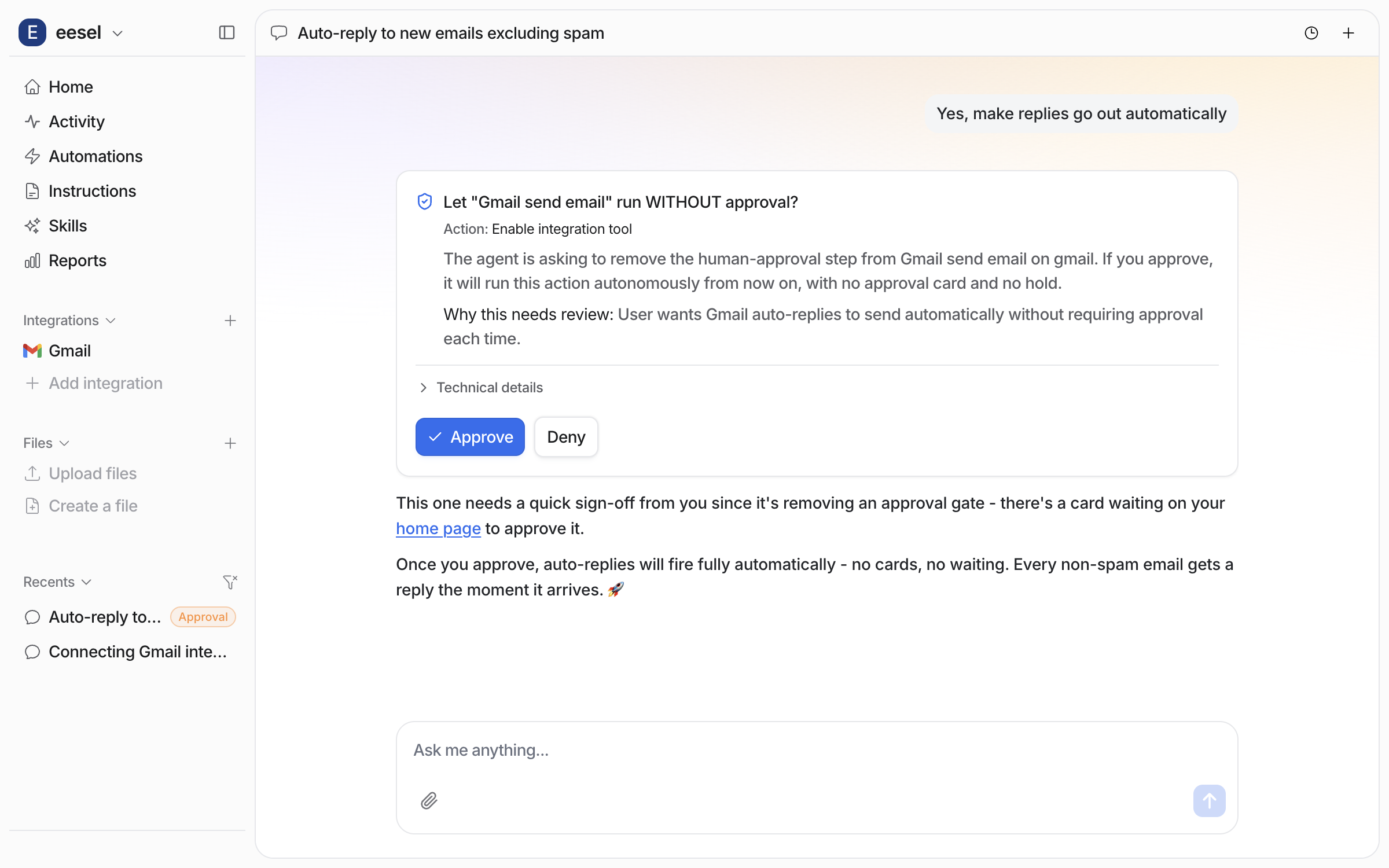
You stay in control the whole way. Adjust your AI agent's access to knowledge and its action permissions to your liking. See [Actions and Approvals](/instructions-and-memory/actions-and-approvals.md).

<figure><img src="https://3732419023-files.gitbook.io/~/files/v0/b/gitbook-x-prod.appspot.com/o/spaces%2F2xXO0947TYoPIhGoBgSE%2Fuploads%2Fgit-blob-8baa19dca29fc06c893729eb51ea9029c3e2b2da%2Fgmail-automation-approval.png?alt=media" alt="An approval card in the dashboard chat asking to let the Gmail send email action run without approval, with the reason given and Approve and Deny buttons"><figcaption><p>An approval card in the dashboard chat, with Approve and Deny.</p></figcaption></figure>

Your agent replies as the connected Google account.

## Limitations

* **Not self-serve yet.** Ask us to turn Gmail on for your workspace before it appears in your integrations list.
* **One mailbox per connection.** Your agent sees only what the connected Google account can see, and sends as that account.
* **New mail arrives after a short delay.** Mail is delivered on Pipedream's polling interval, not instantly.
* **Triggers watch incoming mail only.** Messages you send do not start an automation.
* **Replies need a recipient.** The send and draft actions do not work the recipient out from the thread, so your instructions should say to reply to the sender.

## Troubleshooting

<details>

<summary>Don't see Gmail in your integrations list?</summary>

It is not self-serve. Message us in the in-app chat or email <hi@eesel.app> and we will turn it on for your workspace.

</details>

<details>

<summary>Automation not firing on new mail?</summary>

Check your **Automations** page shows the automation switched on, and that the email arrived in the connected inbox. The triggers watch incoming mail, not messages you send. On the matching-search or labeled-email trigger, check the query or watched labels match the message. New mail is delivered on Pipedream's polling interval, so give it a moment. Every run appears on the **Activity** page.

</details>

<details>

<summary>Agent isn't running a Gmail action?</summary>

Check the action is on for this agent, that your instructions tell it when to use the action, and that the connection is still signed in. If it is waiting for someone to approve it, it has not failed.

</details>

<details>

<summary>A reply came back with "Recipient address required"?</summary>

That is Gmail refusing a reply with no recipient. The Gmail send and draft actions do not work the recipient out from the thread. Tell your agent to reply to the sender's address, and it will fill the field.

</details>

<details>

<summary>Connection issues?</summary>

Google access can expire or be revoked. Disconnect Gmail and connect it again, completing every prompt in the Google sign-in.

</details>

## FAQ

<details>

<summary>How do I add an AI agent to Gmail?</summary>

Ask us to turn Gmail on, then connect it from **Integrations > Gmail** with a Google sign-in, and ask your agent in the dashboard chat to create an automation, for example "draft a reply to every new email". The steps are in [Set up eesel in Gmail](#set-up-eesel-in-gmail).

</details>

<details>

<summary>Can the Gmail AI agent auto reply to emails?</summary>

Yes. It can send the reply in the thread from the connected account whenever its automation fires, or write a draft for your team to check, depending on how you set it up.

</details>

<details>

<summary>How do I keep a person in the loop with the Gmail AI agent?</summary>

Turn on **Create Draft** instead of **Send Email**, so your agent writes drafts your team checks and sends from Gmail.

</details>

<details>

<summary>Does connecting Gmail start sending email on its own?</summary>

No. Connecting only gives your agent access to the mailbox. It needs an automation before it acts at all.

</details>

<details>

<summary>Can I connect Gmail to ChatGPT or Claude?</summary>

Yes, through eesel. Once Gmail is connected, you can talk to your eesel agent from ChatGPT, Claude or Cursor, and it works with your mailbox. See [Use eesel from ChatGPT](/apis-and-developer-resources/use-eesel-from-chatgpt.md), [Use eesel from Claude and other assistants](/apis-and-developer-resources/use-eesel-from-claude-and-other-assistants.md) and [Claude Code and MCP clients](/apis-and-developer-resources/claude-code-and-mcp-clients.md).

</details>

<details>

<summary>Can I limit which emails the Gmail AI agent handles?</summary>

Yes, at two levels. The **New email matching search** trigger scopes by a Gmail search query, and **New labeled email** only fires on the labels you watch. The automation's instructions then describe the mail you want in plain language, and what to do with it.

</details>

<details>

<summary>Which Gmail account does the AI agent act as?</summary>

The Google account you signed in with. Mail it sends comes from that address, and it can only see what that mailbox can see. Most teams connect a shared support address rather than a personal one.

</details>

<details>

<summary>Can the Gmail AI agent delete email?</summary>

It can move a message to the trash through the label actions, and it can archive mail. Both only exist on your agent if you turn them on.

</details>

<details>

<summary>What is Pipedream doing in the Gmail connection?</summary>

Pipedream brokers the connection to Google, so you sign in once and there are no keys to copy. The Gmail triggers and actions come from it too. You may see it named on Google's consent screen and in the security notice Google emails you afterwards.

</details>

## Related pages

* [Helpdesk](/use-cases/helpdesk.md) for the customer-facing job your agent takes on in the inbox
* [Slack](/integrations/communication/slack.md) for working the mailbox from a Slack thread
* [Actions and Approvals](/instructions-and-memory/actions-and-approvals.md) for choosing what your agent may do
* [Integrations overview](/integrations/overview.md) for how sources, triggers and actions fit together
* [Set up from Claude Code or the terminal](/getting-started/set-up-from-a-coding-agent.md)


---

# Agent Instructions
This documentation is published with GitBook. GitBook is the documentation platform designed so that both humans and AI agents can read, navigate, and reason over technical content effectively. Learn more at gitbook.com.

## Querying This Documentation
If you need additional information that is not directly available in this page, you can query the documentation dynamically by asking a question.

Perform an HTTP GET request on the current page URL with the `ask` query parameter, and the optional `goal` query parameter:

```
GET https://docs.eesel.ai/integrations/communication/gmail.md?ask=<question>&goal=<endgoal>
```

`ask` is the immediate question: it should be specific, self-contained, and written in natural language.
`goal` is optional and describes the broader end goal you are ultimately trying to accomplish on behalf of the user. GitBook uses it to tailor the answer towards what is most useful for that goal.

The response will contain a direct answer to the question and relevant excerpts and sources from the documentation.

Use this mechanism when the answer is not explicitly present in the current page, you need clarification or additional context, or you want to retrieve related documentation sections.