> For the complete documentation index, see [llms.txt](https://docs.eesel.ai/llms.txt). Markdown versions of documentation pages are available by appending `.md` to page URLs; this page is available as [Markdown](https://docs.eesel.ai/integrations/communication/google-chat.md).

# Google Chat

Add an AI chatbot to Google Chat. It answers your team's @mentions and direct messages from your docs and past tickets.

eesel's AI agent for Google Chat is an AI Google Chat bot your team @mentions in a space or messages directly. It answers in the thread from your connected knowledge, and it can also look things up and do work in your other apps from that thread.

Add your AI teammate to a Google Chat space and it answers your team's questions from your help docs, past tickets and wiki pages. It keeps the conversation going in the thread, so a question and the work that follows it stay in one place. From the same thread it also works your other integrations, such as reading orders from your store or listing tickets from your helpdesk. It is not Gemini, Google's own AI assistant in Google Workspace.

<figure><img src="https://3732419023-files.gitbook.io/~/files/v0/b/gitbook-x-prod.appspot.com/o/spaces%2F2xXO0947TYoPIhGoBgSE%2Fuploads%2Fgit-blob-243e32ba730fee0311f301eae7658ac7089b2e2e%2Fgoogle-chat-hero.png?alt=media" alt="A Google Chat space where a teammate mentions eesel AI Agents for Chat to ask about the refund window on annual plans, and eesel answers in the thread pane"><figcaption><p>Your agent answering a mention in a Google Chat thread.</p></figcaption></figure>

## Set up eesel in Google Chat

{% stepper %}
{% step %}

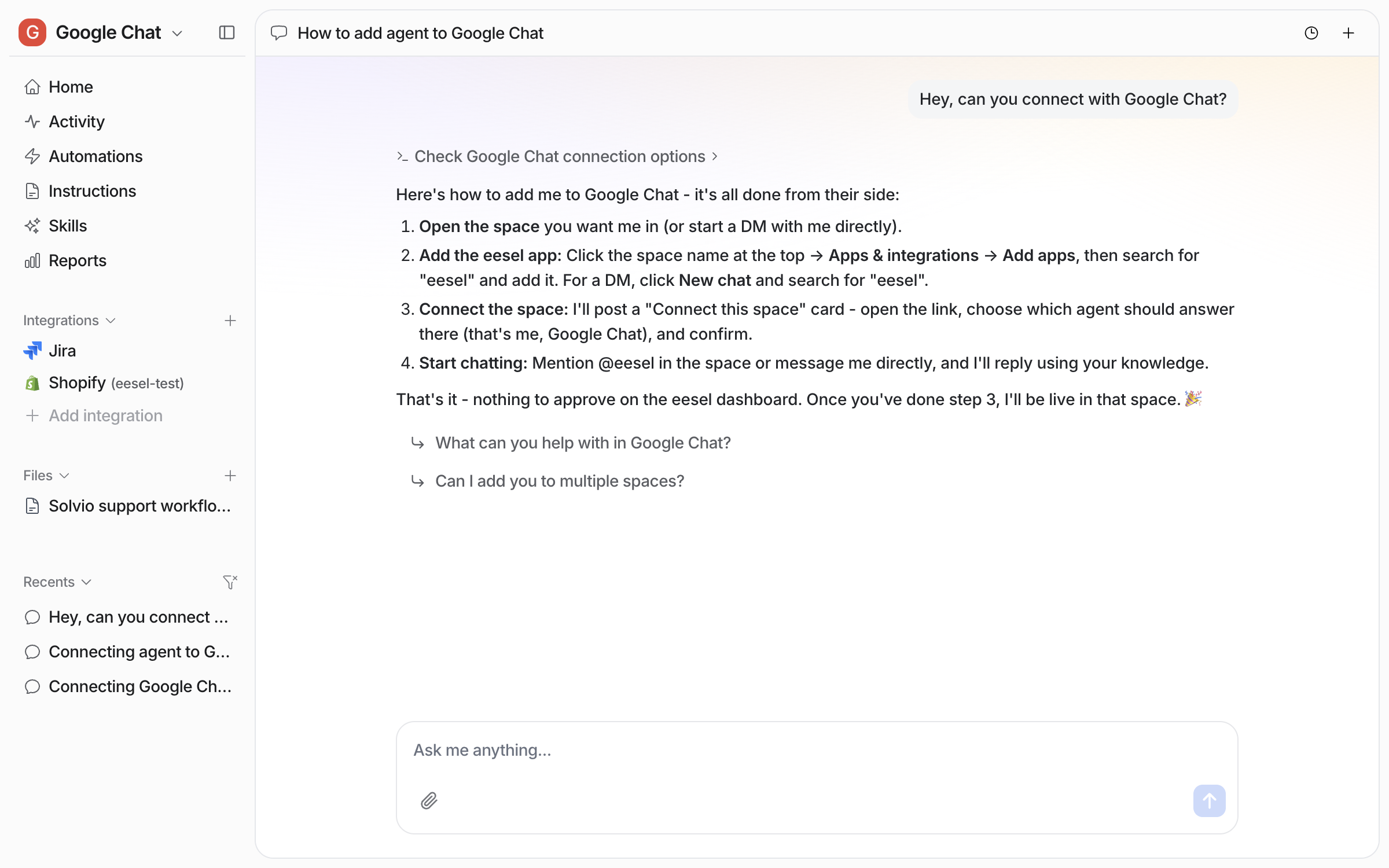
### Ask your agent how to add it

Open the chat in your dashboard and ask it to connect Google Chat. This step is optional. There is nothing to connect or authorise in the dashboard: you add eesel from Google Chat's side, and your agent lists the steps. **Integrations > Google Chat** shows the same steps.

<figure><img src="https://3732419023-files.gitbook.io/~/files/v0/b/gitbook-x-prod.appspot.com/o/spaces%2F2xXO0947TYoPIhGoBgSE%2Fuploads%2Fgit-blob-549b3ec7fda61672a945967af9e24a91b75309c0%2Fgoogle-chat-connect-chat.png?alt=media" alt="The dashboard chat where the user asks to connect Google Chat and the agent lists four steps: open the space, add the eesel app, connect the space, and start chatting"><figcaption><p>The agent listing the steps to add it to Google Chat.</p></figcaption></figure>
{% endstep %}

{% step %}

### Add eesel to a space and connect it

In Google Chat, open the space you want your agent in. Click the space name, then **Apps & integrations > Add apps**, and add **eesel AI Agents for Chat**. eesel then posts a **Connect this space** card. Open it, pick the agent that should answer in this space, and confirm. For a direct message, click **New chat** and search for eesel instead.

Only people with edit rights in your eesel workspace can connect a space. Every screen, from adding the app to picking the agent, is on [Set up Google Chat](/integrations/communication/google-chat/google-chat-setup.md).
{% endstep %}

{% step %}

### Confirm the connection

The page says **Space connected**, and eesel posts in the space which agent now answers there.

<figure><img src="https://3732419023-files.gitbook.io/~/files/v0/b/gitbook-x-prod.appspot.com/o/spaces%2F2xXO0947TYoPIhGoBgSE%2Fuploads%2Fgit-blob-9a8c1d2ffc96467d54720e6df6514c4fe01b656b%2Fgoogle-chat-connected-message.png?alt=media" alt="The Google Chat space with a new message from eesel saying it is connected to the chosen agent, and how to mention it or message it directly"><figcaption><p>eesel confirming the connection in the space.</p></figcaption></figure>

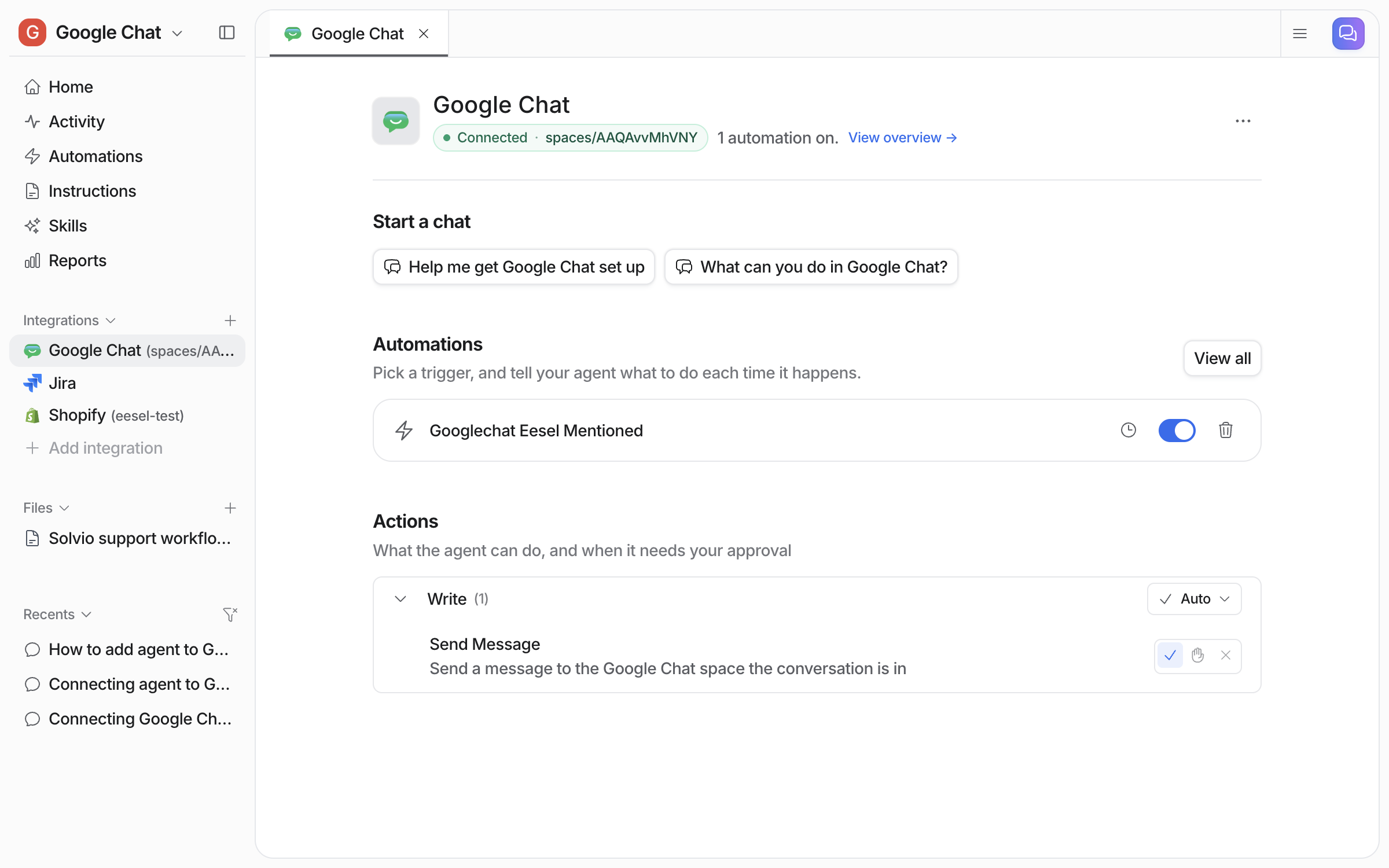
**Check it worked.** **Integrations > Google Chat** in your dashboard shows **Connected** with the space ID, the mention automation switched on, and the **Send Message** action. From a terminal, `eesel status` lists the integration as connected.

<figure><img src="https://3732419023-files.gitbook.io/~/files/v0/b/gitbook-x-prod.appspot.com/o/spaces%2F2xXO0947TYoPIhGoBgSE%2Fuploads%2Fgit-blob-57ff87cdda218491f2cffe7137c6a00fa2814fc5%2Fgoogle-chat-integration-page.png?alt=media" alt="The Google Chat integration page in the eesel dashboard showing Connected with the space ID, the mention automation switched on, and the Send Message action under Write"><figcaption><p>The Google Chat integration page, with the mention automation on.</p></figcaption></figure>
{% endstep %}

{% step %}

### Ask it a question

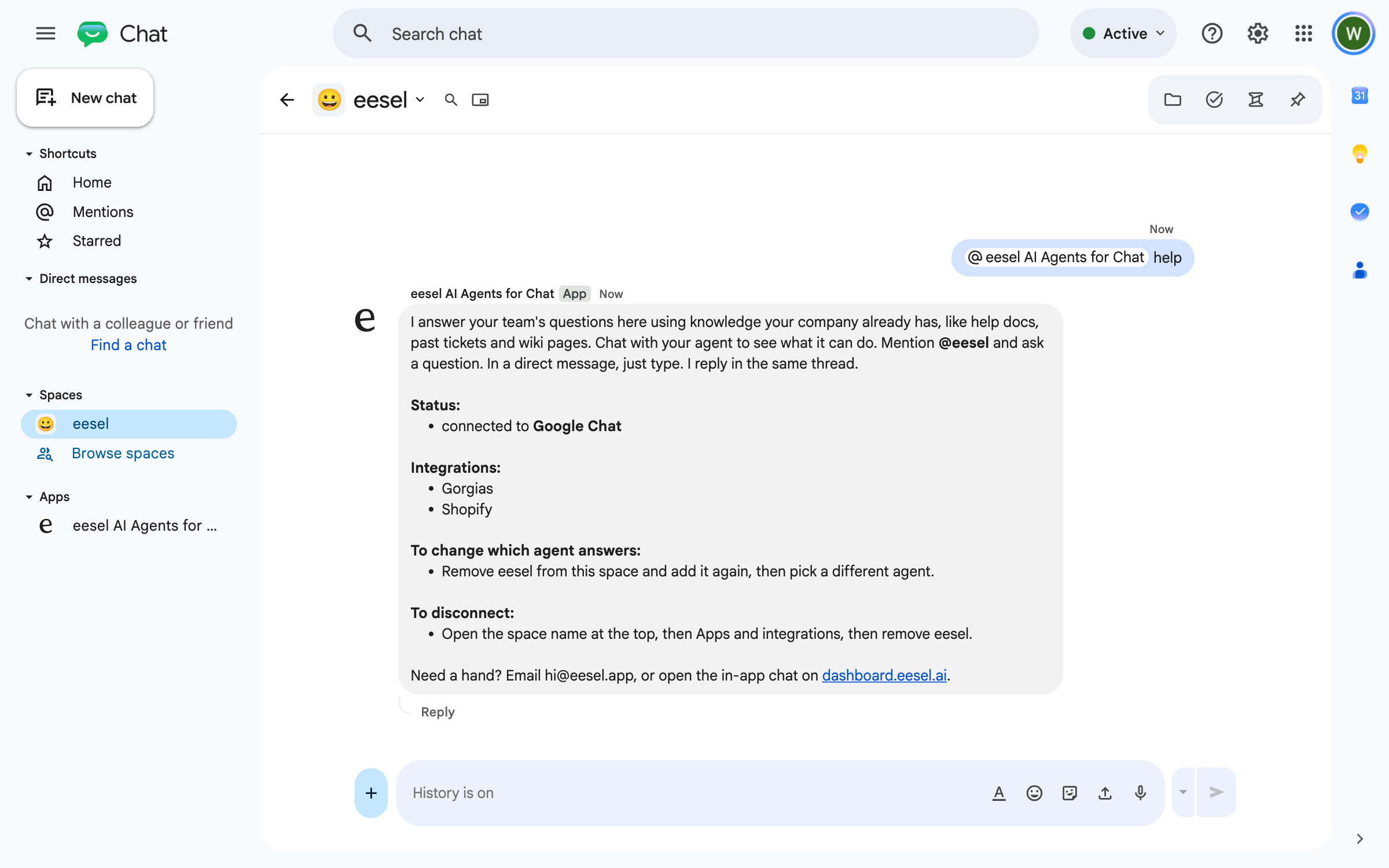
Start with **help**. Type it in the space and eesel replies with which agent answers there, which apps it can use, and how to change or disconnect it.

<figure><img src="https://3732419023-files.gitbook.io/~/files/v0/b/gitbook-x-prod.appspot.com/o/spaces%2F2xXO0947TYoPIhGoBgSE%2Fuploads%2Fgit-blob-f469a0a15640025d184410a4ac230e76ff244c03%2Fgoogle-chat-help.png?alt=media" alt="eesel&#x27;s reply to help in a Google Chat space, listing its status, the connected integrations, how to change which agent answers, and how to disconnect"><figcaption><p>The help reply, showing the connected agent and its integrations.</p></figcaption></figure>

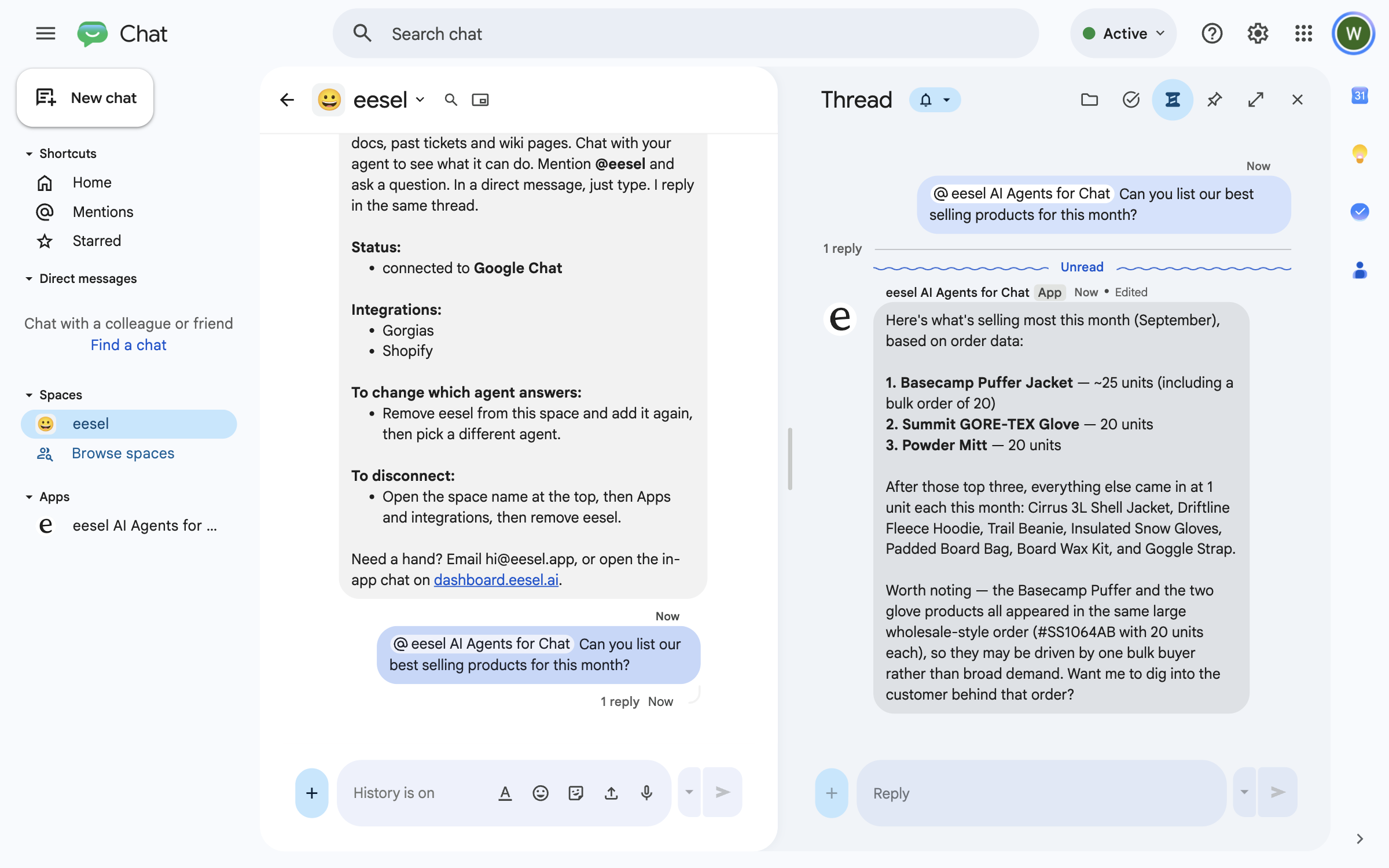
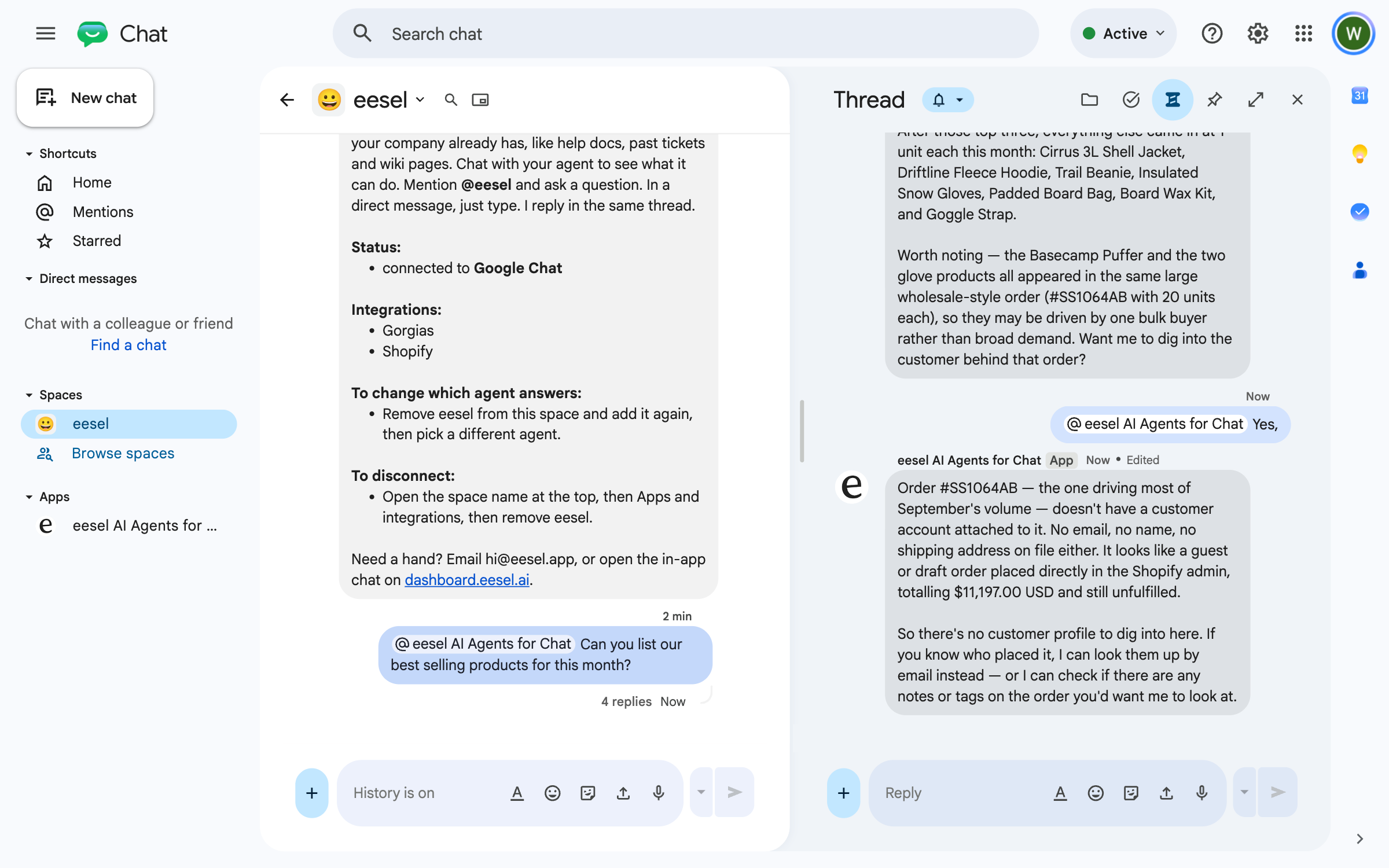
In the space, type @ and pick **eesel AI Agents for Chat** from the list, then ask anything your team would ask a colleague. Typing "@eesel" by hand posts as plain text, and your agent never sees it. It answers in the thread from your knowledge and your connected apps. In a direct message, just type.

<figure><img src="https://3732419023-files.gitbook.io/~/files/v0/b/gitbook-x-prod.appspot.com/o/spaces%2F2xXO0947TYoPIhGoBgSE%2Fuploads%2Fgit-blob-7f57e89157f8e006472ed9324de1781a65ac8fd5%2Fgoogle-chat-question.png?alt=media" alt="A Google Chat thread where a teammate asks eesel for the best selling products this month, and eesel answers with the top three products and unit counts from the connected store"><figcaption><p>A question answered in the thread, with live data from a connected store.</p></figcaption></figure>

Reply in the thread, mentioning it again, and it keeps the context of the conversation.

<figure><img src="https://3732419023-files.gitbook.io/~/files/v0/b/gitbook-x-prod.appspot.com/o/spaces%2F2xXO0947TYoPIhGoBgSE%2Fuploads%2Fgit-blob-8b663f03114bee02d8394df0e0c2c6093469f3bf%2Fgoogle-chat-follow-up.png?alt=media" alt="A Google Chat thread where a teammate replies yes to eesel&#x27;s offer to dig into the order behind the best sellers, and eesel explains the order has no customer account attached"><figcaption><p>A follow-up in the same thread, answered in context.</p></figcaption></figure>

Connecting a space turns on the mention automation, the automation that makes your agent reply when someone mentions it. To tell your agent how to answer in Google Chat, such as which questions to take and how to sign off, ask in the dashboard chat, or edit the automation on your **Automations** page.
{% endstep %}

{% step %}

### Ask it to do work in your other apps

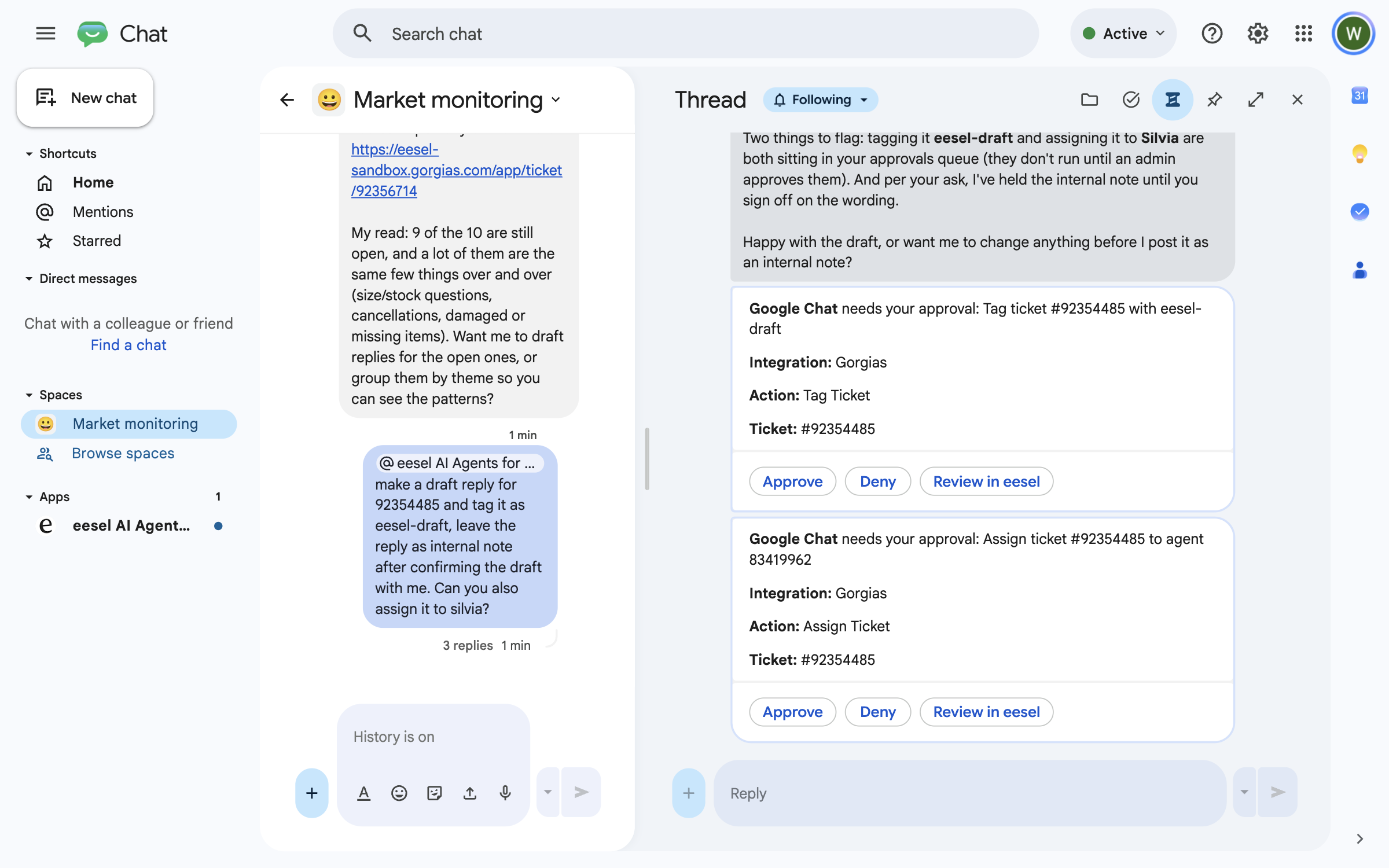
Mention your agent and ask it to work a ticket in a connected helpdesk, such as drafting a reply, tagging the ticket or assigning it. It writes the draft in the thread first, so you can check the wording before anything is posted.

<figure><img src="https://3732419023-files.gitbook.io/~/files/v0/b/gitbook-x-prod.appspot.com/o/spaces%2F2xXO0947TYoPIhGoBgSE%2Fuploads%2Fgit-blob-e9955031a2b6d1199d7baa6c2c9b9136eb0127fd%2Fgoogle-chat-action-draft.png?alt=media" alt="A Google Chat thread where a teammate asks eesel to draft a reply for a Gorgias ticket, tag it eesel-draft and assign it to Silvia, and eesel answers with the drafted reply"><figcaption><p>Your agent drafting a reply for a helpdesk ticket in the thread.</p></figcaption></figure>

If an action needs a person's approval, your agent posts an approval card for it in the same thread. Nothing on that card runs until someone decides it.

<figure><img src="https://3732419023-files.gitbook.io/~/files/v0/b/gitbook-x-prod.appspot.com/o/spaces%2F2xXO0947TYoPIhGoBgSE%2Fuploads%2Fgit-blob-92665679924a9d38717e7adbe639a190e5124891%2Fgoogle-chat-approval-cards.png?alt=media" alt="Two approval cards from eesel in a Google Chat thread, one to tag a Gorgias ticket and one to assign it, each with Approve, Deny and Review in eesel buttons"><figcaption><p>Approval cards for each action, posted in the thread.</p></figcaption></figure>
{% endstep %}

{% step %}

### Approve it in the thread

Click **Approve** or **Deny** on each card. The card then shows who decided it and whether the action runs. **Review in eesel** opens the same action on your **Approvals** page in the dashboard.

Only people with edit rights in your eesel workspace can decide an approval. Anyone else who clicks gets a private message saying so.

<figure><img src="https://3732419023-files.gitbook.io/~/files/v0/b/gitbook-x-prod.appspot.com/o/spaces%2F2xXO0947TYoPIhGoBgSE%2Fuploads%2Fgit-blob-c3b1960e9c80352c00150326183f75ee7eb3d418%2Fgoogle-chat-approval-decided.png?alt=media" alt="The two approval cards in the Google Chat thread after a decision: the tag action approved and running, the assign action denied"><figcaption><p>One action approved and one denied, right in the thread.</p></figcaption></figure>
{% endstep %}

{% step %}

### Check the result in the app

Open the app the action ran in and look at the record. In this example, the drafted reply is on the ticket as an internal note, and the eesel-draft tag is applied.

<figure><img src="https://3732419023-files.gitbook.io/~/files/v0/b/gitbook-x-prod.appspot.com/o/spaces%2F2xXO0947TYoPIhGoBgSE%2Fuploads%2Fgit-blob-b5e0214f30929c9ab1e1680d4aa9fe87edb505bb%2Fgoogle-chat-action-result.png?alt=media" alt="A Gorgias ticket with the reply eesel drafted posted as an internal note, signed Left by eesel AI, and the eesel-draft tag in the ticket details"><figcaption><p>The drafted reply and the tag on the Gorgias ticket.</p></figcaption></figure>
{% endstep %}
{% endstepper %}

{% hint style="info" %}
**From Claude Code, Cursor or a terminal.** Google Chat has no connection to run from the command line, because a person adds eesel from Google Chat's side. `eesel integrations connect google_chat` prints the same steps as above. Give them to the person and wait for the space to be connected. `eesel status` then shows the integration as connected, and `eesel automations` lists the mention automation. To turn it back on after it was paused, with instructions: `eesel automations enable google_chat googlechat_eesel_mentioned --instructions-file <path>`. Full command reference: [The eesel CLI](/apis-and-developer-resources/cli.md). Step-by-step: [Set up from Claude Code or the terminal](/getting-started/set-up-from-a-coding-agent.md). From an MCP client: [Claude Code and MCP clients](/apis-and-developer-resources/claude-code-and-mcp-clients.md).
{% endhint %}

## Sources, triggers and actions

### Sources

Google Chat is a place your agent answers, not a knowledge source it indexes. Nothing in your Google Chat spaces is copied into eesel, and your agent does not read or search a space's history.

Its answers in Google Chat come from what else you have connected. [Google Drive](/integrations/knowledge/google-drive.md), [Confluence](/integrations/knowledge/confluence.md) and [Notion](/integrations/knowledge/notion.md) are usually where the answers live. Your help center, website or past tickets help if your team asks what customers ask. See [Integrations](/integrations/overview.md).

Your agent reads the text of each message. It does not read images or files attached to a message.

### Triggers

Triggers are the Google Chat events an automation can run on:

| Trigger                                 | Fires when                                                           | Best for                      | Key                          |
| --------------------------------------- | -------------------------------------------------------------------- | ----------------------------- | ---------------------------- |
| **When @eesel is mentioned in a space** | Someone mentions eesel in a connected space, or messages it directly | Answering questions on demand | `googlechat_eesel_mentioned` |

Google Chat has one trigger. Connecting a space switches it on. You can add instructions to it, such as which questions to take and how to answer, and pause it from your **Automations** page. While it is paused your agent is silent in Google Chat.

In a space, a message reaches your agent only when it mentions the app, including replies in a thread. The thread keeps the conversation, so a reply like "yes, do that" is understood. In a direct message, every message reaches it with no mention.

### Actions

Actions are what it can do:

|             | Action       | What it does                                                                                                             |
| ----------- | ------------ | ------------------------------------------------------------------------------------------------------------------------ |
| **Respond** | Send Message | Sends a message to the connected space, in the same thread or a new one. It cannot post to a space that is not connected |

Its answers in the thread need no action. The work it does in your other apps comes from their own actions, such as the [Shopify](/integrations/e-commerce/shopify.md) or [Gorgias](/integrations/helpdesks/gorgias.md) actions, with their own approval settings.

You stay in control the whole way. Adjust your AI agent's access to knowledge and its action permissions to your liking. See [Actions and Approvals](/instructions-and-memory/actions-and-approvals.md).

{% hint style="info" %}
**People outside your eesel workspace.** Anyone in the space can mention your agent and get an answer from your knowledge. Only people whose Google email matches a member of your eesel workspace can have it change its settings or save notes and preferences for them. Everyone else gets answers only.
{% endhint %}

## Limitations

* **It only answers where it has been added.** A person adds it to each space, or starts a direct message with it.
* **Nothing from Google Chat is indexed.** It does not search or read a space's history. Its answers come from your other connected sources.
* **Mention it in every space message.** In a space, including in a thread, it only sees messages that mention **eesel AI Agents for Chat**, picked from the @ list.
* **Direct messages do not carry context.** A direct message has no threads, so each message is answered on its own. For a longer back-and-forth, use a thread in a space.
* **Text only.** It does not read images or files attached to a message.
* **One space, one eesel workspace.** A space connected to one eesel workspace cannot be connected to another until it is disconnected there.
* **English system messages.** eesel's own messages, such as the hello and **help** replies, are in English. Your agent's answers follow your instructions.

## Troubleshooting

<details>

<summary>eesel does not reply to a mention?</summary>

Check the space is connected: type **help** in the space. If it posts a **Connect this space** card, the space is not connected yet. Check your **Automations** page shows the mention automation on and not paused. If the automation has instructions, check they cover the question. Type @ and pick **eesel AI Agents for Chat** from the list. Typing "@eesel" by hand posts as plain text, so Google Chat never sends it to your agent. Then open the **Activity** page in your dashboard, where every Google Chat run appears.

</details>

<details>

<summary>The connect link says it expired or was already used?</summary>

A connect link lasts one hour and works once. Type **connect** in the space and eesel posts a fresh one.

</details>

<details>

<summary>"You don't have edit access to this agent's workspace"?</summary>

Only people with edit rights in your eesel workspace can connect a space. Ask a workspace admin to connect it, or to give you edit rights.

</details>

<details>

<summary>"This Google Chat space is already connected to a different eesel workspace"?</summary>

A space answers to one eesel workspace. Remove eesel from the space in Google Chat, which disconnects it everywhere, then add it again and connect it from your workspace.

</details>

<details>

<summary>"This space is connected, but no agent is set to answer here right now"?</summary>

The mention automation for this space is paused or was deleted. Turn it back on from your **Automations** page, or ask in the dashboard chat.

</details>

<details>

<summary>You can't find eesel under Add apps?</summary>

Search for **eesel**; the app is called **eesel AI Agents for Chat**. If it does not appear, your Google Workspace admin may limit which Chat apps people can add. Ask them to allow it in the Google Admin console.

</details>

## FAQ

<details>

<summary>How do I add an AI agent to Google Chat?</summary>

Open a Google Chat space, click the space name, then **Apps & integrations > Add apps**, and add **eesel AI Agents for Chat**. eesel posts a **Connect this space** card. Open it, pick your agent and confirm. Your team can then @mention it in the space. The steps are in [Set up eesel in Google Chat](#set-up-eesel-in-google-chat), with every screen on [Set up Google Chat](/integrations/communication/google-chat/google-chat-setup.md).

</details>

<details>

<summary>Do I need to connect anything in the eesel dashboard first?</summary>

No. There is no connect button or permission screen in the dashboard. You add eesel from Google Chat, and the **Connect this space** card opens a short eesel page where you sign in once and pick the agent.

</details>

<details>

<summary>Can the Google Chat bot answer without being mentioned?</summary>

In a direct message, yes: every message reaches it. In a space, it only sees messages that mention the app, including replies in a thread.

</details>

<details>

<summary>Can I add eesel to several Google Chat spaces?</summary>

Yes. Add it to each space and connect each one. Different spaces can point at different agents, so each team can have its own.

</details>

<details>

<summary>How do I change which agent answers in a space?</summary>

Remove eesel from the space and add it again, then pick a different agent on the connect page. The **help** reply in the space says the same.

</details>

<details>

<summary>Can I use the Google Chat AI bot for support?</summary>

Yes, for your own team, including your support agents. Your customers are not in your Google Chat, so for them use a [helpdesk](/integrations/helpdesks.md) or the [chat bubble](/integrations/chat-surfaces/chat-bubble.md). In Google Chat it answers your team's questions from your help center, docs and past tickets, and from the same thread it can look up tickets or orders and draft replies in your connected helpdesk or store. See [Internal operations](/use-cases/internal-operations.md) and [Helpdesk](/use-cases/helpdesk.md).

</details>

<details>

<summary>Does eesel read my Google Chat messages?</summary>

Only the messages sent to it: mentions in a space, and direct messages. Nothing is copied into eesel as knowledge, and it does not search a space's history.

</details>

<details>

<summary>Can I connect Google Chat to Claude or ChatGPT?</summary>

Yes, through eesel. Once a space is connected, you can talk to the same eesel agent from Claude, ChatGPT or Cursor, and it works with the same knowledge and apps. See [Use eesel from Claude and other assistants](/apis-and-developer-resources/use-eesel-from-claude-and-other-assistants.md), [Use eesel from ChatGPT](/apis-and-developer-resources/use-eesel-from-chatgpt.md) and [Claude Code and MCP clients](/apis-and-developer-resources/claude-code-and-mcp-clients.md).

</details>

<details>

<summary>How do I disconnect Google Chat from eesel?</summary>

In the space, click the space name, then **Apps & integrations**, and remove eesel. That disconnects the space from your agent.

</details>

## Related pages

* [Set up Google Chat](/integrations/communication/google-chat/google-chat-setup.md) for every screen of adding eesel to a space
* [Internal operations](/use-cases/internal-operations.md) for the job your agent does for your team
* [Slack](/integrations/communication/slack.md) and [Microsoft Teams](/integrations/communication/microsoft-teams.md) for the other team chat apps
* [Actions and Approvals](/instructions-and-memory/actions-and-approvals.md) for choosing what your agent may do
* [Integrations overview](/integrations/overview.md) for how sources, triggers and actions fit together
* [Set up from Claude Code or the terminal](/getting-started/set-up-from-a-coding-agent.md)


---

# Agent Instructions
This documentation is published with GitBook. GitBook is the documentation platform designed so that both humans and AI agents can read, navigate, and reason over technical content effectively. Learn more at gitbook.com.

## Querying This Documentation
If you need additional information that is not directly available in this page, you can query the documentation by asking a question.

Perform an HTTP GET request on the following URL with the `ask` and `goal` query parameters:

```
GET https://docs.eesel.ai/integrations/communication/google-chat.md?ask=<question>&goal=<user_goal>
```

`ask` is the immediate question: it should be specific, self-contained, and written in natural language.
`goal` is what the user is ultimately trying to achieve, the reason they need the answer. Sharing it helps GitBook give you a better, more relevant answer. A goal is most helpful when it describes the outcome the user wants rather than restating the question. For example, with `ask=how do I create an API token`, a goal like `automate deployments from our CI pipeline` lets GitBook tailor the answer to that use case.

The response will contain a direct answer to the question and relevant excerpts and sources from the documentation.

Use this mechanism when the answer is not explicitly present in the current page, you need clarification or additional context, or you want to retrieve related documentation sections.