Set up Google Chat
How to add an AI bot to Google Chat: install the eesel app in a space and connect it to an agent.
Setting up Google Chat for your AI agent takes a few clicks in Google Chat and one page in eesel. This page walks through it screen by screen. You add the eesel app to a space, and eesel posts a card that links the space to one of your agents. You do it once per space. For what your teammate does once it is in, see the Google Chat overview.
Before you begin
You need a Google Workspace account with Google Chat, and a space you can add apps to.
You need edit rights in your eesel workspace, since the person who connects the space picks the agent.
If your Google Workspace admin limits which Chat apps people can add, ask them to allow eesel AI Agents for Chat first.
Walkthrough
Open the space's menu
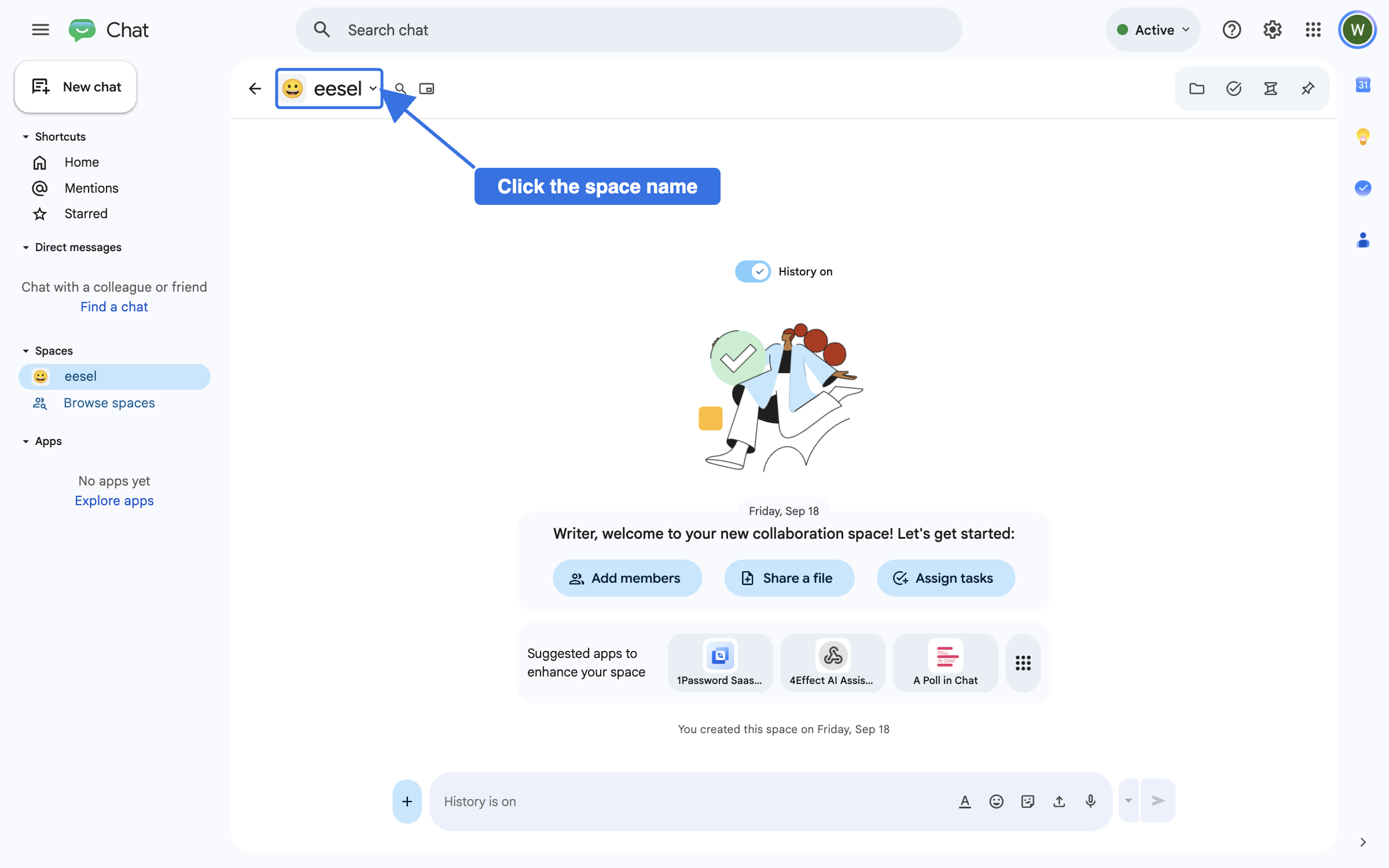
Open Google Chat and go to the space you want your agent in. Click the space name at the top.

Choose Apps & integrations.

For a direct message instead of a space, click New chat, search for eesel and start the chat. eesel posts the same connect card in the direct message, so skip to Connect the space to an agent.
Add the eesel app
Click Add apps.

Search for eesel, select eesel AI Agents for Chat, and click Add.

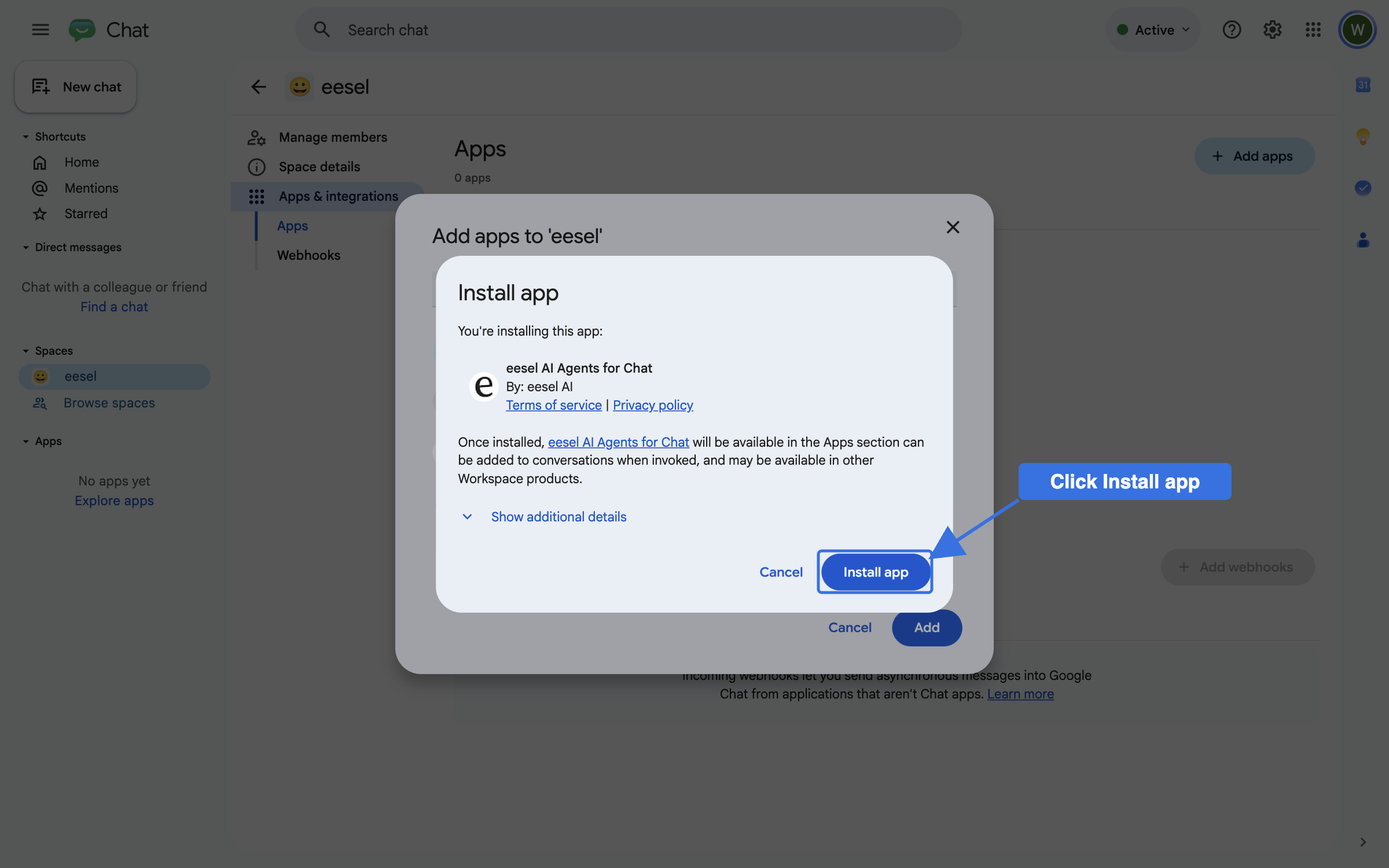
Google asks you to confirm the install. Click Install app.

The app now shows in the space's app list.

Connect the space to an agent
Go back to the conversation. eesel has posted a short hello and a Connect this space to eesel card. Click Connect this space.

A page opens in the eesel dashboard. Sign in if you are asked, and you come straight back to it. It shows which eesel workspace the space connects to. Pick the agent that should answer here, then click Connect this space.

The link lasts one hour and works once. If it has expired, type connect in the space and eesel posts a fresh one.
Check the space is connected
The page says Space connected.

Back in Google Chat, eesel posts which agent now answers in the space.

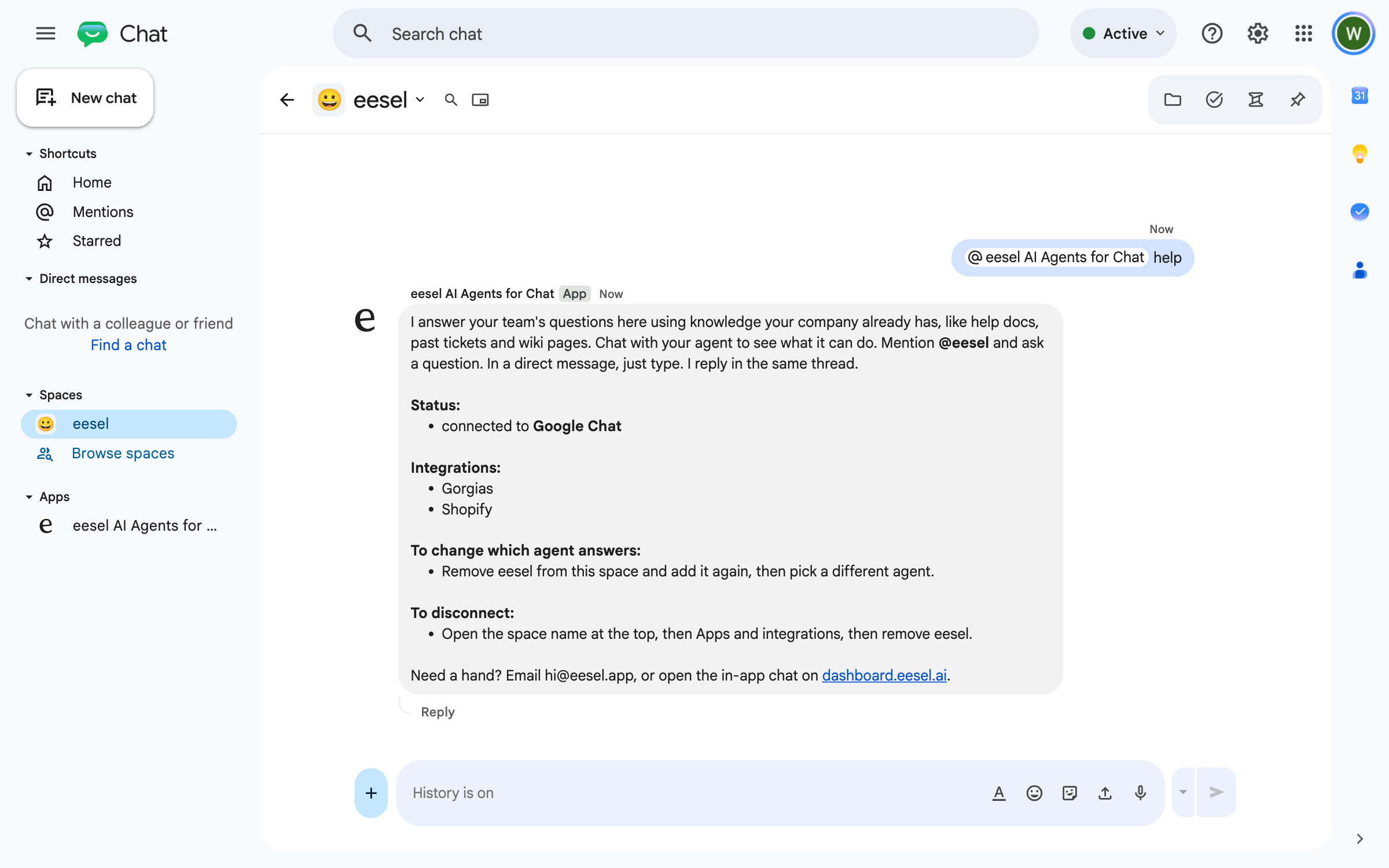
Check it worked. Type help in the space. eesel replies with the agent's status, the apps it can use, and how to change or disconnect it. In your dashboard, Integrations > Google Chat shows Connected, with the mention automation switched on.

Ask your first question
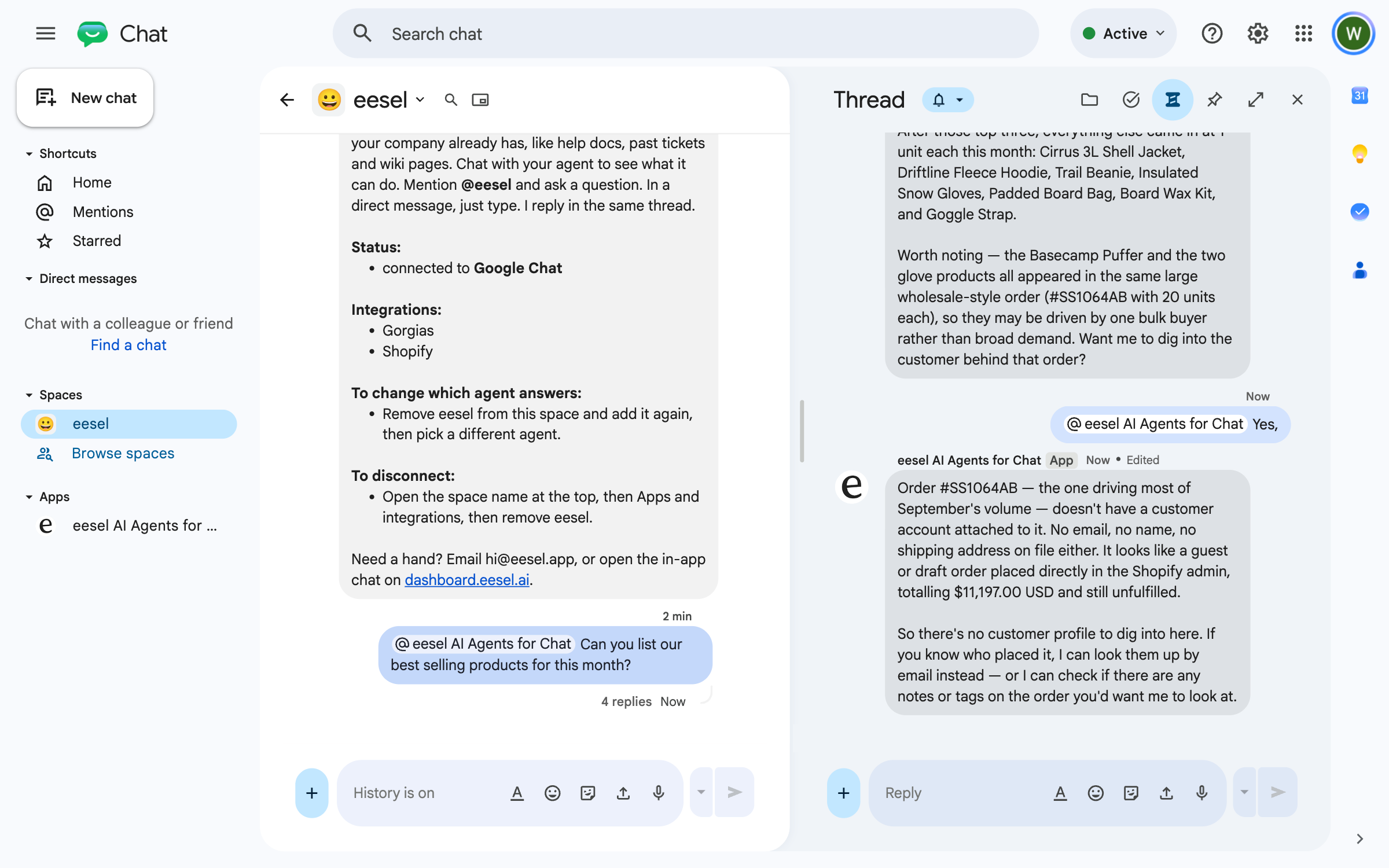
Type @ and pick eesel AI Agents for Chat from the list, then ask a question. Typing "@eesel" by hand posts as plain text and does not reach it. It answers in a thread. Keep replying in that thread, mentioning it each time, and it keeps the context.

To shape how it answers in Google Chat, ask in the dashboard chat or edit the mention automation on your Automations page. To have it work in your other apps from the thread, see the Google Chat overview.
Several spaces and agents
Repeat these steps for each space. Each space is connected on its own, so different spaces can point at different agents. A support space can use your support agent while a sales space uses another.
To move a space to a different agent, remove eesel from the space and add it again, then pick the new agent.
Troubleshooting
FAQ
Related pages
Google Chat for what your teammate does in Google Chat, and the full action list
Internal operations for the job your agent does for your team
Actions and Approvals for choosing what your agent may do
Integrations overview for how sources, triggers and actions fit together
Last updated