> For the complete documentation index, see [llms.txt](https://docs.eesel.ai/llms.txt). Markdown versions of documentation pages are available by appending `.md` to page URLs; this page is available as [Markdown](https://docs.eesel.ai/integrations/communication/microsoft-teams.md).
# Microsoft Teams
Set up an AI agent for Microsoft Teams. The Teams chatbot answers @mentions, direct messages and follow-ups in threads, from your knowledge, and can read and search your channels when asked.
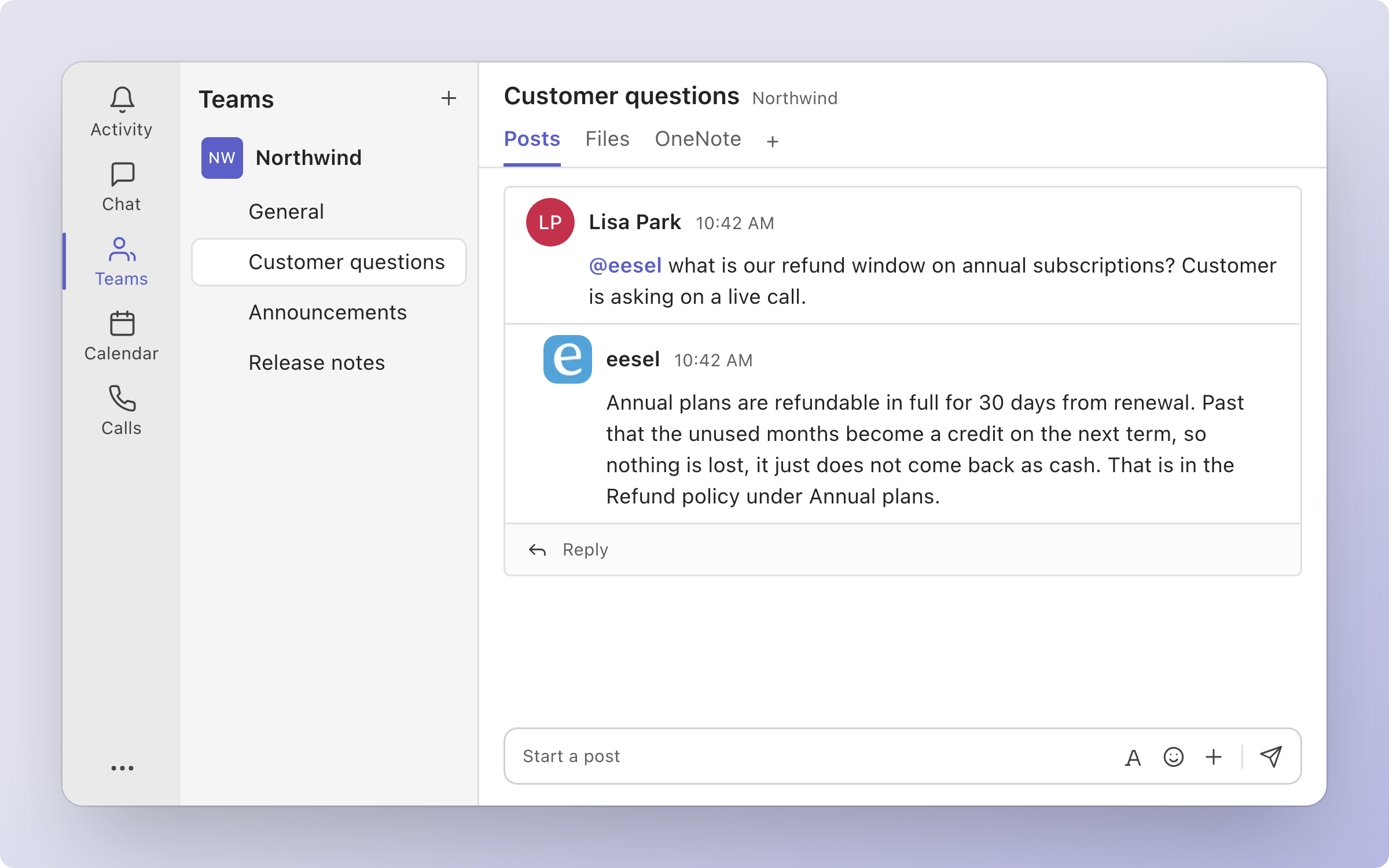
eesel's AI agent for Microsoft Teams is a Teams chatbot your team @mentions in a channel or messages directly. It answers from the knowledge you have connected, reads the conversation before it answers, and can read and search your channels when someone asks. It is not Microsoft Copilot, Microsoft's own AI assistant in Teams.
Your agent answers in the Teams channel your team already uses, from the knowledge you have connected.
## Set up eesel in Microsoft Teams
eesel is not listed in the Microsoft Teams store yet, so setup takes three steps:
1. **Download the Teams package.** In eesel, open **Integrations > Microsoft Teams** on your agent and download the eesel package.
2. **A Teams admin uploads it** in the Teams admin center, under **Teams apps > Manage apps > Upload new app**. Microsoft needs no approval for this, and the app appears for the organization within a few hours.
3. **Add eesel in Teams.** In Teams, go to **Apps**, search for eesel and click **Add**. eesel then messages whoever added it with a link to pick which agent should answer.
When adding the app, Teams asks whether eesel may read messages in the teams and chats it is added to. Approve it: that is what lets eesel follow a thread without a mention, read a thread before answering, and read and search channels. Without it, eesel only answers when someone @mentions it or messages it directly.
After that, add the eesel app to the teams and channels where your people ask questions. A person has to add it, since it cannot join a team on its own. This works before or after you pick the agent.
Whoever picks the agent from eesel's link needs an eesel account. eesel recognizes people by their Teams email, so invite teammates to your eesel workspace with the email they use in Teams.
## What your agent does in Teams
**It answers when it is asked.** @mention eesel in a channel or group chat it has been added to, or send it a direct message. In a channel it replies "On it" straight away and edits that message into the answer when it is ready.
**It keeps answering in a thread.** Once eesel has been mentioned in a channel thread, or has posted there, people can keep replying without a mention. It answers when a message is for it and stays quiet when people are talking among themselves. A group chat always needs a mention.
**It reads the conversation first.** Before it answers in a channel thread or group chat, it reads the recent messages there, including ones that did not mention it. In a channel thread that is the first message and up to the last 100 replies. In a group chat it is the last 30 messages from the past week. Very long messages and threads are shortened.
If Teams can't be read at that moment, for example because reading messages wasn't approved or Teams is slow, eesel only has the messages that reached it directly. When someone refers to something it can't see, it says so instead of guessing.
**It reads and searches channels when asked.** It can read a channel's recent posts and search recent messages. Beyond the conversation it was asked in, this only covers channels eesel has been added to, in teams the person asking is a member of. Private and shared channels count only if that person is also in your eesel workspace. If eesel can't tell who is asking, it searches nothing and only reads the conversation it was asked in.
**It sees pasted images.** A screenshot pasted into the message comes with the question.
**It can post on its own.** It can start a new post in a channel or message a person directly, for example a daily summary from a scheduled automation.
| Trigger | Fires when | Key |
| ------------------------------------- | -------------------------------------------------------------------------------------------------------------------------------- | --------------------------------- |
| **When @eesel is mentioned in Teams** | Someone @mentions eesel in a channel or group chat, sends it a direct message, or replies in a channel thread eesel is following | `microsoft_teams_eesel_mentioned` |
| Action | What it does |
| --------------------- | ---------------------------------------------------------------------------------------- |
| **Send Message** | Replies in a conversation, starts a new post in a channel, or messages a person directly |
| **Look up person** | Finds someone by name or email among the members of the teams eesel is in |
| **List channels** | Lists the channels of the teams eesel is in |
| **Read conversation** | Reads a channel thread or group chat, including messages that did not mention eesel |
| **Read channel** | Reads a channel's recent posts and their replies, from the last 30 days by default |
| **Search messages** | Searches recent messages in the channels the person asking is a member of |
You stay in control the whole way. Adjust your AI agent's access to knowledge and its action permissions to your liking. See [Actions and Approvals](/instructions-and-memory/actions-and-approvals.md).
## Approve actions from Teams
When an action is set to ask first, eesel posts an approval card in the Teams thread or chat that asked, with **Approve**, **Deny** and **Review in eesel**. Only editors of your eesel workspace can decide from the card, matched by their Teams email. Anyone else gets a message only they can see. Once decided, here or in the eesel dashboard, the card shows who decided and what happened, and its buttons go away.
## Who can do what from Teams
Editors of your eesel workspace can change the agent's setup by asking it in Teams, the same as in the dashboard: its instructions, automations and integrations. Viewers can ask questions but their setup changes are refused. Someone who is not in the eesel workspace is told who to ask for an invite.
## Several agents in one organization
You can connect more than one agent to your company's Teams (its Microsoft 365 organization). Connecting Teams on a second agent adds it beside the first.
* **Limit an agent to some channels.** The agent's **When @eesel is mentioned in Teams** automation has a **Channels** field. Leave it empty to answer everywhere. An agent limited to channels does not answer direct messages or group chats. You can also ask the agent in chat to limit itself to channels.
* **When a mention could go to more than one agent**, eesel picks the one that fits. If it can't tell, it asks which one, and the person who asked replies with the agent's name.
* **Name an agent yourself** by writing `agent="Name"` in the message you send eesel. The name only reaches an agent that answers in that channel.
* **A thread keeps the agent that answered it first**, unless a mention names another one with `agent="Name"`.
## Limitations
* **Not in the Microsoft Teams store yet.** A Teams admin has to upload the app, and it can take a few hours before eesel appears in Teams.
* **It only works where it has been added.** A person adds the app to a team, and a channel owner adds it to a private or shared channel.
* **Reading needs the permission approved.** If nobody approved reading messages when adding eesel, it answers mentions and direct messages only, doesn't follow threads, and only knows the messages that reached it directly.
* **No organization-wide directory search.** Looking someone up covers the members of the teams eesel is in.
* **One eesel workspace per organization.** Connecting the same Microsoft 365 organization from a second eesel workspace moves it there, and the first workspace's Teams connection is removed.
## Troubleshooting
eesel says it's connected but doesn't answer?
Your organization is connected, but no agent is set to answer in Teams. In eesel, open **Integrations > Microsoft Teams** on the agent you want and click **Add**.
eesel can't read a private channel?
eesel has to be added to a private or shared channel separately. A channel owner opens the channel's **Manage channel > Apps** and adds eesel.
## FAQ
How do I add an AI agent to Microsoft Teams?
Download the eesel package from **Integrations > Microsoft Teams** in eesel, have a Teams admin upload it in the Teams admin center, then add eesel from **Apps** in Teams and pick your agent from the link it sends you. The steps are in [Set up eesel in Microsoft Teams](#set-up-eesel-in-microsoft-teams).
Is the Microsoft Teams AI agent available to everyone?
Yes. Every eesel workspace can connect Microsoft Teams. Until eesel is in the Microsoft Teams store, a Teams admin uploads the app for your organization.
Can the Microsoft Teams AI agent auto reply to messages?
Yes. It replies when someone @mentions it or sends it a direct message, and keeps replying in a channel thread it is part of without another mention, staying quiet when people are talking among themselves. It does not reply to new channel posts that don't mention it, and a group chat always needs a mention.
Does the Microsoft Teams AI agent read our channel history?
When asked, and only in the teams and chats it has been added to. It reads a thread or group chat before answering, and can read a channel's recent posts or search recent messages. Beyond the conversation it was asked in, it only reads and searches channels the person asking is a member of, and private or shared channels only if that person is also in your eesel workspace. It does not copy your Teams messages into its knowledge.
Can I connect Microsoft Teams to ChatGPT or Claude?
Yes, through eesel. You can talk to the same eesel agent from ChatGPT, Claude or Cursor. See [Use eesel from ChatGPT](/apis-and-developer-resources/use-eesel-from-chatgpt.md), [Use eesel from Claude and other assistants](/apis-and-developer-resources/use-eesel-from-claude-and-other-assistants.md) and [Claude Code and MCP clients](/apis-and-developer-resources/claude-code-and-mcp-clients.md).
How long does Microsoft Teams setup take?
Mostly the wait for Microsoft. After a Teams admin uploads the eesel package, it can take a few hours before the app appears for your organization. Adding it in Teams and picking your agent then takes a couple of clicks.
## Related pages
* [Slack](/integrations/communication/slack.md) for the same workflow in Slack
* [Internal operations](/use-cases/internal-operations.md) for the job your agent does for your team
* [Actions and Approvals](/instructions-and-memory/actions-and-approvals.md) for choosing what your agent may do
* [Integrations overview](/integrations/overview.md) for how sources, triggers and actions fit together
---
# Agent Instructions
This documentation is published with GitBook. GitBook is the documentation platform designed so that both humans and AI agents can read, navigate, and reason over technical content effectively. Learn more at gitbook.com.
## Querying This Documentation
If you need additional information that is not directly available in this page, you can query the documentation by asking a question.
Perform an HTTP GET request on the following URL with the `ask` and `goal` query parameters:
```
GET https://docs.eesel.ai/integrations/communication/microsoft-teams.md?ask=&goal=
```
`ask` is the immediate question: it should be specific, self-contained, and written in natural language.
`goal` is what the user is ultimately trying to achieve, the reason they need the answer. Sharing it helps GitBook give you a better, more relevant answer. A goal is most helpful when it describes the outcome the user wants rather than restating the question. For example, with `ask=how do I create an API token`, a goal like `automate deployments from our CI pipeline` lets GitBook tailor the answer to that use case.
The response will contain a direct answer to the question and relevant excerpts and sources from the documentation.
Use this mechanism when the answer is not explicitly present in the current page, you need clarification or additional context, or you want to retrieve related documentation sections.