> For the complete documentation index, see [llms.txt](https://docs.eesel.ai/llms.txt). Markdown versions of documentation pages are available by appending `.md` to page URLs; this page is available as [Markdown](https://docs.eesel.ai/integrations/communication/slack.md).

# Slack

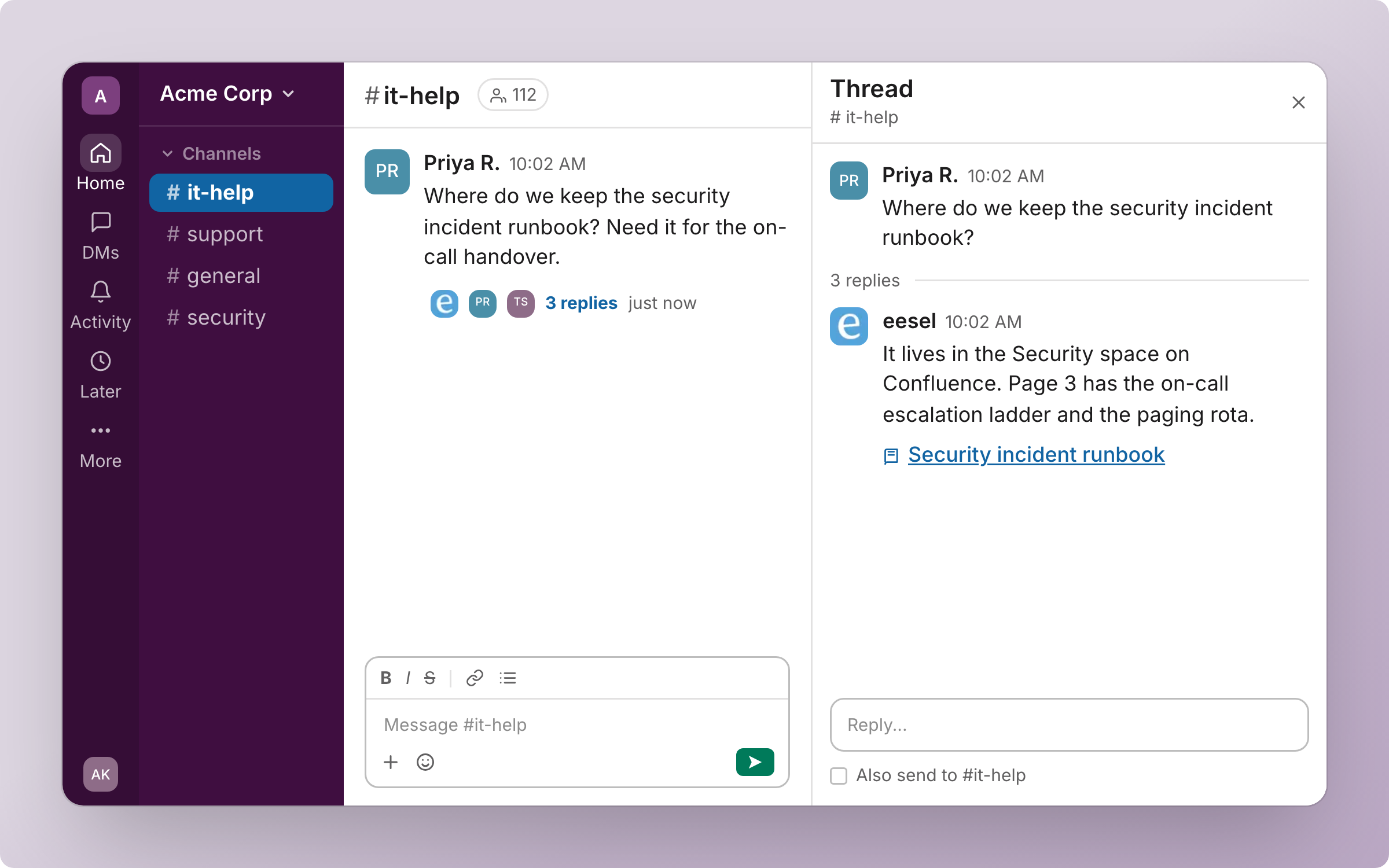
Invite your AI teammate into Slack so it answers questions in the thread with a link to the source, keeps answering follow-ups, and does work in your other apps from there.

Invite your AI teammate into Slack and it answers questions in the thread from your knowledge, with a link to the source. It keeps answering follow-ups in that thread without being mentioned again. From the same thread it also does work in your other integrations, such as looking things up and drafting replies.

You stay in control the whole way. Nothing runs until you create an automation. For each action you then choose: run on its own, ask you first, or stay off.

<figure><img src="https://3732419023-files.gitbook.io/~/files/v0/b/gitbook-x-prod.appspot.com/o/spaces%2F2xXO0947TYoPIhGoBgSE%2Fuploads%2Fgit-blob-3b1c450fb5e1cf0f0989c78362ebd3b1df2fff5f%2Fslack-hero.png?alt=media" alt="A Slack thread in #it-help where a teammate asks where the security incident runbook lives, and eesel answers in the thread with a link to the runbook"><figcaption><p>Your agent answering a question in a Slack thread, with a link to the source.</p></figcaption></figure>

## Quick start

{% stepper %}
{% step %}

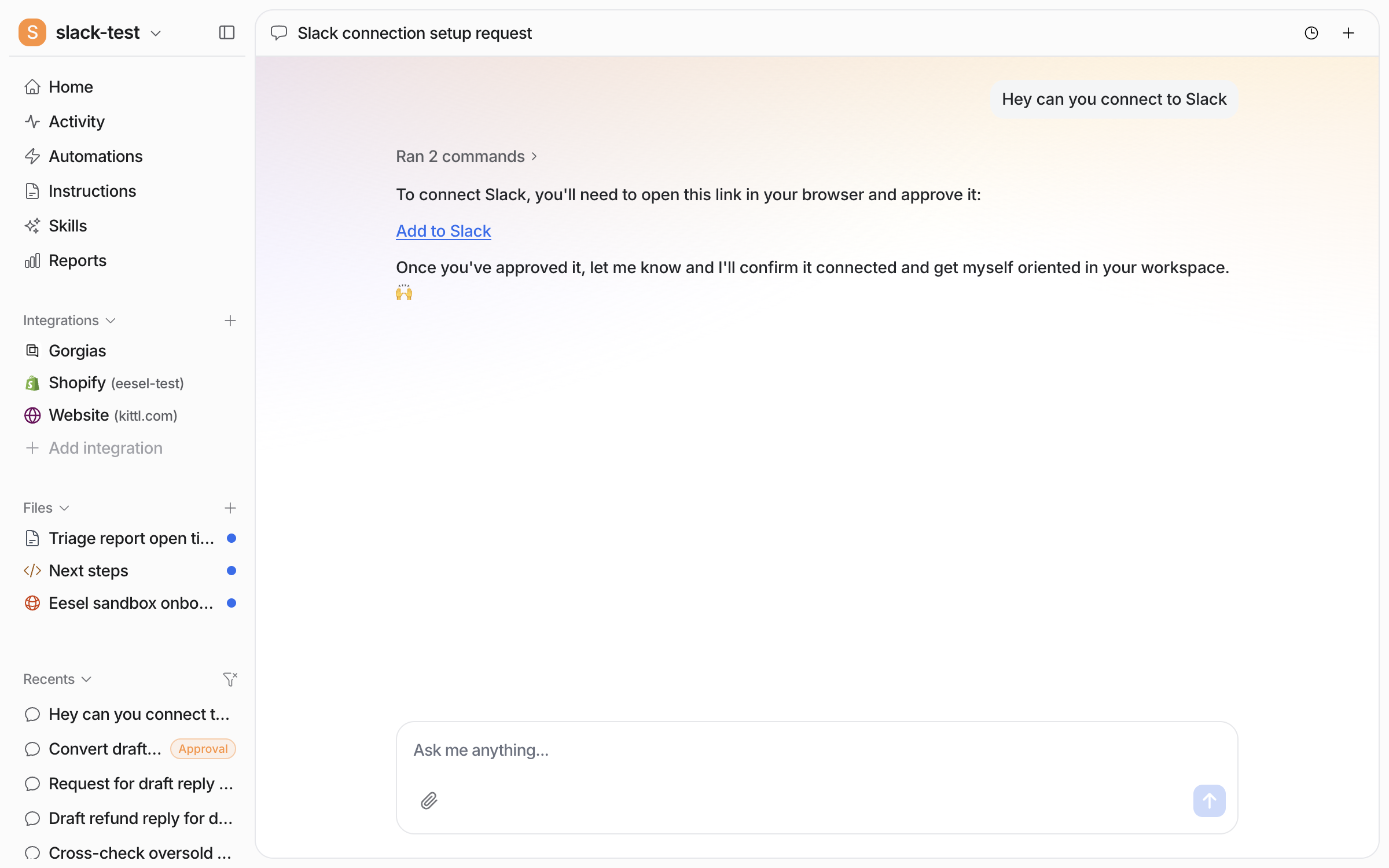
### Ask your agent to connect Slack

Open the chat in your dashboard and ask it to connect Slack. It posts an **Add to Slack** link for you to open and approve in the browser. It then waits for you to say it is done. Prefer to click? **Integrations > Slack** has the same **Connect** button.

<figure><img src="https://3732419023-files.gitbook.io/~/files/v0/b/gitbook-x-prod.appspot.com/o/spaces%2F2xXO0947TYoPIhGoBgSE%2Fuploads%2Fgit-blob-c04a1cc36dbc7243c0b546eeb85ef3826f94ce63%2Fslack-connect-chat.png?alt=media" alt="The dashboard chat where the user asks to connect Slack and the agent posts an Add to Slack link to open and approve in the browser"><figcaption><p>The agent posts the Add to Slack link in the chat.</p></figcaption></figure>
{% endstep %}

{% step %}

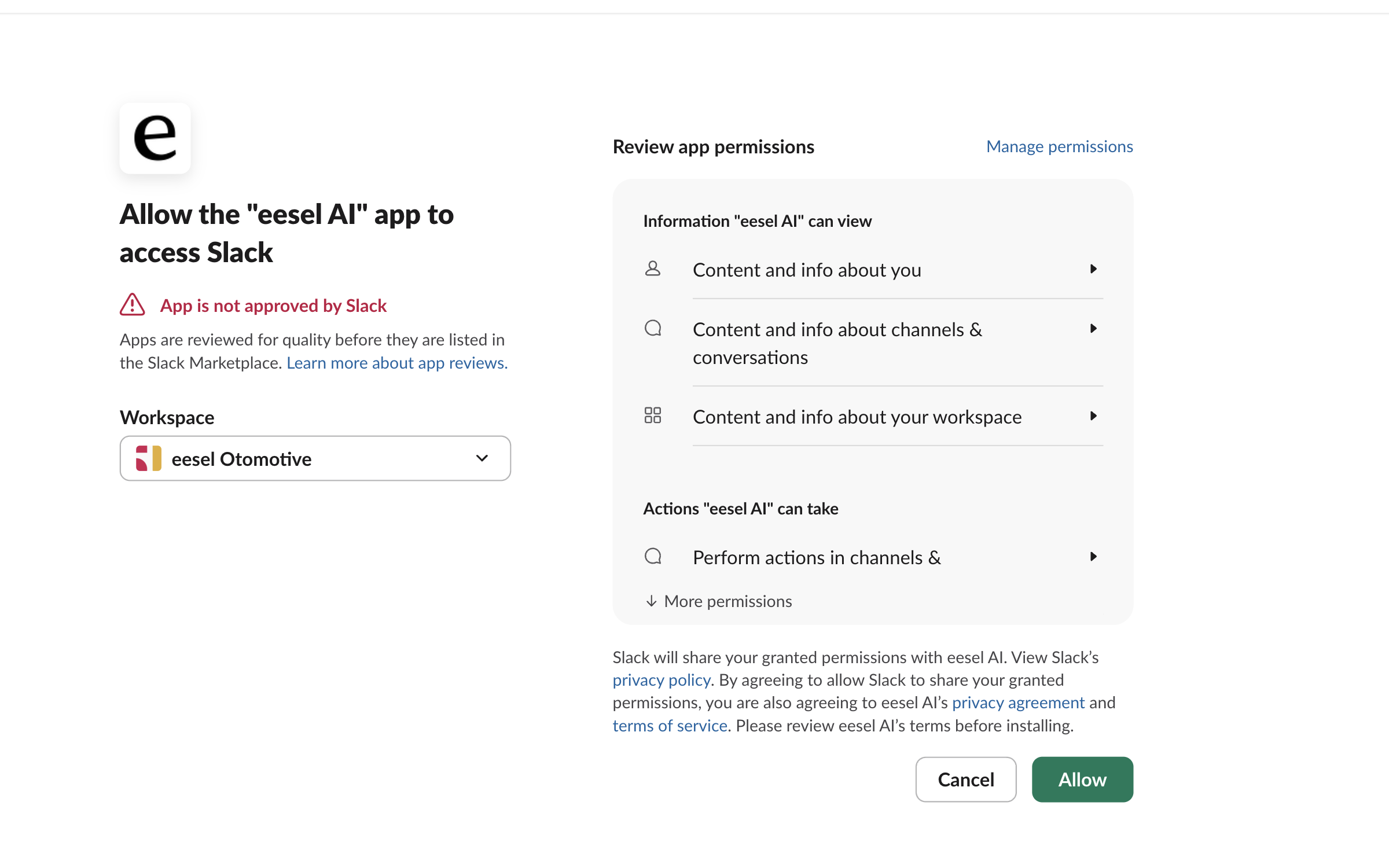
### Approve it in Slack

The link opens Slack's own permission screen. Pick the workspace, read the list of what the app can view and do, and click **Allow**.

Slack shows a notice saying the app is not approved by Slack. That is because eesel is not listed in the Slack Marketplace. It is not an error and it does not limit what the app can do.

<figure><img src="https://3732419023-files.gitbook.io/~/files/v0/b/gitbook-x-prod.appspot.com/o/spaces%2F2xXO0947TYoPIhGoBgSE%2Fuploads%2Fgit-blob-7ad344df7886604f9c2e9a1c711d0e9330ce09be%2Fslack-oauth-approve.png?alt=media" alt="Slack&#x27;s permission screen asking to allow the eesel AI app to access Slack, with a not-approved-by-Slack notice, a workspace picker, the permission list and an Allow button"><figcaption><p>Slack's permission screen, with the workspace picker and the permission list.</p></figcaption></figure>

A person approves this in the browser.
{% endstep %}

{% step %}

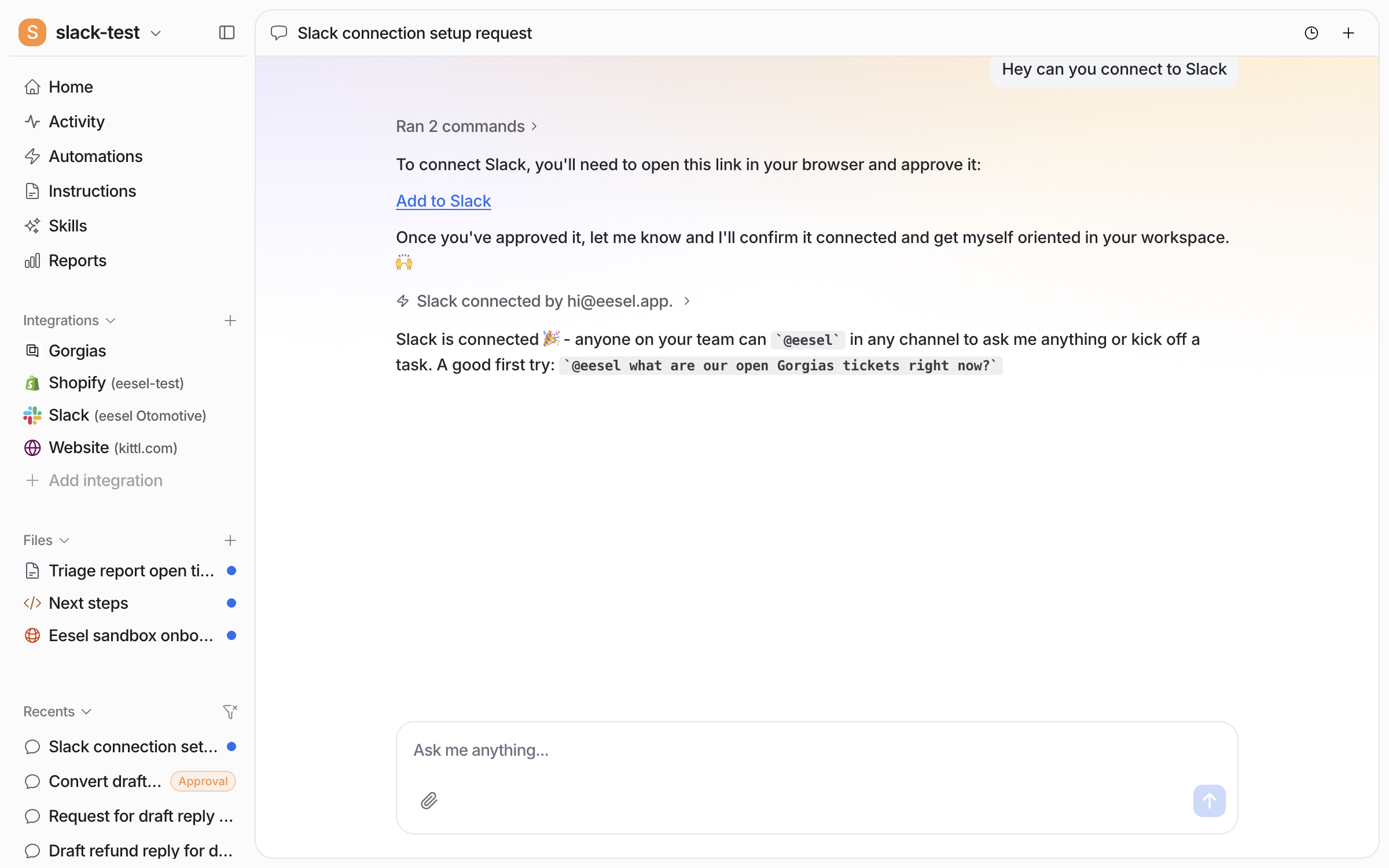
### Confirm the connection

Tell your agent in the chat that you approved it. It confirms the connection, names the person who approved it, and says how to reach it in Slack.

<figure><img src="https://3732419023-files.gitbook.io/~/files/v0/b/gitbook-x-prod.appspot.com/o/spaces%2F2xXO0947TYoPIhGoBgSE%2Fuploads%2Fgit-blob-ee797f6ff2c91ddf1d69f092894c01dbb9b77df1%2Fslack-connected-chat.png?alt=media" alt="The dashboard chat confirming Slack is connected by the person who approved it, with the agent explaining that anyone can mention it in any channel and suggesting a first question"><figcaption><p>The chat confirming Slack is connected.</p></figcaption></figure>

**Check it worked.** The left sidebar now lists Slack with your workspace name. From a terminal, `eesel status` lists the integration as connected.
{% endstep %}

{% step %}

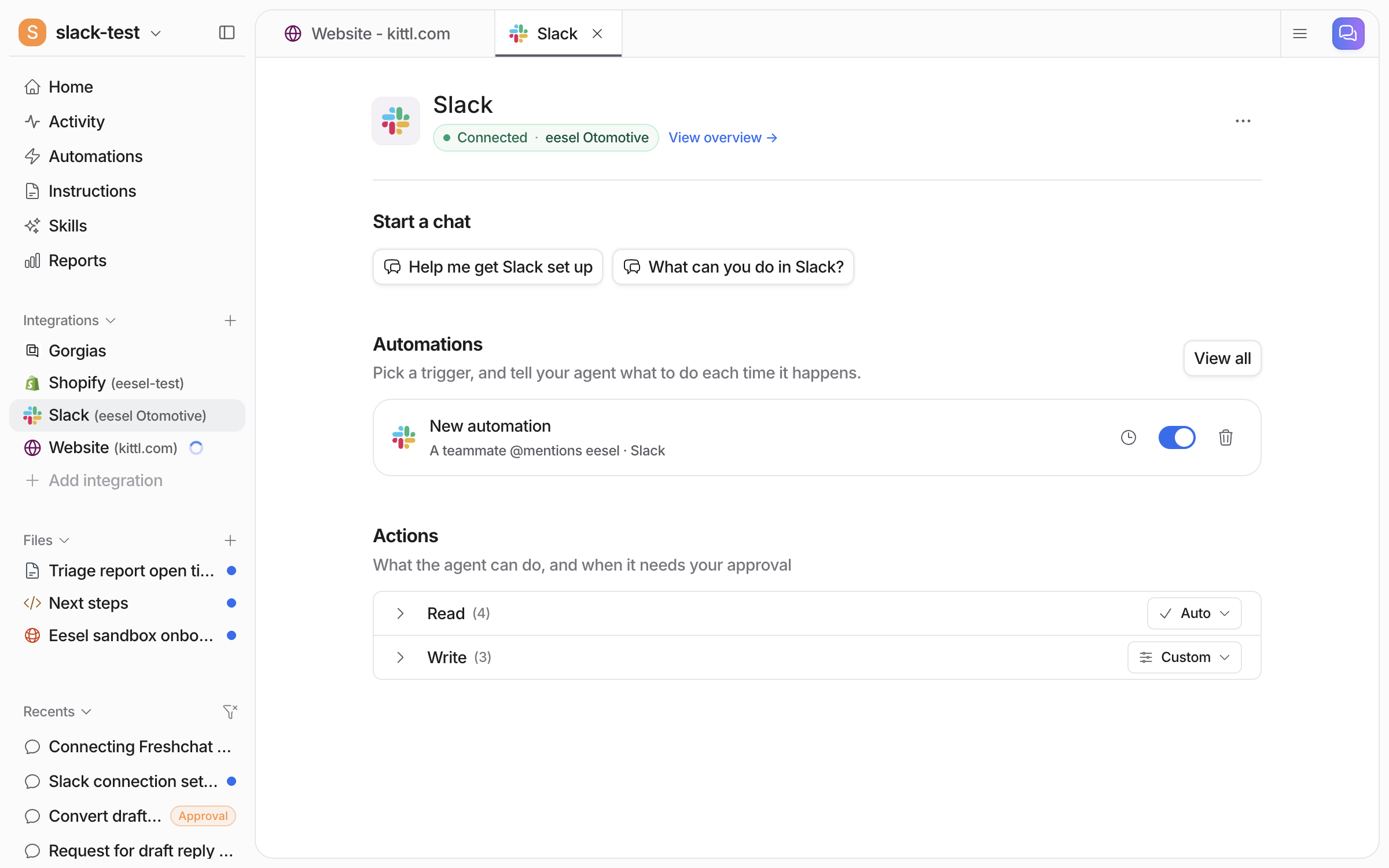
### Check the workspace is on your agent

**Integrations > Slack** shows the connection as **Connected**, with your Slack workspace name. The **Automations** section lists the mention automation for this workspace, switched on. The **Actions** section shows the Read and Write action groups.

<figure><img src="https://3732419023-files.gitbook.io/~/files/v0/b/gitbook-x-prod.appspot.com/o/spaces%2F2xXO0947TYoPIhGoBgSE%2Fuploads%2Fgit-blob-6202b1bf0aa301c2c4ff2d989c26afc87c625547%2Fslack-integration-page.png?alt=media" alt="The Slack integration page in the eesel dashboard showing Connected with the workspace name, the mention automation switched on, and the Read and Write action groups"><figcaption><p>The Slack integration page, with the mention automation on and the action groups listed.</p></figcaption></figure>
{% endstep %}

{% step %}

### Ask it a question in a channel

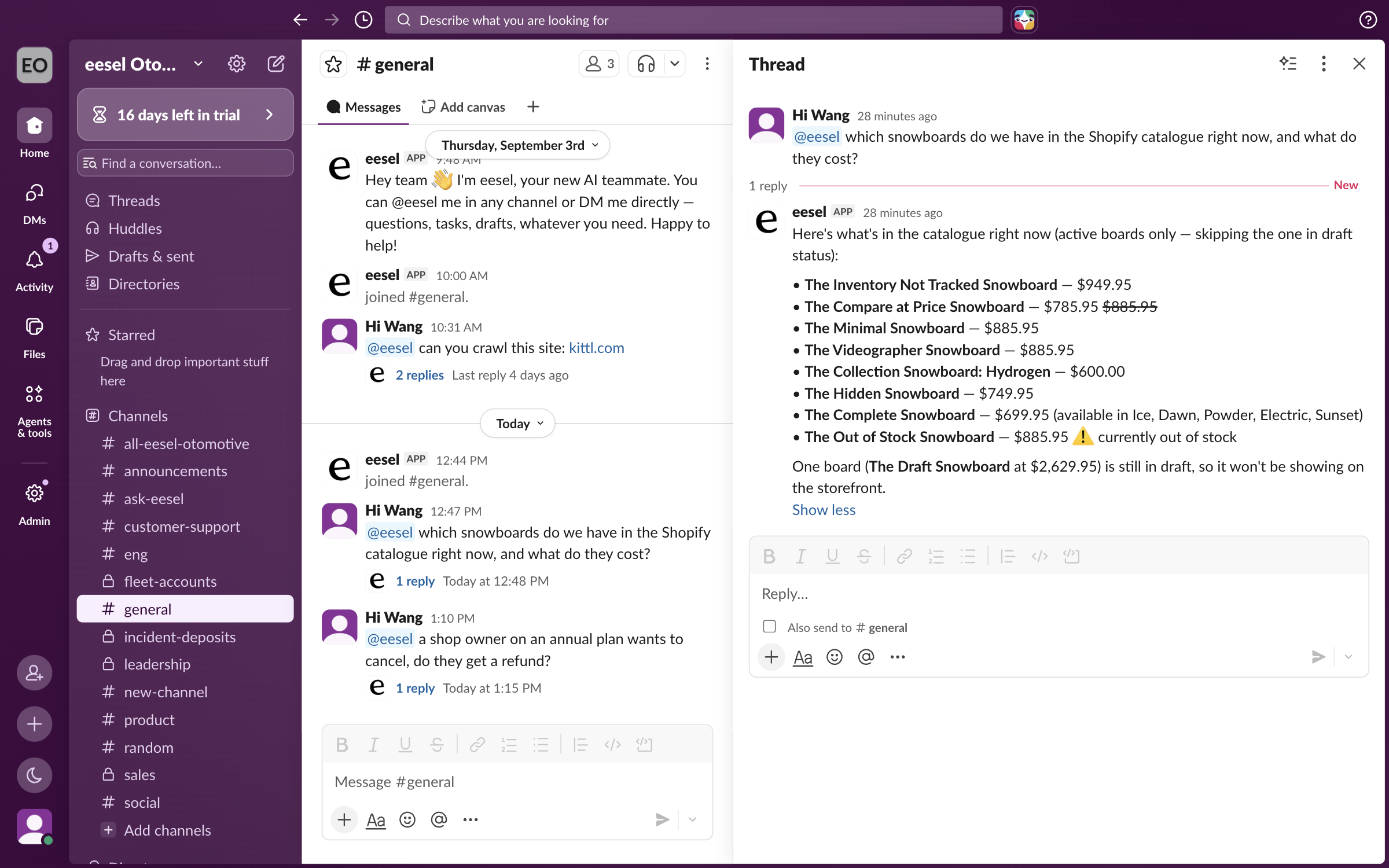
At install your teammate joins every public channel in the workspace, up to 200 of them. It reads two or three of the most active ones. It sends a direct message to whoever installed it, and says hello in one to three channels. This runs whatever the actions on your agent are set to. Its own joins are silent, so most channels get no arrival message. It does say hello where a person runs `/invite @eesel`. Private channels always need a person to invite it.

Connecting alone does not start your agent. It needs an automation first. Ask in the dashboard chat to turn on the mention automation, and tell it how you want it to answer. Anyone can then mention it in a channel it is in and get the answer in the thread. Direct messages need no mention. It has an App Home tab in Slack too.

<figure><img src="https://3732419023-files.gitbook.io/~/files/v0/b/gitbook-x-prod.appspot.com/o/spaces%2F2xXO0947TYoPIhGoBgSE%2Fuploads%2Fgit-blob-a8c3f41dea1c29d97232a68c59d5103886ad7365%2Fslack-knowledge-thread.png?alt=media" alt="A Slack channel where the eesel app has posted a short hello saying it can be mentioned in any channel or messaged directly, and a thread panel where it answers a teammate&#x27;s mention"><figcaption><p>The app's hello message, and its answer to a mention in the thread.</p></figcaption></figure>

**Check it worked.** Your **Automations** page lists the automation, switched on. From a terminal, `eesel automations` lists the automation as on.
{% endstep %}

{% step %}

### Ask it to do work in your other apps

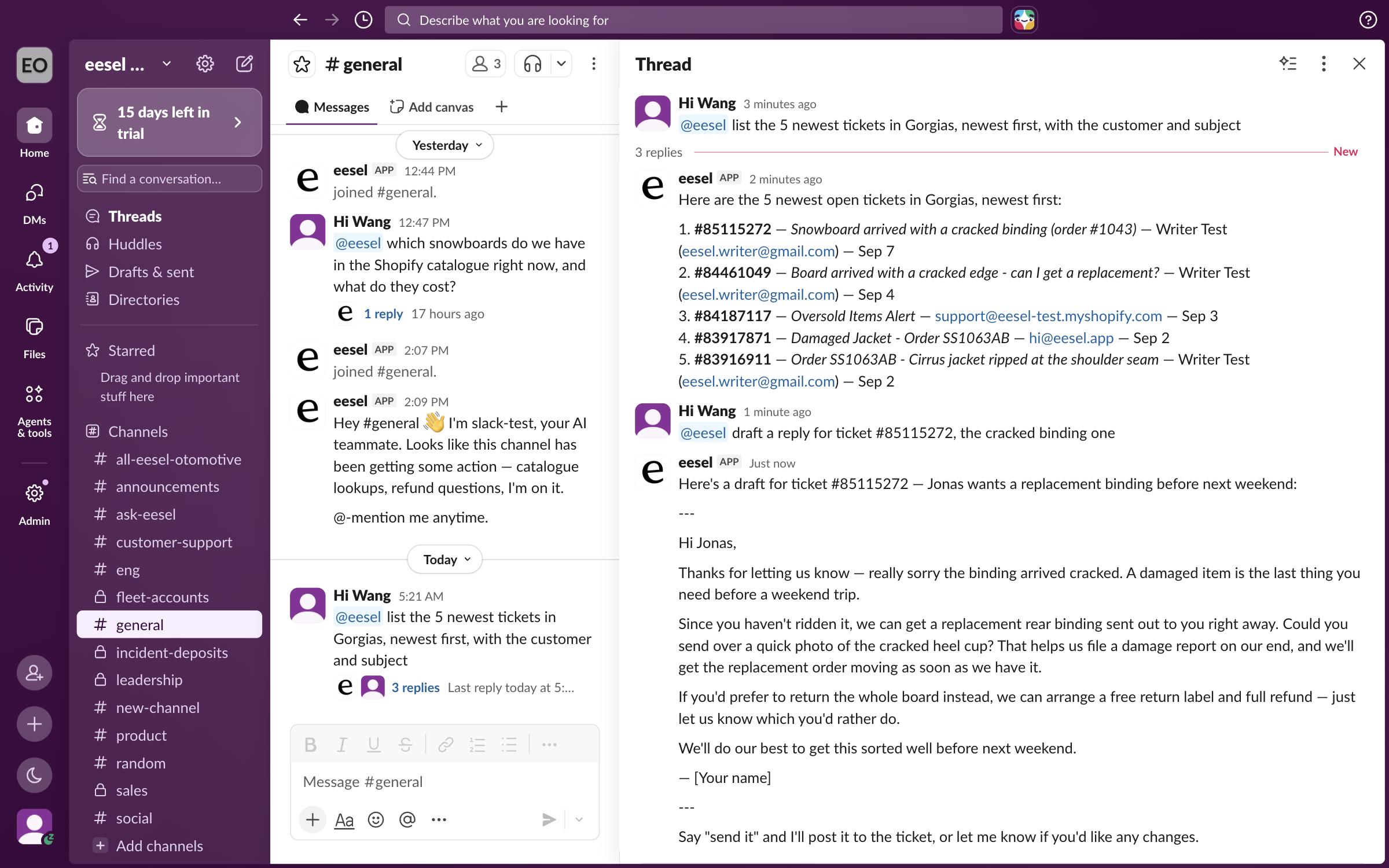
Mention your agent and ask for a look-up in a connected store or helpdesk. It answers in the thread with what it found.

<figure><img src="https://3732419023-files.gitbook.io/~/files/v0/b/gitbook-x-prod.appspot.com/o/spaces%2F2xXO0947TYoPIhGoBgSE%2Fuploads%2Fgit-blob-ac7edd270c2ec8bf6b18fc2b95738fe61e31d140%2Fslack-action-lookup.png?alt=media" alt="A Slack thread where a teammate mentions eesel to list the newest tickets in the connected helpdesk, and the app answers with a numbered list of tickets"><figcaption><p>A look-up in another connected app, answered in a Slack thread.</p></figcaption></figure>

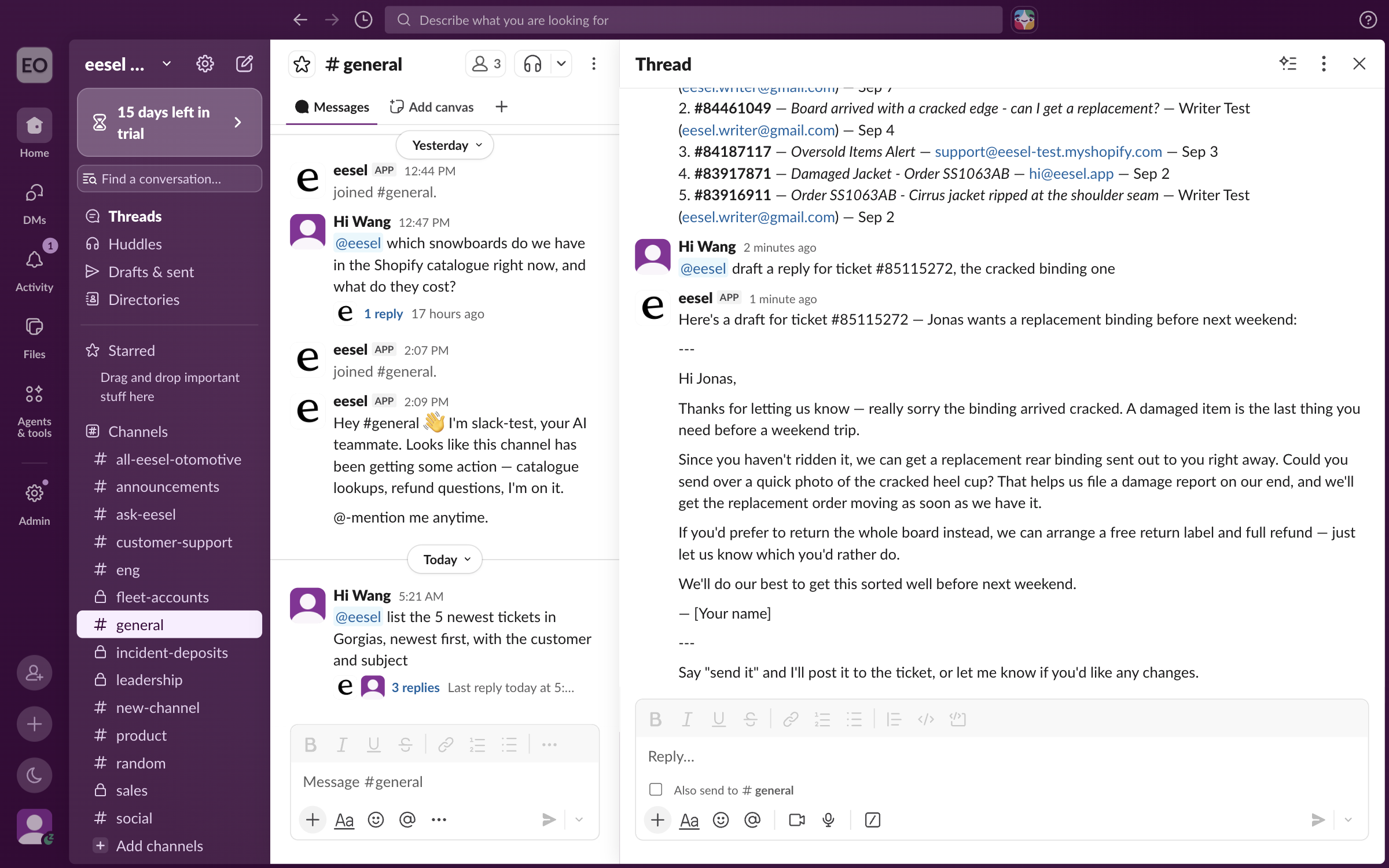
Ask it to draft a reply and the draft appears in the thread. It sits there until you tell it to send, and the thread says so.

<figure><img src="https://3732419023-files.gitbook.io/~/files/v0/b/gitbook-x-prod.appspot.com/o/spaces%2F2xXO0947TYoPIhGoBgSE%2Fuploads%2Fgit-blob-169d332c2b367840a95d44ee6acdf5f8cdba058e%2Fslack-action-draft.png?alt=media" alt="A Slack thread where the teammate asks for a draft reply and the app posts the full draft, ending with a line saying it will post it only when told"><figcaption><p>The draft waiting in the thread to be sent.</p></figcaption></figure>
{% endstep %}

{% step %}

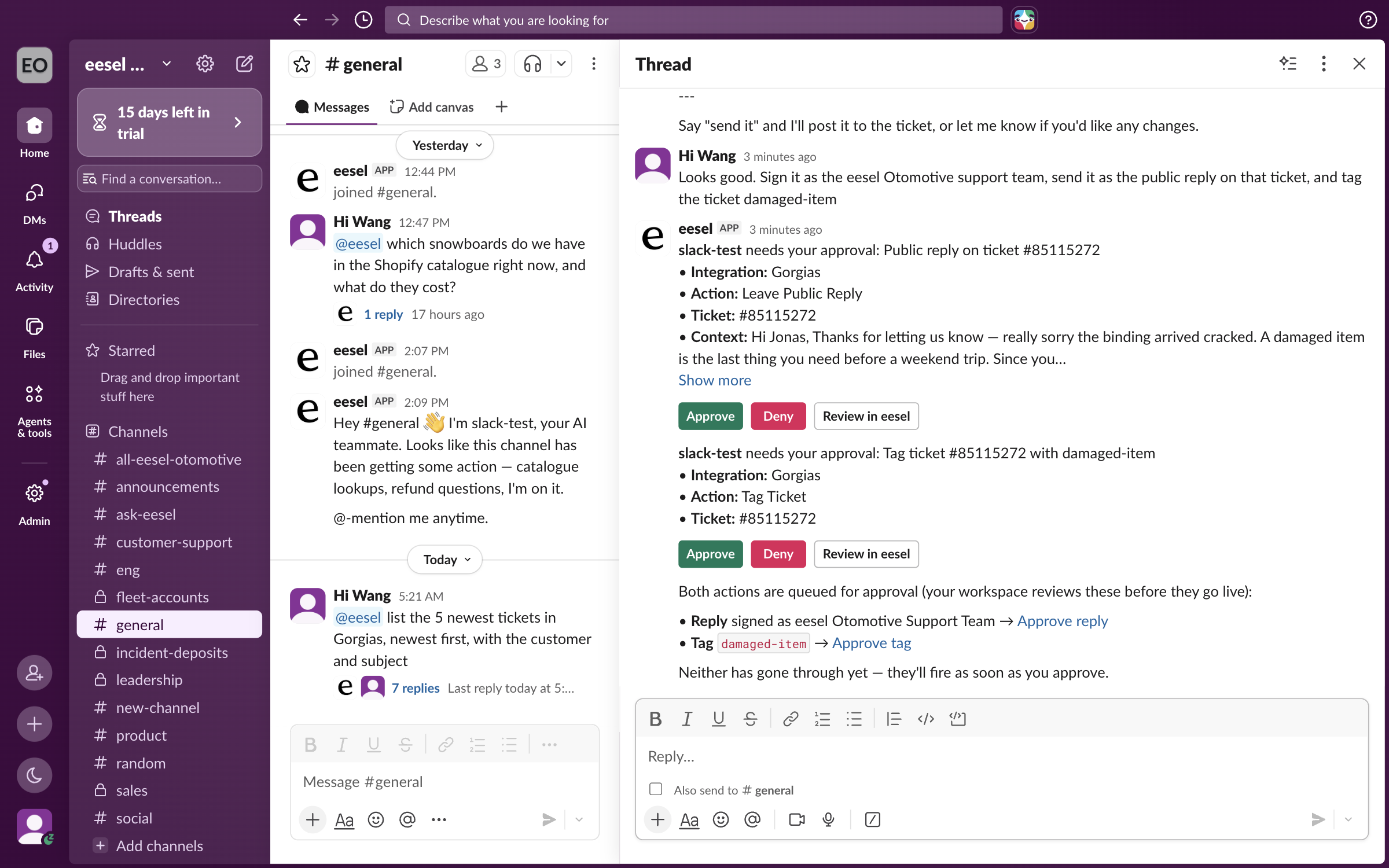
### Approve it from the thread

Tell it to go ahead. Any action set to ask you first posts its approval in the same thread. Each action gets its own card naming the integration, the action, the record it touches and the content. **Approve** and **Deny** decide it, and **Review in eesel** opens the same approval in the dashboard. Nothing runs until someone decides it.

Only people with edit rights in your eesel workspace can decide an approval, in Slack or in the dashboard. In the dashboard it also offers Always allow.

<figure><img src="https://3732419023-files.gitbook.io/~/files/v0/b/gitbook-x-prod.appspot.com/o/spaces%2F2xXO0947TYoPIhGoBgSE%2Fuploads%2Fgit-blob-2a932b75433052f9bc4f6f72a8d6fc82270ff8f6%2Fslack-action-approval.png?alt=media" alt="A Slack thread with two approval cards from the eesel app, each listing the integration, the action, the ticket and the content, with Approve, Deny and Review in eesel buttons"><figcaption><p>One approval card per action, waiting in the thread.</p></figcaption></figure>
{% endstep %}

{% step %}

### Check the result in the app

Open the app the action ran in and look at the record. The reply is there as a public message, signed the way you asked for. Any tag it applied is on the record too.

<figure><img src="https://3732419023-files.gitbook.io/~/files/v0/b/gitbook-x-prod.appspot.com/o/spaces%2F2xXO0947TYoPIhGoBgSE%2Fuploads%2Fgit-blob-a3875087e4bead05ee0e3014e5dbd307ac07899b%2Fslack-action-result.png?alt=media" alt="A helpdesk ticket showing the public reply the agent posted after approval, with the applied tag visible in the ticket details"><figcaption><p>The approved reply and tag on the helpdesk ticket.</p></figcaption></figure>
{% endstep %}
{% endstepper %}

{% hint style="info" %}
**From Claude Code, Cursor or a terminal.** The same setup works as commands: `eesel login`, then `eesel integrations connect slack`, which prints the details that connection method needs. A person approves the connection in Slack: use the link the command returns, or if it comes back held with no link, ask for one with `eesel chat "give me the connect link for slack"`. Print the link for the person, wait for the connection status to change, and do not retry it. `eesel status` then shows the integration as connected, and `eesel automations` lists your automations. Turn the mention automation on with its instructions in one command: `eesel automations enable slack slack_eesel_mentioned --instructions "..."`. Full command reference: [The eesel CLI](/apis-and-developer-resources/cli.md). Step-by-step: [Set up from Claude Code or the terminal](/getting-started/set-up-from-a-coding-agent.md). From an MCP client: [Claude Code and MCP clients](/apis-and-developer-resources/claude-code-and-mcp-clients.md).
{% endhint %}

## Sources, triggers and actions

### Sources

Slack is a place your agent answers, not a knowledge source it indexes. Nothing in your Slack workspace is copied into eesel. Your agent searches messages live while it answers. Once it is in a channel it can read that channel's history, including messages from before it arrived.

Its answers in Slack come from what else you have connected. [Confluence](/integrations/knowledge/confluence.md), [Notion](/integrations/knowledge/notion.md) and [Google Drive](/integrations/knowledge/google-drive.md) are usually where the answers live. Your help center or website helps if people in Slack ask what customers ask. See [Integrations](/integrations/overview.md).

A search runs against what the person asking is allowed to see in Slack. So it can return a private channel your agent was never invited to. Reading a channel's history needs your agent to be in it.

Your agent also reads images attached to a mention, up to five of them.

### Triggers

Triggers are the Slack events an automation can run on:

| Trigger                                   | Fires when                                           | Best for                      | Key                     |
| ----------------------------------------- | ---------------------------------------------------- | ----------------------------- | ----------------------- |
| **When @eesel is mentioned in a channel** | Someone mentions the eesel app in a channel it is in | Answering questions on demand | `slack_eesel_mentioned` |

Slack has one trigger. The trigger event is fixed when the automation is created. So a new automation is required for each different trigger event.

The automation has three controls:

* **Channels.** A multi-select picker where you choose channels by name, or paste channel IDs. Leave it empty and the automation covers every channel your agent is in.
* **The instructions.** Describe in plain language the questions you want it to take and what to do with them, and it skips the rest.
* **Pause.** A switch that stops the automation. While it is paused your agent is silent in Slack.

**Several agents on one Slack workspace.** The Channels picker on each automation decides which agents are eligible in a channel. Where more than one is eligible, eesel picks from the question itself. When it is not sure, it posts a picker in the thread and you choose. The first agent to answer in a thread owns that thread from then on.

### Actions

Actions are what it can do, each set to run on its own, ask you first, or stay off:

|             | Action          | What it does                                                                                          |
| ----------- | --------------- | ----------------------------------------------------------------------------------------------------- |
| **Respond** | Send Message    | Sends a message to a channel, a thread, or a person as a direct message, using Slack's own formatting |
|             | Add reaction    | Reacts to a message with an emoji                                                                     |
| **Manage**  | Join channel    | Joins a public channel by itself, with no `/invite` needed. Public channels only                      |
|             | List channels   | Lists the workspace's channels, flagging which ones your agent is in                                  |
| **Look up** | Look up user    | Finds a Slack user by email or name                                                                   |
|             | Read thread     | Reads a full thread, with each message marked as your agent's or someone else's                       |
|             | Read channel    | Reads the recent messages in a channel                                                                |
|             | Search messages | Searches past Slack messages live. Nothing is indexed                                                 |

Only **Send Message** and **Search messages** are on when you connect. Switch on the rest yourself, and choose for each whether it runs on its own or asks you first. See [Actions and Approvals](/instructions-and-memory/actions-and-approvals.md).

{% hint style="info" %}
**Search respects Slack's own permissions.** It covers the public channels your agent is in, and the private ones the person asking is in. So it cannot surface a private or customer channel to someone who is not in it. Slack does not let a guest into public channels on their own, so a guest only gets the channels they share with your agent. That holds in Slack and in the eesel dashboard. In the dashboard we match you to your Slack account by your email address. If you sign in to eesel with a different address, your private channels are left out, and your agent tells you why.
{% endhint %}

## Troubleshooting

<details>

<summary>Agent not responding to mentions?</summary>

Check the **Automations** page shows the mention automation on and not paused. Check your agent is in that channel. If the automation has channels picked, it only runs in those. Check the automation's instructions cover the questions you expect. Mention the app from Slack's autocomplete, since Slack matches mentions by user ID rather than by a typed name. Then open the **Activity** page in your dashboard, where every Slack run appears.

</details>

<details>

<summary>Agent can't post in a channel, or the wrong agent answers?</summary>

For a public channel, ask your agent to join it or run `/invite @eesel`. A private channel needs a person to invite it. If the wrong agent answers, check which channels each automation covers. The first agent to answer in a thread keeps it.

</details>

<details>

<summary>Search isn't finding a message?</summary>

A channel your agent is not in will not appear. Nor will a private channel the person asking is not in. A full member of your Slack workspace gets every public channel your agent is in, joined or not. A guest gets only the channels they share with your agent.

</details>

<details>

<summary>Message search, joining channels or reading files not working?</summary>

These need permissions added to the Slack app after some workspaces connected. An older connection keeps the permissions it was granted at the time. Disconnect Slack and connect it again to pick up the newer ones.

</details>

<details>

<summary>Slack says the app isn't approved?</summary>

That notice appears because eesel is not listed in the Slack Marketplace. It is not an error and it does not limit what the app can do. Continue with the approval.

</details>

## FAQ

<details>

<summary>Does connecting Slack start answering questions automatically?</summary>

No. Your agent will not answer until the mention automation is on and it is in the channel. Joining public channels and saying hello on arrival is separate from answering.

</details>

<details>

<summary>Do I have to mention it on every message?</summary>

No. Mention it once to start a thread. Your agent then picks up further messages in that thread on its own. Direct messages never need a mention.

</details>

<details>

<summary>Does eesel index my Slack messages?</summary>

No. Nothing from Slack is copied into eesel. Your agent searches your message history live, inside Slack's own permissions for the person asking.

</details>

<details>

<summary>Do I have to name the app "eesel" for mentions to work?</summary>

No. Slack matches mentions by the app's user ID, not by its display name. Mention it from Slack's autocomplete and it works under any name.

</details>

<details>

<summary>How is this billed?</summary>

Pay-as-you-go. A Slack thread your agent handles is one task, however many replies happen in it. Chats you run yourself from the eesel dashboard are free, and connecting Slack carries no charge. See [Pricing](/pricing/overview.md) for rates, the annual commitment, and Enterprise.

</details>

## Related pages

* [Internal operations](/use-cases/internal-operations.md) for the job your agent does for your team
* [Helpdesk](/use-cases/helpdesk.md) for the customer-facing work it can run from a thread
* [Actions and Approvals](/instructions-and-memory/actions-and-approvals.md) for setting each action to run on its own, ask you first, or stay off
* [Integrations overview](/integrations/overview.md) for how sources, triggers and actions fit together
* [Set up from Claude Code or the terminal](/getting-started/set-up-from-a-coding-agent.md)


---

# Agent Instructions
This documentation is published with GitBook. GitBook is the documentation platform designed so that both humans and AI agents can read, navigate, and reason over technical content effectively. Learn more at gitbook.com.

## Querying This Documentation
If you need additional information that is not directly available in this page, you can query the documentation dynamically by asking a question.

Perform an HTTP GET request on the current page URL with the `ask` query parameter, and the optional `goal` query parameter:

```
GET https://docs.eesel.ai/integrations/communication/slack.md?ask=<question>&goal=<endgoal>
```

`ask` is the immediate question: it should be specific, self-contained, and written in natural language.
`goal` is optional and describes the broader end goal you are ultimately trying to accomplish on behalf of the user. GitBook uses it to tailor the answer towards what is most useful for that goal.

The response will contain a direct answer to the question and relevant excerpts and sources from the documentation.

Use this mechanism when the answer is not explicitly present in the current page, you need clarification or additional context, or you want to retrieve related documentation sections.