> For the complete documentation index, see [llms.txt](https://docs.eesel.ai/llms.txt). Markdown versions of documentation pages are available by appending `.md` to page URLs; this page is available as [Markdown](https://docs.eesel.ai/integrations/e-commerce/magento.md).

# Magento

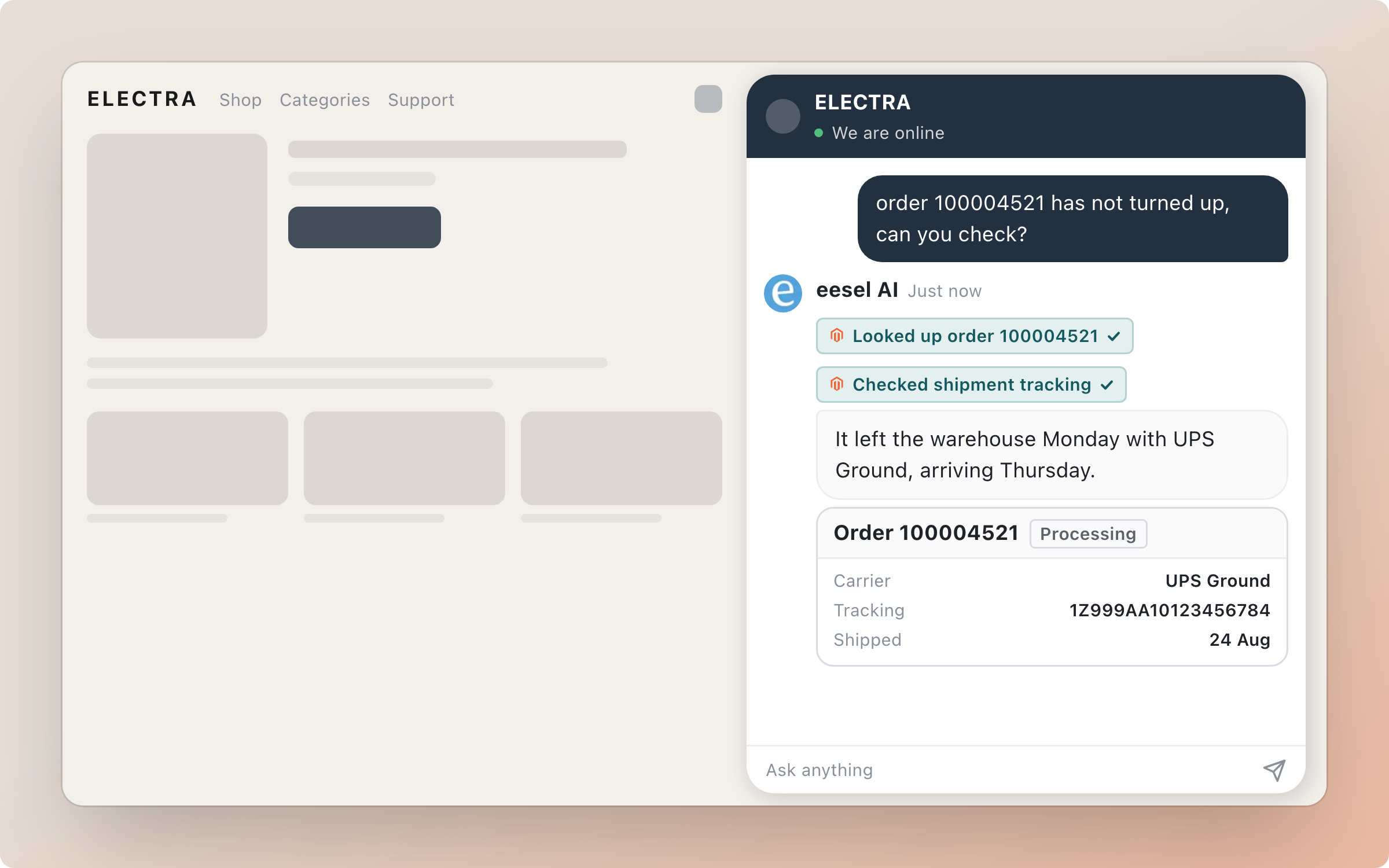
Connect Magento so your agent looks up orders, payments, shipments, tracking numbers and stock live, and answers customers about their orders on your site and in your helpdesk.

Your AI teammate is a commerce teammate in Magento. It helps you run your store and answers every customer question. It looks up orders, payments, shipments and tracking numbers, and checks whether an item is in stock. Every read happens at the moment it is asked, and nothing is copied out of Magento.

You stay in control the whole way. Nothing runs until you create an automation. For each action you then choose: run on its own, ask you first, or stay off.

<figure><img src="https://3732419023-files.gitbook.io/~/files/v0/b/gitbook-x-prod.appspot.com/o/spaces%2F2xXO0947TYoPIhGoBgSE%2Fuploads%2Fgit-blob-a9b96cb016d2b18cf4ade2de75807bcb69e99497%2Fmagento-hero.png?alt=media" alt="A storefront with the eesel chat bubble open, where the agent looks up an order and shows its carrier, tracking number and ship date"><figcaption><p>The agent answering an order question with live Magento data.</p></figcaption></figure>

## Quick start

{% stepper %}
{% step %}

### Ask your agent to connect Magento

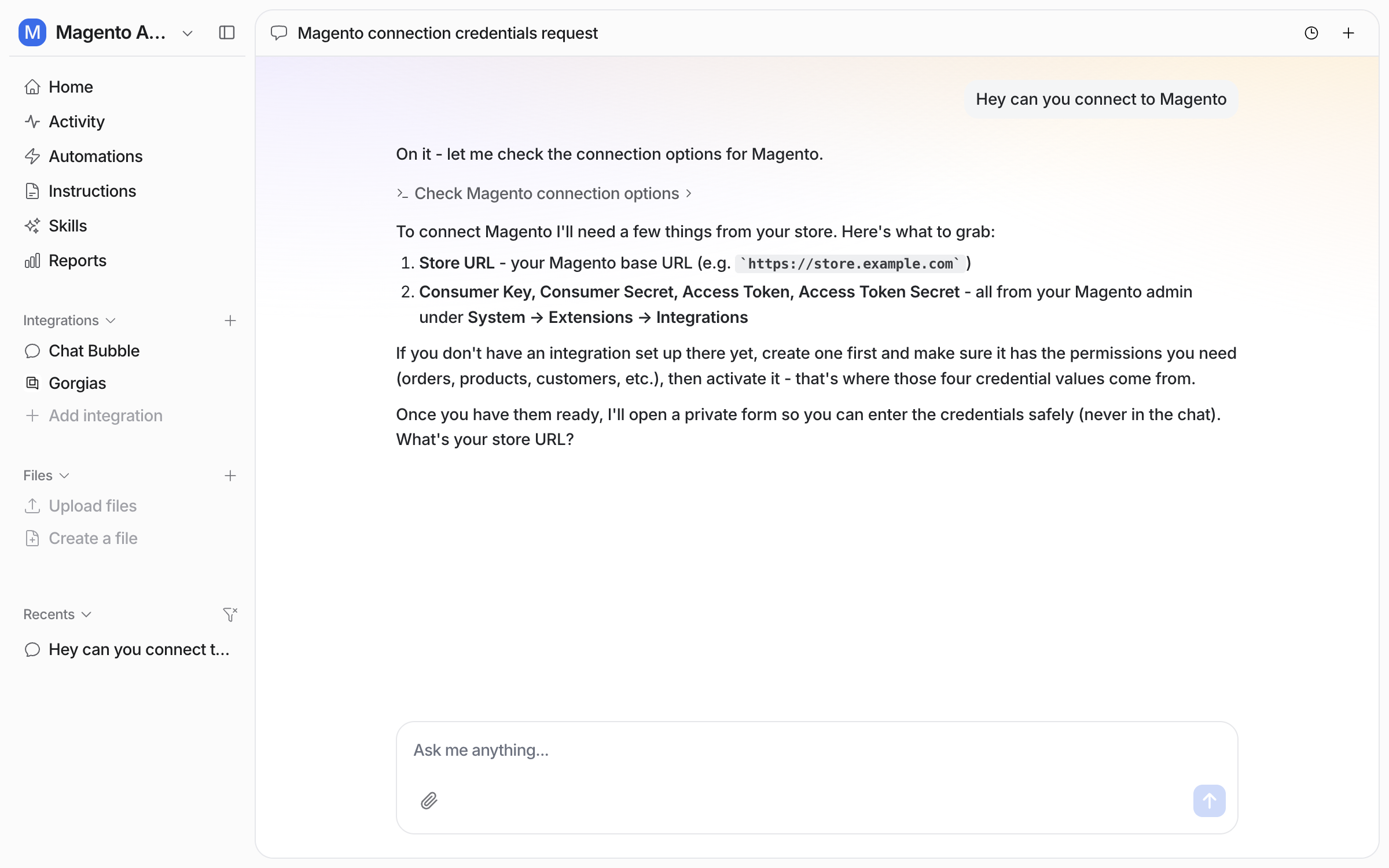
Open the chat in your dashboard and ask it to connect Magento. It needs your store base URL and four values from your Magento Admin. It asks for the store URL first. The four values go into a private form, never into the chat.

<figure><img src="https://3732419023-files.gitbook.io/~/files/v0/b/gitbook-x-prod.appspot.com/o/spaces%2F2xXO0947TYoPIhGoBgSE%2Fuploads%2Fgit-blob-31122781738b37ca0d28ddae06485954b23f5945%2Fmagento-connect-chat.png?alt=media" alt="The dashboard chat where the user asks to connect Magento and the agent lists the store URL and the four Magento integration values it needs"><figcaption><p>The agent listing the store URL and the four values it needs.</p></figcaption></figure>
{% endstep %}

{% step %}

### Create the integration in Magento Admin

The four values come from an integration you create once in Magento. In Magento Admin open **System**, then under **Extensions** choose **Integrations**, and click **Add New Integration**. Give it a name, leave both URL fields blank, set the API resource access, then save. Back on the Integrations list, click **Activate**, then **Allow**. Magento shows the four values, masked, on a pop-up you close with **Done**. Copy all four before you close it, and leave the eesel chat open throughout.

A person signs in and does this in Magento Admin. Every screen, and what each resource permission is for, is on [Set up Magento](/integrations/e-commerce/magento/magento-setup.md).
{% endstep %}

{% step %}

### Paste the values into the secure form

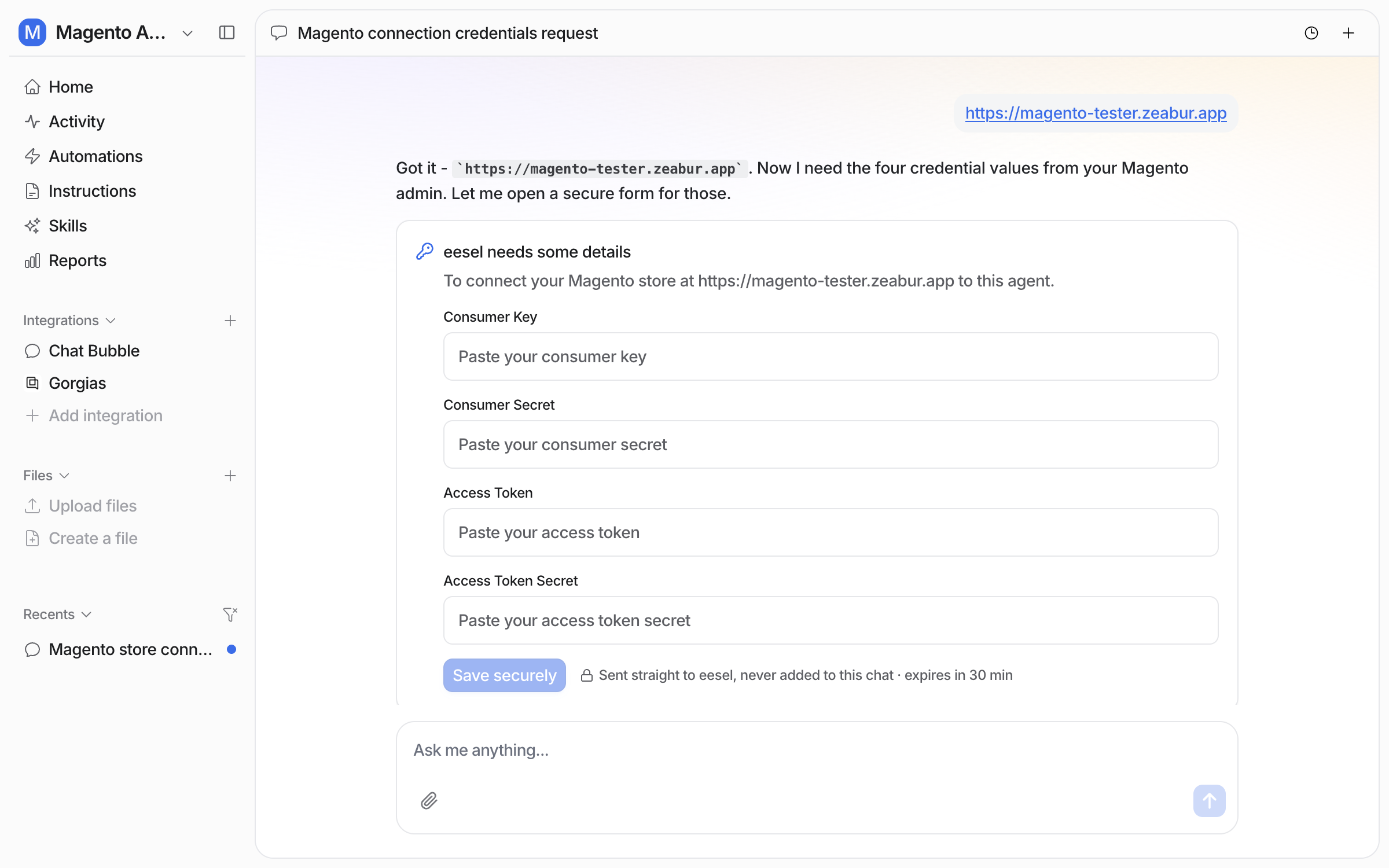
Back in the chat, give your agent the store URL. A form opens with one field for each of the four values.

<figure><img src="https://3732419023-files.gitbook.io/~/files/v0/b/gitbook-x-prod.appspot.com/o/spaces%2F2xXO0947TYoPIhGoBgSE%2Fuploads%2Fgit-blob-39481a4ae2fc004dce8c0ee91ded8465d4c53ed5%2Fmagento-secure-form.png?alt=media" alt="A secure form in the dashboard chat with empty fields for Consumer Key, Consumer Secret, Access Token and Access Token Secret, and a Save securely button"><figcaption><p>The secure form, with a field for each of the four Magento values.</p></figcaption></figure>

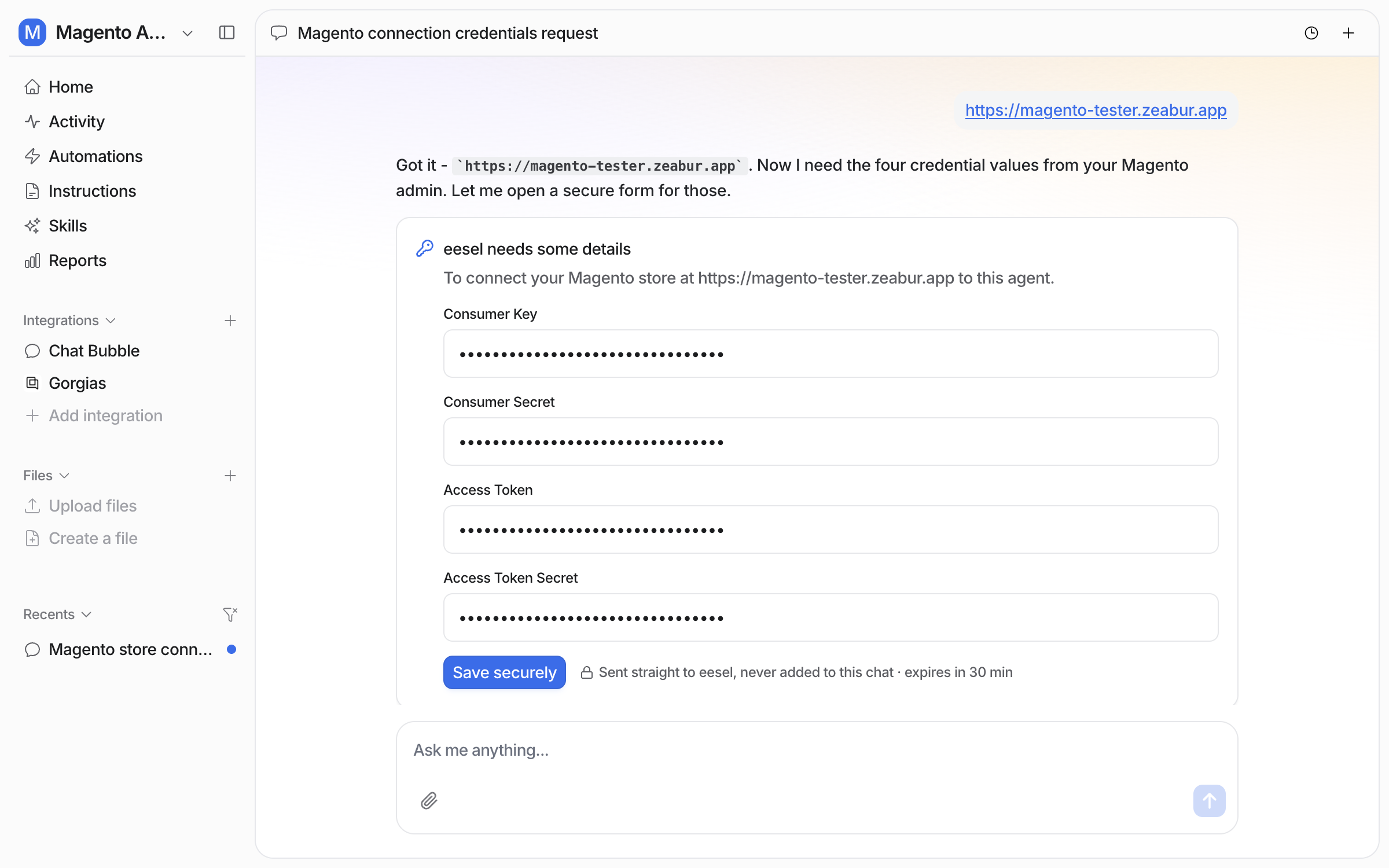
Paste each value in and click **Save securely**. The values go straight to eesel, never into the chat, and the form expires in 30 minutes.

<figure><img src="https://3732419023-files.gitbook.io/~/files/v0/b/gitbook-x-prod.appspot.com/o/spaces%2F2xXO0947TYoPIhGoBgSE%2Fuploads%2Fgit-blob-4ddcefb70fbba2c6b436639c3fecc388007759df%2Fmagento-secure-form-filled.png?alt=media" alt="The same secure form with all four values filled in and masked, ready to save securely"><figcaption><p>The form filled in, with the values masked.</p></figcaption></figure>
{% endstep %}

{% step %}

### Confirm the connection

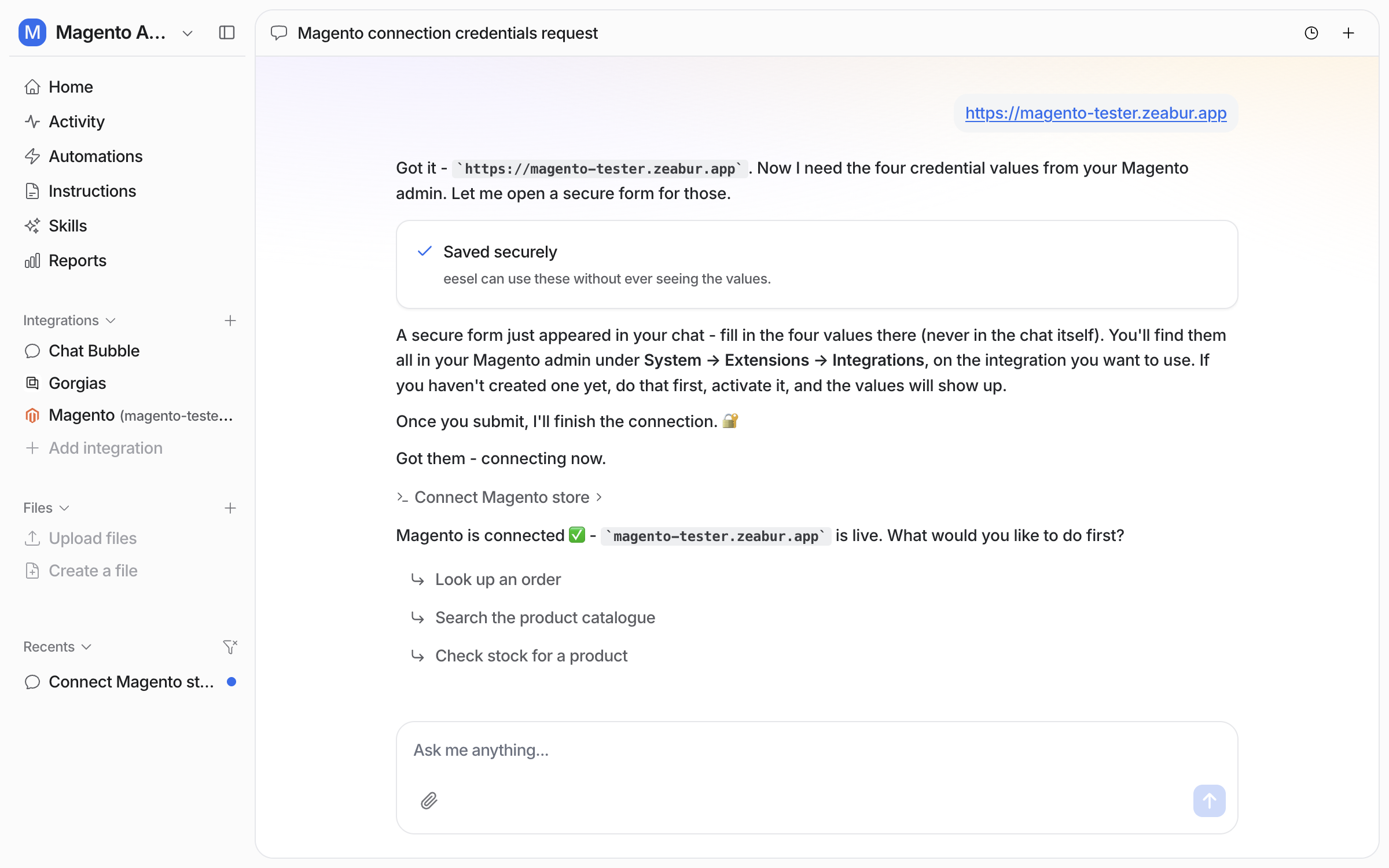
Your agent finishes the connection and tells you the store is live. Ask it to read a few of your real orders back. If it cannot read anything, the values or the store URL are wrong, so see Troubleshooting below.

<figure><img src="https://3732419023-files.gitbook.io/~/files/v0/b/gitbook-x-prod.appspot.com/o/spaces%2F2xXO0947TYoPIhGoBgSE%2Fuploads%2Fgit-blob-8fd868ec0eb3b59448e3ca63afbade436f0edb0b%2Fmagento-connected-chat.png?alt=media" alt="The dashboard chat confirming Magento is connected and live, with Magento now listed in the left sidebar"><figcaption><p>The chat confirming the store is connected.</p></figcaption></figure>

**Check it worked.** Magento appears in the left sidebar with your store URL. From a terminal, `eesel status` shows the integration as connected with its source counts.
{% endstep %}

{% step %}

### Check what it can read

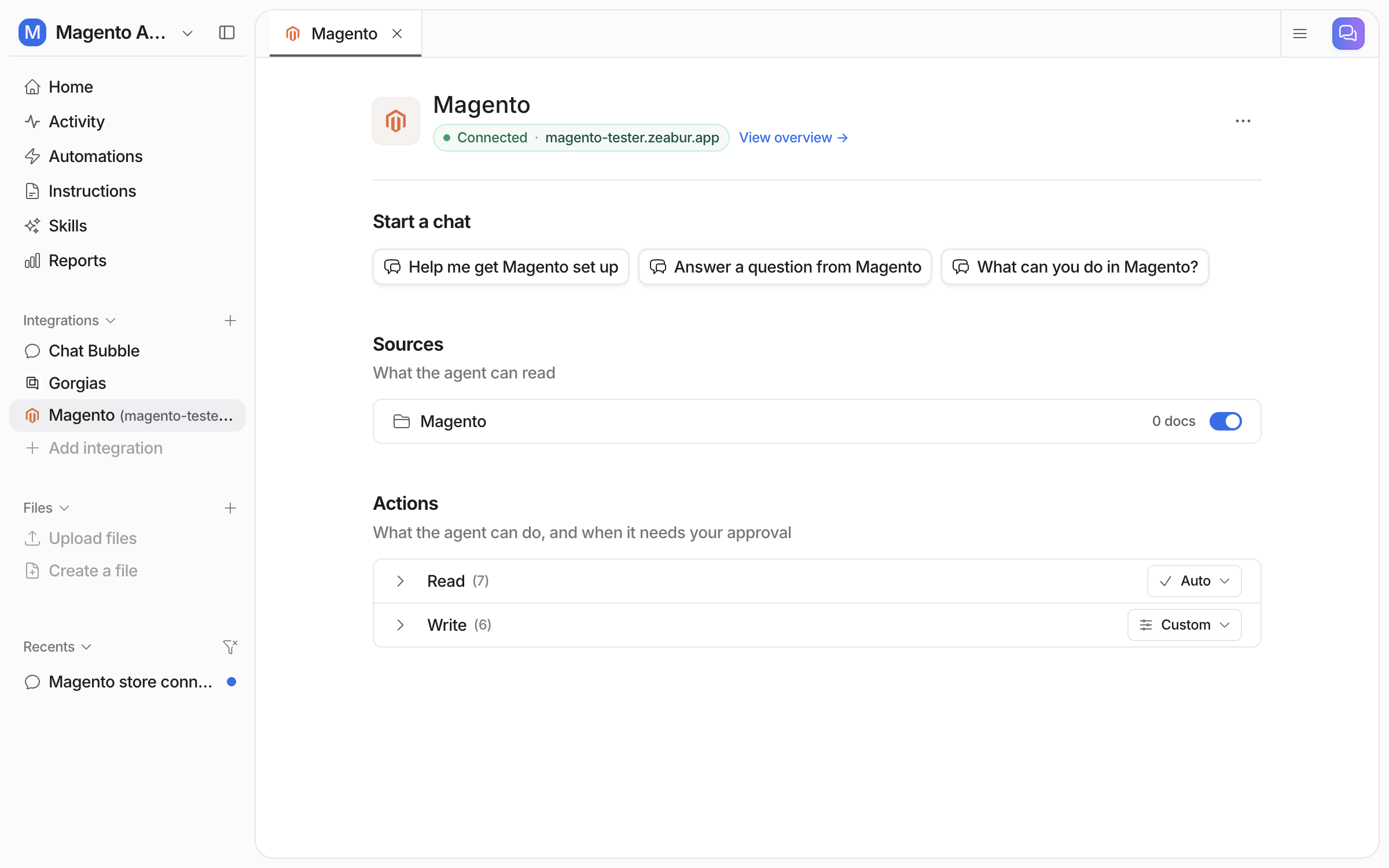
Open **Integrations > Magento**. It shows **Connected** with your store URL and buttons to start a chat. Below sit a **Sources** section and an **Actions** section split into **Read** and **Write** groups.

<figure><img src="https://3732419023-files.gitbook.io/~/files/v0/b/gitbook-x-prod.appspot.com/o/spaces%2F2xXO0947TYoPIhGoBgSE%2Fuploads%2Fgit-blob-4313be1c8cc756cb3a5664791195b2044de266f6%2Fmagento-integration-page.png?alt=media" alt="The Magento integration page in the eesel dashboard showing Connected with the store URL, a Magento source row, and the Read and Write action groups"><figcaption><p>The Magento integration page, with the store source row and the two action groups.</p></figcaption></figure>

The Magento source row holds no documents, because the store is read live. That row is the switch for the live reads. Turn it off and your agent stops reading the store.
{% endstep %}

{% step %}

### Put it to work in Slack

Connecting alone does not start your agent. It needs an automation first.

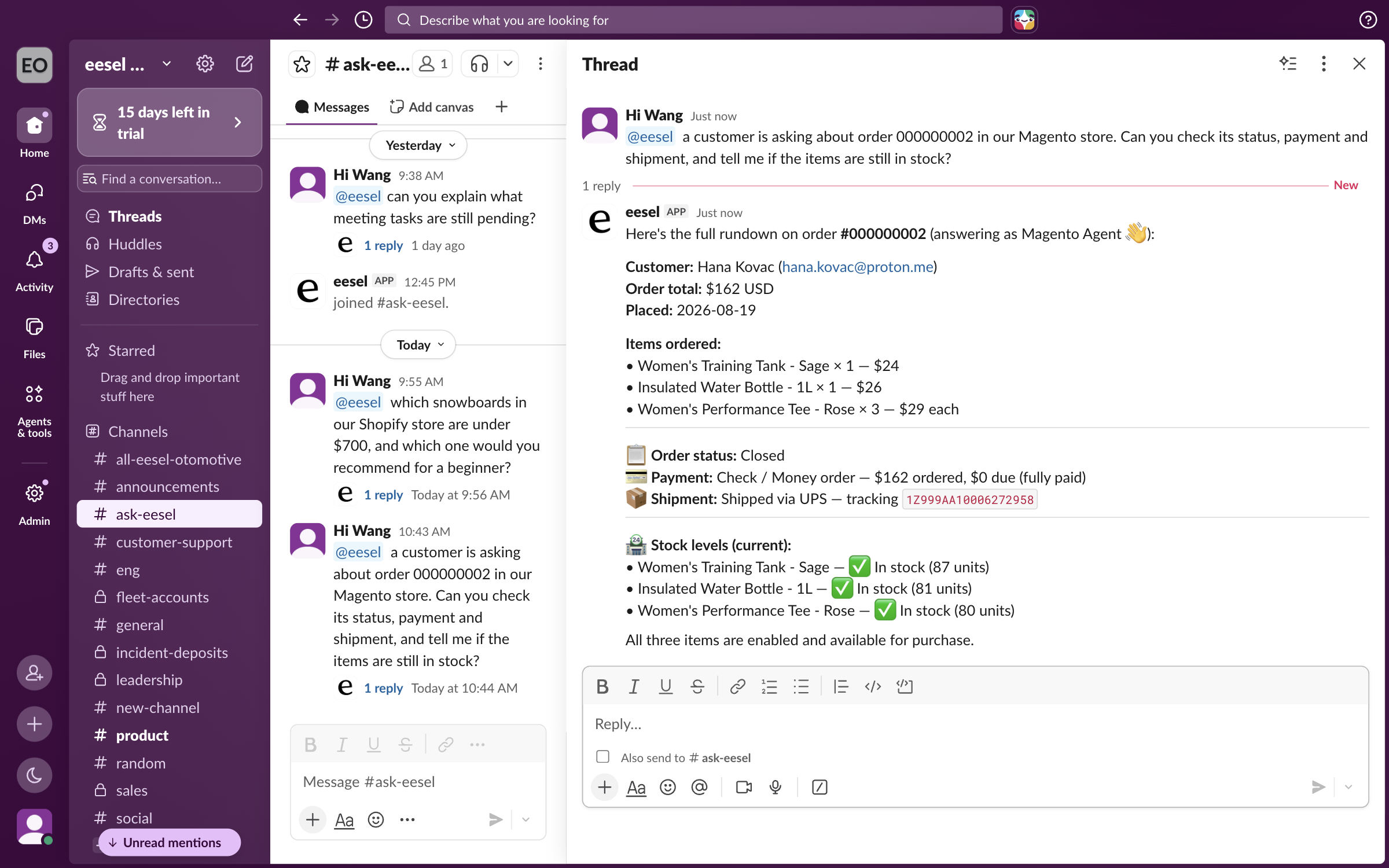
Ask in the dashboard chat to turn on the [Slack](/integrations/communication/slack.md) mention automation. See [Automations and schedules](/automations-and-schedules/automations-and-schedules.md). A teammate can then ask about any order. Your agent answers in the thread with the customer, items, order status, payment, shipment tracking and current stock.

<figure><img src="https://3732419023-files.gitbook.io/~/files/v0/b/gitbook-x-prod.appspot.com/o/spaces%2F2xXO0947TYoPIhGoBgSE%2Fuploads%2Fgit-blob-0c5110c328be6978484c5dfb523d5d54faf89812%2Fmagento-slack-thread.png?alt=media" alt="A Slack thread where a teammate mentions eesel about an order and your agent answers with the customer, items, status, payment, shipment tracking and current stock for each item"><figcaption><p>An order question answered in a Slack thread.</p></figcaption></figure>
{% endstep %}

{% step %}

### Put it on your storefront

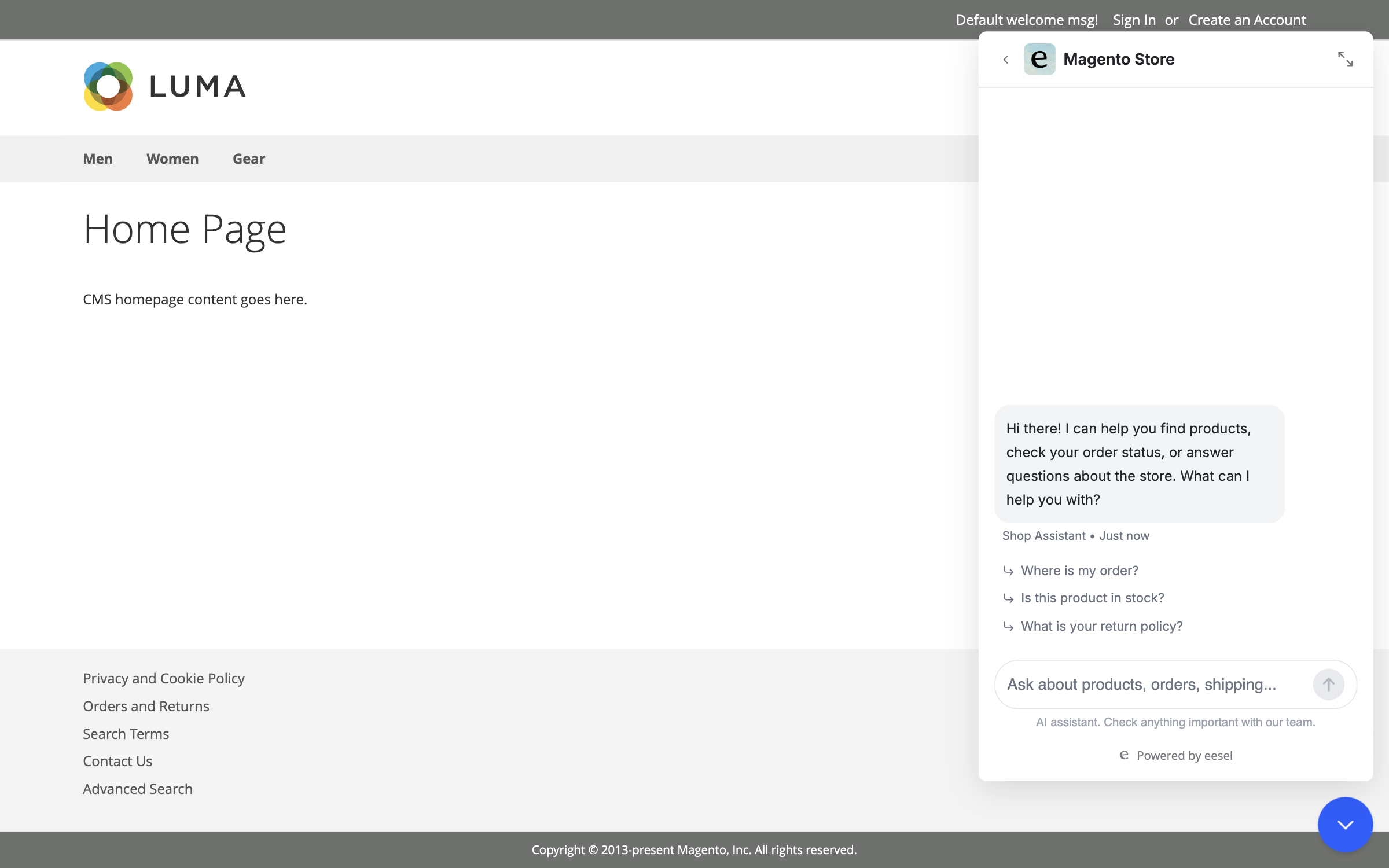
The [chat bubble](/integrations/chat-surfaces/chat-bubble.md) puts the same answers in front of shoppers. A fresh chat opens with your welcome message and a few starter questions.

<figure><img src="https://3732419023-files.gitbook.io/~/files/v0/b/gitbook-x-prod.appspot.com/o/spaces%2F2xXO0947TYoPIhGoBgSE%2Fuploads%2Fgit-blob-ebdbedf8dedf15910a0fe7261e1164939d083222%2Fmagento-bubble-open.png?alt=media" alt="A Magento storefront home page with the eesel chat bubble open on a fresh chat, showing a welcome message and three starter questions"><figcaption><p>The chat bubble on a Magento storefront, open on a new conversation.</p></figcaption></figure>

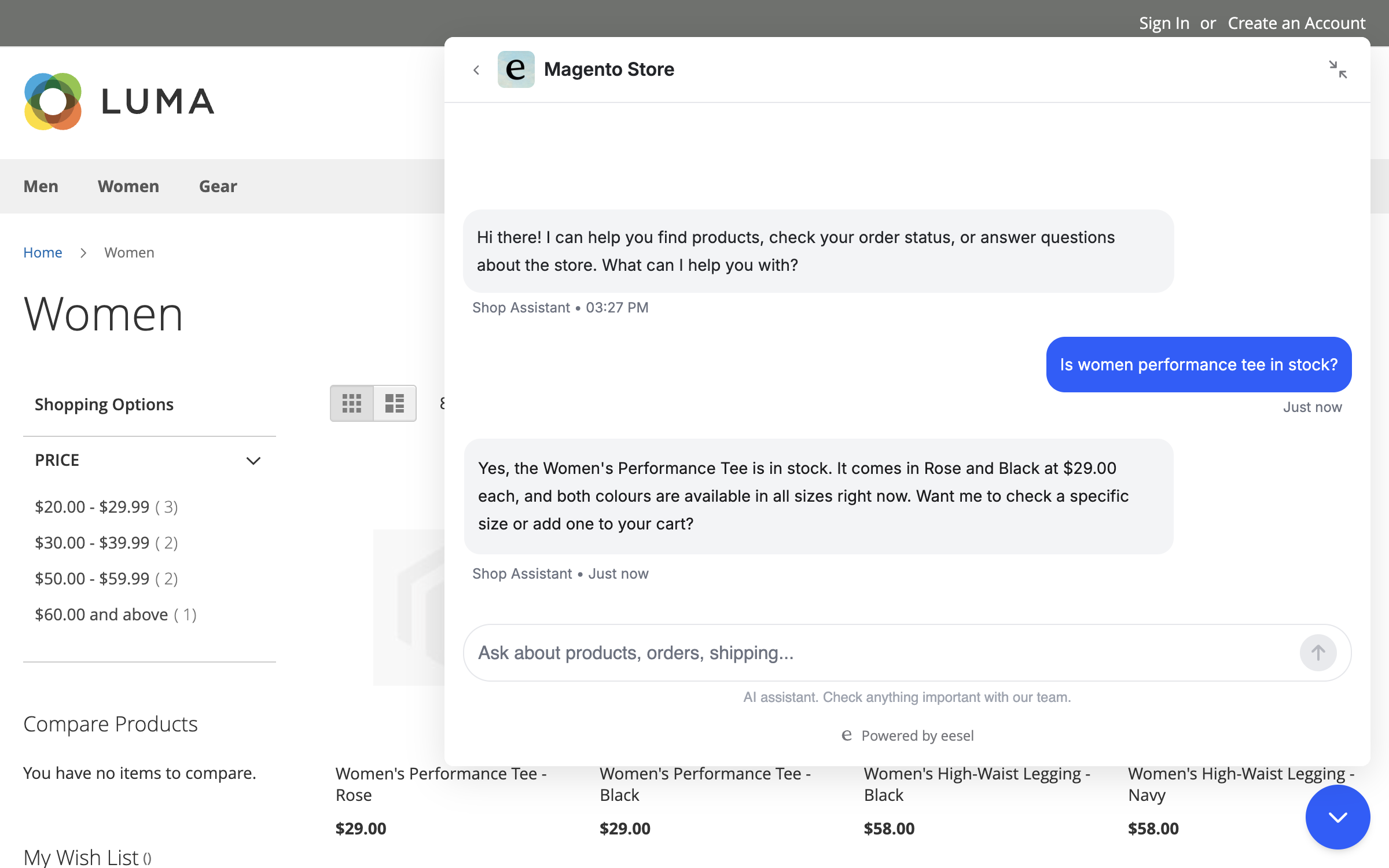
Ask about stock, and your agent answers with availability and price from the live store.

<figure><img src="https://3732419023-files.gitbook.io/~/files/v0/b/gitbook-x-prod.appspot.com/o/spaces%2F2xXO0947TYoPIhGoBgSE%2Fuploads%2Fgit-blob-95c0d45b2c614fe28ade1c32ac8bcef381a834ea%2Fmagento-bubble-stock-answer.png?alt=media" alt="The eesel chat bubble in full-screen mode on a storefront category page, answering a shopper&#x27;s stock question with availability and price"><figcaption><p>The bubble in full-screen mode, answering a shopper's stock question.</p></figcaption></figure>

{% hint style="warning" %}
**Magento needs a different snippet.** Magento loads RequireJS, which sets `define.amd`. While that is set, the plain snippet from the [Chat Bubble](/integrations/chat-surfaces/chat-bubble.md) page never draws the bubble, and no error appears. Use the version below. It clears `define.amd` while the eesel loader runs, then puts it back for Magento's own scripts.
{% endhint %}

In Magento Admin open **Content > Design > Configuration** and click **Edit** on the store view you want the bubble on. Paste the snippet below into the **Footer** section's **Miscellaneous HTML** field. Replace `YOUR_TRIGGER_ID` with the trigger id shown beside the snippet on your eesel Chat Bubble page.

```html
<script>
(function(){
  var TRIGGER = 'YOUR_TRIGGER_ID';
  window.__EESEL_WIDGET_V2_CONFIG__ = { EESEL_TRIGGER_ID: TRIGGER };

  var amd = window.define && window.define.amd;
  if (amd) { window.define.amd = undefined; }
  function restore(){ if (amd && window.define) { window.define.amd = amd; } }

  var script = document.createElement('script');
  script.src = 'https://cdn.eesel.ai/loader.js';
  script.async = true;
  script.onload = function(){
    var t0 = Date.now();
    var poll = setInterval(function(){
      if (window.EeselWidgetWithTrigger || Date.now() - t0 > 10000) {
        clearInterval(poll);
        restore();
      }
    }, 50);
  };
  script.onerror = restore;
  document.head.appendChild(script);
})();
</script>
```

{% endstep %}
{% endstepper %}

## Sources, triggers and actions

### Sources

Magento gives your agent one source row, and it holds no documents:

| Source      | What your agent reads from it                                                      |
| ----------- | ---------------------------------------------------------------------------------- |
| **Magento** | Your store's orders, payments, shipments and products, read live on every question |

Magento does not hand over written content such as a returns policy, a delivery promise or an FAQ. Connect your [website](/integrations/knowledge/website.md) so your agent reads your storefront and policy pages, or upload the documents. See [Integrations](/integrations/overview.md).

### Triggers

Magento has no triggers. Nothing in your store starts an agent run. The trigger comes from a helpdesk like Zendesk, [Gorgias](/integrations/helpdesks/gorgias.md) or Freshdesk, a Slack mention, or the chat bubble. Your agent uses its Magento actions while it handles that conversation. The trigger event is fixed when the automation is created. So a new automation is required for each different trigger event.

### Actions

Actions are what your agent can do in your store:

|           | Action              | What it does                                                                                                                                                                                                                                                                                                                                                                   |
| --------- | ------------------- | ------------------------------------------------------------------------------------------------------------------------------------------------------------------------------------------------------------------------------------------------------------------------------------------------------------------------------------------------------------------------------ |
| **Read**  | Get Order by ID     | Pulls the full details of one order number                                                                                                                                                                                                                                                                                                                                     |
|           | Get Orders by Email | Finds every order placed under one email address                                                                                                                                                                                                                                                                                                                               |
|           | Get Order Tracking  | Shipment status and tracking numbers for an order                                                                                                                                                                                                                                                                                                                              |
|           | Get Payment Status  | The payment method, whether it cleared, and any balance due                                                                                                                                                                                                                                                                                                                    |
|           | Search Products     | Finds products in your catalogue by name or SKU                                                                                                                                                                                                                                                                                                                                |
|           | Get Product         | Full details of one product from its SKU                                                                                                                                                                                                                                                                                                                                       |
|           | Check Stock Status  | Stock quantity, in-stock flag and backorder policy for one SKU                                                                                                                                                                                                                                                                                                                 |
| **Write** | Refund Order        | Refunds a money amount, specific items, or everything still outstanding on the order, recorded as a credit memo. Only an order paid by an offline method (check, bank transfer, cash on delivery) can be refunded here; a card or other online-gateway order is refused, because that refund has to be issued by a person in the Magento admin to reach the customer's account |
|           | Cancel Order        | Cancels an order that has not shipped                                                                                                                                                                                                                                                                                                                                          |
|           | Hold Order          | Pauses fulfilment without cancelling. Useful while someone checks a fraud flag or a bad address                                                                                                                                                                                                                                                                                |
|           | Unhold Order        | Releases a hold so the order carries on                                                                                                                                                                                                                                                                                                                                        |
|           | Send Order Notice   | Sends the customer a notice about an order: an order update, a shipping update, or a payment reminder                                                                                                                                                                                                                                                                          |

You set each action on the integration page, in the Read and Write groups. Most stores keep every write action on approval. An approval waiting in the dashboard offers Approve, Always allow and Deny. See [Actions and Approvals](/instructions-and-memory/actions-and-approvals.md).

Two limits:

* **Orders.** An order is found by its exact order number, or by the email address on it. There is no free-text order search, and no lookup by customer name, phone number, date or status. Magento matches an order number letter for letter, so a mistyped number finds nothing.
* **Stock.** A stock check reads one product at a time and needs that product's exact SKU. Your agent takes the SKU off an order, or finds it by searching the catalogue for the product name.

{% hint style="info" %}
**From Claude Code, Cursor or a terminal.** The same setup works as commands: `eesel login`, then `eesel integrations connect magento`, which prints the details that connection method needs. `eesel status` then shows the integration as connected with its source counts, and `eesel automations` lists your automations. Three steps have no command: creating the Magento integration, pasting the four values, and turning an automation on. Use the dashboard chat for those. The Magento Admin part is a human step. Wait for a person to create the integration and paste the four values. Wait for the connection status to change, and do not retry. Full command reference: [The eesel CLI](/apis-and-developer-resources/cli.md). Step-by-step: [Set up from Claude Code or the terminal](/getting-started/set-up-from-a-coding-agent.md).
{% endhint %}

## Troubleshooting

<details>

<summary>The connection keeps failing, or reads "needs reconnect"?</summary>

Check the store URL is exact, including `https://`, with no trailing path. Make sure the integration is **Activated** in Magento, not only saved. Then confirm you pasted all four values, and that every one came from the **same** integration.

</details>

<details>

<summary>It worked, then every Magento read started failing?</summary>

Re-activating the integration in Magento Admin issues a new set of four values. The old ones stop working at that moment. Ask your agent to reconnect Magento, and paste the new four values into the secure form it opens.

</details>

<details>

<summary>Your agent cannot find an order, or a lookup comes back empty?</summary>

The integration needs read access to the matching resource: **Sales / Orders** for order lookups, **Sales / Shipments** for tracking, **Catalog / Products** and **Catalog / Inventory** for stock. Then check the identifier, because Magento matches it literally. Look the customer's orders up by their email address and compare the number against that list.

</details>

<details>

<summary>A refund, cancel, hold or unhold fails?</summary>

A refund needs the **Sales / Invoices** read resource and both credit memo resources: the Orders action **Sales > Operations > Orders > Actions > Credit Memos** to issue the refund, and the top-level **Sales > Operations > Credit Memos** to read it back and confirm the money moved. Grant only one and the agent can move the money but reports the refund as failed. It also needs an invoice on the order to refund against, and the agent only refunds orders paid by an offline method (check, bank transfer, cash on delivery); a card or other online-gateway order is refused, because that refund has to be issued in the Magento admin to reach the customer's account. Cancel, hold, unhold and order notices need write access on **Sales / Orders**. The order also has to be in a state that allows it. You cannot cancel an order that already shipped, or release a hold on an order that is not on hold.

</details>

<details>

<summary>A write action did not happen?</summary>

If that action is set to ask you first, it is waiting on a person. Approve it and it runs.

</details>

<details>

<summary>The chat bubble never appears on your storefront?</summary>

Magento's RequireJS loader stops the plain snippet from drawing the bubble, and nothing reports an error. Use the wrapped snippet in the storefront step above. For a strict Content Security Policy, allow `https://cdn.eesel.ai` for scripts and connections.

</details>

## FAQ

<details>

<summary>Does connecting Magento let your agent change orders on its own?</summary>

No. Connecting only gives your agent access to your store. It does not act until you turn actions on. Most stores keep the write actions on approval.

</details>

<details>

<summary>Is the order data live, or copied on a schedule?</summary>

Live. Your agent reads order, payment, shipment and stock data from Magento at the moment it is asked. There is no sync to wait for.

</details>

<details>

<summary>Why does the Magento source row show no documents?</summary>

Because your store is read live rather than copied. The row is the switch for those live reads.

</details>

<details>

<summary>Can your agent learn your product and policy content from Magento?</summary>

Not the written content. Connect your [website](/integrations/knowledge/website.md), or upload the documents.

</details>

<details>

<summary>How do you disconnect?</summary>

Open Magento under Integrations in the left sidebar and remove the connection. To revoke access on Magento's side as well, delete or deactivate the integration you created in your Magento Admin.

</details>

<details>

<summary>How is this billed?</summary>

Pay-as-you-go. One conversation your agent handles is one task: a helpdesk ticket, a Slack thread, or a chat with a shopper. It counts once, however many replies and Magento reads happen on it. Chats you run yourself from the eesel dashboard are free. See [Pricing](/pricing/overview.md) for rates, the annual commitment, and Enterprise.

</details>

## Related pages

* [E-commerce Sales Rep](/use-cases/e-commerce-sales-rep.md) for the job your agent does on a store
* [Set up Magento](/integrations/e-commerce/magento/magento-setup.md) for the full Magento Admin walkthrough
* [Chat Bubble](/integrations/chat-surfaces/chat-bubble.md) for putting your agent on the storefront
* [Actions and Approvals](/instructions-and-memory/actions-and-approvals.md) for setting each action to run on its own, ask you first, or stay off
* [Integrations overview](/integrations/overview.md) for how sources, triggers and actions fit together
* [Set up from Claude Code or the terminal](/getting-started/set-up-from-a-coding-agent.md)


---

# Agent Instructions
This documentation is published with GitBook. GitBook is the documentation platform designed so that both humans and AI agents can read, navigate, and reason over technical content effectively. Learn more at gitbook.com.

## Querying This Documentation
If you need additional information that is not directly available in this page, you can query the documentation dynamically by asking a question.

Perform an HTTP GET request on the current page URL with the `ask` query parameter, and the optional `goal` query parameter:

```
GET https://docs.eesel.ai/integrations/e-commerce/magento.md?ask=<question>&goal=<endgoal>
```

`ask` is the immediate question: it should be specific, self-contained, and written in natural language.
`goal` is optional and describes the broader end goal you are ultimately trying to accomplish on behalf of the user. GitBook uses it to tailor the answer towards what is most useful for that goal.

The response will contain a direct answer to the question and relevant excerpts and sources from the documentation.

Use this mechanism when the answer is not explicitly present in the current page, you need clarification or additional context, or you want to retrieve related documentation sections.