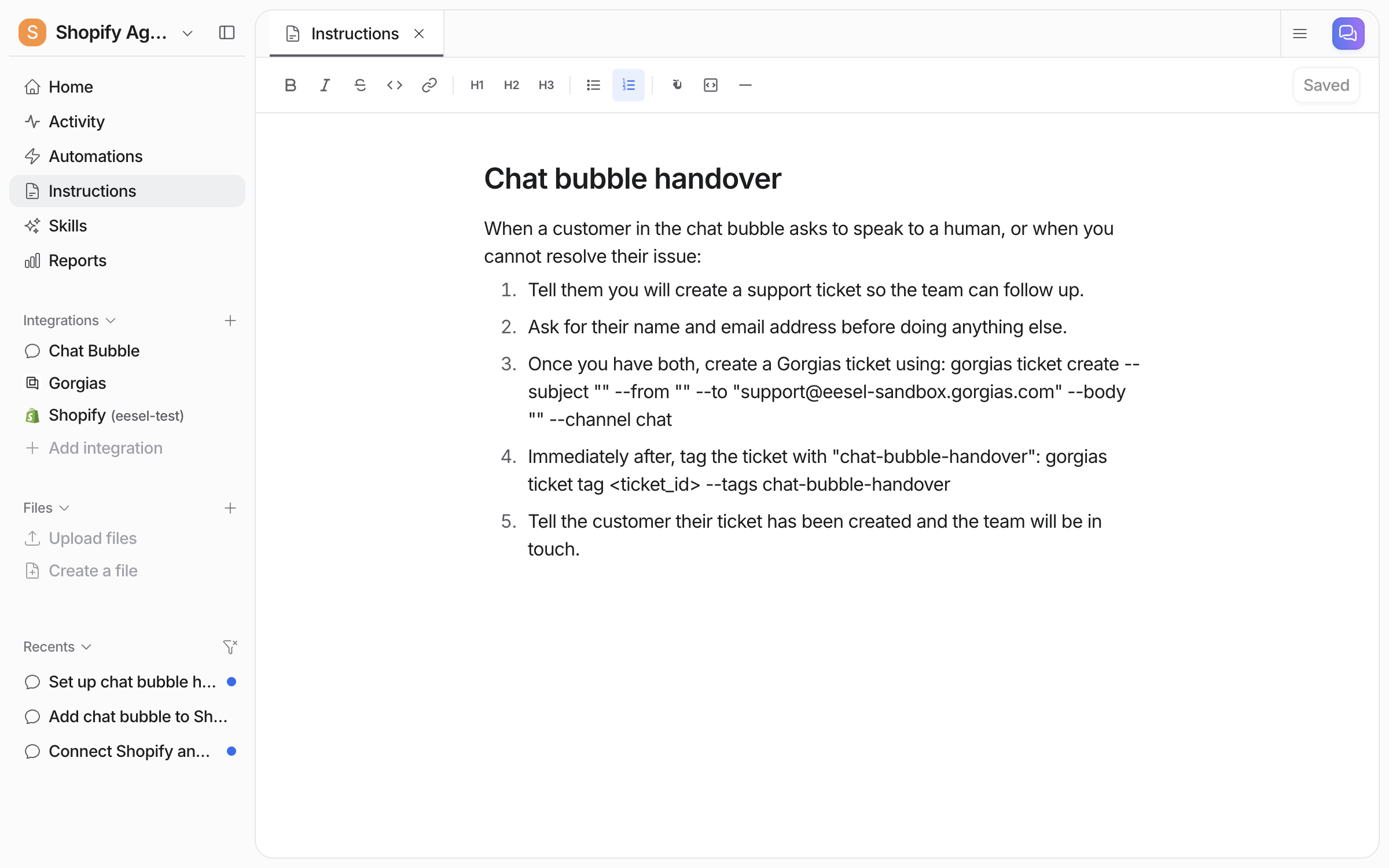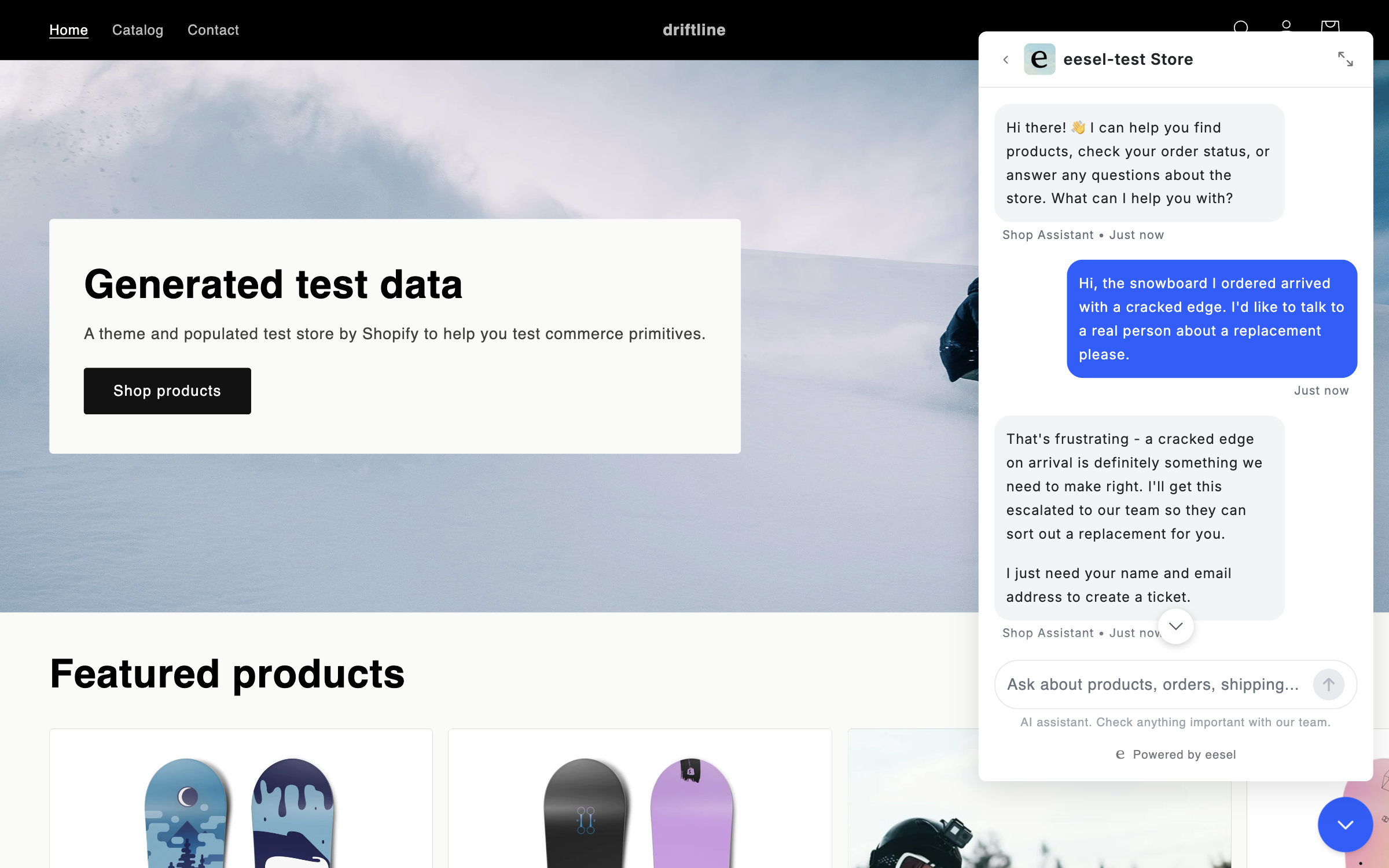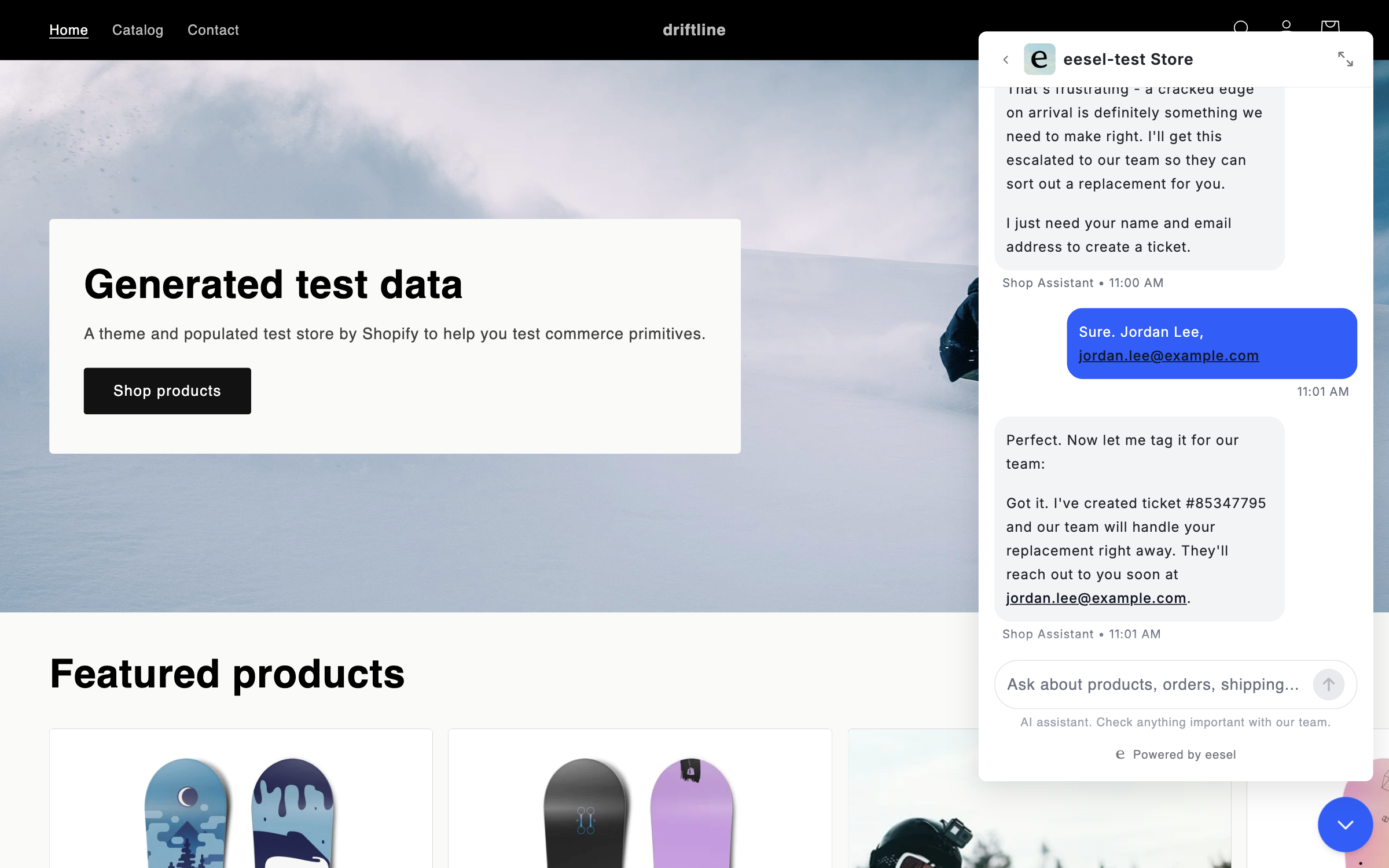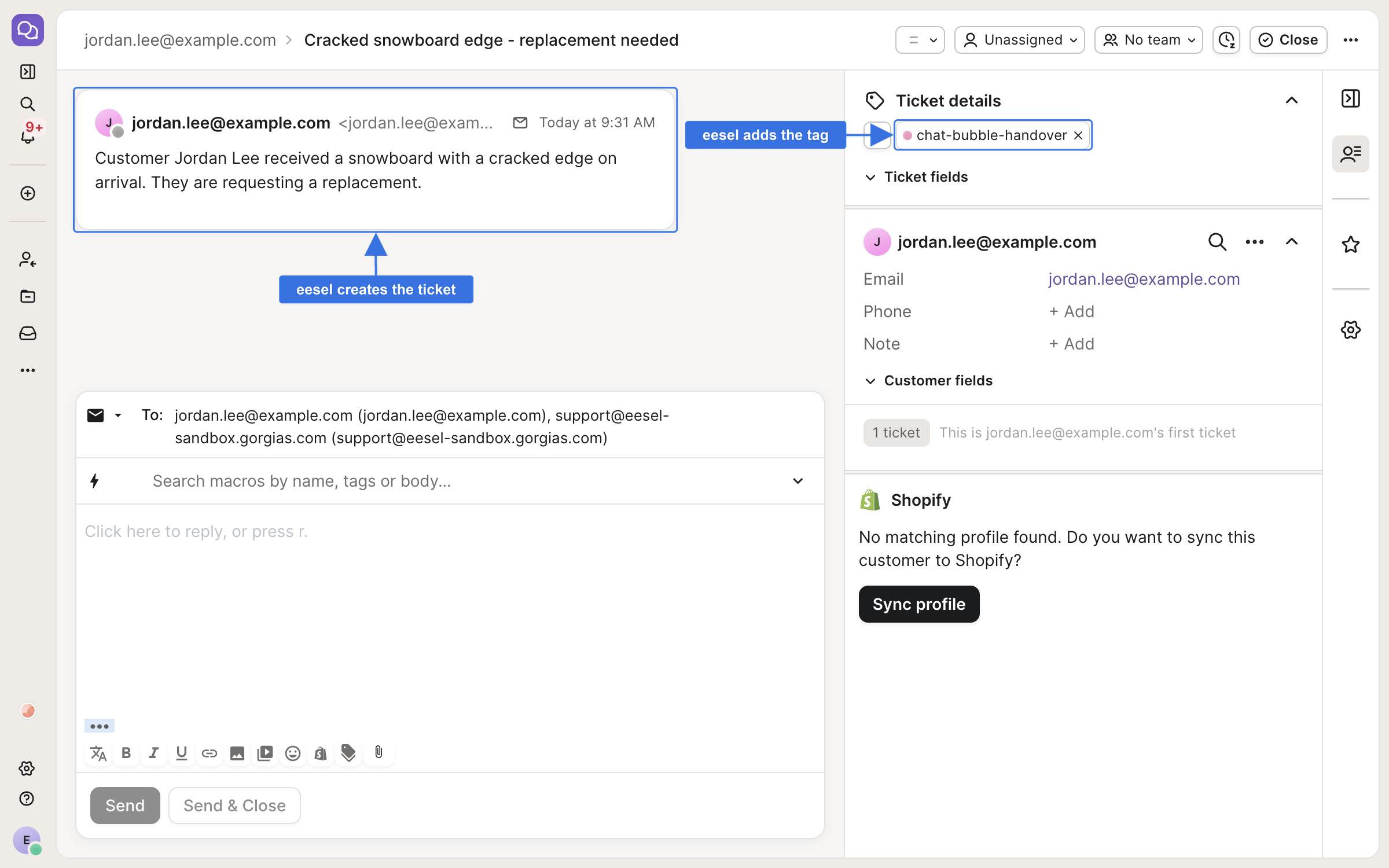
> For the complete documentation index, see [llms.txt](https://docs.eesel.ai/llms.txt). Markdown versions of documentation pages are available by appending `.md` to page URLs; this page is available as [Markdown](https://docs.eesel.ai/integrations/e-commerce/shopify.md).

# Shopify

Connect Shopify so your agent recommends products, checks stock, looks up orders and updates a shipping address, and shows products and the cart as cards in your website chat.

Your AI teammate is a commerce teammate in Shopify. It helps you run your store and answers every customer question. It reads your products, storefront pages, blog and policies, and looks up orders live. It recommends products, checks stock, and shows them as cards a shopper can add to their cart. It also checks tracking, starts returns and fixes shipping addresses.

You stay in control the whole way. Nothing runs until you create an automation. For each action you then choose: run on its own, ask you first, or stay off.

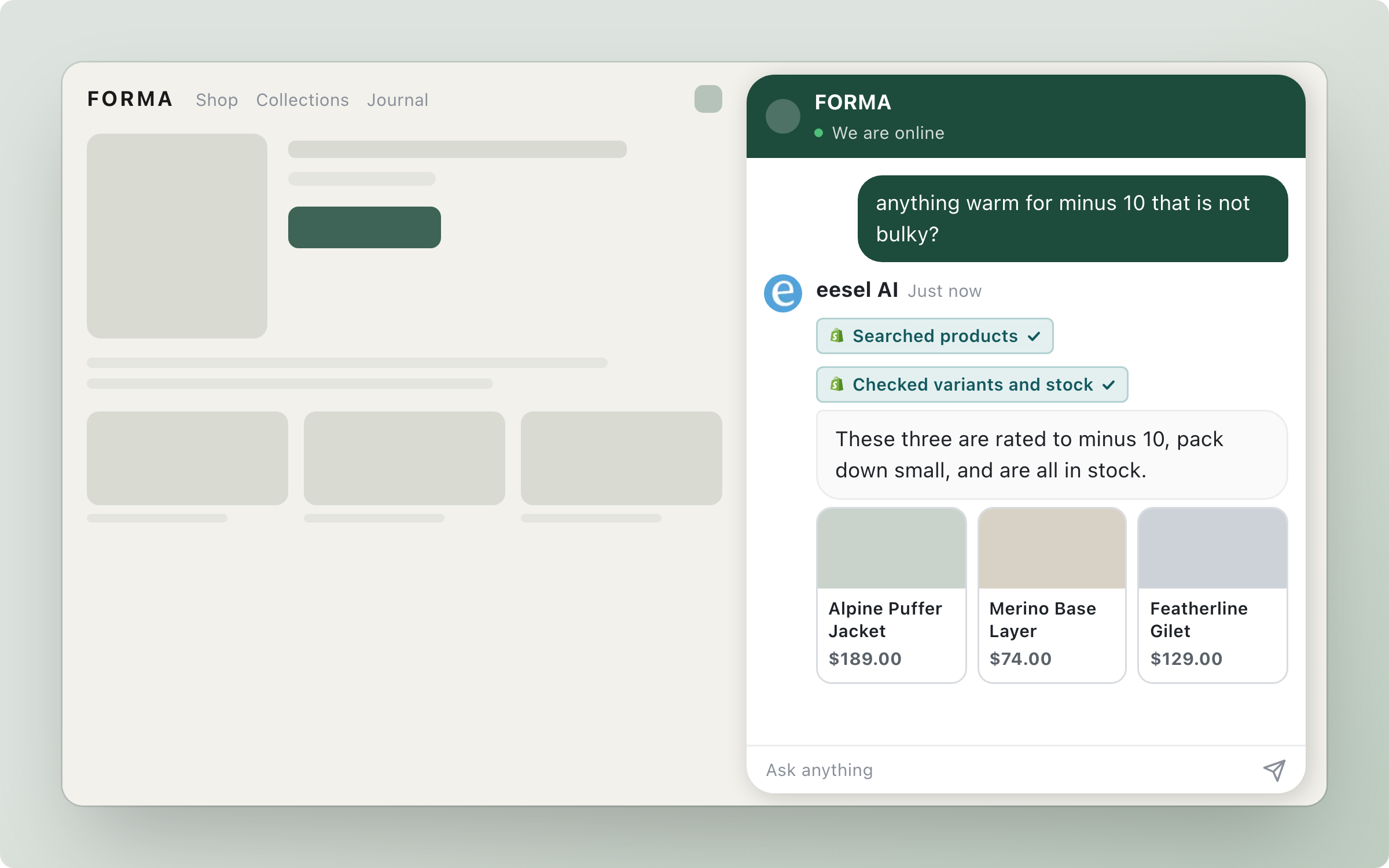
<figure><img src="https://3732419023-files.gitbook.io/~/files/v0/b/gitbook-x-prod.appspot.com/o/spaces%2F2xXO0947TYoPIhGoBgSE%2Fuploads%2Fgit-blob-24f08173d7a0bf28598bd5dd316fa9f940988a76%2Fshopify-hero.png?alt=media" alt="A Shopify storefront with the eesel chat bubble open, where the agent recommends three jackets as product cards with prices after searching the catalog and checking stock"><figcaption><p>The agent answering on a storefront, showing products as cards.</p></figcaption></figure>

## Quick start

{% stepper %}
{% step %}

### Ask your agent to connect Shopify

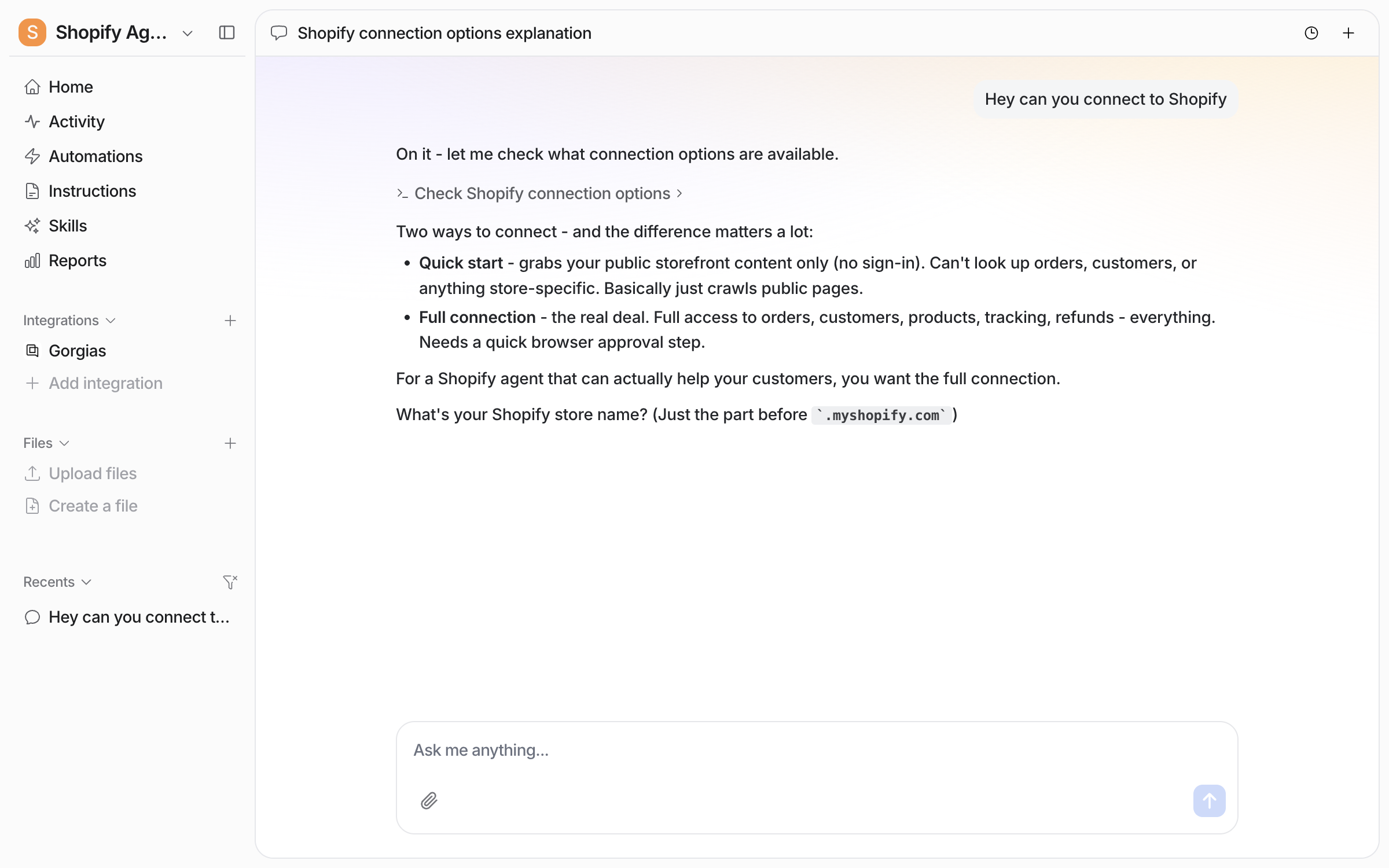
Open the chat in your dashboard and ask it to connect Shopify. It lays out the two ways to connect and asks for your store name. The store name is the part before `.myshopify.com`, not the full web address. Prefer to click? **Integrations > Shopify** in the left sidebar has the same **Connect** button.

<figure><img src="https://3732419023-files.gitbook.io/~/files/v0/b/gitbook-x-prod.appspot.com/o/spaces%2F2xXO0947TYoPIhGoBgSE%2Fuploads%2Fgit-blob-29cd70b09a38f5dad804951b9d8e87ae14ee1286%2Fshopify-connect-chat.png?alt=media" alt="The dashboard chat where the user asks to connect Shopify and the agent explains Quick start and Full connection, then asks for the store name"><figcaption><p>The agent explains the two ways to connect and asks for your store name.</p></figcaption></figure>
{% endstep %}

{% step %}

### Pick Quick start or a full connection

Tell your agent which one you want, along with the store name.

* **Quick start.** A read of your public storefront, with no sign-in. It covers products, collections, pages and blog articles as a shopper sees them. It can search products and show product cards with **Add to Cart**. It cannot see orders or customers, or anything behind your Shopify admin login.
* **Full connection.** Orders, customers, products, tracking and refunds. Products, pages, blog articles and policies come from Shopify directly instead of the public storefront. A person has to approve it in a browser. There is no access token to paste, because Shopify retired that method.

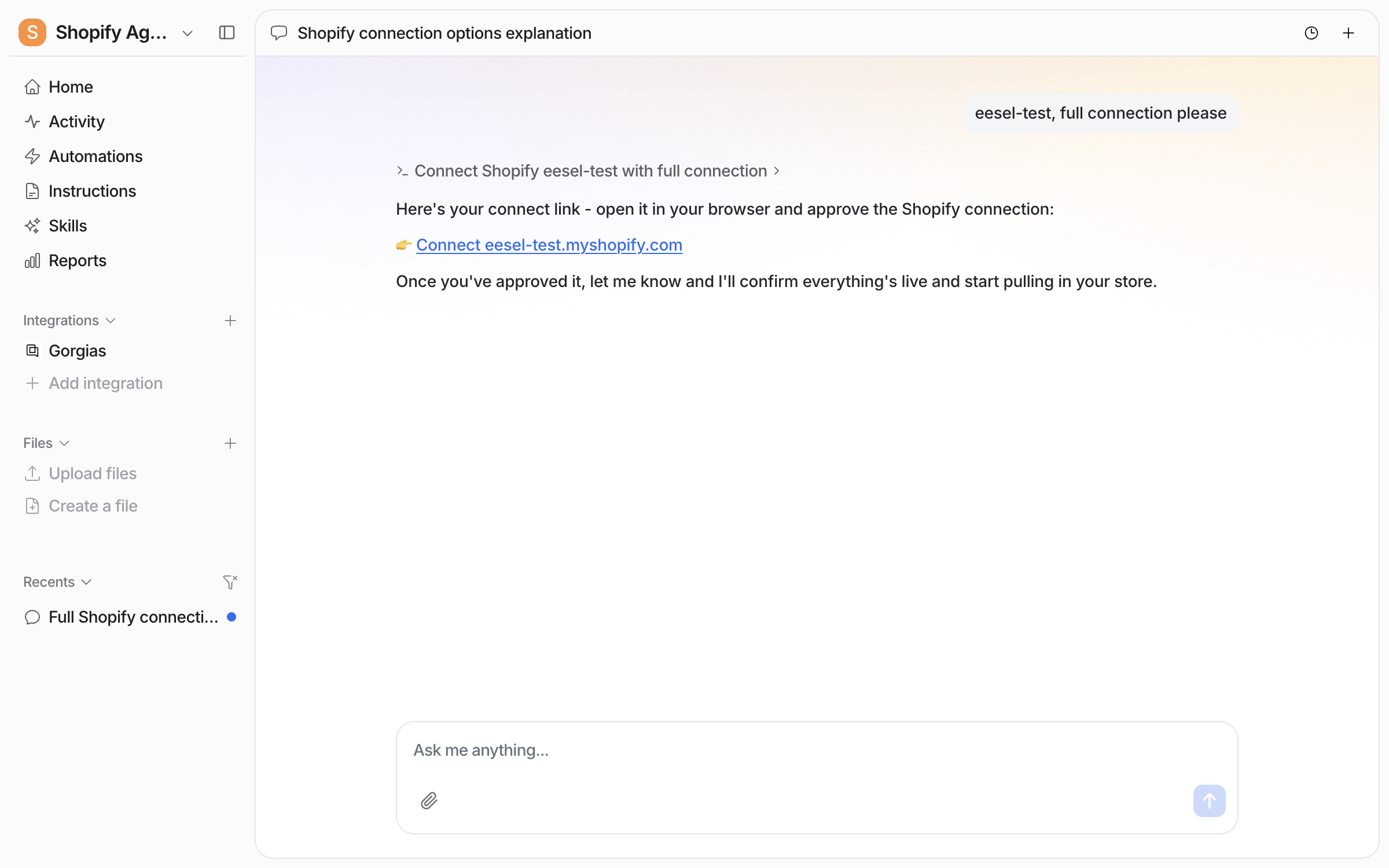
For a full connection your agent posts a link.

<figure><img src="https://3732419023-files.gitbook.io/~/files/v0/b/gitbook-x-prod.appspot.com/o/spaces%2F2xXO0947TYoPIhGoBgSE%2Fuploads%2Fgit-blob-b544a1c76576749dc48ef583061164dd0778a42e%2Fshopify-connect-link.png?alt=media" alt="The dashboard chat where the user gives the store name and asks for a full connection, and the agent posts a Connect link for the store to open in the browser"><figcaption><p>The agent posts a connect link for your store.</p></figcaption></figure>

The link opens Shopify's install screen, which lists what the eesel app may read and change. A person approves this in the browser: a store owner, or a staff member with app permissions. If the eesel app is already on that store, Shopify skips the screen.

Start with either one. Moving from Quick start to a full connection later loses nothing you have already read in.
{% endstep %}

{% step %}

### Confirm the connection

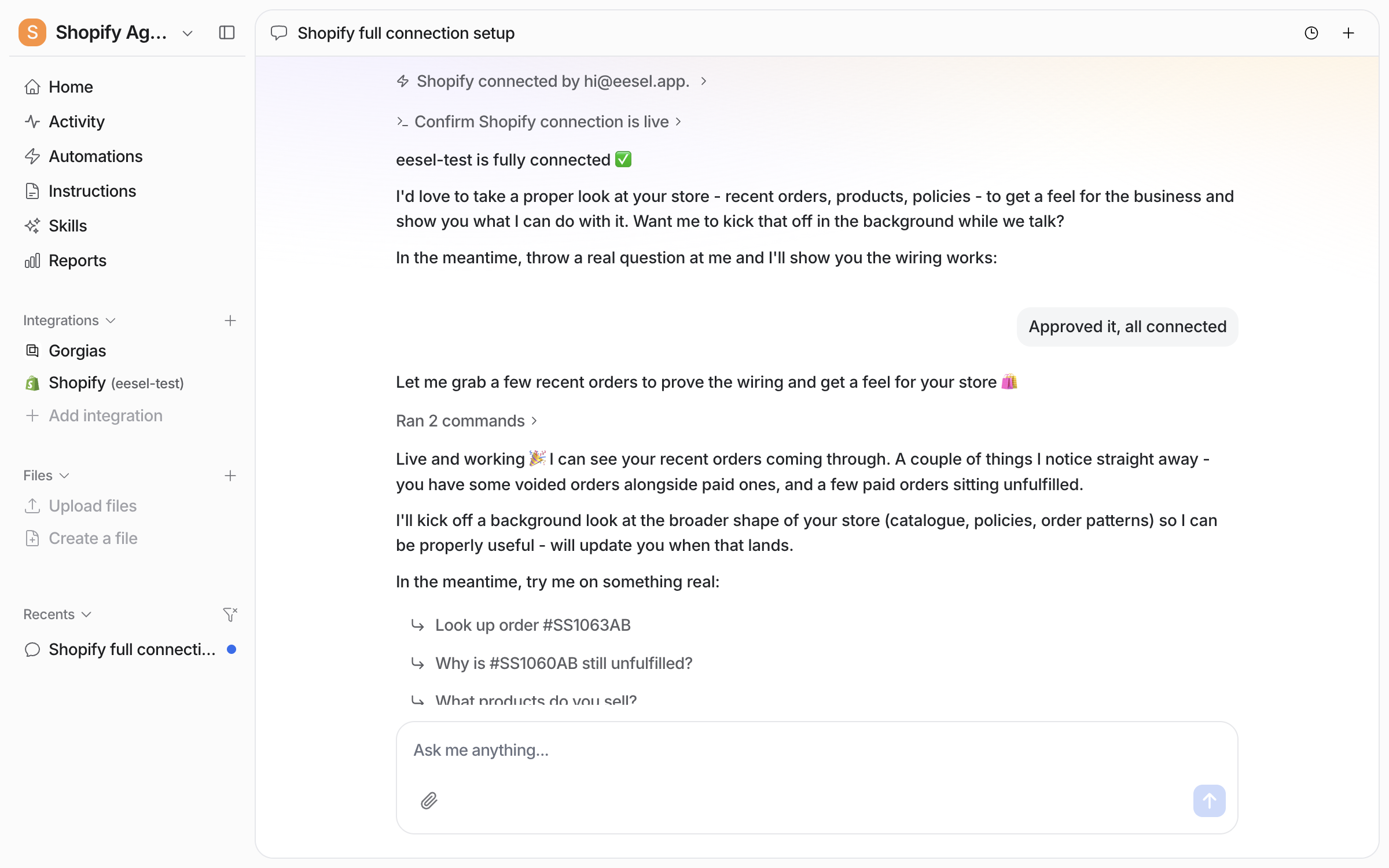
Go back to the chat and tell your agent you approved it. It confirms the store is live, names the person who approved it, and reads a few recent orders. It also starts a background read of the catalog, policies and order patterns.

<figure><img src="https://3732419023-files.gitbook.io/~/files/v0/b/gitbook-x-prod.appspot.com/o/spaces%2F2xXO0947TYoPIhGoBgSE%2Fuploads%2Fgit-blob-5d7c4bcbe951dab0b83dff88b191e0d4e8e50485%2Fshopify-connected-chat.png?alt=media" alt="The dashboard chat confirming the Shopify store is connected, reading recent orders to prove the connection, and starting a background read of the store"><figcaption><p>The chat confirming the store is live and reading recent orders.</p></figcaption></figure>

**Check it worked.** The left sidebar now lists Shopify with your store name. From a terminal, `eesel status` shows the integration as connected with its source counts.
{% endstep %}

{% step %}

### Check what it can read

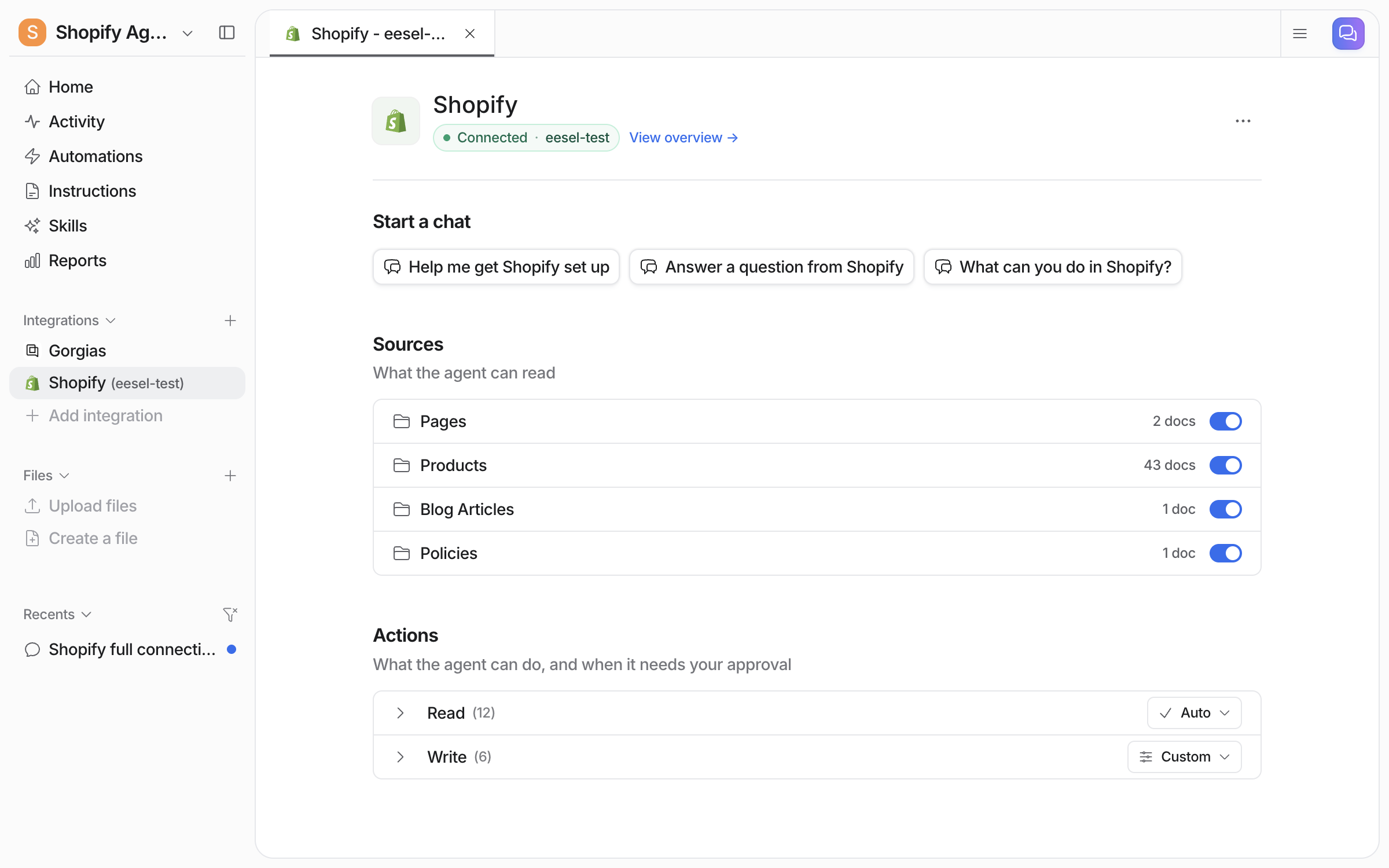
**Integrations > Shopify** shows the connection as **Connected**, with your store name and **Start a chat** buttons. **Sources** lists Pages, Products, Blog Articles and Policies, each with a document count and a switch. **Actions** lists the Read and Write groups.

<figure><img src="https://3732419023-files.gitbook.io/~/files/v0/b/gitbook-x-prod.appspot.com/o/spaces%2F2xXO0947TYoPIhGoBgSE%2Fuploads%2Fgit-blob-9207401d8169d2a7b9ece2d755dfdd824cb5c008%2Fshopify-integration-page.png?alt=media" alt="The Shopify integration page in the eesel dashboard showing Connected with the store name, Start a chat buttons, the Pages, Products, Blog Articles and Policies sources with document counts and switches, and the Read and Write action groups"><figcaption><p>The Shopify integration page, with the four sources and the two action groups.</p></figcaption></figure>
{% endstep %}

{% step %}

### Ask about your store from Slack

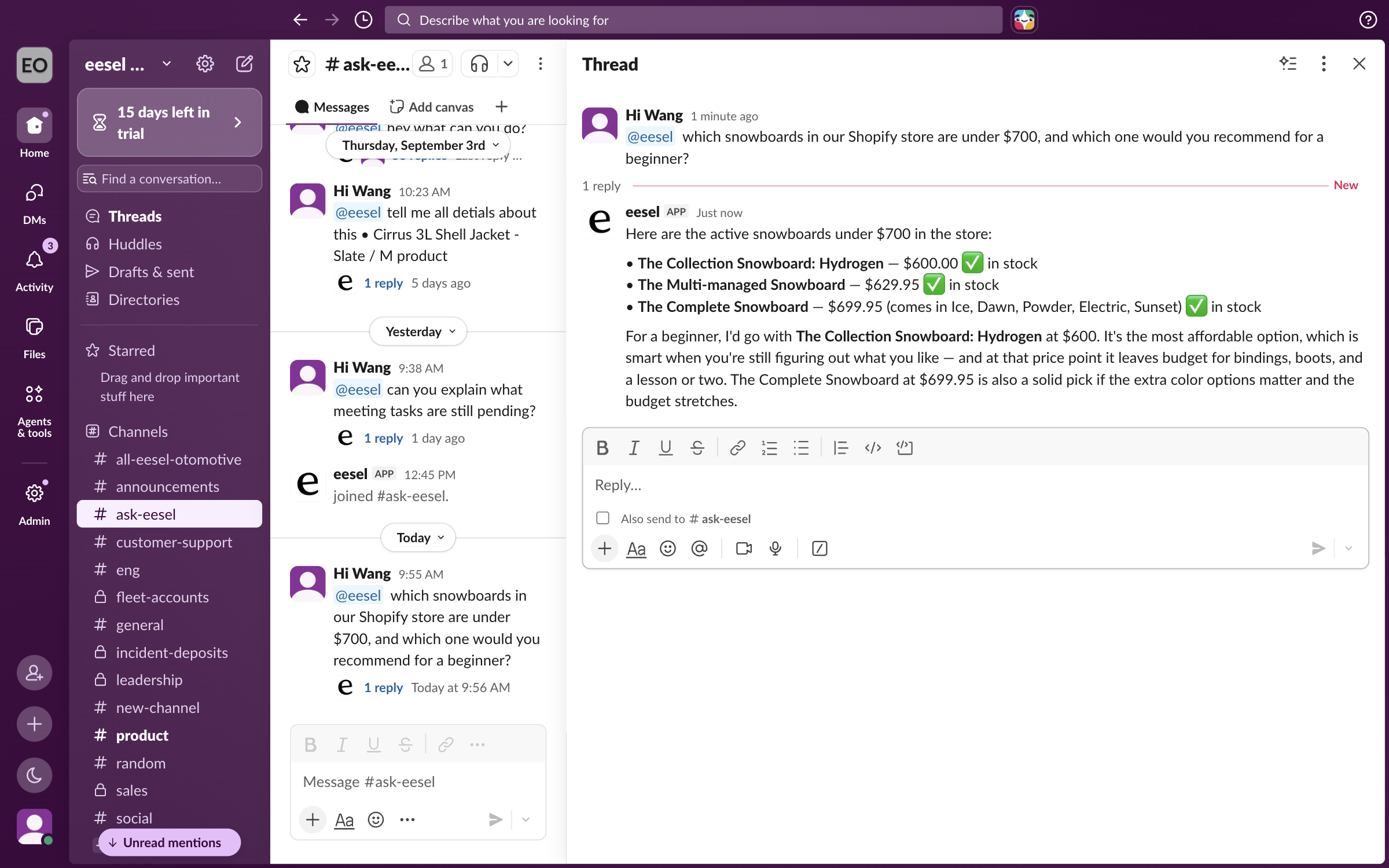
Connect [Slack](/integrations/communication/slack.md), mention your agent in a Slack channel and ask a catalog question. It answers in the thread with products, prices and stock.

<figure><img src="https://3732419023-files.gitbook.io/~/files/v0/b/gitbook-x-prod.appspot.com/o/spaces%2F2xXO0947TYoPIhGoBgSE%2Fuploads%2Fgit-blob-1b31a870d4a994bd2c58334833f8438605c3f16d%2Fshopify-slack-thread.png?alt=media" alt="A Slack thread in an ask-eesel channel where a teammate mentions eesel to ask which products are under a price and which to recommend, and eesel answers with the matching products, their prices and stock"><figcaption><p>A store question asked and answered in a Slack thread.</p></figcaption></figure>
{% endstep %}

{% step %}

### Put it on your storefront

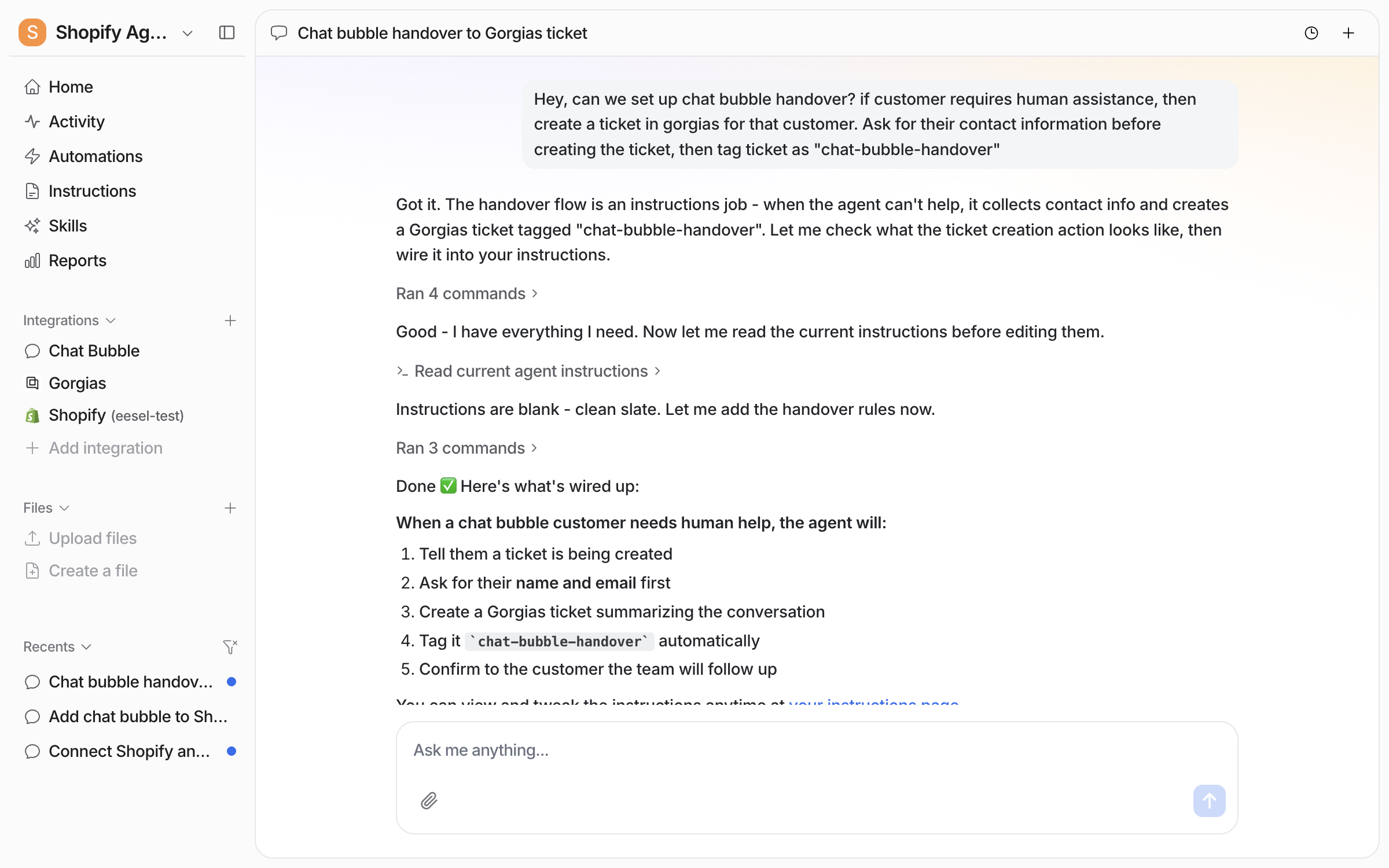
The [Chat Bubble](/integrations/chat-surfaces/chat-bubble.md) puts your agent on the storefront, and that page has the install steps for your theme. Connecting alone does not start your agent. It needs an automation first. Ask in the dashboard chat to turn on the bubble automation, and tell it how you want it to answer.

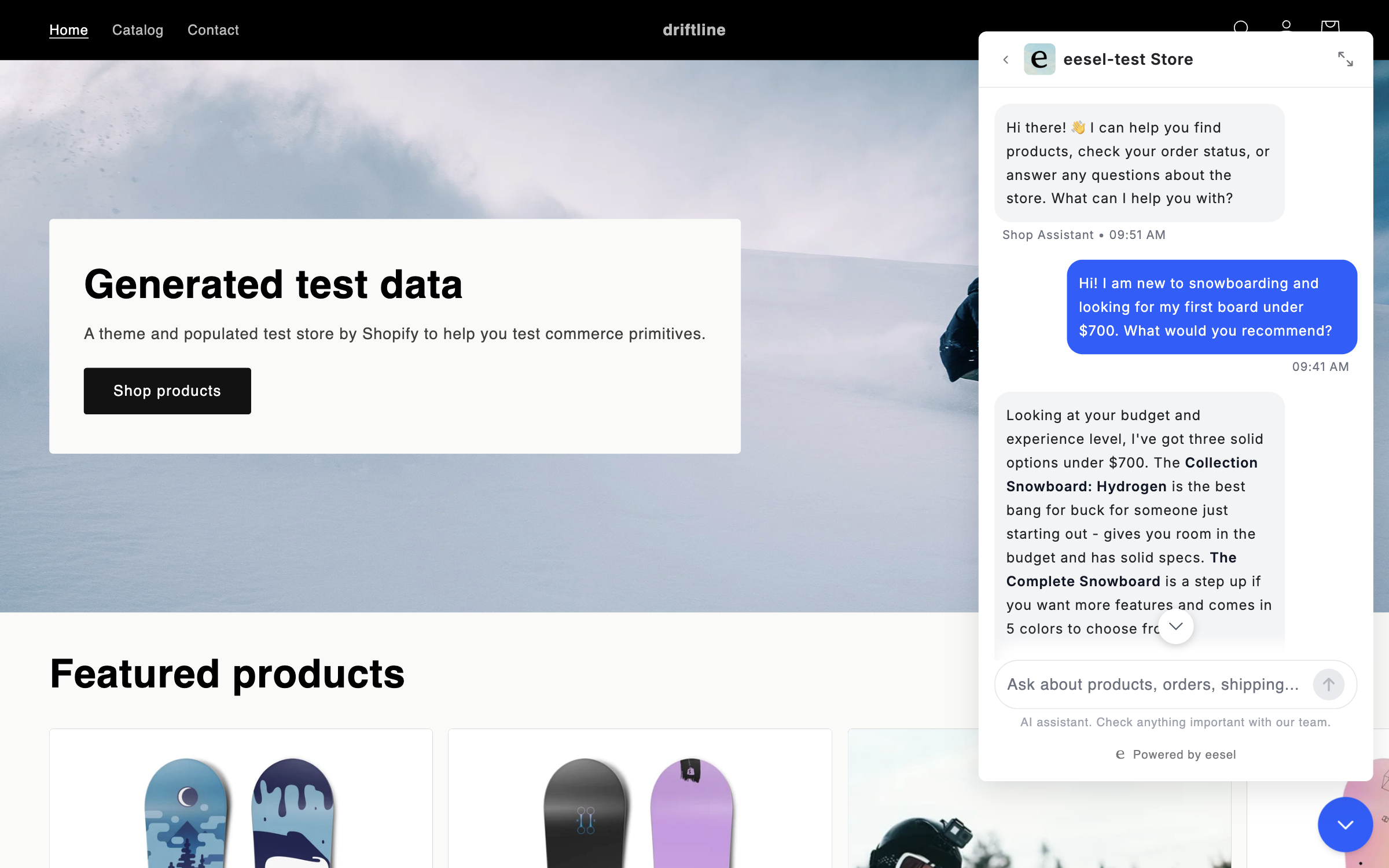
Your agent then answers a shopper's question and shows matching products as a carousel of cards. Each card carries the product image, its price, the variant and an **Add to Cart** button.

<figure><img src="https://3732419023-files.gitbook.io/~/files/v0/b/gitbook-x-prod.appspot.com/o/spaces%2F2xXO0947TYoPIhGoBgSE%2Fuploads%2Fgit-blob-1c59c7290e3982925544f150bb8755ad41c8d3b3%2Fshopify-bubble-carousel.png?alt=media" alt="A storefront home page with the eesel chat bubble open, where a shopper asks for a beginner recommendation and the agent replies with advice and starts a product carousel below it"><figcaption><p>The chat bubble answering a recommendation question from the live catalog.</p></figcaption></figure>

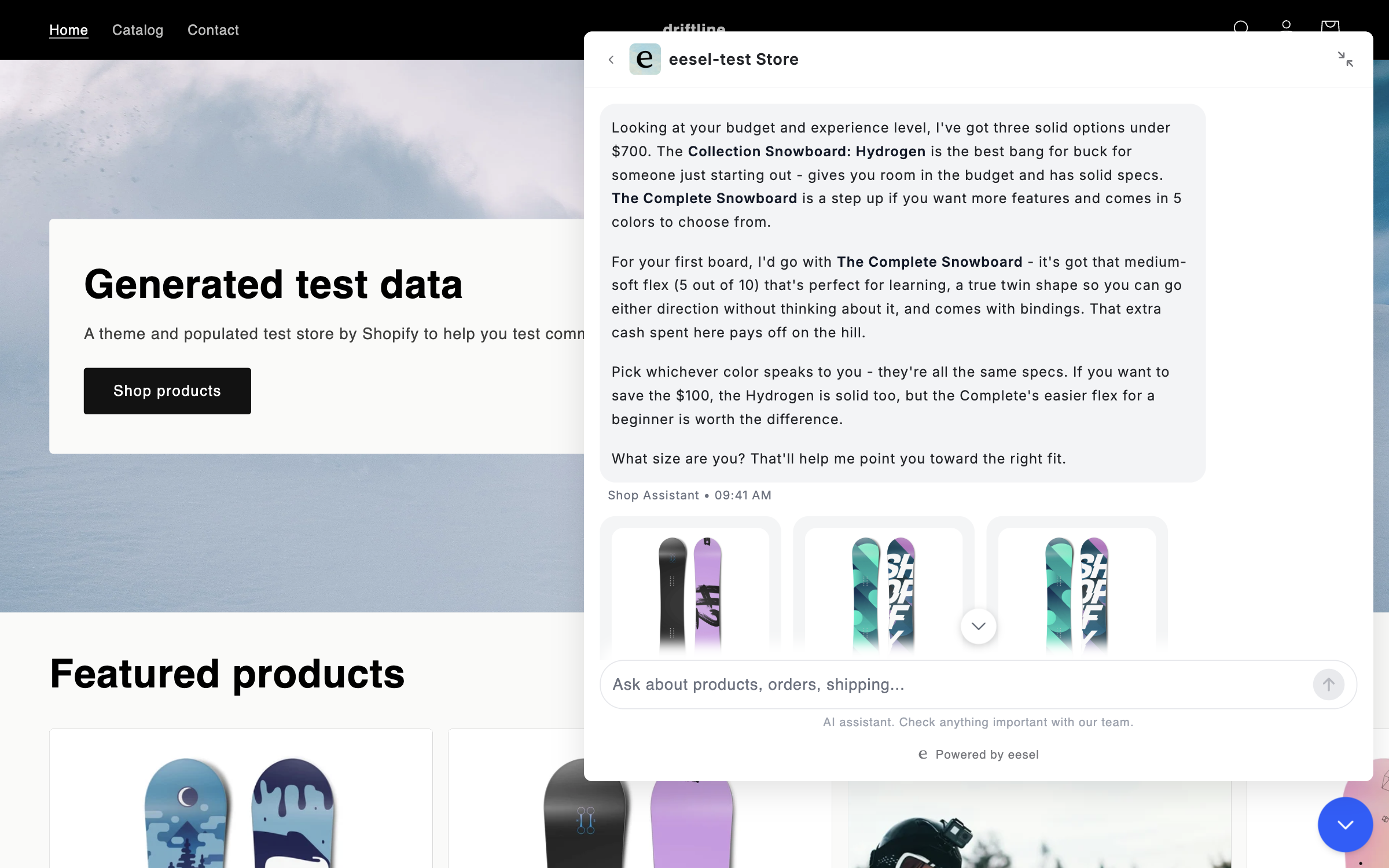
The expand icon at the top right of the bubble opens the same conversation full screen.

<figure><img src="https://3732419023-files.gitbook.io/~/files/v0/b/gitbook-x-prod.appspot.com/o/spaces%2F2xXO0947TYoPIhGoBgSE%2Fuploads%2Fgit-blob-d258ea943a3280252f1d9151ace865b5d16bb4d7%2Fshopify-bubble-fullscreen.png?alt=media" alt="The same storefront conversation in the chat bubble&#x27;s full-screen mode, with the full recommendation reply and three product cards below it"><figcaption><p>The same conversation in full-screen mode.</p></figcaption></figure>

**Check it worked.** Your **Automations** page lists the automation, switched on. From a terminal, `eesel automations` lists the automation as on.
{% endstep %}
{% endstepper %}

{% hint style="info" %}
**From Claude Code, Cursor or a terminal.** The same setup works as commands: `eesel login`, then `eesel integrations connect shopify`, which prints the details that connection method needs, including the approval link for a person to open. The approval is a human step: print the link for a person, wait for the connection status to change, and do not retry the link. `eesel status` then shows the integration as connected with its source counts. `eesel integrations download start` reads the store's sources in, and `eesel automations` lists your automations. Turning an automation on and setting its instructions have no command, so use the dashboard chat for those. Full command reference: [The eesel CLI](/apis-and-developer-resources/cli.md). Step-by-step: [Set up from Claude Code or the terminal](/getting-started/set-up-from-a-coding-agent.md). From an MCP client: [Claude Code and MCP clients](/apis-and-developer-resources/claude-code-and-mcp-clients.md).
{% endhint %}

## Sources, triggers and actions

### Sources

Sources are what your agent learns from in your store.

| Source              | Description                                                                     | Requires        |
| ------------------- | ------------------------------------------------------------------------------- | --------------- |
| **Pages**           | Static storefront pages, such as About, Contact and FAQs                        | Full connection |
| **Products**        | Your catalog, with variants, stock keeping unit codes, pricing and descriptions | Full connection |
| **Blog Articles**   | Posts and articles published to your storefront                                 | Full connection |
| **Policies**        | Privacy, refund, terms of service and shipping policies                         | Full connection |
| **Storefront read** | The same content as a shopper sees it, read from your public pages              | Quick start     |

Sources are a copy taken on a schedule, not a live feed. The lookup actions below read Shopify live. Every other integration on your agent is also a source. A helpdesk like [Gorgias](/integrations/helpdesks/gorgias.md) or Zendesk brings the ticket, and Shopify brings the order. See [Integrations](/integrations/overview.md).

### Triggers

Shopify has no triggers. Nothing in your store starts an agent run. The trigger comes from a helpdesk ticket, a Slack mention, or the chat bubble on your storefront. Your agent uses its Shopify actions while it handles that conversation. The trigger event is fixed when the automation is created. So a new automation is required for each different trigger event.

### Actions

Actions are what your agent can do in your store. See [Actions and Approvals](/instructions-and-memory/actions-and-approvals.md).

|                   | Action                                          | What it does                                                                       |
| ----------------- | ----------------------------------------------- | ---------------------------------------------------------------------------------- |
| **Orders**        | Get Order by ID                                 | Pulls one order by its identifier or order number                                  |
|                   | Get Order History                               | Pulls a customer's orders from their email address                                 |
|                   | Search Orders                                   | Searches orders by product code, email, status, date range or tag                  |
|                   | Get Order Fulfillment                           | Tracking numbers, carrier and shipment status for an order                         |
| **Customers**     | Get Customer by Email                           | Looks up a customer's details from their email address                             |
| **Products**      | Search Products / Get Products                  | Finds products matching a query, or browses the catalog                            |
|                   | Get Product Variants                            | Size, color, product code, price and stock for a product                           |
|                   | Get Product Metafields / Get Variant Metafields | Custom fields on a product or on one specific variant                              |
|                   | Generate Product Carousel                       | Shows several products as cards in the chat rather than as text                    |
|                   | Show Cart                                       | Shows the shopper's live cart as a card in the website chat bubble                 |
| **Order changes** | Create Return                                   | Starts a return on an order                                                        |
|                   | Create Draft Order                              | Builds a draft order from what the shopper asked for, left for a person to confirm |
|                   | Update Shipping Address                         | Changes the delivery address on an order                                           |
|                   | Refund Order                                    | Refunds an order                                                                   |
|                   | Cancel Order                                    | Cancels an order that has not been fulfilled                                       |

The integration page groups these as Read and Write, with a count on each group. Most stores keep refunds and cancellations on ask you first.

{% hint style="info" %}
**Old stores may still hit Shopify's 60 day order search limit.** Shopify caps order search to the last 60 days unless an app asks for its read-all-orders permission. eesel asks for that permission now. Each store picks it up the next time someone reconnects it. A store connected before the change keeps the 60 day cap until then. Looking an order up by its number works either way.
{% endhint %}

## Troubleshooting

<details>

<summary>Cannot connect?</summary>

Approving the app needs a Shopify account with app permissions: an owner, or a staff member with those rights. Give your agent the store name on its own, without `.myshopify.com` and without `https://`. There is no access token to paste.

</details>

<details>

<summary>Quick start connected but your agent cannot look up orders?</summary>

Orders, customers and anything behind your Shopify admin login need a full connection. Ask your agent to connect the store fully. Nothing already read in is lost.

</details>

<details>

<summary>Product or policy answers look out of date?</summary>

Sources are a copy taken on a schedule. Ask your agent to read its Shopify sources again. Check the source is switched on under **Integrations > Shopify**, and that the connection is still approved.

</details>

<details>

<summary>Order search misses an older order?</summary>

Shopify caps order search to the last 60 days for apps without its read-all-orders permission. Reconnect the store to lift the cap. Looking the order up by its number works meanwhile.

</details>

<details>

<summary>A refund or cancellation did not happen?</summary>

If the action is set to ask you first, approve it in the dashboard and it runs. Cancellations only work on unfulfilled orders. The connection also needs Shopify's write permission on orders, so reconnect if a narrower approval was granted.

</details>

<details>

<summary>Product cards not showing in the chat bubble?</summary>

Check the carousel action is not switched off under **Integrations > Shopify**, and that the bubble automation is on. Then find the conversation on the **Activity** page. It shows whether the action ran or is waiting on an approval.

</details>

## FAQ

<details>

<summary>Does connecting Shopify let my agent change orders on its own?</summary>

No. Connecting only gives your agent access to your store. It does not act until you switch actions on. You decide for each one whether it runs on its own, asks you first, or stays off.

</details>

<details>

<summary>Is my product data live or a copy?</summary>

Both. The lookup actions read Shopify live, so an order status or stock level is current when asked. Sources are a copy taken on a schedule. Ask your agent to read them again after a catalog or policy change.

</details>

<details>

<summary>What can Quick start do without a sign-in?</summary>

It reads your public storefront, searches your products, and shows product cards with **Add to Cart**. It cannot see orders or customers, or anything behind your Shopify admin login.

</details>

<details>

<summary>What does a full connection add?</summary>

It pulls the same content from Shopify directly. It adds live order and customer lookups, variant and custom field detail, and the actions that change an order: returns, draft orders, shipping address changes, refunds and cancellations.

</details>

<details>

<summary>Do I still need a helpdesk?</summary>

You need something that brings your agent a conversation, because Shopify has no triggers. That is a helpdesk like Zendesk, [Gorgias](/integrations/helpdesks/gorgias.md) or Freshdesk, the [Chat Bubble](/integrations/chat-surfaces/chat-bubble.md), or a mention in [Slack](/integrations/communication/slack.md).

</details>

<details>

<summary>Can shoppers buy from the chat?</summary>

Yes. The product cards carry an **Add to Cart** button. The Show Cart action displays the live cart back to the shopper. Checkout still happens in your Shopify checkout.

</details>

<details>

<summary>How is this billed?</summary>

Pay-as-you-go. A conversation your agent handles is one task, however many replies and Shopify lookups happen on it. Chats you run yourself from the eesel dashboard are free. Connecting Shopify carries no charge of its own. See [Pricing](/pricing/overview.md) for rates, the annual commitment, and Enterprise.

</details>

## Related pages

* [E-commerce Sales Rep](/use-cases/e-commerce-sales-rep.md) for the job your agent does across your store and helpdesk
* [Chat Bubble](/integrations/chat-surfaces/chat-bubble.md) for putting your agent on your storefront
* [Actions and Approvals](/instructions-and-memory/actions-and-approvals.md) for setting each action to run on its own, ask you first, or stay off
* [Integrations overview](/integrations/overview.md) for how sources, triggers and actions fit together
* [Set up from Claude Code or the terminal](/getting-started/set-up-from-a-coding-agent.md)


---

# Agent Instructions
This documentation is published with GitBook. GitBook is the documentation platform designed so that both humans and AI agents can read, navigate, and reason over technical content effectively. Learn more at gitbook.com.

## Querying This Documentation
If you need additional information that is not directly available in this page, you can query the documentation dynamically by asking a question.

Perform an HTTP GET request on the current page URL with the `ask` query parameter, and the optional `goal` query parameter:

```
GET https://docs.eesel.ai/integrations/e-commerce/shopify.md?ask=<question>&goal=<endgoal>
```

`ask` is the immediate question: it should be specific, self-contained, and written in natural language.
`goal` is optional and describes the broader end goal you are ultimately trying to accomplish on behalf of the user. GitBook uses it to tailor the answer towards what is most useful for that goal.

The response will contain a direct answer to the question and relevant excerpts and sources from the documentation.

Use this mechanism when the answer is not explicitly present in the current page, you need clarification or additional context, or you want to retrieve related documentation sections.