> For the complete documentation index, see [llms.txt](https://docs.eesel.ai/llms.txt). Markdown versions of documentation pages are available by appending `.md` to page URLs; this page is available as [Markdown](https://docs.eesel.ai/integrations/e-commerce/stripe/stripe-setup.md).

# Set up Stripe

Stripe setup for your AI agent, screen by screen: create a restricted key in Stripe with the permissions your agent needs, then connect that key to eesel.

Connecting Stripe, screen by screen. You create a key in Stripe, a long code that lets eesel act in your Stripe account with only the permissions you pick, and paste it into a form from Pipedream, the service that holds the connection for eesel. You do it once, and every step on this page is done by a person in a browser. For what your teammate does with Stripe, see the [Stripe overview](/integrations/e-commerce/stripe.md).

## Before you begin

* You need access to **Developers > API keys** in the Stripe dashboard. Owners and administrators have it.
* Decide whether to start in **test mode**, Stripe's practice copy of your account, which Stripe also calls a sandbox. It is the safe place to set instructions and approvals. Moving to live means removing the connection in eesel and connecting again with a key from the real account.
* Have the Pipedream key form open in eesel. It opens from **Integrations > Stripe > Connect**, then **Continue**. Leave it open while you work in Stripe.

<figure><img src="https://3732419023-files.gitbook.io/~/files/v0/b/gitbook-x-prod.appspot.com/o/spaces%2F2xXO0947TYoPIhGoBgSE%2Fuploads%2Fgit-blob-f029d33ad632c5970fd72b43ddae20c3dc4f4f95%2Fstripe-pipedream-key.png?alt=media" alt="The Pipedream form with an empty Restricted API Key field and three steps: create a Stripe API key, click Create Restricted Key, enter the key above"><figcaption><p>The Pipedream key form, waiting for the key.</p></figcaption></figure>

## Walkthrough

{% stepper %}
{% step %}

### Open API keys in Stripe

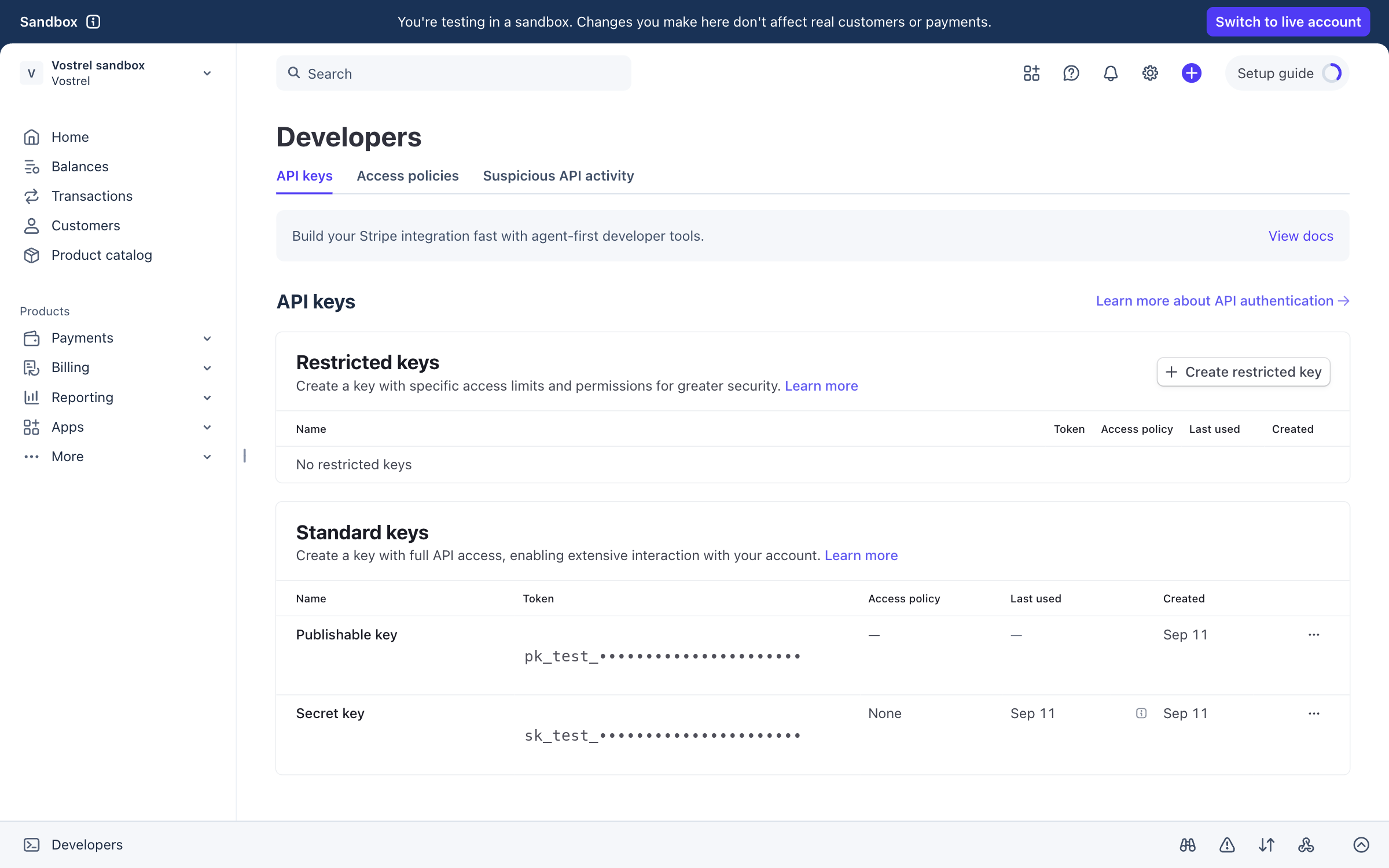
In the Stripe dashboard open **Developers** in the bottom left, then the **API keys** tab. Choose **Create restricted key**.

<figure><img src="https://3732419023-files.gitbook.io/~/files/v0/b/gitbook-x-prod.appspot.com/o/spaces%2F2xXO0947TYoPIhGoBgSE%2Fuploads%2Fgit-blob-21400a49934bb3c158dd45206aa3153a04f71e7d%2Fstripe-apikeys.png?alt=media" alt="Stripe&#x27;s Developers page on the API keys tab, with the Create restricted key button and the standard publishable and secret keys masked"><figcaption><p>API keys in the Stripe dashboard.</p></figcaption></figure>
{% endstep %}

{% step %}

### Say what the key is for

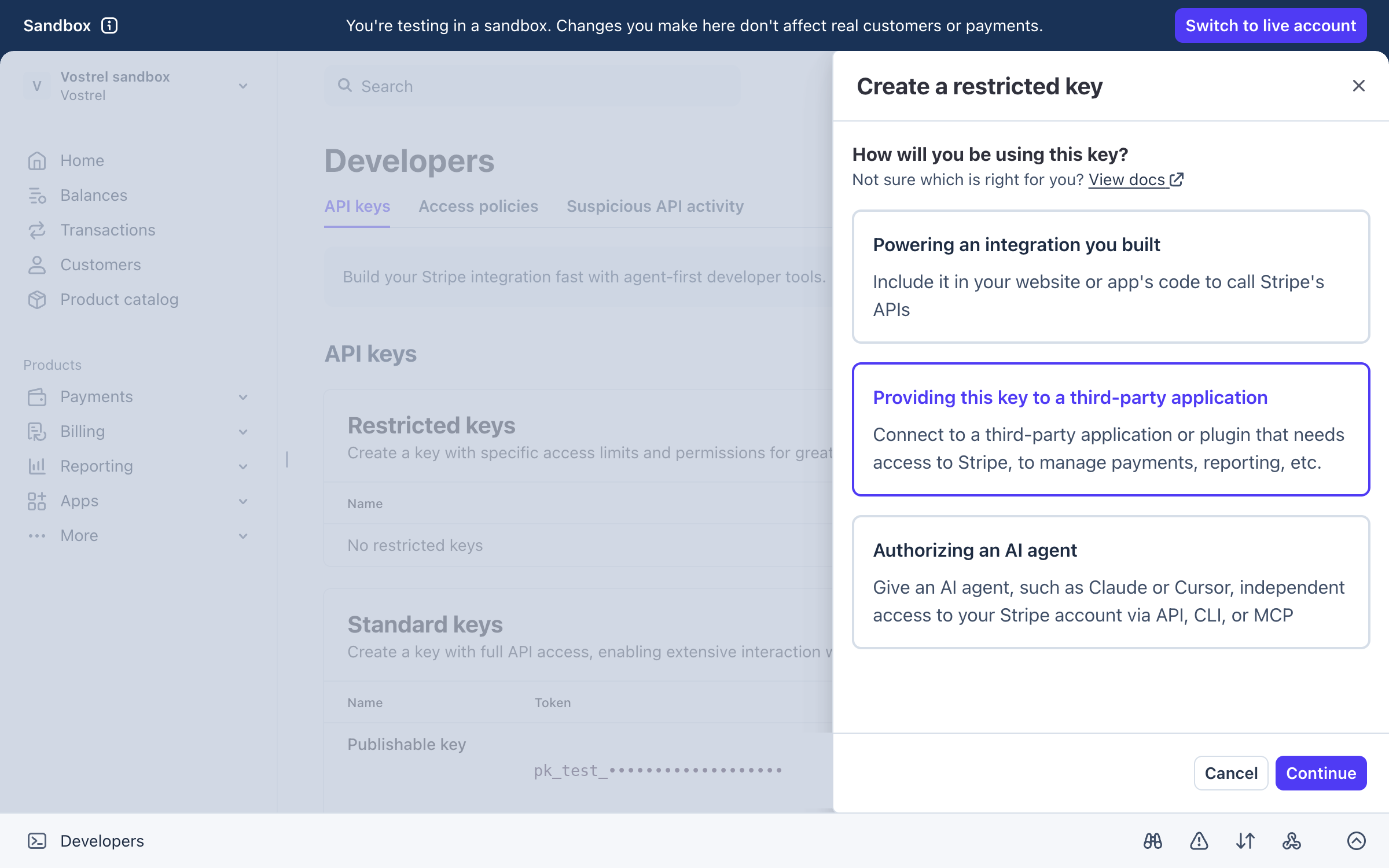
Stripe asks how the key will be used. Pick **Providing this key to a third-party application** and choose **Continue**.

<figure><img src="https://3732419023-files.gitbook.io/~/files/v0/b/gitbook-x-prod.appspot.com/o/spaces%2F2xXO0947TYoPIhGoBgSE%2Fuploads%2Fgit-blob-fa6ce67d5ca73470cf9ee6d84a8cb5de59d2b6b5%2Fstripe-restricted-key-2.png?alt=media" alt="Stripe&#x27;s Create a restricted key panel with Providing this key to a third-party application selected"><figcaption><p>The third-party option.</p></figcaption></figure>
{% endstep %}

{% step %}

### Name it and create it

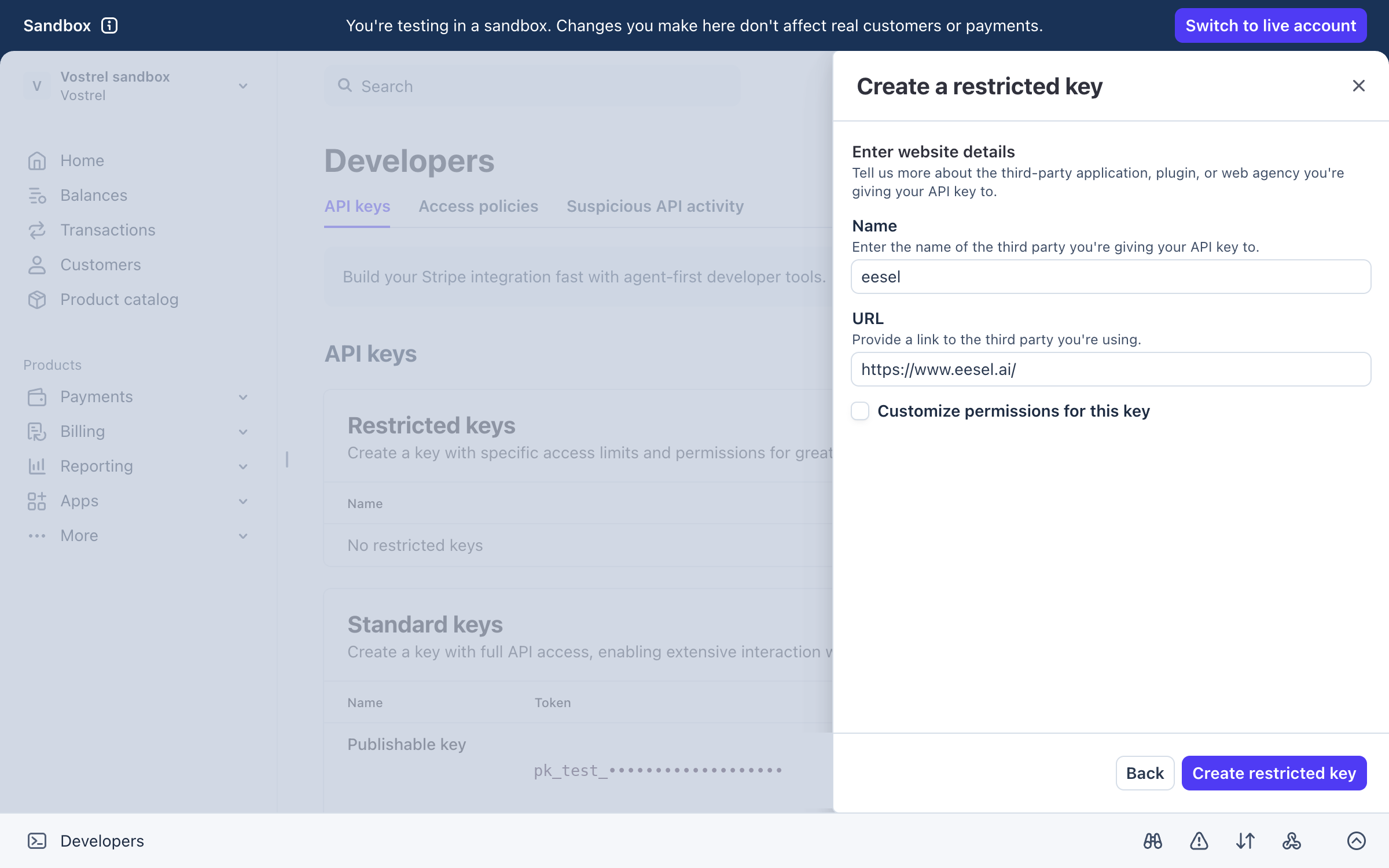
Name the third party eesel and enter `https://www.eesel.ai` as the URL. Left unticked, **Customize permissions for this key** gives the key full access. Ticking it shows, on the same screen, a list of the things in Stripe the key may touch, each set to None, Read or Write. Set Customers, Invoices, Payment Intents (Stripe's name for payments), Refunds and Subscriptions to Write. Set Balance, Charges, Payouts, Prices and Payment Methods to Read, so your agent can check your balance, find the charge behind a refund, and pick a price and card for a new subscription. Leave everything else on None. Stripe has no setting between Write and Read, so Write on Customers also lets the key delete a customer. If your agent only needs to look customers up, set Customers to Read. Then choose **Create restricted key**.

<figure><img src="https://3732419023-files.gitbook.io/~/files/v0/b/gitbook-x-prod.appspot.com/o/spaces%2F2xXO0947TYoPIhGoBgSE%2Fuploads%2Fgit-blob-5dee9c75f9da42a3ef81569bd80195bf8ba57c61%2Fstripe-restricted-key-3.png?alt=media" alt="The website details step with eesel as the name and the eesel website as the URL"><figcaption><p>Name and URL for the key.</p></figcaption></figure>
{% endstep %}

{% step %}

### Copy the key

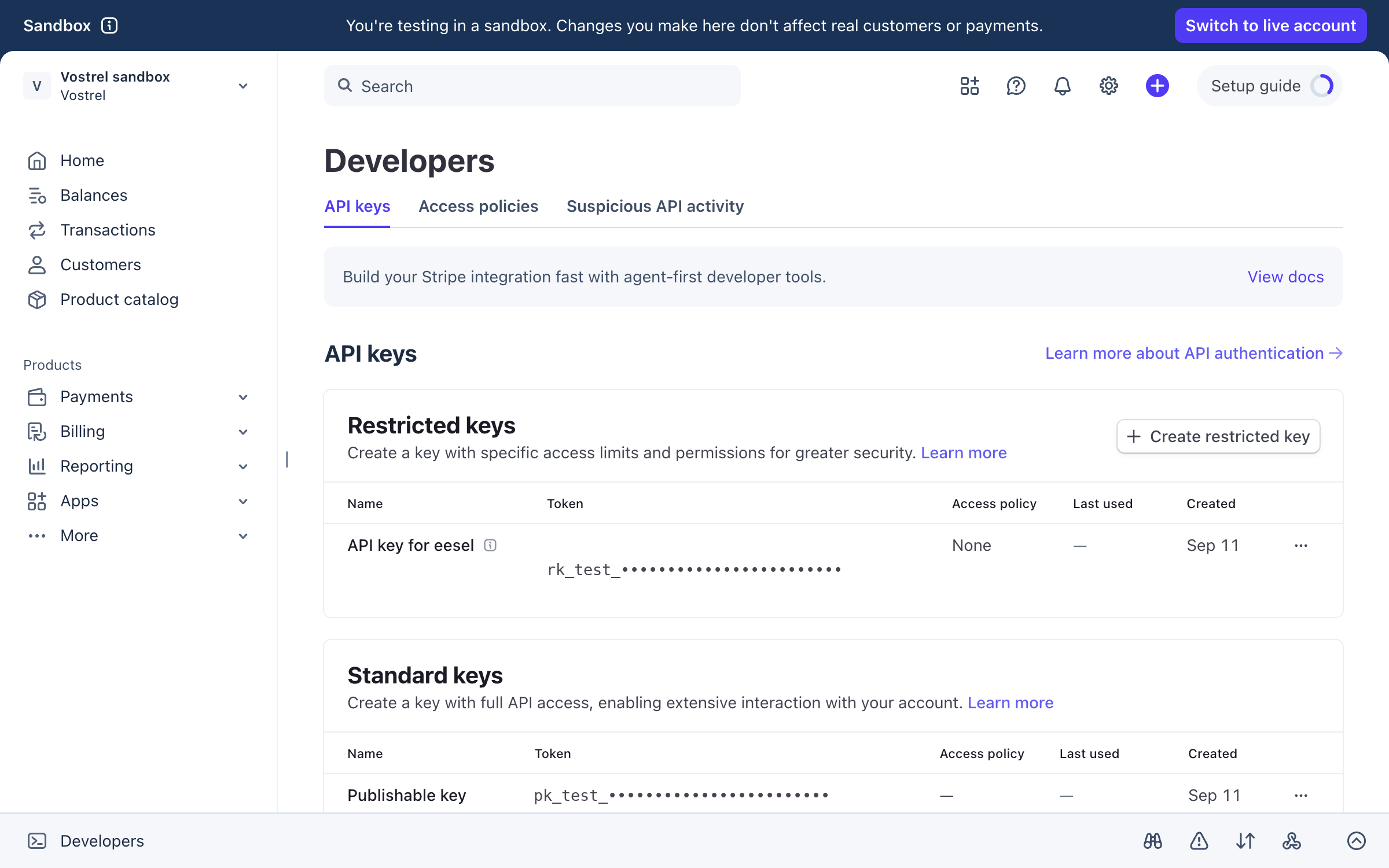
Stripe names the key API key for eesel and lists it under **Restricted keys**. Copy the key from its row.

<figure><img src="https://3732419023-files.gitbook.io/~/files/v0/b/gitbook-x-prod.appspot.com/o/spaces%2F2xXO0947TYoPIhGoBgSE%2Fuploads%2Fgit-blob-49fec0262be9c5fca4bb08c30b32b942149bf21f%2Fstripe-restricted-key-4.png?alt=media" alt="The API keys page with a new restricted key named API key for eesel, its token masked"><figcaption><p>The restricted key, ready to copy.</p></figcaption></figure>
{% endstep %}

{% step %}

### Paste it into eesel

Back in the Pipedream form, paste the key and choose **Continue**. The key goes to Pipedream and never into the chat.

<figure><img src="https://3732419023-files.gitbook.io/~/files/v0/b/gitbook-x-prod.appspot.com/o/spaces%2F2xXO0947TYoPIhGoBgSE%2Fuploads%2Fgit-blob-9ca1964cf64cb31585454b0eee8e61eb77795021%2Fstripe-pipedream-key-filled.png?alt=media" alt="The Pipedream form with the restricted key entered as dots and the Continue button active"><figcaption><p>The key pasted into Pipedream.</p></figcaption></figure>

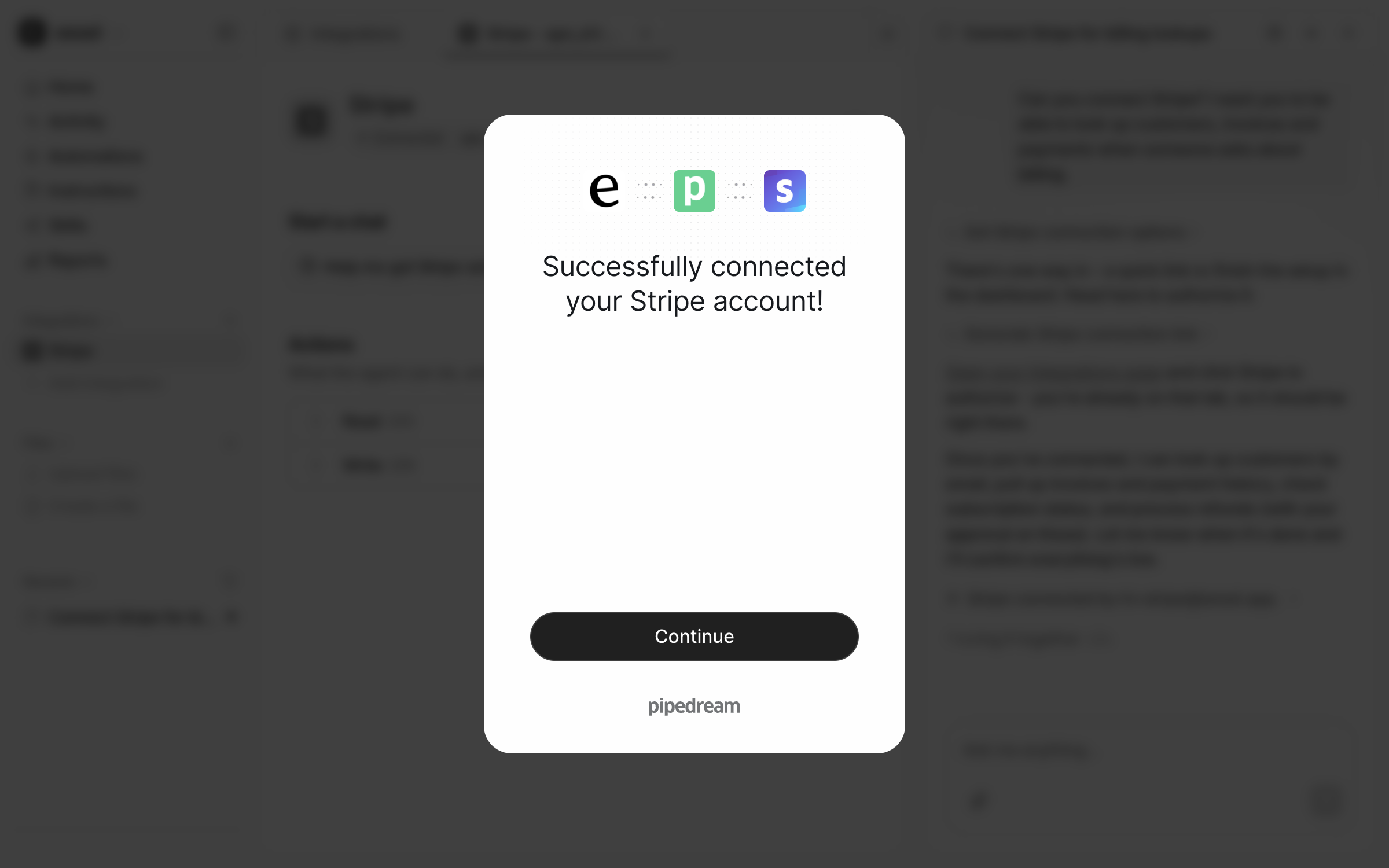
<figure><img src="https://3732419023-files.gitbook.io/~/files/v0/b/gitbook-x-prod.appspot.com/o/spaces%2F2xXO0947TYoPIhGoBgSE%2Fuploads%2Fgit-blob-cd9e1dac2c9b7d485217c8ed58d0ebaa5824966e%2Fstripe-pipedream-success.png?alt=media" alt="The Pipedream window reading Successfully connected your Stripe account, with a Continue button"><figcaption><p>Connected.</p></figcaption></figure>

**Check it worked.** Back on the Stripe integration page in eesel, the header reads **Connected**, the left sidebar lists Stripe, and the Actions list shows the Read and Write groups. The [Stripe overview](/integrations/e-commerce/stripe.md) picks up from here.
{% endstep %}
{% endstepper %}

## Troubleshooting

<details>

<summary>Stripe says the key has no access to something?</summary>

The restricted key was narrowed too far. The usual gaps are Balance (checked when you first test the connection), Charges (needed to refund a payment) and Prices (needed to start a subscription), which all need Read. Open **Developers > API keys** in Stripe, choose the key's menu and edit its permissions, or create a new key and connect again.

</details>

<details>

<summary>Nothing happened in Stripe after an action?</summary>

Check which mode the key belongs to. A test-mode key acts on the practice copy of your account, and a live key acts on the real one. Stripe's dashboard shows a Sandbox banner when you are looking at the practice copy.

</details>

## Related pages

* [Stripe](/integrations/e-commerce/stripe.md) for what your teammate does once it is connected
* [Actions and Approvals](/instructions-and-memory/actions-and-approvals.md) for choosing what your agent may do


---

# Agent Instructions
This documentation is published with GitBook. GitBook is the documentation platform designed so that both humans and AI agents can read, navigate, and reason over technical content effectively. Learn more at gitbook.com.

## Querying This Documentation
If you need additional information that is not directly available in this page, you can query the documentation by asking a question.

Perform an HTTP GET request on the following URL with the `ask` and `goal` query parameters:

```
GET https://docs.eesel.ai/integrations/e-commerce/stripe/stripe-setup.md?ask=<question>&goal=<user_goal>
```

`ask` is the immediate question: it should be specific, self-contained, and written in natural language.
`goal` is what the user is ultimately trying to achieve, the reason they need the answer. Sharing it helps GitBook give you a better, more relevant answer. A goal is most helpful when it describes the outcome the user wants rather than restating the question. For example, with `ask=how do I create an API token`, a goal like `automate deployments from our CI pipeline` lets GitBook tailor the answer to that use case.

The response will contain a direct answer to the question and relevant excerpts and sources from the documentation.

Use this mechanism when the answer is not explicitly present in the current page, you need clarification or additional context, or you want to retrieve related documentation sections.