> For the complete documentation index, see [llms.txt](https://docs.eesel.ai/llms.txt). Markdown versions of documentation pages are available by appending `.md` to page URLs; this page is available as [Markdown](https://docs.eesel.ai/integrations/e-commerce/woocommerce.md).

# WooCommerce

Set up an AI agent for WooCommerce that learns your products, orders and customers, answers shoppers in your chat bubble and helps your team.

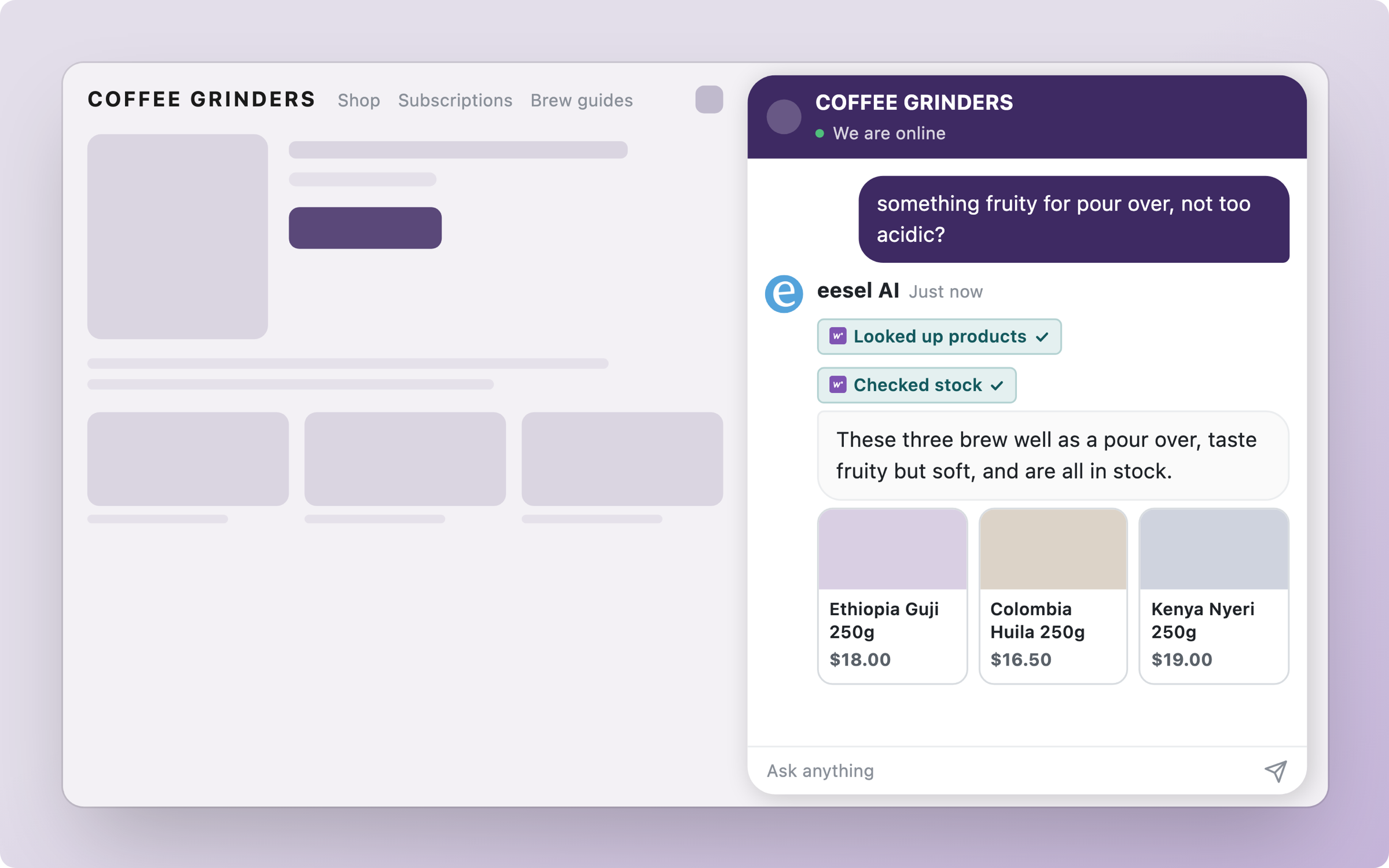
eesel's AI agent for WooCommerce learns your store and answers shoppers in your [chat bubble](/integrations/chat-surfaces/chat-bubble.md), your helpdesk (such as [Gorgias](/integrations/helpdesks/gorgias.md)) and [Slack](/integrations/communication/slack.md). It knows your products, orders and customers, so it can tell a shopper where their order is, what they bought and what is in stock.

It also helps your team run the store. Ask it in Slack or the dashboard to look into an order, leave a note for the team or update an order, and it does the work in WooCommerce and tells you what changed.

<figure><img src="https://3732419023-files.gitbook.io/~/files/v0/b/gitbook-x-prod.appspot.com/o/spaces%2F2xXO0947TYoPIhGoBgSE%2Fuploads%2Fgit-blob-b7193d5ea563fe12c9f2ff5b7ad7d3338e18683b%2Fwoocommerce-hero.png?alt=media" alt="A WooCommerce coffee storefront with the eesel chat bubble open, where the agent recommends three coffees as product cards with prices after looking up products and checking stock"><figcaption><p>The agent answering on a WooCommerce store, showing products as cards.</p></figcaption></figure>

{% hint style="info" %}
WooCommerce is rolling out now. If you don't see it under **Integrations**, contact us and we'll switch it on for your workspace.
{% endhint %}

## Set up eesel in WooCommerce

{% stepper %}
{% step %}

### Ask your agent to connect WooCommerce

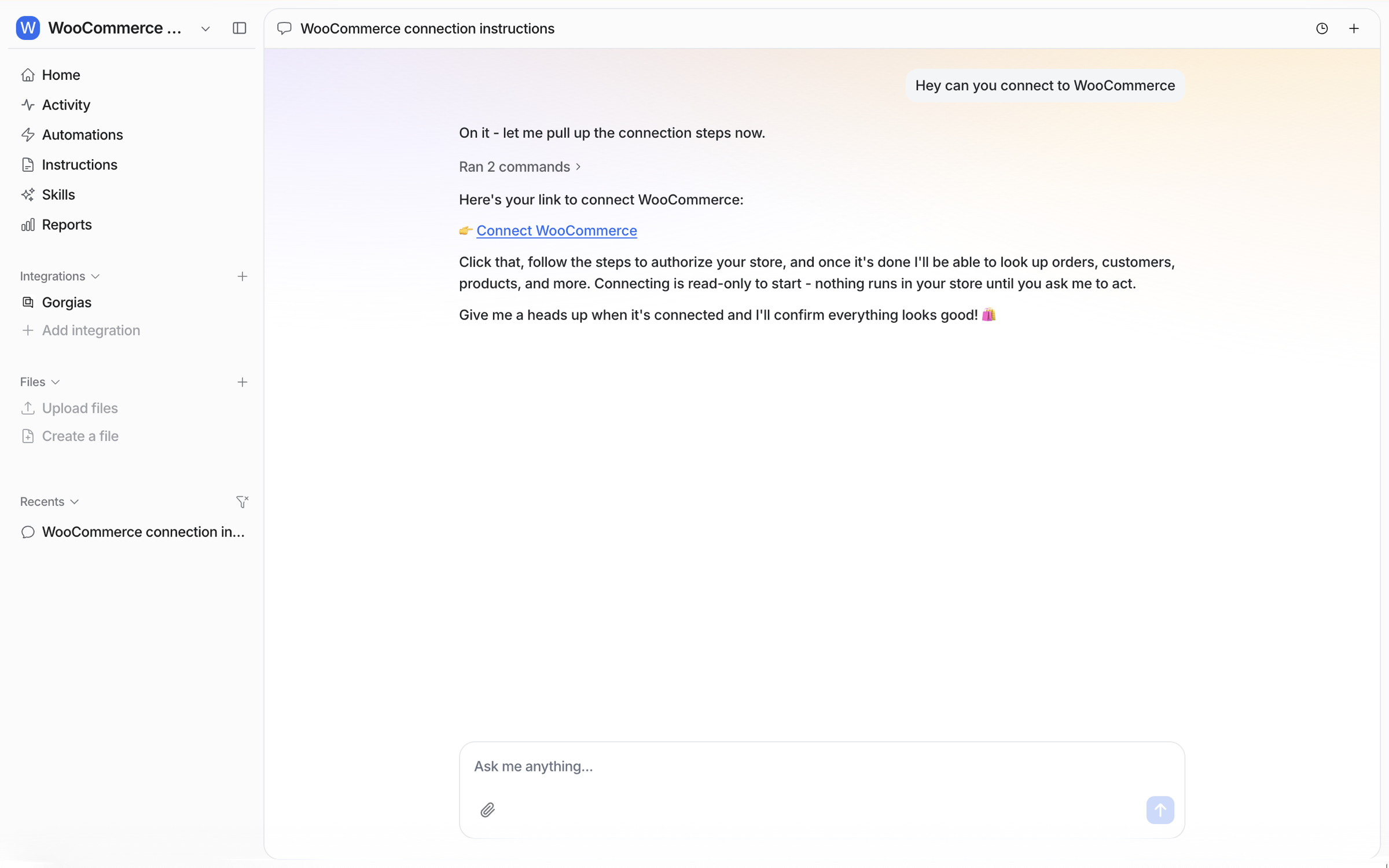
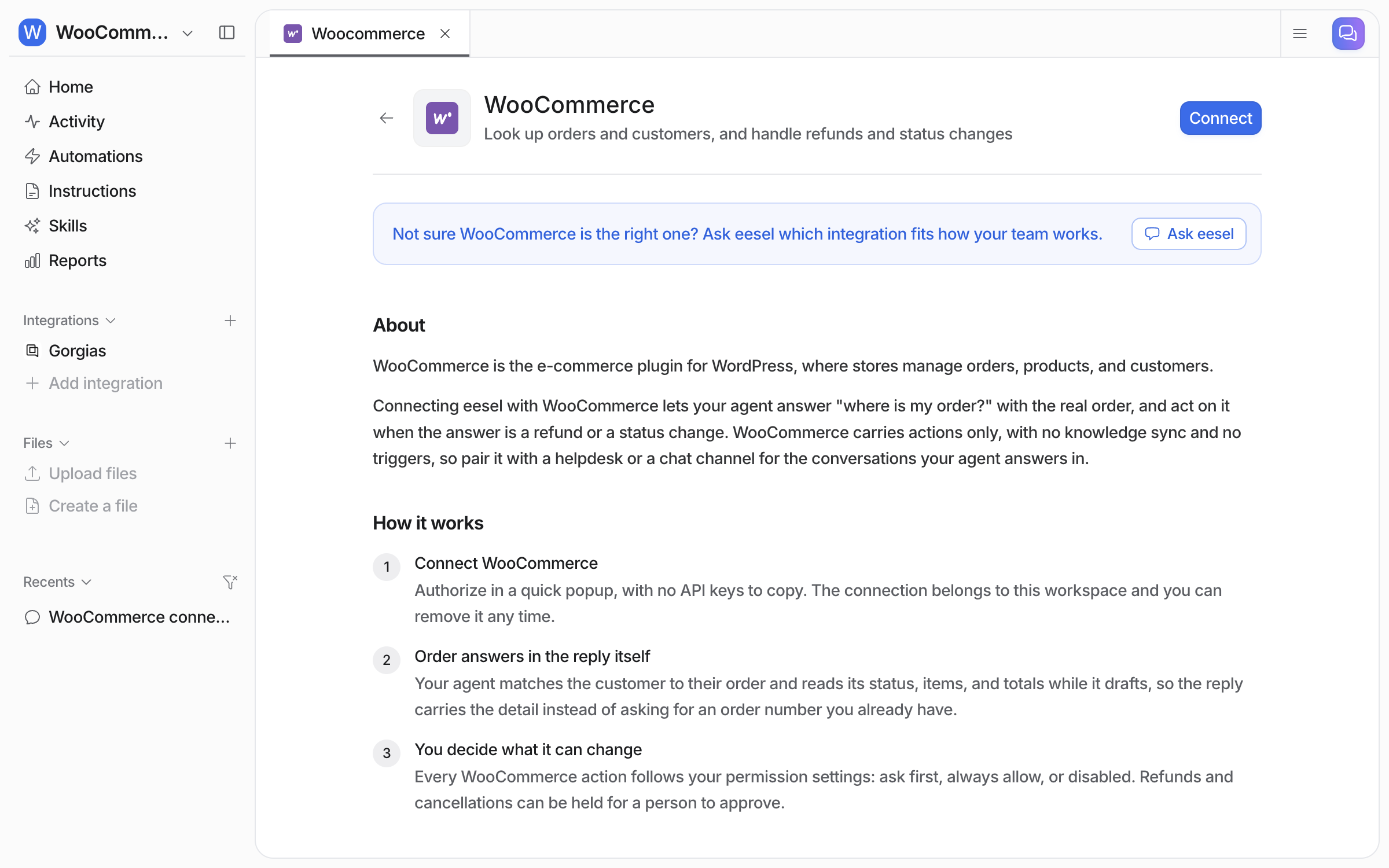
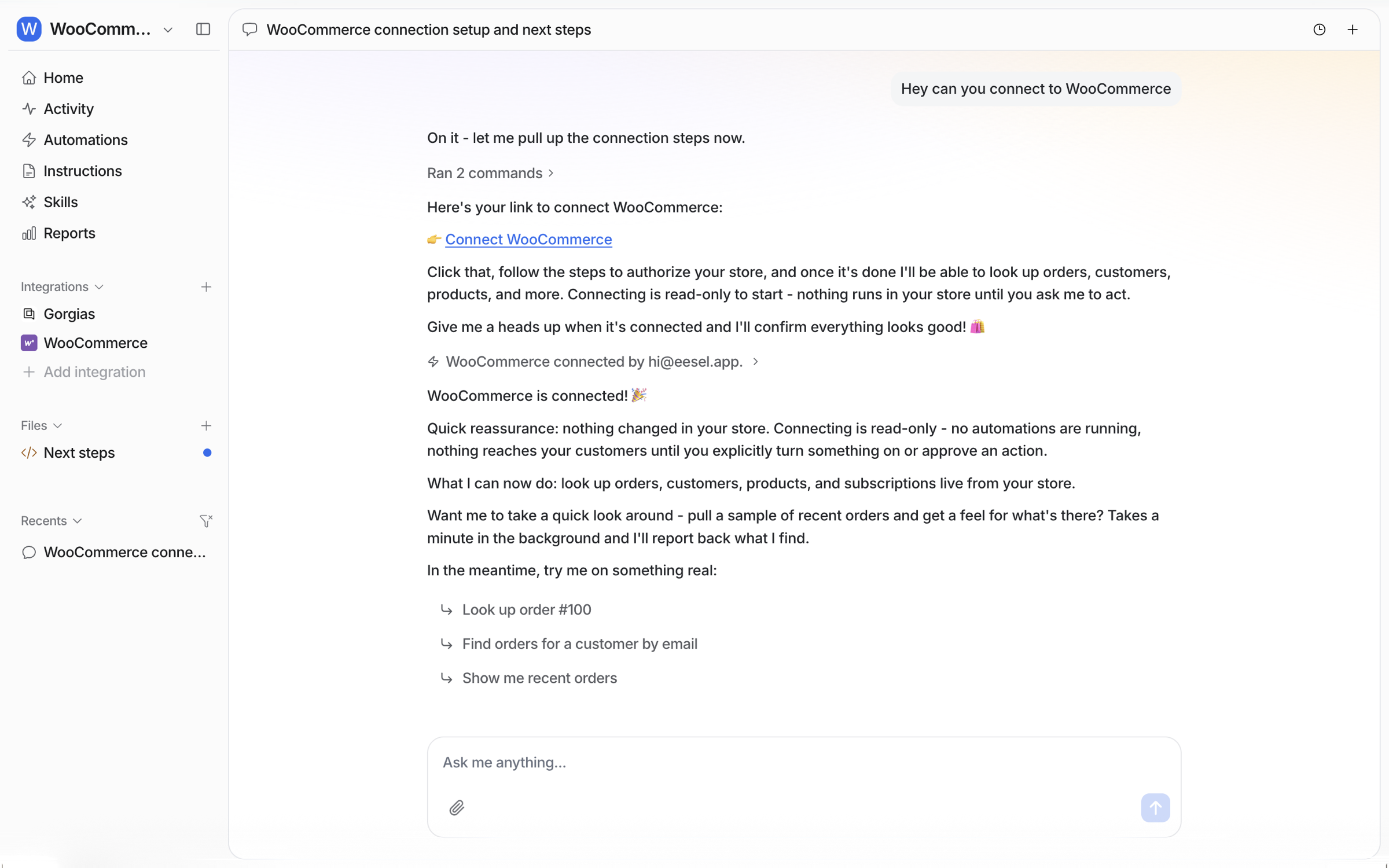
Open the chat in your dashboard and ask it to connect WooCommerce. It posts a link to connect your store. Prefer to click? **Integrations** in the left sidebar has a WooCommerce page with a **Connect** button.

<figure><img src="https://3732419023-files.gitbook.io/~/files/v0/b/gitbook-x-prod.appspot.com/o/spaces%2F2xXO0947TYoPIhGoBgSE%2Fuploads%2Fgit-blob-98f21fd5e1fa77bd3a462fca2407c54da42ec4d9%2Fwoocommerce-connect-chat.png?alt=media" alt="The dashboard chat where the user asks to connect WooCommerce and the agent posts a Connect WooCommerce link"><figcaption><p>The agent posts the link to connect your store.</p></figcaption></figure>

<figure><img src="https://3732419023-files.gitbook.io/~/files/v0/b/gitbook-x-prod.appspot.com/o/spaces%2F2xXO0947TYoPIhGoBgSE%2Fuploads%2Fgit-blob-30a4e982fc0f0aef56f9ee2ce0ba98c49044bb3c%2Fwoocommerce-integration-about.png?alt=media" alt="The WooCommerce page under Integrations in eesel, with a Connect button and a short description of how it works"><figcaption><p>The WooCommerce page under Integrations, before connecting.</p></figcaption></figure>
{% endstep %}

{% step %}

### Create a REST API key in WooCommerce

The connection needs a consumer key and secret. In your WordPress admin open **WooCommerce > Settings > Advanced > REST API**, click **Add key**, set **Permissions** to **Read/Write**, and click **Generate API key**. Copy both values before you leave the page.

A person signs in and does this in the WordPress admin. Every screen is on [Set up WooCommerce](/integrations/e-commerce/woocommerce/woocommerce-setup.md).
{% endstep %}

{% step %}

### Paste the key into the connection window

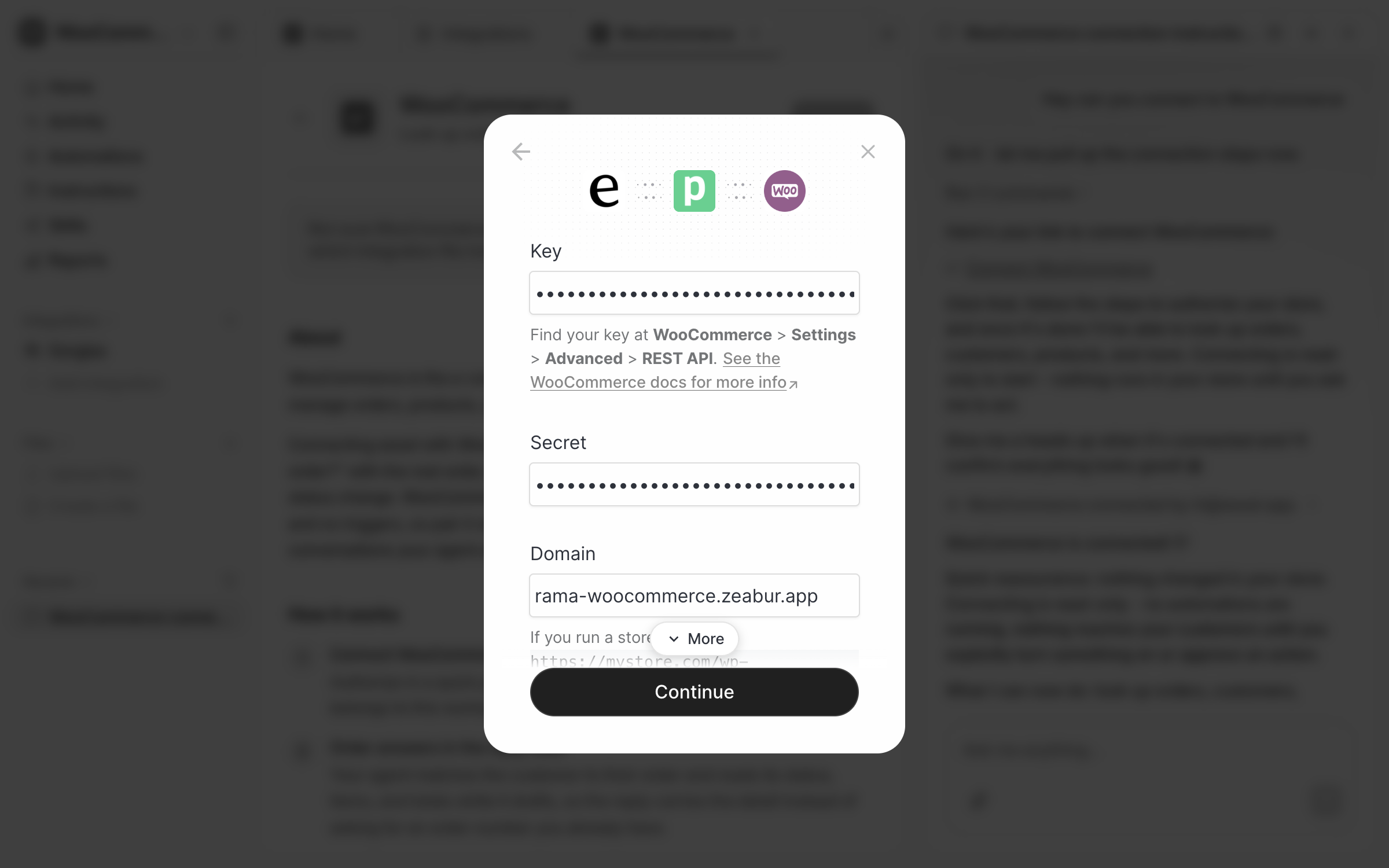
Open the connect link. The connection window asks for the **Key**, the **Secret** and your store **Domain**. Paste them in and click **Continue**.

<figure><img src="https://3732419023-files.gitbook.io/~/files/v0/b/gitbook-x-prod.appspot.com/o/spaces%2F2xXO0947TYoPIhGoBgSE%2Fuploads%2Fgit-blob-6d71e1205efe9c8f9eec9c8ef5881fd548f6409a%2Fwoocommerce-pipedream-form.png?alt=media" alt="The connection window with masked Key and Secret fields and a Domain field"><figcaption><p>The connection window, with the key and secret masked.</p></figcaption></figure>

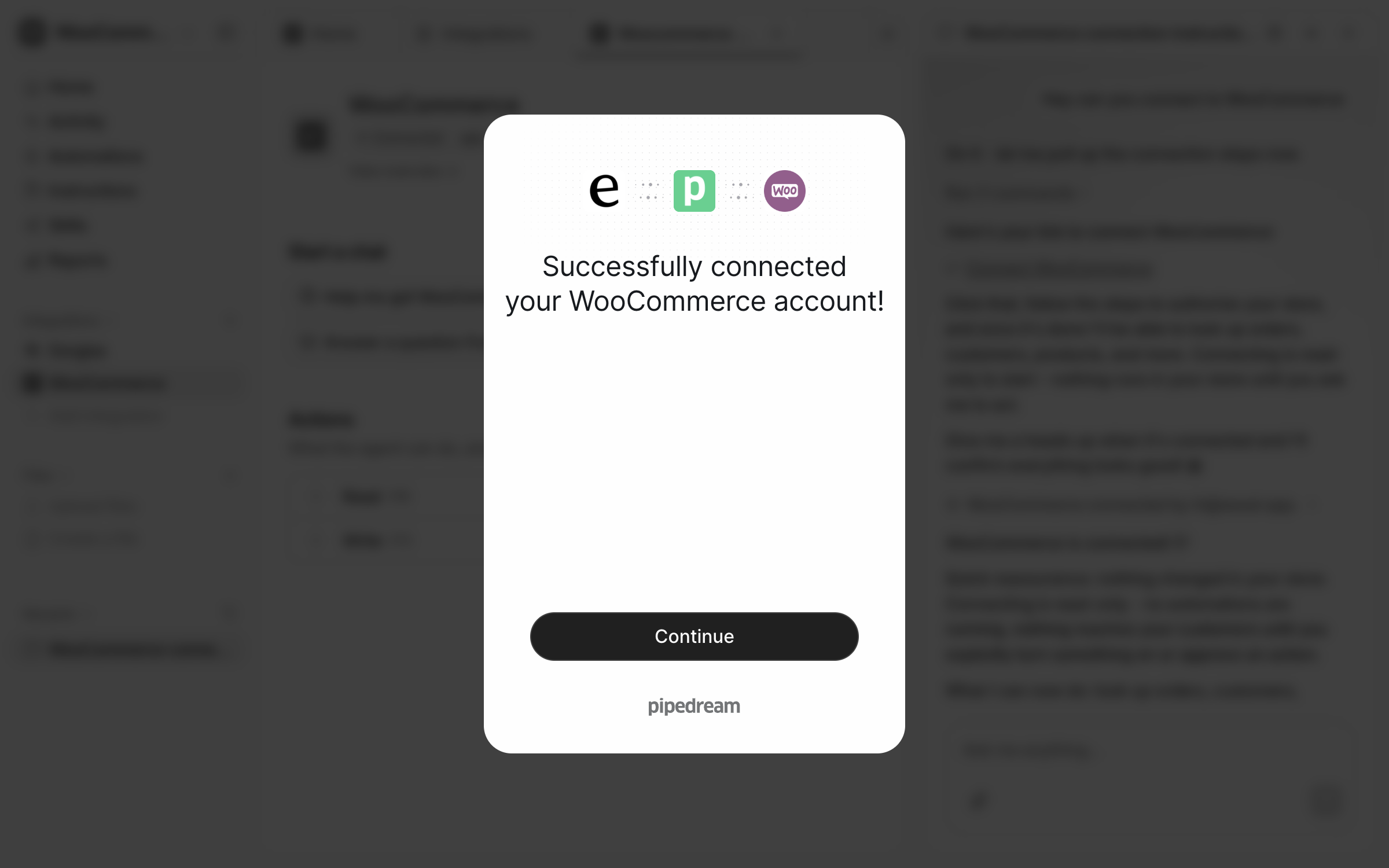
<figure><img src="https://3732419023-files.gitbook.io/~/files/v0/b/gitbook-x-prod.appspot.com/o/spaces%2F2xXO0947TYoPIhGoBgSE%2Fuploads%2Fgit-blob-3fe738bcdead9414a97de47c529e843081edf0c9%2Fwoocommerce-pipedream-connected.png?alt=media" alt="The connection window saying Successfully connected your WooCommerce account"><figcaption><p>The store is connected.</p></figcaption></figure>
{% endstep %}

{% step %}

### Confirm the connection

Back in the chat, your agent confirms the store is connected and suggests a first thing to try, such as looking up an order.

<figure><img src="https://3732419023-files.gitbook.io/~/files/v0/b/gitbook-x-prod.appspot.com/o/spaces%2F2xXO0947TYoPIhGoBgSE%2Fuploads%2Fgit-blob-6ed02145462948c2782002abd28cd8fd6758f044%2Fwoocommerce-connected-chat.png?alt=media" alt="The dashboard chat confirming WooCommerce is connected, noting that nothing changed in the store, and suggesting order lookups to try"><figcaption><p>The chat confirming the store is connected.</p></figcaption></figure>

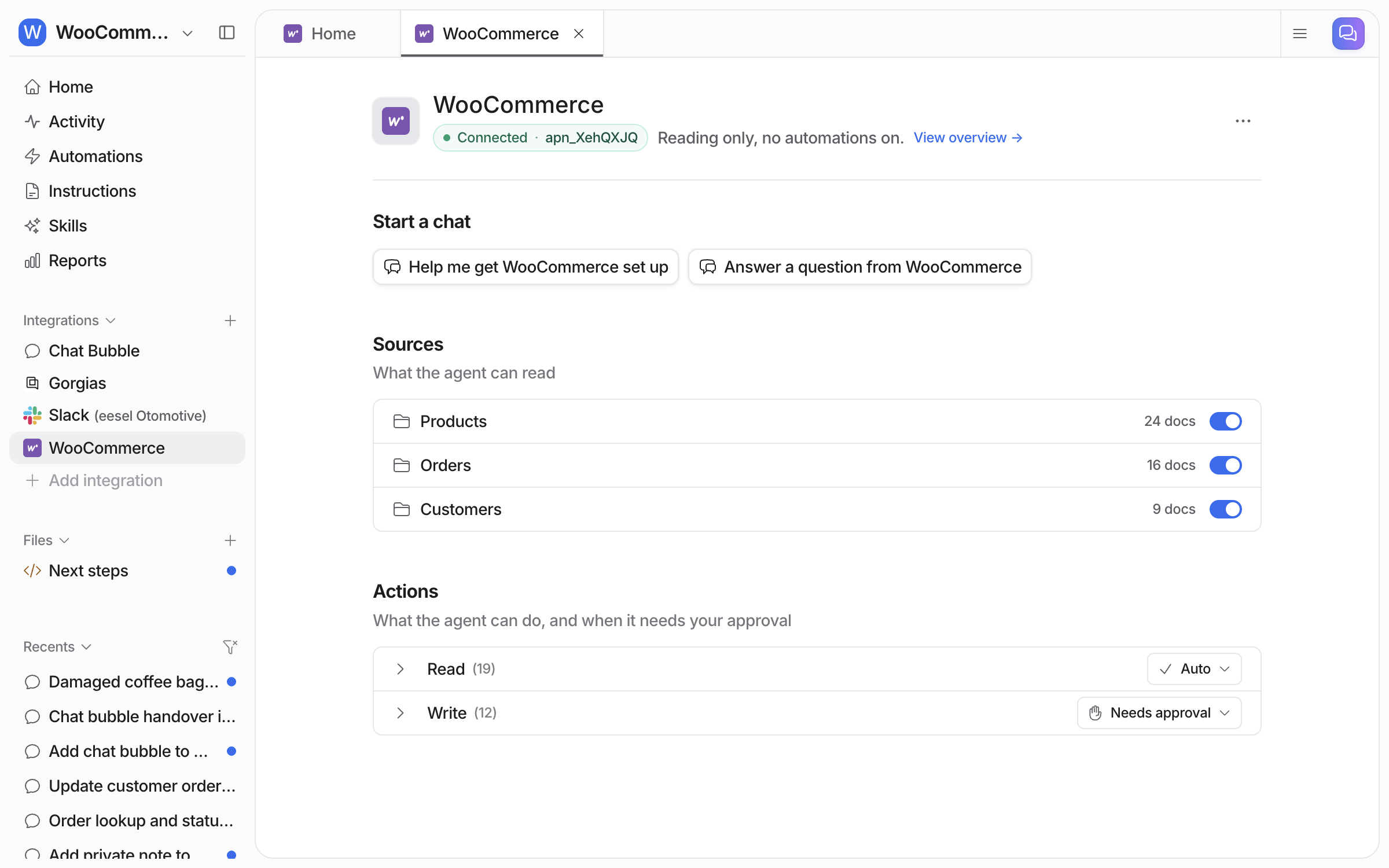
**Check it worked.** **Integrations > WooCommerce** reads **Connected**, lists **Products**, **Orders** and **Customers** under **Sources**, and splits the actions into **Read** and **Write** groups. From a terminal, `eesel status` lists WooCommerce as connected.

<figure><img src="https://3732419023-files.gitbook.io/~/files/v0/b/gitbook-x-prod.appspot.com/o/spaces%2F2xXO0947TYoPIhGoBgSE%2Fuploads%2Fgit-blob-496c07ab6cc2cab896a0d675f537715aebf47c3b%2Fwoocommerce-integration-page.png?alt=media" alt="The connected WooCommerce integration page in eesel, with Products, Orders and Customers under Sources and the Read and Write action groups"><figcaption><p>The connected integration page, with its sources and actions.</p></figcaption></figure>
{% endstep %}

{% step %}

### Ask about your store

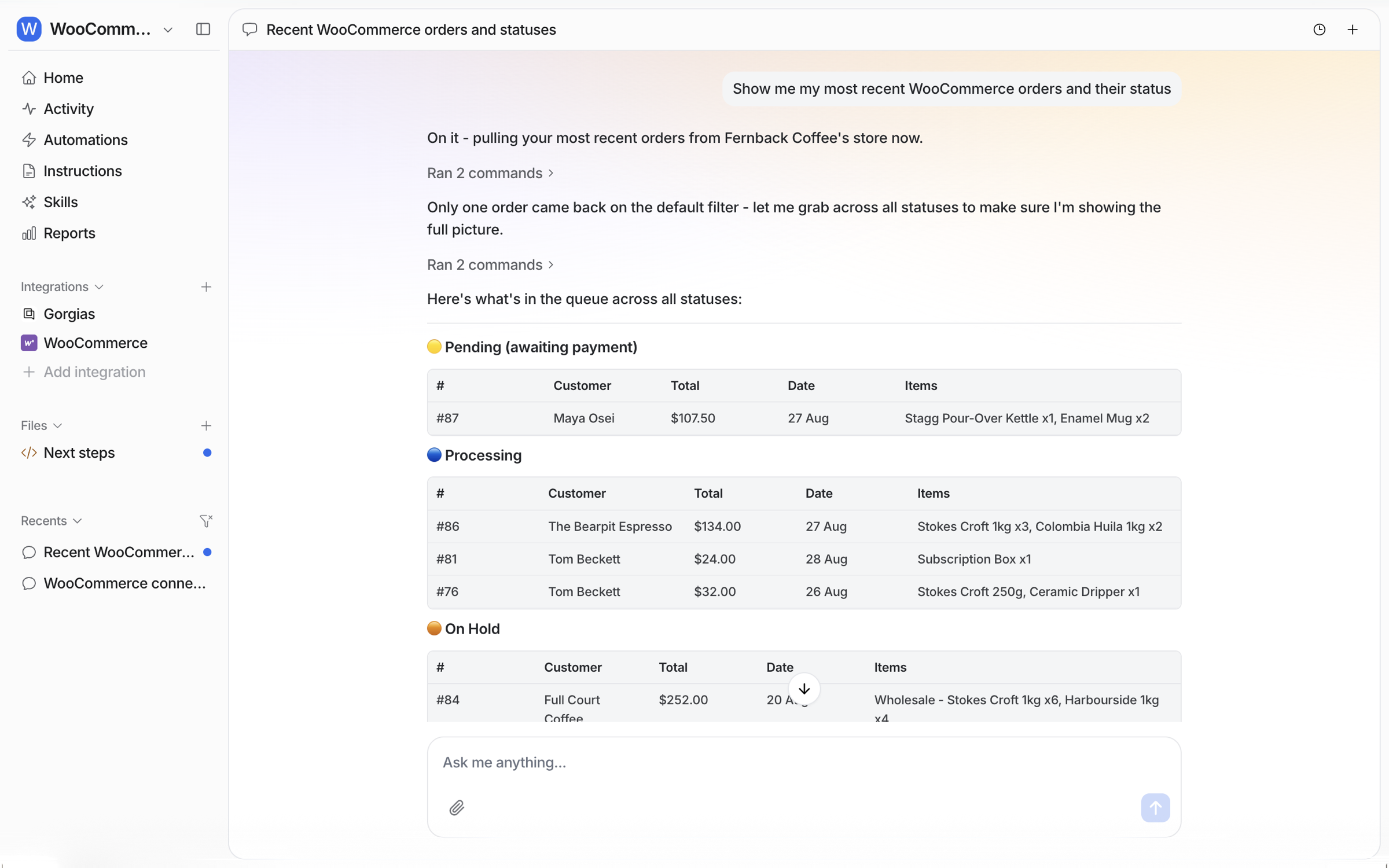
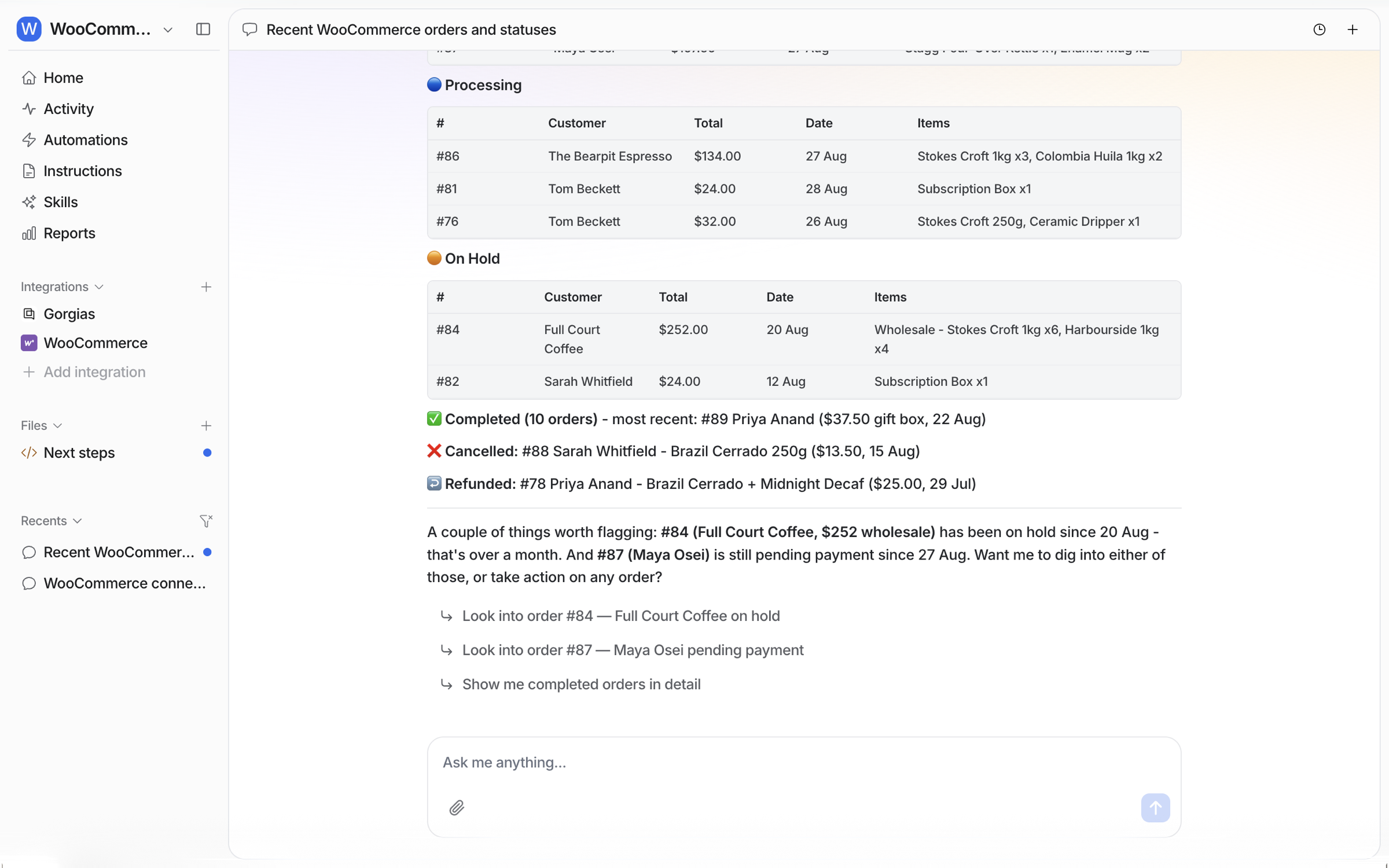
Ask in the chat about your orders. Your agent reads the store and answers with real data. Here it groups recent orders by status and flags two that need attention.

<figure><img src="https://3732419023-files.gitbook.io/~/files/v0/b/gitbook-x-prod.appspot.com/o/spaces%2F2xXO0947TYoPIhGoBgSE%2Fuploads%2Fgit-blob-2afdfbdd2e7b33bc2bfbfe42c8d60e9001af9532%2Fwoocommerce-orders-chat.png?alt=media" alt="The dashboard chat answering a request for recent WooCommerce orders with tables of pending and processing orders"><figcaption><p>Recent orders, grouped by status.</p></figcaption></figure>

<figure><img src="https://3732419023-files.gitbook.io/~/files/v0/b/gitbook-x-prod.appspot.com/o/spaces%2F2xXO0947TYoPIhGoBgSE%2Fuploads%2Fgit-blob-0181e5407b1d03b089898a72b0ea44eb7058abe1%2Fwoocommerce-orders-chat-flagged.png?alt=media" alt="The same answer scrolled down, listing on-hold, completed, cancelled and refunded orders and flagging an order that has been on hold for a month"><figcaption><p>The rest of the answer, with two orders flagged.</p></figcaption></figure>
{% endstep %}

{% step %}

### Act on an order from Slack

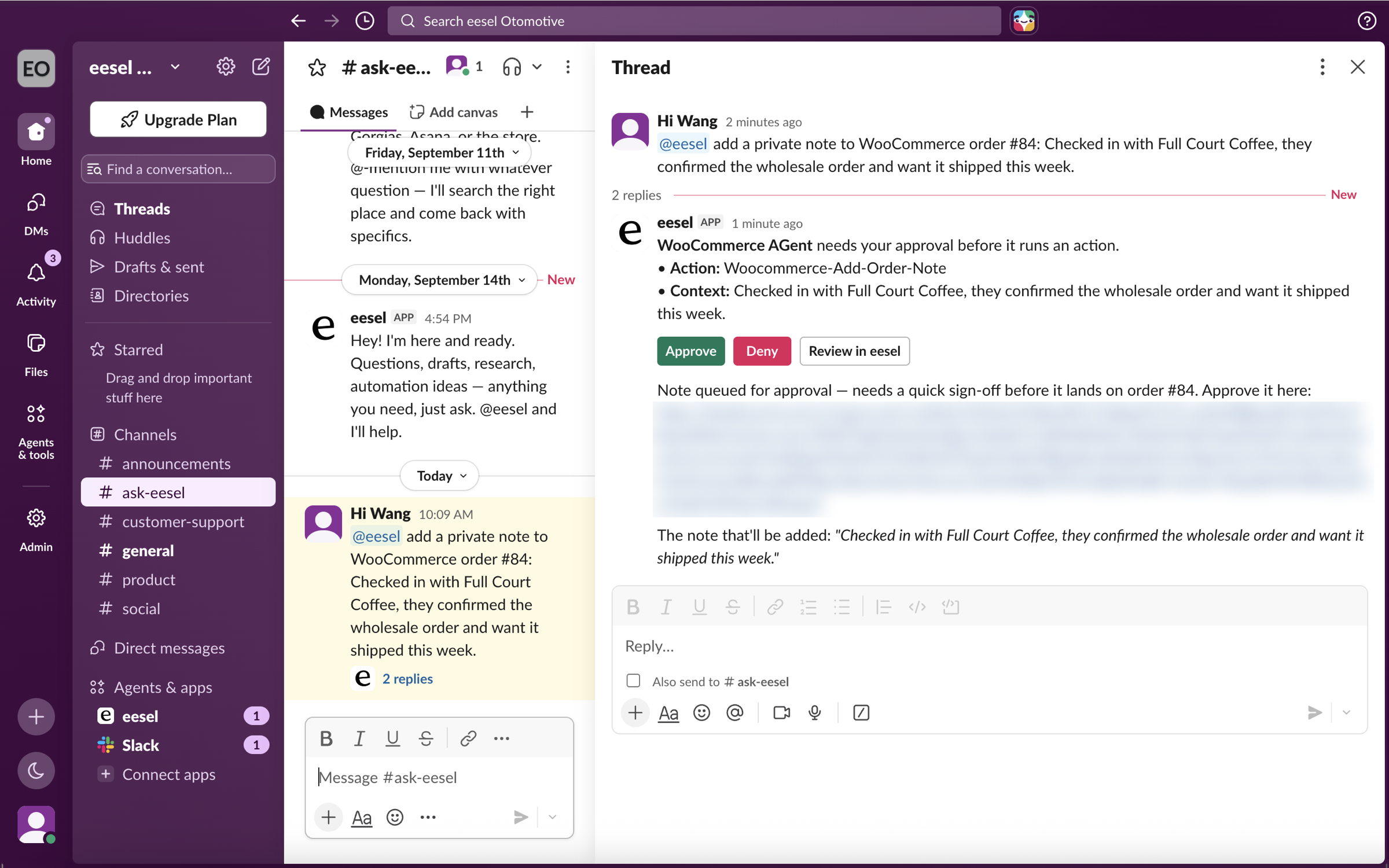
With [Slack](/integrations/communication/slack.md) connected, a teammate can mention `@eesel` in a channel and ask it to act on an order. When an action needs your OK, eesel posts an approval card straight into the thread, with **Approve**, **Deny** and **Review in eesel** buttons.

<figure><img src="https://3732419023-files.gitbook.io/~/files/v0/b/gitbook-x-prod.appspot.com/o/spaces%2F2xXO0947TYoPIhGoBgSE%2Fuploads%2Fgit-blob-1521b213c6109d42f566742c7795e65ff8f7d3f3%2Fwoocommerce-slack-approval.png?alt=media" alt="A Slack thread where a teammate asks eesel to add a private note to order 84, and eesel replies with an approval card showing the action, the note and Approve, Deny and Review in eesel buttons"><figcaption><p>An order note waiting for approval in the Slack thread.</p></figcaption></figure>

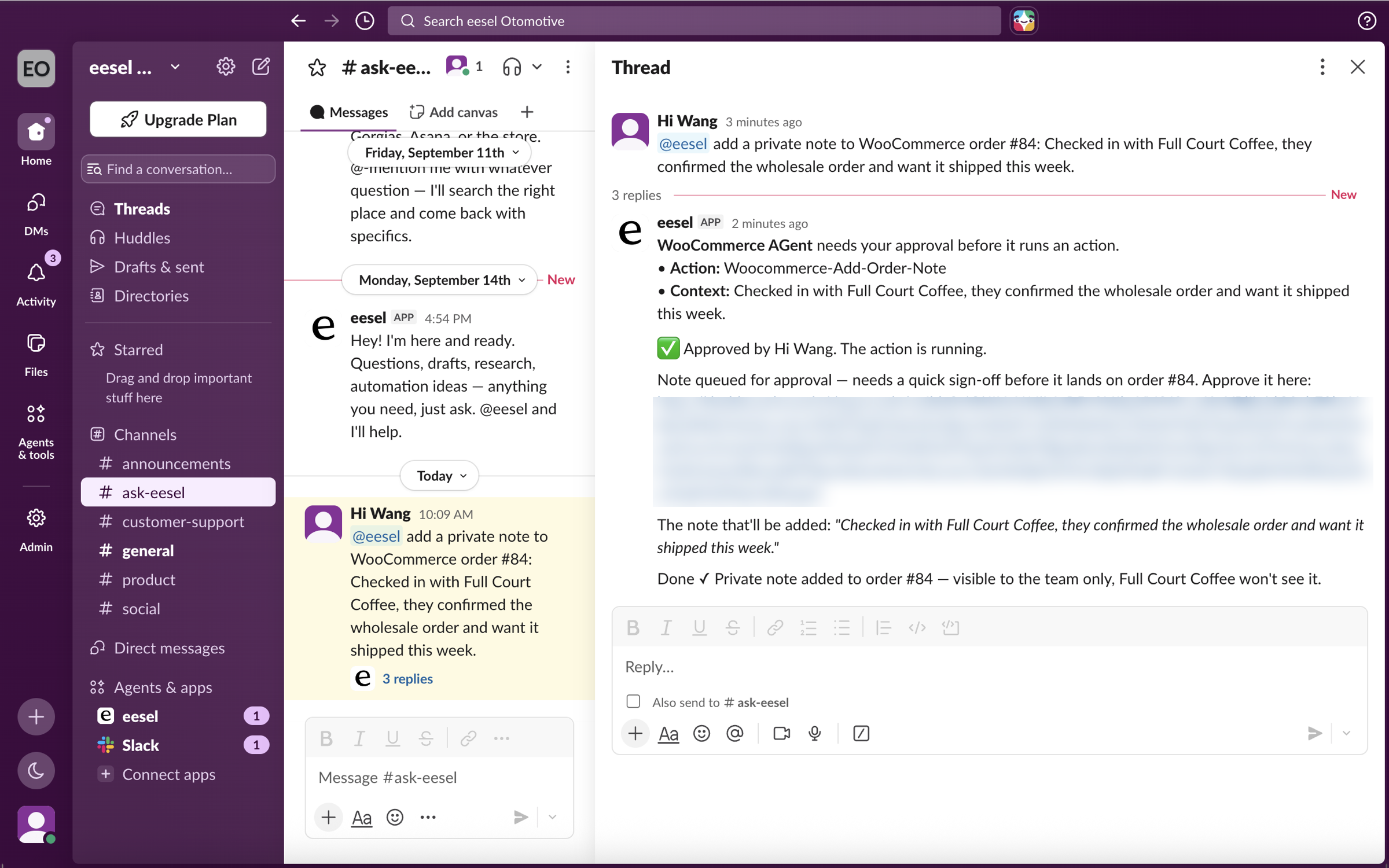
Approve it, and the agent adds the note and confirms in the thread.

<figure><img src="https://3732419023-files.gitbook.io/~/files/v0/b/gitbook-x-prod.appspot.com/o/spaces%2F2xXO0947TYoPIhGoBgSE%2Fuploads%2Fgit-blob-bc7afc2f951893d62b9051e708bfe2429e2c2af8%2Fwoocommerce-slack-done.png?alt=media" alt="The same Slack thread after approval, with eesel confirming the private note was added to order 84 and is visible to the team only"><figcaption><p>The note added, confirmed in the thread.</p></figcaption></figure>

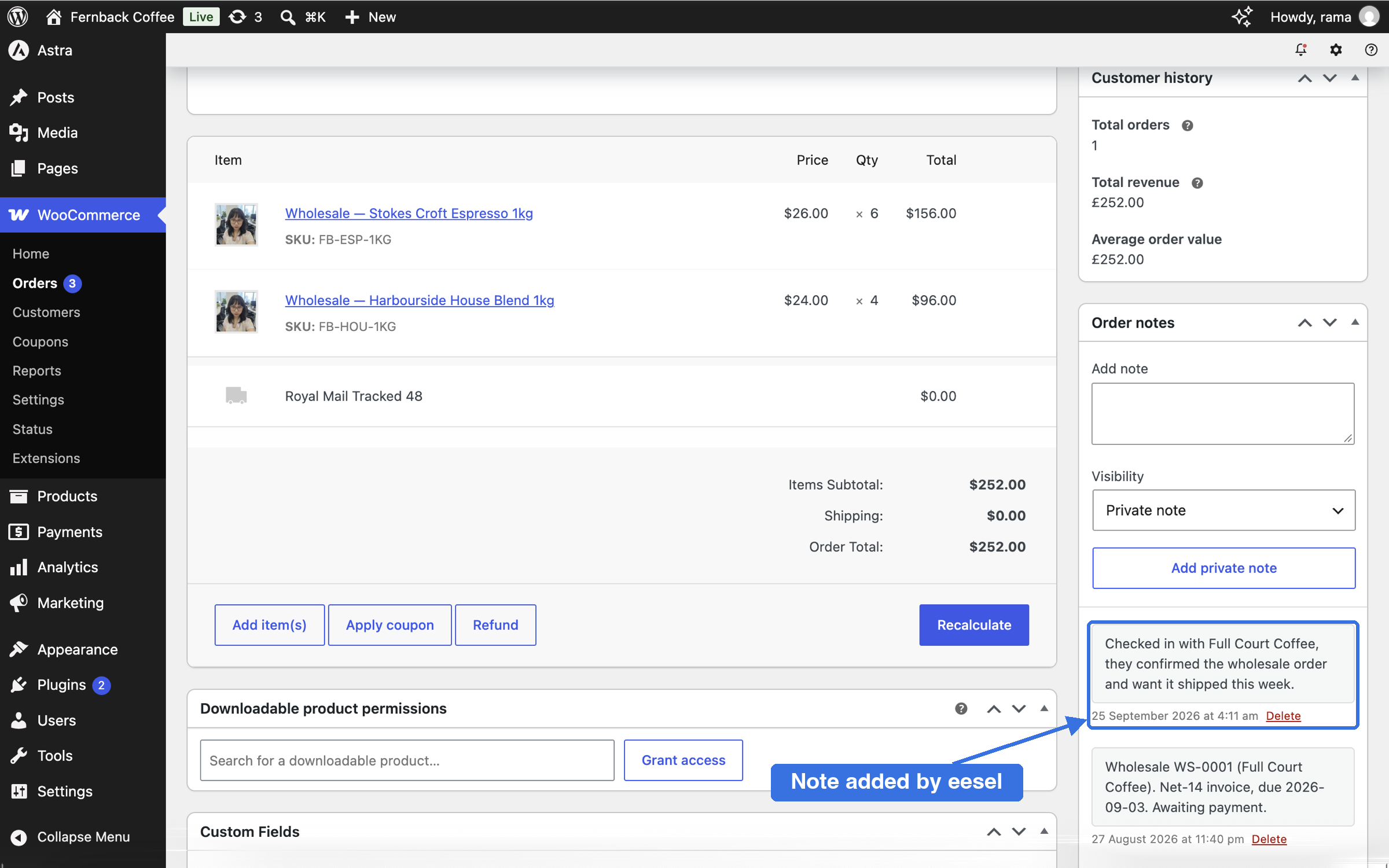
The note appears on the order in WooCommerce as a private note, so the customer does not see it.

<figure><img src="https://3732419023-files.gitbook.io/~/files/v0/b/gitbook-x-prod.appspot.com/o/spaces%2F2xXO0947TYoPIhGoBgSE%2Fuploads%2Fgit-blob-224259423c697432913f4a70e6176e4cc9abe52b%2Fwoocommerce-order-note.png?alt=media" alt="Order 84 in the WooCommerce admin with the new private note highlighted in the Order notes panel"><figcaption><p>The note on the order in WooCommerce.</p></figcaption></figure>
{% endstep %}

{% step %}

### Put it on your storefront

The [chat bubble](/integrations/chat-surfaces/chat-bubble.md) puts your agent in front of shoppers on your store. Ask in the dashboard chat to add a chat bubble for your store. Your agent sets it up with your store's colours, a welcome message and starter questions. Then paste the snippet from your Chat Bubble page into your site, just before the closing `</body>` tag. The [Chat Bubble](/integrations/chat-surfaces/chat-bubble.md) page has the install steps.
{% endstep %}

{% step %}

### Hand a shopper to your team

When a shopper asks for a person, your agent can take their details and open a ticket in your helpdesk. Tell it how in the dashboard chat, for example: "When a shopper asks to speak to a person, ask for their name and email, create a Gorgias ticket with a summary of the chat, tag it chat-bubble-handover, and tell them our team will follow up."

<figure><img src="https://3732419023-files.gitbook.io/~/files/v0/b/gitbook-x-prod.appspot.com/o/spaces%2F2xXO0947TYoPIhGoBgSE%2Fuploads%2Fgit-blob-9754185c5050cbb9cd4738e26acd5a9806846e07%2Fwoocommerce-handover-chat.png?alt=media" alt="The dashboard chat where the user sets up a chat bubble handover and the agent confirms it saved the rule to its instructions"><figcaption><p>The handover rule, set up in chat.</p></figcaption></figure>

It saves the rule to its [Instructions](/instructions-and-memory/instructions-and-memory.md).

<figure><img src="https://3732419023-files.gitbook.io/~/files/v0/b/gitbook-x-prod.appspot.com/o/spaces%2F2xXO0947TYoPIhGoBgSE%2Fuploads%2Fgit-blob-379b2ac5f6747c3a428cc99baa8cfc45eec7766b%2Fwoocommerce-handover-instructions.png?alt=media" alt="The Instructions page in eesel showing a Chat bubble handover section, with the setup chat open beside it"><figcaption><p>The saved handover rule on the Instructions page.</p></figcaption></figure>

On the storefront, a shopper reports a problem and asks for a person. Your agent asks for their name and email.

<figure><img src="https://3732419023-files.gitbook.io/~/files/v0/b/gitbook-x-prod.appspot.com/o/spaces%2F2xXO0947TYoPIhGoBgSE%2Fuploads%2Fgit-blob-9f4f23db254db8b1aea0672fb39690343466ff57%2Fwoocommerce-bubble-handover-ask.png?alt=media" alt="The chat bubble on a WooCommerce store where a shopper says order 84 arrived damaged and asks for a real person, and the agent asks for their name and email"><figcaption><p>The agent taking the handover and asking for contact details.</p></figcaption></figure>

The shopper gives them, and the agent opens the ticket.

<figure><img src="https://3732419023-files.gitbook.io/~/files/v0/b/gitbook-x-prod.appspot.com/o/spaces%2F2xXO0947TYoPIhGoBgSE%2Fuploads%2Fgit-blob-6f6c37f21489bc98d688e8b847ad7021eae31d61%2Fwoocommerce-bubble-handover-done.png?alt=media" alt="The same chat after the shopper gives their name and email, with the agent confirming the case has gone to the team"><figcaption><p>The agent confirming the handover.</p></figcaption></figure>

The ticket lands in your helpdesk under the shopper's email, with a summary of the chat as the first message and the handover tag on it.

<figure><img src="https://3732419023-files.gitbook.io/~/files/v0/b/gitbook-x-prod.appspot.com/o/spaces%2F2xXO0947TYoPIhGoBgSE%2Fuploads%2Fgit-blob-a810148cb7067e08112a08e5c6ff507b11d98f56%2Fwoocommerce-handover-gorgias.png?alt=media" alt="A Gorgias ticket for order 84 with the chat-bubble-handover tag, the shopper&#x27;s email as the requester and a summary of the chat as the first message"><figcaption><p>The handover ticket in Gorgias, tagged.</p></figcaption></figure>

Whether a handover waits for your OK depends on the permissions you set for your helpdesk actions.
{% endstep %}
{% endstepper %}

{% hint style="info" %}
**From Claude Code, Cursor or a terminal.** `eesel login`, then `eesel integrations connect woocommerce` prints the connect link for a person to open, and `eesel status` shows the connection. Full command reference: [The eesel CLI](/apis-and-developer-resources/cli.md). Step-by-step: [Set up from Claude Code or the terminal](/getting-started/set-up-from-a-coding-agent.md). From an MCP client: [Claude Code and MCP clients](/apis-and-developer-resources/claude-code-and-mcp-clients.md).
{% endhint %}

## Sources, triggers and actions

### Sources

Sources are what your agent learns from in your store. eesel copies them when you connect.

| Source        | Description                                            | Requires                      |
| ------------- | ------------------------------------------------------ | ----------------------------- |
| **Products**  | Your catalogue, with SKUs, pricing, stock and variants | Any REST API key              |
| **Orders**    | Your orders, so your agent can find and read them      | A key that can read orders    |
| **Customers** | Your customer records                                  | A key that can read customers |

Orders and Customers only appear when the REST API key you created can read them. Switch any source off on **Integrations > WooCommerce** if this agent shouldn't learn from it. The lookup actions below still read your store live. Written content such as your shipping or returns policy is not in WooCommerce, so connect your [website](/integrations/knowledge/website.md) as well.

### Triggers

WooCommerce has no triggers. Nothing in your store starts an agent run. The conversation comes from the [chat bubble](/integrations/chat-surfaces/chat-bubble.md), your helpdesk or [Slack](/integrations/communication/slack.md), and your agent uses its WooCommerce actions while it handles it.

### Actions

Actions are what your agent can do in your store. WooCommerce's actions come from the live connection, so you may see more than the ones below. They are listed on **Integrations > WooCommerce** in two groups.

|           | Action                          | What it does                                                                |
| --------- | ------------------------------- | --------------------------------------------------------------------------- |
| **Read**  | Look up orders                  | Lists orders or reads one, with its items, totals, status and notes         |
|           | Look up customers               | Searches customers by email or name and reads their details                 |
|           | Look up products and categories | Lists and reads products and product categories                             |
|           | Look up subscriptions           | Lists and reads subscriptions, with the WooCommerce Subscriptions extension |
| **Write** | Add order note                  | Adds a private or customer-facing note to an order                          |
|           | Update order status             | Moves an order to another status, such as processing or completed           |
|           | Create refund                   | Records a refund against an order                                           |
|           | Create order, create customer   | Creates a new order or customer                                             |
|           | Update products and categories  | Creates or updates products, and creates, renames or deletes categories     |
|           | Update subscription             | Pauses, resumes or cancels a subscription, or moves its next payment date   |
|           | Delete order                    | Deletes an order                                                            |

You stay in control the whole way. Adjust your AI agent's access to knowledge and its action permissions to your liking. See [Actions and Approvals](/instructions-and-memory/actions-and-approvals.md).

## Limitations

* **A refund in WooCommerce is not always money returned.** It records the refund on the order. Whether the money moves depends on your payment gateway.
* **Subscriptions need the WooCommerce Subscriptions extension.** Without it there are no subscription actions.
* **Status changes and customer notes can email the customer.** Whether WooCommerce sends one depends on your store's email settings. Ask for a **private** note when it is only for your team.

## Troubleshooting

<details>

<summary>The connection fails, or the agent can't read the store</summary>

Check the consumer key and secret are pasted into the right fields, and that the domain has no path. See the troubleshooting notes on [Set up WooCommerce](/integrations/e-commerce/woocommerce/woocommerce-setup.md).

</details>

<details>

<summary>Lookups work, but notes, status changes or refunds fail</summary>

The REST API key has **Read** permission only. Change it to **Read/Write** in **WooCommerce > Settings > Advanced > REST API**.

</details>

<details>

<summary>A write action did not happen</summary>

It may be waiting for your OK. Approve it in the dashboard or in the Slack thread, and it runs.

</details>

## FAQ

<details>

<summary>How do I add an AI agent to WooCommerce?</summary>

Create a REST API key in your WordPress admin, then connect WooCommerce from the eesel dashboard chat or the **Integrations** page and paste the key in. The steps are in [Set up eesel in WooCommerce](#set-up-eesel-in-woocommerce), and every WooCommerce screen is on [Set up WooCommerce](/integrations/e-commerce/woocommerce/woocommerce-setup.md).

</details>

<details>

<summary>What access does the eesel AI agent need in WooCommerce?</summary>

A WooCommerce REST API key with **Read/Write** permissions, created by an administrator. **Read** is enough for lookups only. Adding notes, changing a status or recording a refund needs **Read/Write**, and each of those actions still follows the permission you set for it in eesel.

</details>

<details>

<summary>Can the AI agent answer order status questions on my WooCommerce store?</summary>

Yes. Add the [chat bubble](/integrations/chat-surfaces/chat-bubble.md) to your store, and your agent looks up the order live and answers with its status and what was ordered. It can answer the same questions in your helpdesk and in Slack.

</details>

<details>

<summary>Can the WooCommerce AI agent hand a shopper to a person?</summary>

Yes. Tell it when to hand over in the dashboard chat, and it asks the shopper for their name and email, opens a ticket in your helpdesk with a summary of the chat, and tells them your team will follow up. See [Hand a shopper to your team](#hand-a-shopper-to-your-team).

</details>

<details>

<summary>Can the WooCommerce AI agent refund or cancel orders?</summary>

Yes, within the permissions you set. A refund is recorded on the order in WooCommerce, and whether the money reaches the customer depends on your payment gateway.

</details>

<details>

<summary>Does the AI agent work with WooCommerce Subscriptions?</summary>

Yes, when your store runs the WooCommerce Subscriptions extension. Your agent can find a customer's subscriptions, pause or resume them, cancel them now or at the end of the paid period, and move the next payment date.

</details>

<details>

<summary>Can I connect WooCommerce to Claude or ChatGPT?</summary>

Yes, through eesel. Once WooCommerce is connected, you can talk to your eesel agent from Claude, ChatGPT or Cursor, and it works with your store data. See [Use eesel from Claude and other assistants](/apis-and-developer-resources/use-eesel-from-claude-and-other-assistants.md), [Use eesel from ChatGPT](/apis-and-developer-resources/use-eesel-from-chatgpt.md) and [Claude Code and MCP clients](/apis-and-developer-resources/claude-code-and-mcp-clients.md).

</details>

## Related pages

* [Set up WooCommerce](/integrations/e-commerce/woocommerce/woocommerce-setup.md) for every screen of the WooCommerce admin setup
* [E-commerce Sales Rep](/use-cases/e-commerce-sales-rep.md) for the job your agent does on a store
* [Chat Bubble](/integrations/chat-surfaces/chat-bubble.md) for putting your agent on your storefront
* [Actions and Approvals](/instructions-and-memory/actions-and-approvals.md) for choosing what your agent may do
* [Integrations overview](/integrations/overview.md) for how sources, triggers and actions fit together


---

# Agent Instructions
This documentation is published with GitBook. GitBook is the documentation platform designed so that both humans and AI agents can read, navigate, and reason over technical content effectively. Learn more at gitbook.com.

## Querying This Documentation
If you need additional information that is not directly available in this page, you can query the documentation dynamically by asking a question.

Perform an HTTP GET request on the following URL with the `ask` and `goal` query parameters:

```
GET https://docs.eesel.ai/integrations/e-commerce/woocommerce.md?ask=<question>&goal=<user_goal>
```

`ask` is the immediate question: it should be specific, self-contained, and written in natural language.
`goal` is what the user is ultimately trying to achieve, the reason they need the answer. Sharing it helps GitBook give you a better, more relevant answer. A goal is most helpful when it describes the outcome the user wants rather than restating the question. For example, with `ask=how do I create an API token`, a goal like `build a script that syncs our docs to a CMS` lets GitBook tailor the answer to that use case.

The response will contain a direct answer to the question and relevant excerpts and sources from the documentation.

Use this mechanism when the answer is not explicitly present in the current page, you need clarification or additional context, or you want to retrieve related documentation sections.