> For the complete documentation index, see [llms.txt](https://docs.eesel.ai/llms.txt). Markdown versions of documentation pages are available by appending `.md` to page URLs; this page is available as [Markdown](https://docs.eesel.ai/integrations/helpdesks/front.md). Agents can also search and read this documentation through its [MCP server](https://docs.eesel.ai/~gitbook/mcp).

# Front

Set up an AI agent for the Front app. It drafts or sends replies in your shared inbox and tags and assigns conversations, trained on your help center.

eesel's AI agent for Front works inside your Front shared inbox: it drafts replies as internal comments or sends them, tags, assigns and archives conversations, and learns from your help center and past conversations.

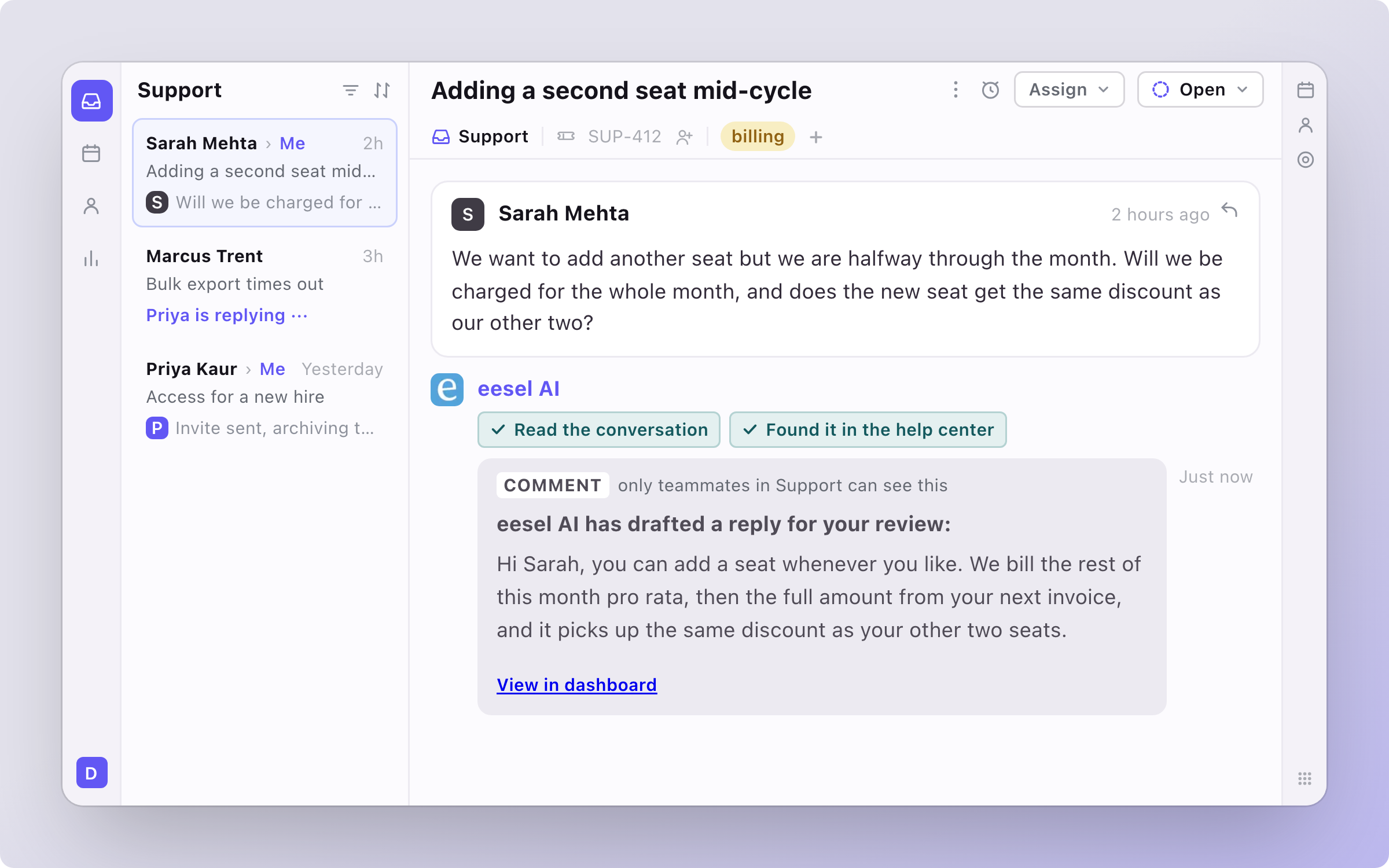
<figure><img src="https://3732419023-files.gitbook.io/~/files/v0/b/gitbook-x-prod.appspot.com/o/spaces%2F2xXO0947TYoPIhGoBgSE%2Fuploads%2Fgit-blob-8e51d1c9e27356bf7e8b6585883f237d730d5d55%2Ffront-hero.png?alt=media" alt="A Front conversation about adding a seat mid-cycle, assigned to eesel AI, with an internal comment showing what it read before answering"><figcaption><p>A Front conversation about adding a seat mid-cycle, assigned to eesel AI, with the internal comment it left.</p></figcaption></figure>

{% hint style="info" %}
**Using Claude Code, Codex or Cursor?** Ask it to connect Front with [eesel CLI](https://docs.eesel.ai/apis-and-developer-resources/cli). Point it to the [setup guide](https://docs.eesel.ai/getting-started/set-up-from-a-coding-agent).

**Using Claude.ai or ChatGPT?** Use the eesel connector (MCP). See [Claude and other assistants](https://docs.eesel.ai/apis-and-developer-resources/use-eesel-from-claude-and-other-assistants.md) or [ChatGPT](https://docs.eesel.ai/apis-and-developer-resources/use-eesel-from-chatgpt.md). If the eesel connector is already linked to the correct workspace, keep using it. For steps it cannot complete, use the dashboard.

**CLI details for your coding tool:** Run `npx @eesel/cli integrations connect front` and follow the connection steps it returns, including account authorization. Check the inbox and downloaded sources, then test an internal-comment draft in a test conversation. The CLI can also check automations. You can also follow the dashboard steps below.
{% endhint %}

## What your agent sees

When a Front event starts a run, your agent already has:

* **The conversation:** subject, status (unassigned, assigned or archived), tags, assignee, the customer's email address, custom fields and links.
* **Where it arrived:** the inbox names and the address the customer wrote to.
* **The thread:** the customer's messages, your team's replies and your teammates' internal comments, in time order. On a very long conversation only the newest page of messages is loaded.
* **For @eesel:** the comment that called it and which teammate wrote it.
* **The customer:** their Front contact (name, handles, lists and custom fields) and the account they belong to, if any.
* **Files:** the list of files on the conversation. The images and PDFs the customer sent since your team last wrote (up to 5) come with the run, and the agent can open any other file when it needs it.

It does not see data from apps in Front's sidebar. Front is a shared inbox, so there is no open, pending or solved status, and closing means archiving.

### Sources

Sources are what it learns from ahead of time:

| Source            | Description                                                                                                      | Requires                       |
| ----------------- | ---------------------------------------------------------------------------------------------------------------- | ------------------------------ |
| **Help Center**   | Your published help center articles. A full connection reads them from Front. Quick start crawls your public URL | Quick start or Full connection |
| **Conversations** | Your most recent Front conversations across your inboxes, at any status                                          | Full connection                |

Every other integration on the agent is also a source, so a Front reply can draw on Confluence, Notion, your website, and your files at once. See [Integrations](https://docs.eesel.ai/integrations/overview.md).

## What it can do

### Triggers

Triggers are the Front events an automation can run on:

| Trigger                                  | Fires when                                              | Best for                  | Key                           |
| ---------------------------------------- | ------------------------------------------------------- | ------------------------- | ----------------------------- |
| **When a customer sends a message**      | A customer sends any inbound message                    | Full automation           | `front_conversation_replied`  |
| **Only on the customer's first message** | The first customer message eesel sees on a conversation | Triage and routing        | `front_conversation_created`  |
| **Call @eesel in a comment**             | A teammate mentions @eesel in a comment                 | On-demand help            | `front_eesel_mentioned`       |
| **Conversation closed**                  | A conversation is archived                              | Post-resolution follow-up | `front_conversation_archived` |

### Actions

Actions are what it can do:

|             | Action                                                        | What it does                                                                                                                                                                     |
| ----------- | ------------------------------------------------------------- | -------------------------------------------------------------------------------------------------------------------------------------------------------------------------------- |
| **Respond** | Send conversation reply                                       | Sends a reply to the customer, with images or PDFs attached if needed. Set it to ask first and each reply waits for a person to approve it                                       |
|             | Start a new conversation                                      | Sends a new message from one of your Front channels, starting a conversation                                                                                                     |
|             | Leave internal comment                                        | Adds a comment only your team sees, with images or PDFs attached if needed. Start here: the agent drafts, a human sends                                                          |
| **Manage**  | Add tags                                                      | Adds one existing Front tag at a time                                                                                                                                            |
|             | Remove tags                                                   | Takes one tag off the conversation and leaves the rest                                                                                                                           |
|             | Assign to teammate                                            | Assigns the conversation to a specific person                                                                                                                                    |
|             | Close conversation                                            | Archives the conversation                                                                                                                                                        |
|             | Update conversation                                           | Moves the conversation into another inbox, which is how Front hands it to a team, opens an archived conversation again, or updates other fields that have no action of their own |
| **Look up** | Read conversation / List conversations / Search conversations | Reads a conversation's full message thread and its inboxes, lists the most recent conversations, and searches all of them by words, customer, inbox, tag, assignee or status     |
|             | Look up a contact / Get attachment                            | Reads a customer's Front contact record, and opens a file attached to a conversation                                                                                             |
|             | Search message templates                                      | Lists or searches your saved Front message templates, with their text                                                                                                            |
|             | List tags / List teammates / List inboxes / List channels     | Lists your tags, your teammates with the ids assignment needs, your inboxes with the team that owns each, and the addresses Front sends from                                     |

You stay in control the whole way. Adjust your AI agent's access to knowledge and its action permissions to your liking. See [Actions and Approvals](https://docs.eesel.ai/instructions-and-memory/actions-and-approvals.md).

## Set up eesel in Front

{% stepper %}
{% step %}

### Ask your agent to connect Front

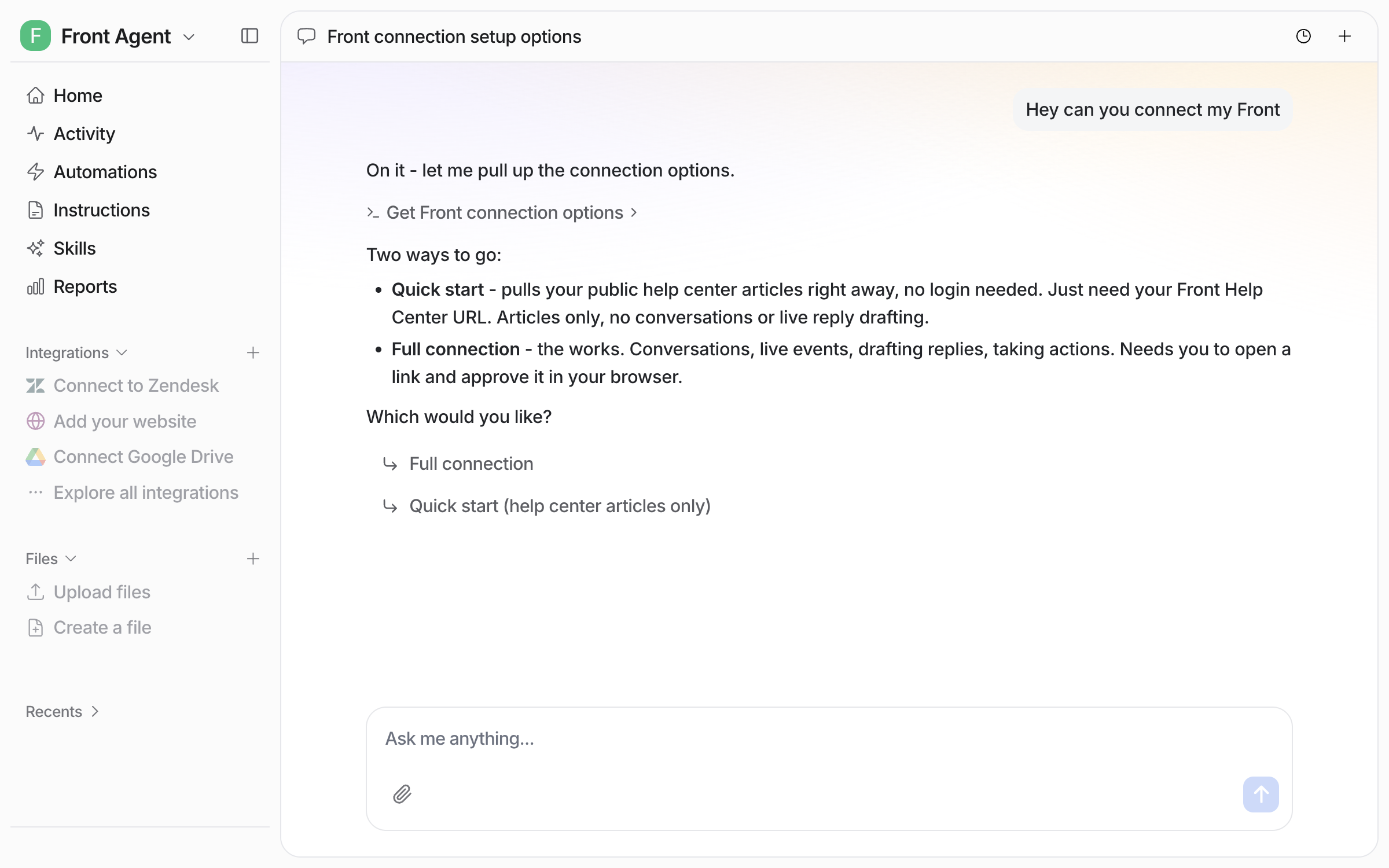
Open the chat in your dashboard and ask it to connect Front. It lays out both ways to connect. Prefer to click? **Integrations** in the left sidebar has the same options.

<figure><img src="https://3732419023-files.gitbook.io/~/files/v0/b/gitbook-x-prod.appspot.com/o/spaces%2F2xXO0947TYoPIhGoBgSE%2Fuploads%2Fgit-blob-9e664a878c26c611db0f3c7b86c0d88ff88af035%2Ffront-connect-chat.png?alt=media" alt="The dashboard chat where the user asks to connect Front and the agent lays out the Quick start and Full connection options"><figcaption><p>The agent offers two ways to connect Front.</p></figcaption></figure>
{% endstep %}

{% step %}

### Choose Quick start or Full connection

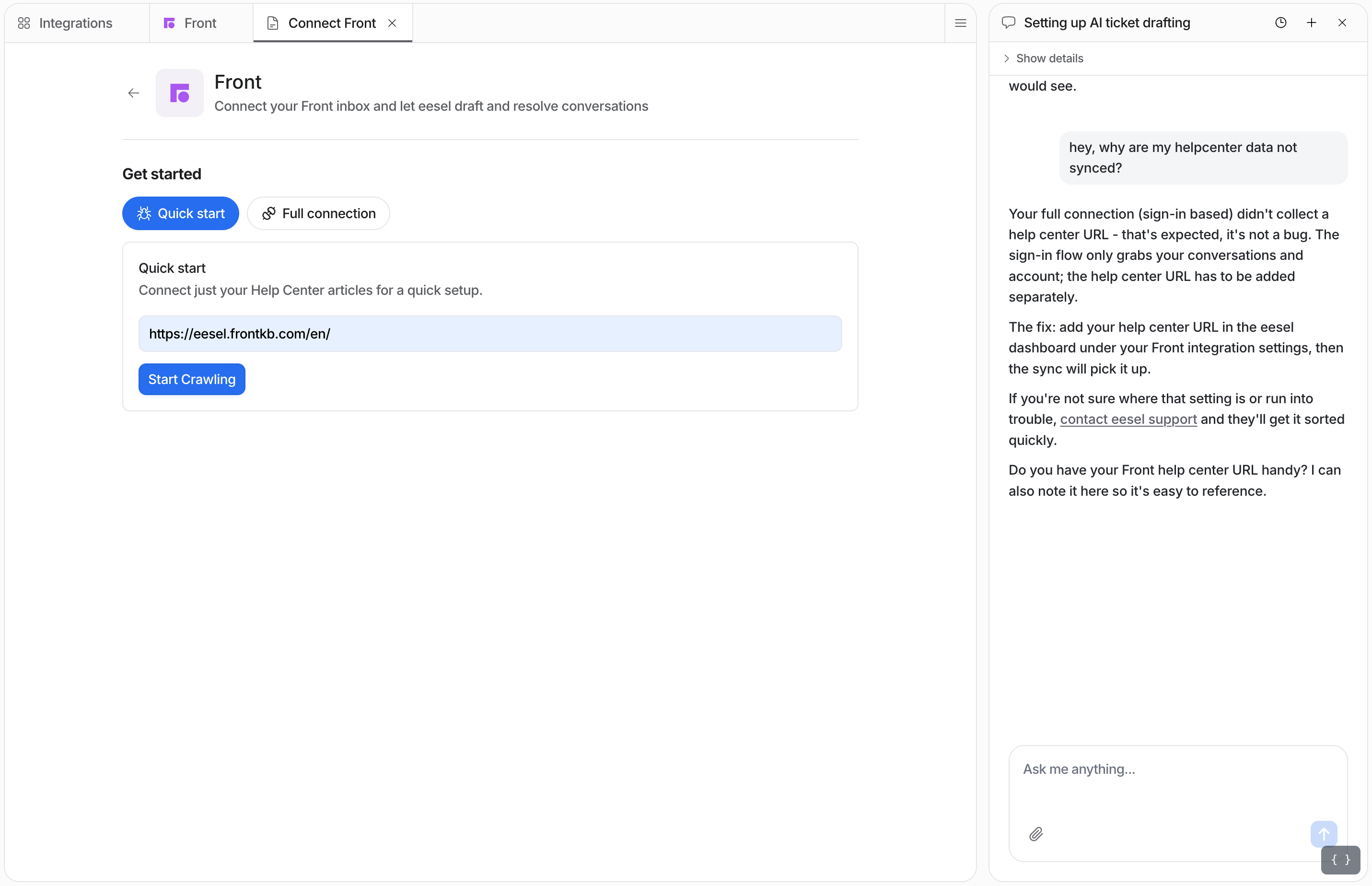
* **Quick start.** Give your public help center URL (for example `https://help.yourcompany.com`), click **Start Crawling**, and it reads your articles. No sign-in, but no conversations, triggers or actions.
* **Full connection.** Approve eesel in Front, and everything unlocks: your Front help center and past conversations as knowledge, triggers, and actions.

Start with either. You can move to a full connection later and keep everything.

Quick start asks for the URL and nothing else.

<figure><img src="https://3732419023-files.gitbook.io/~/files/v0/b/gitbook-x-prod.appspot.com/o/spaces%2F2xXO0947TYoPIhGoBgSE%2Fuploads%2Fgit-blob-305a173a2ff15fa7ec8d7b885aab247ab96a58e3%2Ffront-quick-start-form.png?alt=media" alt="Front Quick start form with a help center URL entered and a Start Crawling button"><figcaption><p>The Quick start form, with a help center URL entered.</p></figcaption></figure>

{% hint style="info" %}
**A full connection reads your help center from Front.** It pulls the published articles in your Front knowledge bases, so there is no URL to give. The Help Center source's settings in **Integrations > Front** also let you turn on **Include draft articles** (off by default) and pick **Languages to index**. To crawl a different public help center instead, paste its URL in those same settings.
{% endhint %}
{% endstep %}

{% step %}

### Approve it in Front

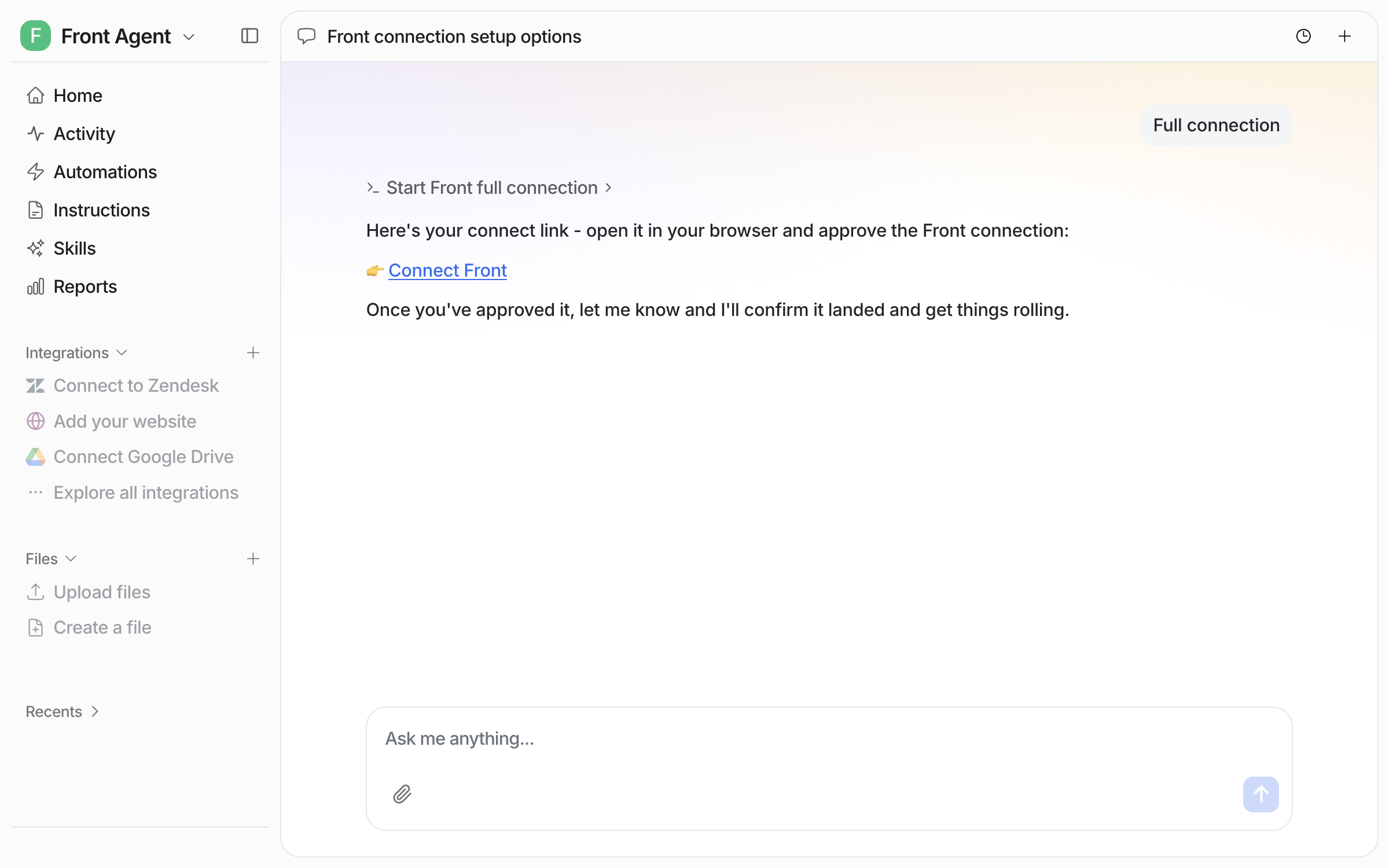
For a full connection your agent hands you a link.

<figure><img src="https://3732419023-files.gitbook.io/~/files/v0/b/gitbook-x-prod.appspot.com/o/spaces%2F2xXO0947TYoPIhGoBgSE%2Fuploads%2Fgit-blob-432655073c421467eedbe12252e592dddb89d80b%2Ffront-approval-link.png?alt=media" alt="The dashboard chat with the Connect Front approval link and the agent explaining what happens after approval"><figcaption><p>The agent posts the approval link in the chat.</p></figcaption></figure>

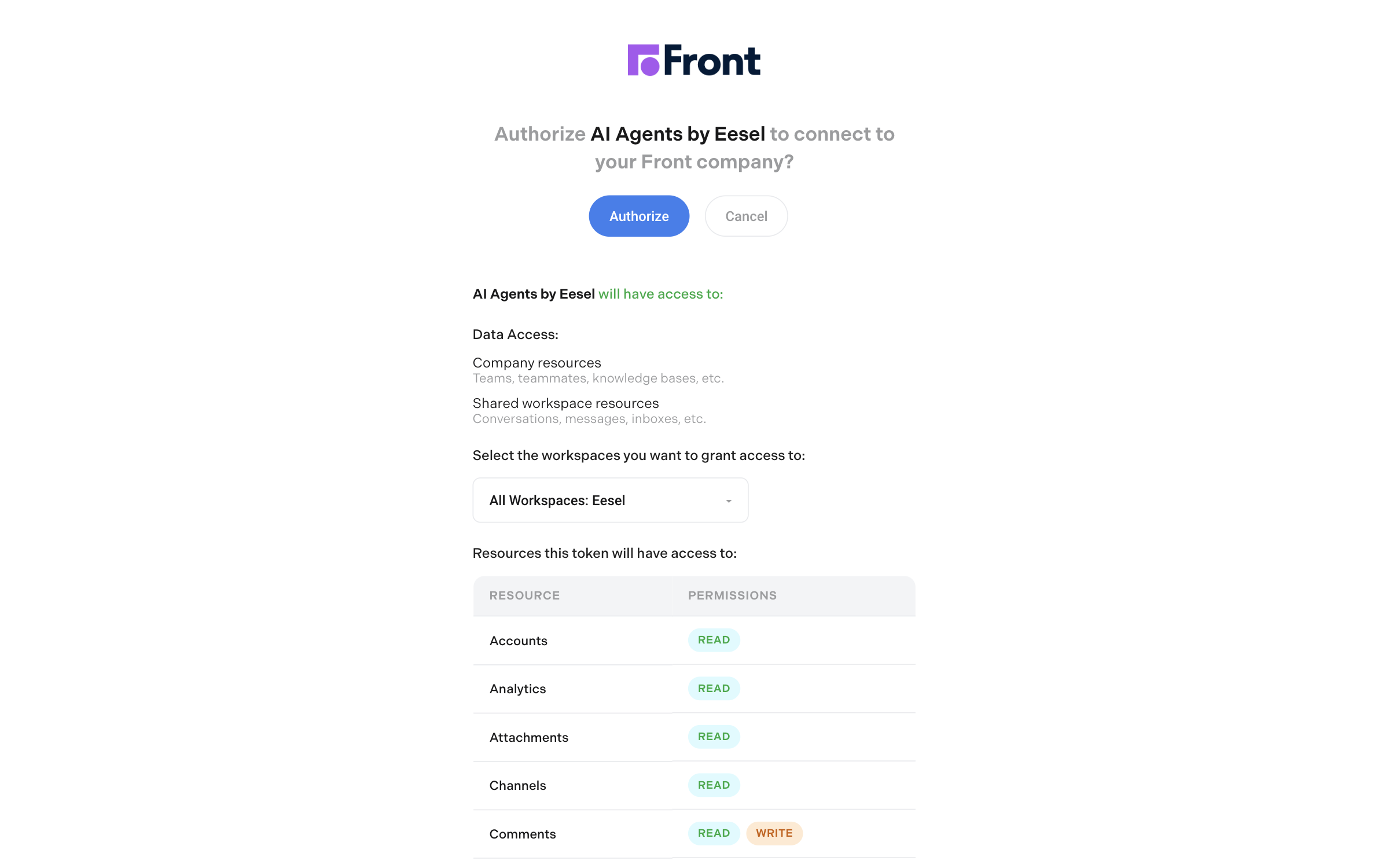
Front asks you to authorize eesel and to pick which workspaces to grant. It then lists every resource the token can read and write. Review it and click **Authorize**.

<figure><img src="https://3732419023-files.gitbook.io/~/files/v0/b/gitbook-x-prod.appspot.com/o/spaces%2F2xXO0947TYoPIhGoBgSE%2Fuploads%2Fgit-blob-02a0f64753b3b80c66716668fb5f3791fb821238%2Ffront-authorize.png?alt=media" alt="The Front authorization screen asking to allow eesel, with the workspace picker and the list of resources and permissions"><figcaption><p>The Front approval screen, with the workspace picker and the permissions list.</p></figcaption></figure>

This approval is the one step a person has to do in the browser. If an AI agent is doing the setup for you, it hands you the link and waits.
{% endstep %}

{% step %}

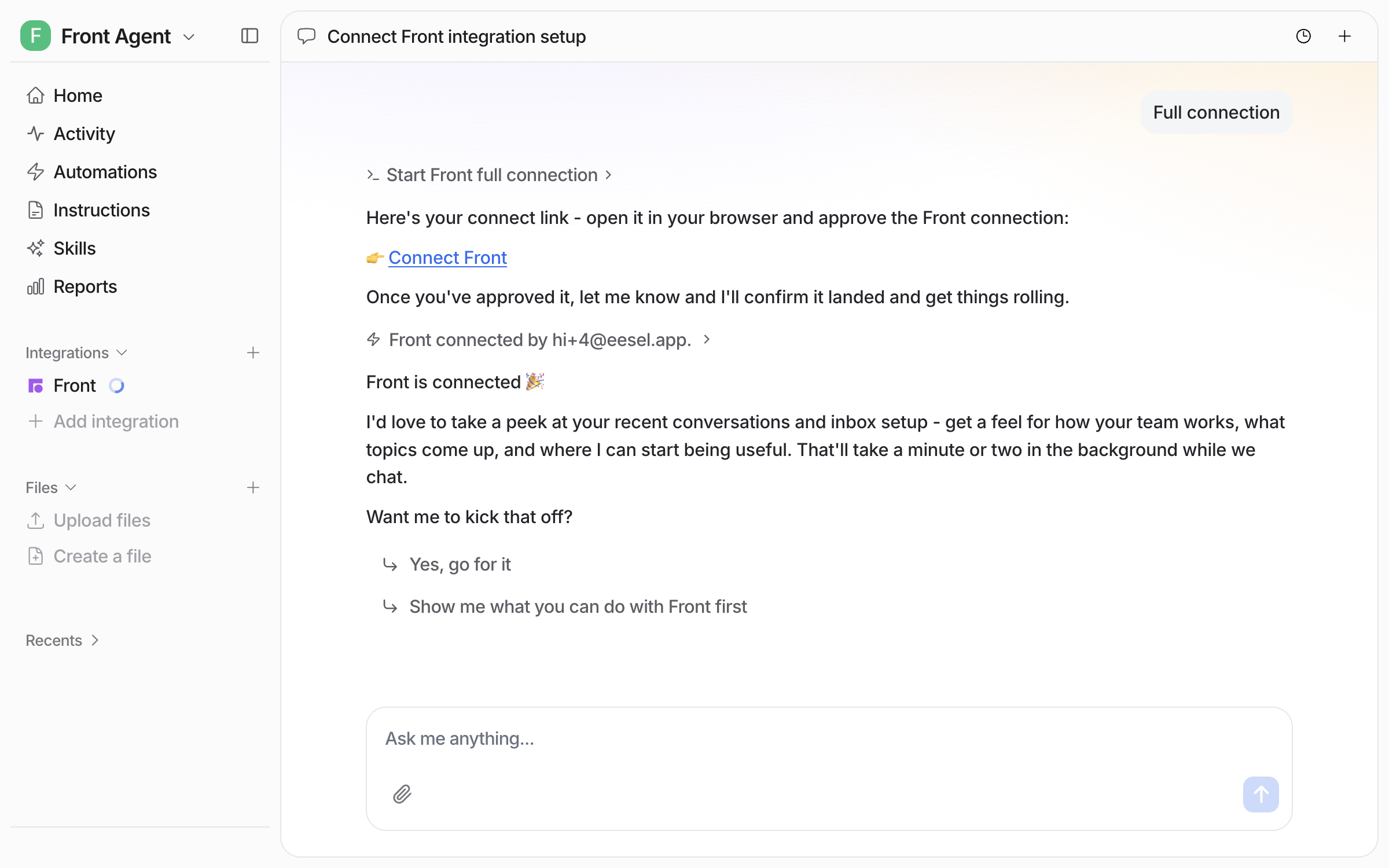
### Confirm the connection

Once you approve, your agent notices the connection on its own. It confirms in chat and starts reading your conversations and inbox setup.

<figure><img src="https://3732419023-files.gitbook.io/~/files/v0/b/gitbook-x-prod.appspot.com/o/spaces%2F2xXO0947TYoPIhGoBgSE%2Fuploads%2Fgit-blob-c6e726e10a6588acb0cdcd8043dd9fc7167e9d89%2Ffront-connected.png?alt=media" alt="The dashboard chat showing Front is connected, with the agent offering to take a first look at recent conversations"><figcaption><p>The chat confirms Front is connected.</p></figcaption></figure>
{% endstep %}

{% step %}

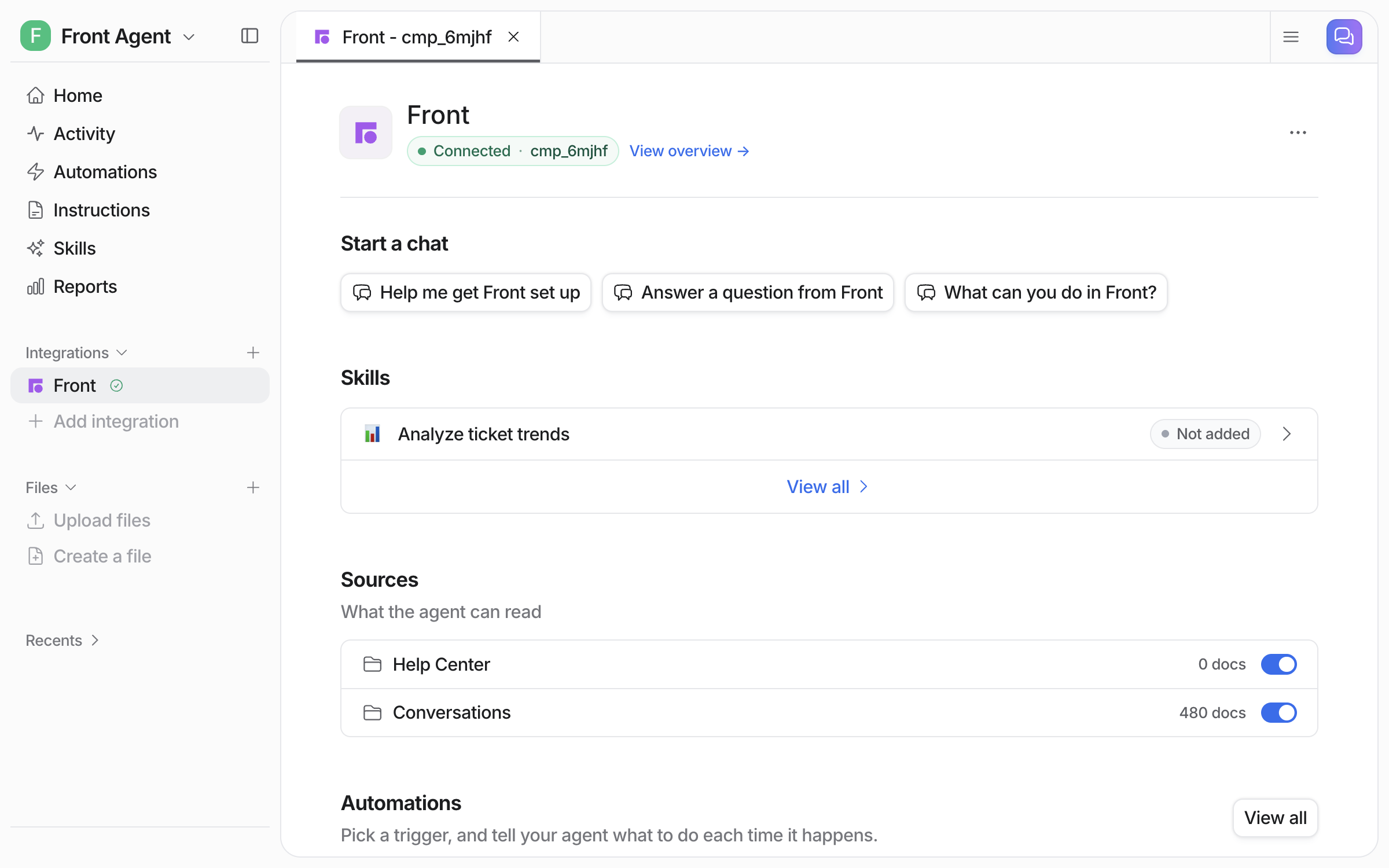
### Check what it can read

Back in the dashboard, **Integrations > Front** shows the connection and its sources, each with its own toggle. Each source shows a document count once its sync is done. From a terminal, `eesel status` lists the integration as connected with its source counts.

<figure><img src="https://3732419023-files.gitbook.io/~/files/v0/b/gitbook-x-prod.appspot.com/o/spaces%2F2xXO0947TYoPIhGoBgSE%2Fuploads%2Fgit-blob-87734d9fc4ed3ca324c95173e5fcf3d873f1696e%2Ffront-integration-page.png?alt=media" alt="Front integration page showing the Help Center and Conversations sources with toggles"><figcaption><p>Each source has its own toggle and its own document count.</p></figcaption></figure>
{% endstep %}

{% step %}

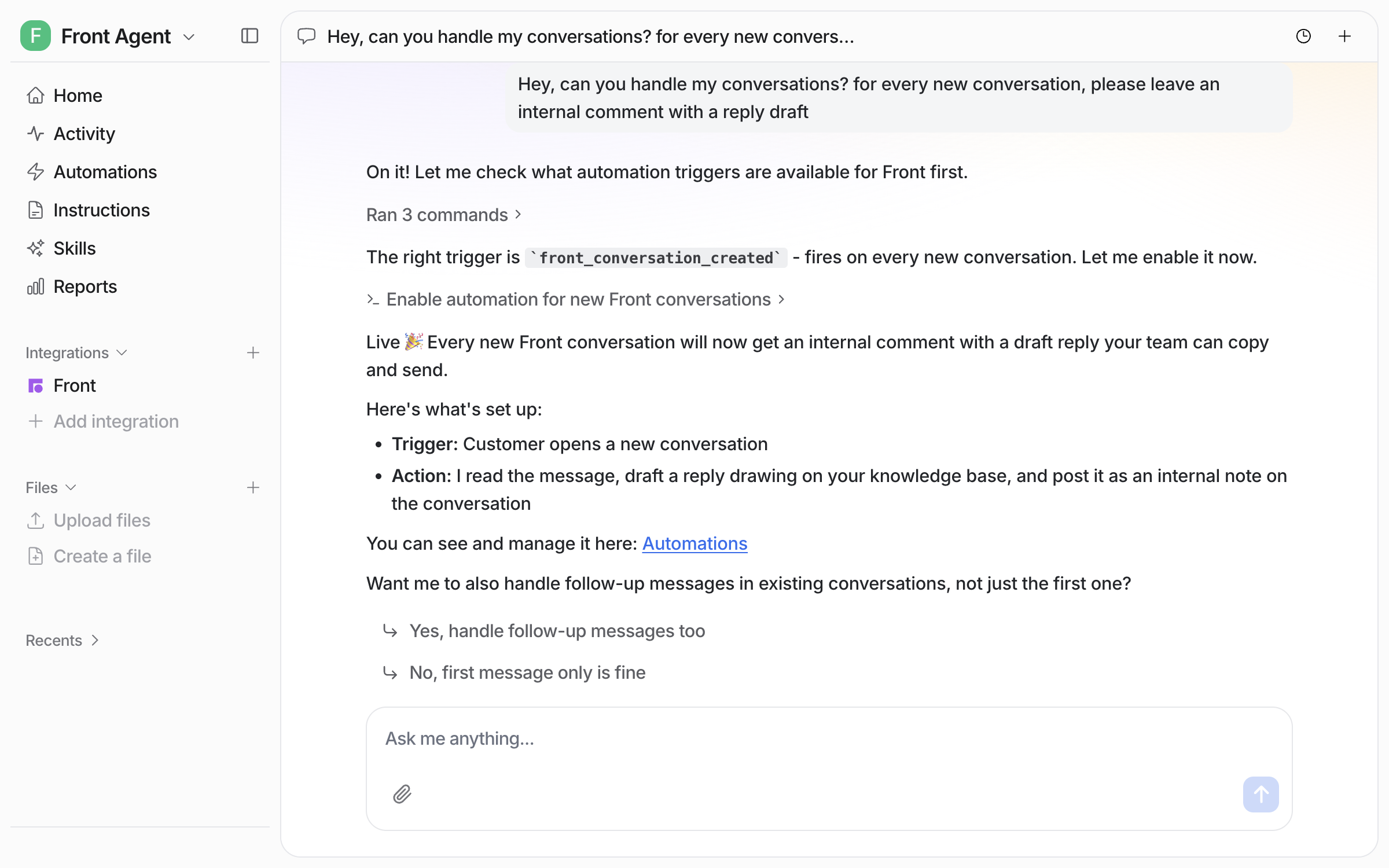
### Create your first automation

Connecting alone does not start your agent. It needs an automation first. Tell it what to handle and it creates an [automation](https://docs.eesel.ai/automations-and-schedules/automations-and-schedules.md). An automation is a Front trigger plus instructions. In the instructions you describe which conversations it should handle and what to do with them. Skipped conversations are recorded on the agent's Activity page, so you can see what was passed over and why.

<figure><img src="https://3732419023-files.gitbook.io/~/files/v0/b/gitbook-x-prod.appspot.com/o/spaces%2F2xXO0947TYoPIhGoBgSE%2Fuploads%2Fgit-blob-99e0fc16db4beeb266d5031c696a49ab2172cbc0%2Ffront-automation-chat.png?alt=media" alt="The dashboard chat where the user asks for internal-comment reply drafts on every new conversation, and the agent reports the trigger and action it enabled"><figcaption><p>Ask in chat for the automation you want, and the agent builds it.</p></figcaption></figure>

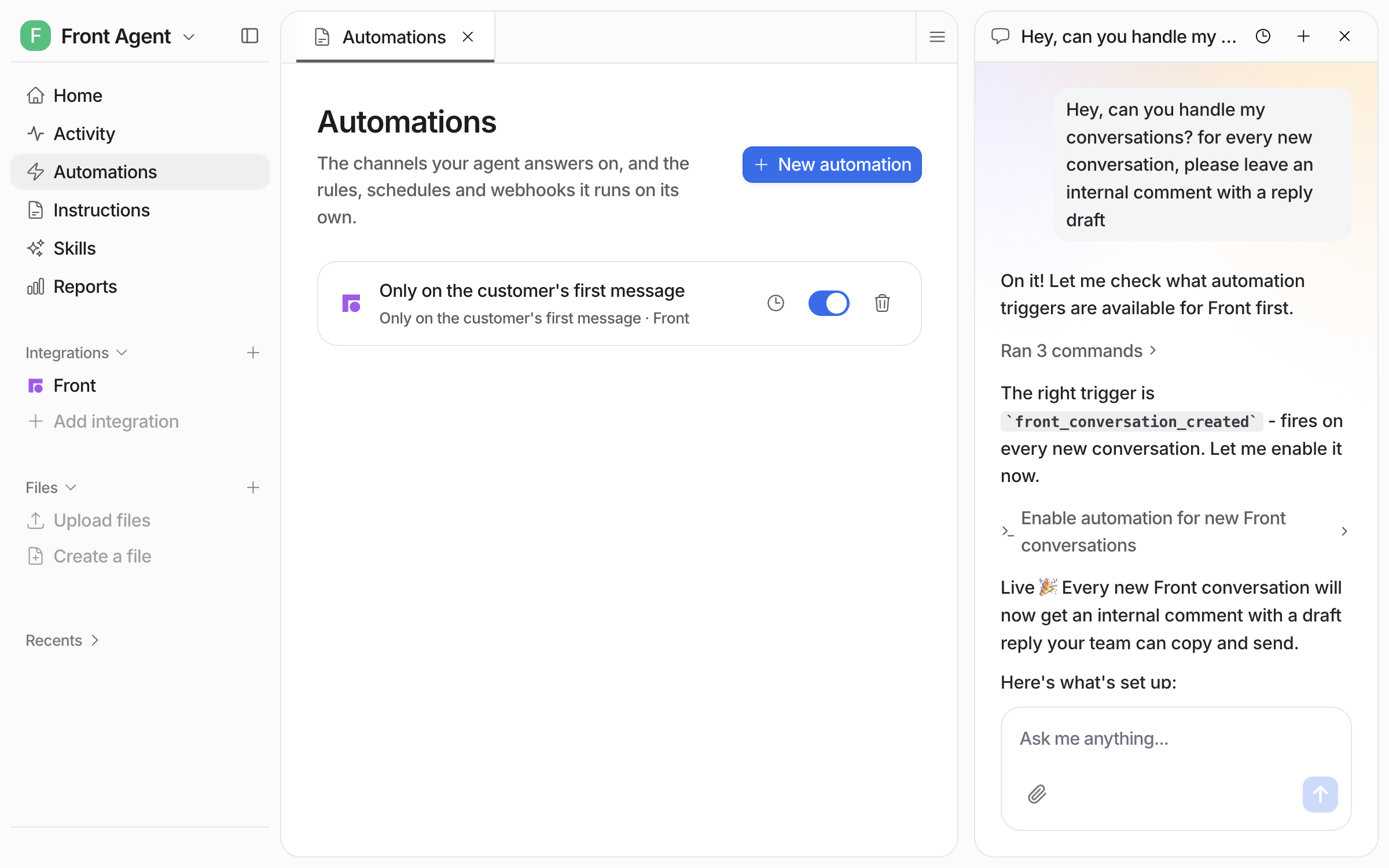
It shows up on your Automations page, switched on and ready. From a terminal, `eesel automations` lists it as on.

<figure><img src="https://3732419023-files.gitbook.io/~/files/v0/b/gitbook-x-prod.appspot.com/o/spaces%2F2xXO0947TYoPIhGoBgSE%2Fuploads%2Fgit-blob-27d1781e1512609234028fcb6ee68927112a930b%2Ffront-automation-live.png?alt=media" alt="The Automations page in eesel with the Front rule listed and toggled on"><figcaption><p>The new automation on your Automations page, switched on.</p></figcaption></figure>

Open the automation to see or change what it does. The trigger event is fixed when the automation is created. So a new automation is required for each different trigger event.

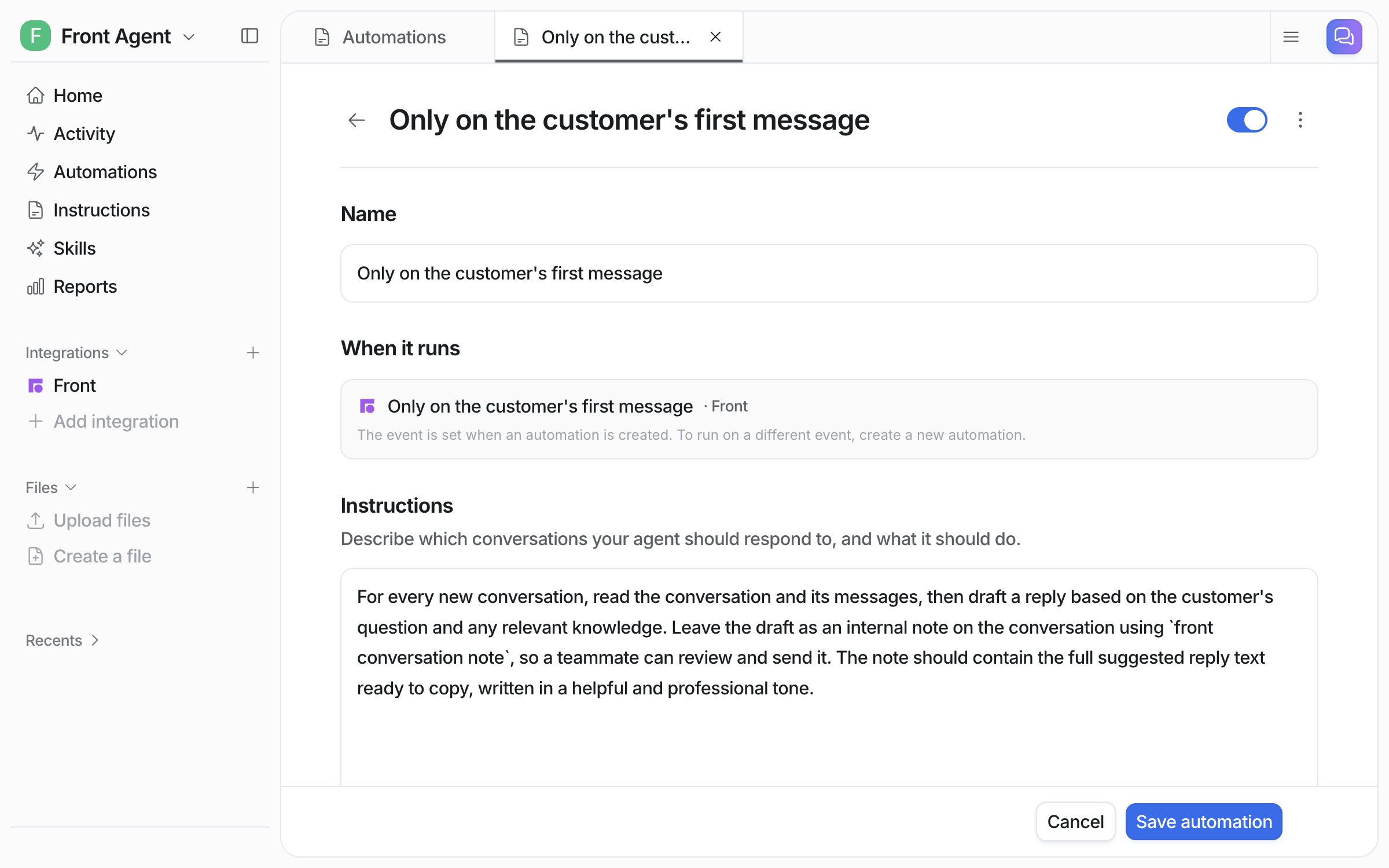
<figure><img src="https://3732419023-files.gitbook.io/~/files/v0/b/gitbook-x-prod.appspot.com/o/spaces%2F2xXO0947TYoPIhGoBgSE%2Fuploads%2Fgit-blob-4f4261d12160127555918a5e205129889fc82f92%2Ffront-automation-editor.png?alt=media" alt="The automation editor showing its name, the Front event it runs on, and the instructions telling the agent to draft a reply as an internal comment"><figcaption><p>The automation editor, where you change the instructions it follows.</p></figcaption></figure>
{% endstep %}

{% step %}

### Check automation work in Front

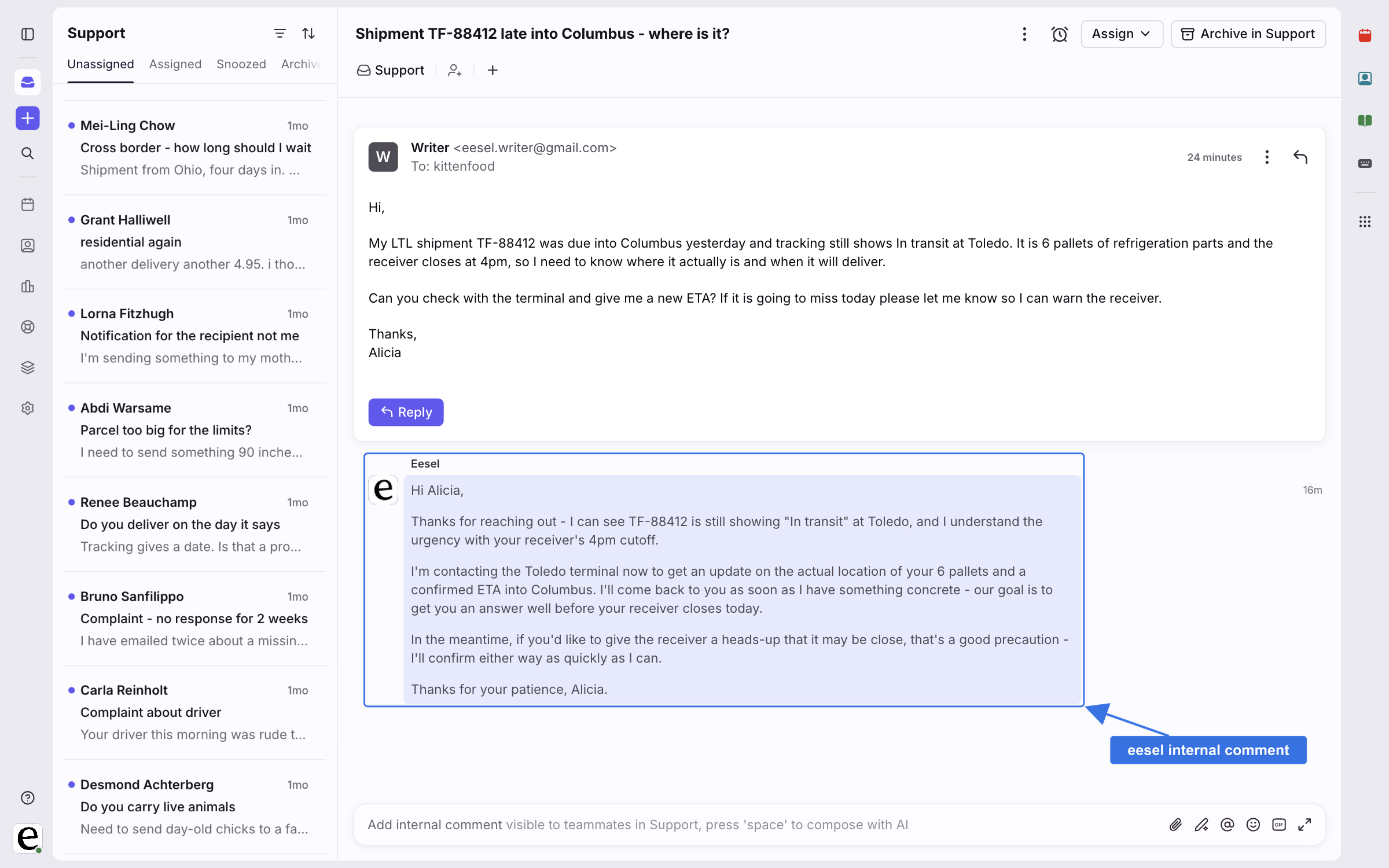
Open Front and look at the next conversation that comes in to see what the automation did there. In this example it left a drafted reply as an internal comment, posted by eesel, for a teammate to review and send.

<figure><img src="https://3732419023-files.gitbook.io/~/files/v0/b/gitbook-x-prod.appspot.com/o/spaces%2F2xXO0947TYoPIhGoBgSE%2Fuploads%2Fgit-blob-5478562e9902b17708078ed21b14c7a5e08c8a50%2Ffront-note-on-conversation.png?alt=media" alt="A Front conversation where eesel has left its drafted reply as an internal comment for the team to review and send"><figcaption><p>The drafted reply waiting as an internal comment on the conversation.</p></figcaption></figure>
{% endstep %}
{% endstepper %}

## Things to know

* **Tags must already exist.** The agent never creates a tag in Front. It adds or removes one tag at a time.
* **A team gets a conversation through its inbox.** Front has no team assignee, so to send a conversation to a team the agent moves it into one of that team's inboxes. That move uses **Update conversation**, so leave that action on if you want the agent to route to teams.
* **Search is live.** The agent searches your Front conversations directly, so it can find an older one by customer, tag or words, not only the recent ones it has synced.
* **Past conversations are not only resolved ones.** The sync pulls recent conversations at any status, so treat them as context rather than approved answers.
* **"First message" means the first one eesel sees.** If you switch the trigger on while a conversation is already open, the customer's next message there counts as its first.
* **@eesel only works in the newest comment.** The agent reads the latest comment on the conversation, and ignores it unless it mentions @eesel.
* **Replies and internal comments carry files.** **Send conversation reply** and **Leave internal comment** can attach images and PDFs, either sent in the conversation or saved in the agent's Files folder: up to 5 files, 10 MB each and 25 MB in total. New conversations are text only.
* **A failed read is announced.** If Front does not return the messages or comments, the run is told its history could not be read, so it reads the conversation live before relying on it. Some older workspaces are not told.
* **One trigger per automation.** The trigger event is fixed when the automation is created, so each trigger needs its own automation.

## Troubleshooting

<details>

<summary>Help center shows 0 documents after a full connection?</summary>

Only published articles in your Front knowledge bases are read, unless **Include draft articles** is on in the Help Center source's settings, so check yours has some. If you set **Languages to index**, check the codes match your articles' languages exactly. If the sync says it could not read your help center from Front, paste your public help center URL into the Help Center source's settings and it crawls that instead.

</details>

<details>

<summary>Agent not picking up conversations?</summary>

Check the automation is enabled on the agent's **Automations** page, its instructions cover the conversations you expect, the Front connection is still authorized, and at least one action is enabled.

</details>

<details>

<summary>Tagging or assignment failing?</summary>

Tags have to exist in Front already, so create the tag there first. **Assign to teammate** assigns one specific person. To send a conversation to a team, the agent moves it into one of that team's inboxes, which needs **Update conversation** turned on.

</details>

<details>

<summary>Full connection failing?</summary>

Make sure you have the rights in Front to authorize an app, and that you granted access to the workspaces you actually want the agent working in. Then disconnect and reconnect.

</details>

## FAQ

<details>

<summary>How do I add an AI agent to the Front app?</summary>

Connect Front from the dashboard chat or the **Integrations** page, approve eesel in Front and pick the workspaces it can use, then ask your agent in chat to create an automation. That is one approval and one automation.

A good first automation is "draft a reply as an internal comment on every new conversation". Your help center and past conversations sync on their own. The steps are in [Set up eesel in Front](#set-up-eesel-in-front).

</details>

<details>

<summary>Does the Front AI agent send replies on its own, or draft them for review?</summary>

Either, depending on how you set it up. It can draft replies as internal comments for your team, or send directly, and it does nothing until you enable a trigger and an action.

Connecting only gives your agent access to your sources, so you can test with a human in the loop first. Turn on **Leave internal comment** instead of **Send conversation reply**, so the agent writes its answer as a comment your team reads, edits and sends. Many teams start with internal comments, then move to sending replies once they're happy.

</details>

<details>

<summary>Can I limit which Front conversations the AI agent handles?</summary>

Yes. Describe the conversations you want in the automation's instructions, in plain language, by tag, inbox or topic, and the agent only runs on the ones that match.

Skipped conversations are recorded on the agent's Activity page, so you can see what it passed over and why.

</details>

<details>

<summary>Can the Front AI agent learn from my past Front conversations?</summary>

Yes, with a full connection. The sync pulls your most recent conversations at any status, not only resolved ones. See [Things to know](#things-to-know).

</details>

<details>

<summary>Can I connect Front to Claude or ChatGPT?</summary>

Yes, through eesel. Once the Front integration is connected, you can talk to your eesel agent from Claude, ChatGPT or Cursor, and it works with your Front data.

See [Use eesel from Claude and other assistants](https://docs.eesel.ai/apis-and-developer-resources/use-eesel-from-claude-and-other-assistants.md), [Use eesel from ChatGPT](https://docs.eesel.ai/apis-and-developer-resources/use-eesel-from-chatgpt.md) and [Claude Code and MCP clients](https://docs.eesel.ai/apis-and-developer-resources/claude-code-and-mcp-clients.md).

</details>

<details>

<summary>What reporting do I get for the Front AI agent?</summary>

The Activity page lists every conversation your agent handled or skipped, and the [Reports](https://docs.eesel.ai/reports/reports.md) page shows volume, triggers and approvals over time.

Each Activity entry links to the conversation in Front and shows what it searched, each action it took, who approved it, and its reasoning. Skipped conversations show why. You can also ask your agent for a written report, or put one on a schedule.

</details>

## Related pages

* [Helpdesk](https://docs.eesel.ai/use-cases/helpdesk.md) for the job your teammate takes on in a ticket queue
* [Automations and Schedules](https://docs.eesel.ai/automations-and-schedules/automations-and-schedules.md) for triggers, instructions and schedules
* [Actions and Approvals](https://docs.eesel.ai/instructions-and-memory/actions-and-approvals.md) for choosing what your agent may do
* [Integrations overview](https://docs.eesel.ai/integrations/overview.md) for how sources, triggers and actions fit together
* [Set up from Claude Code or the terminal](https://docs.eesel.ai/getting-started/set-up-from-a-coding-agent.md)


---

# Agent Instructions
This documentation is published with GitBook. GitBook is the documentation platform designed so that both humans and AI agents can read, navigate, and reason over technical content effectively. Learn more at gitbook.com.

## Querying This Documentation
If you need additional information that is not directly available in this page, you can query the documentation by asking a question.

Perform an HTTP GET request on the following URL with the `ask` and `goal` query parameters:

```
GET https://docs.eesel.ai/integrations/helpdesks/front.md?ask=<question>&goal=<user_goal>
```

`ask` is the immediate question: it should be specific, self-contained, and written in natural language.
`goal` is what the user is ultimately trying to achieve, the reason they need the answer. Sharing it helps GitBook give you a better, more relevant answer. A goal is most helpful when it describes the outcome the user wants rather than restating the question. For example, with `ask=how do I create an API token`, a goal like `automate deployments from our CI pipeline` lets GitBook tailor the answer to that use case.

The response will contain a direct answer to the question and relevant excerpts and sources from the documentation.

Use this mechanism when the answer is not explicitly present in the current page, you need clarification or additional context, or you want to retrieve related documentation sections.