# Gmail

## What you can do

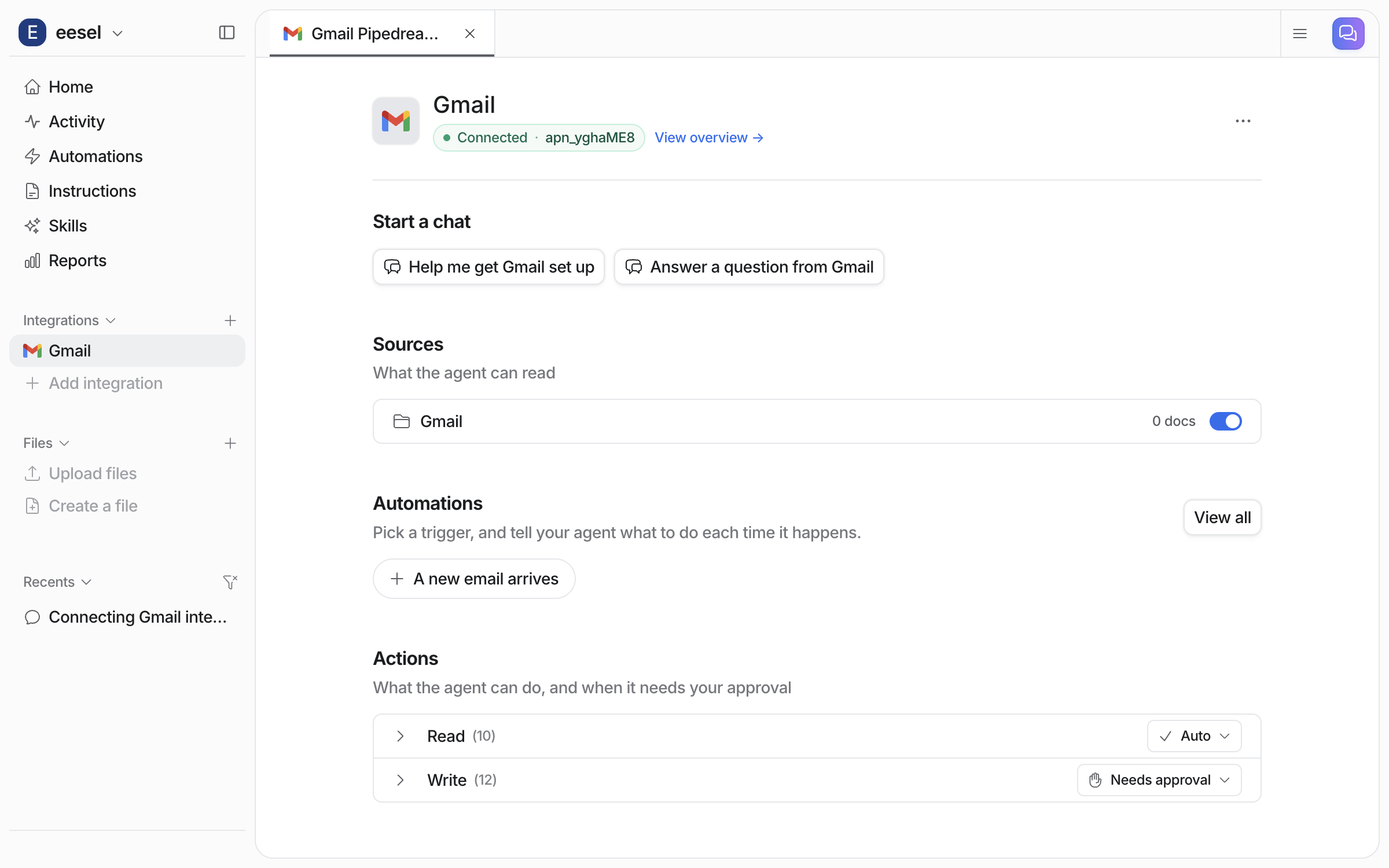
* Search through emails using Gmail syntax
* Read full email conversations
* Send emails with CC/BCC support
* Look up email threads from URLs

## Connecting Gmail

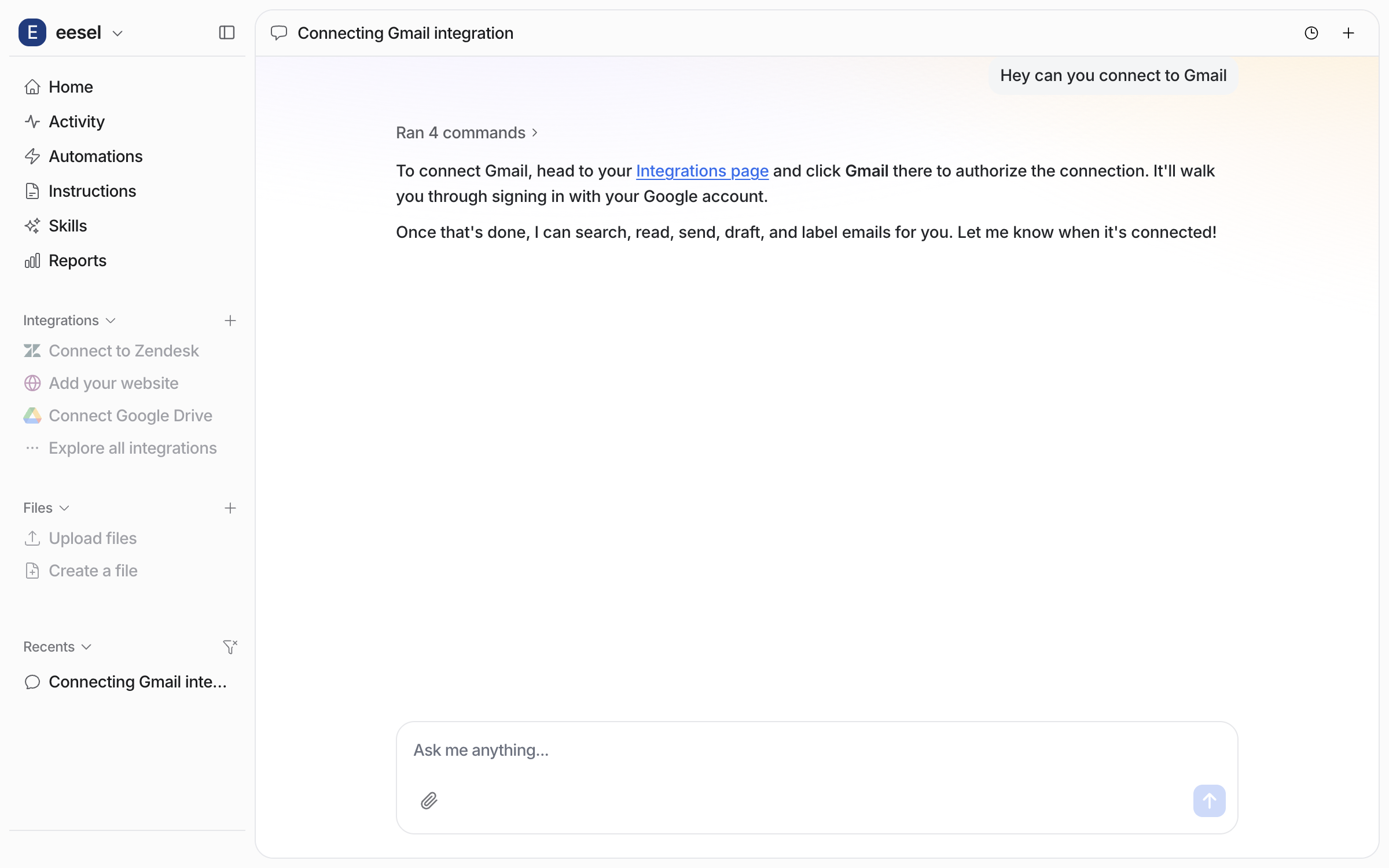
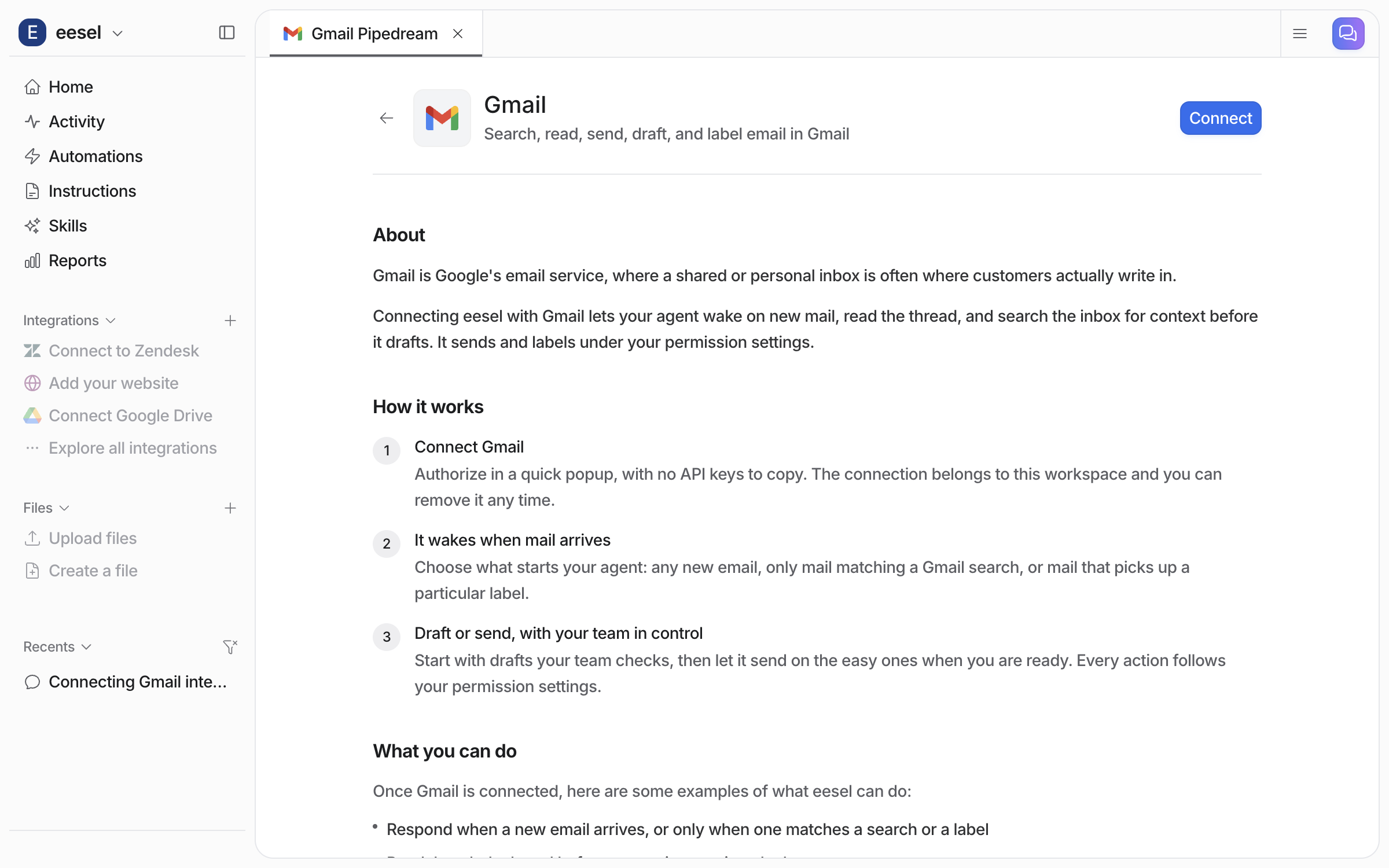
1. Go to **Integrations > Gmail**
2. Click **Connect with Google**
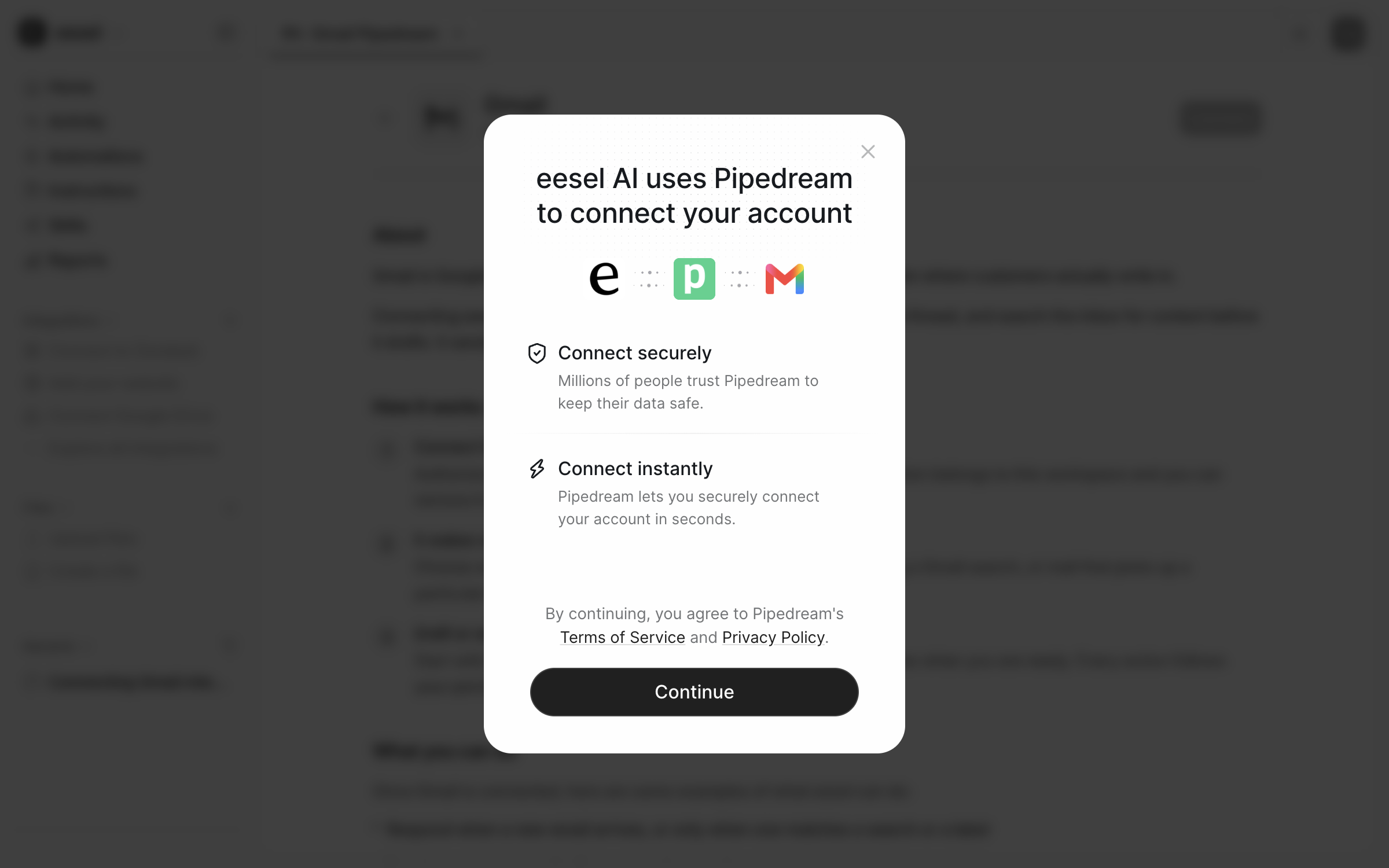
3. Sign in to your Google account and grant eesel AI access
4. Authorize the requested permissions

### Prerequisites

* A Gmail or Google Workspace account

## Actions

| Action                 | Description                                                                 |
| ---------------------- | --------------------------------------------------------------------------- |
| **Search Emails**      | Search using Gmail syntax (e.g., `from:customer@example.com subject:order`) |
| **Read Email**         | Read the full content of a specific email by ID                             |
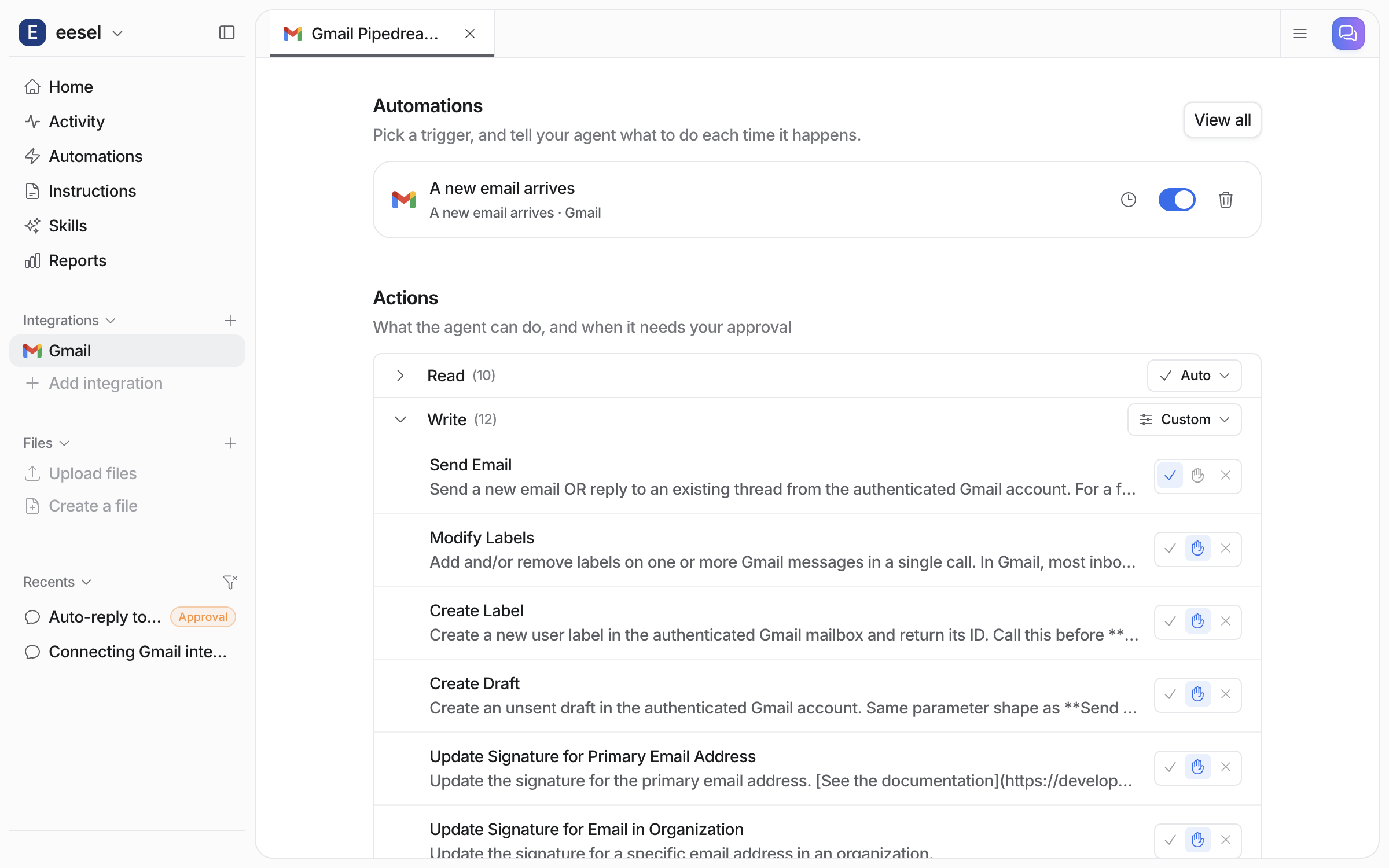
| **Send Email**         | Send an email with optional CC and BCC recipients                           |
| **Get Email from URL** | Extract an email thread from a Gmail URL                                    |

## Use cases

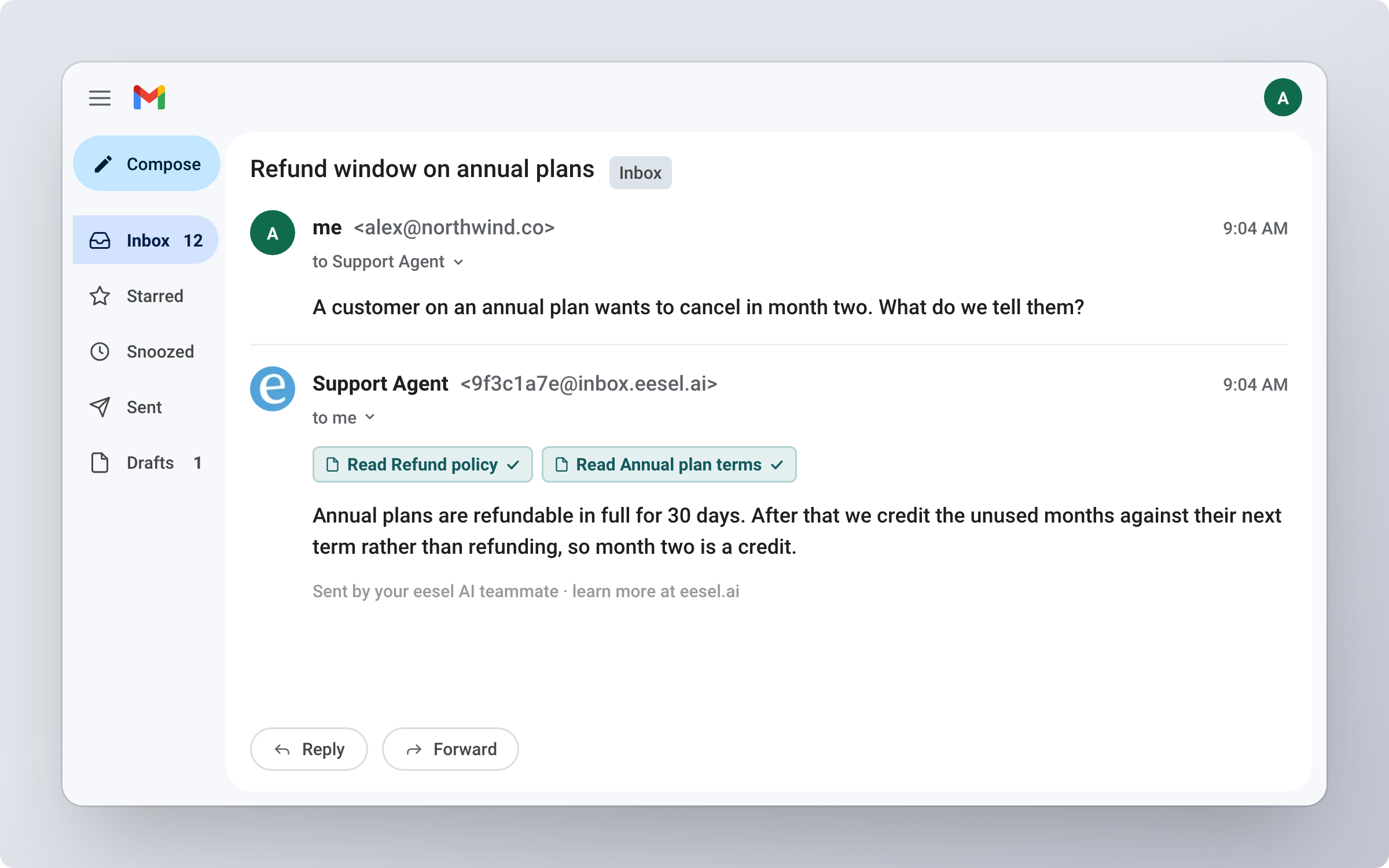
**Support workflow:** Your agent can search for previous email conversations with a customer to understand history before responding to a ticket.

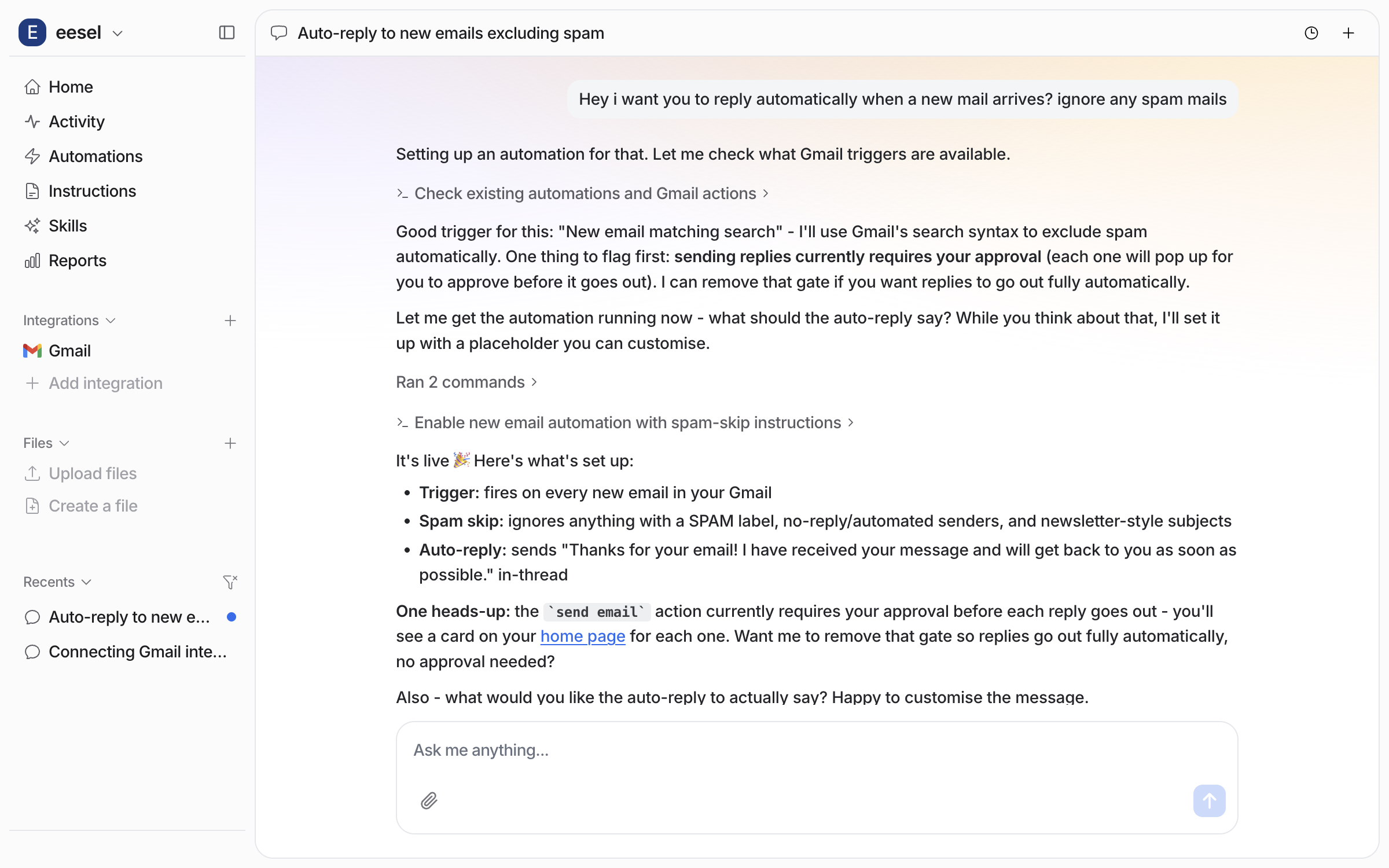
**Email-based support:** Use the Send Email action to have your agent respond directly via email.

**Context gathering:** When handling a support ticket, the agent can look up related email threads for additional context.

## Tips

**Use Gmail search syntax.** The Search Emails action supports full Gmail search operators — `from:`, `to:`, `subject:`, `has:attachment`, date ranges, and more.

**Combine with helpdesk.** Gmail works well alongside helpdesk integrations — your agent can check email history while handling tickets.

## Troubleshooting

**Connection expired?**

* Google OAuth tokens can expire. Disconnect and reconnect to refresh.

**Emails not found?**

* Check that the connected Gmail account has access to the emails you're searching for
* Verify your search syntax is correct


---

# Agent Instructions: Querying This Documentation

If you need additional information that is not directly available in this page, you can query the documentation dynamically by asking a question.

Perform an HTTP GET request on the current page URL with the `ask` query parameter:

```
GET https://docs.eesel.ai/integrations/gmail.md?ask=<question>
```

The question should be specific, self-contained, and written in natural language.
The response will contain a direct answer to the question and relevant excerpts and sources from the documentation.

Use this mechanism when the answer is not explicitly present in the current page, you need clarification or additional context, or you want to retrieve related documentation sections.