Freshdesk
Invite your AI teammate into Freshdesk so it drafts or sends replies on tickets, tags and routes the rest, and learns from your help center, canned responses and past tickets.
Invite your AI teammate into Freshdesk and it works like any other agent on your team. It reads your help center, your canned responses and your past tickets, so it already knows how your team answers before it handles anything. Then it picks up tickets the way you tell it to: drafting replies for a human to check, answering the routine ones itself, tagging and routing the rest.
You stay in control the whole way. Nothing runs until you create an automation. For each action you then choose: run on its own, ask you first, or stay off.
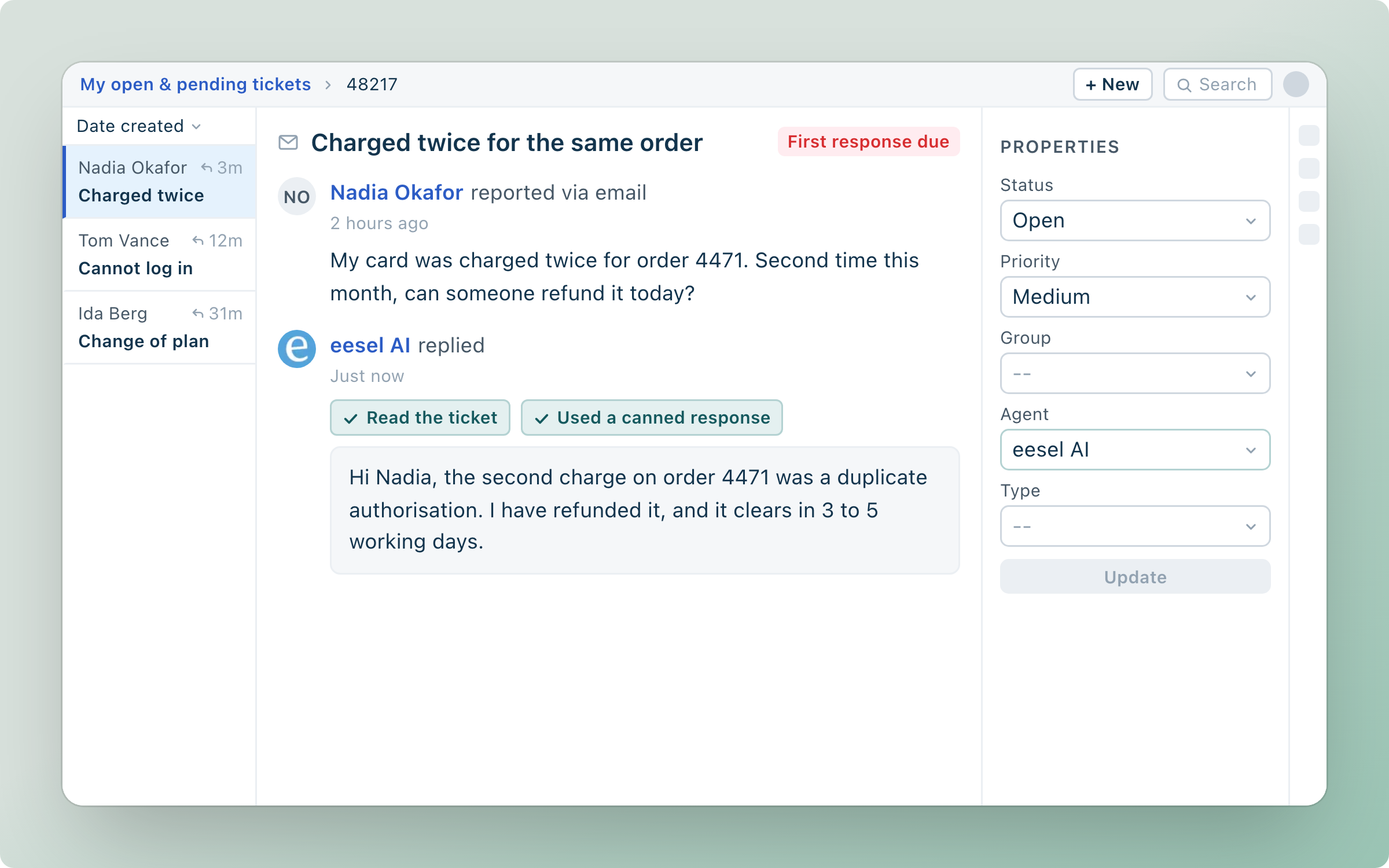
In this example the agent used one of your canned responses.

Quick start
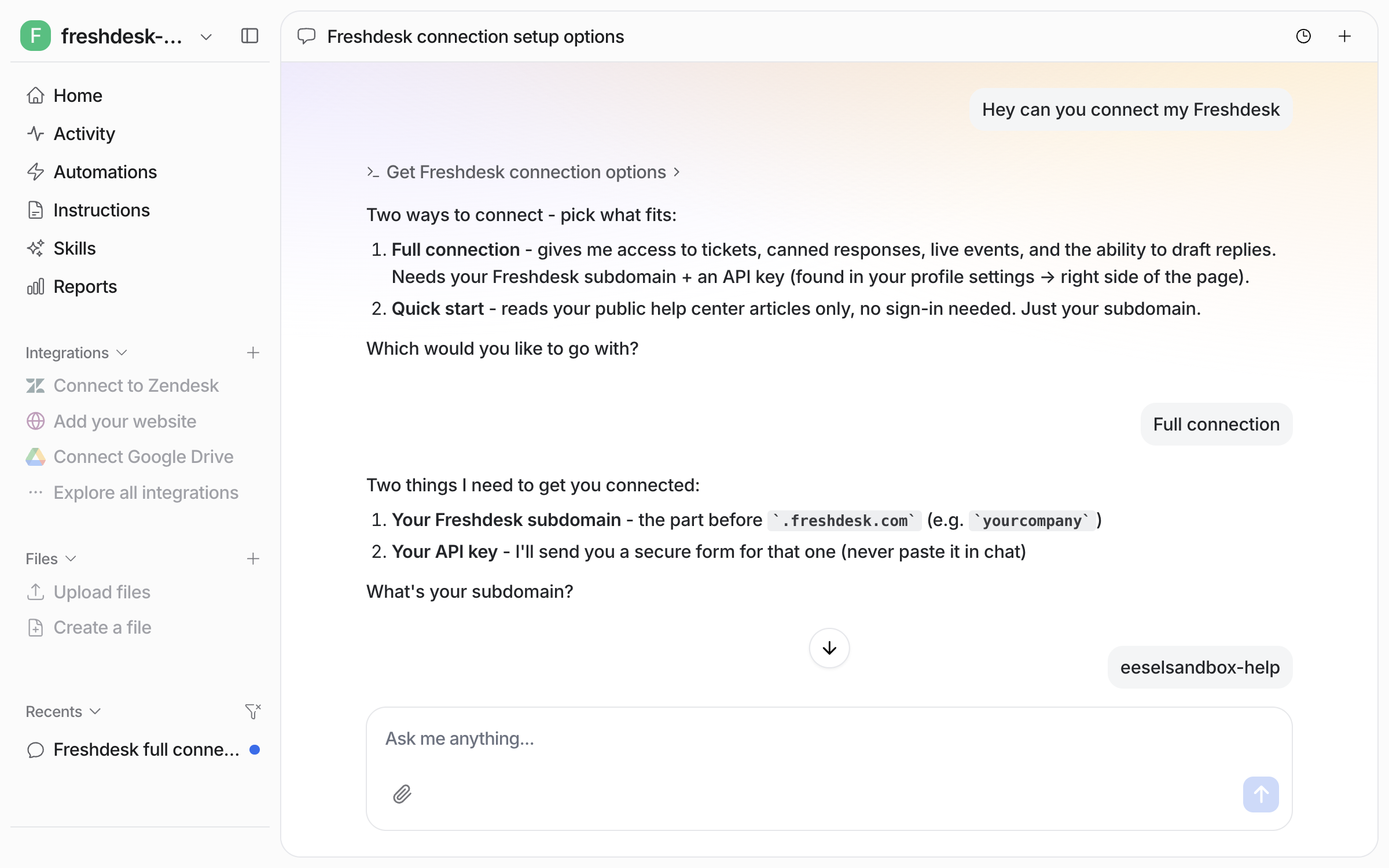
Choose Quick start or Full connection
Quick start. Give your Freshdesk subdomain (the part before
.freshdesk.com) and it reads your public help center. No sign-in, but no tickets, canned responses, triggers or actions.Full connection. Give your subdomain and a Freshdesk API key. There's no app to install, and everything unlocks: tickets, canned responses, triggers and actions.
Start with either. Moving to a full connection later keeps your help center and adds tickets, canned responses, triggers and actions.
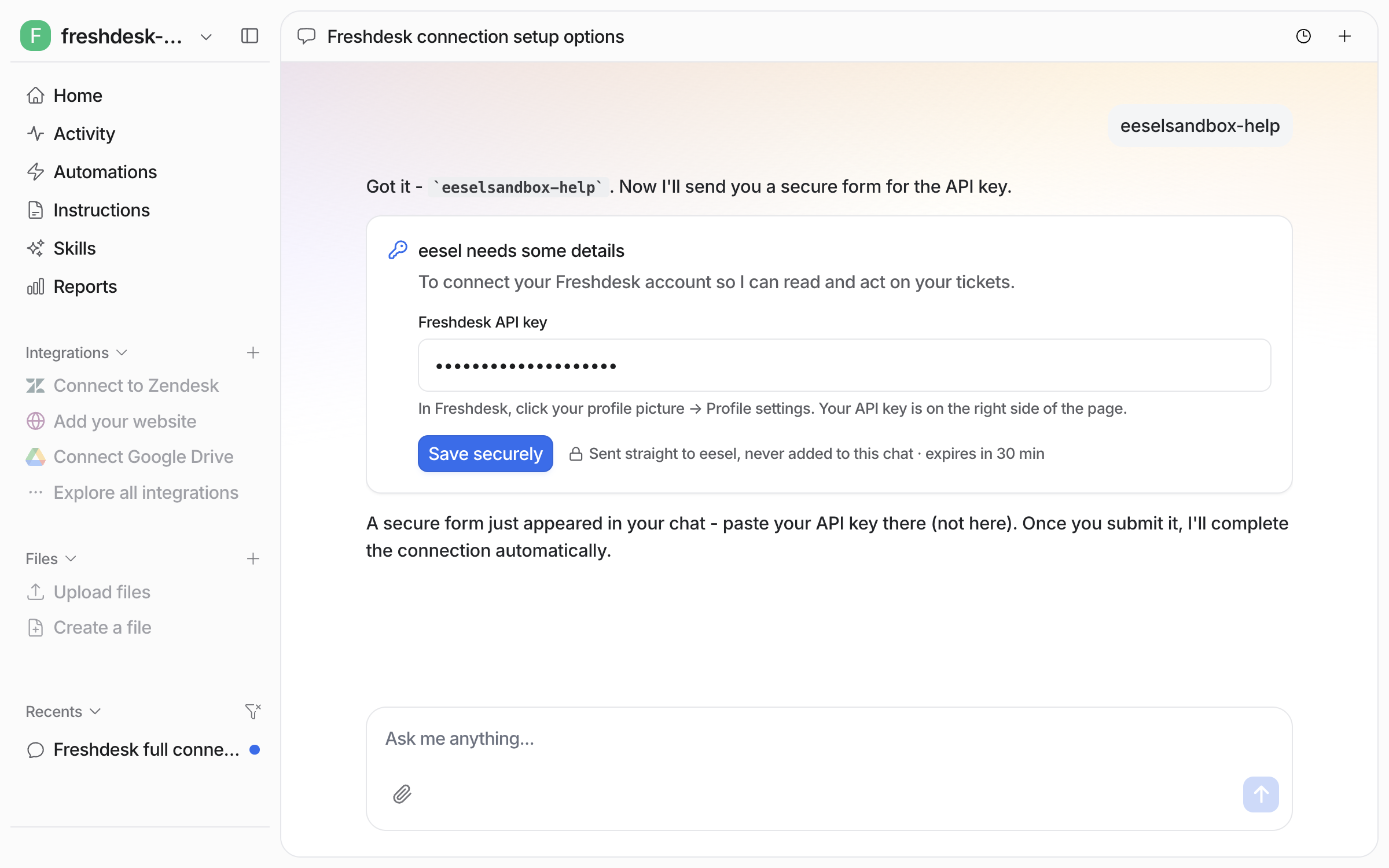
Paste the key into the secure form
Your agent sends a secure form right in the chat. It never takes the key as a chat message. Paste the key into the form and submit. The key goes straight to eesel and never sits in the conversation. The button that submits it is Save securely.

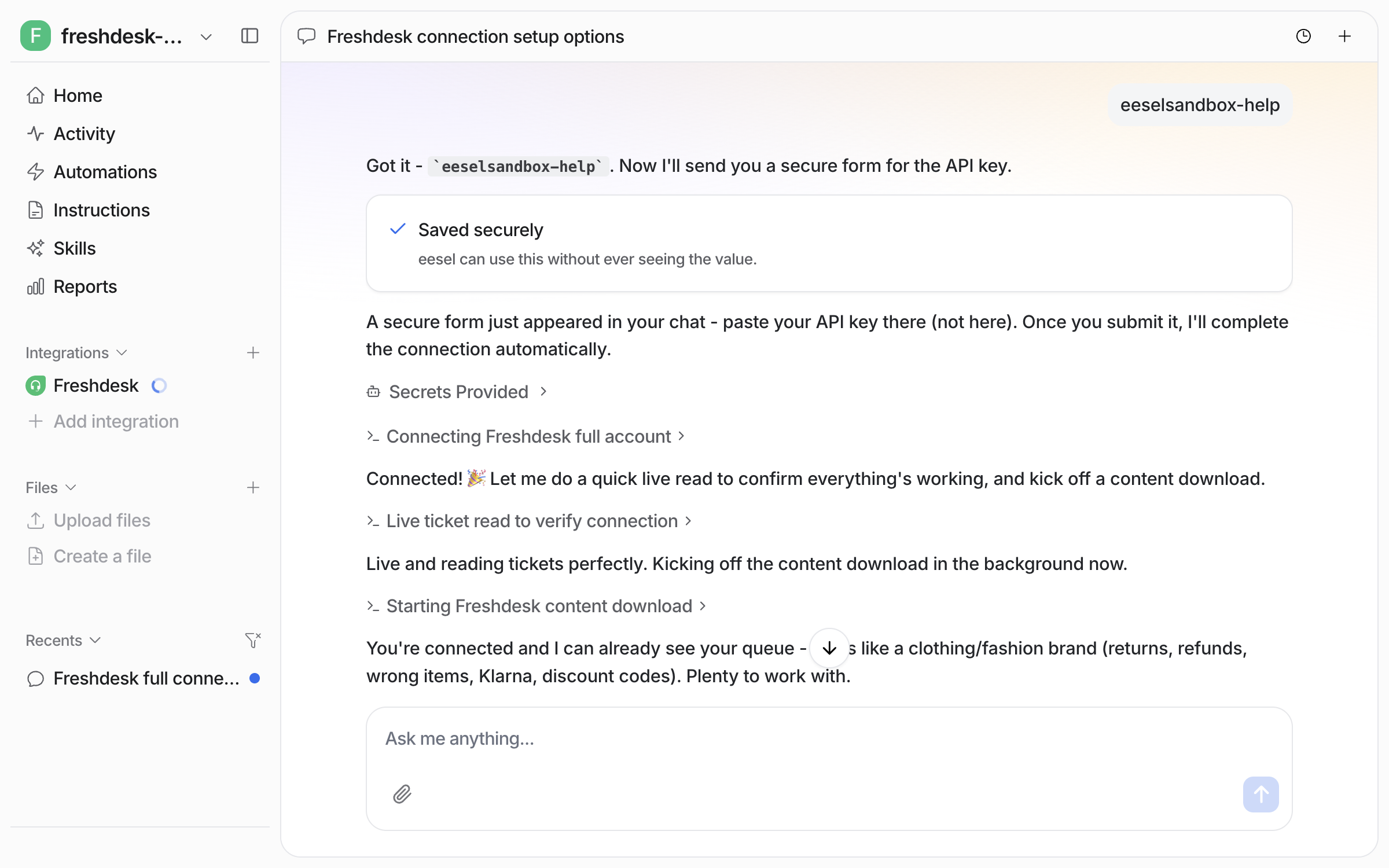
The moment you submit, it confirms the connection and starts reading your Freshdesk content.

Check what it can read
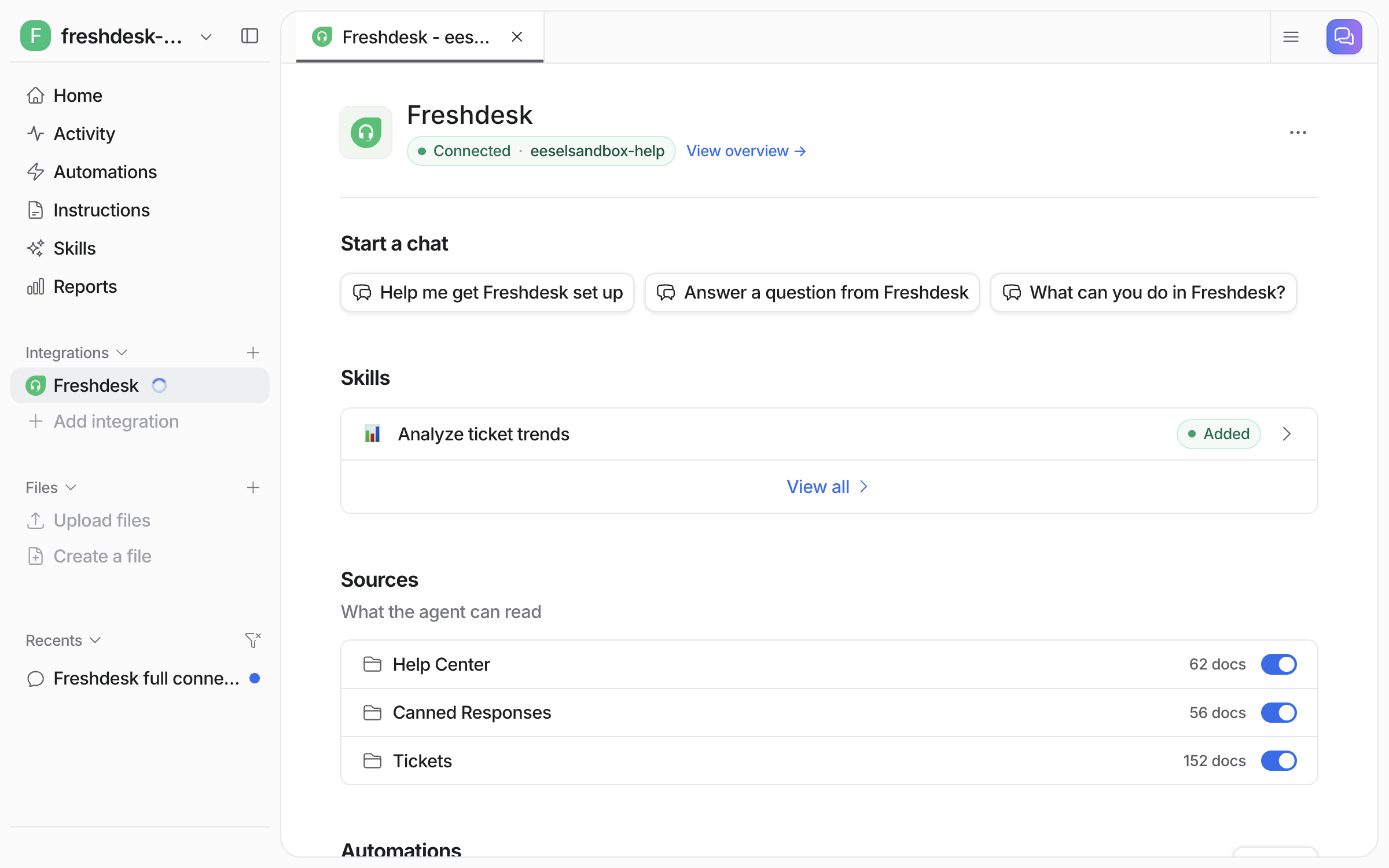
Back in the dashboard, Integrations > Freshdesk shows the connection and everything it pulled in. Each source has its own toggle, so you can leave one out without disconnecting. Each source shows a document count once its sync is done. From a terminal, eesel status lists the integration as connected with its source counts.

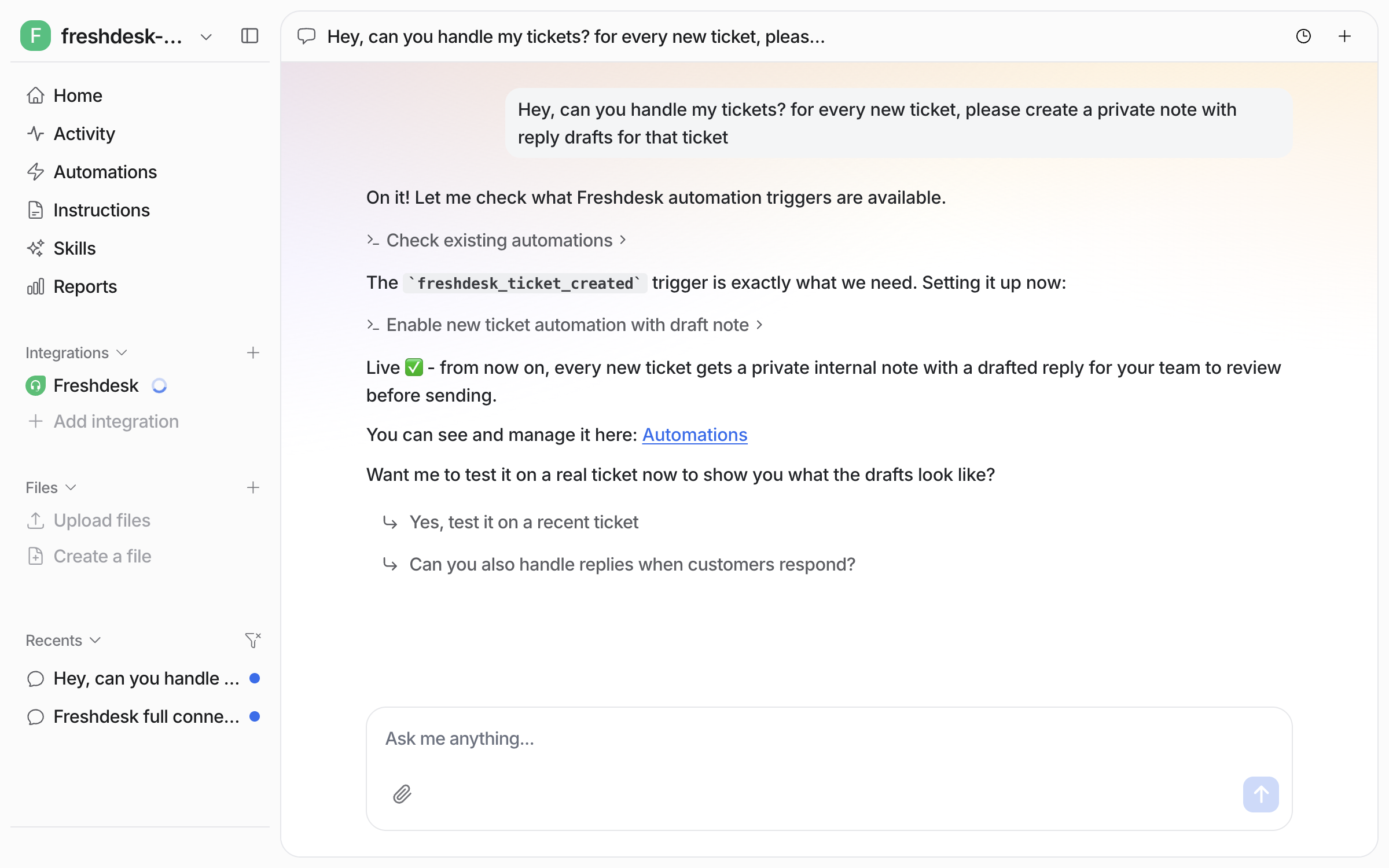
Create your first automation
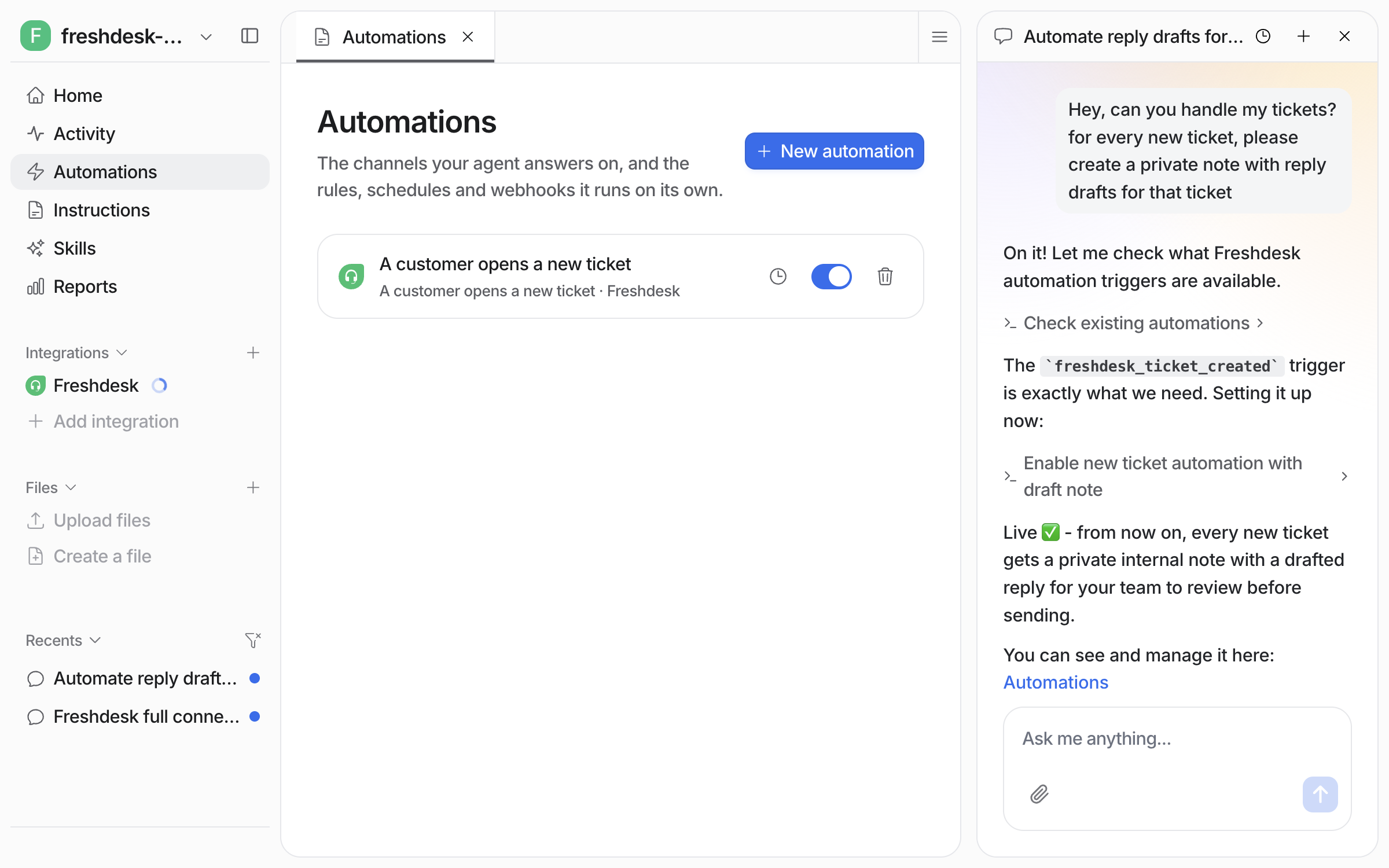
Connecting alone does not start your agent. It needs an automation first. Tell it what to handle and it creates an automation. An automation is a Freshdesk trigger plus instructions. In the instructions you describe which tickets it should handle and what to do with them. It leaves the rest alone.

It shows up on your Automations page, switched on and ready. From a terminal, eesel automations lists it as on.

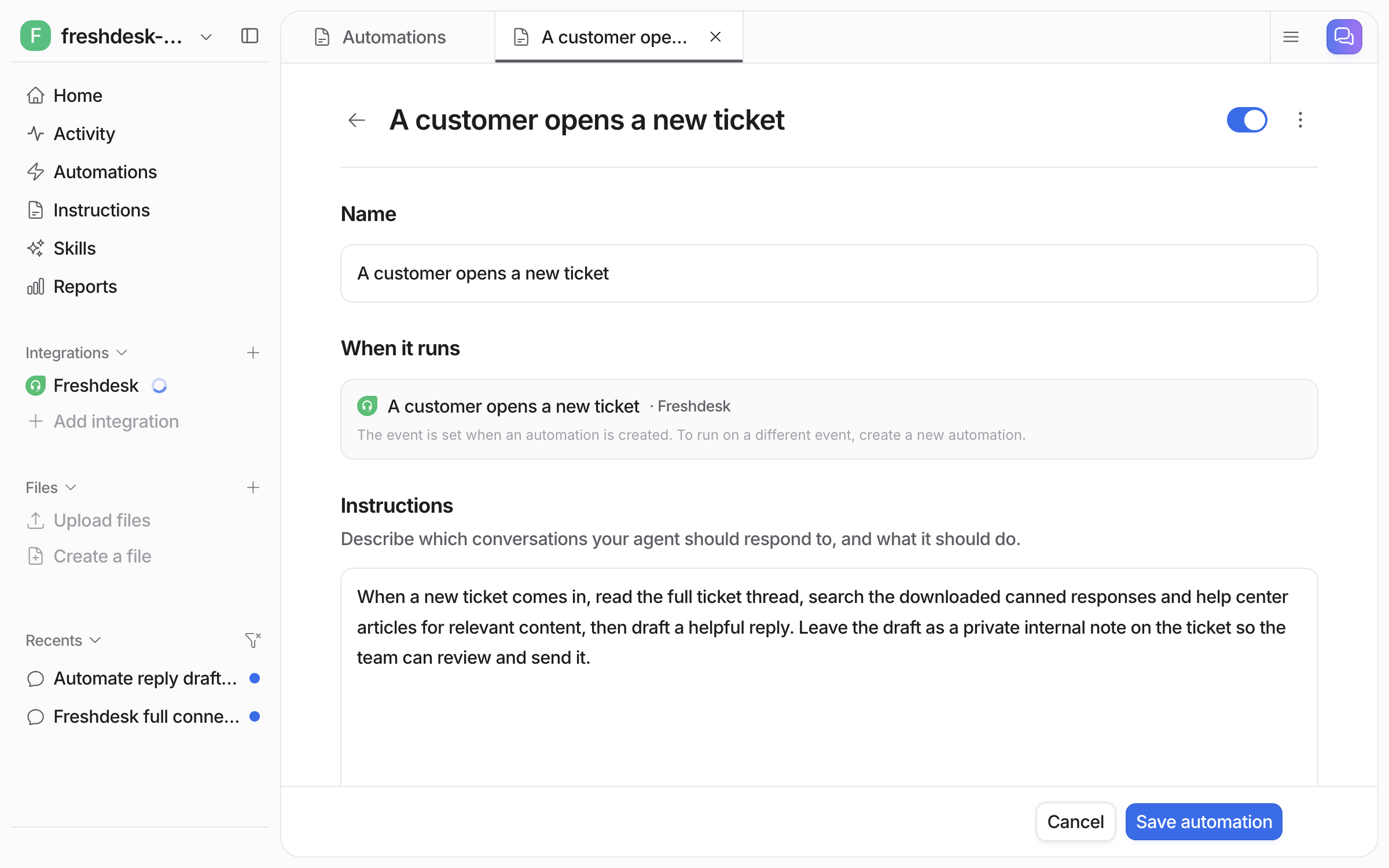
Open the automation to see or change what it does. The trigger event is fixed when the automation is created. So a new automation is required for each different trigger event.

Check automation work in Freshdesk
Open Freshdesk and look at the next ticket that comes in to see what the automation did there. In this example it left a drafted reply as a private note, signed by eesel AI, for a teammate to review and send.

Sources, triggers and actions
Sources
Sources are what it learns from:
Help Center
Your published support articles
Quick start or Full connection
Canned Responses
Your team's pre-written response templates
Full connection
Tickets
Past tickets with status Resolved or Closed. The first import takes tickets from the last 30 days, up to 1,000 of them. Ask your agent, or set a filter, to import more. Optional PII redaction
Full connection
Every other integration on the agent is also a source, so a Freshdesk reply can draw on Confluence, your website, and your files at once. See Integrations.
Triggers
Triggers are the Freshdesk events an automation can run on:
Call @eesel in an internal note
A teammate mentions @eesel in an internal note
On-demand help
freshdesk_eesel_mentioned
New ticket
A new ticket comes in
Full automation or triage
freshdesk_ticket_created
Ticket updated
A ticket is updated
Follow-up handling
freshdesk_ticket_updated
Fresh Chat
A customer sends a message in a Fresh Chat live conversation
Live chat, see Fresh Chat
freshchat
Actions
Actions are what it can do, each set to run on its own, ask you first, or stay off:
Respond
Send ticket reply
Sends a reply to the customer
Leave internal note
Adds a private note only your team sees. Start here: the agent drafts, a human sends. Every note ends with a short "Left by eesel AI" line linking to the run in your dashboard
Draft ticket reply
Writes a reply and holds it for a person to approve. Nothing reaches the customer until someone approves it in the dashboard
Manage
Add tags
Tags the ticket
Create ticket
Creates a new ticket
Assign to teammate / Assign to team
Routes the ticket to a person or a group
Close ticket / Update status
Closes the ticket, or changes its status
Update ticket
Changes fields like priority or custom fields
Merge tickets
Merges one ticket into another. Can't be undone in Freshdesk, so leave it off unless you specifically want it
Look up
Read ticket / Search tickets / List tickets
Reads and finds tickets
Get ticket field options
Lists a field's allowed values, so tags and custom fields get set correctly
Fresh Chat
Fresh Chat is Freshworks' live chat widget. Connect it and the same agent that handles your tickets answers chats in real time, using everything it already learned from your Freshdesk knowledge. See the Fresh Chat guide.
Troubleshooting
FAQ
Related pages
Helpdesk for the job your teammate takes on in a ticket queue
Automations and Schedules for triggers, instructions and schedules
Actions and Approvals for setting each action to run on its own, ask you first, or stay off
Integrations overview for how sources, triggers and actions fit together
Last updated