> For the complete documentation index, see [llms.txt](https://docs.eesel.ai/llms.txt). Markdown versions of documentation pages are available by appending `.md` to page URLs; this page is available as [Markdown](https://docs.eesel.ai/integrations/helpdesks/freshdesk/freshchat.md).

# Fresh Chat

Let the agent that works your Freshdesk tickets answer Fresh Chat live chats too, using the same help center, canned responses and past tickets, and hand a chat over as a ticket.

Give your AI teammate access to Fresh Chat and the same agent that works your [Freshdesk](/integrations/helpdesks/freshdesk.md) tickets answers your live chats. It uses the help center, the canned responses and the past tickets it already learned from. There is no separate knowledge to set up.

Freshchat is Freshworks' live chat product. In eesel it appears as **Fresh Chat**, a channel on your Freshdesk integration, so Freshdesk has to be connected first.

You stay in control the whole way. Nothing runs until you switch on an automation, and the text you write in that automation decides which chats it joins and what it does in them. For each action you then choose: run on its own, ask you first, or stay off. The one exception is Chat reply, locked to run on its own, because a customer in live chat is waiting for an answer.

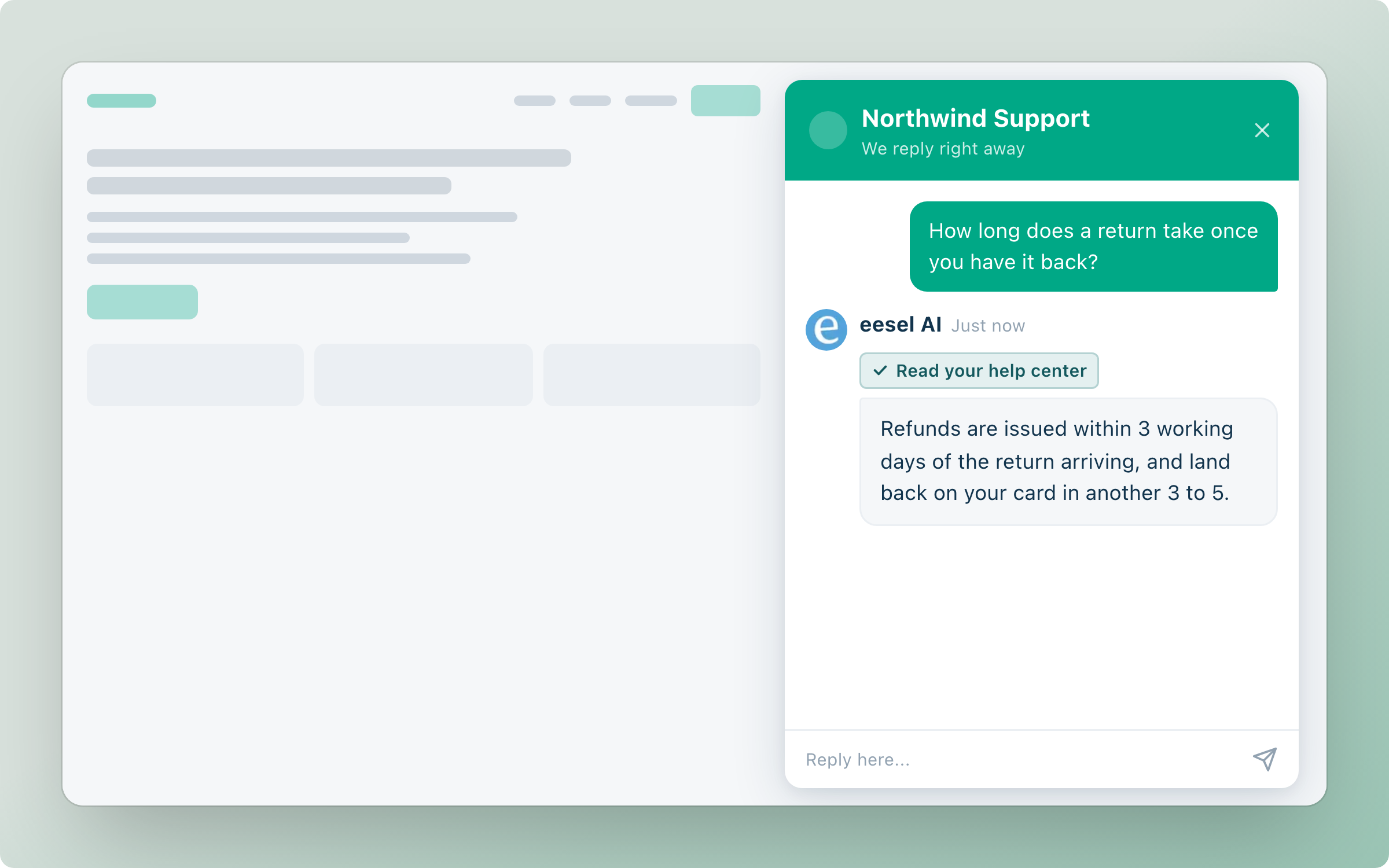
<figure><img src="https://3732419023-files.gitbook.io/~/files/v0/b/gitbook-x-prod.appspot.com/o/spaces%2F2xXO0947TYoPIhGoBgSE%2Fuploads%2Fgit-blob-6a227c62c42d1b3f7db6a3d4f8ef1eee45c4b1c5%2Ffreshchat-hero.png?alt=media" alt="A live chat widget open on a website, where the agent answers a question about refund timing after reading the help center"><figcaption><p>Your agent answering a live chat in the widget.</p></figcaption></figure>

## Quick start

{% stepper %}
{% step %}

### Ask your agent to set up Fresh Chat

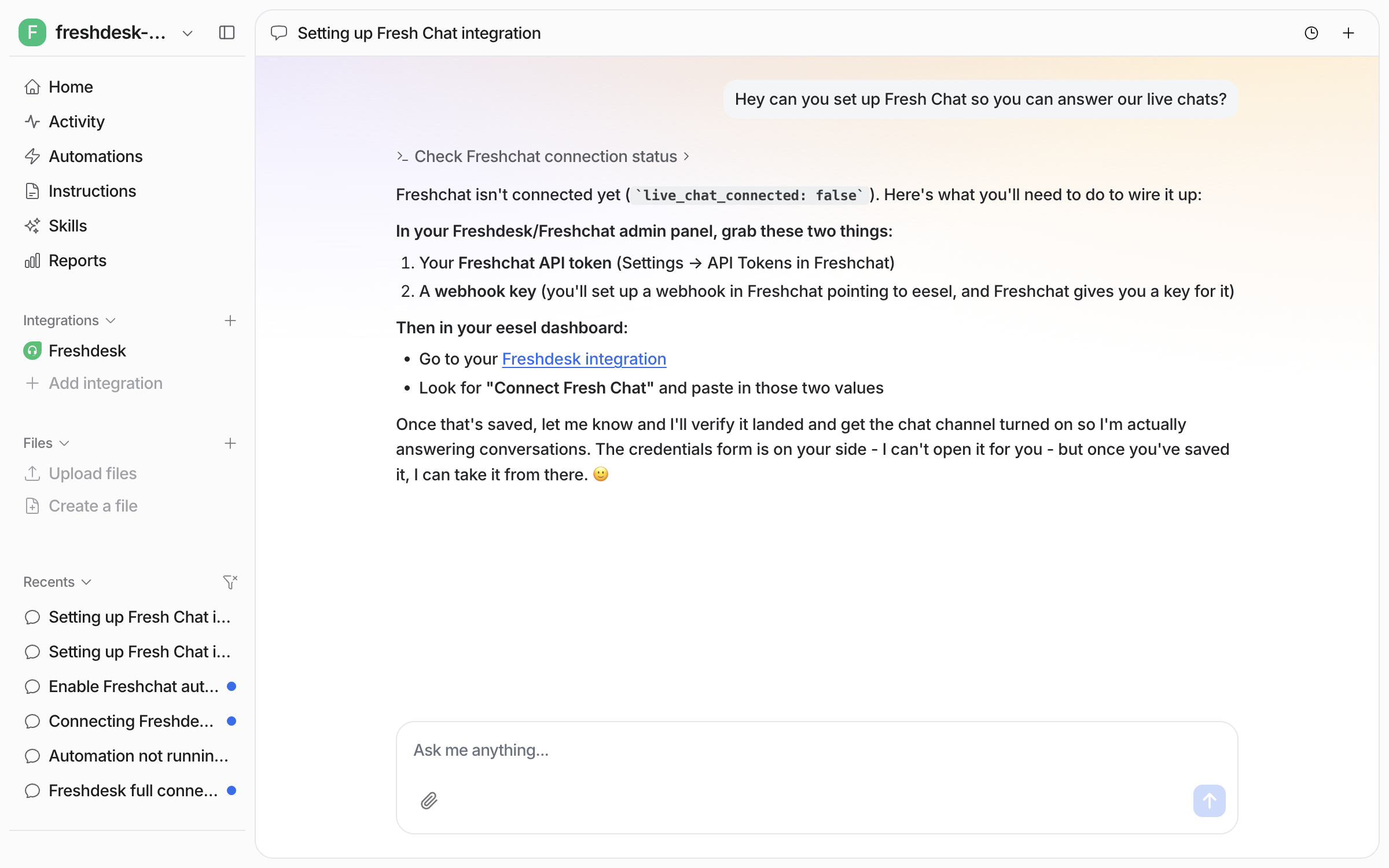
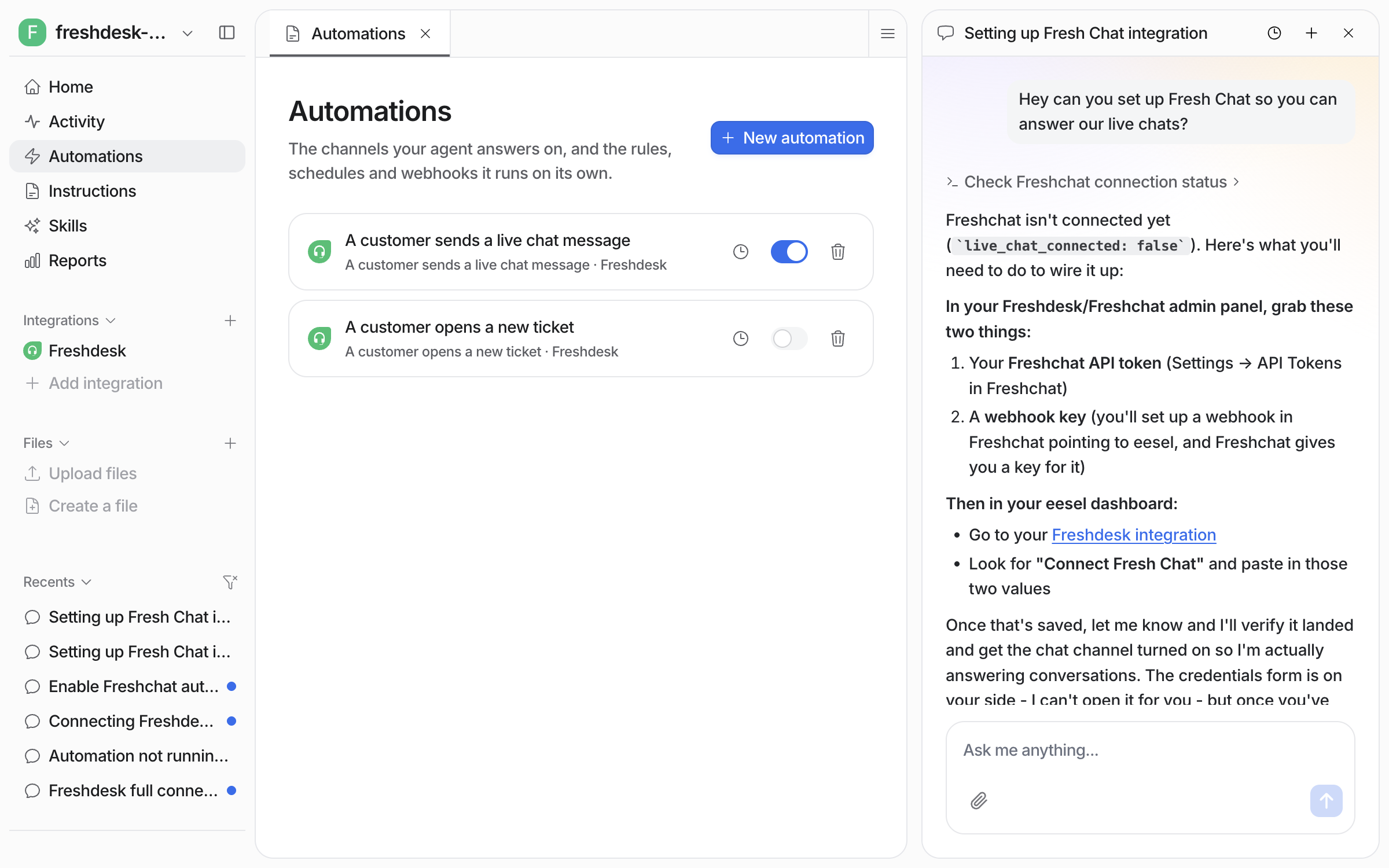
Open the chat in your dashboard and ask it to set up Fresh Chat. It checks whether Freshchat is connected. It then names what you need from your Freshchat admin: an API token, and a webhook key. eesel gives you the webhook URL to save in Freshchat, and Freshchat shows you the key once it is saved. Your agent tells you where the form is, and that it cannot open the form for you.

<figure><img src="https://3732419023-files.gitbook.io/~/files/v0/b/gitbook-x-prod.appspot.com/o/spaces%2F2xXO0947TYoPIhGoBgSE%2Fuploads%2Fgit-blob-7dcda47c30a73ba681de9d567ddd9556373e865e%2Ffreshchat-connect-chat.png?alt=media" alt="The dashboard chat where the user asks the agent to set up Fresh Chat, and the agent reports it is not connected and lists the API token and webhook key needed"><figcaption><p>The agent checks the connection and names what the setup needs.</p></figcaption></figure>
{% endstep %}

{% step %}

### Fill in the setup form

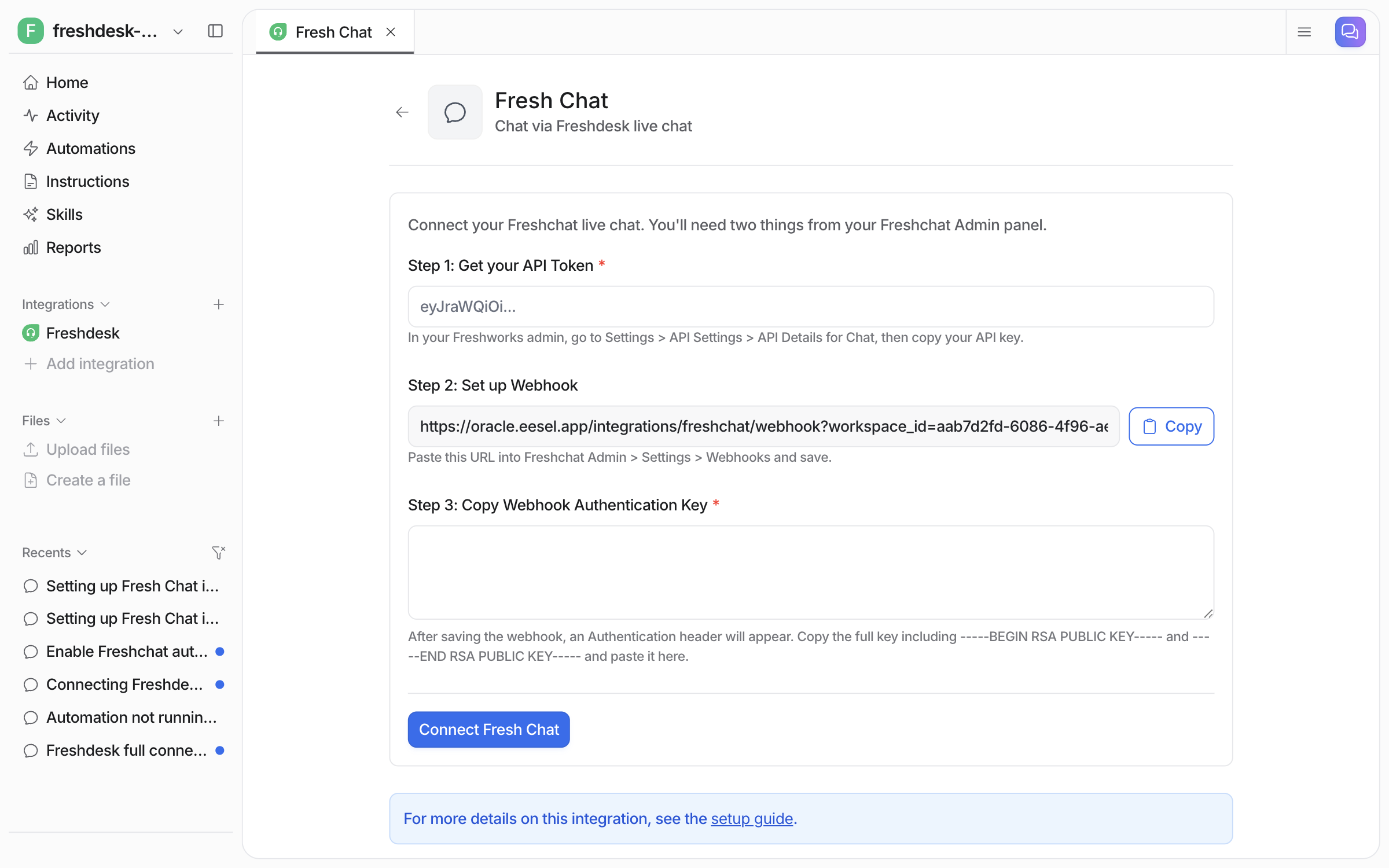
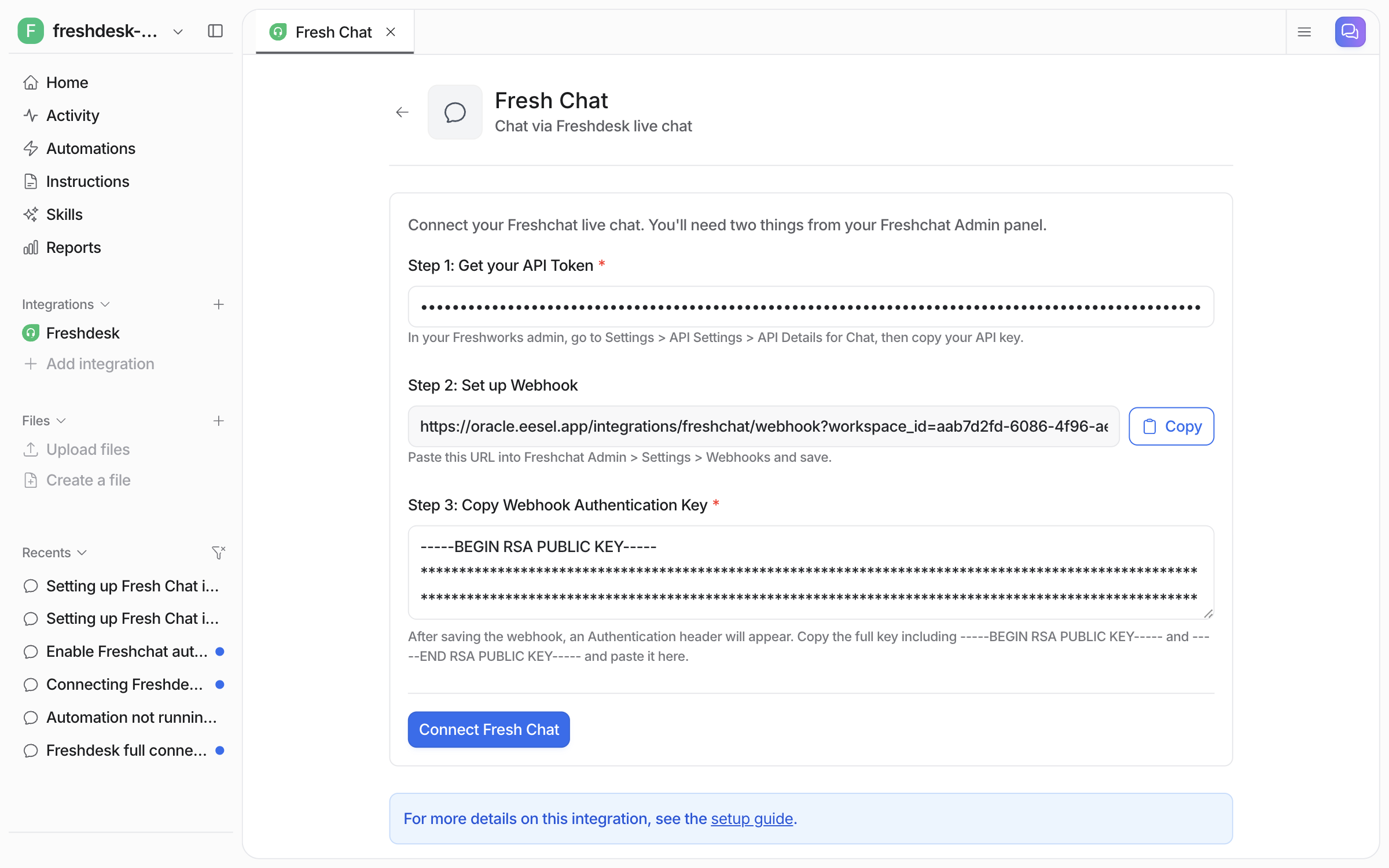
Open **Integrations > Freshdesk** in the left sidebar and open **Connect Fresh Chat**. The form has three steps: an API token, a webhook URL to paste into Freshchat, and the key Freshchat shows after you save it.

<figure><img src="https://3732419023-files.gitbook.io/~/files/v0/b/gitbook-x-prod.appspot.com/o/spaces%2F2xXO0947TYoPIhGoBgSE%2Fuploads%2Fgit-blob-9f409cc8109f77f3d01921d99a12b77cef7baee9%2Ffreshchat-setup-form.png?alt=media" alt="The empty Fresh Chat setup form in the dashboard, with an API Token field, a webhook URL with a Copy button, a Webhook Authentication Key field, and a Connect Fresh Chat button"><figcaption><p>The Fresh Chat setup form and its three steps.</p></figcaption></figure>

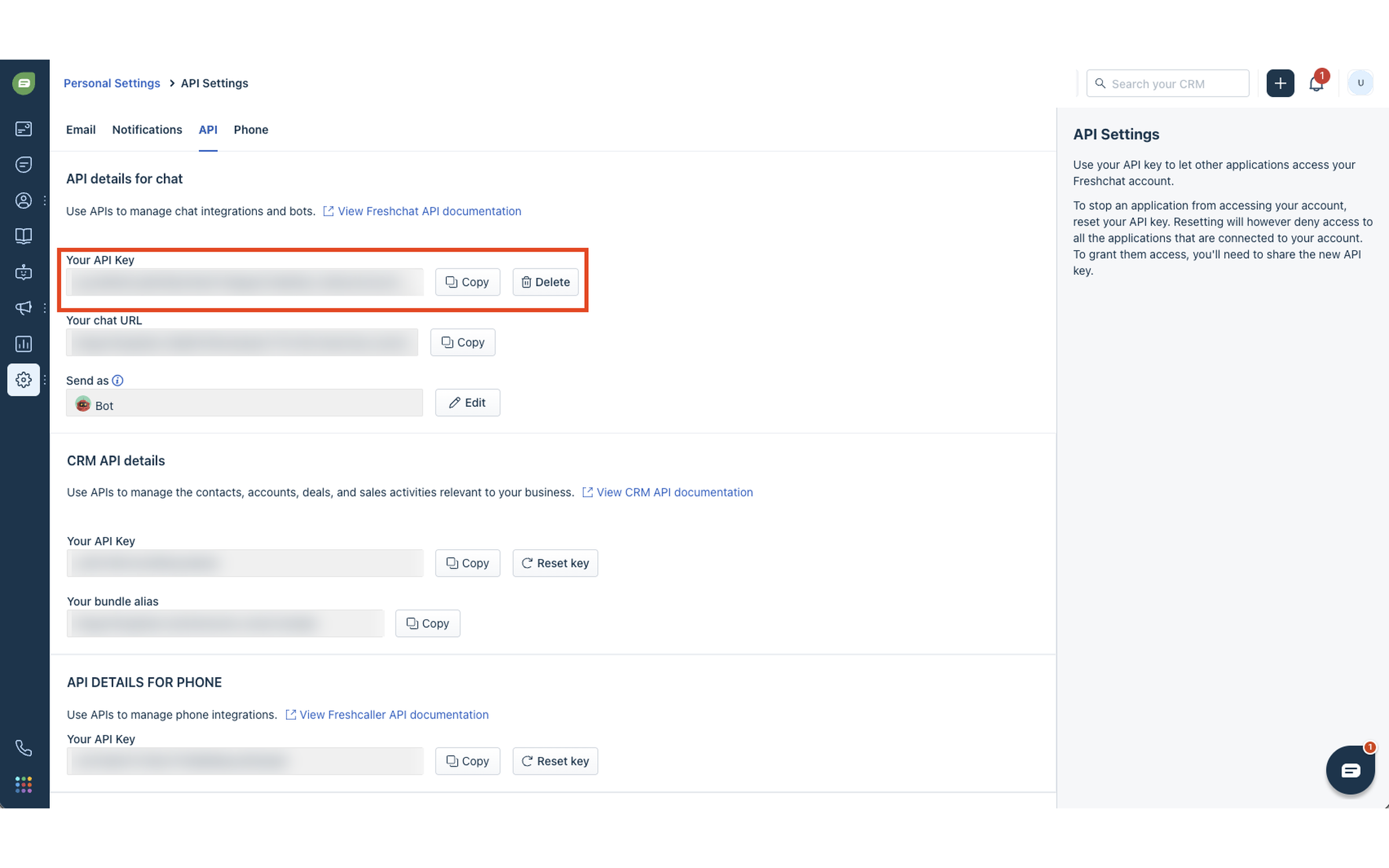
1. **Get your API token.** In your Freshworks admin, go to **Settings > API Settings > API Details for Chat**. Copy the value labelled Your API Key (the eesel form calls it the API Token) and paste it into the API Token field. eesel works out your Freshchat region from the token, so there is nothing to pick.

   <figure><img src="https://3732419023-files.gitbook.io/~/files/v0/b/gitbook-x-prod.appspot.com/o/spaces%2F2xXO0947TYoPIhGoBgSE%2Fuploads%2Fgit-blob-d88e85d10444f384fa6d5929b258aada0c58f90c%2Ffreshchat-api-token.png?alt=media" alt="The Freshworks API Settings page with the API key highlighted under API details for chat"><figcaption><p>The API key on the Freshworks API Settings page.</p></figcaption></figure>
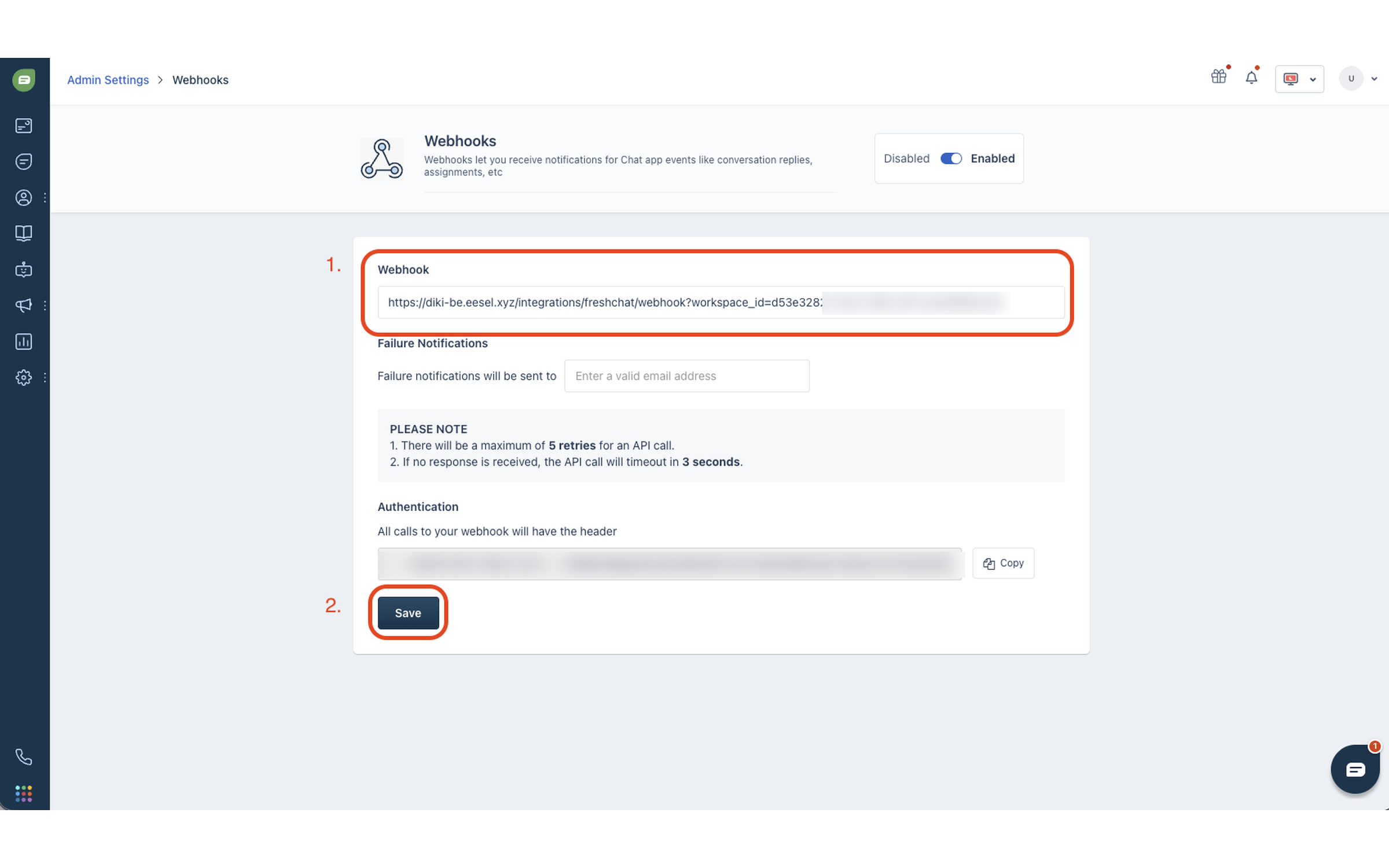
2. **Save the webhook.** Click **Copy** next to the webhook URL in the form. In your Freshchat admin, go to **Admin Settings > Webhooks**, paste the URL, and click **Save**. The URL carries your eesel workspace id, which is how Freshchat messages find your workspace. Each Freshchat account has one webhook, so you do this once.

   <figure><img src="https://3732419023-files.gitbook.io/~/files/v0/b/gitbook-x-prod.appspot.com/o/spaces%2F2xXO0947TYoPIhGoBgSE%2Fuploads%2Fgit-blob-87991ea6bb0187433391c4cfdb298f67e559a594%2Ffreshchat-webhook-url.png?alt=media" alt="The Freshchat Webhooks page with the eesel webhook URL pasted into the Webhook field and the Save button highlighted"><figcaption><p>The Webhooks page in Freshchat, with the URL pasted in.</p></figcaption></figure>
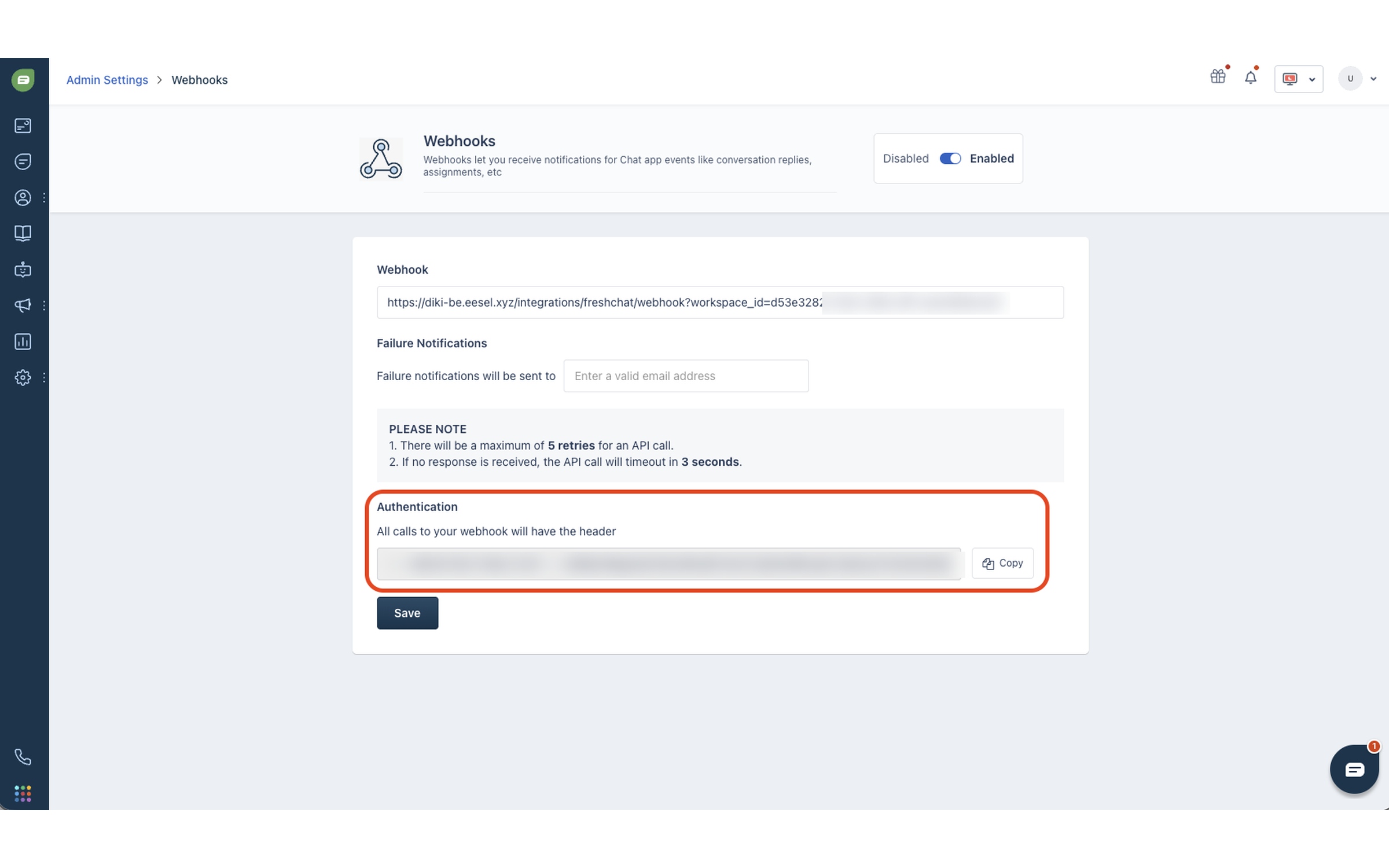
3. **Copy the webhook authentication key.** After you save, an **Authentication** section appears with a public key. Copy the whole key into the form, including the `-----BEGIN RSA PUBLIC KEY-----` and `-----END RSA PUBLIC KEY-----` lines. Freshchat signs every message it sends, and eesel checks that signature against this key. A missing or wrong key means your agent never sees the chat.

   <figure><img src="https://3732419023-files.gitbook.io/~/files/v0/b/gitbook-x-prod.appspot.com/o/spaces%2F2xXO0947TYoPIhGoBgSE%2Fuploads%2Fgit-blob-1b4e81454b5160c6e4fe5a5d3d29a907c6b8c3fa%2Ffreshchat-webhook-key.png?alt=media" alt="The Authentication section on the Freshchat Webhooks page showing the public key to copy"><figcaption><p>The key Freshchat shows after you save the webhook.</p></figcaption></figure>

With all three filled in, click **Connect Fresh Chat**. eesel checks your API token and saves the connection.

<figure><img src="https://3732419023-files.gitbook.io/~/files/v0/b/gitbook-x-prod.appspot.com/o/spaces%2F2xXO0947TYoPIhGoBgSE%2Fuploads%2Fgit-blob-57ed2d702cf329a1c92cf531a8a6018fcceb2350%2Ffreshchat-setup-form-filled.png?alt=media" alt="The Fresh Chat setup form with the API token, the webhook URL and the authentication key all filled in, the token and key masked"><figcaption><p>The form with all three steps filled in.</p></figcaption></figure>
{% endstep %}

{% step %}

### Check what it can read

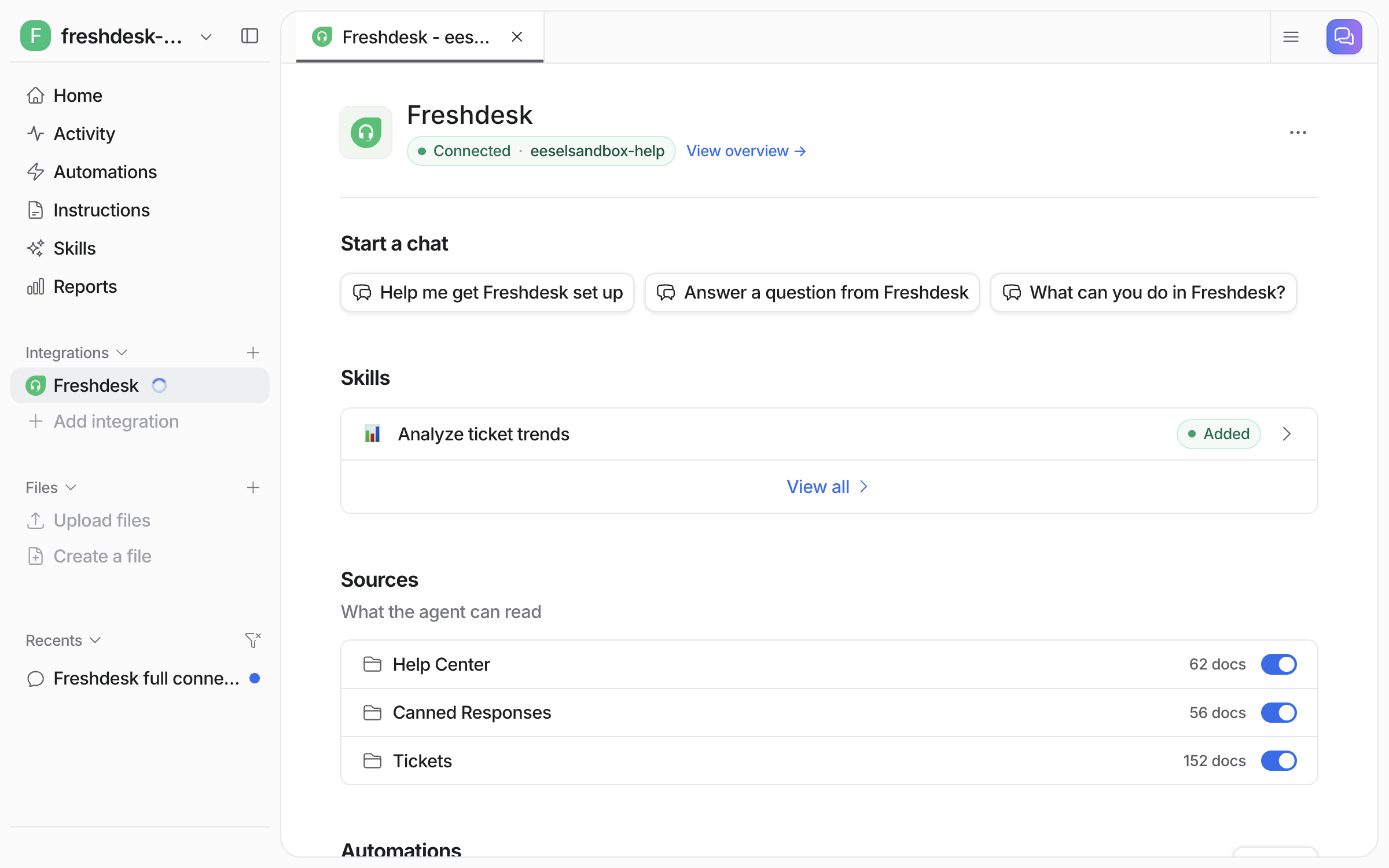
**Integrations > Freshdesk** now shows the connection as **Connected**, with your Freshdesk account name. Below that are its skills and the **Sources** it can read, each source with its own toggle and document count. The **Automations** section on the same page lists the live chat automation.

<figure><img src="https://3732419023-files.gitbook.io/~/files/v0/b/gitbook-x-prod.appspot.com/o/spaces%2F2xXO0947TYoPIhGoBgSE%2Fuploads%2Fgit-blob-71652f4112ab76b09a7af798ce50d2a0d6431af5%2Ffreshdesk-integration-page.png?alt=media" alt="The connected Freshdesk integration page listing Help Center, Canned Responses and Tickets as sources, each with a doc count and its toggle on"><figcaption><p>The connected Freshdesk page, with each source's toggle and document count.</p></figcaption></figure>
{% endstep %}

{% step %}

### Write the automation and turn it on

Connecting alone does not start your agent. It needs an automation first. Setting up Fresh Chat creates one, switched off, called **A customer sends a live chat message**. Open it from the **Automations** page in the sidebar.

The automation has one text box, **Instructions**. What you write there does two jobs at once: it decides which chats wake your agent, and it tells the agent what to do in them. There is no special syntax. eesel reads the whole text, checks each new chat against it, and only joins when the chat fits; once in, it follows the rest of the text. A chat that does not fit is never seen by the agent and is not charged. Leave the box empty and the agent joins every chat.

A typical set of instructions:

```
Only join chats on the "Applicant Support" topic.
Stop replying once a teammate has replied in the chat.
Answer from the help center and keep replies short.
```

The first two lines are explained in [Choose which chats it joins](#choose-which-chats-it-joins) below. The wording is up to you; these are examples, not commands to copy exactly. Your agent's core Instructions (on its Instructions page) always apply underneath whatever you write here.

Save, then switch the automation on. Your agent can also do this from the dashboard chat.

<figure><img src="https://3732419023-files.gitbook.io/~/files/v0/b/gitbook-x-prod.appspot.com/o/spaces%2F2xXO0947TYoPIhGoBgSE%2Fuploads%2Fgit-blob-e6c886e10b33aa736767d7bc917427f4e36d99c9%2Ffreshchat-automation-on.png?alt=media" alt="The Automations page with the live chat message automation switched on, and the dashboard chat about the setup open beside it"><figcaption><p>The live chat automation, switched on.</p></figcaption></figure>

The trigger event is fixed when the automation is created. So a new automation is required for each different trigger event.

**Check it worked.** The Automations page shows the live chat automation with its toggle on. From a terminal, `eesel automations` lists it as on.
{% endstep %}

{% step %}

### Check automation work in Fresh Chat

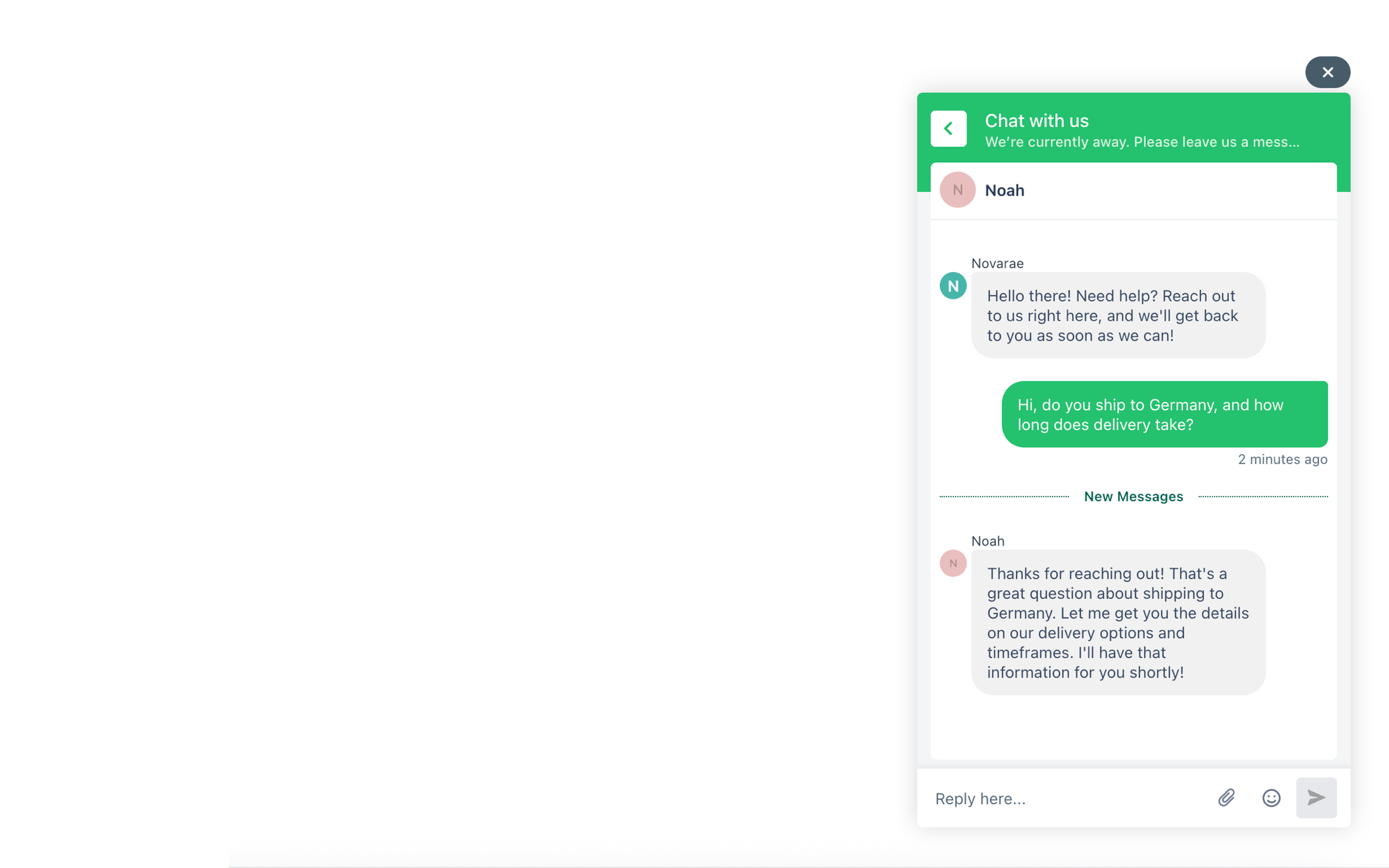
Open the widget on your site, or the live chat preview in your Freshchat admin. Ask a question a customer would ask. If you scoped the automation to a topic, start the chat on that topic. A test chat in the widget is a real chat, so it counts as a task like any other. The reply arrives under the name of one of your Freshchat agents, not an eesel name. The **Replies as** setting on your Freshdesk integration page in eesel, under **Replies as in Fresh Chat** decides which one. By default it is the first active agent in your Freshchat account.

<figure><img src="https://3732419023-files.gitbook.io/~/files/v0/b/gitbook-x-prod.appspot.com/o/spaces%2F2xXO0947TYoPIhGoBgSE%2Fuploads%2Fgit-blob-d9d05cffd76b8b7fd05abb063df543812637725f%2Ffreshchat-widget-reply.png?alt=media" alt="A live chat widget on a website where a customer asks a shipping question and a reply arrives under the name of a Freshchat agent"><figcaption><p>The reply in the widget, posted under a Freshchat agent's name.</p></figcaption></figure>

You set the widget's look, its welcome message and your business hours in your Freshchat admin, not in eesel.
{% endstep %}
{% endstepper %}

## Choose which chats it joins

Two things most teams want from live chat: keep the agent to one part of the business, and have it step back when a person steps in. Both are one sentence in the automation's Instructions.

### Scope it to one Freshchat topic

In Freshchat, a **topic** is the routing unit. Each topic is a conversation queue your customers pick, or your widget assigns them to, and every chat carries the topic it came in on. eesel knows which topic each chat is on, so a sentence naming the topic is enough:

```
Only join chats on the "Applicant Support" topic.
```

Use the topic's name exactly as it appears in your Freshchat admin. eesel shows the filter every topic on your account next to the one the chat is on, so a name that sits inside another name, like Support and Applicant Support, is not mixed up. A chat on any other topic is skipped, not answered, and not charged. To cover more than one topic, name each one.

The topic is not the same as the website widget. One widget can serve several topics, and one topic can be reached from several places, so scope by topic rather than by where the widget sits.

If Freshchat's own AI, Freddy, is switched on for the same topic, both will answer every chat. Turn Freshchat's AI off on the topic eesel handles, or give eesel a topic of its own.

### Stop when a teammate takes over

Add a sentence like:

```
Stop replying once a teammate has replied in the chat.
```

eesel keeps a record of every message it sends, so it can tell its own replies from a person's even when it replies from an agent seat a person also uses. Once a teammate has written in the chat, eesel notices, and with that sentence in place it leaves the chat to that person from then on.

Optional: create a dedicated agent seat in Freshchat (for example, "eesel AI") that no person logs into, and pick it under **Replies as in Fresh Chat** on your Freshdesk integration page in eesel. Then every reply from that seat is eesel's and every reply from any other seat is a teammate's, even in a chat eesel has no record of, and your team can see at a glance in the Freshchat inbox which replies were eesel's. Without it, the record of sent messages still does the job.

## How it's different from Freshdesk tickets

The standard [Freshdesk](/integrations/helpdesks/freshdesk.md) integration handles email tickets. Those are answered over hours or days, with the full set of reply, tag, assign and close actions. Fresh Chat handles live chat from the widget on your website. Those are answered in the moment, with the single Chat reply action. Same agent, same knowledge.

## Sources, triggers and actions

### Sources

Fresh Chat adds no sources of its own. It uses the ones on your [Freshdesk](/integrations/helpdesks/freshdesk.md) integration: your help center, your canned responses and your past tickets. Your agent also remembers what was said earlier in the same conversation, so a customer does not repeat themselves.

### Triggers

Triggers are the events an automation can run on:

| Trigger                                  | Fires when                                              | Key         |
| ---------------------------------------- | ------------------------------------------------------- | ----------- |
| **A customer sends a live chat message** | A customer sends a message in a Fresh Chat conversation | `freshchat` |

The automation's Instructions decide which of those messages wake your agent. Along with the message itself, the automation is told which topic the chat is on and whether a teammate has already replied, so instructions about either of those work. A chat that does not match is never seen by the agent and is not charged. With the box empty, every message wakes it.

### Actions

Actions are what it can do in the widget:

| Action         | What it does                                   | Control                                            |
| -------------- | ---------------------------------------------- | -------------------------------------------------- |
| **Chat reply** | Sends a message in the Fresh Chat conversation | Runs on its own. It cannot be set to ask you first |

{% hint style="warning" %}
**Chat reply cannot ask you first, and there is no handover action.** A live chat cannot wait for someone to press Approve, so this action always runs on its own. Your agent also cannot transfer a chat to a person. Keep a teammate watching the Freshchat inbox while you get started. They see every reply as it goes out and can take a conversation over. Add "Stop replying once a teammate has replied in the chat" to the automation so eesel steps back when they do, and tell your agent in its instructions to ask the customer to wait for the team when it cannot resolve something.
{% endhint %}

{% hint style="info" %}
**From Claude Code, Cursor or a terminal.** Fresh Chat needs a token and a key pasted into a form, so there is no connect command for it. Use the dashboard chat for that step. Filling the form is a human step: name what to fetch and where the form is, wait for the connection status to change, and do not try to open the form yourself. Around it, `eesel login`, then `eesel status` shows the Freshdesk integration and its source counts, `eesel integrations download start` copies your sources in, and `eesel automations` lists the automations and whether they are on. Switching the automation on is also a dashboard chat step. The trigger key for this page is in the Triggers table above. Full command reference: [The eesel CLI](/apis-and-developer-resources/cli.md). Step by step: [Set up from Claude Code or the terminal](/getting-started/set-up-from-a-coding-agent.md). From an MCP client: [Claude Code and MCP clients](/apis-and-developer-resources/claude-code-and-mcp-clients.md).
{% endhint %}

## Troubleshooting

<details>

<summary>Fresh Chat not showing under Freshdesk?</summary>

The Fresh Chat setup only appears once the Freshdesk integration is connected. Connect Freshdesk first.

</details>

<details>

<summary>Setup form showing again after connecting?</summary>

All three steps must be saved: the API token, the webhook URL in Freshchat, and the webhook authentication key. If any one is missing, the form comes back. Walk the three steps again.

</details>

<details>

<summary>Agent not replying to chats?</summary>

Check the live chat automation is on, on the **Automations** page. Then read its Instructions: a chat that does not match them is skipped and never shows up as a task, so a topic name with a typo, or a test chat started on the wrong topic, looks exactly like the agent being off. Then check the Freshchat side. The webhook URL must be saved in your Freshchat admin. The authentication key you pasted must match the one Freshchat shows, because a mismatch means every message is rejected. The API token must still be valid under **API Settings > API Details for Chat**. If billing on your workspace has lapsed, incoming chats are dropped without a reply.

</details>

<details>

<summary>Connection rejected when saving the API token?</summary>

eesel finds your Freshchat region by testing the token against each region. If no region accepts it, the token is wrong or came from the wrong place. Take it from **API Details for Chat**, not from the Freshdesk ticket API key.

</details>

<details>

<summary>Two replies to every chat, one from eesel and one from Freddy?</summary>

Freddy, Freshchat's own AI, is switched on for the same topic eesel handles. Turn it off on that topic in your Freshchat admin, or move eesel to a topic of its own.

</details>

<details>

<summary>Agent keeps replying after a teammate joined the chat?</summary>

The automation's Instructions need to say so. Add "Stop replying once a teammate has replied in the chat." If eesel and your teammates share the same agent seat and replies are still mixed up, pick a dedicated seat under **Replies as in Fresh Chat** on your Freshdesk integration page in eesel.

</details>

<details>

<summary>Replies showing under the wrong person's name?</summary>

Replies post under the Freshchat agent set in **Replies as in Fresh Chat** on your Freshdesk integration page in eesel. By default that is the first active agent in your Freshchat account. Change the setting to put a different name on the replies.

</details>

## FAQ

<details>

<summary>Does connecting Fresh Chat start replying to customers automatically?</summary>

No. Nothing goes out until you switch on the live chat automation, so you can test first.

</details>

<details>

<summary>How do I keep a human in the loop on live chat?</summary>

Not with an approval. Chat reply is locked to run on its own, so keep a teammate watching the Freshchat inbox instead. They read every reply as it goes out and take over any conversation that needs a person. Add "Stop replying once a teammate has replied in the chat" to the automation's Instructions and eesel leaves the chat to them once they do. On email tickets you can still set actions to ask you first. See [Actions and Approvals](/instructions-and-memory/actions-and-approvals.md).

</details>

<details>

<summary>Can I limit which chats the agent joins?</summary>

Yes, in the automation's Instructions. Name a topic to keep it to one queue, tell it to stop once a teammate has replied, or describe the kinds of questions it should take, judged from what the customer wrote. A chat that does not match is skipped and not charged. To limit the hours, set business hours in your Freshchat admin so the widget only appears then. To pause it, switch the automation off.

</details>

<details>

<summary>How is Fresh Chat billed?</summary>

Pay-as-you-go. A conversation your agent handles is one task, however many messages happen in it. A chat the automation skips is not a task. Chats you run yourself in the eesel dashboard are free. See [Pricing](/pricing/overview.md).

</details>

## Related pages

* [Helpdesk](/use-cases/helpdesk.md) for the job your agent takes on across your support apps
* [Freshdesk](/integrations/helpdesks/freshdesk.md) for the ticket side of the same integration
* [Actions and Approvals](/instructions-and-memory/actions-and-approvals.md) for how you control what an action can do
* [Integrations overview](/integrations/overview.md) for how sources, triggers and actions fit together
* [Set up from Claude Code or the terminal](/getting-started/set-up-from-a-coding-agent.md)


---

# Agent Instructions
This documentation is published with GitBook. GitBook is the documentation platform designed so that both humans and AI agents can read, navigate, and reason over technical content effectively. Learn more at gitbook.com.

## Querying This Documentation
If you need additional information that is not directly available in this page, you can query the documentation dynamically by asking a question.

Perform an HTTP GET request on the current page URL with the `ask` query parameter, and the optional `goal` query parameter:

```
GET https://docs.eesel.ai/integrations/helpdesks/freshdesk/freshchat.md?ask=<question>&goal=<endgoal>
```

`ask` is the immediate question: it should be specific, self-contained, and written in natural language.
`goal` is optional and describes the broader end goal you are ultimately trying to accomplish on behalf of the user. GitBook uses it to tailor the answer towards what is most useful for that goal.

The response will contain a direct answer to the question and relevant excerpts and sources from the documentation.

Use this mechanism when the answer is not explicitly present in the current page, you need clarification or additional context, or you want to retrieve related documentation sections.