> For the complete documentation index, see [llms.txt](https://docs.eesel.ai/llms.txt). Markdown versions of documentation pages are available by appending `.md` to page URLs; this page is available as [Markdown](https://docs.eesel.ai/integrations/helpdesks/help-scout.md).

# Help Scout

Invite your AI teammate into Help Scout so it picks up conversations in the shared mailbox, drafts or sends replies, and learns from your Docs site and past conversations.

Help Scout keeps everything in a shared mailbox rather than a ticket queue. Your AI teammate works the same way, picking up conversations beside your team, inside Help Scout. It reads your Docs site and your past conversations first, so it knows how you answer before it touches anything.

Then it handles conversations the way you tell it to. It can park a draft in the reply box for a person to check. It can answer the routine ones itself. It can tag and update the rest.

You stay in control the whole way. Nothing runs until you create an automation. For each action you then choose: run on its own, ask you first, or stay off.

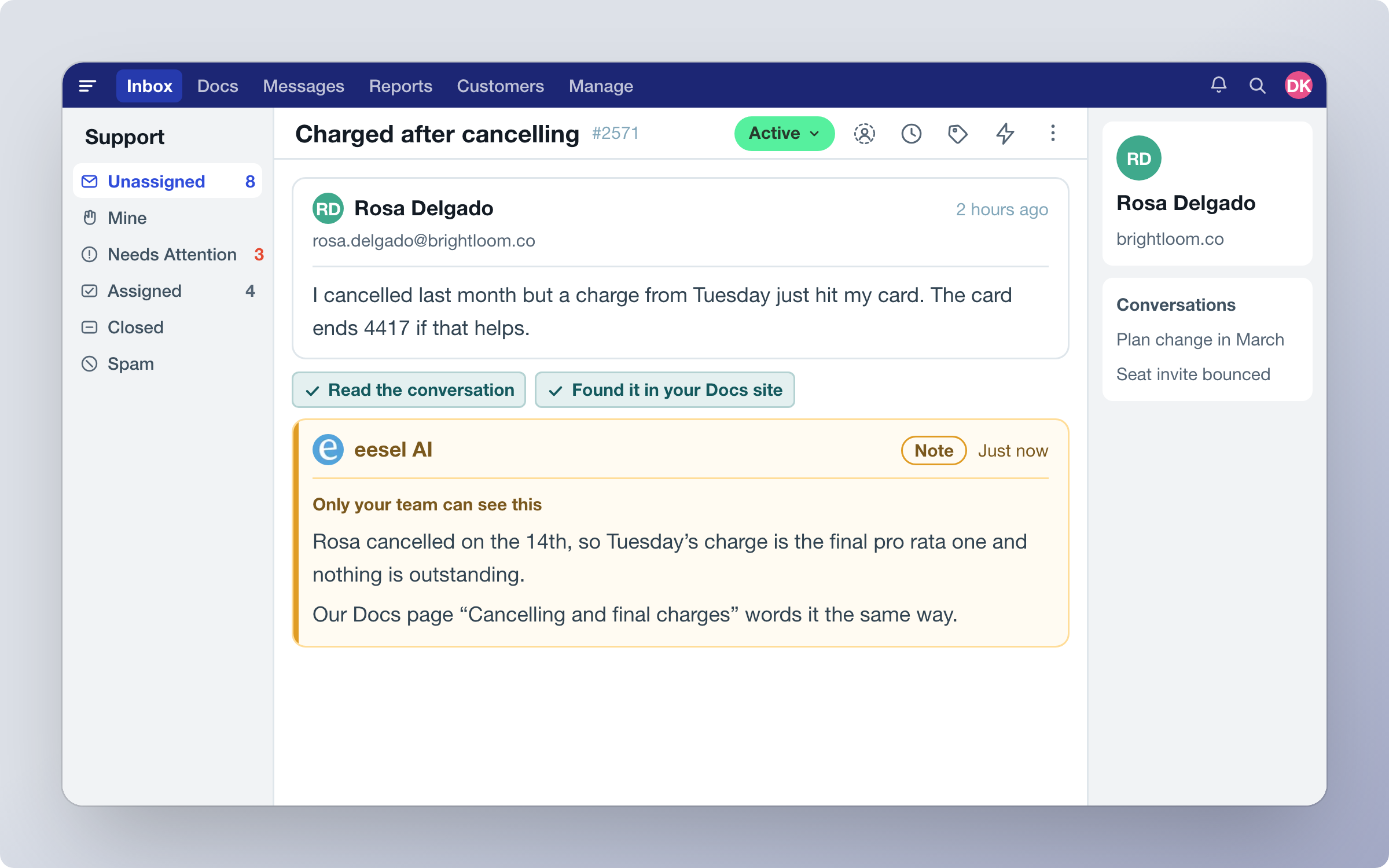
In this example the agent answered as an internal note and named the Docs page the answer came from.

<figure><img src="https://3732419023-files.gitbook.io/~/files/v0/b/gitbook-x-prod.appspot.com/o/spaces%2F2xXO0947TYoPIhGoBgSE%2Fuploads%2Fgit-blob-5d10724ad75085cf7398254225b1d04bb2ce6165%2Fhelp-scout-hero.png?alt=media" alt="A Help Scout conversation about a charge after cancelling, with eesel AI posting an internal note that answers the question and names the Docs page it came from"><figcaption><p>Your agent reads the conversation, searches your Docs site, and writes up what it found.</p></figcaption></figure>

## Quick start

{% stepper %}
{% step %}

### Ask your agent to connect Help Scout

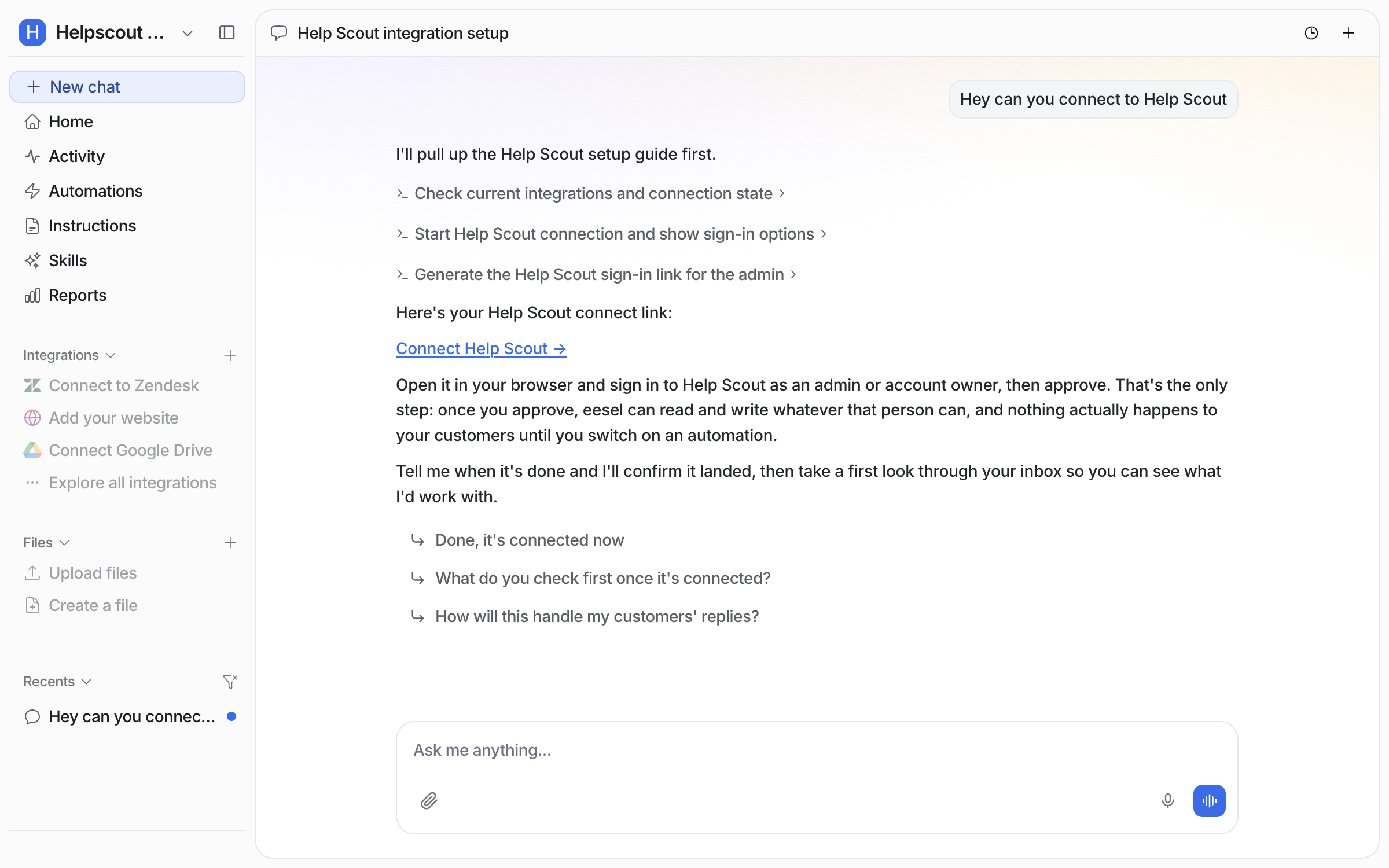
Open the chat in your dashboard and ask it to connect Help Scout. There is one way to connect. The agent points you at your **Integrations** page, because the authorizing happens there. Prefer to click? **Integrations** in the left sidebar takes you to the same place.

<figure><img src="https://3732419023-files.gitbook.io/~/files/v0/b/gitbook-x-prod.appspot.com/o/spaces%2F2xXO0947TYoPIhGoBgSE%2Fuploads%2Fgit-blob-0e7c8678e879015687b66f96331022aa9084aa08%2Fhelpscout-connect-chat.png?alt=media" alt="The dashboard chat where the user asks to connect Help Scout, and the agent replies that there is one way to connect and links to the Integrations page"><figcaption><p>The agent links you to the Integrations page and waits there.</p></figcaption></figure>
{% endstep %}

{% step %}

### Open Help Scout under Integrations

The Integrations page lists everything you can connect. Type `help` in the **Search integrations** box to find the Help Scout tile.

<figure><img src="https://3732419023-files.gitbook.io/~/files/v0/b/gitbook-x-prod.appspot.com/o/spaces%2F2xXO0947TYoPIhGoBgSE%2Fuploads%2Fgit-blob-0745b184c914c90057086c231ebf9d3759bb23b7%2Fhelpscout-integrations-page.png?alt=media" alt="The eesel Integrations page filtered by the word help, showing the Help Scout tile"><figcaption><p>Searching for help brings up the Help Scout tile.</p></figcaption></figure>

Click the **Help Scout** tile. Its page opens. Click **Connect** at the top right.

<figure><img src="https://3732419023-files.gitbook.io/~/files/v0/b/gitbook-x-prod.appspot.com/o/spaces%2F2xXO0947TYoPIhGoBgSE%2Fuploads%2Fgit-blob-4e1392fc0f84fa52a5659d5eca004d448be0c834%2Fhelpscout-connect-button.png?alt=media" alt="The Help Scout integration page in eesel before connecting, with a Connect button at the top right"><figcaption><p>The Help Scout page, with the Connect button at the top right.</p></figcaption></figure>
{% endstep %}

{% step %}

### Authorize it in Help Scout

eesel uses a service called Pipedream to handle the authorization with Help Scout. A window explains that and asks you to continue. You do not need a Pipedream account of your own. Click **Continue**.

<figure><img src="https://3732419023-files.gitbook.io/~/files/v0/b/gitbook-x-prod.appspot.com/o/spaces%2F2xXO0947TYoPIhGoBgSE%2Fuploads%2Fgit-blob-4255e4890171ac66bc9b85b5e058b23a83c6fe1f%2Fhelpscout-pipedream-modal.png?alt=media" alt="The Pipedream window in the eesel dashboard saying eesel AI uses Pipedream to connect your account, with a Continue button"><figcaption><p>Pipedream handles the authorization between eesel and Help Scout.</p></figcaption></figure>

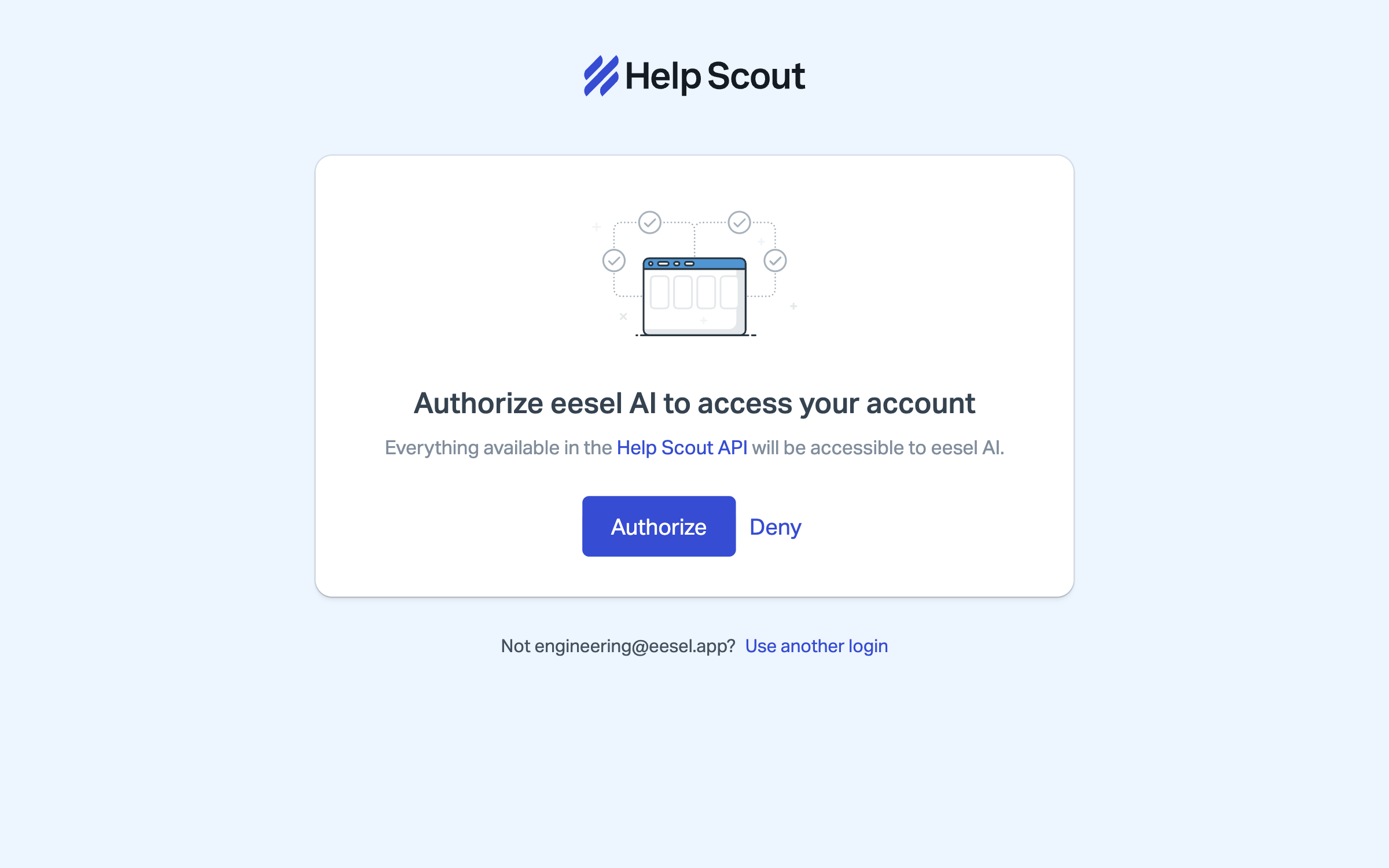
Help Scout then asks you to authorize Pipedream. Click **Authorize**. If you are not signed in, Help Scout asks you to sign in first.

<figure><img src="https://3732419023-files.gitbook.io/~/files/v0/b/gitbook-x-prod.appspot.com/o/spaces%2F2xXO0947TYoPIhGoBgSE%2Fuploads%2Fgit-blob-f6b46116a3a14b066fb52e241d7ef61775750661%2Fhelpscout-authorize.png?alt=media" alt="The Help Scout page headed Authorize Pipedream to access your account, with Authorize and Deny buttons and a line naming the signed-in account"><figcaption><p>Help Scout asks you to authorize the connection.</p></figcaption></figure>

The Help Scout screen says everything in the Help Scout API becomes available. The connection acts as the Help Scout user you signed in as. So your agent sees what that user sees, and nothing more. Sign in as a user whose access matches what you want your agent to have.

This approval is the one step a person has to do in the browser. If an AI agent is doing the setup for you, it hands you the link and waits.
{% endstep %}

{% step %}

### Confirm the connection

Pipedream confirms the account is connected. Click **Continue** to close the window.

<figure><img src="https://3732419023-files.gitbook.io/~/files/v0/b/gitbook-x-prod.appspot.com/o/spaces%2F2xXO0947TYoPIhGoBgSE%2Fuploads%2Fgit-blob-4fae2f417b9db6faccd4e9f10bcd1fe1123d4cd9%2Fhelpscout-connected.png?alt=media" alt="The Pipedream window saying Successfully connected your Help Scout account, with a Continue button, over the eesel Help Scout integration page"><figcaption><p>The connection is done.</p></figcaption></figure>

The Help Scout page behind it now shows **Connected**, and your conversations start syncing.
{% endstep %}

{% step %}

### Check what it can read

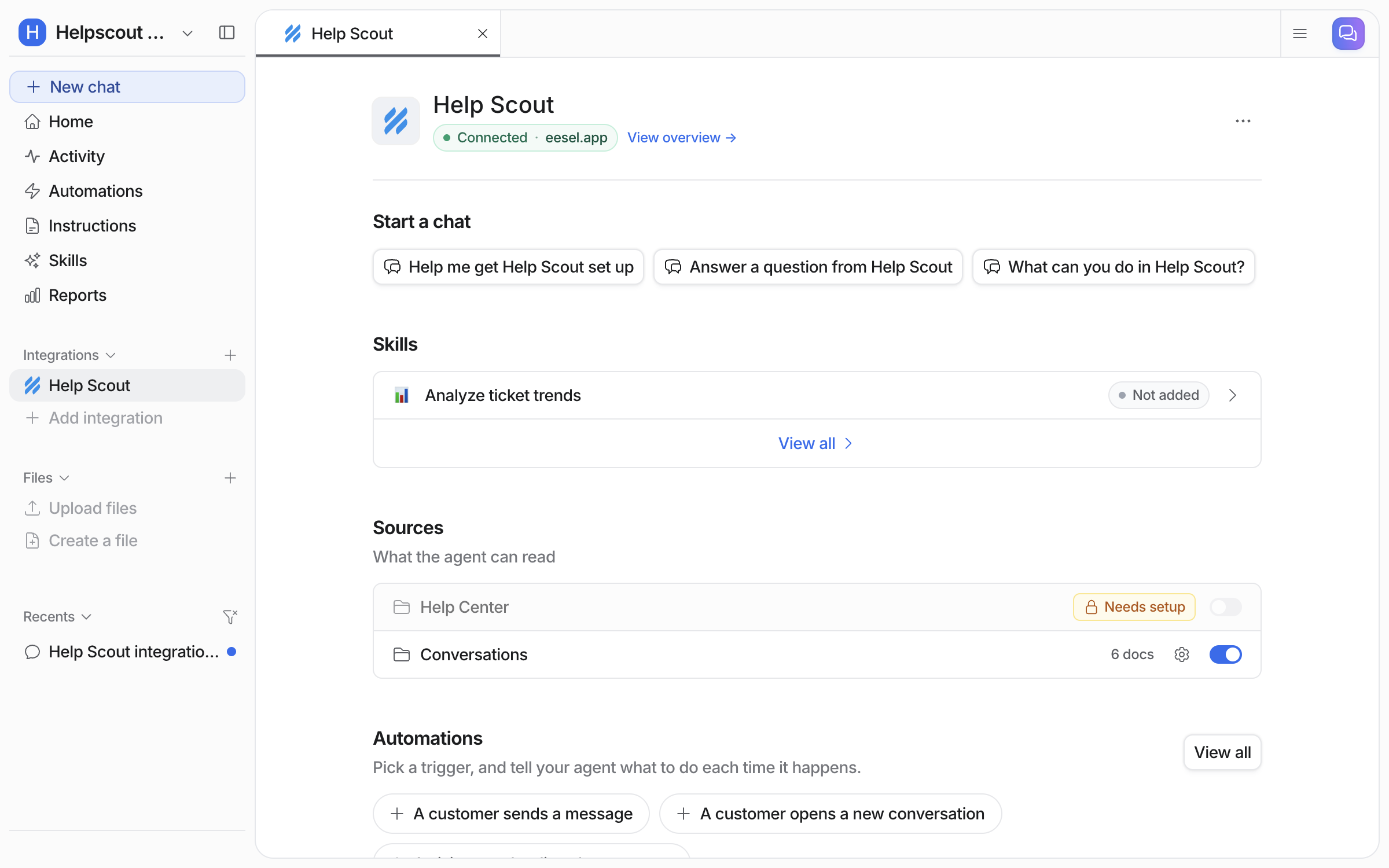
**Integrations > Help Scout** in the left sidebar shows the connection and its sources. Each source has its own toggle, and shows a document count once its sync is done. From a terminal, `eesel status` lists the integration as connected with its source counts.

<figure><img src="https://3732419023-files.gitbook.io/~/files/v0/b/gitbook-x-prod.appspot.com/o/spaces%2F2xXO0947TYoPIhGoBgSE%2Fuploads%2Fgit-blob-4d59a22037534c15e7a9309f93a09b9b8b23d731%2Fhelpscout-integration-page.png?alt=media" alt="The connected Help Scout integration page in eesel, listing Conversations with 324 docs and Help Center with 0 docs, each with a toggle, plus the trigger and action sections below"><figcaption><p>Conversations has synced 324 documents. Help Center is still at zero.</p></figcaption></figure>

**Conversations** syncs on its own. It indexes every mailbox by default, and you can restrict it to specific mailboxes.

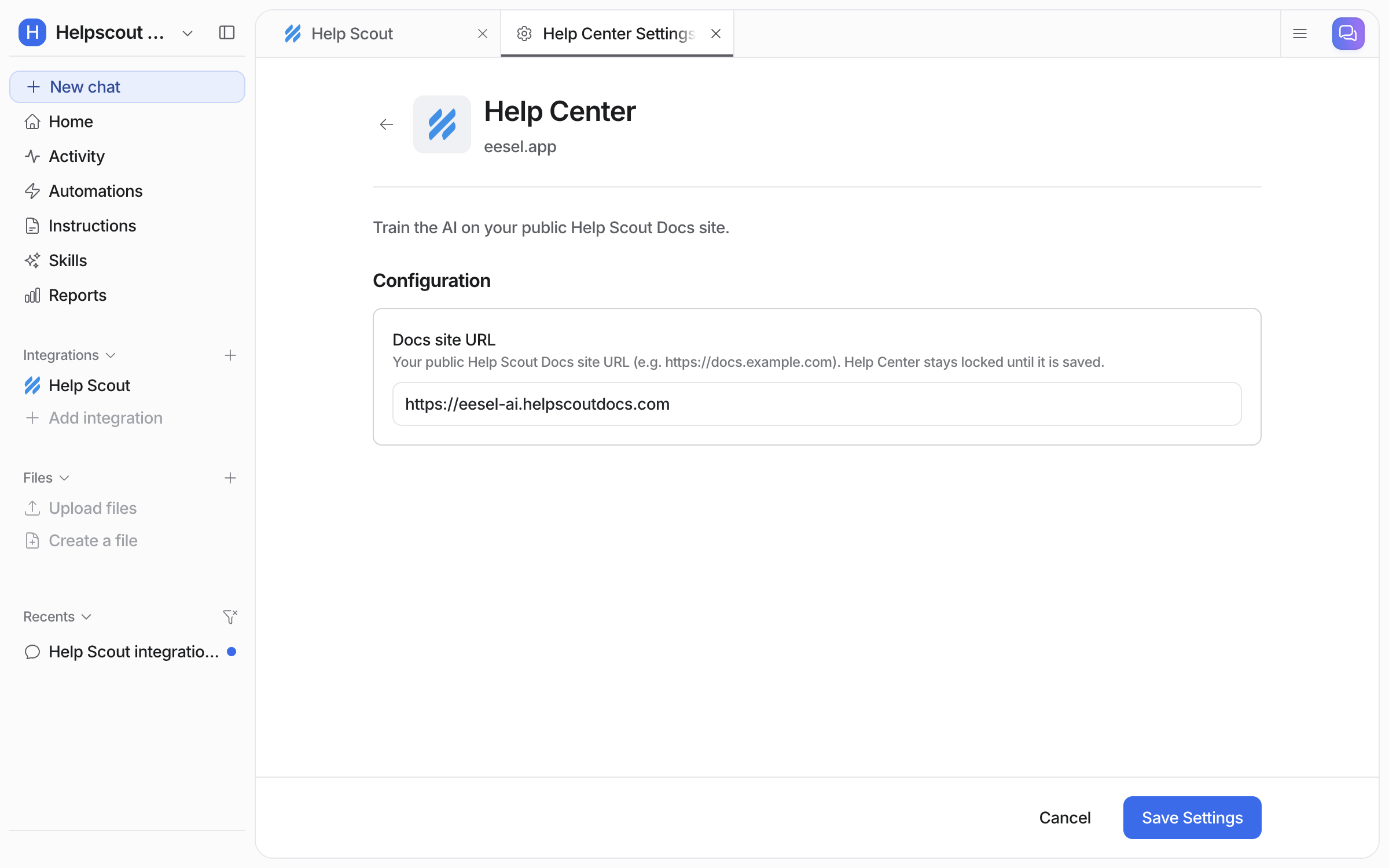
**Help Center** is your public Help Scout Docs site. It needs the site's URL, for example `https://docs.example.com`. Click the gear icon on the Help Center source and enter it there. Nothing is crawled until you do. That is why Help Center shows 0 docs above.

Scroll further down the same page for the **Actions** section. That is where you set each action to run on its own, ask you first, or stay off.
{% endstep %}

{% step %}

### Create your first automation

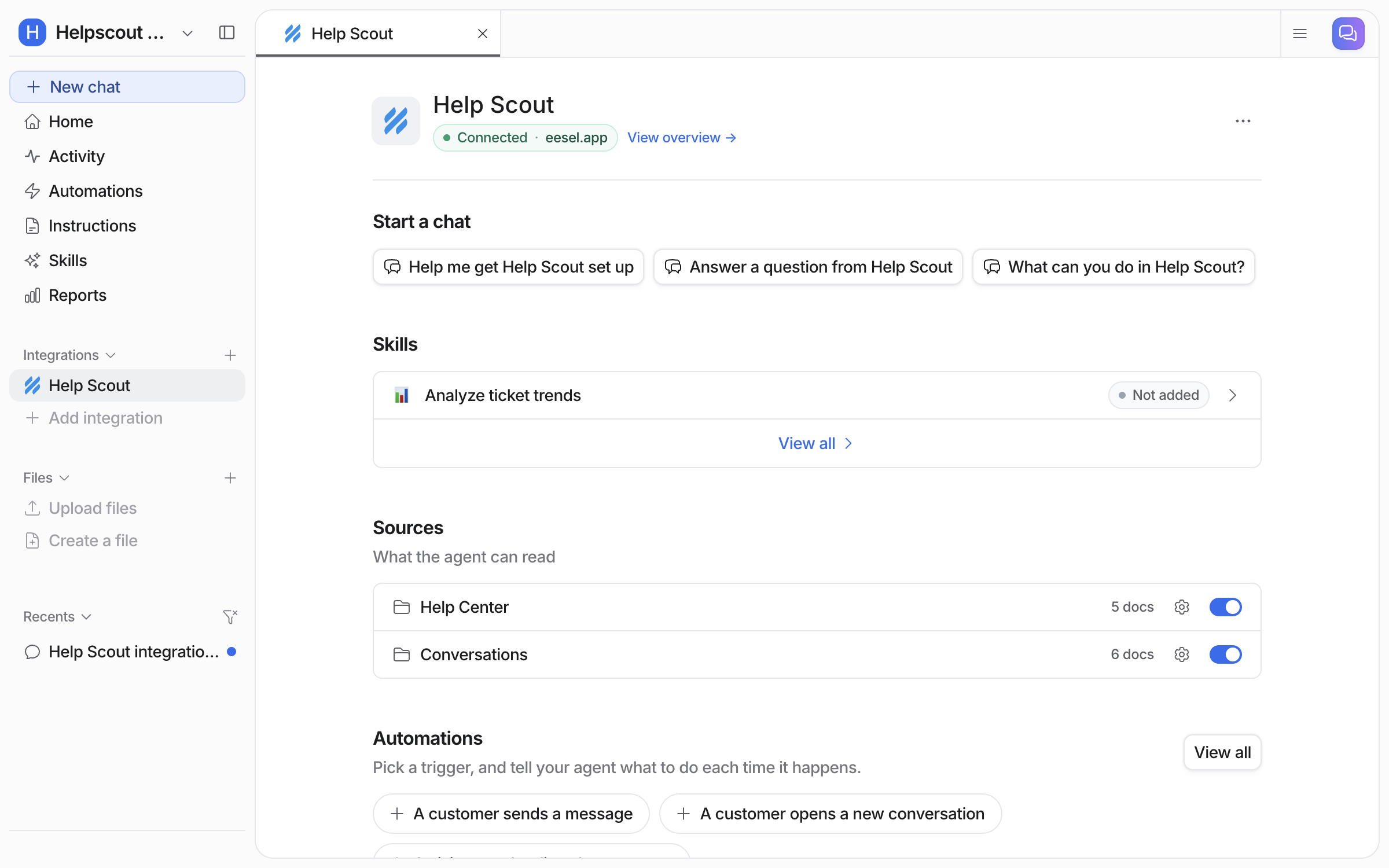
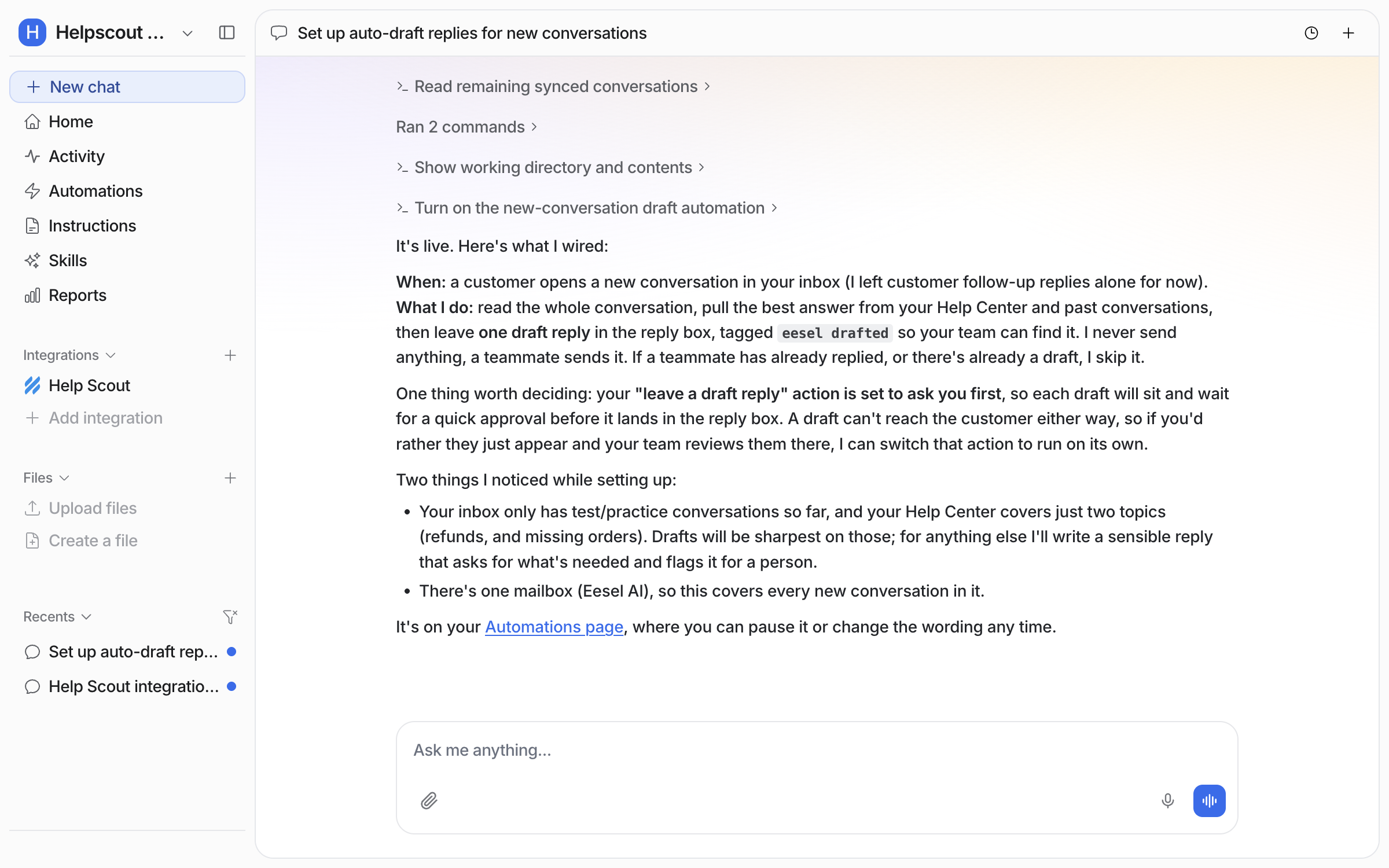
Connecting alone does not start your agent. It needs an automation first. Tell it what to handle and it creates an [automation](/automations-and-schedules/automations-and-schedules.md). An automation is a Help Scout trigger plus instructions. In the instructions you describe which conversations it should handle and what to do with them. It skips the rest.

<figure><img src="https://3732419023-files.gitbook.io/~/files/v0/b/gitbook-x-prod.appspot.com/o/spaces%2F2xXO0947TYoPIhGoBgSE%2Fuploads%2Fgit-blob-316089cb6f55b72909d33ac4cac00d764512a6cb%2Fhelpscout-automation-chat.png?alt=media" alt="The dashboard chat where the user asks for a draft reply on every new conversation, and the agent reports it enabled the A customer opens a new conversation trigger"><figcaption><p>Ask in chat for the automation you want, and the agent builds it.</p></figcaption></figure>

It shows up on your Automations page, switched on and ready. From a terminal, `eesel automations` lists it as on.

<figure><img src="https://3732419023-files.gitbook.io/~/files/v0/b/gitbook-x-prod.appspot.com/o/spaces%2F2xXO0947TYoPIhGoBgSE%2Fuploads%2Fgit-blob-3186f28290053fe06b2a6ed339c7e101fbae46bb%2Fhelpscout-automation-live.png?alt=media" alt="The Automations page in eesel with the A customer opens a new conversation rule listed and toggled on, and the chat open beside it"><figcaption><p>The new automation on your Automations page, switched on.</p></figcaption></figure>

Open the automation to see or change what it does. This one runs on **A customer opens a new conversation**. Its instructions tell the agent to read the conversation and create a draft reply, without sending it. The trigger event is fixed when the automation is created. So a new automation is required for each different trigger event.

<figure><img src="https://3732419023-files.gitbook.io/~/files/v0/b/gitbook-x-prod.appspot.com/o/spaces%2F2xXO0947TYoPIhGoBgSE%2Fuploads%2Fgit-blob-8616091d47d4066e6924894532d8e5642f306e9f%2Fhelpscout-automation-editor.png?alt=media" alt="The automation editor showing the name A customer opens a new conversation, the Help Scout event it runs on, and instructions telling the agent to draft a reply and not send it"><figcaption><p>The automation editor, where you change the instructions it follows.</p></figcaption></figure>

{% hint style="warning" %}
**Send reply always sends.** It has no draft mode, and a sent reply cannot be recalled. So eesel sets it to ask for your approval by default. To keep a person in the loop, use **Create draft reply** instead. It saves the reply unsent in the conversation's reply box, and a teammate reviews, edits and sends it from Help Scout.
{% endhint %}
{% endstep %}

{% step %}

### Check automation work in Help Scout

Open Help Scout and look at the next conversation that comes in to see what the automation did there. In this example the agent left its reply waiting in the conversation's reply box. A teammate reviews it and sends it.

Help Scout attributes the draft to the user you authorized, so the author shows as **You**. There is no line saying eesel AI left it. The proof is the **Draft** label on a reply nobody typed.

<figure><img src="https://3732419023-files.gitbook.io/~/files/v0/b/gitbook-x-prod.appspot.com/o/spaces%2F2xXO0947TYoPIhGoBgSE%2Fuploads%2Fgit-blob-690fcee15d0ba71f1f0a3e60bc636f83bb1a16fb%2Fhelpscout-draft-in-conversation.png?alt=media" alt="A Help Scout conversation about live match buffering, with the customer&#x27;s email above and a reply below it marked Draft and attributed to You"><figcaption><p>The customer email, with the drafted reply under it marked Draft.</p></figcaption></figure>

Scroll down and the whole draft is there, from the greeting to the sign-off, ready to edit and send. An **Edit** button sits under it in Help Scout.

<figure><img src="https://3732419023-files.gitbook.io/~/files/v0/b/gitbook-x-prod.appspot.com/o/spaces%2F2xXO0947TYoPIhGoBgSE%2Fuploads%2Fgit-blob-653ebf5ca6df73a3dcebfa1854c4760311f4dd3c%2Fhelpscout-draft-in-conversation-full.png?alt=media" alt="The Help Scout conversation scrolled to the draft reply, labelled Draft, showing the full reply text from Hi Marta to the Vostrel Support sign-off with an Edit button below"><figcaption><p>The full draft reply in the conversation, labelled Draft, with the Edit button below it.</p></figcaption></figure>
{% endstep %}
{% endstepper %}

{% hint style="info" %}
**From Claude Code, Cursor or a terminal.** The same setup works as commands: `eesel login`, then `eesel integrations connect help_scout` (a person approves it in the browser; if the receipt has no link, ask `eesel chat` for one), `eesel integrations download start` to copy your sources in, and `eesel automations` to see and switch on the automations. Trigger keys for this page are in the Triggers table below. Full command reference: [The eesel CLI](/apis-and-developer-resources/cli.md). Step-by-step: [Set up from Claude Code or the terminal](/getting-started/set-up-from-a-coding-agent.md). From an MCP client: [Claude Code and MCP clients](/apis-and-developer-resources/claude-code-and-mcp-clients.md).
{% endhint %}

## Sources, triggers and actions

### Sources

Sources are what it learns from. Toggle each one on or off from the Help Scout page under Integrations:

| Source            | Description                                                                           |
| ----------------- | ------------------------------------------------------------------------------------- |
| **Conversations** | Your past conversations. Every mailbox by default, restrictable to specific mailboxes |
| **Help Center**   | Your public Help Scout Docs site, crawled from the URL you enter on the source        |

Every other integration you connect is also a source. So a Help Scout reply can draw on Confluence, Notion, your website, and your files at once. See [Integrations](/integrations/overview.md).

### Triggers

Triggers are the Help Scout events an automation can run on:

| Trigger                                 | Fires when                                     | Best for                                    | Key                           |
| --------------------------------------- | ---------------------------------------------- | ------------------------------------------- | ----------------------------- |
| **A customer opens a new conversation** | A new conversation is created                  | Drafting a first reply, triage and routing  | `help_scout_new_conversation` |
| **A customer sends a message**          | A customer replies on an existing conversation | Following a conversation through to the end | `help_scout_customer_reply`   |

### Actions

Actions are what it can do. Set each one to run on its own, ask you first, or stay off, in the **Actions** section of the Help Scout page under Integrations. Help Scout's actions come from the live connection rather than a fixed list in eesel. So you may see more than the ones below:

|             | Action              | What it does                                                                                                                                        |
| ----------- | ------------------- | --------------------------------------------------------------------------------------------------------------------------------------------------- |
| **Respond** | Create draft reply  | Saves a reply unsent in the conversation's reply box, for a teammate to review, edit, and send. Nothing reaches the customer. Most teams start here |
|             | Send reply          | Sends a reply to the customer. This always sends, so it asks for approval by default                                                                |
|             | Add note            | Adds an internal note only your team sees                                                                                                           |
| **Manage**  | Update conversation | Updates a conversation's tags, status, or assignment                                                                                                |
|             | Create customer     | Creates a new customer record in Help Scout                                                                                                         |
| **Look up** | List tags           | Lists the tags in your Help Scout account                                                                                                           |

## Troubleshooting

<details>

<summary>Connection didn't complete?</summary>

Complete every prompt in the Pipedream window. Closing it partway leaves the connection incomplete. Start again from the chat, or from **Integrations** in the left sidebar.

</details>

<details>

<summary>Agent not replying to conversations?</summary>

Check the automation is enabled on the agent's **Automations** page. Check the automation's instructions cover the conversations you expect. Check the connection is still authorized, and that **Create draft reply** or **Send reply** is turned on.

</details>

<details>

<summary>Docs articles not showing up?</summary>

Nothing is crawled until you enter your Docs site URL on the Help Center source. Confirm the URL is correct and the site is public.

</details>

<details>

<summary>Past conversations not training?</summary>

Confirm the connection is authorized, then re-sync the Conversations source. If you restricted indexing to specific mailboxes, check the conversations you expected are in one of them.

</details>

<details>

<summary>Only actions are available, no sources or triggers?</summary>

You may have connected **Help Scout (API Keys)**, which is a separate integration marked *Actions only*. Connect the plain **Help Scout** integration to get sources and triggers as well.

</details>

## FAQ

<details>

<summary>Does connecting Help Scout start replying to customers automatically?</summary>

No. Connecting only gives your agent access to your sources. It does nothing until you create an automation and enable an action. Start with **Create draft reply** so a person sends everything while you get comfortable.

</details>

<details>

<summary>What's the difference between Send reply and Create draft reply?</summary>

**Send reply** puts the message straight in front of the customer, and it cannot be recalled. That is why it asks for approval by default. **Create draft reply** saves the reply unsent in the conversation's reply box and sends the customer nothing. A teammate reviews, edits and sends it from Help Scout.

</details>

<details>

<summary>Who does the draft look like it came from?</summary>

Help Scout attributes it to the user you authorized during setup, so your team sees the author as **You**. Help Scout has no way to label it as eesel AI.

</details>

<details>

<summary>What is Pipedream, and why does my agent mention it?</summary>

Pipedream is the service that handles the authorization between eesel and Help Scout. You approve it once during setup. You do not need a Pipedream account of your own.

</details>

<details>

<summary>Can I limit which conversations the agent handles?</summary>

Yes. In the automation's instructions, describe the conversations you want in plain language and what to do with them. It takes account of the conversation's tags, its mailbox, its subject, and whether the message looks automated. Skipped conversations are recorded on the agent's Activity page, so you can see what it passed over and why.

</details>

<details>

<summary>Can I train the agent on past conversations, and where does the data go?</summary>

Yes. Open your Help Scout integration and sync the Conversations source. The content trains your own agent inside eesel and goes nowhere else.

</details>

<details>

<summary>How do I keep a human in the loop?</summary>

Two ways, and you can use both. Use **Create draft reply** instead of **Send reply**, so your team does the sending from Help Scout. Or set an action to ask you first, so the agent shows you what it wants to do and waits. When an action is set to ask you first, the prepared reply shows up in the dashboard with three buttons: Approve runs it once, Always allow stops asking for that action, and Deny discards it.

</details>

<details>

<summary>How is this billed?</summary>

Pay-as-you-go: a conversation your agent handles is one task, however many replies happen on it, and chats you run yourself from the eesel dashboard are free. See [Pricing](/pricing/overview.md) for rates, the annual commitment, and Enterprise.

</details>

<details>

<summary>How do I disconnect?</summary>

Open Help Scout under **Integrations** in the left sidebar, then use the **...** menu at the top right to remove the connection. Your agent loses both the sources and the actions straight away.

</details>

## Related pages

* [Helpdesk](/use-cases/helpdesk.md) for the job your teammate takes on in a ticket queue
* [Automations and Schedules](/automations-and-schedules/automations-and-schedules.md) for triggers, instructions and schedules
* [Actions and Approvals](/instructions-and-memory/actions-and-approvals.md) for setting each action to run on its own, ask you first, or stay off
* [Integrations overview](/integrations/overview.md) for how sources, triggers and actions fit together
* [Set up from Claude Code or the terminal](/getting-started/set-up-from-a-coding-agent.md)


---

# Agent Instructions
This documentation is published with GitBook. GitBook is the documentation platform designed so that both humans and AI agents can read, navigate, and reason over technical content effectively. Learn more at gitbook.com.

## Querying This Documentation
If you need additional information that is not directly available in this page, you can query the documentation dynamically by asking a question.

Perform an HTTP GET request on the current page URL with the `ask` query parameter, and the optional `goal` query parameter:

```
GET https://docs.eesel.ai/integrations/helpdesks/help-scout.md?ask=<question>&goal=<endgoal>
```

`ask` is the immediate question: it should be specific, self-contained, and written in natural language.
`goal` is optional and describes the broader end goal you are ultimately trying to accomplish on behalf of the user. GitBook uses it to tailor the answer towards what is most useful for that goal.

The response will contain a direct answer to the question and relevant excerpts and sources from the documentation.

Use this mechanism when the answer is not explicitly present in the current page, you need clarification or additional context, or you want to retrieve related documentation sections.