> For the complete documentation index, see [llms.txt](https://docs.eesel.ai/llms.txt). Markdown versions of documentation pages are available by appending `.md` to page URLs; this page is available as [Markdown](https://docs.eesel.ai/integrations/helpdesks/jira-service-management.md).

# Jira Service Management

Set up an AI agent for Jira Service Management. It replies to requests, leaves internal notes, and moves, assigns, labels and files issues for your team.

eesel's AI agent for Jira Service Management works inside your service desk. It picks up new requests and comments, replies to the reporter or leaves an internal note, and moves, assigns, labels and files issues, so routine Jira Service Management automation happens without a person typing it up.

Invite your AI teammate into Jira Service Management and it picks up an issue when someone raises it or comments on it. It reads the history and looks up related issues. Then it replies to the reporter, leaves an internal note, moves the issue on, assigns it, or labels it for triage. Jira issues are read live, never copied in, so its knowledge comes from your other sources, such as Confluence, your help center, your website or uploaded files.

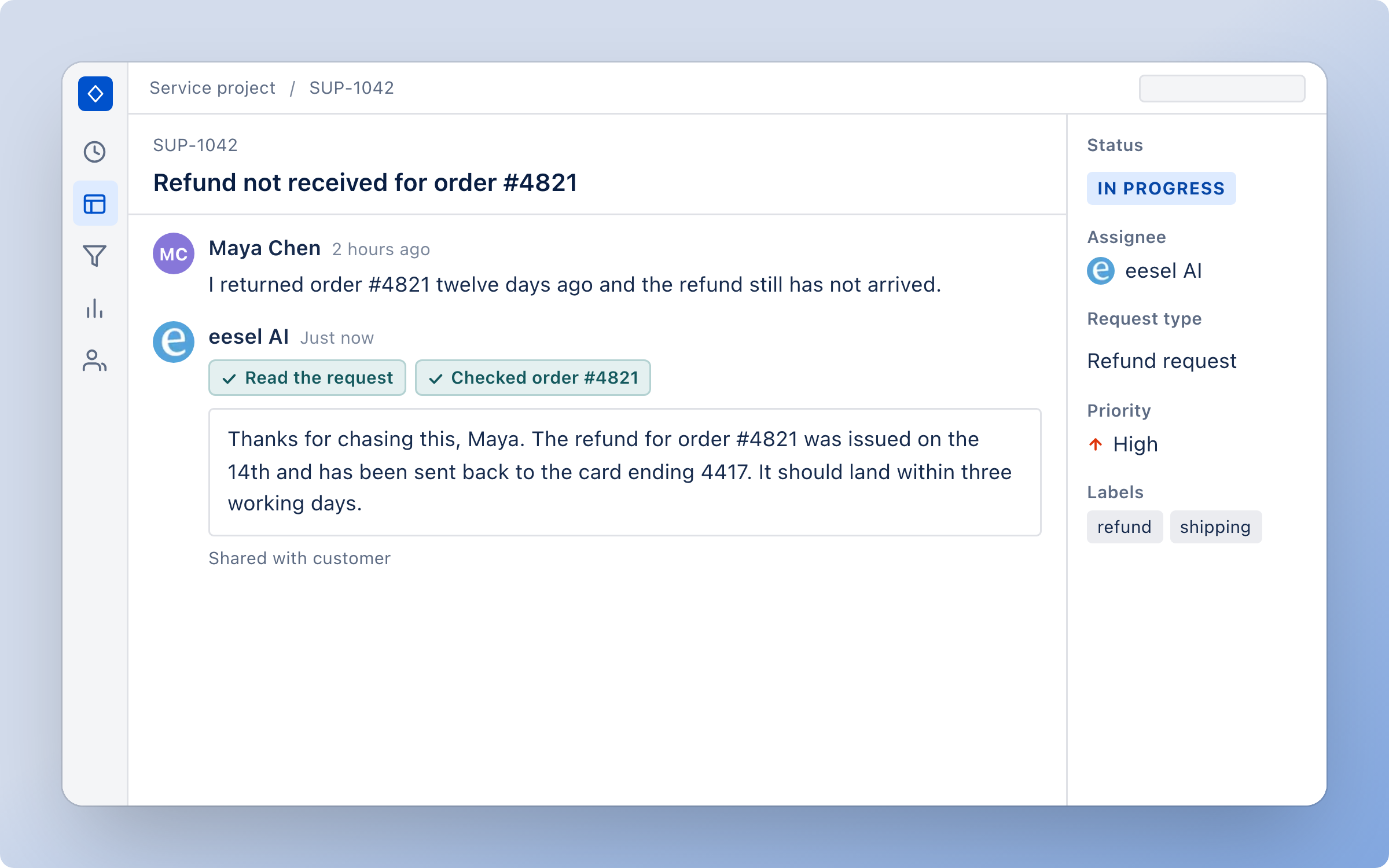
<figure><img src="https://3732419023-files.gitbook.io/~/files/v0/b/gitbook-x-prod.appspot.com/o/spaces%2F2xXO0947TYoPIhGoBgSE%2Fuploads%2Fgit-blob-9c770c84269590913750950807c9005d328d642d%2Fjira-service-management-hero.png?alt=media" alt="A Jira Service Management request about a missing refund, assigned to eesel AI, with the reply it shared with the customer after reading the request and checking the order"><figcaption><p>A Jira Service Management request where the agent answered the customer.</p></figcaption></figure>

## Set up eesel in Jira Service Management

{% stepper %}
{% step %}

### Ask your agent to connect Jira Service Management

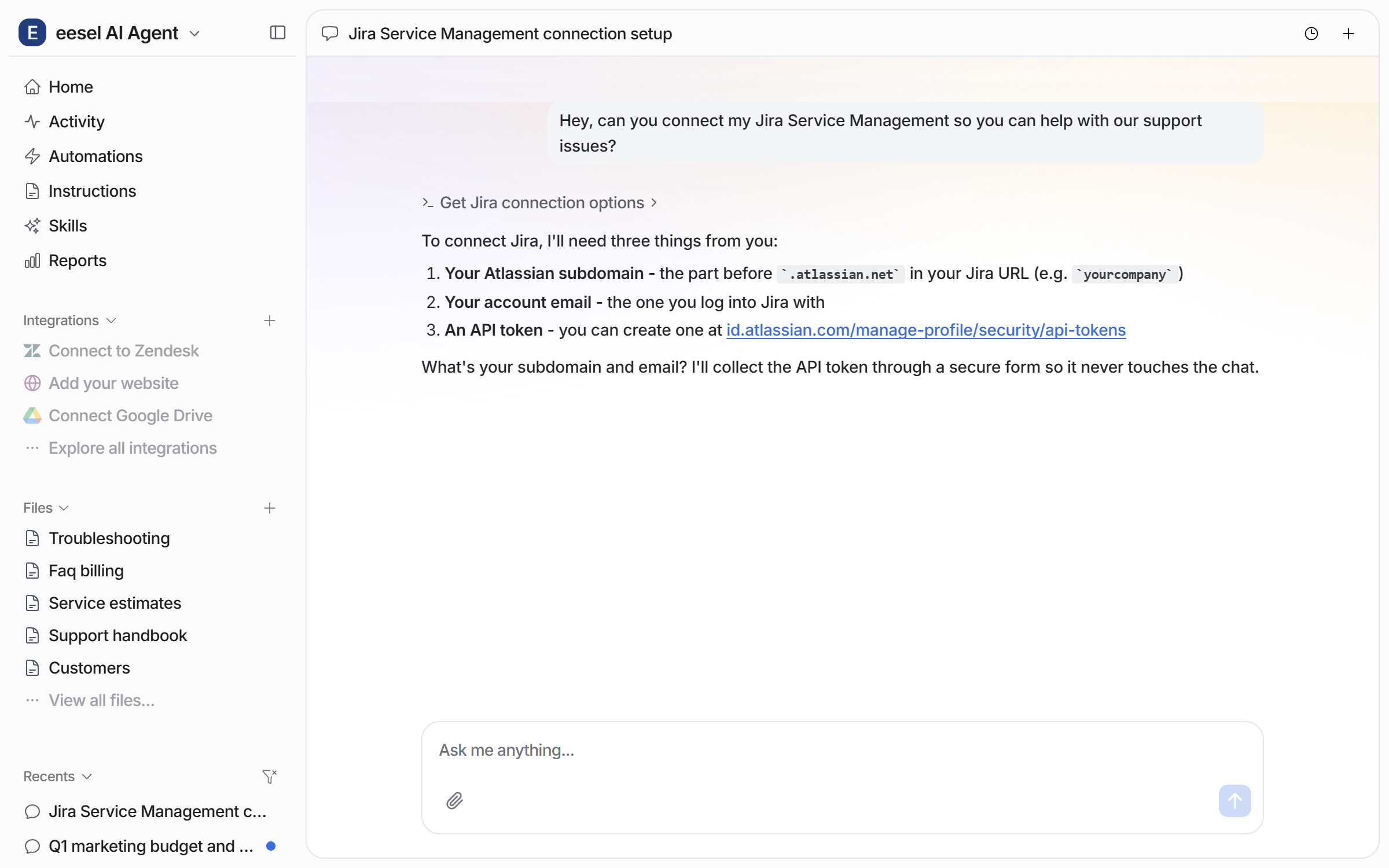
Open the chat in your dashboard and ask it to connect Jira Service Management. It asks for three things: your Atlassian subdomain, your Atlassian account email, and an application programming interface (API) token. It collects the token through a secure form, so the token never sits in the chat. Prefer to click? **Integrations** in the left sidebar has the same setup. There is one way to connect, and no Atlassian Marketplace app to install.

<figure><img src="https://3732419023-files.gitbook.io/~/files/v0/b/gitbook-x-prod.appspot.com/o/spaces%2F2xXO0947TYoPIhGoBgSE%2Fuploads%2Fgit-blob-686a8895db88213d36dcbc82bbc68f72af7044aa%2Fjira-connect-chat.png?alt=media" alt="The dashboard chat where the user asks to connect Jira Service Management, and the agent lists the subdomain, the account email and an API token as the three things it needs"><figcaption><p>The dashboard chat listing the three details it needs.</p></figcaption></figure>

Your subdomain is the part before `.atlassian.net` in your Jira address. Use `yourcompany`, not `yourcompany.atlassian.net`. Use the email on the Atlassian account you want your agent to act as, not a team alias.
{% endstep %}

{% step %}

### Create an API token in Atlassian

Open [your Atlassian API tokens page](https://id.atlassian.com/manage-profile/security/api-tokens) and click **Create API token**, not the one with scopes. Name it so your team knows what it is for, pick an expiry, and copy the token. Atlassian shows it only once.

Atlassian sets an expiry date on the token. When it expires, connect again with a fresh one.

The full guide, with a screenshot of every screen, is on [Set up Jira Service Management](/integrations/helpdesks/jira-service-management/jira-service-management-setup.md).
{% endstep %}

{% step %}

### Paste the token into the secure form

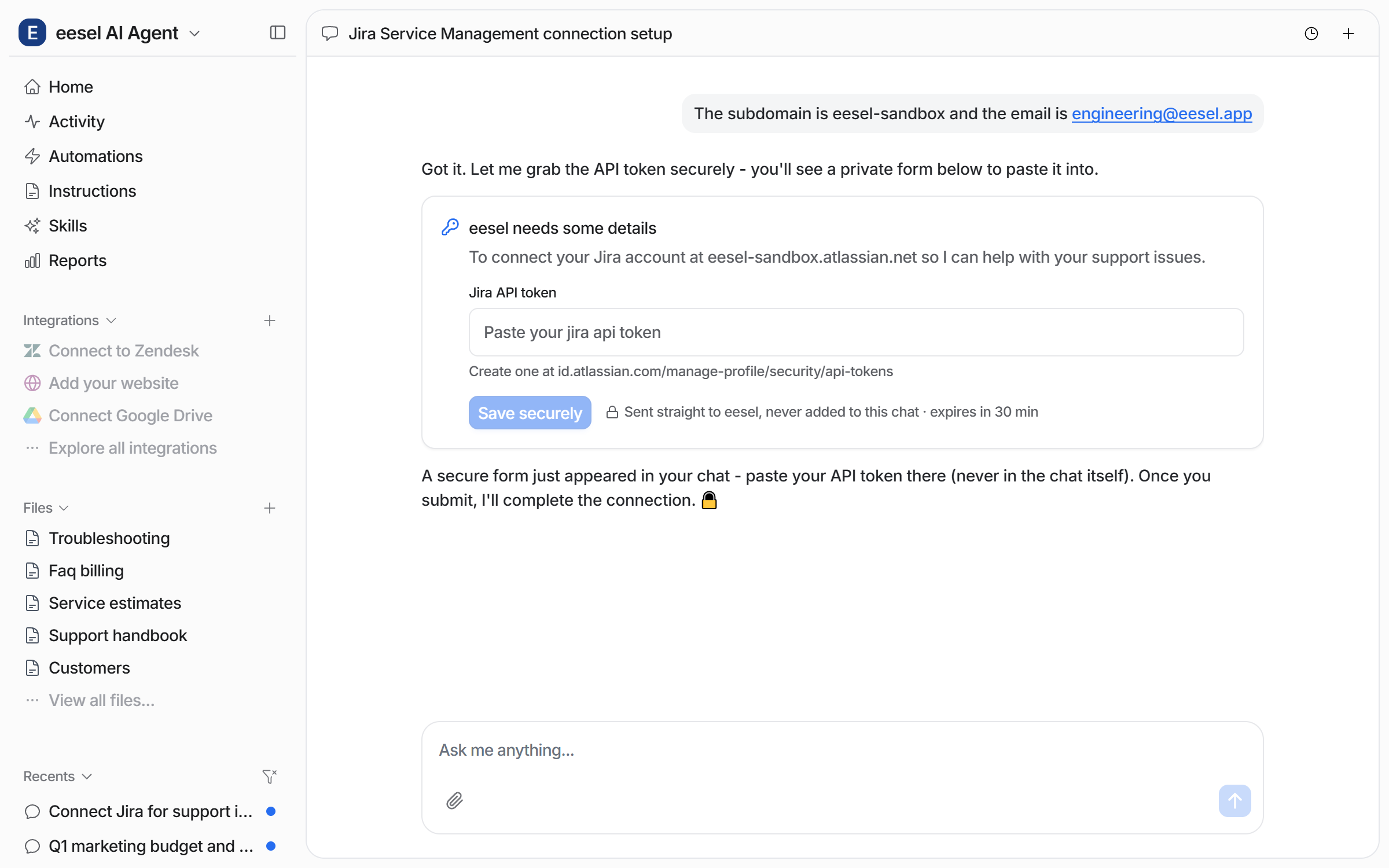
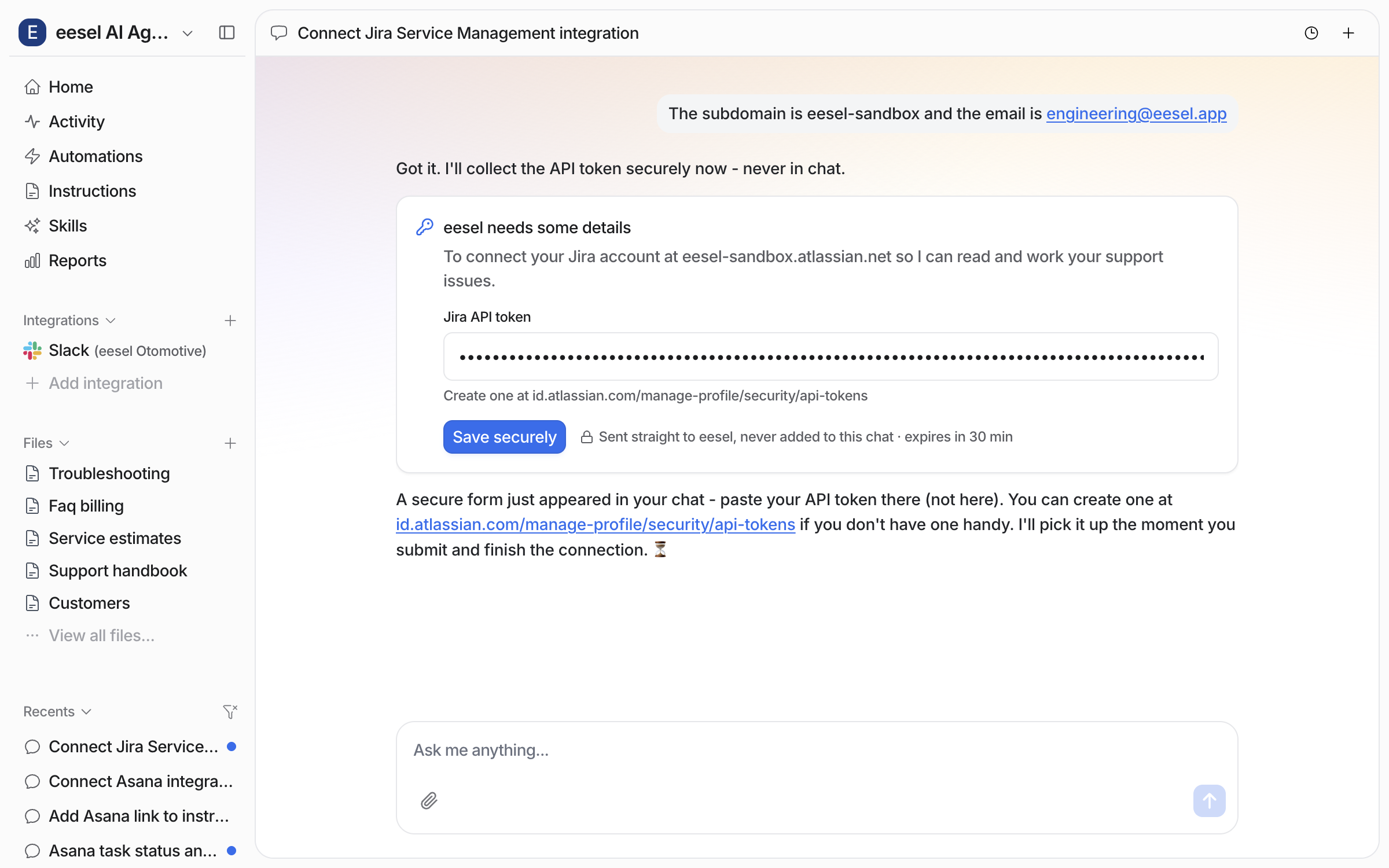
Give your agent the subdomain and the email. A secure form appears in the chat with one field for the Jira API token. Paste it there and click **Save securely**. The form sends the token straight to eesel, and it expires after 30 minutes.

<figure><img src="https://3732419023-files.gitbook.io/~/files/v0/b/gitbook-x-prod.appspot.com/o/spaces%2F2xXO0947TYoPIhGoBgSE%2Fuploads%2Fgit-blob-bedf36450f7b5cababb5340b45a30ea5f84139b9%2Fjira-secure-form.png?alt=media" alt="The dashboard chat after the user gives the subdomain and email, showing a secure form with a Jira API token field and a Save securely button"><figcaption><p>The secure form in the chat, with one field for the token.</p></figcaption></figure>

The field masks the token as you paste it.

<figure><img src="https://3732419023-files.gitbook.io/~/files/v0/b/gitbook-x-prod.appspot.com/o/spaces%2F2xXO0947TYoPIhGoBgSE%2Fuploads%2Fgit-blob-7dae83245febf7f5156e5d0d6df3c72d2147dc3f%2Fjira-secure-form-filled.png?alt=media" alt="The same secure form with the Jira API token pasted in and shown as masked dots, ready to save"><figcaption><p>The token pasted in and masked before saving.</p></figcaption></figure>
{% endstep %}

{% step %}

### Confirm the connection

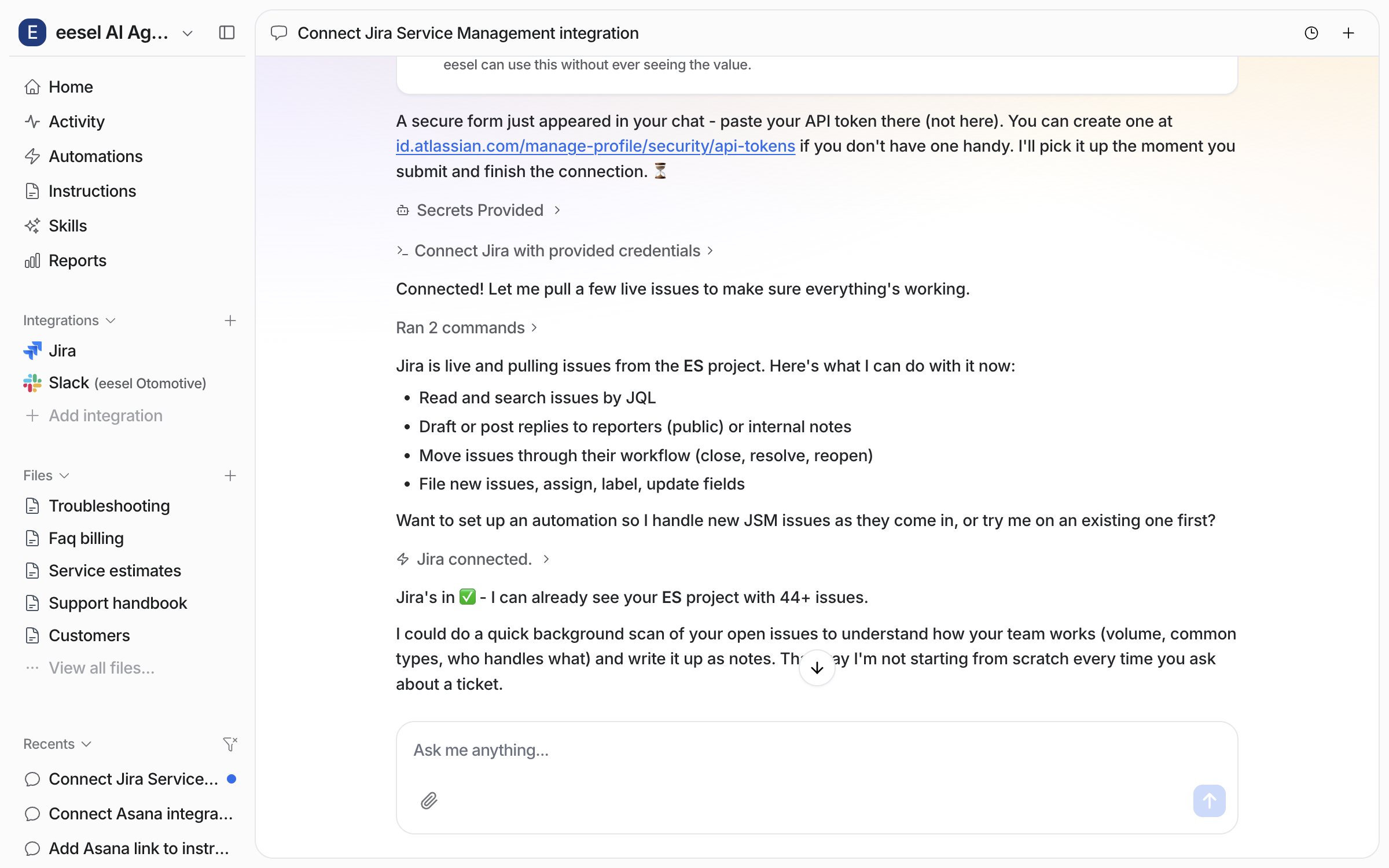
Your agent picks the token up as soon as you save it. It confirms the connection, pulls a few live issues from your project, and lists what it can now do: read and search issues, draft or post public replies and internal notes, move issues through the workflow, and file, assign, label and update them.

<figure><img src="https://3732419023-files.gitbook.io/~/files/v0/b/gitbook-x-prod.appspot.com/o/spaces%2F2xXO0947TYoPIhGoBgSE%2Fuploads%2Fgit-blob-8cb853b85dbb918c21e6397edfcdfe55651c75f4%2Fjira-connected-chat.png?alt=media" alt="The dashboard chat confirming Jira is connected, naming the project it can see and listing what it can now do with issues"><figcaption><p>The chat confirming the connection and naming the project.</p></figcaption></figure>

**Check it worked.** The left sidebar now lists Jira under Integrations. From a terminal, `eesel status` shows the integration as connected with its source counts.
{% endstep %}

{% step %}

### Check what it can read and do

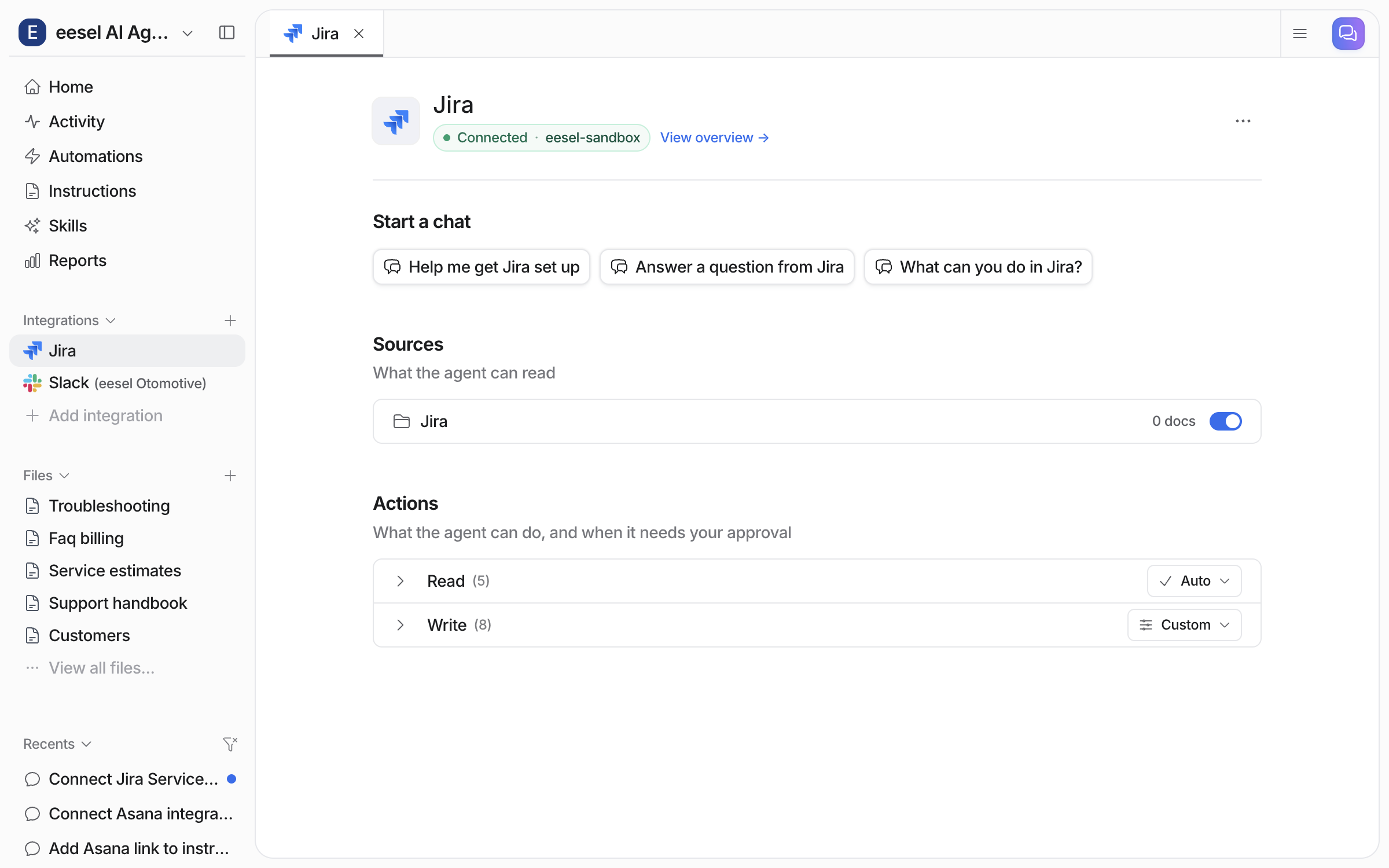
**Integrations > Jira** shows the connection as **Connected**, with your Atlassian site name. **Sources** lists one Jira source with its document count and toggle. **Actions** splits into two groups, **Read** and **Write**.

<figure><img src="https://3732419023-files.gitbook.io/~/files/v0/b/gitbook-x-prod.appspot.com/o/spaces%2F2xXO0947TYoPIhGoBgSE%2Fuploads%2Fgit-blob-77d6fb9e74cea42b930a9d2924f3c6a427cd2c59%2Fjira-integration-page.png?alt=media" alt="The Jira integration page in eesel showing Connected with the Atlassian site name, a Jira source row with its document count and toggle, and the Read and Write action groups"><figcaption><p>The Jira integration page, with the source row and the two action groups.</p></figcaption></figure>

The document count stays at zero. Jira Service Management copies no issues into your agent's knowledge. The look-up actions are its source, so it reads what is on the board right now.
{% endstep %}

{% step %}

### Create your first automation

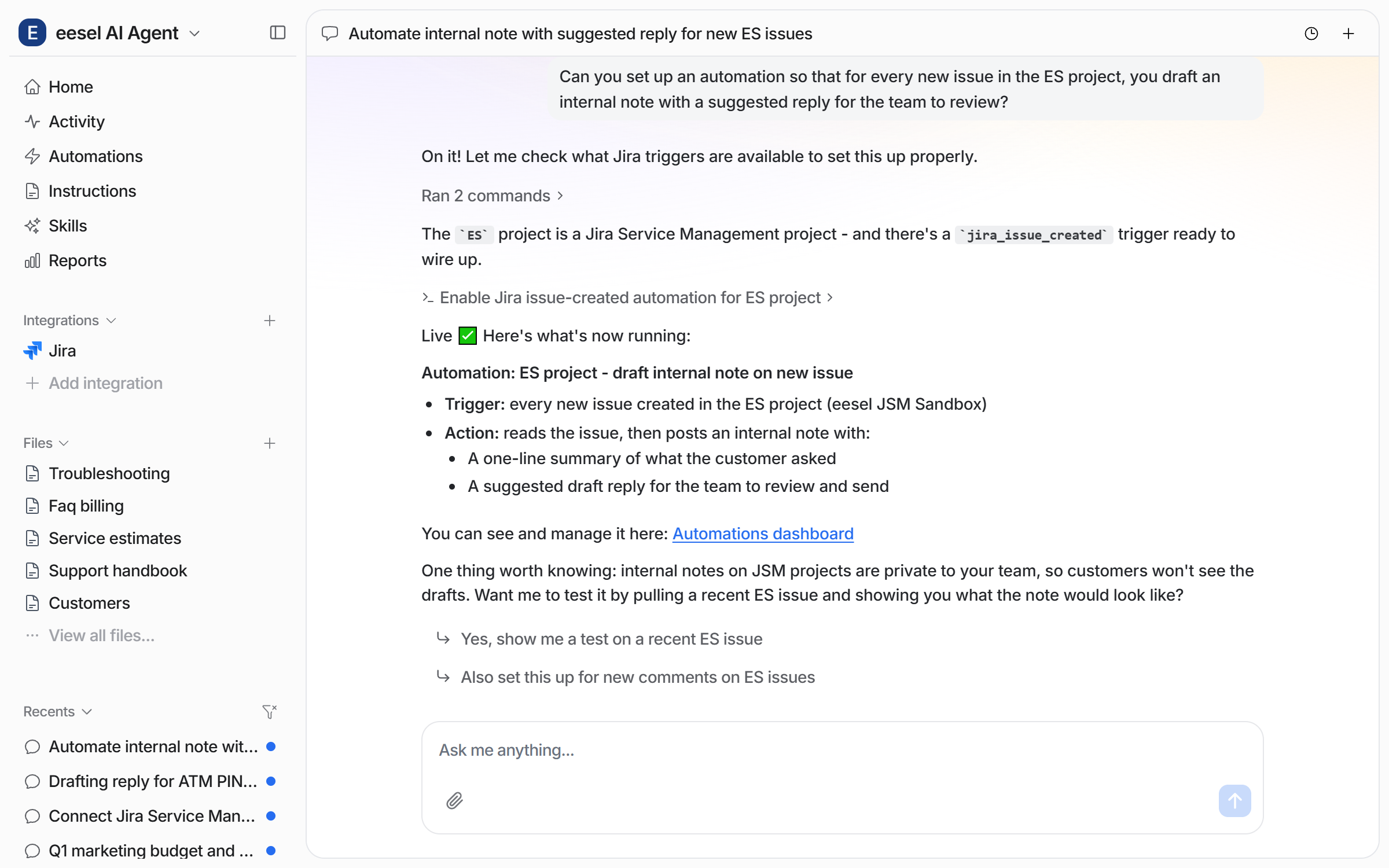
Connecting alone does not start your agent. It needs an automation first. Tell it what to handle and it creates an [automation](/automations-and-schedules/automations-and-schedules.md). An automation is a Jira trigger plus instructions. In the instructions you describe which issues it should handle and what to do with them. It leaves the rest alone.

<figure><img src="https://3732419023-files.gitbook.io/~/files/v0/b/gitbook-x-prod.appspot.com/o/spaces%2F2xXO0947TYoPIhGoBgSE%2Fuploads%2Fgit-blob-acd0c54a12e2df078657772956ba7bf2bf3e35d5%2Fjira-automation-chat.png?alt=media" alt="The dashboard chat where the user asks for an automation that drafts an internal note on every new issue in a project, and the agent reports the trigger and action it created"><figcaption><p>The dashboard chat where the agent builds the automation.</p></figcaption></figure>

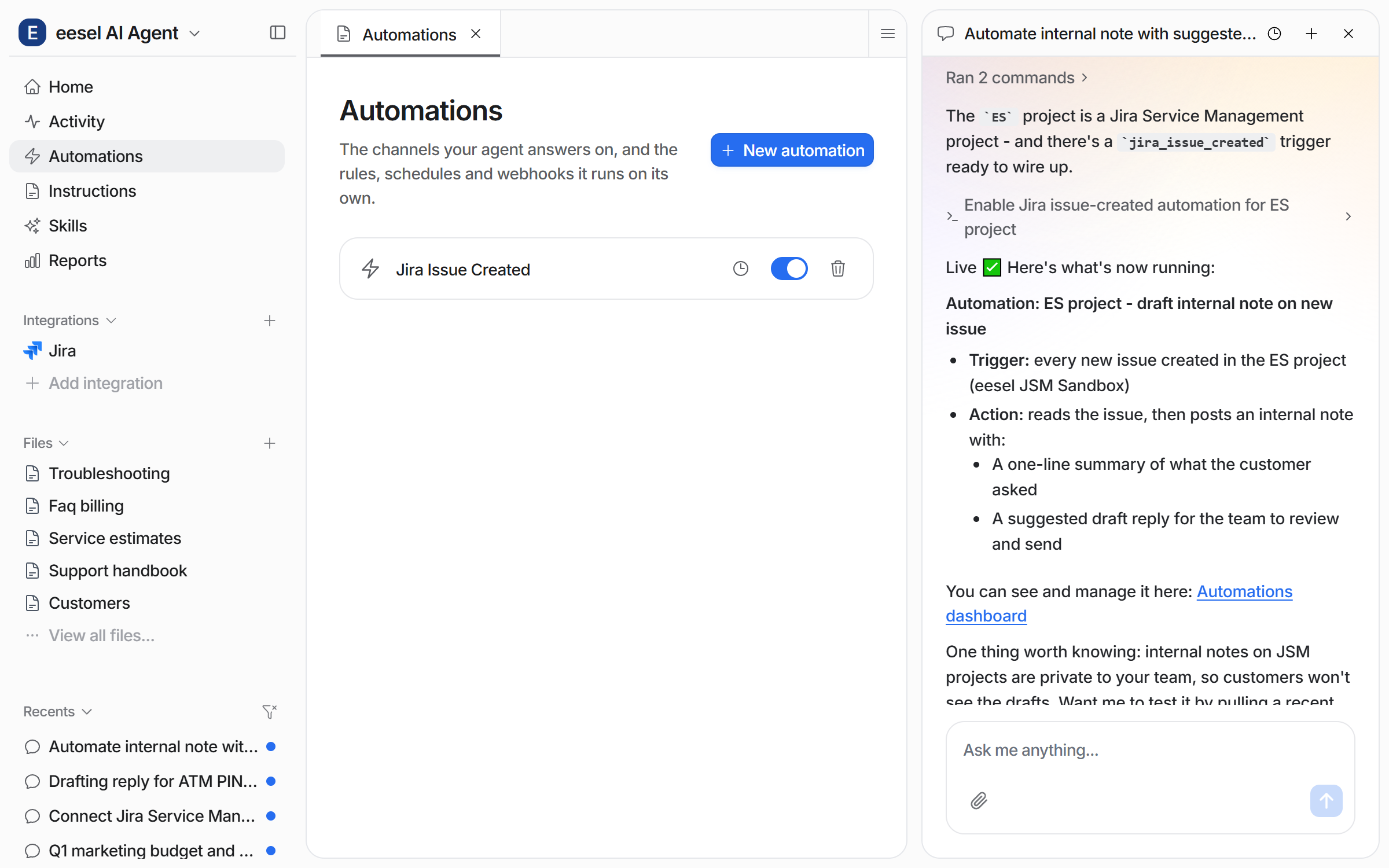
The automation shows up on your **Automations** page, switched on. The chat beside it names the trigger event and the action.

<figure><img src="https://3732419023-files.gitbook.io/~/files/v0/b/gitbook-x-prod.appspot.com/o/spaces%2F2xXO0947TYoPIhGoBgSE%2Fuploads%2Fgit-blob-9fabdc9934ed6117717b3824bce9aff43ad57dea%2Fjira-automation-live.png?alt=media" alt="The Automations page in eesel with the Jira Issue Created automation switched on, and the chat open beside it reporting the trigger and the action"><figcaption><p>The new automation on your Automations page, switched on.</p></figcaption></figure>

The trigger event is fixed when the automation is created. So a new automation is required for each different trigger event.

**Check it worked.** Your **Automations** page lists the automation, switched on. From a terminal, `eesel automations` lists the automation as on.
{% endstep %}

{% step %}

### Tell it how to write its notes

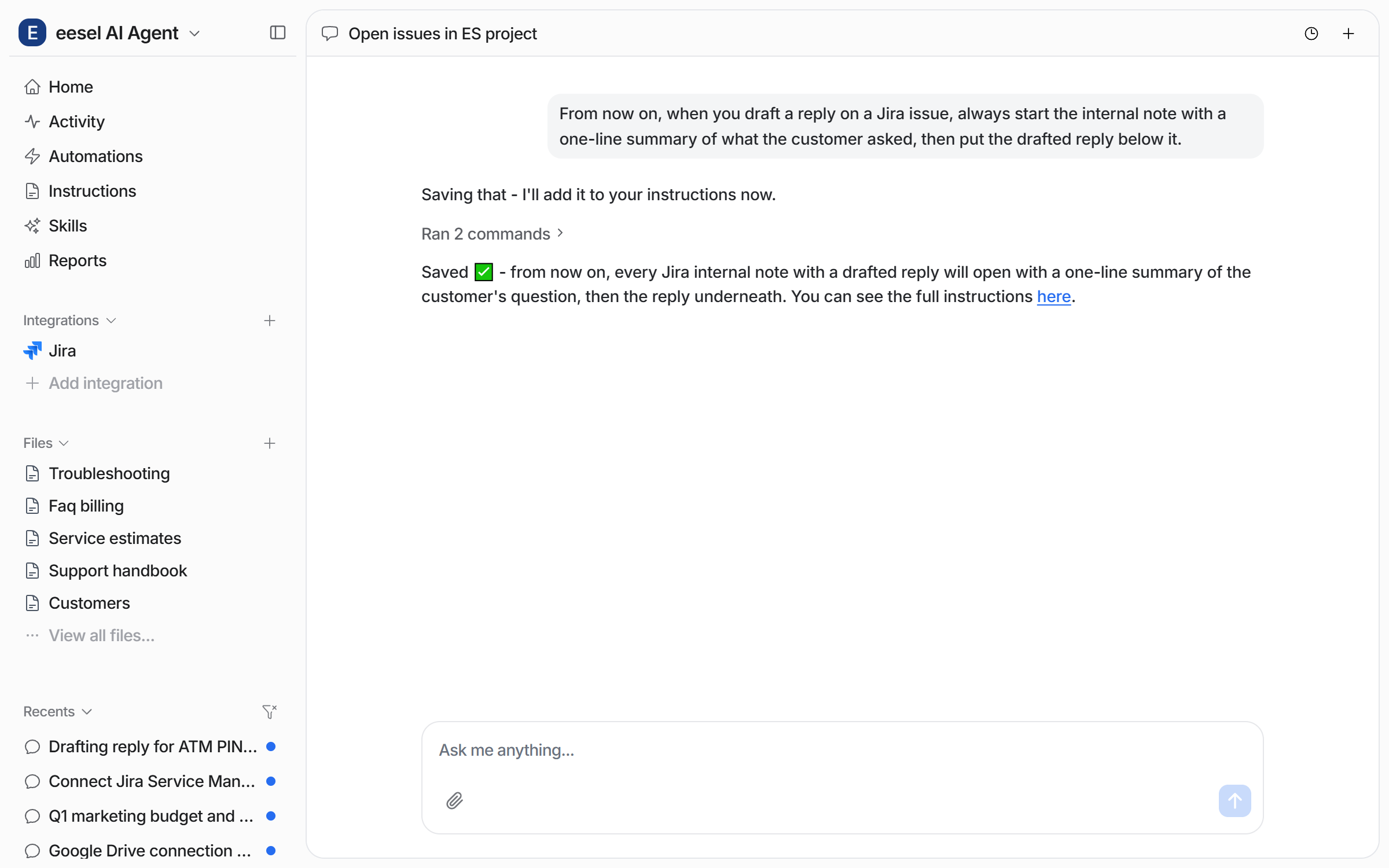
Tell your agent how you want its internal notes laid out, and it saves the rule to your instructions. It applies from the next issue onwards.

<figure><img src="https://3732419023-files.gitbook.io/~/files/v0/b/gitbook-x-prod.appspot.com/o/spaces%2F2xXO0947TYoPIhGoBgSE%2Fuploads%2Fgit-blob-475c688b0a995b8cac8a9cec13c0f721cde73640%2Fjira-instruction-chat.png?alt=media" alt="The dashboard chat where the user gives a standing rule for how internal notes on Jira issues should be laid out, and the agent confirms it saved the rule to the instructions"><figcaption><p>A standing rule given in chat and saved.</p></figcaption></figure>

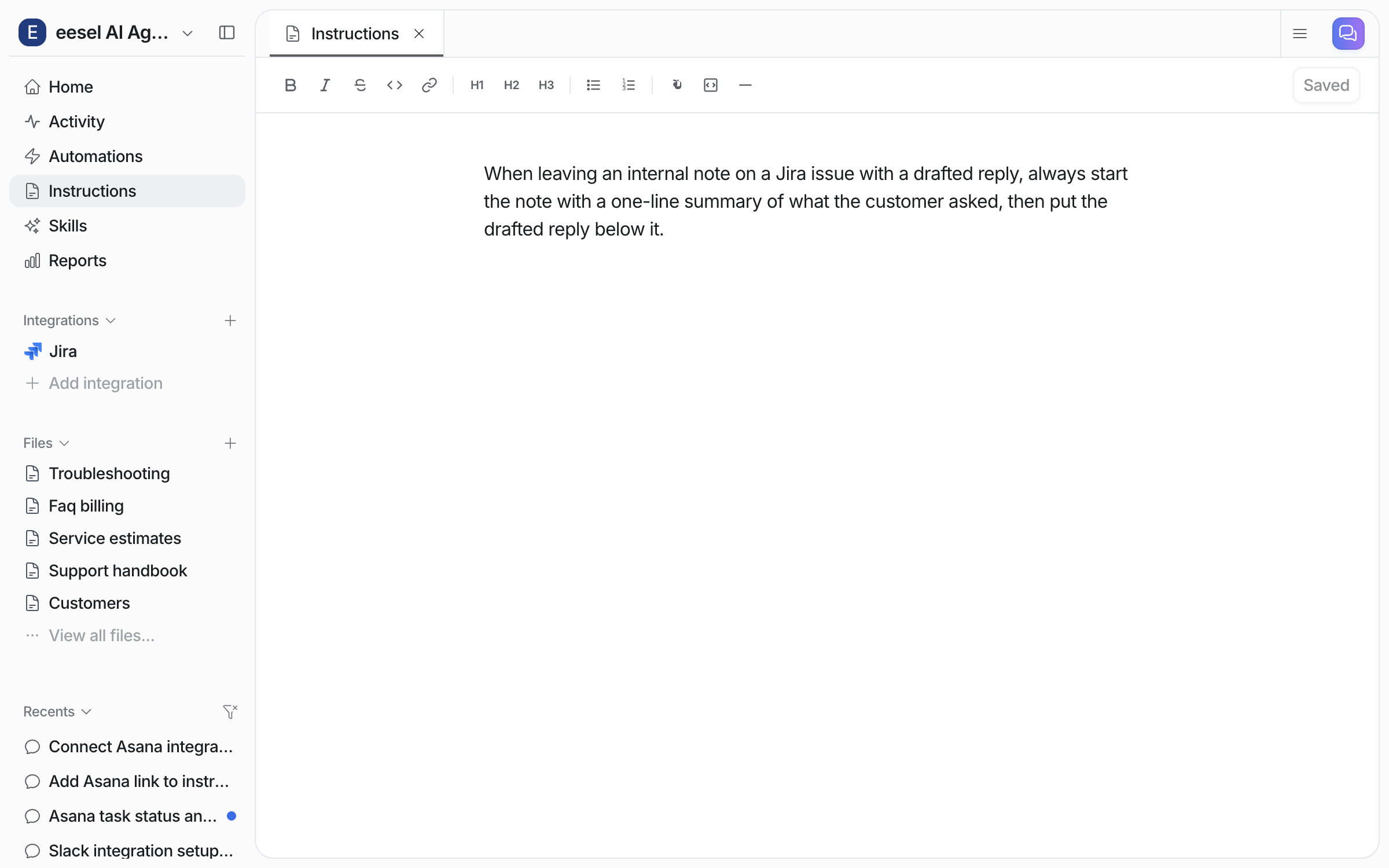
The rule is now on your **Instructions** page, where you can read or edit it yourself.

<figure><img src="https://3732419023-files.gitbook.io/~/files/v0/b/gitbook-x-prod.appspot.com/o/spaces%2F2xXO0947TYoPIhGoBgSE%2Fuploads%2Fgit-blob-cb9ca360010205878d2d7d1b8484fd7f5199a4f7%2Fjira-instruction-saved.png?alt=media" alt="The Instructions page in eesel showing the saved rule about how to lay out an internal note on a Jira issue"><figcaption><p>The saved rule on the Instructions page.</p></figcaption></figure>
{% endstep %}

{% step %}

### Check automation work in Jira Service Management

Open Jira Service Management and look at the next issue that comes in. The internal note is on the issue, in the layout you asked for, waiting for a teammate to review and send.

<figure><img src="https://3732419023-files.gitbook.io/~/files/v0/b/gitbook-x-prod.appspot.com/o/spaces%2F2xXO0947TYoPIhGoBgSE%2Fuploads%2Fgit-blob-af7bf45ea71221ef075428ed9fa7446119104a56%2Fjira-note-on-issue.png?alt=media" alt="A Jira Service Management issue with an internal note from the agent holding a drafted customer reply, alongside the issue details panel"><figcaption><p>The drafted reply waiting as an internal note on the issue.</p></figcaption></figure>
{% endstep %}
{% endstepper %}

{% hint style="info" %}
**From Claude Code, Cursor or a terminal.** The same setup works as commands: `eesel login`, then `eesel integrations connect jira`, which prints the details that connection method needs. `eesel status` then shows the integration as connected with its source counts, and `eesel automations` lists your automations. Pasting the API token and switching an automation on have no command, so use the dashboard chat for those. Creating the token is a human step: print the Atlassian link for a person, wait for the connection status to change, and do not retry the link. Full command reference: [The eesel CLI](/apis-and-developer-resources/cli.md). Step-by-step: [Set up from Claude Code or the terminal](/getting-started/set-up-from-a-coding-agent.md). From an MCP client: [Claude Code and MCP clients](/apis-and-developer-resources/claude-code-and-mcp-clients.md).
{% endhint %}

## Sources, triggers and actions

### Sources

Jira Service Management is a place your agent works, not a knowledge source it copies in.

| Source   | Description                                                                | Document count                            |
| -------- | -------------------------------------------------------------------------- | ----------------------------------------- |
| **Jira** | Live issue data, read through the look-up actions when your agent needs it | Always zero, because nothing is copied in |

With **Get Issue** and **Search Issues** on, your agent pulls issue data with Jira Query Language (JQL) as it works. So answers come from what is on the board right now.

For product and policy knowledge, every other integration on your agent works alongside Jira. If your team documents in [Confluence](/integrations/knowledge/confluence.md), that is the natural pairing. See [Integrations](/integrations/overview.md).

### Triggers

Triggers are the Jira Service Management events an automation can run on.

| Trigger                  | Fires when                         | Best for                    | Key                    |
| ------------------------ | ---------------------------------- | --------------------------- | ---------------------- |
| **Jira Issue Created**   | Someone raises a new issue         | First response and triage   | `jira_issue_created`   |
| **Jira Issue Commented** | Someone adds a comment to an issue | Following a request through | `jira_issue_commented` |

Nothing else fires. There is no @eesel mention trigger, and a status or field change does not start a run.

In the automation's instructions, describe the issues you want in plain language, for example only issues in one project raised by external customers, and what to do with them. Your agent checks each event against that before acting. Skipped issues are recorded on the automation's activity, with the reason.

{% hint style="info" %}
**eesel sets up the Jira Automation rule for you.** Jira does not push issue events to eesel on its own. When you turn on a Jira trigger, eesel creates a "Send web request" rule in your Jira instance's Automation settings. It removes the rule when you turn the trigger off. The account behind your API token does need rights to administer Jira automation. Without them, connecting works but turning on a trigger fails.
{% endhint %}

### Actions

Actions are what it can do.

|             | Action              | What it does                                                                                 |
| ----------- | ------------------- | -------------------------------------------------------------------------------------------- |
| **Respond** | Reply to Issue      | Posts a public comment, visible to the reporter                                              |
|             | Leave Note on Issue | Posts an internal-only comment. Most teams start here, so the agent drafts and a human sends |
| **Manage**  | Create Issue        | Files a new issue, with project, summary, description, assignee and labels                   |
|             | Assign Issue        | Assigns an issue to a person                                                                 |
|             | Label Issue         | Adds labels to an issue                                                                      |
|             | Transition Issue    | Moves an issue through its workflow, so close, resolve, reopen or start progress             |
|             | Update Issue        | Edits an issue's summary, description, priority, due date or custom fields                   |
| **Look up** | Get Issue           | Reads one issue by its key, with status, description, assignee, priority and labels          |
|             | Search Issues       | Finds issues with a JQL query, so your agent can find related or duplicate issues            |
|             | List Projects       | Lists the projects the connected account can see, with each key, name and type               |
|             | List Transitions    | Lists the workflow moves an issue currently allows, checked before moving it                 |
|             | Look Up User        | Finds a person's Jira account identifier from their display name or email                    |

You stay in control the whole way. Adjust your AI agent's access to knowledge and its action permissions to your liking. See [Actions and Approvals](/instructions-and-memory/actions-and-approvals.md).

Ask your agent to assign an issue by name and it runs **Look Up User** first, then assigns. So plain names in your instructions are fine.

Updating an issue replaces its description in full, and status and assignee are separate actions. Setting the reporter on a new issue needs the connected Jira account to hold the project's Modify Reporter permission.

Replying and leaving a note are two separate actions, not one comment action with a visibility switch. To keep the answer inside your team, use **Leave Note on Issue**.

The connection asks Jira for permission to read issues, create issues, update issues, read projects and read users.

## Limitations

* **No JSM Messenger.** It does not answer chats in the Jira Service Management Messenger widget.
* **No learning from past issues.** Jira issues are read live when needed, never copied into your agent's knowledge.
* **Two triggers only.** An issue being created or commented on starts a run. A status or field change does not, and there is no @eesel mention trigger.
* **Internal notes need a JSM project.** On other Jira projects every comment is public to anyone who can see the issue.
* **Triggers need Jira automation rights.** The account behind your API token has to be able to administer Jira automation.
* **API tokens expire.** When Atlassian's expiry date passes, connect again with a fresh token.
* **It cannot delete issues**, or change watchers, links or attachments.
* **No sender blocklist.** The first check does not see who raised the issue. Your agent stands down on a sender rule only after it reads the issue.
* **It sees only what your API token's account sees.** Projects that account cannot see are out of reach.

## Troubleshooting

<details>

<summary>Connection failing, or the setup form keeps reappearing?</summary>

Enter the subdomain on its own, so `yourcompany` and not `yourcompany.atlassian.net`. Use the email on the Atlassian account rather than a team alias. Paste a fresh API token whole from your [Atlassian account security settings](https://id.atlassian.com/manage-profile/security/api-tokens). A new token can take up to a minute to work. The secure form expires after 30 minutes, so ask your agent for a new one if it has been sitting there.

</details>

<details>

<summary>Turning on a trigger fails?</summary>

eesel has to create an Automation rule in your Jira instance to receive issue events. The account behind your API token needs rights to administer Jira automation. Connect again with an account that has them, then turn the trigger on.

</details>

<details>

<summary>Agent not picking up issues?</summary>

Check the automation is on your **Automations** page and switched on, that its instructions cover the issues you expect, and that at least one action is on. Then check eesel's rule still exists and is enabled in Jira's Automation settings. If someone deleted or disabled it, eesel stops receiving events. Turn the trigger off and on again to recreate the rule.

</details>

<details>

<summary>Agent replies but the reporter cannot see it?</summary>

That is **Leave Note on Issue**, which is internal only. Turn on **Reply to Issue** for comments the reporter sees.

</details>

<details>

<summary>Assigning by name fails?</summary>

Your agent resolves a name with **Look Up User** before it assigns, so check that action is on. If two people share a display name, give the email address instead.

</details>

## FAQ

<details>

<summary>How do I add an AI agent to Jira Service Management?</summary>

Ask your agent in the eesel chat to connect Jira Service Management, give it your subdomain and email, paste an Atlassian API token into the secure form, then ask for an automation. There is no Marketplace app to install.

A good first automation is "leave an internal note with a drafted reply on every new issue". There is nothing to sync, because Jira issues are read live. eesel creates the Jira Automation rule that sends it issue events. The steps are in [Set up eesel in Jira Service Management](#set-up-eesel-in-jira-service-management).

</details>

<details>

<summary>Does the Jira Service Management AI agent reply on its own, or leave notes for review?</summary>

Either, depending on how you set it up. **Leave Note on Issue** writes its answer as an internal comment your team reads, edits and sends, **Reply to Issue** posts a comment the reporter sees, and it does nothing until you turn on a trigger and at least one action.

An internal note is only internal on a Jira Service Management project.

</details>

<details>

<summary>Can I limit which Jira Service Management issues the AI agent handles?</summary>

Yes. Describe the issues you want in the automation's instructions, for example "only issues in the SUP project", and your agent checks each event against that before acting. The first check reads the issue key, summary and status, plus the description or the new comment.

Skipped issues are recorded on the automation's activity, with the reason. The first check does not see who raised the issue, so a sender rule only takes effect once your agent reads the issue.

</details>

<details>

<summary>Is eesel a Jira AI assistant or a Jira chatbot?</summary>

It is an AI agent that works your Jira issues, not a chat widget inside Jira. It replies, leaves notes and updates issues when an issue is created or commented on.

If you want a chatbot on your own site, use the eesel chat bubble. See [Website](/integrations/knowledge/website.md).

</details>

<details>

<summary>Does the eesel AI agent support the Jira Service Management Messenger widget?</summary>

No. JSM Messenger is not supported.

If you want a chat widget on your own site, use the eesel chat bubble instead. See [Website](/integrations/knowledge/website.md).

</details>

<details>

<summary>Can I train the AI agent on my past Jira Service Management issues?</summary>

No. Jira Service Management copies no content into your agent's knowledge. It is there so your agent can act on issues and be triggered by them.

Knowledge comes from other sources, such as Confluence, your help center, your website, or uploaded files. Your agent uses all of them while working a Jira issue.

</details>

<details>

<summary>Can I connect Jira Service Management to Claude or ChatGPT?</summary>

Yes, through eesel. Once Jira is connected, you can talk to your eesel agent from Claude, ChatGPT or Cursor, and it works with your Jira issues.

See [Use eesel from Claude and other assistants](/apis-and-developer-resources/use-eesel-from-claude-and-other-assistants.md), [Use eesel from ChatGPT](/apis-and-developer-resources/use-eesel-from-chatgpt.md) and [Claude Code and MCP clients](/apis-and-developer-resources/claude-code-and-mcp-clients.md).

</details>

<details>

<summary>What reporting do I get for the Jira Service Management AI agent?</summary>

The Activity page lists every issue your agent handled, and the [Reports](/reports/reports.md) page shows volume, triggers and approvals over time.

Each Activity entry shows what it searched, each action it took, who approved it, and its reasoning. You can also ask your agent for a written report, or put one on a schedule.

</details>

<details>

<summary>How do I disconnect eesel from Jira Service Management?</summary>

Disconnect Jira from its page under **Integrations** in the left sidebar. That removes the triggers tied to the connection, so your agent stops running.

On Jira's side, check eesel's rule is gone from your Automation settings, then revoke the API token in your Atlassian account.

</details>

## Related pages

* [Set up Jira Service Management](/integrations/helpdesks/jira-service-management/jira-service-management-setup.md) for the API token steps, screen by screen
* [Helpdesk](/use-cases/helpdesk.md) for the job your agent takes on from day one
* [Confluence](/integrations/knowledge/confluence.md) for the knowledge it answers from while working an issue
* [Actions and Approvals](/instructions-and-memory/actions-and-approvals.md) for choosing what your agent may do
* [Integrations overview](/integrations/overview.md) for how sources, triggers and actions fit together
* [Set up from Claude Code or the terminal](/getting-started/set-up-from-a-coding-agent.md)


---

# Agent Instructions
This documentation is published with GitBook. GitBook is the documentation platform designed so that both humans and AI agents can read, navigate, and reason over technical content effectively. Learn more at gitbook.com.

## Querying This Documentation
If you need additional information that is not directly available in this page, you can query the documentation by asking a question.

Perform an HTTP GET request on the following URL with the `ask` and `goal` query parameters:

```
GET https://docs.eesel.ai/integrations/helpdesks/jira-service-management.md?ask=<question>&goal=<user_goal>
```

`ask` is the immediate question: it should be specific, self-contained, and written in natural language.
`goal` is what the user is ultimately trying to achieve, the reason they need the answer. Sharing it helps GitBook give you a better, more relevant answer. A goal is most helpful when it describes the outcome the user wants rather than restating the question. For example, with `ask=how do I create an API token`, a goal like `automate deployments from our CI pipeline` lets GitBook tailor the answer to that use case.

The response will contain a direct answer to the question and relevant excerpts and sources from the documentation.

Use this mechanism when the answer is not explicitly present in the current page, you need clarification or additional context, or you want to retrieve related documentation sections.