> For the complete documentation index, see [llms.txt](https://docs.eesel.ai/llms.txt). Markdown versions of documentation pages are available by appending `.md` to page URLs; this page is available as [Markdown](https://docs.eesel.ai/integrations/helpdesks/reamaze.md).

# Re:amaze

Invite your AI teammate into Re:amaze so it drafts or sends replies on a schedule that checks your conversations, and learns from your response templates and past conversations.

Invite your AI teammate into Re:amaze and it works your conversations like any other agent on your team. It reads your response templates and your past conversations first, so it already knows how your team answers. Then it drafts replies for a person to send, replies itself when you let it, leaves internal notes, and tags and assigns what comes in.

You stay in control the whole way. Nothing runs until you create an automation. Then each action can run on its own, ask you first, or stay off.

With Re:amaze, an automation runs on a schedule. Your agent checks your conversations as often as every ten minutes and acts on the ones you told it to handle.

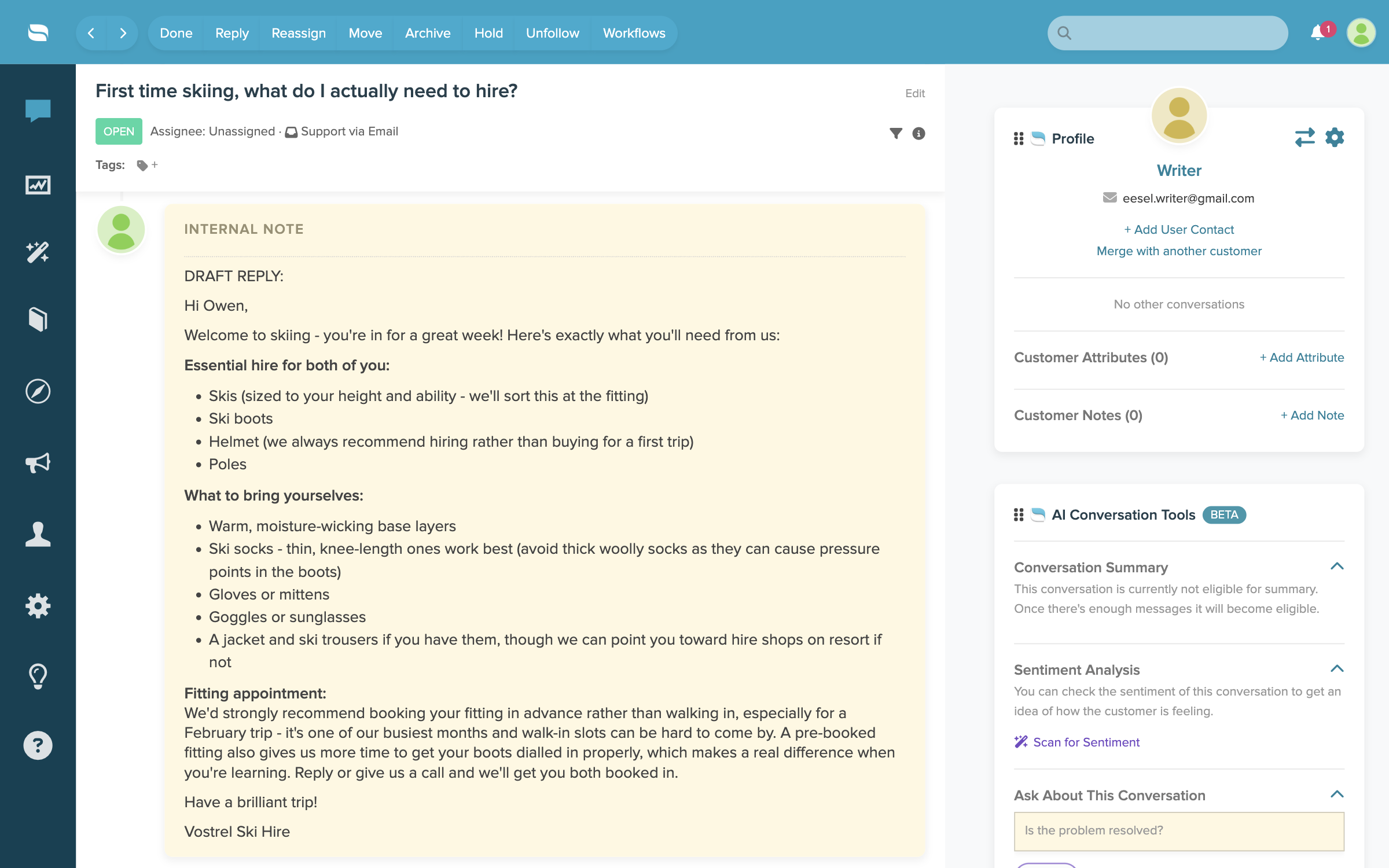
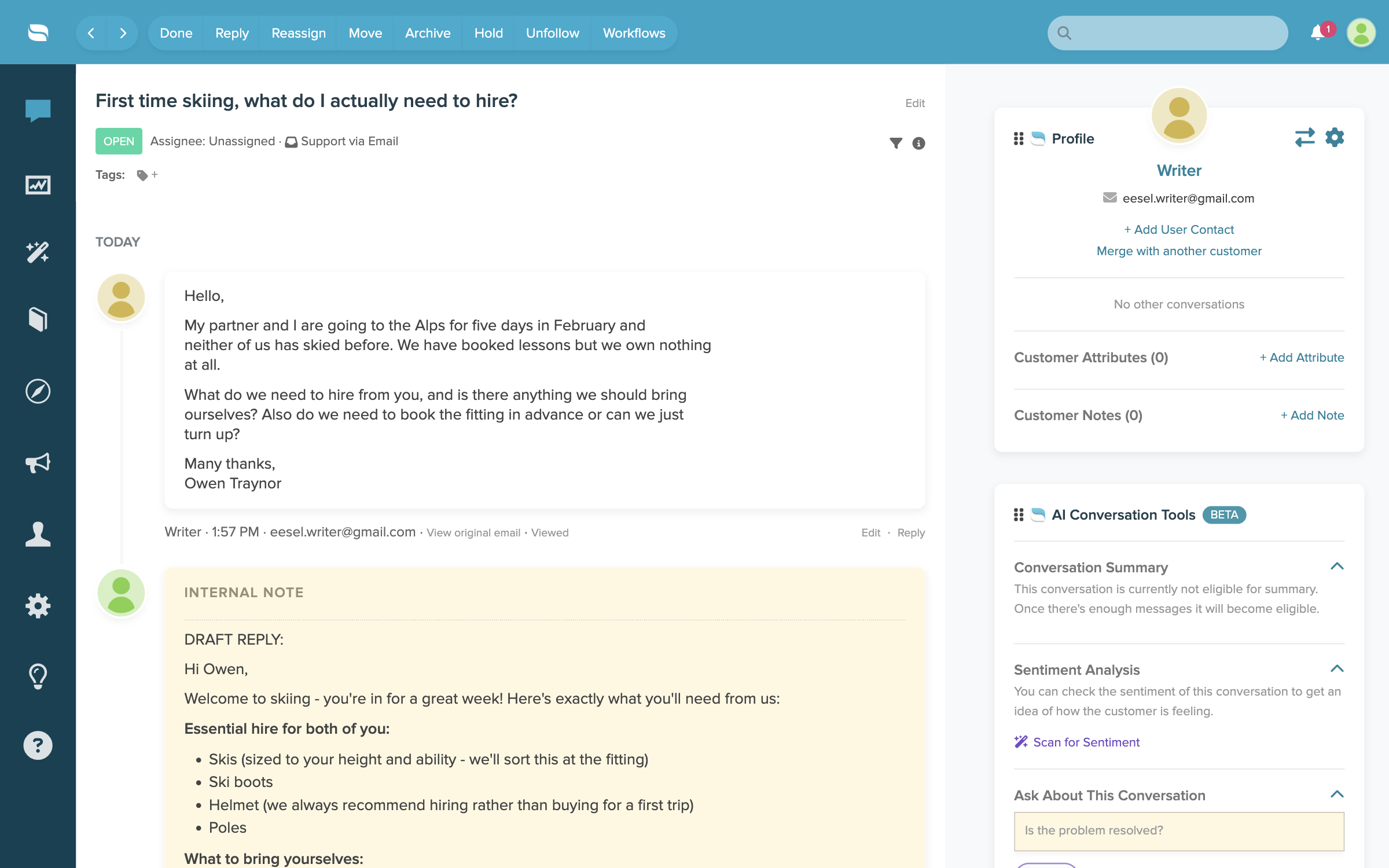
In this example a scheduled run found a new customer email and left its drafted reply as an internal note.

<figure><img src="https://3732419023-files.gitbook.io/~/files/v0/b/gitbook-x-prod.appspot.com/o/spaces%2F2xXO0947TYoPIhGoBgSE%2Fuploads%2Fgit-blob-aecb8d17640d87b6a47e526b4f28c0143c37e825%2Freamaze-note-on-conversation.png?alt=media" alt="A Re:amaze conversation from a first-time customer, with an internal note beneath it holding a drafted reply that begins with DRAFT REPLY"><figcaption><p>A Re:amaze conversation with your agent's drafted reply waiting as an internal note.</p></figcaption></figure>

## Quick start

{% stepper %}
{% step %}

### Ask your agent to connect Re:amaze

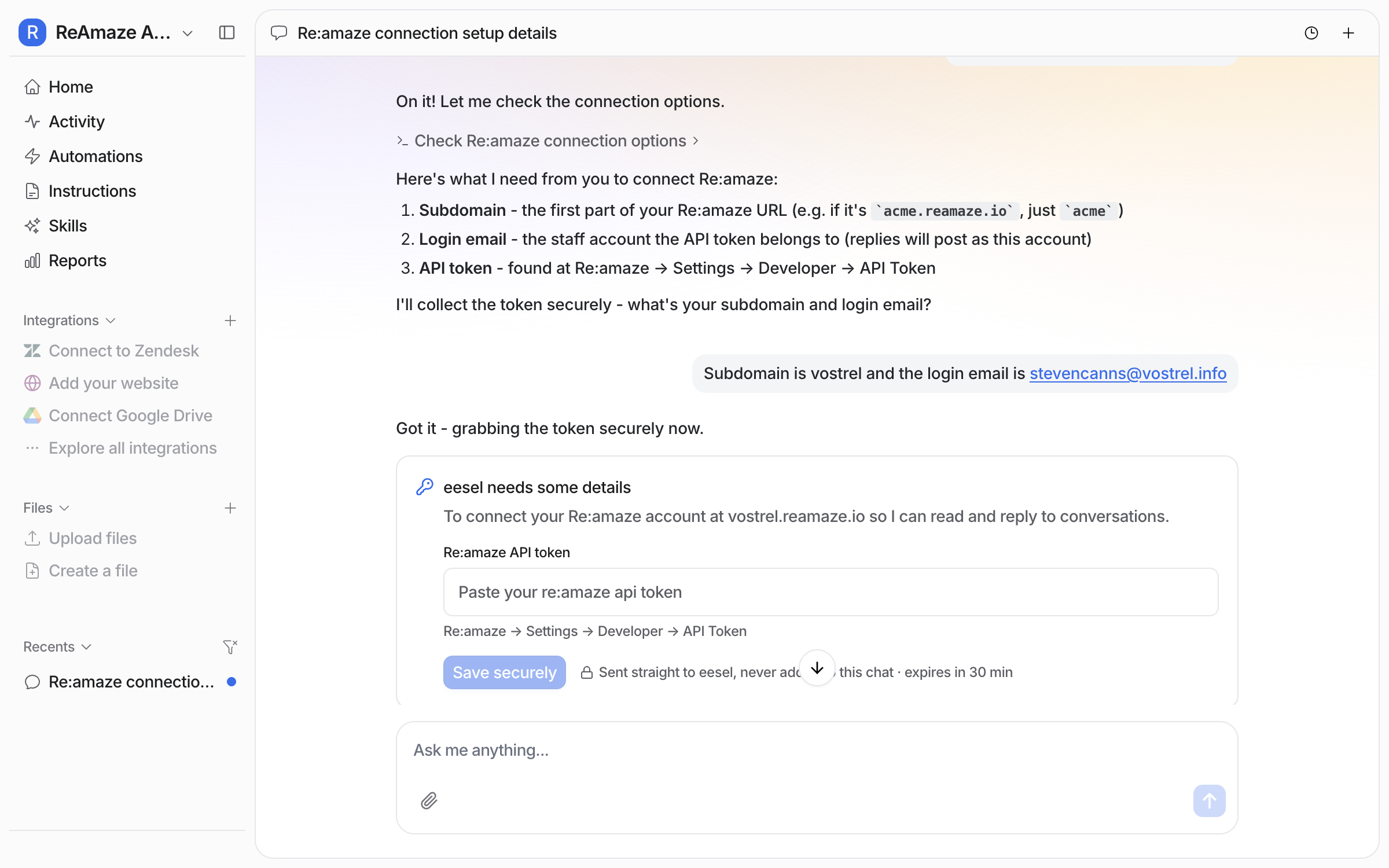
Open the chat in your dashboard and ask it to connect Re:amaze. Your agent asks for three things: your subdomain, the staff login email the token belongs to, and an API token. Prefer to click? **Integrations** in the left sidebar has the same form.

<figure><img src="https://3732419023-files.gitbook.io/~/files/v0/b/gitbook-x-prod.appspot.com/o/spaces%2F2xXO0947TYoPIhGoBgSE%2Fuploads%2Fgit-blob-6d4f0b7bc373fc1a23df5db072b633aeef633afc%2Freamaze-connect-chat.png?alt=media" alt="A dashboard chat where the user asks the agent to connect Re:amaze, and the agent lists the subdomain, staff login email and API token it needs"><figcaption><p>Your agent lists the three things Re:amaze needs.</p></figcaption></figure>

Your subdomain is the first part of your Re:amaze address. Replies and internal notes post under the staff account you connect with, so pick the account you want customers to see. Give the subdomain and the email in the chat. The token goes into a secure form in the next step.
{% endstep %}

{% step %}

### Paste the token into the secure form

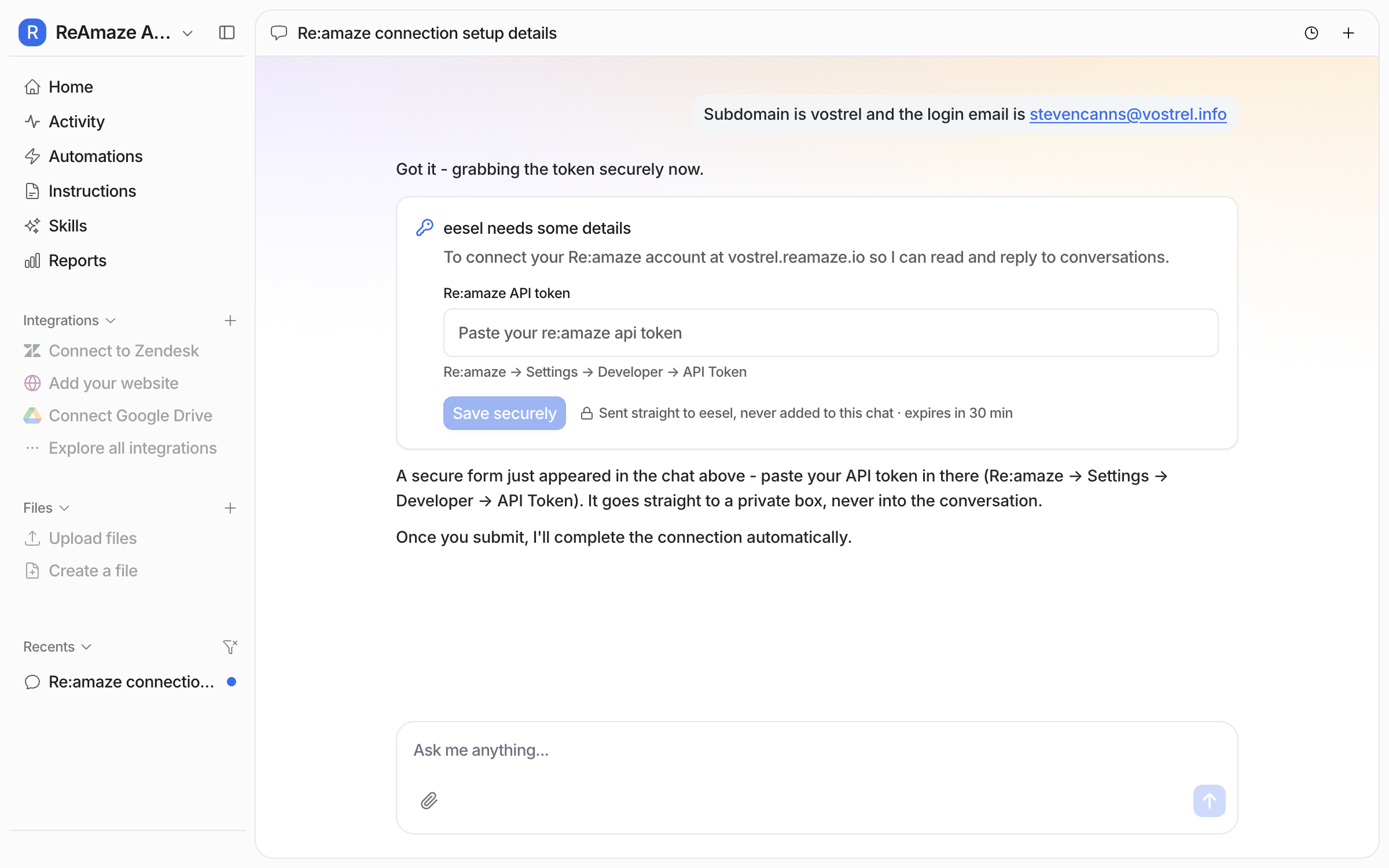
Once it has your subdomain and login email, your agent opens a secure form for the token. What you type there goes straight to eesel. It never enters the conversation, and your agent never sees it. The form expires after thirty minutes.

<figure><img src="https://3732419023-files.gitbook.io/~/files/v0/b/gitbook-x-prod.appspot.com/o/spaces%2F2xXO0947TYoPIhGoBgSE%2Fuploads%2Fgit-blob-4197c574228ddb40cc6435d1986dd03fb348487c%2Freamaze-token-form.png?alt=media" alt="A dashboard chat with a secure form asking for the Re:amaze API token, saying where to find it in Re:amaze and that it is sent straight to eesel and never added to the chat"><figcaption><p>The token goes into a secure form, not into the chat.</p></figcaption></figure>

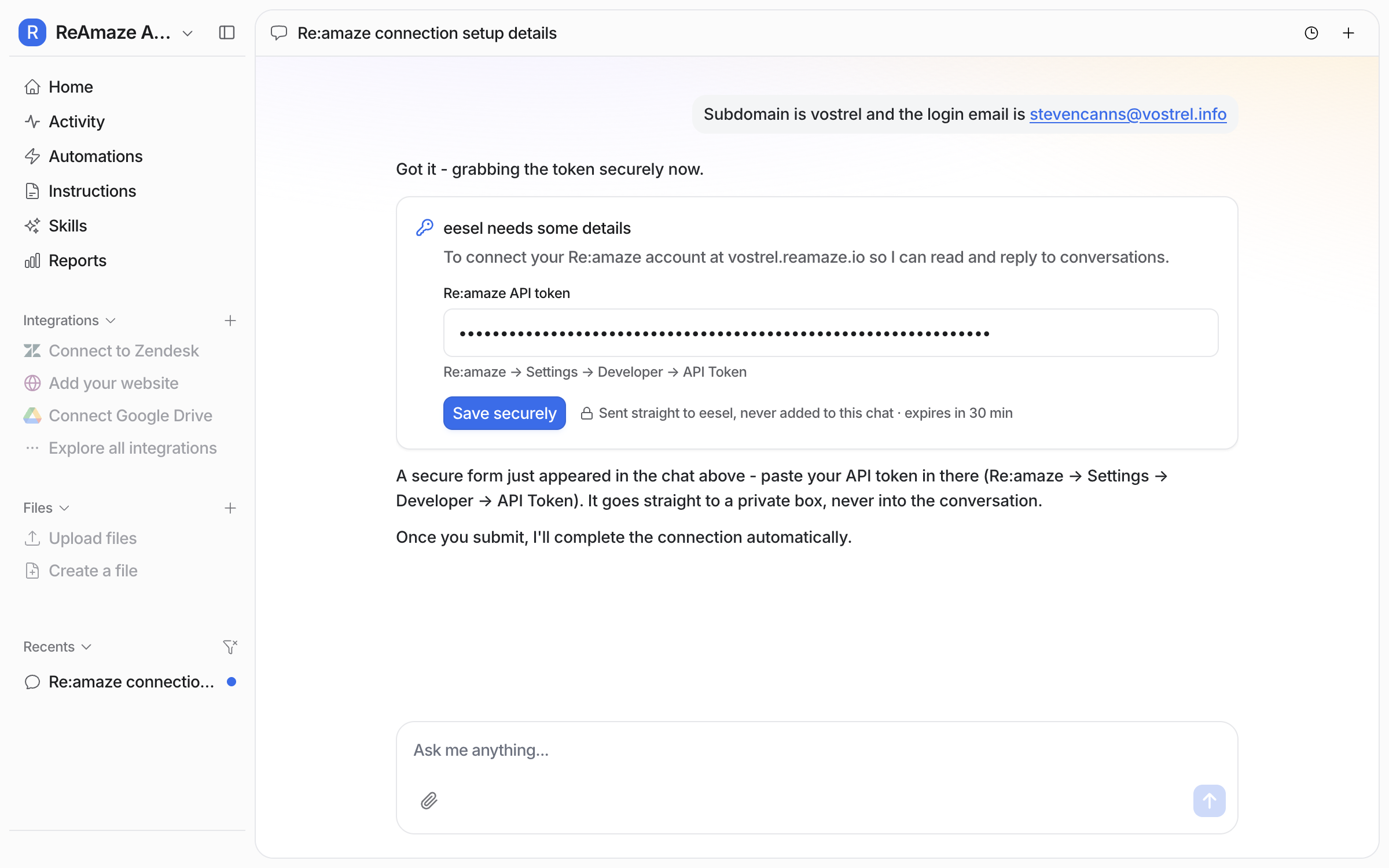
To get the token, open **Settings > Developer > API Token** in Re:amaze and copy it. Paste it into the form and click **Save securely**. It shows as dots, not text.

<figure><img src="https://3732419023-files.gitbook.io/~/files/v0/b/gitbook-x-prod.appspot.com/o/spaces%2F2xXO0947TYoPIhGoBgSE%2Fuploads%2Fgit-blob-adaaa07da022dcb562a2a7053b64077942293e9f%2Freamaze-token-pasted.png?alt=media" alt="The same secure form with the API token pasted in as hidden dots, ready to save"><figcaption><p>The pasted token stays hidden, ready to save.</p></figcaption></figure>
{% endstep %}

{% step %}

### Confirm the connection

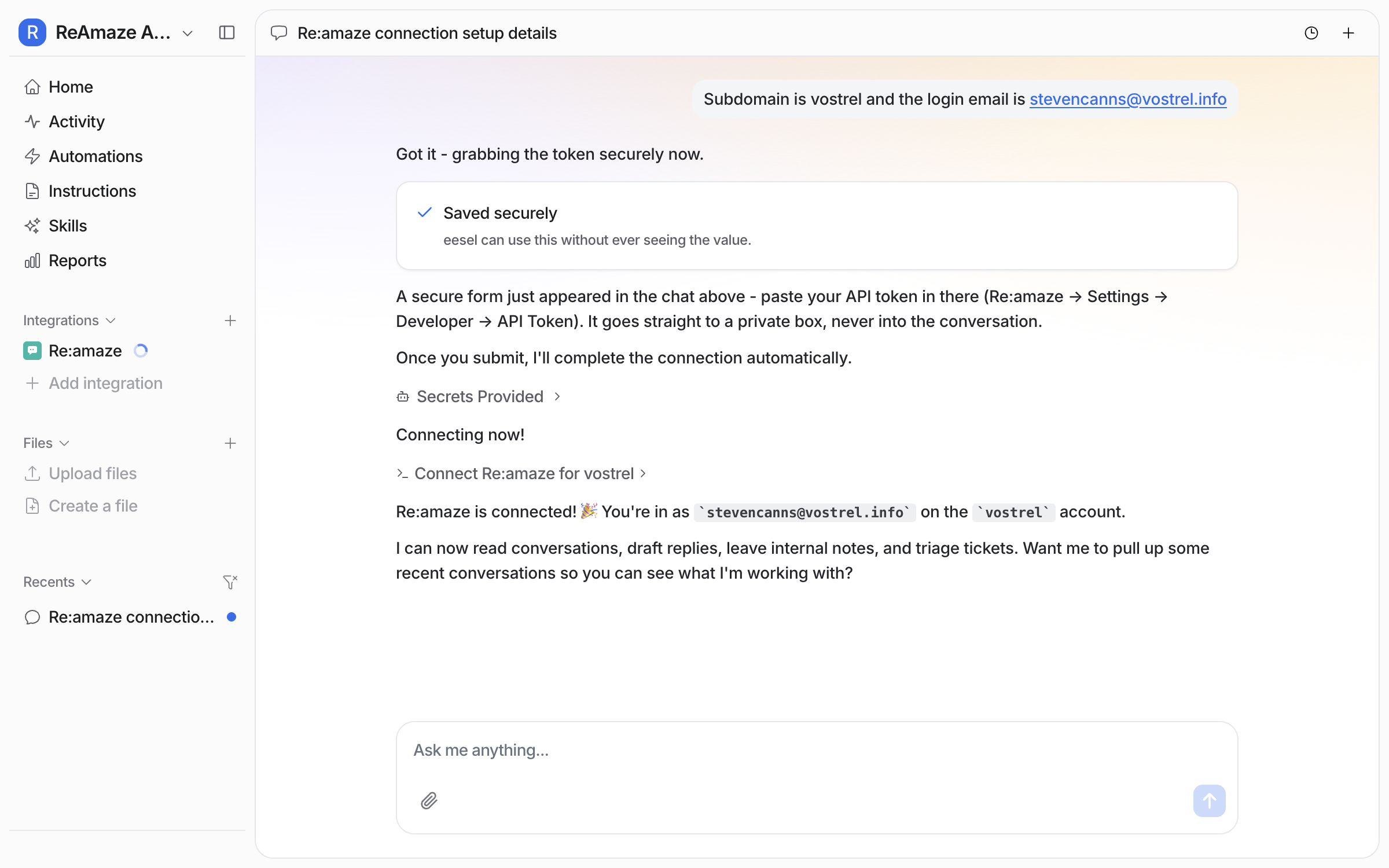
Saving the token finishes the connection. Your agent confirms which Re:amaze account it connected and which staff login it is working as.

<figure><img src="https://3732419023-files.gitbook.io/~/files/v0/b/gitbook-x-prod.appspot.com/o/spaces%2F2xXO0947TYoPIhGoBgSE%2Fuploads%2Fgit-blob-bff441a3eedf2081645f7c2e31c147eec9a4d444%2Freamaze-connected-chat.png?alt=media" alt="A dashboard chat showing the token saved securely, a secrets provided event, and the agent confirming which Re:amaze account and staff login it connected as"><figcaption><p>Your agent names the account and the staff login it connected as.</p></figcaption></figure>

**Check it worked.** **Integrations > Re:amaze** in the left sidebar shows the connection with your subdomain. From a terminal, `eesel status` lists Re:amaze as connected.
{% endstep %}

{% step %}

### Check what it can read

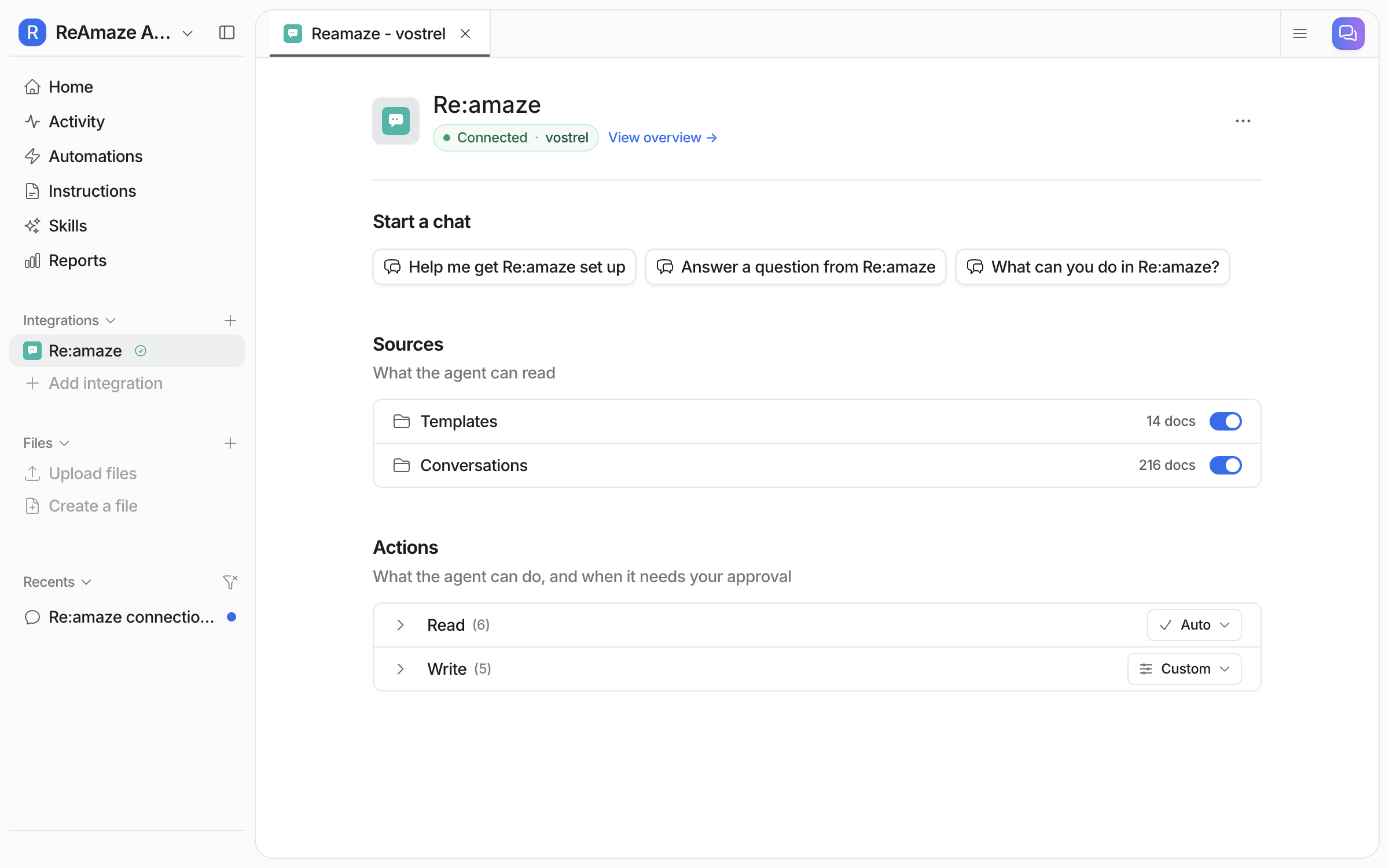
Open **Integrations > Re:amaze** to see what your agent pulled in. It reads two sources: **Templates**, your response templates, and **Conversations**, your past conversations. Each source has its own toggle, so you can leave one out without disconnecting. Each shows a document count once its first import finishes. Below the sources sit the actions, grouped as **Read** and **Write**.

<figure><img src="https://3732419023-files.gitbook.io/~/files/v0/b/gitbook-x-prod.appspot.com/o/spaces%2F2xXO0947TYoPIhGoBgSE%2Fuploads%2Fgit-blob-e507ec39efc24e952f74dcbc187ee65bf4353134%2Freamaze-integration-page.png?alt=media" alt="The connected Re:amaze integration page in eesel, listing Templates and Conversations as sources with document counts and toggles, above the Read and Write action groups"><figcaption><p>Each source has its own toggle and its own document count, with the actions below.</p></figcaption></figure>

Your help center articles are not listed here. Your agent reads them live from Re:amaze while it works.
{% endstep %}

{% step %}

### Try it on a real conversation

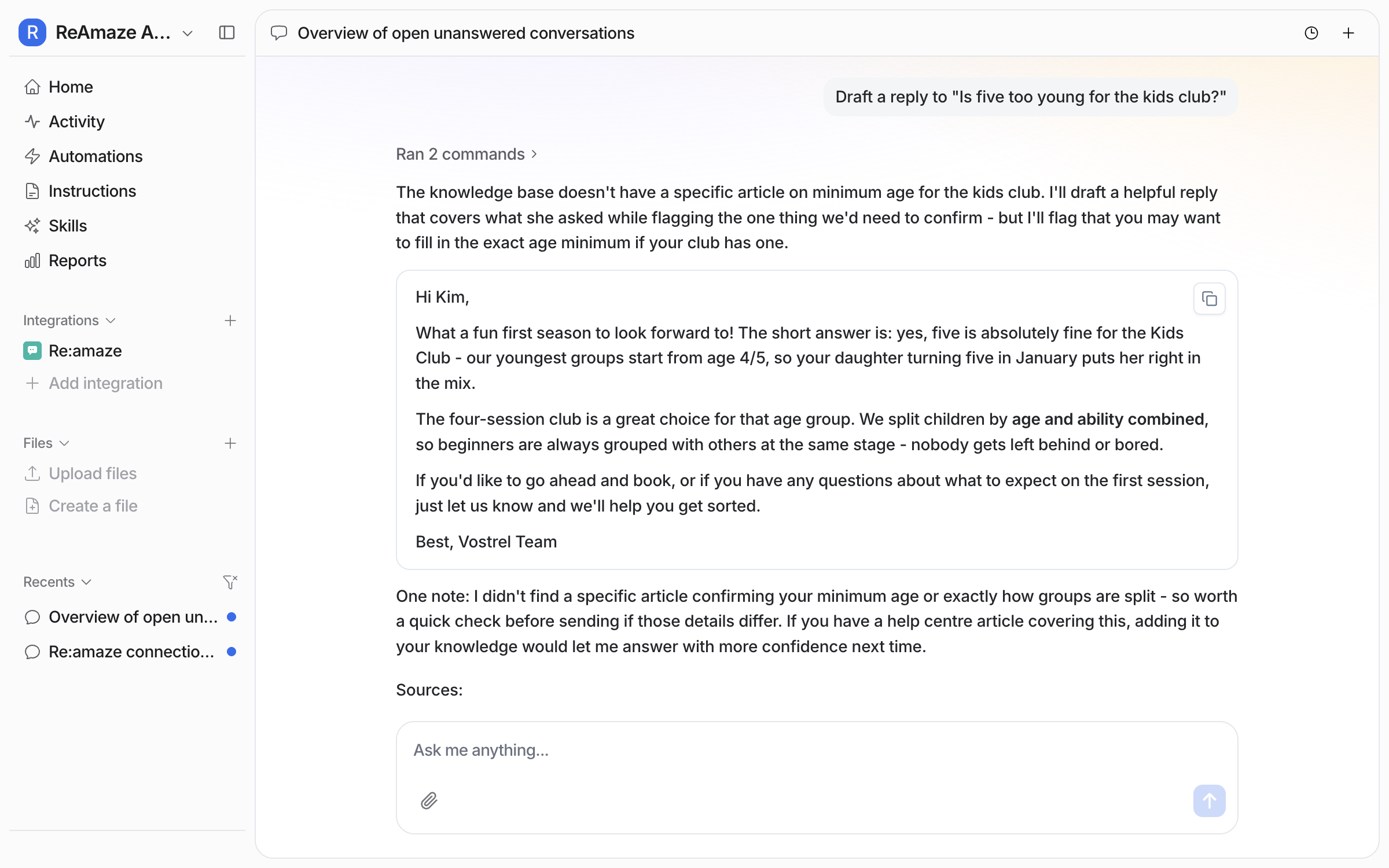
Before you automate anything, ask your agent to work a conversation in the chat. Ask which conversations have no reply yet, then ask for a draft on one. It reads the thread, checks your templates, past conversations and articles, and shows you the reply it would send.

<figure><img src="https://3732419023-files.gitbook.io/~/files/v0/b/gitbook-x-prod.appspot.com/o/spaces%2F2xXO0947TYoPIhGoBgSE%2Fuploads%2Fgit-blob-d5104887d2df6b339742f7bbdd583312b67d4bf2%2Freamaze-draft-in-chat.png?alt=media" alt="A dashboard chat where the user asks for a draft reply to a real unanswered Re:amaze conversation, and the agent returns a full drafted reply"><figcaption><p>Ask for a draft and your agent writes the reply it would send.</p></figcaption></figure>

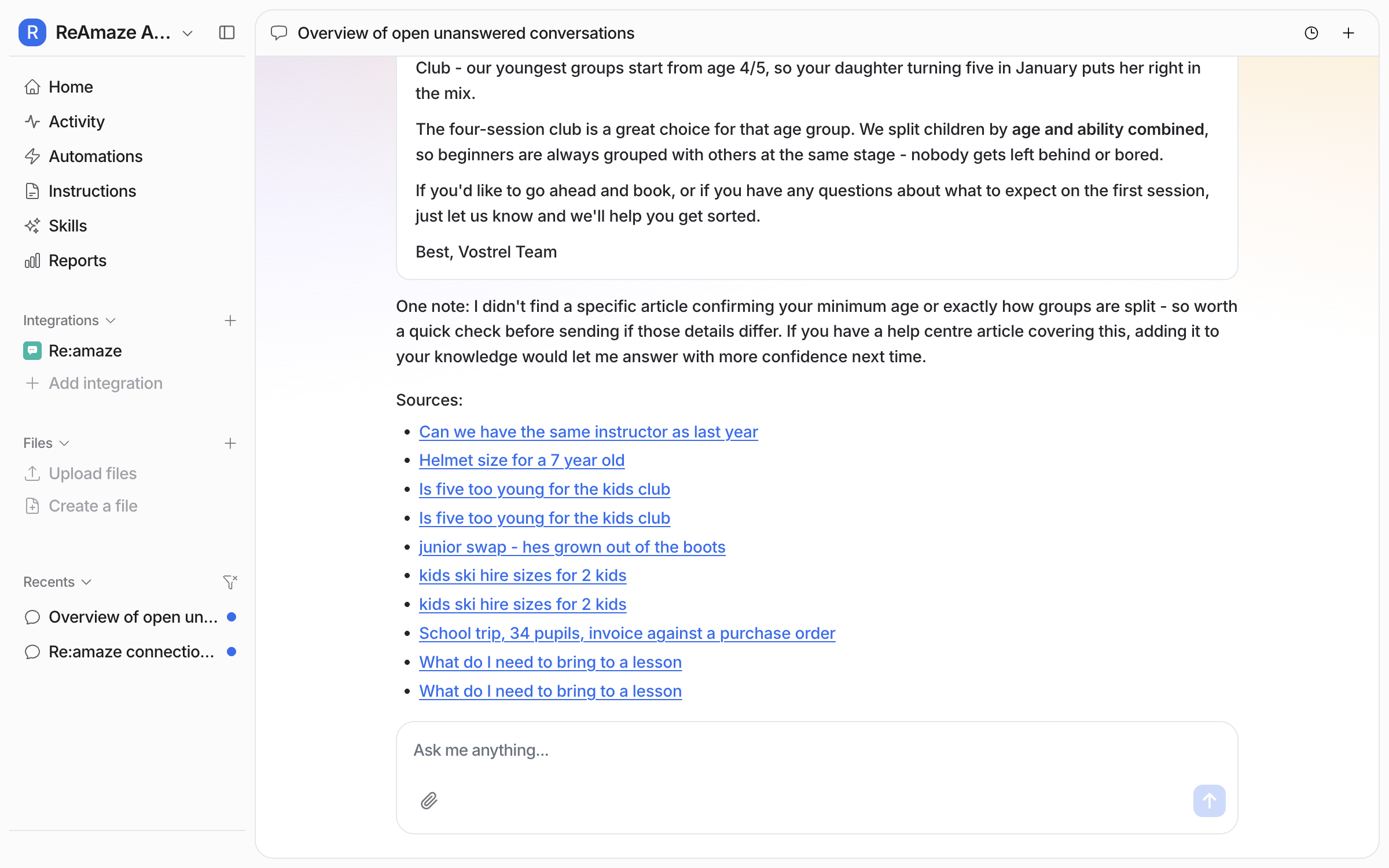
If no article confirms a detail, it says so instead of guessing. Under the draft it lists the conversations and articles it used.

<figure><img src="https://3732419023-files.gitbook.io/~/files/v0/b/gitbook-x-prod.appspot.com/o/spaces%2F2xXO0947TYoPIhGoBgSE%2Fuploads%2Fgit-blob-176ff5b7e484d56e7d2b32a9d0bcd7937c0873f8%2Freamaze-draft-sources.png?alt=media" alt="The same chat scrolled down, showing the agent&#x27;s note that no article confirms one detail, above the list of conversations and articles it used as sources"><figcaption><p>Every draft lists its sources and says what it could not confirm.</p></figcaption></figure>
{% endstep %}

{% step %}

### Correct it once and it remembers

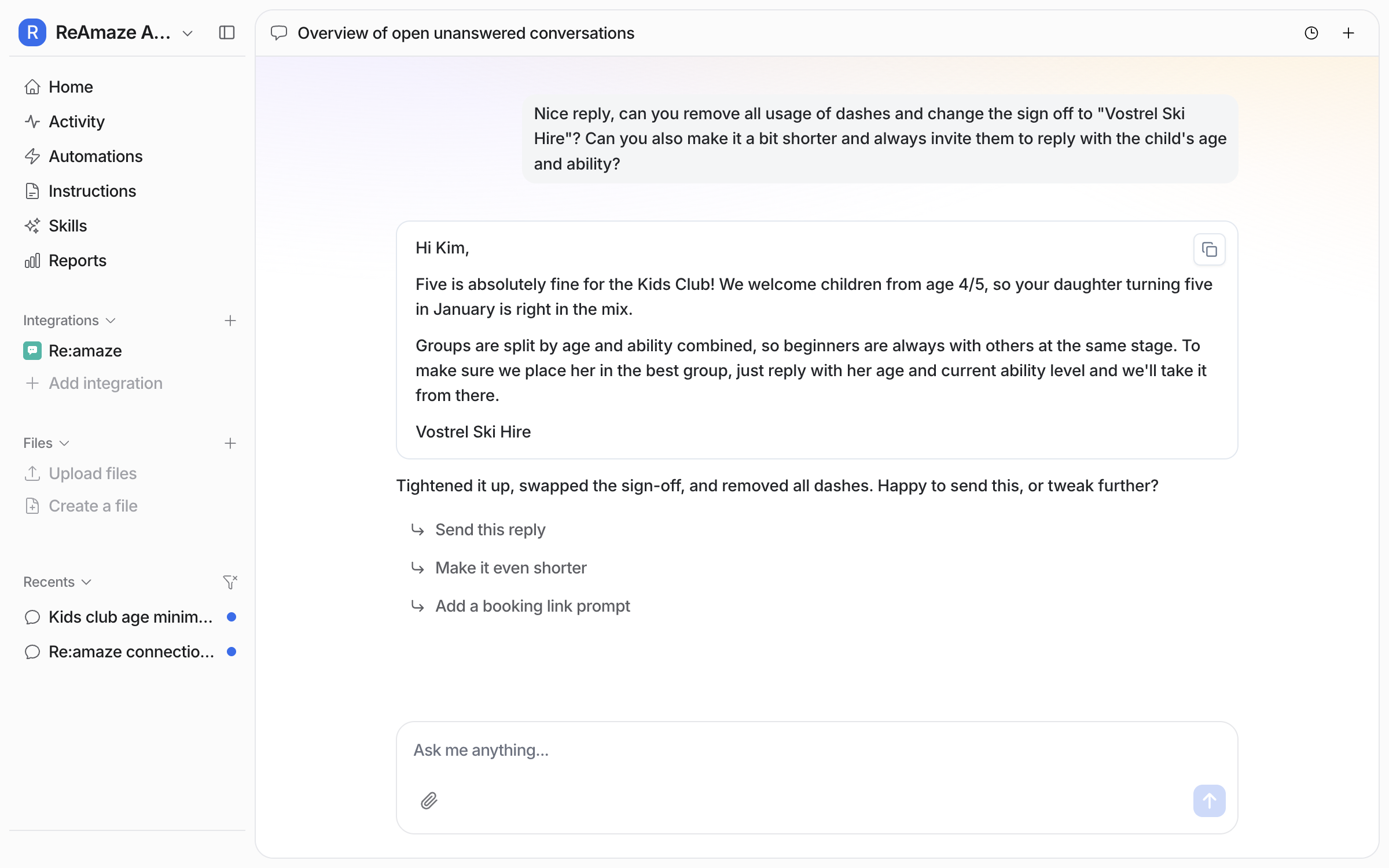
Tell your agent what to change and it rewrites the draft. Tone, length, sign-off, house rules.

<figure><img src="https://3732419023-files.gitbook.io/~/files/v0/b/gitbook-x-prod.appspot.com/o/spaces%2F2xXO0947TYoPIhGoBgSE%2Fuploads%2Fgit-blob-5c245fa893f0b352ea5ece3e9be667f71276ade6%2Freamaze-draft-corrected.png?alt=media" alt="A dashboard chat where the user asks for changes to tone, length and sign-off, and the agent returns the rewritten draft"><figcaption><p>Ask for a change and your agent rewrites the draft.</p></figcaption></figure>

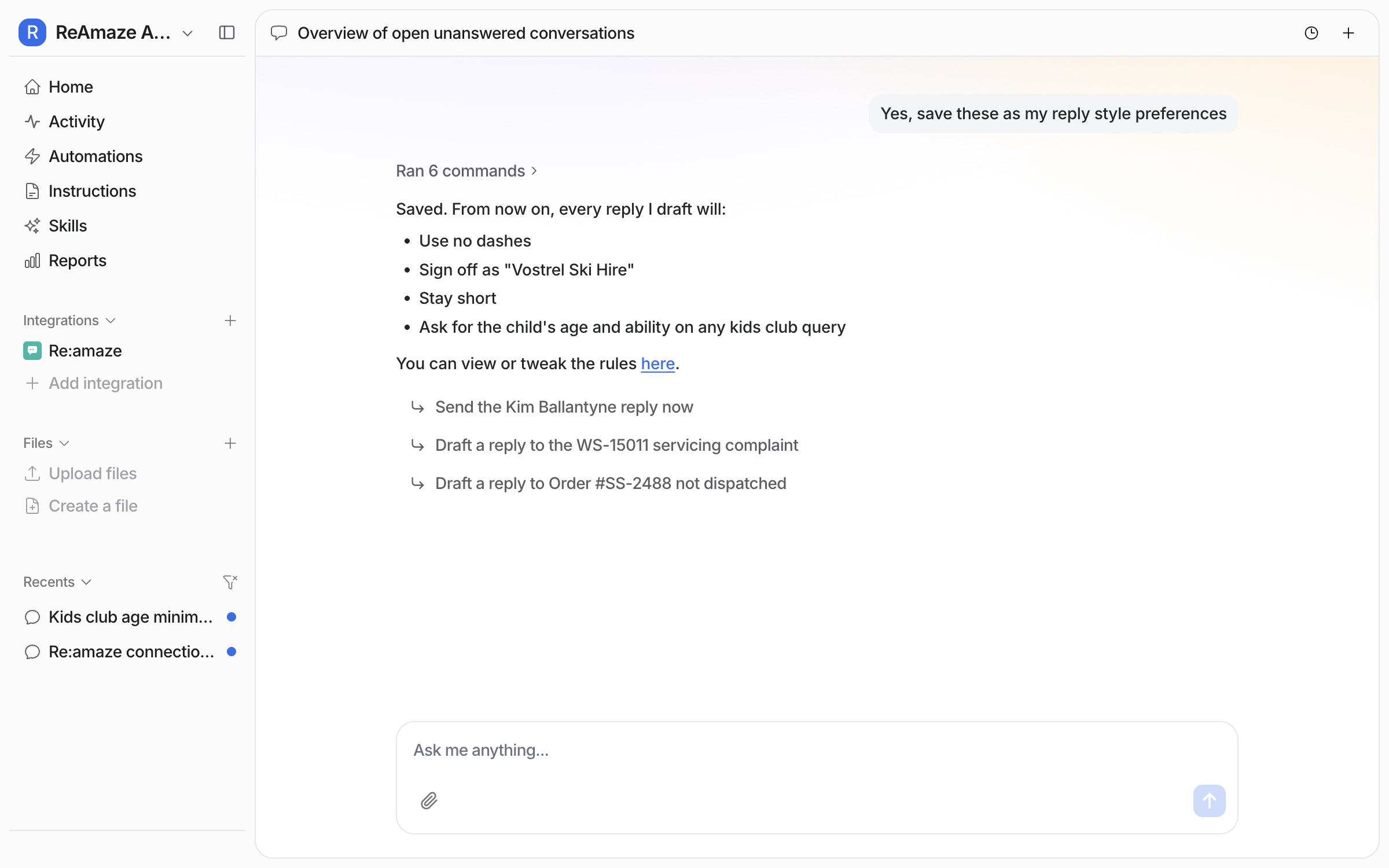
Then ask it to keep those preferences. It writes them into its own [instructions](/instructions-and-memory/instructions-and-memory.md), so every later draft follows them, in chat and on a schedule.

<figure><img src="https://3732419023-files.gitbook.io/~/files/v0/b/gitbook-x-prod.appspot.com/o/spaces%2F2xXO0947TYoPIhGoBgSE%2Fuploads%2Fgit-blob-8915dce9d2d847149008f5f6f939d31c2e24bd8b%2Freamaze-style-saved.png?alt=media" alt="A dashboard chat where the user asks to save the reply style, and the agent confirms the rules it saved and links to the instructions page"><figcaption><p>Your agent confirms the rules it saved and links to them.</p></figcaption></figure>

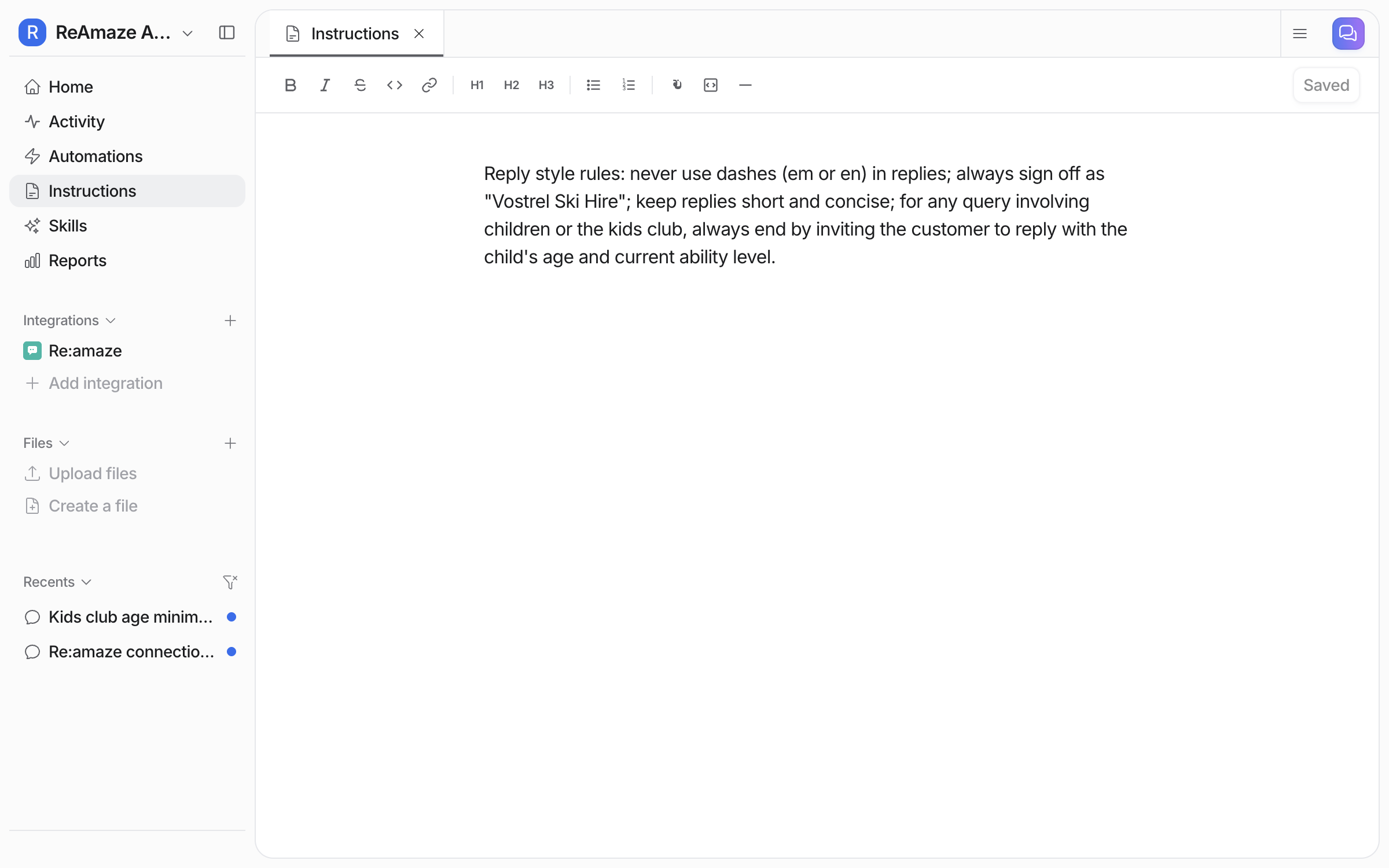
**Check it worked.** Your **Instructions** page holds the rules in plain sentences, and you can edit them there. From a terminal, `eesel instructions` shows the same text.

<figure><img src="https://3732419023-files.gitbook.io/~/files/v0/b/gitbook-x-prod.appspot.com/o/spaces%2F2xXO0947TYoPIhGoBgSE%2Fuploads%2Fgit-blob-76d208ffbdb685ea583a0e749ff7cee970aae3bc%2Freamaze-instructions.png?alt=media" alt="The Instructions page in eesel holding the saved reply style rules"><figcaption><p>The saved rules on your Instructions page.</p></figcaption></figure>
{% endstep %}

{% step %}

### Create your first automation, on a schedule

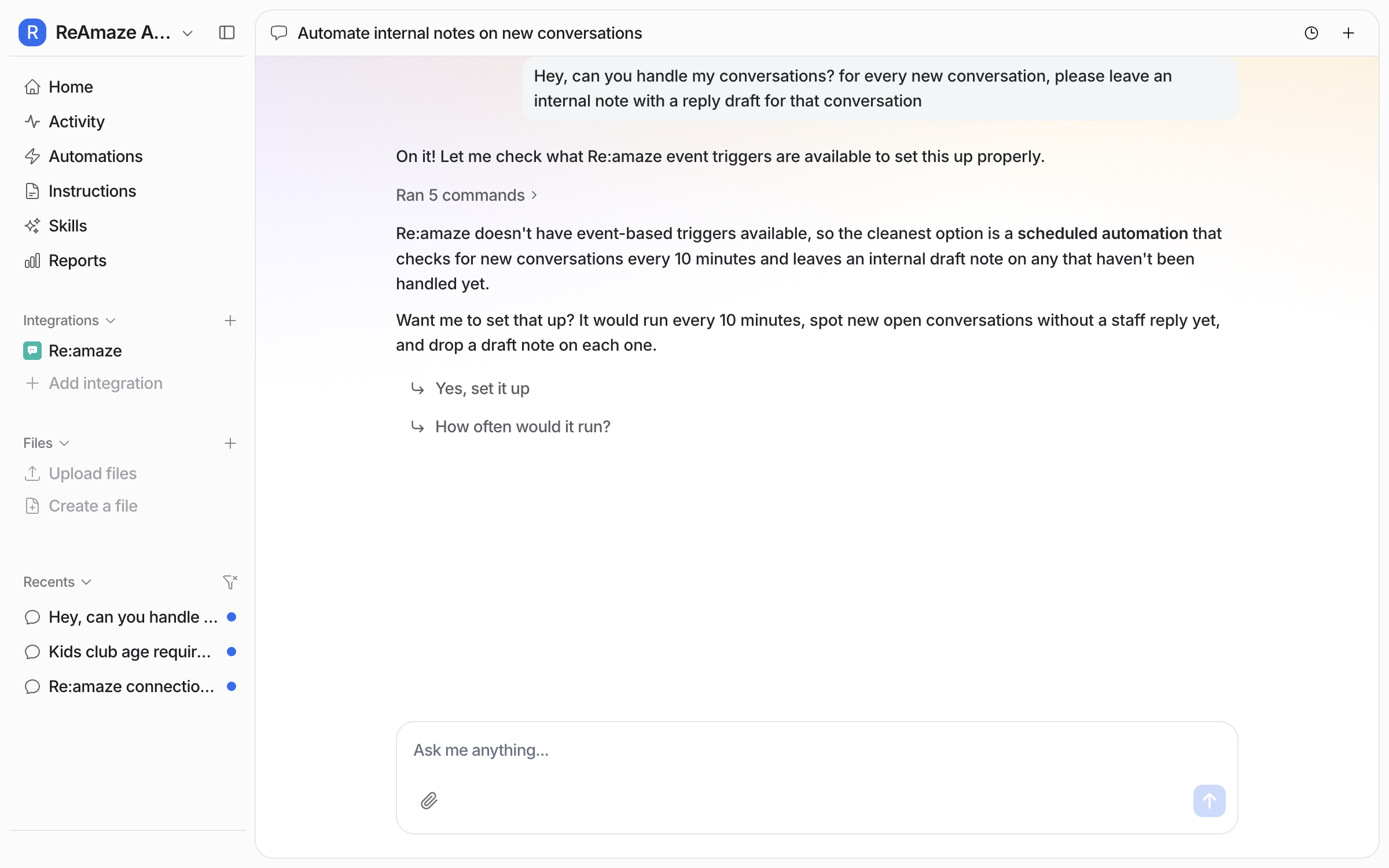
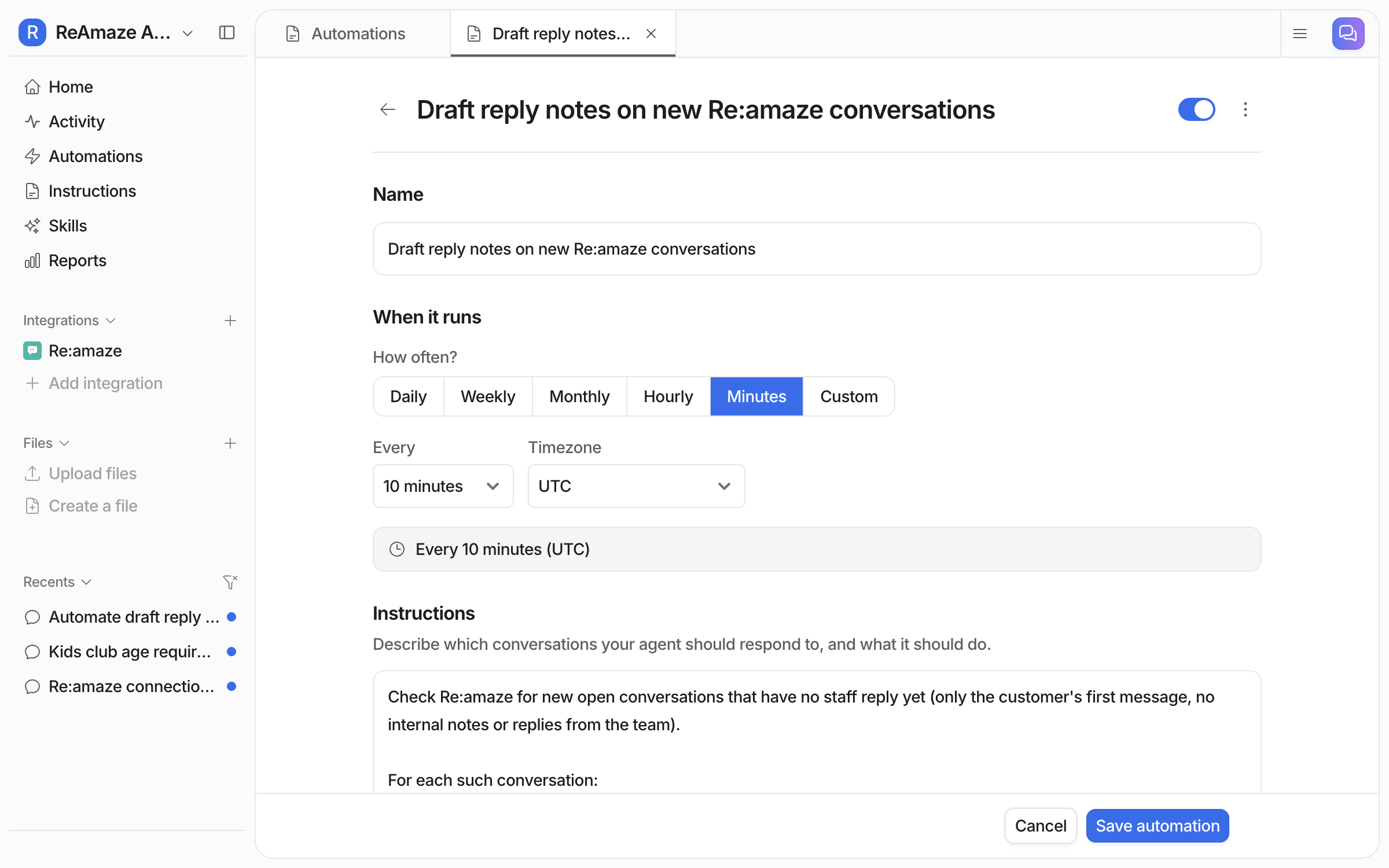
Connecting alone does not start your agent. It needs an automation first. Ask for what you want handled. For Re:amaze, your agent offers a scheduled automation: it checks your conversations on a timer and acts on the ones that match its instructions. The shortest interval is every ten minutes.

<figure><img src="https://3732419023-files.gitbook.io/~/files/v0/b/gitbook-x-prod.appspot.com/o/spaces%2F2xXO0947TYoPIhGoBgSE%2Fuploads%2Fgit-blob-09599a598f6831161b036af8ce56856c68f97e29%2Freamaze-schedule-chat.png?alt=media" alt="A dashboard chat where the agent offers a schedule that checks Re:amaze for new conversations every ten minutes"><figcaption><p>Your agent offers a schedule that checks Re:amaze every ten minutes.</p></figcaption></figure>

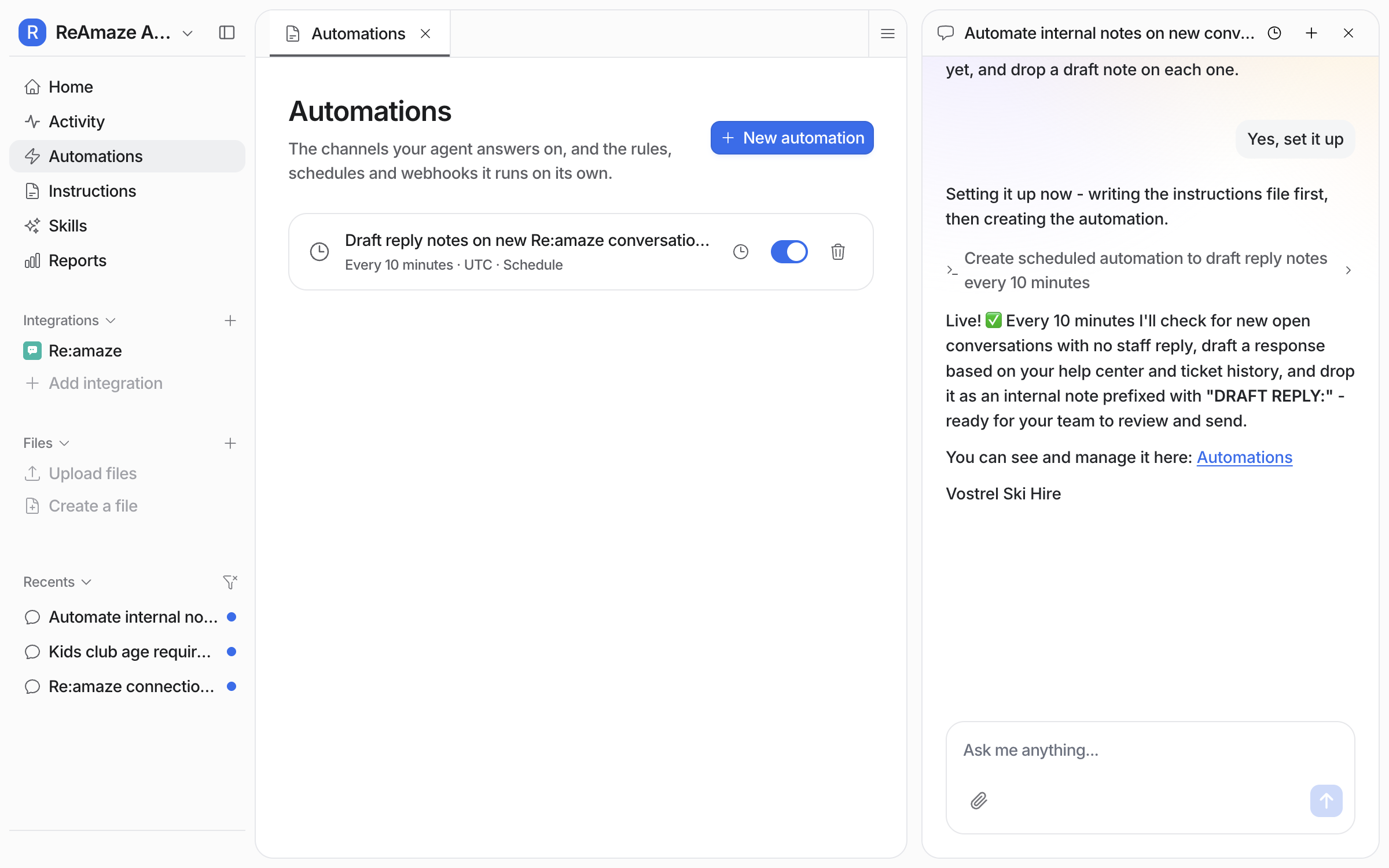
Say yes and it creates the [automation](/automations-and-schedules/automations-and-schedules.md): a schedule plus instructions saying which conversations to take and what to do with them. It appears on your Automations page, switched on.
<figure><img src="https://3732419023-files.gitbook.io/~/files/v0/b/gitbook-x-prod.appspot.com/o/spaces%2F2xXO0947TYoPIhGoBgSE%2Fuploads%2Fgit-blob-7218e0b34dbf52379f4ff8df5a6337723c589766%2Freamaze-schedule-live.png?alt=media" alt="The Automations page in eesel with the new Re:amaze schedule listed, running every ten minutes in UTC and switched on"><figcaption><p>The new schedule on your Automations page, switched on.</p></figcaption></figure>

Open it to change how often it runs, the timezone, or what it does. On every run your agent checks Re:amaze for conversations that match the instructions and acts on the ones it finds.

<figure><img src="https://3732419023-files.gitbook.io/~/files/v0/b/gitbook-x-prod.appspot.com/o/spaces%2F2xXO0947TYoPIhGoBgSE%2Fuploads%2Fgit-blob-7bb86174975322b460aad04fb695cba850c5ef4a%2Freamaze-schedule-editor.png?alt=media" alt="The schedule editor with Minutes selected, Every 10 minutes and UTC chosen, above the instructions telling the agent what to do with each conversation it finds"><figcaption><p>The schedule editor, where you set how often it runs and what it does.</p></figcaption></figure>

**Check it worked.** Your **Automations** page lists the schedule, switched on, with its interval under the name. From a terminal, `eesel automations` lists it as on.
{% endstep %}

{% step %}

### Check automation work in Re:amaze

On a fresh connection, every action that changes a conversation asks you first, so the first note waits for your approval on your **Activity** page. Approve it, or choose **Always allow** once you trust it.

Then wait for the next run and open Re:amaze. In this example a customer emailed the support channel. The next run found the conversation with no staff reply, and your agent left its drafted reply as an internal note.

<figure><img src="https://3732419023-files.gitbook.io/~/files/v0/b/gitbook-x-prod.appspot.com/o/spaces%2F2xXO0947TYoPIhGoBgSE%2Fuploads%2Fgit-blob-aecb8d17640d87b6a47e526b4f28c0143c37e825%2Freamaze-note-on-conversation.png?alt=media" alt="A Re:amaze conversation with the customer&#x27;s email at the top and an internal note beneath it holding your agent&#x27;s drafted reply"><figcaption><p>The customer's message, with your agent's internal note underneath.</p></figcaption></figure>

The note is internal, so the customer never sees it. A teammate reads it, edits what they want, and sends.

<figure><img src="https://3732419023-files.gitbook.io/~/files/v0/b/gitbook-x-prod.appspot.com/o/spaces%2F2xXO0947TYoPIhGoBgSE%2Fuploads%2Fgit-blob-8ef770017125d0d4822a5075570fc267ee5c430e%2Freamaze-note-in-full.png?alt=media" alt="The internal note opened in full, showing the whole drafted reply down to the team&#x27;s sign-off"><figcaption><p>The whole drafted reply, ending in the sign-off your team asked for.</p></figcaption></figure>
{% endstep %}
{% endstepper %}

{% hint style="info" %}
**From Claude Code, Cursor or a terminal.** `eesel login` signs you in and `eesel init` walks the setup. `eesel integrations connect reamaze` prints the details Re:amaze needs: the subdomain, the staff login email and the API token. A person must copy the token from Re:amaze, and it must not pass through a chat, so do the connect step in the dashboard chat, where your agent opens the secure form and waits for the person. Then `eesel status` confirms the connection, `eesel integrations download start` copies your templates and conversations in, and `eesel automations` shows the schedule once it exists. Full command reference: [The eesel CLI](/apis-and-developer-resources/cli.md). Step-by-step: [Set up from Claude Code or the terminal](/getting-started/set-up-from-a-coding-agent.md). From a Model Context Protocol client: [Claude Code and MCP clients](/apis-and-developer-resources/claude-code-and-mcp-clients.md).
{% endhint %}

## Sources, schedules and actions

### Sources

Sources are what it learns from:

| Source            | What your agent reads                                                            |
| ----------------- | -------------------------------------------------------------------------------- |
| **Templates**     | Your response templates, so it reuses a canned reply word for word when one fits |
| **Conversations** | Your past conversations, so it learns how your team already answers              |

Your help center articles are read live from Re:amaze through the **List articles** action, so a new article is available to your agent the moment you publish it.

Every other integration on your agent is also a source, so a Re:amaze reply can draw on your website, Confluence and your files at once. See [Integrations](/integrations/overview.md).

### Schedules

A Re:amaze automation runs on a schedule. On each run your agent checks Re:amaze for conversations that match its instructions and acts on the ones it finds. You can change how often it runs at any time.

|                           |                                                                                                  |
| ------------------------- | ------------------------------------------------------------------------------------------------ |
| **How often**             | As often as every ten minutes, or hourly, daily, weekly, or a pattern you set                    |
| **What it handles**       | Whatever the instructions describe, for example open conversations with no staff reply yet       |
| **What customers notice** | A new conversation is picked up on the next run, so within ten minutes on the ten minute setting |

Anything your agent can do on request it can do on a schedule: drafting notes, replying, tagging, assigning and triage. See [Automations and Schedules](/automations-and-schedules/automations-and-schedules.md).

### Actions

Actions are what it can do. The integration page groups them as **Read** and **Write**. Read actions only look things up, so they run on their own from the start. Write actions, the ones that change a conversation, ask you first until you change that.

|             | Action                  | What it does                                                                                                                 |
| ----------- | ----------------------- | ---------------------------------------------------------------------------------------------------------------------------- |
| **Respond** | Send conversation reply | Sends a reply the customer can see. Before it posts, it reads the thread once more and stops if someone has already answered |
|             | Leave internal note     | Adds a private note only your team sees. Start here: your agent drafts, a person sends                                       |
| **Manage**  | Update conversation     | Sets tags, assignee and status                                                                                               |
|             | Create conversation     | Opens a new conversation on a customer's behalf                                                                              |
| **Look up** | List conversations      | Lists your conversations. It can narrow to open, unassigned or archived ones, or filter by customer email or tag             |
|             | Read conversation       | Reads a whole thread in order, with each message's author and whether the customer could see it                              |
|             | List articles           | Lists your help center articles                                                                                              |
|             | List response templates | Lists your canned replies                                                                                                    |
|             | List channels           | Lists your channels, with each one's name and type                                                                           |
|             | Get contact             | Looks up a contact by name or email                                                                                          |

Replying does not close the conversation, even though Re:amaze normally does. Tags are only ever added, never removed.

## Troubleshooting

<details>

<summary>Nothing happened after a new conversation arrived?</summary>

Your agent picks conversations up on the next scheduled run, so on the ten minute setting allow up to ten minutes. Check the automation is switched on on your **Automations** page, and open your **Activity** page to see each run and what it decided.

</details>

<details>

<summary>The drafted note never appeared?</summary>

Look at the run on your **Activity** page. On a fresh connection the write actions ask you first, so the note is probably waiting on an approval rather than failing. Approve it there, or choose **Always allow** so that action runs on its own from then on.

</details>

<details>

<summary>Your agent says somebody already replied?</summary>

Before it posts a reply, your agent reads the thread once more. If the last message the customer can see is already an answer, from your agent or from a person, it stops and tells you. This is what stops a customer being answered twice.

</details>

<details>

<summary>Authorization errors after changing the token?</summary>

A rotated or revoked token means connecting again with the new one. Ask your agent to connect Re:amaze and it opens the secure form for you.

</details>

<details>

<summary>Which email address do customers write to?</summary>

Your agent cannot read a channel's inbound email address from Re:amaze. Find it in your Re:amaze channel settings. An email to that address becomes a conversation, which the next scheduled run then picks up.

</details>

## FAQ

<details>

<summary>How do I keep a person in the loop?</summary>

Two ways, and you can use both. Turn on **Leave internal note** instead of **Send conversation reply**, so your agent writes a private note your team reads, edits and sends. Or leave the reply action set to ask you first, so it shows you what it wants to send and waits. When an action asks first, the prepared reply appears in your dashboard with three buttons: Approve runs it once, Always allow stops asking for that action, and Deny discards it.

</details>

<details>

<summary>Does connecting Re:amaze start replying to customers on its own?</summary>

No. Connecting only gives your agent access to your templates and conversations. It needs an automation before it acts at all, and the write actions ask you first until you change that.

</details>

<details>

<summary>How quickly does it pick up a new conversation?</summary>

On the next scheduled run. Set the schedule to every ten minutes and a new conversation is picked up within ten minutes.

</details>

<details>

<summary>Whose name do replies appear under?</summary>

The staff account whose API token you connected. Replies and internal notes post as that person. To change it, connect again with a token from the account you want.

</details>

<details>

<summary>Can I connect more than one Re:amaze account?</summary>

Yes. Connect each one the same way. When more than one is connected, your agent asks which account you mean.

</details>

<details>

<summary>How is this billed?</summary>

Pay-as-you-go: a conversation your agent handles is one task, however many replies happen on it, and chats you run yourself from the eesel dashboard are free. See [Pricing](/pricing/overview.md) for rates, the annual commitment, and Enterprise.

</details>

## Related pages

* [Helpdesk](/use-cases/helpdesk.md) for the job your teammate takes on in a ticket queue
* [Automations and Schedules](/automations-and-schedules/automations-and-schedules.md) for how schedules work, and what else can run on one
* [Actions and Approvals](/instructions-and-memory/actions-and-approvals.md) for setting each action to run on its own, ask you first, or stay off
* [Integrations overview](/integrations/overview.md) for how sources and actions fit together across your apps
* [Set up from Claude Code or the terminal](/getting-started/set-up-from-a-coding-agent.md)


---

# Agent Instructions
This documentation is published with GitBook. GitBook is the documentation platform designed so that both humans and AI agents can read, navigate, and reason over technical content effectively. Learn more at gitbook.com.

## Querying This Documentation
If you need additional information that is not directly available in this page, you can query the documentation dynamically by asking a question.

Perform an HTTP GET request on the current page URL with the `ask` query parameter, and the optional `goal` query parameter:

```
GET https://docs.eesel.ai/integrations/helpdesks/reamaze.md?ask=<question>&goal=<endgoal>
```

`ask` is the immediate question: it should be specific, self-contained, and written in natural language.
`goal` is optional and describes the broader end goal you are ultimately trying to accomplish on behalf of the user. GitBook uses it to tailor the answer towards what is most useful for that goal.

The response will contain a direct answer to the question and relevant excerpts and sources from the documentation.

Use this mechanism when the answer is not explicitly present in the current page, you need clarification or additional context, or you want to retrieve related documentation sections.