> For the complete documentation index, see [llms.txt](https://docs.eesel.ai/llms.txt). Markdown versions of documentation pages are available by appending `.md` to page URLs; this page is available as [Markdown](https://docs.eesel.ai/integrations/helpdesks/zendesk.md).

# Zendesk

Invite your AI teammate into Zendesk so it drafts or sends replies on tickets, tags and routes the rest, and learns from your help center, macros and past tickets.

Invite your AI teammate into Zendesk and it works like any other agent on your team. It reads your help center, your macros and your past tickets, so it already knows how your team answers before it handles anything. Then it picks up tickets the way you tell it to: drafting replies for a person to check, answering the routine ones itself, tagging and routing the rest.

You stay in control the whole way. Nothing runs until you create an automation. For each action you then choose: run on its own, ask you first, or stay off.

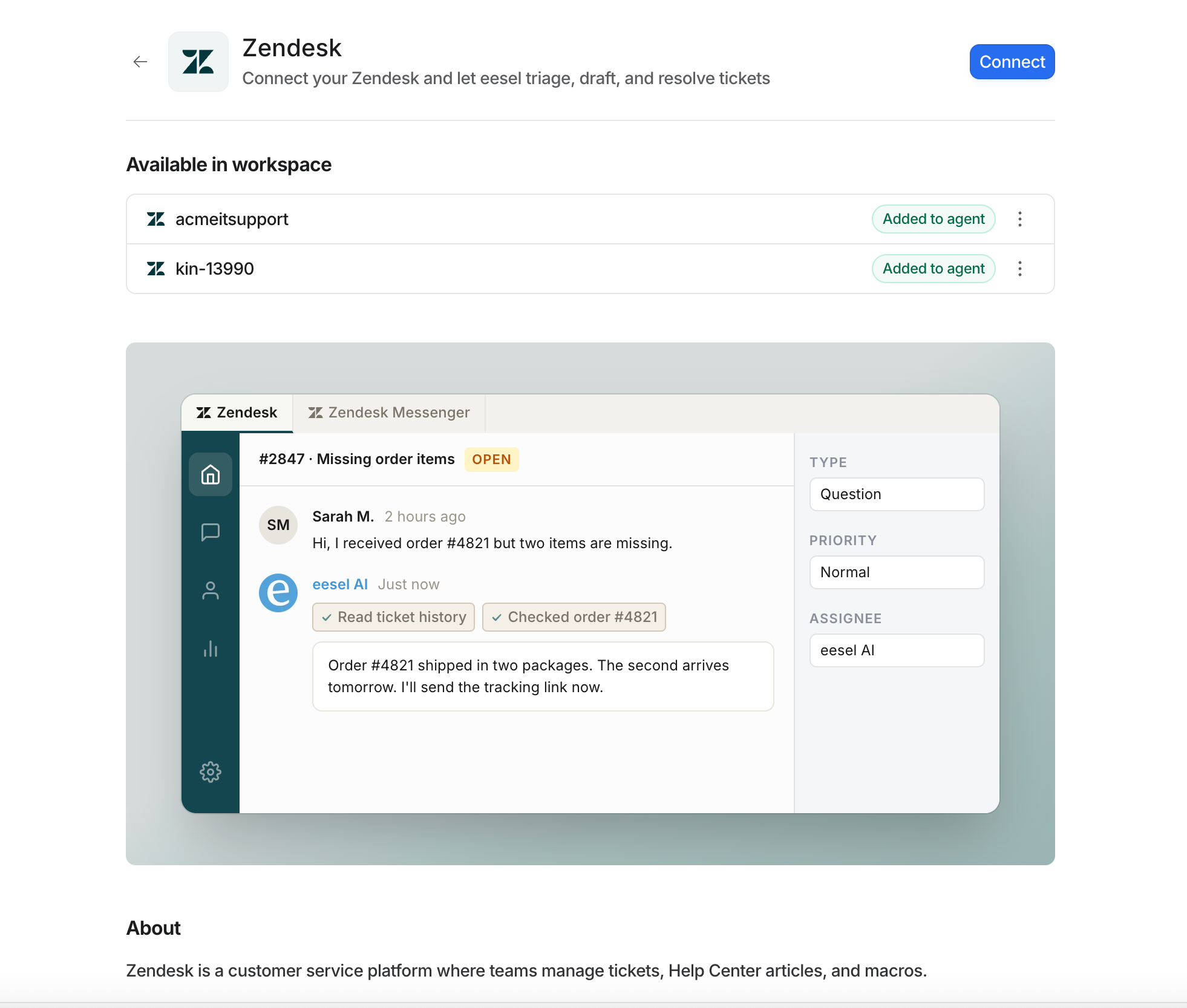
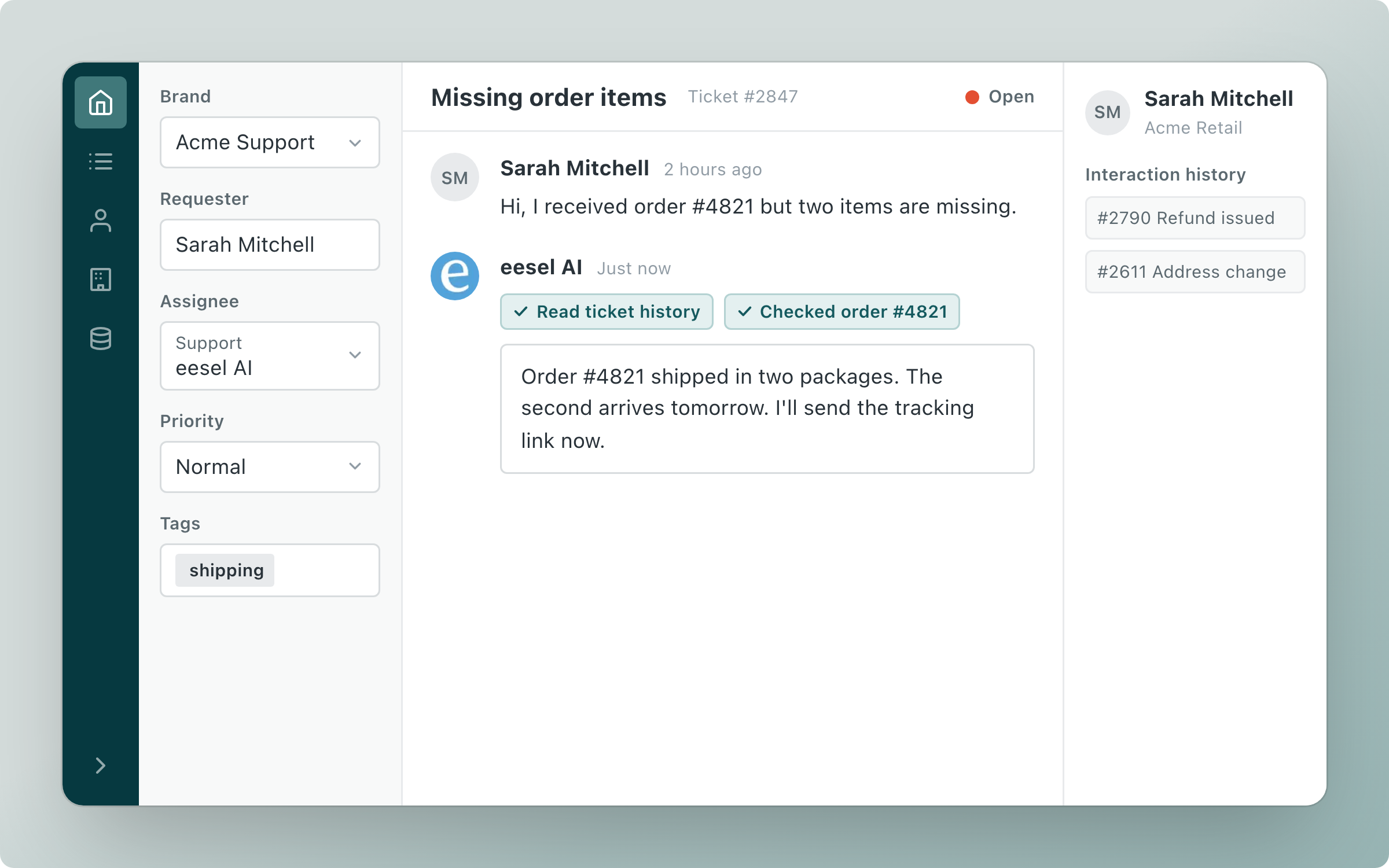
In this example the agent read the ticket history, checked the order, and drafted a public reply.

<figure><img src="https://3732419023-files.gitbook.io/~/files/v0/b/gitbook-x-prod.appspot.com/o/spaces%2F2xXO0947TYoPIhGoBgSE%2Fuploads%2Fgit-blob-88ac1c2ea1a2874f615c6a3cd3611d4037cd6a24%2Fzendesk-hero.png?alt=media" alt="A Zendesk ticket about missing order items, assigned to eesel AI, with the public reply it drafted after reading the ticket history and checking the order"><figcaption><p>A Zendesk ticket about missing order items, assigned to eesel AI, with the public reply it drafted.</p></figcaption></figure>

## Quick start

{% stepper %}
{% step %}

### Ask your agent to connect Zendesk

Open the chat in your dashboard and tell it what you want. It walks you through connecting. It asks for whatever it needs, and confirms when it is done. Prefer to click? **Integrations** in the left sidebar has the same options.

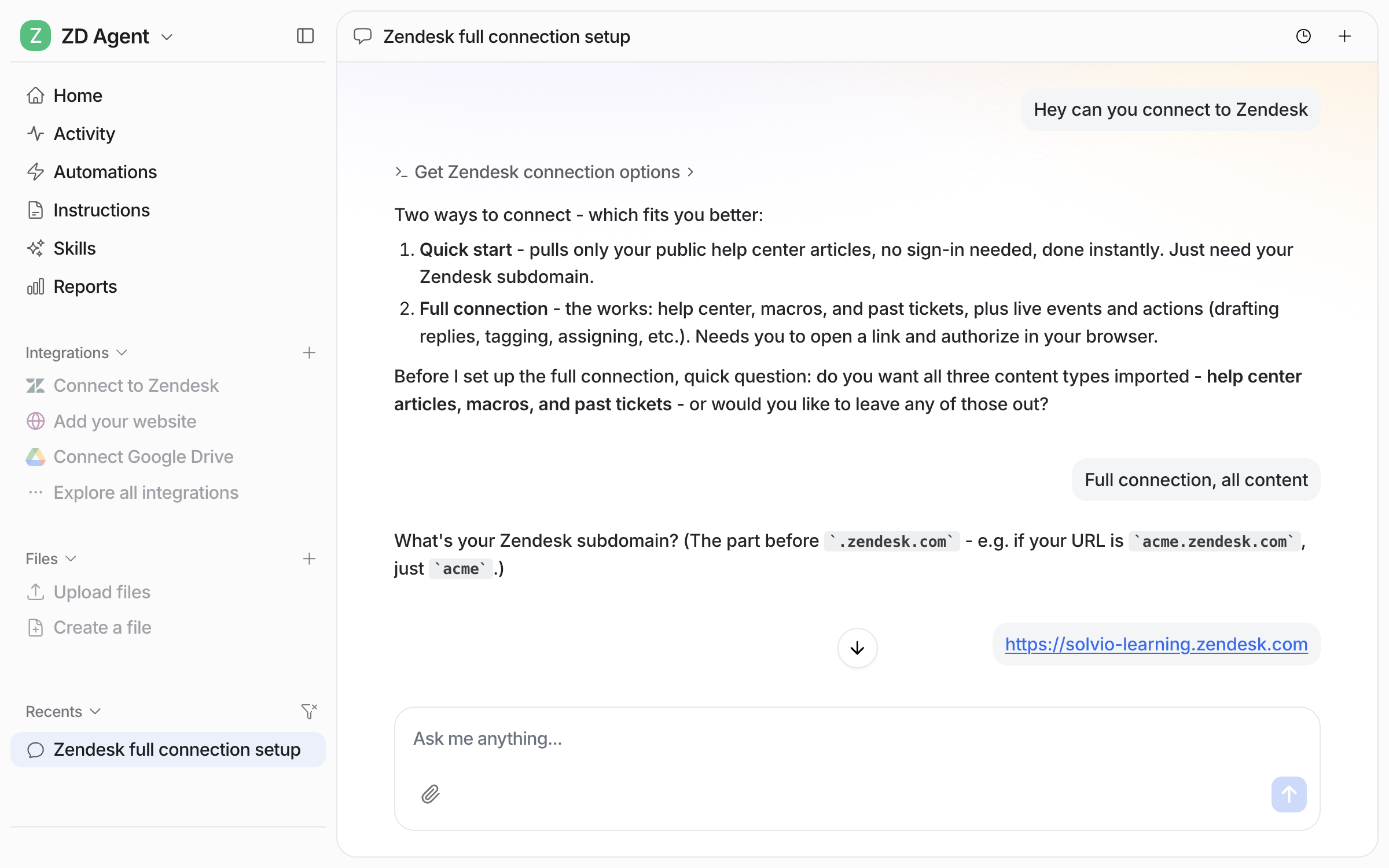
<figure><img src="https://3732419023-files.gitbook.io/~/files/v0/b/gitbook-x-prod.appspot.com/o/spaces%2F2xXO0947TYoPIhGoBgSE%2Fuploads%2Fgit-blob-7841efc5609a1fff040c4cafd47de94e6414f175%2Fzendesk-connect-chat.png?alt=media" alt="A dashboard chat where the user asks the agent to connect Zendesk, and the agent lays out the Quick start and Full connection options"><figcaption><p>The agent offers two ways to connect Zendesk.</p></figcaption></figure>
{% endstep %}

{% step %}

### Choose Quick start or Full connection

* **Quick start.** Give your Zendesk subdomain and it reads your public help center. No sign-in, but no tickets, macros, triggers or actions.
* **Full connection.** Your agent sends you a link to approve in Zendesk, and everything unlocks: past tickets and macros as knowledge, triggers, and actions.

Start with either. Moving to a full connection later keeps your help center and adds tickets, macros, triggers and actions.

<details>

<summary>Connecting a specific brand</summary>

Each brand connects separately, and each can go to a different agent with its own triggers and actions.

1. **Sign in to Zendesk first**, as an **agent**, at `https://<your-account-subdomain>.zendesk.com`. If you see the end-user form, click **Switch to agent sign-in**. If you are not signed in, Zendesk sends you to your default brand. It then connects that brand, not the one you wanted. So sign in first, then start the connection.
2. **Start a full connection** for the agent this brand belongs to, in chat or under **Integrations > Zendesk**.
3. **Give the brand subdomain** when asked, the part before .zendesk.com, for example `your-brand`. eesel imports tickets and help center articles from that brand only.

Click **Zendesk** under Integrations to see every connected brand and add or remove them.

<figure><img src="https://3732419023-files.gitbook.io/~/files/v0/b/gitbook-x-prod.appspot.com/o/spaces%2F2xXO0947TYoPIhGoBgSE%2Fuploads%2Fgit-blob-649bbe9772fe3838b14d49bffedd994cbf4e2a6f%2Fzendesk-multiple-accounts-connected.png?alt=media" alt="The Zendesk integration screen listing two connected Zendesk accounts"><figcaption><p>Two Zendesk brands connected to the same workspace.</p></figcaption></figure>

</details>
{% endstep %}

{% step %}

### Approve it in Zendesk

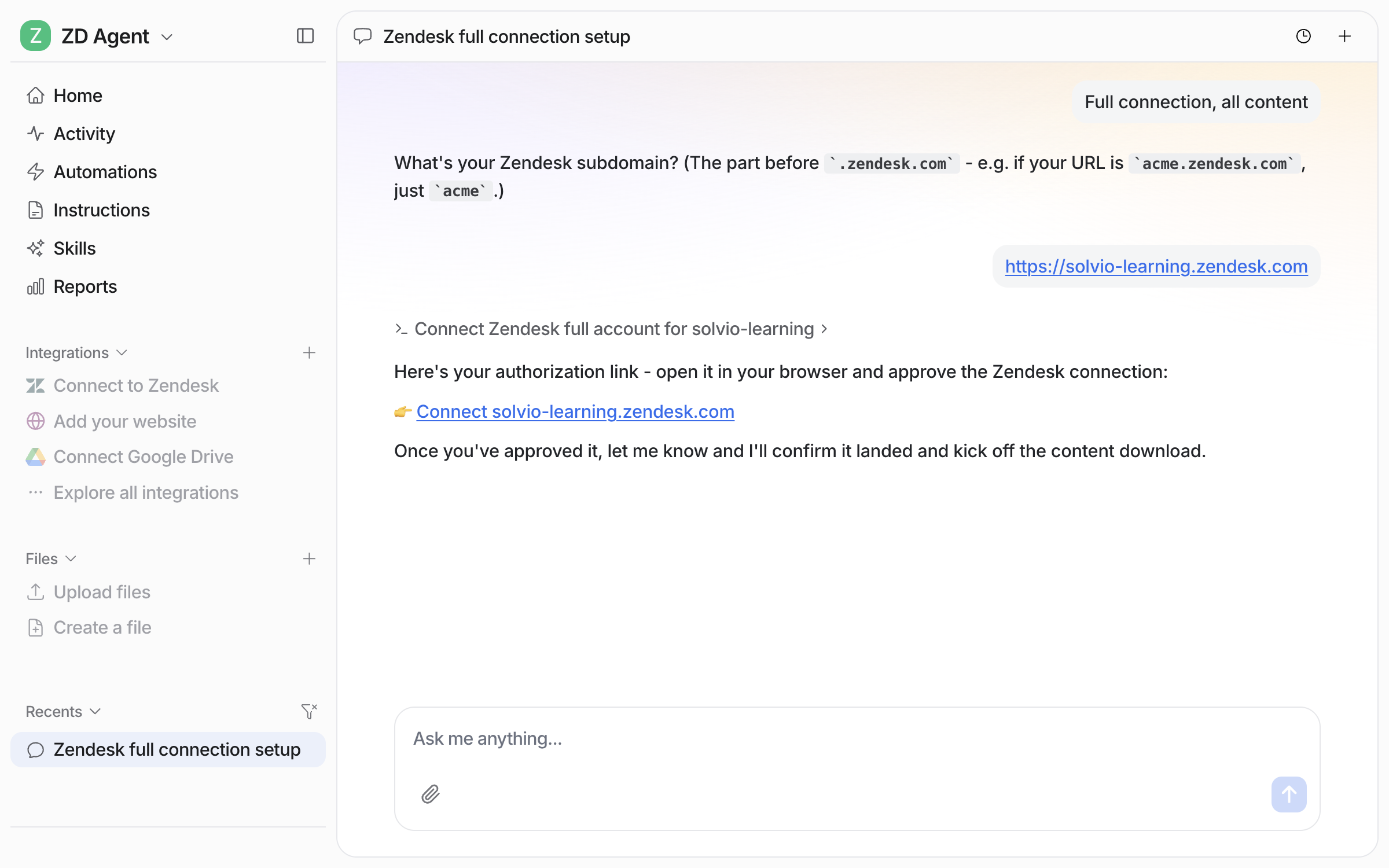
For a full connection, your agent hands you a link.

<figure><img src="https://3732419023-files.gitbook.io/~/files/v0/b/gitbook-x-prod.appspot.com/o/spaces%2F2xXO0947TYoPIhGoBgSE%2Fuploads%2Fgit-blob-ddb50e54c92d4ec9dfc152626c3cf3380758798a%2Fzendesk-authorize-link.png?alt=media" alt="The dashboard chat showing the authorization link for the Zendesk connection, with the agent explaining what happens after approval"><figcaption><p>The agent posts the approval link in the chat.</p></figcaption></figure>

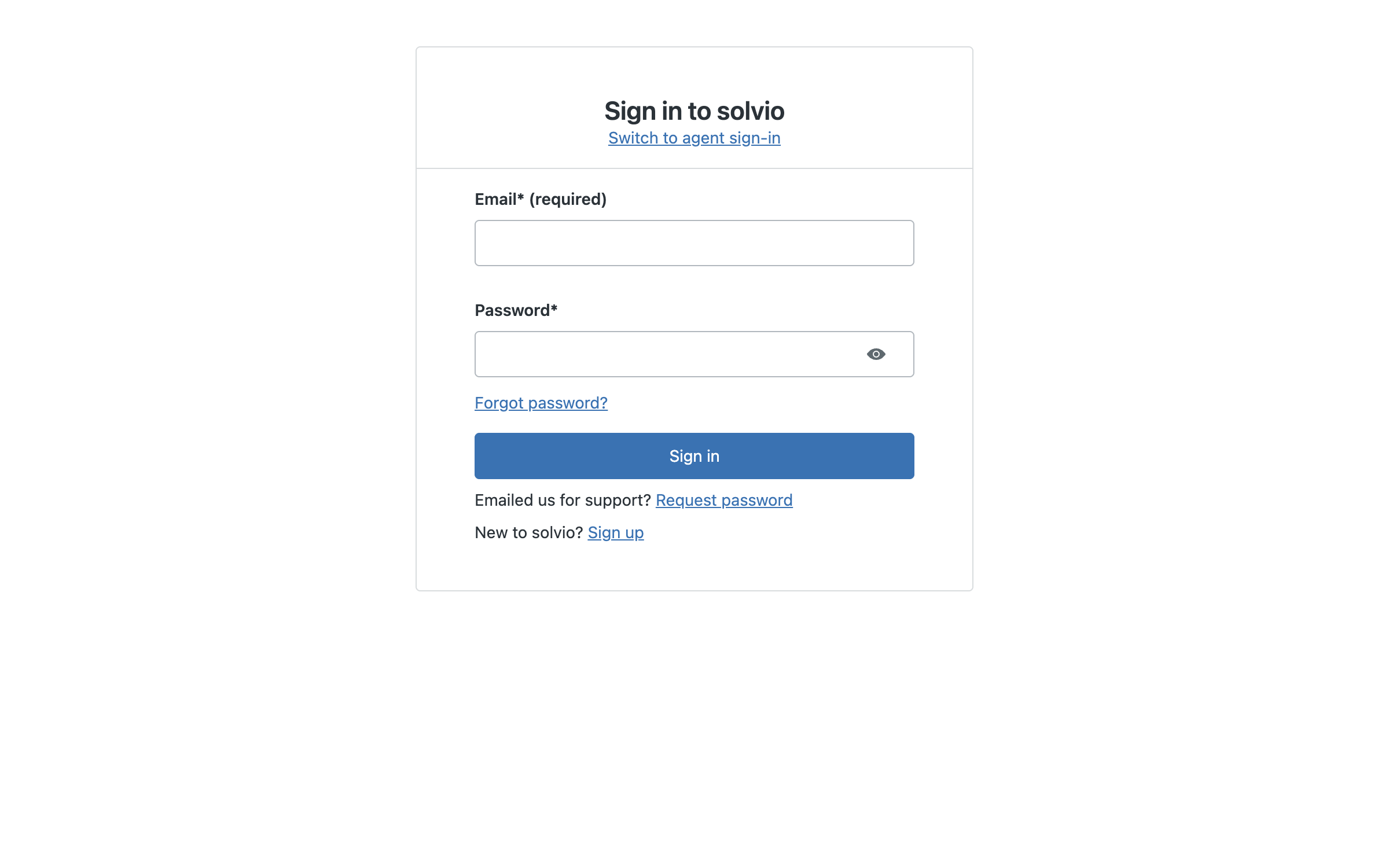
Open it and sign in with your Zendesk staff login. Zendesk calls this the **agent** sign-in. If you land on the end user form, click **Switch to agent sign-in**. Zendesk then asks you to allow eesel AI, and lists what it can read and do. The window closes itself once you approve.

<figure><img src="https://3732419023-files.gitbook.io/~/files/v0/b/gitbook-x-prod.appspot.com/o/spaces%2F2xXO0947TYoPIhGoBgSE%2Fuploads%2Fgit-blob-5101504f27089fa67c0bd58aae017c50789e48b2%2Fzendesk-agent-sign-in.png?alt=media" alt="The Zendesk sign-in screen asking for an email and password, with a link to switch to agent sign-in"><figcaption><p>The Zendesk staff sign-in screen.</p></figcaption></figure>

This approval is the one step a person has to do in the browser. If Claude Code or a script is doing the setup, it hands you the link and waits.
{% endstep %}

{% step %}

### Check what it can read

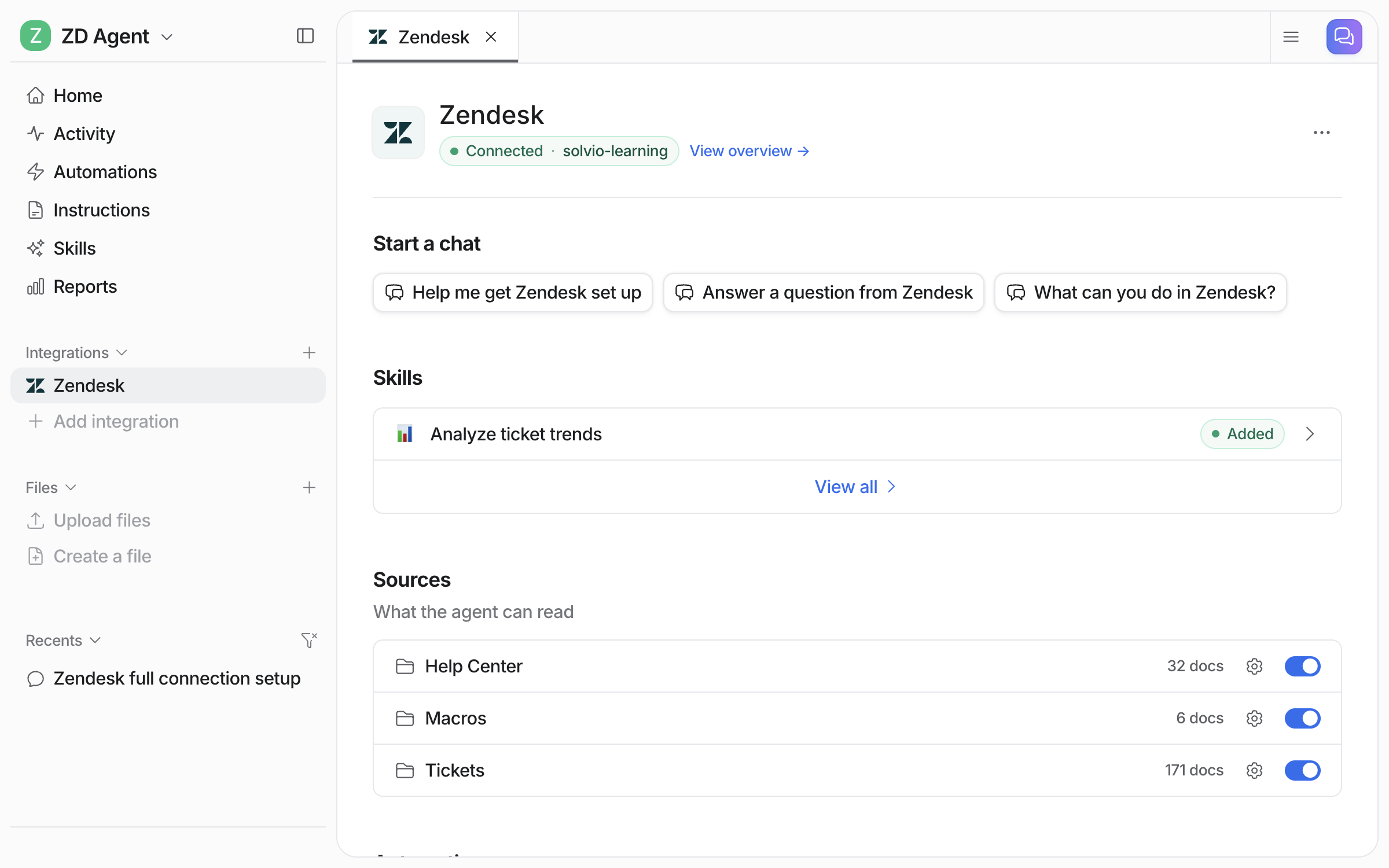
Back in the dashboard, **Integrations > Zendesk** shows the connection and everything it pulled in. Each source has its own toggle, so you can leave a source out without disconnecting. Each source shows a document count once its sync is done. From a terminal, `eesel status` lists the integration as connected with its source counts.

<figure><img src="https://3732419023-files.gitbook.io/~/files/v0/b/gitbook-x-prod.appspot.com/o/spaces%2F2xXO0947TYoPIhGoBgSE%2Fuploads%2Fgit-blob-997609ab2120f852b7699ce3a6448f788f228fb1%2Fzendesk-connected-sources.png?alt=media" alt="The connected Zendesk integration page in eesel, listing Help Center, Macros and Tickets as sources with document counts and toggles"><figcaption><p>Each source has its own toggle and its own document count.</p></figcaption></figure>
{% endstep %}

{% step %}

### Try it on a real ticket

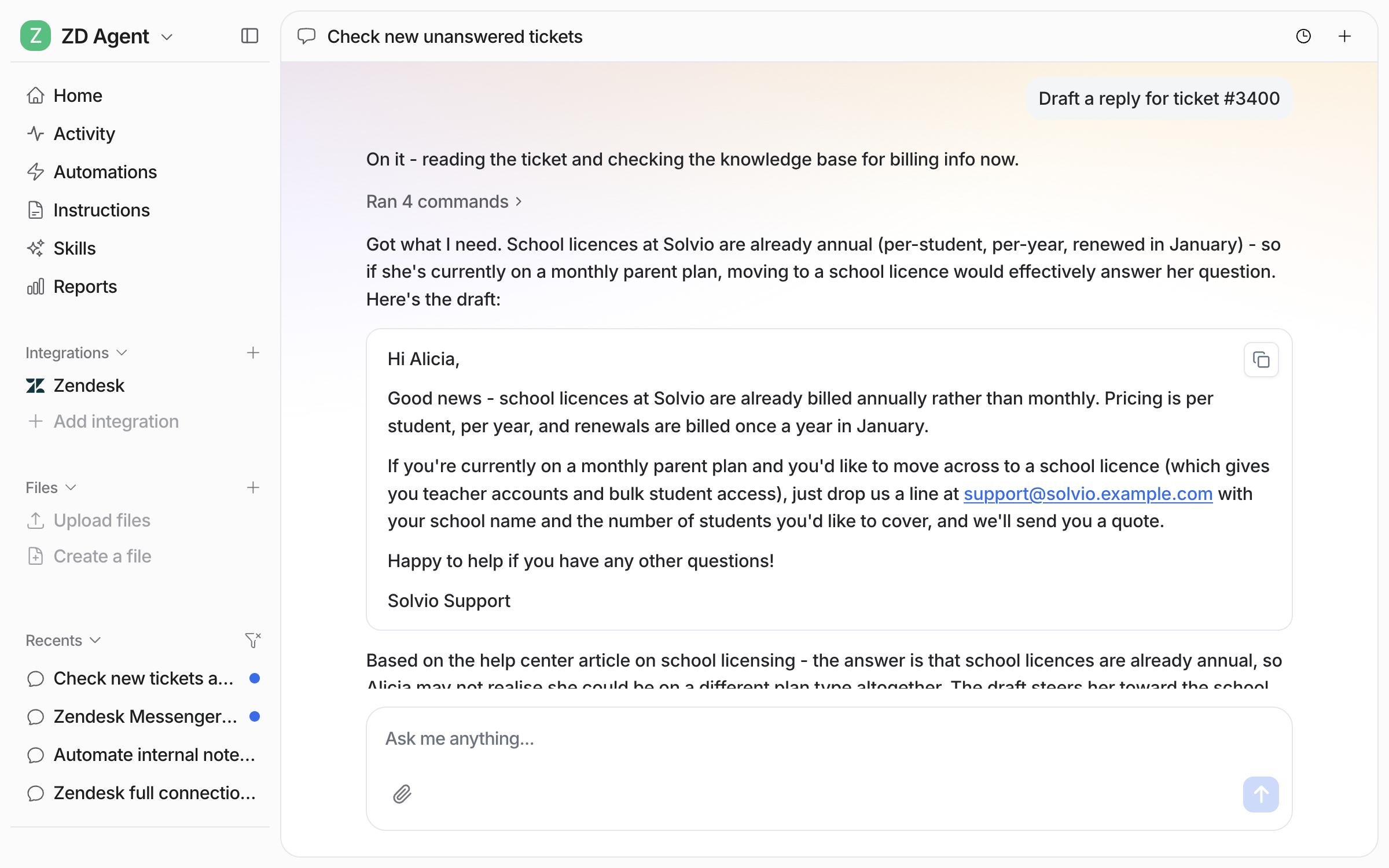
Before you automate anything, ask your agent to work a ticket in the chat. Ask it a question your customers ask, or ask for a draft on one of your open tickets. It reads the ticket, searches your help center, macros and past tickets, and shows you the reply it would send.

<figure><img src="https://3732419023-files.gitbook.io/~/files/v0/b/gitbook-x-prod.appspot.com/o/spaces%2F2xXO0947TYoPIhGoBgSE%2Fuploads%2Fgit-blob-f95b45b5f2a7d6af3c3f0090b1afa0061275987d%2Fhelpdesk-ask-question-1.png?alt=media" alt="The dashboard chat drafting a reply for a Zendesk ticket, showing the steps it took and the drafted reply"><figcaption><p>Ask for a draft on a real ticket and your agent reads the ticket, checks your knowledge and writes the reply.</p></figcaption></figure>

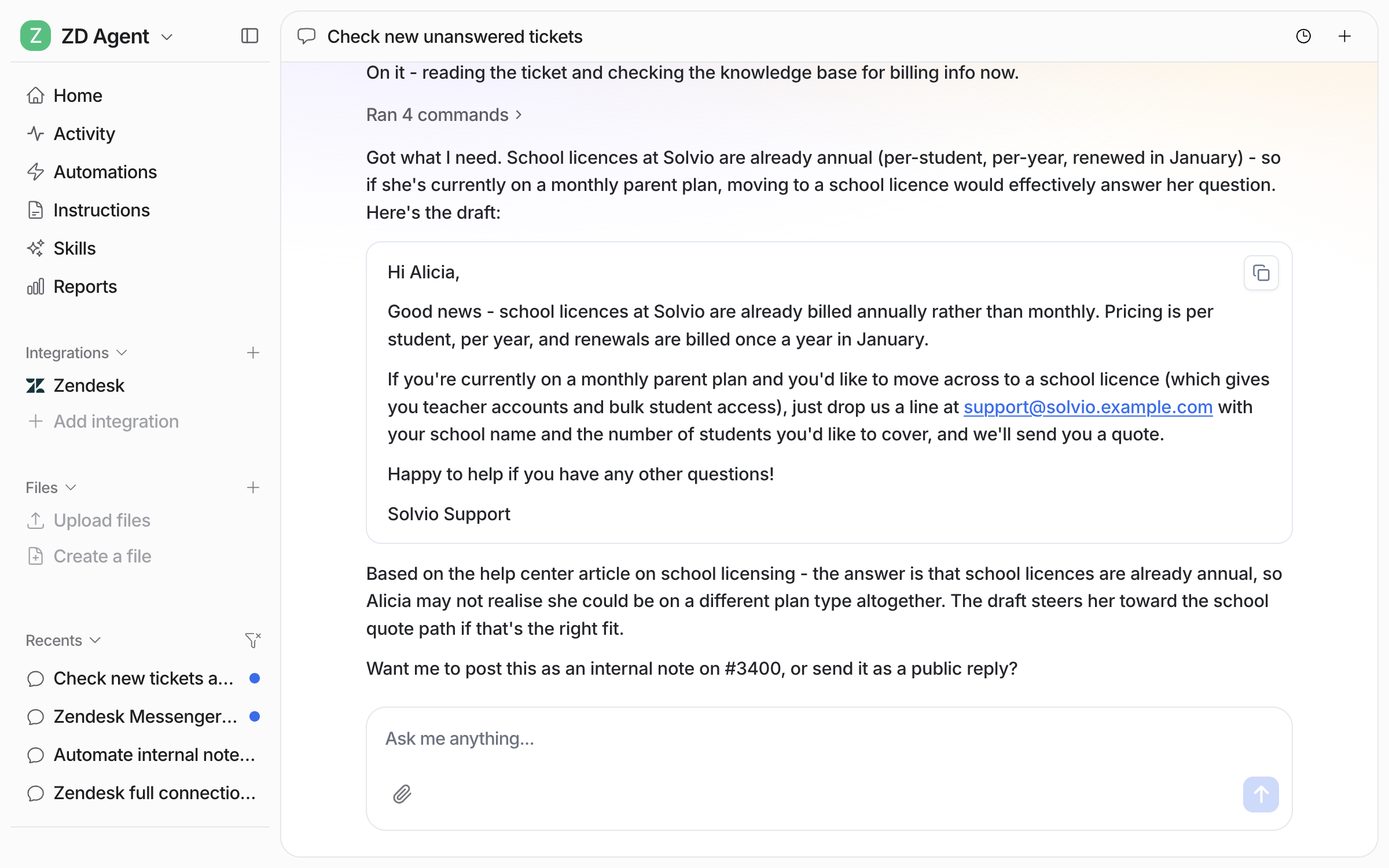
Under the draft it names the help center article it used, then asks whether to post the draft as an internal note or send it as a public reply.

<figure><img src="https://3732419023-files.gitbook.io/~/files/v0/b/gitbook-x-prod.appspot.com/o/spaces%2F2xXO0947TYoPIhGoBgSE%2Fuploads%2Fgit-blob-322ae0efd64ff7e6d239dddf5d212f954158d1ed%2Fhelpdesk-ask-question-2.png?alt=media" alt="The same chat scrolled down, showing the agent naming the help center article it used and asking whether to post the draft as an internal note or send it as a public reply"><figcaption><p>Every draft names its sources.</p></figcaption></figure>
{% endstep %}

{% step %}

### Correct it once and it remembers

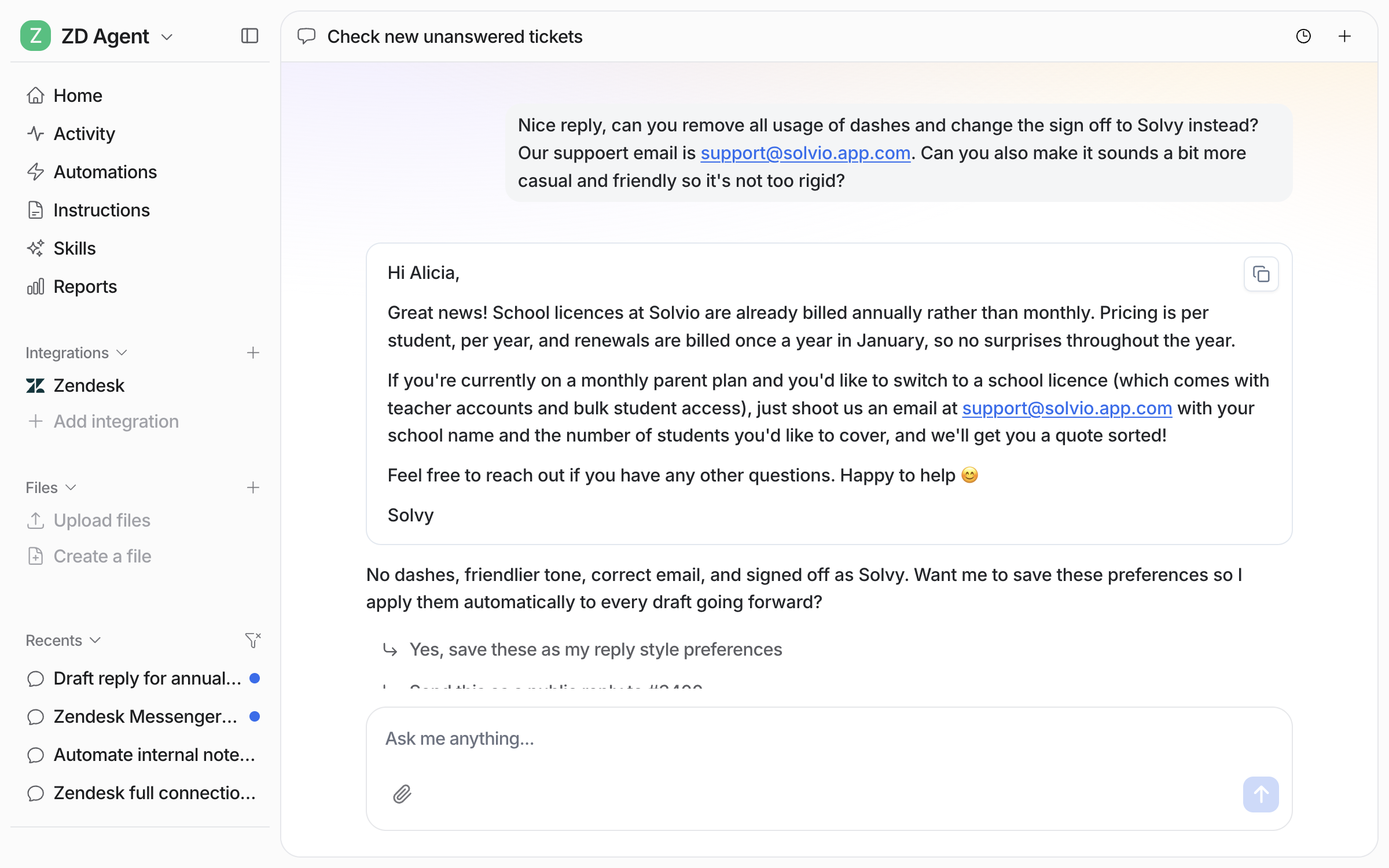
Tell it what was wrong, right there in the chat. Too formal, missing a step, wrong sign-off, wrong email address. It rewrites the draft.

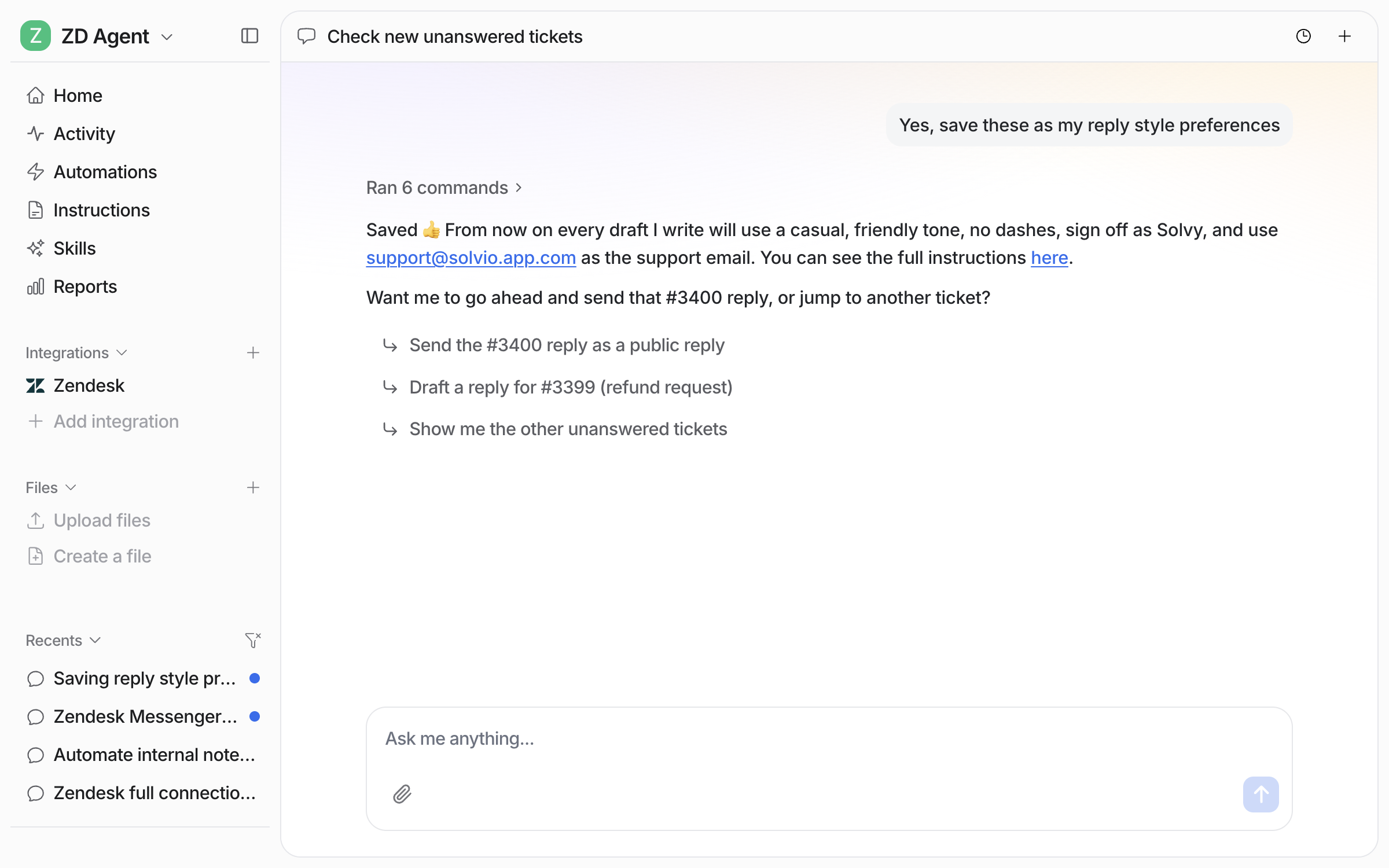
<figure><img src="https://3732419023-files.gitbook.io/~/files/v0/b/gitbook-x-prod.appspot.com/o/spaces%2F2xXO0947TYoPIhGoBgSE%2Fuploads%2Fgit-blob-6d00a12412a0d44e86f3c5737389807993f2e39f%2Fhelpdesk-feedback-1.png?alt=media" alt="A dashboard chat where the user asks for no dashes, a different sign-off, the correct support email and a friendlier tone, and the agent returns the rewritten draft"><figcaption><p>Ask for the changes in plain words and it rewrites the draft, then offers to save them as preferences.</p></figcaption></figure>

Say yes and it writes the corrections into its own [instructions](/instructions-and-memory/instructions-and-memory.md), so every later draft follows them.

<figure><img src="https://3732419023-files.gitbook.io/~/files/v0/b/gitbook-x-prod.appspot.com/o/spaces%2F2xXO0947TYoPIhGoBgSE%2Fuploads%2Fgit-blob-a11b1cd9dcec914b634a9a00d59587766b4819d4%2Fhelpdesk-feedback-2.png?alt=media" alt="The agent confirming it has saved the reply style preferences, with a link to the full instructions"><figcaption><p>It confirms what it saved and links you to the full instructions.</p></figcaption></figure>

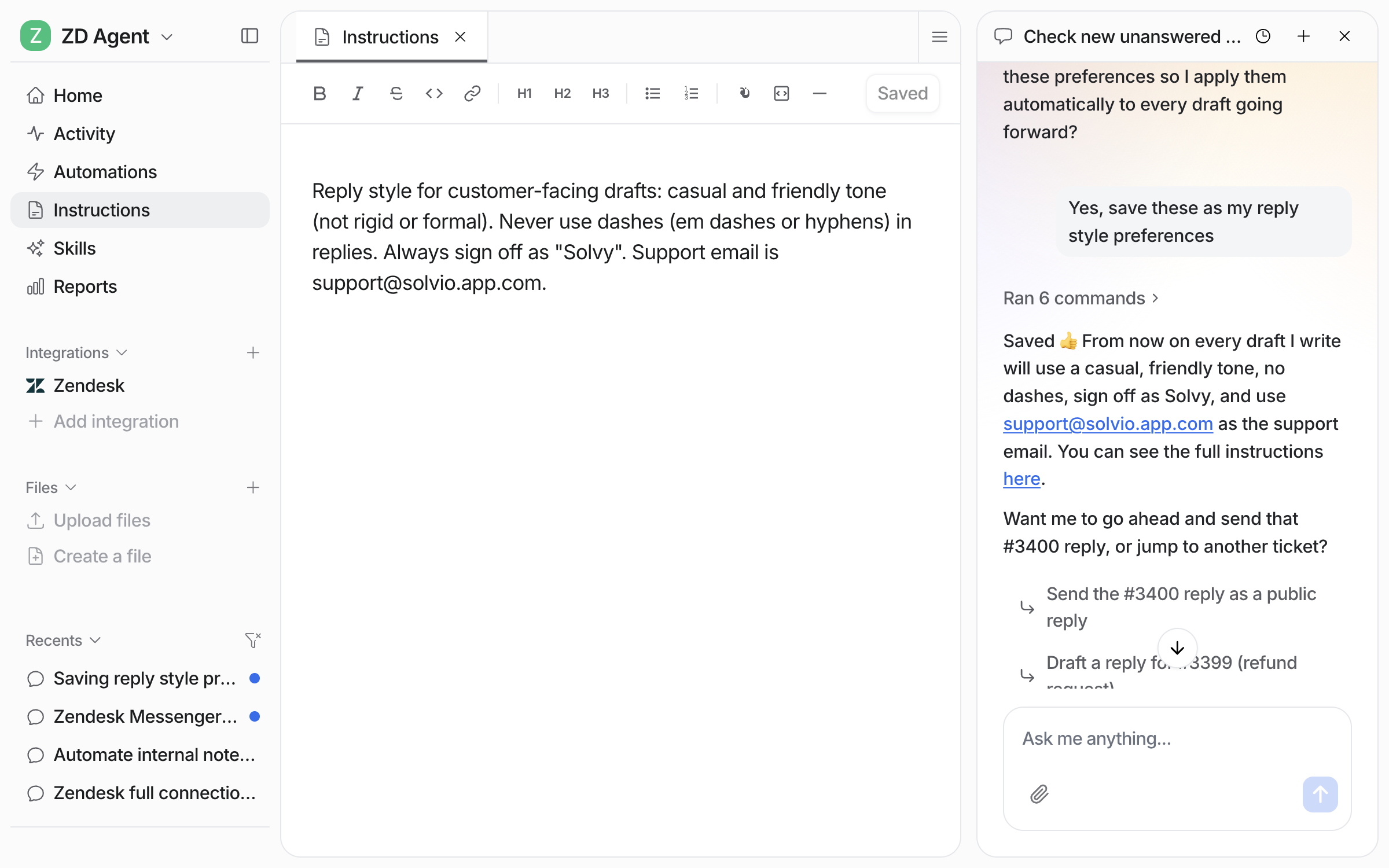
**Check it worked.** Your **Instructions** page holds the rules in plain sentences, and you can edit them there. From a terminal, `eesel instructions` prints the same text.

<figure><img src="https://3732419023-files.gitbook.io/~/files/v0/b/gitbook-x-prod.appspot.com/o/spaces%2F2xXO0947TYoPIhGoBgSE%2Fuploads%2Fgit-blob-4a04f8940d9b2f402d473737492707d5836aca43%2Fhelpdesk-feedback-3.png?alt=media" alt="The Instructions page open beside the chat, showing the saved rule about tone, sign-off and the support email"><figcaption><p>The corrections written out as a rule on your Instructions page.</p></figcaption></figure>
{% endstep %}

{% step %}

### Create your first automation

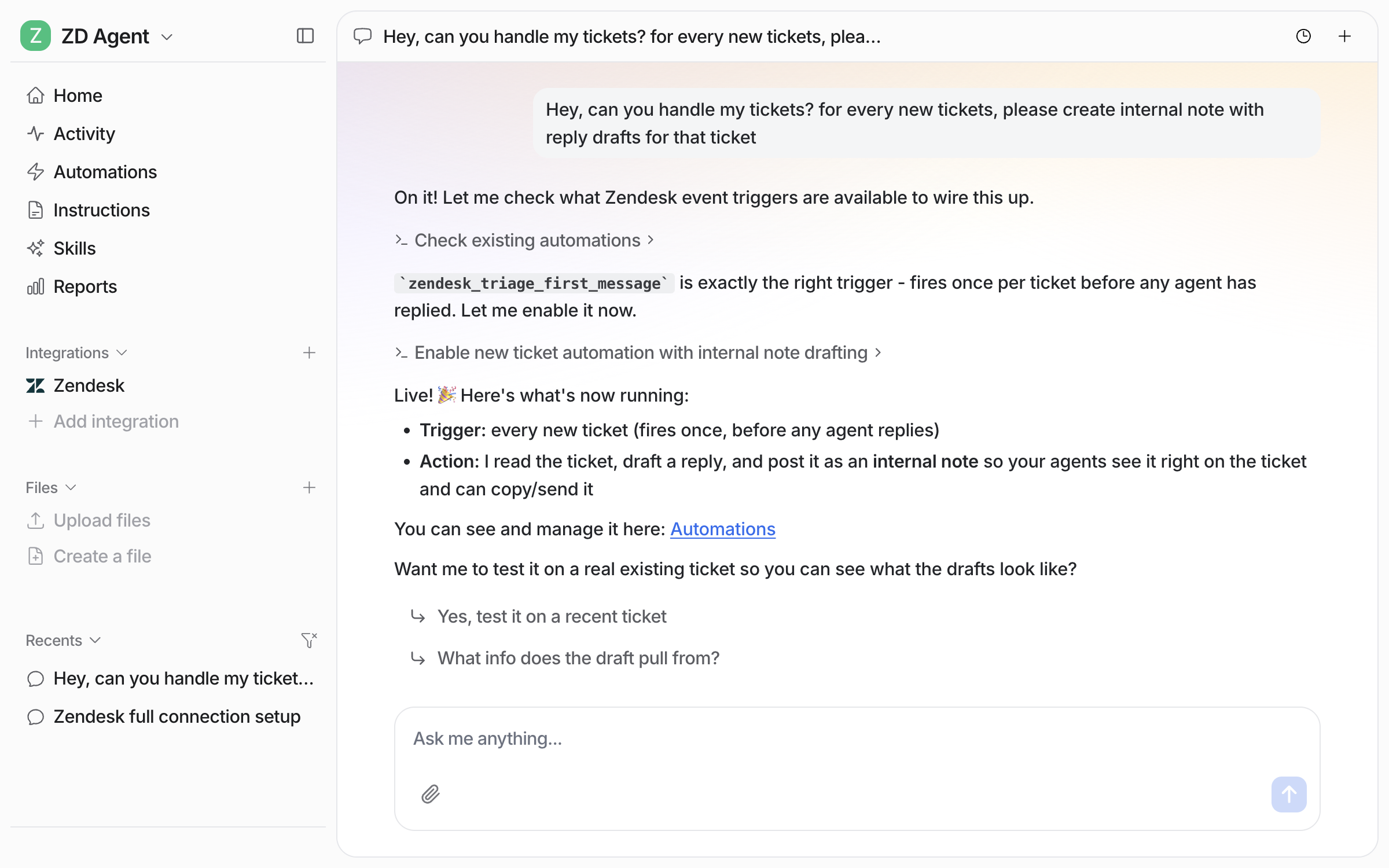
Connecting alone does not start your agent. It needs an automation first. Tell it what to handle and it creates an [automation](/automations-and-schedules/automations-and-schedules.md): a Zendesk trigger plus instructions. In the instructions you describe which tickets it should handle and what to do with them. It leaves the rest alone.

<figure><img src="https://3732419023-files.gitbook.io/~/files/v0/b/gitbook-x-prod.appspot.com/o/spaces%2F2xXO0947TYoPIhGoBgSE%2Fuploads%2Fgit-blob-a8168919e65ff3126ff821639191f79ad76878d9%2Fautomations-event-chat.png?alt=media" alt="The dashboard chat where the user asks for internal note drafts on every new ticket, and the agent reports the trigger and action it enabled"><figcaption><p>Ask in chat for the automation you want, and the agent builds it.</p></figcaption></figure>

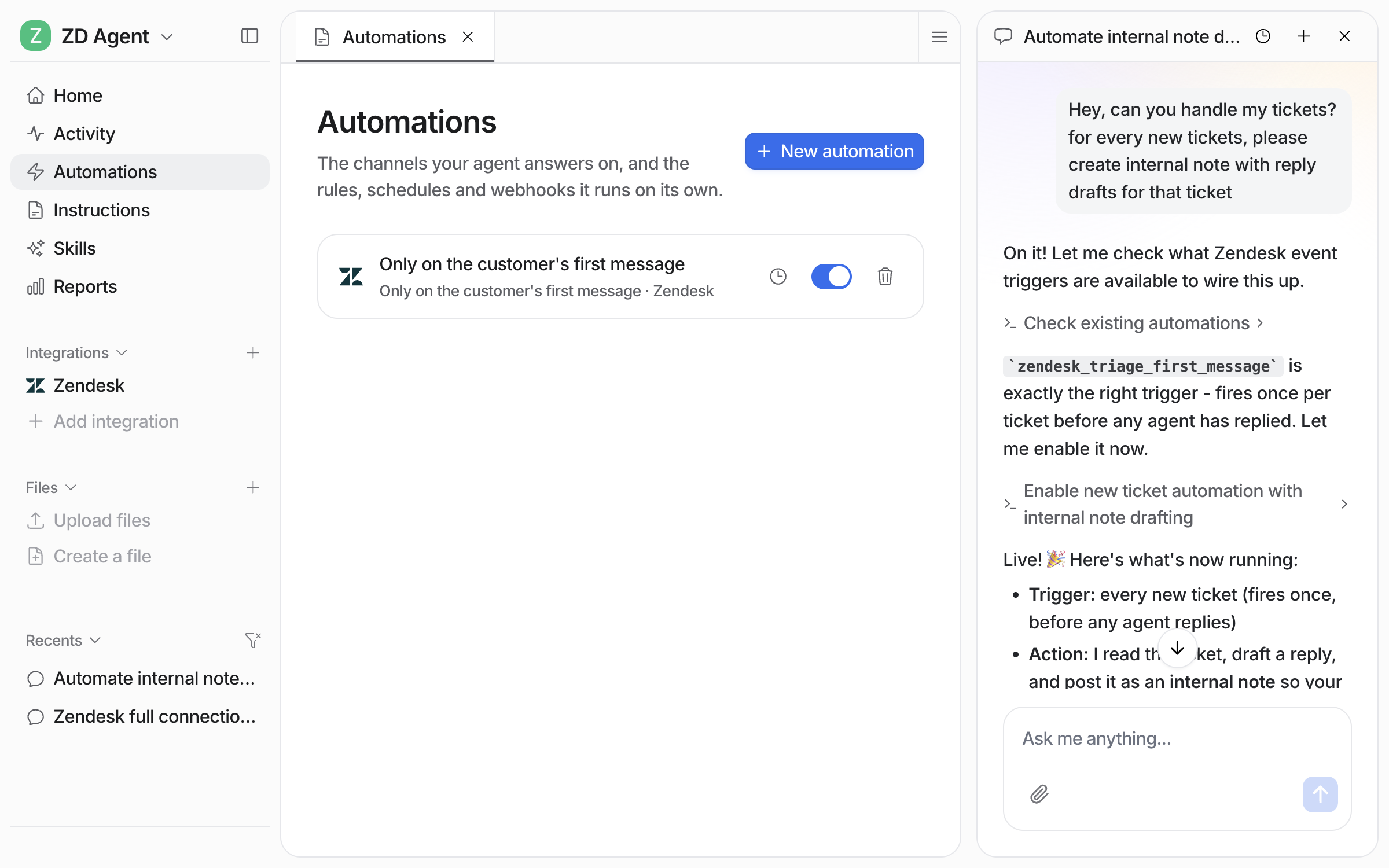
It shows up on your Automations page, switched on and ready. From a terminal, `eesel automations` lists it as on.

<figure><img src="https://3732419023-files.gitbook.io/~/files/v0/b/gitbook-x-prod.appspot.com/o/spaces%2F2xXO0947TYoPIhGoBgSE%2Fuploads%2Fgit-blob-97b2b596890929b336b543a1e6caea2a4937abc6%2Fautomations-event-list.png?alt=media" alt="The Automations page in eesel with the new Zendesk automation listed and toggled on"><figcaption><p>The new automation on your Automations page, switched on.</p></figcaption></figure>

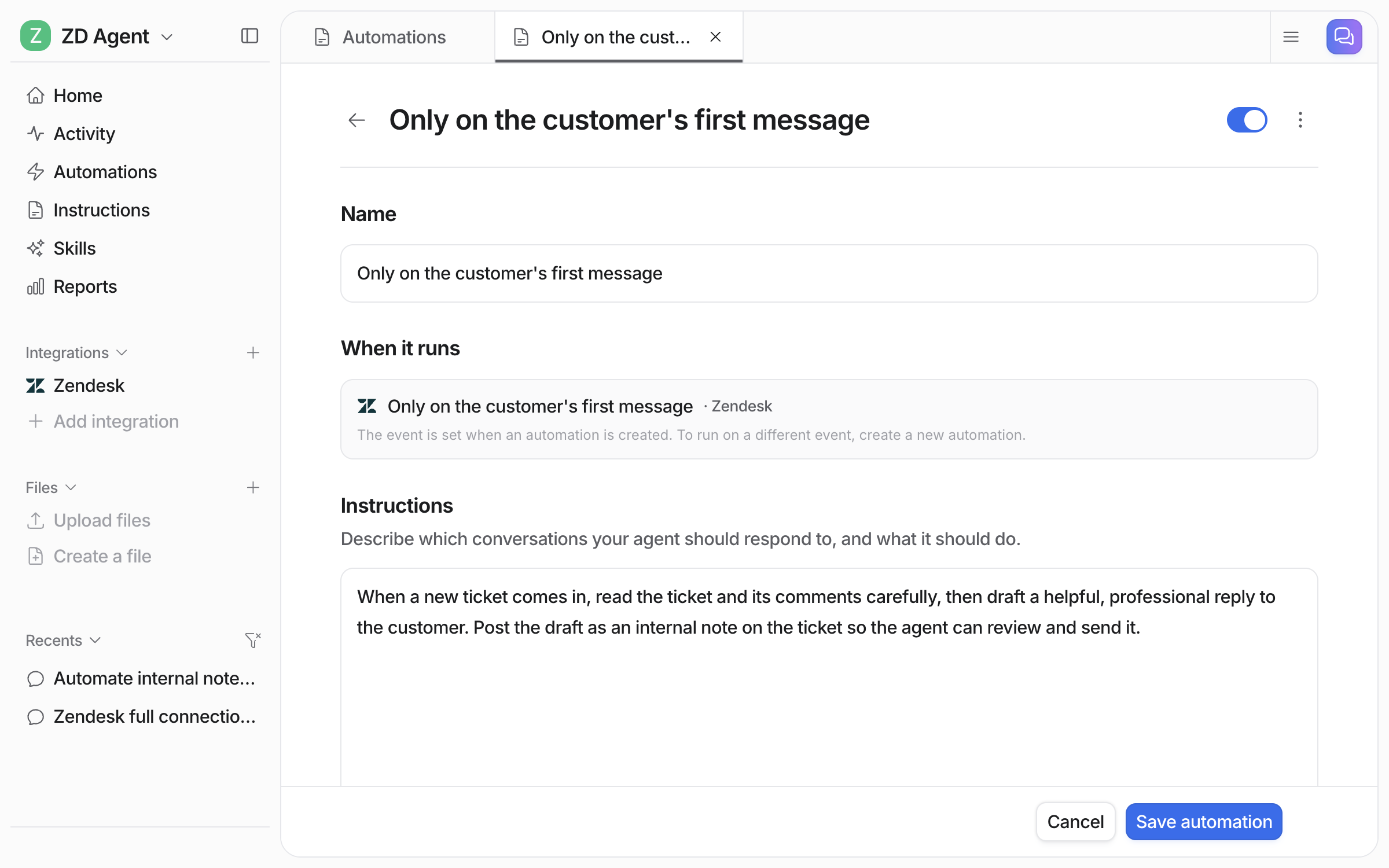
Open the automation to see or change what it does. The trigger event is fixed when the automation is created. So a new automation is required for each different trigger event.

<figure><img src="https://3732419023-files.gitbook.io/~/files/v0/b/gitbook-x-prod.appspot.com/o/spaces%2F2xXO0947TYoPIhGoBgSE%2Fuploads%2Fgit-blob-8ff2ab4fcaad575561fd34195810258e58e855f7%2Fautomations-hero-editor.png?alt=media" alt="The automation editor showing its name, the Zendesk event it runs on, and the instructions telling the agent to draft a reply as an internal note"><figcaption><p>The automation editor, where you change the instructions it follows.</p></figcaption></figure>
{% endstep %}

{% step %}

### Check automation work in Zendesk

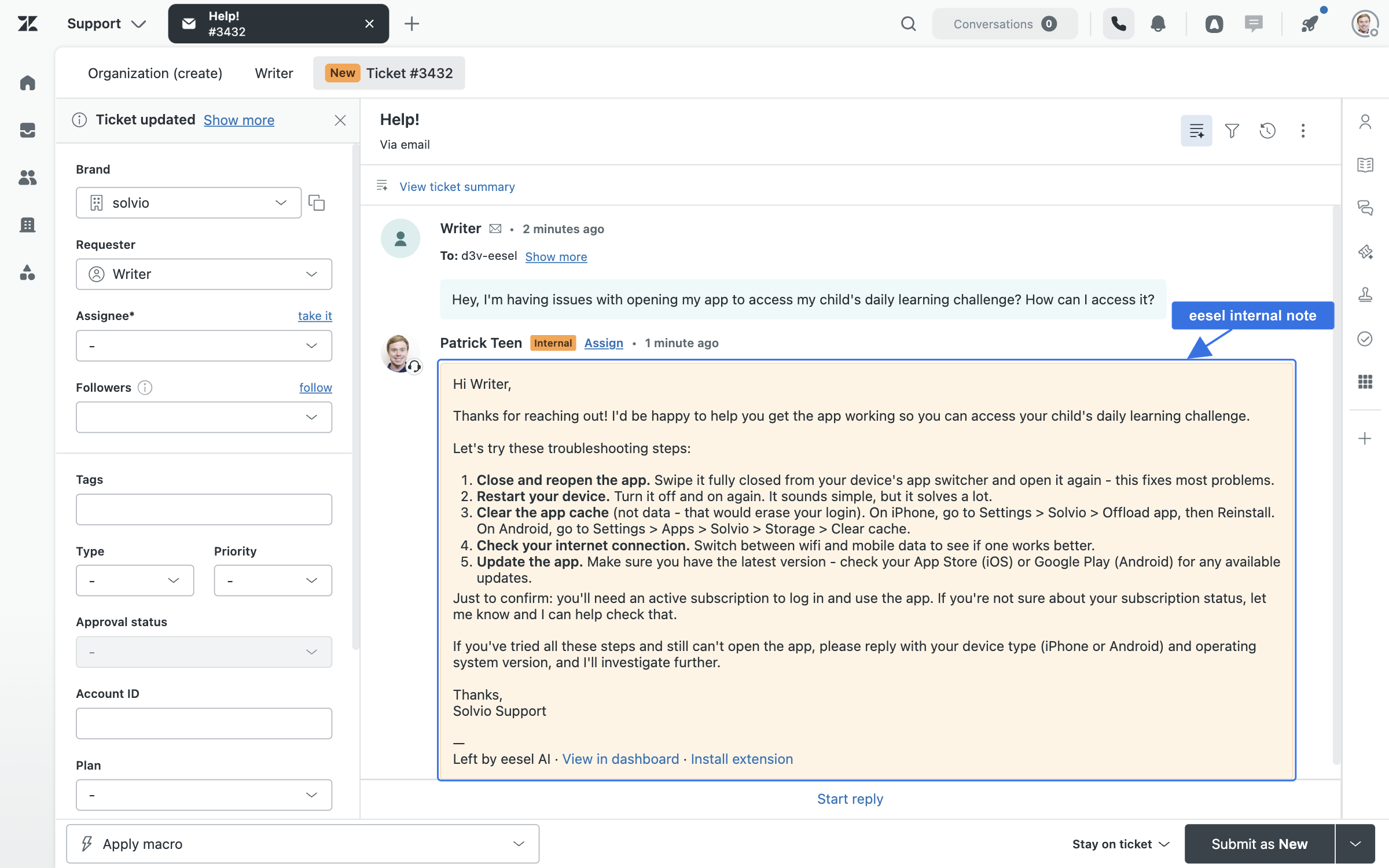
Open Zendesk and look at the next ticket that comes in to see what the automation did there. In this example it left a drafted reply as an internal note, signed by eesel AI, for a teammate to review and send.

<figure><img src="https://3732419023-files.gitbook.io/~/files/v0/b/gitbook-x-prod.appspot.com/o/spaces%2F2xXO0947TYoPIhGoBgSE%2Fuploads%2Fgit-blob-9ea37437c1124c9578140fa1c3b24af0e9946412%2Fautomations-event-note-on-ticket.png?alt=media" alt="A Zendesk ticket where eesel AI has posted its drafted reply as an internal note, with troubleshooting steps and a line saying it was left by eesel AI"><figcaption><p>The drafted reply waiting as an internal note on the ticket.</p></figcaption></figure>
{% endstep %}
{% endstepper %}

{% hint style="info" %}
**From Claude Code, Cursor or a terminal.** The same setup works as commands: `eesel login`, then `eesel integrations connect zendesk` (a person approves it in the browser; if the receipt has no link, ask `eesel chat` for one), `eesel integrations download start` to copy your sources in, and `eesel automations` to see and switch on the automations. Trigger keys for this page are in the Triggers table below. Full command reference: [The eesel CLI](/apis-and-developer-resources/cli.md). Step-by-step: [Set up from Claude Code or the terminal](/getting-started/set-up-from-a-coding-agent.md). From an MCP client: [Claude Code and MCP clients](/apis-and-developer-resources/claude-code-and-mcp-clients.md).
{% endhint %}

## Sources, triggers and actions

### Sources

Sources are what it learns from:

| Source          | Description                                                                                                                                                                                                                                                     | Requires                       |
| --------------- | --------------------------------------------------------------------------------------------------------------------------------------------------------------------------------------------------------------------------------------------------------------- | ------------------------------ |
| **Help Center** | Your support articles. Filter by category, include or exclude drafts                                                                                                                                                                                            | Quick start or Full connection |
| **Macros**      | Shared macros, optionally personal ones too                                                                                                                                                                                                                     | Full connection                |
| **Tickets**     | Past tickets, defaulting to solved and closed across all time. The first import is a sample of up to 1,000 recent tickets. Ask your agent, or set a filter, to import more. Filter by status and date, with optional [PII redaction](/account/pii-redaction.md) | Full connection                |

Every other integration on the agent is also a source, so a Zendesk reply can draw on Confluence, your website, and your files at once. See [Integrations](/integrations/overview.md).

Your agent answers from every source that is on. If your ticket history is not something it should learn from, test data, an old product, another team's queue, switch the **Tickets** source off on the integration page. Telling it in its instructions to ignore past tickets does not stop it finding them; the switch does.

### Triggers

Triggers are the Zendesk events an automation can run on:

| Trigger                                  | Fires when                                   | Best for                  | Key                            |
| ---------------------------------------- | -------------------------------------------- | ------------------------- | ------------------------------ |
| **When a customer sends a message**      | A customer sends any message on a ticket     | Full automation           | `zendesk_ticket_commented`     |
| **Only on the customer's first message** | A ticket is opened, before any agent replies | Triage and routing        | `zendesk_triage_first_message` |
| **When a ticket is resolved**            | A ticket is marked solved or closed          | Post-resolution follow-up | `zendesk_ticket_closed`        |
| **Call @eesel in an internal note**      | A teammate mentions @eesel in a note         | On-demand help            | `zendesk_internal_note`        |

### Actions

Actions are what it can do, each set to run on its own, ask you first, or stay off:

|             | Action                                       | What it does                                                                                                                                                                     |
| ----------- | -------------------------------------------- | -------------------------------------------------------------------------------------------------------------------------------------------------------------------------------- |
| **Respond** | Send ticket reply                            | Sends a reply to the customer                                                                                                                                                    |
|             | Leave internal note                          | Adds a private note only your team sees. Start here: the agent drafts, a person sends. Every note ends with a short "Left by eesel AI" line linking to the run in your dashboard |
|             | Draft ticket reply                           | Writes a reply and holds it for a person to approve. Nothing reaches the customer until someone approves it in the dashboard                                                     |
| **Manage**  | Add tags                                     | Tags the ticket                                                                                                                                                                  |
|             | Create ticket                                | Creates a new ticket                                                                                                                                                             |
|             | Assign to teammate / Assign to team          | Routes the ticket to a person or a team                                                                                                                                          |
|             | Close ticket                                 | Marks the ticket solved                                                                                                                                                          |
|             | Update ticket                                | Changes fields like status or priority                                                                                                                                           |
| **Look up** | Read ticket / Search tickets / List tickets  | Reads and finds tickets                                                                                                                                                          |
|             | Look up customer / Look up company           | Finds customer and organization details                                                                                                                                          |
|             | Get ticket fields / Get ticket field options | Reads fields and their allowed values, so tags get set correctly                                                                                                                 |
|             | List groups                                  | Lists the teams available for assignment                                                                                                                                         |

## Zendesk Messenger

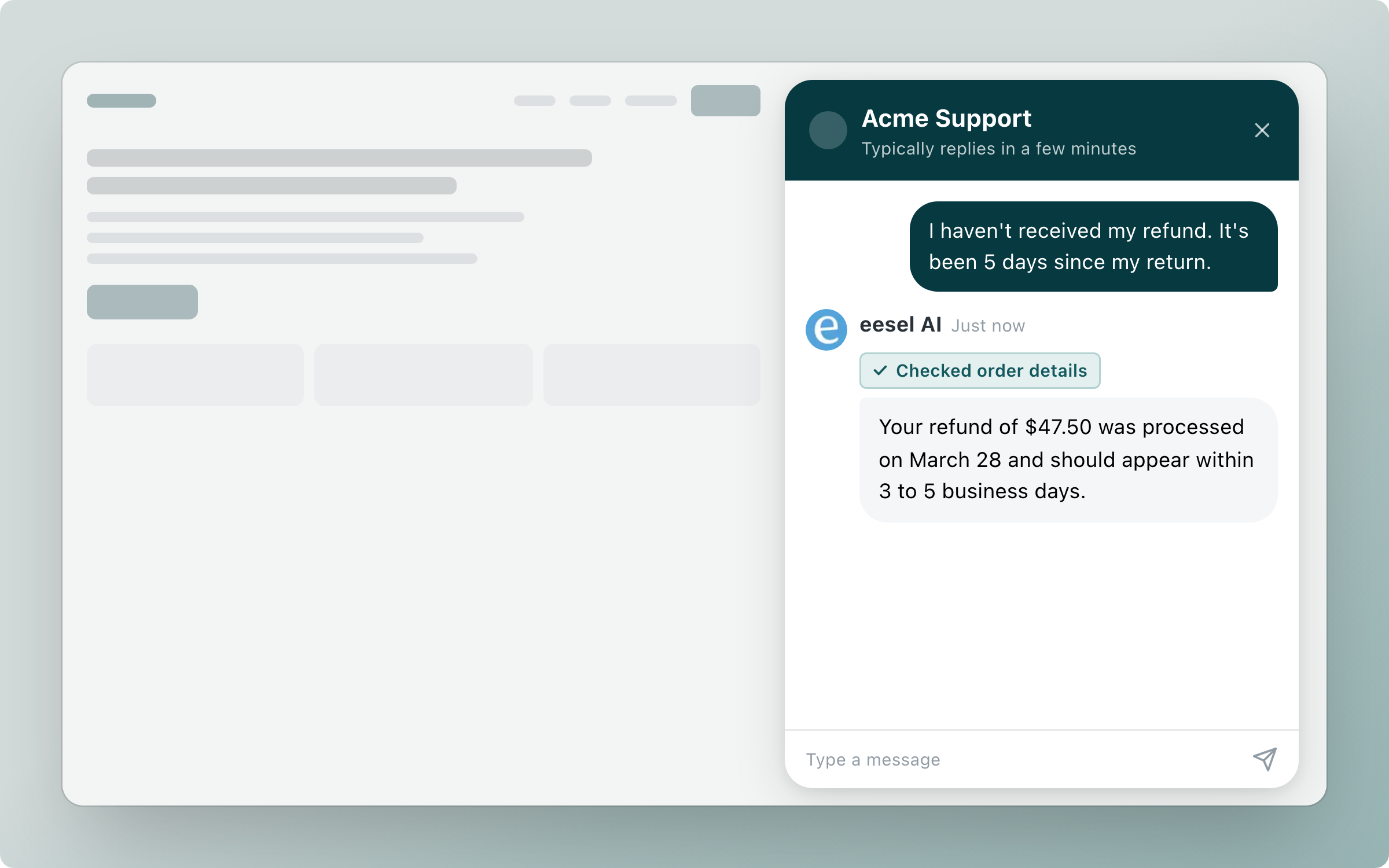
Zendesk Messenger is the live chat widget on your website and help center. Connect it and the same agent that handles your tickets answers chats in real time from the same knowledge, hands over to a human when it should, and can open a ticket from the conversation. See the [Zendesk Messenger guide](/integrations/helpdesks/zendesk/zendesk-messenger.md).

<figure><img src="https://3732419023-files.gitbook.io/~/files/v0/b/gitbook-x-prod.appspot.com/o/spaces%2F2xXO0947TYoPIhGoBgSE%2Fuploads%2Fgit-blob-45c96eaa9b43f04a88e2dfe912dcb6a992281955%2Fzendesk-messenger-hero.png?alt=media" alt="The Zendesk Messenger widget open on a website, where eesel answers a question about a missing refund after checking the order details"><figcaption><p>The same agent answering live in the Zendesk Messenger widget on your site.</p></figcaption></figure>

## Troubleshooting

<details>

<summary>Agent not responding to tickets?</summary>

Check that an automation is enabled on the agent's **Automations** page, that its instructions cover the tickets you expect, that the Zendesk connection is still authorized, and that at least one action is enabled.

</details>

<details>

<summary>Macros or Tickets greyed out?</summary>

These sources need a full connection. If you connected with Quick start (help center only), switch to a full connection to unlock macros, tickets, and actions.

</details>

<details>

<summary>Setup form keeps reappearing after connecting?</summary>

Re-run the connection and confirm you granted every requested permission; a dropped permission leaves the connection incomplete. For a specific brand, sign in to Zendesk with your staff login first. See **Connecting a specific brand** in Quick start.

</details>

<details>

<summary>Help Center not syncing?</summary>

Make sure the URL is right and publicly accessible, and that the Help Center source's draft filter matches what you expect, since drafts are excluded unless you include them. For a failing full connection, check you have admin permissions in Zendesk, then disconnect and reconnect.

</details>

## FAQ

<details>

<summary>How do I keep a person in the loop?</summary>

Three ways, and you can combine them. Turn on **Leave internal note** instead of **Send ticket reply**, so the agent writes a private note your team reads, edits and sends. Or turn on **Draft ticket reply**, which writes the reply and holds it until a person approves it. Or set any action to ask you first, so the agent shows you exactly what it wants to do and waits. Start with internal notes, then move to sending replies once you are happy. When an action is set to ask you first, the prepared reply shows up in the dashboard with three buttons: Approve runs it once, Always allow stops asking for that action, and Deny discards it.

</details>

<details>

<summary>Does connecting Zendesk start replying to customers automatically?</summary>

No. Connecting only gives your agent access to your sources. It does not act until you enable a trigger and an action, so you can test in the dashboard first.

</details>

<details>

<summary>Can I control which tickets the agent responds to?</summary>

Yes, for tickets. In the automation's instructions, describe the tickets you want in plain language (a group, a tag, a language) and what to do with them. The agent only runs on those, and the automation's activity shows every ticket it skipped, with the reason. You can also set **Wait before processing**, up to 15 minutes, so your own Zendesk triggers and spam rules run before your agent looks at the ticket. Live chat takes every conversation, because a customer in chat is waiting for an answer.

</details>

<details>

<summary>Can my agent reply and leave an internal note at the same time?</summary>

Yes. Turn on both actions and tell it in your instructions when to use each, for example "always reply to the customer and leave an internal note summarizing the resolution."

</details>

<details>

<summary>How does it get better over time?</summary>

Correct it in chat and it writes the rule into its own [instructions](/instructions-and-memory/instructions-and-memory.md). Run the Simulation [skill](/skills/skills.md) to replay past tickets and score the gap against what your team actually sent. Skills like Analyze ticket trends and Review agent setup can do this on a schedule.

</details>

<details>

<summary>Can it see screenshots and attachments?</summary>

Yes. When a customer attaches an image or a PDF, a screenshot or a receipt for example, your agent reads it along with the ticket. It looks at up to five attachments per turn. Videos, zip files and other formats are ignored.

</details>

<details>

<summary>Whose name do replies appear under?</summary>

Replies and internal notes post as the Zendesk user the connection was made with, which is the Zendesk user you signed in as during setup. To change the name customers see, change that user's name in Zendesk.

</details>

<details>

<summary>How is this billed?</summary>

Pay-as-you-go: a ticket your agent handles is one task, however many replies happen on it, and chats you run yourself from the eesel dashboard are free. See [Pricing](/pricing/overview.md) for rates, the annual commitment, and Enterprise.

</details>

## Related pages

* [Helpdesk](/use-cases/helpdesk.md) for the job your teammate takes on in a ticket queue
* [Automations and Schedules](/automations-and-schedules/automations-and-schedules.md) for triggers, instructions and schedules
* [Actions and Approvals](/instructions-and-memory/actions-and-approvals.md) for setting each action to run on its own, ask you first, or stay off
* [Integrations overview](/integrations/overview.md) for how sources, triggers and actions fit together
* [Set up from Claude Code or the terminal](/getting-started/set-up-from-a-coding-agent.md)


---

# Agent Instructions
This documentation is published with GitBook. GitBook is the documentation platform designed so that both humans and AI agents can read, navigate, and reason over technical content effectively. Learn more at gitbook.com.

## Querying This Documentation
If you need additional information that is not directly available in this page, you can query the documentation dynamically by asking a question.

Perform an HTTP GET request on the current page URL with the `ask` query parameter, and the optional `goal` query parameter:

```
GET https://docs.eesel.ai/integrations/helpdesks/zendesk.md?ask=<question>&goal=<endgoal>
```

`ask` is the immediate question: it should be specific, self-contained, and written in natural language.
`goal` is optional and describes the broader end goal you are ultimately trying to accomplish on behalf of the user. GitBook uses it to tailor the answer towards what is most useful for that goal.

The response will contain a direct answer to the question and relevant excerpts and sources from the documentation.

Use this mechanism when the answer is not explicitly present in the current page, you need clarification or additional context, or you want to retrieve related documentation sections.