> For the complete documentation index, see [llms.txt](https://docs.eesel.ai/llms.txt). Markdown versions of documentation pages are available by appending `.md` to page URLs; this page is available as [Markdown](https://docs.eesel.ai/integrations/knowledge/confluence.md).

# Confluence

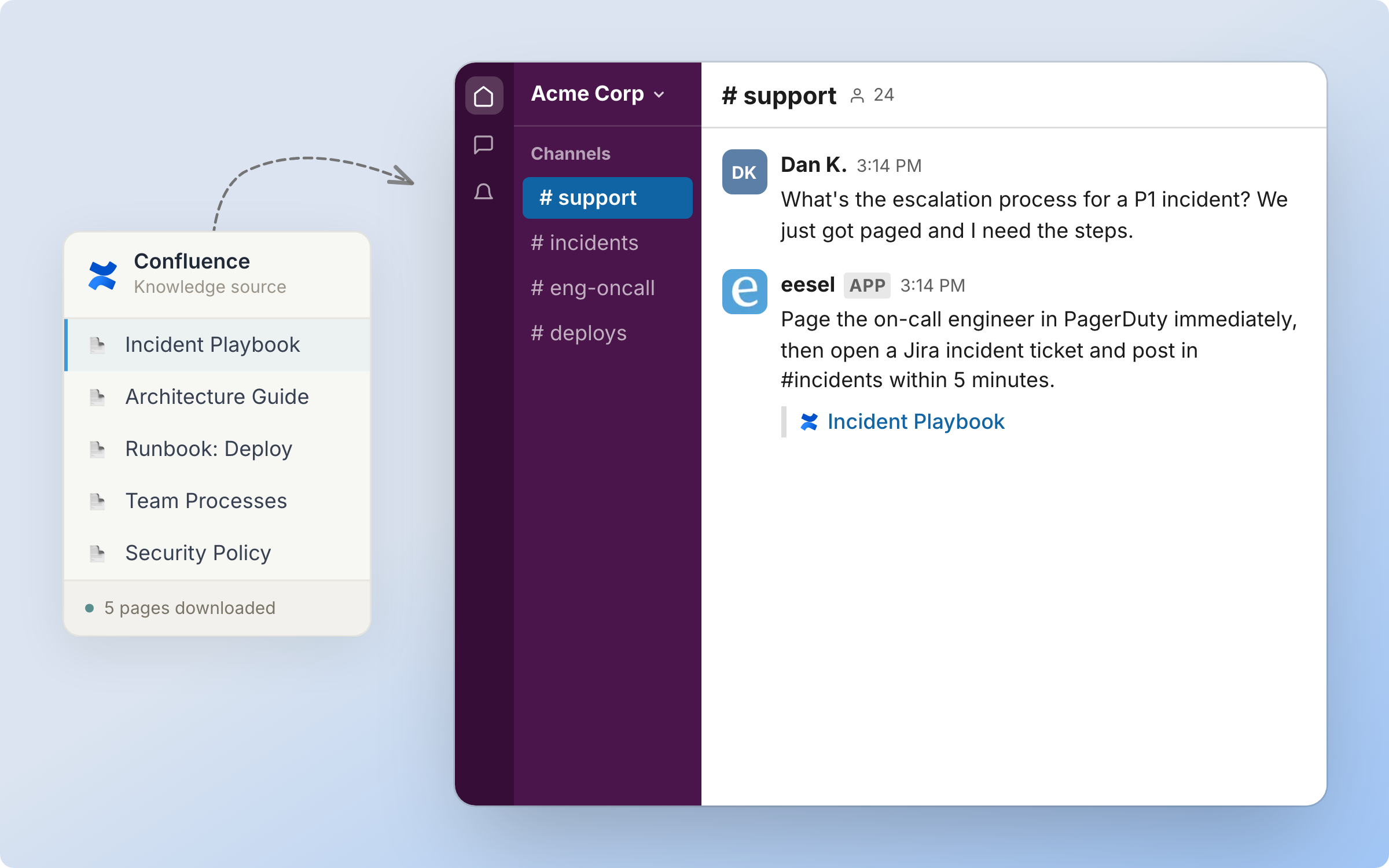
Connect Confluence to your AI agent with an Atlassian API token. It reads your wiki live, answers in Slack and the dashboard, and links the page it used.

eesel's AI agent for Confluence answers questions from your Confluence wiki and links the page each answer came from. It reads Confluence live while it answers, so it always works from the current version of a page.

Your AI teammate searches your Confluence spaces, reads the page that fits, and answers wherever it works, in Slack and in the eesel dashboard. Every answer links back to the page it came from.

<figure><img src="https://3732419023-files.gitbook.io/~/files/v0/b/gitbook-x-prod.appspot.com/o/spaces%2F2xXO0947TYoPIhGoBgSE%2Fuploads%2Fgit-blob-f0d367d04f1791d72360330c7d16cb1f14b6f423%2Fconfluence-hero.png?alt=media" alt="A Confluence knowledge source card listing indexed pages, feeding an agent that answers an escalation question in Slack and cites the source page"><figcaption><p>The Confluence pages you pick become knowledge your agent answers from.</p></figcaption></figure>

## Set up eesel in Confluence

{% stepper %}
{% step %}

### Ask your agent to connect Confluence

Open the chat in your dashboard and ask it to connect Confluence. It opens a secure form for an Atlassian API token, and asks for your Confluence subdomain and your Atlassian email. Prefer to click? Open **Integrations** in the left sidebar and pick **Confluence (API token)**. There is no Atlassian Marketplace app to install.

<figure><img src="https://3732419023-files.gitbook.io/~/files/v0/b/gitbook-x-prod.appspot.com/o/spaces%2F2xXO0947TYoPIhGoBgSE%2Fuploads%2Fgit-blob-9eacc9d8195833f0ebb2b88aef6b3b1ad1bd882c%2Fconfluence-api-token-connect-chat.png?alt=media" alt="The dashboard chat where the user asks to connect Confluence, and the agent shows a secure form with an Atlassian API token field and asks for the Confluence subdomain and the Atlassian account email"><figcaption><p>The agent opens a secure form for the token and asks for two details.</p></figcaption></figure>
{% endstep %}

{% step %}

### Create an API token in Atlassian

Open [your Atlassian API tokens page](https://id.atlassian.com/manage-profile/security/api-tokens) and click **Create API token**, not the one with scopes. Give it a name your team will recognise, pick an expiry, and copy the token. Atlassian shows it only once.

The token acts as the account that created it, so your agent sees what that account sees in Confluence. Use an account with a Confluence licence that can see the spaces you want answered from.

The full guide, with a screenshot of every screen, is on [Set up Confluence](/integrations/knowledge/confluence/confluence-setup.md).
{% endstep %}

{% step %}

### Paste the token and give your details

Paste the token into the secure form and click **Save securely**. The token goes straight to eesel, never into the chat.

<figure><img src="https://3732419023-files.gitbook.io/~/files/v0/b/gitbook-x-prod.appspot.com/o/spaces%2F2xXO0947TYoPIhGoBgSE%2Fuploads%2Fgit-blob-caec7979f9605517e2b121a39fc5280cc87e2011%2Fconfluence-api-token-form-filled.png?alt=media" alt="The secure form in the dashboard chat with the token pasted in and masked, and the Save securely button ready to click"><figcaption><p>The form filled in, with the token masked.</p></figcaption></figure>

Then reply in the chat with your subdomain and email. Your subdomain is the part before `.atlassian.net`. Your agent connects and lists the spaces it can read.

<figure><img src="https://3732419023-files.gitbook.io/~/files/v0/b/gitbook-x-prod.appspot.com/o/spaces%2F2xXO0947TYoPIhGoBgSE%2Fuploads%2Fgit-blob-2c9359c1c931041b108d29737d01ac2166206d33%2Fconfluence-api-token-connected-chat.png?alt=media" alt="The dashboard chat where the user gives the subdomain and email, and the agent confirms Confluence is connected and lists four spaces it can read"><figcaption><p>The agent confirms the connection and lists the spaces it can see.</p></figcaption></figure>
{% endstep %}

{% step %}

### Check it worked

**Confluence (API token)** appears in the left sidebar. Open it to see the connection and the actions your agent can take. From a terminal, `eesel status` lists the integration as connected.

<figure><img src="https://3732419023-files.gitbook.io/~/files/v0/b/gitbook-x-prod.appspot.com/o/spaces%2F2xXO0947TYoPIhGoBgSE%2Fuploads%2Fgit-blob-d9ce23f8c16890d6660c07a772c28f3da36fb282%2Fconfluence-api-token-integration-page.png?alt=media" alt="The Confluence (API token) integration page in eesel, marked Connected with the site name, and a Read group of four actions: Get Confluence Page, List Child Pages, List Confluence Spaces and Search Confluence"><figcaption><p>The integration page, with the four read actions your agent can use.</p></figcaption></figure>

There is no document count. Your agent reads Confluence live while it answers, and copies nothing into eesel.
{% endstep %}

{% step %}

### Tell it how to answer

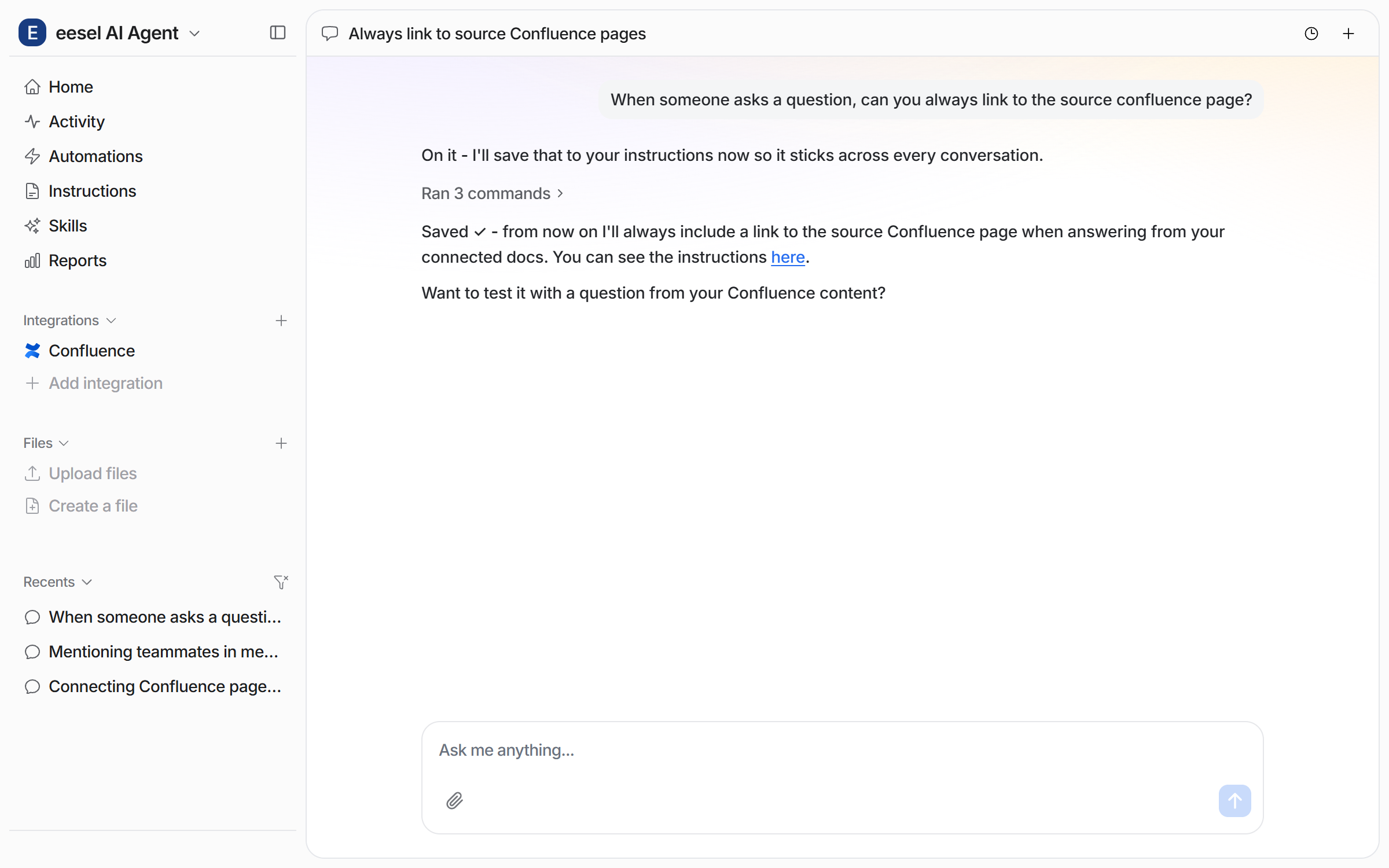
Ask in chat for the answering habits you want, for example to always link the source page. Your agent saves what you ask to its instructions, and applies it to every conversation.

<figure><img src="https://3732419023-files.gitbook.io/~/files/v0/b/gitbook-x-prod.appspot.com/o/spaces%2F2xXO0947TYoPIhGoBgSE%2Fuploads%2Fgit-blob-bbe39e6bfb794c408fefd4449f22093fb0d576ed%2Fconfluence-instruction-chat.png?alt=media" alt="The dashboard chat where the user asks the agent to always link the source Confluence page, and the agent saves it to its instructions"><figcaption><p>Ask in chat for a habit, and your agent saves it to its instructions.</p></figcaption></figure>

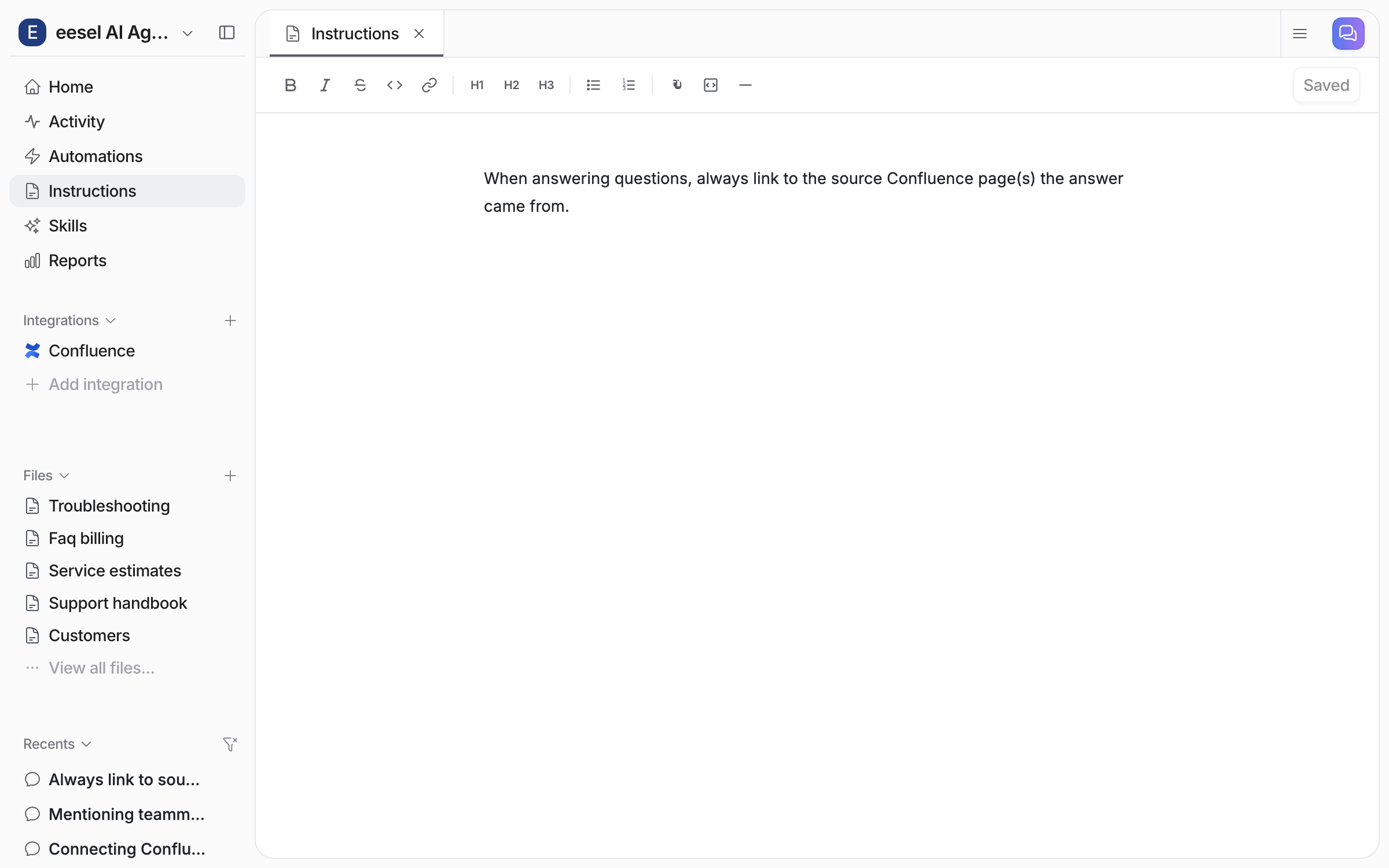
The **Instructions** page holds the saved text, where you can read or edit it.

<figure><img src="https://3732419023-files.gitbook.io/~/files/v0/b/gitbook-x-prod.appspot.com/o/spaces%2F2xXO0947TYoPIhGoBgSE%2Fuploads%2Fgit-blob-0378cc28202939b0fbd9f147c772e37d70d5158b%2Fconfluence-instruction-saved.png?alt=media" alt="The Instructions page in the dashboard, showing the saved instruction text"><figcaption><p>The saved instruction on the Instructions page.</p></figcaption></figure>
{% endstep %}

{% step %}

### Ask it something

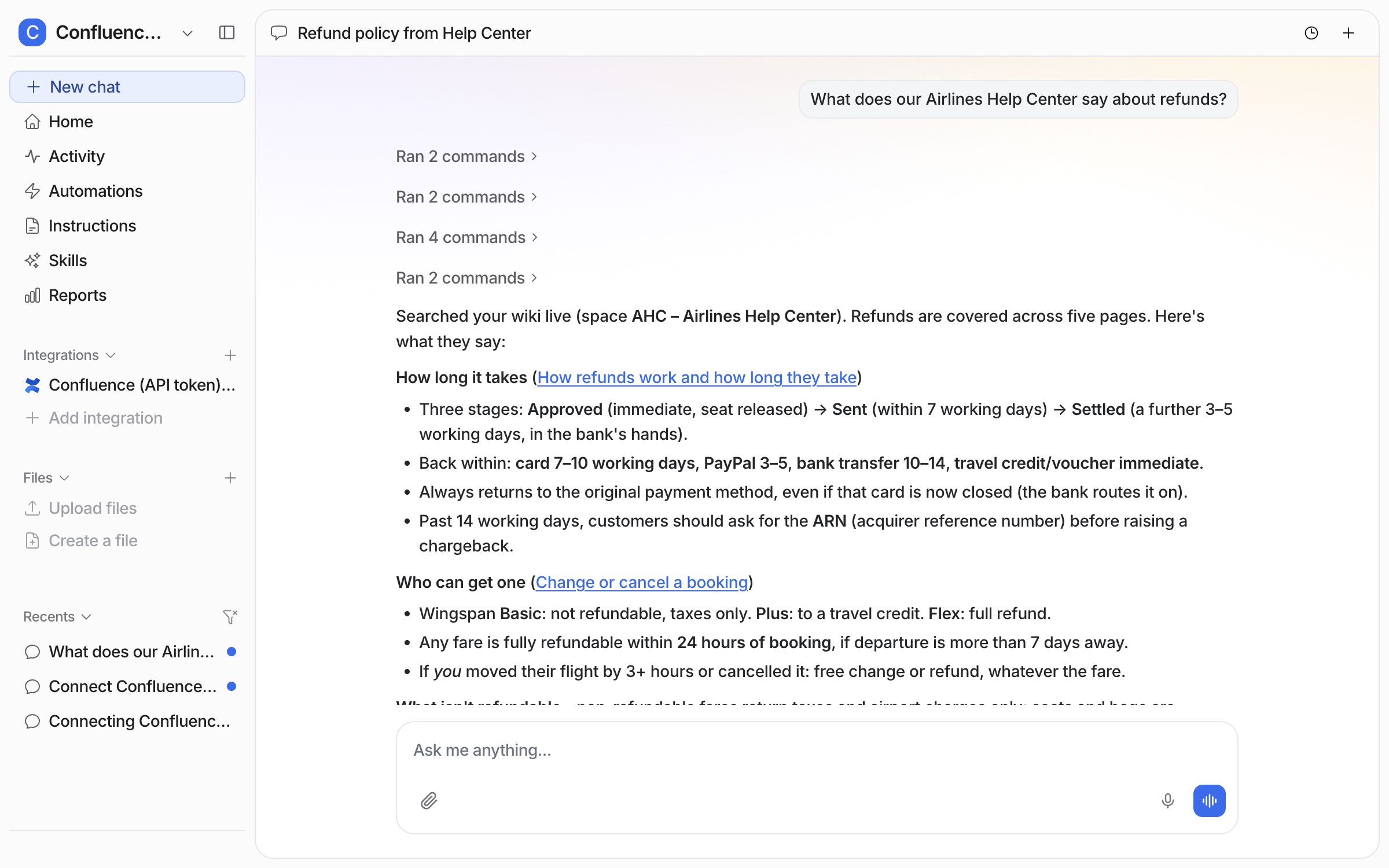
Ask a question your wiki already answers. Your agent searches Confluence live, reads the pages that fit and links each one in its answer.

<figure><img src="https://3732419023-files.gitbook.io/~/files/v0/b/gitbook-x-prod.appspot.com/o/spaces%2F2xXO0947TYoPIhGoBgSE%2Fuploads%2Fgit-blob-916dc82e17336d78266192af76d33462bf6de038%2Fconfluence-api-token-ask-chat.png?alt=media" alt="The dashboard chat where the user asks what the Airlines Help Center says about refunds, and the agent answers from a live search of that space, linking the Confluence pages it used"><figcaption><p>The agent searches the wiki live and links the pages it used.</p></figcaption></figure>
{% endstep %}

{% step %}

### Use it where your team works

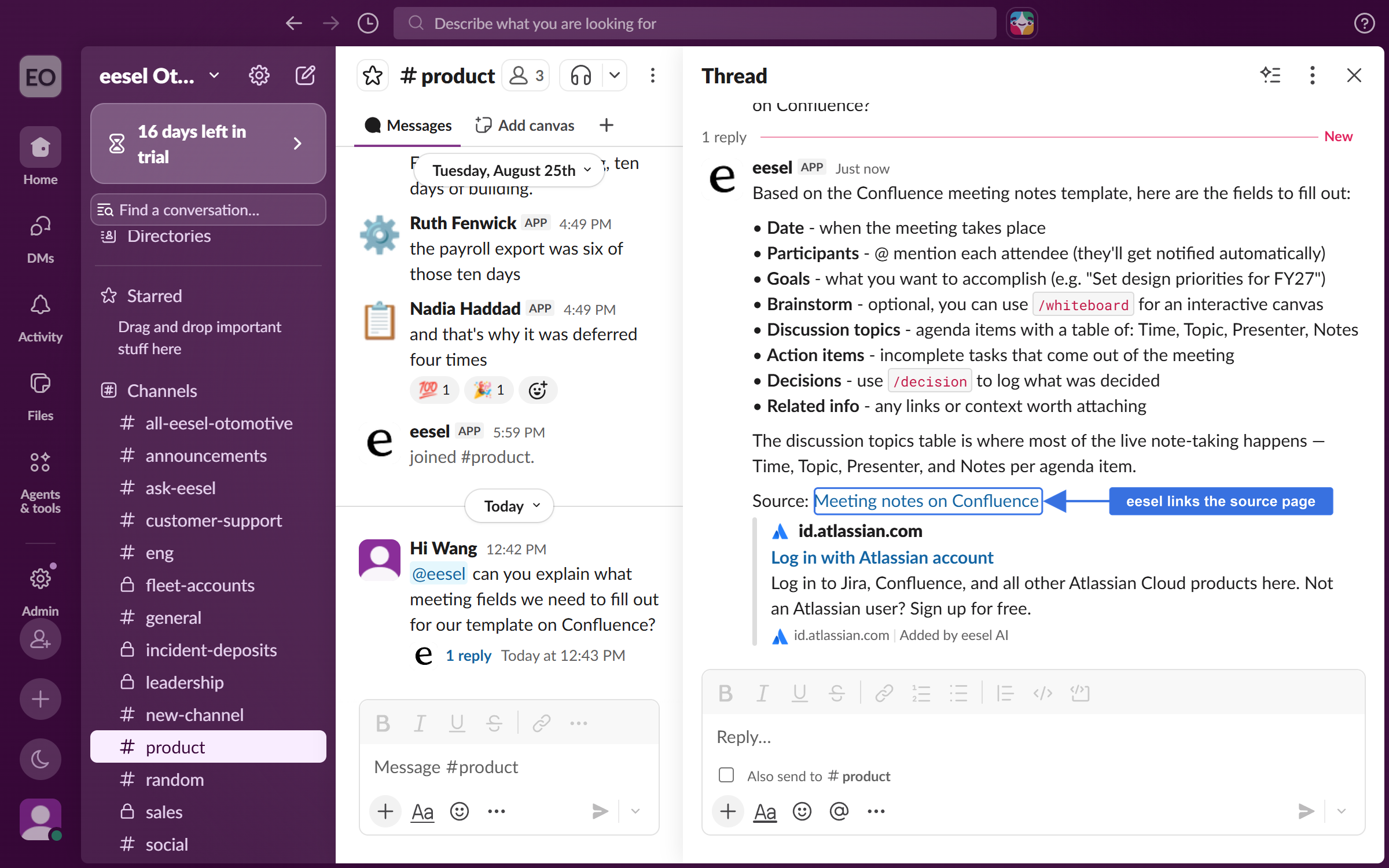
Once [Slack](/integrations/communication/slack.md) is connected too, anyone can @mention the eesel app in a Slack channel and ask. It answers in the thread and links the source page.

<figure><img src="https://3732419023-files.gitbook.io/~/files/v0/b/gitbook-x-prod.appspot.com/o/spaces%2F2xXO0947TYoPIhGoBgSE%2Fuploads%2Fgit-blob-26276d2b2d5d7223b694877a7830bb50847ad630%2Fconfluence-slack-thread.png?alt=media" alt="A Slack channel where a teammate mentions the eesel app with a question, and it answers in the thread and links the source Confluence page"><figcaption><p>A Slack thread answered from Confluence, with the source page linked.</p></figcaption></figure>

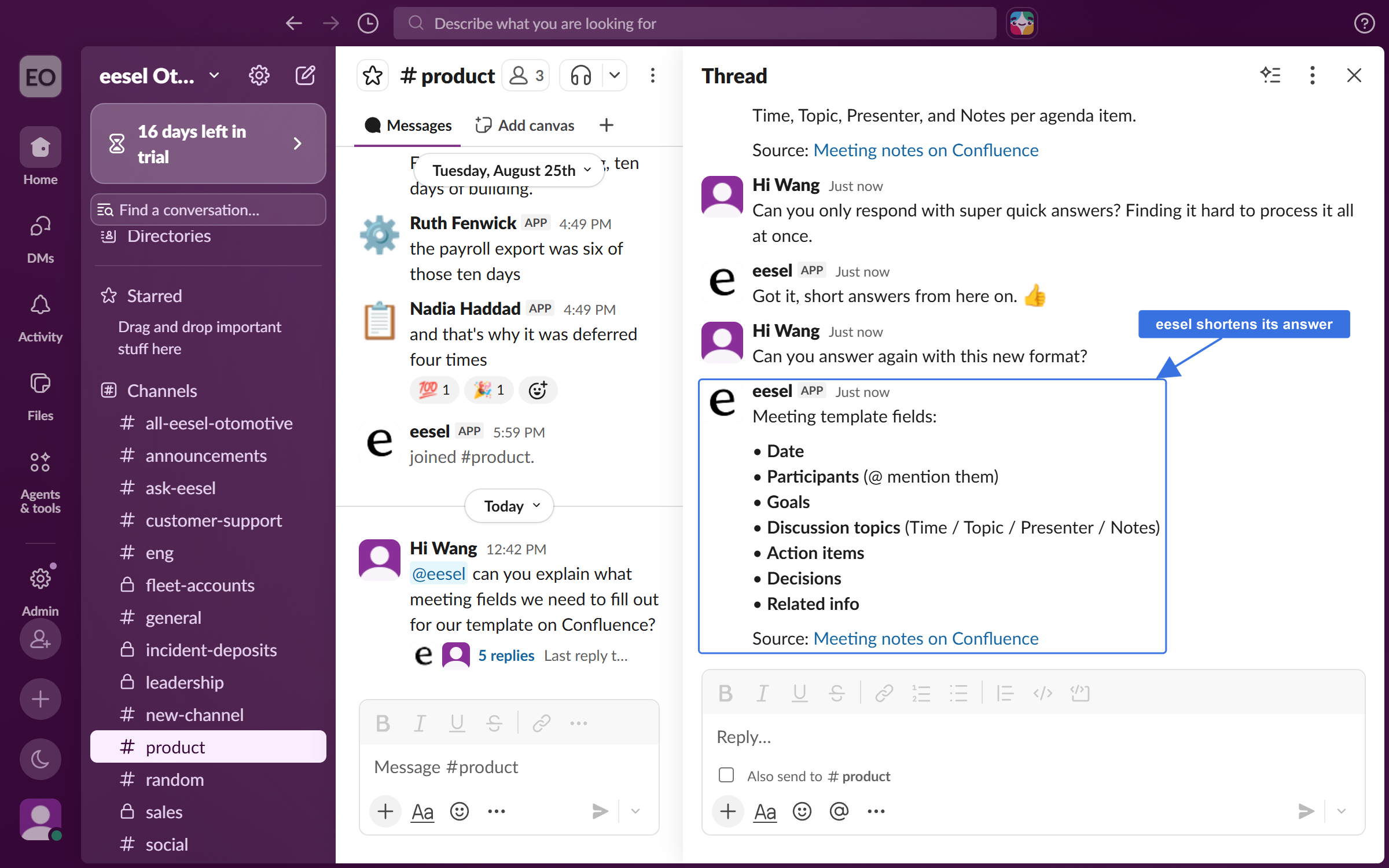
It stays in the thread after that. Ask it to change how it answers, for example to keep answers short. It adjusts and answers again without another mention.

<figure><img src="https://3732419023-files.gitbook.io/~/files/v0/b/gitbook-x-prod.appspot.com/o/spaces%2F2xXO0947TYoPIhGoBgSE%2Fuploads%2Fgit-blob-f0b5965c77d7fb6f546a06dbde1beaea29eb0791%2Fconfluence-slack-followup.png?alt=media" alt="The same Slack thread later, where the teammate asks for shorter answers and the eesel app adjusts and answers again"><figcaption><p>The same thread, where it takes feedback and answers again.</p></figcaption></figure>
{% endstep %}
{% endstepper %}

## Sources, triggers and actions

Confluence has no sources and no triggers. Nothing is copied into eesel. Your agent reads your wiki live through these actions:

|          | Action                 | What it does                                                   |
| -------- | ---------------------- | -------------------------------------------------------------- |
| **Read** | Search Confluence      | Finds pages that match a search, across spaces or in one space |
|          | Get Confluence Page    | Reads the full text of a page                                  |
|          | List Confluence Spaces | Lists the spaces the connected account can see                 |
|          | List Child Pages       | Lists the pages directly under a page                          |

Every other integration on your agent is also a source. So one answer can draw on Confluence, Notion, Google Drive, your helpdesk and your files at once. If your team uses Jira, [Jira Service Management](/integrations/helpdesks/jira-service-management.md) pairs well with Confluence. See [Integrations](/integrations/overview.md).

You stay in control the whole way. Adjust your AI agent's access to knowledge and its action permissions to your liking. See [Actions and Approvals](/instructions-and-memory/actions-and-approvals.md).

{% hint style="info" %}
**From Claude Code, Cursor or a terminal.** The same setup works as commands: `eesel login`, then `eesel integrations connect confluence_v2`. The connect command prints what the connection needs. Run `eesel status` to see the integration connected, and `eesel chat` to ask a question. Full command reference: [The eesel CLI](/apis-and-developer-resources/cli.md). Step-by-step: [Set up from Claude Code or the terminal](/getting-started/set-up-from-a-coding-agent.md). From an MCP client: [Claude Code and MCP clients](/apis-and-developer-resources/claude-code-and-mcp-clients.md).
{% endhint %}

## Limitations

* **Confluence Cloud only.** It connects to a site at `atlassian.net`. We run Data Center syncs for some customers as a managed setup, so get in touch.
* **It sees what the connected account sees.** Spaces and pages that account can't open are out of reach.
* **The token expires.** On the date you picked, connect again with a fresh token.
* **Read-only.** Your agent can't create, edit or delete anything in Confluence.

## Troubleshooting

<details>

<summary>Your agent says it cannot read Confluence?</summary>

The connected account needs a Confluence licence. An account that only has Jira can sign in but cannot read Confluence. Connect again with an account that has a Confluence licence.

</details>

<details>

<summary>A page or space is missing from answers?</summary>

Your agent sees what the connected account sees. Check that account can open the space and the page in Confluence. If a space is private, give the account access or connect with a different one.

</details>

<details>

<summary>Confluence stopped working after a while?</summary>

The API token has probably expired. Create a new one in Atlassian and connect again.

</details>

## FAQ

<details>

<summary>How do I add an AI agent to Confluence?</summary>

Create an Atlassian API token, then connect Confluence in eesel with it. Your eesel agent then answers from your wiki in Slack and the dashboard, and links the page it used. See [Set up eesel in Confluence](#set-up-eesel-in-confluence).

</details>

<details>

<summary>How do I connect Confluence to ChatGPT or Claude?</summary>

Connect Confluence to eesel, then add eesel to Claude, ChatGPT or Cursor, and your agent answers from your Confluence pages there. See [Use eesel from Claude and other assistants](/apis-and-developer-resources/use-eesel-from-claude-and-other-assistants.md), [Use eesel from ChatGPT](/apis-and-developer-resources/use-eesel-from-chatgpt.md) and [Claude Code and MCP clients](/apis-and-developer-resources/claude-code-and-mcp-clients.md).

</details>

<details>

<summary>Is eesel the same as Atlassian's own Confluence AI?</summary>

No. Atlassian's AI features are built into Confluence itself. eesel is a separate AI agent that reads your Confluence wiki and answers from it in Slack, your helpdesk and the eesel dashboard, alongside your other knowledge sources.

</details>

<details>

<summary>Do I have to re-sync Confluence when I edit a page?</summary>

No. Your agent reads Confluence live, so it always sees the latest version of a page.

</details>

<details>

<summary>Can I choose which Confluence spaces my agent uses?</summary>

Your agent sees what the connected account sees. To limit it, connect with an account that can only open the spaces you want answered from.

</details>

<details>

<summary>Does eesel work with Confluence Data Center or Server?</summary>

The API token connection is Cloud only. We do run Data Center syncs for some customers as a managed setup. Get in touch if that is you.

</details>

## Related pages

* [Set up Confluence](/integrations/knowledge/confluence/confluence-setup.md) for the API token steps, screen by screen
* [Internal operations](/use-cases/internal-operations.md)
* [Actions and Approvals](/instructions-and-memory/actions-and-approvals.md)
* [Integrations overview](/integrations/overview.md)
* [Set up from Claude Code or the terminal](/getting-started/set-up-from-a-coding-agent.md)


---

# Agent Instructions
This documentation is published with GitBook. GitBook is the documentation platform designed so that both humans and AI agents can read, navigate, and reason over technical content effectively. Learn more at gitbook.com.

## Querying This Documentation
If you need additional information that is not directly available in this page, you can query the documentation by asking a question.

Perform an HTTP GET request on the following URL with the `ask` and `goal` query parameters:

```
GET https://docs.eesel.ai/integrations/knowledge/confluence.md?ask=<question>&goal=<user_goal>
```

`ask` is the immediate question: it should be specific, self-contained, and written in natural language.
`goal` is what the user is ultimately trying to achieve, the reason they need the answer. Sharing it helps GitBook give you a better, more relevant answer. A goal is most helpful when it describes the outcome the user wants rather than restating the question. For example, with `ask=how do I create an API token`, a goal like `automate deployments from our CI pipeline` lets GitBook tailor the answer to that use case.

The response will contain a direct answer to the question and relevant excerpts and sources from the documentation.

Use this mechanism when the answer is not explicitly present in the current page, you need clarification or additional context, or you want to retrieve related documentation sections.