> For the complete documentation index, see [llms.txt](https://docs.eesel.ai/llms.txt). Markdown versions of documentation pages are available by appending `.md` to page URLs; this page is available as [Markdown](https://docs.eesel.ai/integrations/knowledge/google-drive.md).

# Google Drive

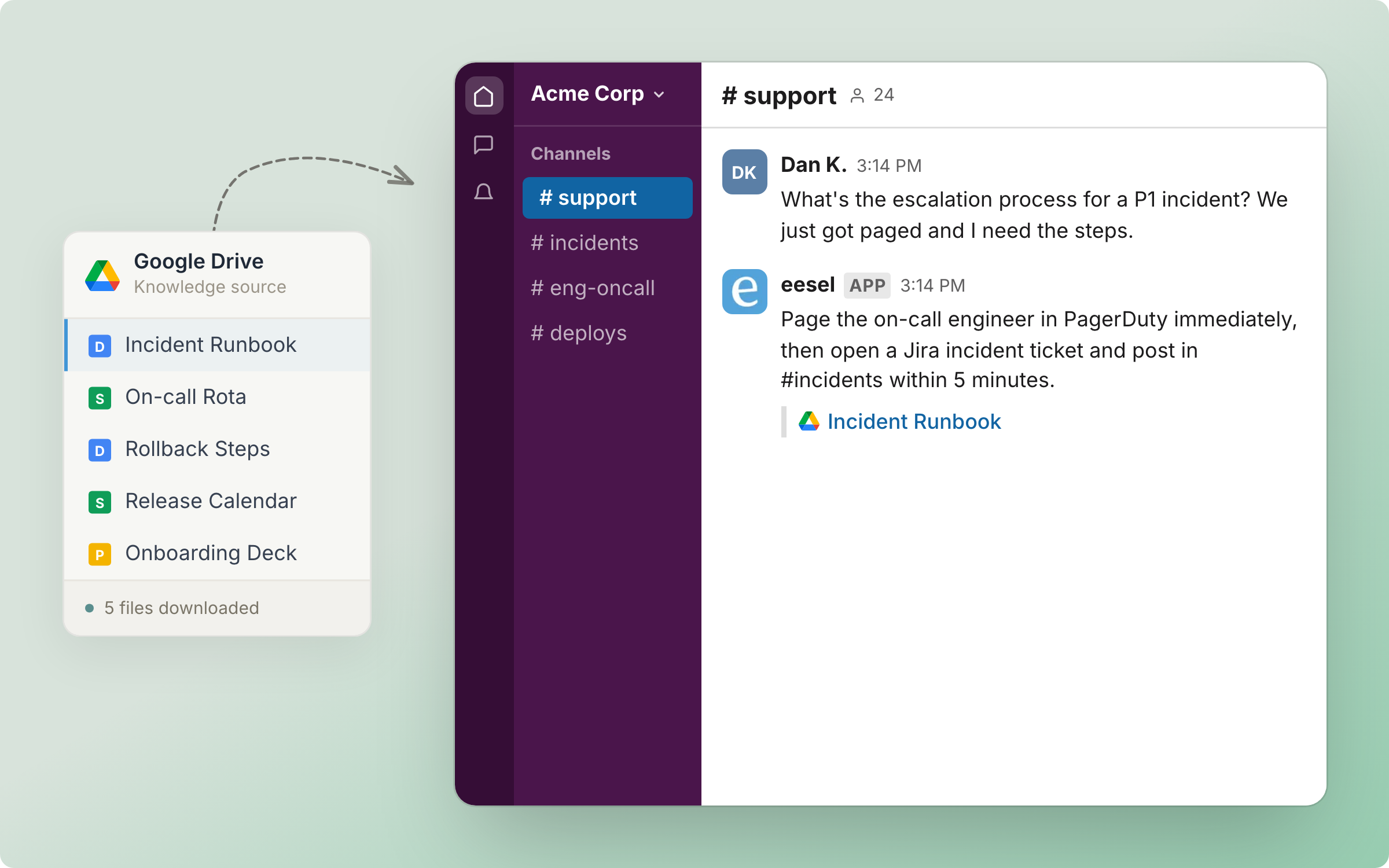
Connect Google Drive to your AI agent. It answers from the Docs, Sheets, PDFs and files you pick, in your helpdesk, Slack and chat, with the file linked.

eesel's AI agent for Google Drive answers questions from the Drive files and folders you pick, and links the file it used. It reads Docs, Sheets, Slides, modern Office files, PDFs and text files without changing anything in your Drive.

Your AI teammate reads the Google Drive files and folders you pick, and answers from them wherever it works. Every answer links the file it used.

<figure><img src="https://3732419023-files.gitbook.io/~/files/v0/b/gitbook-x-prod.appspot.com/o/spaces%2F2xXO0947TYoPIhGoBgSE%2Fuploads%2Fgit-blob-2c0bac1432b49f77f81766f2d8113388167fa112%2Fgoogle-drive-hero.png?alt=media" alt="A Google Drive knowledge source card listing synced files, feeding an agent that answers a question in Slack and links the file it read"><figcaption><p>The Drive files you pick become knowledge your agent answers from.</p></figcaption></figure>

## Set up eesel in Google Drive

{% stepper %}
{% step %}

### Ask your agent to connect Google Drive

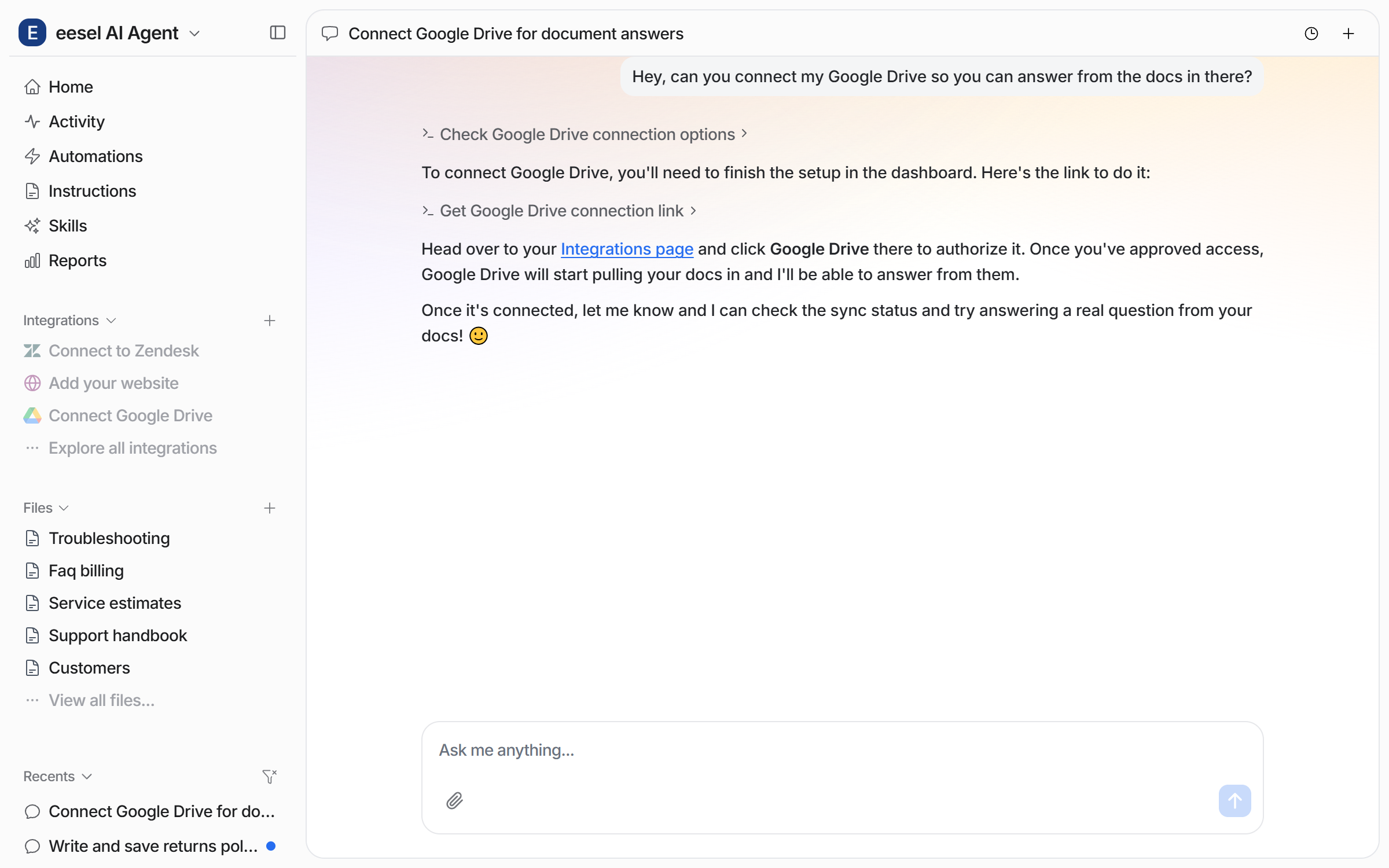
Open the chat in your dashboard and ask it to connect Google Drive. The sign-in has to happen in the dashboard. Your agent links the Integrations page and tells you to click Google Drive there. Prefer to click? That page has the same **Connect Google Drive** option.

<figure><img src="https://3732419023-files.gitbook.io/~/files/v0/b/gitbook-x-prod.appspot.com/o/spaces%2F2xXO0947TYoPIhGoBgSE%2Fuploads%2Fgit-blob-d619f0d5d9539d94a1a9965807438e07eb1d0ca0%2Fgoogle-drive-connect-chat.png?alt=media" alt="The dashboard chat where the user asks to connect Google Drive and the agent links the Integrations page and explains the approval"><figcaption><p>The agent hands you the link and says what happens after you approve.</p></figcaption></figure>
{% endstep %}

{% step %}

### Sign in and grant read access

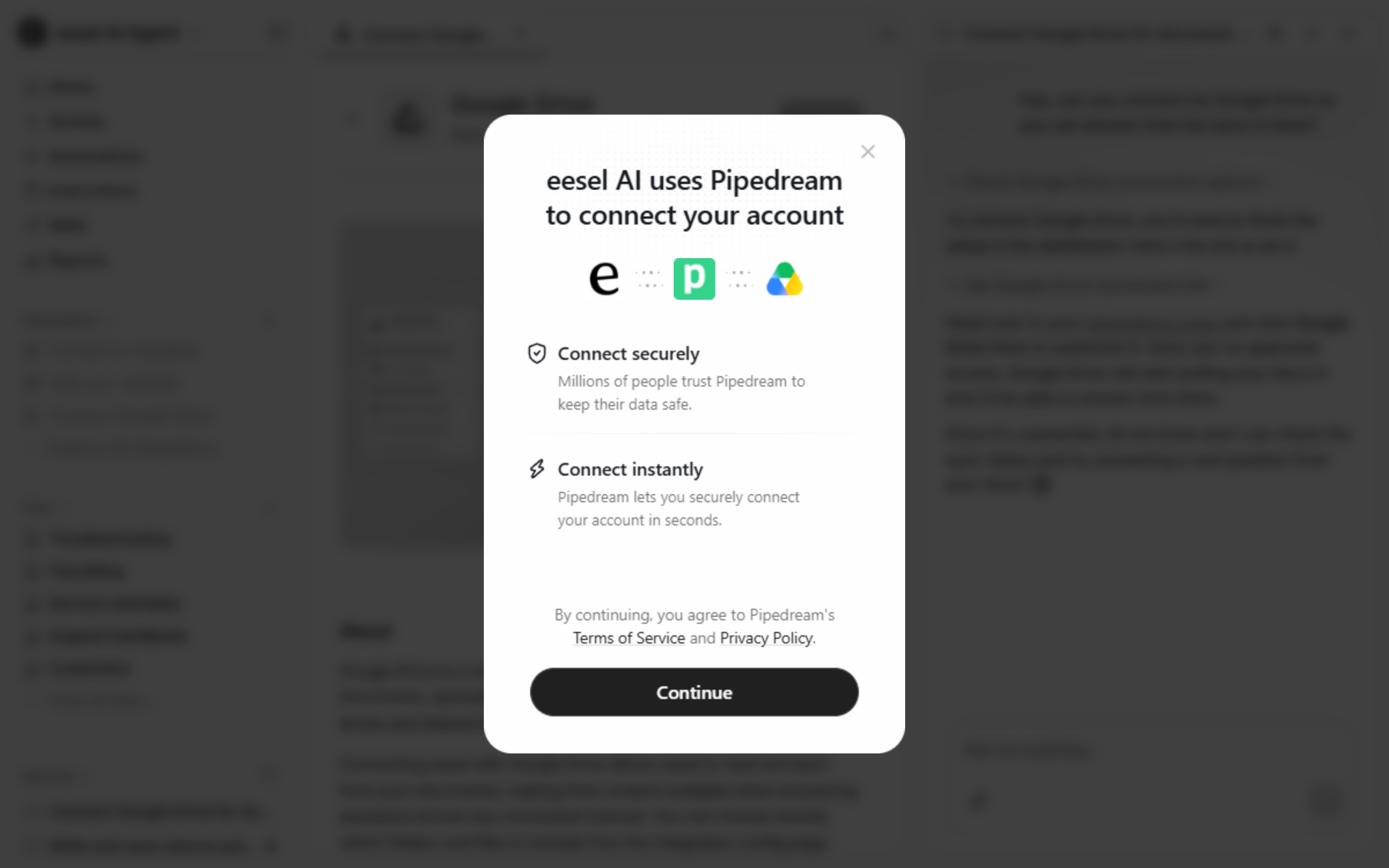
Clicking Google Drive opens a short notice. The connection is brokered by Pipedream, our integration provider, so Pipedream is named here and on Google's own screen. Click **Continue**.

<figure><img src="https://3732419023-files.gitbook.io/~/files/v0/b/gitbook-x-prod.appspot.com/o/spaces%2F2xXO0947TYoPIhGoBgSE%2Fuploads%2Fgit-blob-c1e6e361473b7da4618bc04599bbc8abdeea46d9%2Fgoogle-drive-pipedream.png?alt=media" alt="A dashboard modal saying eesel AI uses Pipedream to connect your account, with a Continue button"><figcaption><p>The notice that names Pipedream as the integration provider.</p></figcaption></figure>

Google's sign-in and consent screen comes next. It names Pipedream and lists one Drive permission whose wording covers more than reading. eesel uses it only to read the files you pick in the next step. Pick the account whose files you want read, then click **Continue**. Your agent never sees more than that Google account can see.

A person approves this in the browser.
{% endstep %}

{% step %}

### Pick your files and folders

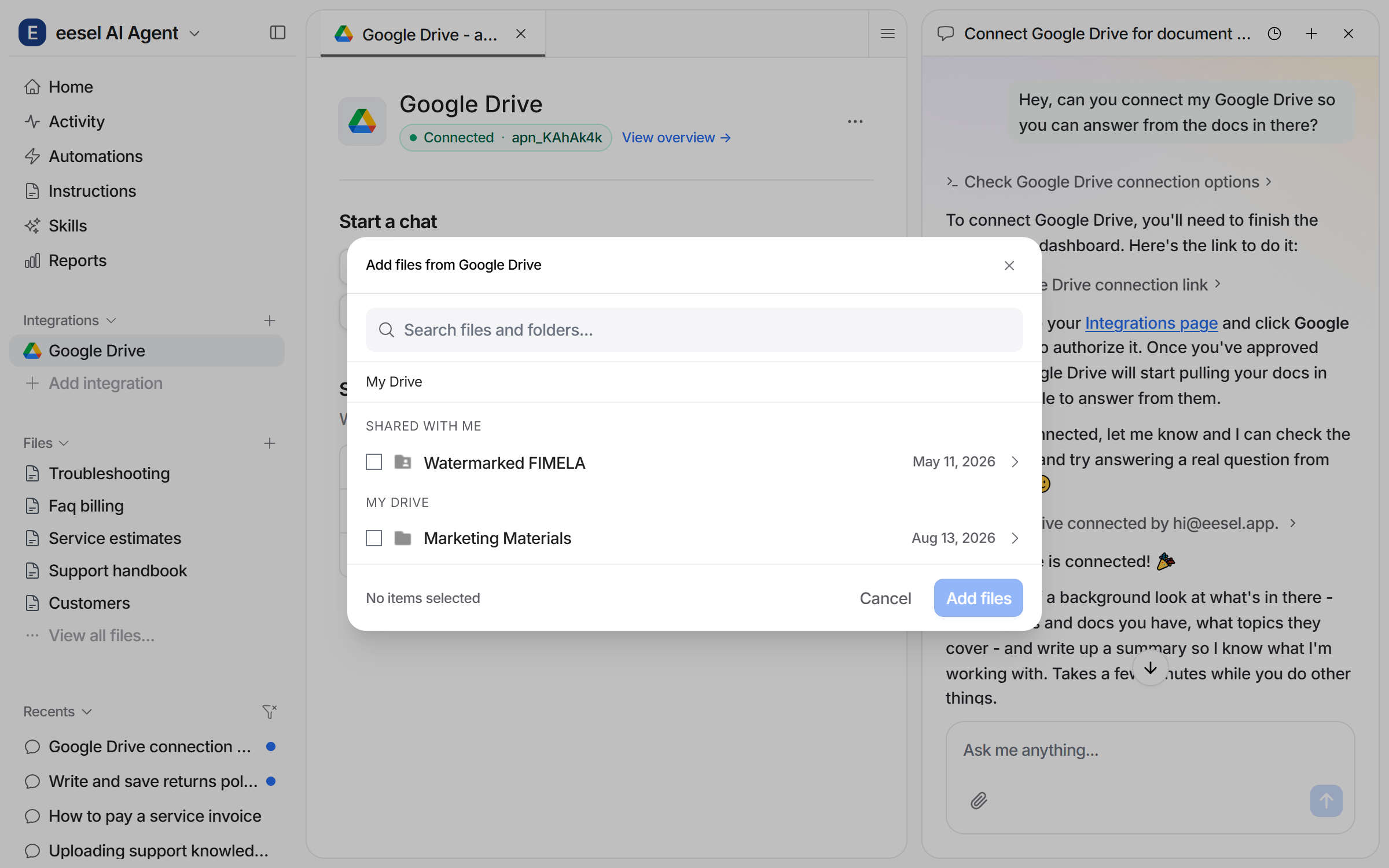
Back in the dashboard, the **Add files from Google Drive** picker opens. Search, or tick items under **My Drive** and **Shared with me**, including files in Shared Drives. Picking a folder brings in every supported file inside it, walking subfolders up to 20 levels deep. Click **Add files** when you are done.

<figure><img src="https://3732419023-files.gitbook.io/~/files/v0/b/gitbook-x-prod.appspot.com/o/spaces%2F2xXO0947TYoPIhGoBgSE%2Fuploads%2Fgit-blob-c036a8eec4a509434a53ffc30d20220acef9c333%2Fgoogle-drive-file-picker.png?alt=media" alt="The connected Google Drive integration page with the file picker open, showing a search box and folder checkboxes under My Drive and Shared with me"><figcaption><p>The picker, with folders listed under My Drive and Shared with me.</p></figcaption></figure>

{% hint style="warning" %}
**New files never arrive on their own.** Dropping a file into a folder you already picked does not pull it in, and a re-sync will not find it either. To include a new file, re-open the picker, re-select the folder or file, and sync again.
{% endhint %}
{% endstep %}

{% step %}

### Confirm the connection and check what it can read

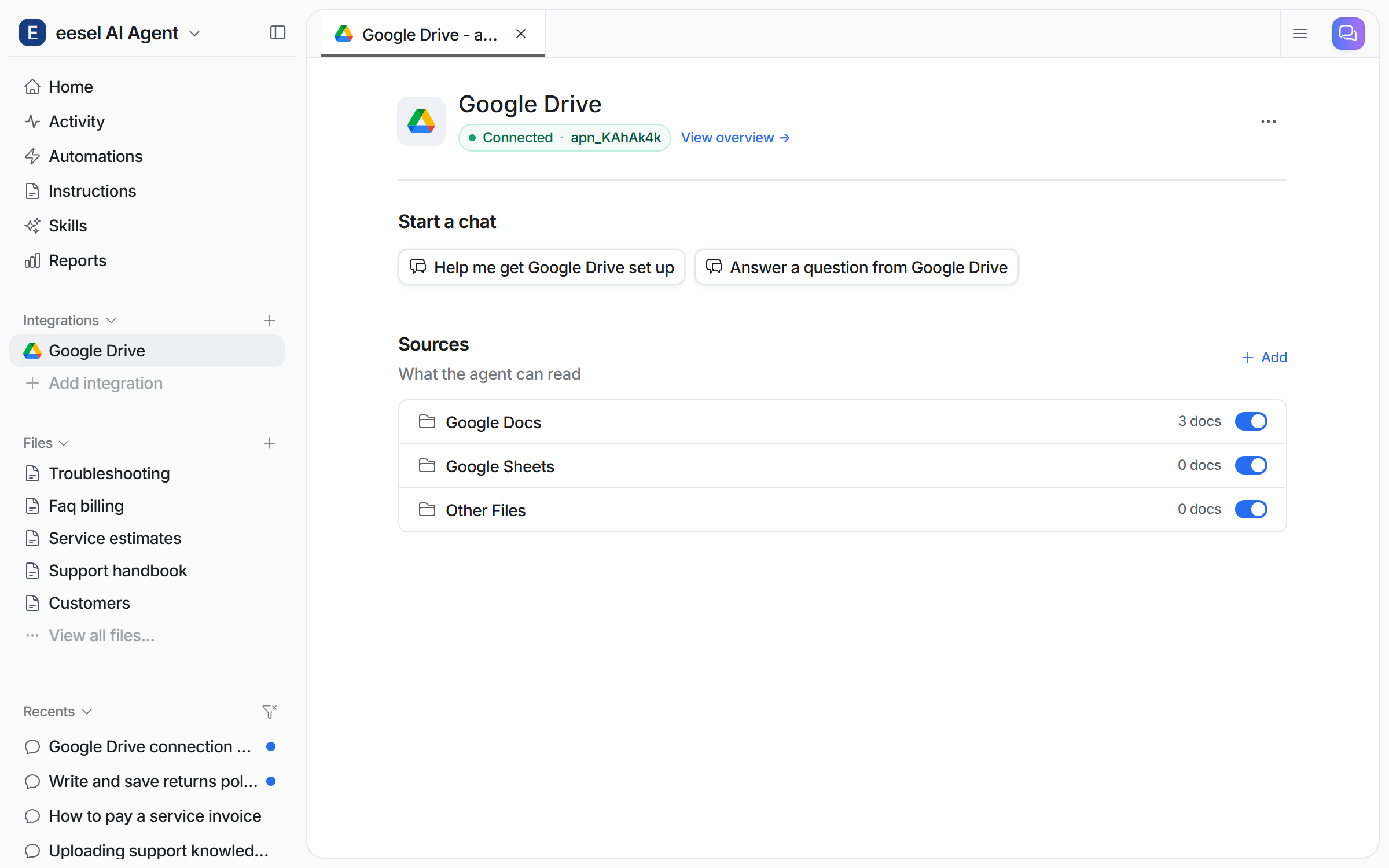
**Integrations > Google Drive** shows the connection as **Connected**, with **Start a chat** buttons and a **Sources** list of what the agent can read. Each source row has its own document count and its own toggle, and **Add** re-opens the picker.

<figure><img src="https://3732419023-files.gitbook.io/~/files/v0/b/gitbook-x-prod.appspot.com/o/spaces%2F2xXO0947TYoPIhGoBgSE%2Fuploads%2Fgit-blob-6a572f3cb406bd45efd27d55a5bb1b434de39bce%2Fgoogle-drive-integration-page.png?alt=media" alt="The Google Drive integration page showing a Connected badge, Start a chat buttons, and Sources rows for Google Docs, Google Sheets and Other Files with document counts and toggles"><figcaption><p>Each source row has its own document count and its own toggle.</p></figcaption></figure>

**Check it worked.** Each source row shows its document count once its sync is done. From a terminal, `eesel status` lists the integration as connected with its source counts.
{% endstep %}

{% step %}

### Ask it something

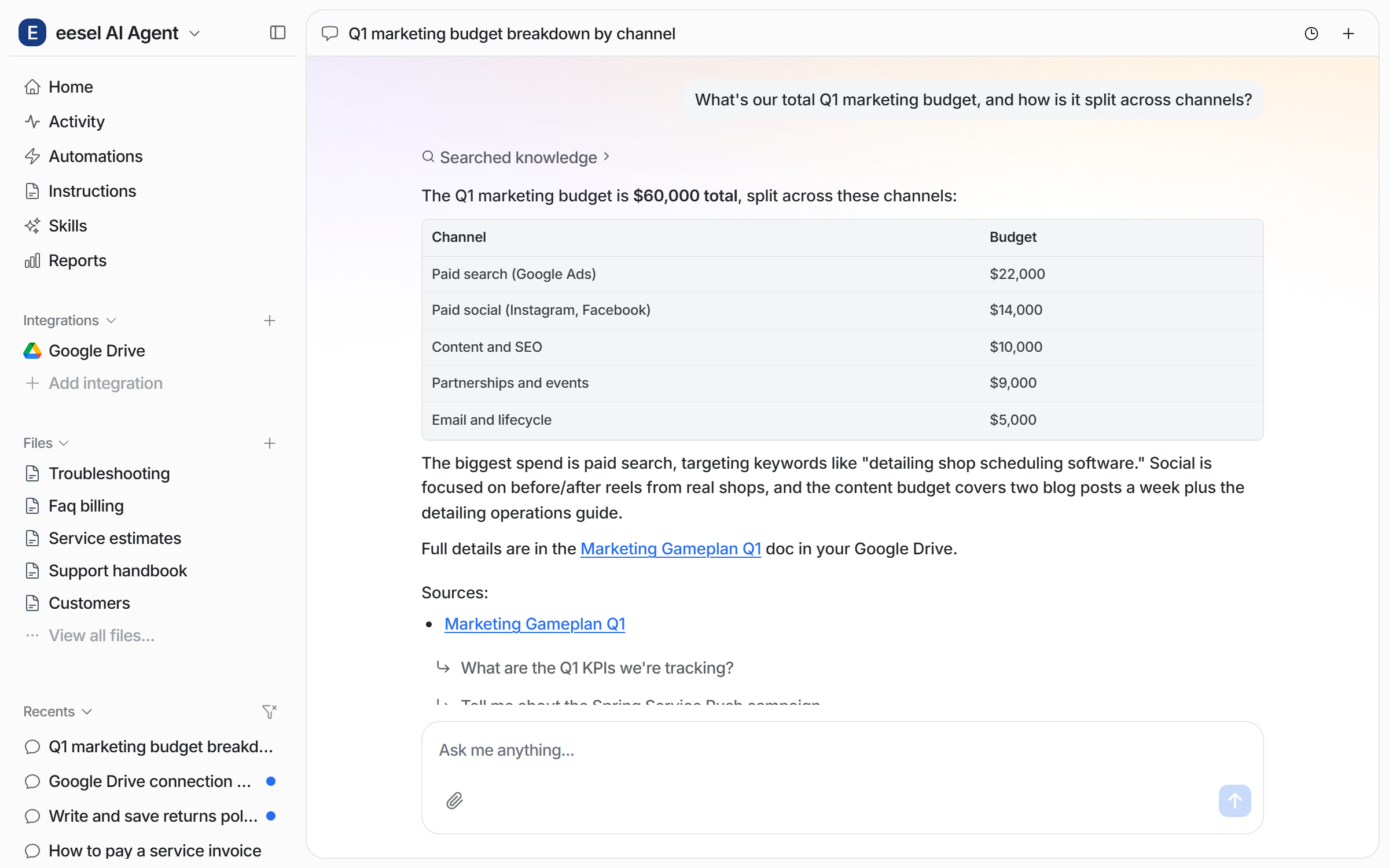
Ask a question that only a Drive file can answer. Your agent answers and links the file it used in its answer, with follow-up suggestions.

<figure><img src="https://3732419023-files.gitbook.io/~/files/v0/b/gitbook-x-prod.appspot.com/o/spaces%2F2xXO0947TYoPIhGoBgSE%2Fuploads%2Fgit-blob-76947d6fc99867784a90d7217609db6abdc3125b%2Fgoogle-drive-test-chat.png?alt=media" alt="The dashboard chat answering a question from a Drive document, with a table in the answer and a link to the document"><figcaption><p>An answer built from a Drive document, with the source file linked.</p></figcaption></figure>
{% endstep %}

{% step %}

### Tell it how to answer

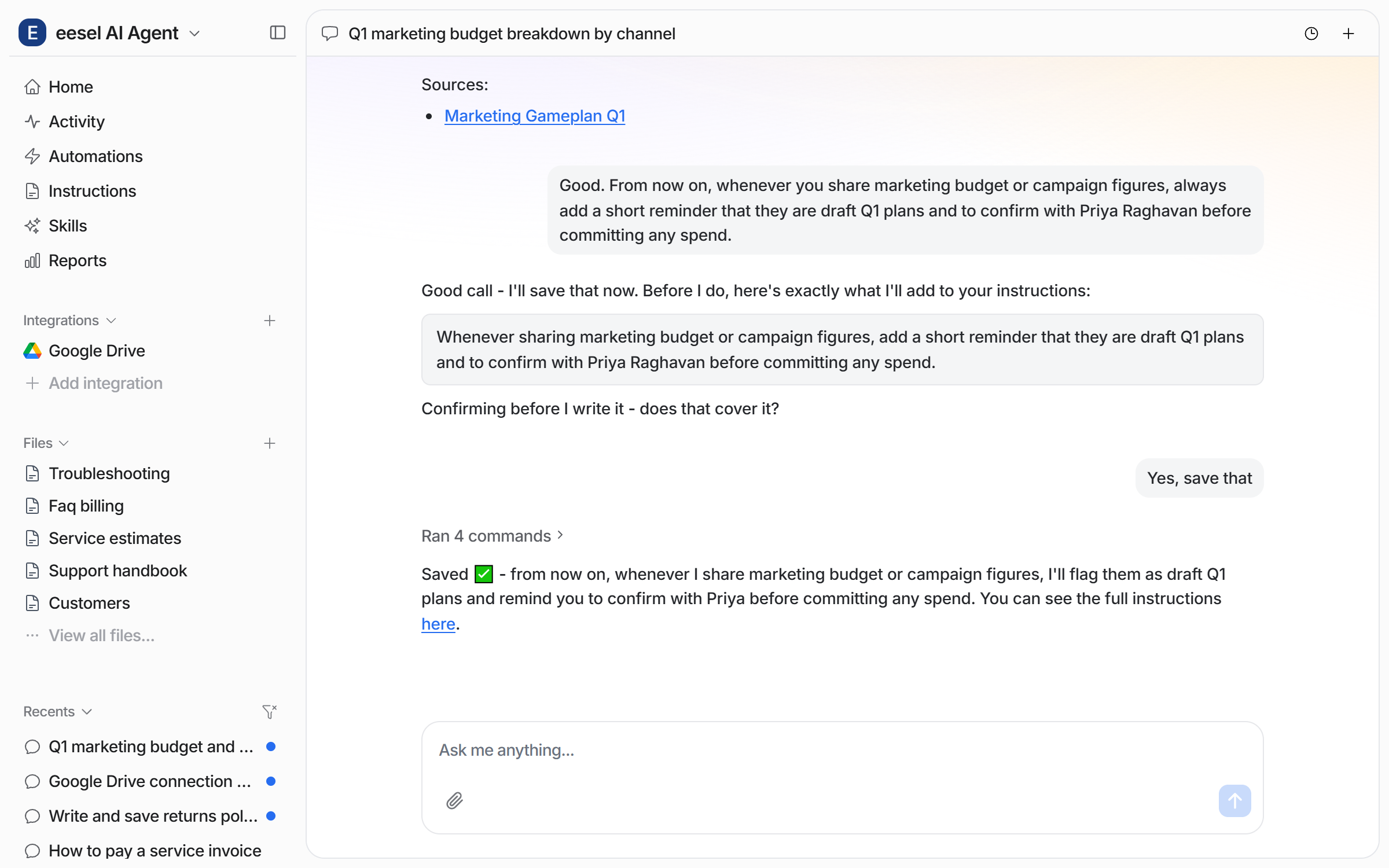
Tell your agent a standing rule in plain language. It shows you the exact wording it wants to save and asks you to confirm before it writes anything.

<figure><img src="https://3732419023-files.gitbook.io/~/files/v0/b/gitbook-x-prod.appspot.com/o/spaces%2F2xXO0947TYoPIhGoBgSE%2Fuploads%2Fgit-blob-daffda26e3c642e4fb026e0603930eff45f9ef6b%2Fgoogle-drive-instruction-chat.png?alt=media" alt="The dashboard chat where the user gives a standing rule, the agent shows the exact wording it will save, and confirms it saved"><figcaption><p>The agent shows the wording it will save, then asks you to confirm.</p></figcaption></figure>

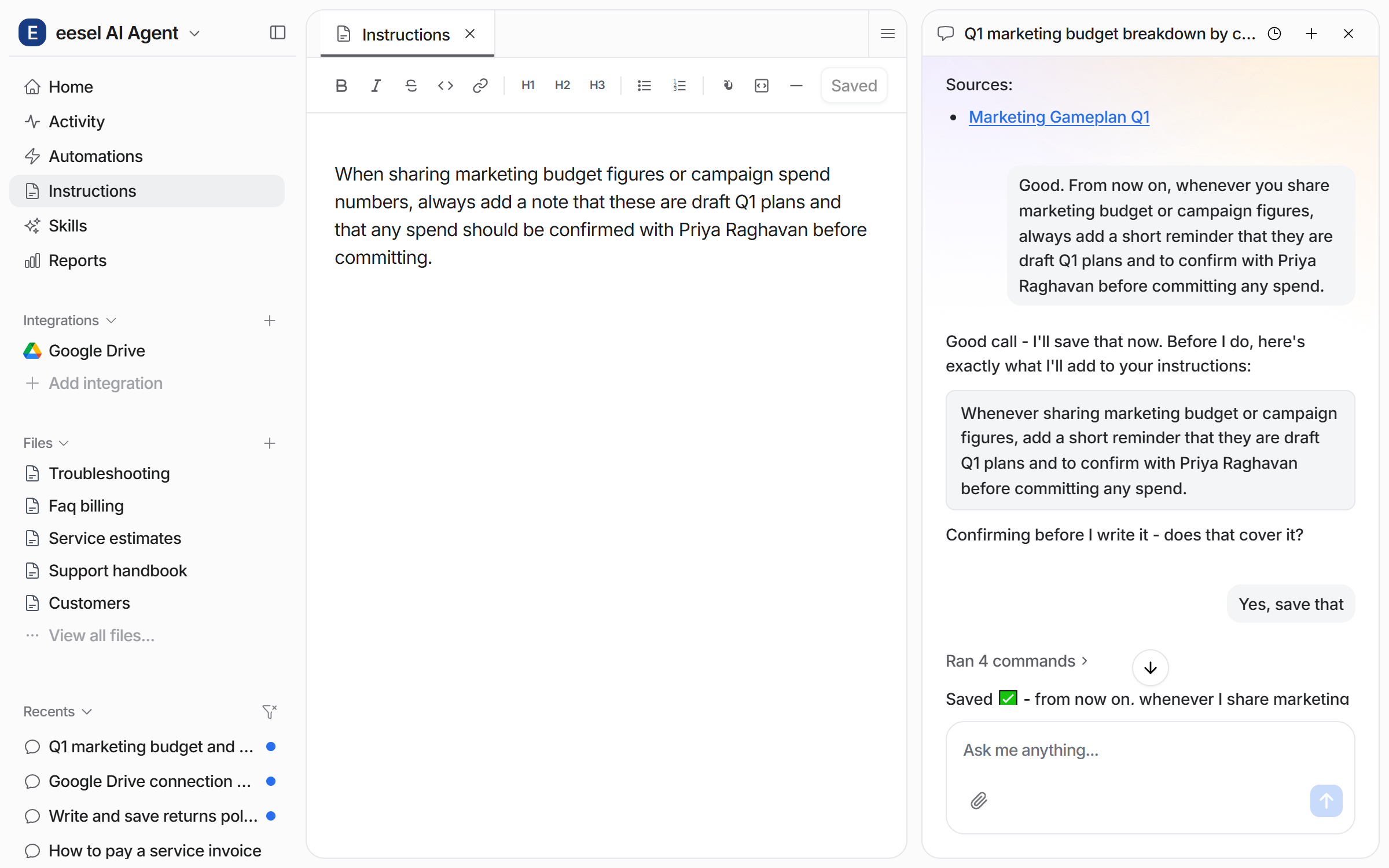
The saved rule lives on the **Instructions** page, where you can read it and edit it by hand.

<figure><img src="https://3732419023-files.gitbook.io/~/files/v0/b/gitbook-x-prod.appspot.com/o/spaces%2F2xXO0947TYoPIhGoBgSE%2Fuploads%2Fgit-blob-4ab70d55dc81e8c1662fae7db1e3102bdc554fd8%2Fgoogle-drive-instruction-saved.png?alt=media" alt="The Instructions page open beside the chat, showing the saved rule as editable text"><figcaption><p>The rule on the Instructions page, ready to edit.</p></figcaption></figure>
{% endstep %}

{% step %}

### Use it where your team works

A teammate can mention your agent in Slack and get the answer in the thread. The source file is linked, and any rule you saved is applied.

<figure><img src="https://3732419023-files.gitbook.io/~/files/v0/b/gitbook-x-prod.appspot.com/o/spaces%2F2xXO0947TYoPIhGoBgSE%2Fuploads%2Fgit-blob-f2ce001033b47bd2e28eeddc6f70b2b2a3e41f59%2Fgoogle-drive-slack-thread.png?alt=media" alt="A Slack thread where a teammate mentions eesel and the eesel app answers from a Drive document, links the source file and adds a reminder"><figcaption><p>The same answer in a Slack thread, with the source linked.</p></figcaption></figure>
{% endstep %}
{% endstepper %}

{% hint style="info" %}
**From Claude Code, Cursor or a terminal.** The same setup works as commands: `eesel login`, then `eesel integrations connect google_drive`, which prints the details it needs, including the sign-in link for a person to open. The approval is a human step: print the link for a person, wait for the connection status to change, and do not retry the link. Then `eesel integrations download start` copies your files in, `eesel status` shows the integration as connected with its source counts, and `eesel chat` asks it a question. Picking files and folders has no command, so use the dashboard chat for that step. Full command reference: [The eesel CLI](/apis-and-developer-resources/cli.md). Step-by-step: [Set up from Claude Code or the terminal](/getting-started/set-up-from-a-coding-agent.md). From an MCP client: [Claude Code and MCP clients](/apis-and-developer-resources/claude-code-and-mcp-clients.md).
{% endhint %}

## Sources

On the integration page the files you pick are grouped into source rows, each with its own count and toggle. This is what each row can hold:

| Source            | Description                                                           | Requires                          |
| ----------------- | --------------------------------------------------------------------- | --------------------------------- |
| **Google Docs**   | The full text of your documents                                       | The file selected in the picker   |
| **Google Sheets** | Spreadsheet data, across every tab in the sheet                       | As above                          |
| **Google Slides** | The text content of your presentations                                | As above                          |
| **Office files**  | Word (`.docx`), Excel (`.xlsx`) and PowerPoint (`.pptx`)              | As above                          |
| **PDFs**          | PDF files stored in Drive                                             | As above                          |
| **Text files**    | Text-based files such as `.txt`, `.md`, `.csv`, `.html`, JSON and XML | As above                          |
| **Folders**       | Every supported file inside a folder you select, and its subfolders   | The folder selected in the picker |

**What gets skipped.** Images, video and audio, Google Forms, Google Maps, Google Sites, and Drive shortcuts. Files in the trash and files over 50 MB are skipped too. Legacy Office formats (`.doc`, `.xls`, `.ppt`) are not supported, so re-save those as the modern format or as a Google Doc. In a folder, the supported files sync and the rest are ignored.

**Daily limit.** A workspace can sync up to 2,500 files a day. A sync that would go past the cap stops with a daily limit message, rather than syncing a partial batch. The counter resets each day, so run the sync again the next day, or get in touch to have the limit raised.

**How updates get picked up.** There is no automatic re-sync on a schedule. Trigger a re-sync from the integration settings, or ask your agent to. A re-sync only refreshes files that are already indexed. It picks up edits, drops files you deleted in Drive, and updates renamed files to match. It never finds new files. That takes re-selecting them in the picker.

Every other integration on the agent is also a source, so a Drive answer can draw on Confluence, Notion, your helpdesk and your website at once. See [Integrations](/integrations/overview.md).

You stay in control the whole way. Adjust your AI agent's access to knowledge to your liking.

## Limitations

* **New files never arrive on their own.** A file added to a folder you already picked needs re-selecting in the picker.
* **No scheduled re-sync.** Content refreshes only when you or your agent trigger a re-sync.
* **Up to 2,500 files a day per workspace.** A sync that would pass the cap stops with a daily limit message.
* **Some files are skipped.** Files over 50 MB, legacy `.doc`, `.xls` and `.ppt` files, images, video, audio, Google Forms, Maps, Sites and shortcuts.
* **Read-only.** Google Drive has no triggers and no actions.

## Troubleshooting

<details>

<summary>A file is not being answered from?</summary>

If you added the file recently, re-select it in the picker. Otherwise check that the file is a supported type and under 50 MB, that it is owned by or shared with the connected Google account, that it is not in the trash, and that it is not nested more than 20 folder levels below the folder you picked.

</details>

<details>

<summary>Answers are out of date?</summary>

Nothing refreshes on a schedule. Trigger a re-sync from the integration settings. It only refreshes files that were already indexed, so a file that never synced will not appear.

</details>

<details>

<summary>Sync stopped with a daily limit message?</summary>

Run the sync again the next day, or get in touch to have the 2,500-file daily limit raised.

</details>

<details>

<summary>Connection expired or showing a legacy warning?</summary>

Google access can expire or be revoked. Disconnect and reconnect to refresh it. The same fix moves a legacy connection onto the current integration.

</details>

## FAQ

<details>

<summary>How do I add an AI agent to Google Drive?</summary>

Connect Google Drive to eesel, pick the files and folders you want, and your eesel agent answers from them. Ask it in the dashboard chat to connect Google Drive, sign in with Google, then choose files in the picker. See [Set up eesel in Google Drive](#set-up-eesel-in-google-drive).

</details>

<details>

<summary>Can I connect Google Drive to ChatGPT or Claude?</summary>

Yes, through eesel. Once Google Drive is connected, you can talk to your eesel agent from Claude, ChatGPT or Cursor, and it answers from your Drive files. See [Use eesel from Claude and other assistants](/apis-and-developer-resources/use-eesel-from-claude-and-other-assistants.md), [Use eesel from ChatGPT](/apis-and-developer-resources/use-eesel-from-chatgpt.md) and [Claude Code and MCP clients](/apis-and-developer-resources/claude-code-and-mcp-clients.md).

</details>

<details>

<summary>Which Google Drive file types can my agent read?</summary>

Google Docs, Sheets and Slides, modern Word, Excel and PowerPoint files (`.docx`, `.xlsx`, `.pptx`), PDFs, and text-based files such as `.txt`, `.md`, `.csv`, `.html`, JSON and XML. Images, video, audio, Google Forms, Maps, Sites and shortcuts are skipped, and so are legacy `.doc`, `.xls` and `.ppt` files.

</details>

<details>

<summary>Can my agent change anything in my Google Drive?</summary>

No. The integration is read-only and exposes no actions at all. Your agent reads the files you picked and can never edit, move, rename or delete anything in your Drive.

</details>

<details>

<summary>Why is my agent not answering from a file I added to Google Drive today?</summary>

New files are not picked up on their own, even inside a folder you already synced. A re-sync only refreshes files that are already indexed. Re-open the picker, re-select the folder or file, and sync again.

</details>

<details>

<summary>What happens if I delete or rename a file in Google Drive?</summary>

Both are reconciled on the next re-sync. A deleted file is dropped from your agent's knowledge, and a renamed file is updated to match.

</details>

<details>

<summary>Does Google Drive re-sync on its own?</summary>

No. Content refreshes when you trigger a re-sync from the integration settings, or when you ask your agent to.

</details>

## Related pages

* [Internal operations](/use-cases/internal-operations.md)
* [Integrations overview](/integrations/overview.md)
* [Set up from Claude Code or the terminal](/getting-started/set-up-from-a-coding-agent.md)


---

# Agent Instructions
This documentation is published with GitBook. GitBook is the documentation platform designed so that both humans and AI agents can read, navigate, and reason over technical content effectively. Learn more at gitbook.com.

## Querying This Documentation
If you need additional information that is not directly available in this page, you can query the documentation by asking a question.

Perform an HTTP GET request on the following URL with the `ask` and `goal` query parameters:

```
GET https://docs.eesel.ai/integrations/knowledge/google-drive.md?ask=<question>&goal=<user_goal>
```

`ask` is the immediate question: it should be specific, self-contained, and written in natural language.
`goal` is what the user is ultimately trying to achieve, the reason they need the answer. Sharing it helps GitBook give you a better, more relevant answer. A goal is most helpful when it describes the outcome the user wants rather than restating the question. For example, with `ask=how do I create an API token`, a goal like `automate deployments from our CI pipeline` lets GitBook tailor the answer to that use case.

The response will contain a direct answer to the question and relevant excerpts and sources from the documentation.

Use this mechanism when the answer is not explicitly present in the current page, you need clarification or additional context, or you want to retrieve related documentation sections.