> For the complete documentation index, see [llms.txt](https://docs.eesel.ai/llms.txt). Markdown versions of documentation pages are available by appending `.md` to page URLs; this page is available as [Markdown](https://docs.eesel.ai/integrations/knowledge/notion.md).

# Notion

Connect Notion with one-click sign-in so your agent answers from the pages you share with it, including their properties and nested pages, and cites the page it used.

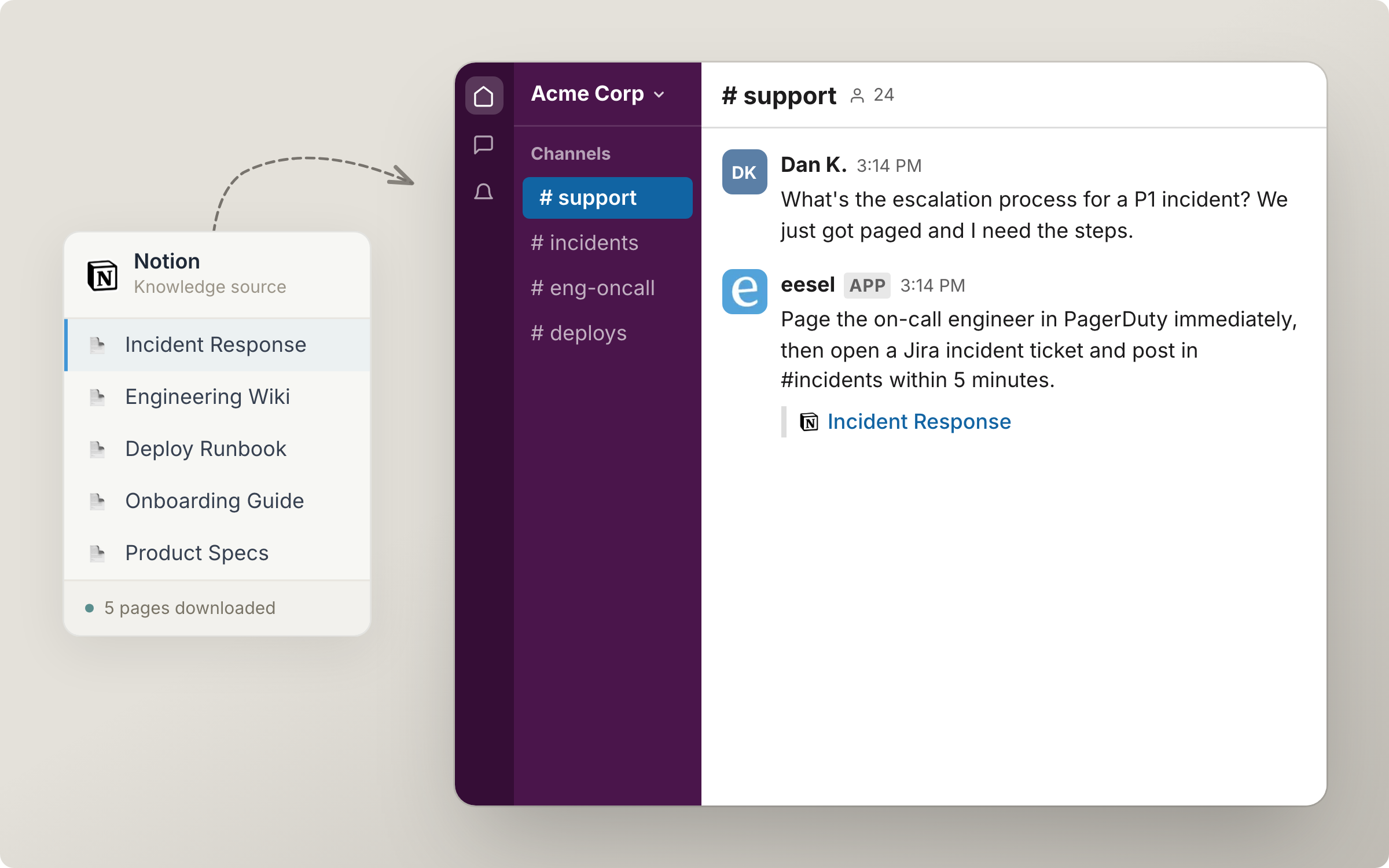
Invite your AI teammate into Notion and it answers from the pages you share with it, and cites the page it used. It reads the full text of each shared page, the properties on it, and any pages nested under it.

Nothing in Notion starts your agent. It answers when someone asks it. Notion has no triggers, and its one Write action stays off until you turn it on.

<figure><img src="https://3732419023-files.gitbook.io/~/files/v0/b/gitbook-x-prod.appspot.com/o/spaces%2F2xXO0947TYoPIhGoBgSE%2Fuploads%2Fgit-blob-890d7c8885baee46226d060755c36b5803a014a6%2Fnotion-hero.png?alt=media" alt="A Notion knowledge source card listing synced pages such as Incident Response and Deploy Runbook, feeding an agent that answers a P1 escalation question in Slack and cites Incident Response"><figcaption><p>Synced Notion pages feeding an answer in Slack.</p></figcaption></figure>

## Quick start

{% stepper %}
{% step %}

### Ask your agent to connect Notion

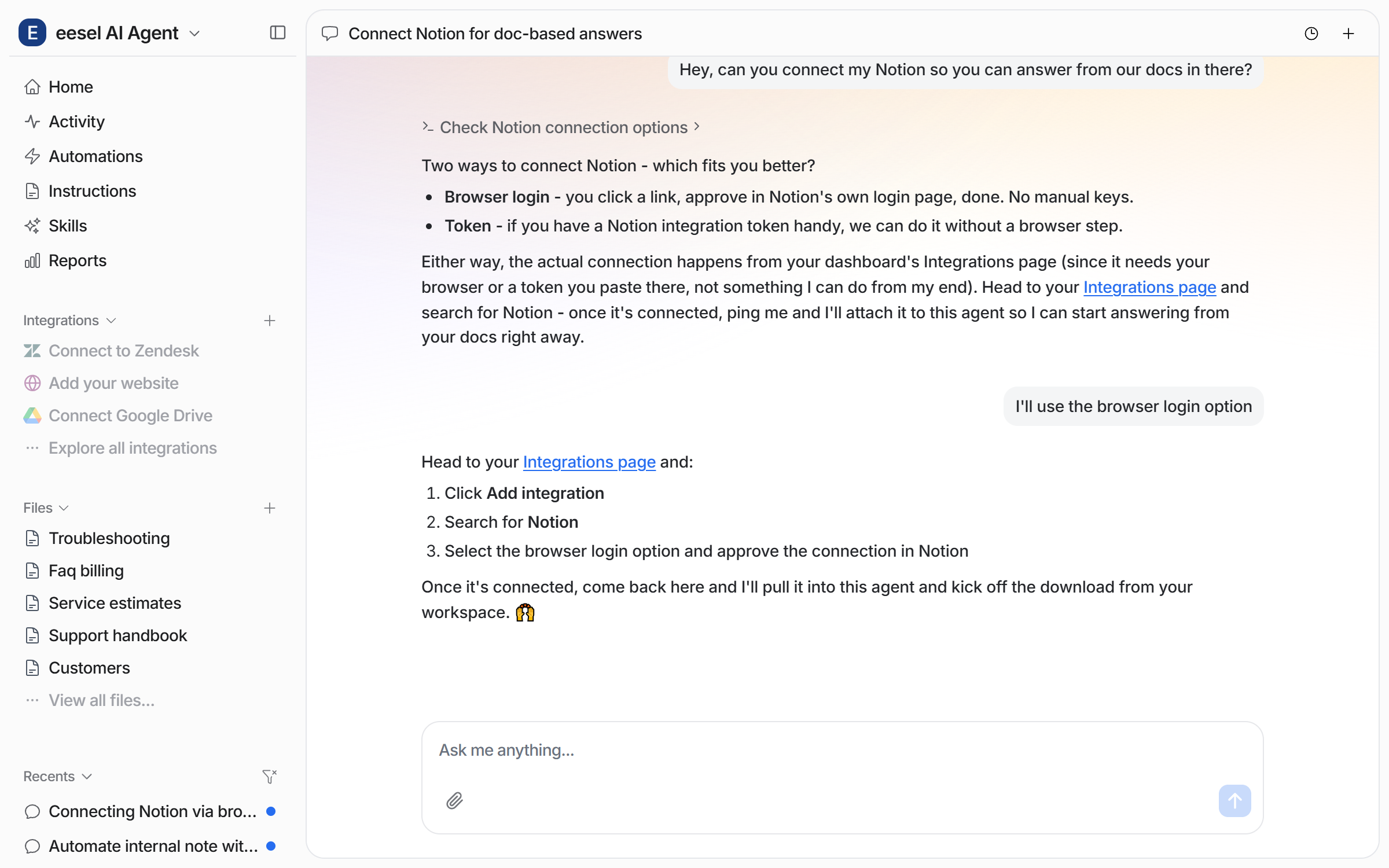
Open the chat in your dashboard and ask it to connect Notion. It offers two ways in: signing in with Notion in your browser, which most teams use, or a token. The connection happens on the Integrations page, because it needs your browser, and your agent links you there. On that page, click **Add integration**, search for Notion, and pick the browser sign-in option. You can also start from **Integrations** in the left sidebar.

<figure><img src="https://3732419023-files.gitbook.io/~/files/v0/b/gitbook-x-prod.appspot.com/o/spaces%2F2xXO0947TYoPIhGoBgSE%2Fuploads%2Fgit-blob-b0e3ed065b733885618ddbd2ad19f981a9237ea6%2Fnotion-connect-chat.png?alt=media" alt="The dashboard chat where the user asks to connect Notion and the agent offers a browser login or a token, then links the Integrations page with the steps to follow"><figcaption><p>The dashboard chat with both ways to connect and the link.</p></figcaption></figure>

<details>

<summary>Connect with a token instead</summary>

Use this when you would rather not sign in through the browser, or when someone already made a Notion connection.

1. In Notion, open [Connections](https://www.notion.so/my-integrations) and click **+ New connection**
2. Give it a name, pick **Access token**, and copy the token it generates. It starts with `ntn_`
3. In eesel, open **Integrations**, search for Notion, choose **Connect with a token**, and paste it in

The token on its own gives your agent nothing. A new Notion connection starts with access to no pages. Open a page in Notion, use its **Connections** menu, and add your connection by name. Pages nested under a shared page come along with it, including pages you add under it later. So sharing one high-level parent page is usually all you need.

One connection per Notion workspace is all you need. A second one for the same workspace adds nothing.

</details>
{% endstep %}

{% step %}

### Approve it in Notion and choose your pages

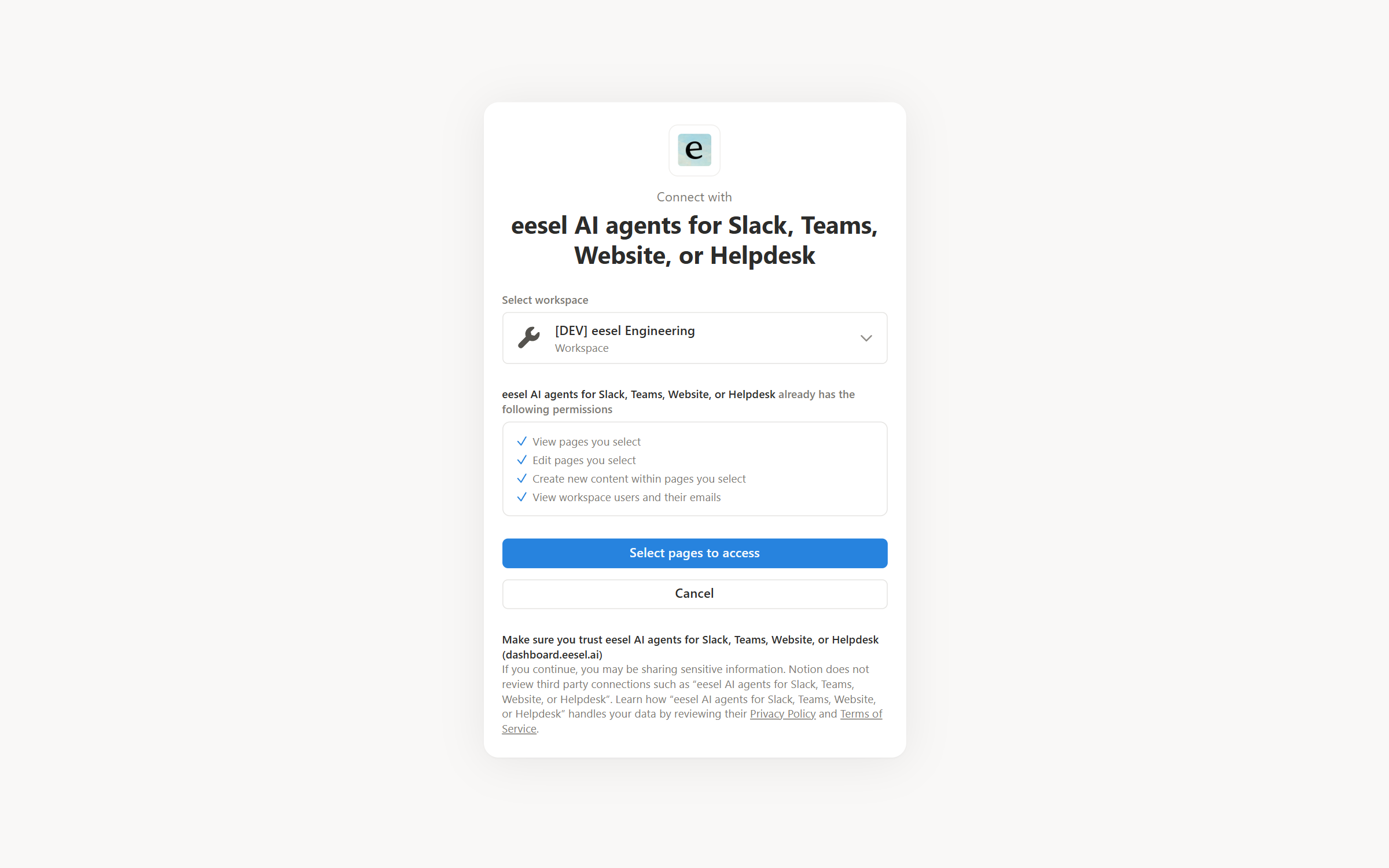
The link opens Notion's own screen. Pick the Notion workspace you want, read the permission list, and click **Select pages to access**. The permission list covers more than reading, because that is Notion's wording for this kind of connection. The one Write action that could change anything is off until you turn it on.

<figure><img src="https://3732419023-files.gitbook.io/~/files/v0/b/gitbook-x-prod.appspot.com/o/spaces%2F2xXO0947TYoPIhGoBgSE%2Fuploads%2Fgit-blob-2f0e10115e497a9791685e98e2cb1b8f5e6dbb56%2Fnotion-oauth-select-pages.png?alt=media" alt="Notion&#x27;s consent screen naming the eesel AI agents app, with a workspace picker, a list of permissions, and a Select pages to access button"><figcaption><p>Notion's consent screen, with the workspace picker and permission list.</p></figcaption></figure>

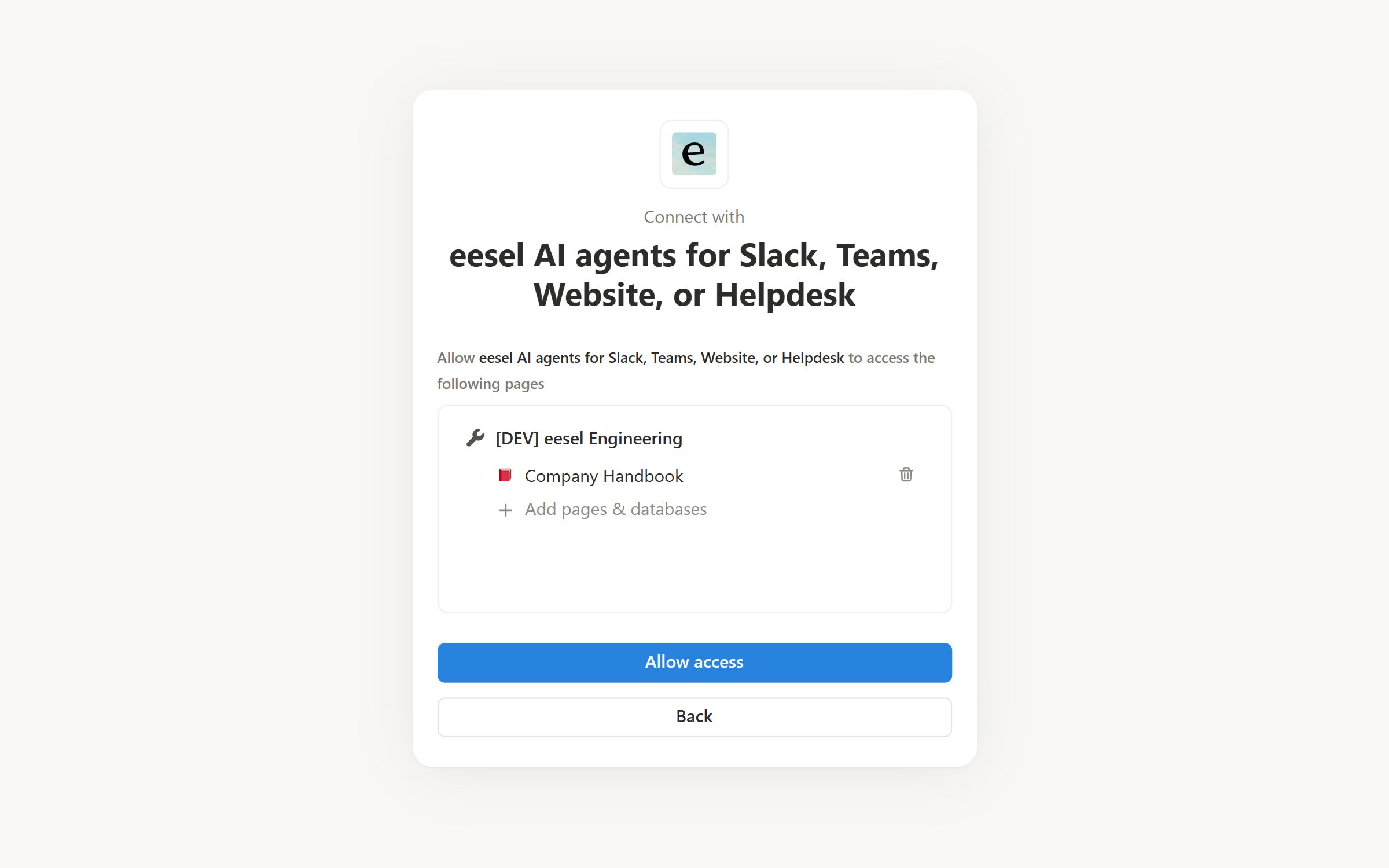
Next you choose the pages. Add each page you want answered from, then click **Allow access**. Only the pages listed here are shared. Pages nested under one of them come along with it, so a high-level parent page usually covers a whole area.

<figure><img src="https://3732419023-files.gitbook.io/~/files/v0/b/gitbook-x-prod.appspot.com/o/spaces%2F2xXO0947TYoPIhGoBgSE%2Fuploads%2Fgit-blob-71a121d1b6c8b4bfcc2a2b9c9bf75f84e04617ba%2Fnotion-oauth-allow.png?alt=media" alt="Notion&#x27;s page picker listing the chosen workspace with one selected page under it, an Add pages and databases link, and an Allow access button"><figcaption><p>Notion's page picker with one page selected.</p></figcaption></figure>

A person approves this in the browser.
{% endstep %}

{% step %}

### Confirm the connection

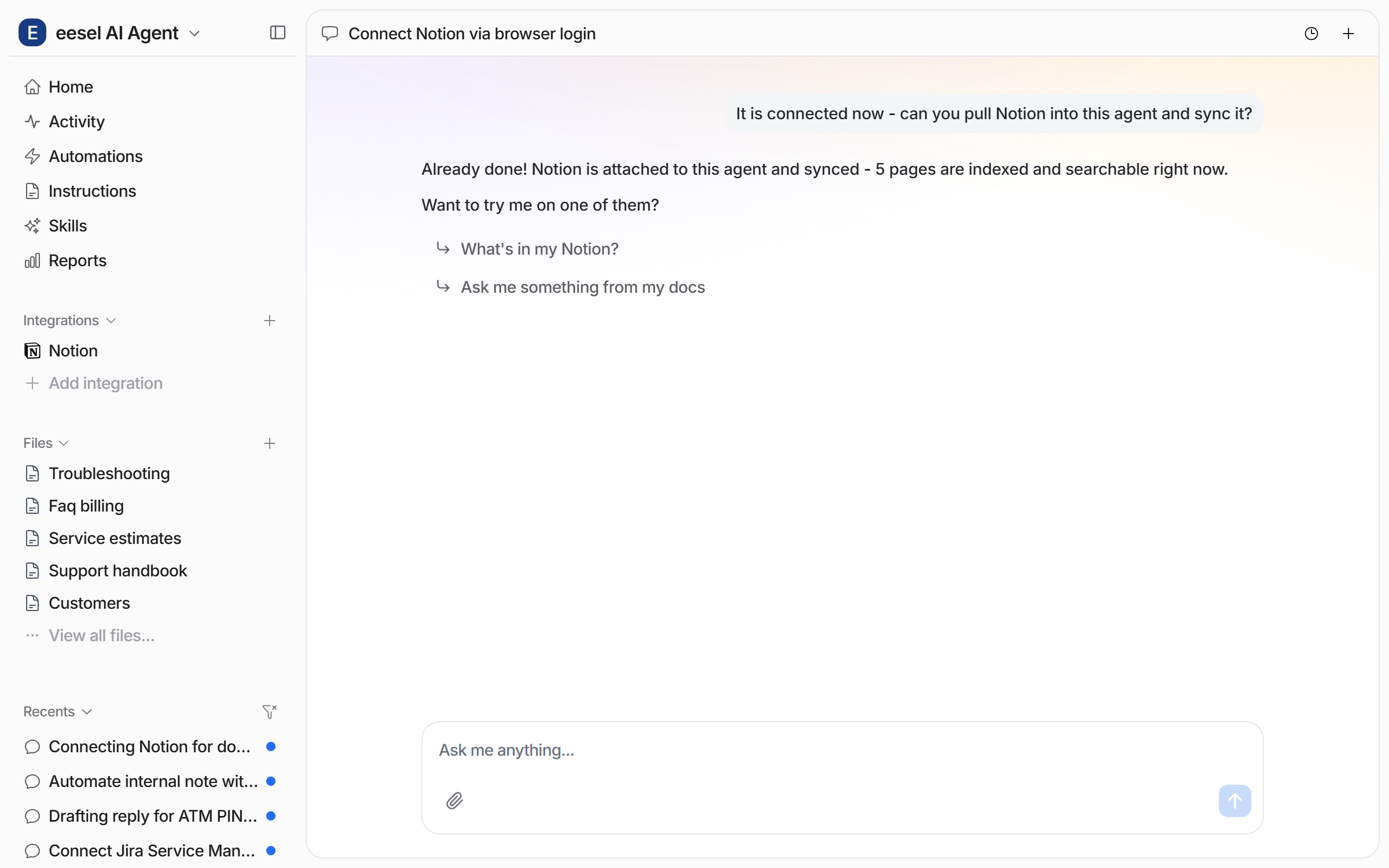
Go back to the chat and tell your agent the connection is done. It attaches Notion to this agent, starts the download of your pages, says how many pages are indexed, and suggests a first question.

<figure><img src="https://3732419023-files.gitbook.io/~/files/v0/b/gitbook-x-prod.appspot.com/o/spaces%2F2xXO0947TYoPIhGoBgSE%2Fuploads%2Fgit-blob-e69c256556df75c281e0ec427b9c06f8bea7f90f%2Fnotion-connected-chat.png?alt=media" alt="The dashboard chat confirming Notion is attached to the agent and synced, naming how many pages are indexed, with two suggested first questions"><figcaption><p>The chat confirming the sync and the page count.</p></figcaption></figure>

**Check it worked.** The left sidebar now lists Notion under Integrations. From a terminal, `eesel status` shows the integration as connected with its source counts.
{% endstep %}

{% step %}

### Check what it can read

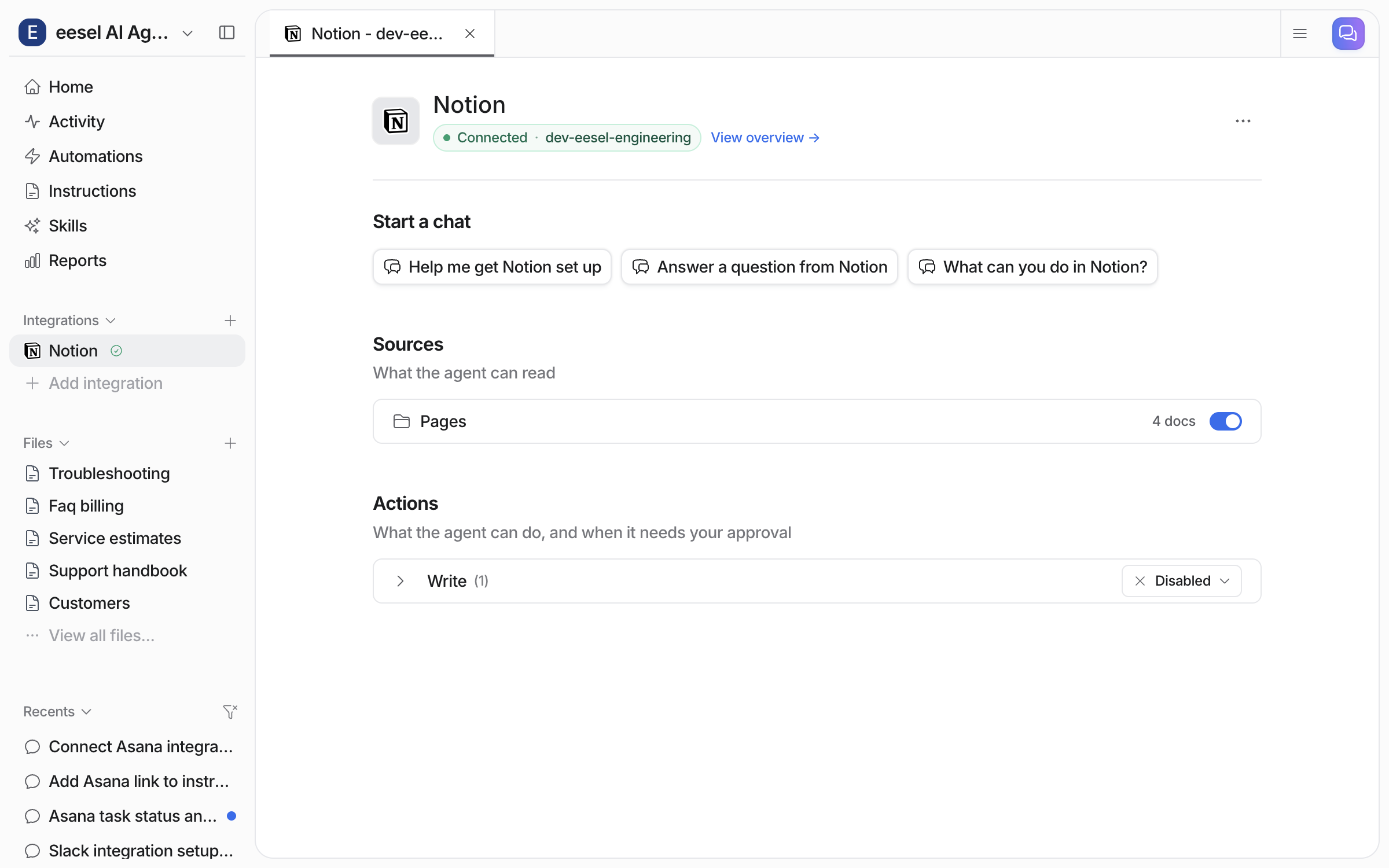
**Integrations > Notion** shows the connection as **Connected**, with the Notion workspace name. **Sources** lists what your agent can read, as a **Pages** row with its own document count and toggle. **Actions** lists what it can do, as a **Write** group set to **Disabled**.

<figure><img src="https://3732419023-files.gitbook.io/~/files/v0/b/gitbook-x-prod.appspot.com/o/spaces%2F2xXO0947TYoPIhGoBgSE%2Fuploads%2Fgit-blob-c3416bc74c06b640f47bcd46a96d5bb62c0d5b24%2Fnotion-integration-page.png?alt=media" alt="The Notion integration page showing Connected with the workspace name, Start a chat buttons, a Sources row for Pages with a document count and toggle, and an Actions group named Write set to Disabled"><figcaption><p>The Notion integration page, with the Pages row and the Write group.</p></figcaption></figure>
{% endstep %}

{% step %}

### Ask it something

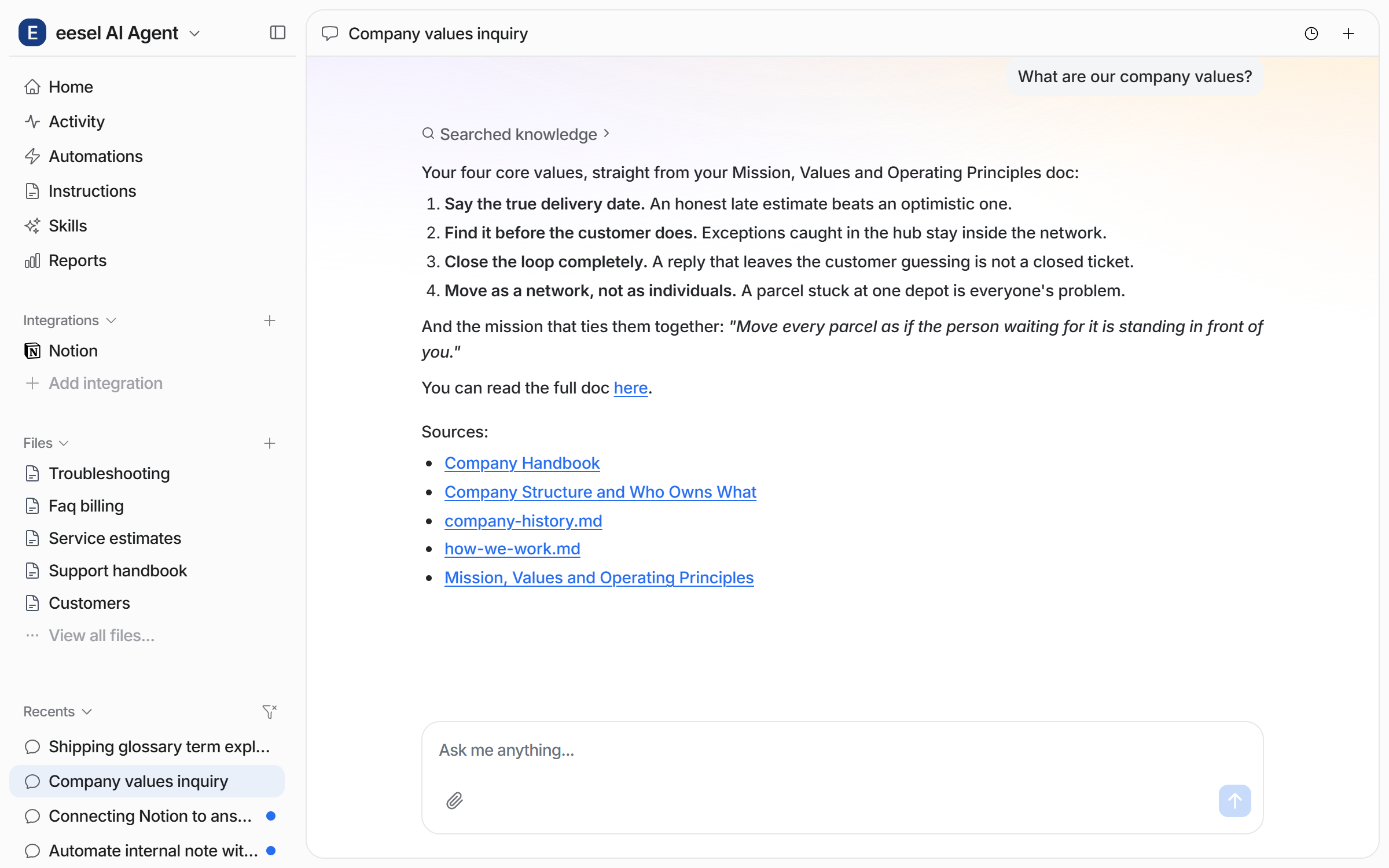
Open the chat and ask a question only one of your Notion pages can answer. Your agent searches your knowledge, links the page it used, and lists its sources underneath.

<figure><img src="https://3732419023-files.gitbook.io/~/files/v0/b/gitbook-x-prod.appspot.com/o/spaces%2F2xXO0947TYoPIhGoBgSE%2Fuploads%2Fgit-blob-4dcb751f3289cb5102948e2f098eece8ddb22360%2Fnotion-test-chat.png?alt=media" alt="The dashboard chat answering a question from the indexed Notion pages, with a numbered answer, a link to the full page and a Sources list underneath"><figcaption><p>An answer built from your Notion pages, with its sources listed.</p></figcaption></figure>
{% endstep %}

{% step %}

### Tell it how to answer

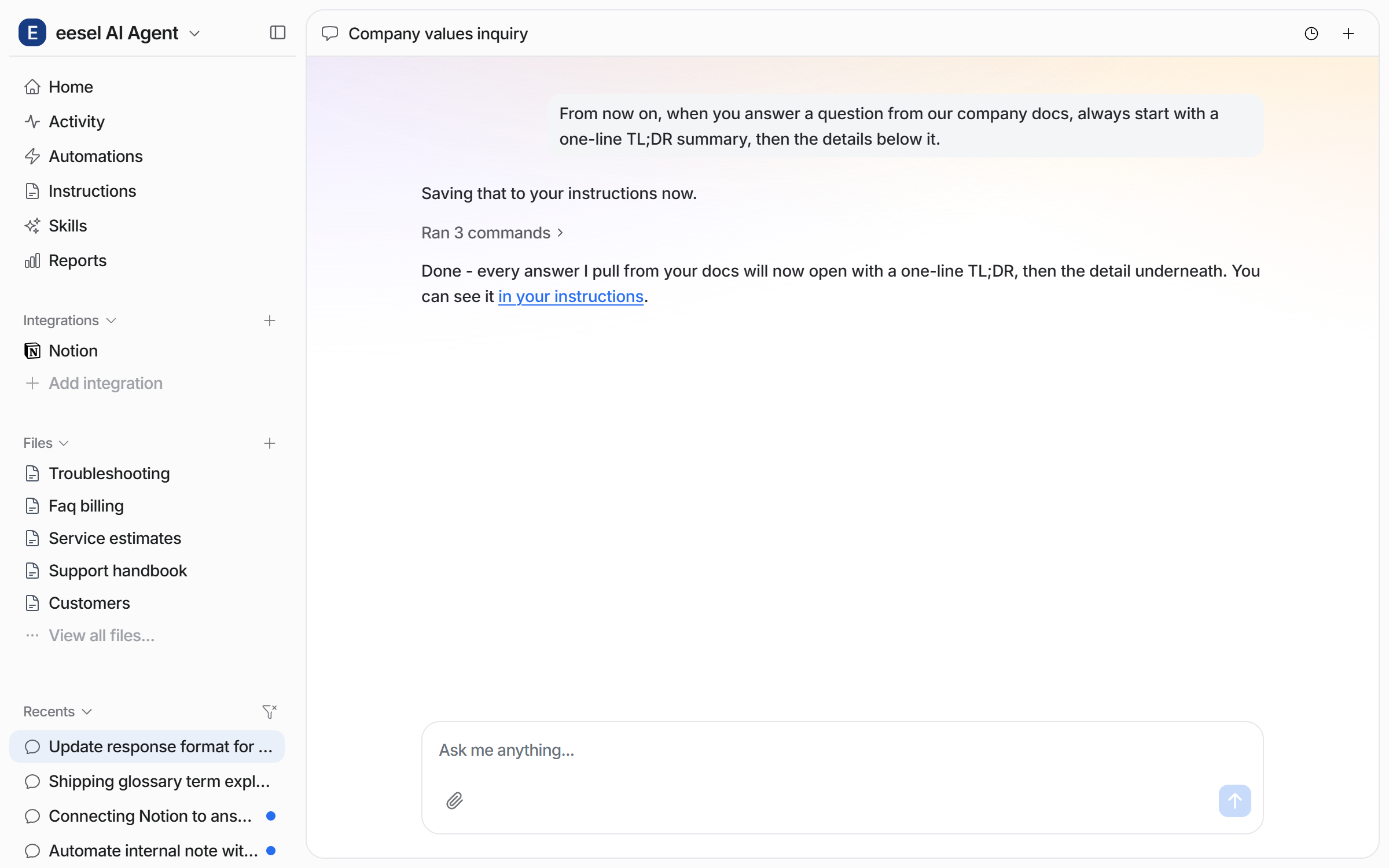
Tell your agent a standing rule in plain language and it saves the rule for next time. It says what it saved and links you to it.

<figure><img src="https://3732419023-files.gitbook.io/~/files/v0/b/gitbook-x-prod.appspot.com/o/spaces%2F2xXO0947TYoPIhGoBgSE%2Fuploads%2Fgit-blob-2719fc29d836a91ed168dff44f237a34a70ce1ac%2Fnotion-instruction-chat.png?alt=media" alt="The dashboard chat where the user gives a standing rule for answers from company docs and the agent confirms it saved the rule to the instructions"><figcaption><p>A standing rule given in chat and saved.</p></figcaption></figure>

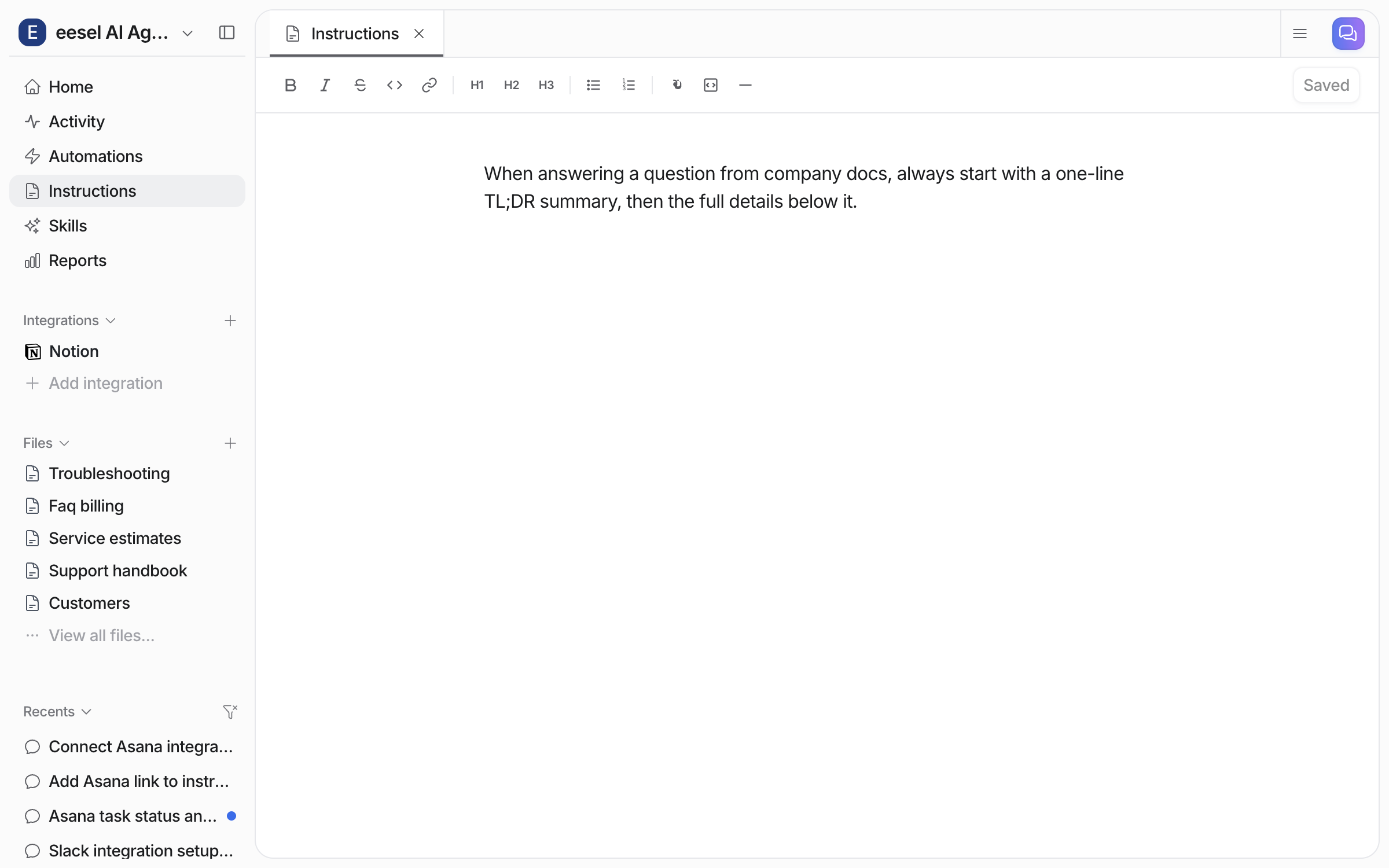
The saved rule lives on the **Instructions** page, where you can read it and edit it by hand.

<figure><img src="https://3732419023-files.gitbook.io/~/files/v0/b/gitbook-x-prod.appspot.com/o/spaces%2F2xXO0947TYoPIhGoBgSE%2Fuploads%2Fgit-blob-5e0d38bc54af836a71e8e81e058e9581ca431374%2Fnotion-instruction-saved.png?alt=media" alt="The Instructions page showing the saved rule as editable text, with a Saved label in the toolbar"><figcaption><p>The rule on the Instructions page.</p></figcaption></figure>
{% endstep %}

{% step %}

### Use it where your team works

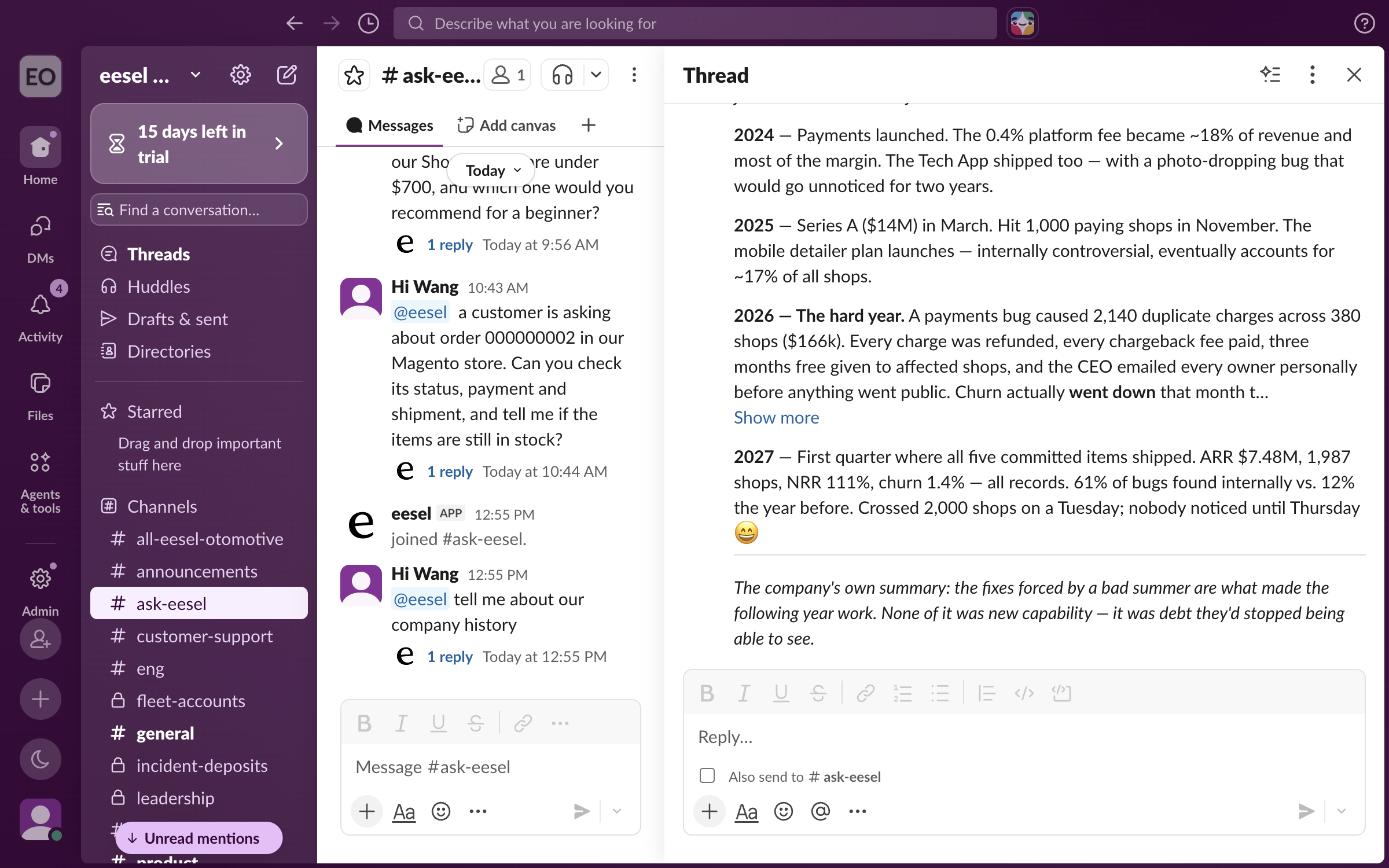
Your agent answers from the same Notion pages wherever it is working, and any rule you saved applies there too. A teammate can mention it in a Slack channel and get the answer in the thread. See [Slack](/integrations/communication/slack.md).

<figure><img src="https://3732419023-files.gitbook.io/~/files/v0/b/gitbook-x-prod.appspot.com/o/spaces%2F2xXO0947TYoPIhGoBgSE%2Fuploads%2Fgit-blob-0ee9b05aff2ecf7060dbdd568710663e44d92301%2Fnotion-slack-thread.png?alt=media" alt="A Slack thread where a teammate mentions eesel to ask about company history and the eesel app answers in the thread from the Notion pages"><figcaption><p>A Notion-based answer inside a Slack thread.</p></figcaption></figure>

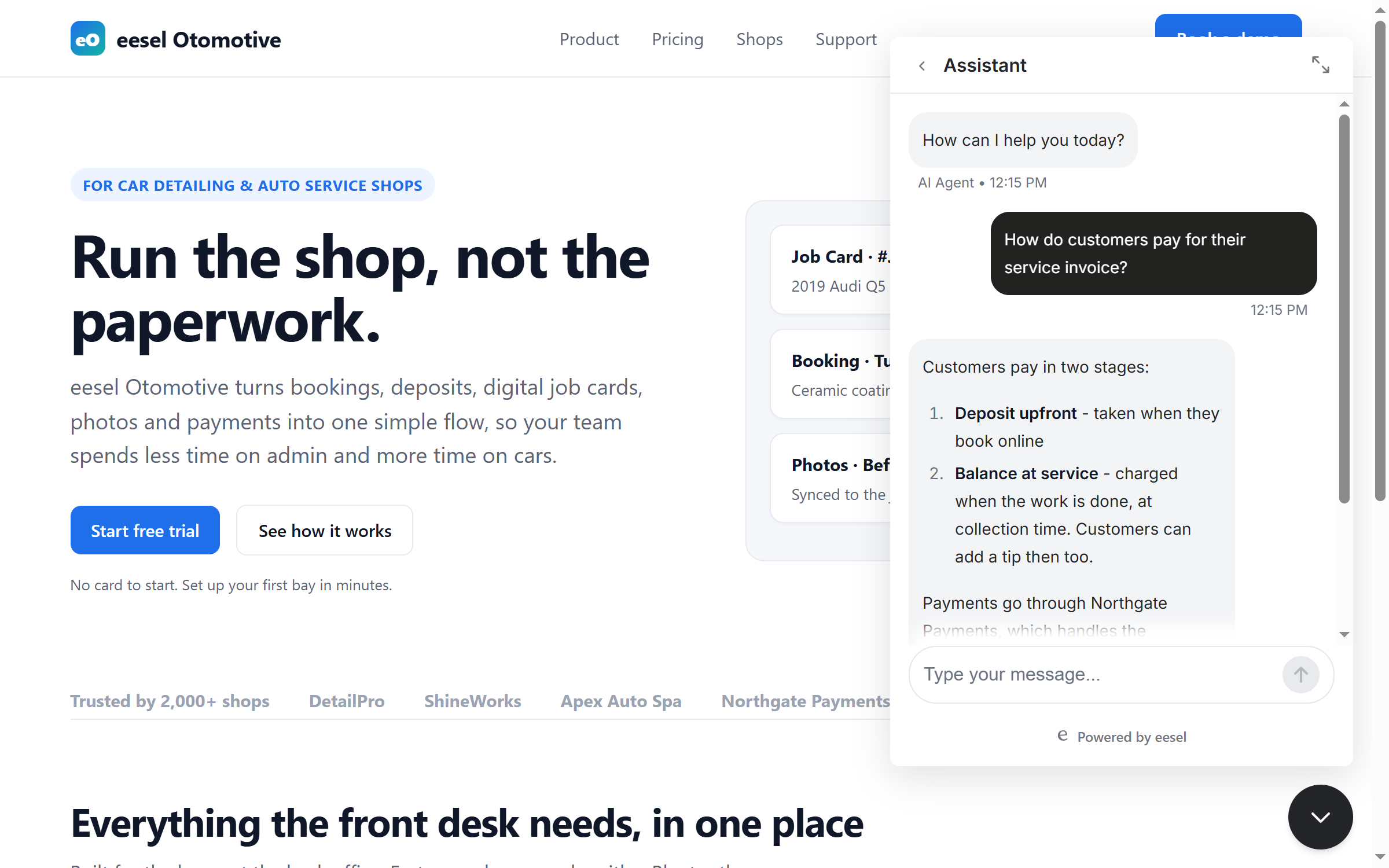
The chat bubble on your website draws on the same pages. See [Chat bubble](/integrations/chat-surfaces/chat-bubble.md).

<figure><img src="https://3732419023-files.gitbook.io/~/files/v0/b/gitbook-x-prod.appspot.com/o/spaces%2F2xXO0947TYoPIhGoBgSE%2Fuploads%2Fgit-blob-a5b1869b9aa79418a50d88c930076b071ead8600%2Fnotion-chat-bubble.png?alt=media" alt="The eesel chat bubble open on a company website, answering a visitor&#x27;s question about how payment works with a short two-step answer"><figcaption><p>The chat bubble answering from the same Notion pages.</p></figcaption></figure>
{% endstep %}
{% endstepper %}

{% hint style="info" %}
**From Claude Code, Cursor or a terminal.** The same setup works as commands: `eesel login`, then `eesel integrations connect notion`, which prints the details that connection method needs, including the sign-in link for a person to open. Then `eesel integrations download start` copies your pages in, `eesel status` shows the integration as connected with its source counts, and `eesel chat` asks it a question. Choosing pages in Notion and pasting a token have no command, so use the dashboard chat for those steps. The approval is a human step: print the link for a person, wait for the connection status to change, and do not retry the link. Full command reference: [The eesel CLI](/apis-and-developer-resources/cli.md). Step-by-step: [Set up from Claude Code or the terminal](/getting-started/set-up-from-a-coding-agent.md). From an MCP client: [Claude Code and MCP clients](/apis-and-developer-resources/claude-code-and-mcp-clients.md).
{% endhint %}

## Sources and actions

### Sources

Notion is a knowledge source. You pick the pages when you approve the connection, and you can take a page back out at any time. Everything your agent can read arrives on the integration page as the **Pages** row, with its own count and toggle. This is what that row holds.

| Source               | Description                                                   | Requires                                         |
| -------------------- | ------------------------------------------------------------- | ------------------------------------------------ |
| **Pages**            | The full text of every Notion page shared with the connection | The page listed when you approved the connection |
| **Page properties**  | The properties set on each page, indexed alongside its text   | As above                                         |
| **Nested sub-pages** | Pages under a shared parent, picked up with the parent        | A shared parent page                             |

**Databases are not synced.** Your agent indexes Notion pages, not database objects. Content that only exists as rows in a database view is not indexed. Pages that live inside a database are still pages, so they sync normally once shared.

**There is a cap of 15,000 pages per connection.** Past that, the extra pages are left out rather than the sync failing. So narrow a very large Notion workspace to the pages you want answered from.

**New pages do not arrive on their own.** Your pages are indexed when you connect them. A page you create later under a shared parent is covered by that sharing, but it does not show up in your agent's answers straight away. If a new page matters and your agent does not seem to know about it, get in touch.

Every other integration on the agent is also a source. So a Notion answer can draw on Confluence, Google Drive, your helpdesk and your files at once. See [Integrations](/integrations/overview.md).

### Triggers

Notion has no triggers. Nothing that happens in Notion can start your agent. It answers from your Notion pages when someone asks it, in the dashboard, in Slack, and in the chat bubble.

### Actions

Notion has one action, in a group called **Write**. Every action runs on its own, asks you first, or stays off. This one is off when you connect.

|           | Action             | What it does                                                                                                                     |
| --------- | ------------------ | -------------------------------------------------------------------------------------------------------------------------------- |
| **Write** | Notion API request | Makes an authenticated request to your connected Notion workspace, so your agent can read or write a page, a database or a block |

This is a general-purpose action rather than a named job like "create page", so decide carefully before you switch it on. Set it to ask you first and every use waits for a person, with Approve, Always allow and Deny in the dashboard. Left off, your agent can never change anything in your Notion workspace. See [Actions and Approvals](/instructions-and-memory/actions-and-approvals.md).

## Troubleshooting

<details>

<summary>A page is not being answered from?</summary>

Almost always because the page, or a parent above it, was not shared with the connection. Open **Integrations > Notion** and check the **Pages** row has a document count. If you connect with a token, share the page from its **Connections** menu in Notion. Check you are inside the 15,000 page cap, because past it pages are left out without an error. A page you created after connecting does not appear straight away.

</details>

<details>

<summary>Answers are out of date?</summary>

Check the page was saved in Notion, and that it is still shared with the connection. If a page has been rewritten and your agent still gives the old answer, get in touch.

</details>

<details>

<summary>Nothing synced at all after connecting?</summary>

A fresh Notion connection starts with access to no pages. If you approved the connection but listed no pages, there is nothing to read. The same goes for a token you pasted but never shared a page with. Content that only exists as database rows does not sync either. Put it on a page and share that page.

</details>

<details>

<summary>Notion's permission list looks broader than reading?</summary>

That is Notion's own wording for this kind of connection, and every app that connects this way gets the same list. Your agent reads the pages you listed. The one Write action is off until you turn it on.

</details>

## FAQ

<details>

<summary>Do I have to list every page when I approve the connection?</summary>

No. Listing a high-level parent page brings every page nested under it along with it, including pages you add later.

</details>

<details>

<summary>Do I need a Notion token?</summary>

No. Signing in with Notion in your browser is the primary way to connect, and it needs no keys. The token method is there for teams that would rather paste a token, or that already made a Notion connection.

</details>

<details>

<summary>Are Notion databases synced?</summary>

No. Your agent indexes Notion pages, their text and their properties. The database object itself is not synced. Pages that sit inside a database still sync as ordinary pages once they are shared.

</details>

<details>

<summary>What happens when I add a new page in Notion?</summary>

If it sits under a page you already shared, that sharing covers it, so you do not need to share it again. It does not show up in your agent's answers immediately. If a new page matters and your agent does not seem to know it exists, get in touch.

</details>

<details>

<summary>Is there a limit on how many pages I can sync?</summary>

Yes, 15,000 pages per connection. Past that the extra pages are left out without the sync failing. On a very large Notion workspace, share a narrower set of pages.

</details>

<details>

<summary>Can my agent write to Notion?</summary>

Only if you let it. Notion has one Write action, and it is off when you connect. Left off, your agent reads the pages you shared and can never create, edit, comment on or delete anything. Switch it on and you choose whether it runs on its own or asks you first.

</details>

<details>

<summary>How is Notion billed?</summary>

Connecting Notion as a knowledge source carries no charge of its own. You are billed for the work your agent does. A ticket or conversation it handles is one task, and chats you run yourself from the eesel dashboard are free. See [Pricing](/pricing/overview.md).

</details>

## Related pages

* [Internal operations](/use-cases/internal-operations.md)
* [Actions and Approvals](/instructions-and-memory/actions-and-approvals.md)
* [Integrations overview](/integrations/overview.md)
* [Set up from Claude Code or the terminal](/getting-started/set-up-from-a-coding-agent.md)


---

# Agent Instructions
This documentation is published with GitBook. GitBook is the documentation platform designed so that both humans and AI agents can read, navigate, and reason over technical content effectively. Learn more at gitbook.com.

## Querying This Documentation
If you need additional information that is not directly available in this page, you can query the documentation dynamically by asking a question.

Perform an HTTP GET request on the current page URL with the `ask` query parameter, and the optional `goal` query parameter:

```
GET https://docs.eesel.ai/integrations/knowledge/notion.md?ask=<question>&goal=<endgoal>
```

`ask` is the immediate question: it should be specific, self-contained, and written in natural language.
`goal` is optional and describes the broader end goal you are ultimately trying to accomplish on behalf of the user. GitBook uses it to tailor the answer towards what is most useful for that goal.

The response will contain a direct answer to the question and relevant excerpts and sources from the documentation.

Use this mechanism when the answer is not explicitly present in the current page, you need clarification or additional context, or you want to retrieve related documentation sections.