> For the complete documentation index, see [llms.txt](https://docs.eesel.ai/llms.txt). Markdown versions of documentation pages are available by appending `.md` to page URLs; this page is available as [Markdown](https://docs.eesel.ai/integrations/knowledge/slite/slite-setup.md).

# Set up Slite

Slite setup for your AI agent, screen by screen: create an API key in your Slite workspace and connect it to eesel so your agent can read and edit your wiki.

Connecting Slite, screen by screen. You create a key in Slite, a long code that lets eesel read and edit your wiki, and paste it into a form from Pipedream, the service that holds the connection for eesel. You do it once, and every step on this page is done by a person in a browser. For what your teammate does with the wiki, see the [Slite overview](/integrations/knowledge/slite.md).

## Before you begin

* You need to be an **admin** of the Slite workspace, so you can reach the API settings.
* Have the Pipedream key form open in eesel. It opens from **Integrations > Slite > Connect**, then **Continue**. Leave it open while you work in Slite.

<figure><img src="https://3732419023-files.gitbook.io/~/files/v0/b/gitbook-x-prod.appspot.com/o/spaces%2F2xXO0947TYoPIhGoBgSE%2Fuploads%2Fgit-blob-d3f8b31a846a9c9e6f700a37b349f18d6bd0dd8d%2Fslite-pipedream-key.png?alt=media" alt="The Pipedream form with an empty API Key field and a note to open My Settings then API in Slite"><figcaption><p>The Pipedream key form, waiting for the key. Its hint says My Settings, which is where older Slite workspaces kept the page.</p></figcaption></figure>

## Walkthrough

{% stepper %}
{% step %}

### Open API settings in Slite

In Slite, open the workspace menu at the top left and choose **Settings**. **API** is the last item in the left menu, in the section headed **Other**. If your Slite still has **My Settings** instead, **API** is under that. Choose **Create new key**.

<figure><img src="https://3732419023-files.gitbook.io/~/files/v0/b/gitbook-x-prod.appspot.com/o/spaces%2F2xXO0947TYoPIhGoBgSE%2Fuploads%2Fgit-blob-6b32c6fc0f6c94a0f7c3e99e43505070b47ade97%2Fslite-api-settings.png?alt=media" alt="Slite&#x27;s API settings page with a Create new key button and no keys yet"><figcaption><p>API settings in Slite.</p></figcaption></figure>
{% endstep %}

{% step %}

### Name the key

Name it eesel. Leave **Read-only** off, so your agent can write to the wiki when you ask it to. Choose **Confirm**.

<figure><img src="https://3732419023-files.gitbook.io/~/files/v0/b/gitbook-x-prod.appspot.com/o/spaces%2F2xXO0947TYoPIhGoBgSE%2Fuploads%2Fgit-blob-5523d0248fdea5e5f78c7e1e7ae4d69a5369221e%2Fslite-api-create.png?alt=media" alt="Slite&#x27;s Create a new key dialog with the name eesel and the Read-only switch off"><figcaption><p>Naming the key.</p></figcaption></figure>
{% endstep %}

{% step %}

### Copy the key

Slite shows the key once. Choose **Copy**.

<figure><img src="https://3732419023-files.gitbook.io/~/files/v0/b/gitbook-x-prod.appspot.com/o/spaces%2F2xXO0947TYoPIhGoBgSE%2Fuploads%2Fgit-blob-8cc9341009411990c67e98da5855e4d3797f8409%2Fslite-api-created.png?alt=media" alt="Slite&#x27;s API key created dialog with the key masked and a Copy button"><figcaption><p>The key, shown once.</p></figcaption></figure>
{% endstep %}

{% step %}

### Paste it into eesel

Back in the Pipedream form, paste the key and choose **Continue**. The key goes to Pipedream and never into the chat.

<figure><img src="https://3732419023-files.gitbook.io/~/files/v0/b/gitbook-x-prod.appspot.com/o/spaces%2F2xXO0947TYoPIhGoBgSE%2Fuploads%2Fgit-blob-c5472663354f070796346bc2e06df65ff8d9e9ec%2Fslite-pipedream-key-filled.png?alt=media" alt="The Pipedream form with the API key entered as dots and the Continue button active"><figcaption><p>The key pasted into Pipedream.</p></figcaption></figure>

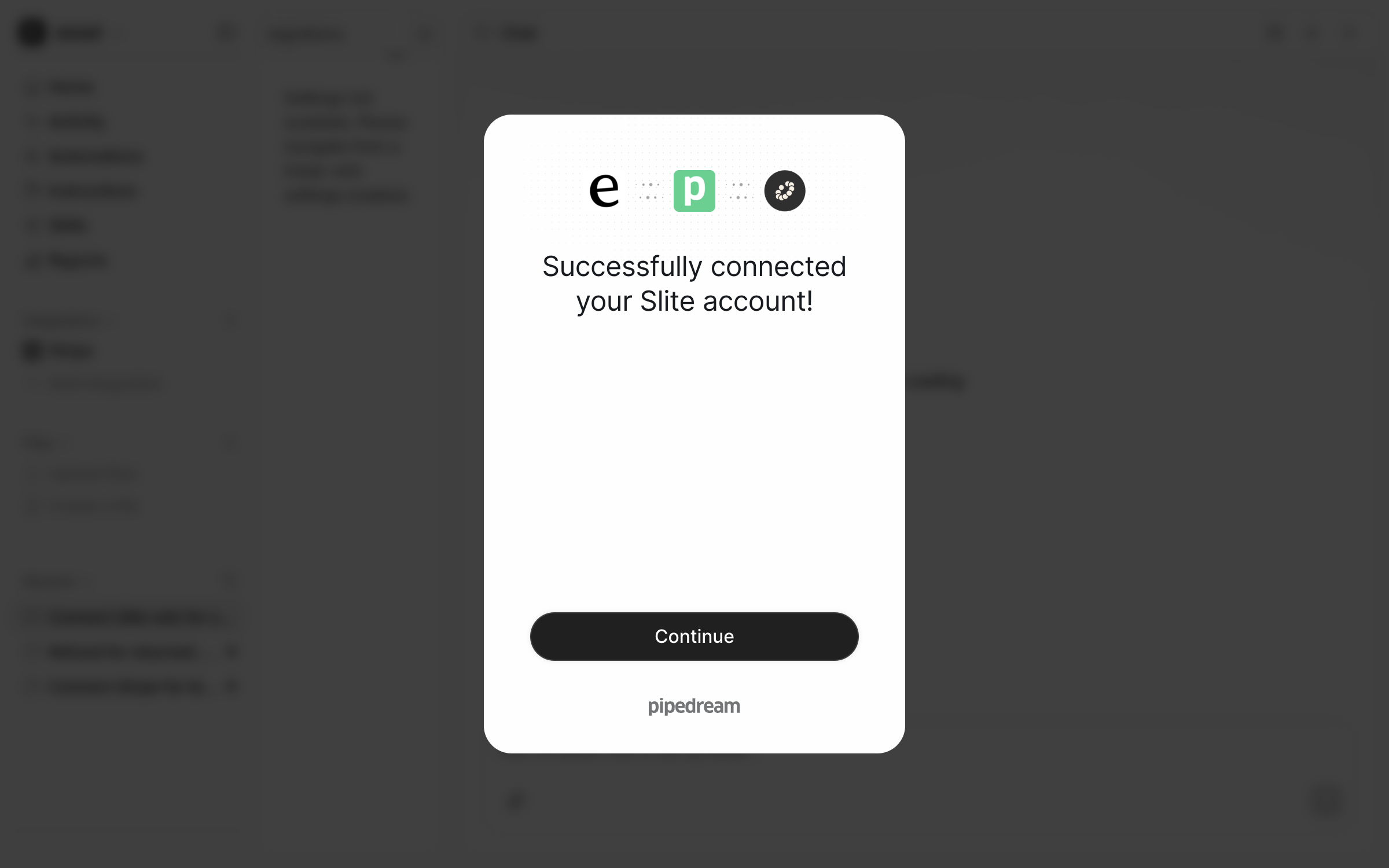
<figure><img src="https://3732419023-files.gitbook.io/~/files/v0/b/gitbook-x-prod.appspot.com/o/spaces%2F2xXO0947TYoPIhGoBgSE%2Fuploads%2Fgit-blob-c5bdc82b4ae2c148945dc04f027d173a61b13e97%2Fslite-pipedream-success.png?alt=media" alt="The Pipedream window reading Successfully connected your Slite account, with a Continue button"><figcaption><p>Connected.</p></figcaption></figure>

**Check it worked.** Back on the Slite integration page in eesel, the header reads **Connected**, the left sidebar lists Slite, the Actions list shows the Read and Write groups, and the **Documents** source shows a document count. The first import starts straight away. The [Slite overview](/integrations/knowledge/slite.md) picks up from here.
{% endstep %}
{% endstepper %}

## Troubleshooting

<details>

<summary>The key was created as read-only?</summary>

Your agent can answer from the wiki but cannot edit it. Revoke the key in Slite's API settings, create a new one with Read-only off, and connect again.

</details>

<details>

<summary>Lost the key before pasting it?</summary>

Slite shows a key once. Revoke it and create another.

</details>

## Related pages

* [Slite](/integrations/knowledge/slite.md) for what your teammate does once it is connected
* [Actions and Approvals](/instructions-and-memory/actions-and-approvals.md) for choosing what your agent may do


---

# Agent Instructions
This documentation is published with GitBook. GitBook is the documentation platform designed so that both humans and AI agents can read, navigate, and reason over technical content effectively. Learn more at gitbook.com.

## Querying This Documentation
If you need additional information that is not directly available in this page, you can query the documentation by asking a question.

Perform an HTTP GET request on the following URL with the `ask` and `goal` query parameters:

```
GET https://docs.eesel.ai/integrations/knowledge/slite/slite-setup.md?ask=<question>&goal=<user_goal>
```

`ask` is the immediate question: it should be specific, self-contained, and written in natural language.
`goal` is what the user is ultimately trying to achieve, the reason they need the answer. Sharing it helps GitBook give you a better, more relevant answer. A goal is most helpful when it describes the outcome the user wants rather than restating the question. For example, with `ask=how do I create an API token`, a goal like `automate deployments from our CI pipeline` lets GitBook tailor the answer to that use case.

The response will contain a direct answer to the question and relevant excerpts and sources from the documentation.

Use this mechanism when the answer is not explicitly present in the current page, you need clarification or additional context, or you want to retrieve related documentation sections.