> For the complete documentation index, see [llms.txt](https://docs.eesel.ai/llms.txt). Markdown versions of documentation pages are available by appending `.md` to page URLs; this page is available as [Markdown](https://docs.eesel.ai/integrations/knowledge/uploading-files.md).

# Uploading Files

Upload documents, or write knowledge directly in eesel, so your agent answers from them the same way it answers from your helpdesk or website.

Upload a document here and your AI teammate answers from it. It reads the file the same way it reads your helpdesk or your website. You can also write knowledge directly in eesel, and your agent can create and update these files itself.

Nothing runs on its own. Files is knowledge only: no triggers and no actions.

## Quick start

{% stepper %}
{% step %}

### Upload your files

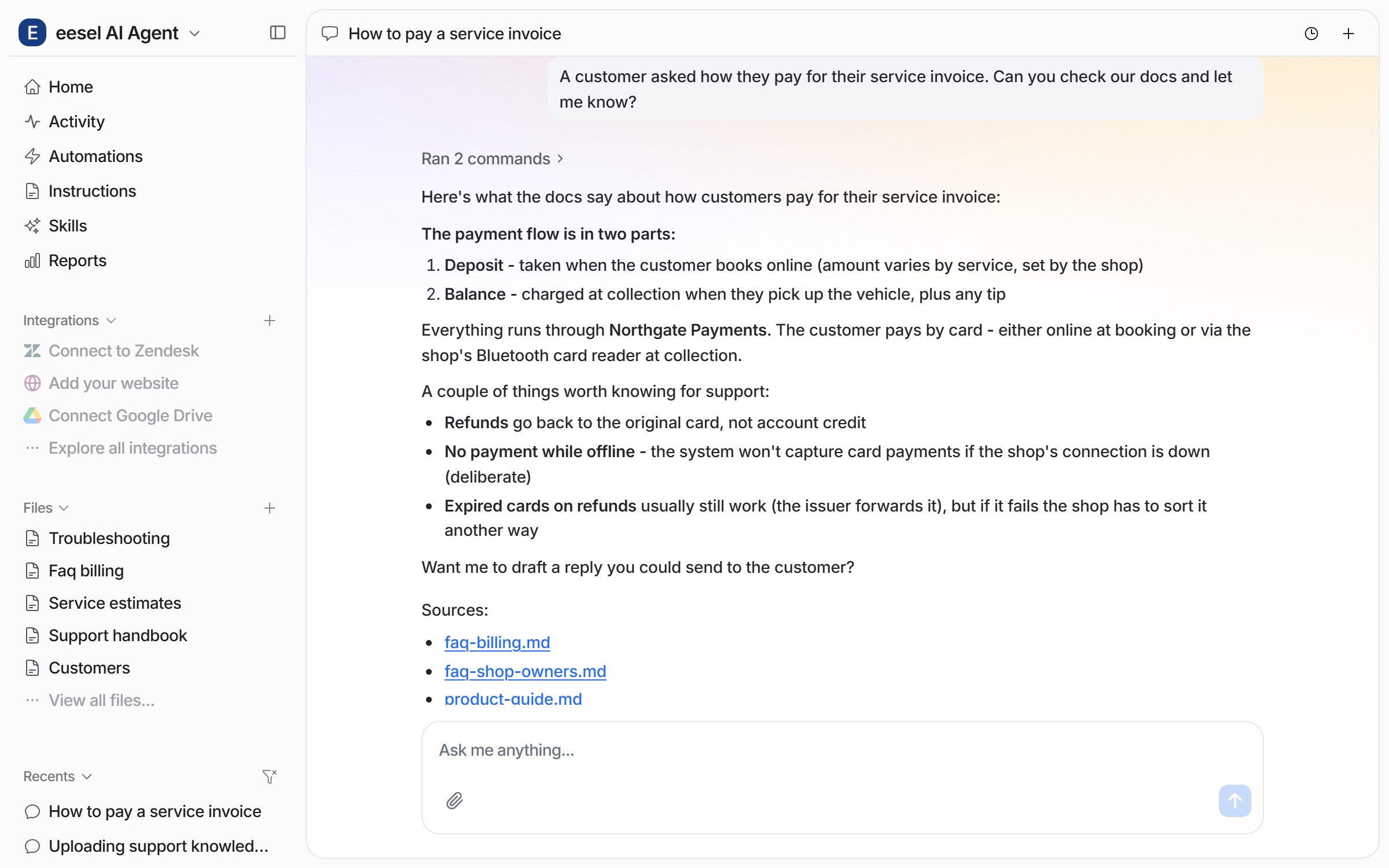
Open the **Files** section in the left sidebar and click the plus icon. Drag your documents into the upload area, or browse for them. Each uploaded file can be up to **25MB**. You can also ask your agent in chat to take some documents. It opens the upload for you.

<figure><img src="https://3732419023-files.gitbook.io/~/files/v0/b/gitbook-x-prod.appspot.com/o/spaces%2F2xXO0947TYoPIhGoBgSE%2Fuploads%2Fgit-blob-a34bd11986951152eb329f759662a5bd41173722%2Ffiles-upload-modal.png?alt=media" alt="The dashboard chat with the Upload Files modal open in front of it, showing a drag and drop area, a Choose a file button, the 25MB limit, and three files ready to upload"><figcaption><p>The upload area, opened from the chat, with files ready to go.</p></figcaption></figure>

**Check it worked.** The **Files** list in the left sidebar shows the new file by name. From a terminal, `eesel files` lists it.
{% endstep %}

{% step %}

### Ask it something

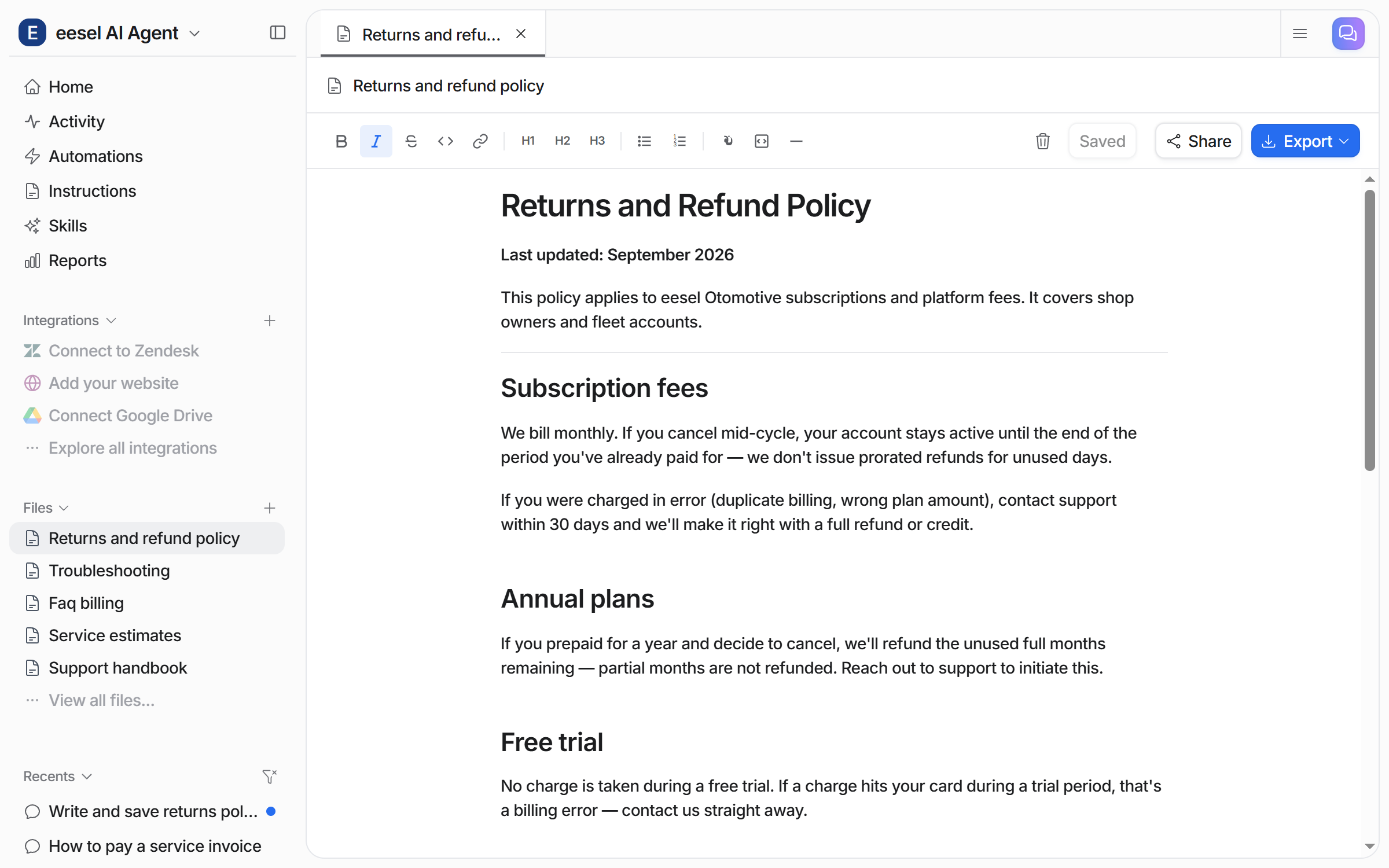
Ask your agent a question the uploaded documents answer. It replies from them and lists the files it used under **Sources**. You can also pass a customer's question straight to your agent here. It answers, then offers to draft the reply.

<figure><img src="https://3732419023-files.gitbook.io/~/files/v0/b/gitbook-x-prod.appspot.com/o/spaces%2F2xXO0947TYoPIhGoBgSE%2Fuploads%2Fgit-blob-14be3e06372bac51b7f8b4bcee78143f8b1e046c%2Ffiles-test-chat.png?alt=media" alt="The dashboard chat where the user passes on a customer question, and the agent answers from the uploaded files, lists them under Sources, and offers to draft a reply"><figcaption><p>The agent answers from your uploaded files and names the ones it used.</p></figcaption></figure>
{% endstep %}

{% step %}

### Let it write files too

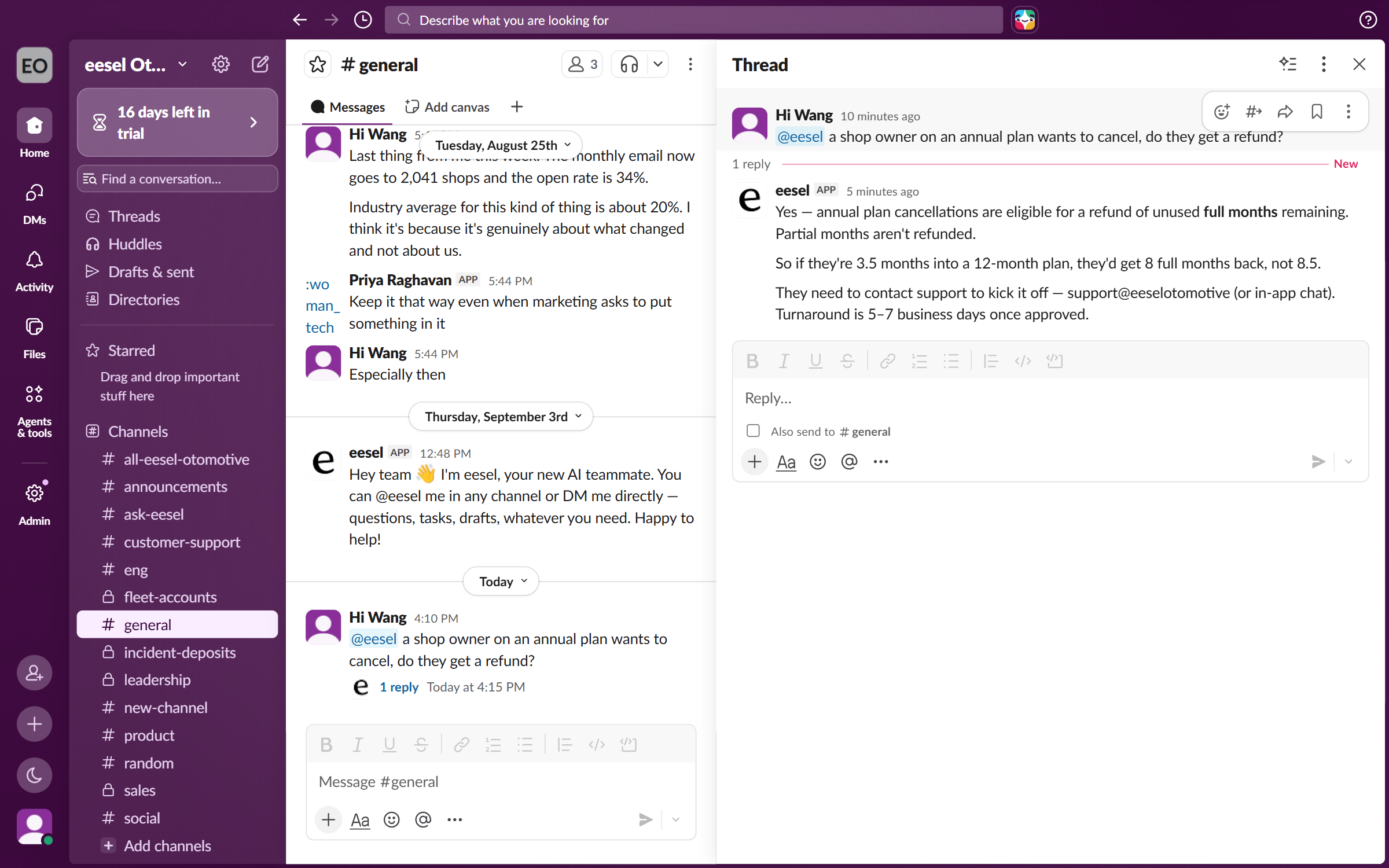
Ask your agent in chat to write a document and save it. Use this for a summary it built, a list it compiled, or the notes from a scheduled job. Anything it writes lands in the same **Files** list, where you can open, read and edit it. The editor shows a save state, plus **Share** and **Export** controls.

<figure><img src="https://3732419023-files.gitbook.io/~/files/v0/b/gitbook-x-prod.appspot.com/o/spaces%2F2xXO0947TYoPIhGoBgSE%2Fuploads%2Fgit-blob-bb6f355b08f924e8d1b0f8f51fba3bd24bb80b2b%2Ffiles-agent-written.png?alt=media" alt="A policy document the agent wrote, open in the Files editor with Saved, Share and Export controls, and the chat that asked for it listed under Recents"><figcaption><p>A file your agent wrote and saved, open in the Files editor.</p></figcaption></figure>
{% endstep %}

{% step %}

### Use it where your team works

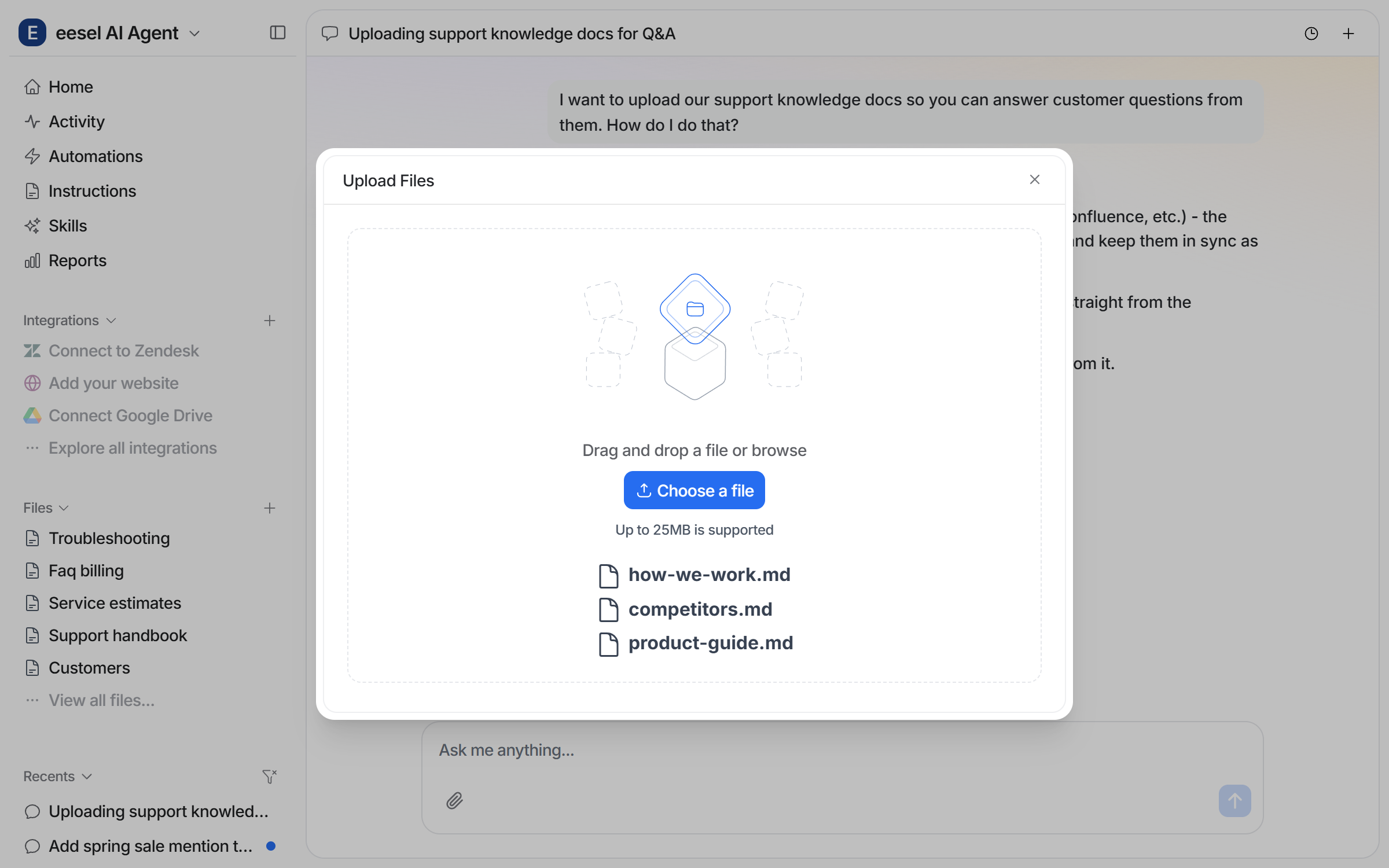
Your agent answers from these files anywhere you have invited it. In Slack, a teammate mentions it with a question and it replies in the thread from the same uploaded documents.

<figure><img src="https://3732419023-files.gitbook.io/~/files/v0/b/gitbook-x-prod.appspot.com/o/spaces%2F2xXO0947TYoPIhGoBgSE%2Fuploads%2Fgit-blob-392fcb168e6c78acc76c4421e7916e37586d25c8%2Ffiles-slack-thread.png?alt=media" alt="A Slack thread where a teammate mentions eesel with a policy question and eesel replies in the thread with the answer from the uploaded files"><figcaption><p>The same knowledge, answered in a Slack thread.</p></figcaption></figure>
{% endstep %}
{% endstepper %}

## Sources

Every file you upload or create becomes a source your agent can answer from. Every other integration on the agent is also a source. So one answer can draw on your helpdesk, your website and your files at once. See [Integrations](/integrations/overview.md).

**Re-uploading replaces the old version.** A file is stored under its filename. Uploading a file with the same name overwrites what was there before. That is how you update an uploaded document. It also means two different documents that share a filename overwrite each other, so give them distinct names.

### Supported formats

For **uploaded** files:

| Format         | Extension | Notes                                   |
| -------------- | --------- | --------------------------------------- |
| **PDF**        | `.pdf`    | Text is read from the PDF's text layer  |
| **Plain text** | `.txt`    | Any plain text file                     |
| **Markdown**   | `.md`     | Kept as written                         |
| **CSV**        | `.csv`    | Comma-separated data files              |
| **HTML**       | `.html`   | A saved web page or an exported article |

{% hint style="warning" %}
**Scanned PDFs do not work.** Text is read from the PDF's own text layer, and there is no image-to-text conversion. A PDF that is really a photo or a scan of a page indexes as empty, with no error. Test a PDF by trying to select text in it. If you cannot, your agent cannot read it either. Export a text-based version instead.
{% endhint %}

Formats not in the table above are not converted, including Word documents and spreadsheets. Save them as PDF, text or HTML first.

## Creating files in the platform

1. Open the **Files** section in the left sidebar
2. Click **Create** to start a new file
3. Write or paste your content
4. Save. The file is available as knowledge straight away

Created files support `.md`, `.txt`, `.csv`, `.json` and `.html`, up to **5MB** each.

### Exporting

Any file you created in the platform can be exported as **PDF**, **Word**, **HTML** or **Markdown**. An uploaded file has the same menu in the Files viewer. You can copy it or download it as Markdown or HTML.

## Tips

**Use PDFs for policies and manuals.** Handbooks, manuals and policy documents work well, as long as the text is selectable.

**Create files for knowledge that lives nowhere else.** If it exists in no other app, write it in the platform.

**CSV files work for structured data.** A product catalogue, an FAQ list or a pricing table, saved as CSV.

**Keep files focused.** One large file of mixed content is harder to answer from than a few focused ones.

{% hint style="info" %}
**From Claude Code, Cursor or a terminal.** `eesel login` signs you in. `eesel files` lists your files and uploads new ones. `eesel chat` asks your agent a question, so you can check an upload from the terminal. For steps with no command, such as editing a file in the platform, use the dashboard chat. Full command reference: [The eesel CLI](/apis-and-developer-resources/cli.md). Step-by-step: [Set up from Claude Code or the terminal](/getting-started/set-up-from-a-coding-agent.md). From an MCP client: [Claude Code and MCP clients](/apis-and-developer-resources/claude-code-and-mcp-clients.md).
{% endhint %}

## Troubleshooting

<details>

<summary>File not processing?</summary>

Check the format is one in the table above. Check the file is not password-protected. For a PDF, check the text is selectable. Scanned pages index as empty.

</details>

<details>

<summary>Content not appearing in answers?</summary>

Give it a few minutes, because a large file takes time to process. Then test in the dashboard chat by asking a question that only that file answers.

</details>

## FAQ

<details>

<summary>Can my agent create files by itself?</summary>

Yes. It can create new files and add to existing ones. They appear in your **Files** list alongside the ones you made. You and your agent may edit the same file at the same time. Your edit is kept, and its version is saved separately.

</details>

<details>

<summary>Can I export a file I created in the platform?</summary>

Yes, as PDF, Word, HTML or Markdown. An uploaded file can be copied or downloaded as Markdown or HTML from the same menu.

</details>

<details>

<summary>Does uploading a file make my agent do anything?</summary>

No. Your agent answers from a file when someone asks. To have it act on incoming work, create an [automation](/automations-and-schedules/automations-and-schedules.md) on an integration that has triggers.

</details>

<details>

<summary>What does uploading files cost?</summary>

Nothing extra. Billing is pay-as-you-go on the conversations your agent handles. See [Pricing](/pricing/overview.md).

</details>

## Related pages

* [Internal operations](/use-cases/internal-operations.md)
* [Website](/integrations/knowledge/website.md)
* [Instructions and Memory](/instructions-and-memory/instructions-and-memory.md)
* [Integrations overview](/integrations/overview.md)
* [Set up from Claude Code or the terminal](/getting-started/set-up-from-a-coding-agent.md)


---

# Agent Instructions
This documentation is published with GitBook. GitBook is the documentation platform designed so that both humans and AI agents can read, navigate, and reason over technical content effectively. Learn more at gitbook.com.

## Querying This Documentation
If you need additional information that is not directly available in this page, you can query the documentation dynamically by asking a question.

Perform an HTTP GET request on the current page URL with the `ask` query parameter, and the optional `goal` query parameter:

```
GET https://docs.eesel.ai/integrations/knowledge/uploading-files.md?ask=<question>&goal=<endgoal>
```

`ask` is the immediate question: it should be specific, self-contained, and written in natural language.
`goal` is optional and describes the broader end goal you are ultimately trying to accomplish on behalf of the user. GitBook uses it to tailor the answer towards what is most useful for that goal.

The response will contain a direct answer to the question and relevant excerpts and sources from the documentation.

Use this mechanism when the answer is not explicitly present in the current page, you need clarification or additional context, or you want to retrieve related documentation sections.