Asana
Connect Asana so your agent answers where a task stands, who owns it and when it is due, and creates or updates tasks from the conversation.
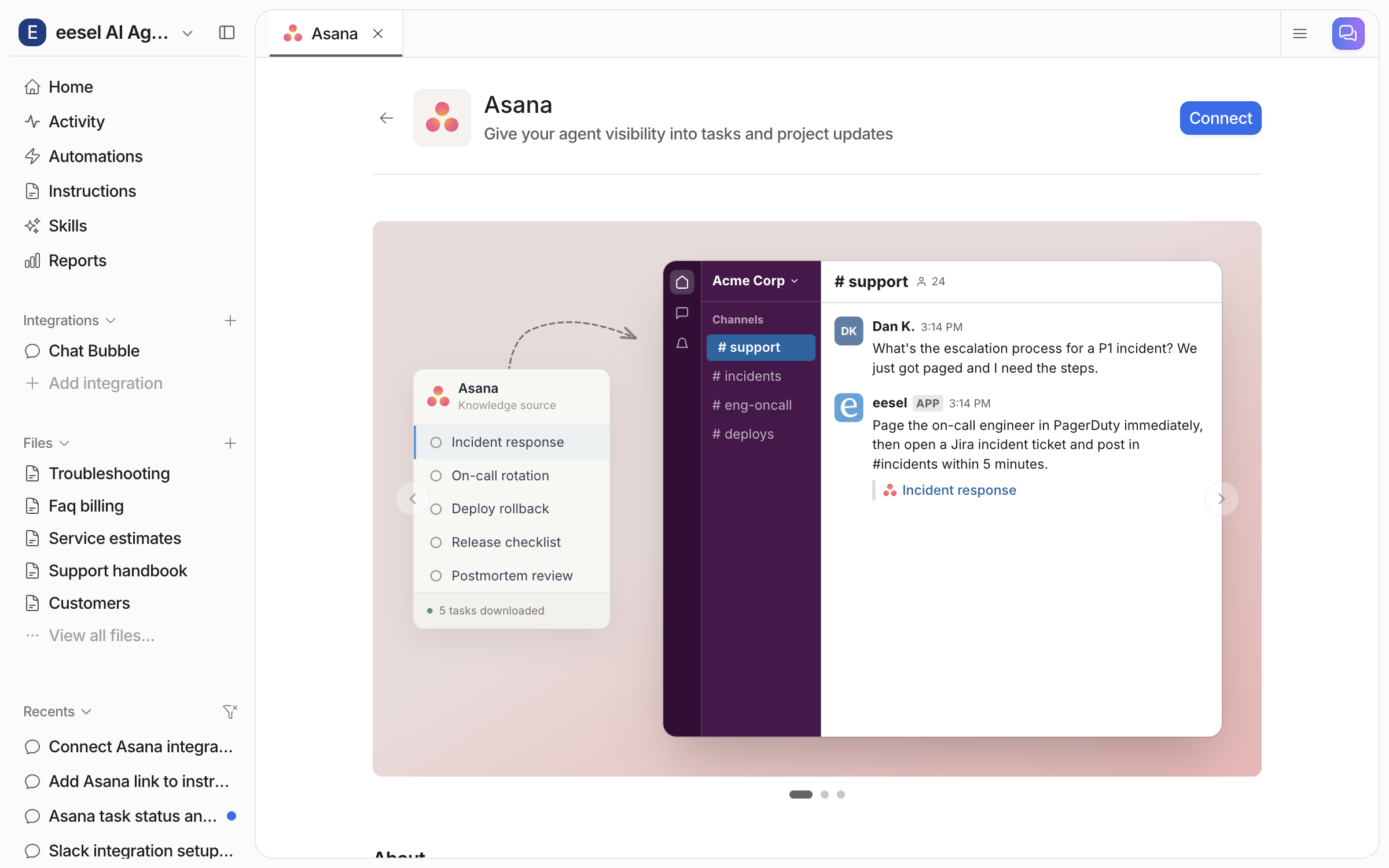
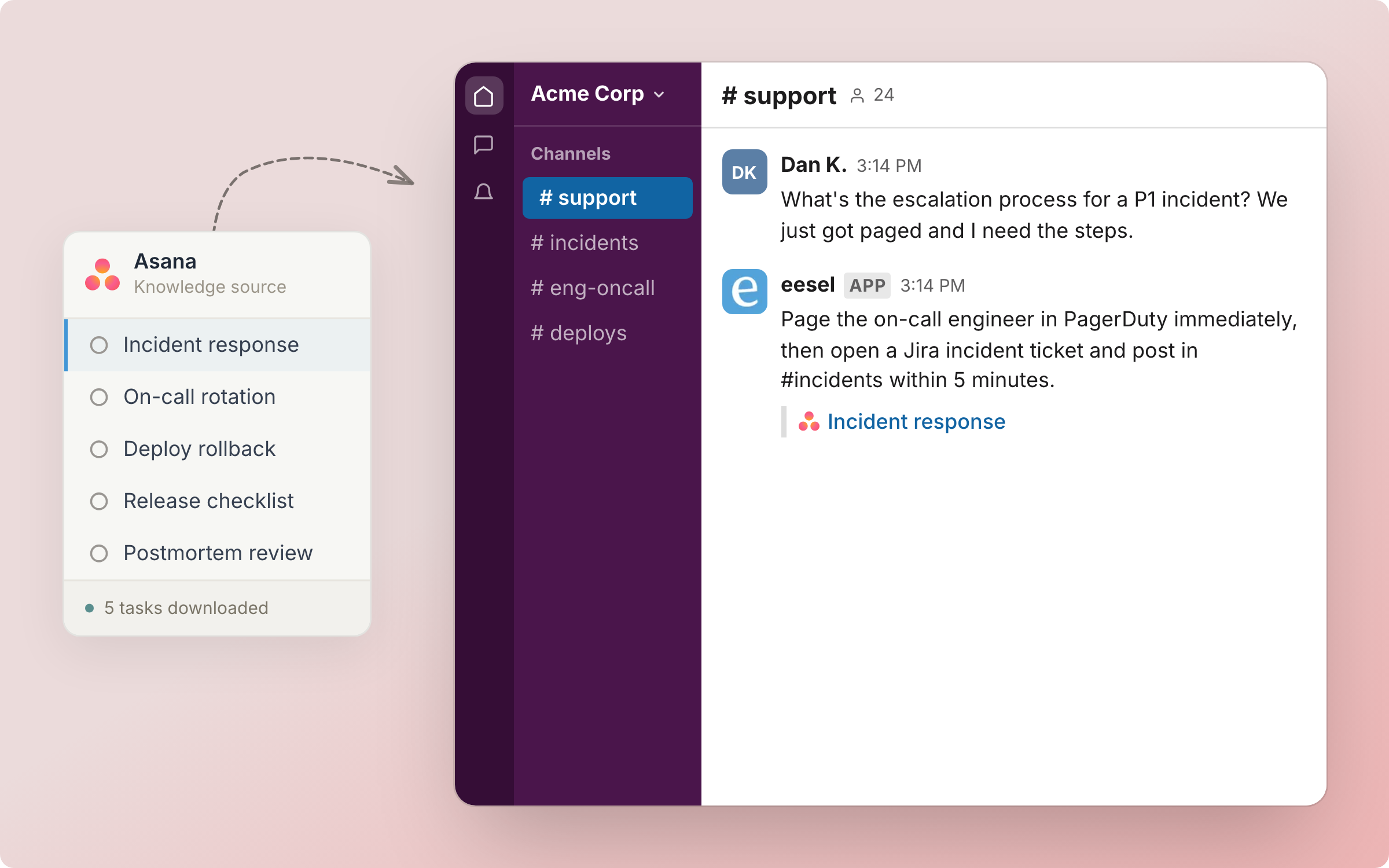
Invite your AI teammate into Asana and it answers the status questions for your team. It reads your projects and tasks, so it can say where a task stands, who owns it and when it is due, with a link to the task. It can also create and update tasks.
Nothing changes in Asana without you. Read actions run on their own, write actions ask you first unless you change that.

Quick start
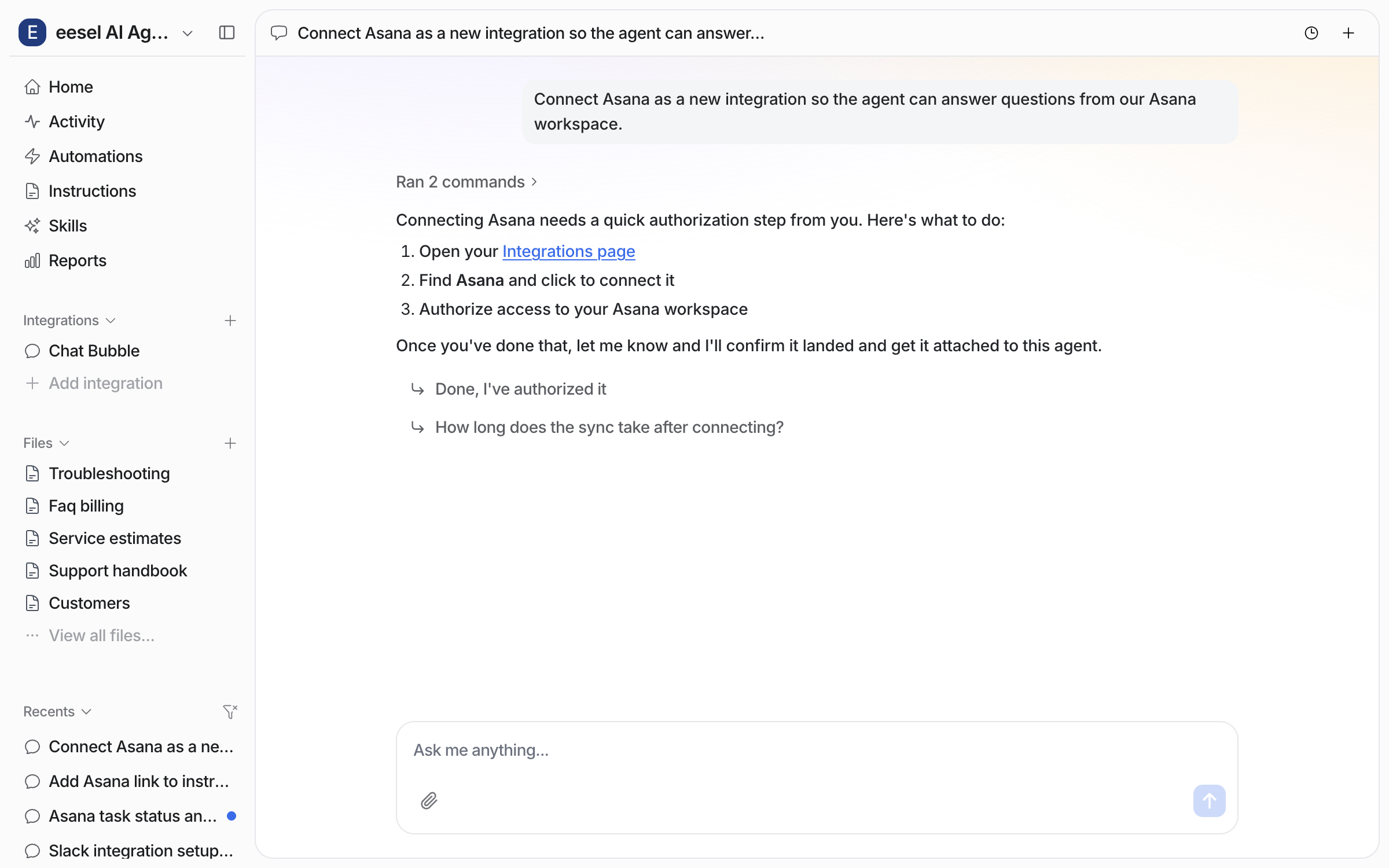
Sign in and approve the workspace
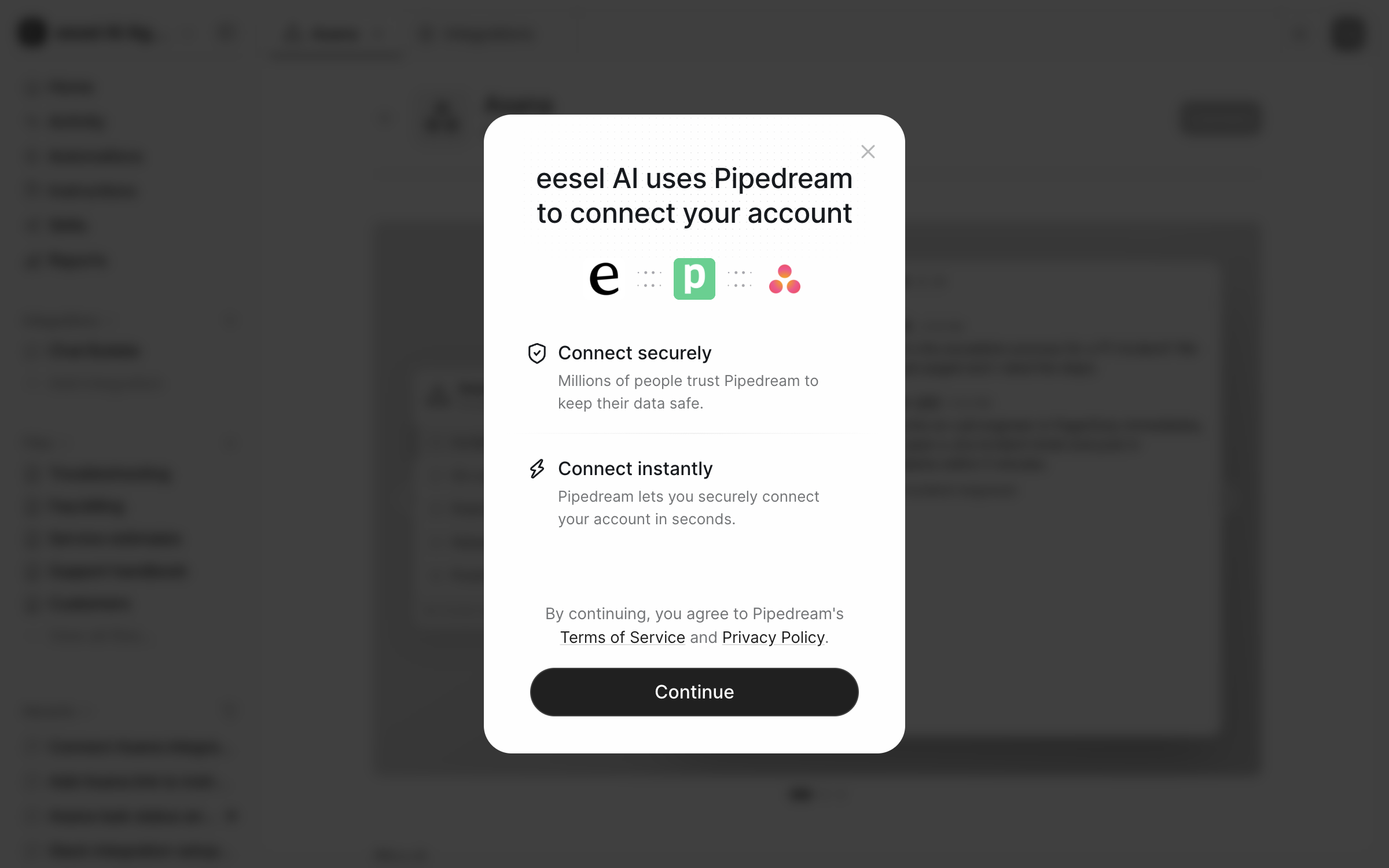
A notice opens first. The connection is brokered by Pipedream, our integration provider, so Pipedream is named here and on Asana's own screen. Click Continue.

Asana's sign-in and approval screen comes next. Sign in, then approve access for the workspace you want read. Follow every prompt to the end. Your agent can never reach more than that Asana account can reach.
A person approves this in the browser.
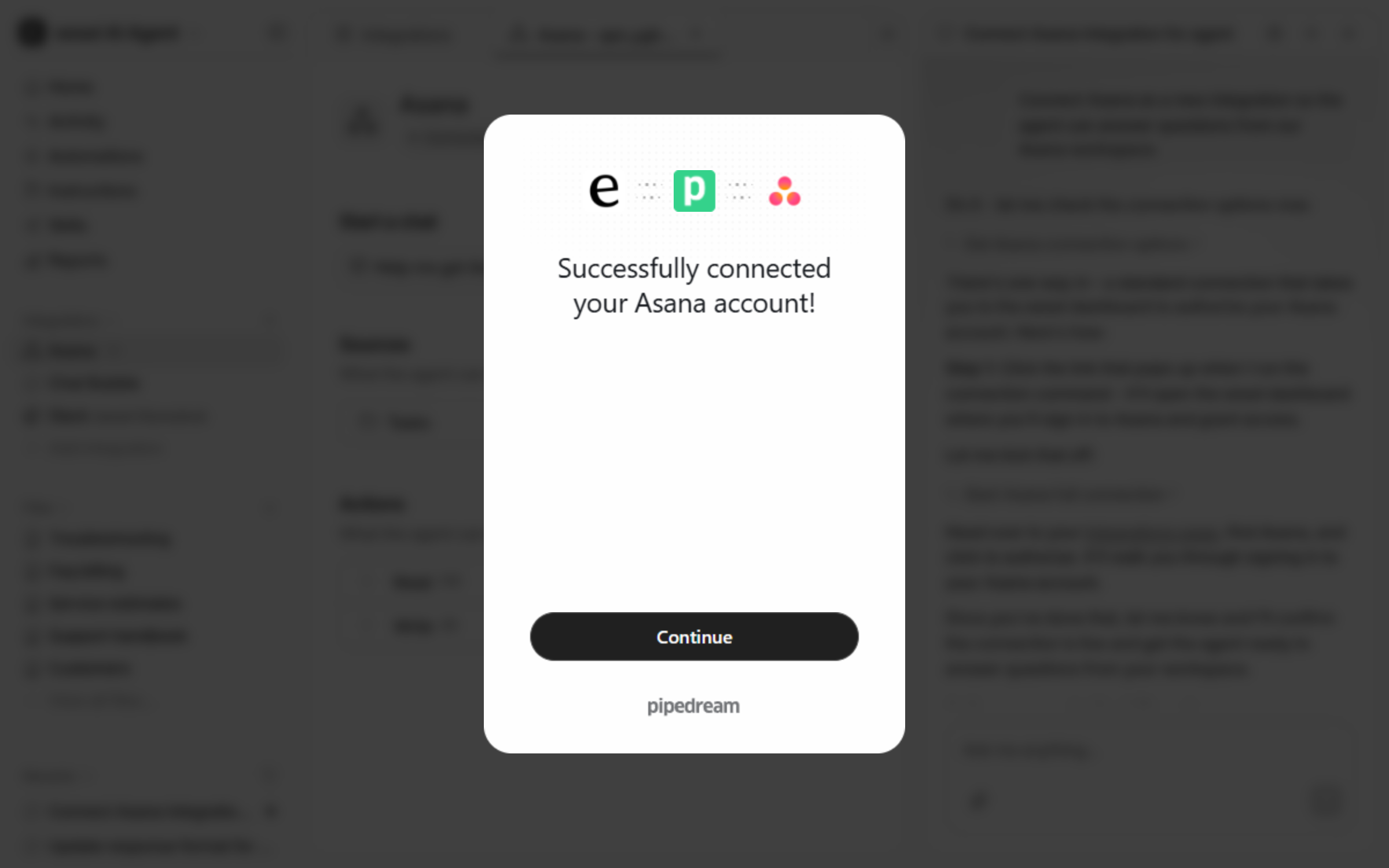
Confirm the connection
The dashboard confirms your Asana account is connected. Click Continue to close the notice. Then tell your agent in the chat that you are done, and it attaches the connection to that agent.

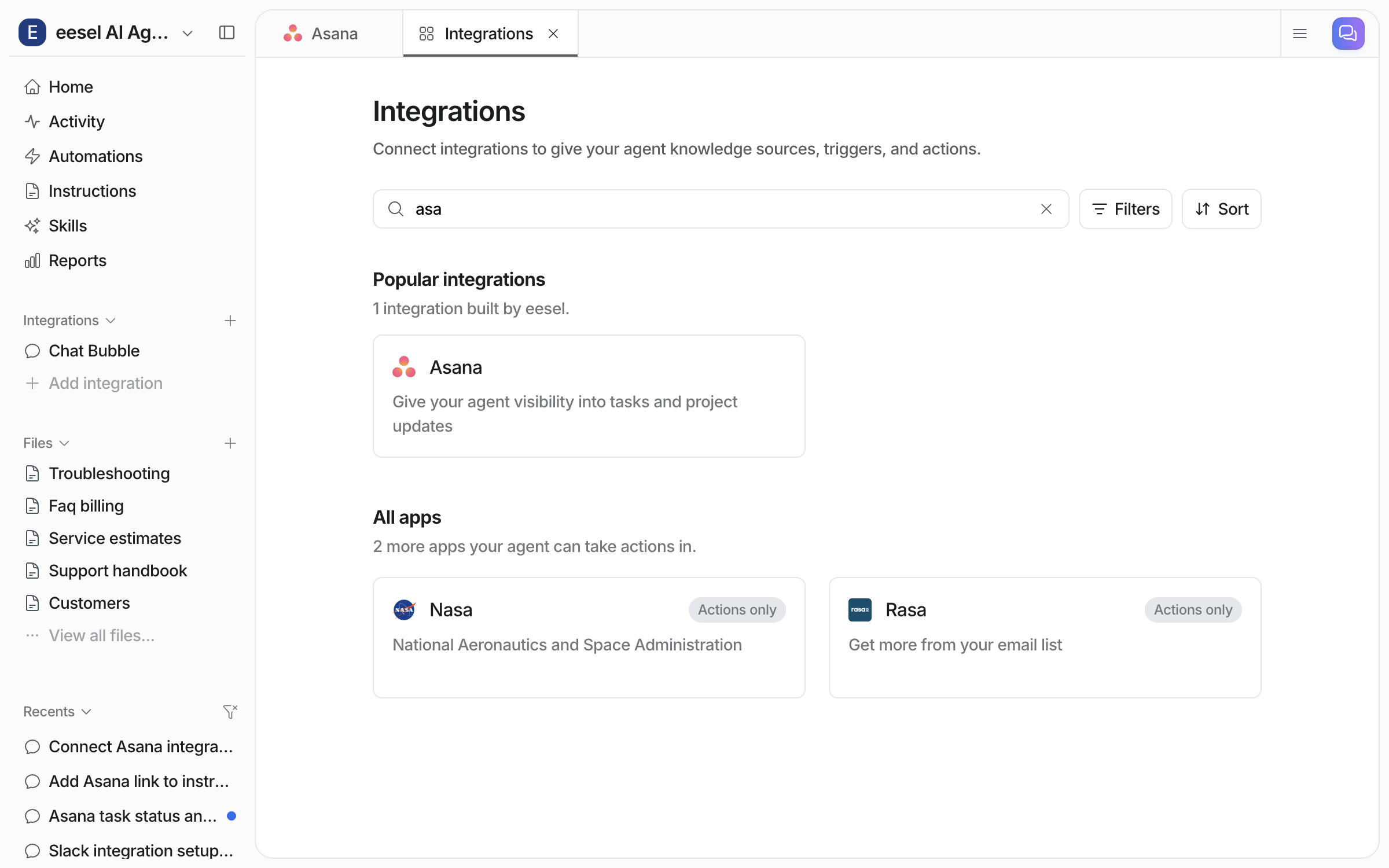
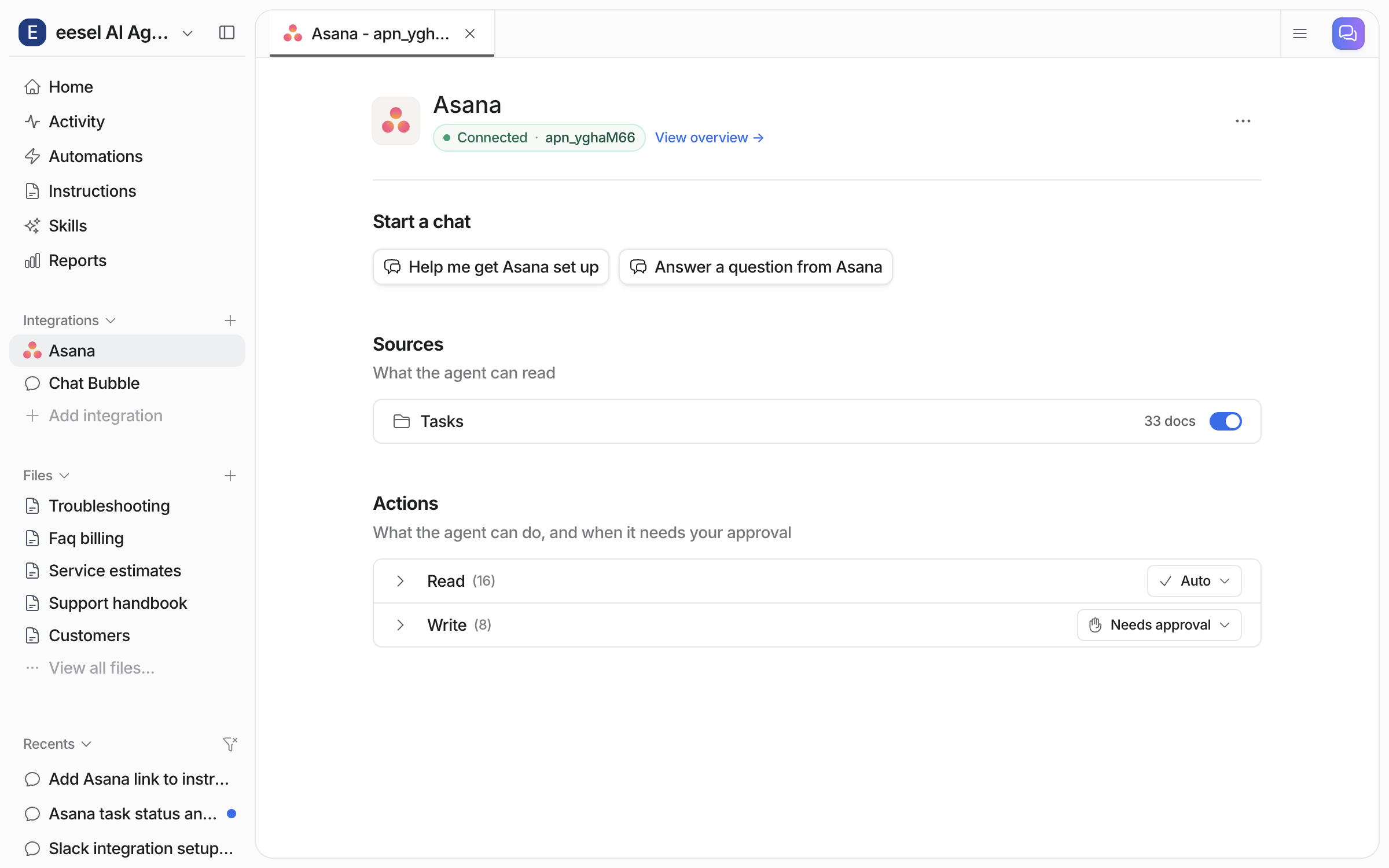
Check it worked. The left sidebar now lists Asana under Integrations. From a terminal, eesel status shows the integration as connected with its source counts.
Check what it can read and do
Integrations > Asana shows the connection as Connected. The Sources section holds one row, Tasks, with its document count and a toggle. The Actions section groups what your agent may do in Asana. Read holds sixteen actions, set to run on their own. Write holds eight, set to ask you first.

Ask it something
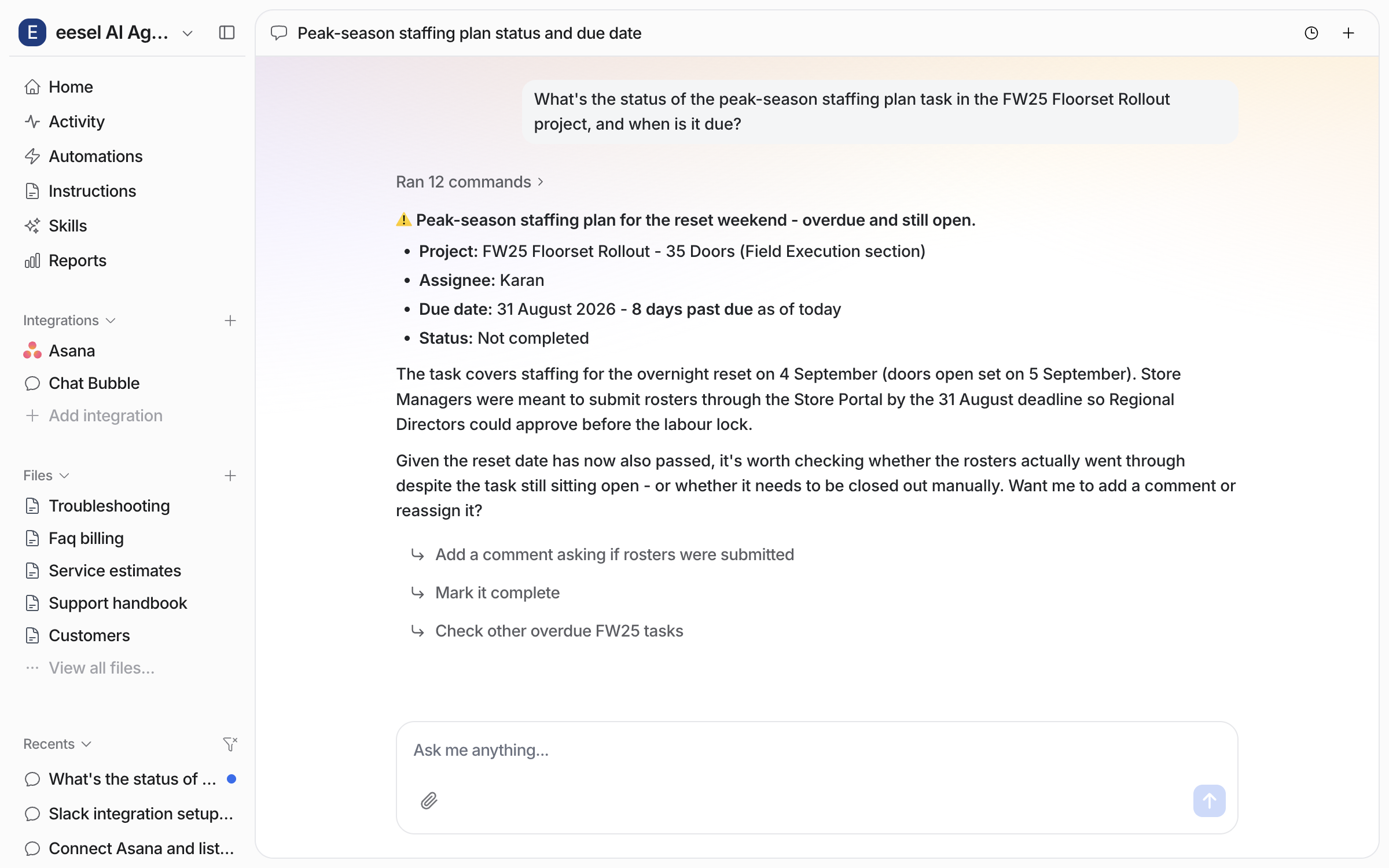
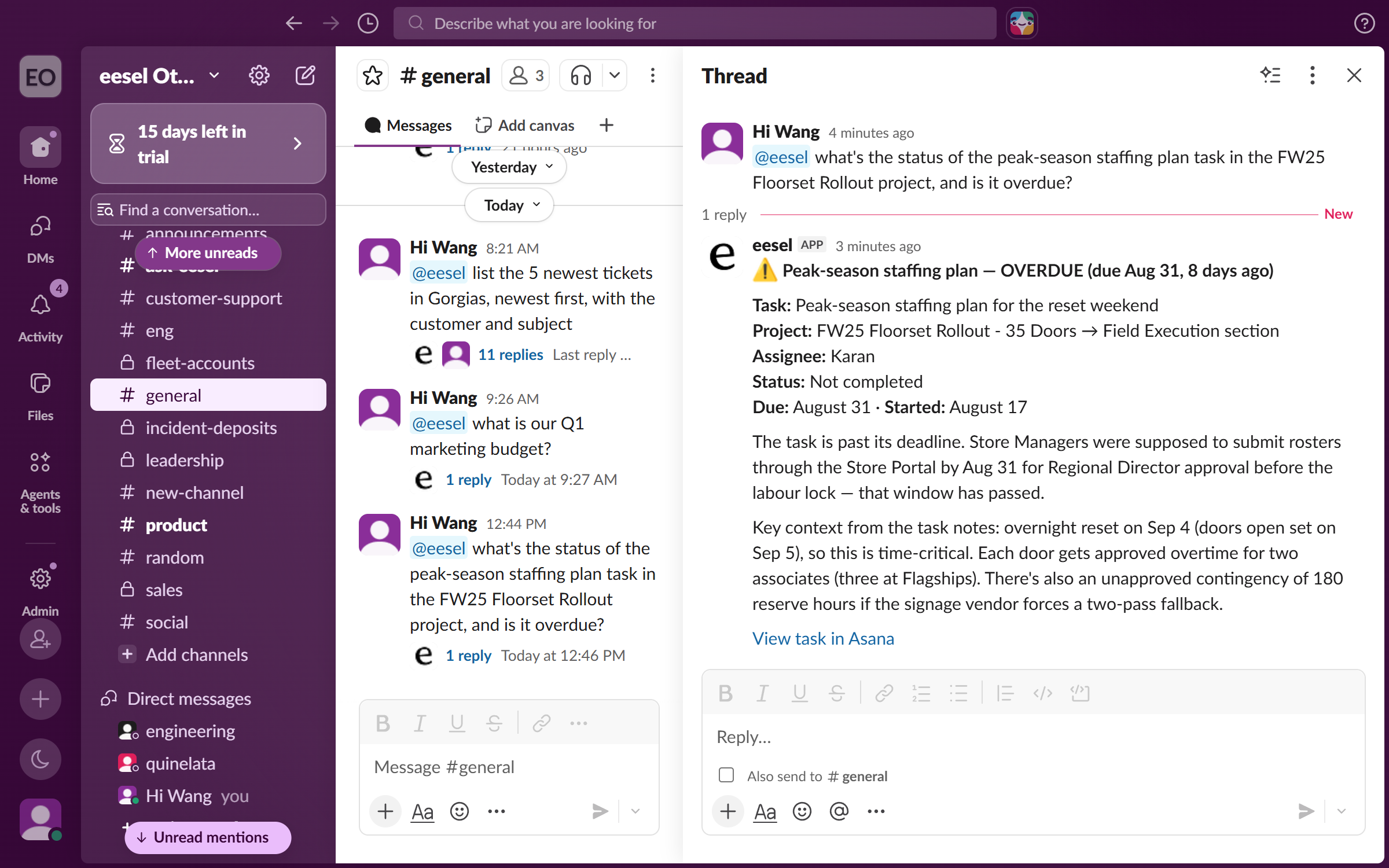
Open the chat and ask about a task by name, or about a project. Your agent looks it up in Asana and answers with the project, the assignee, the due date and the status. It also offers follow-ups, such as adding a comment or marking the task complete.

Tell it how to answer
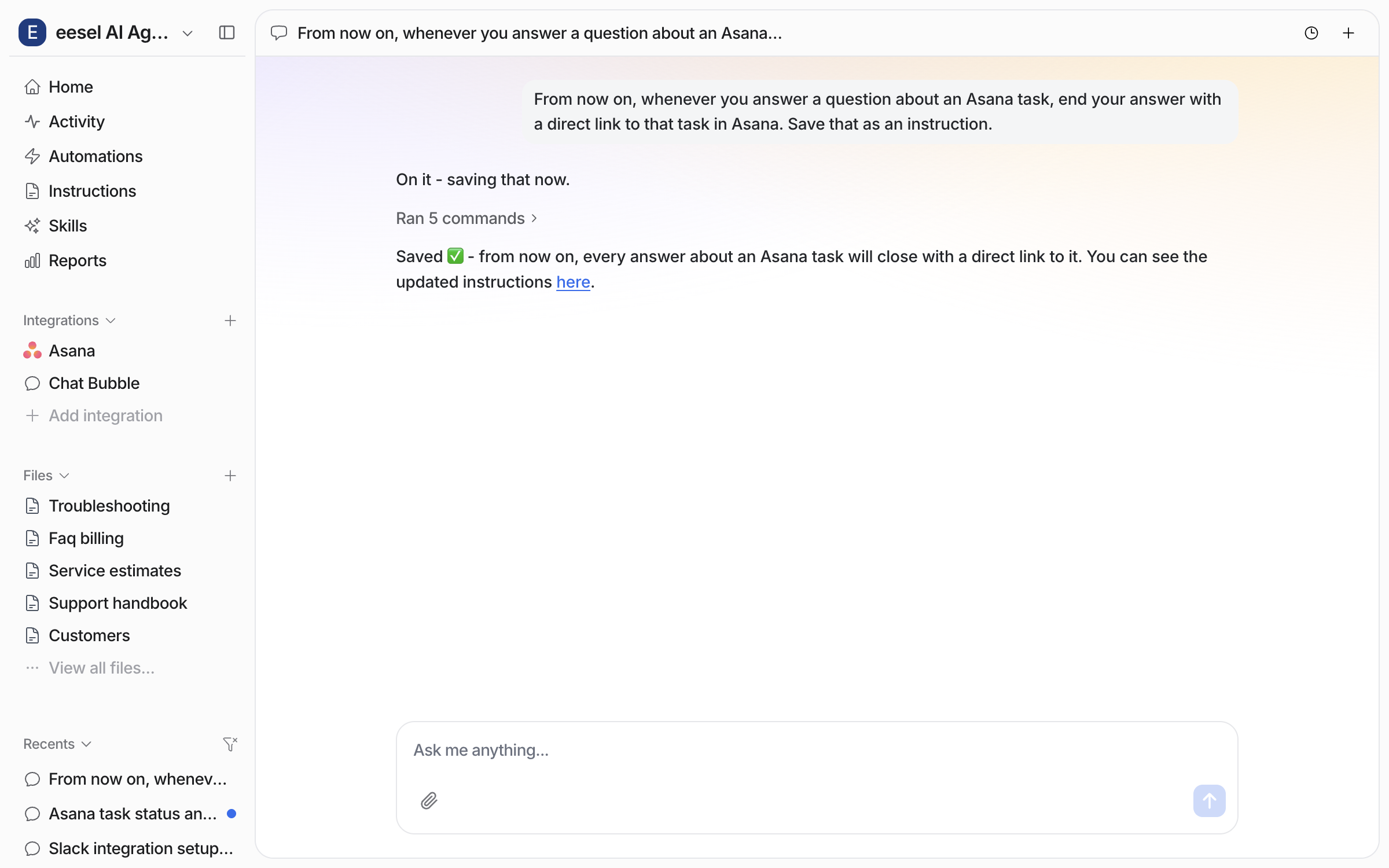
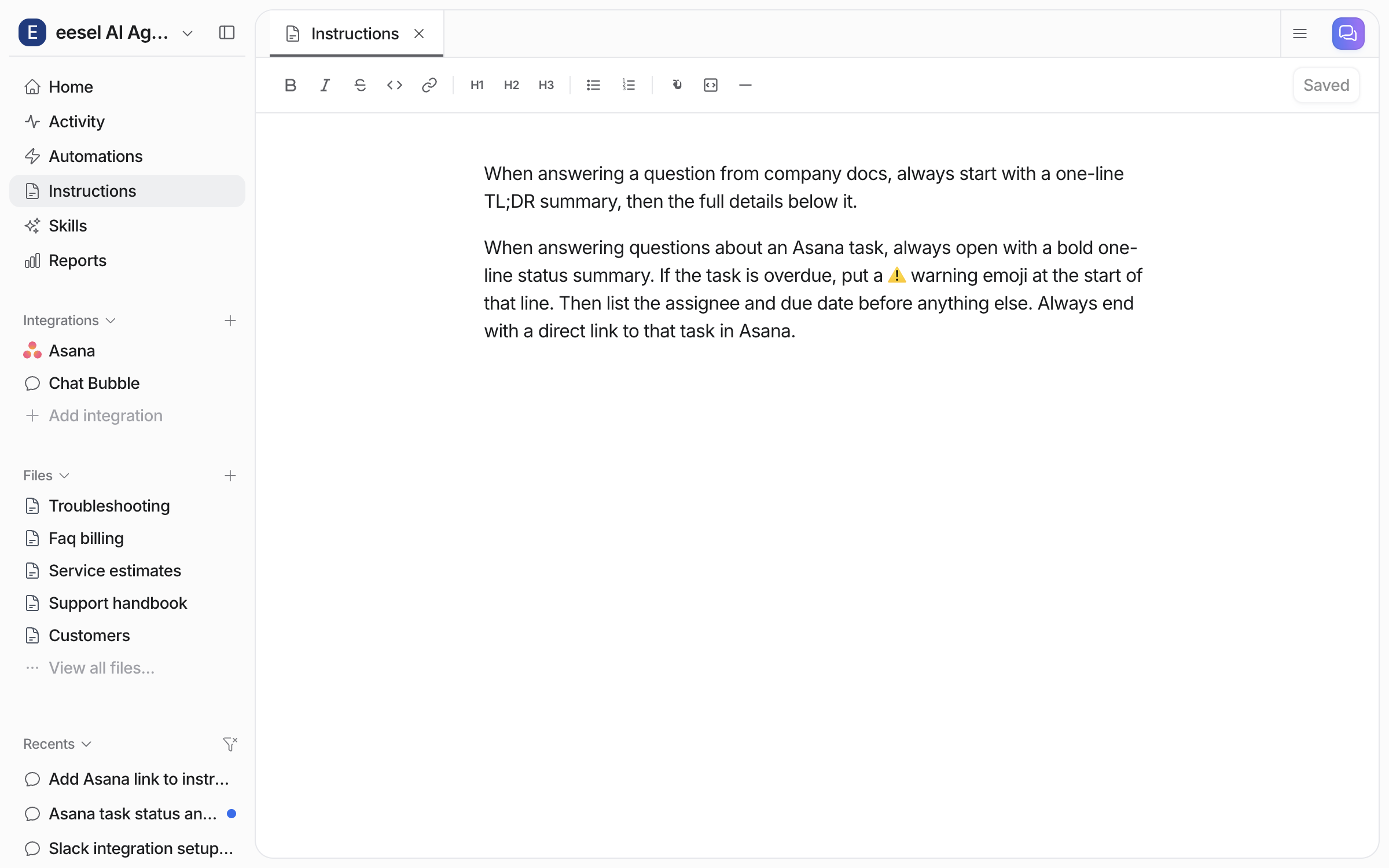
To get every Asana answer laid out the same way, ask for the shape you want in the chat and tell it to save that as an instruction. It saves the rule and confirms it.

The rule lands on your Instructions page, where you can read and edit it. Instructions hold for every answer from then on, wherever your agent is working.

Use it where your team works
Connect Slack and anyone can mention your agent with an Asana question. It looks the task up and answers in the thread, with a link back to the task.
Connecting alone does not start your agent. It needs an automation first. In Slack that is the mention automation, so ask in the dashboard chat to turn it on.

Check it worked. Your Automations page lists the automation, switched on. From a terminal, eesel automations lists the automation as on.
Sources, triggers and actions
Sources
This is what your agent reads from Asana.
Tasks
Your Asana projects and their tasks, including task notes, so your agent can answer questions about the work in flight
Connected Asana account
A source is a sync, not a live feed, so it is a snapshot from the last time it ran. Your agent's actions read Asana live, so it can check the current state of one task mid-conversation.
Every other integration on your agent is also a source. So an Asana answer can draw on Confluence, Notion and your helpdesk at once. See Integrations.
Triggers
Asana has none, so there is no trigger table here. Nothing happening in Asana starts an agent run. A new task, or a task moving to Done, will not make your agent do anything.
Your agent uses its Asana actions while it is already handling something else: a ticket in your helpdesk, a message in Slack, or a chat in your dashboard. The triggers come from those integrations, set up as an automation on your agent's Automations page.
Actions
These are what your agent can do in Asana. The actions come from Asana through Pipedream and are resolved when your agent runs, so the list in your dashboard is the live one. These are the ones you will use most.
Create
Create task
Creates a new task
Create task from template
Creates a task from an existing task template
Create subtask
Creates a subtask and adds it to a parent task
Create project
Creates a project in a workspace or team
Create task comment
Adds a comment to a task
Manage
Update task
Updates an existing task
Add task to section
Adds a task to a section. This moves it, so the task leaves the other sections it was in on that project
Delete task
Deletes a task. Leave it off unless you mean it, and put it behind approval if you turn it on
Look up
Find task by ID / Search tasks
Returns one task's full record, or finds tasks by name within a project
Search projects / List workspaces
Finds a project, and lists the workspaces the connected account can reach
Alongside these are lookup helpers that resolve IDs and the valid values for a field, so your agent finds the right workspace or project rather than guessing. Tell it to search before it creates. Otherwise you get a second copy of a task that already exists.
The dashboard groups the read actions and the write actions. Read runs on its own, and write asks you first. You can change that per group or per action. See Actions and Approvals.
Troubleshooting
FAQ
Related pages
Internal operations for the job your agent does for your team
Slack for answering Asana questions where your team already talks
Actions and Approvals for setting each action to run on its own, ask you first, or stay off
Integrations overview for how sources, triggers and actions fit together
Last updated