> For the complete documentation index, see [llms.txt](https://docs.eesel.ai/llms.txt). Markdown versions of documentation pages are available by appending `.md` to page URLs; this page is available as [Markdown](https://docs.eesel.ai/integrations/e-commerce/stripe.md).

# Stripe

Set up an AI agent for Stripe that answers billing questions, reads invoices, payments and subscriptions, and handles refunds and cancellations for your team.

Your agent finds a customer in Stripe, reads their invoices, payments and subscriptions, and can refund a payment, cancel a subscription or send an invoice again.

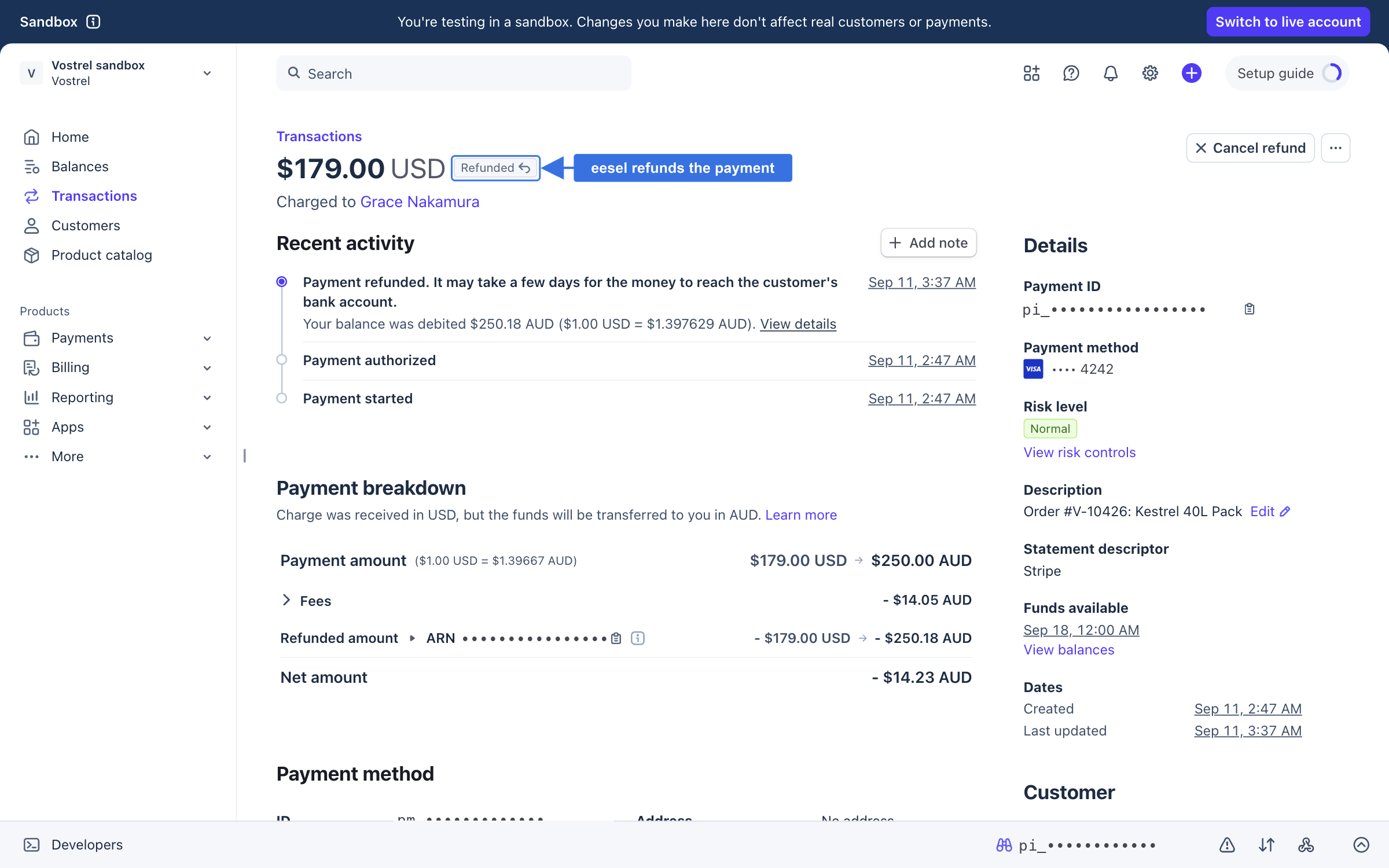
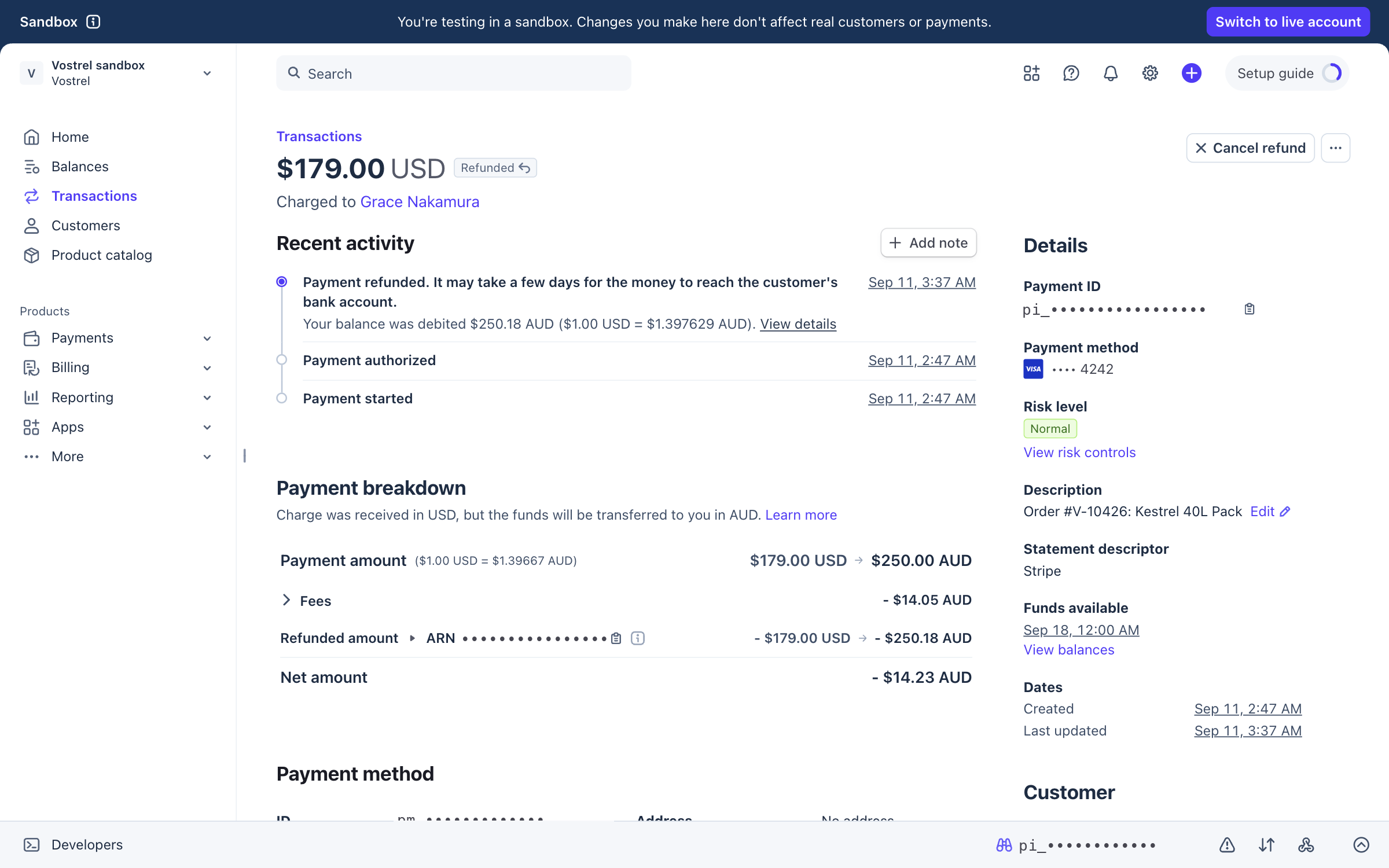
<figure><img src="https://3732419023-files.gitbook.io/~/files/v0/b/gitbook-x-prod.appspot.com/o/spaces%2F2xXO0947TYoPIhGoBgSE%2Fuploads%2Fgit-blob-cb812b63573260d707b4d3e7465b7a1831f9a8a7%2Fstripe-refunded.png?alt=media" alt="A payment in the Stripe dashboard marked Refunded, with the refund in the activity timeline"><figcaption><p>A refund your agent proposed, a person approved, and Stripe carried out.</p></figcaption></figure>

{% hint style="info" %}
**From Claude Code, Cursor or a terminal.** `eesel login`, then `eesel integrations connect stripe` prints a link to the eesel Integrations page. A person opens it and finishes the key steps on [Set up Stripe](https://docs.eesel.ai/integrations/e-commerce/stripe/stripe-setup.md). If the command does not list stripe, the workspace has not been turned on for it yet, and a person messages <hi@eesel.app>. Afterwards `eesel status` lists stripe as connected, and `eesel integrations stripe actions` lists every action with its key, for example `stripe-create-refund`. A held action returns an approval link that a person opens. Full command reference: [The eesel CLI](https://docs.eesel.ai/apis-and-developer-resources/cli.md). From Claude Code or another assistant that connects through MCP: [Claude Code and MCP clients](https://docs.eesel.ai/apis-and-developer-resources/claude-code-and-mcp-clients.md).
{% endhint %}

## What your agent sees

Stripe never starts a run, so nothing from Stripe is in front of your agent when a conversation begins. It has the conversation from the channel that started the run, plus eesel's guidance on how to work Stripe. Everything else it reads live, when it needs it.

* **The customer, found by email.** A lookup by email (or email domain, or creation date) returns the Stripe customer and their id, which every other customer action needs.
* **Invoices, payments and subscriptions.** Each read returns Stripe's own record: status, amounts, the balance due, the current period of a subscription, and the description on a payment, where many stores keep the order number.
* **Refunds, payouts, your balance, checkout sessions, prices and products.** All readable on request.
* **Not there: charges.** No action reads or lists a charge on its own. Your agent works from the payment or invoice instead.

### Sources

Stripe adds no knowledge source. Nothing from Stripe is copied into eesel. Your agent answers from everything else you have connected, and reads Stripe live.

## What it can do

### Triggers

Stripe has no triggers. Nothing in Stripe wakes your agent. It works on Stripe when someone asks in a connected channel, such as your helpdesk, Slack or your website chat, or on a [schedule](https://docs.eesel.ai/automations-and-schedules/automations-and-schedules.md).

### Actions

Actions are what it can do. The most used ones:

|               | Action                                         | What it does                                                                                       |
| ------------- | ---------------------------------------------- | -------------------------------------------------------------------------------------------------- |
| **Look up**   | Search customers                               | Finds a customer by email address, email domain or the date they were created                      |
|               | Retrieve customer / List customers             | Reads one customer, or lists them                                                                  |
|               | Retrieve invoice / List invoices               | Reads one invoice, its status and balance, or lists invoices                                       |
|               | Retrieve payment intent / List payment intents | Reads one payment, or lists them. A payment intent is Stripe's record of one attempt to take money |
|               | Search subscriptions                           | Finds a customer's subscriptions                                                                   |
|               | Retrieve refund / List refunds                 | Reads refunds made                                                                                 |
|               | Retrieve balance / List payouts                | Your Stripe balance, and payouts to your bank                                                      |
|               | Retrieve checkout session                      | Reads a checkout session and its line items                                                        |
| **Money**     | Create refund                                  | Refunds a payment, in full or in part                                                              |
|               | Cancel subscription                            | Stops future billing. The history stays                                                            |
|               | Create subscription                            | Starts a subscription                                                                              |
|               | Create payment intent / Cancel payment intent  | Starts or cancels a payment                                                                        |
| **Invoices**  | Create invoice / Update invoice                | Drafts or edits an invoice                                                                         |
|               | Finalize invoice                               | Turns a draft into a real invoice                                                                  |
|               | Send invoice                                   | Emails the invoice to the customer                                                                 |
|               | Void invoice / Write off invoice               | Cancels an invoice, or marks it uncollectible                                                      |
| **Customers** | Create customer / Update customer              | Creates or edits a customer record                                                                 |
|               | Delete customer                                | Deletes a customer record and its history                                                          |

Stripe offers more actions than fit here, such as prices, products, invoice items and payouts. `eesel integrations stripe actions` from a terminal lists every one, with its key, for example `stripe-create-refund`.

Write actions follow your approval settings. See [Actions and Approvals](https://docs.eesel.ai/instructions-and-memory/actions-and-approvals.md).

## Quick start

{% stepper %}
{% step %}

### Ask your agent to connect Stripe

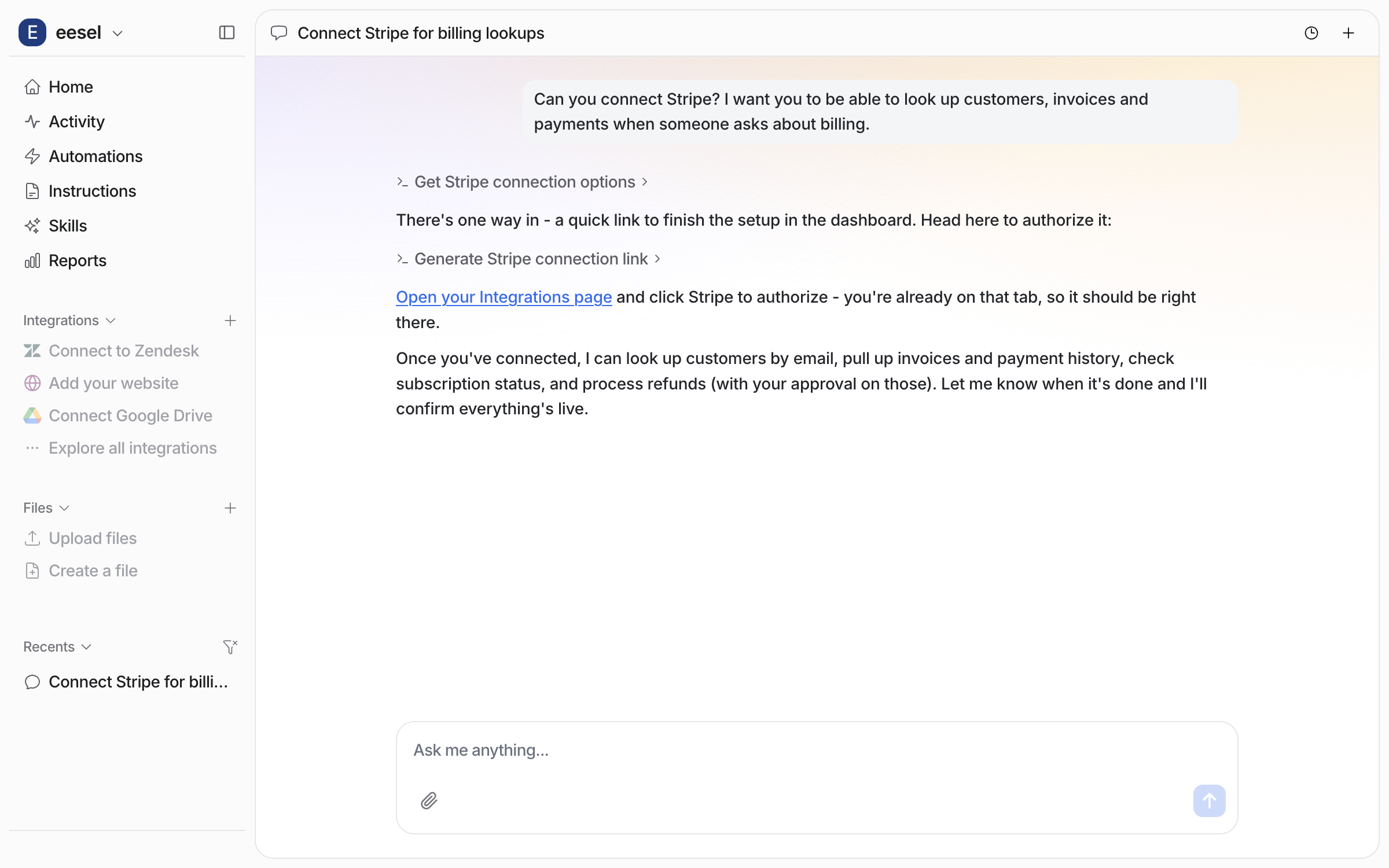
Open the chat in your dashboard and ask it to connect Stripe. It points you at your **Integrations** page and lists what it will be able to do once connected.

<figure><img src="https://3732419023-files.gitbook.io/~/files/v0/b/gitbook-x-prod.appspot.com/o/spaces%2F2xXO0947TYoPIhGoBgSE%2Fuploads%2Fgit-blob-d019b50abfda9fd28b675c0e6b6219d8d15cda25%2Fstripe-connect-chat.png?alt=media" alt="The dashboard chat where the user asks to connect Stripe and the agent replies with a link to the Integrations page and a list of what it can do once connected"><figcaption><p>The agent's answer in the dashboard chat.</p></figcaption></figure>

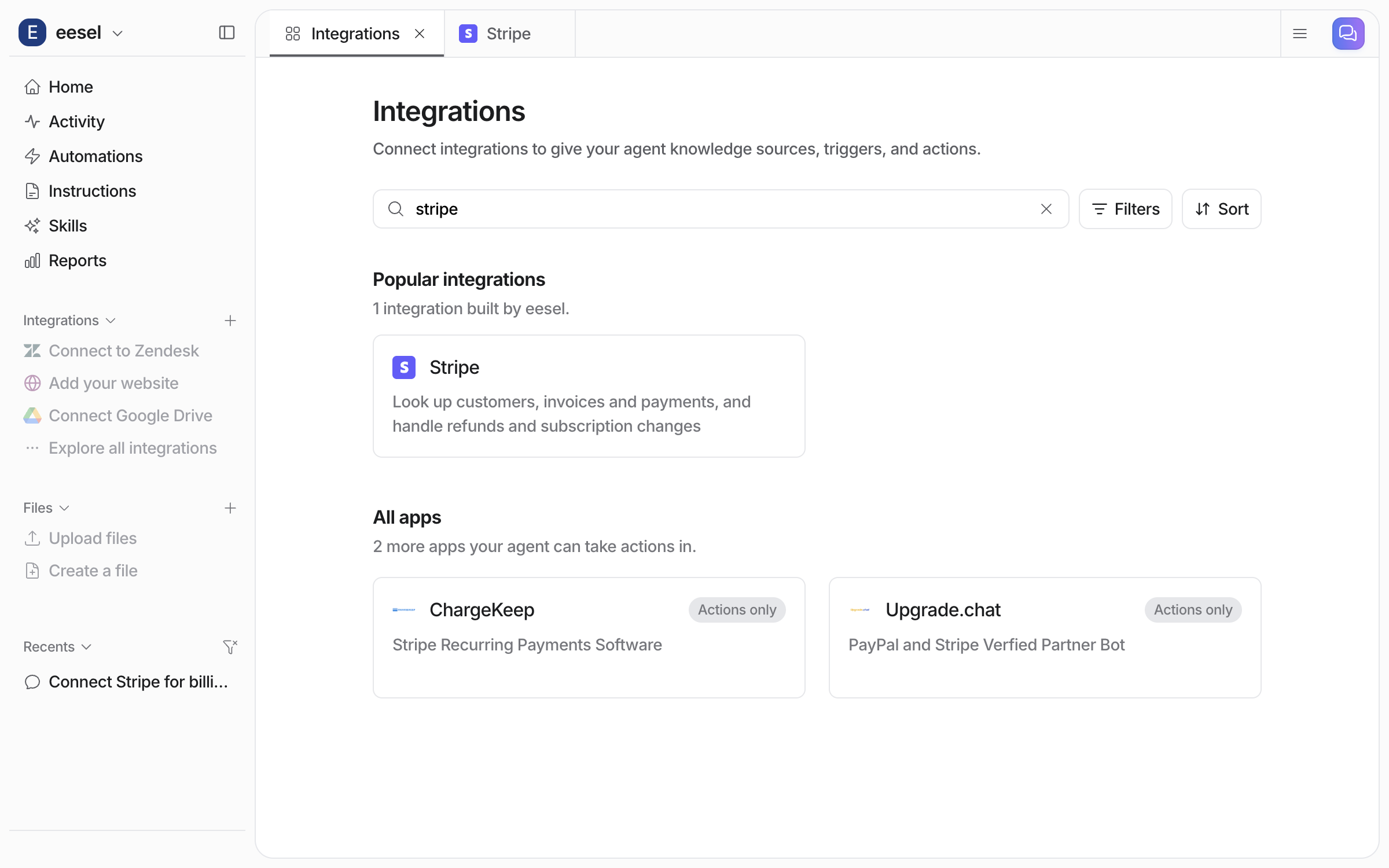
Open **Integrations** in the left sidebar and search for Stripe. If Stripe is not in the list, it has not been turned on for your workspace yet. Message us and we will turn it on.

<figure><img src="https://3732419023-files.gitbook.io/~/files/v0/b/gitbook-x-prod.appspot.com/o/spaces%2F2xXO0947TYoPIhGoBgSE%2Fuploads%2Fgit-blob-880b26988fcdc871607d9e36ac4396097dfcf915%2Fstripe-gallery.png?alt=media" alt="The Integrations gallery filtered to Stripe, showing the Stripe tile"><figcaption><p>Stripe in the Integrations gallery.</p></figcaption></figure>

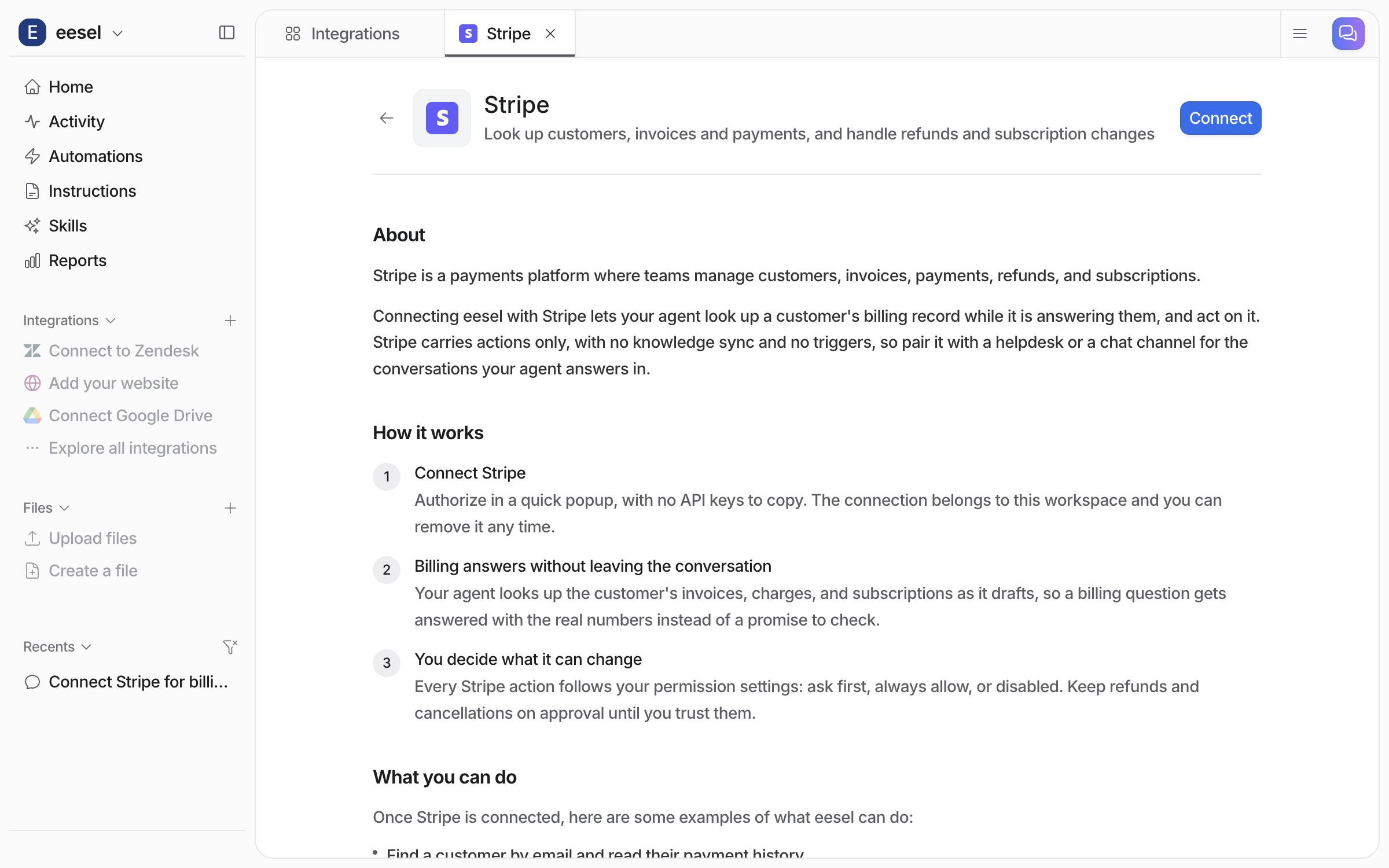
Open the tile. **Connect** is in the top right.

<figure><img src="https://3732419023-files.gitbook.io/~/files/v0/b/gitbook-x-prod.appspot.com/o/spaces%2F2xXO0947TYoPIhGoBgSE%2Fuploads%2Fgit-blob-c9279fe7aa6fcd0b3afce02cd9a70a8a39021871%2Fstripe-integration-page.png?alt=media" alt="The Stripe integration page before connecting, with the About and How it works sections and a Connect button"><figcaption><p>The Stripe page before it is connected.</p></figcaption></figure>
{% endstep %}

{% step %}

### Connect through Pipedream

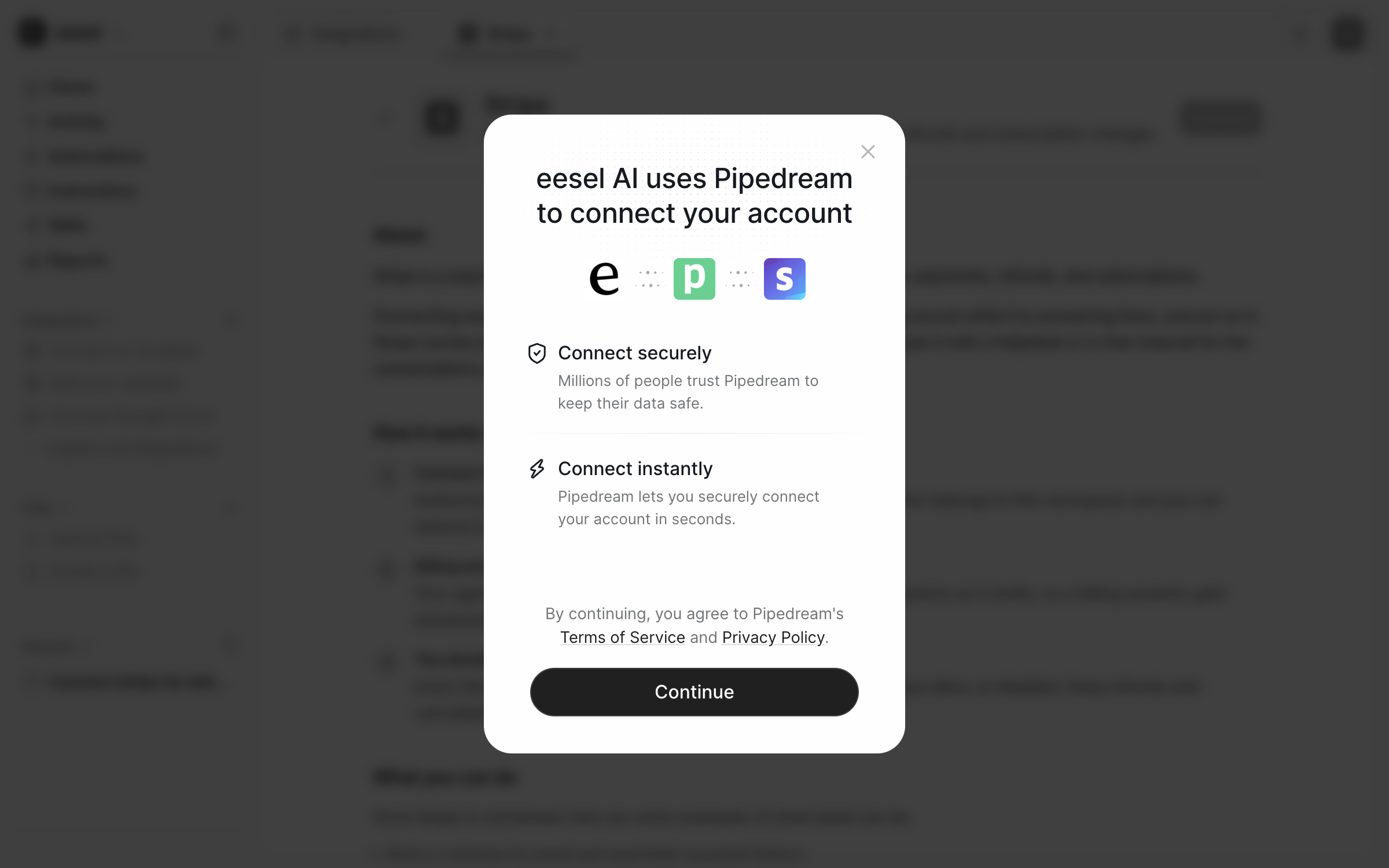
**Connect** opens a window from Pipedream, the service that holds the connection. **Continue** takes you to a form that asks for a key from Stripe. A person creates that key in the Stripe dashboard and pastes it in. Every screen, from the Stripe dashboard to the pasted key, is on [Set up Stripe](https://docs.eesel.ai/integrations/e-commerce/stripe/stripe-setup.md).

<figure><img src="https://3732419023-files.gitbook.io/~/files/v0/b/gitbook-x-prod.appspot.com/o/spaces%2F2xXO0947TYoPIhGoBgSE%2Fuploads%2Fgit-blob-8726cede3ec8555d5b8e011a9f33a1c798725906%2Fstripe-pipedream-notice.png?alt=media" alt="The Pipedream notice saying eesel AI uses Pipedream to connect your account, with a Continue button"><figcaption><p>The Pipedream notice.</p></figcaption></figure>

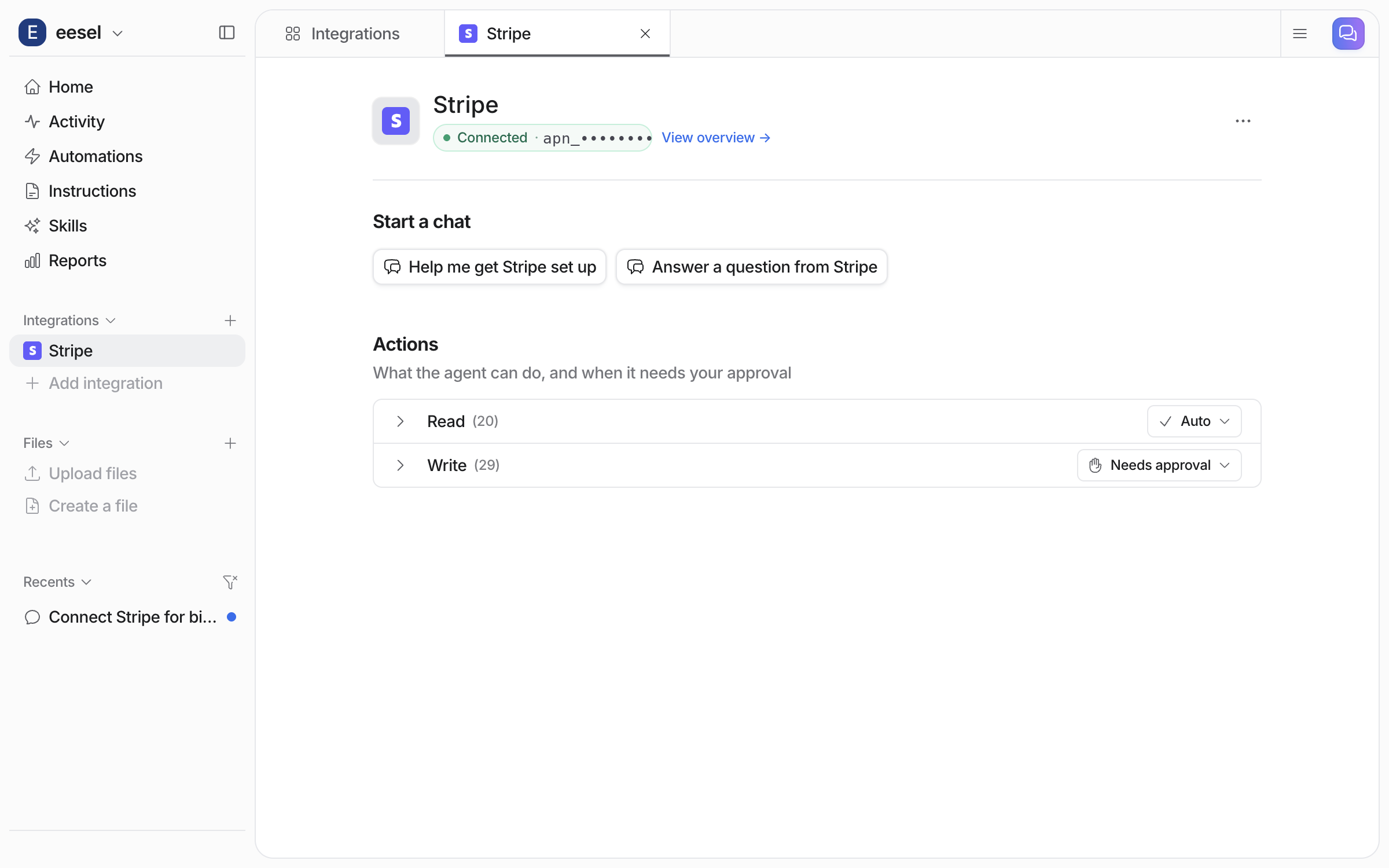
**Check it worked.** The integration page header reads **Connected** and the left sidebar lists Stripe.

<figure><img src="https://3732419023-files.gitbook.io/~/files/v0/b/gitbook-x-prod.appspot.com/o/spaces%2F2xXO0947TYoPIhGoBgSE%2Fuploads%2Fgit-blob-47bd8b5da021acda59685ed971ae118cfe11bdb7%2Fstripe-connected.png?alt=media" alt="The connected Stripe integration page with Start a chat prompts and the Actions list with its Read and Write groups"><figcaption><p>The connected page.</p></figcaption></figure>
{% endstep %}

{% step %}

### Try it on a real customer

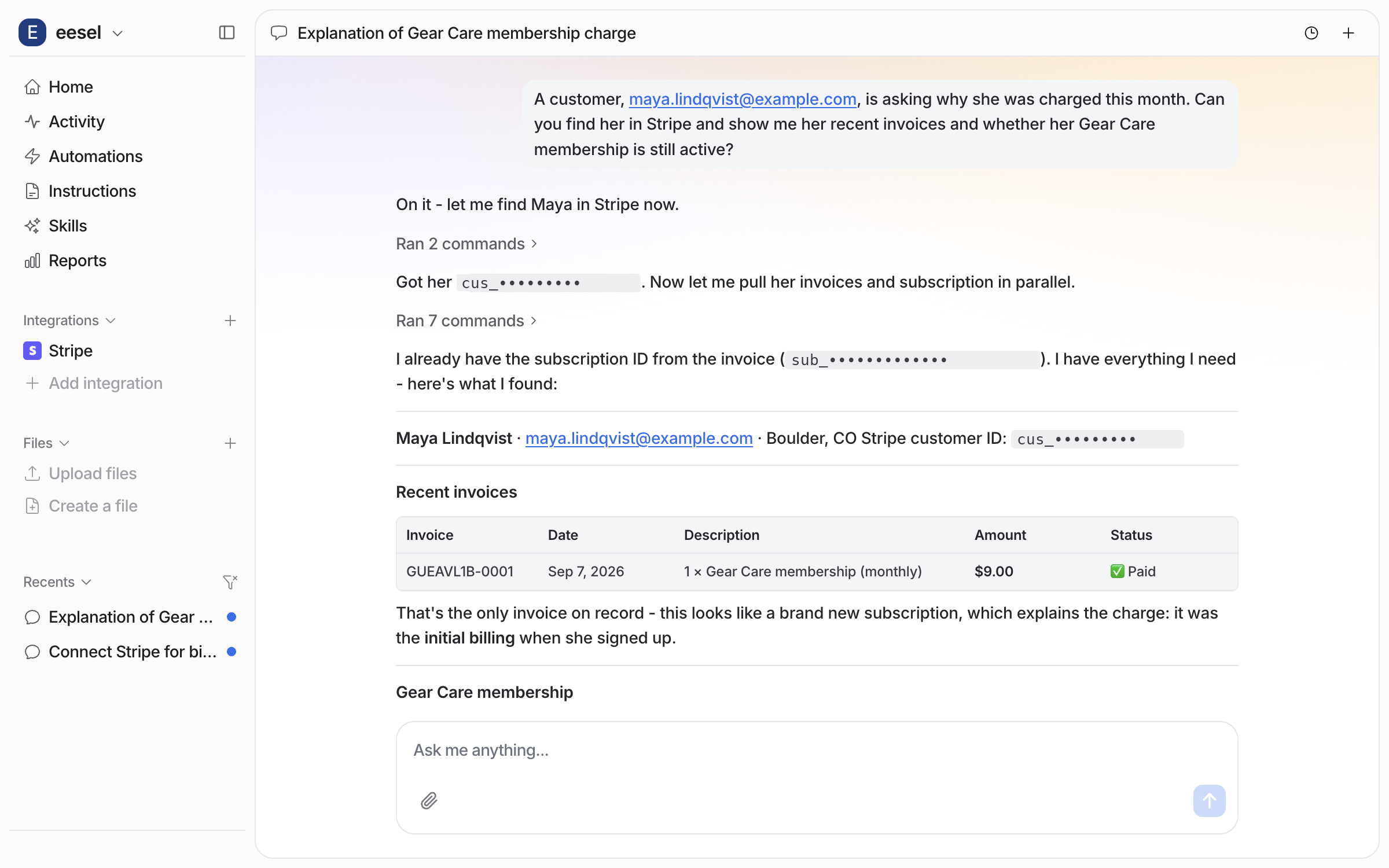
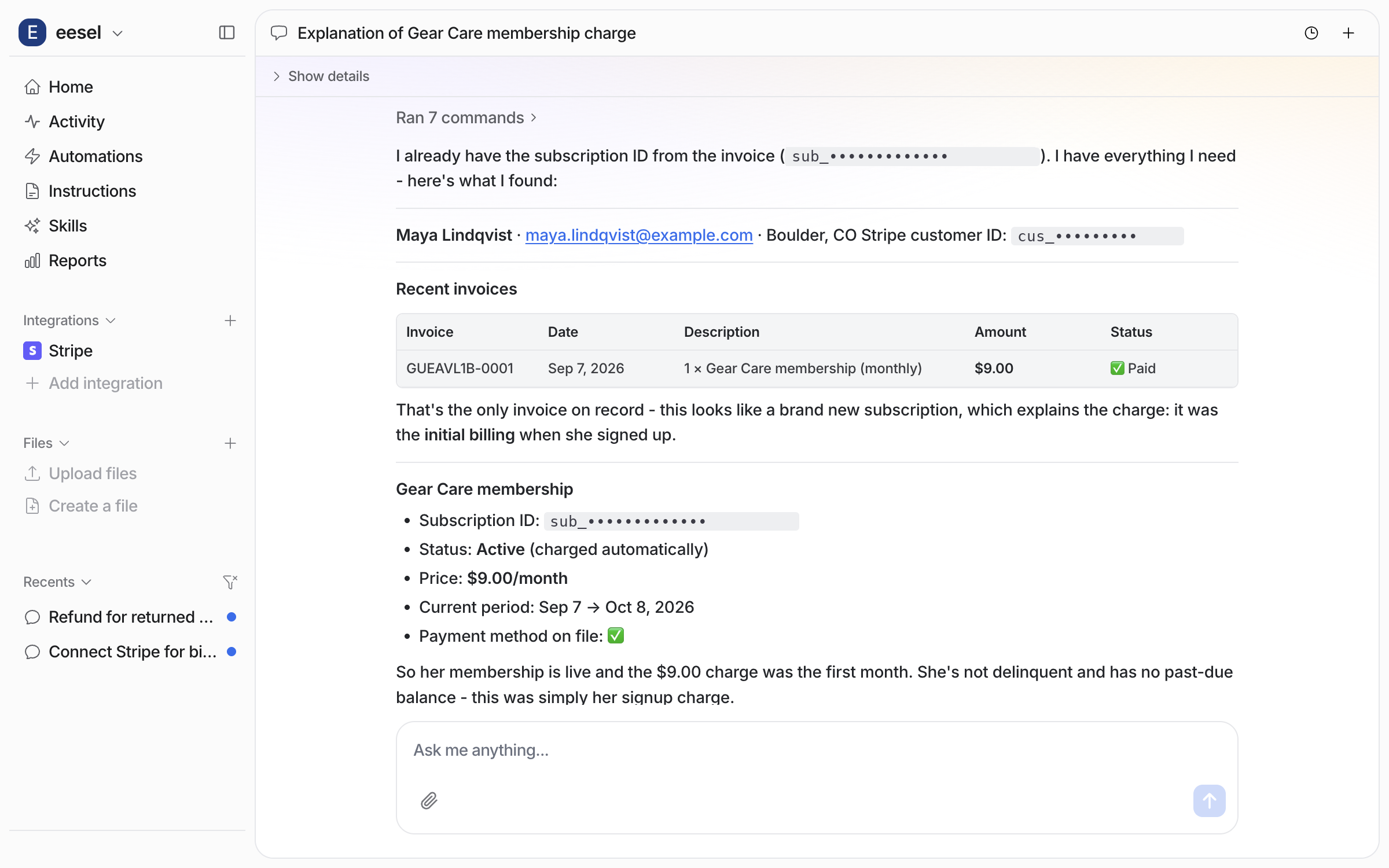
Ask your agent in the chat about a customer's charge. It finds them in Stripe by email, reads their invoices and subscriptions, and reports what it found in plain amounts.

<figure><img src="https://3732419023-files.gitbook.io/~/files/v0/b/gitbook-x-prod.appspot.com/o/spaces%2F2xXO0947TYoPIhGoBgSE%2Fuploads%2Fgit-blob-1f82a76b099102919aebc2e57fdd31ff42236868%2Fstripe-lookup-1.png?alt=media" alt="The dashboard chat where the agent finds Maya Lindqvist in Stripe and shows a table with her one invoice: Gear Care membership, 9 dollars, Paid"><figcaption><p>The customer found and her invoice listed.</p></figcaption></figure>

<figure><img src="https://3732419023-files.gitbook.io/~/files/v0/b/gitbook-x-prod.appspot.com/o/spaces%2F2xXO0947TYoPIhGoBgSE%2Fuploads%2Fgit-blob-1f9a78c28d8efe01b1a1b802b88377b022f7cfb9%2Fstripe-lookup-2.png?alt=media" alt="The same answer continued: subscription status Active, 9 dollars a month, the current period, and a payment method on file"><figcaption><p>The subscription status, further down the same answer.</p></figcaption></figure>

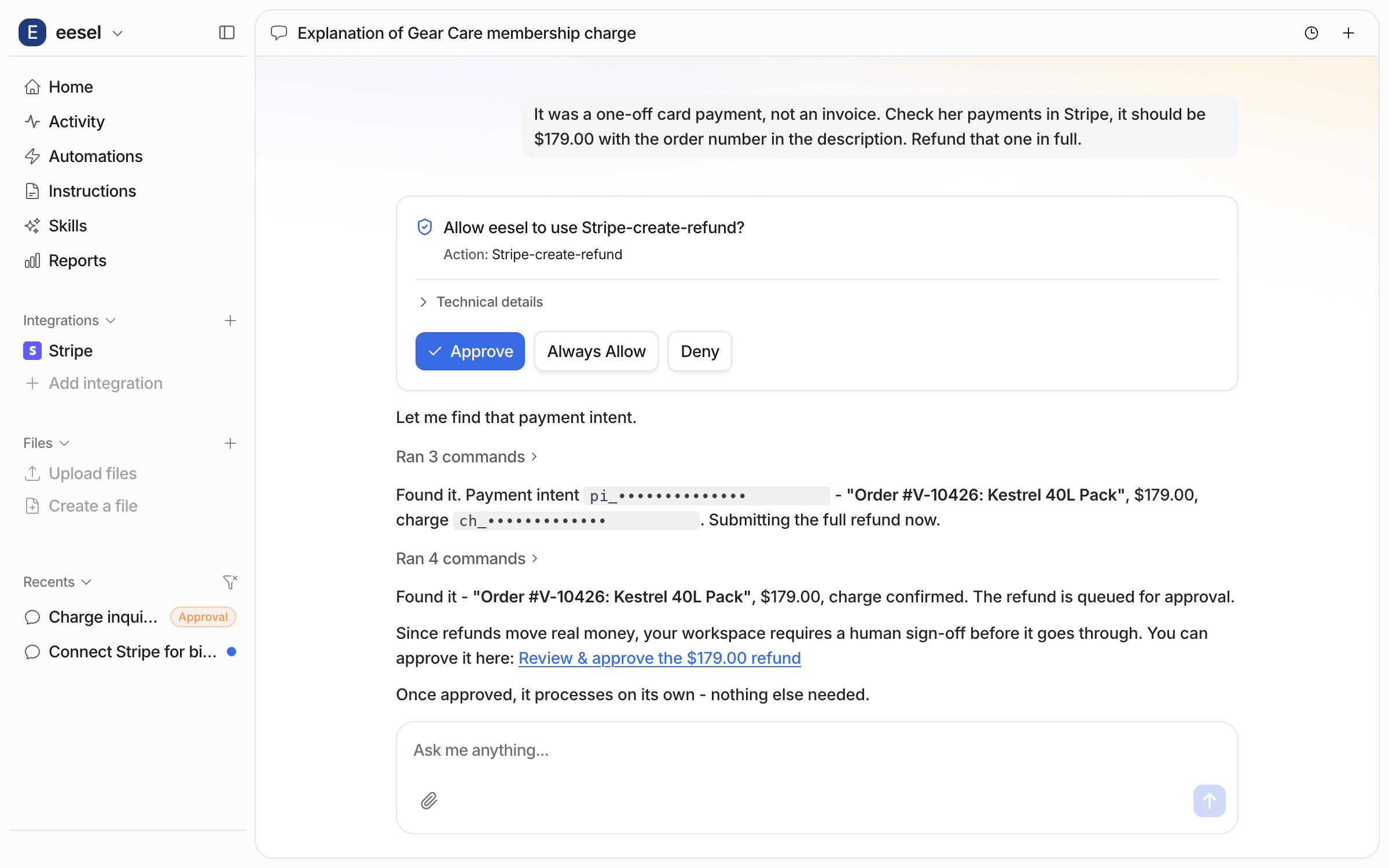
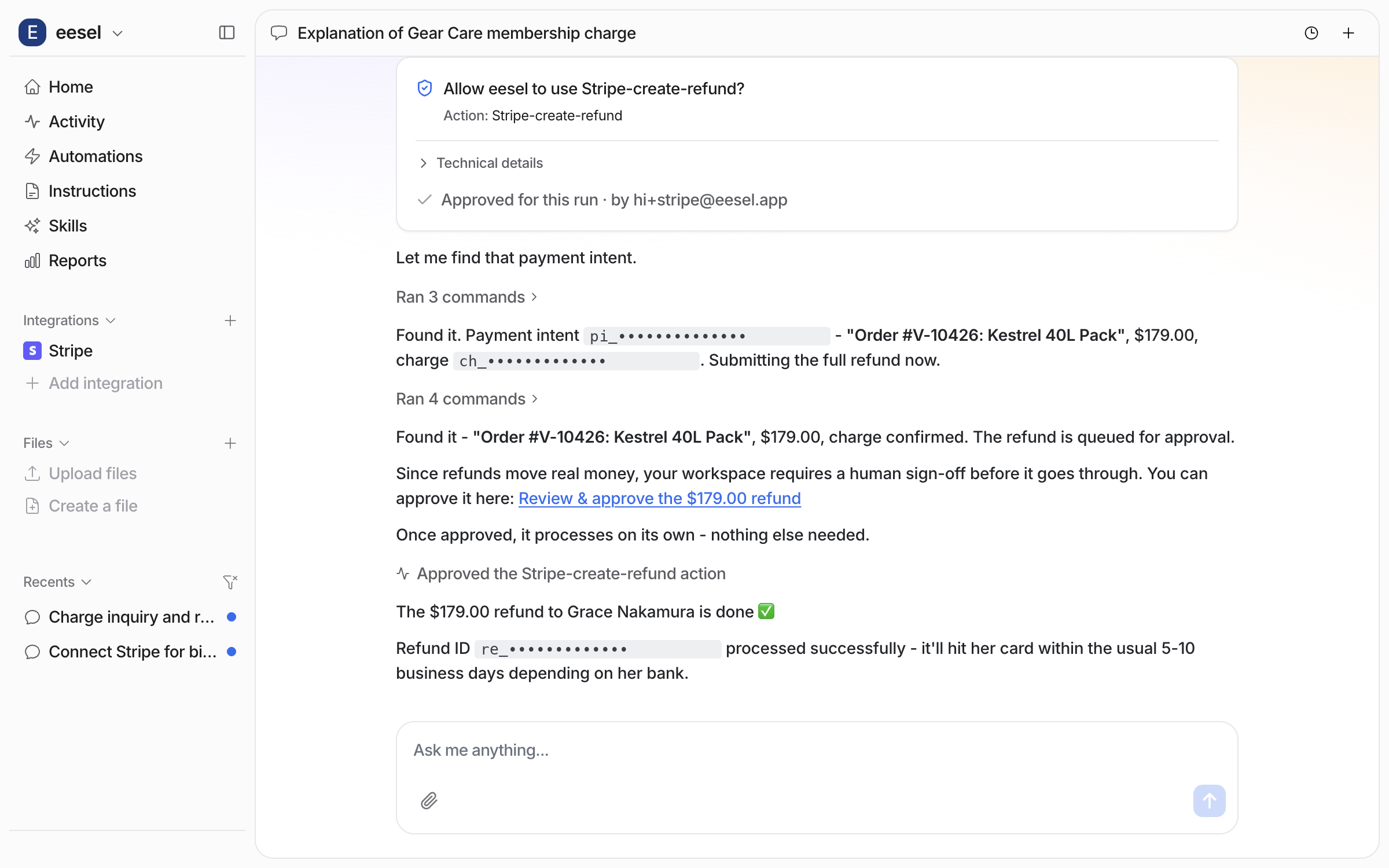
Then ask it to refund a payment. In the example below a different customer, Grace Nakamura, has returned a $179 pack. Give your agent the amount and the order number. Stripe keeps the order number in the payment's description, so that is how it finds the right payment. When the refund waits for your OK, it appears as an approval card in the chat and on your **Activity** page.

<figure><img src="https://3732419023-files.gitbook.io/~/files/v0/b/gitbook-x-prod.appspot.com/o/spaces%2F2xXO0947TYoPIhGoBgSE%2Fuploads%2Fgit-blob-6a9fa3cbccd6f5049885f2aedc1d3bbcd5ad2bf4%2Fstripe-approval.png?alt=media" alt="The approval card for Stripe create refund with Approve, Always Allow and Deny, followed by the agent naming the 179 dollar payment it found and saying the refund is queued for approval"><figcaption><p>The refund held for approval, with the payment it will refund named underneath.</p></figcaption></figure>

Approve it and the refund is made in Stripe. The card records who approved it.

<figure><img src="https://3732419023-files.gitbook.io/~/files/v0/b/gitbook-x-prod.appspot.com/o/spaces%2F2xXO0947TYoPIhGoBgSE%2Fuploads%2Fgit-blob-7aa0d1062db7daba6ed5d15e599a1dbcd63d703e%2Fstripe-refund-done.png?alt=media" alt="The approval card now reading Approved for this run, followed by the agent confirming the 179 dollar refund to Grace Nakamura is done with the refund id"><figcaption><p>Approved, and the refund confirmed with Stripe's reference for it.</p></figcaption></figure>

<figure><img src="https://3732419023-files.gitbook.io/~/files/v0/b/gitbook-x-prod.appspot.com/o/spaces%2F2xXO0947TYoPIhGoBgSE%2Fuploads%2Fgit-blob-3ae9161fe26daeeaf3750a9a6a8ae98bb47e5e1c%2Fstripe-refunded-callout.png?alt=media" alt="The payment in the Stripe dashboard marked Refunded, with the refund in the activity timeline"><figcaption><p>The same payment in Stripe, now marked Refunded.</p></figcaption></figure>
{% endstep %}

{% step %}

### Put it to work

Stripe has no event that wakes your agent on its own, so it does its Stripe work inside the conversations it already handles. Tell it in its [instructions](https://docs.eesel.ai/instructions-and-memory/instructions-and-memory.md) how to handle billing questions, and it uses these actions when a customer asks in your helpdesk, in Slack or on your site. For routine checks, a [schedule](https://docs.eesel.ai/automations-and-schedules/automations-and-schedules.md) runs the same work on a clock.
{% endstep %}
{% endstepper %}

## Things to know

* **Older workspaces may not list Stripe.** If Stripe is missing from your **Integrations** gallery, message us in the in-app chat or email <hi@eesel.app> and we turn it on.
* **No Stripe triggers.** Nothing in Stripe starts your agent. A helpdesk ticket, a Slack mention, the chat bubble or a schedule does.
* **Your agent finds the customer first.** Everything in Stripe hangs off the customer, so it looks them up by email before it touches anything, and checks a subscription before it cancels it.
* **Amounts are in the smallest unit.** Stripe stores 1000 for $10.00, so your agent states the amount in plain money before it proposes a refund. A refund cannot be undone.
* **Cancel is not delete.** A customer who asks to "cancel my account" gets a cancelled subscription. Deleting the customer record destroys their history, and your agent only does it when your team asks for exactly that.
* **Test mode sends no email.** With a test-mode key, Send invoice reports success but Stripe emails nobody.
* **The key sets the ceiling.** A restricted key with Read on something means the write actions for it fail. The permission list is on [Set up Stripe](https://docs.eesel.ai/integrations/e-commerce/stripe/stripe-setup.md).

## Troubleshooting

<details>

<summary>Stripe is not in my Integrations gallery?</summary>

Message us in the in-app chat or email <hi@eesel.app> and we will turn Stripe on for your workspace.

</details>

<details>

<summary>The action says it is waiting?</summary>

It may be waiting for your OK. The request is in the chat and on your **Activity** page. Approve it and it runs.

</details>

<details>

<summary>Your agent says it cannot find the payment?</summary>

It reads a customer's invoices first, and a one-off card payment is not an invoice. Tell it the amount and the order number and it finds the payment directly.

</details>

<details>

<summary>An invoice was "sent" but nobody received it?</summary>

Check whether the key you connected is a test-mode key. Stripe's test mode reports a send as successful without sending mail.

</details>

## FAQ

<details>

<summary>Should I connect a live key or a test key?</summary>

Start with a test-mode key while you set instructions and approvals. To move to live, a person opens **Integrations > Stripe** in the dashboard, removes the connection from the menu in the top right, connects again and enters a key made for the real account, limited to what your agent needs. The exact permission list is on [Set up Stripe](https://docs.eesel.ai/integrations/e-commerce/stripe/stripe-setup.md).

</details>

## Related pages

* [E-commerce Sales Rep](https://docs.eesel.ai/use-cases/e-commerce-sales-rep.md) for the job your teammate takes on in a store
* [Set up Stripe](https://docs.eesel.ai/integrations/e-commerce/stripe/stripe-setup.md) for creating the key in Stripe, screen by screen
* [QuickBooks](https://docs.eesel.ai/integrations/e-commerce/quickbooks.md) for invoices from your accounting records
* [Actions and Approvals](https://docs.eesel.ai/instructions-and-memory/actions-and-approvals.md) for choosing what your agent may do
* [Set up from Claude Code or the terminal](https://docs.eesel.ai/getting-started/set-up-from-a-coding-agent.md)


---

# Agent Instructions
This documentation is published with GitBook. GitBook is the documentation platform designed so that both humans and AI agents can read, navigate, and reason over technical content effectively. Learn more at gitbook.com.

## Querying This Documentation
If you need additional information that is not directly available in this page, you can query the documentation by asking a question.

Perform an HTTP GET request on the following URL with the `ask` and `goal` query parameters:

```
GET https://docs.eesel.ai/integrations/e-commerce/stripe.md?ask=<question>&goal=<user_goal>
```

`ask` is the immediate question: it should be specific, self-contained, and written in natural language.
`goal` is what the user is ultimately trying to achieve, the reason they need the answer. Sharing it helps GitBook give you a better, more relevant answer. A goal is most helpful when it describes the outcome the user wants rather than restating the question. For example, with `ask=how do I create an API token`, a goal like `automate deployments from our CI pipeline` lets GitBook tailor the answer to that use case.

The response will contain a direct answer to the question and relevant excerpts and sources from the documentation.

Use this mechanism when the answer is not explicitly present in the current page, you need clarification or additional context, or you want to retrieve related documentation sections.