> For the complete documentation index, see [llms.txt](https://docs.eesel.ai/llms.txt). Markdown versions of documentation pages are available by appending `.md` to page URLs; this page is available as [Markdown](https://docs.eesel.ai/integrations/uploading-files.md).

# Uploading Files

Some of what your teammate needs to know was never written down in a tool you can connect. A policy PDF, a price list, a handover doc someone keeps in their downloads folder. Upload it here and it becomes knowledge your agent answers from, the same as anything it reads from your helpdesk or your website.

You can also write knowledge directly in eesel, and your agent can create and update these files itself as it works.

Files are a knowledge source only. There's nothing here for your agent to act on, so this integration has no triggers and no customer-facing actions.

## Uploading files

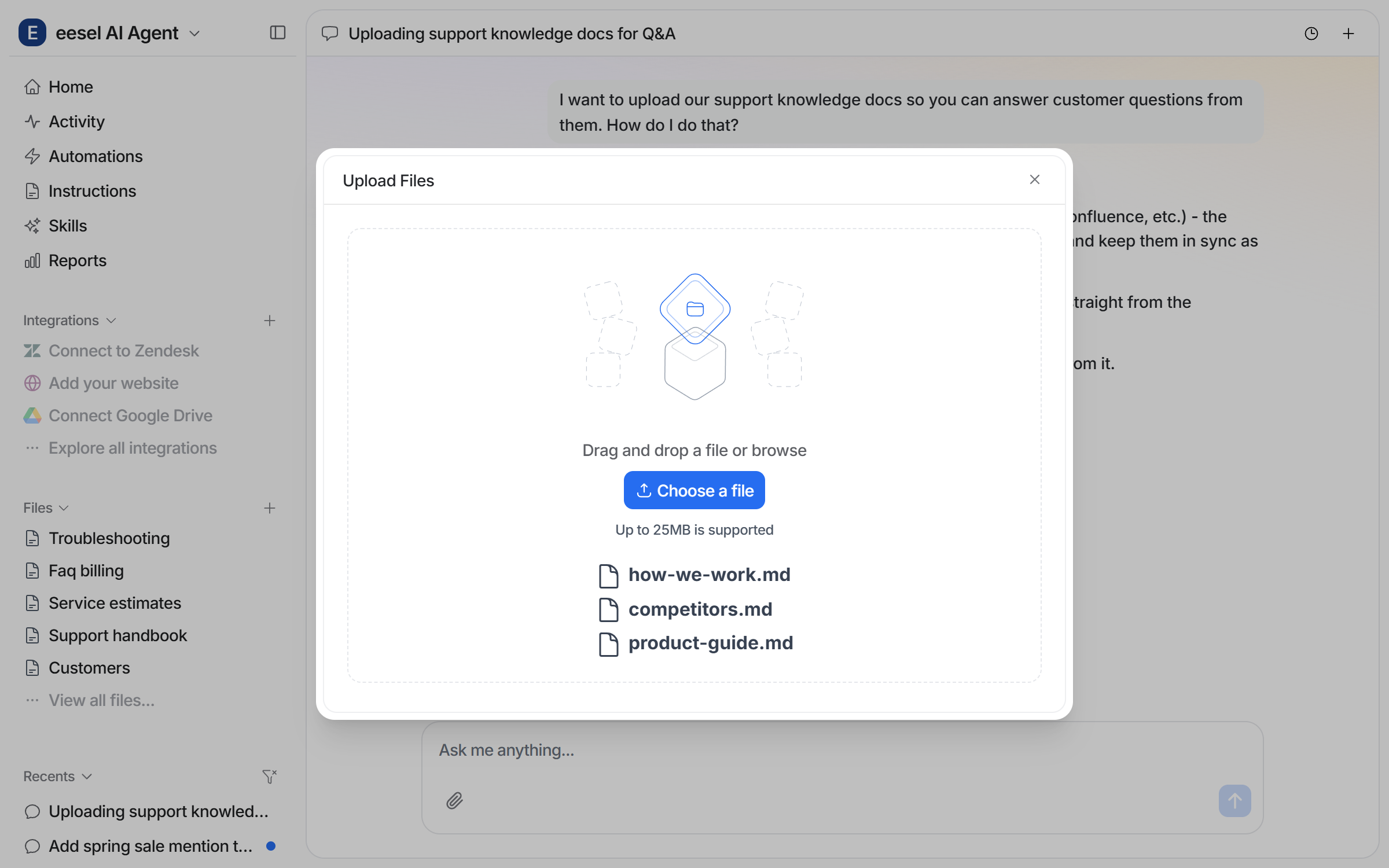
1. Go to your agent's **Files** section
2. Drag and drop files into the upload area, or click to browse
3. Files are processed and indexed automatically

Each uploaded file can be up to **25MB**.

<figure><img src="/files/sYxa3T3CENYpzmMTDFKh" alt="The Upload Files modal with a drag-and-drop area, next to the chat guiding the upload"><figcaption><p>Drag files in, or just tell your agent what you're uploading and it guides you.</p></figcaption></figure>

**Re-uploading replaces the old version.** A file is stored under its filename, so uploading a file with the same name overwrites what was there before. That's how you update an uploaded document: upload the new version under the same name. It also means two genuinely different documents that share a filename will overwrite each other, so give them distinct names.

## Supported formats

For **uploaded** files:

| Format         | Extension | Notes                                       |
| -------------- | --------- | ------------------------------------------- |
| **PDF**        | `.pdf`    | Text is extracted from the PDF's text layer |
| **Plain text** | `.txt`    | Any plain text file                         |
| **Markdown**   | `.md`     | See the caveat below                        |
| **CSV**        | `.csv`    | Comma-separated data files                  |

{% hint style="warning" %}
**Scanned PDFs won't work.** Text is read from the PDF's own text layer, and there's no image-to-text conversion. A PDF that's really a photo or a scan of a page indexes as empty, with no error. Check a PDF by trying to select text in it: if you can't, your agent can't read it either. Export a text-based version instead.
{% endhint %}

Formats not in the table above, including Word documents and spreadsheets, aren't converted. Save them as PDF or text first.

## Creating files in the platform

You can also write knowledge directly in eesel:

1. Go to your agent's **Files** section
2. Click **Create** to start a new file
3. Write or paste your content
4. Save. The file is immediately available as knowledge

Created files support `.md`, `.txt`, `.csv`, `.json` and `.html`, up to **5MB** each.

This is useful for:

* Writing custom knowledge articles specific to your agent
* Adding quick notes or policies without needing an external tool
* Creating content that doesn't live anywhere else

### Your agent can write files too

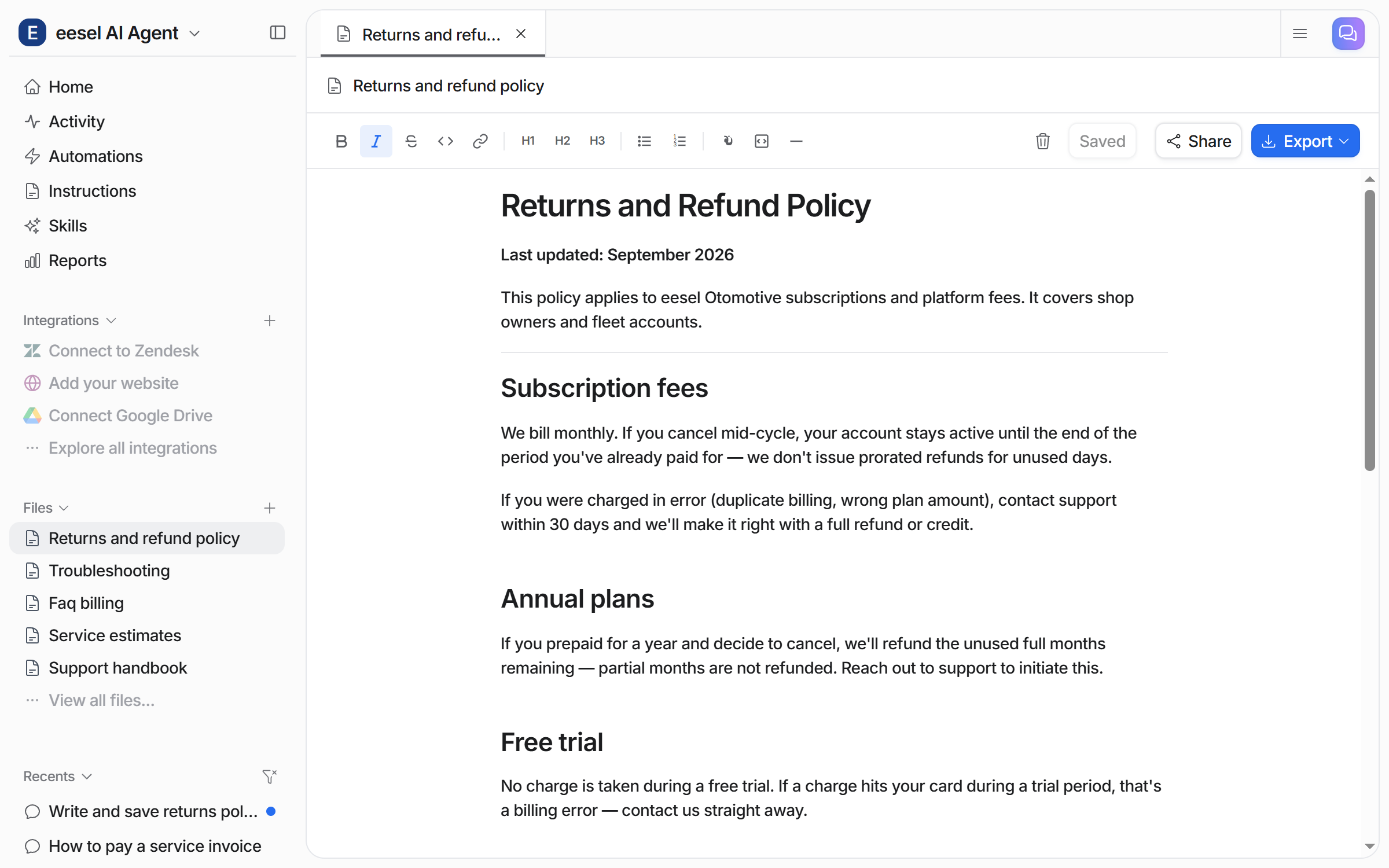
Files aren't only something you hand your agent. It can create and append to them itself, which is how it saves things like a summary it built, a list it compiled, or notes from a skill that ran on a schedule. Anything it writes lands in the same **Files** list, so you can read and edit it like anything else you created.

<figure><img src="/files/nnmjlyGgN3hkMpDXfmUG" alt="A file the agent wrote, a warranty policy article, open in the Files editor with the chat confirming it was saved"><figcaption><p>A file your agent wrote for itself, saved to Files and editable like anything you created.</p></figcaption></figure>

### Exporting

Any file you created in the platform can be exported as **PDF**, **Word**, **HTML** or **Markdown**.

## Tips

**Use PDFs for policies and manuals.** Company handbooks, product manuals and policy documents work well, as long as the text is selectable.

**Create files for agent-specific knowledge.** If there's something your agent needs that doesn't exist in any other tool, write it directly in the platform.

**CSV files work for structured data.** A product catalog, FAQ list or pricing table from a spreadsheet, saved as CSV.

**Keep files focused.** Upload files that are directly relevant to what your agent needs. A large file of mixed content is harder for it to answer from than a few focused ones.

{% hint style="info" %}
**Files aren't the only thing it can learn from.** Every integration you add to this agent becomes another source of knowledge it can answer from. Connect your helpdesk, Confluence, Notion, Google Drive or [your website](/integrations/website.md), and your agent draws on all of them at once. See [Integrations](/integrations/overview.md).
{% endhint %}

## Troubleshooting

<details>

<summary>File not processing?</summary>

Check the format (PDF, TXT, MD and CSV only), that it isn't password-protected, and for PDFs that the text is selectable. Scanned pages index as empty.

</details>

<details>

<summary>Content not appearing in answers?</summary>

Give it a few minutes, processing large files takes time. Then test in the dashboard chat by asking a question specifically about the file's content.

</details>

## FAQ

<details>

<summary>Can my agent create files by itself?</summary>

Yes. It can create new files and append to existing ones, and they appear in your **Files** list alongside the ones you made. If you and your agent edit the same file at once, your edit is kept and its version is saved separately.

</details>

<details>

<summary>Can I export a file I created in the platform?</summary>

Yes, as PDF, Word, HTML or Markdown.

</details>

<details>

<summary>What does uploading files cost?</summary>

Nothing extra. Building your agent's knowledge isn't charged separately. Billing is pay-as-you-go on the conversations your agent handles. See [Pricing](/pricing/overview.md).

</details>

## Related

* [Integrations overview](/integrations/overview.md) for how sources, triggers and actions fit together
* [Website](/integrations/website.md) for knowledge that's already published on your site
* [Instructions and Memory](/instructions-and-memory/instructions-and-memory.md)
* [Skills](/skills/skills.md)
* [Pricing](/pricing/overview.md)


---

# Agent Instructions
This documentation is published with GitBook. GitBook is the documentation platform designed so that both humans and AI agents can read, navigate, and reason over technical content effectively. Learn more at gitbook.com.

## Querying This Documentation
If you need additional information that is not directly available in this page, you can query the documentation dynamically by asking a question.

Perform an HTTP GET request on the current page URL with the `ask` query parameter, and the optional `goal` query parameter:

```
GET https://docs.eesel.ai/integrations/uploading-files.md?ask=<question>&goal=<endgoal>
```

`ask` is the immediate question: it should be specific, self-contained, and written in natural language.
`goal` is optional and describes the broader end goal you are ultimately trying to accomplish on behalf of the user. GitBook uses it to tailor the answer towards what is most useful for that goal.

The response will contain a direct answer to the question and relevant excerpts and sources from the documentation.

Use this mechanism when the answer is not explicitly present in the current page, you need clarification or additional context, or you want to retrieve related documentation sections.