> For the complete documentation index, see [llms.txt](https://docs.eesel.ai/llms.txt). Markdown versions of documentation pages are available by appending `.md` to page URLs; this page is available as [Markdown](https://docs.eesel.ai/legacy/integrations/freshdesk.md).
# Freshdesk
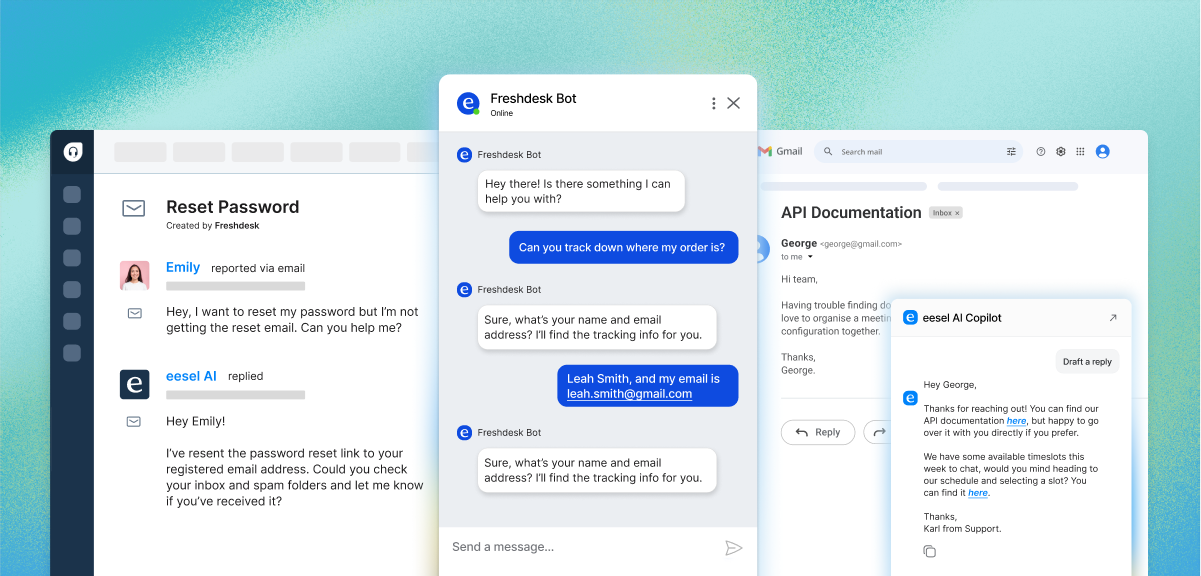
AI agents and copilot to streamline support
eesel AI instantly plugs into your Freshdesk, learns from your past tickets, macros, help center and more, and seamlessly joins in like a new teammate.
***
## Training your AI with Freshdesk
{% tabs %}
{% tab title="Help Center" %}
**Help Center**
For **public help centers**:
1. Choose the bot, or create a new bot, to connect with your help center.
2. Click the integrations menu on the sidebar.
3. Click Freshdesk.
4. Click "Setup integration".
5. Enter you help center URL and click "Start crawling"
The bot will then crawl your help center and start adding links to your bot to use as knowledge within minutes.
{% endtab %}
{% tab title="Macros" %}
**Macros**
When you connect your Freshdesk domain to your eesel AI bot, it will automatically index your macros and ad them to your AI bot.
1. Go to your eesel dashboard and unfurl the Freshdesk integration on the left sidebar
2. Click Sources
3. Click Macros
4. Set them live or as drafts to enable or disable them.
5. Click re-sync to update them after any changes in Freshdesk.
{% endtab %}
{% tab title="Past Tickets" %}
**Past Tickets**
Training on past tickets requires you to connect your Freshdesk domain to the bot you want to train. Once that's done, click on your Freshdesk integration on the left sidebar > click 'Tickets'.
We recommend filtering your tickets using the query in order to get the best quality results.
**Step 1: Writing a Ticket Filter Query**
Use Freshdesk’s query language to fetch only the tickets you care about (e.g. billing tickets, high-priority issues, etc.). The following is a list of fields you can use to filter your tickets:
| Field | Type | Description |
| --------------- | ------- | ----------------------------------------------------------------------------- |
| `agent_id` | integer | ID of the agent the ticket is assigned to |
| `group_id` | integer | ID of the group the ticket is assigned to |
| `priority` | integer | Priority of the ticket (1–4) |
| `status` | integer | Status of the ticket (e.g. Open = 2, Resolved = 4) |
| `tag` | string | Ticket tag |
| `type` | string | Issue type (e.g. Question, Incident, Problem) |
| `created_at` | date | Ticket creation date (YYYY-MM-DD) |
| `due_by` | date | Ticket due date |
| `fr_due_by` | date | First response due date |
| `updated_at` | date | Last updated timestamp |
| `custom fields` | mixed | Use `cf_fieldname` or `custom_string` for custom fields like text or checkbox |
**Example Queries:**
| Description | Query |
| ----------------------------------------------------- | ------------------------------------------------------------------------------------------ |
| Urgent or high-priority tickets | `priority:4 OR priority:3` |
| Open and pending tickets (second page) | `status:3 OR status:4` (use `&page=2` if using API directly) |
| High-priority open tickets in group ID 11 | `priority:>3 AND group_id:11 AND status:2` |
| Finance or marketing sector (custom fields) | `(cf_sector:'finance' OR cf_sector:'marketing') AND cf_locked:true` |
| Urgent tickets created on Jan 1, 2017 | `priority:>3 AND created_at:'2017-01-01'` |
| Tickets due in first week of Oct 2017 | `(type:'Question' OR type:'Problem') AND (due_by:>'2017-10-01' AND due_by:<'2017-10-07')` |
| Problem-type tickets tagged with “marketing” | `type:'Problem' AND tag:'marketing'` |
| Tickets without any tag | `tag:null` |
| Urgent tickets with no specified type | `type:null AND priority:4` |
| Urgent tickets assigned to agents 2 or 3 | `(agent_id:2 OR agent_id:3) AND priority:4` |
| Unassigned tickets | `agent_id:null` |
| All unresolved tickets | `status:2 OR status:3 OR status:6 OR status:7` |
| Tickets using a keyword in a single-line custom field | `custom_string:refund` |
| Multiple keywords (AND / OR) | `custom_string:keyword1 AND custom_string:keyword2` / `custom_string:keyword1 OR keyword2` |
**Step 2: Preview Sample Tickets**
1. After entering your query in Eesel’s ticket filter input, click the Preview button.
2. Eesel will fetch a sample of tickets matching your query.
3. Review the ticket list output carefully to confirm the query selects the desired tickets (e.g., only billing-related tickets).
4. If the results don’t match your expectations or if you see an error, adjust your query syntax and preview again.
**Step 3: Process Tickets for Training**
* Click the Process Tickets button to start training your AI agent with the filtered tickets.
* Once started, you’ll receive an email confirmation when the process completes.
* Don’t worry—we’ll notify you if anything goes wrong during processing.
{% endtab %}
{% tab title="Restricted Help Center" %}
**Restricted Help Center**
1. Install our browser extension
2. Open up the tabs you want to train the AI with
3. Click 'Add sources' > 'Add all tabs in browser'.
**On a paid plan**, reach out to us through support and we can automatically crawl and update your restricted help center.
{% endtab %}
{% endtabs %}
***
## Create a Freshdesk AI Agent
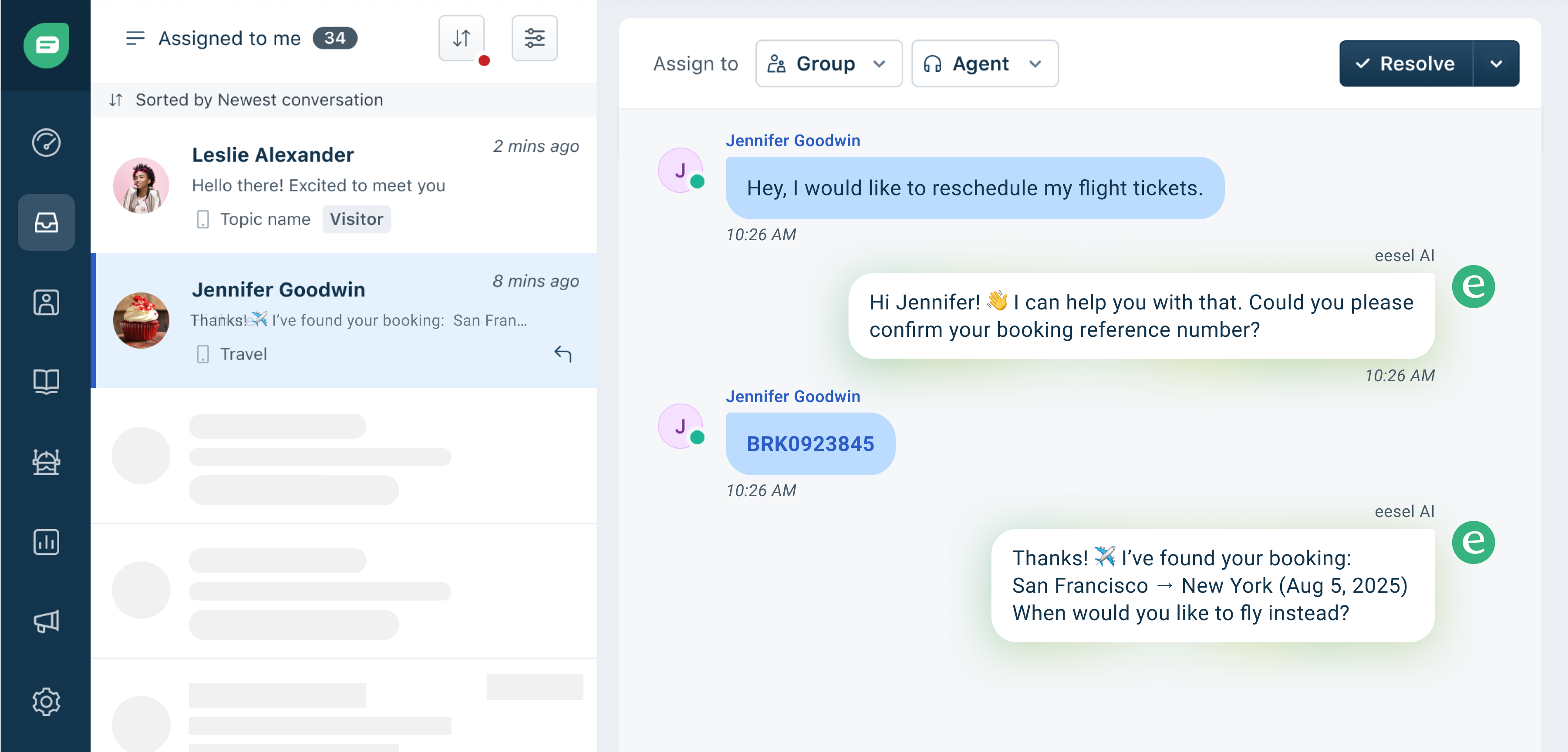
eesel can automate your frontline support as an AI agent inside Freshdesk. You can have it leave internal notes, automatically reply, and triage tickets.
Once your AI has been trained and customized, it's time to link your Freshdesk domain to your AI bot.
To set up eesel as an AI agent inside Freshdesk, see our [AI Agent guide](/legacy/products/ai-agent.md).
***
## Create a Freshdesk AI Copilot
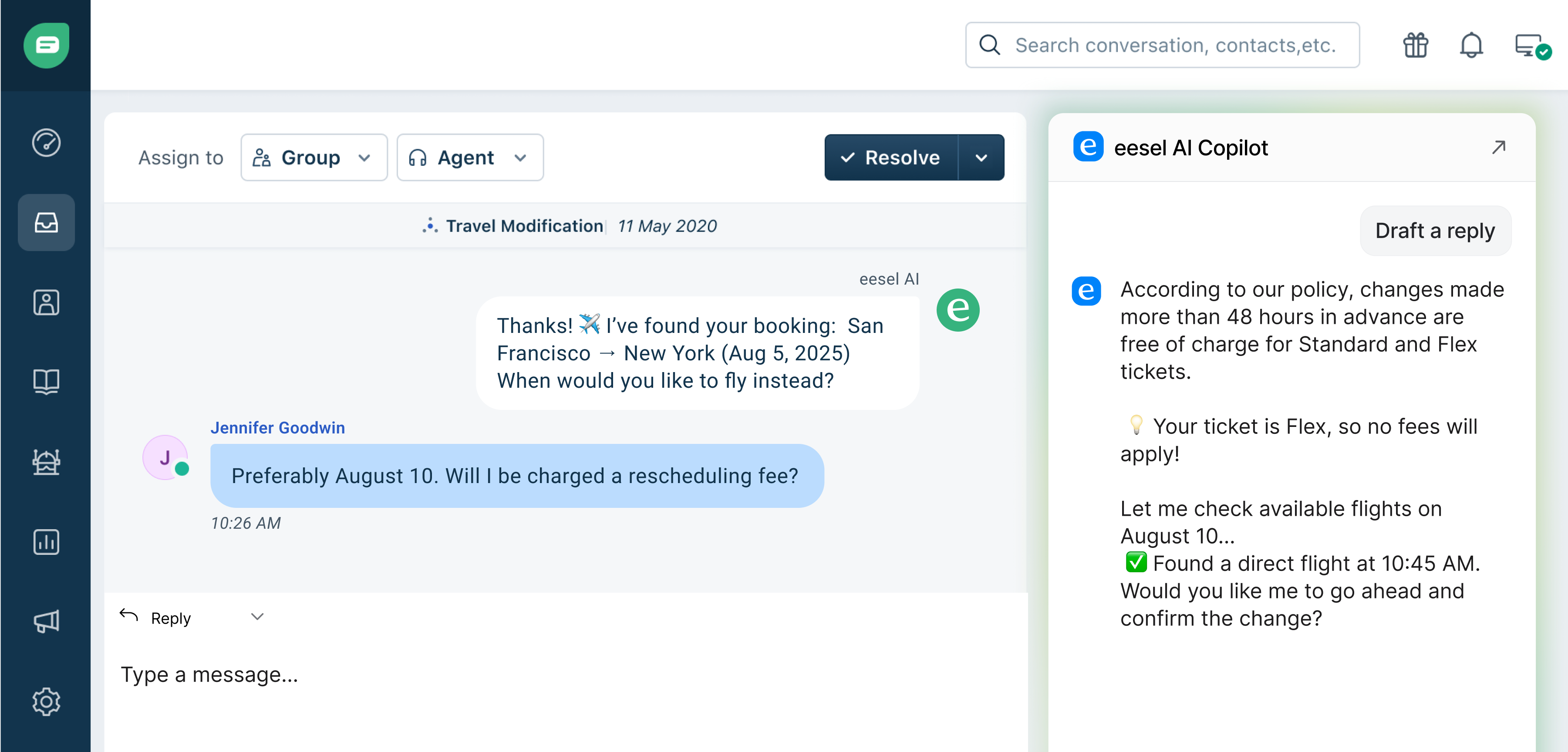
Check out our [setup guide](/legacy/products/ai-copilot.md) for using AI Copilot in your Freshdesk.
eesel AI can act as an AI copilot for your Freshdesk by using our [browser extension](https://chromewebstore.google.com/detail/eesel-ai-chatgpt-sidebar/ejhkkbilnpifailgngpkgmiofhioacjd?hl=en).
The AI can automatically pick up on the content of a ticket, and generate a response based on the knowledge it has access to.
You can use the browser extension to select the bot you want to use for its answer, and then draft a response and chat with the bot to edit before you paste is as a reply.=
***
## Freshdesk Actions
Once you've trained the bot and integrated it with your Freshdesk, it's important to customize it and add actions so that you can get the most out of your AI and automate manual tasks.
The following are Freshdesk specific actions. You can use them in combination with other actions on different platforms as well.
Create ticket
`freshdesk_create_ticket`
* **Purpose:** Creates a new Freshdesk ticket. (Note: This definition appears to be the same as the previous one).
* **Key Params:** `subject, description, email, priority, status`
* **When/How to Use:** Use when a user reports a bug, requests a new feature, or has a complex issue that requires tracking as a formal ticket rather than being resolved immediately in the current conversation. You will need to instruct the AI to gather the required parameters from the user. The current conversation ID is automatically available for context if needed, but the tool creates a *new* ticket.
* **Example Prompt Instruction:**
> If the user is reporting a potential bug or requesting a new feature, you must offer to create a support ticket for them in our Freshdesk system. If they accept, collect their name, email address, a brief summary of the issue (for the subject), and a detailed description of the problem or request. Once you have this information, call freshdesk\_create\_ticket with the gathered subject, description, and email. Set priority to 'Low' and status to 'Open' by default, unless the user indicates high urgency.
Tag ticket
`freshdesk_tag_ticket`
* **Purpose:** Add tags to a Freshdesk ticket.
* **Key Params:** `tags: List[str]`
* **When/How to Use:** Similar to other tagging Actions for categorization and workflow. Note this tool takes a `List[str]` for the `tags` parameter, meaning you should provide tags in a list format like `['tag1', 'tag2']`. The ticket ID for the current conversation (if applicable) is automatically available. If tagging a ticket just created by `freshdesk_create_ticket`, the ID might need to be handled via workflow logic or be available from the create tool's response.
* **Example Prompt Instruction:**
> After successfully creating a Freshdesk ticket using freshdesk\_create\_ticket, you must also call freshdesk\_tag\_ticket using the ticket ID of the newly created ticket (ensure this ID is available after the create call). Add the tag 'created\_by\_ai' and any other relevant tags based on the user's request, such as 'bug' or 'feature\_request'. The tags parameter must be a list of strings, for example: tags=\['created\_by\_ai', 'bug'].
Close ticket
`freshdesk_close_ticket`
* **Purpose:** Close a Freshdesk ticket.
* **Key Params:** `close: true`
* **When/How to Use:** Use this tool when the user explicitly indicates their issue is resolved, they are satisfied with the assistance, or the conversation reaches a natural conclusion where closure is appropriate according to your support process. The ticket ID for the current conversation is automatically available to the tool.
* **Example Prompt Instruction:**
> If the user explicitly states their problem is solved, they are satisfied with the outcome, or the conversation has concluded and no further action is required, you must confirm this understanding with the user. If they agree, call the Freshdesk\_close\_ticket tool to mark the ticket as closed.
Leave internal note
`freshdesk_leave_internal_note`
* **Purpose:** Leaves an internal note on the ticket.
* **Key Params:** `note: str`, optional `notify_emails: List[str]`
* **When/How to Use:** Use this to add private notes to the current Freshdesk ticket for internal team members. You can optionally specify a list of agent emails to notify about the note. The ticket ID is automatically available.
* **Example Prompt Instruction:**
> If you escalate a conversation to a human agent, or if you need to summarize the AI's actions for the next agent, call freshdesk\_leave\_internal\_note. The note parameter should contain the summary. For urgent escalations that need specific attention, you can also include notify\_emails=\['', ''] to alert specific team members.
Assign ticket (escalation)
`freshdesk_assign_ticket`
* **Purpose:** Assigns a Freshdesk ticket to a specific agent.
* **Key Params:** `assignee_id: int`
* **When/How to Use:** Use this tool to route the current ticket to a specific agent based on their ID. The ticket ID is automatically available. Define rules for which agent ID to use based on the conversation topic or user request.
* **Example Prompt Instruction:**
> If the user's query requires the attention of an agent specializing in integrations, inform the user you are assigning the ticket to the integrations specialist and call freshdesk\_assign\_ticket. Set the assignee\_id parameter to the integer ID of the integrations agent, e.g., assignee\_id=12345.
Assign ticket to group
`freshdesk_assign_ticket_to_group`
* **Purpose:** Assigns a Freshdesk ticket to a specific group.
* **Key Params:** `group_id: int`
* **When/How to Use:** Use this tool to route the current ticket to a specific support group or team based on their group ID. The ticket ID is automatically available from the conversation context. This is particularly useful for routing tickets to specialized teams (e.g., technical support, billing, escalations) based on the nature of the customer inquiry.
* **Example Prompt Instruction:**
> If the user's issue requires specialized handling (e.g., technical issues go to the technical support group, billing issues to the billing team), inform the user you are transferring their ticket to the appropriate team and call freshdesk\_assign\_ticket\_to\_group. Set the group\_id parameter to the appropriate group's integer ID. For example: for technical issues use group\_id=67890, for billing use group\_id=54321. Always confirm with the user before transferring their ticket to a different group.
Update ticket fields
* `freshdesk_update_ticket`
* **Purpose:** Updates a Freshdesk ticket with the provided payload.
* **Key Params:** `payload: str` (JSON string)
* **When/How to Use:** Use this for modifying various ticket fields (status, priority, custom fields, etc.). The ticket ID for the current conversation is automatically available. You must instruct the AI to construct the JSON payload based on the desired updates indicated by the user or the workflow logic.
* **Example Prompt Instruction:**
> If the user indicates their issue is resolved and you have confirmed it, or if the workflow requires setting the ticket status to 'solved', you must call freshdesk\_update\_ticket. Set the payload parameter to a JSON string that updates the status, e.g., payload='{"status": "solved"}'.
>
> If the user reports a high-priority issue you are escalating, you might call `freshdesk_update_ticket` with `payload='{"priority": "high"}'`.
>
> To update a custom field (ID 123), call `freshdesk_update_ticket` with `payload='{"custom_fields": [{"id": 123, "value": "new value"}]}'`.
---
# Agent Instructions
This documentation is published with GitBook. GitBook is the documentation platform designed so that both humans and AI agents can read, navigate, and reason over technical content effectively. Learn more at gitbook.com.
## Querying This Documentation
If you need additional information that is not directly available in this page, you can query the documentation dynamically by asking a question.
Perform an HTTP GET request on the current page URL with the `ask` query parameter, and the optional `goal` query parameter:
```
GET https://docs.eesel.ai/legacy/integrations/freshdesk.md?ask=&goal=
```
`ask` is the immediate question: it should be specific, self-contained, and written in natural language.
`goal` is optional and describes the broader end goal you are ultimately trying to accomplish on behalf of the user. GitBook uses it to tailor the answer towards what is most useful for that goal.
The response will contain a direct answer to the question and relevant excerpts and sources from the documentation.
Use this mechanism when the answer is not explicitly present in the current page, you need clarification or additional context, or you want to retrieve related documentation sections.