> For the complete documentation index, see [llms.txt](https://docs.eesel.ai/llms.txt). Markdown versions of documentation pages are available by appending `.md` to page URLs; this page is available as [Markdown](https://docs.eesel.ai/legacy/integrations/slack.md).
# Slack
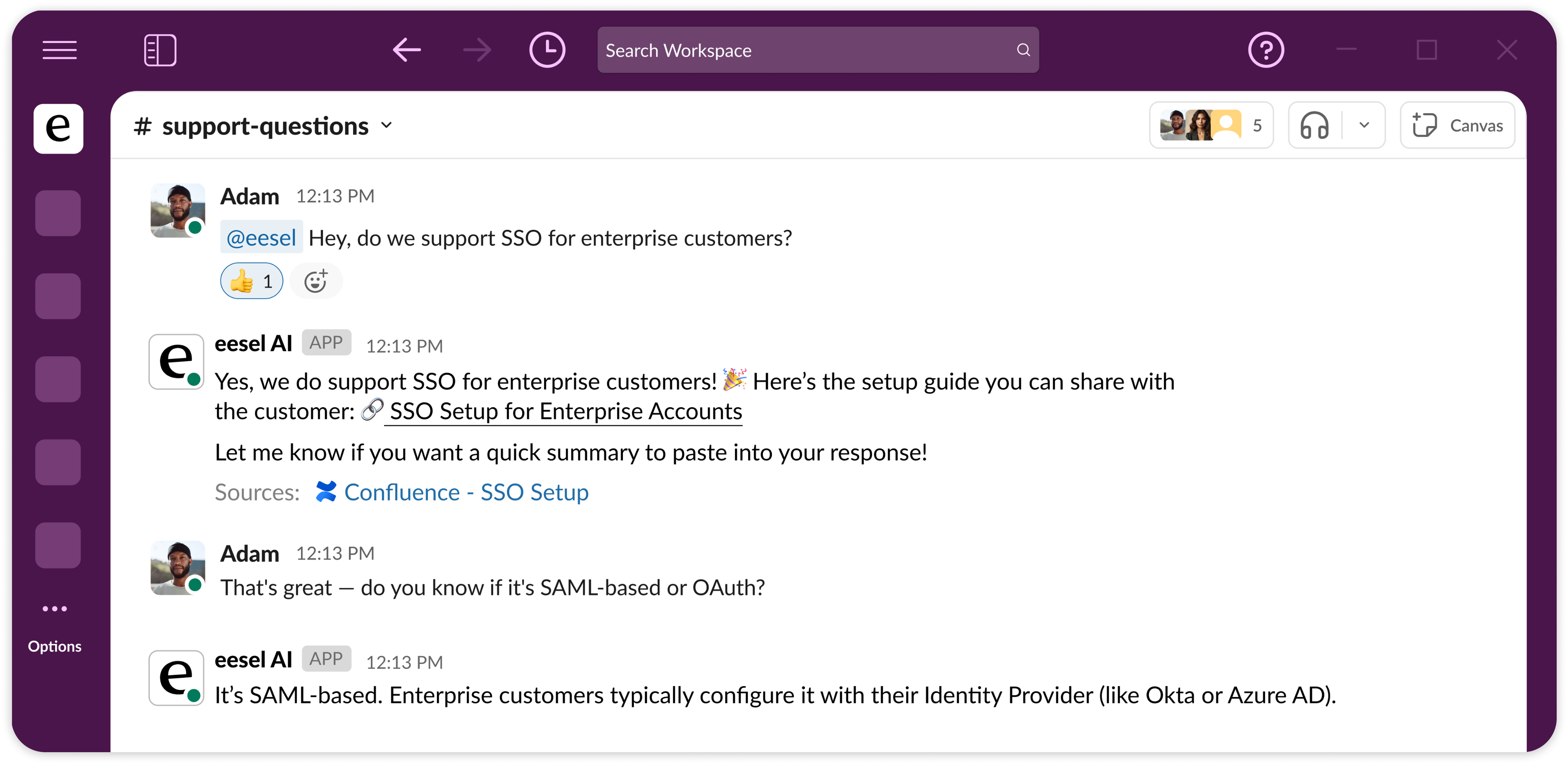
Chat with the bot in Slack
Slack is one of our favorite apps that you can integrate with. Use it to streamline your internal team chat, so your team has access to internal documentation (or any other integrations you want!) for instant replies and assistance. Great for onboarding.
## **How to set up the Slack integration:**
1. Head to your **eesel dashboard**. Choose the bot you want to connect to Slack.
2. Click the **Integrations tab** in the side menu.
3. In the search bar, type **"Slack"** and select it from the list.
4. Hit the **Connect Slack** button.
5. You’ll be prompted to sign into your Slack workspace. Use your **Slack URL** to do this. (You can find it by clicking your workspace name in Slack, then selecting Edit workspace details.)
6. When prompted, **grant eesel permission** to access your Slack workspace.
7. Head back to the **eesel dashboard > Slack integration** on sidebar > **Channels** and make sure the Channel ID has been added.
8. You’re all set to start chatting with your bot directly in Slack.
## **Setting up multiple bots for different channels**
In some cases, you may want a Sales bot for your Sales channel, and a Support bot for the Support channel, etc.
To do so, you can:
1. **Create a bot** for each of the channels you want a unique bot for
2. **Connect** each of them to your Slack workspace as explained above
3. Click **Slack** on the integration sidebar > **Channels** and input the ID of the channel you want that specific bot to be active in.
4. Repeat for each bot.
**Note:** The bots will only have access to the knowledge they've been provided, and the actions and prompt they have. This is useful if you want everything completely separate, but you're able to also have them share knowledge or route to each other using some of our actions like [Prompt and actions](/legacy/getting-started/prompt-and-actions.md#use-knowledge-from-another-bot) or [Prompt and actions](/legacy/getting-started/prompt-and-actions.md#consult-direct-query-to-another-bot).
By default, your AI will not learn from conversations. To set this up, please contact support.
## FAQ
Can I change the name of my Slack bot, depending on the channel it’s in?
No, the Slack bot’s name is tied to the app - so changing its name will change the name for all bots in your workspace.
However, you can still specify which bots are operating in which channels - so you’ll be able to ensure that only your HR bot is responding in the HR channel, etc.
Can I train the bot on Slack conversations/channels?
No, although this was a feature, some integral Slack app changes have disabled this feature for now. We're working to re-add this feature soon. Feel free to get in touch to let us know you're interested in it and we will let you know when it's ready.
What kind of Slack account do I need in order to connect eesel?
You do not need a corporate Slack account - as long as you have the required permissions to install eesel in their Slack workspace, you can use the Slack integration.
---
# Agent Instructions
This documentation is published with GitBook. GitBook is the documentation platform designed so that both humans and AI agents can read, navigate, and reason over technical content effectively. Learn more at gitbook.com.
## Querying This Documentation
If you need additional information that is not directly available in this page, you can query the documentation dynamically by asking a question.
Perform an HTTP GET request on the current page URL with the `ask` query parameter, and the optional `goal` query parameter:
```
GET https://docs.eesel.ai/legacy/integrations/slack.md?ask=&goal=
```
`ask` is the immediate question: it should be specific, self-contained, and written in natural language.
`goal` is optional and describes the broader end goal you are ultimately trying to accomplish on behalf of the user. GitBook uses it to tailor the answer towards what is most useful for that goal.
The response will contain a direct answer to the question and relevant excerpts and sources from the documentation.
Use this mechanism when the answer is not explicitly present in the current page, you need clarification or additional context, or you want to retrieve related documentation sections.