> For the complete documentation index, see [llms.txt](https://docs.eesel.ai/llms.txt). Markdown versions of documentation pages are available by appending `.md` to page URLs; this page is available as [Markdown](https://docs.eesel.ai/legacy/products/ai-copilot.md).
# AI Copilot
What is AI Copilot with eesel AI?
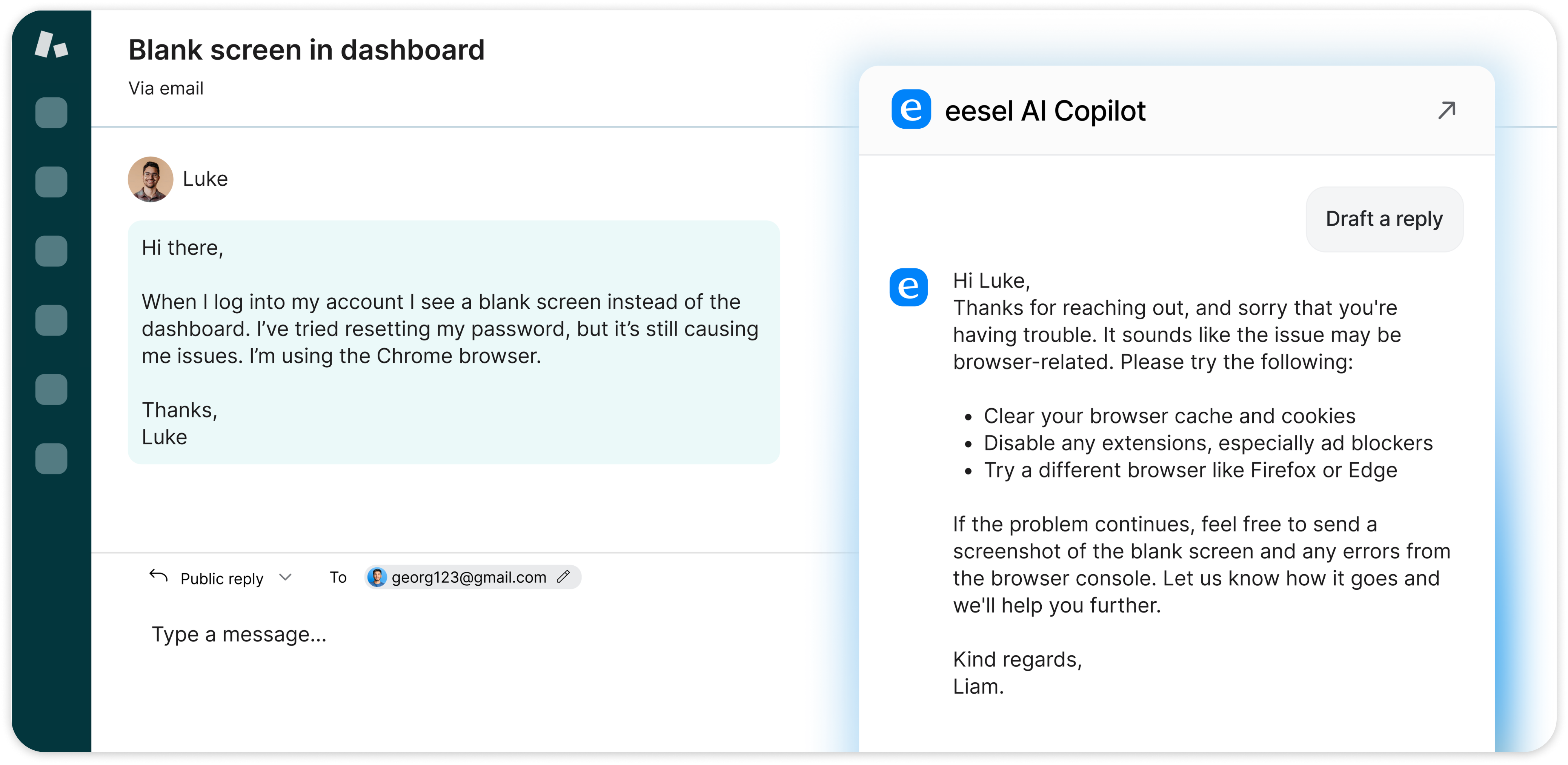
AI Copilot will help you get things done without needing to switch tabs. You can:
* Draft replies instantly without switching tabs
* Chat over your docs and other sources
* Conversationally edit and rewrite responses
You can either use our AI Copilot sidebar extension, or have AI connect to your helpdesk
## How to set up the eesel AI Copilot in your browser
1. Head over to the Chrome Web Store listing [here](https://chromewebstore.google.com/detail/eesel-ai-chatgpt-sidebar/ejhkkbilnpifailgngpkgmiofhioacjd?hl=en) and click "**Add to Chrome**"
2. **Open your extensions** (click the puzzle icon) and select the eesel AI extension. **Pin it** to your browser window.
3. **Login** to your eesel AI account, or create one if you don't already have one.
4. Select the bot you want to chat with or draft replies with.
1. If you haven't trained the AI with anything, then you should select some [integrations](/legacy/getting-started/integrations.md) to help add all your sources. You can also use the extension to add web page as sources quickly.
5. Navigate to a ticket in your helpdesk.
6. Open the extension and click "Draft response."
7. Copy and paste to send, or conversationally edit in the browser.
You have your own style in how the AI Copilot behaves and sounds, using the [prompt](/legacy/getting-started/prompt-and-actions.md#what-is-the-prompt) for your bot.
## How to set up AI Copilot in your helpdesk
You can also use eesel AI to leave drafted replies inside you helpdesk. These replies will be left as internal notes as each ticket comes in. The AI can:
* Leave an internal note with a perfectly drafted reply
* Tag, route, update fields, and more automatically
To add the AI to your helpdesk for internal notes, simply:
1. Connect your helpdesk domain by heading to the **eesel dashboard** > **Integrations** > **your help desk**
2. Click the **connect/start setup** button and **allow access** to your helpdesk domain.
3. Train the bot over your help center, or other platforms (like [Confluence](/legacy/integrations/confluence.md) or [Notion](/legacy/integrations/notion.md))
4. Click your helpdesk integration on the left sidebar
5. Click **AI Agent**
6. Select **"Leave internal note"**
7. Click **"Live"**
8. Customize how it sounds and acts in the Customize tab of the dashboard. (See help for this [here](/legacy/getting-started/prompt-and-actions.md), and on your specific [integration pages](broken://pages/Kz5HLYgSs2fqeDtZAQxA))
Internal notes will now be left for all incoming tickets. For more specific configuration, see your [integration page](broken://pages/Kz5HLYgSs2fqeDtZAQxA) of this help center or reach out to [support](/legacy/getting-started/faq.md#how-do-i-get-in-touch-with-support).
---
# Agent Instructions
This documentation is published with GitBook. GitBook is the documentation platform designed so that both humans and AI agents can read, navigate, and reason over technical content effectively. Learn more at gitbook.com.
## Querying This Documentation
If you need additional information that is not directly available in this page, you can query the documentation dynamically by asking a question.
Perform an HTTP GET request on the current page URL with the `ask` query parameter, and the optional `goal` query parameter:
```
GET https://docs.eesel.ai/legacy/products/ai-copilot.md?ask=&goal=
```
`ask` is the immediate question: it should be specific, self-contained, and written in natural language.
`goal` is optional and describes the broader end goal you are ultimately trying to accomplish on behalf of the user. GitBook uses it to tailor the answer towards what is most useful for that goal.
The response will contain a direct answer to the question and relevant excerpts and sources from the documentation.
Use this mechanism when the answer is not explicitly present in the current page, you need clarification or additional context, or you want to retrieve related documentation sections.