> For the complete documentation index, see [llms.txt](https://docs.eesel.ai/llms.txt). Markdown versions of documentation pages are available by appending `.md` to page URLs; this page is available as [Markdown](https://docs.eesel.ai/legacy/products/ai-triage.md).
# AI Triage
Automatically triage and route your tickets
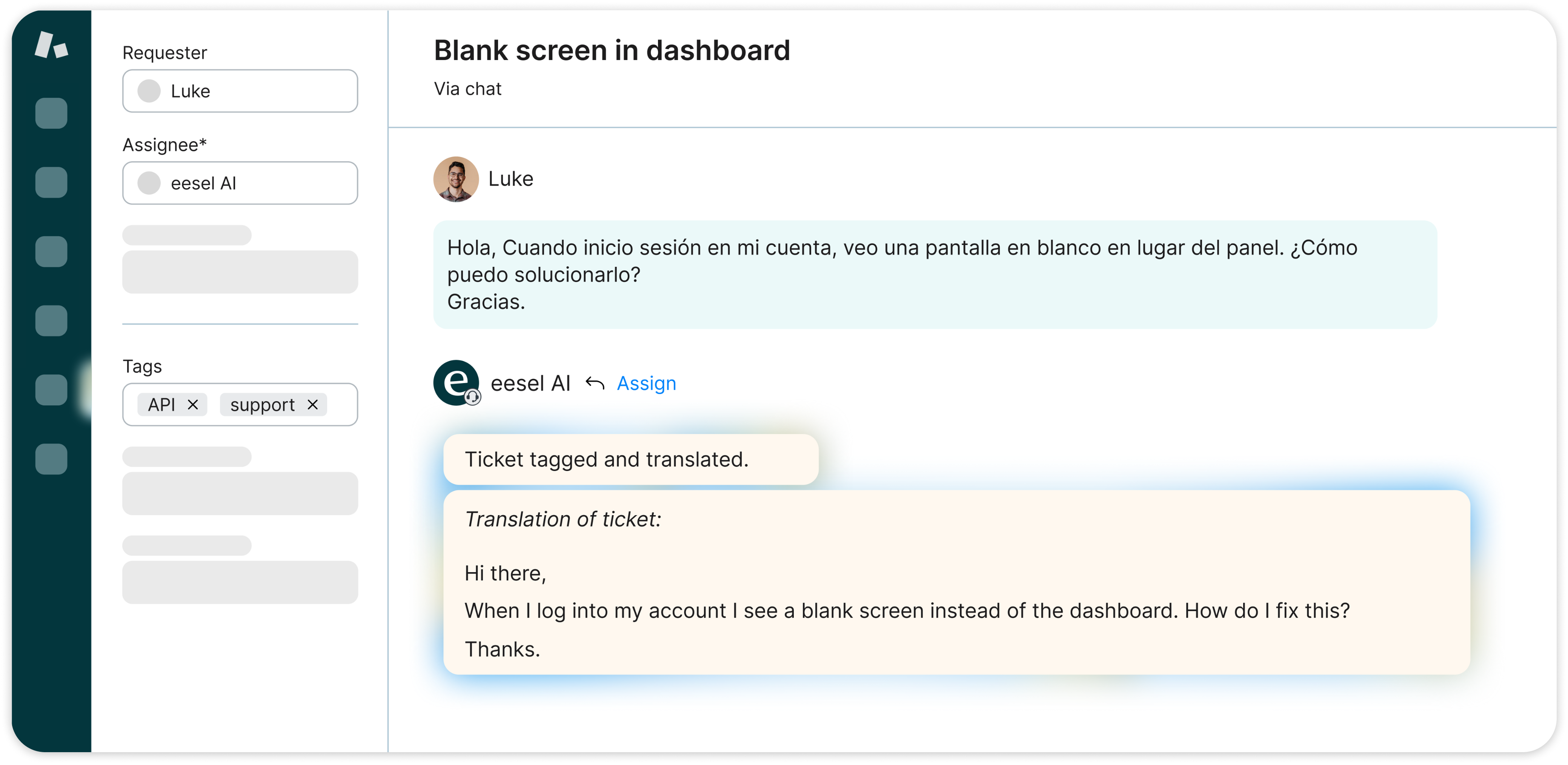
eesel AI plugs into your Zendesk, Freshdesk, and other helpdesk tools, and based on your workflows route, tag, edit and close tickets. Get a perfectly organised help desk, all automatically.
Our AI triaging operates using the bot's prompt and actions. Once you've added your AI bot to your helpdesk, it can:
* Tag
* Close
* Update ticket fields
* Assign to agents or teams
And more!
## To set up AI triage:
1. **Create an AI bot** in your eesel dashboard
2. **Train it** on some knowledge so that it has context of your company, and its role.
3. **Connect your helpdesk domain** via Integrations in the sidebar.
4. Head to the **Customize** tab.
5. Enable the [actions](/legacy/getting-started/prompt-and-actions.md) you want to use, and update the prompt to explain to the bot how and when to use those actions.
1. For example: add in the "Tag" action, and add to the prompt: "For every new conversation, use 'zendesk\_tag\_ticket' action, using the relevant tag from the following options: "Billing", "Bug", "Support".
2. You can find integration specific actions on the [integration page](https://github.com/eeselapp/slack/blob/develop/docs/1.0/products/broken-reference/README.md) of your helpdesk. You can also find non-integration specific actions (like 'do not reply') [here](/legacy/getting-started/prompt-and-actions.md).
6. Head to the **AI Agent** tab of the helpdesk integration on the left sidebar
7. Click "No reply", and click "Live" to enable it to act live on incoming tickets, without leaving notes or public replies.
1. AI Triage can operate at the same time as AI Agent or AI Copilot, so you can select "Leave public replies" or "Leave internal notes" and have AI Triage still operate.
---
# Agent Instructions
This documentation is published with GitBook. GitBook is the documentation platform designed so that both humans and AI agents can read, navigate, and reason over technical content effectively. Learn more at gitbook.com.
## Querying This Documentation
If you need additional information that is not directly available in this page, you can query the documentation dynamically by asking a question.
Perform an HTTP GET request on the current page URL with the `ask` query parameter, and the optional `goal` query parameter:
```
GET https://docs.eesel.ai/legacy/products/ai-triage.md?ask=&goal=
```
`ask` is the immediate question: it should be specific, self-contained, and written in natural language.
`goal` is optional and describes the broader end goal you are ultimately trying to accomplish on behalf of the user. GitBook uses it to tailor the answer towards what is most useful for that goal.
The response will contain a direct answer to the question and relevant excerpts and sources from the documentation.
Use this mechanism when the answer is not explicitly present in the current page, you need clarification or additional context, or you want to retrieve related documentation sections.