> For the complete documentation index, see [llms.txt](https://docs.eesel.ai/llms.txt). Markdown versions of documentation pages are available by appending `.md` to page URLs; this page is available as [Markdown](https://docs.eesel.ai/use-cases/browser-extension.md).

# Browser extension

Use your eesel agent from a Chrome side panel on any page: draft a reply in your helpdesk, look something up, or ask it a question without leaving the tab.

The eesel extension is the same agent you set up in your dashboard, one click away in a Chrome side panel. Set the agent up first, in the dashboard chat. See [Helpdesk](/use-cases/helpdesk.md) for that part.

There is nothing new to learn after that. You ask the panel the way you already ask in the dashboard chat, on whatever web page you have open. The panel picks up the ticket or page you are on and shows it as the context it is using, so you do not have to paste it in.

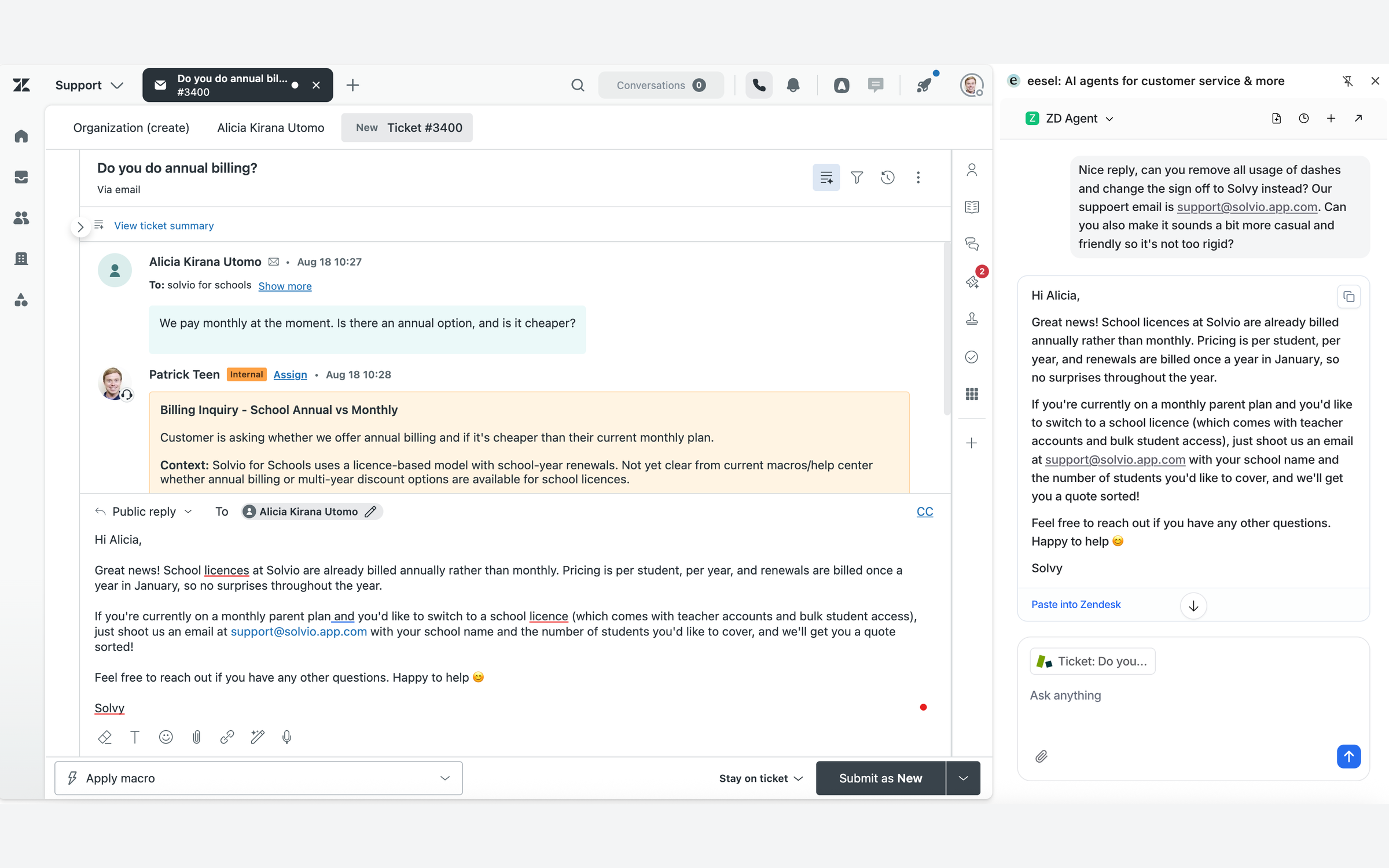
<figure><img src="https://3732419023-files.gitbook.io/~/files/v0/b/gitbook-x-prod.appspot.com/o/spaces%2F2xXO0947TYoPIhGoBgSE%2Fuploads%2Fgit-blob-8225dde96aca370500bddaeb958f5b8b94a4bad0%2Fextension-draft-in-zendesk.png?alt=media" alt="A Zendesk ticket with the eesel side panel open, showing the reply it drafted and a Paste into Zendesk link"><figcaption><p>The side panel open on a Zendesk ticket, with the reply it drafted for that ticket.</p></figcaption></figure>

## Install and pin it

{% stepper %}
{% step %}

### Install it from the Chrome Web Store

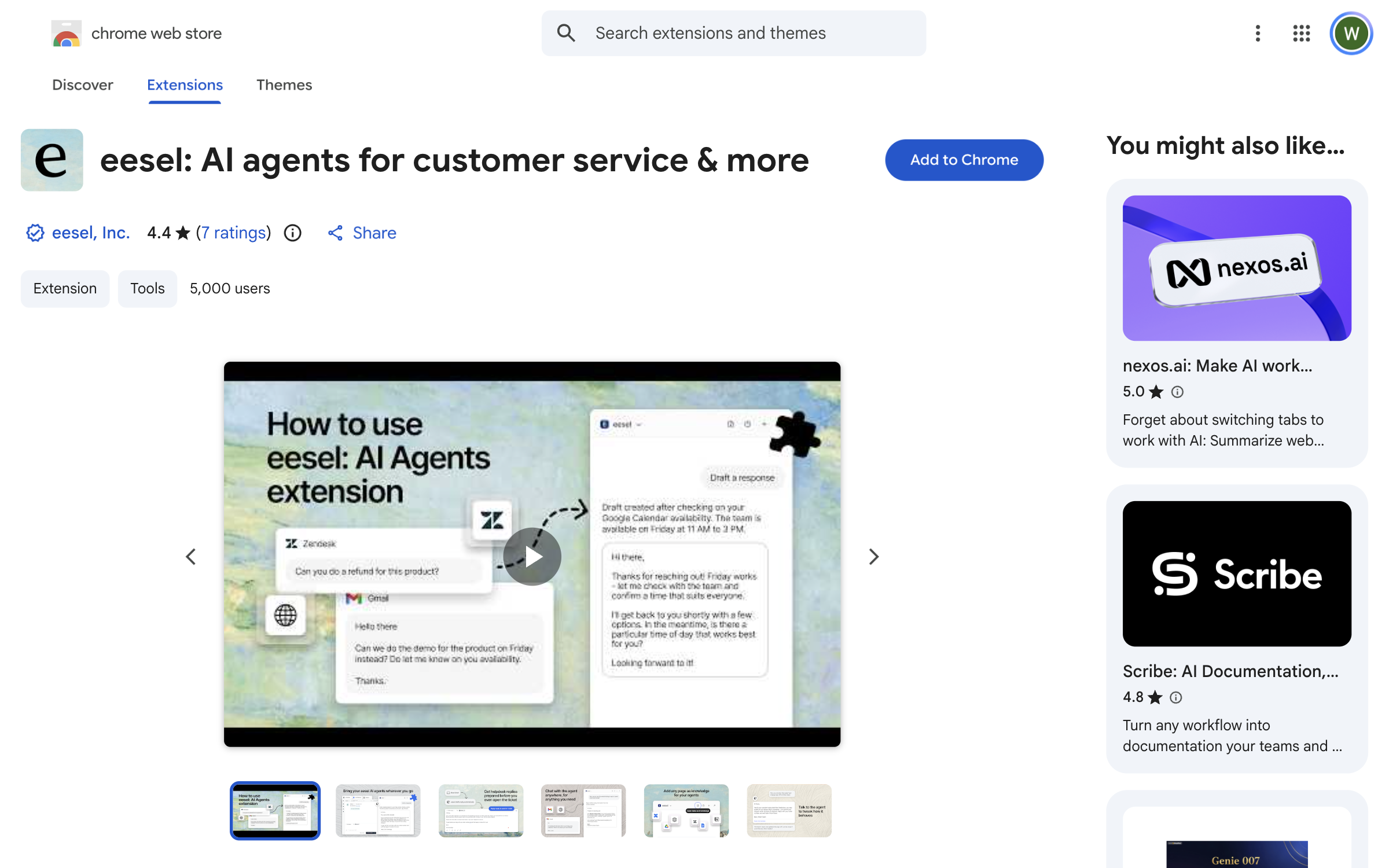
Open [eesel: AI agents for customer service & more](https://chromewebstore.google.com/detail/eesel-ai-chatgpt-sidebar/ejhkkbilnpifailgngpkgmiofhioacjd) and click **Add to Chrome**.

<figure><img src="https://3732419023-files.gitbook.io/~/files/v0/b/gitbook-x-prod.appspot.com/o/spaces%2F2xXO0947TYoPIhGoBgSE%2Fuploads%2Fgit-blob-44fa7479e4e8f6b3a13c91b7fdb3d5371e1cbc7e%2Fextension-chrome-web-store.png?alt=media" alt="The eesel listing on the Chrome Web Store, with the Add to Chrome button"><figcaption><p>The eesel listing on the Chrome Web Store.</p></figcaption></figure>
{% endstep %}

{% step %}

### Pin it so it is one click away

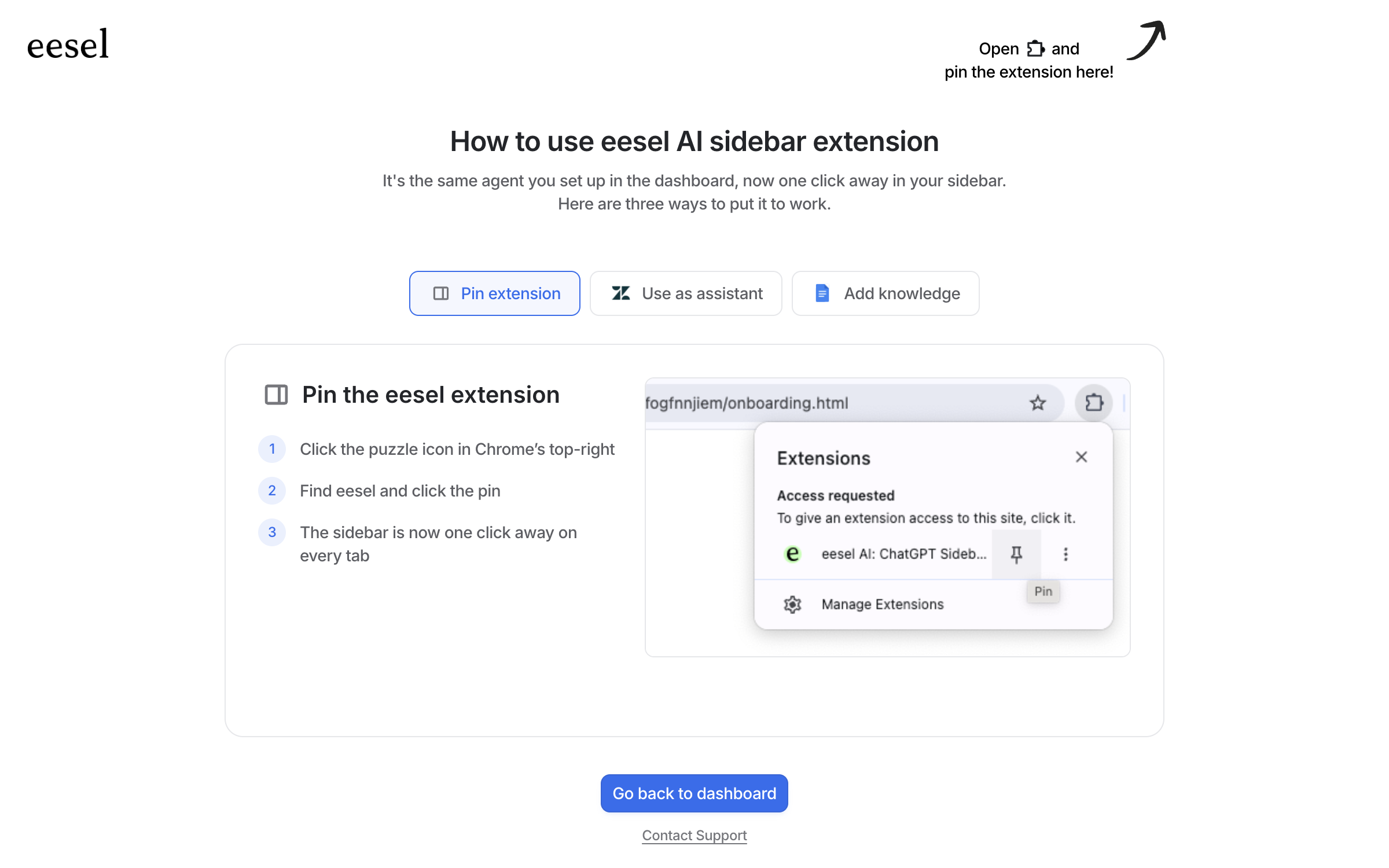
The extension opens its own page to walk you through this. Three steps:

1. Click the puzzle icon in Chrome's top right.
2. Find eesel in the list.
3. Click the pin icon beside it.

<figure><img src="https://3732419023-files.gitbook.io/~/files/v0/b/gitbook-x-prod.appspot.com/o/spaces%2F2xXO0947TYoPIhGoBgSE%2Fuploads%2Fgit-blob-60fbc948e9c8259777b3bb7d1e7feb1679186909%2Fextension-onboarding-pin.png?alt=media" alt="The eesel extension onboarding page, showing the three steps to pin the extension and the Chrome extensions menu with the pin button"><figcaption><p>The extension's own page shows you where to pin it.</p></figcaption></figure>

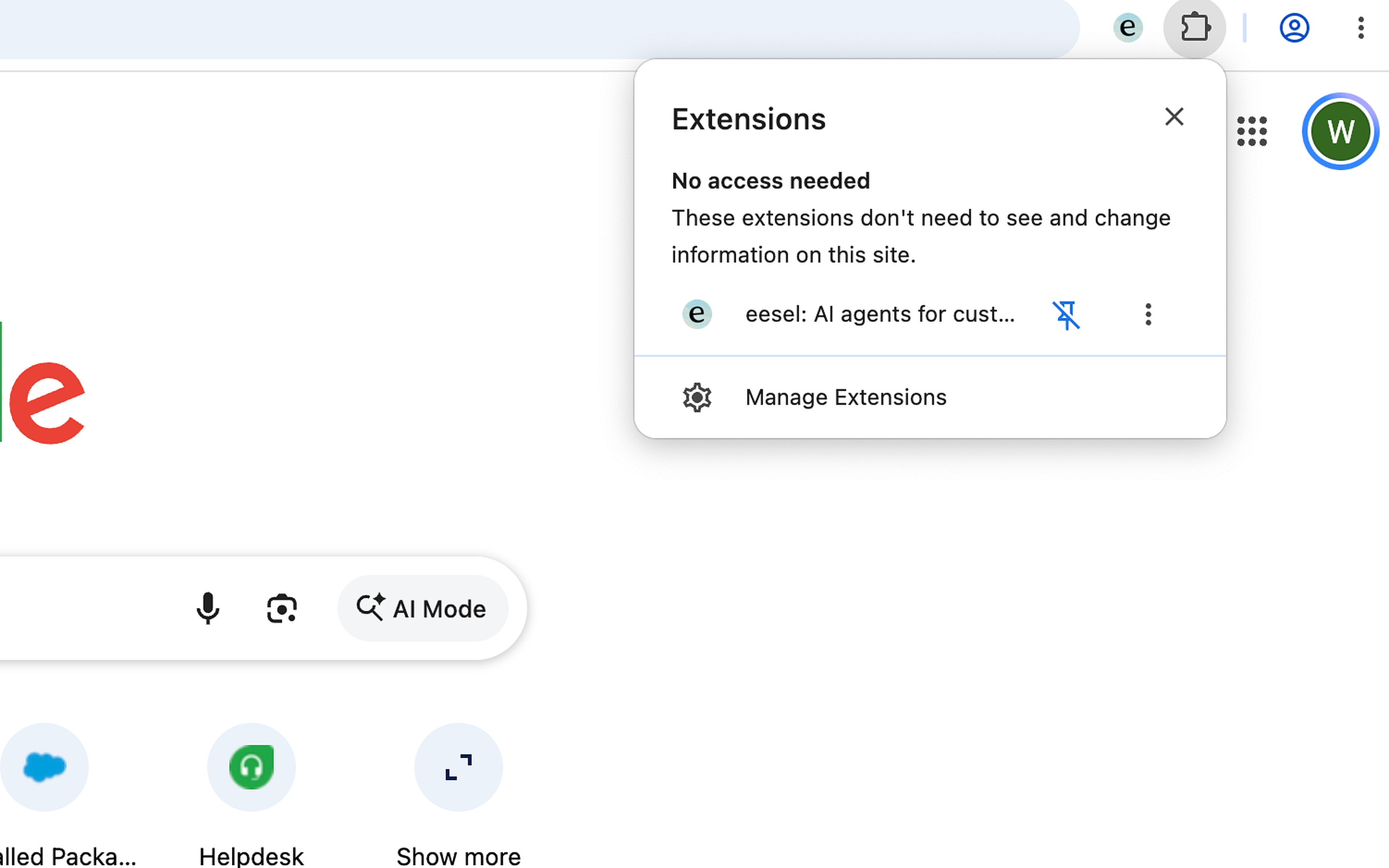
The puzzle icon opens Chrome's Extensions popup, where eesel is listed with a pin icon beside it.

<figure><img src="https://3732419023-files.gitbook.io/~/files/v0/b/gitbook-x-prod.appspot.com/o/spaces%2F2xXO0947TYoPIhGoBgSE%2Fuploads%2Fgit-blob-ca293f82de7add9a2942c7e062a5908bdcfcd9b4%2Fextension-pin-popup.png?alt=media" alt="Chrome&#x27;s Extensions popup open, showing the eesel entry with the pin icon beside it"><figcaption><p>Chrome's Extensions popup, with eesel in the list and the pin icon beside it.</p></figcaption></figure>
{% endstep %}

{% step %}

### Open the side panel and ask it to do anything

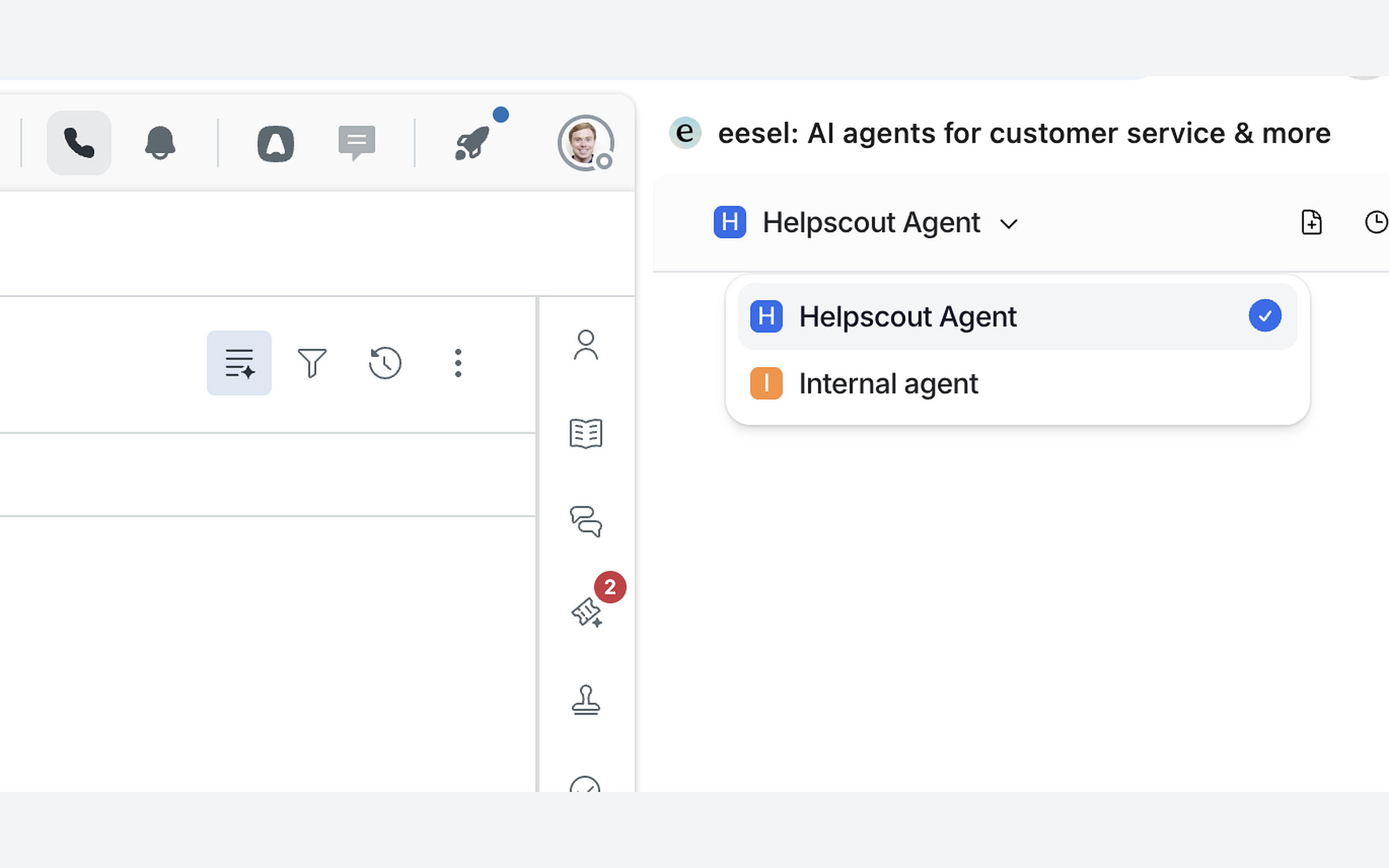
Click the eesel icon and the panel opens beside the page. Your agent's name sits at the top of the panel, with a dropdown to switch to another one. Pick the agent you want, then ask it anything.

Click the agent name to open the picker and choose the agent you want.

<figure><img src="https://3732419023-files.gitbook.io/~/files/v0/b/gitbook-x-prod.appspot.com/o/spaces%2F2xXO0947TYoPIhGoBgSE%2Fuploads%2Fgit-blob-cee6f4b1a0e4c846f353c473f58bbf9462790d1f%2Fextension-agent-picker.png?alt=media" alt="The agent picker open at the top of the eesel side panel, listing Helpscout Agent, ticked, and Internal agent"><figcaption><p>The agent picker at the top of the panel, with two agents to choose from.</p></figcaption></figure>

Here it is open beside a Zendesk ticket, with the agent name and its dropdown at the top of the panel.

<figure><img src="https://3732419023-files.gitbook.io/~/files/v0/b/gitbook-x-prod.appspot.com/o/spaces%2F2xXO0947TYoPIhGoBgSE%2Fuploads%2Fgit-blob-8225dde96aca370500bddaeb958f5b8b94a4bad0%2Fextension-draft-in-zendesk.png?alt=media" alt="The eesel side panel open beside a Zendesk ticket, with the agent name and dropdown at the top of the panel"><figcaption><p>The side panel open beside a Zendesk ticket, with the agent picker at the top.</p></figcaption></figure>
{% endstep %}
{% endstepper %}

## What you can do with it

### Ask it anything on any page

Open the panel from whatever tab you are in and ask. It answers from the same knowledge as your dashboard chat, so you do not have to switch tabs to get an answer.

Here the panel is open on a web page, answering a question about that page.

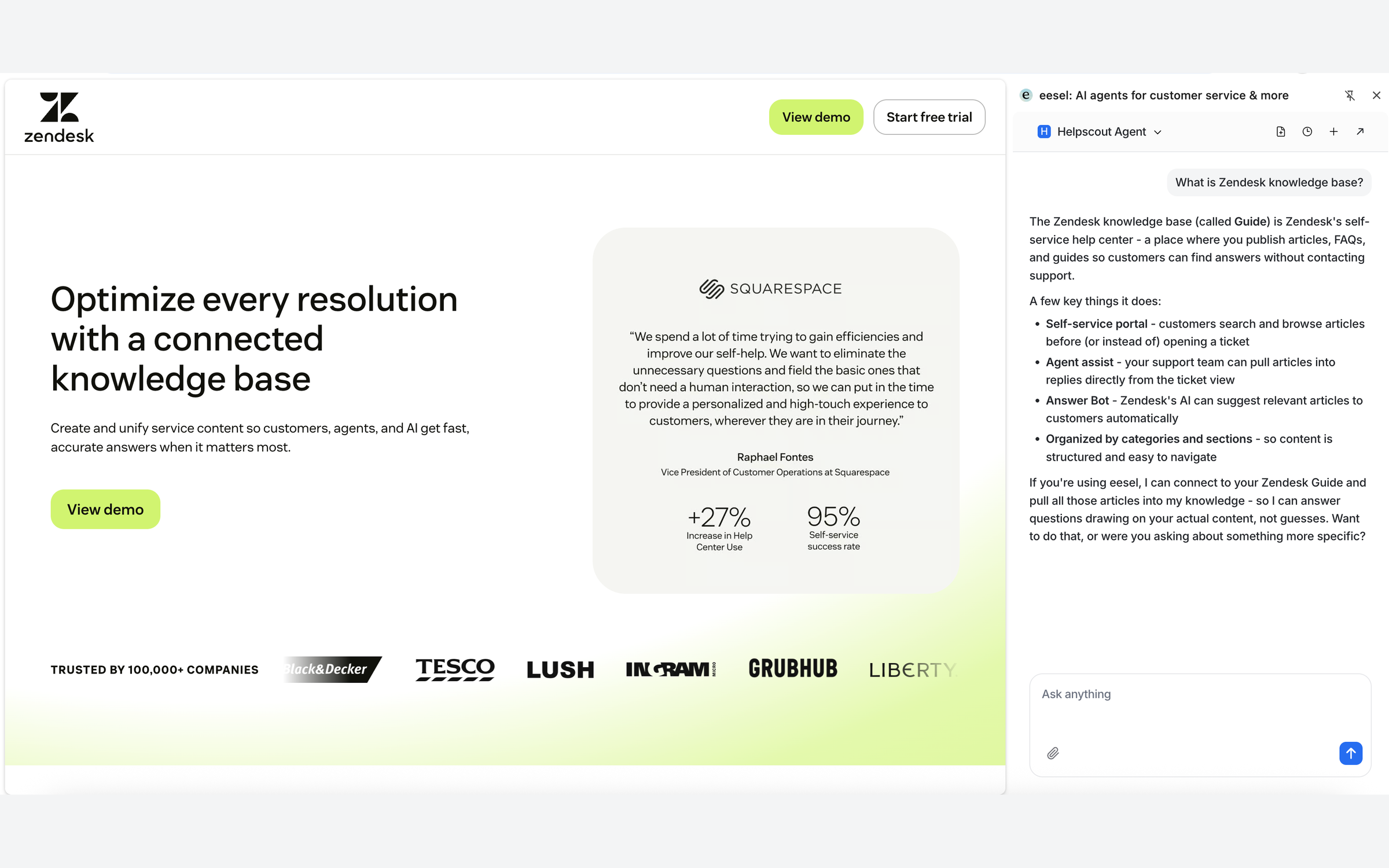
<figure><img src="https://3732419023-files.gitbook.io/~/files/v0/b/gitbook-x-prod.appspot.com/o/spaces%2F2xXO0947TYoPIhGoBgSE%2Fuploads%2Fgit-blob-fd73a63a02cdd90fb6ed69b0feb709612835429b%2Fextension-ask-anything.png?alt=media" alt="The eesel side panel open beside the Zendesk website, answering the question What is Zendesk knowledge base with a short explanation"><figcaption><p>The panel answering a question while a Zendesk web page is open.</p></figcaption></figure>

### Draft replies in your helpdesk

Open a ticket and ask the panel for a reply. It reads the ticket, checks your knowledge, and writes the draft. On a Zendesk ticket the panel then offers **Paste into Zendesk**, which drops the draft into the reply field. On other helpdesks, copy the draft into the reply field yourself. Edit it before you send it, or tell the panel what to change and it rewrites it.

Here is a drafted reply on a Zendesk ticket, with the **Paste into Zendesk** link under it.

<figure><img src="https://3732419023-files.gitbook.io/~/files/v0/b/gitbook-x-prod.appspot.com/o/spaces%2F2xXO0947TYoPIhGoBgSE%2Fuploads%2Fgit-blob-8225dde96aca370500bddaeb958f5b8b94a4bad0%2Fextension-draft-in-zendesk.png?alt=media" alt="The eesel side panel on a Zendesk ticket, showing the drafted reply and the Paste into Zendesk link"><figcaption><p>A drafted reply on a Zendesk ticket, with the Paste into Zendesk link.</p></figcaption></figure>

### Add any tab as knowledge

You can save the page you are on as knowledge, so your agent answers from it later. Three steps:

{% stepper %}
{% step %}

### Open the page and click the document icon

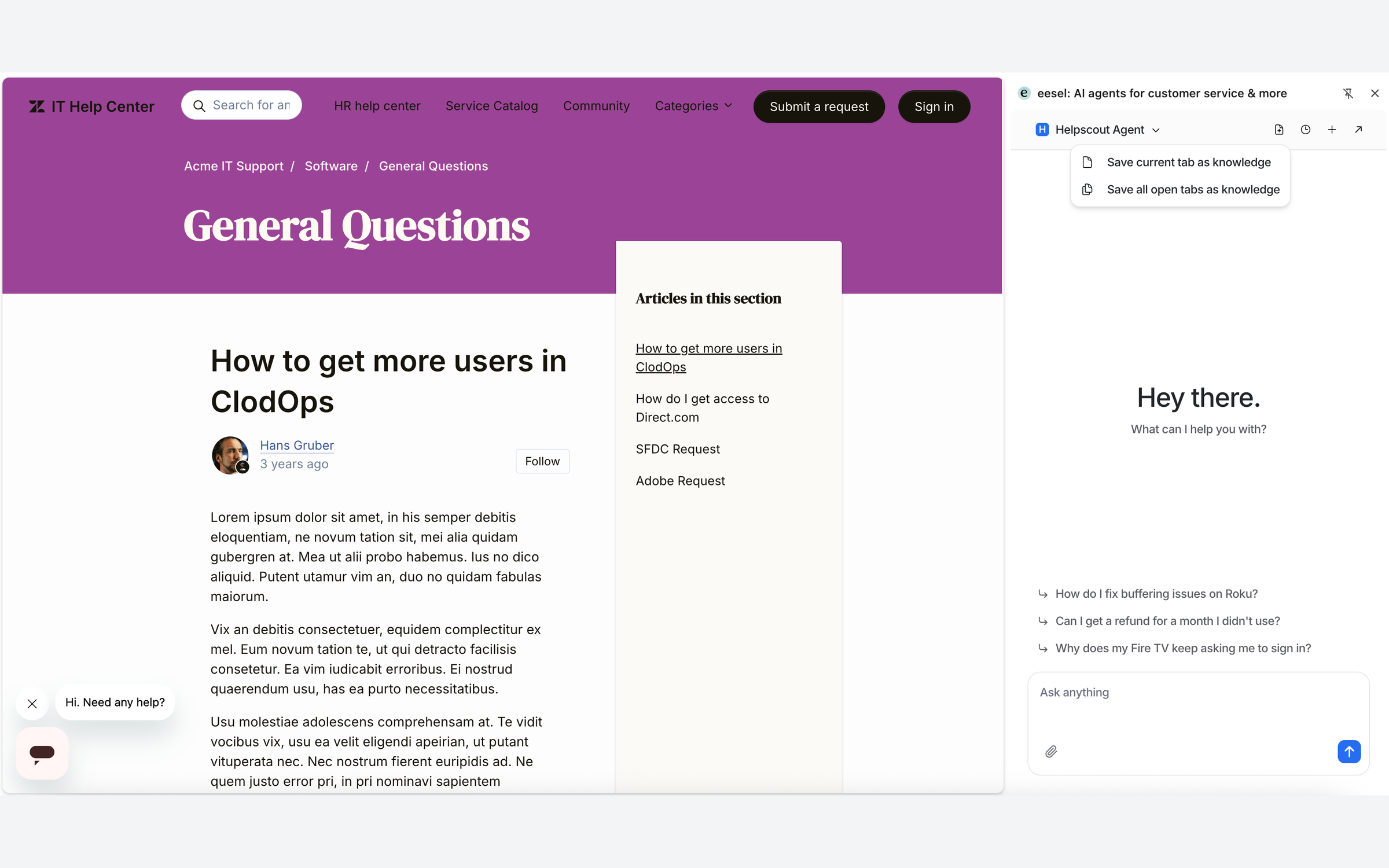
Open the page you want the agent to learn from. Then click the document icon in the panel header.

<figure><img src="https://3732419023-files.gitbook.io/~/files/v0/b/gitbook-x-prod.appspot.com/o/spaces%2F2xXO0947TYoPIhGoBgSE%2Fuploads%2Fgit-blob-0ed158c4e079c1dee65fa4903b072bc7a2577875%2Fextension-knowledge-menu.png?alt=media" alt="A Zendesk help-center article open in the browser with the eesel side panel beside it, and the panel&#x27;s document icon menu open"><figcaption><p>A help-center article open with the panel beside it, and the document icon menu open.</p></figcaption></figure>
{% endstep %}

{% step %}

### Pick what to save

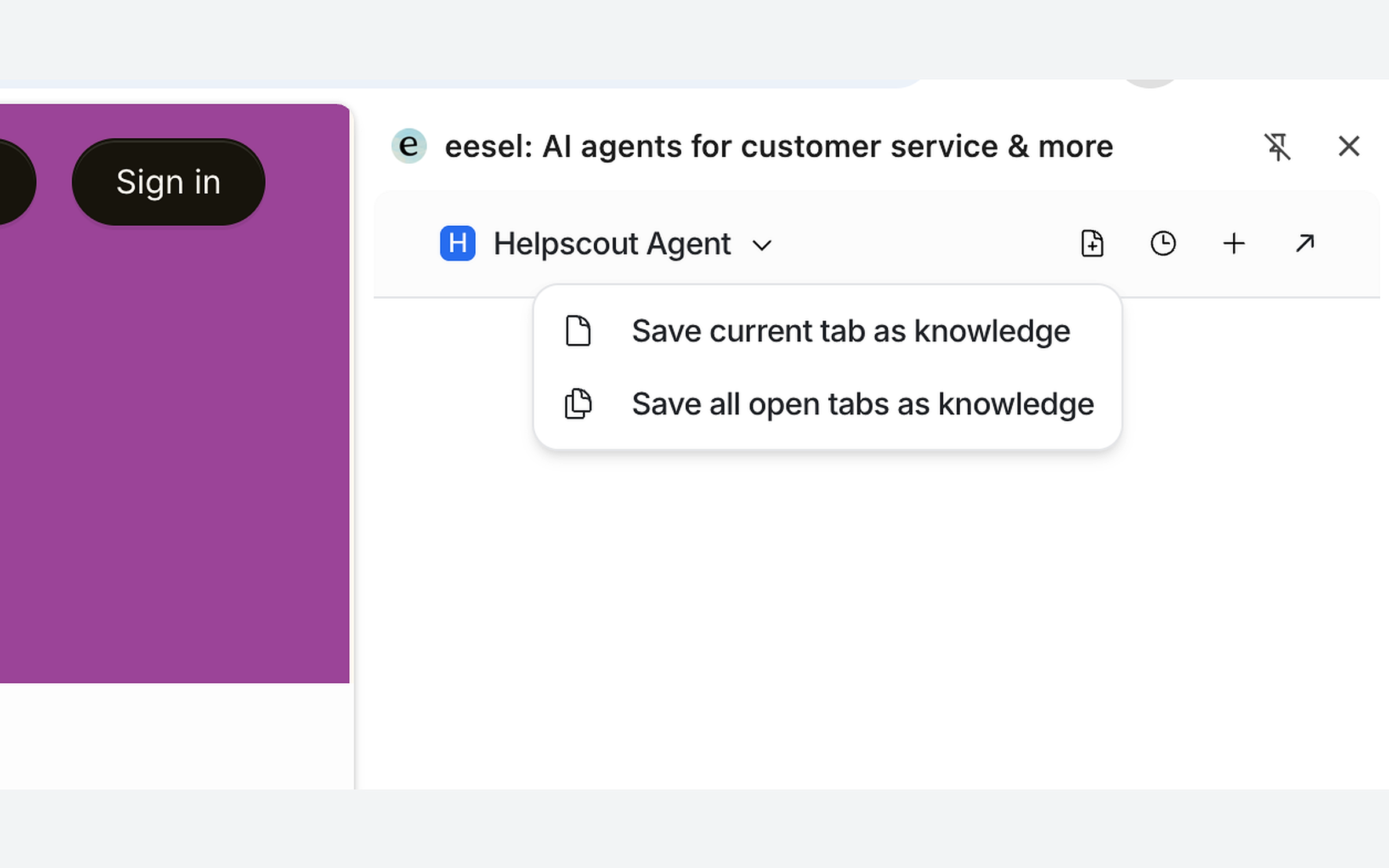
Choose **Save current tab as knowledge** for this page only, or **Save all open tabs as knowledge** for every tab in the window.

<figure><img src="https://3732419023-files.gitbook.io/~/files/v0/b/gitbook-x-prod.appspot.com/o/spaces%2F2xXO0947TYoPIhGoBgSE%2Fuploads%2Fgit-blob-cee13b0af70023faedb4de3950cf16d19e1cbd5c%2Fextension-knowledge-menu-close.png?alt=media" alt="Close-up of the panel header menu, showing Save current tab as knowledge and Save all open tabs as knowledge"><figcaption><p>The panel header menu, with both save options.</p></figcaption></figure>
{% endstep %}

{% step %}

### Wait for it to index

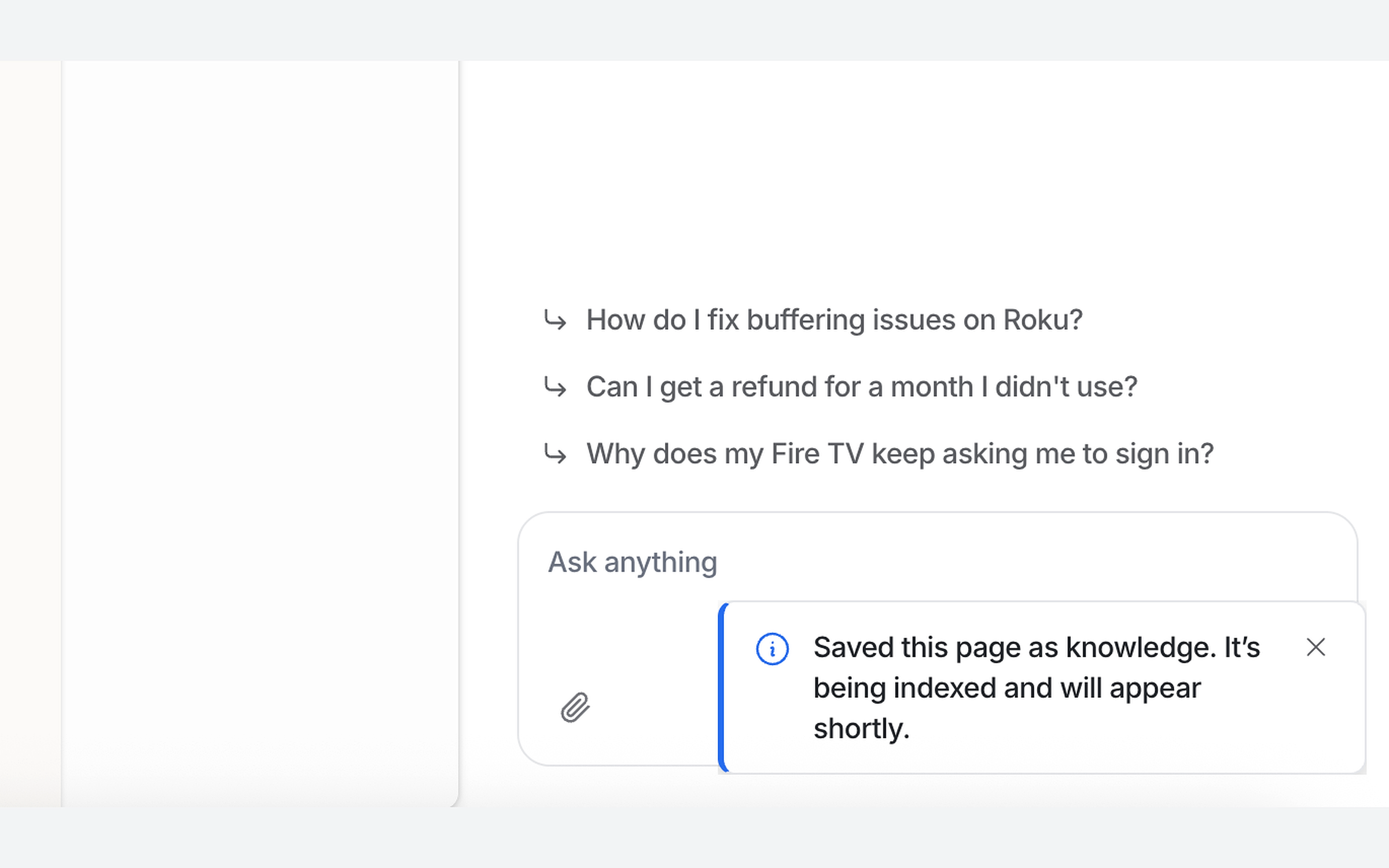
The panel confirms it saved the page and is indexing it. Shortly after, the page shows up as a source in your eesel dashboard, under Integrations, and your agent can answer from it like any other source.

<figure><img src="https://3732419023-files.gitbook.io/~/files/v0/b/gitbook-x-prod.appspot.com/o/spaces%2F2xXO0947TYoPIhGoBgSE%2Fuploads%2Fgit-blob-b47c28092a0c75750650fe45f8052059d145cb18%2Fextension-knowledge-saved.png?alt=media" alt="The panel toast reading Saved this page as knowledge. It&#x27;s being indexed and will appear shortly."><figcaption><p>The panel confirms the page is saved and being indexed.</p></figcaption></figure>
{% endstep %}
{% endstepper %}

## Related

* [Helpdesk](/use-cases/helpdesk.md)
* [Instructions and Memory](/instructions-and-memory/instructions-and-memory.md)
* [Integrations](/integrations/overview.md)


---

# Agent Instructions
This documentation is published with GitBook. GitBook is the documentation platform designed so that both humans and AI agents can read, navigate, and reason over technical content effectively. Learn more at gitbook.com.

## Querying This Documentation
If you need additional information that is not directly available in this page, you can query the documentation dynamically by asking a question.

Perform an HTTP GET request on the current page URL with the `ask` query parameter, and the optional `goal` query parameter:

```
GET https://docs.eesel.ai/use-cases/browser-extension.md?ask=<question>&goal=<endgoal>
```

`ask` is the immediate question: it should be specific, self-contained, and written in natural language.
`goal` is optional and describes the broader end goal you are ultimately trying to accomplish on behalf of the user. GitBook uses it to tailor the answer towards what is most useful for that goal.

The response will contain a direct answer to the question and relevant excerpts and sources from the documentation.

Use this mechanism when the answer is not explicitly present in the current page, you need clarification or additional context, or you want to retrieve related documentation sections.