> For the complete documentation index, see [llms.txt](https://docs.eesel.ai/llms.txt). Markdown versions of documentation pages are available by appending `.md` to page URLs; this page is available as [Markdown](https://docs.eesel.ai/use-cases/e-commerce-sales-rep.md).

# E-commerce Sales Rep

Set up your agent as a commerce teammate across your store and helpdesk: it recommends products, checks stock, looks up orders and answers customers before and after a sale.

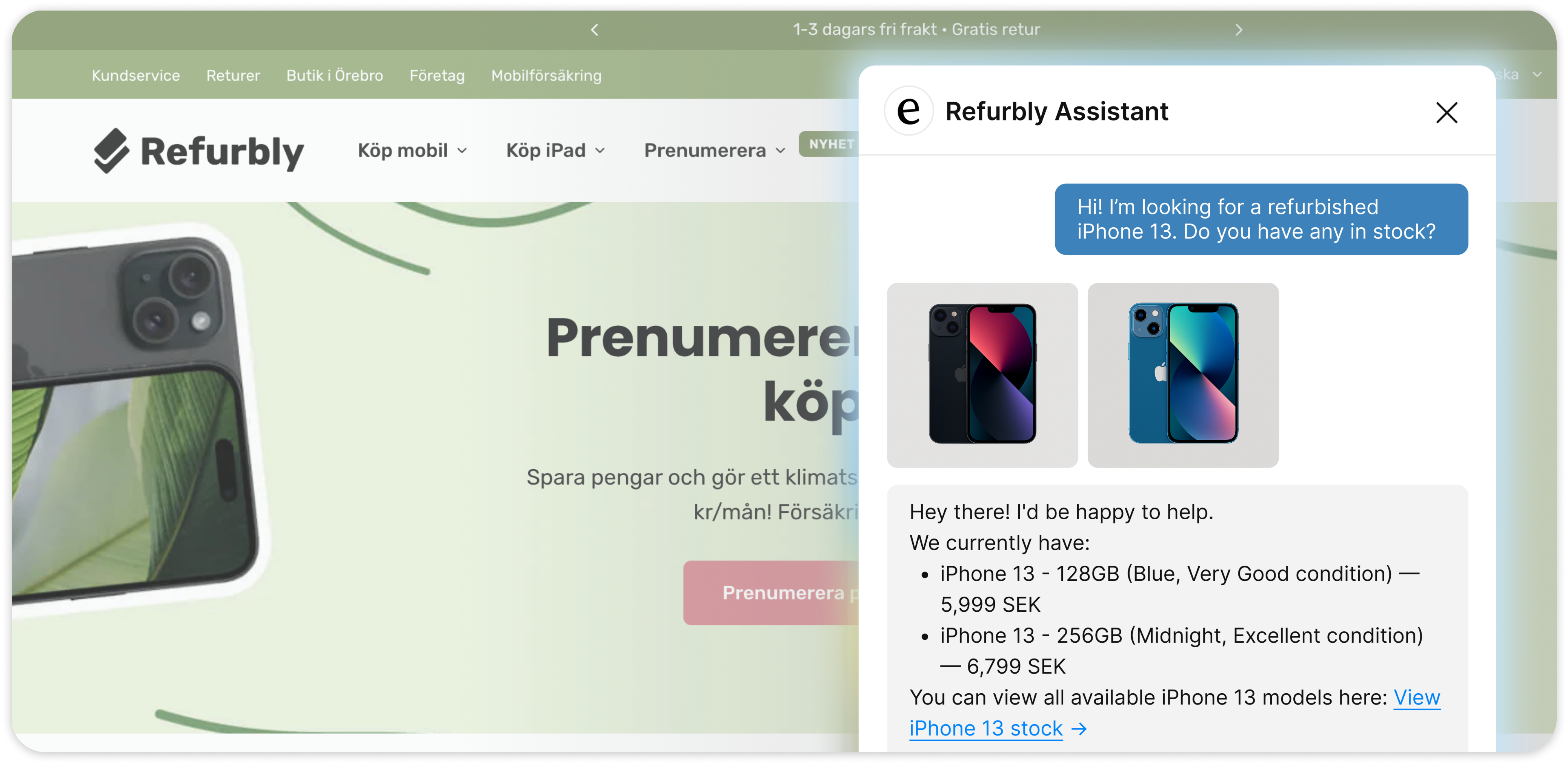
Your AI teammate is a commerce teammate across your store and your helpdesk. It reads your products, storefront pages, blog and policies, and looks up orders live. Before a sale it recommends products, checks stock and shows items as cards a shopper can add to their cart. After a sale it finds the order, checks tracking, starts returns, fixes shipping addresses, refunds and cancels.

You stay in control the whole way. Nothing runs until you create an automation. For each action you then choose: run on its own, ask you first, or stay off.

<figure><img src="https://3732419023-files.gitbook.io/~/files/v0/b/gitbook-x-prod.appspot.com/o/spaces%2F2xXO0947TYoPIhGoBgSE%2Fuploads%2Fgit-blob-6525cde1547999325bffa079eec95905a07a97f3%2Fecommerce-hero.png?alt=media" alt="An online store with the eesel chat open, where a customer asks for a refurbished iPhone 13 and the agent replies with two matching products shown as cards, each with condition and price"><figcaption><p>A customer asks for a product. Your teammate checks live stock and answers with the actual items, prices and condition.</p></figcaption></figure>

**Works with:** [Shopify](/integrations/e-commerce/shopify.md), [Magento](/integrations/e-commerce/magento.md), [Chat Bubble](/integrations/chat-surfaces/chat-bubble.md), [Gorgias](/integrations/helpdesks/gorgias.md), [Zendesk](/integrations/helpdesks/zendesk.md).

## Quick start

Open the chat in your dashboard and say what you want to set up. The steps below are what that conversation covers.

{% stepper %}
{% step %}

### Connect your store

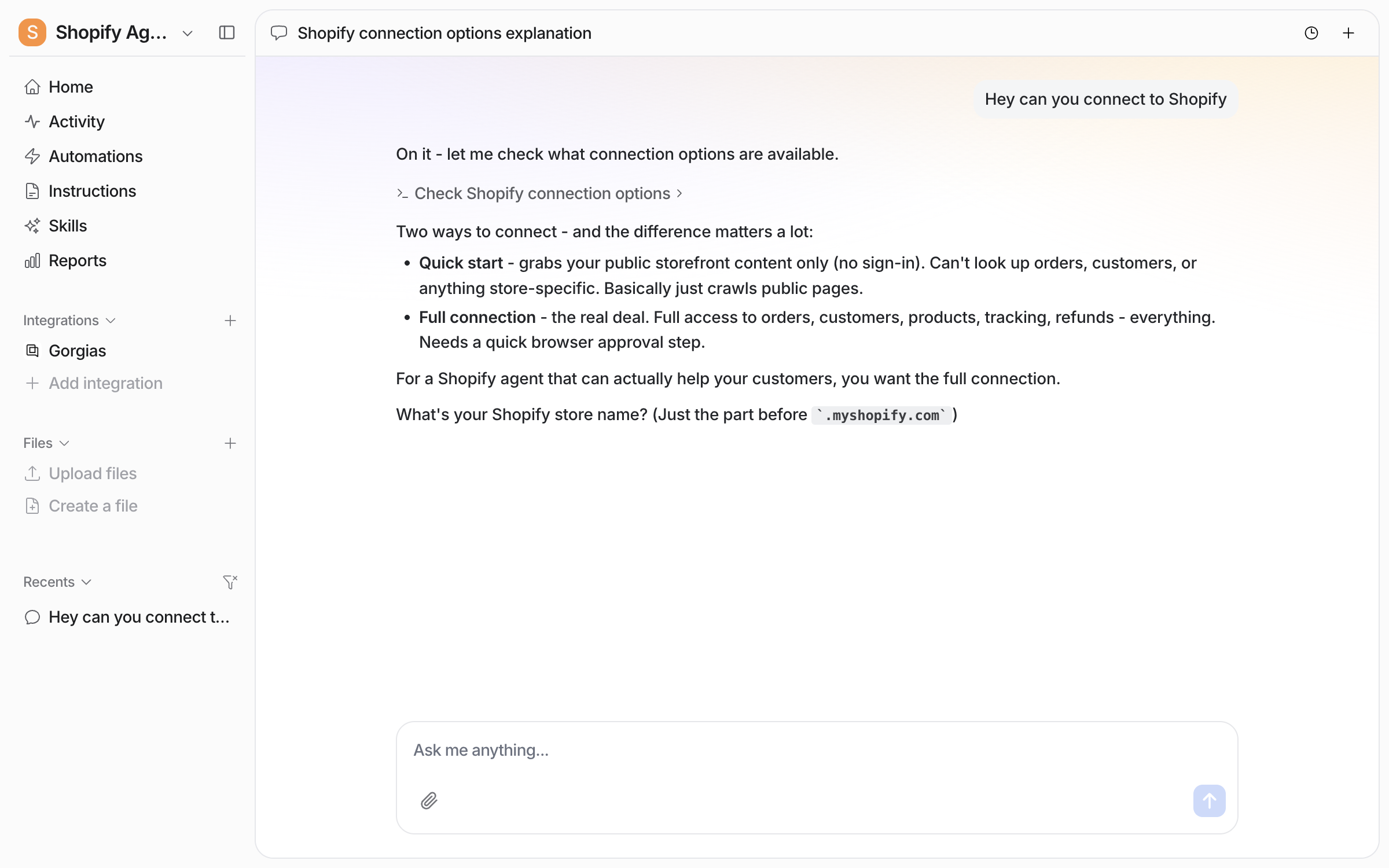
Ask your agent to connect Shopify. It lays out the two ways to connect and asks for your store name. The store name is the part before `.myshopify.com`.
<figure><img src="https://3732419023-files.gitbook.io/~/files/v0/b/gitbook-x-prod.appspot.com/o/spaces%2F2xXO0947TYoPIhGoBgSE%2Fuploads%2Fgit-blob-29cd70b09a38f5dad804951b9d8e87ae14ee1286%2Fshopify-connect-chat.png?alt=media" alt="The dashboard chat where the user asks to connect Shopify and the agent explains Quick start and Full connection, then asks for the store name"><figcaption><p>The agent explains the two ways to connect and asks for your store name.</p></figcaption></figure>

* **Quick start.** A read of your public storefront, with no sign-in. It searches products and shows product cards with **Add to Cart**. It cannot look up orders and it has no write actions.
* **Full connection.** Orders, customers, products, tracking and refunds, read from Shopify directly.

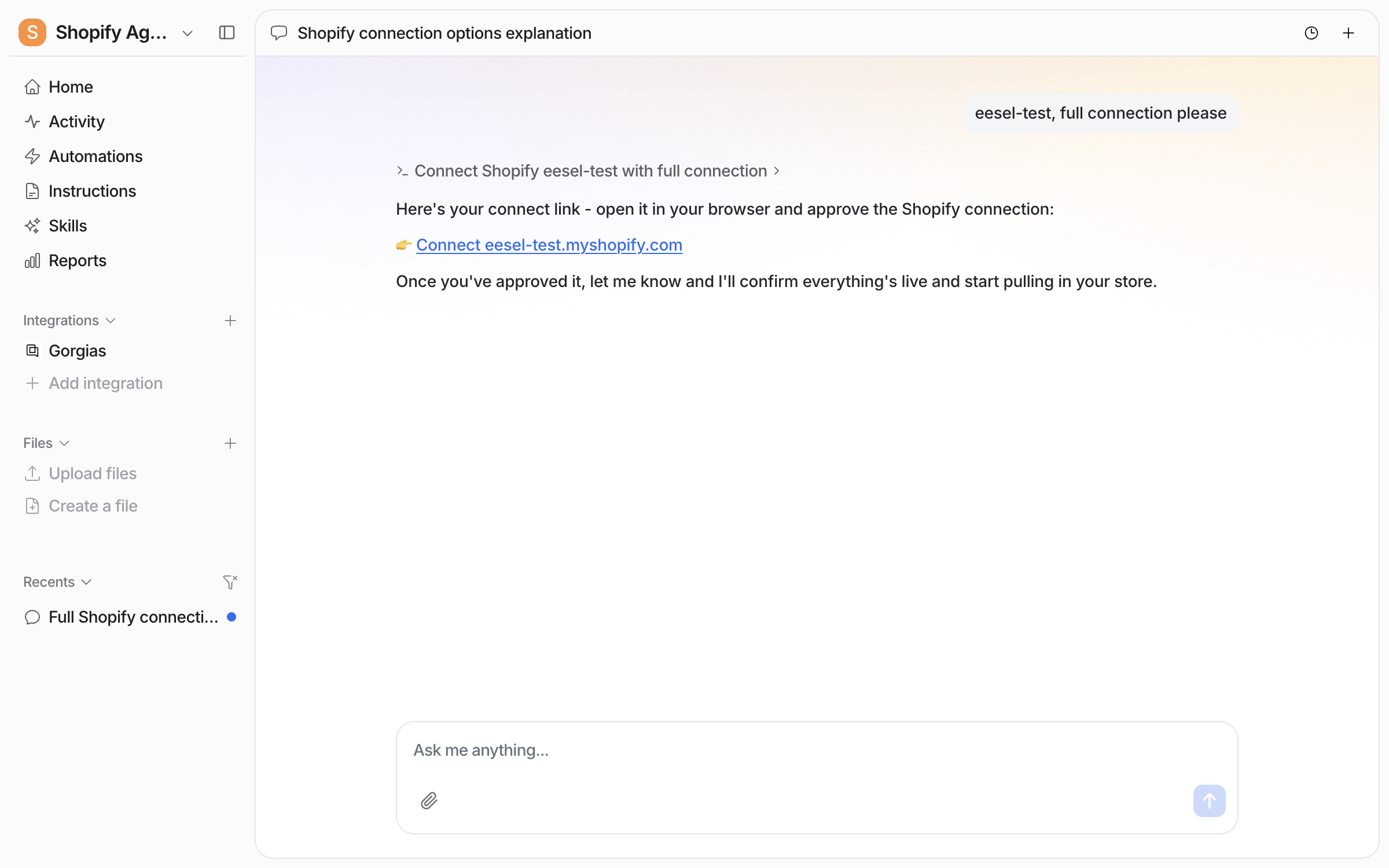
For a full connection your agent posts a link. A person approves this in the browser.

<figure><img src="https://3732419023-files.gitbook.io/~/files/v0/b/gitbook-x-prod.appspot.com/o/spaces%2F2xXO0947TYoPIhGoBgSE%2Fuploads%2Fgit-blob-b544a1c76576749dc48ef583061164dd0778a42e%2Fshopify-connect-link.png?alt=media" alt="The dashboard chat where the user gives the store name and asks for a full connection, and the agent posts a Connect link for the store to open in the browser"><figcaption><p>The agent posts a connect link for your store.</p></figcaption></figure>

Start with either one. Moving from Quick start to a full connection later loses nothing you have already read in.
{% endstep %}

{% step %}

### Add the chat bubble

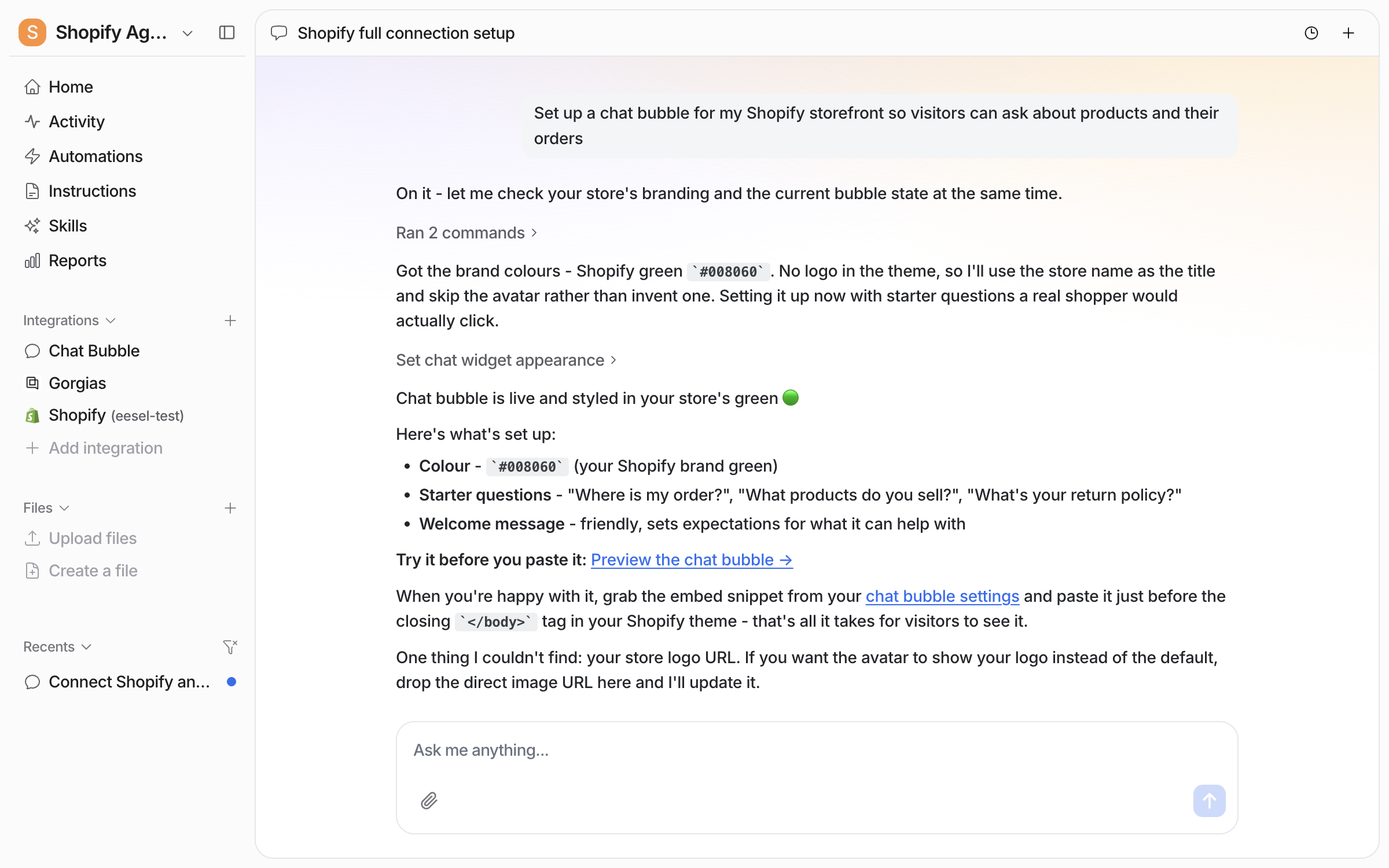
Ask your agent for a chat bubble on your storefront. It reads your site, then sets the colour, the welcome message and the starter questions.

<figure><img src="https://3732419023-files.gitbook.io/~/files/v0/b/gitbook-x-prod.appspot.com/o/spaces%2F2xXO0947TYoPIhGoBgSE%2Fuploads%2Fgit-blob-34ac2a2dd0e6b537f284756fe2f19881c416b4d1%2Fchat-bubble-setup-chat.png?alt=media" alt="The dashboard chat where the user asks for a chat bubble on their storefront, and the agent reports the brand colour it found, the title, welcome message and three starter questions it set, a preview link, and where the embed snippet lives"><figcaption><p>The agent reports the bubble it set up and the preview link.</p></figcaption></figure>

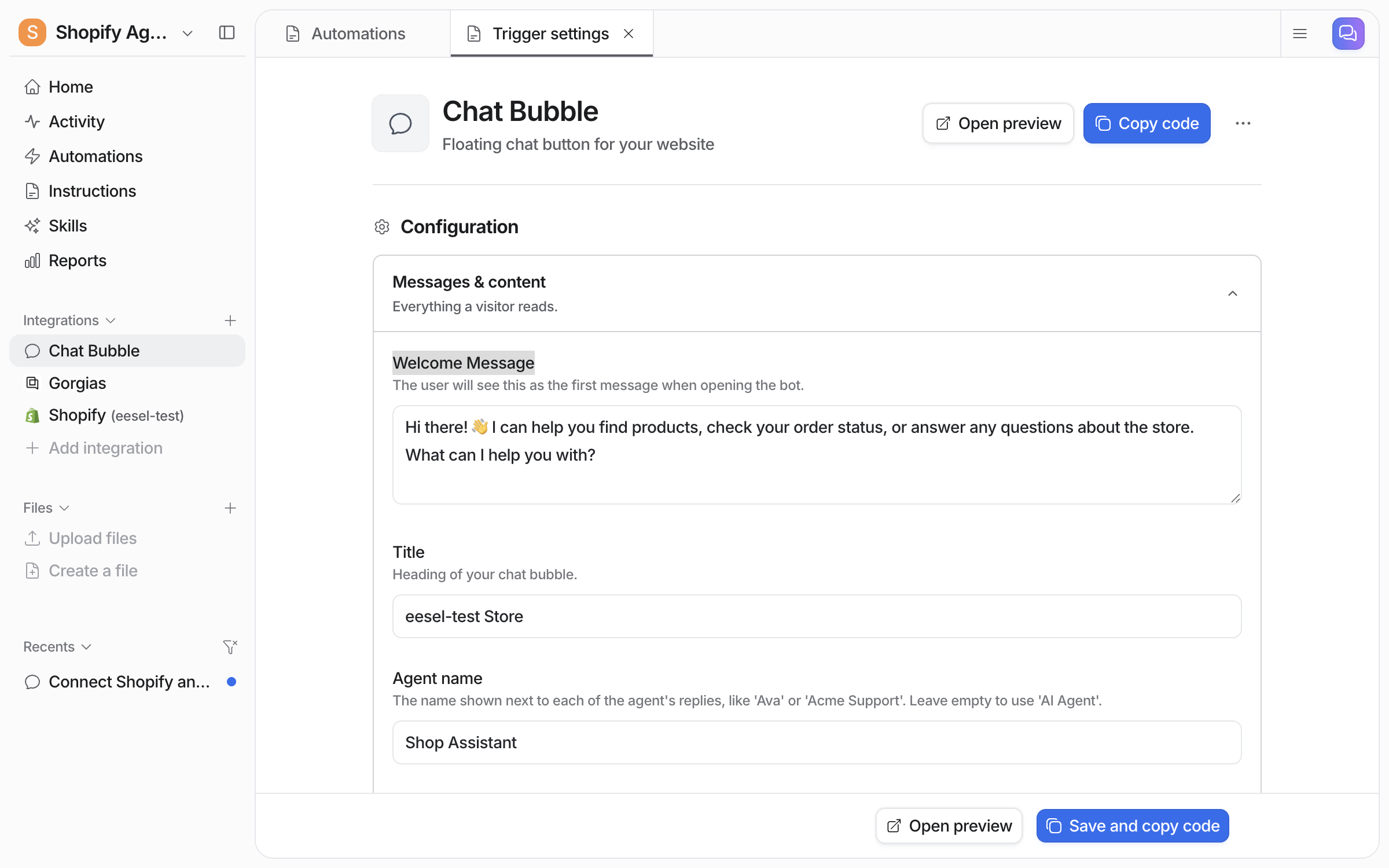
The Chat Bubble settings page shows the same fields. [Chat Bubble](/integrations/chat-surfaces/chat-bubble.md) has the full settings and the embed steps.

<figure><img src="https://3732419023-files.gitbook.io/~/files/v0/b/gitbook-x-prod.appspot.com/o/spaces%2F2xXO0947TYoPIhGoBgSE%2Fuploads%2Fgit-blob-5787ce3fdaf31ed603fe6120af3bc08e81758c02%2Fchat-bubble-settings-top.png?alt=media" alt="The Chat Bubble settings page in the eesel dashboard, showing the Configuration heading, the Messages and content section with Welcome Message, Title and Agent name fields, and Open preview and Copy code buttons at the top right"><figcaption><p>The top of the settings page, with the Messages and content fields.</p></figcaption></figure>
{% endstep %}

{% step %}

### Brief it on how you sell and support

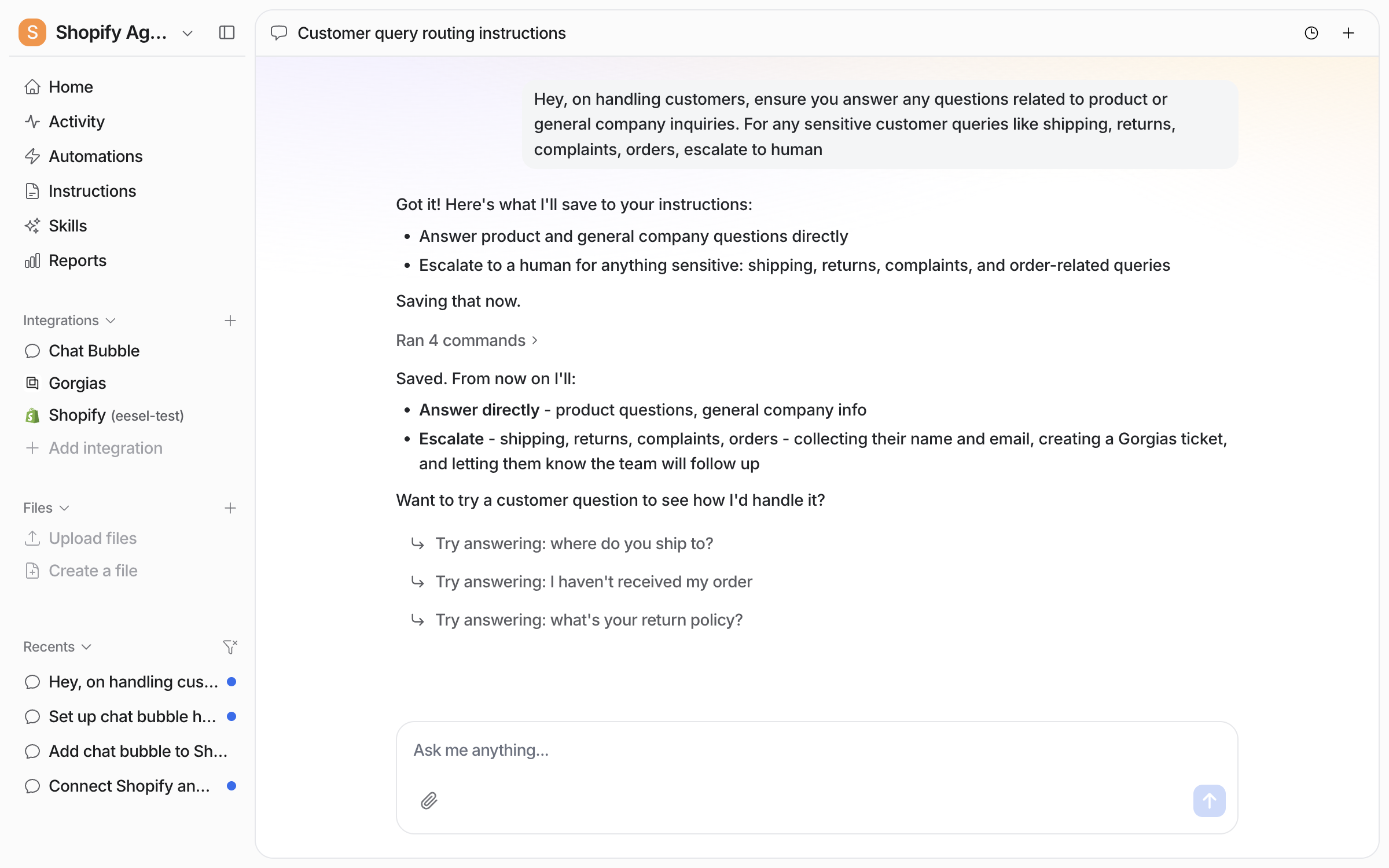
Tell it which products to steer toward, your returns window, what needs a person, and any discount codes it can use. Upload the procedure documents your team already works from. Correct it as you test and it saves the rules to its own instructions.

Say it in the chat and the agent writes it into its instructions.

<figure><img src="https://3732419023-files.gitbook.io/~/files/v0/b/gitbook-x-prod.appspot.com/o/spaces%2F2xXO0947TYoPIhGoBgSE%2Fuploads%2Fgit-blob-93429cc10e7c8e654c36b7a297418ef02012628a%2Fshopify-brief-chat.png?alt=media" alt="The dashboard chat where the user tells the agent which questions to answer directly and which to escalate to a person, and the agent saves the rule"><figcaption><p>The brief given in chat, saved to the agent's instructions.</p></figcaption></figure>

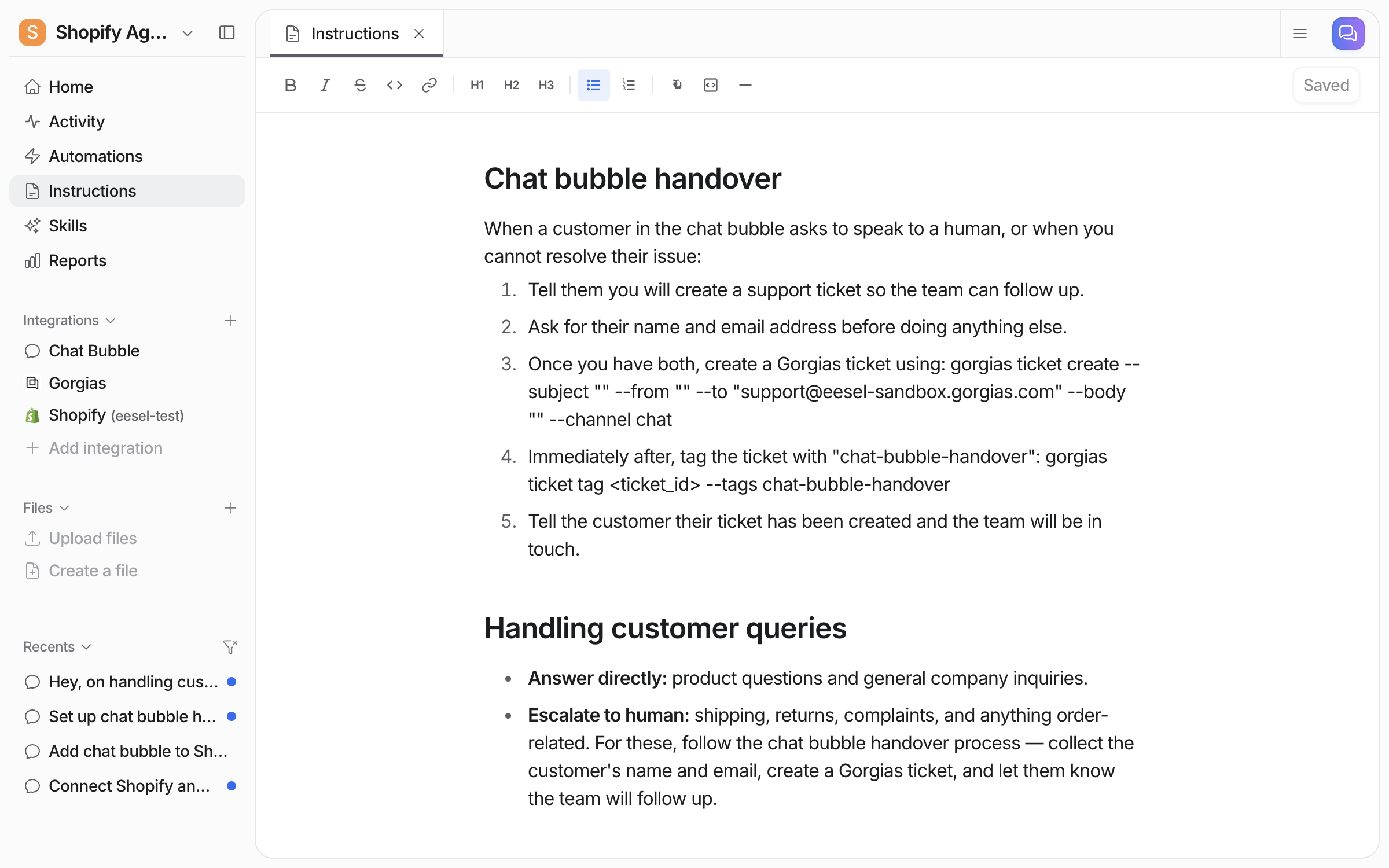
The saved rules sit on the Instructions page, where you can read or edit them.

<figure><img src="https://3732419023-files.gitbook.io/~/files/v0/b/gitbook-x-prod.appspot.com/o/spaces%2F2xXO0947TYoPIhGoBgSE%2Fuploads%2Fgit-blob-dcf6a4a2c1a7b2bbf78228dc2d3da91f4096dffb%2Fshopify-brief-saved.png?alt=media" alt="The Instructions page showing the handover process and the customer query rules the agent saved"><figcaption><p>The Instructions page with the saved brief.</p></figcaption></figure>
{% endstep %}

{% step %}

### Tell it which actions it can take

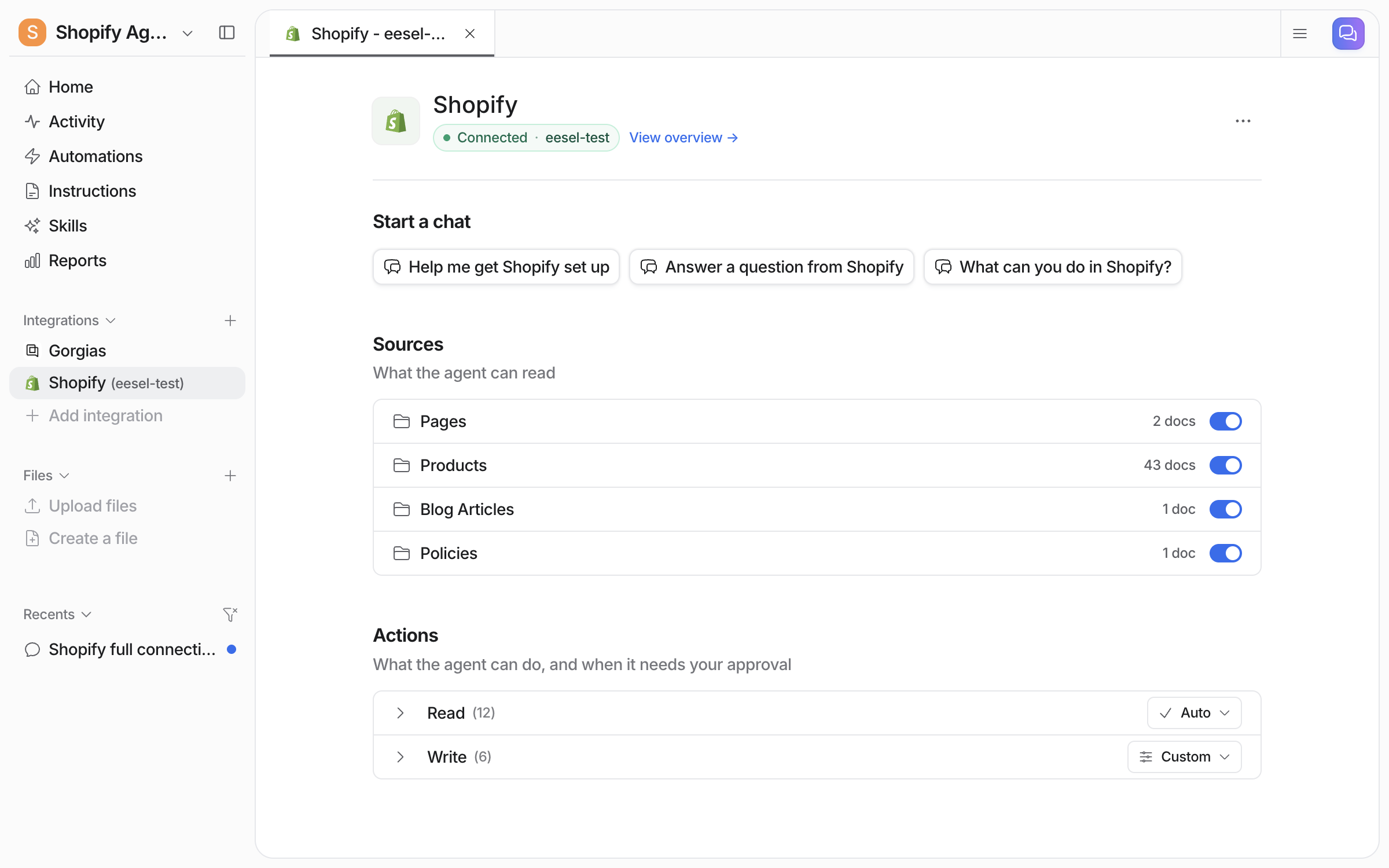
Say in chat what it can do on its own and what needs your approval. **Integrations > Shopify** shows the same settings. **Actions** groups them as Read and Write, with Read on **Auto** and Write on **Custom**.

<figure><img src="https://3732419023-files.gitbook.io/~/files/v0/b/gitbook-x-prod.appspot.com/o/spaces%2F2xXO0947TYoPIhGoBgSE%2Fuploads%2Fgit-blob-9207401d8169d2a7b9ece2d755dfdd824cb5c008%2Fshopify-integration-page.png?alt=media" alt="The Shopify integration page in the eesel dashboard showing Connected with the store name, the Pages, Products, Blog Articles and Policies sources with document counts, and the Read and Write action groups set to Auto and Custom"><figcaption><p>The Shopify integration page, with the Read and Write action groups.</p></figcaption></figure>

Most stores let it look things up freely and keep refunds and cancellations on ask you first. An action set to ask you first waits for your answer in the dashboard: approve once, always allow, or deny.
{% endstep %}

{% step %}

### Give it a way to escalate

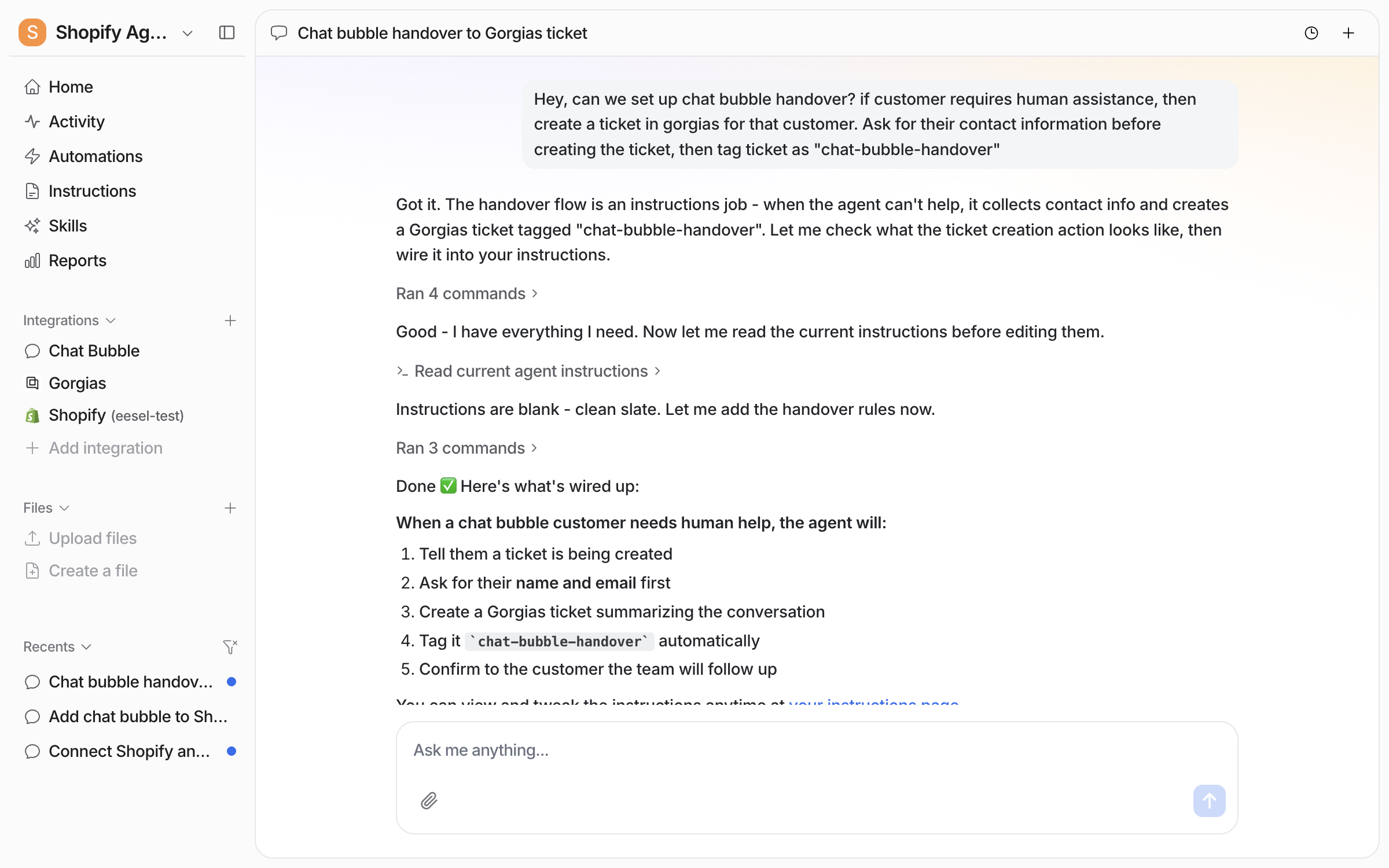
Tell your agent what to do when a shopper needs a person. Here it is asked to create a [Gorgias](/integrations/helpdesks/gorgias.md) ticket, collect a name and email first, and tag the ticket.

<figure><img src="https://3732419023-files.gitbook.io/~/files/v0/b/gitbook-x-prod.appspot.com/o/spaces%2F2xXO0947TYoPIhGoBgSE%2Fuploads%2Fgit-blob-385e7e014571fd96bd656211259b70ad09e9c30d%2Fchat-bubble-handover-1.png?alt=media" alt="A dashboard chat where the user asks for chat bubble handover that creates a tagged Gorgias ticket after collecting contact details, and the agent lists the five steps it wired up"><figcaption><p>Ask for the handover rule in plain words and the agent writes it out.</p></figcaption></figure>

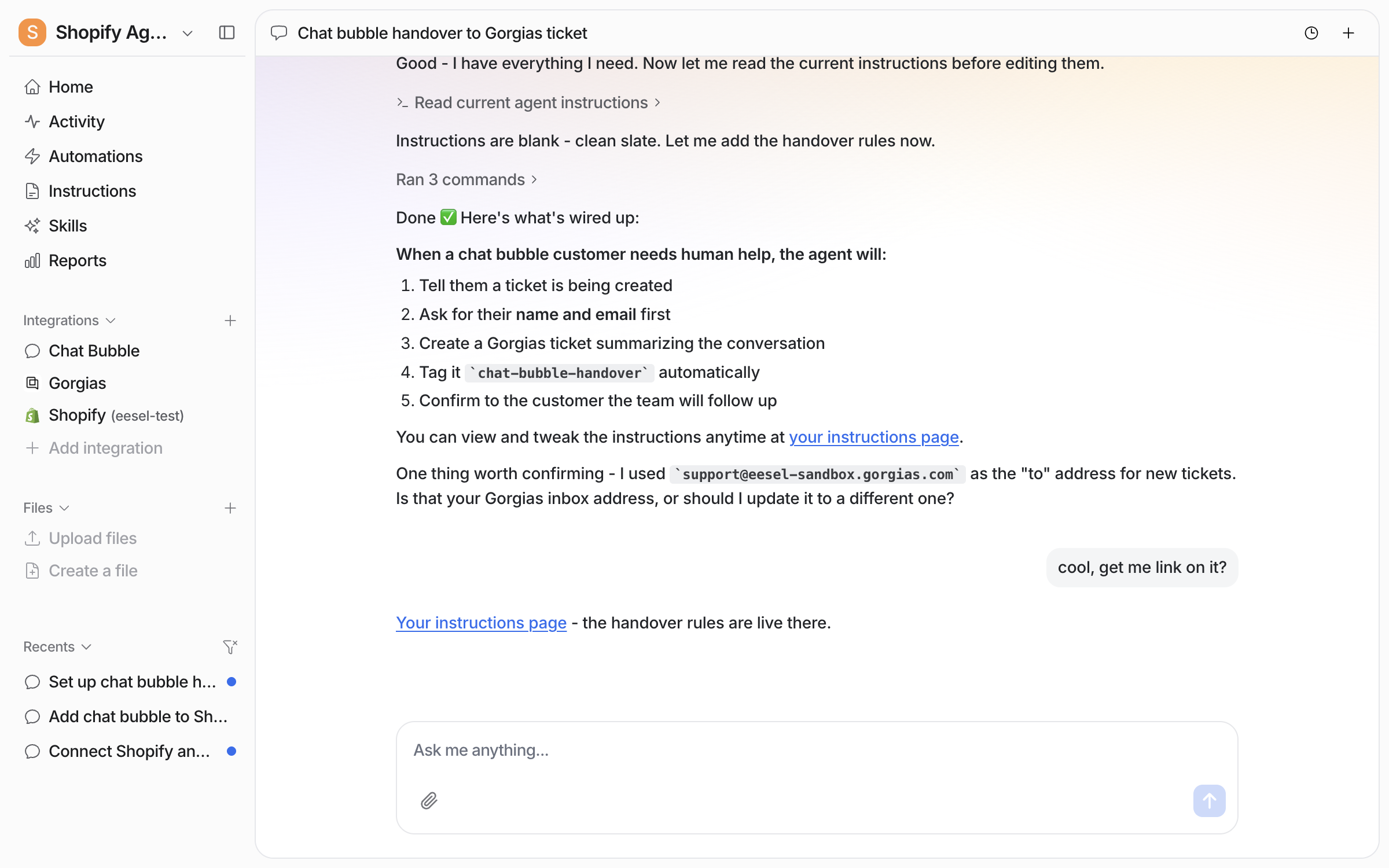
It saves the rule to its own instructions and links the page. It also checks the details it guessed, such as the inbox address it will send tickets to.

<figure><img src="https://3732419023-files.gitbook.io/~/files/v0/b/gitbook-x-prod.appspot.com/o/spaces%2F2xXO0947TYoPIhGoBgSE%2Fuploads%2Fgit-blob-8786e1f2b2d444f8b46f0e9bbe41d6160daa222d%2Fchat-bubble-handover-2.png?alt=media" alt="The same chat scrolled down, where the agent asks the user to confirm the Gorgias inbox address it used and then links the instructions page"><figcaption><p>It confirms the inbox address it used and links your Instructions page.</p></figcaption></figure>

Open that link to read or edit the saved rule.

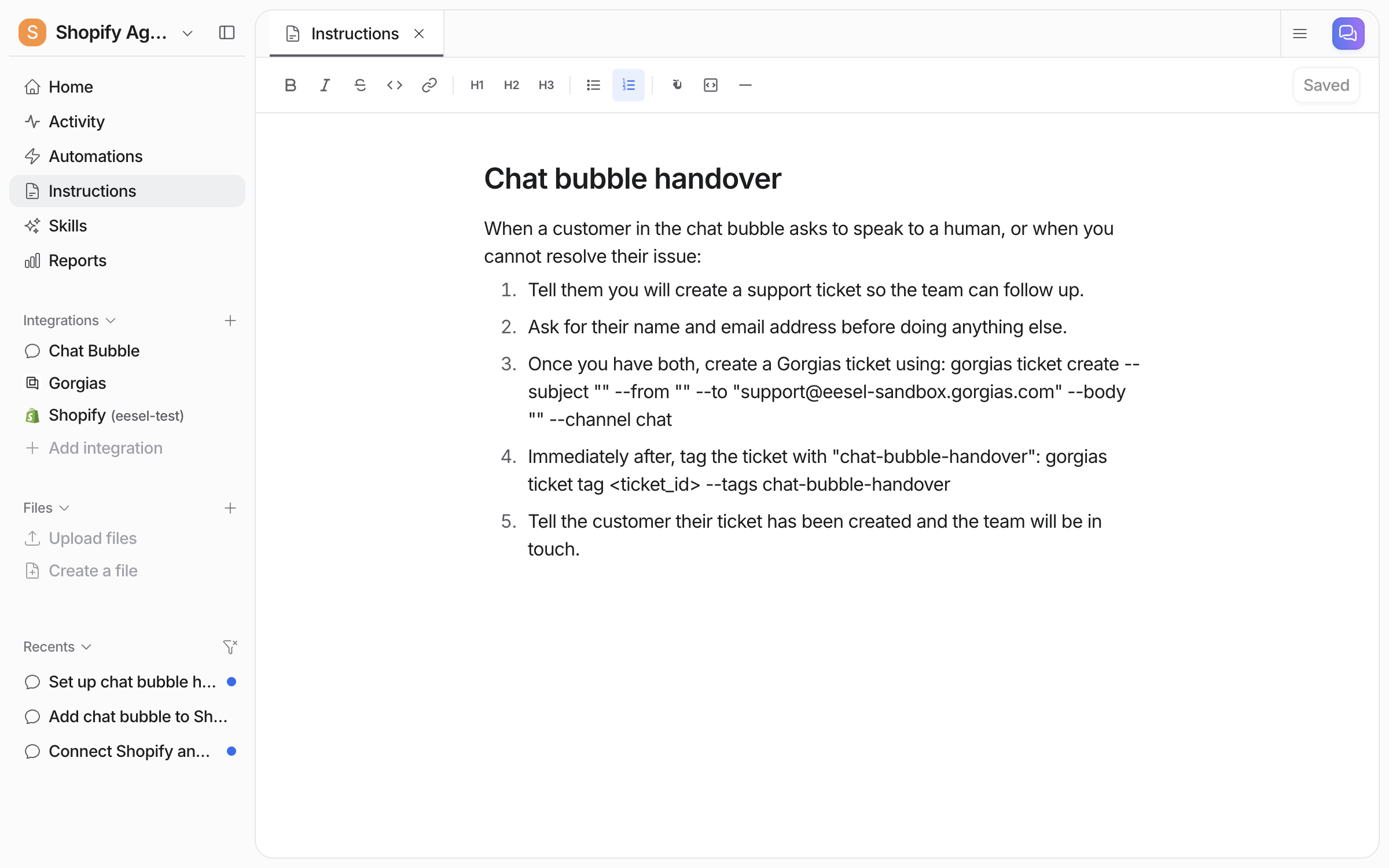
<figure><img src="https://3732419023-files.gitbook.io/~/files/v0/b/gitbook-x-prod.appspot.com/o/spaces%2F2xXO0947TYoPIhGoBgSE%2Fuploads%2Fgit-blob-786651d51a0d8dd12ed3e568721469d15d3e0fa9%2Fchat-bubble-handover-3.png?alt=media" alt="The Instructions page showing the saved Chat bubble handover rule as five numbered steps, including the Gorgias ticket create and tag commands"><figcaption><p>The handover rule on your Instructions page, where you can edit it yourself.</p></figcaption></figure>

Your agent can also hand a chat to another live chat widget, such as Zendesk Messenger or Freshchat. See [Chat Bubble](/integrations/chat-surfaces/chat-bubble.md).

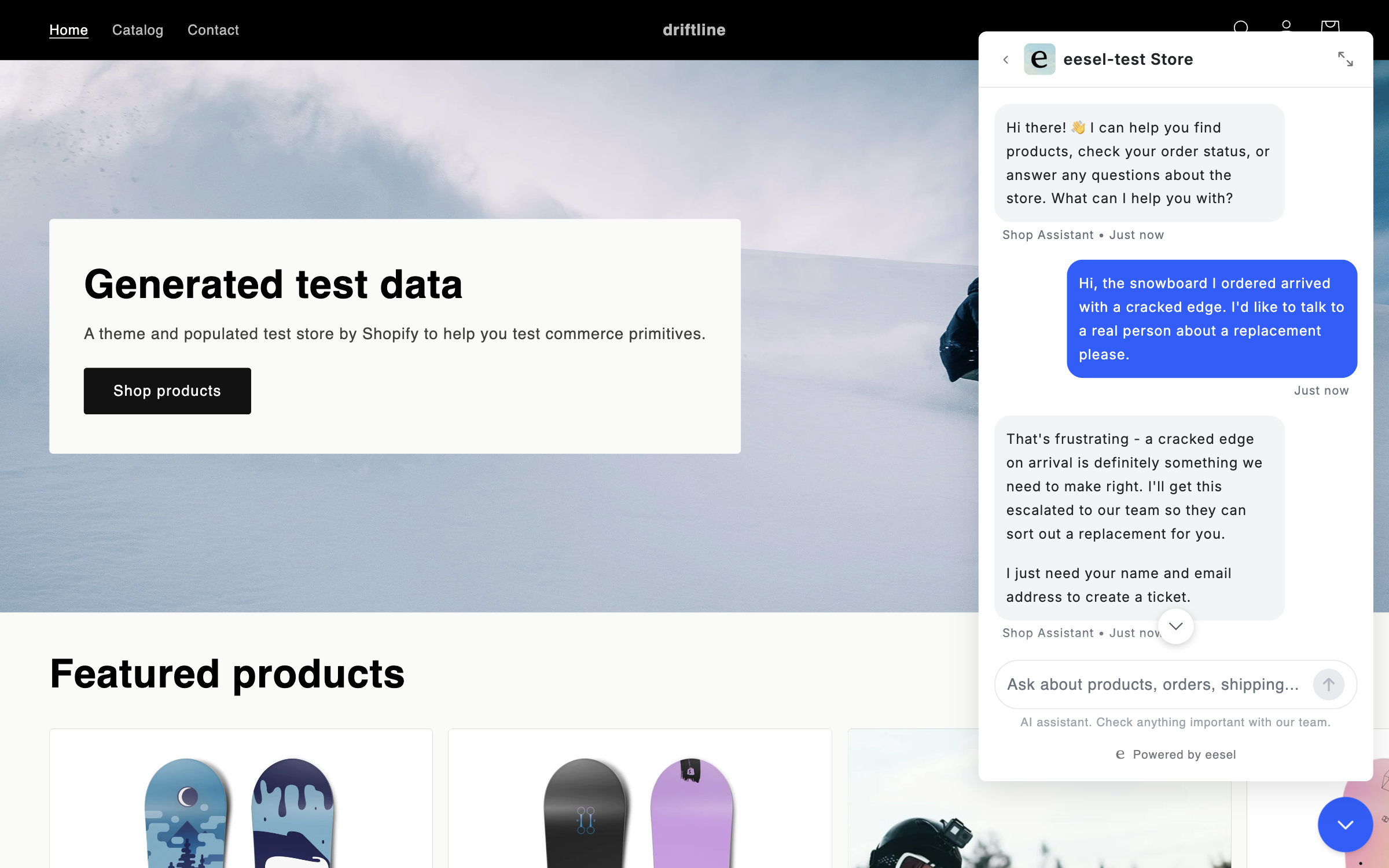
Test it in the bubble. A shopper asks for a person, and your agent asks for a name and email address.

<figure><img src="https://3732419023-files.gitbook.io/~/files/v0/b/gitbook-x-prod.appspot.com/o/spaces%2F2xXO0947TYoPIhGoBgSE%2Fuploads%2Fgit-blob-081c4990e1d9e73dc7741e4e0fd2cac046c2d728%2Fchat-bubble-handover-ask.png?alt=media" alt="The chat bubble on the live site where a visitor asks to talk to a real person about a damaged item, and the agent says it will escalate to the team and asks for a name and email address"><figcaption><p>The agent taking the escalation and asking for a name and email address.</p></figcaption></figure>

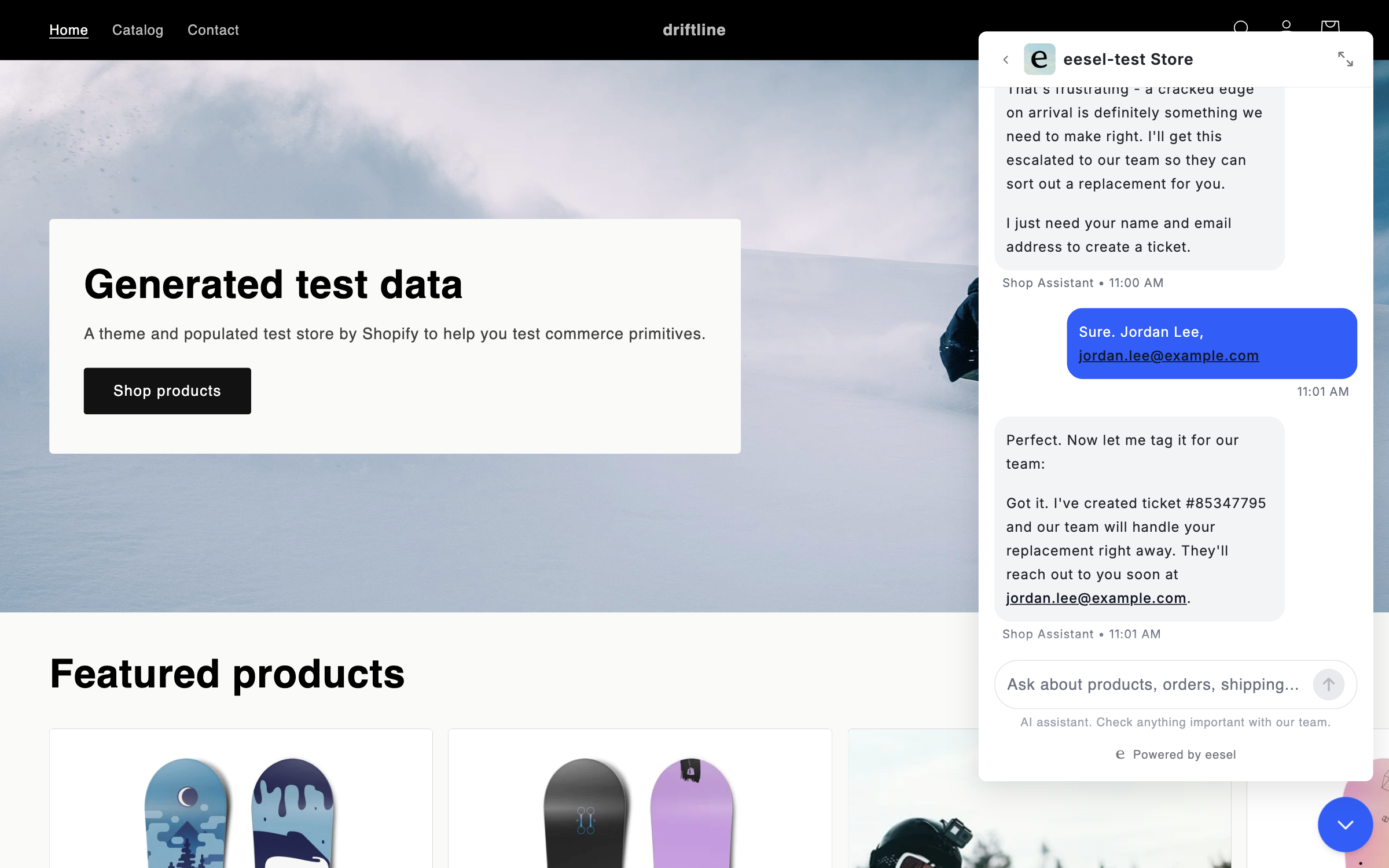
It creates the ticket and confirms the number in the chat.

<figure><img src="https://3732419023-files.gitbook.io/~/files/v0/b/gitbook-x-prod.appspot.com/o/spaces%2F2xXO0947TYoPIhGoBgSE%2Fuploads%2Fgit-blob-cb2fc2ecacd080376abd439bc344314976a62e58%2Fchat-bubble-handover-ticket-created.png?alt=media" alt="The same chat where the visitor gives a name and email address, and the agent confirms it created a ticket with its number and says the team will be in touch at that address"><figcaption><p>The agent confirming the ticket number to the visitor.</p></figcaption></figure>

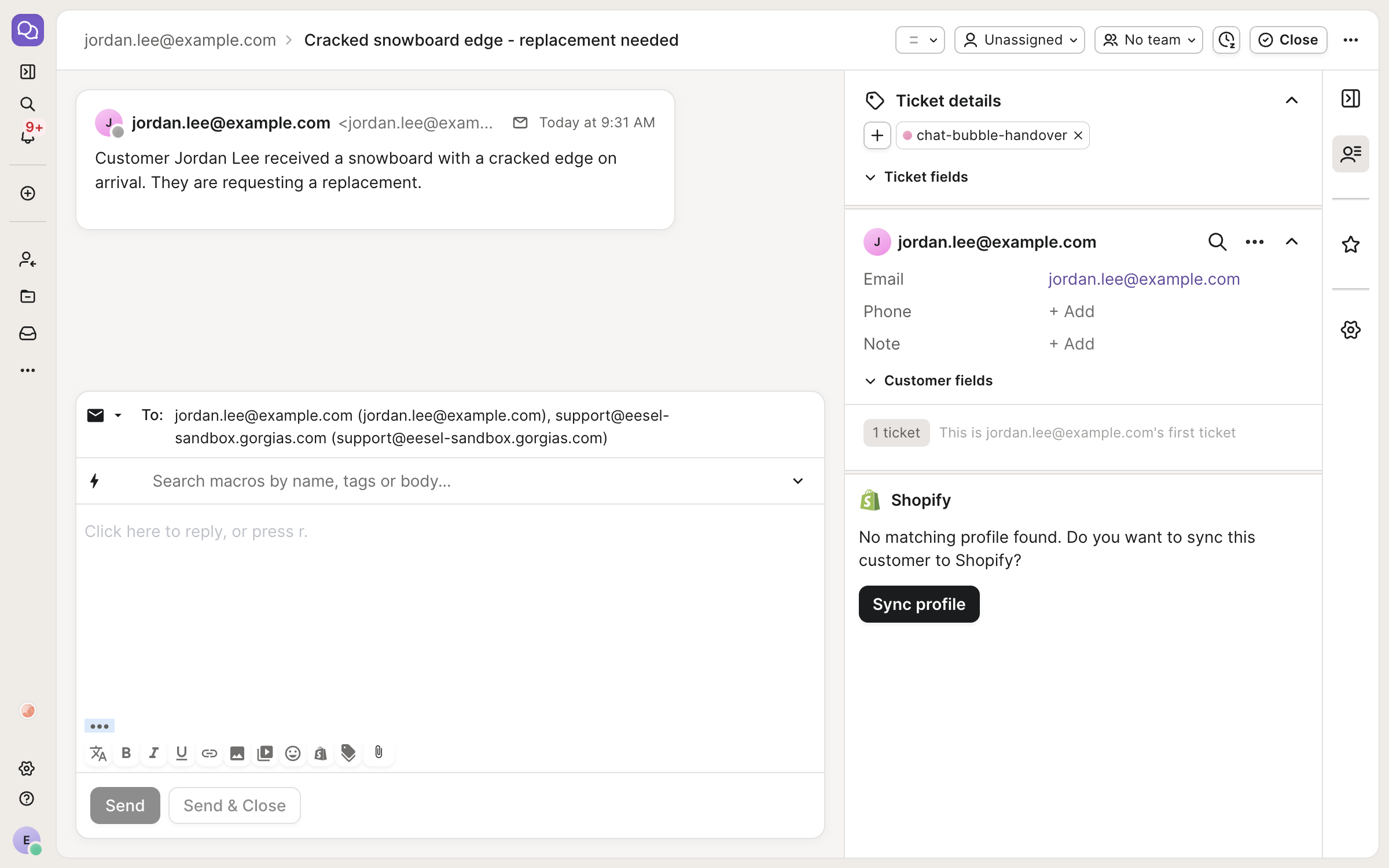
The ticket lands in your helpdesk with the tag you asked for.

<figure><img src="https://3732419023-files.gitbook.io/~/files/v0/b/gitbook-x-prod.appspot.com/o/spaces%2F2xXO0947TYoPIhGoBgSE%2Fuploads%2Fgit-blob-06a73dce084a61d36473c3c575db7184dd1141c4%2Fchat-bubble-handover-gorgias.png?alt=media" alt="A Gorgias ticket opened from a chat bubble handover, showing the visitor&#x27;s email address as the requester, a summary of the conversation as the first message, and a handover tag in the ticket details panel"><figcaption><p>The handover ticket in the helpdesk, tagged.</p></figcaption></figure>
{% endstep %}

{% step %}

### Put it where your customers are

Open the Chat Bubble settings page, scroll to the **Install** section and press **Copy code**.

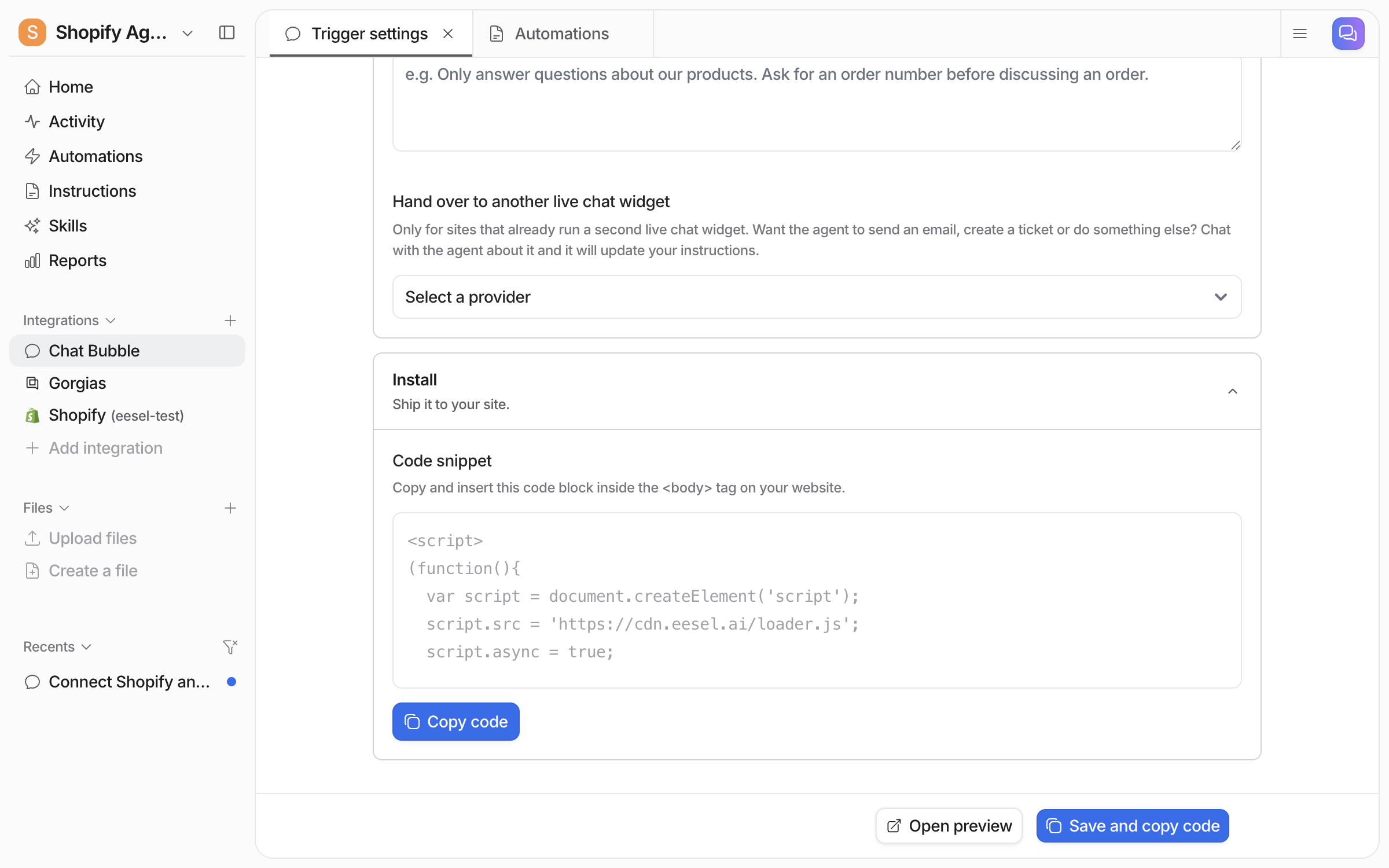
<figure><img src="https://3732419023-files.gitbook.io/~/files/v0/b/gitbook-x-prod.appspot.com/o/spaces%2F2xXO0947TYoPIhGoBgSE%2Fuploads%2Fgit-blob-ab8b8f726b2682f092b22de95beafcb19edb6454%2Fchat-bubble-settings-install.png?alt=media" alt="The bottom of the settings page showing the Hand over to another live chat widget provider dropdown reading Select a provider, and the Install section with the code snippet and a Copy code button"><figcaption><p>The handover provider dropdown and the Install section.</p></figcaption></figure>

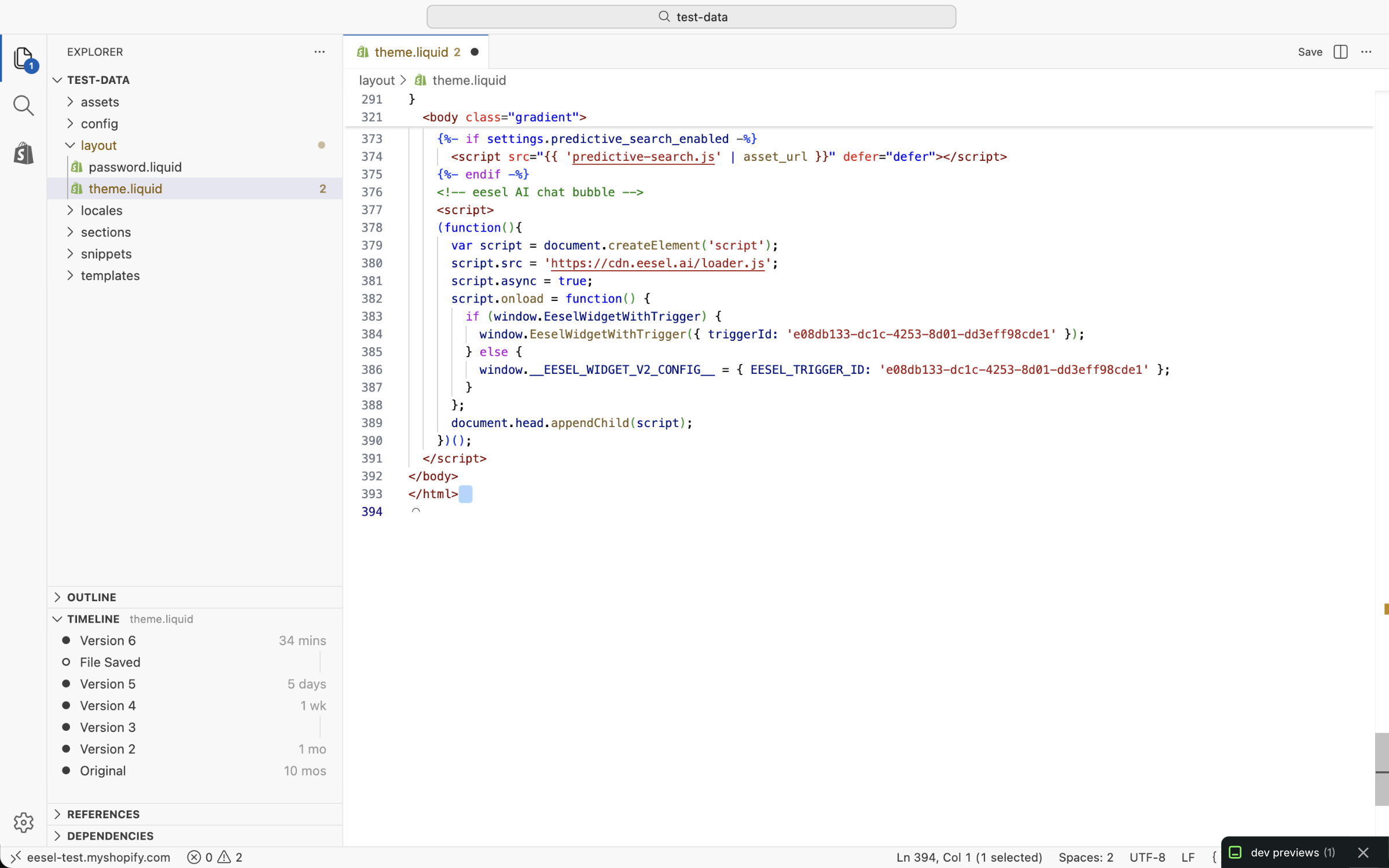
Paste the snippet before the closing body tag in your theme. On Shopify that file is `theme.liquid`.

<figure><img src="https://3732419023-files.gitbook.io/~/files/v0/b/gitbook-x-prod.appspot.com/o/spaces%2F2xXO0947TYoPIhGoBgSE%2Fuploads%2Fgit-blob-c71b3aa3ff0ce240a0eab26d101434a1f78e27e0%2Fchat-bubble-shopify-theme-liquid.png?alt=media" alt="The Shopify code editor with theme.liquid open, the eesel loader snippet pasted at the end of the file on the lines before the closing body tag"><figcaption><p>The snippet pasted into the Shopify theme layout file.</p></figcaption></figure>

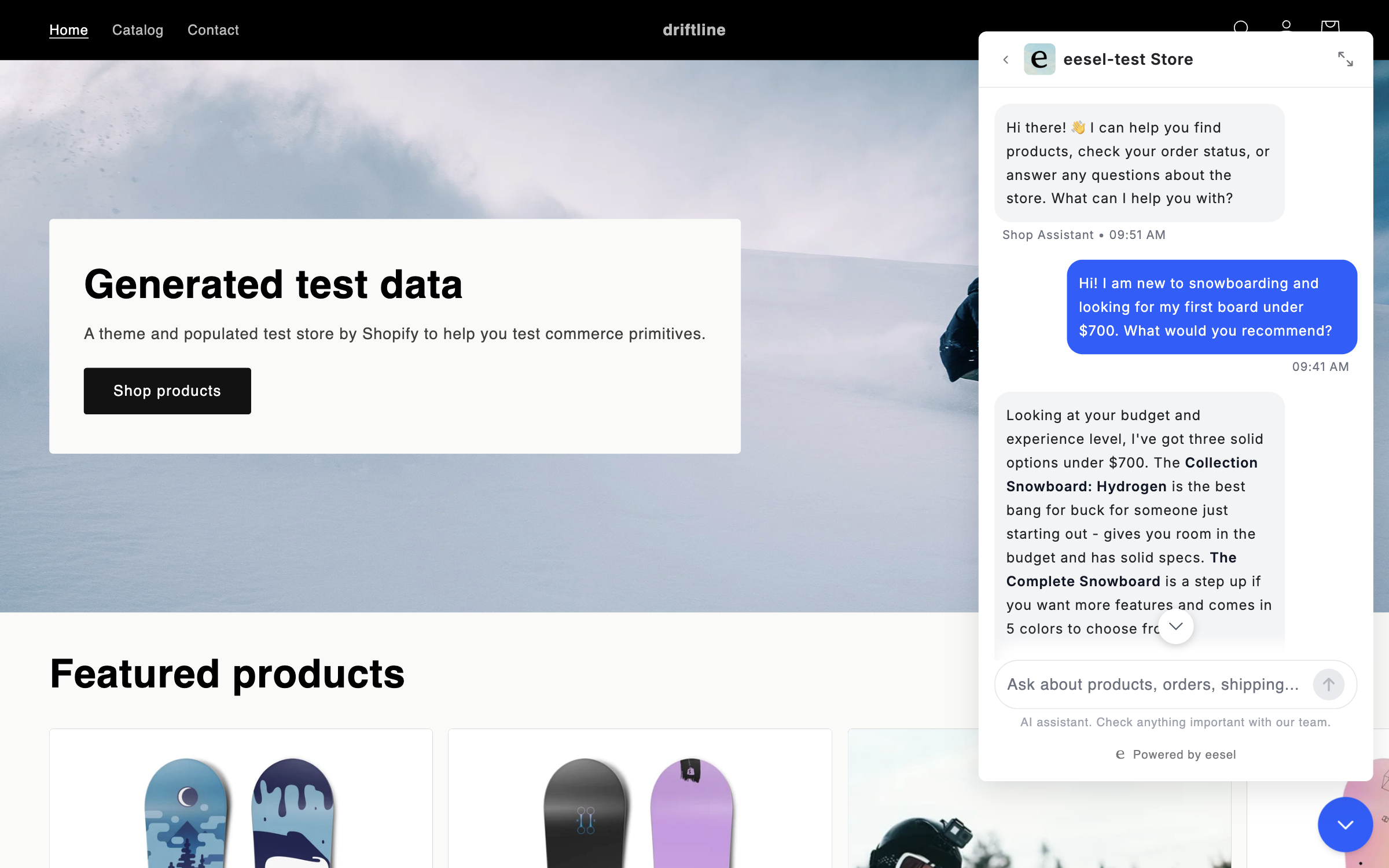
Connecting alone does not start your agent. It needs an automation first. Ask in chat to turn on the bubble automation, then a shopper gets product cards in the bubble.

<figure><img src="https://3732419023-files.gitbook.io/~/files/v0/b/gitbook-x-prod.appspot.com/o/spaces%2F2xXO0947TYoPIhGoBgSE%2Fuploads%2Fgit-blob-1c59c7290e3982925544f150bb8755ad41c8d3b3%2Fshopify-bubble-carousel.png?alt=media" alt="A storefront home page with the eesel chat bubble open, where a shopper asks for a beginner recommendation and the agent replies with advice and starts a product carousel below it"><figcaption><p>The chat bubble answering a recommendation question from the live catalogue.</p></figcaption></figure>

[Chat Bubble](/integrations/chat-surfaces/chat-bubble.md) has the steps for other platforms.
{% endstep %}
{% endstepper %}

{% hint style="info" %}
**From Claude Code, Cursor or a terminal.** The same setup works as commands: `eesel login`, then `eesel init chat-bubble --site https://your-store.com` to put the bubble on the store and start it reading the site, and `eesel integrations connect shopify` for the store itself. The approval is a human step: print the link for a person, wait for the connection status to change, and do not retry the link. Full command reference: [The eesel CLI](/apis-and-developer-resources/cli.md). Step-by-step: [Set up from Claude Code or the terminal](/getting-started/set-up-from-a-coding-agent.md).
{% endhint %}

***

## What your agent can do

### Sell

| It can                            | What that looks like                                             |
| --------------------------------- | ---------------------------------------------------------------- |
| **Search your products**          | Finds products matching what the shopper described               |
| **Check real stock and variants** | Size, colour, product code, price, and whether it is available   |
| **Read product details**          | Specs and custom fields, not only title and price                |
| **Show products as cards**        | Matching items shown as a carousel in chat, with **Add to Cart** |
| **Show the cart**                 | Displays the shopper's live cart as a card in the chat bubble    |

### Support

| It can                        | What that looks like                                |
| ----------------------------- | --------------------------------------------------- |
| **Look up an order**          | By identifier, or by searching a customer's history |
| **Check fulfilment**          | Where the parcel is and which carrier has it        |
| **Find a customer**           | Profile and past orders from their email address    |
| **Start a return**            | Creates the return on the order                     |
| **Update a shipping address** | Changes the delivery address on an order            |
| **Refund an order**           | Full or partial, with approval if you want it gated |
| **Cancel an order**           | For anything that has not shipped yet               |

### Answer from your store's own content

Your storefront is also knowledge: products, pages, blog and policies. A returns window question is answered from your policy page. Add your help center and past tickets and the same agent handles policy, order and product questions in one conversation.

{% hint style="info" %}
**Keep the risky things gated.** Refunds and cancellations can require approval, so your agent prepares the action and a person confirms it. Start there and loosen later. See [Actions and Approvals](/instructions-and-memory/actions-and-approvals.md).
{% endhint %}

## Example use cases

* **Pre-sales assistant on your storefront.** Sizing, stock and comparisons while someone is still deciding.
* **Order status.** The most common ticket in e-commerce, answered from live data.
* **Returns and refunds.** The whole flow within your policy, with approval on anything that moves money.
* **Peak season cover.** Handles the routine volume spike so your team works the tickets that need judgement.

## Related pages

* [Shopify](/integrations/e-commerce/shopify.md) for full setup, sources and every available action
* [Magento](/integrations/e-commerce/magento.md) for the same job on a Magento store
* [Chat Bubble](/integrations/chat-surfaces/chat-bubble.md) for putting your agent on your storefront
* [Gorgias](/integrations/helpdesks/gorgias.md) for the ticket side of the job
* [Actions and Approvals](/instructions-and-memory/actions-and-approvals.md) for setting each action to run on its own, ask you first, or stay off
* [Integrations overview](/integrations/overview.md) for how sources, triggers and actions fit together
* [Set up from Claude Code or the terminal](/getting-started/set-up-from-a-coding-agent.md)


---

# Agent Instructions
This documentation is published with GitBook. GitBook is the documentation platform designed so that both humans and AI agents can read, navigate, and reason over technical content effectively. Learn more at gitbook.com.

## Querying This Documentation
If you need additional information that is not directly available in this page, you can query the documentation dynamically by asking a question.

Perform an HTTP GET request on the current page URL with the `ask` query parameter, and the optional `goal` query parameter:

```
GET https://docs.eesel.ai/use-cases/e-commerce-sales-rep.md?ask=<question>&goal=<endgoal>
```

`ask` is the immediate question: it should be specific, self-contained, and written in natural language.
`goal` is optional and describes the broader end goal you are ultimately trying to accomplish on behalf of the user. GitBook uses it to tailor the answer towards what is most useful for that goal.

The response will contain a direct answer to the question and relevant excerpts and sources from the documentation.

Use this mechanism when the answer is not explicitly present in the current page, you need clarification or additional context, or you want to retrieve related documentation sections.