# Helpdesk

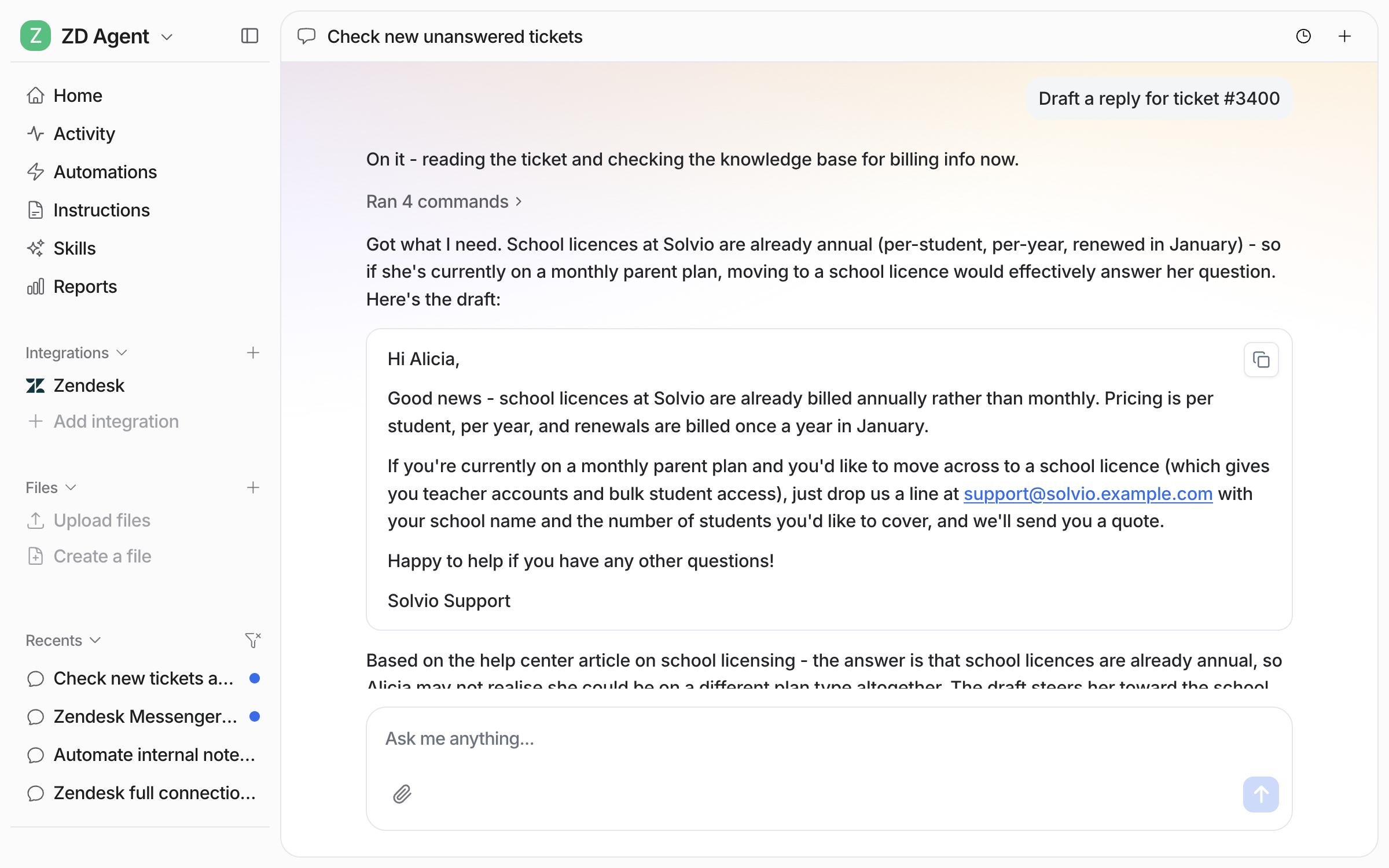
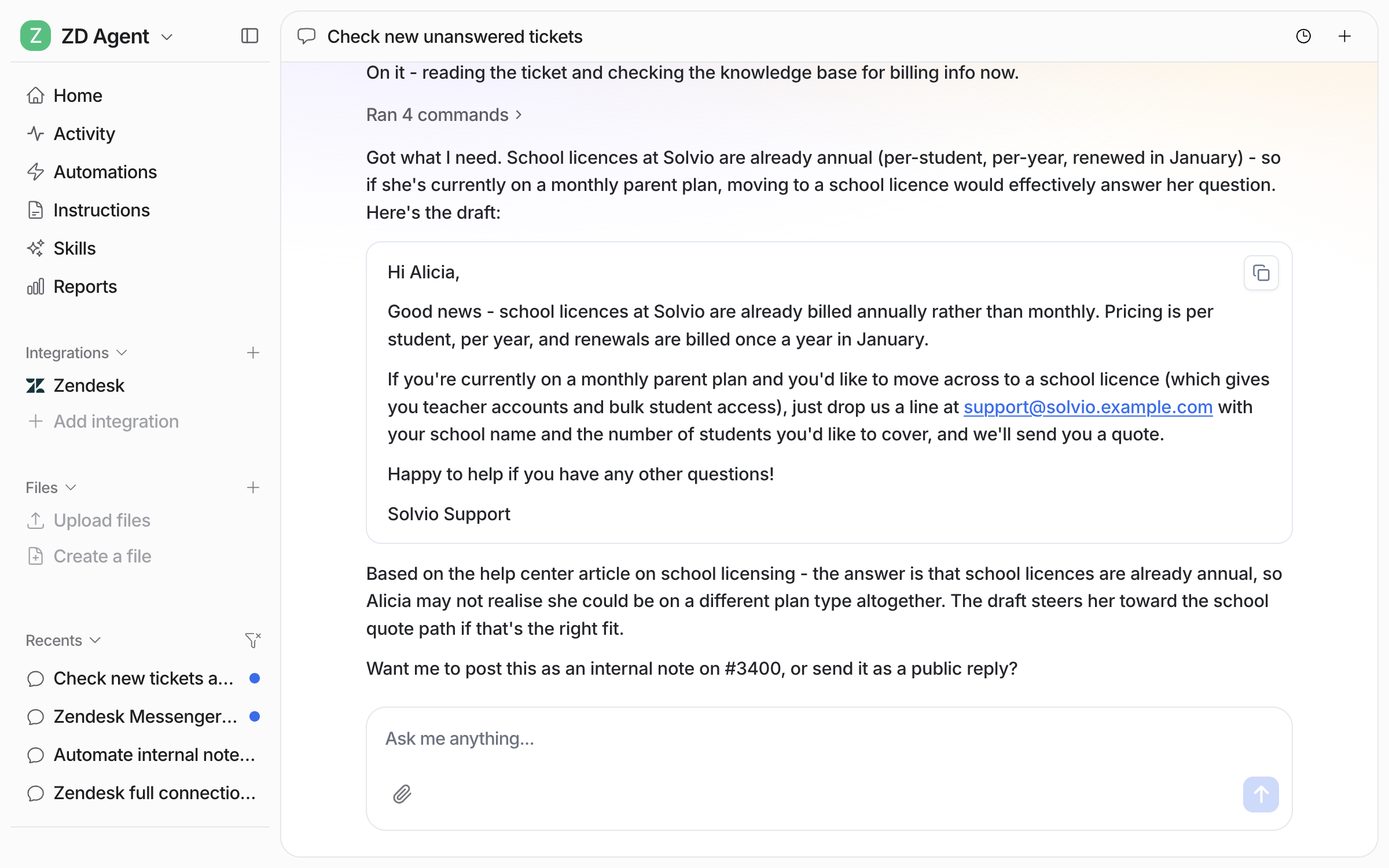
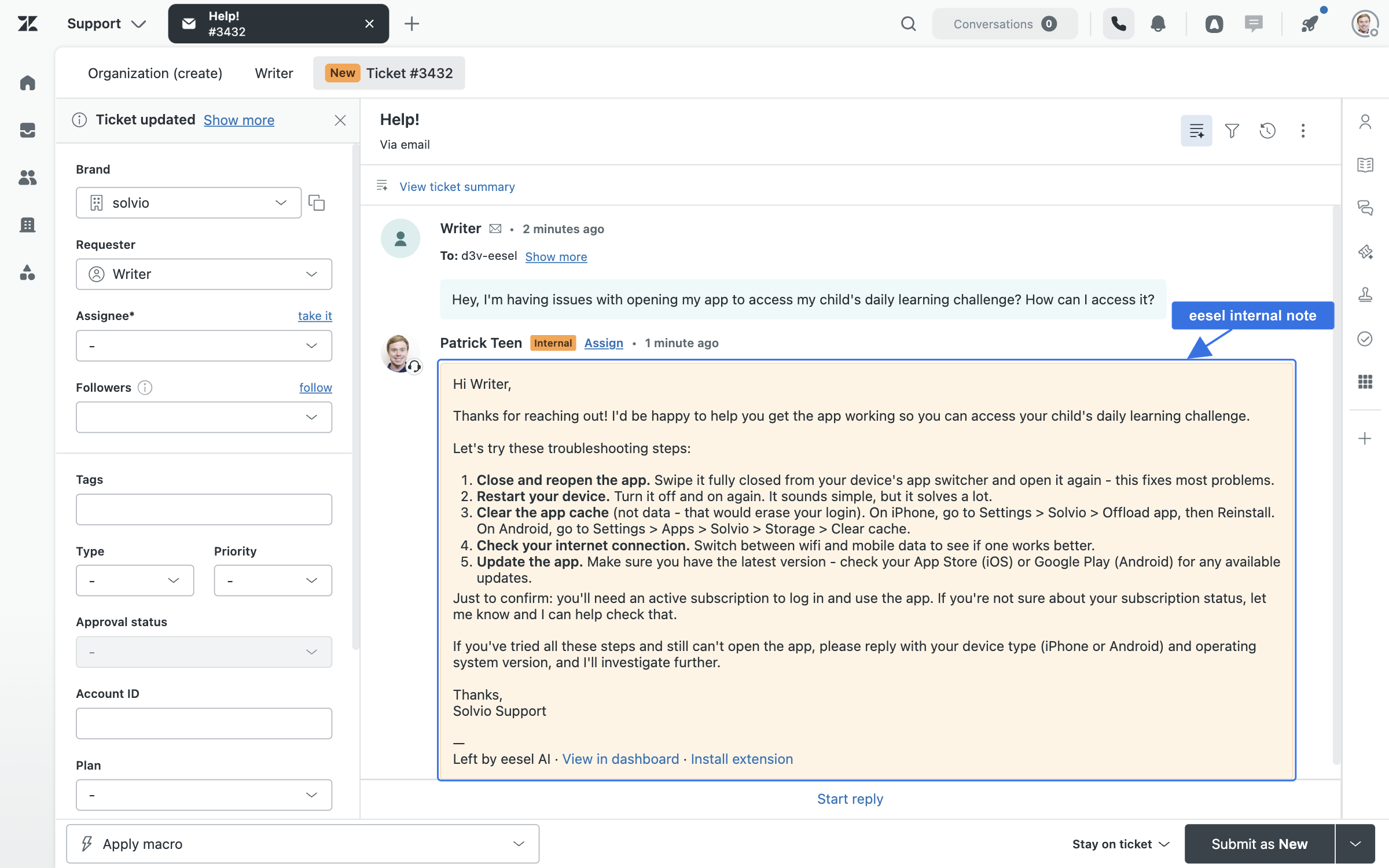
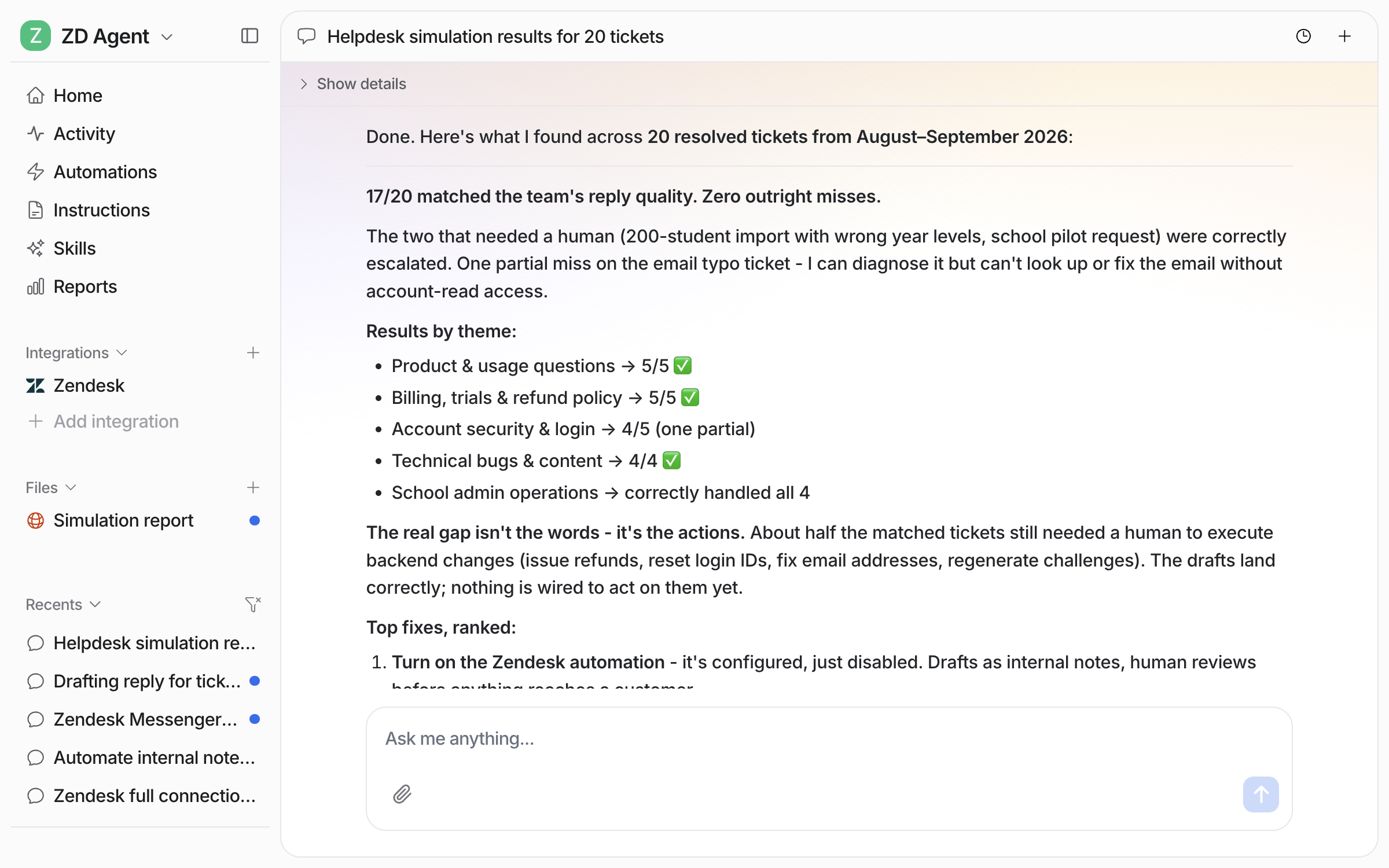
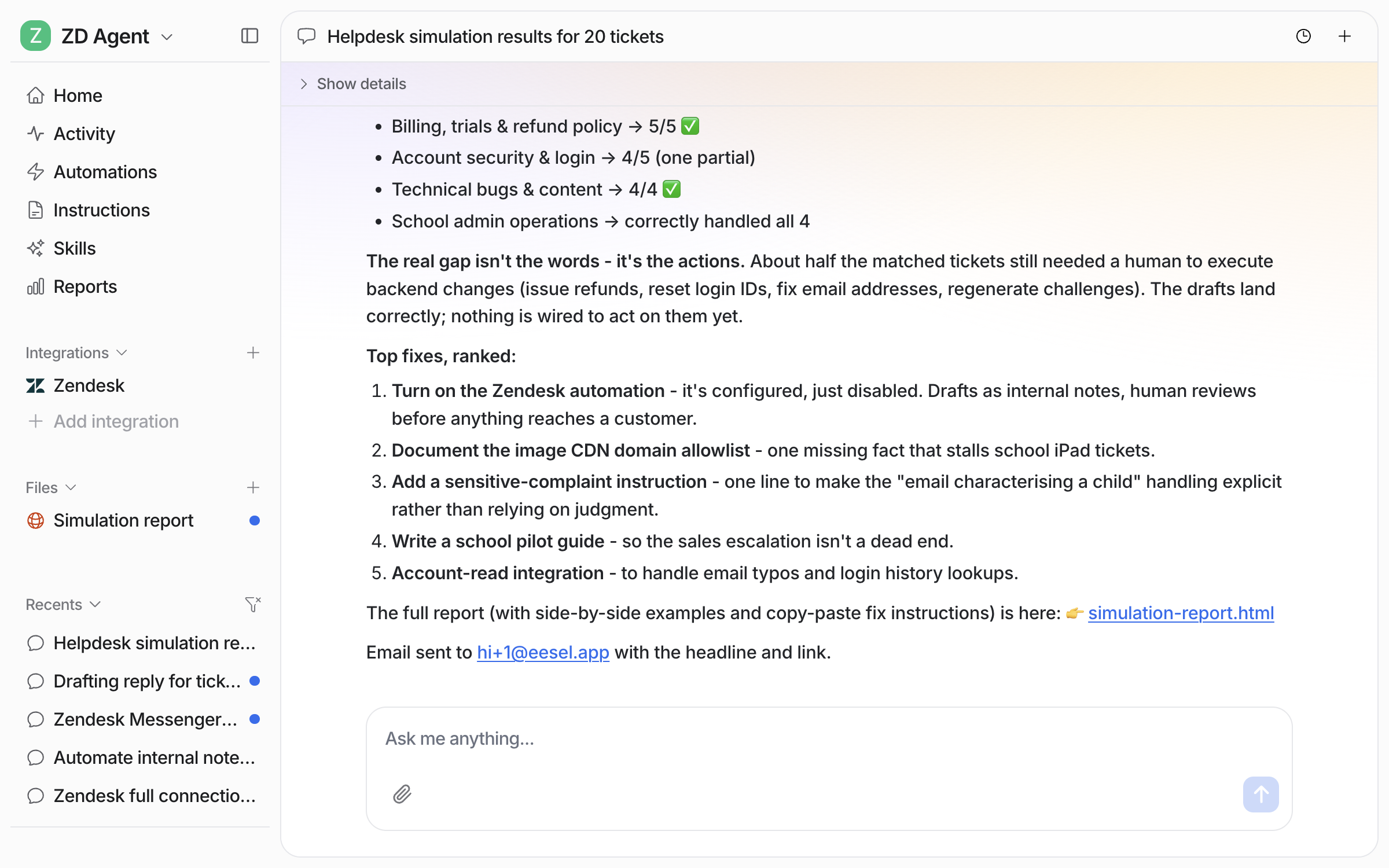
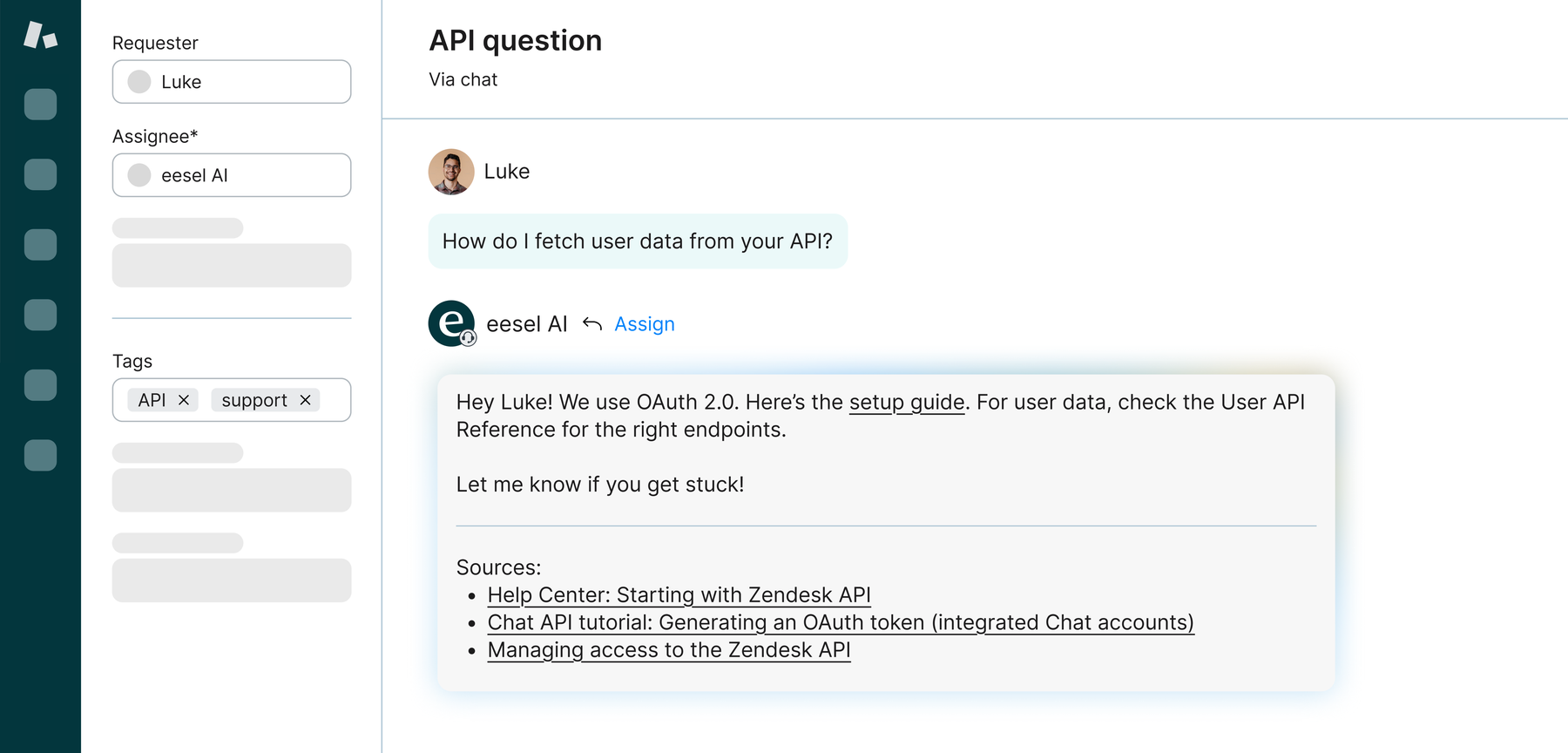
Your Helpdesk Agent can act just like a human agent: drafting replies for review, triaging tickets, flagging and escalating important issues, and replying based on all their knowledge and training.&#x20;

<figure><img src="/files/eg5Gv1hB2PFXwYkstizP" alt=""><figcaption></figcaption></figure>

## Quick start Agent setup

{% stepper %}
{% step %}

### Teach them about your company

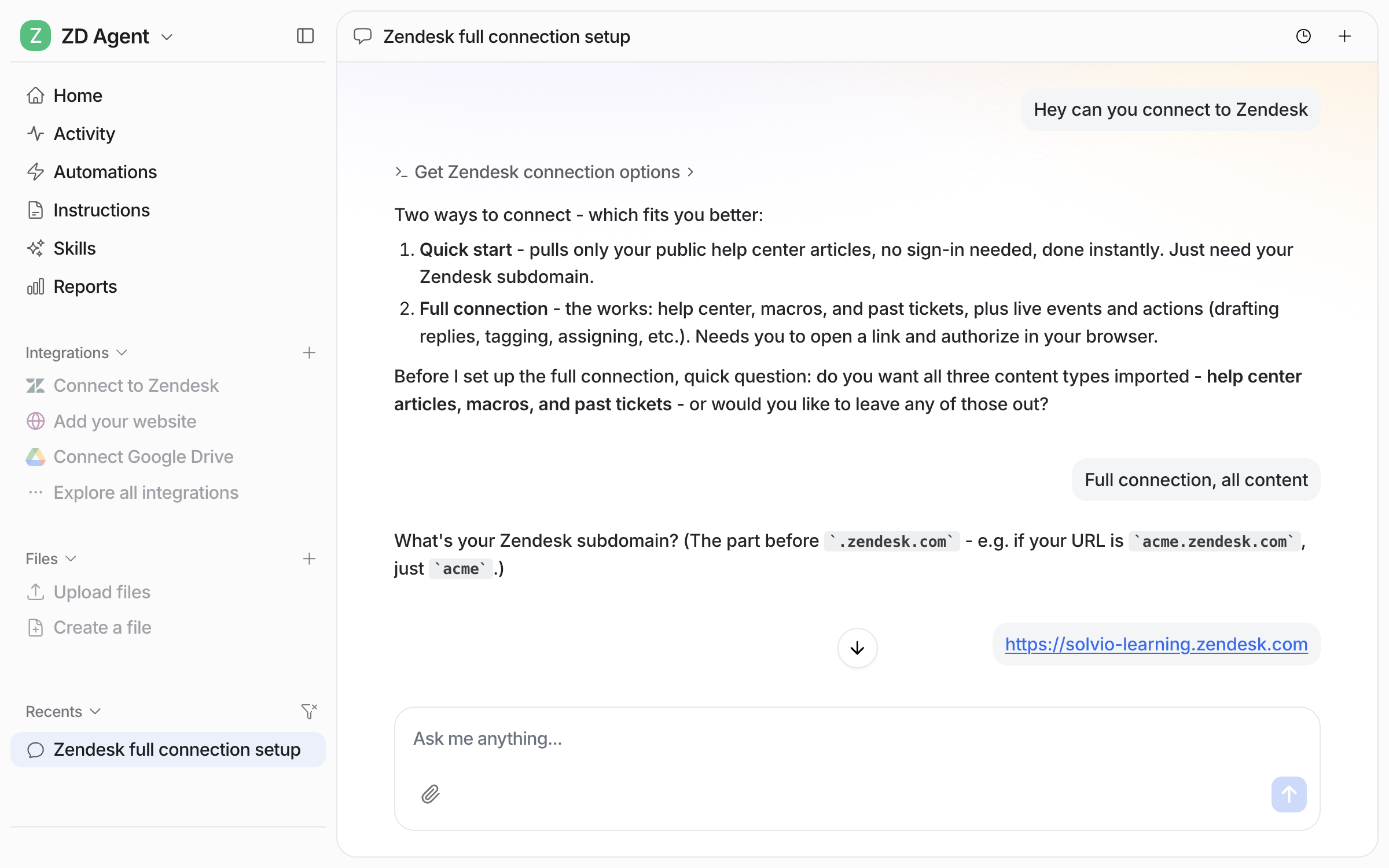
Simply click the + button next to integrations on the left sidebar.

Connect a knowledge source. Options include Zendesk, Freshdesk, Website URL, Google Drive, or upload a PDF/DOCX/TXT file. The step completes as soon as any single source is added.

Connecting your helpdesk enables training on your **help center,** **past tickets** and **macros.**
{% endstep %}

{% step %}

### Ask them a question

Test the agent in the Chat panel. Suggested questions appear (e.g., "How do I reset my password?", "What's your refund policy?"). This step completes when you have a chat interaction.
{% endstep %}

{% step %}

### Brief them on the job

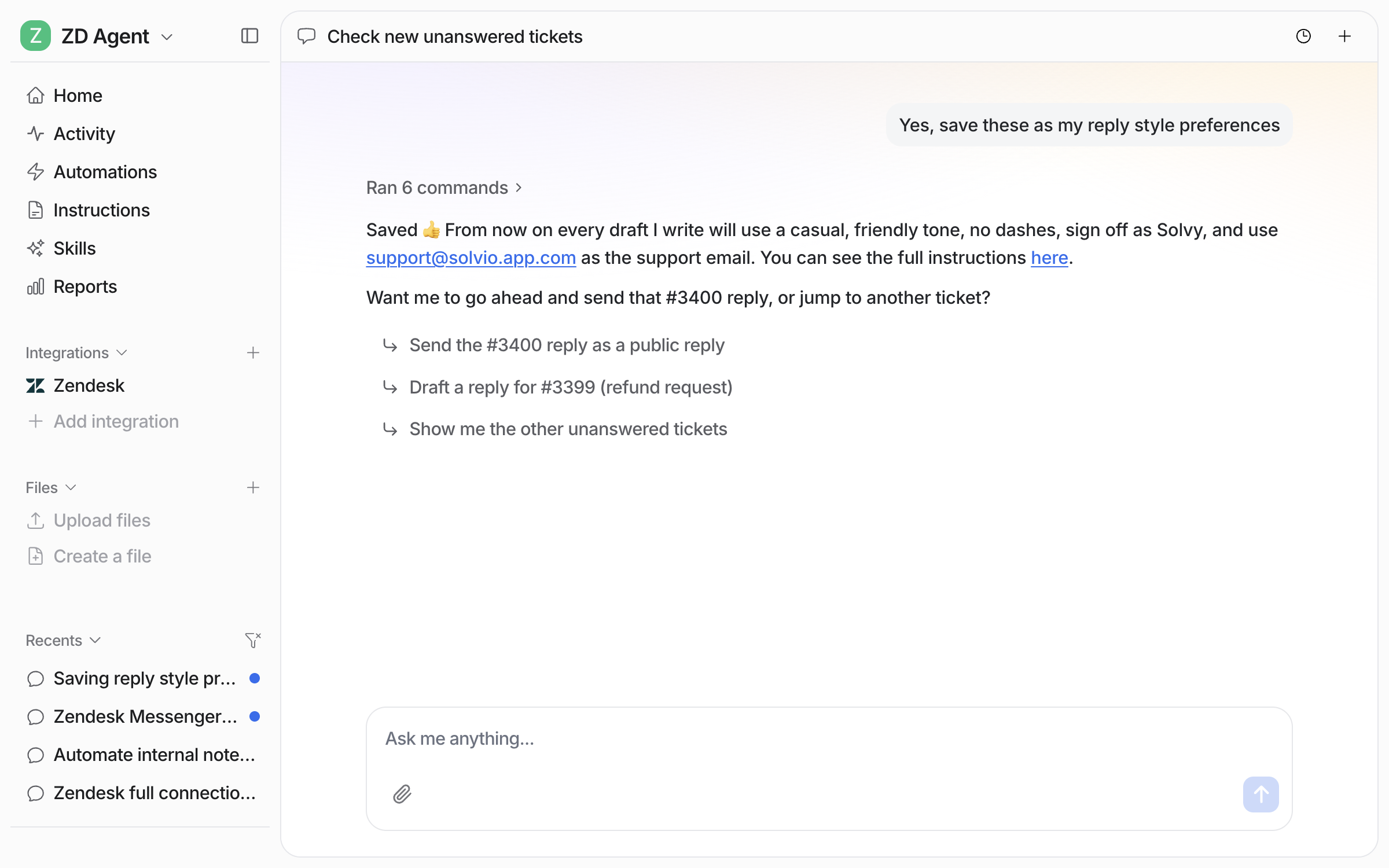
Review and customize the **Instructions** page - tone, escalation rules, what to avoid, how to handle edge cases.

Explain the agent's role, the goal for its conversations, and how it should treat certain segments of customers or conversations.
{% endstep %}

{% step %}

### Put them to work

Integrate your helpdesk via the integration menu (if you haven't already) and click the helpdesk on your left sidebar.&#x20;

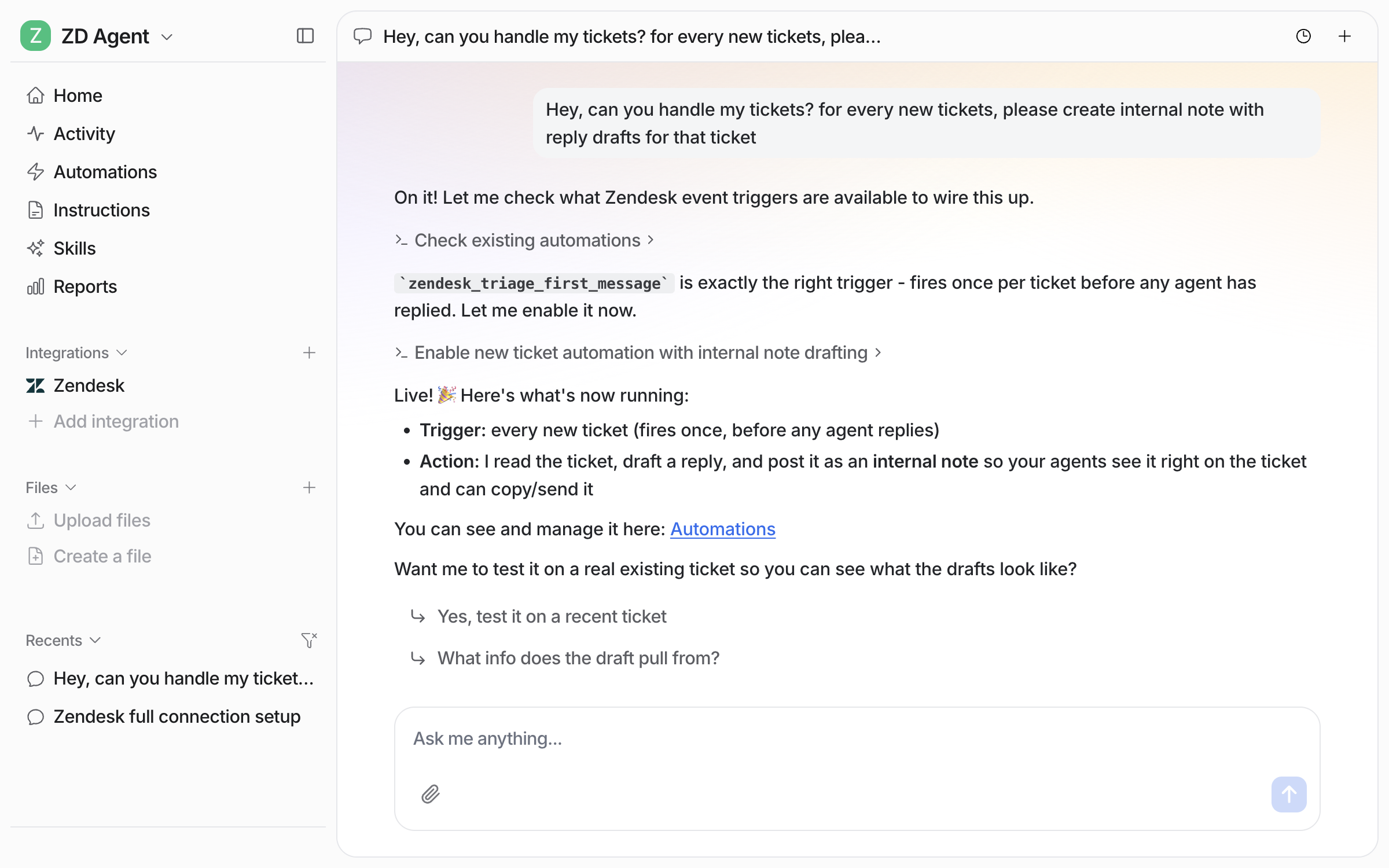
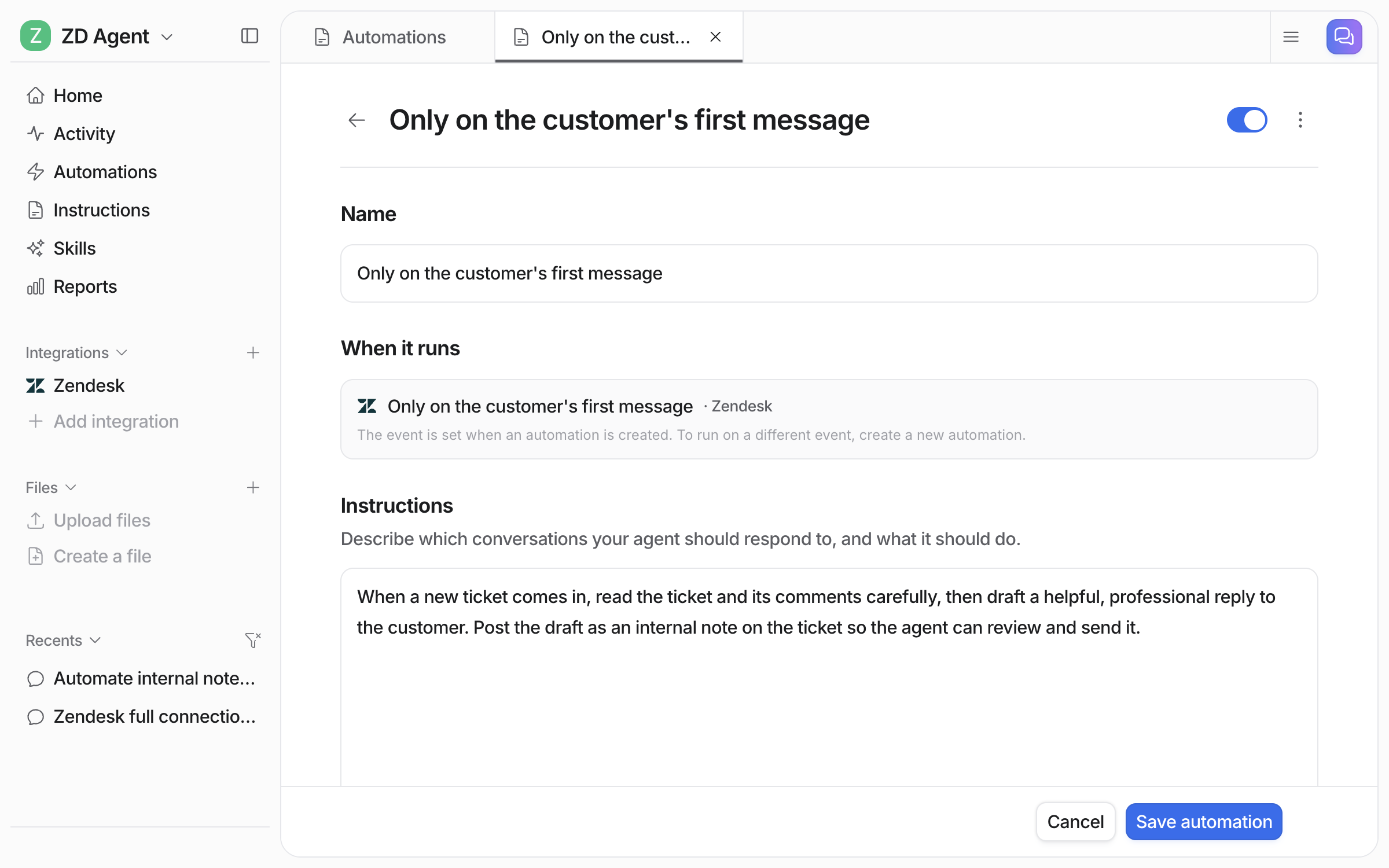
Select a Trigger under the helpdesk integration menu in order for the agent to start working, depending on your preference.&#x20;

* @eesel mention
* Every new ticket
* Every ticket update

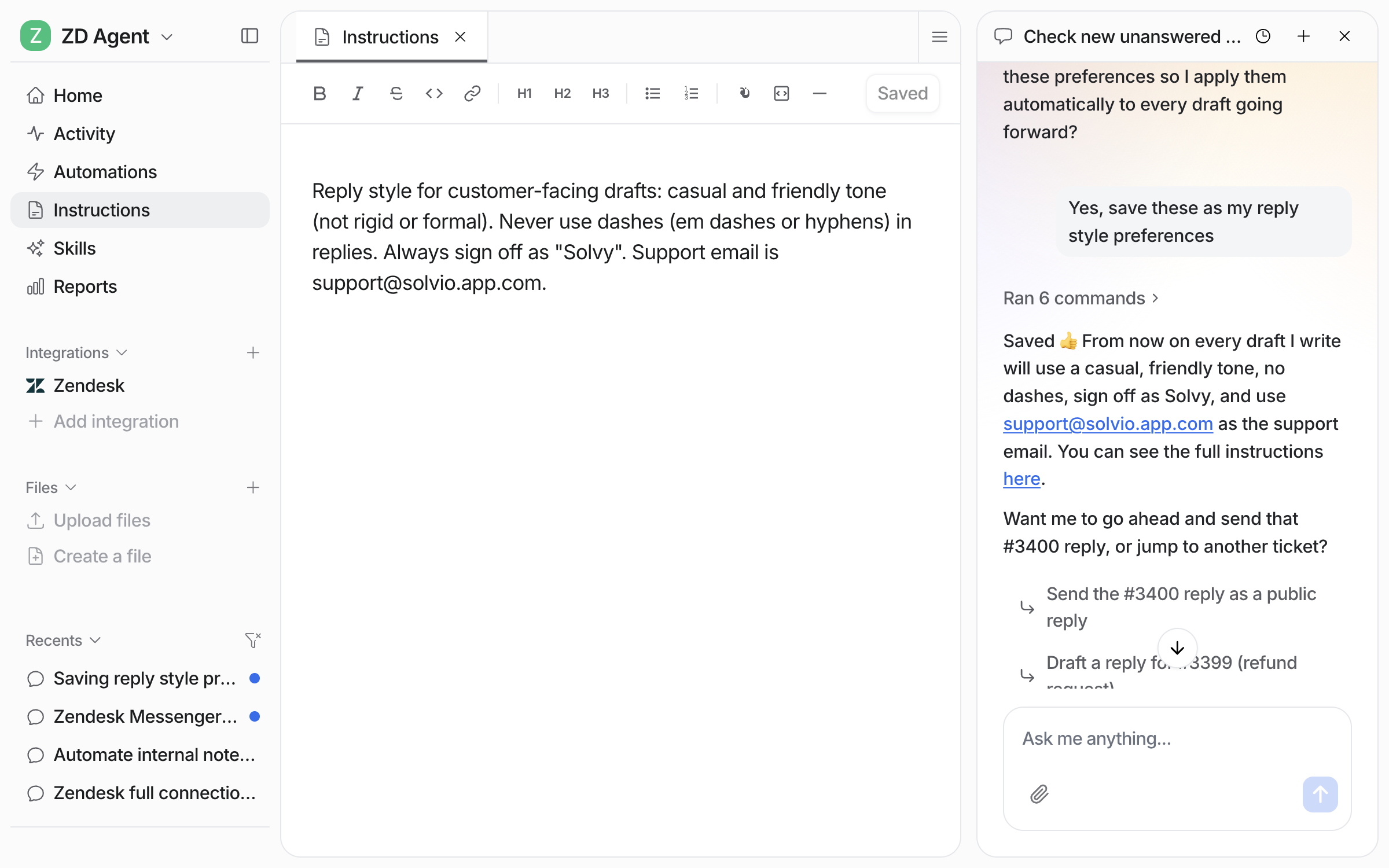
Starting with @eesel is the best way to gradually evaluate and roll out eesel with your team. Any agent can @eesel on a ticket in an internal note in your helpdesk and have eesel draft replies or take actions based on how you've configured it. See Core Capabilities below for more details on actions.

Select Actions you'd like your agent to be able to take (like tagging, or assigning). This gives the agent permission to do these things.&#x20;

Describe in the Instructions tab **how** and **when** to take those actions.
{% endstep %}

{% step %}

### Evaluate and iterate

Observe the full threads of conversation in the Activity tab. Chat to your agent in the dashboard sidebar and explain what knowledge it needs to add, instruction changes it needs to make, or ask it questions so it can guide you on updating its performance.&#x20;

Use [Skills](/skills/what-are-skills.md) to run evaluations in bulk.
{% endstep %}
{% endstepper %}

## Copilot Setup

<figure><img src="/files/trQq9rrP2F35Z6ppKhtp" alt=""><figcaption></figcaption></figure>

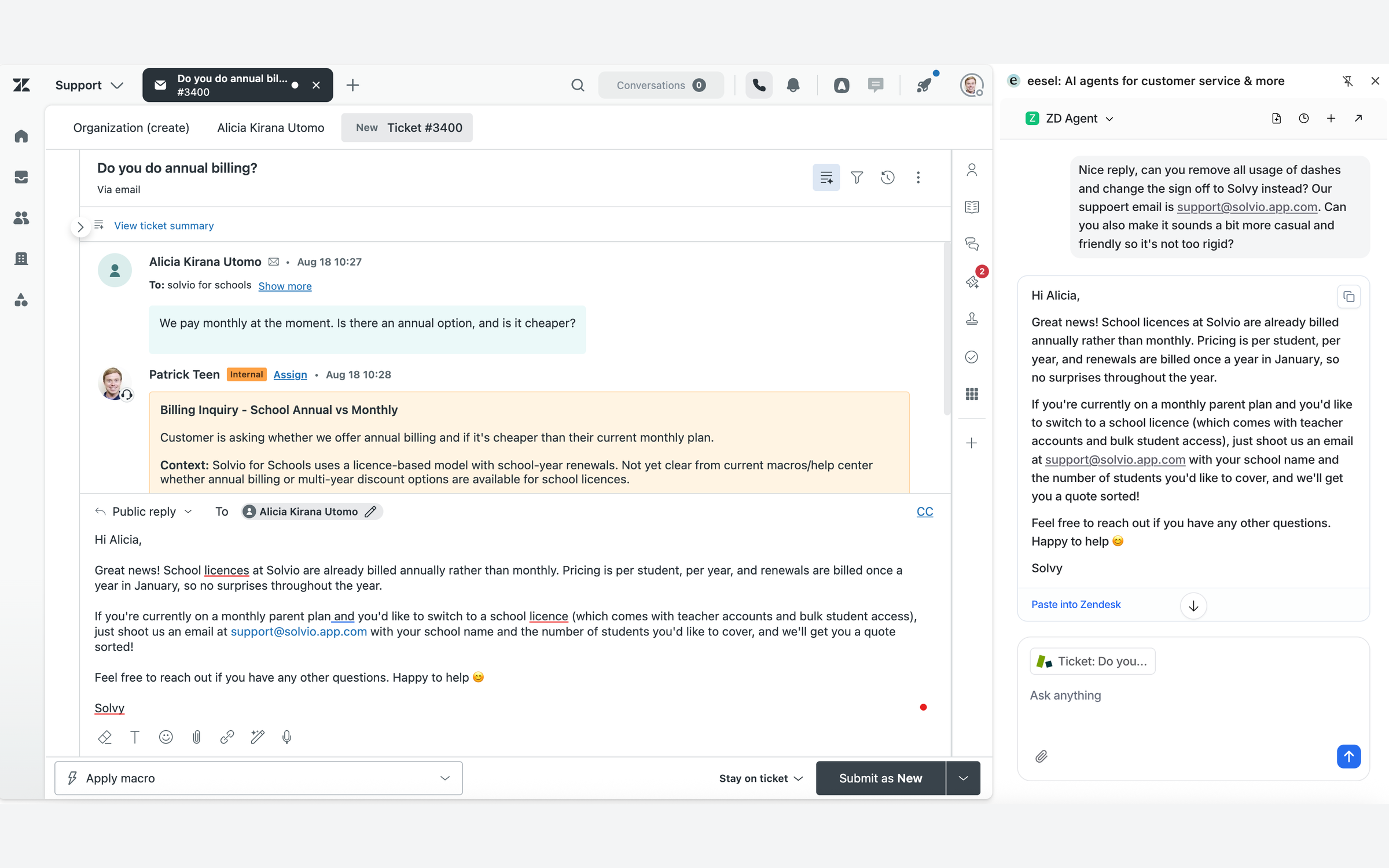
Want a conversational copilot to assist your agents?

Install our [copilot extension](https://chromewebstore.google.com/detail/eesel-ai-chatgpt-sidebar/ejhkkbilnpifailgngpkgmiofhioacjd?hl=en) and simply:&#x20;

1. Login to your eesel account within the extension
2. Select the correct agent in the dropdown menu at the bottom of the extension
3. Ask it questions, or add web page sources to your agent.&#x20;

You can click the 'draft response' button when you open the extension when you have a helpdesk ticket open on your browser.

***

## **What It Can Do**

### **Core capabilities**

<figure><img src="/files/yDKtVdhA71e7FAyR8jlp" alt=""><figcaption></figcaption></figure>

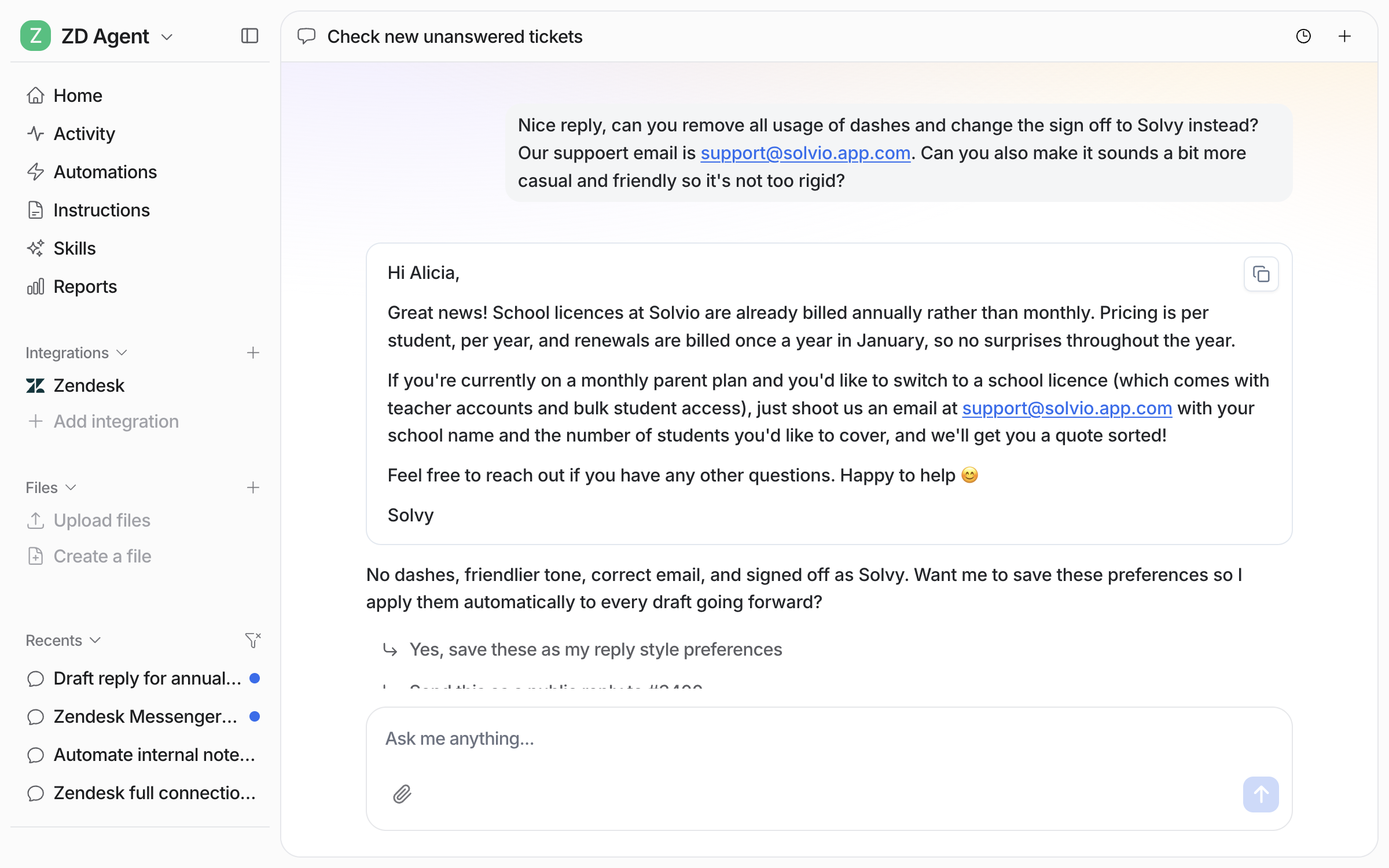
<table><thead><tr><th width="249">Capability</th><th width="494">What it does</th></tr></thead><tbody><tr><td>Draft and send ticket replies</td><td>Leave internal notes or comments with a drafted reply, or send direct responses to customers - all automatically or when you ask it to.</td></tr><tr><td>Tag and categorize tickets</td><td>Add tags based on sentiment and context, and update ticket fields automatically.</td></tr><tr><td>Update ticket status</td><td>Create new tickets, mark them as solved, close tickets, and more.</td></tr><tr><td>Escalate</td><td>Handover tickets or conversations to your team</td></tr><tr><td>Multilingual</td><td>80+ languages - no need to translate your help center</td></tr><tr><td>Confidence-based handling</td><td>Tell your agent what to do when it's not condient: high confidence → direct reply; low confidence → internal note for agent</td></tr><tr><td>Sentiment-based escalation</td><td>Take actions, respond differently, or escalate immediately based on sentiment</td></tr><tr><td>Loop prevention</td><td>Escalated after a certain number of interactions or attempts to help</td></tr><tr><td>Business hours awareness</td><td>Set business hours for certain behaviours </td></tr><tr><td>Tone and voice customization</td><td>Fully customizable tone and voice - all in plain text.</td></tr></tbody></table>

### **Draft reply vs. Send reply:**

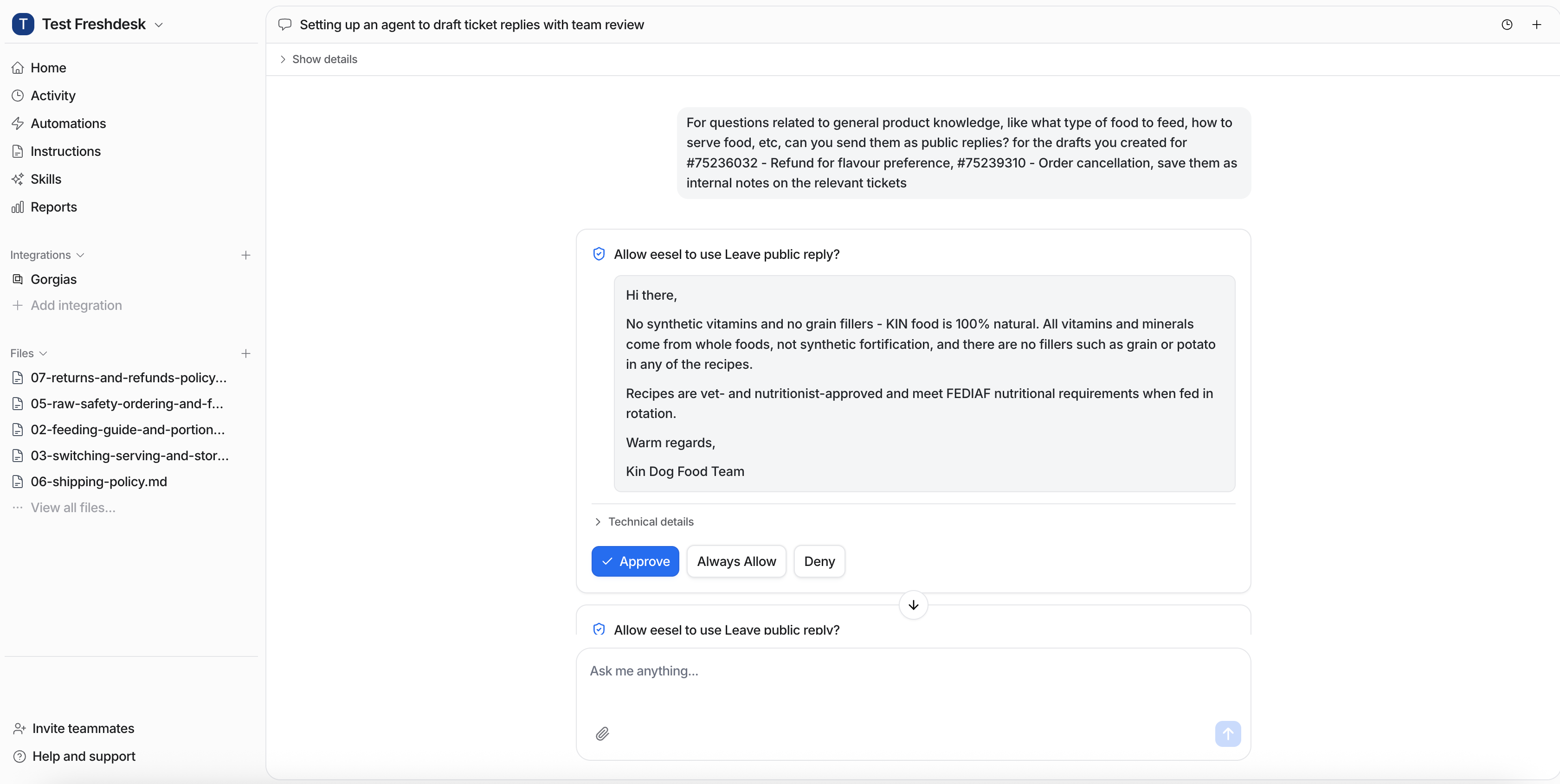
* **Draft reply** - Agent creates a draft visible only internally. Safe starting point.
* **Send reply** - Agent sends a public reply to the customer directly.
* **Add internal note** - Agent leaves an internal comment on the ticket.

### **Ticket output tracking:**

| Property   | Values                                                                   |
| ---------- | ------------------------------------------------------------------------ |
| Topic      | User-defined (e.g., Billing, Refunds, Shipping)                          |
| Resolution | Awaiting Approval / In Progress / Resolved by Agent / Escalated to Human |
| Confidence | Low / Medium / High                                                      |
| CSAT       | 1–5                                                                      |
| URL        | Deep link to source ticket                                               |

### **Agent corrections and learning:**

* **Memory updates** - For specific exceptions. Agent auto-saves to an Agent Memory file. Example: "For damage claims under $50, don't ask for photo — just process refund."
* **Instructions updates** - For general rules. Agent proposes a diff to your Instructions. You accept or reject each change.

### **Default Skills**

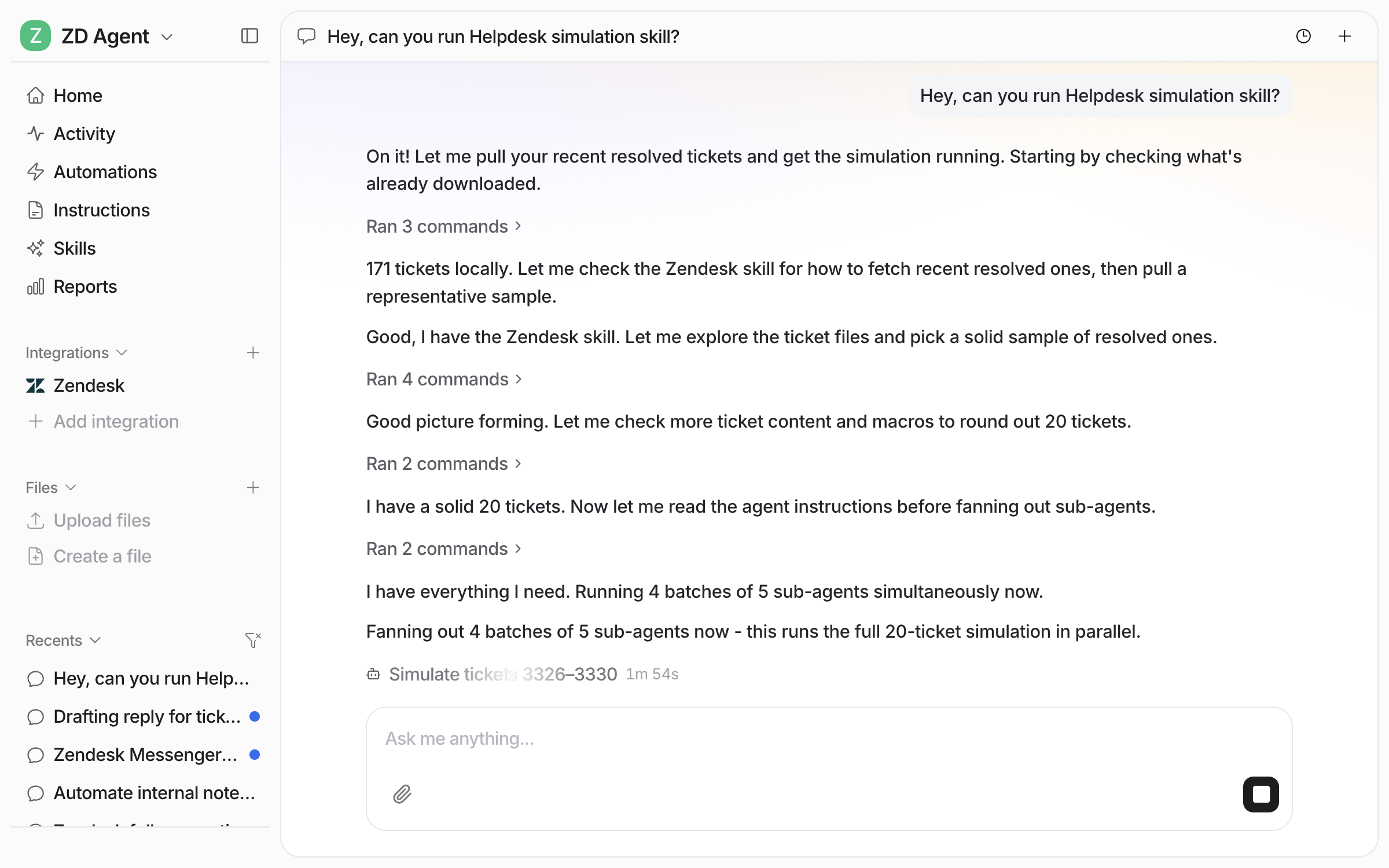
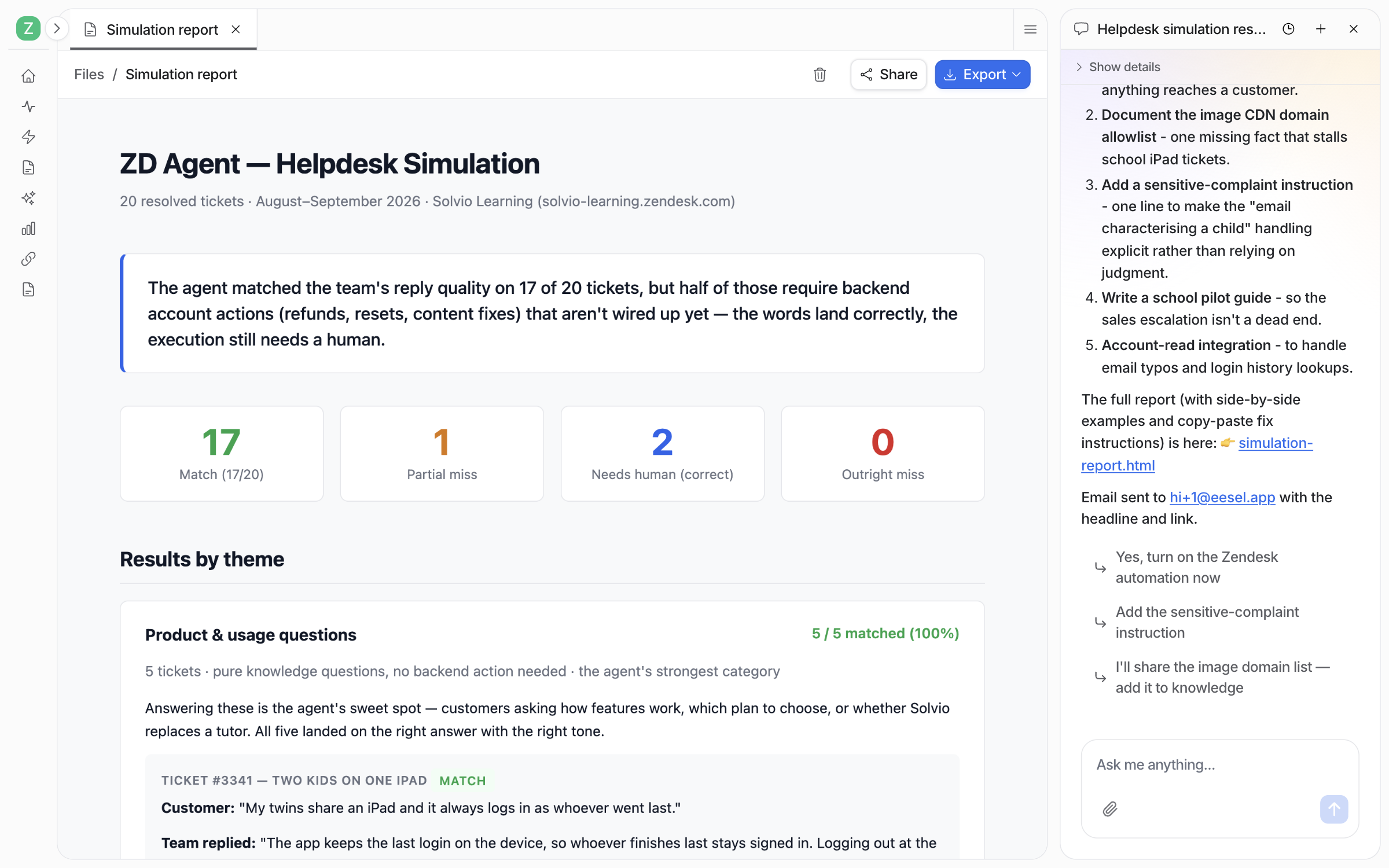
**Simulation** Run your AI agent over past tickets, compare its responses to what your human team actually sent, and score accuracy. Produces a gap report with specific recommendations.

**Theme Analysis (Support Analytics)** Analyzes conversations across channels - recurring topics, volume trends, resolution rates. Outputs ranked themes with volume and trend data.


---

# Agent Instructions: Querying This Documentation

If you need additional information that is not directly available in this page, you can query the documentation dynamically by asking a question.

Perform an HTTP GET request on the current page URL with the `ask` query parameter:

```
GET https://docs.eesel.ai/use-cases/helpdesk.md?ask=<question>
```

The question should be specific, self-contained, and written in natural language.
The response will contain a direct answer to the question and relevant excerpts and sources from the documentation.

Use this mechanism when the answer is not explicitly present in the current page, you need clarification or additional context, or you want to retrieve related documentation sections.